Logo

Fix DRIVER_VERIFIER_DETECTED_VIOLATION

Driver Verifier is a built-in tool in Windows 10 that monitors device drivers on your computer, if it detects issues with drivers, it will attempt to fix the issue. If you are encountering Blue Screen for a Driver and after running Driver Verifier you get another with message DRIVER_VERIFIER_DETECTED_VIOLATION ten follow this article step by step in order to solve it.

There is a chance that you will maybe even have to do this in safe mode, if that is your case, login into safe mode and proceed, otherwise proceed normally.

  1. Update Device Drivers

    the most common issue with the blue screen is old Drivers, in most cases, graphical drivers, update all Drivers with the latest versions and see if this will resolve the issue.

  2. Stop or uninstall Virtualization software

    Virtua machine software is a great way to have a safe environment and to experiment while preserving your Windows installation intact, however sometimes due to the nature of these applications they can be a case for blue screen errors. Stop virtualization software to see if it will remove the issue. If that is the case, try another virtualization application

  3. Disable Driver Verifier

    Press ⊞ WINDOWS + X to open the secret menu
    Click on Command Prompt (admin)
    Inside command prompt type: verifier and press ENTER
    Select the Delete existing settings radio button
    Click Finish
    Reboot your computer

  4. Reset Driver Verifier

    Press ⊞ WINDOWS + X to open the secret menu
    Click on Command Prompt (admin)
    Inside command prompt type: verifier /reset and press ENTER
    Reboot your computer

  5. Use system restore

    Rollback Windows to the previous state where everything was working fine.

Do You Need Help with Your Device?

Our Team of Experts May Help
Troubleshoot.Tech Experts are There for You!
Replace damaged files
Restore performance
Free disk space
Remove Malware
Protects WEB browser
Remove Viruses
Stop PC freezing
GET HELP
Troubleshoot.Tech experts work with all versions of Microsoft Windows including Windows 11, with Android, Mac, and more.

Share this article:

You might also like

Marine Aquarium Lite Removal Guide and Instructions
Marine Aquarium Lite is a Browser Extension for Google Chrome. This extension changed your default search ending and home page to MyWebSearch.com. It is published by Mindspark Interactive and is considered a browser hijacking extension. While installed, users will see additional ads and sponsored links in their search results. This extension also collects user website data, which allows it to better target ads. Several anti-virus scanners have marked Marine Aquarium Lite as a Browser Hijacker and are marked for removal. From the Author: MyWebSearch is an incredibly popular toolbar (over 20 million active users each month!), that gives you access to the web’s leading search engine Google; includes some of the most popular products on the web for making communication easier, more expressive, and more entertaining. The MyWebSearch toolbar platform allows you to take advantage of more than a dozen interactive features and websites.

About Browser Hijackers

Browser hijacking is a very common type of online fraud where your web browser configuration settings are altered to make it carry out things you never intend. They’re created to interfere with web browser functions for a variety of reasons. Typically, hijackers will force hits to websites of their choice either to increase traffic generating higher ad earnings, or to obtain a commission for each and every user visiting there. Even though it may seem naive, all browser hijackers are damaging and thus always classified as security risks. Once the malware attacks your PC, it begins to mess things up a whole that slows your system down to a crawl. In the worse case, you will be pushed to deal with serious malware threats too.

Major signs that your browser has been hijacked

There are many signs of browser hijacking: home-page is changed; you observe new unwanted bookmarks or favorites added, typically directed to ad-filled or porn websites; The default search page of web browser is altered; you find multiple toolbars in your browser; you’ll notice random pop-ups start showing on a regular basis; your web browser starts running slowly or displays frequent glitches; you have prohibited entry to specific web pages, for example, the site of an anti-malware software developer like SafeBytes.

How they get into your computer or laptop

Browser hijackers infect PCs by numerous means, including through a file-share, a drive-by download, or an infected e-mail. They also come from add-on software, also referred to as browser helper objects (BHO), web browser plug-ins, or toolbars. Also, some shareware and freeware can put the hijacker inside your PC through “bundling”. An example of some notorious browser hijacker includes Conduit, Anyprotect, Babylon, DefaultTab, SweetPage, RocketTab, and Delta Search, but the names are constantly changing. Browser hijacking could lead to serious privacy issues and also identity theft, affect your web browsing experience by taking control over outbound traffic, drastically slows down your PC by deleting lots of resources, and result in system instability as well.

How you can fix a browser hijack

Some hijackers can be simply removed by uninstalling the free software they were included with or by eliminating any extension you have recently added to your computer system. But, the majority of hijacking codes are certainly not easy to get rid of manually, as they go deeper into the operating system. And there is no denying the very fact that manual fixes and removal could be a difficult job for an amateur computer user. Besides, there are several risks connected with fiddling around with the system registry files. You can choose automatic browser hijacker removal by simply installing and running efficient anti-malware software. SafeBytes Anti-Malware discovers all types of hijackers – including Marine Aquarium Lite – and eliminates every trace quickly and efficiently. Utilize a system optimizer (such as Total System Care) together with your anti-malware software to fix various computer registry issues, eliminate computer vulnerabilities, and enhance your computer performance.

Can't Install Safebytes Anti-malware because of Malware? Try This!

Malware may cause several different types of damage to computer systems, networks, and data. Some malware sits in between your PC and the net connection and blocks a few or all websites that you want to visit. It will also prevent you from installing anything on your PC, particularly antivirus applications. If you are reading this right now, you have probably realized that virus infection is the reason behind your blocked net traffic. So what to do when you want to install an anti-malware program such as Safebytes? Even though this sort of issue will be tougher to circumvent, there are some actions you can take.

Boot your system in Safe Mode

In Safe Mode, you could adjust Windows settings, uninstall or install some programs, and eradicate hard-to-delete viruses and malware. In the event the malware is blocking access to the internet and affecting your PC, running it in Safe Mode allows you to download anti-virus and run a diagnostic scan whilst limiting potential damage. To enter into Safe Mode or Safe Mode with Networking, press the F8 key while the system is booting up or run MSConfig and find the “Safe Boot” options in the “Boot” tab. As soon as you restart the PC into Safe Mode with Networking, you may download, install, as well as update the anti-malware program from there. At this point, you could run the anti-virus scan to get rid of viruses and malware without interference from another application.

Switch over to some other internet browser

Some malware mainly targets certain web browsers. If this is your situation, use another browser as it may circumvent the computer virus. When you suspect that your Internet Explorer happens to be hijacked by a virus or otherwise compromised by cybercriminals, the best thing to do would be to switch to a different web browser such as Google Chrome, Mozilla Firefox, or Apple Safari to download your chosen security software – Safebytes Anti-Malware.

Make a bootable USB anti-virus drive

To successfully get rid of the malware, you will need to approach the issue of running an antivirus software program on the infected computer system from a different angle. Do these simple measures to clean up your affected computer by using a portable antivirus. 1) Use another virus-free computer system to download Safebytes Anti-Malware. 2) Plug the pen drive into the clean PC. 3) Double-click on the downloaded file to run the installation wizard. 4) Select the drive letter of the pen drive as the place when the wizard asks you where you want to install the anti-virus. Follow the instructions on the computer screen to finish up the installation process. 5) Now, plug the thumb drive into the infected computer. 6) Run the Safebytes Anti-malware directly from the pen drive by double-clicking the icon. 7) Click on the “Scan” button to run a full computer scan and remove viruses automatically. SafeBytes Security Suite Benefits"]If you are looking to install an anti-malware program for your computer, there are various tools out there to consider but you just cannot trust blindly anyone, no matter whether it is a free or paid program. Some are good ones, some are decent, and some are simply just fake anti-malware programs that will harm your personal computer themselves! You must be careful not to choose the wrong product, particularly if you purchase premium software. One of the highly recommended software by industry analysts is SafeBytes Anti-Malware, a well-known security application for Microsoft Windows. SafeBytes anti-malware is a powerful, highly effective protection software intended to assist users of all levels of IT literacy in detecting and removing harmful threats from their PC. Through its cutting-edge technology, this software protects your personal computer against infections brought on by different kinds of malware and similar internet threats, including adware, spyware, trojans horses, worms, computer viruses, keyloggers, potentially unwanted program (PUPs), and ransomware.

SafeBytes anti-malware provides an array of advanced features that sets it aside from all others. Here are a few popular features present in this computer software:

Robust Anti-malware Protection: This deep-cleaning antimalware software program goes much deeper than most antivirus tools to clean your personal computer. Its critically acclaimed virus engine locates and disables hard to remove malware that conceals deep within your PC. Real-time Active Protection: SafeBytes offers an entirely hands-free active protection and is set to check, block, and get rid of all threats at its first encounter. This tool will constantly monitor your computer for any suspicious activity and updates itself regularly to keep abreast of the latest threats. Web protection: SafeBytes gives an instant safety rating on the web pages you’re going to visit, automatically blocking risky sites and making sure that you are certain of your safety while browsing the web. Lightweight Application: The program is lightweight and will work silently in the background, and will not have an effect on your computer efficiency. Fantastic Tech Support: For any technical questions or product guidance, you can get 24/7 professional assistance through chat and e-mail. SafeBytes has developed a fantastic anti-malware solution to help you conquer the latest malware threats and virus attacks. You can rest assured that your computer will be protected in real-time as soon as you put this software program to use. If you want sophisticated forms of protection features and threat detections, purchasing SafeBytes Anti-Malware could be worth the money!

Technical Details and Manual Removal (Advanced Users)

If you’d like to manually remove Marine Aquarium Lite without the use of an automated tool, it might be possible to do so by removing the application from the Microsoft Windows Add/Remove Programs menu, or in cases of browser plug-ins, going to the browsers AddOn/Extension manager and removing it. You’ll likely also want to reset your browser to its default configuration settings. To be certain of complete removal, find the following Windows registry entries on your system and delete them or reset the values accordingly. Please be aware that this is for skilled users only and could be challenging, with wrong file removal resulting in additional PC errors. In addition, some malicious programs have the capability to defend against its deletion. Doing this in Safe Mode is suggested.
Files: C:\%Documents%\%User%\Local\Temp\nst2.tmp\nsDialogs.dll C:\%Documents%\%User%\Local\Temp\nst2.tmp\System.dll

Read More
How to Resolve Error Code 0x800704c7 in Windows 8

Error Code 0x800704c7 – What is it?

Error code 0x800704c7 occurs when Windows users attempt but fail to update their system. It affects various Windows users including those using Windows 8 and 8.1. This error code has common symptoms such as the following:

  • Inability to upgrade your Windows operating system
  • Message box that includes error code 0x800704c7 message

Solution

Restoro box imageError Causes

Error code 0x800704c7 in Windows 8 often occurs due to a poorly maintained system. It can occur when system files become corrupted or missing. It may also occur when malware infects your system. To resolve this error code, Windows users will need to select at least one of the manual repair methods listed below and follow the instructions given.

Further Information and Manual Repair

Manual repair methods enable users to address the underlying issues causing error code 0x800704c7. These repair methods are not very technical. However, you may need to get help from an IT professional if you find them to be difficult or if your attempts to implement these instructions fail to fix the error code.

Method One: Scan Your System for Missing or Corrupt System Files

The System File Checker Tool (SFC) enables Windows users to check their system for missing or corrupt system files. This utility tool is present on all Windows 8 systems and even other versions of the Windows operating system. Run this tool by following the steps below:

  • Step one: Go to Start and type Command Prompt or CMD.
  • Step two: Run as Administrator
  • Step three: Type sfc /scannow.

After running these procedures, check if the error code has been resolved by reattempting to update your system. If you are unable to complete the process and the error message reoccurs, try the next manual repair method below.

Method two: Use Powerful Antimalware Tool

Various forms of malware, including viruses, can infect your system, causing error codes to occur or even more serious problems. That’s why you’ll need to ensure you have a powerful antimalware program installed on your device. Once this is present on your system, start scanning for viruses, worms, and Trojan horses so as to resolve error code 0x800704c7 in Windows 8.

If the issue causing error code 0x800704c7 on your device is a virus or worm, cleaning your system with a powerful antimalware program will successfully resolve the error code. However, if the error code remains unresolved after completing this manual repair method, proceed to the next method below.

Method three: Restore your System

System Restore is a simple method that users can implement to resolve error code 0x800704c7. This enables users to restore their system to a period of time in which their device was not affected by the error code. If done correctly, it can enable users to successfully complete the update process. Follow the steps below.

  • Step one: Click the Start button and type Control Panel in the search box
  • Step two: Select Control Panel, then Recovery
  • Step three: Select System Restore, then Next
  • Step four: Select a restore point before appeared on your Windows8 system
  • Step five: Select Next, then Finish

Method Four: Use an Automated Tool

If you wish to always have at your disposal a utility tool to fix these Windows 8 and other related issues when they do arise, download and install a powerful automated tool.
Read More
Fix VIDEO_SCHEDULER_INTERNAL_ERROR
As you know, the Graphics Card in a computer is one of the important components in an operating system as they are responsible for rendering various objects in your computer. However, there are cases when the performance of this rendering can degrade and your computer can trigger a VIDEO_SCHEDULER_INTERNAL_ERROR Blue Screen of Death error instead. The VIDEO_SCHEDULER_INTERNAL_ERROR bug check has a value of 0x00000119 which means that the video scheduler has detected a fatal violation in your computer. Before you troubleshoot the problem, you might want to perform System Restore first as it might help you fix the Stop error. To perform System Restore, refer to these steps:
  • First, press the Win + R keys to open the Run dialog box.
  • After that, type in “sysdm.cpl” in the field and tap Enter.
  • Next, go to the System Protection tab then click the System Restore button. This will open a new window where you have to select your preferred System Restore point.
  • After that, follow the on-screen instructions to finish the process and then restart your computer and check if the Stop error is fixed or not.
If the VIDEO_SCHEDULER_INTERNAL_ERROR BSOD error is still not fixed after System Restore, then follow the given options below to further troubleshoot the problem.

Option 1 – Try to manually check the Graphics Card hardware

You might also want to check the physical status of your Graphics card and you can do this by disconnecting the Graphics card or any other external device connected to your computer. Once you’ve removed the external device, check it for any damages. If there’s none, connect it back to your computer and check if the VIDEO_SCHEDULER_INTERNAL_ERROR Blue Screen error is fixed or not.

Option 2 – Try removing hardware or drivers that you’ve installed recently

If you have recently installed some hardware or drivers, you might want to disable or remove them since external devices are proven to be one of the factors that trigger Blue Screen errors like VIDEO_SCHEDULER_INTERNAL_ERROR. All you have to do is physically disconnect any external devices that are connected to your computer and then check if it fixes the BSOD error or not.

Option 3 – Try to rollback, update, or disable the Graphics card drivers

Since the VIDEO_SCHEDULER_INTERNAL_ERROR Blue Screen error has something to do with Graphics card drivers, you can either roll back, update or disable them depending on your preference in order to resolve the error.
  • First, boot your computer into Safe Mode.
  • After that, tap the Win + R keys to launch Run.
  • Type in devmgmt.msc into the box and tap Enter or click OK to open the Device Manager.
  • After that, a list of device drivers will be displayed. From there, look for the Display Adapters and click on them.
  • After that, right-click on each entry under the Display Adapters and select the “Uninstall Device” option from the menu.
  • Now restart your computer.
  • After restarting your computer, go to the Settings app and Check for Updates in the Windows Update section.
Note: You also have the option to go directly to the website of your graphics card manufacturers like NVIDIA, Intel, or AMD and go to the section called Drivers then check if there’s a new available update – if there is, download and install it.

Option 4 – Uninstall any faulty drivers

You can also uninstall any faulty drivers via Device Manager. How? Refer to these steps:
  • Tap the Win + R keys to launch the Run dialog box.
  • Then type “devmgmt.msc” in the field and tap Enter to open the Device Manager.
  • From there, look for any faulty drivers. You can identify them easily as they will be marked with a yellow exclamation point. And then check which entries would not affect the normal functioning of your PC.
  • Now click on the entries of every faulty driver and click on the Uninstall option.
  • Once you’ve uninstalled them, restart your computer to allow your computer to reinstall the faulty drivers you’ve just removed.

Option 5 – Run System File Checker at boot time

  • Once you get to the Welcome Screen part, click on Next.
  • Afterward, click on the Repair your computer option located on the bottom-left part of the window.
  • Then click on Troubleshoot.
  • Next, select the Advanced Options and then Command Prompt.
  • After opening Command Prompt, type the “sfc /scannow” command and hit Enter to run the System File Checker scan.
  • Wait until the process is completed and type “exit” to close Command Prompt and then restart your computer to successfully apply the changes made.

Option 6 – Try to run the Blue Screen Troubleshooter

As you know, the Blue Screen troubleshooter is a built-in tool in Windows 10 that helps users in fixing BSOD errors like the VIDEO_SCHEDULER_INTERNAL_ERROR error. It can be found in the Settings Troubleshooters page. To use it, refer to these steps:
  • Tap the Win + I keys to open the Settings panel.
  • Then go to Update & Security > Troubleshoot.
  • From there, look for the option called “Blue Screen” on your right-hand side and then click the “Run the troubleshooter” button to run the Blue Screen Troubleshooter and then follow the next on-screen options. Note that you might have to boot your PC into Safe Mode.
Read More
How to fix Windows 10 Error 0x803f7000

Error code 0x803f7000 -What is it?

Error code 0x803f7000 refers to an issue in Windows 10 with downloading apps through Windows Store. When you choose the app or game to download, it heads to Downloads in the Store app. Then it says it is acquiring a license but then fails. When you click the “See details” link, you see the error code 0x803F7000. It could mean that the date and time or region settings in your Windows 10 are incorrect or there are some problems with the Windows Store Cache.

Symptoms

  • This error appears when you are running Windows 10 and trying to download an app through the Microsoft store. The error code may appear with this message: Something went wrong. The error code is 0x803f7000, in case you need it
  • You might also see this message along with the error code: "It looks like you've reached your device limit for installing apps and games from the Store on your Windows 10 device. If you want to install apps and games from the Store on another Windows 10 device, remove a device from the device list."

Solution

Restoro box imageError Causes

There may be several reasons for this error:
  1. This problem may arise if the date and time in Windows 10 are incorrect.
  2. If the region has been set incorrectly.
  3. Problems with Windows store cache.
  4. Windows store server overloaded.
  5. The Windows version you are using is pirated.

Further Information and Manual Repair

Method 1:

Correcting date and time:
  • Open up Control Panel > Clock, Language, and Region.
  • Then click on Date & Time.
  • Now click on Change date & time to correct your time.

Method 2:

Correcting region:
  • Navigate to Control Panel > Clock, Language, and Region.
  • Then click on Region.
  • Then click on the Location tab.
  • Now set your actual region from Home location section.
  • Click Apply & OK.

Method 3:

Resetting Windows Store:
  • Press Windows Flag Key + X from your keyboard. Then select Command Prompt (Admin). It will launch Command prompt as administrator.
  • Then type wsreset and hit Enter.
  • Wait for a few seconds. It will automatically open Windows Store.
  • Then try to download any apps.

Method 4:

  1. Open Command prompt in local machine and type in the Windows Store reset tool exe
  2. Activate Windows by going to Settings>Updates and Security
  3. Run the Modern UI/metro app troubleshooter from Microsoft
  4. Keep trying it several times.
  5. Try changing locale and time zone to the United States as shown below
  6. Go to control panel, Language settings
  7. Select location to the United States
  8. This will reset the language to US English. After this try downloading the apps again.
  9. Try restarting the Windows Updater service or restart the machine once.
You must make sure that you have a good internet connection. You need that for the updates and downloads complete without disruption.

Method 5:

Make sure the app isn’t blocked by the Windows firewall: To make your PC more secure, some apps are blocked by Windows Firewall by default. For proper functioning, you might need to enable an app to receive info through the firewall. For more info, see the "Allow an app to receive info through the firewall," and follow the procedure from start to finish.

Method 6:

Check with your system admin: If your PC is part of a network in an organization, like a business, school, or government agency, your system administrator might have turned off the use of certain apps using the Group Policy. Contact your system admin if you believe that Group Policy is preventing you from using an app.

Method 7:

Make sure your apps are up-to-date: To make the apps working properly, you must keep your apps up-to-date. This could be done by turning on automatic updates in the Windows Store.

Method 8:

Contact the app publisher To view the publisher’s app support info, follow these steps:
  1. On the Start screen, tap or click Store to open the Windows Store.
  2. Search or browse for the app, and then tap or click it.
  3. Scroll to the Details section of the app's description page, and then tap or click the support link for the app under Learn more. The link will open an email message for you to contact support or will take you to a support website.
If you do not possess the technical expertise required to accomplish this yourself or do not feel comfortable doing so, download and install a powerful automated tool to get the job done.
Read More
How to Fix Error Code 0x800704c7 in Windows 10

Error Code 0x800704c7 – What is it?

Error code 0x800704c7 occurs when Windows users attempt to update their system. It affects various Windows users including those using Windows 7, Windows 8, and 8.1 and Windows 10. It usually occurs due to poor maintenance of the system and includes common symptoms such as the following:

  • Inability to upgrade your Windows operating system
  • Message box with error code 0x800704c7

Solution

Restoro box imageError Causes

Error code 0x800704c7 in Windows 10 can occur due to several reasons. For instance, it may be due to corrupted or missing system files. It may also result from malicious programs affecting your system or occur when a program or several programs are running in the background of one’s system while the user attempts to run the update.

To correct this issue, Windows users will need to select one or a few methods, depending on the issues affecting their PC.

Further Information and Manual Repair

Some of the best solutions for error code 0x800704c7 available to Windows users including using tools to scan for missing systems files or correct other issues inherent within your system.

These methods may include the use of Command Prompt and the performance of technical repair procedures. If you are uncertain of your skills, avoid compounding the issue or causing further damage to your PC by contacting a skilled Windows repair technician. This IT professional will be best equipped to use Windows tools and other methods to resolve error code 0x800704c7.

Method One: Scan Your System for Missing or Corrupt System Files

Using System File Checker Tool (SFC), Windows users can check their system for missing o corrupt system files. These utility tools within your Windows device will be able to replace missing files and repair corrupted ones, resulting in a more efficient system.  Run this tool by following the steps below:

  • Step One: Go to Start and type Command Prompt or CMD.
  • Step Two: Run as Administrator
  • Step Three: Type sfc /scannow. (Be sure to place a space between “sfc” and “/scannow”).

After running these procedures, check if the error code has been resolved. Go to Settings > Update & security > Windows Update. Update your Windows operating system. If error code 0x800704c7 reoccurs, you will need to try the next method below.

Method Two: Restore your System

System Restore is one of the best manual repair solutions Windows users can apply when they come across error codes like error code 0x800704c7. That’s because this method requires no technical or advanced knowledge and therefore can be performed by anyone. Simply follow the steps below to restore your system to a period of time in the past where the error was not present on your system. If done correctly, this could enable you to resolve the issue with little frustration on your part.

  • Step one: Type Control Panel in the search bar near the Start button
  • Step two: Select Control Panel, then Recovery
  • Step three: Select System Restore then click Next
  • Step four: Select a restore point before appeared on your Windows 10 system
  • Step five: Select Next then Finish

Note that once System Restore is enabled it will remove drivers, apps, and even updates installed after the restore point. For this reason, be careful to choose the most appropriate restore point. Also once you’ve completed this task, check to see if you are able to update your system. If the update stops before the process is complete and a message box occurs with the error code 0x800704c7, proceed to the next manual repair option below.

Method Three: Check for and Remove Malware

Viruses or other forms of malware can adversely affect your system, causing error codes and other issues to take place. To resolve error code 0x800704c7 in Windows 10, check for and remove malware using a reputable anti-malware program.

If no anti-virus software is present on your system or if you scan your device but fail to spot an issue, proceed to method four.

Method Four: Use an Automated Tool

This method involves the use of a powerful automated tool. But why is this important you might ask? A third-party tool is often the best solution when all manual repair efforts fail. Automated tools come equipped to tackle the most serious PC problems including error codes which can cause frustration and result in reduces PC performance.

Read More
Resize icons on desktop quickly in Windows 10
Resize icons on desktop in Windows 10 in a matter of seconds! Hello everyone and welcome to today's quick tip. If you have ever been dissatisfied with icon size on your desktop and any of the default sizes like small, medium large, etc have not been appropriate know that there is a quick way to resize icons on your desktop in between sizes. All that you have to do in order to use this built-in feature is: Press and hold CTRL and scroll with the mouse. That's it! Find your appropriate size for icons and enjoy. icons on desktop
Read More
Fixing the We can’t find a USB flash drive
One of the preferred ways to upgrade Windows 10 is by creating a bootable USB drive. However, you might change your mind when you encounter an error during the Windows 10 Setup that says, “We can’t find a USB flash drive”. Worry not for this error can be fixed using some suggestions that will be provided in this post. The funning thing about this error in Windows setup is that the computer says it’s not there when it’s clearly there. To fix this problem, you need to check if the USB device is accessible on your computer or you can also try a different USB device. In addition, you could check if there are any issues with both the USB 3.0 and USB 2.0 ports as it could be the reason why you’re getting the error or fix the bad sectors in the USB drive as well as see if the USB drive is set as the primary drive.

Option 1 – Try to check if the USB is accessible on your PC

The first thing you can do to resolve the problem is to check if you can access your USB device from your computer. All you have to do is open File Explorer and check if the USB device is listed there or not.

Option 2 – Try to connect a different USB device

The next thing you can do to fix the error is to try connecting a different USB device, specifically the one that has more significant storage space. You also have to make sure that it’s working on a different PC.

Option 3 – Fix any issues with the USB 3.0 and 2.0 ports

Although the USB 3.0 ports are compatible with the USB 2.0 ports, it does not necessarily mean that there wouldn’t be any problem when you use them which is why it’s best to fix any issues in them or better yet, use a compatible drive.

Option 4 – Try to fix the bad sectors in the USB drive via CHKDSK

When it comes to some issues concerning the hard drive or removable devices, there is a utility in Windows that might help which is called “chkdsk”. To use it, follow the steps below.
  • Tap the Win + S keys to open the Search box.
  • Then type “command prompt” in the field and from the search results that appear, right-click on Command Prompt and select “Run as administrator”.
  • After opening an elevated command prompt, copy and paste the following command and hit Enter:
CHKDSK [volume [[path] filename]] [/F] [/V] [/R] [/X] [/C] [: size]]
Note: In the command given above, “[/F]” will try to fix the system errors while “[/R]” will be the one to fix the bad sectors.
  • Now if you are prompted to run CHKDSK after your reboot your PC, just tap Y and reboot your PC.
  • If CHKDSK is not able to find any errors, tap the Win + E keys and navigate the access window. From there, right-click on the concerned drive and click on Properties.
  • After opening Properties, click on the tab Tools and then click on the “Check” button under the Error-checking section.
  • Wait until the process is completed and then restart your computer.

Option 5 – Try checking if the USB is set as the primary drive

You might also want to check if the USB drive is set as the primary drive because if it is, then it won’t appear on the list. It could also be that the USB drive has a primary disk in it. To undo it, you need to use the DISKPART utility.
  • In the Start Search, type “command prompt” and right-click on Command Prompt from the search results, and then select the “Run as administrator” option.
  • Next, execute the “diskpart” command to initiate the DISKPART utility.
  • After that, type the “list disk” command and tap Enter to display the list of disks on the computer. You have to take note of the drive number or letter of the concerned USB drive.
  • Once done, type the “select disk <X>” command where X is the drive letter or number and tap Enter.
  • Then execute the “list partition” command to see the list of all the partitions in your computer. It should be listed as 0, 1, or 2. 0 is the primary partition.
  • Now type the “select partition 0” command and tap Enter and then type “delete partition” to delete the selected partition.
  • You can do the same to the other partitions as well and when you’re done, execute the format command to turn the USB drive into a standard one.
Read More
How to Repair Runtime Error 216

What is Runtime Error 216?

Runtime Error 216 is not a common error message like Runtime Error 339. However, it may sometimes occur when starting up the computer if you are using a Windows-based application or using Internet Explorer.

Solution

Download Available to Completely Repair Runtime Error 216

Restoro box imageError Causes

The runtime error 216 error occurs when your computer gets infected with one or more viruses. The most common virus, in this case, is the SubSeven Trojan virus. Once your computer gets infected with a virus(es) it creates a backdoor on your Windows system. This might give hackers access to monitor your PC remotely. This poses a great risk to confidential information and personal data stored on your PC. The hackers can easily monitor your PC, access your private information and misuse it.

Further Information and Manual Repair

If you experience this error message, it is advisable to repair it immediately without any delays; Runtime Error 216 can make your system vulnerable. Here’s what you must do:
  • First things first, disconnect the internet connection so that the hacker can’t access your PC.
  • Now perform a boot scan through a powerful antivirus.  The antivirus will scan your system for viruses. After the scan is complete, all the disinfected files will appear in the scan report results. You are advised to delete them and click repair to fix the error.
  • Remember the antivirus will not scan infected Windows Registry entries, therefore to remove SubSeven.exe Windows Registry entries go to the start menu and type REGEDIT in the search box.
  • Click on REGEDIT and select Run as Administrator. Now type the following registry path HKEY_LOCAL_MACHINESoftware. This will help locate SubSeven.exe infected files. Once located, delete all of them and close Windows Registry Editor.
To ensure your computer is completely free from SubSeven Trojan Virus and other possible viruses, it is advisable to remove all the recently installed programs and downloaded applications. This is recommended because sometimes while downloading programs, we tend to download corrupted programs which include viruses. It’s, therefore, best to delete all the programs you’ve installed recently. Secondly, to prevent virus and hacker attacks, you must frequently update your security program by installing a powerful antivirus program. Following the repair guide steps will protect your system from malware. It will also help fix runtime error 216 and ensure your PC is protected from similar threats.
Read More
How to Fix PFN_LIST_CORRUPT Error on Windows
If you suddenly encounter PFN_LIST_CORRUPT Blue Screen of Death error while using your computer then it means that the Page Frame Number or PFN list is corrupted. Page Frame Number is an indexing number used by the hard drive to find out the location of every single file on the physical disk. This kind of Blue Screen error is usually caused by a driver that’s passing a bad memory descriptor list and it can either be temporary or permanent. And so to fix this particular BSOD error, read on as this post contains a couple of suggestions that could help. Keep in mind that when you get a Blue Screen error like PFN_LIST_CORRUPT, the power connection to your PC must not be interrupted and so if you are using a laptop, it’s best if you connect it to a power source. On the other hand, if creating a dump from 0% to 100% takes up more than 5-10 minutes, then you have to force shut down your computer by pressing and holding the Power Key for 10 seconds or at least until the CPU lights turn off. After you do that, proceed to the troubleshooting tips prepared below.

Option 1 – Run the Blue Screen Troubleshooter

The Blue Screen troubleshooter is a built-in tool in Windows 10 that helps users in fixing BSOD errors like PFN_LIST_CORRUPT. It can be found on the Settings Troubleshooters page. To use it, refer to these steps:
  • Tap the Win + I keys to open the Settings panel.
  • Then go to Update & Security > Troubleshoot.
  • From there, look for the option called “Blue Screen” on your right-hand side and then click the “Run the troubleshooter” button to run the Blue Screen Troubleshooter and then follow the next on-screen options. Note that you might have to boot your PC into Safe Mode.

Option 2 – Run a System File Checker scan

You can also try to run a System File Checker or SFC scan in order to scan your computer for corrupted files that might be the cause behind the PFN_LIST_CORRUPT error. Once it finds any corrupted system files, it will automatically fix them. To run System File Checker, here’s what you have to do:
  • Tap Win + R to launch Run.
  • Type in cmd in the field and tap Enter.
  • After opening Command Prompt, type in sfc /scannow
The command will start a system scan which will take a few whiles before it finishes. Once it’s done, you could get the following results:
  1. Windows Resource Protection did not find any integrity violations.
  2. Windows Resource Protection found corrupt files and successfully repaired them.
  3. Windows Resource Protection found corrupt files but was unable to fix some of them.
  • Restart your computer after the scan is completed.

Option 3 – Check for any hard disk errors

  • On your desktop, right-click on the “This PC” or computer icon and then select Manage to open the Disk Management. Here you get to check your drive’s health.
  • Next, click on Disk Management on the left side panel.
  • From there, check the state of your drives. If it shows that all your partitions are healthy then it means all is good and that the problem may have something to do with some physical issues with your hard drive.
You might also want to run the CHKDSK utility to help you fix any issues with your hard disk. If your hard drive has issues with integrity, the update will really fail as the system will think that it’s not healthy and that’s where the CHKDSK utility comes in. The CHKDSK utility repairs hard drive errors that might be causing the problem.
  • Open Command Prompt with admin privileges.
  • After opening Command Prompt, execute the following command and hit Enter:
chkdsk /f /r
  • Wait for the process to be completed and then restart your computer.

Option 4 – Update the Device drivers

Updating the Device drivers can also help you fix the PFN_LIST_CORRUPT Blue Screen error. To do so, follow the steps below.
  • Tap the Win + R keys to launch Run.
  • Type in devmgmt.msc into the box and tap Enter or click OK to open the Device Manager.
  • After that, a list of device drivers will be displayed. If you see a red or yellow sign that shows up against the driver, right-click on the driver and select “Update Driver Software”.
  • Select the “Search automatically for updated driver software” option and then follow the instructions to complete the process.
  • Restart your PC and then check if the Blue Screen error is now fixed or not.

Option 5 – Disable OneDrive

The PFN_LIST_CORRUPT error might also be caused by OneDrive. Thus, you have to try disabling this program to resolve the problem.
  • Tap the Ctrl + Shift + Esc keys to open the Task Manager.
  • Once the Task Manager is open, click on More Details located at the bottom left portion of the window.
  • Then go to the Startup tab and select Microsoft OneDrive and then click Disable.
Read More
Best MMO games to play during this winter
How summer is slowly slipping away and winter is coming people will spend more time indoors, and on top of that delta variant of Covid-19 is rampaging through the world. Being the gamer is now maybe the best time to be, sitting in the comfort of your home, safely isolated from viruses and people, just pushing buttons and emerging yourself in a vast world and new adventures. But games cost money, and sometimes being a gamer can be expensive, also the COVID situation makes it even more difficult to spend some time with friends. Do not worry, we are here to help. I am presenting you the list of MMO games that you should try or play during this COVID Winter, and since they are MMO games, you can play them with your friends and hang out in the virtual world. Some of them are also free to play so they will not cost you any money to enjoy them. The following list is not set in any particular order and remember that this is not a ranked list. There is no best MMO and I will not try to place any of these titles as one dominant, I will just point their style and who they might be for, it is up to you to decide which one you will pick and enjoy.

Best MMO’s in no particular order

EVE Online

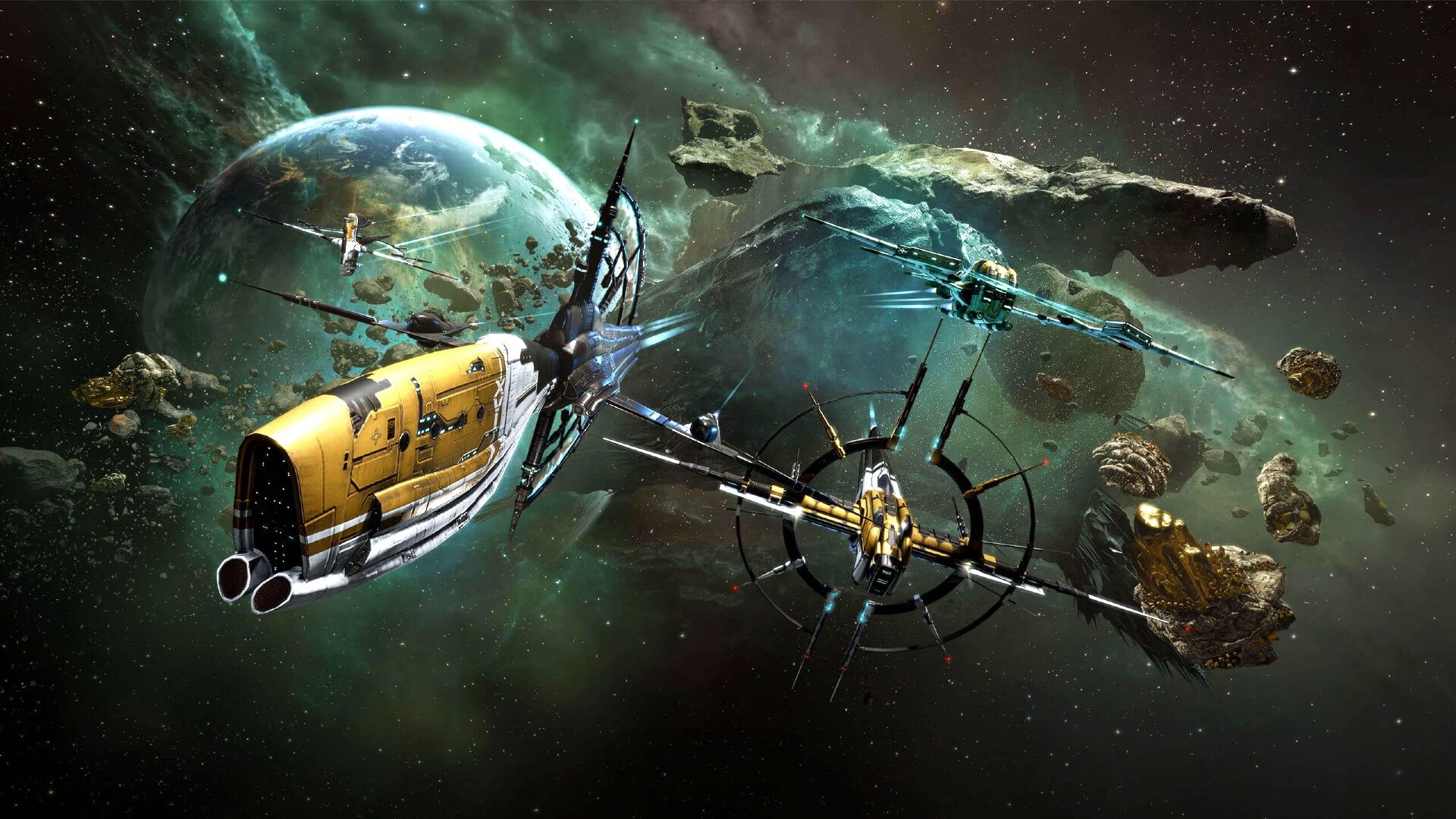
eve online MMOEVE Online is one of the earliest MMO games out there but since its release, it is still actively developed and is receiving updates. This science-fiction Sandbox will offer space lovers everything they need and more. Large scale PvP, mining, pirating, etc. It can be daunting and complex for beginners but take your time to get familiar with its systems and you will be rewarded greatly with an immersive and complex game worth the time. Open PvP in some zones might not be everyone’s cup of tea and seeing only your ship might be a turn-off for some players, but if you do not mind these things give it a go. It is free to play with an item shop.

Final Fantasy XIV

ff14 mmoFF14 had a tough start, so tough that it was scrapped and destroyed and has been remade again and that idea was great. The game now is better than ever and at this time it is experiencing large players from other games surging into it. This on the rails fantasy MMO will offer you a great story and great leveling experience. It has a free trial where you can play the whole original game for free but if you wish to continue playing you will have to buy the expansion and pay a monthly subscription but the content is well worth the money.
World of Warcraft

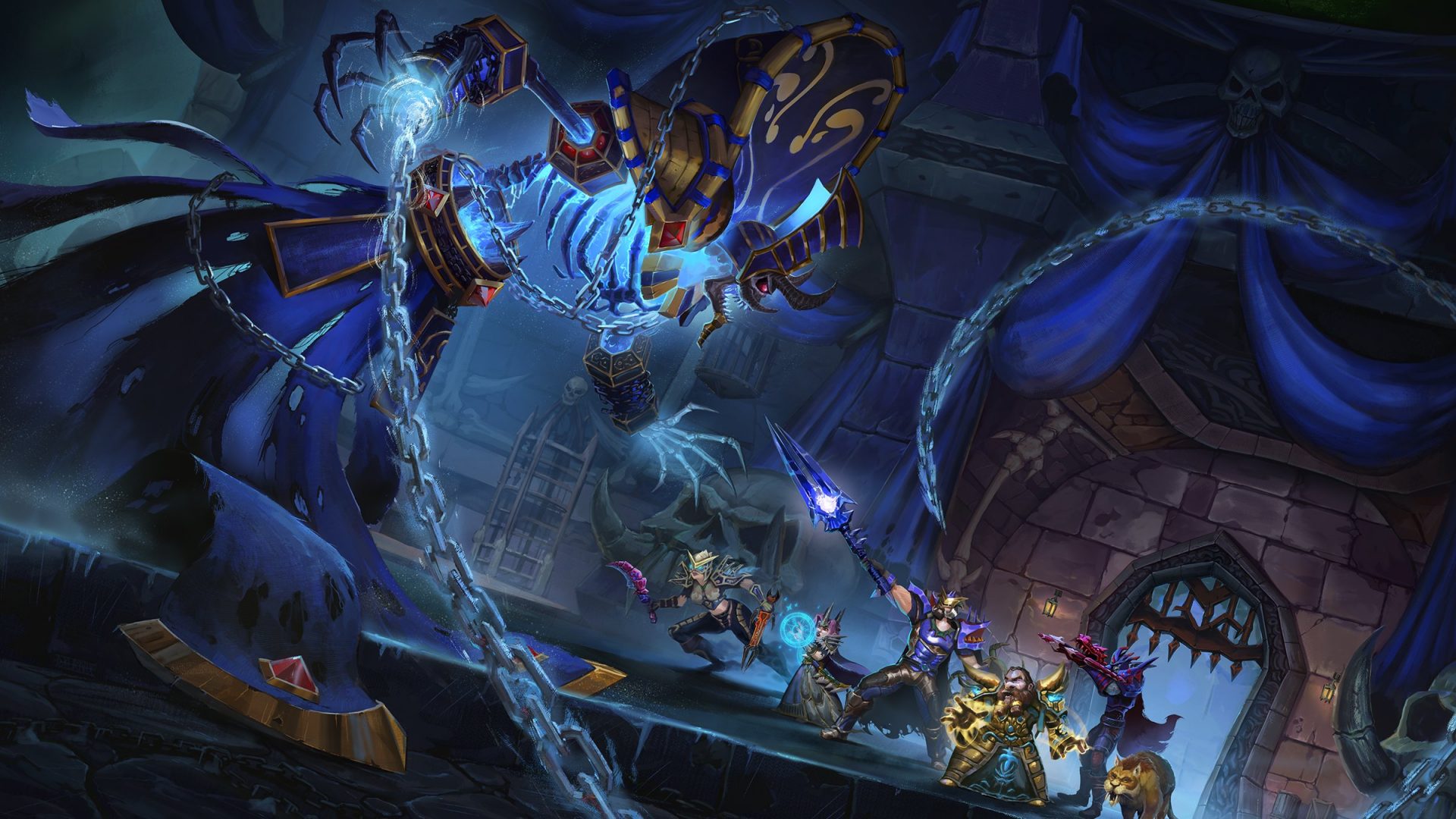
wowLet’s be honest, not a single list of MMO games cannot be without a once greatest and most successful MMO ever made, World of Warcraft. But instead of me praising the game why it was the greatest and why you should play it and how great it is I am going to take a little different approach. I am going to recommend you World of Warcraft classic, yup, you read it correctly, classic. Now World of Warcraft is a retail game with a subscription service but with that one subscription you will be able to access three games in the World of Warcraft universe: World of Warcraft retail (standard game), World of Warcraft Classic (vanilla WOW without expansions offering you experience as it once was when it was released) and World of Warcraft the Burning Crusade classic (same as WOW classic but with the first expansion the Burning Crusade). Among all solutions, I would really urge you to play either WOW classic or WOW TBC classic simply for reason that they are far superior games in comparison to typical retail ones, but if you like easier game go for retail, it is included in the sub anyway.

Guild Wars 2

gw2Guild Wars 1 was one of my favorite games and I sank a lot of times in it and once Guild Wars 2 came I must admit I was pleasantly surprised with it and I would recommend it highly. The base game is completely free to play with only expansion to be purchased and it is buy to play model without monthly fees. It has specific mechanics different from other games and interesting classes to try. The living world is a great feature of the game and it is still very strong with its player base.

Star Wars: old republic

Star-Wars-The-Old-RepublicThis game is made for people who enjoy, love, and like Star Wars. Mechanically besides being able to have henchmen with you and space battles (which I do not really like how they are done) game itself does not offer anything special. Where it shines is in the story and overall Star Wars experience. If you look at this game as a single-player game with multiplayer dungeons you will have a great time, since the story is really good but sadly end game lacks in comparison.

Elder Scrolls Online

Blackwood-release-date-on-TESO-when-will-the-new-chapterI am going to admit something here, I was not fond of the idea to make the beloved Elder Scrolls series into MMO, but in time I gave it a go and I am really glad I did. This game is great and it is getting better and better as time progresses. It is buy to play without monthly fees and basic game free, same as FF14 but without fees. It has a decent community and offers a really good Elder Scrolls experience and now it is packing Morrowind expansions and other great areas. Highly recommended for any Elder Scrolls fan.

Lord of the Rings Online

Lord-of-the-Rings-Online-to-Receive-VisualTech-Updates-asThis one is troublesome to recommend, on one side you have free to play games deeply inside Tolkien Lord of the Rings lore, on the other side, you have outdated graphics and some stupid item shop decisions like buys specific classes. But if you look past stupid item shop decisions and can live with playing free class in the game you will be pleasantly surprised. The game itself is surprisingly good, the story is great as expected from the game infused with lore taken from one of the best books series ever written, and the feeling when visiting iconic landscape is epic. But if I need to be real as I should, I would recommend this one to people appreciate good story and lore and ones that are fans of Lord of the Rings itself.
Neverwinter

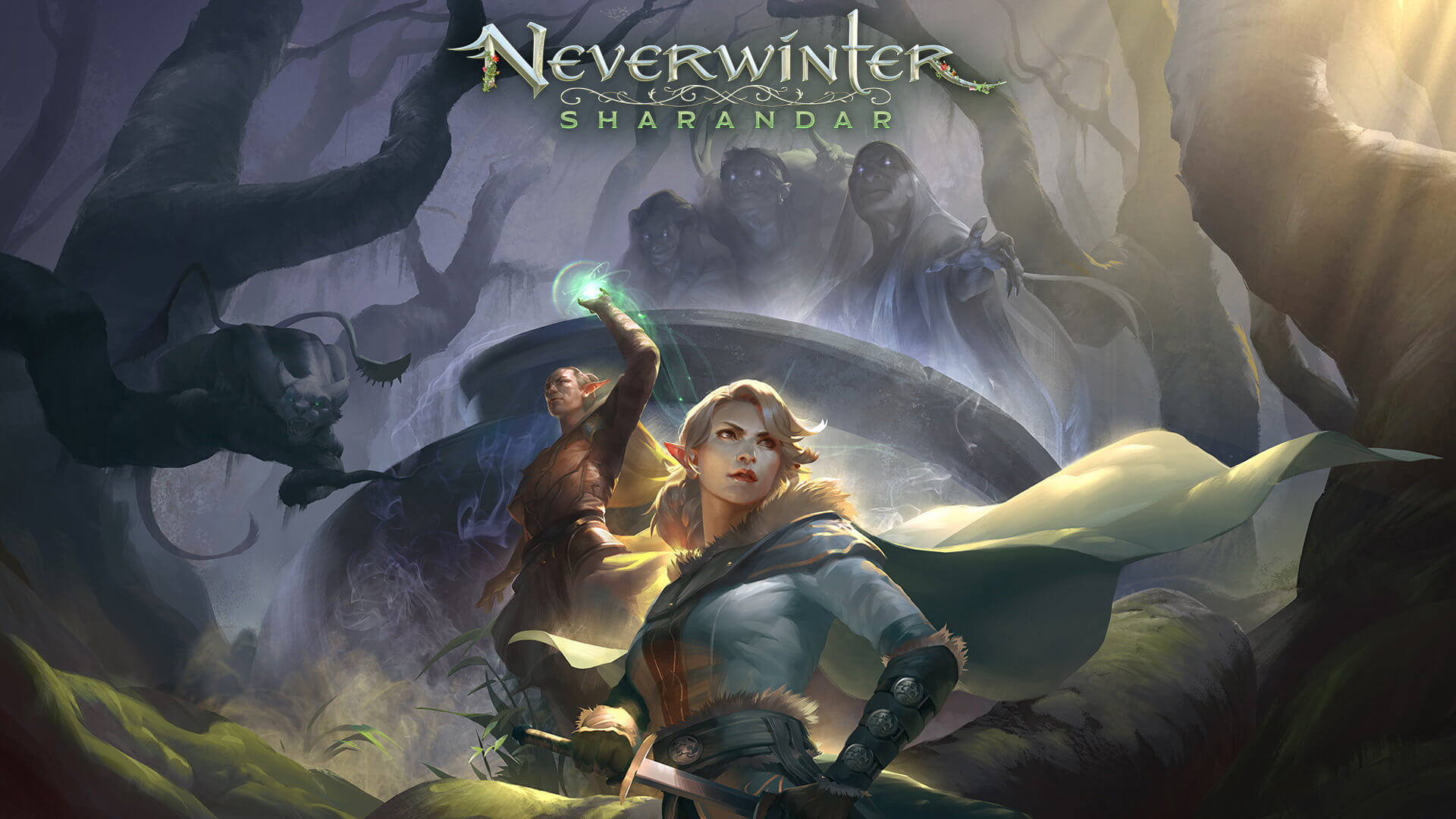
Neverwinter-Sharandar-Artwork-001Neverwinter is a premium and licensed D&D MMO game and it is well strange. The free-to-play model of the game will let you enjoy it until you hit the end game, then you will have to shell real money if you want to be competitive but the journey until then is great. I would recommend it to D&D lovers and people that love to try other people's maps, yup you read it correctly. Neverwinter has a map editor making it one of a kind MMO game where you can create your own dungeons and post them for other players to play, this user-generated content makes it a very specific beast in this list, and for that feature alone it has my recommendation.

Tera

tera-classes-guideAnother one of the older titles, Tera will offer you nor depth nor anything new in terms of leveling, quests, or end game except… the COMBAT. This is maybe the greatest MMO Combat game ever created and it is quite fascinating that even after so many years no other game has managed to create a better combat system than one of Tera. If you enjoy action combat and like some specific aesthetics Tera is a game for you.

Albion

Albion-Online-LaunchAlbion is a sandbox game with open-world PvP and building mechanics where you can build your own forest, house, etc. You know, sandbox stuff, including a lot of crafting and well, other sandbox stuff. If you want great quests and some occasional play then skip Albion, this game is made for a more hardcore player base not being afraid to die and spend some time crafting and going through the economy. The best comparison might be with EVE but in fantasy settings.
Black Desert

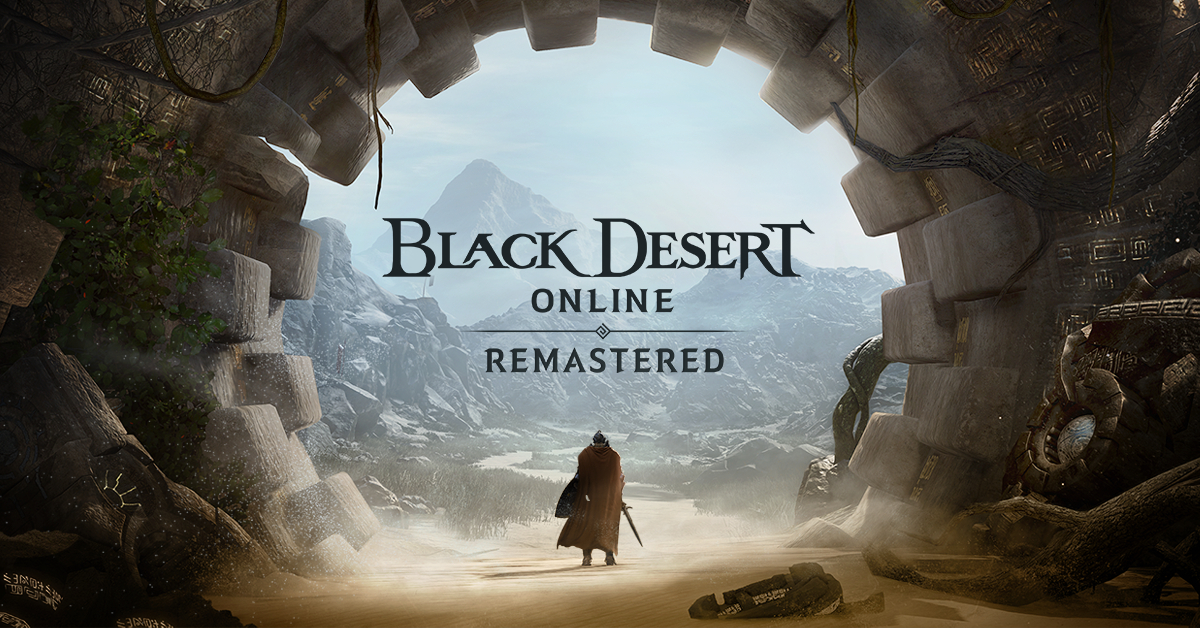
bdoBlack Desert is also a sandbox game but different from Albion, here you can organize and hire a workforce and send them to different nodes on a map to harvest resources and build an economy while you are on some epic adventure. Housing is also included but you can buy already made houses instead of making your own in the world. Combat is a game that comes very close to Tera combat and it is very enjoyable. The end game is money sink and PvP based so be careful when choosing this one.

Secret World Legends

the-secret-world-relaunching-as-1200x675If you like occult and supernatural with new world order themes and conspiracy theories, Secret World Legends is the game for you. Somewhat little clunky its setting and story really set it apart in many many ways. It has semi-action combat and it is free to play with item shop but all the content can be experienced for free. Recommended for fans of deeper gameplay and horror lore.

Runescape

runescapeWhen I said no MMO list can be without World of Warcraft, it also cannot be without Runescape, one of the oldest games it was revamped with newer mechanics and graphics, free to play all the way and you can also pick old school Runescape if you really want to go all the way on a nostalgia trip. I would recommend a newer one for newer players, the game offers a great story and unusual quests infused with puzzles and interesting storylines. If you like really good quest design without fetch and grind quests along with interesting story this is a game for you.

AION

aionLast on my list would be AION, a very interesting game made also a long way back, but the fact that is completely free with the cosmetic shop will make it as one to recommend since you can experience the whole game for free. It has some limited flying mechanics in it and later game zone are open PvP zones, story is interesting and leveling process is enjoyable. Also game itself is not really easy and if not careful you can get yourself in danger quite quickly. Recommended for old-school feeling.

Conclusion

That's it, there are many more MMO games out there but some are on verge of closing down and some are plainly bad. I hope that I have made your choice easier and that you will find one or a few from this list to spend your time in it. Remember, stay safe and take care of yourself.
Read More
1 2 3 171
Logo
Copyright © 2023, ErrorTools. All Rights Reserved
Trademark: Microsoft Windows logos are registered trademarks of Microsoft. Disclaimer: ErrorTools.com is not affiliated with Microsoft, nor claims direct affiliation.
The information on this page is provided for information purposes only.
DMCA.com Protection Status