Logo

Software and hardware cleaning tips

Spring is almost here and with spring comes work, nature wakes up, people wake up, no more heating bills, time to start working, and time to start cleaning your PC.

Good day everyone and welcome to another tip & trick for your PC. This time we are talking about cleaning your PC and keeping it up to software tight so you are ready for the upcoming spring season. Thank you for being with us and let's start:

Uninstall applications that you are not using

The unused applications can cause many issues for PC, from taking unnecessary disk space to even causing slower boot times if they have active services that require to be all-time up and running. They could slow down other applications like file explorer if they have extensions installed into them and can take RAM space with their background processes. If you are not using a particular application anymore or do not plan to use it soon it is always best practice to delete it from the system and thus removing all services and processes that go with it freeing so much-needed RAM and disc space.

Remove browser extensions you do not need

Browser extensions like applications can cause some issues with PC performance. if you spend a lot of time on the internet browser extensions can slow down browser and page loadings, they can make browsers take up more RAM memory and if they are outdated they could even present a serious security threat. Best practices are to keep only the extensions that you need all time, maybe some password managers or similar, extensions that you use on a daily basis, the rest should be uninstalled.

Remove things from the startup

Many services are booted along with Windows itself, some of them are crucial to the system even working, some not so. By eliminating not-needed services from the startup menu you will make sure that your boot times and overall performance of the system are in healthy form and that your PC is more responsive.

Organize files, folders, and desktop

The speeding of computer is not the only thing that you need to take care of, in order to be prepared and have maximum efficiency you will need to organize your files and folders as well. In a working environment, we often tend to save and place files all over the place, and in time they clog up desktop and hard drives. If the files are not well organized we will lose precious time trying to find anything that we need and require, so instead of wasting your time in locating files, why not organize them for easy and logical search so you can access them easily when needed.

Clean taskbar and start menu

Taskbar and start menu as well can be clogged with icons and non-organized application shortcuts and document shortcuts. Remove everything you do not need for that tidy and easily accessible access.

Sort bookmarks

It is very likely that you have plenty of bookmarks saved in our browser. It is also very likely that these bookmarks are not sorted and organized and now would be a great time to do it. Like files bookmarks also can cause you a lot of time loss if you need to find a specific one in a sea of many.

Run disc cleanup

Built-in disc cleanup utility will find temporary files, unused ones, and plenty of other junk on your hard drive. Now would be a great time to run it and get rid of junk files from your system.

Physically clean your computer

Now when we have taken care of the software part of our computer and system, it is time to clean up the computer itself. Unplug your computer and clean it, we will not go into details of this procedure, there is already an article on our site which deals with this part in detail so look it up if you need assistance with this part.

Clean your peripherals

Besides the computer for effective and pleasant work take care of your screen, keyboard, mouse, printer, etc. All of these devices need to be dust-free and clean if you expect them to behave on top of their game.

If you would like to read more helpful articles and tips about various software and hardware visit errortools.com daily.

Do You Need Help with Your Device?

Our Team of Experts May Help
Troubleshoot.Tech Experts are There for You!
Replace damaged files
Restore performance
Free disk space
Remove Malware
Protects WEB browser
Remove Viruses
Stop PC freezing
GET HELP
Troubleshoot.Tech experts work with all versions of Microsoft Windows including Windows 11, with Android, Mac, and more.

Share this article:

You might also like

How to Fix Windows 8 Error Code 0x8007007e

Error Code 0x8007007e – What is it?

Error code 0x8007007e occurs in Windows 8 or 8.1 when users attempt to, but fail to successfully use Windows Update. When this occurs, Windows 8 or 8.1 users will not be able to access updates or certain web pages. This error manifests itself via the following common symptoms:

  • Inability to complete tasks via Windows Update
  • Message box displaying error code 0x8007007e message

Solution

Restoro box imageError Causes

Error code 0x8007007e is usually caused by a malfunction within your system. This malfunction may be due to several issues such as malware on your device, or the accidental removal of a registry entry or system file.

Further Information and Manual Repair

To correct issues related to error code 0x8007007e in Windows 8.1, users may need to employ one or several manual repair methods. Users will not necessarily need technical skills to accomplish this task. However, if you are uncertain of your skills or you are unable to resolve the issue after completing the tasks below, consult a Windows repair technician or use an automated tool.

Method one: System File Checker

System File Checker (SFC) enables users to check their system for corrupt or missing system files. You will need to use Command Prompt. To access System File Checker on Windows 8 or 8.1, follow the instructions below.

  • Step one: Tap or use the mouse to click Search
  • Step two: Type Command Prompt in the Search box
  • Step three: Select Command Prompt, and then click Run as administrator
  • Step four: Type password if prompted by Command Prompt to do so or simply click Allow

Whether you run Windows 8 or 8.1 operating system on your computer, System File Checker will begin to find and repair missing or corrupted system files. If, however, you are unable to successfully complete the task via Command Prompt, repeat the steps above. You may also consider help from a professional or simply move to the next manual repair method listed below.

Method two: Perform a Clean Boot

A Clean Boot will help users determine if error code 0x8007007e in Windows 8.1 is caused by a problem associated with startup programs. Problems may arise when there is conflict among programs that run in the background when users turn on their device. To run a clean boot, follow the steps below:
  • Step one: Click the Start button and type msconfig in the search box
  • Step two: Click Services tab
  • Step three: Click Hide all Microsoft Services box then select Disable All
  • Step four: Click Startup tab
  • Step five: Select Disable All, then OK
  • Step six: Restart the computer then check if you can now update the system

If the Clean Boot is successful, you will be able to successfully update your system without receiving error code 0x8007007e. However, if the error code reappears while you attempt to access updates or web pages, proceed to the next manual repair method below.

Method three: Scan for Malware

Since error code 0x8007007e in Windows 8 or 8.1 can be caused by issues related to malware, it’s important for users to check their system using a powerful antivirus or anti-malware software. If you do not have one on your system, you will need to download such software as soon as possible.

Once you have the software on your PC, run a scan to check if your computer has been infected. If malware is indeed on your device, remove it using the anti-malware tool.

Method four: Run System Restore Tool

Another effective manual repair method relates to System Restore. This tool enables Windows users to restore their computer to an earlier period of time in which the error code was not present. When done properly, it can effectively resolve error code 0x8007007e. Before running this tool, however, be sure you select a time in which all important files and programs are present so as not to lose them.

Method Five: Use an Automated Tool

If you wish to always have at your disposal a utility tool to fix these Windows 8 and other related issues when they do arise, download and install a powerful automated tool.
Read More
Fix File Explorer stuck on Working on it…
One of the most useful utilities on a Windows 10 computer is the Windows File Explorer. It is undeniably one of the File Managers out there full of features on all the platforms. However, it is not without its issues and one of the most common ones most users encounter is when you are trying to open a folder or a location on File Explorer and it displays a message saying, “Working on it…” as it tries to load the content of that location or folder. This kind of issue mainly occurs to computers that run on an HDD although that doesn’t mean that it can’t happen to other computers that run an SDD. And so if the File Explorer on your Windows 10 computer keeps getting stuck on the “Working on it…” message along with a green animation bar moving very slowly while loading the contents of the folder, then it’s best if you follow the options given below to resolve this problem.

Option 1 – Try deleting the contents of the Automatic Destinations folder

  • Tap the Win + R keys on your keyboard to open the Run utility.
  • And then type “%AppData%MicrosoftWindowsRecentAutomaticDestinations” and hit Enter to open this location.
  • From there, select all the files and tap the Shift + Delete key combination.
  • After that, you will get a prompt that will ask you if you want to delete all the files permanently, just click on Yes. This will delete all the Quick Access cache.
  • Now check if you can now open a folder or a location without the “Working on it…” message.

Option 2 – Try to rebuild the Search Index

  • First, open the Indexing Options using the Search bar.
  • Next, click on the appropriate listing, e.g. Users folder.
  • After that, click on the Advanced button. This will open a mini-sized window and from there, go to the Index Settings tab.
  • Then click on the “Rebuild” option under the Troubleshooting section.
  • Now click on OK after the rebuilding is completed. This should rebuild the search index for all the files and thus, fix the File Explorer stuck on the “Working on it…” message.

Option 3 – Try to optimize the folder for General Items

You might also want to try optimizing the folder for General Items as it can help the File Explorer to load the contents faster.
  • Just right click on the folder that takes time to load the contents in it and is showing the “Working on it…” message.
  • After that, click on Properties to open the Properties mini window.
  • From there, go to the Customize tab and click on the drop-down menu to “Optimize this folder for” under the “What kind of folder do you want?” section and then select General Items.
  • Then check the checkbox with a label that says, “Also apply this template to all subfolders” and click on the OK button to save the changes.
  • Restart File Explorer and check if the problem is now fixed or not.

Option 4 – Try performing a System Restore

Running System Restore can also help you resolve whatever issue that’s causing the “Working on it…” message. You can do this option either by booting into Safe Mode or in System Restore. If you are already in the Advanced Startup Options, just directly select System Restore and proceed with the next steps. And if you have just booted your PC into Safe Mode, refer to the steps below.
  • Tap the Win + R keys to open the Run dialog box.
  • After that, type in “sysdm.cpl” in the field and tap Enter.
  • Next, go to the System Protection tab then click the System Restore button. This will open a new window where you have to select your preferred System Restore point.
  • After that, follow the on-screen instructions to finish the process and then restart your computer and check if the problem is fixed or not.
Read More
Antivirus software review 2022

As we near the end of 2022 we look at the current best antivirus software for popular platforms, why they are the best, and why you should get them.

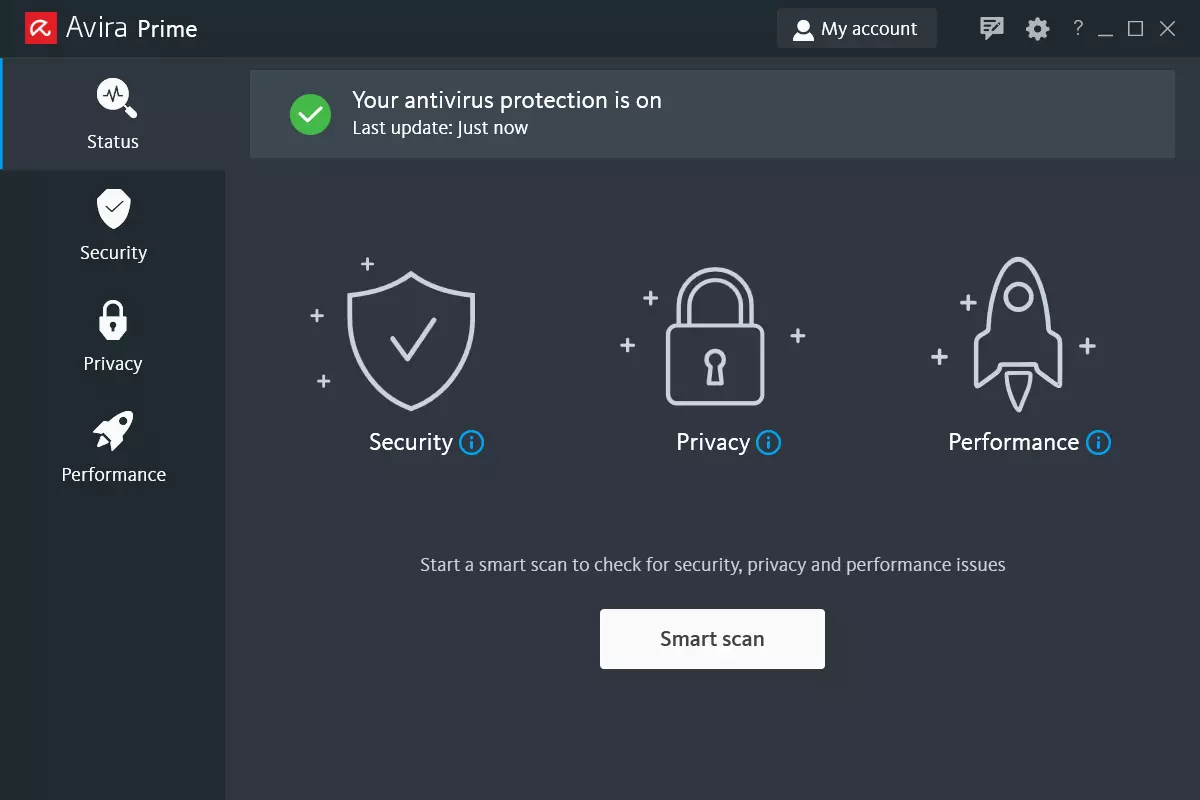
Avira, a great free Antivirus

Avira has been around a long time with its free antivirus version of the larger protection suite. It had its ups and downs but the latest versions are really great. With high-speed scans and low system impact, Avira antivirus is really one of the best free antivirus software currently on the market.

Avira screen

The software itself has also received UI & UX updates making it straightforward and easy to use. The virus scanning engine is the same as in paid version that ranks among the top engines in the world for this type of work. The package also gives you some great browser protection and a good firewall as well, there is really no excuse to skip on this if you want a free solution.

The only thing that we would say is not so great in Avira is reporting some false positives, sometimes even for MS updates, it is rare but it can happen.

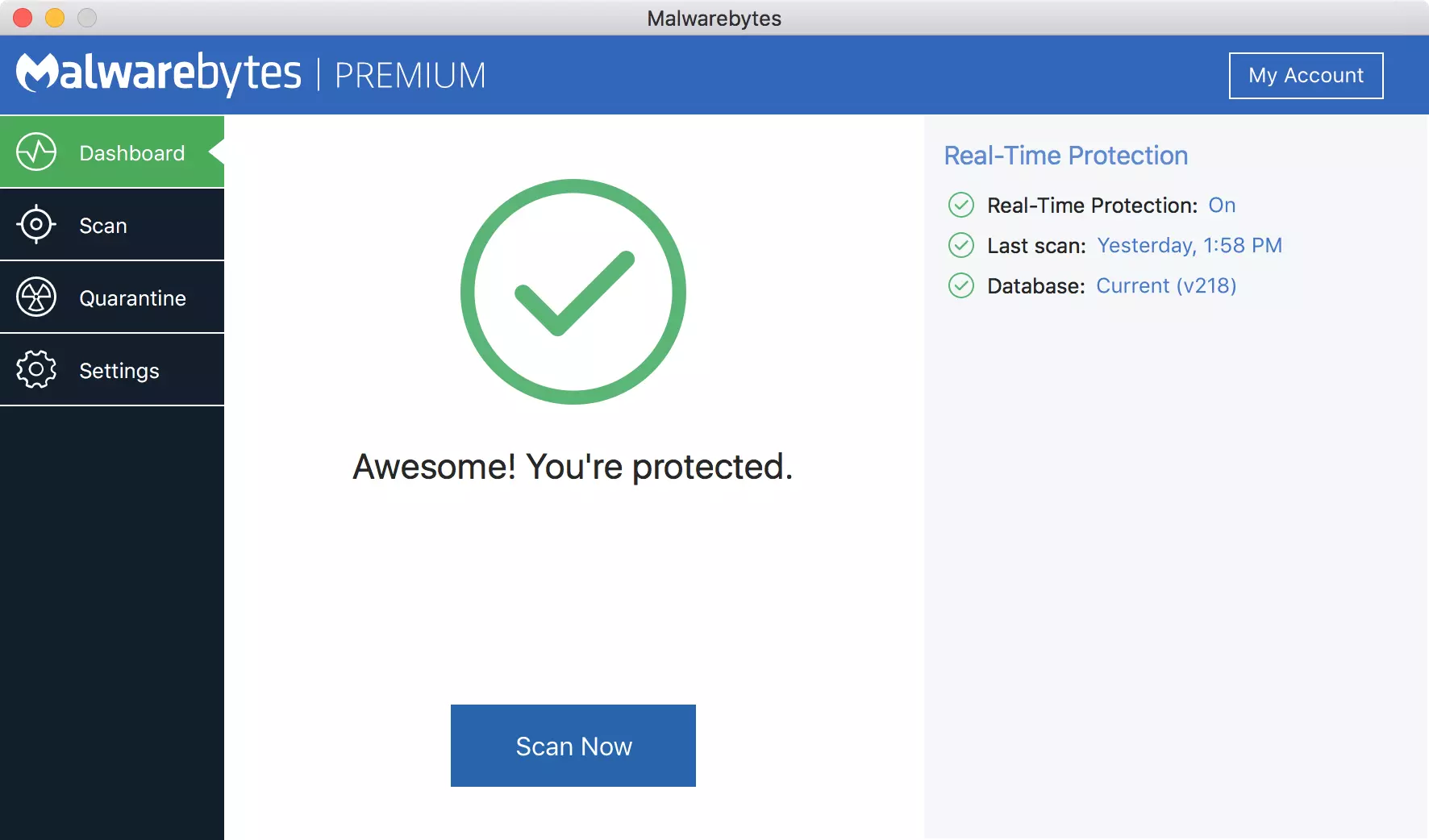
Malwarebytes, a powerful Windows antivirus

Malwarebytes Premium is easy to use, simple antivirus solution that shies away from complicated UI, and simply put, it just works. Its scanning engine is well-known and places among the top and best in the world often finding some malware that other can miss.

malwarebytes screen

Another great thing is its integration with Windows itself, it is one of the rare applications that can and will work incredibly well beside your typical Windows protection tools so you can have both of them running at the same time.

Installation and running are really simple and every typical PC user will find it as easy as walking in the park. On the other hand, sadly system impact is a little high and it will have issues running on lower-end systems due to its memory requirements.

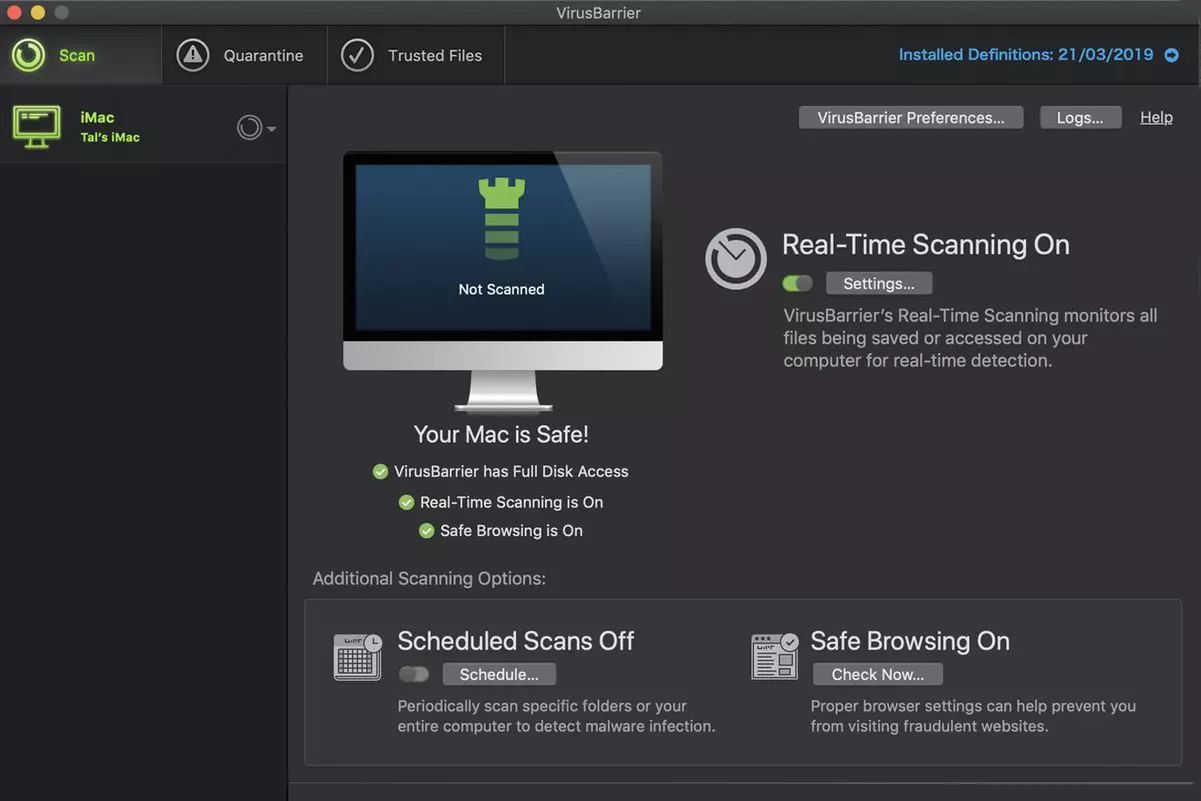
Intego MAC Internet Security X9, the best Mac antivirus

Gone are the days when MAC had no virus issues, since MAC rose in popularity among the users, also rose the number of viruses and malware. The system itself has some great protection built it inside but for more security and better control of it, you will need a third-party dedicated solution.

Intego was made by Mac antivirus experts who have been building this kind of software last 25 years. The interface is easy to use and premade presets are really helpful, but the security suite can also be customized to fit your needs and desires.

intego screen

Since this is only available as a security suite, you are getting a firewall and some other security tools along with your antivirus that will run as a part of it.

The bad side is that scans can sometimes run slow, most of the time they are OK in terms of speed but occasionally they can switch to slower speeds and impact scanning time to some annoying times. Also, there is no webcam protection nor VPN service included where others on this list have them.

Bitdefender mobile security: best Android protection

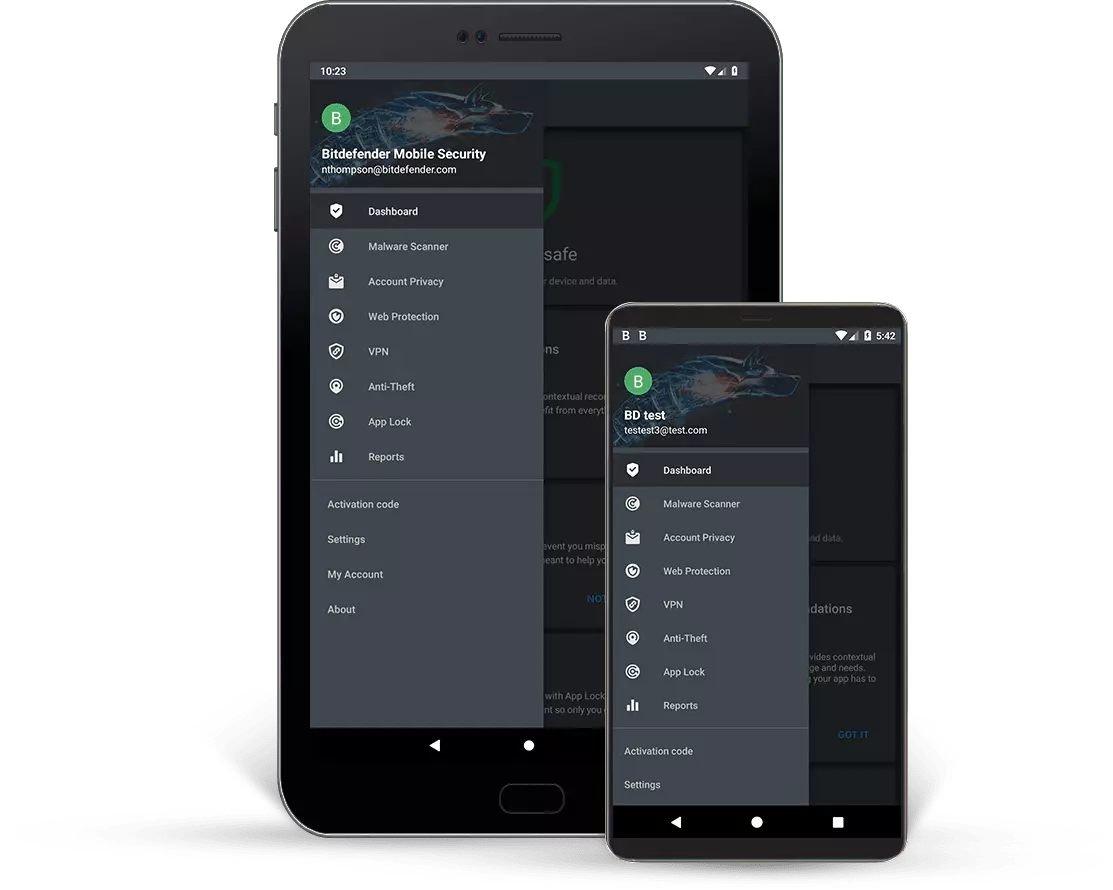
While protection is not only needed for your gaming or workstation, software suites that are dealing with mobile and tablet security exist. The best of them is the Bitdefender antivirus mobile suite. Low on system resources and low on performance impact with the really great virus detection rate Bitdefender is at the top of suites for your phone.

bitdefender mobile

Consistent high virus detection packed with low battery impact is great but the suite comes with tons of other tools as well like browser security tools, email protection, and real-time link and notification protection.

The application will always scan each file and newly installed application in the background and alert and cut off any found threat. App itself is easy to install and use and most of the time it will do everything in the background for you but offer you customization if you need it.

The package also includes VPN and application lock that will let you protect the critical applications from being accessed as well as an online account scanner. Anti-theft and anti-loss tools, which allow you to find, remotely lock or wipe a stolen or lost device, add yet another layer of protection.

One thing that is missing from this great package is fraudulent call protection. Newer Android phones have this feature inside but it would be nice if Bitdefender had it as well.

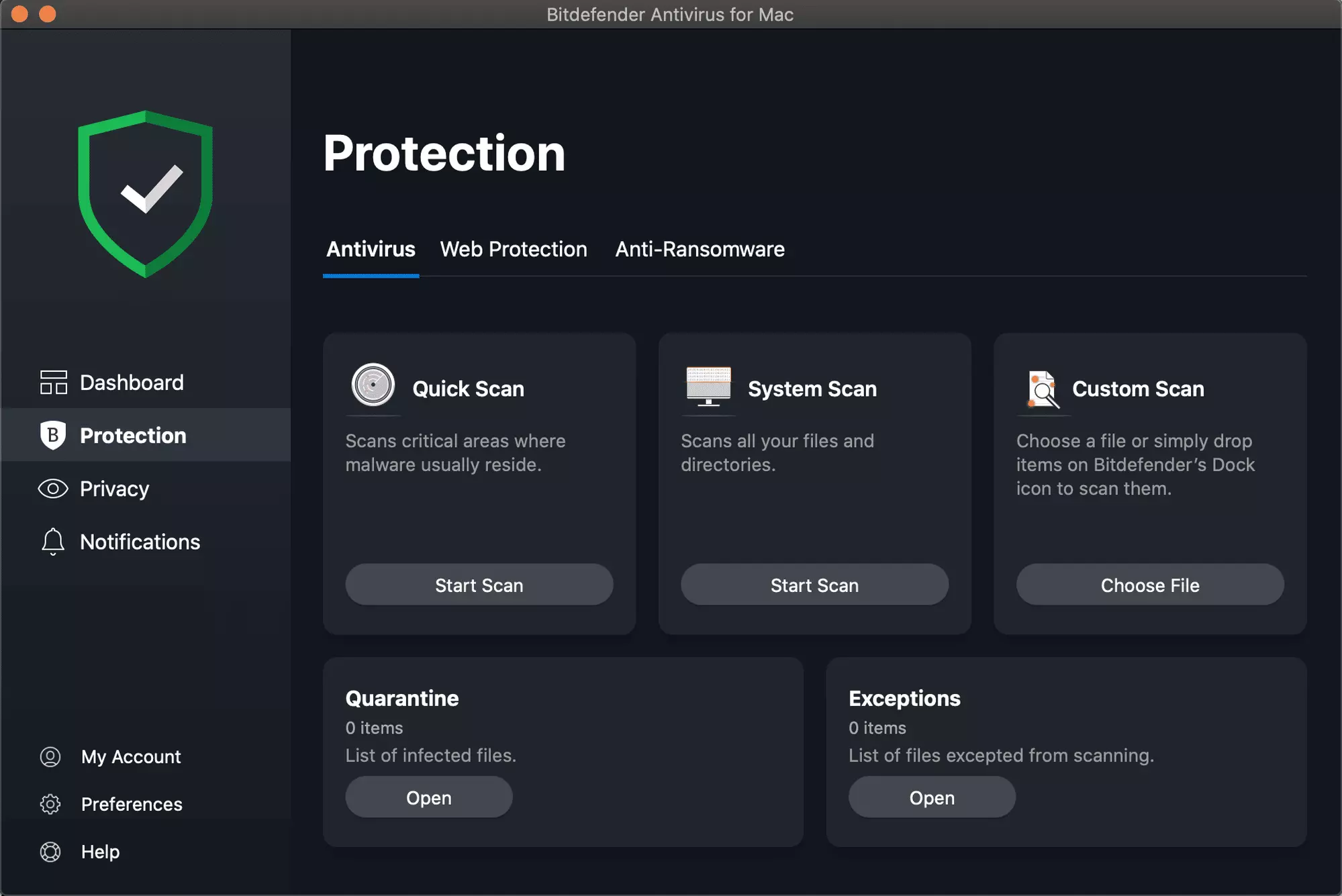
Bitdefender, the best antivirus software

Now that we have covered specific cases of each platform, there is one player that has all of them covered and with a quality product, that player is BitDefender and it is great. Personally, this is my protection suite of choice and as I type this it is running in the background.

Bitdefender has it all, low system impact, as a matter of fact, it is one, if not, the lowest performance impact engine on the market currently and that is packed with a great and highly consistent virus & malware detection suite. Along with real-time malware protection, browser security, and anti-spam tools, you also get anti-phishing defenses, ransomware protection, and a strong firewall.

bitdefender screen

Bitdefender scores are very high in both the zero-day threat and real-world protection tests at AV-Test, an established organization that tests antivirus software. Despite being tested against tens of thousands of well-known and widespread malware threats, the software consistently achieves a 100% blocking rate.

The suite also comes with a restricted free VPN and with parental controls as well. Webcam and microphone protection are also included in the suite and on top of all, it has great pricing plans and constant discounts.

BitDefender is really a great package and it might sound too good, but after years and years of personally using it I have not had single malware or virus issue, the only thing that I would put as a negative is that system is severely slowed down when system scans are performed so be sure to run or schedule them when you are not using your computer. This, of course, can put some people off and I will admit it is a serious drawback but for me, the security of my workstation is more important than leaving the computer for 20 or so minutes in order to perform a full scan of the system.

Read More
NVIDIA driver keeps crashing in Windows
As you know, NVIDIA is one of the topmost graphics cards used and it has been that way for several years already. And in those years, the company has managed to release the best cards on the market. However, there are still times when some things fail and don’t work as expected due to some NVIDIA driver issues. As of late, one of the issues users reported about NVIDIA drivers is that it keeps on crashing on a daily basis. It gets to the point where they aren’t able to play games anymore while some users experience lag and rendering issues. In addition, some users also reported that their computer display tends to freeze sometimes, and then things would seem to go back to normal but only for a short span of time as the crash seems to happen every 10 minutes. This can be extremely annoying as you won’t be able to use your computer properly. If you are one of these users, worry not for there are several ways you can try to resolve the problem in your Windows 10 computer. Make sure to carefully follow the options given below.

Option 1 – Try checking if the NVIDIA graphics card is enabled

Although the problem is quite massive, the fix could be as simple as enabling the NVIDIA graphics card if it turns out to be disabled. There might be some strange reason why your graphics card disables itself. Thus, the best and first option you can try is to check if the NVIDIA graphics card is enabled or not. To do so, follow these steps:
  • Tap the Win + R keys to open the Run dialog box.
  • Then type “devmgmt.msc” in the field and hit Enter to open the Device Manager.
  • After opening the Device Manager, look for the Nvidia graphics card option among the list of device drivers. Once you found it, check if it is enabled or not. If it’s not enabled, you should see a gray arrow pointing downwards. Right-click on the card and select Enabled.
  • Next, right-click on the graphics card once more and click on the Update Driver Software option and then click on the “Search automatically for updated driver software” option.

Option 2 – Try to choose Maximum Performance and disable Vsync

If the first option didn’t work out for you, then you might want to try turning off Vsync and adjust the performance to the maximum. Refer to these steps to disable Vsync and adjust performance to the maximum.
  • The first thing you have to do is right-click on your desktop and select the NVIDIA Control Panel among the options.
  • After opening the NVIDIA Control Panel, select Manage 3D Settings.
  • After that, set Vsync to off, and then in the Power Management Mode, set it to Maximum Performance. That should fix the problem.

Option 3 – Try updating the drivers from the official site of NVIDIA

If both the first and second given options didn’t work, you can also try updating the drivers from the official NVIDIA website. And in case you don’t know the type of Nvidia graphics card that your computer is on, follow the steps below:
  • Tap the Win + R keys to open the Run dialog box.
  • Next type in “dxdiag” in the field and click OK or hit Enter to open the DirectX Diagnostic Tool.
  • From there, you can see what type of Nvidia graphics card that your system is on.
  • Take note of your graphics card information and then look for the best drivers for your operating system. Once you’ve downloaded and installed the file, restart your PC.
Read More
Windows 10 Setup says I need to uninstall a program or utility in order to continue setup. I cannot find program it ask for or it was already uninstalled

What is this particular error?

One common issue when trying to upgrade to Windows 10 from Windows 7 or 8 is incompatible software. Any installed software or app that isn’t compatible with Windows 10 will prevent you from continuing with the set-up. Normally, you’ll get an error message “What needs your attention” and it will ask you to uninstall a list of apps manually. Unfortunately, some users reported that they couldn’t find the app it asks to uninstall. In some cases, users said they’ve already uninstalled the app but it still won’t start the Windows 10 Setup.

Solution

Restoro box imageError Causes

This type of issue normally occurs because of the following:

  • Incompatible software/apps
  • Corrupted software/apps
  • Incomplete uninstallation

Further Information and Manual Repair

Here are some steps you can take whenever you encounter this error.

Note: Before taking any steps, make sure that you’re highly equipped to do so. Some steps might affect the system and even do more damage to your computer. You might also want to consider using an automated tool instead.

Method 1 – Perform a clean boot, then retry upgrading

A clean boot is normally done to start Windows using the least set of drivers and startup programs available. By doing this, it eliminates possible software issues that happen when installing or uninstalling a program in Windows 10.

Before performing a clean boot, make sure to take note of the following:

  • You need administrative privileges in order to perform this action.
  • When doing this, your computer might lose temporarily functionality. However, it will return after start-up.
  • It is highly advisable to not use the System Configuration to change advanced boot options.

Here are the steps to perform a clean boot.

  • Step 1 – Go to Start and search for msconfig
  • Step 2 – Go to System Configuration
  • Step 3 – Under Services tab, click on the “Hide all Microsoft services” checkbox. Then, choose to Disable all
  • Step 4 – Go to the System Configuration’s Startup tab. Then, click on “Open Task Manager”
  • Step 5 – In the Task Manager dialog box, you will see a Startup tab. Choose items that you want to disable and then click the Disable button
  • Step 6 – Close the Task Manager dialog box.
  • Step 7 – Go back to the Startup tab of the System Configuration box. Click “Ok” then proceed with restarting.

Method 2 – Manually uninstall programs from the Program Files folders

Instead of using the “add or remove programs” feature in Windows, you might need to manually install the program directly from the C drive. To do this, follow the steps below:

  • Step 1 – Go to the C drive, and look for the Program Files folders. For 32-bit users, you can find it at C:\Program Files. If you’re using the 64-bit version of Windows, go to C:\Program Files (x86) folder.
  • Step 2 – Find the “uninstall” application file
  • Step 3 – Right-click, and run the file as administrator. Wait for the uninstallation to finish. In some software, you need to restart your system before the uninstallation will take effect.

Note: In some cases, you may also need to search for files related to the program. You can use the search bar under Drive C to do this. Delete those files as well.

Method 3 – Create a new user account

Before upgrading to Windows 10, create a new user account. Make sure it has administrative privileges. From there, run the upgrade.

Method 4 – Use third-party uninstaller services

If you still can’t run Windows 10 Setup after the above methods, you might need to rely on a third-party service. Microsoft recommends Revouninstaller that can help you.

Before using this software, reinstall the application or utility that Windows 10 wants you to install. Then, use Revouninstaller to delete the program completely.

Method 5 – Disable third-party antivirus software

Some users who experienced this issue reported that it was solved after disabling or completely uninstalling the anti-virus software installed in their system.

Method 6 – Use a trusted automated tool

If after trying the above methods, the problem still persists, it might be best to use a trusted automated tool to fix the issue.

Read More
How to Fix Stop Error 7B

What is Stop Error 7B?

Stop error 7B is a blue screen of death error code that occurs during Windows XP setup or after installation. The error message is displayed in either of the following formats:
  • STOP: 0x0000007B (parameter1, parameter2, parameter3, parameter4)
  • INACCESSIBLE_BOOT_DEVICE
  • ‘A problem has been detected and Windows has been shut down to prevent damages’
  • Setup has encountered a fatal error that prevents it from continuing.
  • Setup cannot continue. Power down or reboot your computer now.

Solution

Restoro box imageError Causes

There is no one particular cause for this error. The Stop error 7B may be triggered due to multiple reasons. These include:
  • Boot Sector Viruses
  • Device Driver Issues
  • Poor Windows XP installation
  • Registry Corruption
If you come across this error code on your PC, it is advisable to fix it right away particularly because it is a blue screen of death error that can cause severe damages to your system. It can lead to system failure, crash, and valuable data loss.

Further Information and Manual Repair

Here we’ve listed for you the best PC repair solutions to resolve and fix stop error 7B.

Cause: Boot Sector Viruses

Solution: Stop error 7B can occur when infected with a boot sector virus. If this is the cause, then first download a powerful antivirus on your system. After downloading it, run it to scan your PC for viral infection. Immediately delete the viruses if found. However, if the virus is too powerful, the antivirus may fail to remove it. In such an event, you will have to repartition and format your hard disk and then later reinstall Windows XP.

Cause: Device Driver Issues

Solution: If the boot controller is not properly configured or the driver is not updated, Stop error 7B can occur.  When this happens, simply restart your system and press F8 to go to the advanced boot options. Here choose the Last Known Good Configuration option. After that boot into Windows and then perform a system restore. Now go to the start menu and type Device Manager in the search box. To access the Device Manager window it may prompt you to enter an administrator password, insert it to proceed. Now go to Device Manager and perform a driver rollback to reinstall the drivers generating this stop error. By following these simple steps you can easily resolve device driver and configuration issues.

Cause: Poor Windows XP Installation

Solution:  In this case, you will have to perform a Windows start-up repair. This can be done by booting Windows XP from CD. Simply press enter at setup Windows Screen when prompted. Then press R to repair Windows XP installation. This procedure copies the original Windows files over the bad ones.

Cause: Registry Corruption

Solution: Sometimes the stop error 7B is also triggered by the registry corruption. When this happens, it is advisable to download and run Restoro software for PC scan and repair. Restoro is a powerful, advanced, and highly functional registry cleaner. It is deployed with intuitive algorithms that detect registry issues and errors like Stop error 7B on your system in seconds.  It wipes out clutter from your hard disk, repairs damaged files and the corrupted registry. It is safe, efficient, and bug-free. It is also compatible with all Windows versions. In addition to this, it is also embedded with other utilities like an antivirus, a system optimizer, and Active X controls, and a class ID scanner. Click here to download Restoro and resolve to stop error 7B on your PC immediately!
Read More
How to get rid of DailyBibleGuide

Daily Bible Guide is a browser extension developed by Mindspark Inc. for Google Chrome Browser. This extension offers users a fast and easy way to find Bible passages, view daily verses, study the Bible and view the current weather. When installed, this extension changes your default search engine and your home page to MyWay.

When installed this extension gathers user browsing information such as visited websites, search queries, clicked links, and other information. This information is later used to better target ads.

While active, you may encounter additional unwanted ads and sponsored links throughout your browsing sessions. Daily Bible Guide was marked as a Browser Hijacker by several anti-virus scanners, and due to its information mining behavior, it is considered a security risk and it is not recommended to keep on your computer; being flagged for optional removal.

About Browser Hijackers

Browser hijackers (sometimes known as hijackware) are a kind of malware that alters internet browser settings without the computer owner’s knowledge or approval. These kinds of hijacks are rising at a worrying rate around the globe, and it could be actually nefarious and sometimes dangerous too. There are plenty of reasons why you might experience an internet browser hijack; but commercial, advertising, and marketing are definitely the key reasons for their creation. Generally, the idea would be to force users to visit particular sites which are looking to improve their site visitor traffic and produce higher advertisement revenue. While it might seem harmless, these tools were created by malicious individuals who always attempt to take full advantage of you, so that they could make money from your naivety and distraction. Furthermore, hijackers can make the entire infected system vulnerable – other destructive malware and viruses will grab these opportunities to intrude into your computer effortlessly.

Signs of browser hijacker infection

The typical symptoms that signify having this malware on your computer are: home page is modified; you find new unwanted favorites or bookmarks added, typically directed to ad-filled or porn websites; the default search engine is modified; discover new toolbars which you did not add; you may see random pop-ups start occurring frequently; your internet browser has instability issues or exhibits frequent errors; you cannot visit specific websites like home pages of antivirus software.

So how does a PC get infected with a browser hijacker?

Browser hijackers attack computer systems via malicious email attachments, downloaded infected files, or by visiting infected sites. They sometimes are included with toolbars, add-ons, BHO, plugins, or browser extensions. A browser hijacker can also come bundled up with some free application that you inadvertently download to your computer, compromising your internet security. A good example of a popular browser hijacker is the most recent Chinese malware named “Fireball”, which has infected 250 million PCs throughout the world. It works as a hijacker but could be changed into a fully functioning malware downloader afterward. Browser hijackers will interrupt the user’s browsing experience significantly, keep track of the websites frequented by users and steal private information, cause difficulty in connecting to the net, and ultimately create stability problems, causing software programs and computers to crash.

Browser Hijacker Malware – Removal

Certain browser hijacking can be quite easily reversed by identifying and removing the corresponding malware program through your control panel. However, the majority of hijackers are extremely tenacious and need specialized tools to eradicate them. Additionally, manual removals require deep system knowledge and thus can be quite a difficult task for inexperienced computer users. Installing and running anti-malware programs on the affected computer could automatically delete browser hijackers and other malicious programs. Safebytes Anti-Malware features a cutting-edge anti-malware engine that will help you prevent browser hijacking in the first place, and clean up any pre-existing issues. In addition to anti-malware, a PC optimizer software, for example, Total System Care, will help you fix Windows registry errors, remove unwanted toolbars, secure online privacy, and stabilize software programs installed on the computer.

Malware Blocking Internet And All Antivirus Software? Do This!

Malware can cause a lot of damage to your PC. Some malware variants modify internet browser settings by including a proxy server or change the PC’s DNS settings. When this happens, you will be unable to visit some or all of the websites, and therefore not able to download or install the necessary security software to clear out the infection. If you’re reading this right now, you’ve perhaps recognized that virus infection is a reason behind your blocked internet connectivity. So how to proceed when you want to download and install an anti-malware program like Safebytes? Although this sort of issue will be difficult to get around, there are some steps you can take.

Install in Safe Mode

If the malware is set to run at Windows startup, then booting in safe mode should avoid it. Only minimal required programs and services are loaded when you start your PC into Safe Mode. You will have to do the following to remove malware in Safe mode. 1) At power-on/startup, press the F8 key in 1-second intervals. This will invoke the Advanced Boot Options menu. 2) Choose Safe Mode with Networking with arrow keys and press Enter. 3) As soon as this mode loads, you should have an internet connection. Now, obtain the malware removal program you want by using the browser. To install the software, follow the directions within the installation wizard. 4) Once the software is installed, let the scan run to eliminate viruses and other malware automatically.

Switch over to some other web browser

Web-based viruses could be environment-specific, aiming for a specific web browser or attacking particular versions of the web browser. If you are not able to download the security software using Internet Explorer, it means the virus may be targeting IE’s vulnerabilities. Here, you should switch to an alternate internet browser such as Chrome or Firefox to download the Safebytes application.

Create a portable USB antivirus for removing viruses

To effectively remove the malware, you should approach the issue of running an anti-malware program on the affected computer from a different perspective. To run anti-malware using a USB flash drive, follow these simple steps: 1) Download the anti-malware on a virus-free PC. 2) Mount the USB drive onto the same system. 3) Double-click the Setup icon of the anti-malware program to run the Installation Wizard. 4) Choose the drive letter of the USB drive as the location when the wizard asks you exactly where you would like to install the anti-virus. Do as instructed on the screen to finish off the installation process. 5) Now, transfer the flash drive to the infected PC. 6) Double click the Safebytes Anti-malware icon on the USB drive to run the application. 7) Run Full System Scan to detect and clean-up up all types of malware.

SafeBytes Anti-Malware - More Protection For You Personally

These days, an anti-malware tool can protect your computer from different kinds of online threats. But exactly how to select the best one among plenty of malware protection software that’s available on the market? You may be aware, there are many anti-malware companies and tools for you to consider. Some are worth your money, but many aren’t. You must be careful not to choose the wrong application, especially if you purchase a paid program. While thinking about the highly regarded software programs, Safebytes AntiMalware is undoubtedly the strongly recommended one. SafeBytes anti-malware is a powerful, very effective protection application designed to assist users of all levels of computer literacy in detecting and eliminating harmful threats out of their PC. Once you’ve got installed this tool, SafeByte's state-of-the-art protection system will make sure that absolutely no viruses or malware can seep through your computer.

SafeBytes anti-malware takes computer protection to a whole new level with its advanced features. Listed below are some of the great ones:

Anti-Malware Protection: This deep-cleaning anti-malware software goes much deeper than most antivirus tools to clean out your personal computer. Its critically acclaimed virus engine finds and disables hard to remove malware that hides deep inside your computer. Real-time Threat Response: Malware programs attempting to get into the computer are identified and stopped as and when detected by the SafeBytes real-time protection shields. It’ll inspect your personal computer for suspicious activity regularly and its unparalleled firewall shields your PC from illegal access by the outside world. “Fast Scan” Features: SafeBytes’s virus scan engine is among the fastest and most efficient in the industry. It's targeted scanning highly increases the catch rate for viruses which is embedded in various PC files. Web Protection: SafeBytes gives an instant safety rating to the web pages you are going to visit, automatically blocking dangerous sites and ensuring that you are certain of your safety while browsing the world wide web. Light-weight: SafeBytes is a lightweight and user-friendly antivirus and antimalware solution. As it uses very little computer resources, this tool leaves the computer’s power exactly where it belongs to: with you. 24/7 Guidance: SafeBytes provides 24/7 technical support, automatic maintenance, and software upgrades for the best user experience. To sum it up all, SafeBytes Anti-Malware offers great protection combined with very low system resource usage with both great malware prevention and detection. Malware trouble will become a thing of the past when you put this application to use. If you’re looking for the very best malware removal application out there, and when you don’t mind shelling out some money for it, opt for SafeBytes Anti-Malware.

Technical Details and Manual Removal (Advanced Users)

If you’d like to manually remove Daily Bible Guide without using an automated tool, it might be possible to do so by deleting the program from the Windows Add/Remove Programs menu, or in cases of browser extensions, going to the browsers AddOn/Extension manager and uninstalling it. You will probably also want to reset your internet browser. If you choose to manually remove the system files and Windows registry entries, utilize the following list to ensure that you know exactly what files to remove before performing any actions. Please remember that only experienced users should try to manually edit the system files simply because removing any single critical registry entry results in a major problem or even a PC crash. In addition, certain malicious programs have the capability to defend against its removal. It is advisable that you carry out the removal process in Safe Mode.
Files: Search and Delete: 2vauxstb.dll 2vbar.dll 2vbarsvc.exe 2vbprtct.dll 2vbrmon.exe 2vbrstub.dll 2vdatact.dll 2vdlghk.dll 2vdyn.dll 2vfeedmg.dll 2vhighin.exe 2vhkstub.dll 2vhtmlmu.dll 2vhttpct.dll 2vidle.dll 2vieovr.dll 2vimpipe.exe 2vmedint.exe 2vmlbtn.dll 2vmsg.dll 2vPlugin.dll 2vradio.dll 2vregfft.dll 2vreghk.dll 2vregiet.dll 2vscript.dll 2vskin.dll 2vsknlcr.dll 2vskplay.exe 2vSrcAs.dll 2vSrchMn.exe 2vtpinst.dll 2vuabtn.dll AppIntegrator64.exe AppIntegratorStub64.dll BOOTSTRAP.JS 2vffxtbr.jar CHROME.MANIFEST CREXT.DLL CrExtP2v.exe DPNMNGR.DLL EXEMANAGER.DLL Hpg64.dll LOGO.BMP NP2vStub.dll T8EXTEX.DLL T8EXTPEX.DLL T8HTML.DLL T8RES.DLL T8TICKER.DLL VERIFY.DLL s_pid.dat 2vEIPlug.dll 2vEZSETP.dll NP2vEISb.dll 00082350.exe files.ini Folders: %APPDATA%\DailyBibleGuide\ %PROGRAMFILES%\DailyBibleGuide\ %PROGRAMFILES%\DailyBibleGuideEI\ Registry: HKLM\SOFTWARE\Microsoft\Windows\CurrentVersion\Run\ Value: DailyBibleGuide Browser Plugin Loader Key HKLM\SOFTWARE\Microsoft\Windows\CurrentVersion\Run\ Value: DailyBibleGuide Search Scope Monitor Key HKCU\Software\DailyBibleGuide Key HKLM\SOFTWARE\DailyBibleGuide Key HKLM\SOFTWARE\MozillaPlugins\@DailyBibleGuide.com/Plugin Key HKLM\SOFTWARE\Microsoft\Windows\CurrentVersion\Uninstall\DailyBibleGuidebar Uninstall Internet Explorer Key HKLM\SOFTWARE\Microsoft\Windows\CurrentVersion\Uninstall\DailyBibleGuidebar Uninstall Firefox Key HKLM\SOFTWARE\Microsoft\Windows\CurrentVersion\Explorer\Browser Helper Objects\beea7fa9-d1f4-49a2-9b1f-6fb7a2d9bc2a Key HKLM\SOFTWARE\Microsoft\Windows\CurrentVersion\Explorer\Browser Helper Objects\0631bff0-6846-48ca-982d-d62d7f376e97 Key HKLM\SOFTWARE\Classes\DailyBibleGuide.XMLSessionPlugin Key HKLM\SOFTWARE\Classes\DailyBibleGuide.UrlAlertButton Key HKLM\SOFTWARE\Classes\DailyBibleGuide.ToolbarProtector Key HKLM\SOFTWARE\Classes\DailyBibleGuide.ThirdPartyInstaller Key HKHKLM\SOFTWARE\Classes\DailyBibleGuide.SkinLauncherSettings Key HKLM\SOFTWARE\Classes\DailyBibleGuide.SkinLauncher Key HKLM\SOFTWARE\Classes\DailyBibleGuide.SettingsPlugin Key HKLM\SOFTWARE\Classes\DailyBibleGuide.ScriptButton Key HKLM\SOFTWARE\Classes\DailyBibleGuide.RadioSettings Key HKLM\SOFTWARE\Classes\DailyBibleGuide.Radio Key HKLM\SOFTWARE\Classes\DailyBibleGuide.PseudoTransparentPlugin Key HKLM\SOFTWARE\Classes\DailyBibleGuide.MultipleButton Key HKLM\SOFTWARE\Classes\DailyBibleGuide.HTMLPanel Key HKLM\SOFTWARE\Classes\DailyBibleGuide.HTMLMenu Key HKLM\SOFTWARE\Classes\DailyBibleGuide.FeedManager Key HKLM\SOFTWARE\Classes\DailyBibleGuide.DynamicBarButton

Read More
Installing Wi-Fi drivers in Windows
If you don’t have the required drivers installed in your computer, the hardware that you try to connect to your computer will most likely fail. In order to keep the operating system running on your computer, manufacturers develop drivers that can work harmoniously with your devices and applications. However, internet Wi-Fi connections can fail if suitable drivers are not installed. Worry not though for this post will guide you in installing Wi-Fi drivers on your Windows 10 computer. As you know, a driver is an essential piece of software designed for a specific operating system like Windows 10, Linux, and many more. The operating system uses it to communicate with other hardware devices such as printers and mice. Most hardware manufacturers feature a support page of their own product where you can look for the necessary drivers available for download. You will see that the Windows operating system has a set of drivers that are already installed and you do not have to do anything except plug in the device. So if the driver is not locally available, it will pull it down from its web server and automatically install it for you after you connect the device. However, there are instances when you might encounter some issues while using your Wi-Fi and during these times, you might have to reinstall your Wi-Fi drivers so read on as this post will provide you guidelines in installing Wi-Fi drivers in Windows 10. Refer to the steps below to do so. Step 1: First, go to your manufacturer’s website and look for the right driver you want to install to download your Wi-Fi driver. Step 2: After that, you have to download the correct Wi-Fi driver if it’s available. You have to know the exact name and version of the driver so that you can download it and this information can be found from the Device Manager. Just make sure that you have the right wireless adapter driver downloaded. Step 3: Once done, open the setup of the new driver that you’ve downloaded earlier and run the file and then follow the next on-screen instructions that appear right after. Step 4: You’re not done yet as you need to verify if you have downloaded and installed the correct Wi-Fi driver. Refer to the sub-steps below to do so:
  • First, right-click on the Start button and select the Device Manager to open it.
  • From there, look for the Network Adapters and expand its category to make all the network adapters visible including the wireless adapter.
  • You can easily spot the wireless adapter as it has the “wireless” term in its entry.
  • Next, right-click on the wireless driver entry in the Device Manager and select Network adapters, and then click on Properties to check the version number of the driver.
  • Now select the Driver tab and view the details. If it looks well then it means that you have the right version of the driver installed.
Step 5: Restart your computer.
Read More
Restore, Minimize and Close are not working
Recently, a number of users reported not being able to use the Restore, Minimize and Close buttons on their Windows 10 computers. This kind of issue can be quite annoying as you won’t be able to use your computer properly, especially when you navigate between programs and windows. In such cases, the buttons on the right side of the title bar won’t respond to any inputs which could be caused by a number of factors such as different input modes, corrupted system files, and many more. If you are one of the users who are currently facing this problem, worry not for this post will guide you on what you can do to resolve it. There are several potential fixes you can check out to fix the issue. You can try to check if Tablet Mode is enabled and if it is, you have to disable it. You could also boot your computer in a Clean Boot State to check if a third-party program is the one that’s causing the problem. In addition, you could also reinstall the program where you experience the problem or run built-in utilities like System File Checker and DISM tool.

Option 1 – Make sure that you are not in Tablet Mode

Since Windows 10 is designed to work on both desktop and mobile devices, it could be that your computer has slipped into Tablet Mode which explains why you’re not seeing the Taskbar. To check if your computer is really in Tablet Mode, follow these steps:
  • Go to the Start menu and select Settings.
  • Next, select the System setting and from the left pane select the Tablet Mode.
  • From there, make sure that the buttons next to the options given below are set to the off position:
    • Hide app icons on the taskbar in tablet mode
    • Automatically hide the taskbar in tablet mode

Option 2 – Put your computer in a Clean Boot State

As pointed out, it is possible that some third-party program or service is the one that’s behind the problem. To isolate this possibility and to identify the culprit, you have to put your computer into a Clean Boot State. To do so, follow the steps below.
  • Log onto your PC as an administrator.
  • Type in MSConfig in the Start Search to open the System Configuration utility.
  • From there, go to the General tab and click “Selective startup”.
  • Clear the “Load Startup items” check box and make sure that the “Load System Services” and “Use Original boot configuration” options are checked.
  • Next, click the Services tab and select the “Hide All Microsoft Services” check box.
  • Click Disable all.
  • Click on Apply/OK and restart your PC. (This will put your PC into a Clean Boot State. And configure Windows to use the usual startup, just simply undo the changes.)
  • Once your computer is in a Clean Boot State, try to open the program where the problem occurred.

Option 3 – Try reinstalling the program

If the first two options didn’t work, then you might want to consider uninstalling the program and then install it back with its latest version. This should resolve the problem.

Option 4 – Try to run System File Checker

System File Checker or SFC is a built-in command utility that helps in restoring corrupted files as well as missing files. It replaces bad and corrupted system files to good system files that might be the cause why the Restore, Minimize and Close buttons don’t work. To run the SFC command, follow the steps given below.
  • Type “cmd” in the Start search and then right-click on the appropriate search result.
  • Next, select “Run as administrator” to open Command Prompt with admin privileges.
  • After opening Command Prompt, type in sfc /scannow
The command will start a system scan which will take a few whiles before it finishes. Once it’s done, you could get the following results:
  1. Windows Resource Protection did not find any integrity violations.
  2. Windows Resource Protection found corrupt files and successfully repaired them.
  3. Windows Resource Protection found corrupt files but was unable to fix some of them.
  • Now restart your computer and see if the problem is fixed or not.

Option 5 – Run the DISM tool

You can try running the Deployment Imaging and Servicing Management or DISM tool to fix the problem. Using this built-in tool, you have various options such as the “/ScanHealth”, “/CheckHealth”, and “/RestoreHealth”.
  • Open the Command Prompt with admin privileges.
  • Then type in the following commands and make sure to hit Enter right after you type each one of them:
    • Dism /Online /Cleanup-Image /CheckHealth
    • Dism /Online /Cleanup-Image /ScanHealth
    • exe /Online /Cleanup-image /Restorehealth
  • Do not close the window if the process takes a while as it will probably take a few minutes to finish. Once it’s done, restart your computer.
Read More
How to Fix Windows 10 Error Code 0x80070570

Error Code 0x80070570 - What is it?

Error Code 0x80070570 is a common Windows 10 error code that generally is seen by users who are attempting to install a new version of the operating system. While it is most often associated with Windows 10, variations on this same error code have been present in previous versions of the operating system, going all the way back to Windows 7.

Common symptoms include:

  • Inability to run through the installation process to completion when attempting to install a new version of the operating system
  • Error message regarding corrupt or missing files
While it is frustrating to encounter an error like Error Code 0x80070570 as you try to install a new operating system version on your device, there are several methods that can be used to try to resolve the issue. If you do not feel like you have the skill or knowledge necessary to successfully apply the steps below, be sure to get in touch with a trusted computer repair technician that is competent in the repair of Windows 10 errors.

Solution

Restoro box imageError Causes

In some cases, Error Code 0x80070570 arises erroneously when the system isn’t able to find a particular file that it needs. Other times, it happens when there is a conflict with the antivirus software that you are running and the installation software. Finally, there may be a faulty source of RAM in your computer that needs to be removed before the installation can be completed.

Regardless of what you believe to be the cause behind the error code, there are at least two different methods that you can use to try to resolve Error Code 0x80070570 on your device. The first is fairly simple and easy to follow, while the second requires a little bit more knowledge of your hardware in order to complete it successfully.

Further Information and Manual Repair

There are two common ways that users can attempt to get around Error Code 0x80070570 on their devices. Each requires a little more skill and technical knowledge than the last. If you don’t feel like you have the skill, time, or ability to invest in the methods below, be sure to get in touch with a Windows repair technician who can help you to complete the necessary steps in the right ways.

Here are the best ways to attempt to resolve Error Code 0x80070570 on your Windows device:

Method One:  Reattempt Installation

In some cases, when Error Code 0x80070570 appears on your computer, you can simply click on the OK button and then go back to the screen immediately proceeding where your installation has left off, choosing to restart the process of installation. For some users, repeating this method at least four times has allowed them to bypass the error without undertaking more serious and time-consuming methods to resolve the issue at hand.

Method Two:  Check Your Various Sources of RAM

If you have more than one source of RAM in your computer, first remove one of the sources, then re-attempt installation. If you are still encountering Error Code 0x80070570 after removing one of the sources, continue to remove each until you are down to a single source, then trade that last source for one of the ones that have been pulled.

If you have a bad source of RAM, this can help you to figure out which input is causing the error to appear and to address the problem appropriately. Once you have determined which specific source is causing the problem, you can reboot your computer and attempt to run the installation process one more time.

If your RAM sources are not specifically causing the issue, you may still need to run diagnostics tests on your hardware to identify the source of the problem at hand.

Method Three: Use An Automated Tool

If you wish to always have at your disposal a utility tool to fix these Windows 10 and other related issues when they do arise, download and install a powerful automated tool.

Read More
1 2 3 171
Logo
Copyright © 2023, ErrorTools. All Rights Reserved
Trademark: Microsoft Windows logos are registered trademarks of Microsoft. Disclaimer: ErrorTools.com is not affiliated with Microsoft, nor claims direct affiliation.
The information on this page is provided for information purposes only.
DMCA.com Protection Status