Logo

Hardware review: Bytezone Advanced desk

If you spend a large amount of time gaming or working on a computer gaming chair is a very important asset. One other thing that is mostly looked past but could help greatly is a good desk. A great chair accompanied by a great desk can make your long sitting sessions more pleasant and more healthy which is very important in the long run.

Hey, but it is only a desk, what is so special about having an expensive desk? Well truth to be told desk is just a desk and any kind of desk can serve the purpose of hosting a keyboard, mice, and screen. But a good desk will offer some other advantages that may not seem so important but they could mean a lot like adjusting desk height so it fits perfectly on your size and sitting position making long hours more pleasant and lower stress on hands sitting on it.

bytezone gaming deskAdvanced desk features

Bytezone might not be a company that will sound familiar to you, mostly because they manufacture gaming chairs and desks, now in the gaming chairs world there are a lot of competitors and Bytezone has managed to make a name for itself despite this fact. But they are more popular in their gaming and office modern-looking desk category.

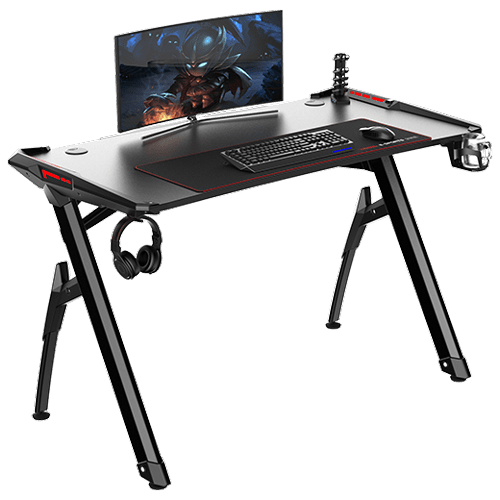
The advanced desk is made from carbon steel and plastic combination, it is very durable and it weighs 27kg. Now that is not really light but it is not very heavy if we compare it to wood desks. The top layer of the table is made from easy-to-clean material and the desk comes with a large mouse and keyboard pad.

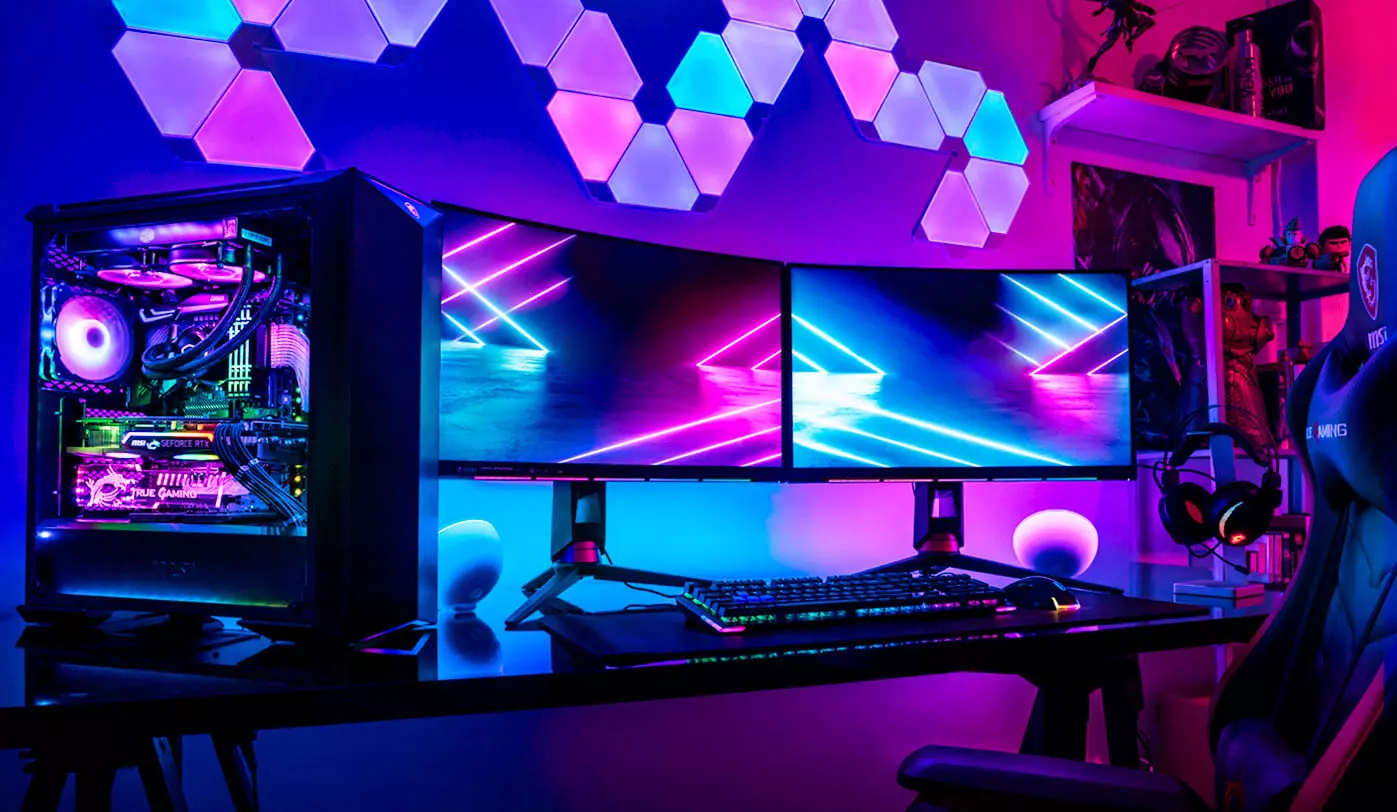
The table itself includes a cup holder, headphones bracket under the table and it has a cable management drawer in the back. The desk is sized 66x120x76 cm. Also for anyone interested desk itself comes also with RGB lights for that true gaming feel.

Do You Need Help with Your Device?

Our Team of Experts May Help
Troubleshoot.Tech Experts are There for You!
Replace damaged files
Restore performance
Free disk space
Remove Malware
Protects WEB browser
Remove Viruses
Stop PC freezing
GET HELP
Troubleshoot.Tech experts work with all versions of Microsoft Windows including Windows 11, with Android, Mac, and more.

Share this article:

You might also like

Screen of death colors in Windows 10
Receiving a screen of death is not a pleasant experience at all and most users would agree that they would very much like not to face one during their work with the computer. Sadly PC is not a perfect machine and it is not working in a perfect environment so errors happen. The most famous and well-known death screen is blue which is also the most common one, my bet would be that there is not a user which has not been faced with this blue error screen. There is no simple explanation why these stop errors occur as several factors can be involved. However, it is known that the malfunctioning of hardware drivers or drivers that are installed by third-party software drive this unwanted change. But did you know that there is more colors for infamous death screens and not just blue one? Microsoft has coded different errors to different colors in the goal for the technical team to be aware right away of what type and kind of error they are dealing with. Color for screen errors are: Blue, Black, Pink, Brown, Yellow, Red, Orange, Green and White If you are interested in what color represents what keep reading.

BLUE

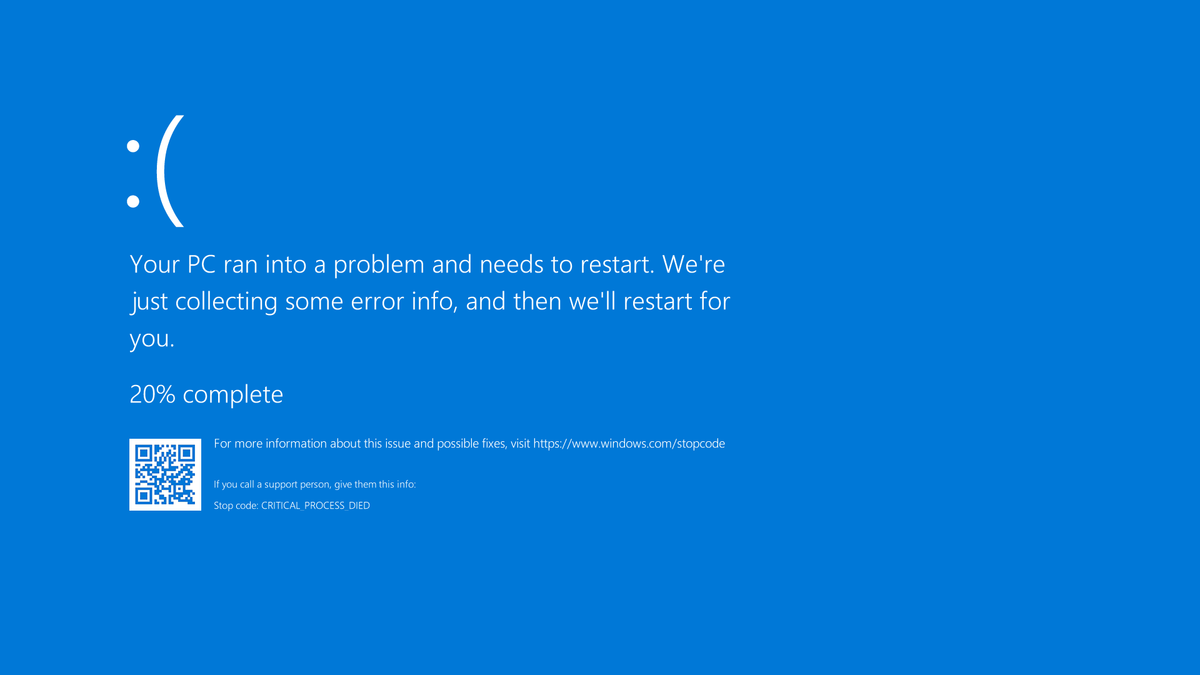
blue screen of deathA stop error or exception error commonly called the blue screen of death (BSoD) or blue screen, is an error screen displayed on Windows computers following a fatal system error. It indicates a system crash, in which the operating system has reached a condition where it can no longer operate safely. This is caused by many different problems, such as a general hardware failure or a crucial process terminating unexpectedly.

BLACK

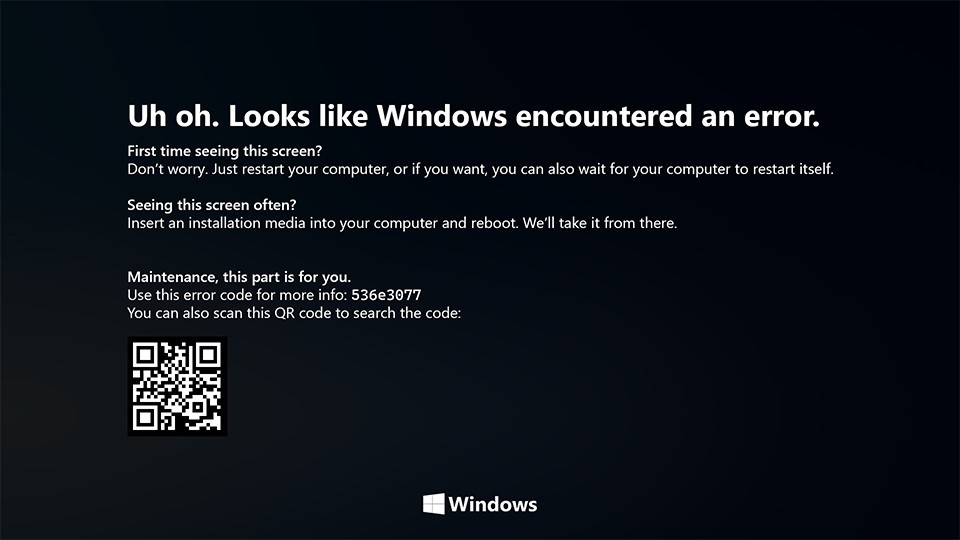
black screen of deathOn Windows 10 systems, a Black Screen of Death can be caused by an unfinished Windows Update. To resolve this problem, simply hold the power button down on your PC or laptop to switch off the computer. A cold start should result in the system booting properly.

PINK

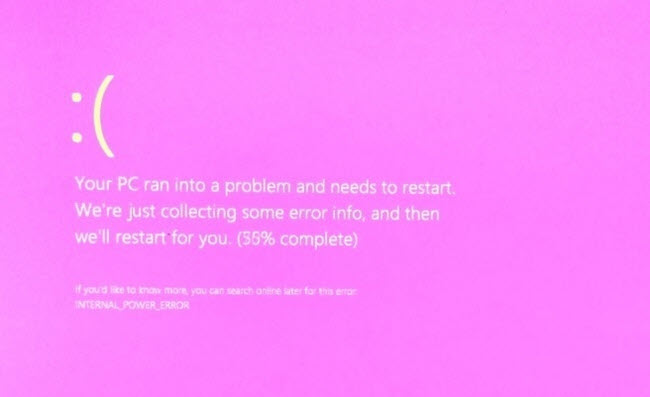
pink screen of deathIt is a diagnostic screen with a white type on a pink background. Pink Screen is mainly seen when the VMkernel of an ESX/ESXi host experiences a critical error, becomes inoperative, and terminates any virtual machines that are running. It is not fatal and generally considered more of a developer testing issue. When encountered, it can be fixed quickly by following the simple action of pressing and holding your computer’s power button to shut down the device.

BROWN

brown screen of deathThe Microsoft Windows 10 Operating System Brown Screen of Death is an on-screen fatal error notification with bug check codes which is seen when a computer crashes due to graphics hardware or software-related problems (failing graphics drivers).

YELLOW

yellow screen of deathIt affects the functioning of a browser, particularly Mozilla Firefox. The Yellow Screen of Death makes the appearance with a weird buzzing sound in the background when the XML parser refuses to process an XML document causing a parsing error and a weird buzzing sound. The issue persists unless the computer is manually rebooted.

RED

red screen of deathCommonly the Windows 10 red screen is caused due to the hardware error, particularly if you overclock your Windows PC/laptop. Despite this, sometimes the red screen of death is also caused by outdated or incompatible drivers or due to BIOS issues.

ORANGE

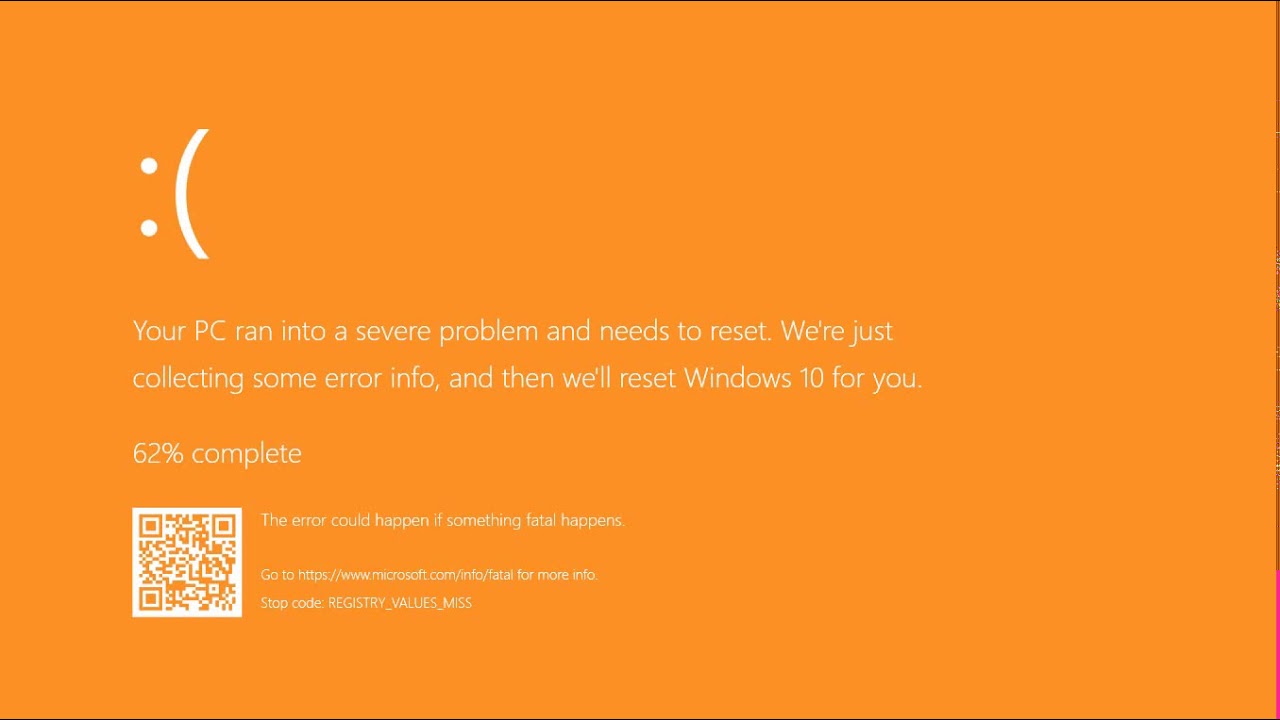
orange screen of deathThe Orange Screen of Death on Windows occurs due to fatal hardware errors. Multiple reasons have been reported for the Orange Screen of Death. Some had this issue when watching a YouTube video, some were not able to boot into Windows. It can even occur when waking up from Sleep.

GREEN

green screen of deathThe green screen of death only appears when you're running an Insider Preview version of Windows 10. It's the same as the blue screen of death, and it will show the same error messages. ... If you see a green screen of death (GSOD) on your PC, that's a sign you're using an Insider Preview build of Windows 10.

WHITE

white screen of deathThe White Screen on Windows is also an error where the screen of the computer just turns white and freezes. There can be several things that can cause the white screen to appear on the Windows laptop monitor. But the main issue could be because of malfunctioning of the graphics hardware.
Read More
Fix Windows Update Error 0x80242006
If you are trying to update your Windows 10 computer using Windows Update but encounter an error code 0x80242006, then you’ve come to the right place as this post will guide you in fixing this particular Windows Update error. This kind of error might be due to mishandling by the operating system. It could also be caused by the antivirus program or security software installed in your computer. When you encounter this error, you will see the following error message on your screen as you try to run Windows Update:
“0x80242006, WU_E_UH_INVALIDMETADATA. A handler operation could not be completed because the update contains invalid metadata.”
Here are some troubleshooting tips you can try to fix Windows Update Error 0x80242006.

Option 1 – Try to reset the Windows Update components

If by any chance that the second option didn’t work, resetting the Windows Update components could also help you resolve the problem. How? Refer to the following steps:
  • Open Command Prompt with admin privileges.
  • After that, type each one of the following command and hit Enter after you key in one after the other.
    • net stop wuauserv
    • net stop cryptsvc
    • net stop bits
    • net stop msiserver
Note: The commands you entered will stop the Windows Update components such as Windows Update service, Cryptographic services, BITS and MSI Installer.
  • After disabling WU components, you need to rename both the SoftwareDistribution and Catroot2 folders. To do that, type each one of the following commands below and don’t forget to hit Enter after you type one command after the other.
    • ren C:WindowsSoftwareDistribution SoftwareDistribution.old
    • ren C:WindowsSystem32catroot2 Catroot2.old
  • Next, restart the services you’ve stopped by entering another series of commands. Don’t forget to hit Enter after you key in one command after the other.
    • net start wuauserv
    • net start cryptsvc
    • net start bits
    • net start msiserver
  • Close Command Prompt and reboot your PC.

Option 2 – Run the Windows Update Troubleshooter

If resetting the Windows Update components didn’t work, you could also try running the Windows Update Troubleshooter as it could also help in fixing any issues related to Windows Update including this one. To run it, go to Settings and then select Troubleshoot from the options. From there, click on Windows Update and then click the “Run the troubleshooter” button. After that, follow the next on-screen instructions and you should be good to go.

Option 3 – Try to disable your antivirus program

Disabling the antivirus program or any security software installed in your computer is always a good idea you can try when the Windows Update process does not go smoothly. So before you try updating your computer again, make sure to disable the antivirus or security program and once the Windows Update is done, don’t forget to enable the antivirus program back again.

Option 4 – Check the Background Intelligent Service and the Cryptographic Service

  • Tap the Win + R keys to open the Run dialog box.
  • Next, type “services.msc” in the field and hit Enter or click OK to open Services.
  • From the list of Services, look for the following services and make sure that their Startup type is as follows:
    • Background Intelligent Transfer Service – Manual
    • Cryptographic Service ­– Automatic
  • After that, check if the Service status of the listed services above are set to Running. If they’re not, click on the Start button to start these services and then check if you can now enable the Windows Update service or not.

Option 5 – Run the System File Checker Scan

System File Checker or SFC is a built-in command utility that helps in restoring corrupted files as well as missing files. It replaces bad and corrupted system files to good system files. To run the SFC command, follow the steps given below.
  • Tap Win + R to launch Run.
  • Type in cmd in the field and tap Enter.
  • After opening Command Prompt, type in sfc /scannow
The command will start a system scan which will take a few while before it finishes. Once it’s done, you could get the following results:
  1. Windows Resource Protection did not find any integrity violations.
  2. Windows Resource Protection found corrupt files and successfully repaired them.
  3. Windows Resource Protection found corrupt files but was unable to fix some of them.
  • Restart your computer.

Option 6 – Try running the DISM tool

You can try running the Deployment Imaging and Servicing Management or DISM tool to fix the Windows Update error 0x80242006. Using this built-in tool, you have various options such as the “/ScanHealth”, “/CheckHealth”, and “/RestoreHealth”.
  • Open the Command Prompt with admin privileges.
  • Then type in the following commands and make sure to hit Enter right after you type each one of them:
    • Dism /Online /Cleanup-Image /CheckHealth
    • Dism /Online /Cleanup-Image /ScanHealth
    • exe /Online /Cleanup-image /Restorehealth
  • After that, wait until the process is finished and do not close the window as the process will probably take a couple of minutes.
  • Once it’s done, restart your computer.
Read More
What to do if Windows 10 Taskbar Volume Control is not working
The quickest way to control and manage the volume of your Windows 10 PC is using the Volume control icon in the system tray. However, you might encounter issues in using it especially if you recently updated your PC. After the update, if it no longer responds to mouse clicks, be it a right-click or left-click, read on as this post will show you what you can do to remedy that issue. If you think that you’re the only one who has experienced this problem, you are mistaken as several users also reported that the volume icon does highlight and shows the volume level if you hover the cursor over it but it does not really do anything at all. This is definitely the quickest way to change the audio output in Windows 10 especially when you have to change from speakers to your earphone and whatnot. If you are one of the users whose Windows 10 Taskbar Volume Control icon has stopped working and every time you click on the icon and nothing happens and you’re still not able to adjust the volume of your Windows 10 computer, read on as this post will show you what you can do to fix that problem. Although the audio is working just fine, you will still not be able to adjust the volume from its control icon. The problem is most likely related to the UI interaction. There are times when icons in the taskbar also experience the same issue where you can hover your mouse over them but nothing happens when you click on them. As mentioned, the issue with the volume icon does not seem to affect the actual audio of the computer. Double-check to confirm and if it turns out that the audio is indeed working fine, you can use the hardware of your keyboard to manage and control the volume, however, the software just won’t work. This issue is really inconvenient especially for users who connect their laptops to a bigger display. To fix this issue, here are some suggestions you need to check out.

Option 1 – Try to restart the Windows Explorer

This option may sound silly but it has actually worked in fixing the issue for some users. So if anything gets stuck on the taskbar or system tray, the best way to revive them is by restarting Windows Explorer.
  • Right-click on the taskbar and then select the Task Manager.
  • Next, look for Windows Explorer under the Processes tab.
  • Then right-click and select restart.
  • After that, wait for the restart process to be completed and for the user interface to refresh. Note that you will notice the Taskbar disappearing and reappearing again. It will reload the entire user interface and allows you to access the volume icon. It should work this time.

Option 2 – Restart the Audio services

Restarting the audio services in your computer can also help you fix the volume control issue and to do that, refer to these steps:
  • Tap the Win + R keys to open the Run dialog box.
  • Type in “services.msc” in the field and hit Enter to open Services.
  • From there, look for Windows Audio and then right-click on it and go to Properties.
  • After that, you have to make sure that the Startup Type is set to Automatic.
  • Then click on the Stop button. Once it has stopped, start it again.
  • Now restart your computer and see if you can now access the volume icon on the taskbar.

Option 3 – Try to update or roll back the Audio driver

If the glitch in your audio has something to do with software, chances are it might be related to the audio driver – it could be that the newest version of your Windows 10 does not work well with the old version of the driver. This is why you have to update your audio driver to the newest available version.
  • Tap the Win + R keys to open the Run dialog box and then type in devmgmt.msc and tap Enter or click OK to open the Device Manager.
  • Expand the section for the outdated device drivers.
  • And then select the outdated driver(s) and right-click on it/them.
  • From the drop-down menu, select the Update Driver option and follow the on-screen instructions to install the latest version of the driver.
  • Then also click on the option, “Search automatically for updated driver software.
  • Restart your PC after the installation.
Note: If updating the Audio driver didn’t work, you can go to the website of your PC manufacturer and look for the support section where you can download the drivers for your computer. You just need to take note of your PC’s correct model and model number so you can find the appropriate driver.

Option 4 – Try running the Playing Audio Troubleshooter

Since the Windows 10 operating system has the Playing Audio Troubleshooter, you can use this troubleshooter to try and fix the volume control issue on your PC. You can access this tool in the Control Panel or in the Taskbar Search and even on the Troubleshooters page of Windows 10. Run this troubleshooter and see if it can fix the issue or not.
Read More
Remove EliteUnzip from your computer

EliteUnzip is a program developed by Mindspark Interactive. This program lets you compress and extract all the popular archive types.

From the Author:

Elite Unzip is a program for creating and extracting archive files; it has support for over 20 file formats. This application downloads onto your computer in two parts: one for your desktop, and one for your browser. They both work together to make packing and unpacking archive files easy.

While EliteUnzip itself is not a threat, it comes bundled with other software that might cause a problem to your computer.

Due to its bundled nature, several anti-virus scanners have marked EliteUznip as a Potentially Unwanted Program and is therefore not recommended to keep on y our computer, especially because there are other free programs that do the same functions without the additional bundled software.

About Potentially Unwanted Applications

Precisely what is a Potentially Unwanted Program (PUP)?

Have you ever found out an unwanted program running on your computer and wondered how the heck it got there? These unwanted programs, which are known as Potentially Unwanted Programs, or PUPs in short, often tag along as a software bundle when downloading the program and can result in major problems for computer users. It’s clear by the name – unwanted programs – but did not really constitute “malware” in the traditional sense. The reason for this is that the majority of PUPs enter into users’ computers not because they exploit security weaknesses, for instance, but mainly because the users give consent to download it – unknowingly in many instances. No matter whether it is regarded as malware or otherwise, PUPs are almost always bad for a computer owner as they might bring on adware, spyware, keystroke logging, and other nasty “crapware” features on your PC.

What do PUPs do on your computer, precisely?

Most Potentially Unwanted Programs comes in the form of adware, which generally aims to exhibit lots of annoying pop-up ads, banners, coupons, and deals on websites you explore. PUPs that come in the form of browser add-ons and toolbars are widely identifiable. They may track your online activities, redirect your search results to risky sites where adware and spyware can be downloaded, hijack your home page, and slow your browser down to a crawl. PUPs carry a dangerous bite if left behind unchecked. The worst part of setting up a PUP is the spyware, adware, and keystroke loggers that could hide inside. These are programs that don’t do anything good for you; in addition to taking over space on the hard disk, they will also slow down your PC, often change settings without your permission, and the list of bothersome features goes on and on.

Protect yourself from unwanted programs

• When installing anything on your desktop, always read the fine print, like the license agreement. Don’t accept terms of use that are for bundled applications. • Normally, when installing a software program you get two options, ‘Standard Installation’ and ‘Custom Installation’. Don’t opt for ‘Standard’ as unwanted programs might automatically be installed that way! • Use good anti-malware software. Try Safebytes Anti-malware which can spot PUPs and treat them as malware by flagging them for deletion. • Be alert when you download and install freeware, open-source programs, or shareware. Nowadays ‘freeware’ isn’t actually freeware – but crapware bundling nonsense. • Only use official product sites for downloading applications. Steer clear of download websites altogether since most websites compel users to download the program with their own download manager, which is often bundled up with some kind of PUPs.

Virus Blocking Access To Safebytes Site And Preventing Anti-Malware Downloads – What You Should Do?

All malware is inherently unsafe, but certain kinds of malicious software do a lot more damage to your computer or laptop than others. Some malware variants alter browser settings by adding a proxy server or change the computer’s DNS configuration settings. When this happens, you will be unable to visit some or all of the sites, and therefore unable to download or install the necessary security software to eliminate the malware. If you are reading this, chances are you’re stuck with a virus infection that is preventing you to download and install Safebytes Anti-Malware software on your computer. There are some actions you can take to circumvent this issue.

Install in Safe Mode

In the event the malware is set to run at Windows start-up, then booting in safe mode should avoid it. Since only the minimal applications and services start-up in safe mode, there are hardly any reasons for conflicts to happen. The following are the steps you should follow to start your computer into the Safe Mode of your Windows XP, Vista, or 7 computers (go to Microsoft site for directions on Windows 8 and 10 computers). 1) Tap the F8 key continuously as soon as your computer boots, however, before the large windows logo comes up. This should bring up the Advanced Boot Options menu. 2) Make use of the arrow keys to select Safe Mode with Networking and press ENTER. 3) Once you get into this mode, you should have internet access once again. Now, obtain the malware removal software you need by using the web browser. To install the program, follow the guidelines in the setup wizard. 4) Following installation, run a full scan and let the program eliminate the threats it finds.

Download the antivirus software in a different internet browser

Some malware mainly targets particular browsers. If this sounds like your case, make use of another internet browser as it may circumvent the virus. If you appear to have malware attached to Internet Explorer, then switch over to a different browser with built-in safety features, such as Firefox or Chrome, to download your favorite anti-malware program – Safebytes.

Install antivirus on a thumb drive

Here’s yet another solution which is utilizing a portable USB anti-malware software package that can check your system for malware without needing installation. Adopt these measures to use a flash drive to clean your infected system. 1) Download the anti-malware on a virus-free computer. 2) Plug the pen drive into the uninfected computer. 3) Double click on the exe file to open the installation wizard. 4) When asked, select the location of the pen drive as the place where you want to store the software files. Follow the directions to complete the installation process. 5) Transfer the thumb drive from the uninfected computer to the infected PC. 6) Double-click the anti-malware software EXE file on the thumb drive. 7) Click on “Scan Now” to run a scan on the affected computer for viruses.

Benefits and Features of SafeBytes Anti-Malware

If you are looking to purchase anti-malware for your PC, there are various brands and applications for you to consider. A few of them are great and some are scamware applications that pretend as authentic anti-malware software waiting to wreak havoc on your computer. You need to pick a tool that has gained a good reputation and detects not only computer viruses but other types of malware as well. When considering commercial application options, many people opt for popular brands, such as SafeBytes, and are very happy with them. SafeBytes anti-malware is really a powerful, highly effective protection application intended to help users of all levels of IT literacy in finding and removing harmful threats out of their computer. This application could easily identify, remove, and protect your computer from the most advanced malware intrusions such as adware, spyware, trojan horses, ransomware, worms, PUPs, as well as other possibly damaging software applications.

There are lots of great features you’ll get with this security product. Below are a few of the best ones:

Real-Time Protection: SafeBytes provides real-time active monitoring service and protection against all known computer viruses and malware. It will monitor your personal computer for suspicious activity regularly and shields your personal computer from unauthorized access. Best AntiMalware Protection: Safebytes is built on the very best virus engine in the industry. These engines will find and remove threats even during the early phases of a malware outbreak. Fast Multi-threaded Scanning: SafeBytes’s virus scan engine is one of the quickest and most efficient in the industry. It's targeted scanning substantially increases the catch rate for viruses that are embedded in various PC files. Web Protection: SafeBytes inspects the links present on a webpage for possible threats and tells you whether the website is safe to view or not, through its unique safety rating system. Light-weight: SafeBytes is well known for its minimal impact on computer resources and great detection rate of numerous threats. It operates quietly and efficiently in the background so you’re free to make use of your PC at full power all of the time. Premium Support: SafeBytes gives you 24/7 technical support, automatic maintenance, and upgrades for the best user experience. SafeBytes has created a wonderful anti-malware solution to help you conquer the latest malware threats and virus attacks. Once you have downloaded and installed SafeBytes Anti-Malware, you will no longer have to bother about malware or other security concerns. So if you want sophisticated forms of protection features & threat detections, purchasing SafeBytes Anti-Malware will be worth the money!

Technical Details and Manual Removal (Advanced Users)

To remove EliteUnzip manually, go to the Add/Remove programs list in the Control Panel and choose the program you want to get rid of. For internet browser plug-ins, go to your browser’s Addon/Extension manager and select the plug-in you want to remove or disable. You will additionally also want to totally reset your internet browser to its default settings. To make sure of complete removal, find the following Windows registry entries on your system and remove it or reset the values appropriately. However, this is often a tricky task and only computer professionals could perform it safely. Also, certain malware is capable of replicating itself or preventing its deletion. Carrying out this malware-removal process in Safe Mode is suggested.
Files: %PROGRAMFILES%\EliteUnzip_aa\bar.bin\aaSrcAs.dll %PROGRAMFILES(x86)%\EliteUnzip_aa\bar.bin\aabar.dll %PROGRAMFILES%\EliteUnzip_aa\bar.bin\aaHighIn.exe %PROGRAMFILES(x86)%\EliteUnzip_aa\bar.bin\CrExtPaa.exe %USERPROFILE%\Application Data\EliteUnzip_aa %USERPROFILE%\AppData\LocalLow\EliteUnzip_aa %UserProfile%\Local Settings\Application Data\Google\Chrome\User Data\Default\Extensions\gaklecphgkijookgheachpgdkeminped %LOCALAPPDATA%\EliteUnzip_aa %USERPROFILE%\Meus documentos\Downloads\EliteUnzipSetup.EliteUnzip_aa.ffjcmnpnoopgilmnfhloocdcbnimmmea.ch.exe %PROGRAMFILES(x86)%\aaUninstall Elite Unzip.dll %USERPROFILE%\Downloads\EliteUnzipSetup.exe C:\Program Files\EliteUnzip\EliteUnzip.exe Search And Delete: RebootRequired.exe IAC.UnifiedLogging.dll DesktopSdk.dll IAC.Helpers.dll UnifiedLogging.dll SevenZipSharp.dll 7z.dll 7z64.dll LogicNP.FileView.WPF.dll LogicNP.FolderView.WPF.dll LogicNP.ShComboBox.WPF.dll lua5.1.dll Registry: HKEY_CURRENT_USER\Software\AppDataLow\Software\EliteUnzip_aa HKEY_LOCAL_MACHINE\SOFTWARE\Microsoft\Windows\CurrentVersion\Run, value: EliteUnzip EPM Support HKEY_LOCAL_MACHINE\SOFTWARE\Microsoft\Windows\CurrentVersion\Run, value: EliteUnzip Search Scope Monitor HKEY_CURRENT_USER\Software\EliteUnzip_aa HKEY_LOCAL_MACHINE\SOFTWARE\Wow6432Node\Microsoft\Internet Explorer\Toolbar, value: ef55cb9f-2729-4bff-afe5-ee59593b16e8 HKEY_LOCAL_MACHINE\SOFTWARE\Wow6432Node\Microsoft\Windows\CurrentVersion\Run, value: EliteUnzip AppIntegrator 64-bit HKEY_LOCAL_MACHINE\SOFTWARE\Wow6432Node\Microsoft\Windows\CurrentVersion\Run, value: EliteUnzip EPM Support HKEY_LOCAL_MACHINE\SOFTWARE\Wow6432Node\Microsoft\Windows\CurrentVersion\Run, value: EliteUnzip Search Scope Monitor HKEY_LOCAL_MACHINE\SOFTWARE\Microsoft\Windows\CurrentVersion\Run, value: EliteUnzip AppIntegrator 32-bit HKEY_LOCAL_MACHINE\SOFTWARE\Microsoft\Windows\CurrentVersion\Run, value: EliteUnzip AppIntegrator 64-bit HKEY_LOCAL_MACHINE\SYSTEM\CurrentControlSet\services\EliteUnzip_aaService HKEY_LOCAL_MACHINE\SYSTEM\ControlSet001\services\EliteUnzip_aaService HKEY_LOCAL_MACHINE\SYSTEM\ControlSet002\services\EliteUnzip_aaService HKEY_LOCAL_MACHINE\SOFTWARE\Microsoft\Windows\CurrentVersion\RunOnce, value: EliteUnzip_aabar Uninstall HKEY_LOCAL_MACHINE\SOFTWARE\Wow6432Node\EliteUnzip_aa HKEY_LOCAL_MACHINE\SOFTWARE\Wow6432Node\Mindspark\EliteUnzip HKEY_LOCAL_MACHINE\SOFTWARE\Mindspark\EliteUnzip
Read More
Remove ChatZum from Windows

ChatZum is a Potentially Unwanted Program that installs a Toolbar into your browser. This program allegedly allows users to zoom in on photos without clicking on them, however, upon further research, it was discovered that this function does not work on the latest version of browsers.

From the Author: ChatZum is a Browser add-on (toolbar) that enables its users to hover over images in Major Social network's websites and view a larger version of an image.

While installing this toolbar will track user web browsing sessions and will record website visits, clicks, and sometimes even personal information. This information is later used to display targeted ads to the user. To allow easier user tracking, the program changes the browser home page and default search engine to Nation Search Advanced, which injects additional advertisements and tracks user activity.

Several anti-virus applications have marked this program as Potentially Unwanted, and it is not recommended to keep it on your computer, especially considering the fact it will most likely not work on your browser.

About Potentially Unwanted Applications

If you have ever installed a free application or shareware, chances are high that the computer will get installed with a bunch of unwanted applications. A Potentially Unwanted Program, also called PUP, in short, is actually software that contains adware, installs toolbars, or has got other hidden objectives. These types of programs are generally bundled up with a free application that you download from the internet or may also be bundled inside the custom installers of many download websites. PUPs aren’t always viewed as “pure” malware in the strictest sense. A fundamental difference between PUP and malware is distribution. Malware is normally dropped by silent installation vectors like drive-by downloads while PUP gets installed with the consent of the computer user, who knowingly or unknowingly approves the PUP installation on their computer system. But, there is no doubt that PUPs remain bad news for PC users as it could be quite dangerous to your computer in many ways.

The damage PUPs can do

The unwanted programs after installation display numerous annoying pop-up ads, trigger fake alerts, and sometimes even forces a computer owner to pay for the software. PUPs that come as browser add-ons and toolbars are commonly recognizable. These toolbars alter your homepage and your search engine in the installed web browser, track your web activities, modify your search results with redirects and sponsored links, and eventually slow down your browser and diminish your browsing experience. Potentially unwanted programs use aggressive distribution methods to get onto your computer. The worst part of setting up a PUP is the adware, spyware, and keystroke loggers that could lurk inside. Even if the PUPs really aren’t inherently malicious, these applications still do practically nothing good on your PC – they’ll take valuable system resources, slow down your PC, weaken your computer security, making your PC more vulnerable to malware.

How to avoid ‘crapware’

• Read the EULA thoroughly. Look for clauses that state that you have to accept advertising and pop-ups or bundled applications from the company. • Always opt for the custom if you’re offered an option between “Custom” and “Recommended” Installations – never ever click Next, Next, Next thoughtlessly. • Use a good anti-malware application. Try Safebytes Anti-malware which can find PUPs and treat them as malware by flagging them for deletion. • Be alert if you download and install freeware, open-source applications, or shareware. Do not ever install software applications that seem shady or malicious. • Always download applications from the original website. The majority of PUPs find their way onto your laptop or computer is via download portals, so steer clear of it altogether. Remember the fact that even though PUPs could potentially cause damage and hinder the proper functioning of the PC, they can’t enter into your system without your consent, so be alert not to provide them with it.

How One Can Get rid of Malware that is Blocking Websites or Preventing Downloads

Malware could potentially cause many kinds of damage to PCs, networks, and data. Some malware goes to great lengths to stop you from downloading or installing anything on your computer, especially antivirus software. If you’re reading this article, odds are you’re stuck with a malware infection that is preventing you to download or install the Safebytes Anti-Malware program on your PC. Even though this sort of problem can be tougher to circumvent, there are some steps you can take.

Make use of Safe Mode to resolve the issue

If the malware is set to run automatically when Microsoft Windows starts, stepping into safe mode could block the attempt. Just minimal required programs and services are loaded when you boot your computer in Safe Mode. To launch your Windows XP, Vista, or 7 computers in Safe Mode with Networking, do as instructed below. 1) Tap the F8 key repeatedly as soon as your PC boots, however, before the big Windows logo or black screen with white texts come up. This would invoke the Advanced Boot Options menu. 2) Choose Safe Mode with Networking with arrow keys and hit ENTER. 3) When this mode loads, you should have the internet. Now, obtain the malware removal program you want by utilizing the web browser. To install the program, follow the guidelines in the installation wizard. 4) Right after installation, do a full scan and allow the software program to get rid of the threats it detects.

Switch to an alternate internet browser

Some malware mainly targets certain browsers. If this is your situation, employ another internet browser as it might circumvent the computer virus. When you suspect that your Internet Explorer has been hijacked by a trojan or otherwise compromised by online hackers, the best thing to do is to switch over to an alternate internet browser such as Mozilla Firefox, Google Chrome, or Apple Safari to download your chosen security program – Safebytes Anti-Malware.

Create a portable USB antivirus for eliminating viruses

Another technique is to download and transfer an antivirus application from a clean computer to run a scan on the infected computer. Follow these steps to run the anti-malware on the affected computer. 1) Download the anti-malware on a virus-free PC. 2) Connect the flash drive to a USB slot on the clean computer. 3) Double click on the exe file to run the installation wizard. 4) Choose the USB stick as the location for saving the file. Follow the instructions on the screen to finish off the installation process. 5) Now, transfer the flash drive to the infected computer. 6) Run the Safebytes Anti-malware directly from the USB drive by double-clicking the icon. 7) Click the “Scan Now” button to start the virus scan.

Protect your PC from Malware With SafeBytes Security Suite

If you are looking to install an anti-malware program for your PC, there are lots of tools in the market to consider nonetheless, you just cannot trust blindly anyone, regardless of whether it is a paid or free program. A few of them are great but there are several scamware applications that pretend as authentic anti-malware programs waiting around to wreak havoc on your PC. You have to pick a company that develops industry-best anti-malware and it has earned a reputation as reliable. One of the highly recommended applications by industry analysts is SafeBytes Anti-Malware, the safest program for Microsoft Windows. SafeBytes can be described as a highly effective, real-time antivirus application that is made to assist the average computer user in protecting their PC from malicious internet threats. Through its cutting-edge technology, this software will help you protect your computer against infections brought on by various kinds of malware and other internet threats, including spyware, adware, trojans, worms, computer viruses, keyloggers, ransomware, and potentially unwanted program (PUPs).

There are many wonderful features you’ll get with this particular security product. Listed below are some of the features you will like in SafeBytes.

Active Protection: SafeBytes offers a completely hands-free active protection and is set to observe, block, and kill all computer threats at its very first encounter. It will check your PC for suspicious activity at all times and its unrivaled firewall shields your computer from illegal entry by the outside world. Robust, Anti-malware Protection: Using a critically acclaimed malware engine, SafeBytes offers multilayered protection which is made to catch and remove threats that are concealed deep inside your PC. Web Security: Safebytes allots all sites a unique safety ranking that helps you to get an idea of whether the webpage you’re just about to visit is safe to view or known to be a phishing site. Extremely Speed Scanning: SafeBytes’s virus scan engine is among the fastest and most efficient in the industry. It's targeted scanning significantly increases the catch rate for viruses which is embedded in various computer files. Lightweight: SafeBytes is really lightweight software. It consumes an extremely small amount of processing power as it runs in the background which means you will not observe any computer performance difficulties. 24/7 Support: For any technical concerns or product assistance, you may get 24/7 expert assistance via chat and email. To sum it up, SafeBytes Anti-Malware offers outstanding protection combined with an acceptable low system resources usage with both great malware detection and prevention. You now may realize that this particular tool does more than just scan and remove threats from your computer. You will get the best all-around protection for the money you pay on SafeBytes AntiMalware subscription, there’s no question about it.

Technical Details and Manual Removal (Advanced Users)

If you wish to do the removal of ChatZum manually rather than using an automated software tool, you can follow these simple steps: Navigate to the Windows Control Panel, click the “Add/Remove Programs” and there, choose the offending application to remove. In case of suspicious versions of web browser plug-ins, you can easily get rid of it through your web browser’s extension manager. You might also want to reset your home page and search providers, as well as delete browsing history, temporary files, and cookies. If you choose to manually remove the system files and Windows registry entries, use the following list to make sure you know exactly what files to remove before undertaking any actions. Please note that only advanced users should try to manually edit the system files mainly because removing any single vital registry entry results in a serious problem or even a PC crash. In addition, certain malware is capable of replicating itself or preventing its removal. Doing this malware-removal process in Safe Mode is recommended.
Files: Search And Delete: tbcore3.dll arrow_refresh.png basis.xml chatzum.dll info.txt inst.tmp loaderie.js suggestion_plugin.dll TbCommonUtils.dll tbcore3.dll tbhelper.dll TbHelper2.exe uninstall.exe uninstaller.exe update.exe Folders: C:\Program Files\ChatZum Toolbar\ C:\Documents and Settings\username\Application Data\Mozilla\Firefox\Profiles\gb5e8gtn.default\extensions\staged\ADFA33FD-16F5-4355-8504-DF4D664CFE83 Registry: Key HKLM\SOFTWARE\ChatZum Toolbar Key HKLM\SOFTWARE\Microsoft\Windows\CurrentVersion\Uninstall\ChatZum Toolbar

Read More
Instagram posts available now on computer
Instagram posting has been reserved for mobile phones for a very long time but in October 2021 that privilege has come to an end. Instagram added the long-awaited ability to post to Instagram from the website. You get nearly all of the same filters and editing tools that you can find in the iPhone and Android app, too. Instagram logoIn order to post via computer on your Instagram account all you need is a browser. The first step, of course, is to go to instagram.com and login into your account, if you do not have an account, you can make one for free. Next, click on the + icon in the upper right corner. Create a new post screen will open, in this screen click on the Select from computer blue button on the bottom. The file manager will open, choose your desired photo and confirm. After that, you will be presented will an adjustment screen for a photo, here you can crop the photo, zoom in, adjust the aspect ratio, or if you wish add more photos to create a slide show. Once you are done will all of these adjustments, click on Next in the upper right. From there you will be taken into a filter screen where you can apply one of many filters or if you want, you can adjust brightness, contrast, saturation, temperature, etc. just like in the application on your phone. Once you have the desired result, again click on Next in the upper right part of the screen. Lastly, you will be given an option to write a caption for the photo if you wish and add a location. Once this step is finished you can post the feed by clicking on share in the upper right part. That is all to it, just like in a mobile application you can now use your computer for Instagram posting.
Read More
Fix Windows Cannot Find a System Image
If you have encountered the “Windows Cannot Find a System Image on This Computer” error while you are trying to restore a system image, then read on as this post will guide you in resolving this problem. A system image is basically a backup of your whole data in the system. For instance, it can be the backup data of your hard disk or the whole hard disk itself, or one of the volumes. This is really useful in some cases like when you are not able to get back into your system for some reason or when your system has been corrupted. In such cases, you can utilize this feature and get going safe and sound. However, not all things go the way as expected like when you make a system image of a drive for instance, or use that backup to restore data and you suddenly encounter the “Windows Cannot Find a System Image on This Computer” error. This kind of error occurs due to a number of reasons but worry not for your data is safe and you can fix this error easily. This error is most likely triggered by changing the name of the “WindowsImageBackup” folder. Renaming this folder will certainly be an issue since it is the one that stores all your data. Aside from renaming the WindowsImageBackup folder, renaming the sub-folders can also cause this error which means that renaming the sub-folders of the WindowsImageBackup folder can trigger the error. To fix this error, here are some suggestions that might help:

Option 1 – Try putting the WindowsImageBackup folder in the Root directory

Windows will have issues finding the WindowsImageBackup folder if it isn’t in the root directory of the drive so if it is not there, the “Windows Cannot Find a System Image on This Computer” error will pop up. When a folder is in a root directory, it means that it shouldn’t be stored within a folder but in the main directory instead.  Thus, you need to put the WindowsImageBackup folder in the root directory to fix the error.

Option 2 – Don’t add any sub-folders in the WindowsImageBackup folder

Another cause of the error is when you add sub-folders in the WindowsImage Backup folder. Adding any sub-folders in this folder will only trigger the error so you should leave the folder as it is and you must not make any modifications to it. So if you have added sub-folders in it, make sure to remove them right away.

Option 3 – Make sure that there is one system image per USB drive

The error can also appear if you’ve stored multiple images inside a single USB drive as it could confuse Windows and will trigger the “Windows Cannot Find a System Image on This Computer” error. Note that storing system images of different volumes of your hard disk in a single USB will prevent you from restoring your data.

Option 4 – Try renaming the System Image folder

If you’ve just changed the name of the System Image folder after you store it on a USB stick or other external device, then it’s no wonder why you’re getting the “Windows Cannot Find a System Image on This Computer” error. Windows search for the default name, “WindowsImage Backup” folder when restoring your data so if it is not able to find it, it throws up this error instead. To fix the error, you need to change the folder back to its default name which is “WindowsImageBackup”.

Option 5 – Check the WindowsImageBackup sub-folders

As mentioned earlier, renaming sub-folders in the WindowsImageBackup folder can trigger the error so if you have renamed sub-folders in this folder, you need to change them back to their default names so that you can restore your data peacefully.
Read More
Breath new life in your laptop

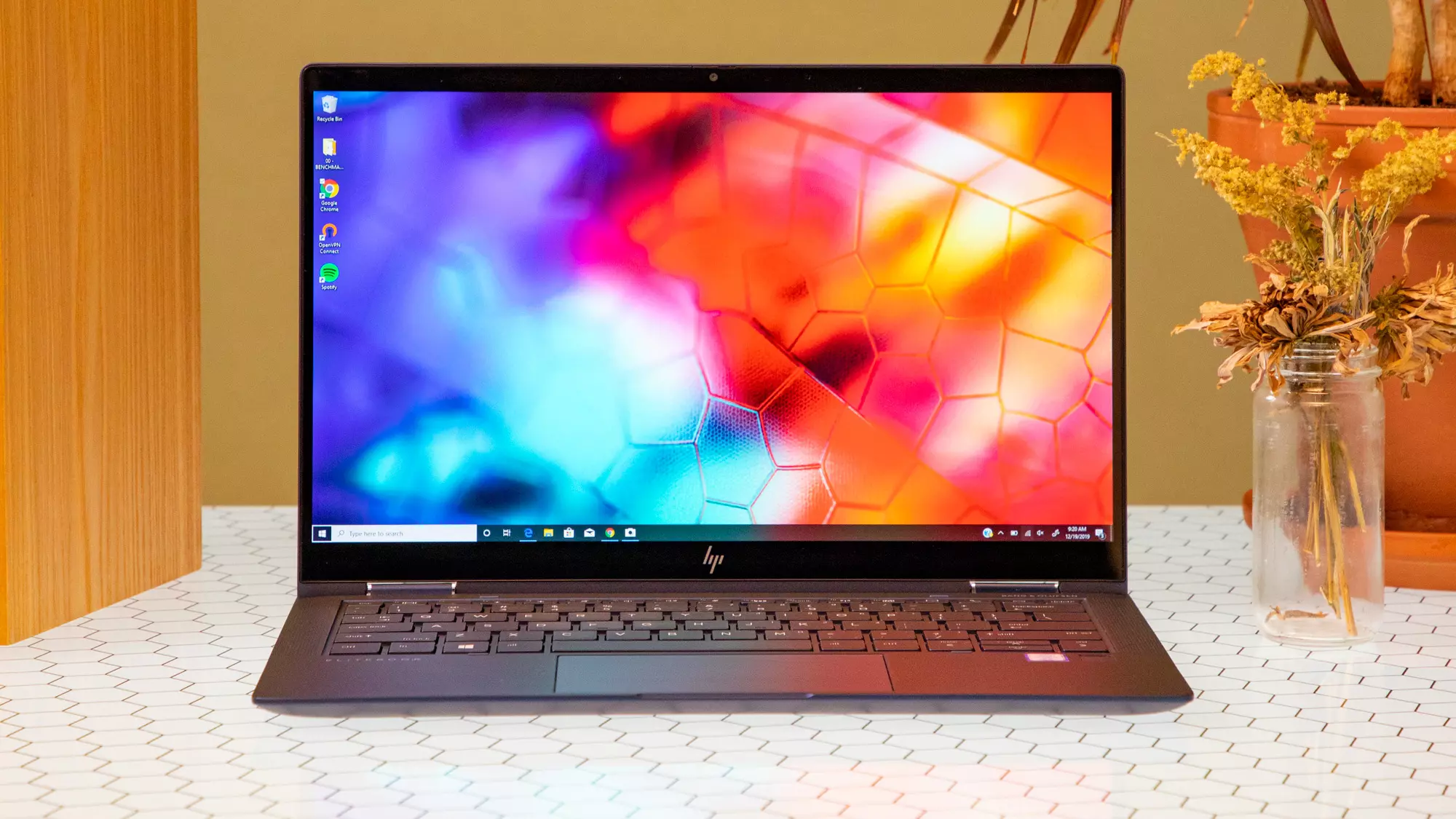
If you have a laptop that is slowing down and some usual tasks are sluggish you probably mean that it is time to change it and get a new one. Altho it is a good solution and it will guarantee that you will be able to do your tasks with more speed and comfort, straight purchasing is not always the best thing to do.

laptop

There are things you can do and some upgrades that are cheaper and will bring your laptop back into the game and extend its usage for a few more years.

1. Clean it

The most common issue for slowing down of computer is dust and dirt that accumulates over time and usage. If the laptop has not been properly cleaned in a while, cleaning it and placing new thermal paste on the CPU can do wonders. If you are not keen on doing this yourself or do not possess the required skillset take it to your local IT center for cleaning.

2. Uninstall software that you are not using

Various software can have speeding effects on computers, it can have some services running in the background and thus take precious resources slowing the whole system. If you are not using software, uninstall it.

3. Do not install the latest software

If you are using your computer for basic tasks there is no really need to install the latest and best. A lot of new software will require new hardware and things that offer are not so much better nor even required to justify the upgrade. Let us take office, for example, if you are using it to just write some text and not using any advanced options there is really no need to switch to a newer version, the old one will do just fine tasks that you are in need of.

4. Replace HD

Now this fits in the domain of upgrading your hardware but still it is much cheaper than replacing the whole laptop. Windows 10 works much better with SSD and SSD itself is faster than your standard HD, especially if it is slower model spinning in only 5400RPM. Operation of HD replacement is simple and straightforward and anyone can do it but the benefits of replacement will be visible right away. With a new SSD instead of an old mechanical one, you will have the feeling that you actually bought a new laptop.

5. Add more RAM

This is basically the last thing you can do in order to speed up your old laptop that will not break your bank account. Upgrading RAM was always the thing that can push your computer to have more power and to behave better while you are doing tasks. One important thing here is to first see how much RAM you have in your computer. If you are packing already 8GB then upgrading will not do much but if you have only 4GB, raising it to 6GB or 8GB will be beneficial. Also, check if the model of the laptop supports more RAM in the first place.

Conclusion

We have covered here a vast array of options in order to get your laptop back into the game with variability between hardware upgrades to taking care of your software. Whatever option you choose to do it will speed up your computer but among all of them, replacing the hard drive will do the most.

Read More
Hardware review: Bytezone Advanced desk
If you spend a large amount of time gaming or working on a computer gaming chair is a very important asset. One other thing that is mostly looked past but could help greatly is a good desk. A great chair accompanied by a great desk can make your long sitting sessions more pleasant and more healthy which is very important in the long run. Hey, but it is only a desk, what is so special about having an expensive desk? Well truth to be told desk is just a desk and any kind of desk can serve the purpose of hosting a keyboard, mice, and screen. But a good desk will offer some other advantages that may not seem so important but they could mean a lot like adjusting desk height so it fits perfectly on your size and sitting position making long hours more pleasant and lower stress on hands sitting on it.

bytezone gaming deskAdvanced desk features

Bytezone might not be a company that will sound familiar to you, mostly because they manufacture gaming chairs and desks, now in the gaming chairs world there are a lot of competitors and Bytezone has managed to make a name for itself despite this fact. But they are more popular in their gaming and office modern-looking desk category. The advanced desk is made from carbon steel and plastic combination, it is very durable and it weighs 27kg. Now that is not really light but it is not very heavy if we compare it to wood desks. The top layer of the table is made from easy-to-clean material and the desk comes with a large mouse and keyboard pad. The table itself includes a cup holder, headphones bracket under the table and it has a cable management drawer in the back. The desk is sized 66x120x76 cm. Also for anyone interested desk itself comes also with RGB lights for that true gaming feel.
Read More
Windows PC advantages over Apple Mac

In the last article, we have covered various advantages of Apple hardware over Windows PC, however, PC has their own strengths and advantages over MACs as well. Join us as we explore why would you choose Windows PC over MAC.

Windows PC

Hardware customization

If you like to customize and build your own hardware and customize your existing computer then MACs are out of the picture, on other hand, computers based on Windows operating system are much more flexible in terms of customization.

While Apple hardware is locked and only allows small changes to it, computers running on Windows are free and open to various upgrades and modifications so if you like to play with hardware Windows is your platform.

Gaming

There are games on MAC true but their numbers can not compare to games available for the Windows platform. On top of that, most latest and best gaming hardware is not even available on Apple platforms so if you plan to game in high resolutions and play the latest games there really is no option other than Windows.

Windows Platforms also has multiple emulators that you can use to play games from other older platforms and Microsoft since it owns Xbox has some great plans for both PC and Xbox gaming.

Software back compatibility

Since the introduction of the new MAC OS X, apple really lost a lot of application back compatibility, and a lot of old legacy software can not be run on modern Apple computers. Windows on the other hand have always tried and succeeded in keeping maximum compatibility with older and legacy software.

Also on the Windows platform, there is a lot of community support for old and legacy software so even if it is not officially supported it is backed up by the community.

Software variability

In terms of where can you find the most different software, you need to look no further than the Windows platform. How Windows itself has great backward compatibility and a lot of developers are using it to create new software thanks to Visual Studio and .NET Windows has cemented itself as a platform with the most available software.

The popularity of Windows as the home operating system and as a gaming platform has made it quite interesting in eyes of various developers and tons of small applications are made daily for it. Windows 11 has also brought native android support to it and that has just expanded its already impressive catalog of applications.

Freedom of choice

Overall Windows PC is most appealing for users that like to be able to choose everything, from hardware components to software they would like to use. No other platform will give you larger freedom of choice and better personalization options.

Read More
1 2 3 171
Logo
Copyright © 2023, ErrorTools. All Rights Reserved
Trademark: Microsoft Windows logos are registered trademarks of Microsoft. Disclaimer: ErrorTools.com is not affiliated with Microsoft, nor claims direct affiliation.
The information on this page is provided for information purposes only.
DMCA.com Protection Status