Logo

Windows 11 android apps update

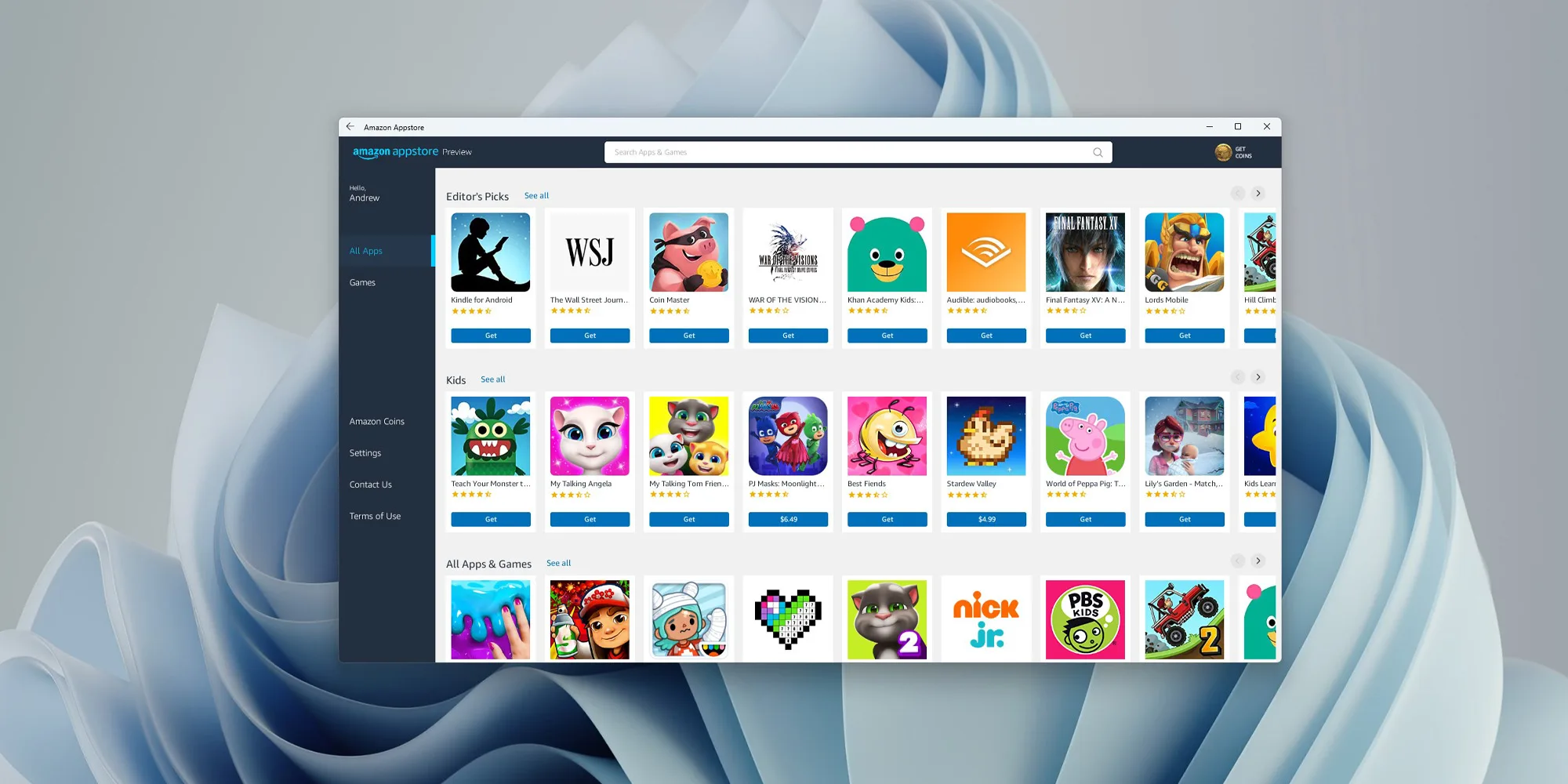
One of the selling points of Windows 11 was the ability to run Android apps natively in it without the need for any third-party software. It is not a big surprise that even after its release Microsoft is evolving and expanding Windows 11 and its features.

Windows 11 Android apps

Microsoft is now rolling out an update for the Windows Subsystem for Android on the Dev Channel of the Windows Insiders program. The new version upgrades the core operating system from Android 11 to Android 12.1 (also known as Android 12L), which means the new system and app features in Android 12 and 12.1 are now available on Windows for the first time. However, not the new features in those updates apply to the modified version that runs on top of Windows. For example, one of the main improvements in 12.1 was a dual-pane notification panel for larger screens, but Android app notifications on Windows just show up in the Windows notification panel.

The upgrade also improves how Android apps integrate into Windows. The Windows taskbar will now show which Android apps are currently using the microphone, location, and other system services — similar to many native Windows applications. Toasts messages (the small popups that some apps use for temporary messages) are now displayed as Windows notifications, and the titlebar on Android apps will use the current activity name for the title.

Full changelog

  • Windows Subsystem for Android updated to Android 12.1
  • Advanced networking on by default for newer x64 Windows builds
  • Updated Windows Subsystem for Android Settings app: redesigned UX and diagnostics data viewer added
  • Simpleperf CPU profiler recording now works with Windows Subsystem for Android
  • Windows taskbar now shows which Android apps are using microphone and location
  • Improvements to Android app notifications appearing as Windows notifications
  • Reduced flicker when apps are restored from minimized state
  • Apps are not restarted when devices come out of connected standby on recent Windows builds
  • New video hardware decoding (VP8 and VP9)
  • Fixes for on-screen keyboard in apps
  • Fixes for full-screen Android apps and auto-hidden Windows taskbar
  • Windows Subsystem for Android updated with Chromium WebView 100
  • Added support for Android NetworkLocationProvider in addition to GpsLocationProvider
  • Improved general stability, performance, and reliability

The new update is limited to Windows Insiders for now, but once Microsoft fixes all the bugs, it should start rolling out to everyone on Windows 11 that has the Android Subsystem enabled.

Do You Need Help with Your Device?

Our Team of Experts May Help
Troubleshoot.Tech Experts are There for You!
Replace damaged files
Restore performance
Free disk space
Remove Malware
Protects WEB browser
Remove Viruses
Stop PC freezing
GET HELP
Troubleshoot.Tech experts work with all versions of Microsoft Windows including Windows 11, with Android, Mac, and more.

Share this article:

You might also like

Mapped network drives are not working
When you have to connect to a drive that’s on a different computer or on external storage, that’s where the mapped network drives come in. Mapped network drives make accessing files a lot easier. However, there are times when it won’t work for some reason. Windows will notify you about the unavailability of mapped network drives in several ways. For one, Windows might display a red X on the network drives or it could be that its status will be unavailable when you try to use it from the Command Prompt or via a notification. It is recommended that you run a few scripts when you log in to your PC as it may so happen that the network drive takes more than usual to connect. Before you start troubleshooting the problem using the given options below, keep in mind that some workouts might only work under certain scenarios. You might need some network access at logon or you might need access to the Group Policy settings. So you need to choose what you prefer more. You can try the given workarounds below if the mapped network drives are not showing or connecting or working on your Windows 10 computer. These workarounds use scripts to make sure that you are connected to them as soon as you start to use your PC. As mentioned, before you can troubleshoot, you need to create scripts first. There are two scripts here namely MapDrives.ps1 which is executed by the second script named MapDrives.cmd and is done at a regular and non-elevated Command Prompt. Follow the steps below to get started.
  • You have to create a script file named “MapDrives.cmd” first and then save it on a place where the files are safe. To do that, open a text editor like Notepad and then copy and paste the following script:
PowerShell -Command "Set-ExecutionPolicy -Scope CurrentUser Unrestricted" >> "%TEMP%StartupLog.txt" 2>&1 PowerShell -File "%SystemDrive%ScriptsMapDrives.ps1" >> "%TEMP%StartupLog.txt" 2>&1
  • After that, save the file and name it “MapDrives.cmd”.
  • Next, create a script file named “MapDrives.ps1” and then copy and paste the following content. Just make sure to save both scripts in the same folder.
$i=3 while($True){     $error.clear()     $MappedDrives = Get-SmbMapping |where -property Status -Value Unavailable -EQ | select LocalPath,RemotePath     foreach( $MappedDrive in $MappedDrives)     {         try {             New-SmbMapping -LocalPath $MappedDrive.LocalPath -RemotePath $MappedDrive.RemotePath -Persistent $True         } catch {             Write-Host "There was an error mapping $MappedDrive.RemotePath to $MappedDrive.LocalPath"         }     }     $i = $i - 1     if($error.Count -eq 0 -Or $i -eq 0) {break}     Start-Sleep -Seconds 30 } Note: Now that you’ve created the script files, it’s time for you to proceed to the options given below.

Option 1 – Try creating a startup item

Note that this option only works on devices that have network access at login. So if it’s not there, the script will fail to reconnect the network drivers automatically. To create a startup item, here’s what you have to do:
  • Open the Startup folder located at %ProgramData%MicrosoftWindowsStart MenuProgramsStartUp.
  • From there, copy and paste the MapDrives.cmd.
  • After that, open the Scripts folder located at %SystemDrive%Scripts copy-paste MapDrives.ps1 and then copy and paste MapDrives.ps1 in there.
Note: After you complete the steps above, a log file named “StartupLog.txt” will be created in the %TEMP% folder. Now all that’s left for you to do is to log out of your computer and then log back in. This will ensure that the mapped drives are open.

Option 2 – Create a scheduled task

It is possible to create a scheduled task that runs as soon as you log in to your computer. To create a scheduled task, follow the steps below.
  • You have to copy the MapDrives.ps1 script file to the scripts folder of Windows located at %SystemDrive%Scripts.
  • After that, open the Task Scheduler and select Action > Create Task.
  • Next, type a name and description of the task in the General tab.
  • Then click on the Change User or Group button and select a local user group and click OK.
  • Now check the box labeled “Run with highest privileges” and switch to the Triggers tab.
  • From there, create a new trigger with the “At Logon” option in the Begin the task drop-down menu and then click OK.
  • After that, switch to the Actions tab and create a new action then choose to Start a program.
  • Next, type “Powershell.exe” in the Program/Script field, and in the Add arguments (optional) field, type the following:
-windowsstyle hidden -command .MapDrives.ps1 >> %TEMP%StartupLog.txt 2>&1
  • And in the Start in the (optional) field, type “%SystemDrive%Scripts” as the location of the script file.
  • Now under the Conditions tab, select the “Start only if the following network connection is available” option and then select Any connection and click OK.
  • Restart your computer or log off from your account and then log back in so that the task will be executed.

Option 3 – Use the Group Policy settings

You need this option if the mapped network drives are defined via Group Policy settings. You have to update the action of the drive maps to Replace. As a result, it will delete the existing mapped drive and create the mapping on each logon again. However, any settings on the mapped drive that are changed from the Group Policy settings will be gone on each logon. So if the changes don’t work, you need to run the gpupdate command together with the /force parameter in order to refresh the Group Policy setting quickly.
Read More
UNMOUNTABLE_BOOT_VOLUME
One of the worst Blue Screen of Death errors you can encounter is the UNMOUNTABLE_BOOT_VOLUME BSOD on Windows 10. In this BSOD error, your computer won’t be able to properly boot. Meaning to say, even if you want to reinstall Windows, you won’t be able to back up your important files. Thus, it wouldn’t be really feasible to fix the system files, and besides, reinstalling Windows 10 would take a lot of time, not to mention resources. The UNMOUNTABLE BOOT VOLUME error is the kind of BSOD error that occurs if Windows is not able to access the volume that contains the boot files. Resolving this BSOD error won’t be easy but you will surely manage by following the suggestions laid out below but before you go on, make sure to create a System Restore Point.

Option 1 – Try checking the hardware

If you got the UNMOUNTABLE BOOT VOLUME BSOD error while trying to update your computer to a higher version of Windows, then you need to check if you have the compatible drivers for the disk controller as well as re-check the drive cabling and make sure that it is properly configured. And if you’re reusing either ATA-100 or ATA-66 drivers, ensure that you have an 80-connector cable and not the standard 40-connector IDE cable.

Option 2 – Try using Automatic Repair

You might also want to use Automatic Repair in fixing the BSOD error. To do so, follow the steps below.
  • You can start by creating and booting from a bootable Windows 10 USB Stick.
  • After that, click on Repair your computer located in the bottom left corner when you are on the initial Windows Startup screen.
  • Next, click on Troubleshoot, and then on the other screen, click the Startup Repair option.
  • Now select the operating system you want to repair. Once you do that, it will start to repair your operating system. Wait until the process is completed and then check if the problem’s now fixed.

Option 3 – Try fixing the Master Boot Record or MBR

The MBR or Master Boot Record is the location and is where the architecture of the operating system is installed. Thus, if either the location or the architecture has tampered with, it can cause lots of BSOD errors like the UNMOUNTABLE BOOT VOLUME error.
  • Boot your computer into Safe mode with Networking using the Advanced startup options which you can access by tapping the F2 or F8 key. Once you’ve accessed the Advanced startup options.
  • After you access the Advanced Startup options, select Command Prompt by using the arrow keys on your keyboard.
  • After opening Command Prompt, execute the following command and hit Enter:
bootrec /fixboot
  • After entering the command, wait until the process is completed and then restart your computer to apply the changes made successfully.

Option 4 – Run the CHKDSK command to repair hard disk errors

Running the Chkdsk utility could help you fix the UNMOUNTABLE BOOT VOLUME error. If your hard drive has issues with integrity, the update will really fail as the system will think that it’s not healthy and that’s where the Chkdsk utility comes in. The Chkdsk utility repairs hard drive errors that might be causing the problem.
  • After you access the Advanced Startup options, select Command Prompt by using the arrow keys on your keyboard.
  • After opening Command Prompt, execute the following command and hit Enter:
chkdsk /f /r
  • The command you entered will scan the hard disk for any errors and will automatically fix it if it finds some issues. Wait for the process to be completed and then reboot your PC.
Read More
How to Remove RelevantKnowledge From PC

RelevantKnowledge is a potentially unwanted program. It is typically bundled by 3rd-party installers and download managers that include other potentially unwanted programs (PUPs). In most cases, the installer will present the user with an RK survey at the end of the setup in order to relate the user’s future behavior to various questions.

From the published: RelevantKnowledge is an online market research community consisting of over 2 million members worldwide, which provides insight into how its members interact with the Internet. In exchange for an agreement to have their Internet behavior monitored, computer users who join RelevantKnowledge are offered various value propositions, including the ability to download screensavers or other software offerings, entry into sweepstakes, and a host of other benefits.

Multiple anti-virus scanners have detected possible malware in RelevantKnowledge.

About Browser Hijackers

If you’ve ever downloaded software via the internet (shareware, freeware, etc,), it’s quite possible you’ve unintentionally installed unwanted programs on your PC. Potentially Unwanted Programs (PUP), also referred to as Potentially Unwanted Applications (PUA), are applications that you never wanted in the first place and often come bundled with freeware. Once installed, the majority of these applications can be tough to get rid of and become much more of an annoyance rather than a necessity. It is clear by its name – unwanted applications – but did not really constitute “malware” in the traditional sense. This is because, the majority of PUPs get into a computer not because they slip through the security holes, for instance, but because the users have got installed them themselves – 100 % unknowingly needless to say. A PUP might not be regarded as malicious or dangerous but nevertheless, it is a common reason for clunky OSs; some PUPs are a lot more aggressive by deliberately slowing down your PC.

The harm unwanted programs could do

PUPs come in various forms. Typically, they could be seen in adware bundlers that are known to use aggressive and misleading advertising. The majority of bundlers install many adware programs from a number of vendors, each of which features its own EULA policy. Safebytes Anti-Malware totally eradicates this threat and safeguards your computer against PUP or adware infection. Additionally, the majority of free programs nowadays come with a few unwanted add-ons; in most cases a web browser toolbar or browser modification such as a homepage hijacker. They can modify browser settings, change the default search engine, replace the default home page with their own websites, slow down internet speed, and also will damage your system as well. PUPs carry a dangerous bite if left unchecked. The most detrimental part of installing a PUP is the spyware, adware, and keystroke loggers that might hide inside. These are programs that don’t really do anything good for you; in addition to taking up space on your hard disk drive, they also slow down your PC, often modify settings without your authorization, the list of frustrating features goes on and on.

Tips on how to avoid getting a PUP

• When installing anything on your personal computer, always study the fine print, including the license agreement. Do not accept terms of use that are for bundled programs. • Use ONLY custom or manual install method – and never thoughtlessly click Next, Next, Next. • Use good antimalware software, such as Safebytes Anti-Malware which offers real-time protection against PUPs. • Think carefully before you download any kind of shareware or freeware. Turn off or get rid of toolbars and browser extensions you don’t actually need. • Always download applications from the original website. The majority of PUPs find their way onto your laptop or computer is via download portals, so steer clear of it entirely.

What To Do If You Cannot Install Safebytes Anti-Malware?

Viruses may cause a lot of damage to your personal computer. Some malware is meant to interfere with or block things that you want to do on your computer system. It may well not allow you to download anything from the net or stop you from accessing some or all websites, particularly the anti-malware sites. If you are reading this article now, you’ve probably realized that virus infection is the real cause of your blocked internet connectivity. So how to proceed if you need to download and install an anti-malware program like Safebytes? Although this kind of problem can be harder to get around, there are a few actions you can take.

Download the application in Safe Mode with Networking

In Safe Mode, you may change Windows settings, un-install or install some applications, and remove hard-to-delete viruses. If the malware is set to load automatically when the computer starts, shifting to this mode can prevent it from doing so. To start the computer into Safe Mode, press the “F8” key on your keyboard just before the Windows boot screen appears; Or right after normal Windows boot up, run MSCONFIG, look over “Safe Boot” under Boot tab, and then click Apply. As soon as you reboot into Safe Mode with Networking, you can download, install, and update anti-malware software from there. Right after installation, run the malware scanner to eliminate standard infections.

Use an alternate web browser to download antivirus software

Web-based viruses could be environment-specific, aiming for a specific internet browser or attacking specific versions of the browser. The most effective solution to overcome this problem is to go with a browser that is well known for its security measures. Firefox has built-in Phishing and Malware Protection to keep you secure online.

Install anti-malware on a USB drive

Another option is to save and operate an antivirus software tool entirely from a Flash drive. Do these simple actions to clean up your infected PC using a portable antivirus. 1) On a virus-free computer, download and install Safebytes Anti-Malware. 2) Insert the USB drive into the clean PC. 3) Double click on the downloaded file to open the installation wizard. 4) Select the drive letter of the flash drive as the location when the wizard asks you exactly where you would like to install the antivirus. Follow the directions to complete the installation process. 5) Transfer the thumb drive from the uninfected computer to the infected PC. 6) Double-click the Safebytes Anti-malware icon on the pen drive to run the application. 7) Simply click “Scan Now” to run a complete scan on the affected computer for malware.

Protect Your Computer & Privacy With SafeBytes Anti-Malware

Want to download the best anti-malware software program for your laptop? There are lots of applications on the market that comes in free and paid versions for Windows systems. A few are really worth your money, but many aren’t. You need to pick a tool that has got a good reputation and detects not only computer viruses but other types of malware also. Among few good applications, SafeBytes Anti-Malware is the highly recommended program for the security-conscious individual. SafeBytes antimalware is a highly effective and user-friendly protection tool that is suitable for end-users of all levels of IT literacy. After you have installed this application, SafeByte's sophisticated protection system will make sure that no viruses or malware can seep through your PC. SafeBytes has excellent features when compared to other anti-malware programs. Here are some popular features present in this tool: World-class AntiMalware Protection: Safebytes is made on the best virus engine within the industry. These engines will detect and remove threats even during the early stages of a malware outbreak. Real-time Active Protection: SafeBytes delivers complete and real-time security for your laptop or computer. They’re highly efficient in screening and getting rid of numerous threats because they’re constantly revised with the latest updates and safety measures. Internet Security: Through its unique safety score, SafeBytes informs you whether a site is safe or not to visit it. This will ensure that you’re always certain of your safety when browsing the net. Very Low CPU and Memory Usage: This program is not “heavy” on the computer’s resources, so you will not notice any overall performance difficulties when SafeBytes is operating in the background. 24/7 Online Technical Support: SafeBytes provides 24/7 technical support, automatic maintenance, and upgrades for the best user experience.

Technical Details and Manual Removal (Advanced Users)

If you wish to manually remove RelevantKnowledge without the use of an automated tool, it may be possible to do so by removing the program from the Windows Add/Remove Programs menu, or in cases of browser extensions, going to the browsers AddOn/Extension manager and removing it. You will likely also want to reset your browser. To ensure the complete removal, manually check your hard drive and registry for all of the following and remove or reset the values accordingly. Please note that this is for advanced users only and may be difficult, with incorrect file removal causing additional PC errors. In addition, some malware is capable of replicating or preventing deletion. Doing this in Safe Mode is advised.

The following files, folders, and registry entries are created or modified by RelevantKnowledge

Files: File%COMMONPROGRAMSRelevantKnowledgeAbout RelevantKnowledge.lnk. File%COMMONPROGRAMSRelevantKnowledgePrivacy Policy and User License Agreement.lnk. File%COMMONPROGRAMSRelevantKnowledgeSupport.lnk. File%COMMONPROGRAMSRelevantKnowledgeUninstall Instructions.lnk. File%PROGRAMFILESRelevantKnowledgechrome.manifest. File%PROGRAMFILESRelevantKnowledgecomponentsrlxg.dll. File%PROGRAMFILESRelevantKnowledgecomponentsrlxh.dll. File%PROGRAMFILESRelevantKnowledgecomponentsrlxi.dll. File%PROGRAMFILESRelevantKnowledgecomponentsrlxj.dll. File%PROGRAMFILESRelevantKnowledgeinstall.rdf. File%PROGRAMFILESRelevantKnowledgerlcm.crx. File%PROGRAMFILESRelevantKnowledgerlcm.txt. File%PROGRAMFILESRelevantKnowledgerlls.dll. File%PROGRAMFILESRelevantKnowledgerlls64.dll. File%PROGRAMFILESRelevantKnowledgerloci.bin. File%PROGRAMFILESRelevantKnowledgerlph.dll. File%PROGRAMFILESRelevantKnowledgerlservice.exe. File%PROGRAMFILESRelevantKnowledgerlvknlg.exe. File%PROGRAMFILESRelevantKnowledgerlvknlg64.exe. File%PROGRAMFILESRelevantKnowledgerlxf.dll. Directory %COMMONPROGRAMSRelevantKnowledge. Directory %PROGRAMFILESRelevantKnowledgecomponents. Directory %PROGRAMFILESRelevantKnowledge. Registry: Key mkndcbhcgphcfkkddanakjiepeknbgle at HKEY_LOCAL_MACHINESOFTWAREGoogleChromeExtensions. Key RelevantKnowledge at HKEY_LOCAL_MACHINESOFTWAREMicrosoftWindows NTCurrentVersionWinlogonNotify. Key rlvknlg at HKEY_LOCAL_MACHINESOFTWAREMicrosoftESENTProcess. Value 3C5F0F00-683D-4847-89C8-E7AF64FD1CFB at HKEY_LOCAL_MACHINESOFTWAREMozillaFirefoxExtensions. Value %PROGRAMFILESrelevantknowledgerlvknlg.exe at HKEY_LOCAL_MACHINESYSTEMControlSet001ServicesSharedAccessParametersFirewallPolicyStandardProfileAuthorizedApplicationsList. Value %PROGRAMFILESrelevantknowledgerlvknlg.exe at HKEY_LOCAL_MACHINESYSTEMControlSet002ServicesSharedAccessParametersFirewallPolicyStandardProfileAuthorizedApplicationsList. Value %PROGRAMFILESRelevantKnowledgerlvknlg.exe at HKEY_LOCAL_MACHINESYSTEMControlSet003ServicesSharedAccessParametersFirewallPolicyStandardProfileAuthorizedApplicationsList.
Read More
How to fix Windows 10 Update error 0x8024a000

Error Code 0x8024a000 – What is it?

The error code 0x8024a000 is related to Windows Update. You might see this error when you try to update Windows from the Microsoft site to use the latest and new features and technologies. A connection interruption between your computer and the Windows Update server may be the cause of this error. Operating system overload or corrupt registry may also cause this error. Check your modem, router, cable, etc. to be sure that these components are working well. Common symptoms
  • You are trying to update Windows and its components such as system driver. The process suddenly stops and shows the error code 0x8024a000.
  • Your PC frequently crashes with Error 0x8024A000 when running the same program.
  • Windows runs sluggishly and responds slowly to mouse or keyboard input.
  • You cannot connect to the Windows update server and the update will not start.
  • You may also receive the error message saying that some files could not be updated.

Solution

Restoro box imageError Causes

There may be various causes for this error. Some of which are:
  • No Internet connection
  • Windows operating system is overloaded with invalid system references
  • Corrupt download or incomplete installation of Windows Update software.
  • Faulty cable, router or modem
  • Windows update services are missing
  • The system is infected with malicious programs
  • Corrupted or deleted system registry files. PC registry errors occur over time because of constant writing, editing, moving, and deleting of information and files from your computer's registry time as programs are installed, modified, and removed.

Further Information and Manual Repair

We are going to discuss some easiest ways to fix up such issues and get your PC working so that you can install new updates.

Method 1:

  1. Press the Windows button + W on your keyboard
  2. In the search box type “troubleshooting”
  3. In the troubleshooting box, select the View all tab
  4. Run the troubleshooter for these services, and then try installing updates

Method 2:

Since most of the installation-related errors can be fixed by System File Checker System File Checker is a very efficient way to fix errors. Most of the installation-related errors can be fixed by a System File Checker. To use this tool follow instructions below: Swipe in from the right edge of the screen, and then tap Search. If you are using a mouse, point to the upper-right corner, move the pointer down, and then click Search. OR On the keyboard, press the Windows + W key. A search box will appear. Type cmd in the search box.
  1. On the command prompt, type sfc/scannow
  2. This will scan the system files and fix any error
  3. Reboot the computer and try to install updates
OR
In the command prompt type sfc/scannow.
This will scan the system files and fix any errors. Reboot the computer and try to install updates.

Method 3:

  1. Press Windows + R
  2. A run dialog box will appear
  3. type services.msc and press OK
  4. Then in Services window, look for Background Intelligent Transfer Service. Click on it.
  5. If it is the Services issue, then it will stop the service. Click on Start in the window below, and then click Apply and OK.
  6. Reboot your machine and retry installing updates.

Method 4:

  1. Click Start or open search box
  2. Type cmd
  3. Right-click on cmd in start menu and select ‘Run as Administrator’
  4. Type net stop wuauserv
  5. Hit Enter
  6. Type ren c:windowsSoftwareDistribution softwaredistribution.old
  7. Hit Enter
  8. Type Exit
  9. Hit Enter

Method 5:

Your PC is always accumulating junk files from normal web surfing and computer usage. If these junk files aren’t occasionally cleaned, it can cause Windows Update to respond slowly and display an error message 0x8024A000, possibly due to conflict with files or an overloaded hard drive. Cleaning up these temporary files will not only solve this problem, but it will also speed up PC performance. Follow the steps below to clean up this junk:
  1. Click Start
  2. Type "command" in the search box and DO NOT hit ENTER yet!
  3. While holding CTRL-Shift on your keyboard, hit ENTER.
  4. You will be prompted with a permission dialog box.
  5. Click Yes.
  6. A black box will open with a blinking cursor.
  7. Type "cleanmgr" and hit ENTER.
  8. Disk Cleanup will begin calculating how much occupied space you can get back.
  9. The Disk Cleanup dialog box will show a series of checkboxes to select. In most cases, the "Temporary Files" category will occupy the most disk space.
  10. Check the boxes of the categories you want to clean and click OK.
If you do not possess the technical expertise required to accomplish this yourself or do not feel comfortable doing so, download and install a powerful automated tool to get the job done.
Read More
Windows SmartScreen can’t be reached right now
SmartScreen is a cloud-based anti-phishing and anti-malware component that’s come packed in all Windows 8 (8.1) and Windows 10 versions. This security component is also used in several browsers and programs like Internet Explorer, Microsoft Edge and Outlook.com. Although this program is quite useful, there’ve been reports that SmartScreen is apparently blocking Microsoft’s own apps from opening. According to some users, they only get the “Windows SmartScreen can’t be reached right now” error message every time they try to open apps from the built-in Windows suite like Photos, Mail, Alarms, Maps, etc. Whenever Windows SmartScreen is either down or unreachable on an end-user PC, your computer won’t be able to download anything in both official and unofficial channels. This error might be due to a corrupted Windows account, or it could be that SmartScreen is disabled from the Windows Defender Security Center or it might be down due to an MS issue. In addition, the error might also be caused by a proxy entry.

Option 1 – Make sure that SmartScreen is enabled

Before anything else, the first thing you must do is to check if SmartScreen is even enabled as it might be the reason why you’re getting the error. You can verify this by simply going to the Windows Defender Security Center. To do so, follow the steps below.
  • Tap the Win + R keys to open the Run dialog box.
  • Next, type “ms-settings:windowsdefender” in the field and hit Enter to open the Windows Defender Security Center.
  • After that, click on the Open Windows Defender Security Center button located under Windows Security.
  • Then click on App & browser control.
  • From there, make sure that the Check apps and files toggle is set to Warn and then check the same thing for Microsoft Edge and SmartScreen for Microsoft Store apps.
  • If it turns out that SmartScreen is indeed disabled, you have to restart your computer after making some changes and then check if the issue is fixed upon the next startup.

Option 2 – Check if SmartScreen is down for maintenance

Another possible reason why SmartScreen is not working is that it might be scheduled for maintenance. When SmartScreen is scheduled for maintenance, it will become unreachable for a lot of users at the same time and so before you go over unnecessary troubleshooting steps, you need to verify if SmartScreen is down for maintenance or not.

Option 3 – Try to disable the proxy server

If applicable, you can try to disable the proxy server to fix SmartScreen. There are some users who reported that they’ve fixed the problem after they’ve disabled the use of a proxy server using the built-in way. In some instances, certain proxy servers can interfere with the SmartScreen component and cause it to become unusable. However, if you are not using a proxy server, just skip this option and proceed to the next one, otherwise, follow the steps below to disable the proxy server.
  • Tap the Win + R keys to open the Run dialog box.
  • Next, type “ms-settings:network-proxy” in the field and hit Enter to open the Proxy tab under Settings.
  • After that, scroll down to the Manual proxy setup and make sure that the toggle button of the “Use a proxy server” option is turned off.
  • Now restart your PC and check if the problem is fixed upon the next startup.

Option 4 – Try to create a new Windows user account

There are some users who were able to fix the problem by simply creating a new Windows user account. Although this solution will make you lose a couple of settings enforced through your user account, it’s actually effective in circumventing the “Windows SmartScreen can’t be reached right now” error. To create a new Windows user account, here’s what you have to do:
  • Tap the Win + R keys to open the Run dialog box.
  • And then type “ms-settings:otherusers” in the field and hit Enter to open the Family & other people tab under the Accounts menu.
  • After that, click on the “Add someone else to this PC” option and then click on “I don’t have this person’s sign-in information.
  • Next, insert the user credentials like emails, password, birth date, etc., and then click Next. Take note that if you want to create a new local user account, just click on Add a user without a Microsoft account.
  • After you’re done creating the new Windows user account, click the start icon and then click the account icon and choose to Sign out.
  • After you’re logged in, check if SmartScreen now works properly or not.
Read More
How to Fix INTERNAL_POWER_ERROR in Windows
This post will guide you through fixing the INTERNAL_POWER_ERROR Blue Screen Error on your Windows 10 computer. If you encounter this kind of Blue Screen of Death error, this means that the policy manager experienced a fatal error which in turn means that it can happen because of Drivers or Software or even due to external hardware. And so to resolve the issue, here are some suggestions that might be of help.

Option 1 – Update the Device drivers

As mentioned, the INTERNAL_POWER_ERROR BSOD error might have something to do with the drivers. It could be that the drivers are outdated so you need to update them in order to resolve the issue.
  • Tap the Win + R keys to launch Run.
  • Type in devmgmt.msc into the box and tap Enter or click OK to open the Device Manager.
  • After that, a list of device drivers will be displayed. If you see a red or yellow sign that shows up against the driver, right-click on the driver’s name and select “Update Driver Software” or “Uninstall”. And if you find any drivers with a label saying, “Unknown device”, you need to update them as well.
  • Select the “Search automatically for updated driver software” option and then follow the instructions to complete the process.
  • Restart your PC.

Option 2 – Check the Device performance and health

You can also try checking the device's performance and health in the Windows Defender Security Center.
  • Open the Windows Defender Security Center.
  • From there, check if there is a yellow exclamation icon in the Device performance and health section.
  • After that, click on the View report option and you might see Health Report that points towards Storage Capacity, Device Drivers, or Apps and Software which should give you an idea of what the root cause of the problem really is.

Option 3 – Try to run the Chkdsk utility

Running the CHKDSK utility might also help you resolve the INTERNAL_POWER_ERROR Blue Screen error. If your hard drive has issues with integrity, the update will really fail as the system will think that it’s not healthy and that’s where the CHKDSK utility comes in. The CHKDSK utility repairs hard drive errors that might be causing the problem.
  • Open Command Prompt with admin privileges.
  • After opening Command Prompt, execute the following command and hit Enter:
chkdsk /f /r
  • Wait for the process to be completed and then restart your computer.

Option 4 – Try increasing the size of the Hibernation file

  • In the Cortana search box, type “command prompt” in the field, and from the search results that appear, right-click on Command Prompt and select “Run as administrator”.
  • Next, type in the following command and hit Enter to execute it:
powercfg /hibernate /size 100
  • Note that the default size of the Hibernation file is 75% and after executing the command, it should increase to 100%. Now exit Command Prompt and check if the problem’s now fixed or not.

Option 5 – Try to run the troubleshooters

Blue Screen Troubleshooter:

  • Tap the Win + I keys to open the Settings panel.
  • Then go to Update & Security > Troubleshoot.
  • From there, look for the option called “Blue Screen” on your right-hand side and then click the “Run the troubleshooter” button to run the Blue Screen Troubleshooter and then follow the next on-screen options. Note that you might have to boot your PC into Safe Mode.

Performance Troubleshooter:

  • Tap the Win + R keys to open the Run dialog box.
  • Type “msdt.exe /id PerformanceDiagnostic” in the field and hit Enter to open the Performance troubleshooter.
  • Then click on Next to get started. Wait until the process is completed.

System Maintenance Troubleshooter:

  • Tap the Win + R keys to open the Run dialog box.
  • Type “msdt.exe /id MaintenanceDiagnostic” in the field and hit Enter to open the System Maintenance Troubleshooter.
  • After that, click on Next to start troubleshooting the problem and wait until it’s done then check if it fixes the problem or not.

Option 6 – Uninstall the programs you installed recently

Chances are, some programs that you just installed might be the one that’s causing the BSOD error. Thus, you need to uninstall the program to resolve the problem.
  • In the search box, type in “control” and then click on Control Panel (desktop app) among the search results.
  • After that, select Programs and Features from the list which will give you a list of all the programs installed on your computer.
  • From there, look for the concerned program and select it and then uninstall it.
Note: If you have downloaded the app from the Windows Store, you can simply right-click on it from the application list and then uninstall it.

Option 7 – Run Windows Defender offline

You also have the option to run Windows Defender offline and scan your computer to see if any malware has infected the computer and the one that’s causing the INTERNAL_POWER_ERROR Blue Screen Error.
Read More
Gaming vs Regular headset comparison

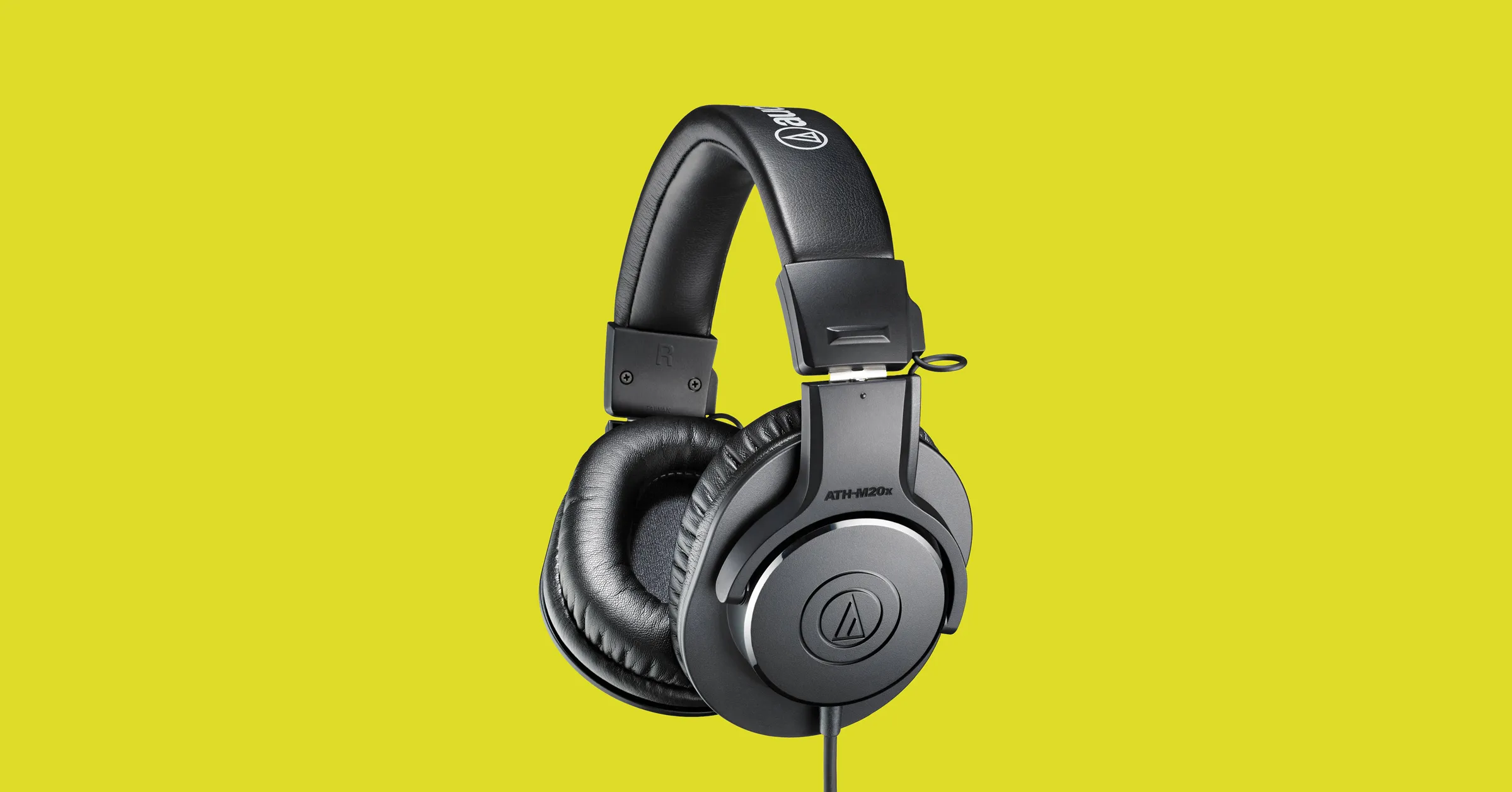
Regular and gaming headphones have many differences between them and not knowing what they are can lead you to get yourself the wrong one. In this article, our goal is to analyze the differences between them so you can choose the right one for you.

headphone

Price

One thing that goes in both worlds is that the cheapest models on both sides are not really worth the purchase since both the quality and longevity will be very low. If we compare high-end models, regular headphones are far far more expensive than gaming ones. Hi-end gaming models can go as far as 400$, perhaps a little more but hi-end audio regular headphones are going even for over 2000$.

If we compare same-price headphones generally regular ones will offer you a little better sound quality but gaming headphones will offer some features such as positional audio that regular ones do not have.

Surround sound and positional audio

One of the main advantages of gaming headsets is positional audio and true surround sound. this technology is built-in so you can hear more clearly where your enemy is coming from that is a big help in competitive games. This is achieved by positioning multiple speakers in various positions and angles inside them. Each speaker has a different sound channel that is mixed with another speaker in order to provide you with a full surround experience.

Regular headphones have typically one or two speakers on both sides aimed at the same angle and can not offer precise surround or positional audio.

Noise cancellation

Both gaming and hi-fi headphones offer some sort of noise cancelation to minimize outside noise but if you really want to focus and have good noise cancelation you will have to look out for headphones with active noise cancelation or ANC.

Microphone quality

Let us say this right at the start, most middle and quality regular audio headphones do not have a microphone at all, and ones that might pack one usually have it at a lower quality than gaming ones. This of course makes perfect sense since regular headphones will focus on audio, and gaming ones will focus on playing games where having a good microphone is essential in order to game properly.

Speaker and sound quality

Speaker quality will reflect directly on the sound quality and fidelity. This is where audio regular headphones have an advantage over gaming ones. Since they do not have many small speakers positioned at various angled and instead have just a few, usually 2 or 1 large one, that one is of much better quality and range for audio than a pack of small ones. If you are searching for clarity and quality of the audio itself, especially if you are listening to some FLAC uncompressed music, then regular HiFi ones are a much better choice.

Longevity and durability

Another area where regular ones have an advantage but that is no surprise since their price goes far up compared to gaming ones. Most of the time everything in hi-end audio headphones is made from quality materials and designed to last a long time and therefore advantage. Most of the time gaming headphones will come in plastic versions whereas higher quality audio ones pack a lot of durable metal in frames and in buds making them much more durable. Of course, we are talking here about proper headphone use, not extreme cases of throwing, etc.

Read More
How to Fix the Error 550

Error 550 - What is it?

Error 550 is an SMTP (Simple Mail Transfer Protocol) outgoing server error code. It usually occurs when you try to send emails through your Outlook account and the email message encounters a relay error. The email returns back without being delivered with a 550 error message. The error message is prompted as either of the following:
"550 Requested action not taken: mailbox unavailable" "550 5 2 1 mail from refused spam site"
In other words, the error code 550 means that your SMTP server was not able to deliver the sent email to the user.

Solution

Restoro box imageError Causes

There are multiple reasons for this error message including:
  • The email address was typed incorrectly
  • Incorrect SMTP Server settings
  • ISP placing restrictions for outgoing mails on the email server
  • System infected by virus or malware
Further Information and Manual Repair Regardless of what the reason may be for the error 550 code occurrence, it is advisable to repair and fix the issue quickly to avoid inconvenience. You may not be able to send emails from your Outlook account if the error continues. This can cause great hassle in corresponding with others timely and may create a big communication gap. Here are some quick and efficient ways to resolve this issue on your system:

Solution 1:

There is no need to panic when you encounter error 550. Sometimes the error message may occur because you inserted the wrong/ incorrect email address of the recipient. In such a case, cross-check the recipient’s email address to verify if it is correct. If not, insert the correct address and try sending the email again.

Solution 2:

If the error still persists, try other methods to resolve it. Sometimes error 550 can also occur due to incorrect SMTP settings. Fix it to resolve the error. This can be done by opening your Outlook settings Tools and Accounts option. Now go to view/change the email account for the email account you are having problems with. After that check, the SMTP server is set to mail.yourdomain.com. Then click more settings and then click the outgoing server tab. See if the ‘My server requires authentication for the outgoing server’ is checked. If not, then check on it. Then simply save to confirm changes. Now try emailing again. Hopefully, this will resolve the issue.

Solution 3:

Another reason for the error occurrence can be ISP blockage. When the junk email volumes increase, network administrators (the people who are responsible for managing ISP servers) place restrictions on SMTP email servers to prevent spam on their network. If this is the reason, contact your ISP administrator to resolve the issue.

Solution 4:

Malware and viral infection can also be the cause for error 550. To remove all kinds of viruses including Trojans and spyware and fix the issue right away without compromising on the speed of your PC it is advisable to download Restoro. This is a highly functional and advanced PC Fixer embedded with multiple utilities like a powerful antivirus and a system optimizer. It scans your entire PC in seconds, detects and removes all kinds of viruses. Simultaneously, the system optimizer feature ensures the speed of your PC does not slow down during the scanning and virus removal process. This feature boosts your PC speed significantly. It is user-friendly and has easy navigations making it quite simple for even those users who are not technically sound to work around it and operate it with ease. It is compatible with all Windows versions. Click here to download Restoro and resolve the error 550 messages today!
Read More
How to remove GetCouponsFast.com from PC

The Get Coupons Fast Toolbar is a Browser Extension for Google Chrome developed by Mindspark Inc. This extension allows quick access to the most popular coupon websites available. While this might look like a good useful idea, keep in mind that it has been classified as a Browser Hijacker by Several anti-virus applications.

When installed this extension will hijack your new tab page, changing it to a customized version of Search.MyWay.com. While active It records user browser activity, this data is later used to better target ads. While browsing the internet with this extension installed you will see additional pop-up ads, sponsored content, and injected ads into your browser search results and pages. GetCouponsFast usually comes bundled with other PUP-s or Browser Hijackers that may harm your computer and it is recommended you remove it from your PC.

About Browser Hijackers

Browser hijacking means that a malicious code has taken control over and altered the settings of your internet browser, without your permission. They are created to disrupt browser functions for various reasons. It redirects you to the sponsored sites and inserts ads on your internet browser that assists its developer to generate revenue. While it might seem harmless, these tools were created by malicious people who always look to take advantage of you, so that they could make money from your naivety and distraction. They did not just ruin your browsers, but browser hijackers can also modify the system registry, making your computer or laptop susceptible to various other types of attacks.

Signs of browser hijacker infection

There are plenty of signs that indicate the web browser has been highjacked: 1. you notice unauthorized modifications to your web browser’s home-page 2. you find re-directed to internet sites you never intended to visit 3. the default browser configurations have been modified and/or your default web engine is altered 4. you’ll see many toolbars on your browser 5. you might see never-ending pop-up adverts on your computer screen 6. your browser has become unstable or starts running slowly 7. you are blocked to access the websites of antivirus solution providers.

How does a computer get infected with a browser hijacker?

Browser hijackers might use drive-by downloads or file-sharing networks or an email attachment in order to reach a targeted computer system. They could also come from add-on applications, also known as browser helper objects (BHO), web browser extensions, or toolbars. Some internet browser hijackers spread in user’s computers using a deceptive software distribution method called “bundling” (often through freeware and shareware). Browser hijackers will affect the user’s web browsing experience severely, monitor the websites visited by users and steal sensitive information, cause difficulty in connecting to the web, and eventually create stability problems, making programs and systems freeze.

Removal

Some hijackers can be simply removed by deleting the free software they were included with or by deleting any add-ons you have recently added to your browser. Unluckily, the majority of the software applications utilized to hijack an internet browser are deliberately designed to be difficult to detect or get rid of. And there is no denying the very fact that manual repairs and removal can certainly be a difficult task for a novice PC user. Moreover, there are various risks connected with tinkering around with the system registry files. Installing and running anti-malware software on the affected computer will automatically erase browser hijackers as well as other unwanted programs. In order to get rid of persistent browser hijackers effectively, install the award-winning Anti-Malware tool Safebytes Anti-Malware. Employ a pc optimizer (such as Total System Care) along with your anti-malware to repair various computer registry problems, remove computer vulnerabilities, and improve your computer performance.

How To Get Eliminate Virus That Is Blocking Antivirus Downloads?

Malware could cause all sorts of damage once they invade your computer, starting from stealing your private details to erasing data files on your computer system. Some malware is created to hinder or block things that you wish to do on your PC. It may not permit you to download anything from the net or it will prevent you from accessing a few or all of the websites, in particular the anti-virus sites. If you are reading this article right now, you may have perhaps realized that a malware infection is a reason for your blocked internet connectivity. So what to do if you want to download and install an anti-virus application like Safebytes? There are some steps you can take to circumvent this problem.

Boot Windows in Safe Mode

Safe Mode is actually a unique, simplified version of Windows in which just bare minimum services are loaded to prevent malware and also other troublesome programs from loading. If the malicious software is set to load automatically when the PC starts, shifting into this mode may prevent it from doing so. In order to enter into Safe Mode or Safe Mode with Networking, press the F8 key while the system is booting up or run MSCONFIG and find the “Safe Boot” options under the “Boot” tab. Once you are in safe mode, you can attempt to install your anti-malware program without the hindrance of the malicious software. Right after installation, run the malware scanner to remove standard infections.

Use an alternate web browser to download security software

Web-based malware can be environment-specific, aiming for a particular browser or attacking particular versions of the browser. The best solution to avoid this issue is to choose an internet browser that is known for its security features. Firefox contains built-in Malware and Phishing Protection to keep you secure online.

Run anti-virus from a pen drive

Another option would be to make a portable anti-malware program onto your USB flash drive. To run anti-virus using a pen drive, follow these simple measures: 1) Download Safebytes Anti-Malware or Windows Defender Offline onto a virus-free PC. 2) Plug the USB drive into the clean computer. 3) Double-click the Setup icon of the anti-malware program to run the Installation Wizard. 4) Select thumb drive as the place when the wizard asks you where you wish to install the application. Follow the directions to complete the installation process. 5) Unplug the flash drive. Now you can utilize this portable anti-virus on the infected computer. 6) Double click the Safebytes Anti-malware icon on the pen drive to run the application. 7) Click the “Scan Now” button to start the virus scan.

SafeBytes Anti-Malware Overview

Want to download the best anti-malware application for your desktop? There are many applications on the market that comes in free and paid versions for Windows systems. Some are very good ones, some are ok types, while some are just fake anti-malware programs that will damage your personal computer themselves! While looking for an antimalware program, pick one that offers reliable, efficient, and total protection against all known viruses and malware. On the list of recommended software is SafeBytes AntiMalware. SafeBytes has a good history of quality service, and customers appear to be happy with it. Safebytes is among the well-established PC solutions companies, which provide this all-inclusive anti-malware application. With its outstanding protection system, this tool will automatically detect and remove most of the security threats, which include adware, viruses, browser hijackers, PUPs, trojans, worms, and ransomware.

SafeBytes possesses a variety of wonderful features that can help you protect your computer from malware attacks and damage. Listed below are a few of the great ones:

Real-time Protection: SafeBytes provides round-the-clock protection for your computer restricting malware intrusions in real-time. They are very efficient in screening and getting rid of numerous threats because they’re regularly improved with new updates and alerts. Robust Anti-malware Protection: Built on a highly acclaimed antivirus engine, this malware removal tool has the capacity to find and remove various stubborn malware threats such as browser hijackers, PUPs, and ransomware that other common antivirus programs will miss. Web protection: SafeBytes checks the hyperlinks present on a webpage for possible threats and tells you if the website is safe to explore or not, through its unique safety rating system. Minimal CPU and Memory Usage: SafeBytes is a lightweight and simple to use antivirus and anti-malware solution. As it utilizes very low computer resources, this software leaves the computer power exactly where it belongs: with you. 24/7 Customer Service: Support service is available 24 x 7 x 365 days via chat and email to answer your queries. Overall, SafeBytes Anti-Malware is a solid program since it has lots of features and could identify and remove any potential threats. Now you may realize that this tool does more than just scan and delete threats on your computer. So when you need advanced forms of protection features and threat detections, purchasing SafeBytes Anti-Malware could be well worth the dollars!

Technical Details and Manual Removal (Advanced Users)

If you don’t want to use malware removal software and prefer to eliminate GetCouponsFast manually, you could do so by going to the Windows Add/Remove Programs menu in the control panel and deleting the offending program; in cases of browser extensions, you can remove it by visiting the browser’s Add-on/Extension manager. Additionally, it is advised to reset your web browser settings to their default state. Lastly, check your hard disk for all of the following and clean your registry manually to remove leftover application entries after uninstallation. Please keep in mind that only advanced users should attempt to manually edit the system files since deleting any single vital registry entry results in a serious problem or even a PC crash. Moreover, certain malicious programs are capable to defend against its removal. It is recommended that you do the removal process in Windows Safe Mode.
Files: %LOCALAPPDATA%\Google\Chrome\User Data\Default\Extensions\iadmakoacmnjmcacmhlcjcameijgcopj %UserProfile%\Local Settings\Application Data\Google\Chrome\User Data\Default\Extensions\iadmakoacmnjmcacmhlcjcameijgcopj %UserProfile%\Local Settings\Application Data\GetCouponsFastTooltab %LOCALAPPDATA%\GetCouponsFastTooltab Registry: HKEY_LOCAL_MACHINE\Software\[APPLICATION]\Microsoft\Windows\CurrentVersion\Uninstall..Uninstaller

Read More
GoDaddy data breach compromised 1.2M accounts
A very serious data breach has happened to the unfortunate GoDaddy hosting service placing a little over 1.2 million accounts affected. Security breaches sadly are not a rare occurrence but this time it is a little different. GoDaddy breachEach time when the company is breached data is stolen and that places the company in a bad light usually because its user database has been compromised and people are concerned about their data being misused. This is very rational fear and concern but this time things are a little bit different than usual, why is that, you might ask? Well, as before mentioned GoDaddy is a hosting company and the vector of attack was aimed at the part where it is hosting WordPress. Attackers were able to get their hands on the sFTP credentials of customers on that server meaning that all of the websites are also been relieved of their user base as well. This potentially means that there is a high chance that all of the hosted web site's content is also compromised, meaning that your data could also be compromised even if you were not a GoDaddy customer, all you needed to do is to be a member of any site hosted on their platform. GoDaddy has reset WordPress passwords and private keys, so it’s already taken the steps required to stock the attacker from exploiting anything with the passwords obtained. The company is in the process of generating new SSL certificates for customers. Bad thing is that the attack used a compromised password to get into systems all the way back around September 6th, 2021, the breach was discovered on November 17th, 2021, which is more than a 2-month active time where the attacker could harvest tons of data. The outcome of this attack will be seen in the upcoming time, until then be safe, and Just in case change your passwords.

Read More
1 2 3 171
Logo
Copyright © 2023, ErrorTools. All Rights Reserved
Trademark: Microsoft Windows logos are registered trademarks of Microsoft. Disclaimer: ErrorTools.com is not affiliated with Microsoft, nor claims direct affiliation.
The information on this page is provided for information purposes only.
DMCA.com Protection Status