Logo

What to do when you can't format SD card

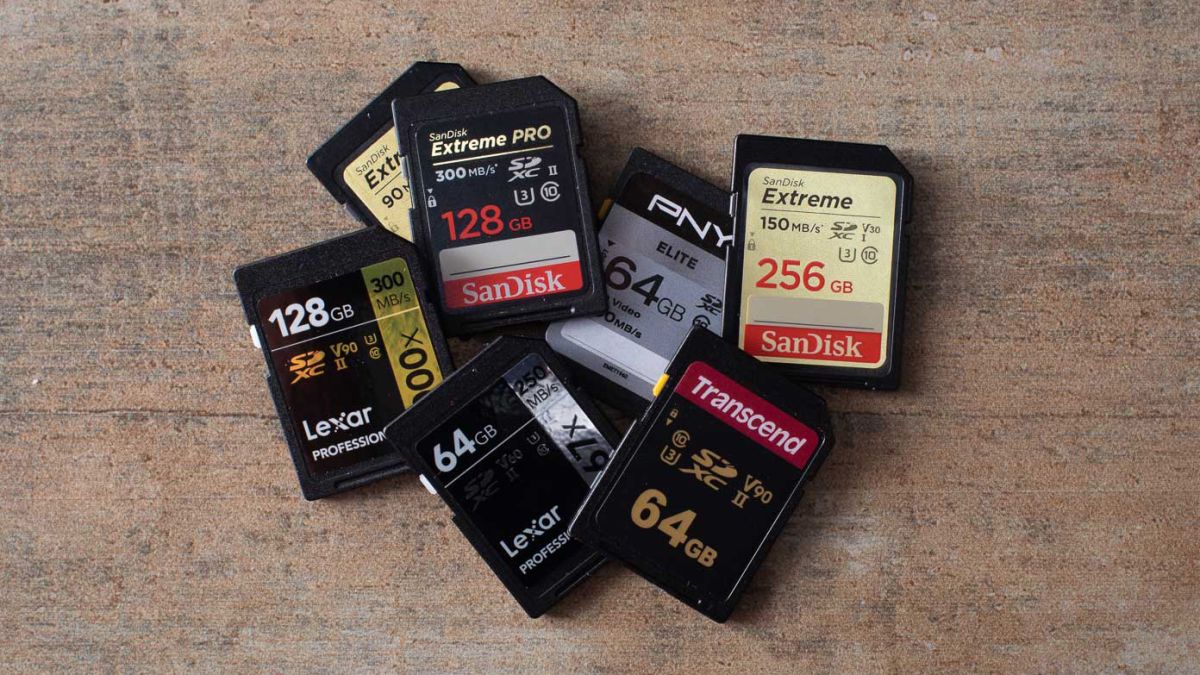
SD memory cards have surfaced as standard cards for digital cameras and microSD as phone standard memory cards. Most people have and use at least one daily, so naturally copying files and even formatting SD cards is a natural thing to do, but what if you cannot copy files or format SD cards?

SD cardsFear not because we had this issue and tried several things in order to overcome the problem and after some time here is a list of what can you do if you are facing this exact issue. The list is written from most simple solutions to more complex ones and it is advisable to follow it as presented. That being said, let's dive into solving the problem.

1. Remove Write Protection on SD card

First and in my experience the most usual thing preventing deleting, copying files, and formating SD card is due to write protection. Take an SD card out of the laptop, camera, or card reader and visually inspect it. On side of almost every SD card, there is a hardware lock switch and mark where it needs to be positioned in order to be locked. Even if the switch is positioned on unlocked state, switch it to locked and then back to unlocked. Sometimes this easy moving of switch can resolve some contact issues and the card will start working normally.

Another type of lock that could be turned ON is a software one. If for any kind of reason data protection has been turned ON, you will need to turn it off in order to be able to format an SD card. In order to do this follow this guide:

  1. Press ⊞ WINDOWS + R to open the Run dialog
  2. In run dialog type in diskpart and press ENTER
  3. Once diskpart is opened in command prompt type in: list disk and press ENTER
  4. Locate your SD card and type in select disk x, where x is disk number followed by ENTER
  5. After the SD card is selected type in: attributes disk clear read-only and press ENTER

This process will clear the software lock on the SD card, after following this method try to format the card again, if the problem still exists go to the next solution.

2. Format SD card using Command prompt

Command prompt is a great tool and can perform some commands that are not been able to be completed using file explorer or another tool inside Windows.

  1. In the taskbar search box, search for cmd and select the Command prompt
  2. On the right part select run as administrator
  3. If needed click on YES on UAC prompt
  4. Inside command prompt type in diskpart and press ENTER
  5. type in list disk followed by ENTER
  6. Select your SD card by locating its number in the list and typing select disk X, where is X SD cards number in list and press ENTER
  7. Once SD card is selected type in format fs=ntfs quick and press ENTER

This should format SD card but if for reason even this step is provided as unproductive, go to the next solution.

3. Format your card with the Disk Management tool

  1. Go into the taskbar and search for Disk Management and open it
  2. Select SD card partition that you wish to format
  3. Right-click on the partition and select format
  4. After the format is done, enter the volume label, file system, and allocation unit size. Confirm with OK
  5. Press OK again to confirm the formatting process.

If you have not managed to format your SD card even with this method go to the next solution.

4. Repartition card with Disk part

If all previous solutions have failed there is a chance that the SD card has bad sectors on it. If this is the case that we will need to partition cards in order to isolate bad sectors and use healthy ones.

  1. Press ⊞ WINDOWS + R to open the Run dialog
  2. In run dialog type in diskpart and press ENTER
  3. Once diskpart is opened in command prompt type in: list disk and press ENTER
  4. Locate your SD card and type in select disk x, where x is disk number followed by ENTER
  5. Type in Clean and press ENTER
  6. Type in Create partition primary and press ENTER
  7. To select a new partition type select partition 1 followed by ENTER
  8. Make partition active by typing active and pressing ENTER
  9. Format the drive by typing format fs=ntfs label=SDCard quick followed with ENTER
  10. Assign a letter to drive by typing assign letter=h followed with ENTER
  11. Type exit to close Command prompt followed again by ENTER and open File Explorer to check if the drive is active

5. Try a dedicated SD card formating fool

If anything failed so far, one last thing you could do is to download and try a dedicated SD card formatting tool. One that I would recommend is SD Memory Card Formatter, which is free software make specifically for formatting SD memory cards.

Do You Need Help with Your Device?

Our Team of Experts May Help
Troubleshoot.Tech Experts are There for You!
Replace damaged files
Restore performance
Free disk space
Remove Malware
Protects WEB browser
Remove Viruses
Stop PC freezing
GET HELP
Troubleshoot.Tech experts work with all versions of Microsoft Windows including Windows 11, with Android, Mac, and more.

Share this article:

You might also like

A Quick Guide to Fixing Error 2

Error 2 - What is it?

Error 2 is a typical Battle.net error code. Battle.net is a desktop app that allows you to access all Blizzard games. It enables Blizzard gamers around the world to play multiplayer matches together, online. Error 2 occurs when you are unable to connect to the login server. This error code is displayed in the following format:
Battle.net Error #2: Unable to connect. Please try again later. If the problem persists, please contact technical support.

Solution

Restoro box imageError Causes

Error 2 may be triggered due to several reasons. These include:
  • Program conflict
  • Security software conflict
  • Bad DNS cache entry
  • Issues with network devices
  • Viruses and malware
  • Registry corruption
Error 2 is not a fatal error like the blue screen of death error codes. However, this error may hamper your ability to play Blizzard multi-player games. To overcome this problem it is advisable to fix error 2 immediately.

Further Information and Manual Repair

To resolve this error you don’t need to spend hundreds of dollars to hire a professional and get it fixed. Here are some of the easy do-it-yourself methods to resolve this error on your PC. These methods require no technical expertise or knowledge. Let’s get started:

Method 1

Error 2 may sometimes pop up on the screen due to program conflict. This happens when you have Blizzard games and other programs running on your PC at the same time. In such a situation, it is advisable to close background applications to resolve conflicts between Blizzard games and other programs running in the background.

Method 2

Sometimes antivirus programs and firewalls can also hinder and interfere with the game’s connection to our servers. In this event, the best way to fix the error is to temporarily uninstall your security software.

Method 3

If error 2 is triggered by the issues with network devices then simply power cycle network devices to re-stabilize the connection. Power cycling router and modem allow you to reset and reestablish a connection to your ISP. To do this, shut down the computer then power down/unplug the router and the modem. Allow the modem to sit for 60 seconds, unplugged. Then turn it on and allow it to boot up till the front panel connection lights show a steady connection. Now turn on the router and do the same as you did with the modem. After that start the computer and allow it to completely boot up. Now try logging on to the Blizzard gaming server. This will hopefully resolve the issue.

Method 4

Viruses and malware infections can also trigger error 2. In such a situation install an antivirus and remove all malicious programs infecting your PC.

Method 5

If the cause of the error is related to registry corruption, then it is advisable to download Restoro. This is a user-friendly PC Fixer with a registry cleaner. The registry cleaner removes all unnecessary and obsolete files corrupting the registry, cleans and repairs the corrupted registry in a few minutes. Click here to download Restoro on your PC to resolve error 2. For further information you may be interested in these similar issues:
Read More
How to turn off check boxes in File Explorer
By default inside Windows 11 in File Explorer, once the file is selected, the small check box will appear beside it on left indicating visually that the file is selected. Older users will remember this feature from old Windows Vista and the feature itself is great if you are on some sort of touch device and need to select multiple files. windows 11 File ExplorerHowever, if you are working on a computer with a keyboard and mouse this feature might annoy you and seem like something that is not needed. Like many things inside Windows 11 this feature also can be customized and turned OFF if you do not want it. In this guide, we will see how to turn these boxes off. Microsoft has somewhat hidden this feature but luckily it is not difficult to find it if you know where to look.

Turning check boxes OFF

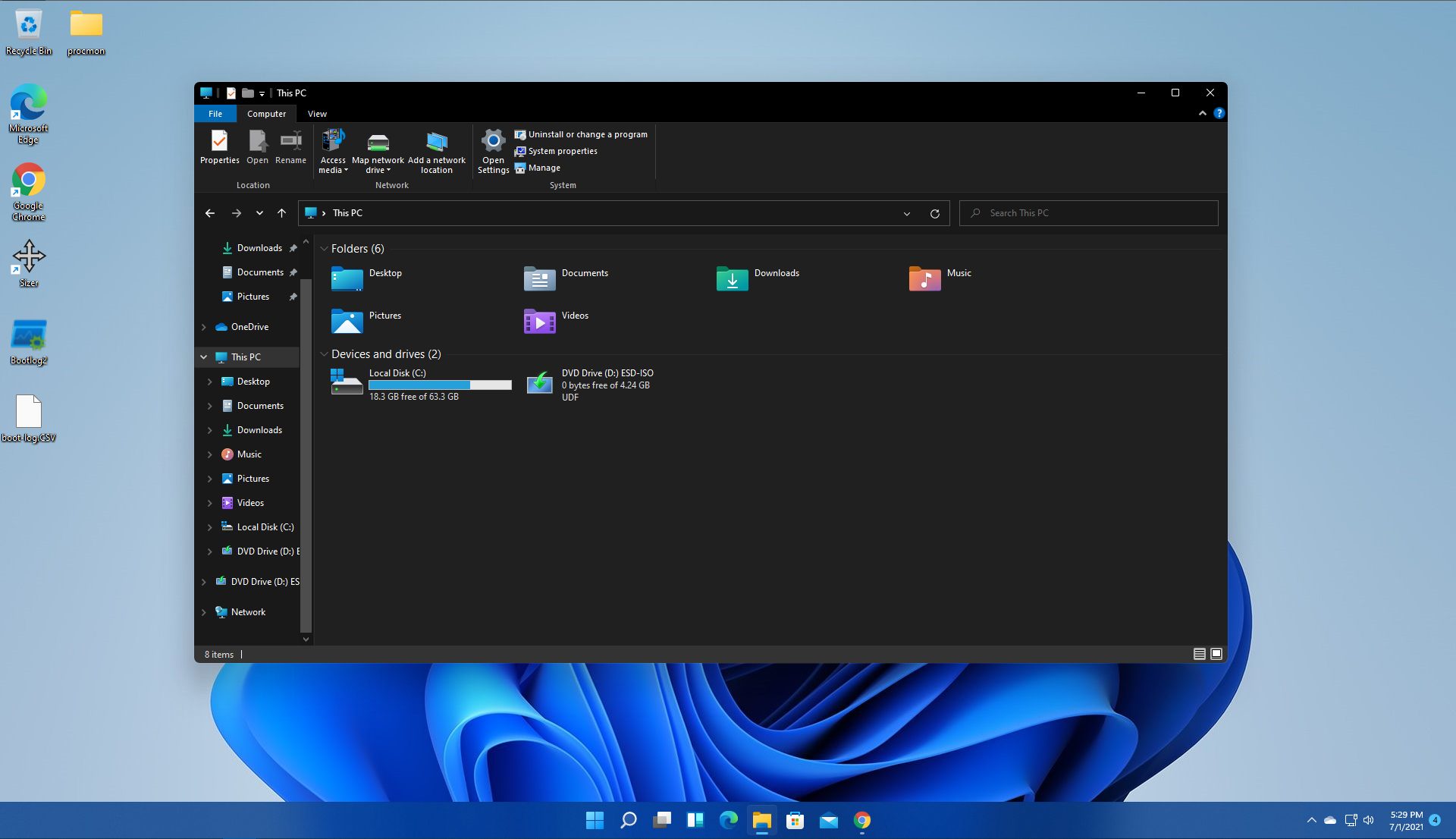
  1. Open File Explorer (if you do not have an icon on your Taskbar, right-click on the Start button and select File Explorer from the menu)
  2. Click on View on the top toolbar
  3. Select Show
  4. Uncheck Item Check Boxes
That is everything that needs to be done, after the checkbox is unchecked all check boxes from File Explorer will disappear. If you wish to turn boxes back ON, just follow the steps and check the box beside Item Check Boxes.
Read More
How to turn the game mode off in Windows 11
Among other things and innovations, Windows 11 brings to the table is the game mode. The game mode is a system designed to release some resources and optimize your system when Windows 11 detects that you are playing games. It also turns off automatic updates while the game is active. game mode in Windows 11The game mode is active at all times and usually, everything works great but in some instances, it can sadly cause some performance issues. If you are one of these unlucky people where game mode is not working as supposed to do, don’t panic, we have a quick guide for you on how to turn it off.
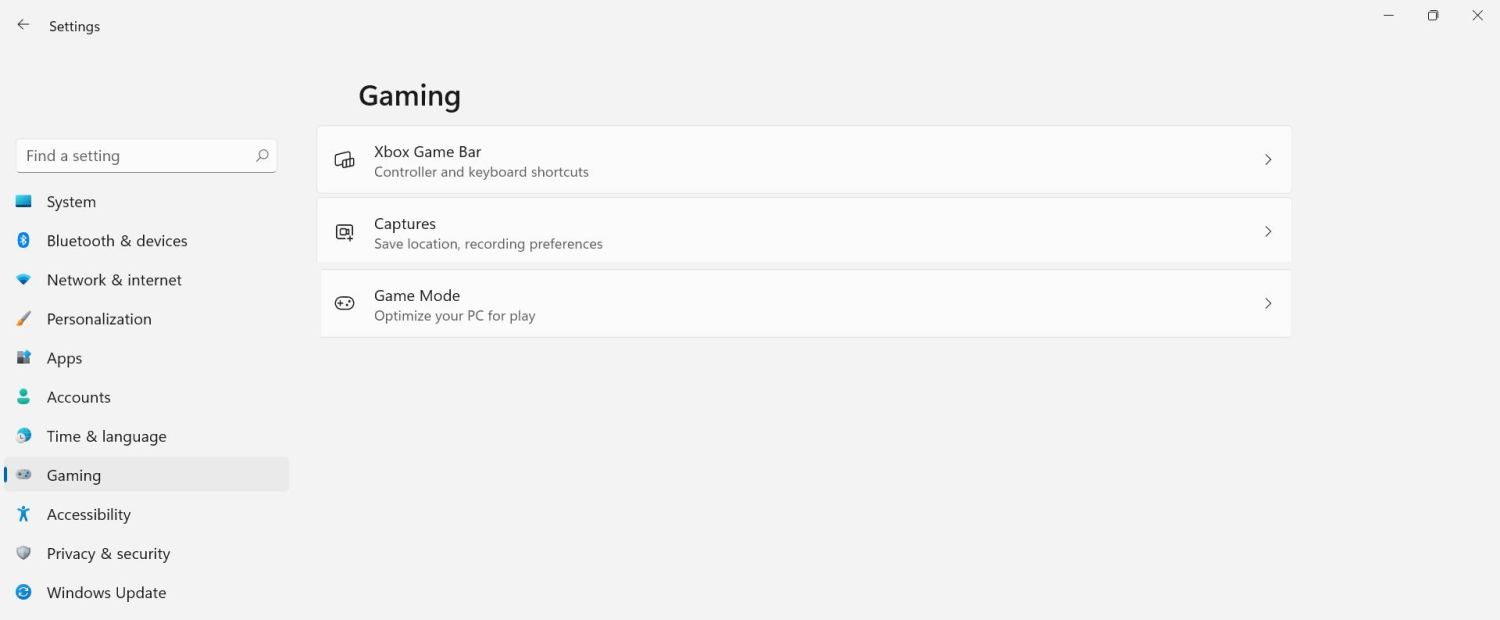
  1. Press ⊞ WINDOWS + I to open settings
  2. Inside click on Gaming
  3. Select Game mode
  4. Click switch beside Game mode to turn it off
  5. Close settings
Everything will be automatically saved and applied and you should not have any issues from now on. If for any reason you wish to turn game mode back ON, just follow the same steps and turn the switch to ON.
Read More
Run Windows 10 from your USB drive
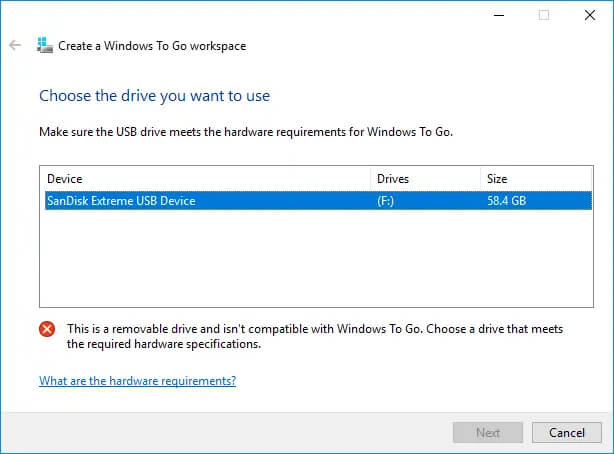
Windows 10 to goMany Linux users if not all of them can run their distros from a USB drive but did you know you can run Windows 10 from a USB drive as well? Microsoft has introduced all the way back to Windows 8 one feature called Windows To Go and it kept it in Windows 8.1 and in Windows 10 as well. This feature is intended as a convenient way for workers to carry their corporate environments with them, but having your own copy of Windows on a thumb drive could be handy for backup purposes, too, or if you frequently use public machines that lack your preferences/applications or that have a restricted OS.

What you will need?

In order to actually make Windows 10 run from a USB drive you will need the following things:
  1. USB drive with a minimum size of 20GB
  2. Working computer with Windows 10 running on it
  3. Rufus or another ISO to UBS tool, get Rufus here: https://rufus.ie/en_US/
  4. Windows 10 ISO file

Making Windows 10 UBS drive

Install Rufus on your Windows 10 and run it. Stick USB in PC and open Rufus. On the screen that follows choose your Windows 10 ISO image and under Image options choose Windows To Go. Click on ready and you are finished, that’s it. After Rufus finishes you have now fully working Windows 10 bootable drive which you can use on another PC for whatever reason.
Read More
What to do if Cortana Search Box turned white
A lot of Windows 10 users prefer the black theme on their computers and when you see anything but black it can get quite annoying. Such as is the case of the Taskbar which, as you know, is usually dark, however, when you take a look at the Cortana search bar, instead of seeing black, you’ll see that it has turned white. To fix this issue, read on as we will provide you some options you can try to set the Cortana search bar back to black. Before you proceed, take note that the options provided below will change all white search boxes to black and that one of these options needs administrative privileges.

Option 1 – Try changing the default App mode

As you know, Windows 10 has two modes, namely the Light and the Dark. Thus, you can switch to the Dark mode so that your Cortana search bar will be black as well. However, remember that it will completely change everything into dark mode so there will be no more Light mode elsewhere.
  • First, you need to click on the Start button and then click on the cog icon to open the Windows 10 Settings.
  • Next, from the Settings Menu, select Personalization and then select Colours from the left pane.
  • Then scroll down until you see the “Choose your default app mode” option and select “Dark”.
After you apply the changes, it will change the Cortana search bar into black instantly. Aside from that, you will also see the User Interface changing into dark mode.

Option 2 – Try changing the Registry value

If you are well-versed in editing registry keys, then you need to try this option. But before you go over the steps below, make sure that you create a System Restore point first so that if anything goes wrong, you can always go back to how it was before the changes were applied.
  • Tap the Win + R keys to open the Run prompt.
  • Then in the field, type in “regedit” and hit Enter to open the Registry Editor. If a User Account Control prompt appears, just click Yes.
  • Now that you’ve opened the Registry Editor, navigate to the following key:
HKEY_CURRENT_USERSoftwareMicrosoftWindowsCurrentVersionSearchFlightingWhiteSearchBox
  • After that, double-click on the “Value” key located on the right pane and set the value to “0” instead of “1” and then click Ok to save the changes made. You should now see a black or grey text box color instead of white.

Option 3 – Try changing the Region

In some forums, a lot of users stated that changing the Region also worked out for them in changing the white Cortana search bar to white. Thus, you need to change the region settings of your computer temporarily. To do so, follow the steps below.
  • Type in “Regional Settings” in the box and then click it as soon as it appears from the search results.
  • Next, make sure to select a region where Cortana is not available.
  • Then select apply to that region. After that, it will change the Cortana search bar color to black.
  • Now sign out and sign back in and revert to the original settings. But the changes you made earlier in Cortana will still remain.
Read More
Upcoming Windows 11 features

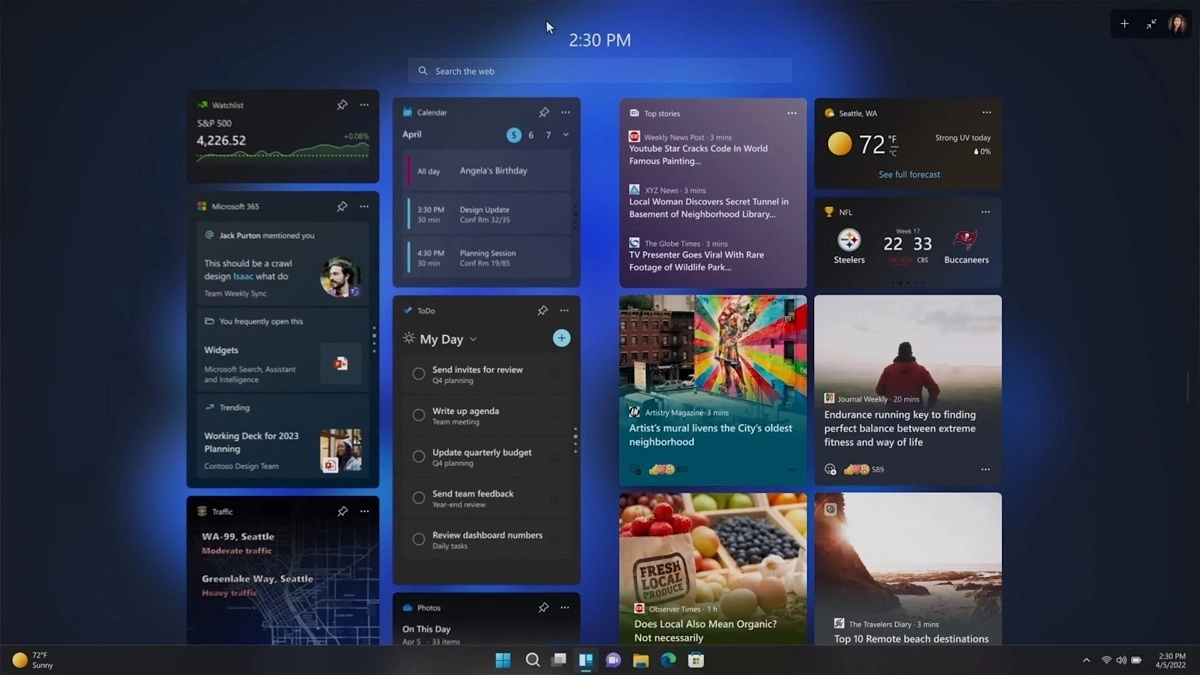
22H2 update for Windows 11 will arrive later this year and although Microsoft is not releasing anything big there will be some interesting improvements and fixes. We take a look at some that caught our attention.

windows 11 new fetures full screen widgets

Phishing protection

One of the most interesting upcoming features is enhanced phishing protection. Microsoft Defender SmartScreen will be upgraded to alert users when they try to store passwords in plain text files and also if they accidentally type in a Microsoft account password on phishing sites.

"These enhancements will make Windows the world's first operating system with phishing safeguards built directly into the platform and shipped out of the box to help users stay productive and secure without having to learn to be their own IT department,"

Microsoft

File Explorer gets tabs, a modern sidebar, and contextual suggestions

Finally, Windows File explorer is getting tabs that will allow much easier management of folders and files inside it.

It is confirmed that Microsoft is also working on a new 'HOME' sidebar that should be modern in design and in features including OneDrive so you can find everything in one place.

Pinning of favorite files was also mentioned so you can easily pin favorites for quick access.

Full-screen widgets

Windows 11 has brought back widgets in a new way and from all the feedback users are loving them. Currently, you have a widget sidebar on the left part of the screen where you have your chosen store widgets but from the Microsoft teaser, we will have soon the option to have them in full screen.

If you are using a widget for reading news, blogs, etc. this feature will be very good since you will be able to use your whole screen for information and not just a part of it.

Suggested actions

Another new feature is 'suggested actions' which is going to be particularly useful in apps like Microsoft Teams. With this new feature, you can highlight a date in a Teams message and Windows will suggest actions.

For example, if you highlight a date, you'll see a recommendation to create an event in Microsoft Calendar for that day.

Read More
Fix Origin Not Loading in Windows 10
Lately on EA forums question has appeared on what to do when Origin client does not load library. It seems that the latest update for the Origin client has brought some issues as not properly showing one library which appears empty. Do not worry, we have a solution for you, several to be precise and it will fix the issue guaranteed. It is advisable to try solutions in order how they are presented since they go from the most simple and fastest and most common ones.
  1. Delete the cache

    Close origin client completely Press ⊞ WINDOWS + R to bring the run dialog In the run dialog type in %ProgramData%/Origin and press ENTER Go into the Origin folder Delete all files and folders except the LocalContent folder Press ⊞ WINDOWS + R to bring the run dialog In the run dialog type in %AppData% and press ENTER Delete the Origin folder In the address bar click on AppData Go into the local folder Delete Origin folder Reboot your PC
  2. Clear the temporary files

    Press ⊞ WINDOWS + R to bring the run dialog In the run dialog type in %AppData% and press ENTER Go into the roaming folder Delete Origin folder Go to the AppData folder and delete the Origin folder from there also Reboot system
  3. Try Windows built-in tools to check compatibility

    Locate where Origin is installed and right-click on the executable file Click on properties Go to the compatibility tab Click on Run the compatibility troubleshooter and follow on-screen instructions
  4. Update Origin

    Rarely this is the case but check manually to see if you can update your Origin client. Sometimes due to network issues client does not update automatically and can cause this strange behavior.
  5. Add origin as an exception to antivirus and firewall

    Not rarely game clients can be detected as some form of malicious software and antivirus along with firewall can automatically block it. Go to your security software settings and add it as the exception.
  6. Reinstall Origin

    If everything else fails, reinstall the Origin client
Read More
Merge or Delete an OEM Partition in Windows
OEM Partition, also known as System Reserved Partition, is placed by the OEM to help users recover their computers or bring back the original state of the computer when it was bought. If you’ve observed that a part of your hard drive says “Healthy (OEM partition)” in the Disk Management and it occupies space in GBs, then this means that it’s normal and there’s nothing to worry about except that part of the storage space is not available and even when you right-click on it, the only thing it displays is the Help menu. Thus, in this guide, you will be guided on how you can merge as well as delete an OEM partition in your Windows 10 computer. Since the Disk Management tool in Windows won’t let you merge or delete the OEM partition, you can just use the built-in command-line tool known as Diskpart. Note that you have to be extra careful when you run the commands as it could mess your computer up and before you proceed with the instructions provided below, make sure that you create a System Restore point first. Once you have that covered, follow the instructions below. Step 1: Tap the Win + R keys to open the Run dialog box and type “cmd” in the field and tap Enter to open the Command Prompt. Step 2: Next, execute this command to launch the Diskpart tool: diskpart Step 3: Execute this second command to view the list of the disks in your computer: list disk Step 4: Now select the disk you want to manage by executing this command: select disk x Note: In the command above, replace “x” with the letter of your disk. Step 5: After that, execute this command to display all the volumes or partitions: list partition Step 6: Now execute this command to select the partition you want to delete: select partition x Note: You have to replace “x” with the partition you want to delete. Step 7: Once done, execute this command to delete the selected partition: delete partition override Step 8: Afterwards, execute this command to merge the OEM partition with the adjoining value: Extend Note: if you only want to merge part of the partition, you need to use this command “extend [size=<size>]”. For instance, you want to extend its size by 5GB, then you need to type “Extend size=5000”. The size you set is the size you select from the OEM partition. This will extend the selected volume by size in MB or megabytes.
Read More
Fix Windows Update Error 0x80004005
As you know, Microsoft is consistent in pushing updates to its supported versions of the Windows operating systems in order to make it better and defend it from different kinds of vulnerabilities. And pushing billions of active Windows computers every now and then is really not an easy thing to do since it calls for a complex Windows Update delivery module. These complexities often give rise to various errors like the Windows Update error code 0x80004005. When you encounter this kind of Windows Update error, you will see the following error message on your screen:
“There were problems installing some updates, but we’ll try again later. If you keep seeing this and want to search the web or contact support for information, this may help 0x80004005.”
This kind of Windows Update error occurs due to an issue while either installing or downloading an update. There are several ways you can fix the problem. You can try to replace the dpcdll.dll file, reset the Windows Update-related services, run the Windows Update troubleshooter or manually install the Windows Updates. For more details, check out the options given below.

Option 1 – Try to replace the DLL file with a trusted source

The first thing you can do is to replace the dpcdll.dll file with a trusted source.
  • First, you need to get the new dpcdll.dll file from another computer with preferably the same file version number as your computer.
  • After that, you need to boot your PC into Safe Mode and navigate to the paths listed below and then replace the file using a USB drive or other external storage devices.
    • For x86: This PC > C:/Windows/System32
    • For x64: This PC > C:/Windows/SysWOW64
  • Next, type “cmd” in the Cortana search box and right-click on Command Prompt, and select “Run as administrator” to open it with administrator privileges.
  • Now type the “regsvr32 dpcdll.dll” command and hit Enter.
  • Restart your PC and check if the error is now fixed.

Option 2 – Try to reset the Windows Update components

If by any chance that the third option didn’t work, you can also try resetting the Windows Update components as it could also help you resolve the Windows Update error. How? Refer to the following steps:
  • Open Command Prompt with admin privileges.
  • After that, type each one of the following commands and hit Enter after you key in one after the other.
    • net stop wuauserv
    • net stop cryptsvc
    • net stop bits
    • net stop msiserver
Note: The commands you entered will stop the Windows Update components such as Windows Update service, Cryptographic services, BITS and MSI Installer.
  • After disabling WU components, you need to rename both the SoftwareDistribution and Catroot2 folders. To do that, type each one of the following commands below and don’t forget to hit Enter after you type one command after the other.
    • ren C:WindowsSoftwareDistribution SoftwareDistribution.old
    • ren C:WindowsSystem32catroot2 Catroot2.old
  • Next, restart the services you’ve stopped by entering another series of commands. Don’t forget to hit Enter after you key in one command after the other.
    • net start wuauserv
    • net start cryptsvc
    • net start bits
    • net start msiserver
  • Close Command Prompt and reboot your PC.

Option 3 – Run the Windows Update Troubleshooter

You might also want to run the Windows Update Troubleshooter as it could also help in fixing Windows Update error 0x80004005. To run it, go to Settings and then select Troubleshoot from the options. From there, click on Windows Update and then click the “Run the troubleshooter” button. After that, follow the next on-screen instructions and you should be good to go.

Option 4 – Try downloading and installing the Windows Updates manually

Windows Update Error 0x80004005 might be due to a Windows Update that has failed. So if it is not a feature update and only a cumulative update, you can download the Windows Update and install it manually. But first, you need to find out which update has failed, and to do so, refer to the following steps:
  • Go to Settings and from there go to Update and Security > View Update History.
  • Next, check which particular update has failed. Note that Updates that have failed to install will be displayed under the Status column which has a label of “Failed”.
  • After that, go to the Microsoft Download Center and look for that update using its KB number and once you find it, download and then install it manually.
Note: You can also use the Microsoft Update Catalog, a service from Microsoft that provides a list of software updates that can be distributed over a corporate network. With the help of this service, it can be easier for you to find Microsoft software updates, drivers as well as fixes.
Read More
BuzzDock Removal Guide

What is BuzzDock?

Buzzdock is a browser extension. Buzzdock will be automatically enabled on IE and Chrome following installation, and you may begin using Buzzdock with no further action required. If you elect to optimize Buzzdock performance, the settings preferences of your browser may be adjusted after installation. This browser extension changes your default search provider to Buzzdock.com custom search. It displays additional unwanted ads, banners & sponsored links on web pages that you visit, and it hijacks your browser home page. This browser extension has been flagged as malware by many anti-virus scanning programs.

About Browser Hijackers

Browser hijackers (sometimes called hijackware) are a type of malicious software that modifies web browser configuration settings without the user’s knowledge or consent. These hijacks are rising at an alarming rate worldwide, and it could be actually nefarious and sometimes dangerous too. They’re created to interfere with web browser programs for many different reasons. In most cases, hijackers are made for the benefit of online hackers often through income generation from forced ad clicks and site visits. Nonetheless, it’s not that harmless. Your online safety is jeopardized and it is extremely irritating. They not only screw up your browsers, but browser hijackers can even modify the computer registry, leaving your PC susceptible to other attacks.

Symptoms of browser hijacker malware

There are several signs that indicate the web browser is hijacked: 1. the home page of your browser is changed unexpectedly 2. you find new unwanted bookmarks or favorites added, typically directed to ad-filled or porn sites 3. The default search page of your web browser is changed 4. you see unsolicited new toolbars added 5. you notice a lot of pop-ups on your computer screen 6. your web browser gets slow, buggy crashes frequently 7. you are prohibited access to specific web pages, including the site of an anti-malware software firm like SafeBytes. Exactly how browser hijacker finds its way onto your computer system Browser hijackers infect computer systems in numerous ways, including through a file-share, a drive-by download, or an infected email. They are usually included with toolbars, BHO, add-ons, plug-ins, or browser extensions. Browser hijackers sneak to your computer along with free software downloads also that you unknowingly install alongside the original. Some of the most well-known hijackers are BuzzDock, Babylon Toolbar, Conduit Search, Sweet Page, OneWebSearch, and CoolWebSearch. Browser hijacking can cause severe privacy problems and even identity theft, affect your web browsing experience by taking command over outbound traffic, substantially slows down your computer by consuming lots of resources, and result in system instability as well.

The best ways to get rid of browser hijackers

Certain browser hijacking can be quite easily corrected by discovering and removing the corresponding malware application from your control panel. However, most hijackers are hard to remove manually. No matter how much you try to get rid of it, it may keep returning over and over again. You should consider doing manual fixes only if you’re a tech-savvy person because there are potential risks associated with fiddling around with the system registry and HOSTS file. Browser hijackers could be effectively removed by installing and running anti-malware software on the affected PC. Safebytes Anti-Malware can counter relentless browser hijackers and provide you proactive computer protection against all kinds of malware. Together with anti-malware, a system optimizer program, similar to Safebytes Anti-Malware, can help you correct registry errors, remove unwanted toolbars, secure online privacy, and enhance overall system performance.

Find Out How to Get rid of Malware that is Blocking Websites or Preventing Downloads

Malware could cause all sorts of damage when they invade your computer, starting from stealing your personal information to erasing files on your PC. Some malware sits in between the computer and the internet connection and blocks a few or all internet sites which you want to visit. It might also block you from adding anything to your system, especially anti-malware applications. So what should you do when malicious software prevents you from downloading or installing Safebytes Anti-Malware? There are a few fixes you can attempt to get around with this problem.

Boot Windows in Safe Mode

The Windows OS includes a special mode called “Safe Mode” where only the minimum required programs and services are loaded. In the event, the malicious software is set to load automatically when the computer starts, shifting to this mode may well prevent it from doing so. To get into Safe Mode or Safe Mode with Networking, press the F8 key while the computer is booting up or run MSCONFIG and find the “Safe Boot” options in the “Boot” tab. After you restart the PC into Safe Mode with Networking, you could download, install, as well as update anti-malware software from there. Right after installation, run the malware scanner to eliminate standard infections.

Use an alternate internet browser to download the anti-malware application

Malicious program code might exploit vulnerabilities in a specific browser and block access to all antivirus software sites. In case you suspect that your Internet Explorer has been hijacked by malware or otherwise compromised by online hackers, the best plan of action would be to switch to an alternate internet browser like Mozilla Firefox, Google Chrome, or Apple Safari to download your favorite computer security program – Safebytes Anti-Malware.

Create a portable USB antivirus for removing malware

Another way is to download and transfer an anti-malware program from a clean PC to run a scan on the affected computer. Adopt these measures to run the antivirus on the affected computer. 1) Download Safebytes Anti-Malware or Windows Defender Offline onto a clean computer. 2) Plug the Thumb drive into the uninfected computer. 3) Double-click the executable file to run the installation wizard. 4) Pick a USB flash drive as the location when the wizard asks you where you intend to install the software. Follow the directions to finish the installation process. 5) Transfer the thumb drive from the uninfected computer to the infected PC. 6) Run the Safebytes Anti-malware directly from the pen drive by double-clicking the icon. 7) Run Full System Scan to identify and clean-up up all types of malware.

A Look at the Best AntiMalware Program

If you’re looking to download an anti-malware application for your PC, there are various tools out there to consider however, you just cannot trust blindly anyone, irrespective of whether it is free or paid software. Some of them are excellent, some are ok types, and some will harm your PC themselves! You need to pick a tool that has gained a good reputation and detects not just computer viruses but other types of malware as well. Amongst few good programs, SafeBytes Anti-Malware is the highly recommended program for the security-conscious individual. SafeBytes anti-malware is a trustworthy tool that not only secures your PC completely but is also quite user-friendly for people of all skill levels. This software could easily detect, remove, and protect your computer from the latest malware threats including spyware, adware, trojan horses, ransomware, worms, PUPs, along with other possibly damaging software programs. There are numerous great features you will get with this security product. The following are some of the great features included in the software. Robust Anti-malware Protection: With its advanced and sophisticated algorithm, this malware removal tool can find and eliminate the malware threats hiding within your PC effectively. Live Protection: SafeBytes gives real-time active monitoring and protection against all known computer viruses and malware. This software will continuously monitor your PC for any suspicious activity and updates itself regularly to keep current with the constantly changing threat landscape. Website Filtering: Safebytes assigns all websites a unique safety score that helps you to get an idea of whether the webpage you are going to visit is safe to view or known to be a phishing site. Low CPU and Memory Usage: SafeBytes is really a lightweight application. It consumes an extremely small amount of processing power as it runs in the background so you’re free to use your Windows-based PC the way you really want. 24/7 Online Tech Support: For any technical issues or product support, you could get 24/7 expert assistance through chat and email. To sum it up, SafeBytes Anti-Malware offers great protection combined with an acceptable low system resources usage with both great malware detection and prevention. You now may understand that this particular software does more than just scan and delete threats from your PC. For optimum protection and the best value for your money, you can’t get better than SafeBytes Anti-Malware.

Technical Details and Manual Removal (Advanced Users)

If you wish to manually remove BuzzDock without the use of an automated tool, it may be possible to do so by removing the program from the Windows Add/Remove Programs menu, or in cases of browser extensions, going to the browsers AddOn/Extension manager and removing it. You will likely also want to reset your browser. To ensure the complete removal, manually check your hard drive and registry for all of the following and remove or reset the values accordingly. Please note that this is for advanced users only and may be difficult, with incorrect file removal causing additional PC errors. In addition, some malware is capable of replicating or preventing deletion. Doing this in Safe Mode is advised. The following files, folders, and registry entries are created or modified by BuzzDock
Files: File at $COMMONPROGRAMSBuzzdockBuzzdock Support Site.lnk. File at $COMMONPROGRAMSBuzzdockBuzzdock.lnk. File at $COMMONPROGRAMSBuzzdockUninstall.lnk. File at $PROGRAMFileSBuzzdockBuzzdock Support.url. File at $PROGRAMFileSBuzzdockBuzzdock.ico. File at $PROGRAMFileSBuzzdockBuzzdock.url. File at $PROGRAMFileSBuzzdockBuzzdockIEClient.dll. File at $PROGRAMFileSBuzzdockUninstall.url. Directory at $COMMONPROGRAMSBuzzdock. Directory at $LOCALAPPDATAGoogleChromeUser DataDefaultExtensionsejaodgecffaefnnoggjpogblnlpejkma.1.5_0. Directory at $LOCALAPPDATAGoogleChromeUser DataDefaultExtensionsejaodgecffaefnnoggjpogblnlpejkma. Directory at $PROGRAMFileSBuzzdock. Registry: A key in HKEY_CLASSES_ROOT named BuzzdockIEClient.Api.1 A key in HKEY_CLASSES_ROOT named BuzzdockIEClient.Api A key in HKEY_CLASSES_ROOT named BuzzdockIEClient.Layers.1 A key in HKEY_CLASSES_ROOT named BuzzdockIEClient.Layers Key 220EB34E-DC2B-4B04-AD40-A1C7C31731F2 at HKEY_LOCAL_MACHINESOFTWAREMicrosoftWindowsCurrentVersionUninstall. Key 435D09AA-DDE4-4B40-9129-08F025ECA349 at HKEY_CLASSES_ROOTCLSID. Key 435D09AA-DDE4-4B40-9129-08F025ECA349 at HKEY_LOCAL_MACHINESOFTWAREMicrosoftWindowsCurrentVersionExplorerBrowser Helper Objects. Key 4A3DEECA-A579-44BC-BCF3-167F4B9E8E4C at HKEY_CLASSES_ROOTCLSID. Key 83C58580-EC6E-48CD-9521-B95874483BEB at HKEY_CLASSES_ROOTCLSID. Key BE3A76AC-F071-4C7F-9B7A-D974B4F52DCA at HKEY_CLASSES_ROOTAppID. Key C8C107B2-28C2-472D-9BD4-6A25776841D1 at HKEY_CLASSES_ROOTTypeLib. Key BuzzdockIEClient.DLL at HKEY_CLASSES_ROOTAppID. Key ejaodgecffaefnnoggjpogblnlpejkma at HKEY_LOCAL_MACHINESOFTWAREGoogleChromeExtensions.

Read More
1 2 3 171
Logo
Copyright © 2023, ErrorTools. All Rights Reserved
Trademark: Microsoft Windows logos are registered trademarks of Microsoft. Disclaimer: ErrorTools.com is not affiliated with Microsoft, nor claims direct affiliation.
The information on this page is provided for information purposes only.
DMCA.com Protection Status