Logo

Windows Sandbox item is greyed out

As you know, the functioning of the Windows Sandbox feature is supported by various components in the background of the Windows operating system. And the only way for you to enable the Windows Sandbox feature in your computer is through the Turn Windows features on or off utility. This feature will work directly on the basis of Virtualization which is also supported by Hyper-V. However, there are some reports claiming that some computers have the Windows 10 Sandbox item greyed out in the Turn Windows features on or off utility. Thus, in this post, you will be guided on what you can do to resolve such a problem in your Windows 10 computer.

In this kind of problem, you should know that this has something to do with the Second Level Address Translation which is one of the important pillars of how the Windows 10 Sandbox feature functions. Thus, if the Second Level Address Translation or SLAT feature in Windows Sandbox is not supported by the CPU of your computer, there is no way for you to use Windows Sandbox on your computer. On the other hand, if SLAT is supported, then there is definitely something you can do to resolve the greyed-out Sandbox item in Windows 10.

To get started, follow the steps provided below.

Step 1: First, you have to boot into the BIOS of your PC.

Step 2: After that, make sure that the following options are set to their respective configurations:

  • Hyper-V – Enabled
  • VM Monitor Mode – Yes
  • Virtualization – Enabled
  • Second Level Address Translation (VT-d or RVI) – Enabled
  • Data Execution Prevention – Enabled

Step 3: Once you’re done, save the configuration and then restart your Windows 10 computer as usual.

Step 4: Once your computer has restarted, you should see the same option in the Turn Windows features on or off utility and it should no longer be greyed out. Then you can now enable the feature and follow the onscreen instructions need to use the feature as best as you can.

Do You Need Help with Your Device?

Our Team of Experts May Help
Troubleshoot.Tech Experts are There for You!
Replace damaged files
Restore performance
Free disk space
Remove Malware
Protects WEB browser
Remove Viruses
Stop PC freezing
GET HELP
Troubleshoot.Tech experts work with all versions of Microsoft Windows including Windows 11, with Android, Mac, and more.

Share this article:

You might also like

Fixing the No such interface supported
If you are using File Explorer but suddenly encountered an error saying, “No such interface supported”, read on as this post will guide you on how to fix the problem. This kind of error occurs due to the corruption in the system files which supports several tasks in the system that works with the Windows File Explorer process or File Explorer. This kind of error can give you a hard time in browsing the files on your computer, or when you open important utilities like the Control Panel, or when you copy files and other inconveniences. Needless to say, it won’t bring you any productivity at all and can only leave you frustrated. To fix this problem, there are several options you can try. You can try to run the System File Checker scan or the DISM tool. You could also try to re-register the potentially corrupted DLL files or fix the User Profile. For more details, refer to each one of the given options below.

Option 1 – Try to run System File Checker

System File Checker or SFC is a built-in command utility that helps in restoring corrupted files as well as missing files. It replaces bad and corrupted system files to good system files that might be the cause why you’re getting the errors 0x8024a11a and 0x8024a112. To run the SFC command, follow the steps given below.
  • Type “cmd” in the Start search and then right-click on the appropriate search result.
  • Next, select “Run as administrator” to open Command Prompt with admin privileges.
  • After opening Command Prompt, type in sfc /scannow
The command will start a system scan which will take a few whiles before it finishes. Once it’s done, you could get the following results:
  1. Windows Resource Protection did not find any integrity violations.
  2. Windows Resource Protection found corrupt files and successfully repaired them.
  3. Windows Resource Protection found corrupt files but was unable to fix some of them.
  • Now restart your computer and see if the problem is fixed or not.

Option 2 – Try to fix the User Profile

The next thing you can do to fix the problem is to fix the User Profile. All you have to do is migrate to a new User Profile in Windows 10 by creating a new User Account and migrating all your personal files from the current user profile folder in the C:/Users location to the new user profile folder which is also located in the same folder.

Option 3 – Run the DISM tool

You can try running the Deployment Imaging and Servicing Management or DISM tool to fix the “No such interface supported” error. Using this built-in tool, you have various options such as the “/ScanHealth”, “/CheckHealth”, and “/RestoreHealth”.
  • Open the Command Prompt with admin privileges.
  • Then type in the following commands and make sure to hit Enter right after you type each one of them:
    • Dism /Online /Cleanup-Image /CheckHealth
    • Dism /Online /Cleanup-Image /ScanHealth
    • exe /Online /Cleanup-image /Restorehealth
  • Do not close the window if the process takes a while as it will probably take a few minutes to finish. Once it’s done, restart your computer.

Option 4 – Try to re-register the problematic DLL file

You may have to re-register the ntdll.dll file using the regsvr32.exe before you can successfully install the program and fix the error. The Regsvr32 tool is a command-line utility that can be used to register and unregister OLE controls like DLL and ActiveX (OCX) controls in the Windows operating system. Follow the steps below to use it.
  • Open Command Prompt as admin from the WinX menu.
  • Next, type the following command in the elevated Command Prompt and hit Enter to execute it. This will re-register the affected DLL file using the Windows operating system tool, regsvr32.exe.
regsvr32 c:windowssystem32actxprxy.dll
  • After you execute the given command, you should see a message saying, “DllRegisterServer in vbscript.dll succeeded” if the Regsvr32 tool was able to run successfully. If it didn’t work, you can try to execute this command instead: FOR /R C: %G IN (*.dll) DO "%systemroot%system32regsvr32.exe" /s "%G"
  • Once it’s done, restart your computer.
Read More
Change screenshot location

Each time when you press WINDOWS + PrtScn key on your keyboard a screenshot is taken and saved on your Hard drive, to be more precise, it is saved in a specific folder which is in c:\Users\Your user name\Pictures\Screenshots. Now, this specific location is not anything that's bad but it is a little deep and not so user-friendly for quick access.

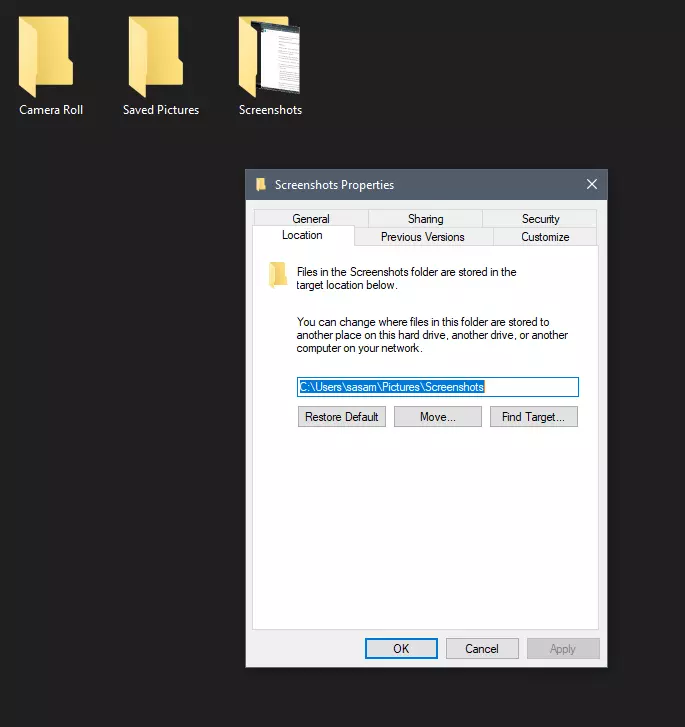
screenshot properties

Luckily this default location can be changed into any folder that you like.

Changing location

First thing is to open File Explorer and then navigate to your PC. Once you go to your PC, go to Pictures, and inside right-click on the Screenshots folder. If there is no screenshots folder inside, this means that since Windows was installed no screenshots were taken with WINDOWS + PrtScn key combination. Please note that just by pressing PrtScn you will create a screenshot but you will place it inside the clipboard ready to be pasted somewhere, with WINDOWS + PrtScn you are saving the screenshot directly in a file on your hard drive.

So once you clicked on the Screenshots folder, go to the bottom and click on properties. Inside properties go to the Location tab. In the location, tab clicks on MOVE and browse to your new location where you would like screenshots to be saved. Once you select the folder for screenshots, click on the Select Folder button and confirm with OK. After this, Windows will ask you would you like to move existing screenshots into the chosen folder. Click YES or NO, depending on your preference.

After this easy setup, all of your new screenshots will be placed now inside the chosen folder.

Thank you for reading and I hope to see you tomorrow. Take care.

Read More
What to do if Cortana Search Box turned white
A lot of Windows 10 users prefer the black theme on their computers and when you see anything but black it can get quite annoying. Such as is the case of the Taskbar which, as you know, is usually dark, however, when you take a look at the Cortana search bar, instead of seeing black, you’ll see that it has turned white. To fix this issue, read on as we will provide you some options you can try to set the Cortana search bar back to black. Before you proceed, take note that the options provided below will change all white search boxes to black and that one of these options needs administrative privileges.

Option 1 – Try changing the default App mode

As you know, Windows 10 has two modes, namely the Light and the Dark. Thus, you can switch to the Dark mode so that your Cortana search bar will be black as well. However, remember that it will completely change everything into dark mode so there will be no more Light mode elsewhere.
  • First, you need to click on the Start button and then click on the cog icon to open the Windows 10 Settings.
  • Next, from the Settings Menu, select Personalization and then select Colours from the left pane.
  • Then scroll down until you see the “Choose your default app mode” option and select “Dark”.
After you apply the changes, it will change the Cortana search bar into black instantly. Aside from that, you will also see the User Interface changing into dark mode.

Option 2 – Try changing the Registry value

If you are well-versed in editing registry keys, then you need to try this option. But before you go over the steps below, make sure that you create a System Restore point first so that if anything goes wrong, you can always go back to how it was before the changes were applied.
  • Tap the Win + R keys to open the Run prompt.
  • Then in the field, type in “regedit” and hit Enter to open the Registry Editor. If a User Account Control prompt appears, just click Yes.
  • Now that you’ve opened the Registry Editor, navigate to the following key:
HKEY_CURRENT_USERSoftwareMicrosoftWindowsCurrentVersionSearchFlightingWhiteSearchBox
  • After that, double-click on the “Value” key located on the right pane and set the value to “0” instead of “1” and then click Ok to save the changes made. You should now see a black or grey text box color instead of white.

Option 3 – Try changing the Region

In some forums, a lot of users stated that changing the Region also worked out for them in changing the white Cortana search bar to white. Thus, you need to change the region settings of your computer temporarily. To do so, follow the steps below.
  • Type in “Regional Settings” in the box and then click it as soon as it appears from the search results.
  • Next, make sure to select a region where Cortana is not available.
  • Then select apply to that region. After that, it will change the Cortana search bar color to black.
  • Now sign out and sign back in and revert to the original settings. But the changes you made earlier in Cortana will still remain.
Read More
How to Turn Bluetooth ON in Windows 11
Windows 11 BluetoothBluetooth perhaps is slowly becoming an outdated feature but sometimes you can really used it and need it. By default, in Windows 11 Bluetooth is turned OFF so if you need it, you will need to turn it ON first. Luckily turning it ON is easy and we will guide you through the process

Turning Bluetooth using the Quick Settings menu

The easiest and fastest way to turn the Bluetooth ON is using the quick setting menu:
  1. Click on indicator icons located left of date and time in Taskbar
  2. Click on the Bluetooth icon (if the icon is not displayed, click on the pencil icon, then click on Add and add Bluetooth icon from the list)
  3. Right-click on the Bluetooth icon and select go to Settings
  4. Go to Adding a Bluetooth Device to Windows 11 section

Switch it ON via Windows Settings

  1. Open Windows settings by using ⊞ WINDOWS + I combination
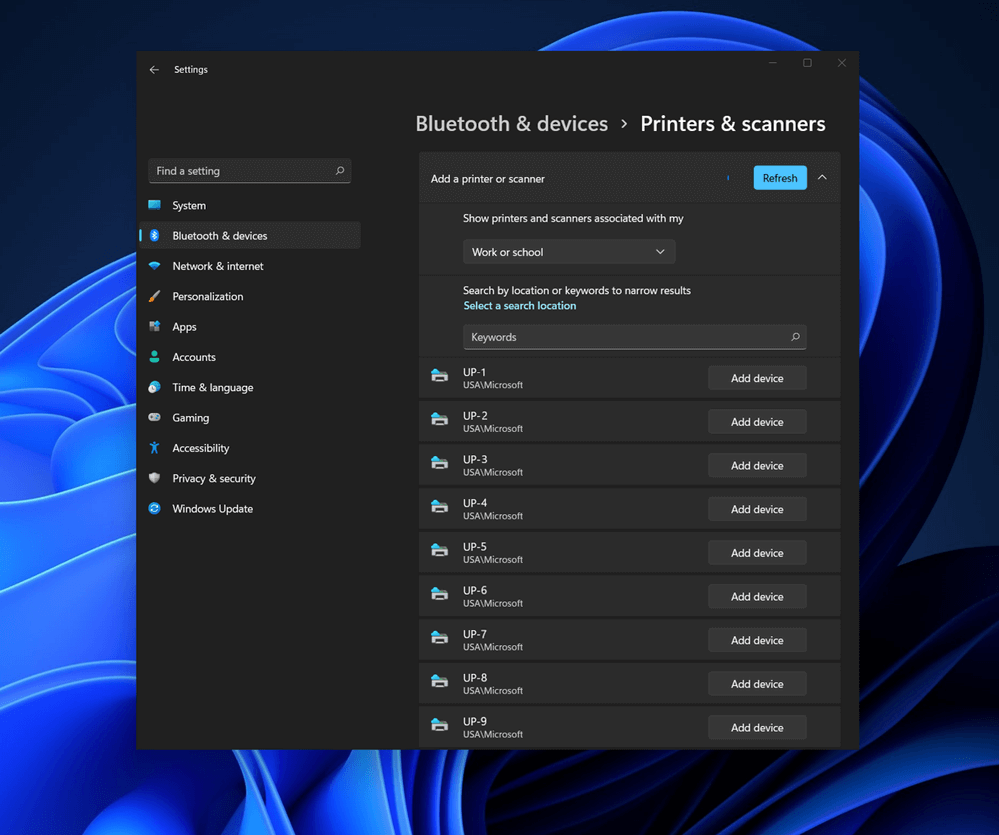
  2. Click on Bluetooth & Devices
  3. Inside settings turn Switch to ON beside Bluetooth
  4. Click + Add Device large button on top
  5. Click Bluetooth
  6. Select device in the list of found devices (make sure device is turned ON, it has Bluetooth sharing ON, and that it is in pairing mode)
  7. If the device needs the password, type it in
  8. When the message Your device is ready to go is showed on the screen click on the Done

Advice on Bluetooth devices

Note that the Bluetooth devices you connect to Windows 11 stay linked to your PC unless you pair them with a different PC, smartphone, or tablet later. After a time, most Bluetooth devices power down automatically to save battery life. To continue where you left off, either power the Bluetooth device up (if it has a power button) or press a button on a keyboard or mouse, and it should automatically turn on and reconnect with your PC. If you’re having trouble connecting your Bluetooth device, make sure that Windows 11 is fully updated and that you’ve installed any drivers that came with your device. Make sure that the device is fully charged or that it has a fresh set of batteries. while Windows is searching. You’ll need to remove the device from Windows 11 first and then attempt to pair it with your PC again.

Removing devices

If you need to remove (un-pair) a Bluetooth device, just open Windows Settings and navigate to Bluetooth & Devices. Locate the name of the device that you want to remove, click the three dots button in the corner of its square and select Remove Device.
Read More
Fix 0xd00000e5, 0x8007139f, 0x80090030 PIN
The quickest and easiest way to log into your computer is when you use the PIN feature in Windows 10. Even though it is a bit slower compared to biometric logins such as Fingerprint and Iris scanning that comes under Windows Hello, the PIN feature is definitely less complicated. However, just like any other module of the software, it is also prone to some errors. In this post, you will be guided in fixing several PIN errors such as 0xd00000e5, 0x8007139f, and 0x8009003. These errors could be caused at different points in time like when you change or create a PIN or when you log into your computer. To fix the 0xd00000e5, 0x8007139f and 0x8009003 PIN errors, there are various solutions you can try. You may empty the contents of the NGC folder or remove and change the PIN or the password. You could also use the Group Policy Editor or reset the ACLs in the NGC folder as well as run built-in tools like System File Checker and the DISM tool.

Option 1 – Take ownership of the NGC folder and delete its contents

  • Boot your computer first into Safe Mode.
  • Next, you need to take ownership of the Ngc folder first and you can do that using Command Prompt.
  • Type “command prompt” in the Windows Search bar and then right-click on the relevant search result and select “Run as administrator”.
  • After that, if a User Account Control or UAC prompt appears, just click on Yes to proceed.
  • Next, type and enter this command: TAKEOWN /F C:WindowsServiceProfilesLocalServiceAppDataLocalMicrosoftNgc
  • Note that the <path> is the location of the folder or file in File Explorer.
  • Now type and enter this second command: ICACLS C:WindowsServiceProfilesLocalServiceAppDataLocalMicrosoftNgc /grant administrators:F
  • Finally, once the command has been executed, restart your computer.
  • Once your computer has restarted, delete all the contents in the Ngc folder and check if the error is now fixed.

Option 2 – Try to remove and change the PIN or password

The 0xd00000e5, 0x8007139f, and 0x8009003 PIN errors could be caused by some conflicting issues with the PIN or password you have set for the User Account of your computer. Thus, you have to remove or change the PIN or password to fix these PIN errors.
  • Remove the PIN by going to Settings > Accounts > Sign-in options.
  • From there, go to the PIN section and click on the Remove button.
  • You will be asked to verify your account to proceed in removing the PIN, enter your credentials.
  • Restart your computer and then set up a new PIN.
  • Once you’re done, restart your computer and check if the error is gone now.

Option 3 – Try to use the Group Policy Editor

  • Tap the Win + R keys to open the Run utility and type “gpedit.msc” in the field and tap Enter to open the Group Policy Editor.
  • Next, navigate to this policy setting: Computer Configuration > Administrative Templates > System > Logon
  • After that, double click on the “Turn on convenience PIN Sign-in” option located on the right-side panel.
  • Then set its radio button to Enabled. You will see the following description when you do so:
“This policy setting allows you to control whether a domain user can sign in using a convenience PIN. If you enable this policy setting, a domain user can set up and sign in with a convenience PIN. If you disable or don’t configure this policy setting, a domain user can’t set up and use a convenience PIN. Note: The user’s domain password will be cached in the system vault when using this feature. To configure Windows Hello for Business, use the Administrative Template policies under Windows Hello for Business.”
  • After setting the radio button to Enabled, it will turn on the Logins in your computer using the PIN.
  • Close the Group Policy Editor and restart your computer for the changes to take effect.

Option 4 – Try to reset the ACLs in the Ngc folder

  • Type “command prompt” in the Windows Search bar and then right-click on the relevant search result and select “Run as administrator”.
  • After opening Command Prompt with admin privileges, execute this command: C:/Windows/Service/Profiles/Local/Service/AppData/Local/MicrosoftNgc /T /Q /C /RESET
  • The command you entered will start checking for errors and fix them automatically.

Option 5 – Run the System File Checker scan and the DISM tool

System File Checker:

  • Tap Win + R to launch Run.
  • Type in cmd in the field and tap Enter.
  • After opening Command Prompt, type in sfc /scannow
The command will start a system scan which will take a few whiles before it finishes. Once it’s done, you could get the following results:
  1. Windows Resource Protection did not find any integrity violations.
  2. Windows Resource Protection found corrupt files and successfully repaired them.
  3. Windows Resource Protection found corrupt files but was unable to fix some of them.
  • Now restart your computer.

DISM tool:

  • Open Command Prompt.
  • Then type in the following commands and make sure to hit Enter right after you type each one of them:
    • Dism /Online /Cleanup-Image /CheckHealth
    • Dism /Online /Cleanup-Image /ScanHealth
    • Dism /Online /Cleanup-image /Restorehealth
  • After that, wait until the process is finished and do not close the window as the process will probably take a couple of minutes.
  • Once it’s done, restart your computer.
Read More
EasyPDFCombine Complete Removal Guide

EasyPDFCombine is a browser extension by Mindspark Inc. This extension claims to offer users an easy and fast way to combine different PDF documents into a single file for easy access and sharing.

When installed this extension changes your default search engine to MyWay.com, it also hijacks your home page and new tab page, also changing it to search powered by MyWay. While browsing the internet with this extension you will see additional pop-up ads, injected ads in search results, and sponsored content throughout your browsing sessions. This extension has been marked as a Browser Hijacker by several anti-virus programs and it is not recommended to keep on your computer.

About Browser Hijackers

Browser hijack is a common type of internet fraud where your web browser settings are altered to allow it to carry out things you do not intend. Browser hijacker malware is developed for a variety of reasons. In general, browser hijacking is used for earning ad revenue from forced advert clicks and website visits. While it may seem harmless, these tools were created by malicious individuals who always look to take full advantage of you, so that hackers could make money from your naivety and distraction. They not only screw up your web browsers, but browser hijackers can also modify the system registry, making your computer susceptible to other malicious programs.

How to know whether the web browser is hijacked?

There are many symptoms of browser hijacking. Here are a few of them: 1. the browser’s homepage is modified 2. you find yourself regularly directed to a different webpage than the one you intended 3. the main web browser settings are modified and undesirable or insecure resources are put into the trusted sites list 4. you are finding new toolbars you haven’t witnessed before 5. you see a lot of pop-up ads on your computer screen 6. your web browser gets sluggish, buggy crashes often 7. Inability to navigate to certain websites, especially antivirus as well as other security software websites.

How browser hijacker infects computers

Browser hijackers attack computers via malicious email attachments, downloaded infected computer files, or by checking out infected sites. They may also originate from any BHO, browser extension, add-on, toolbar, or plug-in with the malicious objectives. Also, certain shareware and freeware can put the hijacker in your computer through the “bundling” technique. A good example of a well-known browser hijacker is the most recent Chinese malicious software known as “Fireball”, which has infected 250 million computers around the world. It acts as a hijacker but can be turned into a fully functioning malware downloader later on. The presence of any browser hijacker malware on your system can drastically diminish the web browsing experience, monitor your internet activities that result in severe privacy concerns, develop system stability issues and ultimately cause your PC to slow down or to a practically unusable condition. How you can remove browser hijackers Certain browser hijacking can be easily stopped by finding and removing the corresponding malware program from your control panel. At times, it could be a challenging job to identify and delete the malicious program because the associated file will be running as part of the operating system process. You should think of doing manual repairs only if you’re a tech-savvy individual since there are risks associated with tinkering around with the system registry and HOSTS file. Browser hijackers could be effectively removed by installing and running anti-malware software on the affected PC. Among the best tools for fixing browser hijacker infections is SafeBytes Anti-Malware. It helps you remove any pre-existing malicious software in your computer and gives you real-time monitoring and protection from the latest threats.

What you can do if Virus Stops You From Downloading Or Installing Antivirus?

Malware could potentially cause all kinds of damage when they invade your system, starting from stealing your personal details to erasing data files on your PC. Some malware is meant to hinder or prevent things that you’d like to do on your PC. It may not allow you to download anything from the web or prevent you from accessing a few or all websites, especially antivirus sites. If you’re reading this, odds are you’re stuck with a malware infection that is preventing you to download and/or install Safebytes Anti-Malware software on your PC. Follow the instructions below to remove malware through alternate ways.

Download the anti-virus in Safe Mode with Networking

If the malware is set to run automatically when Windows starts, entering Safe Mode may block this attempt. Since only the minimal programs and services launch in safe mode, there are rarely any reasons for issues to occur. The following are the steps you need to follow to start into the Safe Mode of your Windows XP, Vista, or 7 computers (check out Microsoft site for instructions on Windows 8 and 10 computers). 1) At power-on/startup, hit the F8 key in 1-second intervals. This would conjure up the Advanced Boot Options menu. 2) Choose Safe Mode with Networking using arrow keys and hit ENTER. 3) When this mode loads, you will have an internet connection. Now, get the malware removal application you need by using the web browser. To install the program, follow the directions in the setup wizard. 4) After installation, do a complete scan and let the software program delete the threats it discovers.

Utilize an alternate internet browser to download antivirus software

Some viruses might target vulnerabilities of a specific browser that block the downloading process. If you appear to have a virus attached to Internet Explorer, then switch to an alternate web browser with built-in security features, such as Firefox or Chrome, to download your favorite anti-malware program – Safebytes.

Install anti-malware on a USB drive

To successfully remove the malware, you should approach the problem of installing anti-virus software on the affected PC from a different angle. To run antivirus using a USB pen drive, follow these simple measures: 1) Download Safebytes Anti-Malware or MS Windows Defender Offline onto a virus-free PC. 2) Insert the USB drive onto the same computer. 3) Run the setup program by double-clicking the executable file of the downloaded application, with a .exe file format. 4) When asked, choose the location of the USB drive as the place where you would like to store the software files. Do as instructed on the screen to finish up the installation process. 5) Unplug the USB drive. Now you can utilize this portable anti-malware on the affected computer. 6) Double click the Safebytes Anti-malware icon on the pen drive to run the program. 7) Click on the “Scan Now” button to start the virus scan.

SafeBytes Anti-Malware - More Protection For You

In order to protect your PC from various internet-based threats, it is important to install an anti-malware program on your computer system. But with countless numbers anti-malware companies in the market, these days it is hard to decide which one you should purchase for your personal computer. A few are really worth your money, but many aren’t. While looking for anti-malware software, choose one that offers solid, efficient, and complete protection against all known viruses and malware. Among few good applications, SafeBytes Anti-Malware is the highly recommended program for the security-conscious individual. SafeBytes is a powerful, real-time antivirus application that is made to assist the common computer end user in safeguarding their PC from malicious internet threats. This program could easily detect, remove, and protect your personal computer from the most advanced malware threats including adware, spyware, trojan horses, ransomware, PUPs, worms, parasites as well as other potentially harmful software applications.

There are lots of great features you will get with this security product. Below are some of the features you may like in SafeBytes.

Live Protection: SafeBytes offers 100 % hands-free live protection and is set to observe, prevent and eliminate all threats at its very first encounter. It will continuously monitor your computer for hacker activity and also gives users superior firewall protection. World-class AntiMalware Protection: Using its enhanced and sophisticated algorithm, this malware removal tool can find and remove the malware threats hiding in your computer effectively. “Fast Scan” Abilities: This software has got one of the fastest and most efficient virus scanning engines in the industry. The scans are very accurate and take a little time to complete. Web Security: SafeBytes checks and gives a unique safety rating to every single website you visit and block access to web pages known to be phishing sites, thus protecting you against identity theft, or known to contain malware. Very Low CPU and RAM Usage: SafeBytes gives total protection from internet threats at a fraction of the CPU load because of its advanced detection engine and algorithms. Premium Support: SafeBytes gives you 24/7 technical support, automatic maintenance, and upgrades for the best user experience. SafeBytes can keep your personal computer protected from most advanced malware threats automatically with little or no input needed from you again. There is no doubt that your computer system will be protected in real-time as soon as you put this software program to use. So if you are looking for the best anti-malware subscription for your Windows-based PC, we suggest the SafeBytes Anti-Malware application.

Technical Details and Manual Removal (Advanced Users)

If you’d like to manually remove EasyPDFCombine without the use of an automated tool, it might be possible to do so by deleting the program from the Microsoft Windows Add/Remove Programs menu, or in cases of browser extensions, going to the browser’s AddOn/Extension manager and removing it. You’ll probably also want to reset your internet browser. Finally, check your hard drive for all of the following and clean your Windows registry manually to get rid of leftover application entries following an uninstallation. Please keep in mind that only experienced users should try to manually edit the system files simply because deleting any single vital registry entry results in a major problem or even a computer crash. Additionally, certain malware is capable of replicating itself or preventing deletion. It is advised that you carry out the removal process in Safe Mode.
Files: %LOCALAPPDATA%\Google\Chrome\User Data\Default\Local Extension Settings\kpocjpoifmommoiiiamepombpeoaehfh %UserProfile%\Local Settings\Application Data\Google\Chrome\User Data\Default\Local Extension Settings\kpocjpoifmommoiiiamepombpeoaehfh %LOCALAPPDATA%\Google\Chrome\User Data\Default\Sync Extension Settings\kpocjpoifmommoiiiamepombpeoaehfh %UserProfile%\Local Settings\Application Data\Google\Chrome\User Data\Default\Sync Extension Settings\kpocjpoifmommoiiiamepombpeoaehfh %UserProfile%\Local Settings\Application Data\EasyPDFCombine_ce %LOCALAPPDATA%\EasyPDFCombine_ce %USERPROFILE%\Application Data\easypdfcombine_ceIE %USERPROFILE%\AppData\LocalLow\easypdfcombine_ce %PROGRAMFILES%\easypdfcombine_ceEI %LOCALAPPDATA%\Google\Chrome\User Data\Default\Extensions\eoijigimapijneedmehmjccmmdknkbef %UserProfile%\Local Settings\Application Data\Google\Chrome\User Data\Default\Extensions\eoijigimapijneedmehmjccmmdknkbef %UserProfile%\Local Settings\Application Data\Google\Chrome\User Data\Default\Extensions\kpocjpoifmommoiiiamepombpeoaehfh chrome-extension_eoijigimapijneedmehmjccmmdknkbef_0.localstorage %UserProfile%\Local Settings\Application Data\EasyPDFCombineTooltab %LOCALAPPDATA%\EasyPDFCombineTooltab Registry: HKEY_CURRENT_USER\Software\AppDataLow\Software\easypdfcombine_ce HKEY_CURRENT_USER\Software\Microsoft\Internet Explorer\Approved Extensions, value: 0D159187-1DDE-426D-8D17-74B6CEF7D9E3 HKEY_CURRENT_USER\Software\Microsoft\Internet Explorer\Approved Extensions, value: 1930D4C0-D0E6-4CF1-B6A4-A09140F88475 HKEY_CURRENT_USER\Software\Microsoft\Internet Explorer\Approved Extensions, value: 4E8A04A7-E70B-4391-9AF3-1C0CC98AE8DA HKEY_LOCAL_MACHINE\SYSTEM\CurrentControlSet\services\easypdfcombine_ceService HKEY_LOCAL_MACHINE\SYSTEM\ControlSet001\services\easypdfcombine_ceService HKEY_LOCAL_MACHINE\SYSTEM\ControlSet002\services\easypdfcombine_ceService HKEY_LOCAL_MACHINE\SOFTWARE\Wow6432Node\Microsoft\Windows\CurrentVersion\Run, value: EasyPDFCombine AppIntegrator 32-bit HKEY_LOCAL_MACHINE\SOFTWARE\Wow6432Node\Microsoft\Windows\CurrentVersion\Run, value: easyPDFCombine AppIntegrator 64-bit HKEY_LOCAL_MACHINE\SOFTWARE\Wow6432Node\Microsoft\Windows\CurrentVersion\Run, value: easyPDFCombine EPM Support HKEY_LOCAL_MACHINE\SOFTWARE\Microsoft\Windows\CurrentVersion\Run, value: EasyPDFCombine AppIntegrator 64-bit HKEY_LOCAL_MACHINE\SOFTWARE\Microsoft\Windows\CurrentVersion\Run, value: EasyPDFCombine EPM Support HKEY_LOCAL_MACHINE\SOFTWARE\Microsoft\Windows\CurrentVersion\Run, value: EasyPDFCombine Search Scope Monitor HKEY_LOCAL_MACHINE\SOFTWARE\Wow6432Node\Microsoft\Internet Explorer\Toolbar, value: 4e8a04a7-e70b-4391-9af3-1c0cc98ae8da HKEY_LOCAL_MACHINE\SOFTWARE\Microsoft\Internet Explorer\Toolbar, value: 4e8a04a7-e70b-4391-9af3-1c0cc98ae8da HKEY_LOCAL_MACHINE\SOFTWARE\Wow6432Node\Microsoft\Windows\CurrentVersion\explorer\Browser Helper Objects\1930d4c0-d0e6-4cf1-b6a4-a09140f88475 HKEY_LOCAL_MACHINE\SOFTWARE\Microsoft\Windows\CurrentVersion\explorer\Browser Helper Objects\1930d4c0-d0e6-4cf1-b6a4-a09140f88475 HKEY_LOCAL_MACHINE\SOFTWARE\Microsoft\Internet Explorer\LowRegistry\DOMStorage\easypdfcombine.dl.myway.com HKEY_LOCAL_MACHINE\SOFTWARE\Microsoft\Internet Explorer\DOMStorage\easypdfcombine.dl.myway.com HKEY_LOCAL_MACHINE\Software\Microsoft\Internet Explorer\DOMStorage\easypdfcombine.dl.tb.ask.com HKEY_LOCAL_MACHINE\SOFTWARE\Microsoft\Internet Explorer\LowRegistry\DOMStorage\easypdfcombine.dl.tb.ask.com HKEY_LOCAL_MACHINE\SOFTWARE\Wow6432Node\EasyPDFCombine

Read More
Why ActiveX Control May Damage Your Personal Computer
ActiveX Controls are plugins you may constantly come across when working with Internet Explorer. An illustration of these kinds of control is the MICROSOFT IE Flash Player. They frequently result into significant problems for the Computer, yet they're vital for IE to operate correctly. You shouldn't ever overlook that after you install Active Controls in your Personal Computer, you effectively provide them with access to other areas of your PC. The ActiveX Controls not only tracks your search routines, but in addition puts malicious software, which might possibly be hazardous to your Computer.

Solution

Restoro box imageError Causes

ActiveX Controls make your Internet Explorer work as required and are usually great and beneficial to your own Computer. Yet, they can function as a source of problems because of the following factors.
  • You should stop installing  ActiveX Controls from Un Trustworthy Resources
In the event they are installed by you from un trustworthy resources new threats are likely introduced by ActiveX Controls to your PC. One of the more regular types of ActiveX Controls worth necessary for installation is Flash Player. Yet, never be in a hurry to install these Controls from resources that you don't trust.
  • Limit The Number of ActiveX Controls You Install on your PC
Prevent installing java/oracle ActiveX controls, because of its weak security measures which could make your Personal Computer and any additional information there in, open to attacks. Limit to the variety of ActiveX Controls that you install on your PC as these could increase the vulnerability canvas on your computer.

Further Information and Manual Repair

You can manually fix any malfunction that springs up from ActiveX Controls. Yet, more than mending the harm, produce the setting that ensures you never have troubles from them to start with. Just how do you do that?

a) Stop installing or downloading ActiveX Controls from Un Trustworthy Sources

This has been mentioned above, but it's worth repeating because it's the most common reason behind ActiveX Controls malfunctions. You might anticipate that for this kind of obvious reason for ActiveX Controls malfunctions, PC consumers would be extra cautious, however that is never true.

b) Limit ActiveX Controls Softwares

You can restrict ActiveX controls from running automatically on your PC. To limit them, head to Tools in Internet Explorer, and choose Internet Options. Proceed to the Security tab, and select Customs level Browse completely down before you get to the area designated "ActiveX". Subsequently, mark "Prompt" under every choice that you encounter. But don't mark the choice indicated "Run ActiveX Controls and Plug-Ins", together with, "Script ActiveX Controls Marked Safe for Scripting". By performing the measures emphasized above, you happen to be in substance stating that, you will not permit any installation of ActiveX Controls, without express authorization by you. In this manner, you have better control over different forms of ActiveX Controls you permit to be installed, therefore reducing potential threats to your PC.
Read More
Start Search is not displaying results
If you have just installed the latest Cumulative Update on your Windows 10 computer and you find that since then, the Windows 10 Start Search is not displaying any results when you try to use it to search for something in your computer, then this post might help as it will give you some suggestions to fix the problem. This problem might be caused by some bugs brought in by the new cumulative update you’ve installed. It is also possible that Cortana is having some issues or that the Windows Search service hasn’t been initialized. Whatever the cause is, here are some suggestions you need to follow to fix this issue. You can try running the Search and Indexing troubleshooter or configure the
  1. Run Search and Indexing Troubleshooter
  2. Configure the Windows Firewall
  3. Reinstall Cortana.

Option 1 – Try to run the Search and Indexing troubleshooter

The first thing you can do is to run the Search and Indexing troubleshooter in Windows 10 as it checks whether the settings for Cortana are in place and automatically corrects any issues if the update or software installation has changed the settings. To run it just click on the Start button and select Settings > Updates and Security > Troubleshoot. From there, select the Search and Indexing Troubleshooter.

Option 2 – Restart Cortana’s process in the Task Manager

Restarting Cortana’s process in the Task Manager could also help you resolve the problem. Refer to the steps given below to do so.
  • Tap the Ctrl + Alt + Del keys to open the Security options window.
  • From there, look for the Task Manager in the given list and open it.
  • Next, look for the process of Cortana and right-click on it, and then select the End Task option to end its process.
  • After that, the Cortana process will restart by itself and re-initialize.

Option 3 – Try resetting Cortana

  • Open Cortana and go to the Settings section where you’ll see the “Turning off Cortana clears what Cortana knows on this device, but won’t delete anything from the Notebook. After Cortana is off, you can decide what you’d like to do with anything still stored in the cloud” option. Turn this option off.
  • Restart your PC.
  • After your computer boots, launch Cortana again and check.

Option 4 – Try to configure the Windows Firewall

  • Tap the Win + Fn + Shift (Pause) keys to open Control Panel.
  • From there, open the Windows Defender Firewall applet and click on the Advanced Settings to open the Windows Firewall with the Advanced Security panel.
  • Next, click on the Outbound Rules section and look for Cortana and then double click on it to open its Properties.
  • After that, make sure that the “Allow the connection” is selected although this is the default working setting.

Option 5 – Try to reinstall Cortana

If none of the options given above works, you must consider reinstalling Cortana.
  • First, right-click on the Taskbar and select the Task Manager.
  • Next, select File menu > Run new task and type “Powershell” in the field and then select the “Create this task with administrative privileges” option.
  • Click on OK to open the PowerShell console.
  • After that, type the following command and hit Enter to execute it:
Get-AppXPackage -Name Microsoft.Windows.Cortana | Foreach {Add-AppxPackage -DisableDevelopmentMode -Register "$($_.InstallLocation)AppXManifest.xml"}
  • Restart your computer and check if the Windows Start Search is now working.
Read More
Reasons to Defrag Hard Drive
Hello and welcome to our Reasons to Defrag Hard Drive. You ought to defrag your hard drive, in case your PC is slow. This could enhance the efficiency and pace of your PC too as its hardware longevity. It places them where there is space, whenever your PC saves files. Often files are separated into bits. For example, whenever you remember a file and focus on it, it frequently doesn't fit back in exactly the same physical place. Where it can your PC divides up the file, occasionally into several parts, and saves it.

Why defrag?

Fragmentation causes difficulties that doing a defrag can correct. Fragmented files because it requires more resources and time to locate and remember these files slow down your pc. Applications may also take longer to load. Defragging can prolong the life span of the components. A defragged hard disk too can raise your likelihood of recovering lost information. Once fragmentation starts, it can propagate fast -- demanding defragging. It's like the pages of a publication are divided and hidden in several locations around a house, if a file is fragmented. It's like the pages of the book being brought back together, should you defrag. Defragging discovers all the bits of the file and places them in contiguous, actual places.

How will you defrag?

To defrag your hard drive, you must utilize software or utility. There are lots of defragging tools available. SpeedyPC Pro, a whole package of cleaning and optimization tools, can defragment your PC. Before you defrag, it's best to assess your hard drive. This evaluation finds if a defrag is needed and how much of the disc is fragmented. You simply allow the application do the work if it's determined that you must defrag your PC to enhance performance. To be able to defrag a drive, free disk space will be required by your PC. Defragging can take a while. How long depends on several variables, such as the system resources accessible, the disc volume, the number of files, and how fragmented the files are. It's a great idea to defrag when you don't have to use your pc or it isn't doing other jobs. For example, the night could become a great time to defrag. Be certain to close out of resource-intensive applications, like your antivirus scanner, before you defrag.
Read More
GoForFiles Removal Guide

GoforFiles is a Potentially Unwanted Program that allegedly allows users to easily search for files, movies, apps, and other useful things on the internet. In our testing, this program on further inspection does not work, it only displays an error for every search query. To top this off this program comes bundled up with other programs which could be malicious or unwanted. This program adds startup links into windows, allowing it and its bundled programs to launch every time Windows is restarted or launched. A task scheduled is also made, that lets the launch of the program at different random times during the day. Many anti-virus applications have marked this program and its bundled counterparts as Potentially Unwanted Programs, and it is highly recommended to remove these programs from your computer.

About Potentially Unwanted Programs

Exactly what is a Potentially Unwanted Program (PUP)?

People have encountered it – you download free software, you then discover some unwanted applications on your computer system, or discover a strange toolbar has been included with your browser. You didn’t have them installed, so how did they appear? These unwanted applications, which are called Potentially Unwanted Programs, or PUP in short, usually tag along as a software bundle when downloading the application and could cause serious problems for computer users. PUP does not involve malware in the traditional sense. What normally makes a PUP different from malicious software is the fact that when you download one, you’re doing it with your consent – although in most cases unintentionally and reluctantly. But, there is no doubt that PUPs remain bad news for computer users as they can be incredibly damaging to the PC in many ways. How do unwanted programs affect you? Unwanted programs come in many forms. More commonly, they will be found in adware bundlers which are known to utilize aggressive and misleading advertising. The majority of bundlers install many adware applications from a number of vendors, each of which features its own EULA policy. Safebytes Anti-malware completely removes this threat and safeguards your PC against PUP or malware infection. PUPS also appear in the form of undesirable toolbars or internet browser plug-ins. Not just they needlessly use up space on your screen, toolbars can also manipulate search results, track your web browsing activities, decrease your internet browser’s performance, and slow down your web connection to a crawl. They could seem harmless but PUPs are generally spyware. They may include dialers, keyloggers, and also other software built inside them that could monitor you or send out your sensitive information to 3rd parties. Because of this unwanted program, your application may freeze, your security protections can get disabled that could leave your computer susceptible, your system could get ruined, and this list goes on and on.

Tips for preventing PUPs

• Study cautiously prior to agreeing to the license agreement as it could have a clause about PUPs. • Always opt for the custom if you are given an option between Recommended and Custom Installations – never click Next, Next, Next thoughtlessly. • Install an advert blocker/pop-up blocker; Deploy anti-malware products such as Safebytes Anti-malware. These software programs will establish a wall between the computer and online criminals. • Be alert when you download and install freeware, open-source software, or shareware. Avoid downloading and installing browser extensions and applications you are not knowledgeable about. • Always download software from reliable sources like official sites as opposed to untrustworthy sharing space. Avoid torrents and peer-to-peer clients.

Can't Install Safebytes Anti-malware because of a Virus? Try This!

Malware could potentially cause all sorts of damage after they invade your system, from stealing your private details to erasing files on your PC. Some malware sits in between the computer and your internet connection and blocks some or all internet sites that you really want to visit. It might also prevent you from the installation of anything on your machine, especially an anti-virus program. If you’re reading this now, you’ve probably realized that a malware infection is a reason for your blocked internet traffic. So what to do when you want to download and install antivirus software like Safebytes? Do as instructed below to get rid of malware through alternative methods.

Boot your PC in Safe Mode

In Safe Mode, you can actually change Windows settings, un-install or install some applications, and remove hard-to-delete viruses. In the event, the virus is set to load automatically when the computer boots, switching to this mode could prevent it from doing so. To get into Safe Mode or Safe Mode with Networking, press F8 while the system is starting up or run MSConfig and find the “Safe Boot” options under the “Boot” tab. Once you are in safe mode, you can attempt to install your antivirus program without the hindrance of the malicious software. Right after installation, run the malware scanner to remove standard infections.

Switch over to an alternative internet browser

Malicious program code might exploit vulnerabilities on a particular browser and block access to all anti-malware software websites. If you appear to have a trojan attached to Internet Explorer, then switch over to a different web browser with built-in safety features, such as Firefox or Chrome, to download your favorite antivirus program – Safebytes.

Make a bootable USB antivirus drive

Another option is to save and operate an antivirus program entirely from a USB drive. To run anti-virus using a USB drive, follow these simple measures: 1) Make use of another virus-free PC to download Safebytes Anti-Malware. 2) Connect the flash drive to a USB port on the clean computer. 3) Run the setup program by double-clicking the executable file of the downloaded software, with a .exe file extension. 4) Choose the USB stick as the location for saving the software file. Follow the on-screen instructions to finish the installation process. 5) Now, plug the USB drive into the infected system. 6) Double-click the EXE file to run the Safebytes program from the thumb drive. 7) Run Full System Scan to identify and get rid of all kinds of malware.

Protect your PC from Malware With SafeBytes Security Suite

To protect your computer or laptop from various internet-based threats, it is very important to install an anti-malware application on your laptop. However, with so many antimalware companies out there, nowadays it is actually tough to decide which one you should obtain for your personal computer. A few of them are excellent, some are decent, and some will destroy your PC themselves! You must be careful not to choose the wrong product, especially if you buy premium software. Among few good applications, SafeBytes Anti-Malware is the highly recommended software program for the security-conscious end user. Safebytes is one of the well-established PC solutions firms, which offer this comprehensive anti-malware application. Using its outstanding protection system, this utility will instantly detect and remove the majority of the security threats, including browser hijackers, viruses, adware, ransomware, trojans, worms, and PUPs. SafeBytes anti-malware takes computer protection to a whole new level with its advanced features. Let’s look into a few of them below: Optimum AntiMalware Protection: With a critically acclaimed anti-malware engine, SafeBytes offers multilayered protection which is intended to catch and eliminate threats that are hidden deep in your computer’s operating system. Real-time Threat Response: SafeBytes provides round-the-clock protection for your computer limiting malware intrusions in real-time. It will continuously monitor your computer for hacker activity and also gives users advanced firewall protection. Web Protection: Safebytes allots all sites a unique safety score that helps you to get an idea of whether the webpage you’re about to visit is safe to view or known to be a phishing site. Faster Scanning: SafeBytes Anti-Malware has got a multi-thread scan algorithm that works up to 5x faster than any other antivirus software. Light-weight: SafeBytes is a lightweight and user-friendly antivirus and antimalware solution. Since it uses minimal computer resources, this software leaves the computer power exactly where it belongs to: with you actually. 24/7 Online Support: Support service is readily available for 24 x 7 x 365 days via email and chats to answer your concerns. SafeBytes has created an excellent anti-malware solution to help you conquer the latest computer threats and virus attacks. You now may understand that this tool does more than just scan and delete threats on your PC. You’ll get the best all-around protection for the money you spend on SafeBytes AntiMalware subscription, there is no doubt about it.

Technical Details and Manual Removal (Advanced Users)

If you wish to carry out the removal of GoforFiles manually instead of using an automated software tool, you can follow these simple steps: Go to the Windows Control Panel, click on the “Add/Remove Programs” and there, select the offending application to uninstall. In cases of suspicious versions of web browser plug-ins, you can easily get rid of it through your web browser’s extension manager. It is also highly recommended to factory reset your web browser to its default state to fix corrupt settings. In order to ensure the complete removal, manually check your hard disk and registry for all of the following and eliminate or reset the values as needed. But bear in mind, this can be a complicated task and only computer experts can perform it safely. Also, certain malware is capable of replicating itself or preventing deletion. You’re urged to do this process in Windows Safe Mode.
Files: %ProgramFiles%GoForFiles.comGoForFiles.com.exe %UserProfile%DesktopGoForFiles.com.lnk %UserProfile%StartMenuGoForFiles.comGoForFiles.com.lnk %UserProfile%StartMenuGoForFiles.comHelp.lnk %UserProfile%StartMenuGoForFiles.comRegistration.Lnk %UserProfile%ApplicationDataMicrosoftInternetExplorerQuickLaunchGoForFiles.com.lnk Registry: HKEY_CURRENT_USERSoftware376694984709702142491016734454 HKEY_CURRENT_USERSoftwareMicrosoftWindowsCurrentVersionRun376694984709702142491016734454
Read More
1 2 3 171
Logo
Copyright © 2023, ErrorTools. All Rights Reserved
Trademark: Microsoft Windows logos are registered trademarks of Microsoft. Disclaimer: ErrorTools.com is not affiliated with Microsoft, nor claims direct affiliation.
The information on this page is provided for information purposes only.
DMCA.com Protection Status