Logo

What to do if USB tethering is not working

This post will guide you in what to do if you are trying to share the internet connection from your Android smartphone to your Windows 10 computer but USB tethering is not working. Although you can always connect your Android phone to your computer using a USB cable, you still won’t be able to access the internet. However, if you’ve already enabled the USB tethering option in your smartphone, you should be able to access the internet but if you still can’t then you can fix this issue by reading this post.

There are several potential fixes you can check out to fix the USB tethering issue. You can try running both the Internet Connections and Network Adapter troubleshooters or try installing the USB RNDIS adapter or disable any unnecessary network adapters.

Option 1 – Try to run the Internet Connections and Network Adapter troubleshooter

There are various built-in troubleshooters in Windows 10 that can help fix system issues. Since you are dealing with an internet connection problem, you can try running both the Internet Connections and the Network Adapter troubleshooters. To run them, follow these steps:

  • Go to Settings > Update & security > Troubleshoot.
  • From there, you can select the Internet Connections troubleshooter.
  • Click on the Run troubleshooter button to troubleshoot the problem.
  • Wait until the troubleshooter is done identifying and fixing the problem automatically.
  • Then follow the next on-screen instructions that may appear.
  • Once it’s done, check if the USB tethering issue is now fixed.

Note: You can also try to run the Network Adapter troubleshooter. It is also located under the Troubleshoot section. Just scroll down until you see it and then run it.

Option 2 – Try installing or updating the USB RNDIS adapter

RNDIS or Remote Network Driver Interface Specification can also help you resolve the USB tethering problem. If the pre-installed driver does not help you in connecting to the internet, then you can try installing the USB RNDIS driver that is, if it’s not installed yet. If it is already installed, you can try to update it instead.

  • Tap the Win + R keys to open Run and type “devmgmt.msc” in the field and hit Enter to open the Device Manager.
  • Next, expand the Network adapters section and look for the Remote NDIS based Internet Sharing Device. But if you are using a Samsung smartphone, you might see “Samsung” instead of under Network adapters.
  • Right-click on it and then select the “Update driver” option.
  • Then select the “Browse my computer for driver software” option.
  • After that, select the “Let me pick from a list of available drivers on my computer” option.
  • Now uncheck the checkbox for “Show compatible hardware”.
  • From the given list on your left-hand side, look for Microsoft and then select the Remote NDIS based Internet Sharing Device on your right-hand side.
  • Click on Next. A new popup will appear where you have to click on Yes. This will install the driver.
  • Now click on the Close button and restart your computer.

Option 3 – Try disabling any unnecessary network adapters/connections

Assuming that your Ethernet connection is showing ping loss which indicates that the internet is not stable. In such time, if you use the USB tethering functionality, you won’t be able to access the internet connection from your smartphone. The internet connection will be frequently disconnected since your computer gives priority to the Ethernet connection. Thus, you have to disable the Ethernet connection temporarily.

  • Right-click the network icon on your Taskbar and select the option “Network and Sharing Center”.
  • After that, click the network connection. And then click the Disable button from the status box that opens.
  • After that, check if you can now connect to the internet or not.

Do You Need Help with Your Device?

Our Team of Experts May Help
Troubleshoot.Tech Experts are There for You!
Replace damaged files
Restore performance
Free disk space
Remove Malware
Protects WEB browser
Remove Viruses
Stop PC freezing
GET HELP
Troubleshoot.Tech experts work with all versions of Microsoft Windows including Windows 11, with Android, Mac, and more.

Share this article:

You might also like

Proven Solutions For Error Code 0x80131700

Error Code 0x80131700 - What is it?

0x80131700 is a Windows 7 error that occurs when there is a problem with the Troubleshooting Wizard. The wizard fails to function and with an error message displaying the following message on the computer screen:

‘An unexpected error has occurred’- The troubleshooting wizard can’t continue

Error code: 0x80131700'

Windows 7 features Troubleshooting Wizard, an automated tool that helps users resolve several PC-related problems such as accessing shared files or internet connectivity to name a few.

Error Causes

The error code 0x80131700 largely occurs because of two reasons:
  • The .NET framework is not properly installed on your system
  • Mis-configured System Files and Registry Issues

Further Information and Manual Repair

0x80131700 Windows error is rated easy to fix error code. Thus, repairing this error code is not difficult. It is so easy to fix that you don’t need any technical expertise or professional help for that matter. To begin with, there are 2 methods to resolve the 0x80131700 error code. Let’s take a look at the solutions:

Cause: The .NET framework not properly installed on your system

Solution: If the underlying cause for the error code 0x80131700 is the improper installation of .NET framework on your PC, then the best and easy way to resolve this error is to reinstall it. By default, the built-in version of the .NET framework in Windows is 3.5.1 to reinstall this again on your system follow the steps given below:
  1. Go to the Start menu and type: features in the search box
  2. Now Choose the option ‘Turn Windows Features on or off’ and then press Enter
  3. After this, look for Microsoft .NET framework 3.5.1 and uncheck the box
  4. Once you uncheck it, restart your computer
  5. Repeat the step 1 and 2
  6. Now check the box before .NET framework 3.5.1
  7. Restart your system
  8. Now try using the Troubleshooting Wizard.

Cause: Mis-configured System Files and Registry Issues

Solution: If the error code 0x80131700 triggered due to misconfigured files and registry issues, then the easiest way to fix this error on your system is to download Restoro
Read More
Deleting a User Account in Windows
There are instances when there are multiple accounts which is the result when there are a lot of users who use the computer. Some may use it more often, while others may seldom use it. Having multiple accounts can be quite confusing and inconvenient especially if it takes a lot of space. Thus, in this post, you will be guided on how you can delete a User Account on your Windows 10 computer, as well as how you can create a backup of the existing profile data and files. All the data of user accounts can be found at C:/Users, where its folder name will be exactly the same as the name of the user. You can check the exact user’s name by simply using the “net user” command either via Command Prompt or Windows PowerShell. Once you delete a user account, its folder, along with its files, will also be deleted. You can also create a backup for user files and the best way to do that is by copying the folder to other partitions or to an external drive. Here are two methods you can check out to delete a user account in Windows 10 – you can do it via Windows Account settings or via the command line. For more details, follow each one of the options provided below.

Option 1 – Delete the user account using Windows Account settings

  • First, go to Settings > Accounts > Family & other users.
  • Next, select the account you want to delete and click on the Remove button. This will open a confirmation window along with a warning message and two buttons that say, “Delete account & data” and “Cancel”.
  • Click on the Delete account & data button to delete the user account.
Note: Once you remove a user account, it will also remove all its corresponding data such as items like Documents, Photos, Music, Desktop, and other related folders. Thus, if you have not created a backup, then you won’t be able to recover those files.

Option 2 – Delete the user account using the command line

If you want to delete several user accounts, then doing it via Command Prompt or Windows PowerShell is a lot quicker. To get started, follow these steps:
  • In the Start Search, type “command prompt” and from the search results that appear, right-click on Command Prompt and select the “Run as administrator” option.
  • Next, type the “net user” command and hit Enter to execute it. This will show you the exact usernames on the computer.
  • After that, type the “net user <username> /delete” command and hit Enter to execute it. This will delete the account and all of its data without any warning. You have to replace “<username>” with the name of the user account.
Read More
Microsoft Windows 11 limitations surfacing
windows 11As more and more people get into insider preview of upcoming Windows 11 we will see more and more different takes and opinions on it. Generally speaking, the first wave was quite positive when it was previewed but how time is passing more and more limitations and frustration comes to the surface. Some of the limitation that is inside it, which have been confirmed by Microsoft itself includes features missing that we had in Windows 10 like moving the application to the taskbar in order to pin it, moving the file in the taskbar to open it in default application and some big annoyances like Windows opening widgets always in Edge no matter what is your default browser. Not being able to move the taskbar from the bottom is also one of many illogical things. There is not really a point in these missing features since they were working fine in Windows 10 and many users liked them since they could customize Windows more to their liking, now with this new look at limitations it reminds me personally much of apple macOS and I will be honest, I am not a big fan of that kind of thinking. If I wanted that kind of OS I would have gotten myself a MAC, not custom build PC, but hey, Linux is always a free alternative, and how Microsoft itself is pushing limitations and in my opinion bad design choices along with awful system requirements that might just be a case for a lot of users. I am really not sure what is logic behind these moves and I am sure they have their reasons but this time it seems that their take on the new OS is not resonating well with the overall user population, well at least what I have heard so far. Things of course can still be changed and made for the better and I would rather see release postponed and issues addressed than getting more system hogging and limited new OS that at its current state looks like reskinned Windows 10 with limitations.
Read More
How to remove SearchAnonymo from your computer

SearchAnonymo is a Google Chrome browser extension. This extension allegedly allows you to browse the internet anonymously without your data being tracked. From the Author: Search Anonymo – Search the Web Privately

Switch your default search to Search Anonymo and become safer on the web. Search through our Search Anonymo extension instead of search engines that track your personal profile and your search history. Search Anonymo provides you with an easy and safe search tool. -Advanced Security -No User Profiling -No Tracking -No Search Leakage This extension replaces your Default Search to Search Anonymo. This extension reroutes your search algorithms through a few websites before finally forwarding it to Yahoo Search. It changes your default search engine to Yahoo, which keeps track of any search information you make. It will change your homepage, search provider, and in our testing added considerable delay to the speed of search. This browser hijacker is considered a low-risk threat but is detected for optional removal for previous reasons.

About Browser Hijackers

Browser hijacking means that a malicious program code has power over and altered the settings of your internet browser, without your permission. Nearly all browser hijackers are created for marketing or advertising purposes. In most cases, it will force users to predetermined websites that are trying to increase their advertising campaign revenue. Nonetheless, it isn’t that harmless. Your web safety is compromised and it is also really irritating. Browser hijackers can also let other malicious programs without your knowledge further damage your PC.

How one can know whether the web browser is hijacked?

There are many symptoms that could indicate a browser hijacking: the browser’s home-page is changed; you see new unwanted favorites or bookmarks added, typically directed to ad-filled or porn sites; the default browser configurations have been changed and/or your default search engine is altered; you’re getting browser toolbars you have never found before; never-ending pop-up ads appear and/or your web browser popup blocker is disabled; web pages load very slowly and at times incomplete; you can’t visit specific sites like homepages of security software.

How they get into your computer or laptop

There are a number of ways your PC can get infected by a browser hijacker. They usually arrive by way of spam e-mail, via file-sharing networks, or by a drive-by download. They can be included with toolbars, BHO, add-ons, plugins, or browser extensions. Also, certain freeware and shareware can put the hijacker in your PC through “bundling”. Examples of well-known browser hijackers are Fireball, GoSave, Ask Toolbar, CoolWebSearch, Babylon Toolbar, and RocketTab. The presence of any browser hijacker on your computer can considerably diminish the browsing experience, record your internet activities that lead to major privacy issues, develop system stability problems, and eventually cause your computer to slow down or to a practically unusable condition.

Getting rid of browser hijackers

Certain hijackers could be removed by just uninstalling the related freeware or add-ons through the Add or Remove Programs in the Windows control panel. Having said that, the majority of hijackers are very tenacious and need specialized tools to get rid of them. And there’s no denying the very fact that the manual fixes and removal methods can be a complicated job for a novice computer user. Additionally, there are plenty of risks connected with tinkering around with the system registry files. You can opt for automatic browser hijacker removal methods by simply installing and running an efficient anti-malware application. To eradicate any browser hijacker from your PC, you can download this particular certified malware removal application – SafeBytes Anti-Malware. In addition to anti-malware, a system optimizer software can help you correct registry errors, get rid of unwanted toolbars, secure internet privacy, and stabilize software programs installed on your computer.

What you can do if Virus Stops You From Downloading Or Installing Anti-malware?

All malware is inherently harmful, but certain kinds of malicious software do a lot more damage to your PC than others. Some malware is designed to hinder or prevent things that you want to do on your computer system. It may not allow you to download anything from the web or stop you from accessing some or all websites, especially the anti-virus sites. If you’re reading this, chances are you’re stuck with a malware infection that is preventing you to download or install Safebytes Anti-Malware software on your system. Do as instructed below to get rid of the malware by alternate methods.

Use Safe Mode to fix the problem

In Safe Mode, you could change Windows settings, un-install or install some software, and get rid of hard-to-delete viruses. In the event the malware is blocking internet connection and affecting your computer, starting it in Safe Mode enables you to download antivirus and run a scan while limiting possible damage. In order to get into Safe Mode or Safe Mode with Networking, press the F8 key while the PC is starting up or run MSConfig and locate the “Safe Boot” options in the “Boot” tab. As soon as you restart the PC into Safe Mode with Networking, you could download, install, as well as update anti-malware software from there. After installation, run the malware scanner to remove standard infections.

Switch to an alternate web browser

Some malware mainly targets particular internet browsers. If this sounds like your case, make use of another web browser as it might circumvent the virus. When you suspect that your Internet Explorer happens to be hijacked by a trojan or otherwise compromised by online hackers, the best thing to do is to switch over to an alternate browser such as Firefox, Chrome, or Safari to download your chosen security software – Safebytes Anti-Malware.

Run anti-malware from your USB drive

Another technique is to download and transfer anti-malware software from a clean PC to run a scan on the infected system. Do these simple actions to clean up your infected computer by using a portable antivirus. 1) On a virus-free computer, download and install Safebytes Anti-Malware. 2) Plug in the pen drive into the clean computer. 3) Double-click the executable file to run the installation wizard. 4) Select the USB flash drive as the location for saving the software file. Follow the onscreen instructions to finish the installation process. 5) Now, transfer the USB drive to the infected PC. 6) Run the Safebytes Anti-malware directly from the USB drive by double-clicking the icon. 7) Run Full System Scan to identify and get rid of all kinds of malware.

Overview of SafeBytes Anti-Malware

Do you want to install the very best anti-malware software program for your PC? There are numerous applications in the market that comes in paid and free versions for Windows systems. A few of them are great and some are scamware applications that pretend as legitimate anti-malware programs waiting to wreak havoc on your personal computer. When searching for anti-malware software, choose one that gives dependable, efficient, and comprehensive protection against all known viruses and malware. Amongst few good applications, SafeBytes Anti-Malware is the strongly recommended tool for the security-conscious individual. SafeBytes can be described as a powerful, real-time anti-malware application that is created to assist the everyday computer end user in protecting their PC from malicious threats. With its cutting-edge technology, this application will help you get rid of multiples types of malware such as computer viruses, worms, PUPs, trojans, adware, ransomware, and browser hijackers. SafeBytes anti-malware offers an array of enhanced features that sets it apart from all others. Listed below are some of the features you may like in SafeBytes. Most effective AntiMalware Protection: Built on a highly acclaimed anti-virus engine, this malware removal tool can find and remove numerous obstinate malware threats like browser hijackers, potentially unwanted programs, and ransomware that other common anti-virus applications will miss. Real-time Threat Response: SafeBytes offers a completely hands-free real-time protection that is set to monitor, block and destroy all threats at its first encounter. It will regularly monitor your pc for hacker activity and also gives end-users superior firewall protection. Web protection: SafeBytes checks the hyperlinks present on a webpage for possible threats and tells you whether the site is safe to visit or not, through its unique safety rating system. Lightweight: SafeBytes is renowned for its low effect on computer resources and great detection rate of countless threats. It runs quietly and efficiently in the background so you’re free to utilize your computer or laptop at full power all the time. 24/7 Guidance: You will get 24/7 technical assistance to immediately resolve any issue with your security application. To sum it up, SafeBytes Anti-Malware is pretty great for securing your computer against all sorts of malware threats. Malware problems can become a thing of the past once you put this tool to use. If you want advanced forms of protection features & threat detections, purchasing SafeBytes Anti-Malware will be well worth the dollars!

Technical Details and Manual Removal (Advanced Users)

If you wish to manually remove SearchAnonymo without using an automated tool, it may be possible to do so by removing the program from the Windows Add/Remove Programs menu, or in cases of web browser plug-ins, going to the browser’s AddOn/Extension manager and removing it. Additionally, it is suggested to reset your browser to its default state to fix corrupt settings. In order to ensure the complete removal, manually check your hard drive and computer registry for all the following and eliminate or reset the values as needed. But bear in mind, this is often a complicated task and only computer professionals could accomplish it safely. Furthermore, certain malware is capable of replicating itself or preventing deletion. Carrying out this in Safe Mode is recommended.
Read More
Backup all drivers in Windows 10
When Windows is installed on a clean hard drive it usually finds most of the needed drivers for our computer to run, but if we by any chance have any old unsupported hardware or some exotic one chance are very high that Windows will not be able to locate and install drivers for it. And sometimes we do not even have drivers from where to download them, let's say for example you have purchased a second-hand laptop with Windows on it, you wish to create a clean and fresh copy of new Windows installation but you do not have drivers, and let us say the model is not supported so you can not download them. In this case, this shown method will help you a ton and save you a lot of time and frustration. So, in order to back all of your drivers from your Windows follow this simple guide step by step. Note please that this method will backup drivers themselves, you will not backup installation packages of drivers or similar stuff, only drivers installed in Windows itself.

Backing up the drivers

First thing first, create a folder where you want your drivers to be backed up somewhere in your HD and give it any name. Second, press ⊞ WINDOWS + X to open the secret Windows menu. keyboard with windows and x markedFrom the menu choose Command Prompt (administrator) Windows menu command prompt adminWhen the command prompt is active type the next command in it: DISM /online /export-driver /destination:C:\DriverBackup where: C:\DriverBackup is the folder and the hard drive where you want to store your backed-up drivers. Press ENTER That's it, you have now successfully backed-up all of your installed Windows drivers. Now, save all of your drivers on USB and reinstall Windows.

In order to now return backed drivers do the following:

Press again ⊞ WINDOWS + X to open the secret Windows menu. keyboard with windows and x markedbut this time choose Device manager Windows menu device managerFrom decide, manager right-click on any device Windows has not been able to install appropriate driver and choose update driver
  • Click on the Browse my computer for driver software option.
  • Click the Browse button.
  • Select the folder with the driver backup.
  • Check the Include subfolders option.
  • Click the Next button.
  • Click the Close button.
Read More
The system found unauthorized changes
If your Windows computer is not booting up and displays Secure Boot Violation – The system found unauthorized changes on the firmware, operating system, or UEFI drivers error message on the screen, then you can follow this tutorial to troubleshoot the problem. When you encounter this kind of problem on your computer, you will get the following error message on your screen:
“Secure Boot Violation The system found unauthorized changes on the firmware, operating system, or UEFI drivers. Press [OK] to run the next boot device or enter directly to BIOS Setup if there are no other boot devices installed. Go to BIOS Setup > Advanced > Boot and change the current boot device into other secured boot devices.”
This kind of error message pops up due to the Secure Boot that protects your computer from running any non-OEM signed boot software during startup. In other words, the Secure Boot firmware is the one that scans for non-signed boot software each time your computer boots up and if it detects anything strange, it will block the boot and will display the error message. To fix this error, there are two things you can try. You can try to disable the Secure Boot or try using a System Restore Point. For more detailed instructions, refer to each one of the options provided below.

Option 1 – Disable the Secure Boot in the BIOS

Disabling the Secure Boot in the BIOS settings is definitely recommended to resolve the issue. To disable Secure Boot, here’s what you have to do:
  • First, boot your computer into Windows 10.
  • Next, go to Settings > Windows Update. From there, check if there is anything that you have to download and install if you see any available updates. Usually, OEMs send and update the list of trusted hardware, drivers, and operating systems for your computer.
  • After that, go to the BIOS of your computer.
  • Then go to Settings > Update & Security > Advanced Startup options. If you click on Restart Now, it will restart your computer and give you all the advanced options.
  • Next, select Troubleshoot > Advanced Options. As you can see, this screen offers you further options including System restore, Startup repair, Go back to the previous version, Command Prompt, System Image Recovery, and UEFI Firmware Settings.
  • Select the UEFI Firmware Settings which will take you to the BIOS.
  • From there, go to the Security > Boot > Authentication tab where you should see Secure Boot. Note that every OEM has its own way of implementing the options so it varies.
  • Next, set Secure Boot to Disabled and set Legacy Support to On or Enabled.
  • Save the changes made and exit. Afterward, your computer will reboot.

Option 2 – Try running System Restore in Advanced Startup Options

Since you probably can’t boot into your Windows 10 computer, you can try to run System Restore again in the Advanced Startup Options.
  • Boot your computer into the Advanced Startup Options screen.
  • From there, you will see some options to troubleshoot when you can’t log in to Windows in the usual way.
  • Now select Troubleshoot > Advanced Options > Command Prompt.
  • After that, type “rstrui” and hit Enter to execute the command which will start the System Restore process.

Option 3 – Make a proper bootable USB Drive/Stick

To make a proper bootable USB drive, you need to use the Windows Media Creation tool. The Media Creation tool in Windows allows you to use the ISO installation file to make a bootable device that you can use to install Windows on your PC. Note that this is kind of different from the usual installation process as it could erase your computer’s current settings and data on the primary drive. Thus, before you proceed, you need to backup all your data into some removable drive and then use the Media Creation Tool to make a bootable drive.
  • After making the bootable drive, you need to plug it into your computer and then reboot.
  • Next, tap the F10 or Esc key to open the boot options.
  • Now set the boot priority of the removable drive the highest. Once the setup comes forth, follow the next onscreen instructions and install Windows without any problems.
Read More
Steam proton to run Windows games on Linux
Steam protonDespite popular belief, there are a lot of users running Linux OS. Linux offers great security and working environment and 96.3% of the world's top 1 million servers run on Linux. 90% of all cloud infrastructure operates on Linux and practically all the best cloud hosts use it. But gaming on Linux is limited, enter Steam proton a Valve’s gaming solution.

What is Steam proton?

Proton is a WINE fork with some extra capabilities, to play games and run applications not native and not made to run natively under Linux OS. It is supposed to bridge the Gaming issues for PC users and let them more freedom in choosing an operating system to game on.

Find out if your game supports Proton

Although there are a lot of titles that nowadays run natively on Linux some will still need proton in order to run at all and sadly some of them will not be able to run on Linux even via proton but seeing how Valve is busy and it is trying to push its ideas and technology slowly this gap is closing. In order to see how the game you want to play performs and behaves on Linux and proton environment visit https://www.protondb.com/ and find out. As soon as the site loads you will be greeted with statistics and a search option to find out the status of the desired game with one of the given statuses: Borked, Bronze, Silver, Gold, Platinum, and Native. As you probably guessed native means that the game will work on Linux out of the box and borked will probably not work at all. Platinum and gold status means that game will run on proton without any input or tweaks from the user while silver and bronze means that it will work but might need some tweaks in order to make it work.

How to get Steam proton?

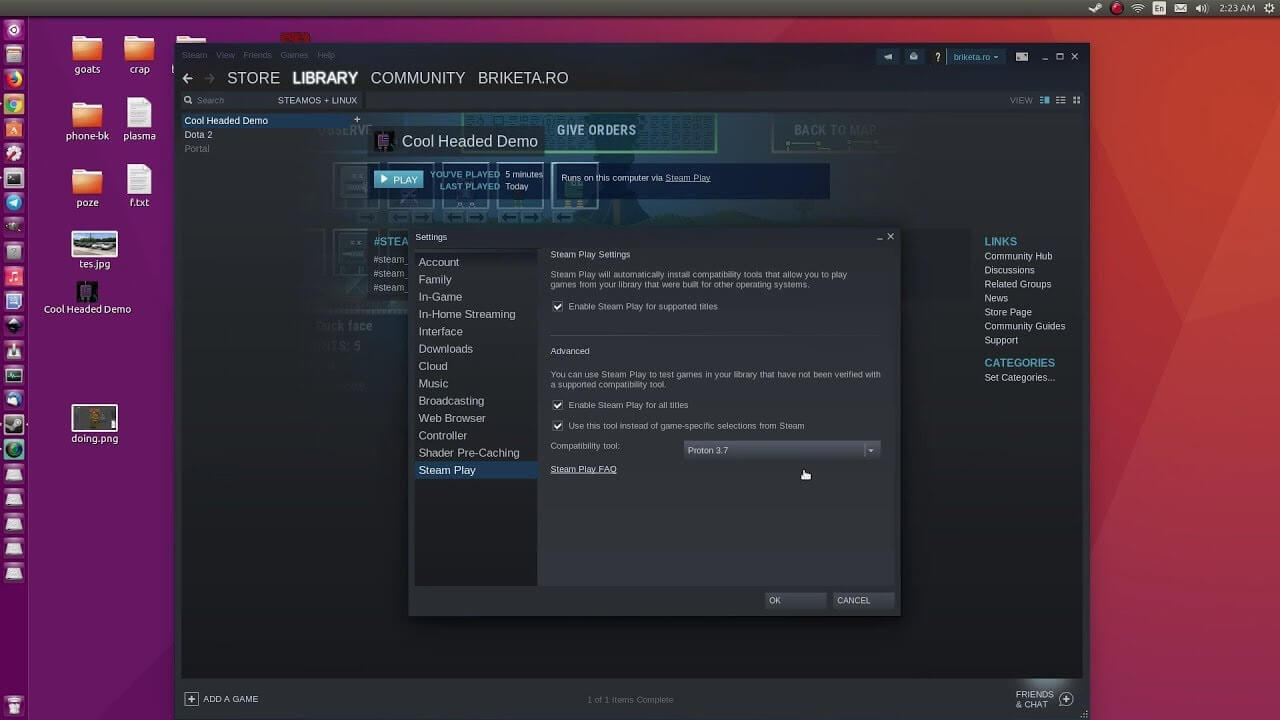
In order to run games under proton inside Linux, you will need firstly a Steam client which luckily works naturally on Linux. Unlocking/activating Steam Proton on your Linux-based system is easy. Just head over to Steam > Settings > Steam Play and toggle the option “Enable Steam Play for Supported Titles”. Valve has tested and fixed some Steam titles and you will now be able to play those titles. However, if you wish to go even further beyond, and play titles that even Valve has not tested, toggle the option “Enable Steam Play for all titles”.

Conclusion

Even we are not there yet, native gaming on Linux is gaining a foothold each day. Will Steam’s OS with proton technology be one that will turn the tide from Windows or some other tech we cannot tell but one thing is for sure, more choices mean better products so I am hopeful for a bright future.
Read More
Something went Wrong. Try to reopen later
Windows update issue may come up when the configuration for windows update service is not properly configured or this error can also come up when there is corrupt windows installation. Before trying any of the given solutions to this error try first to clean boot your Windows and turn off any 3rd party utility application. If this method fails move to the provided solutions.
  1. Change startup type of UOS service to automatic

    UOS or The Update Orchestrator Service is essential for proper Windows updates. If this service is by any means turned on manual it could be the reason for error since it can create incompatibility between OS modules, if this is the case, setting it to automatic will solve the issue. Press CTRL + SHIFT + ESC on your keyboard to bring the task manager up and click on the services tab. In the services find orchestrator service, right-click on it, and from the list of startup types choose automatic. Click on APPLY and reboot your computer.
  2. Try to fix it in the command prompt

    If the above method failed, try fixing the issue via command prompt. Press ⊞ WINDOWS + X to bring up the secret menu and start command prompt (administrator) In the command prompt write these lines one after another as they are finished: net stop bits net stop wuauserv net stop appidsvc net stop cryptsvc Ren %systemroot%SoftwareDistribution SoftwareDistribution.bak Ren %systemroot%system32catroot2 catroot2.bak Net Start bits Net Start wuauserv Net Start appidsvc Net Start cryptsvc After all this, reboot your system and check if updates are working properly.
  3. Try to fix it via registry editor

    Press ⊞ WINDOWS + R to bring run and type in it RegEdit, press ENTER find Computer\HKEY_LOCAL_MACHINE\SYSTEM\CurrentControlSet\Services\UsoSvc in the right part, find key START and change its value to 2 Reboot your system
  4. Try with a new user account

    If by any chance user account data is corrupted this may be the reason why we have this error. Create a new administrator user account Shut down your computer Turn in back ON and log in with the new account
  5. Perform SFC scan

    Press ⊞ WINDOWS + X and choose command prompt (administrator) type in: sfc /scannow This may take a while, sit back, let it finish, and try again windows update
That is all considering this particular error, we certainly hope that you have managed to fix it using any of provided solutions!
Read More
Your Windows license will expire soon
If you suddenly get a message telling you that “Your Windows license will expire soon, You need to activate Windows in Settings” on your Windows 10 computer but you know that your Windows 10 is already activated. Worry not for this post will help you get rid of that error message right away. Before you get started, make sure that you have the Windows product key with you. If you don’t, you can get it by running the following command in an elevated Command Prompt:
wmic path SoftwareLicensingService get OA3xOriginalProductKey
Take note of the product key and then proceed to the options given below.

Option 1 – Try activating Windows 10 again or use another product key

  • If you’re sure that you have the correct product key, click the Go to the Settings button.
  • After that, click the Activate button once again.
  • If you have another license key, you can also use that as well, just simply click on the Change product key.
  • Then enter the new product key and click on Activate. That should fix the problem, if it doesn’t, refer to the next option below.

Option 2 – Try to reset the licensing status

  • Click the Start button and then type “cmd” in the Search box and then tap Ctrl + Shift + Enter to open an elevated Command Prompt.
  • Next, type the “slmgr –rearm” and hit Enter to reset the licensing status.
  • Restart your computer and check if the error is now gone or not.

Option 3 – Try uninstalling the product key and re-enter it once more.

  • The first thing you have to do to uninstall the product key is to know the Activation ID of your Windows installation. To do so, open an elevated Command Prompt and type this command, and hit Enter – vbs /dlv
  • After you enter the command, you should see the licensing status and Activation ID. And to get all the Activation IDs of all the installed Windows versions, key in this command and hit Enter – vbs /dlv all
Note: The “/dlv” parameter will give you the license information for the installed operating system.
  • After you enter the second command, you should see a Windows Script Host window with all the Windows licensing and activation status. Take note of the Activation ID.
  • Next, in the same elevated Command Prompt, type this command – slmgr /upk <Activation ID>
Note: In the third given command, “/upk” stands for “uninstall product key”. This parameter uninstalls the product key of the current Windows edition.
  • Restart your PC. After that, your computer will be in an unlicensed state so you need to re-enter the product key again.

Option 4 – Try rebuilding the Tokens.dat file.

The issue might be caused by a corrupted Tokens.dat file. The Tokens.dat file is a digitally signed file that stores most of the Windows Activation files so if it is corrupted then no wonder you’re having activation issues. To rebuild the Tokens.dat file, refer to these steps:
  • From the WinX Menu, open an elevated Command Prompt.
  • After opening Command Prompt, you need to type each one of the following commands and after you type each command, hit Enter.
    • net stop sppsvc
    • cd %windir%ServiceProfilesLocalServiceAppDataLocalMicrosoftWSLicense
    • ren tokens.dat tokens.bar
    • net start sppsvc
    • exe %windir%system32slmgr.vbs /rilc
  • Now restart your computer.

Option 5 – Try running the Windows 10 Activation Troubleshooter

  • Go to Settings and then select Activation.
  • After that, click on the Windows Activation and then troubleshoot. This will help you address most of the commonly found activation issues in Windows devices.

Option 6 – Try activating Windows 10 via mobile phone

Activating Windows 10 can also be done using your phone. Just note that you have to call Microsoft to do so.
  • In the Start Search box, type in “Slui 4” and tap Enter.
  • Next, select your country and click on Next.
  • Keep the window open and call the toll-free number of the country you’re from.
  • Afterward, a confirmation ID should be given by the automated system which you must take a note of.
  • Finally, in the box on the window, type in the confirmation ID and click on the Activate button. That should do it.
Read More
Windows 10 tips and tricks for easy work
Hello everyone and welcome to our new Windows 10 tips and tricks article. Today we will be focusing on small Windows tricks that could prove very useful in everyday workflow and hopefully make your life easier by implementing them in your daily routine. I am very excited to share this with you all and I hope that you will use them from now on. That being said let us begin.

Tip 1: Minimize all open windows except one.

Daily to the daily routine can involve many opened windows on a desktop and sometimes things can get messy, if you want to minimize all windows to the taskbar except one do this: Click on one window thus selecting him, click and hold the left mouse button on that windows title bar, now shake it up and down and all other windows will escape down to taskbar leaving only one you are shaking on the desktop.

Tip 2: Open the Secret Windows menu.

Through our tutorials on various errors and fixes, we have used this method already but here it is again since it is worth mentioning. If you want to open the command prompt easy and fast, or device manager, event viewer, shut down, etc. In order to open this secret menu all you need to do is press ⊞ WINDOWS + X.

Tip 3: Create an Event without opening the calendar application.

You can easily create an event without opening a calendar application, all you have to do is left-click on the clock in the taskbar, click once on a date for the event, and under calendar in event field type event description. The event will show in the calendar application like it was entered there.

Tip 4: Taking a screenshot.

This one is my favorite and it speeds up workflow very very much. Typically you take screenshots by pressing the PrntScr button on your keyboard. Now, the problem with this approach is that the screen is placed in computer memory, in the clipboard and you will need another picture processing application in order to save it. Now if you would press ⊞ WINDOWS + PrntScr, the picture would be automatically saved in your pictures/screenshots folder. And if that is not enough, you can press ⊞ WINDOWS + S + SHIFT to start Snip & Sketch tool and select the area which you would like to screen capture, this method will also place pictures in the clipboard.

Tip 5: Open pinned applications in your taskbar with your keyboard.

We have covered this one in our Windows keyboard shortcuts tips and tricks here, but if you missed that article here is the tip again. By pressing ⊞ WINDOWS + number 1,2,3...0 you will start the application from your taskbar counted from left to right.

Tip 6: Check how much Hard drive space installed applications are taking.

Applications and temporary files grow over time and can slow the system and cause some other unpleasant experiences. Go to Settings > System > Storage, click on the Hard drive on which you have installed applications, and see how much each one is taking, you can remove it from this screen also freeing some space.

Tip 7: Remove ads from the START menu.

Windows has so-called suggestions in the START menu, no matter how Microsoft is calling them, let's face it, they are ads and in my opinion, they do not belong in my START menu. To turn them off, go to Settings > Personalization > Start. Toggle the setting called Show suggestions occasionally in Start to the off position.

Tip 8: Shut down background applications.

Some applications are running in the back and are taking system resources and can send telemetry information, if you want to turn them all off go to Settings > Privacy > Background apps. To stop all apps from running in the background, toggle Let apps run in the background to off. You can choose which apps to run in the background individually by going down the list on the same page.

Tip 9: Use Background scrolling.

Did you know that you can scroll on inactive windows? To do this, just hover over the inactive background window and roll your mouse when the content of the window should be scrolling even if it's not one you are working on. If by any chance this is not happening, go to Settings > Devices > Mouse, and toggle Scroll inactive windows when I hover over them to On.

Tip 10: Show file extensions in File Explorer.

By default extensions of files are hidden, so let's say that for example, you are in a folder with pictures, you have plenty of pictures there but you do not know are they JPG or JPEG for example, do not worry there is an easy fix to bring showing extensions back. Start File Explorer, click on view top menu item, click on options, Uncheck the box that says Hide extensions for known file types. Click Apply, and OK.

Tip 11: Use focus assist.

Set it up by going to Settings > System > Focus assist. Choose from three options: Off (get all notifications from your apps and contacts), Priority (see only selected notifications from a priority list that you customize, and send the rest to your action center), and Alarms only (hide all notifications, except for alarms). You can also choose to automatically turn this feature on during certain hours, or when you're playing a game.

Tip 12: Rotate your screen.

If you have multiple screens set up or you have the rotatable screen press and hold CTRL + ALT together, then use a directional arrow to flip the screen. The right and left arrows turn the screen 90 degrees, while the down arrow will flip it upside down. Use the up arrow to bring the screen back to its normal position.

Tip 13: Enable GOD mode.

Have you always felt limited with Windows settings? Don't be, Right-click on the desktop and select New > Folder. Re-name the new folder with this bit of code: GodMode.{ED7BA470-8E54-465E-825C-99712043E01C} To enter the "God Mode" window, double-click the folder.

Tip 14: Use Virtual Desktops.

Click on Task View (the icon next to the search box). This will separate all your open windows and apps into icons. You can then drag any of them over to where it says "New desktop," which creates a new virtual desktop. Once you click out of Task View, you can toggle between virtual desktops by pressing the ⊞ WINDOWS + CTRL + right/left arrows. To remove the virtual desktops, just go back into task view and delete the individual virtual desktops, this will not close out the apps contained within that desktop, but rather just send them to the next lower desktop.

Tip 15: Customize the command prompt.

Yes, you can customize the command prompt, in order to do so, open it and right-click on its title bar, choose properties and go wild. Special badge if you make it look like commodore 64 BASIC.

Tip 16: Dictate, not type.

If you have speech recognition ON, pressing ⊞ WINDOWS + H will bring up a voice recorder, just speak and see how you can easily "write" emails, etc.

Tip 17: Use sandbox.

In Windows you have a sandbox option, which will open another Windows instance inside Windows, what do you need this? Well once the sandbox is closed everything in it is closed and if you catch the virus or other dangerous software, closing the sandbox will destroy it not affecting your actual Windows. Use it for safety testing and enjoy an easy life. Enable Windows Sandbox inside the Control Panel.

Tip 18: Use a hidden game bar.

Press the ⊞ WINDOWS + G, you can pull up the new-and-improved Game Bar. This lets you switch your Windows PC into gaming mode, which pools system resources to the game, turns off notifications, and lets you record and broadcast your gaming, along with added panels for controlling your audio, monitoring FPS, and tracking achievements. And that's it, Our 18 tips and trick to make your Windows 10 life easier, more productive, and overall more enjoyable. I certainly hope you have enjoyed reading this article same as I was writing it. Until next time if I do not see you, good afternoon, good evening, and good night.

Read More
1 2 3 171
Logo
Copyright © 2023, ErrorTools. All Rights Reserved
Trademark: Microsoft Windows logos are registered trademarks of Microsoft. Disclaimer: ErrorTools.com is not affiliated with Microsoft, nor claims direct affiliation.
The information on this page is provided for information purposes only.
DMCA.com Protection Status