Logo

What to do if the Windows 10 Control Panel is not opening

The Control Panel is one of the most important tools in Windows which allows users to control and change various settings. However, there are cases when it experiences some problems like when users aren’t able to open it. Recently, a lot of users complained about not being able to open the Control Panel. To be more specific, users were able to open it but only lasted for a second, and then it’s gone. This is not just some issue you can ignore as this will prevent you from accessing some major settings in your computer and you won’t be able to perform some important task without it.

According to security experts, this issue is most likely caused by a bug in the Windows Update. If you have installed an update recently, then it’s most likely the culprit. Aside from the Windows Update, there are also other things that can cause this issue. Some of them are the IDT audio panel and a control panel file that causes conflicting issues with the control panel that leads to this problem. Aside from these aforementioned cases, the Windows Error reporting services could also be one of the causes of this issue. As you can see, since there are a lot of possible causes for this problem, this post prepared a lot of options as well which you have to check out. Follow each one of them and see which one worked best for you.

Option 1 – Try updating your Windows 10 PC

If you haven’t updated your PC to the latest version of Windows 10, then you should. A lot of users found that the issue with the Control Panel was fixed right after they updated their Windows 10 PCs. This is probably because Microsoft has probably released a fix on one of the latest updates.

Option 2 – Try uninstalling the IDT Audio Panel

For some users, uninstalling the IDT Audio Panel from their PCs did the trick. You can also try doing the same thing to fix the vanishing Control Panel. According to these users. The IDT audio panel was the one that’s causing the issue. To uninstall the IDT audio panel, here’s what you have to do:

  • Tap the Win + R keys at the same time to open the Run dialog box.
  • Then type in “appwiz.cpl” in the field and tap Enter to open the “Uninstall or change a program” screen of the Control Panel.
  • From there, look for the IDT audio panel, select it and then select the Uninstall option and follow the next on-screen instructions that appear.

Note: If you are unable to locate the IDT audio panel or you simply can’t access the Uninstall or change program screen or you can’t keep Control Panel open for a long time, here’s what you can do:

  • Tap the Win + R keys at the same time once again to open the Run dialog box.
  • And in the field, type in “devmgmt.msc” and hit Enter to open the Device Manager.
  • After opening the Device Manager, look for the “Sound, video and game controllers” option and double-click on it.
  • From there, locate the IDT audio panel or “IDT High Definition CODEC” and select Uninstall and follow the next instructions that appear.

Option 3 – Try deleting or renaming IDTNC64.cpl

IDTNC64.cpl is a control file in the control panel. However, it might be the one that’s causing the problem as it could be conflicting with the control panel. As a result, the control panel crashes after a second or more. Many users have fixed the problem by either renaming or deleting this file – the safer option would be is renaming it.

  • Tap the Win + E keys to open File Explorer.
  • In the address bar located at the top, type in “C:\Windows\System32” and tap Enter to open this folder.
  • From there, look for the IDTNC64.cpl file, right-click on it and select the Rename option.
  • You can name the file anything you want but it’s better if you rename it to “oldcpl”.
  • After you rename the file, try opening the Control Panel again. It should work fine now.

Option 4 – Try to disable the Windows Error Reporting Service

As mentioned earlier, the Windows Error Reporting Service is also known to cause the issue so some users disable it and got the issue fixed.

  • Tap the Win + R keys.
  • In the field, type in “MSConfig” and hit Enter to open System Configuration.
  • After opening System Configuration, go to the Services tab and look for the Windows Error Reporting Service and uncheck its checkbox.
  • Click the Apply button and click OK. You should now see a date in the Disable Date column. Then check if the Control Panel is now working properly if not, restart your computer and check once more. That should fix the problem.

Option 5 – Try opening Control Panel via Run

This option is more of a workaround than a solution as it does not really fix the issue with the Control Panel but rather helps you in accessing the controls at the very least.

  • Tap the Win + R keys to open Run.
  • Type in “appwiz.cpl” in the field and tap Enter to open the Uninstall or change program screen of the Control Panel.
  • Next, copy and paste “Control panel all control panel items” on the address bar located at the top-mid part of your screen. You must not type the given address and simply copy and paste it. After that, you will see a list of control panel controls you can use.

Do You Need Help with Your Device?

Our Team of Experts May Help
Troubleshoot.Tech Experts are There for You!
Replace damaged files
Restore performance
Free disk space
Remove Malware
Protects WEB browser
Remove Viruses
Stop PC freezing
GET HELP
Troubleshoot.Tech experts work with all versions of Microsoft Windows including Windows 11, with Android, Mac, and more.

Share this article:

You might also like

Troubleshooting Error 1722

What is Error 1722?

Error 1722 is a type of Windows Installer error. Developed by Microsoft, Windows Installer is a software component used for the installation, maintenance, and removal of software on Windows systems. This is basically an .MSI file that contains explicit instructions about installing and removing specific applications that are supported by this file for example JAVA and ArcGIS. The error 1722 occurs when there is a problem with the Windows Installer package. And because of this the program supported by Windows Installer Package fails to set up and install. This error message is displayed in the following format:
“Error 1722. There is a problem with this Windows Installer package. A program required for this install to complete could not be run. Contact your support or package vendor.”

Solution

Restoro box imageError Causes

You may encounter error 1722 due to multiple reasons such as:
  • Windows Installer Package corruption
  • Improper Windows Installer Package installation
  • Windows Script Hosting permission issues
  • Viral Infection
It is advisable to fix error 1722 to ensure the application supported by the Windows Installer Package that you are trying to set up on your PC, installs successfully.

Further Information and Manual Repair

To resolve Windows Installer Package error 1722 on your PC, try the methods given below:

Method 1

Sometimes the error 1722 may pop up if the Windows Installer Package is not installed properly. In such an event, it is advisable to uninstall Windows Installer Package and then reinstall it. To do so, click on start, then control panel, program, and features and then choose the Add/Remove Program option to uninstall the Windows Installer Package on your system. Once it is removed, click OK to save changes. Then reboot your PC. Now download the Installer package and reinstall. After the installation is complete, now try installing the application supported by the Installer package you wished to install. However, first, it is suggested that you remove any traces of the failed application first. For example, if you previously received the error while installing Java, then remove all traces of failed Java installation.

Method 2

The alternative method is to change Window Script Hosting settings. To do this, go to the start menu, open Run and then type ‘Regedit’ in the command line and then press OK to continue. Check for either or both of the following registry keys HKEY_CURRENT_USERSoftwareMicrosoftWindows Script HostSettingsEnabled HKEY_LOCAL_MACHINESoftwareMicrosoftWindows Script HostSettingsEnabled If either of these has a DWORD value of ‘0’, then scripting is disabled. Change the values to ‘1’ will enable scripting and resolve the issue.

Method 3

There can be two reasons for Windows Installer Package corruption, viruses or registry overloaded with bad entries and obsolete files. If the error is triggered by viruses, then run an antivirus program to remove viruses and restore your PC. However, if the error is related to registry issues, then download Restoro. This is an easy-to-use PC Fixer with a powerful registry cleaner. The registry cleaner wipes out all the obsolete files cluttering the registry and repairs the damaged and the corrupt important files thereby repairing all errors including error 1722 on your system. Click here to download Restoro.
Read More
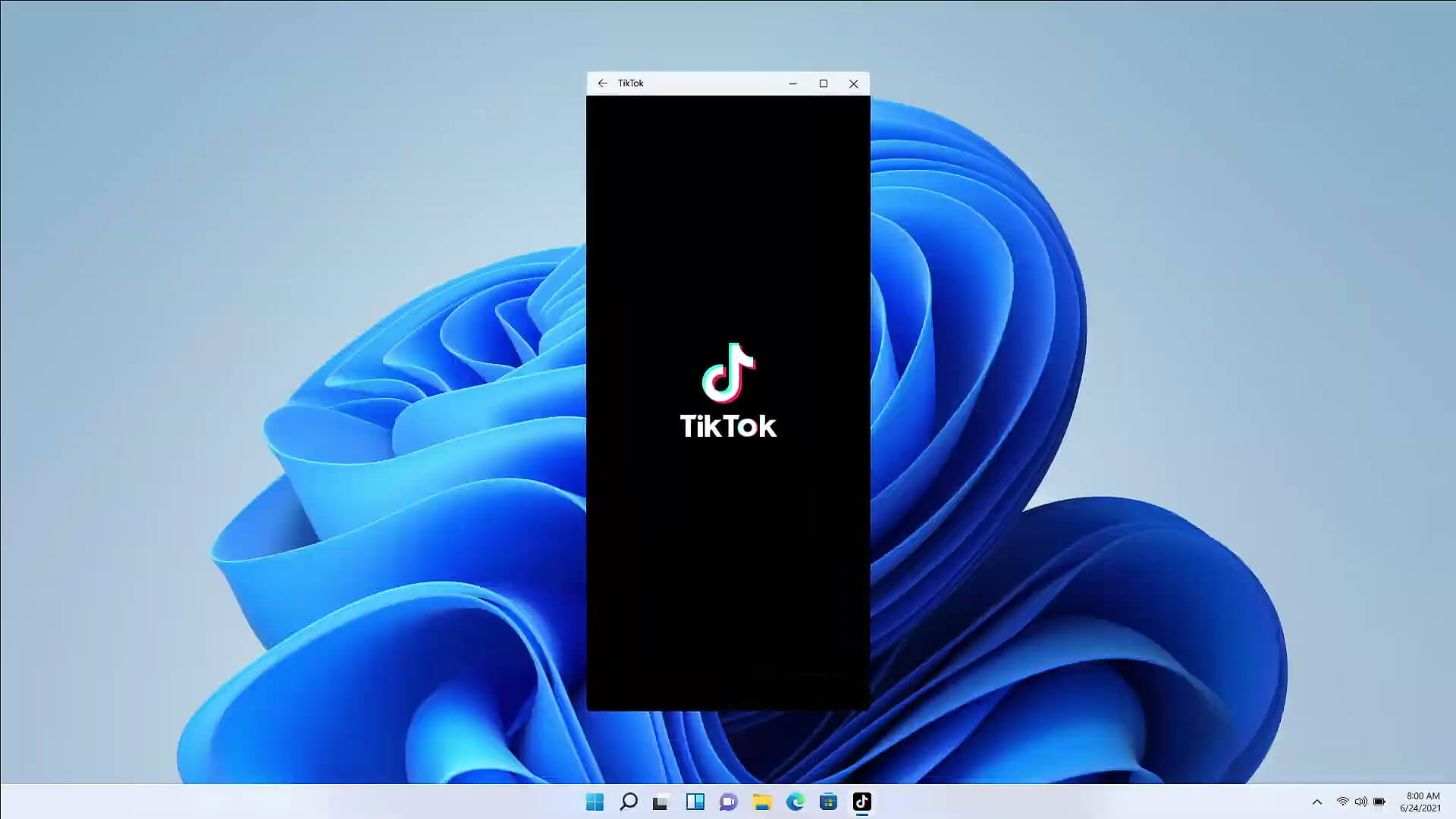
Android apps inside Windows 11
Android apps inside Windows 11The euphoria around Windows 11 is not dying and reveal that Android apps will work natively inside Windows 11 has raised many emotions and questions. So, Microsoft has announced that Android apps will run natively inside Windows 11 OS and that they will reside alongside your other installed ones as icons, etc. It is no secret that many users have been using emulation software to run Android apps inside Windows so far, so what is the difference?

It is still emulation

Whatever you would like to believe it is still emulation and Android apps are at the end of the day still Android apps running inside emulated environment. This time we will not need third-party emulation software running inside Windows, we will have third-party emulation services running inside Windows. Intel has teamed up with Microsoft in order to integrate Intel bridge algorithms in order to run Android apps, meaning that yea, pretty much we have emulation services running in order to run the application. The problem with this kind of approach is that well emulation software is running and consuming system resources only when we start it, this kind of service is always running and always consuming resources and for someone who really does not care about Android apps at all, this is just a waste of resources.

Android store

The store is another issue here, instead of the Google play store we will have the Amazon app store integrated inside the new Microsoft store. This means that any kind of for example game progress or login information from Google store cannot be transferred into Windows 11, add to that information that in the Amazon app store there are tons of missing applications like SLACK, TRELLO, BitWarden, etc and we might have a serious question here about the use of this feature.

Android apps that do not use Android services

If you even look past that it is still emulation and that it is available on the Amazon app store there is still concern about applications not using Google services for their running. Many Android apps are relying on Google services like location or optimize their use of on-device resources, handle in-app purchases, etc. that cannot be found on this system. Uber is a prime example that uses Google location service to determine your location and for its mapping data, with that application, is useless. Other like Guardian will even pop up message that says Google play service is required in order to even work.

Android apps without Eero system

Amazon Eero system for enhanced internet access is not even yet available in its own app store which brings us to missing some key players like Bank of America, Chase mobile, Bueller, etc. And across the board, the apps that are present in the Amazon Appstore are often as good as abandoned. Lots of titles are numerous versions behind their up-to-date Play Store counterparts, and plenty of programs you encounter in the Amazon environment clearly haven't been touched in years.

Conclusion

Many new Windows 11 features are quality features that I personally consider good but although this one seems innovative and good I simply cannot stand back it up. Android apps were already inside Windows with emulation software which used google services and was working just fine, this was not needed in my opinion.
Read More
Display isn't compatible with Windows Error
Upgrading your computer from Windows 7 or Windows 8 to Windows 10 or even upgrading Windows 10 to a new version is not that simple. The setup initially checks for all the drivers and other software utilities installed on your computer and verifies and blockages or upgrade or upgrade blocks with respect to any of those drivers or any of those software utilities regardless if you use the Windows 10 ISO or the Windows 10 Upgrade Assistant. One of these common errors, when you upgrade or update your computer, is the “The Display is not compatible with Windows 10” error. This kind of Windows Upgrade error is related to the compatibility of the Graphics Driver installed in your computer. But worry not for this post will guide you in fixing this problem. The “The display is not compatible with Windows 10” error has the same workarounds as the following errors:
  • These devices aren’t fully compatible with Windows 10.
  • The display is not compatible with Windows 10. Check with the manufacturer for support.
  • The display manufacturer hasn’t made your display compatible with Windows 10. Check with the manufacturer for support.
To resolve this Windows Upgrade error, here are some suggestions that could help:

Option 1 – Check for incompatible drivers in your computer

  • Open the Device Manager from the WinX Menu.
  • Then expand the list for Display Adapters.
  • Next, right-click on the NVIDIA Graphics Card list and select Enable.
  • After that, right-click on it again and click on the “Update Driver Software…” option.
  • After doing so, a new window will appear and from there, click on the “Search automatically for updated driver software” option.
  • Then check if Windows is now able to detect your Graphics Card as well as the latest driver for it. If not, proceed to the next step.
  • Right-click on the driver again and click on the “Update Driver Software…” option.
  • Now click on the Browse my computer for driver software option and then click on Let me pick from a list of device drivers on my computer.
  • Afterward, select a compatible driver for your computer named NVIDIA Graphics Card and then proceed.
  • Wait for the whole process to be completed and restart your computer to successfully apply the changes made.

Option 2 – Get the latest version of Graphics drivers from the manufacturer’s website

In case you don’t know the manufacturer of the Graphics Processing Unit or GPU of your computer, you need to check first. They’re usually NVIDIA, Intel, or AMD. So if your computer’s Graphics Processing Unit is manufactured by NVIDIA, you need to get the latest version from their official website.

Option 3 – Try to install the latest Graphics driver in Compatibility Mode

If you’re not able to install the Graphics drivers you’ve downloaded, you can try installing them again but this time using Compatibility mode. Follow the steps below to do so:
  • You need to download the driver and place it on your desktop.
  • After that, right-click on it and select Properties.
  • Next, switch to the Compatibility tab where you should see two options:
    • Compatibility troubleshooter, and let Windows figure out what works best for you. If it fails, follow the next.
    • Manually choose the version of Windows it was correctly working.
  • You also have the option to change the DPI settings and see if that helps. Then click the Apply and OK buttons.
  • Now right-click on the file and select the “Run as administrator” option to install. After that, you should now be able to change your screen aspect ratio to what you were using early on.
Note: If you have other programs that won’t work on the existing version of Windows, then make sure to run the program in a Compatibility mode.

Option 4 – Try to run the Program Compatibility Troubleshooter

You might also want to run the Program Compatibility Troubleshooter. This built-in troubleshooter is available in the Windows Update & Security section. From there, select Troubleshoot. This will find a list of programs for you and since you have already downloaded the driver files, just click on Not Listed located at the top of the program list. After that, browse and select the driver files and then let the program do its job.
Read More
How to Fix ACPI_BIOS_ERROR in Windows 10
BSOD or Blue Screen of Death errors are one of the most common errors you can encounter on your Windows PC. One of these BSOD errors is the “ACPI_BIOS_ERROR”. If you suddenly get this error, it means that there is some problem in booting the operating system from your hard drive or Windows was not properly installed on your PC. In addition, this error could also mean that there is something wrong with the CMOS battery located in the motherboard. Unlike other BSOD errors, the workaround for this error is a bit different as these workarounds require a bit more expertise in updating the BIOS as well as setting the correct boot configuration. If you know are capable enough in troubleshooting the problem, refer to the instructions laid out below to fix the BSOD “ACPI_BIOS_ERROR”.

Option 1 – Try to remove the SSD and update the BIOS

The first thing you have to do is to check the primary storage devices on your PC. If you have just installed a new hard drive or SSD recently on your computer, then it’s most likely the cause of the BSOD error. Moreover, you should also ensure that your BIOS is up-to-date to the latest available build.
  • Remove the SSD/HDD and inject a different HDD that was already preinstalled in your Windows PC.
  • After that, update the BIOS to the latest available build. After updating it, insert the old SSD/HDD and then try to boot your PC again. The problem should be fixed now. If not, refer to the next given option.

Option 2 – Try to check the CMOS battery and reset the CMOS module

As mentioned earlier, the CMOS battery might also be the one that’s causing the problem. It is a physical component of the motherboard and is a memory chip that contains all the settings configuration on your computer and is also powered by a battery. So if your battery loses power, the CMOS will be reset and as a result, all the configurations will be gone as well. It is also possible that the CMOS module is not properly working and every time things are saved, they are properly written due to the battery. That’s why you have to consider changing the CMOS battery and see if it fixes the problem. In addition, you also have to make sure that you completely reset the CMOS module and then try booting your PC again.

Option 3 – Try to check the BIOS settings

If the BIOS settings are incorrect, chances are that’s the reason why you’re getting the “ACPI_BIOS_ERROR” BSOD error. Every BIOS has different settings which you can make use of to enhance your computer experience. So make sure that your BIOS is up-to-date and that the settings are in accordance with your requirement. Another thing you can try is to disable the Legacy USB and the Legacy BIOS in the BIOS settings if you are trying to install a 64 bit Windows version. Make sure that you also enable AHCI before plugging in the installation drive on your PC. Moreover, ensure that your PC is using IDE or Integrated Drive Electronics mode instead of SATA or Serial Advanced Technology Attachment. Aside from that, try to check the extracted setup if it is in NTFS format, if it is, you should extract the ISO in FAT32 and use it to install Windows.

Option 4 – Try to reset the ACPI Compliant Control Method

ACPI or Advanced Configuration and Power Interface provide an open standard that operating systems can use to detect hardware, perform power management, as well as monitor the status of your device and provide information for other processes. Chances are, there are some misconfigurations with this module on your PC that lead to believing that there is no battery present. That’s why you need to reset it and see if it fixes the BSOD error or not.
  • Boot your PC into Safe Mode.
  • Tap the Win + R keys to open the Run dialog box.
  • Type in “devmgmt.msc” in the field and tap Enter to open the Device Manager.
  • After opening the Device Manager, go to the “Batteries” section and click it to expand it and then right-click on the “Microsoft ACPI-Complaint Control Method Battery” option and click on Uninstall.
  • After you disable the module, click on any empty space and then click the “Scan for hardware changes” option.
  • Then check if you can now boot your PC normally and without the BSOD error.
Read More
How to Fix Windows 10 Error 0x80070426

Error Code0x80070426 - What is it?

When Windows evolved into Windows 10, the program known as Windows Security Essentials is no longer. It is now the program known as Windows Defender. When a computer is upgraded from a previous version of Windows up to Windows 10, the Windows Defender takes over and will replace the Security Essentials. In a small percentage of Windows 10 upgrades, something will go wrong and the new program will fail to replace Security Essentials. The result will be that the operating system has both of the programs installed. In this case, Windows Defender will not offer any protection and Security Essentials will not be able to defend either. This error code will also present itself when the Windows Mail App in Windows 10 fail to retrieve and sync email from the user's account.

Common symptoms include:

  • There will be an error message that says: “An error has occurred in the program initialization. If this problem does continue, contact your System Admin. Error code 0x80070426.”
  • The computer will be left completely vulnerable to spyware and viruses.
  • The Windows Mail App will not be able to retrieve mail and will not sync with the PC user's mail.
  • The user can be doing anything on their computer and the error code will show up unprompted.
  • The computer will lock up, become slow, crash, or even freeze when dealing with error code 0x80070426.
  • The programs from an older version of Windows do not replace the newer version from Windows 10.

Solution

Restoro box imageError Causes

Error code 0x80070426 will present itself when a PC user has upgraded their OS from a previous version of Windows to the new Windows 10 version. When this happens, a small portion of users will experience the disconnect between older versions of specific programs, namely the virus protection. When the previous version of the program under a different name is not completely removed and the new virus protection program is installed, the programs will cancel each other out and collectively offer no protection.

This error code may also be found when Windows 10 tries to sync the user's email with the Windows Mail App.

Further Information and Manual Repair

There are a few methods to repair this problem. It should be noted that should anyone feel that the instructions are too complicated, they should contact a Windows repair technician to ensure that the error is fixed properly.

Method One: Uninstall Microsoft Essentials

Hold down the Windows Key and press R. Type in taskmgr into the run dialogue. You should locate the Windows Defender Service (this may show up as Windefend). Right-click on it and then choose Stop.

This will stop the program, but the program will start back up automatically when the computer restarts. While this program is stopped, uninstall Essentials.

To do this: go to Control Panel, Programs, and Features, Uninstall a Program. Alternately, you may hold down the Windows Key and press R, type in appwiz.cpl, click OK, and then locate Microsoft Essentials. Uninstall it, and then restart your computer.

After this is done, go to Settings, Update, and Security. Choose Windows Defender and ensure that Real-time protection is on. Refer back to the Task Manager, Services. Make sure that Defender service is on and running.

Method Two: If the problem occurs in the Windows Mail App

When error code 0x80070426 presents itself in the form of an error with the Mail app, it may be necessary to run an SFC scan.

Right-click on the Start menu or Windows icon, and select Command prompt. The command prompt may be navigated by using shortcut keys Win and X and then select it.

Run the command prompt and then type in sfc /scannow and then press enter. The SFC scan will be run, and be careful not to abort the process before it has finished. This will scan for any files that are lost or corrupt on the PC.

If the scan has found any corrupt files, type in this code and then hit Enter: findstr /c:”[SR]” %windir%LogsCBSCBS.log >”%userprofile%Desktopsfcdetails.txt.

To skip the repair of corrupt or missing files, type in: Dism /Online /Cleanup-Image /RestoreHealth. The details of the scan can be found on the sfcdetails.txt file that will be on the desktop.

Method Three: Use An Automated Tool

If you wish to always have at your disposal a utility tool to fix these Windows 10 and other related issues when they do arise, download and install a powerful automated tool.
Read More
Fix Setup has failed Error in Windows
If you encounter the “Setup has failed to determine supported install choices” error when trying to downgrade or upgrade your Windows 10 computer, this signifies that there are some compatibility issues with the installation process and that Windows was not able to either downgrade or upgrade to another version. Usually, this error occurs when you are using the built-in options in Windows 10 upgrade or downgrade to another version of Windows. This option is mostly used as it keeps the user settings as well as data intact. Thus, you need to keep in mind a lot of parameters before you proceed with the installation because if there is any conflict in the process, you certainly won’t be able to downgrade or upgrade your Windows computer. To resolve the issue, here are some suggestions that might help.

Option 1 – Try running in Compatibility mode

This is the first thing you can try to resolve the issue instead of going right ahead on making a bootable device. So if you are downgrading Windows, you can try to run the installer in the compatibility mode for that specific Windows version.
  • Look for the setup file.
  • Once you find it, right-click on it and select Properties from the context menu.
  • After that, go to the Compatibility tab and mark the checkbox for “Run this program in compatibility mode for:” and from the drop-down list, select either Windows 7 or Windows 8.
  • You also have to check the “Run as administrator” option.
  • Now click the Apply button and then click OK to save the changes made and check if it has resolved the issue or not.

Option 2 – Option 2 – Try troubleshooting compatibility

This option is almost the same as the first one except it is an alternative way of fixing the “Setup has failed to determine supported install choices” error in case the first one didn’t work. In this option, you will troubleshoot the compatibility issue.
  • Look for the setup file.
  • Then right-click on it and select the “Troubleshoot compatibility” from the context menu.
  • After that, click on the “Try recommended setting” option. Once the process is done, the error message should be gone.

Option 3 – Try to use the setup file instead of an image

If you are running the Windows ISO image for the installation, you can try running the setup file instead. This is because when you try to install Windows from an image file directly, it has to be loaded into a virtual CD drive first, and then from there, further operations are carried out. And so, you can just bypass this mechanism to avoid getting the “Setup has failed to determine supported install choices” error.
  • First, you need to extract the disk file to an accessible location.
  • After that, go to Sources > Setup.exe.
  • Now run the setup file to upgrade or downgrade the Windows version. Just make sure that you do run the setup file as an administrator.

Option 4 – Try to do the upgrade or downgrade in a Clean Boot state

Putting your PC in a Clean Boot state can also help when you want to upgrade or downgrade your version of Windows without any trouble because, during this state, you can start the system with a minimum number of drivers and startup programs that will surely help you in isolating the root cause of the issue.
  • Log onto your PC as an administrator.
  • Type in MSConfig in the Start Search to open the System Configuration utility.
  • From there, go to the General tab and click “Selective startup”.
  • Clear the “Load Startup items” checkbox and make sure that the “Load System Services” and “Use Original boot configuration” options are checked.
  • Next, click the Services tab and select the “Hide All Microsoft Services” checkbox.
  • Click Disable all.
  • Click on Apply/OK and restart your PC. (This will put your PC into a Clean Boot State. And configure Windows to use the usual startup, just simply undo the changes.)
  • After that, try to install the Windows Updates or upgrade again.

Option 5 – Try to use the Media Creation tool

The Media Creation tool in Windows allows you to use the ISO installation file to make a bootable device that you can use to install Windows on your PC. Note that this is kind of different from the usual installation process as it could erase your computer’s current settings and data on the primary drive. Thus, before you proceed, you need to backup all your data into some removable drive and then use the Media Creation Tool to make a bootable drive.
  • After making the bootable drive, you need to plug it into your computer and then reboot.
  • Next, tap the F10 or Esc key to open the boot options.
  • Now set the boot priority of the removable drive the highest. Once the setup comes forth, follow the next onscreen instructions and install Windows without any problems.
Read More
Remove PriceGong from your Windows PC

PriceGong is a browser add-in for Internet Explorer, Chrome and Firefox that analyzes web sites your browser visits and attempts to find coupons and other deals associated with the merchant’s product offerings or services. If PriceGoing sees a corresponding deal, it will attempt to inject an affiliate ‘code’ in order to collect various affiliate based commissions if a purchase is made while trying to offer you the best price of that particular product, or, in many cases try and show you an alternative product that is similar even if it is sold by a different merchant. Upon further inspection it was found that PriceGong failed to function in our testing.

While installed, this extension might display additional ads, inject sponsored content into webpages, even if the sponsored content is of lower quality than the original ones.

About Browser Hijackers

Browser hijackers (sometimes known as hijackware) are a kind of malicious software that alters web browser settings without the computer owner’s knowledge or consent. These types of hijacks are increasing at an alarming rate around the globe, and it could be really nefarious and often dangerous too. They’re created to disrupt browser programs for various purposes. In most cases, hijackers are designed for the benefit of online hackers usually through income generation from forced advert mouse clicks and site visits. Though it might seem naive, all browser hijackers are damaging and thus always regarded as security risks. In a much worst case, your browser could be hi-jacked to download malware that will do a great deal of damage to your computer or laptop. Major symptoms that an internet browser has been hijacked Signs that an internet browser is hijacked include: 1. home page is changed 2. bookmark and the new tab are also modified 3. the essential web browser settings are modified and unwanted or insecure sites are put into the trusted websites list 4. discover new toolbars that you didn’t add 5. never-ending pop-up ads appear and/or your web browser popup blocker is disabled 6. your web browser has become unstable or starts running sluggishly 7. you’re disallowed access to specific web pages, for example, the website of an antivirus software manufacturer like SafeBytes.

Precisely how browser hijacker infects computers

A browser hijacker can be installed on your computer if you visit an infected website, click an email attachment, or download something from a file-sharing site. They are usually included with toolbars, add-ons, BHO, plug-ins or browser extensions. Other times you may have accidentally accepted a browser hijacker as part of a software program bundle (usually freeware or shareware). An example of some well-known browser hijacker includes Anyprotect, Conduit, Babylon, SweetPage, DefaultTab, RocketTab, and Delta Search, but the names are regularly changing. The existence of any browser hijacker on your computer can substantially diminish the web browsing experience, record your internet activities that result in troublesome privacy issues, create system stability problems and finally cause your computer to slow down or to a practically unusable state.

Browser Hijacker Malware – Removal

Some hijackers can be removed by uninstalling the freeware they were included with or by removing any extension you have recently added to your system. However, most browser hijackers are hard to get rid of manually. No matter how much you try to eliminate it, it might come back over and over. You should think about performing manual repairs only if you are a tech-savvy individual, as there are potential risks associated with messing around with the system registry and HOSTS file. Installing and running antivirus application on the affected computer could automatically erase browser hijackers and other malicious programs. SafeBytes Anti-Malware discovers all kinds of hijackers – including PriceGong – and eliminates every trace quickly and efficiently. Use a system optimizer along with your antivirus software to solve various computer registry issues, remove system vulnerabilities, and improve your computer's overall performance.

Tips on How to Remove Malware that is Blocking Websites or Preventing Downloads

Practically all malware is bad, but certain kinds of malware do much more damage to your PC than others. Some malware variants alter browser settings by including a proxy server or modify the PC’s DNS configuration settings. In these cases, you’ll be unable to visit some or all of the websites, and therefore unable to download or install the required security software to eliminate the infection. If you are reading this now, you may have perhaps recognized that a virus infection is the real cause of your blocked web traffic. So how to proceed if you want to install an anti-malware application like Safebytes? There are a few fixes you can attempt to get around with this particular issue.

Use Safe Mode to resolve the problem

Safe Mode is actually a unique, simplified version of Windows where just bare minimum services are loaded to counteract viruses as well as other troublesome programs from loading. In case the malware is set to load automatically when computer boots, switching into this particular mode could prevent it from doing so. To boot into Safe Mode, hit “F8” key on the keyboard right before Windows boot screen shows up; Or after normal Windows boot up, run MSCONFIG, look over “Safe Boot” under Boot tab, and click Apply. Once you’re in Safe Mode, you can attempt to download and install your antivirus program without the hindrance of the virus. At this point, you could run the antivirus scan to eliminate viruses and malware without any hindrance from another malicious application.

Download the anti-malware program in an alternate web browser

Malicious program code may exploit vulnerabilities in a specific internet browser and block access to all anti-malware software websites. If you appear to have a virus attached to Internet Explorer, then switch to an alternate web browser with built-in security features, such as Firefox or Chrome, to download your favorite anti-malware program – Safebytes. Create a bootable USB antivirus drive Another option is to save and operate an anti-malware software program entirely from a Flash drive. Follow these steps to use a flash drive to clean your infected PC. 1) On a virus-free computer, install Safebytes Anti-Malware. 2) Plug in the USB drive to a USB port on the uninfected computer. 3) Double-click on the downloaded file to open the installation wizard. 4) Choose the flash drive as the location for saving the software file. Follow activation instructions. 5) Transfer the flash drive from the clean computer to the infected PC. 6) Double-click the anti-malware software EXE file on the pen drive. 7) Run Full System Scan to detect and clean-up up all sorts of malware.

SafeBytes Anti-Malware: Light-weight Malware Protection for Windows Computer

If you’re looking to buy anti-malware for your laptop or computer, there are lots of brands and packages for you to consider. A few of them do a great job in eliminating threats while some will harm your computer by themselves. You should select a company that builds industry-best anti-malware and has earned a reputation as trustworthy. On the list of highly recommended application by industry analysts is SafeBytes Anti-Malware, a popular security application for Microsoft Windows. SafeBytes antimalware is a very effective and easy to use protection tool which is ideal for users of all levels of IT literacy. This software could easily detect, eliminate, and protect your computer from the most advanced malware intrusions such as spyware, adware, trojan horses, ransomware, PUPs, worms, parasites as well as other potentially harmful software applications.

SafeBytes possesses a plethora of wonderful features that can help you protect your computer from malware attack and damage. Let’s check out some of them below:

Robust, Anti-malware Protection: Using a critically acclaimed malware engine, SafeBytes provides multilayered protection which is designed to find and remove threats which are hidden deep inside your computer’s operating system. Real-time Threat Response: SafeBytes provides a totally hands-free live protection that is set to observe, block, and remove all threats at its very first encounter. It will constantly monitor your laptop or computer for hacker activity and also provides users with advanced firewall protection. Web Filtering: SafeBytes inspects the hyperlinks present on a webpage for possible threats and notifies you if the website is safe to browse or not, through its unique safety ranking system. Fast Scan: Safebytes Anti-Malware, with its enhanced scanning engine, offers ultra-fast scanning which will immediately target any active on-line threat. Lightweight: SafeBytes is a light-weight and user friendly anti-virus and antimalware solution. Since it utilizes very little computer resources, this application leaves the computer’s power exactly where it belongs: with you. 24/7 Guidance: Support service is readily available for 24 x 7 x 365 days through chat and email to answer your queries. SafeBytes can keep your PC protected from most advanced malware threats automatically, thus keeping your internet experience secure and safe. You can rest assured that your computer will be protected in real-time as soon as you put this software to use. So if you are looking for the best anti-malware subscription for your Windows-based PC, we highly recommend SafeBytes Anti-Malware program.

Technical Details and Manual Removal (Advanced Users)

To eliminate PriceGong manually, navigate to the Add/Remove programs list in the Control Panel and choose the offending program you want to remove. For web browser extensions, go to your web browser’s Addon/Extension manager and choose the add-on you want to disable or remove. You might even want to reset your home page and search engine providers, and also clear your web browser cache and cookies. Finally, check your hard disk for all of the following and clean your registry manually to remove leftover application entries following uninstalls. However, editing the Windows registry is actually a complicated job that only advanced computer users and professionals should attempt to fix the problem. In addition to that, certain malware is capable of replicating or preventing deletion. You’re advised to do this procedure in Windows Safe Mode.
Folders: C:\Documents and Settings\Lynn\Application Data\PriceGong C:\Documents and Settings\Lynn\Application Data\PriceGong\Data Files: C:\Documents and Settings\Lynn\Application Data\PriceGong\Data.xml C:\Documents and Settings\Lynn\Application Data\PriceGong\Data\a.xml C:\Documents and Settings\Lynn\Application Data\PriceGong\Data\b.xml C:\Documents and Settings\Lynn\Application Data\PriceGong\Data\c.xml C:\Documents and Settings\Lynn\Application Data\PriceGong\Data\d.xml C:\Documents and Settings\Lynn\Application Data\PriceGong\Data\e.xml C:\Documents and Settings\Lynn\Application Data\PriceGong\Data\f.xml C:\Documents and Settings\Lynn\Application Data\PriceGong\Data\g.xml C:\Documents and Settings\Lynn\Application Data\PriceGong\Data\h.xml C:\Documents and Settings\Lynn\Application Data\PriceGong\Data\i.xml C:\Documents and Settings\Lynn\Application Data\PriceGong\Data\J.xml C:\Documents and Settings\Lynn\Application Data\PriceGong\Data\k.xml C:\Documents and Settings\Lynn\Application Data\PriceGong\Data\l.xml C:\Documents and Settings\Lynn\Application Data\PriceGong\Data\m.xml C:\Documents and Settings\Lynn\Application Data\PriceGong\Data\mru.xml C:\Documents and Settings\Lynn\Application Data\PriceGong\Data\n.xml C:\Documents and Settings\Lynn\Application Data\PriceGong\Data\o.xml C:\Documents and Settings\Lynn\Application Data\PriceGong\Data\p.xml C:\Documents and Settings\Lynn\Application Data\PriceGong\Data\q.xml C:\Documents and Settings\Lynn\Application Data\PriceGong\Data\r.xml C:\Documents and Settings\Lynn\Application Data\PriceGong\Data\s.xml C:\Documents and Settings\Lynn\Application Data\PriceGong\Data\t.xml C:\Documents and Settings\Lynn\Application Data\PriceGong\Data\u.xml C:\Documents and Settings\Lynn\Application Data\PriceGong\Data\v.xml C:\Documents and Settings\Lynn\Application Data\PriceGong\Data\w.xml C:\Documents and Settings\Lynn\Application Data\PriceGong\Data\x.xml C:\Documents and Settings\Lynn\Application Data\PriceGong\Data\y.xml C:\Documents and Settings\Lynn\Application Data\PriceGong\Data\z.xml Registry: HKEY_CURRENT_USER\Software\PriceGong
Read More
How to remove Easy Home Decorating (easyhomedecorating.com) toolbar

Easy Home Decorating is a Browser Extension for Google Chrome. It offers users tips and tricks on how to manage your home decoration, you can find ideas for certain rooms, combine and plan. This might seem useful at the start, however, all this extension does is add a toolbar that links you to the most popular Home Decor Websites that you can find on any Search engine within seconds.

When installed it changes your default search engine and new tab page to MyWay.com or Ask.com (depending on the extension version). It monitors user browsing activity in the background, allowing it to gather visited websites, clicked links, search queries, and other user information. This data is later sent/sold to better target ads.

While using this extension you will see additional ads and sponsored content displaying throughout your browsing sessions. Several anti-virus applications have marked this extension as a Browser Hijacker and a potential security flaw and are therefore not recommended to keep on your computer.

About Browser Hijackers

Browser hijackers (sometimes referred to as hijackware) are a type of malware that modifies web browser configurations without the user’s knowledge or approval. These hijacks happen to be increasing at an alarming rate worldwide, and it could be actually nefarious and sometimes harmful too. Browser hijacker malware is developed for many different reasons. These are generally used to force visitors to a particular website, manipulating web traffic to earn ad revenue. It might seem naive, but the majority of these websites are not legitimate and can present a serious risk to your online safety. Moreover, hijackers could make the whole infected system vulnerable – other destructive malware and viruses would use these opportunities to get into your computer effortlessly.

How one can know if your browser has been hijacked

Here are some signs and symptoms that suggest you’ve been hijacked: your web browser’s home page is suddenly different; if you enter a URL, you find yourself regularly directed to a different site than the one you meant; the default online search engine is modified; unsolicited new toolbars are added to your web browser; you see a lot of pop-up ads on your computer screen; your web browser gets slow, buggy, crashes frequently; you can’t visit specific websites like home pages of security software.

How does a computer get infected with a browser hijacker?

Browser hijackers infect computer systems in numerous ways, including through a drive-by download, a file-share, or an infected email. They can also come from any BHO, extension, add-on, toolbar, or plug-in with malicious purpose. Other times you might have inadvertently accepted a browser hijacker as part of a software bundle (generally freeware or shareware). Examples of well-known browser hijackers are Fireball, GoSave, Ask Toolbar, CoolWebSearch, Babylon Toolbar, and RocketTab. Browser hijackers could affect the user’s web browsing experience significantly, monitor the websites visited by users and steal private information, cause difficulty in connecting to the web, and finally create stability problems, causing programs and systems to freeze.

How you can fix a browser hijack

Certain kinds of browser hijackers can be effortlessly removed from your PC by deleting malicious software applications or any other recently installed shareware. But, many hijackers are very hard to identify or eliminate as they might get themselves associated with some important computer files which allow it to operate as a necessary operating system process. Rookie computer users should never try the manual form of removal methods since it requires comprehensive computer knowledge to carry out repairs on the computer registry and HOSTS file. Anti-malware application is really efficient with regards to picking up and removing browser hijackers that normal anti-virus application has overlooked. To eradicate any kind of browser hijacker from your PC, you can download this certified malware removal program – SafeBytes Anti-Malware. Employ a system optimizer (like Total System Care) together with your antivirus software to solve various registry issues, remove system vulnerabilities, and improve your computer's overall performance.

How To Install Safebytes Anti-Malware On An Infected PC

All malware is bad, but certain kinds of malware do much more damage to your PC than others. Some malware is designed to restrict or prevent things that you wish to do on your personal computer. It may well not permit you to download anything from the net or prevent you from accessing some or all of the websites, especially the anti-virus sites. If you’re reading this article, you probably have got infected by a virus that prevents you from downloading a computer security program such as Safebytes Antimalware on your PC. There are some steps you can take to get around this issue.

Install in Safe Mode

The Windows OS has got a special mode known as “Safe Mode” in which just the bare minimum required programs and services are loaded. If the malware is blocking access to the internet and affecting your PC, running it in Safe Mode allows you to download antivirus and run a scan while limiting possible damage. In order to get into Safe Mode or Safe Mode with Networking, press the F8 key while the computer is starting up or run MSCONFIG and locate the “Safe Boot” options in the “Boot” tab. Once you are in Safe Mode, you can attempt to download and install your antivirus program without the hindrance of the malicious software. Now, you can run the antivirus scan to eliminate viruses and malware without any interference from another application.

Switch to an alternate internet browser

Web-based malware could be environment-specific, aiming for a particular web browser or attacking specific versions of the browser. In case you suspect that your Internet Explorer has been hijacked by a computer virus or otherwise compromised by cybercriminals, the most effective course of action is to switch to a different internet browser such as Chrome, Firefox, or Safari to download your favorite computer security software – Safebytes Anti-Malware.

Run anti-virus from a USB drive

Another solution is to save and operate an antivirus software program entirely from a Thumb drive. To run antivirus using a thumb drive, follow these simple steps: 1) On a clean PC, download and install Safebytes Anti-Malware. 2) Put the USB drive into the uninfected PC. 3) Double-click the Setup icon of the anti-malware program to run the Installation Wizard. 4) When asked, choose the location of the USB drive as the place in which you would like to store the software files. Follow the instructions to finish the installation process. 5) Now, insert the pen drive into the infected PC. 6) Double-click the EXE file to open the Safebytes program right from the flash drive. 7) Click “Scan Now” to run a complete scan on the affected computer for viruses.

SafeBytes Anti-Malware Overview

To help protect your laptop or computer from various internet-based threats, it’s very important to install an anti-malware program on your PC. But with countless numbers of antimalware companies out there, these days it’s challenging to decide which one you should buy for your PC. Some of them are good, some are ok types, while some will harm your PC themselves! You must pick a company that builds industry-best anti-malware and has gained a reputation as reliable. Amongst few good programs, SafeBytes Anti-Malware is the highly recommended software program for the security-conscious user. SafeBytes is a powerful, real-time anti-spyware application that is designed to assist the everyday computer end user in safeguarding their computer from malicious internet threats. With its cutting-edge technology, this application will allow you to remove several types of malware including viruses, trojans, PUPs, worms, ransomware, adware, and browser hijackers.

There are plenty of great features you’ll get with this particular security product. Listed here are a few of the great ones:

Real-time Threat Response: SafeBytes offers real-time active checking and protection from all known viruses and malware. It’ll monitor your PC for suspicious activity continuously and its unparalleled firewall shields your PC from illegal access by the outside world. Antimalware Protection: Built upon a greatly acclaimed anti-virus engine, this malware removal tool can find and get rid of many obstinate malware threats such as browser hijackers, PUPs, and ransomware that other typical anti-virus software will miss. Website Filtering: SafeBytes checks and gives a unique safety rating to every website you visit and block access to webpages known to be phishing sites, thus protecting you against identity theft, or known to contain malicious software. Lowest CPU and RAM Usage: SafeBytes provides complete protection from internet threats at a fraction of the CPU load due to its advanced detection engine and algorithms. Premium Support: For any technical questions or product support, you could get 24/7 expert assistance through chat and email. Overall, SafeBytes Anti-Malware is a solid program as it has lots of features and could detect and remove any potential threats. You can be sure that your PC will be protected in real-time once you put this software program to use. You will get the very best all-around protection for the money you pay on SafeBytes Anti-Malware subscription, there’s no question about it.

Technical Details and Manual Removal (Advanced Users)

If you don’t wish to use an automated tool and prefer to get rid of Easy Home Decorating manually, you might accomplish this by going to the Windows Add/Remove Programs menu in the control panel and removing the offending software; in cases of web browser add-ons, you could remove it by visiting the browser’s Add-on/Extension manager. Additionally, it is suggested to factory reset your web browser settings to their default state. To make sure of complete removal, find the following Windows registry entries on your computer and delete it or reset the values appropriately. Please remember that this is for experienced users only and might be challenging, with incorrect file removal causing additional PC errors. Also, certain malware is capable of replicating itself or preventing deletion. Completing this task in Safe Mode is suggested.
Files: Search and Delete: 73Bar.dll 73bar.dll 73highin.exe 73medint.exe 73regfft.dll 73regiet.dll 73hkstub.dll 73reghk.dll 73barsvc.exe 73bprtct.dll 73datact.dll 73dlghk.dll 73dlghk64.dll 73feedmg.dll 73htmlmu.dll 73httpct.dll 73idle.dll 73mlbtn.dll 73Plugin.dll 73script.dll 73skin.dll 73skplay.exe 73SrcAs.dll APPINTEGRATOR.EXE AppIntegrator64.exe APPINTEGRATORSTUB.DLL AppIntegratorStub64.dll ASSISTMONITOR.DLL ASSISTMONITOR64.DLL CREXT.DLL CrExtP73.exe DPNMNGR.DLL HKFXMGR.DLL HKFXMGR64.DLL HPG.DLL Hpg64.dll T8EPMSUP.DLL T8EXTEX.DLL T8EXTPEX.DLL T8HTML.DLL 73SrchMn.exe 73srchmr.dll NP73Stub.dll 73auxstb.dll 73auxstb64.dll 73ieovr.dll 73radio.dll 73brmon.exe 73brstub.dll

Read More
Fix The backup application could not start
Windows comes with a built-in backup solution. However, if it failed because of an internal error, you will encounter an error message saying, “The backup application could not start due to an internal error, Server execution failed (0x80080005)”. When you get this kind of error, it means that it did not start and the process failed with a Server execution error. If you got this kind of error worries not for this post will guide you in fixing the problem in your Windows 10 computer. The Windows Backup service is an excellent feature in Windows that only works on the NTFS file system and if you want to use this make sure that you have formatted your files system to NTFS. It is performed by the Volume Shadow Copy, all you have to do is right-click on any folder and if you see the “Previous versions” option, this means that a backup process runs from time to time and can bring back old files when needed. To resolve the “The backup application could not start due to an internal error”, here are two suggestions you can check out.

Option 1 – Check if the Volume Shadow Copy service is running and restart it

The first thing you need to do is check if the Volume Shadow Copy service. To do that, refer to the following steps:
  • Click on Start and type “cmd” and right-click on Command Prompt from the search results.
  • Then select the “Run as administrator” option to open Command Prompt with admin privileges.
  • After that, type “net stop sdrsvc” and hit Enter to execute the command in stopping the Volume Shadow Copy service.
  • Next, type the “net start sdrsvc” command and hit Enter to start the service again.
Note: You can also restart the service using the Windows Services Manager.
  • In the Cortana search box, type “services” and click on the Services icon to open the Services Manager. Alternatively, you can also tap the Win + R keys to launch the Run prompt and then type “services.msc” in the field and hit Enter to open the Services Manager.
  • From there, look for the Volume Shadow Service (sdrsv) from the list of services. Its Startup type should be set to Manual by default.
  • Restart the service and if you don’t encounter any error while you turn it on, re-run the backup service and see if the backup process runs successfully.

Option 2 – Try to run the Volume Shadow Copy Service in a Clean Boot State

If the first option didn’t work and the service still keeps on failing even though the service is running, you can try putting your computer in a Clean Boot State and then try to run Windows Backup again.
  • Log onto your PC as an administrator.
  • Type in MSConfig in the Start Search to open the System Configuration utility.
  • From there, go to the General tab and click “Selective startup”.
  • Clear the “Load Startup items” check box and make sure that the “Load System Services” and “Use Original boot configuration” options are checked.
  • Next, click the Services tab and select the “Hide All Microsoft Services” check box.
  • Click Disable all.
  • Click on Apply/OK and restart your PC. (This will put your PC into a Clean Boot State. And configure Windows to use the usual startup, just simply undo the changes.)
  • Now try to run the Volume Shadow Copy service again and see if the process goes smoothly.
Note: You might also want to delete all the files in the backup solution if you want to start fresh with the backup solution. Just go to C:/System/Volume/Information/Windows Backup and take ownership of the folder. After that, make sure to stop the Volume Shadow Copy service and then delete all the files inside it.
Read More
Fixing Error 0xC1900208, 0x4000C in Windows
As you know, the Windows Update process takes compatibility seriously. The Windows Updates need to be compatible with the hardware as well as all the installed applications in the computer else the Windows Updates will only get stuck in the process. Two of the Windows 10 errors that shows up during this case is the error 0xC1900208, 0x4000C. These error codes are caused by incompatible applications which means that there might be an incompatible app installed in your computer that’s blocking the upgrade process and prevents it from finishing. That’s why you need to make sure that all the applications on your computer are updated to their latest versions and then check the compatibility. So if there are any incompatible apps, be sure to uninstall them and then try doing the upgrade once again. Take note that these error codes are just among many compatibility issues that the Windows Update throws up. Since the error is caused by a compatibility issue, you have three options – first, you can update the incompatible application to the latest version, second, uninstall the application or trick Windows and make it seem like it’s compatible.

Option 1 – Try updating the application or software

As mentioned, you can try updating the concerned application or software to its latest version to resolve the compatibility issue and in turn, fix the errors 0xC1900208 – 0x4000C. Note that depending on where you had installed the application, your steps will change. So if you have it installed directly from the website, refer to these steps:
  • Look for the built-in option to check the updates since the most application has this option.
  • You also have the option to go to the website of the application and check if there is a new version available. If there is, download and update the app.
On the other hand, if you have downloaded the app from the Microsoft Store, here’s what you have to do:
  • Open the Store and click on the three dots located at the top-right of the window.
  • Next, click the Download and Updates option.
  • From there, check if there is an update available for the store. If there is, update it.

Option 2 – Try to uninstall the application or software

If updating the app or software to its latest version didn’t help and you’re still getting the error 0xC1900208 – 0x4000C every time you attempt to install the Windows Updates, you may have to uninstall it. You will need to use the usual Program and Features to uninstall it if you have downloaded it from the website.
  • In the search box, type in “control” and then click on Control Panel (desktop app) among the search results.
  • After that, select Programs and Features from the list which will give you a list of all the programs installed on your computer.
  • From there, look for the concerned program and select it and then uninstall it.
Note: If you have downloaded the app from the Windows Store, you can simply right-click on it from the application list and then uninstall it.

Option 3 – Try bypassing the Upgrade Advisor

There are times when a software developer fails to pass the compatibility test for their apps. It could be that they work on Windows 10 upgraded version but just didn’t pass the compatibility check. So if you are pretty certain that the app really works on Windows 10, you can just bypass the Upgrade Advisor.
Read More
1 2 3 171
Logo
Copyright © 2023, ErrorTools. All Rights Reserved
Trademark: Microsoft Windows logos are registered trademarks of Microsoft. Disclaimer: ErrorTools.com is not affiliated with Microsoft, nor claims direct affiliation.
The information on this page is provided for information purposes only.
DMCA.com Protection Status