Logo

Sandbox failed to start with error 0xc030106

If you suddenly encountered an error when you try to run the Windows Sandbox that says, “Windows Sandbox failed to start, Error 0xc030106, The virtual machine or container exited unexpectedly”, read on as this post will guide you on what you can do to resolve the problem.

According to security experts, this kind of error in Windows Sandbox is due to some issues with the supporting virtualization component. It could also be caused by other factors and to fix it, there are several potential fixes you need to check out. You can try running the Windows Sandbox as an administrator. You should also make sure that all the supporting processes are running properly, as well as try to install any pending Windows Updates.

Option 1– Try to run Windows Sandbox as an admin

  • In the Start Menu, scroll down until you see the entry for the Windows Sandbox.
  • Then right-click on it and select More and then select the “Run as administrator” option to open it with admin privileges.
  • Next, if a User Account Control or UAC prompt pops up, just click on Yes to proceed.
  • You should now be able to open the Windows Sandbox without the error. However, if the error persists, proceed to the next given options below.

Option 2 – Ensure that all the supporting processes and services are running properly

If running Windows Sandbox as an administrator didn’t fix the error, you have to ensure that all related processes for Windows Sandbox are running properly. To do that, follow these steps:

  • Tap the Win + R keys to launch the Run utility and type “services.msc” in the field and hit Enter to open the Windows Services Manager.
  • Next, from the list of services, look for the following services in the given order:
    • Network Virtualization Service
    • Virtual Disk
    • Hyper – V Virtual Machine
    • Hyper – V Host Compute Service
    • Container Manager Services
  • After you find the aforementioned services, restart each one of them.
  • Once done, try to open the Windows Sandbox again and see if the error is fixed or not.

Option 3 – Try to install any pending Windows Updates

If the second option still didn’t work, then you might want to check Windows Updates on your computer and see if there are any pending Windows Updates you have to install. All you have to do is go to the Windows 10 Settings app and then go to the Windows Updates section and click on the “Check for updates” button to check if there are any pending updates that are needed to be installed. This could fix the Windows Sandbox error.

Do You Need Help with Your Device?

Our Team of Experts May Help
Troubleshoot.Tech Experts are There for You!
Replace damaged files
Restore performance
Free disk space
Remove Malware
Protects WEB browser
Remove Viruses
Stop PC freezing
GET HELP
Troubleshoot.Tech experts work with all versions of Microsoft Windows including Windows 11, with Android, Mac, and more.

Share this article:

You might also like

How to Fix Error Code 0x80072EE2 in Windows 10

Error Code 0x80072EE2 – What is it?

Windows 10 error code 0x80072EE2 usually occurs as a result of a disruption during the upgrade process when users attempt to upgrade their operating system using Windows Update. The disruption may be caused by a loss of Internet connection. Error code 0x80072EE2 may also occur due to problems related to one’s firewall. Common symptoms of this error code include the following:

  • Upgrade process fails to complete
  • A message box pops up highlighting the presence of error code 0x80072EE2

Solution

Restoro box imageError Causes

Upgrade error codes like error code 0x80072EE2 usually occur when disruptions or problems related to system files, or third-party apps prevent Windows Update from completing an upgrade. In the case of error code 0x80072EE2, the most likely cause is a bad Internet connection.

Further Information and Manual Repair

Windows 10 error codes are numerous and so are the solutions to fixing these problems. In most cases, Windows users have access to several manual repair solutions depending on the error code present on their device. These manual repair methods are usually easy to implement, with the exception of a few solutions that require technical knowledge and skills. In such cases, you may need to consider using an effective automated tool or you may contact a Windows repair technician to assist you.

In terms of error code 0x80072EE2, however, no technical skills are required. Manual repair solutions for this error code involve checking and troubleshoot network problems if your connection was disrupted. Also, you may need to check your firewall settings and disable it temporarily to verify whether or not your firewall is preventing you from accessing the upgrade. Further details are provided below.

Method One: Verify Internet Connection

If for whatever reason you lost Internet connection while attempting to upgrade your operating system via Windows Update, your upgrade will time out and error code 0x80072EE2 in Windows 10 may occur. For this reason, it is important for you to check your connection once you notice the presence of error code 0x80072EE2 on your device.

There are many ways you can verify your Internet connection but one of the simplest ways is to first open your preferred Internet browser and type the web address of a site you normally visit. Once you are able to access the website, you will know for sure that your connection is not an issue. Simply restart your PC and reattempt the upgrade.

If you are unable to complete the upgrade process, however, this simply means that there is another issue causing error code 0x80072EE2 to occur. Proceed to the next manual repair method. This method may also apply if you were unable to connect to the Internet.

Method Two: Troubleshoot Network Problems

Though you may be able to access a website or open your Internet browser, there may be other issues affecting your network that are causing the error code to occur. To verify for certain whether or not the issue causing error code 0x80072EE2 in Windows 10 is related to your network, troubleshoot your network using the Network Troubleshooter tool found on your PC.

  • Step one: Type Network Troubleshooter in the search box near the Start button
  • Step two: Select Identify and repair network problems
  • Step three: Wait until the troubleshooter has verified and fixed problems related to the network
  • Step four: Restart PC

Once the issue has been resolved, it is time to verify if the error code is fixed. Open Windows Update then select the option which enables you to access the latest upgrades to your machine. Wait to see if the error code reoccurs or if you can now access the upgrade to your operating system. If the error code reoccurs, move to the next manual repair method.

Method Three: Disable Firewall Settings

Another issue that may be causing an error code to occur is your firewall. To verify if your firewall is preventing you from accessing the upgrade, disable your firewall. If you are using third-party security software, simply open the security app and check its firewall settings. Select disable or turn off the firewall.

Restart your computer, then open Windows Update to reattempt to upgrade your device. If this proves successful, you will be able to access the upgrade. Error code 0x80072EE2 in Windows 10 will no longer be present.

Method Four: Download an Automated Tool

If you wish to always have at your disposal a utility tool to fix these Windows 10 and other related issues when they do arise, download and install a powerful automated tool.

Read More
Best MMO games to play during this winter
How summer is slowly slipping away and winter is coming people will spend more time indoors, and on top of that delta variant of Covid-19 is rampaging through the world. Being the gamer is now maybe the best time to be, sitting in the comfort of your home, safely isolated from viruses and people, just pushing buttons and emerging yourself in a vast world and new adventures. But games cost money, and sometimes being a gamer can be expensive, also the COVID situation makes it even more difficult to spend some time with friends. Do not worry, we are here to help. I am presenting you the list of MMO games that you should try or play during this COVID Winter, and since they are MMO games, you can play them with your friends and hang out in the virtual world. Some of them are also free to play so they will not cost you any money to enjoy them. The following list is not set in any particular order and remember that this is not a ranked list. There is no best MMO and I will not try to place any of these titles as one dominant, I will just point their style and who they might be for, it is up to you to decide which one you will pick and enjoy.

Best MMO’s in no particular order

EVE Online
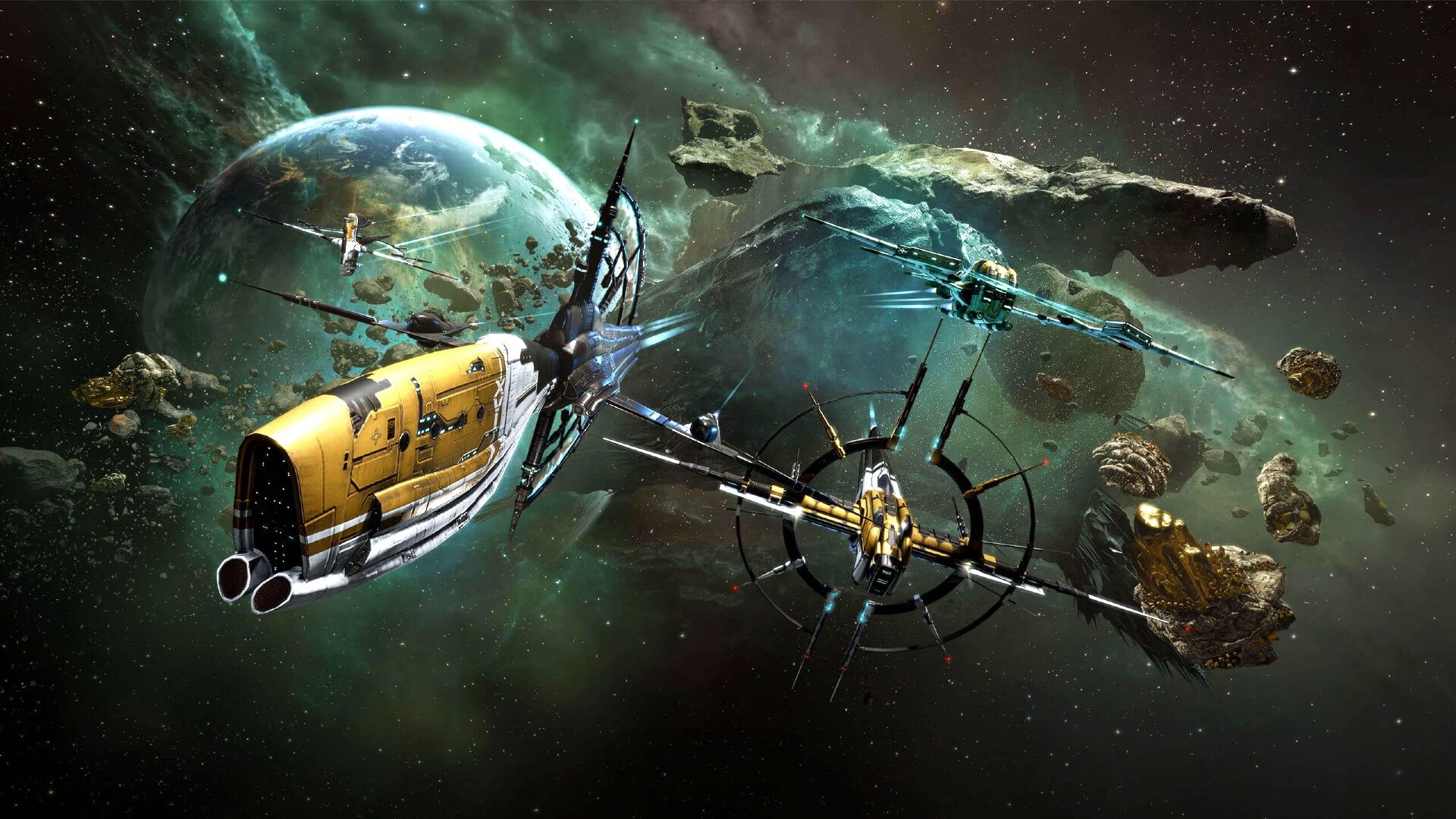
eve online MMOEVE Online is one of the earliest MMO games out there but since its release, it is still actively developed and is receiving updates. This science-fiction Sandbox will offer space lovers everything they need and more. Large scale PvP, mining, pirating, etc. It can be daunting and complex for beginners but take your time to get familiar with its systems and you will be rewarded greatly with an immersive and complex game worth the time. Open PvP in some zones might not be everyone’s cup of tea and seeing only your ship might be a turn-off for some players, but if you do not mind these things give it a go. It is free to play with an item shop.

Final Fantasy XIV

ff14 mmoFF14 had a tough start, so tough that it was scrapped and destroyed and has been remade again and that idea was great. The game now is better than ever and at this time it is experiencing large players from other games surging into it. This on the rails fantasy MMO will offer you a great story and great leveling experience. It has a free trial where you can play the whole original game for free but if you wish to continue playing you will have to buy the expansion and pay a monthly subscription but the content is well worth the money.

World of Warcraft
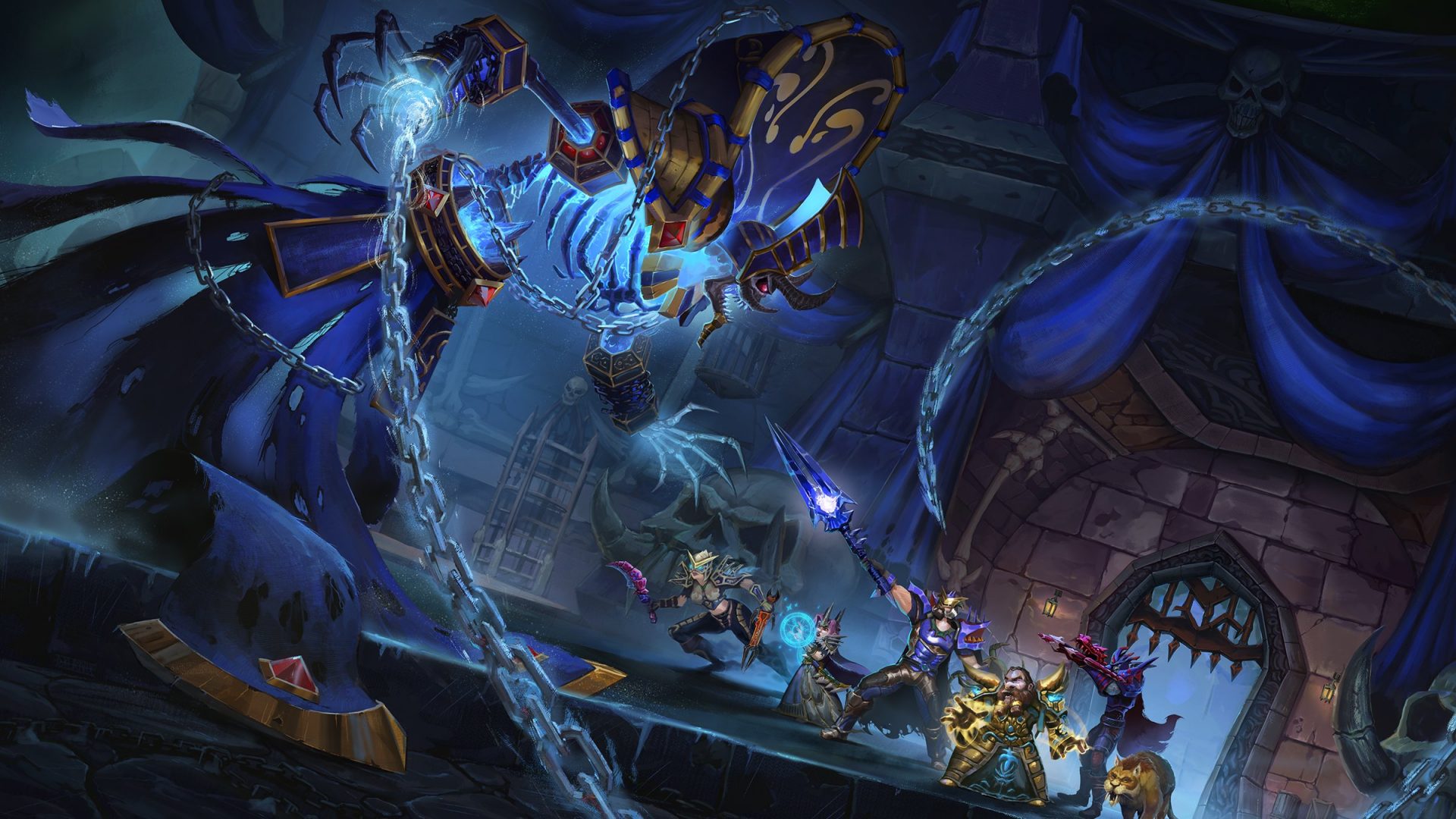
wowLet’s be honest, not a single list of MMO games cannot be without a once greatest and most successful MMO ever made, World of Warcraft. But instead of me praising the game why it was the greatest and why you should play it and how great it is I am going to take a little different approach. I am going to recommend you World of Warcraft classic, yup, you read it correctly, classic. Now World of Warcraft is a retail game with a subscription service but with that one subscription you will be able to access three games in the World of Warcraft universe: World of Warcraft retail (standard game), World of Warcraft Classic (vanilla WOW without expansions offering you experience as it once was when it was released) and World of Warcraft the Burning Crusade classic (same as WOW classic but with the first expansion the Burning Crusade). Among all solutions, I would really urge you to play either WOW classic or WOW TBC classic simply for reason that they are far superior games in comparison to typical retail ones, but if you like easier game go for retail, it is included in the sub anyway.

Guild Wars 2
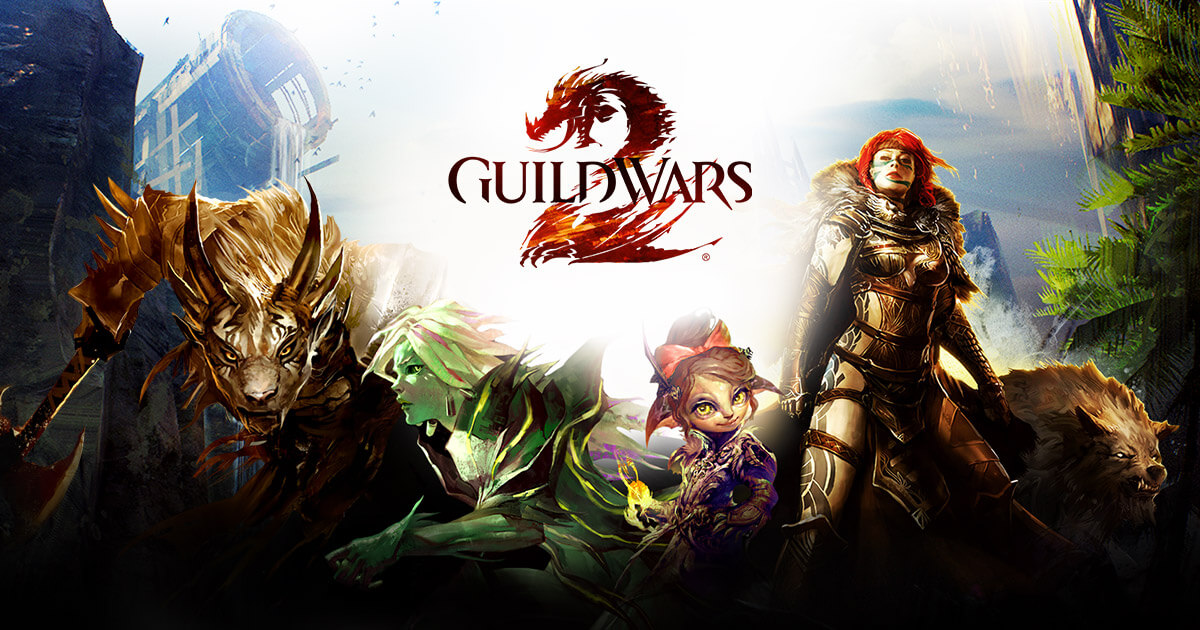
gw2Guild Wars 1 was one of my favorite games and I sank a lot of times in it and once Guild Wars 2 came I must admit I was pleasantly surprised with it and I would recommend it highly. The base game is completely free to play with only expansion to be purchased and it is buy to play model without monthly fees. It has specific mechanics different from other games and interesting classes to try. The living world is a great feature of the game and it is still very strong with its player base.

Star Wars: old republic
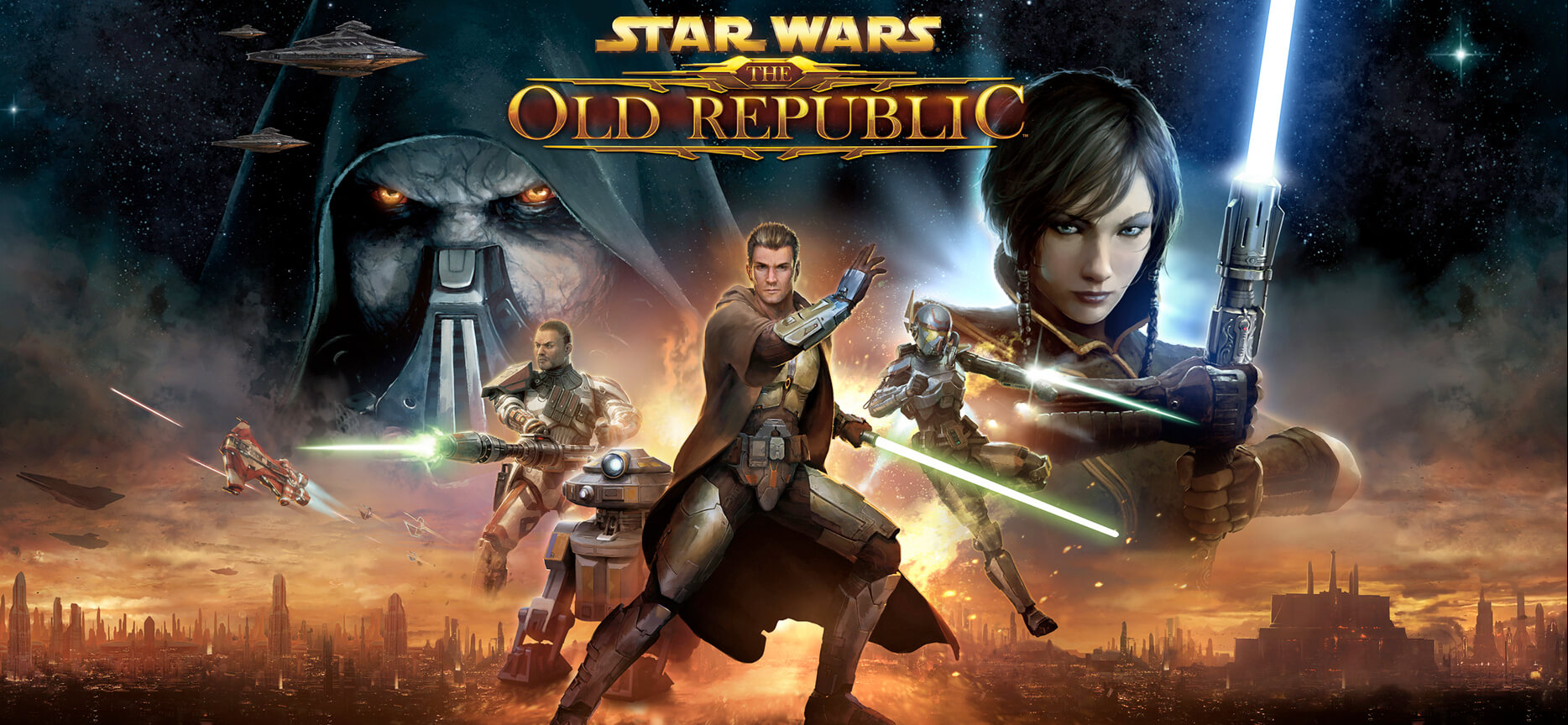
Star-Wars-The-Old-RepublicThis game is made for people who enjoy, love, and like Star Wars. Mechanically besides being able to have henchmen with you and space battles (which I do not really like how they are done) game itself does not offer anything special. Where it shines is in the story and overall Star Wars experience. If you look at this game as a single-player game with multiplayer dungeons you will have a great time, since the story is really good but sadly end game lacks in comparison.

Elder Scrolls Online
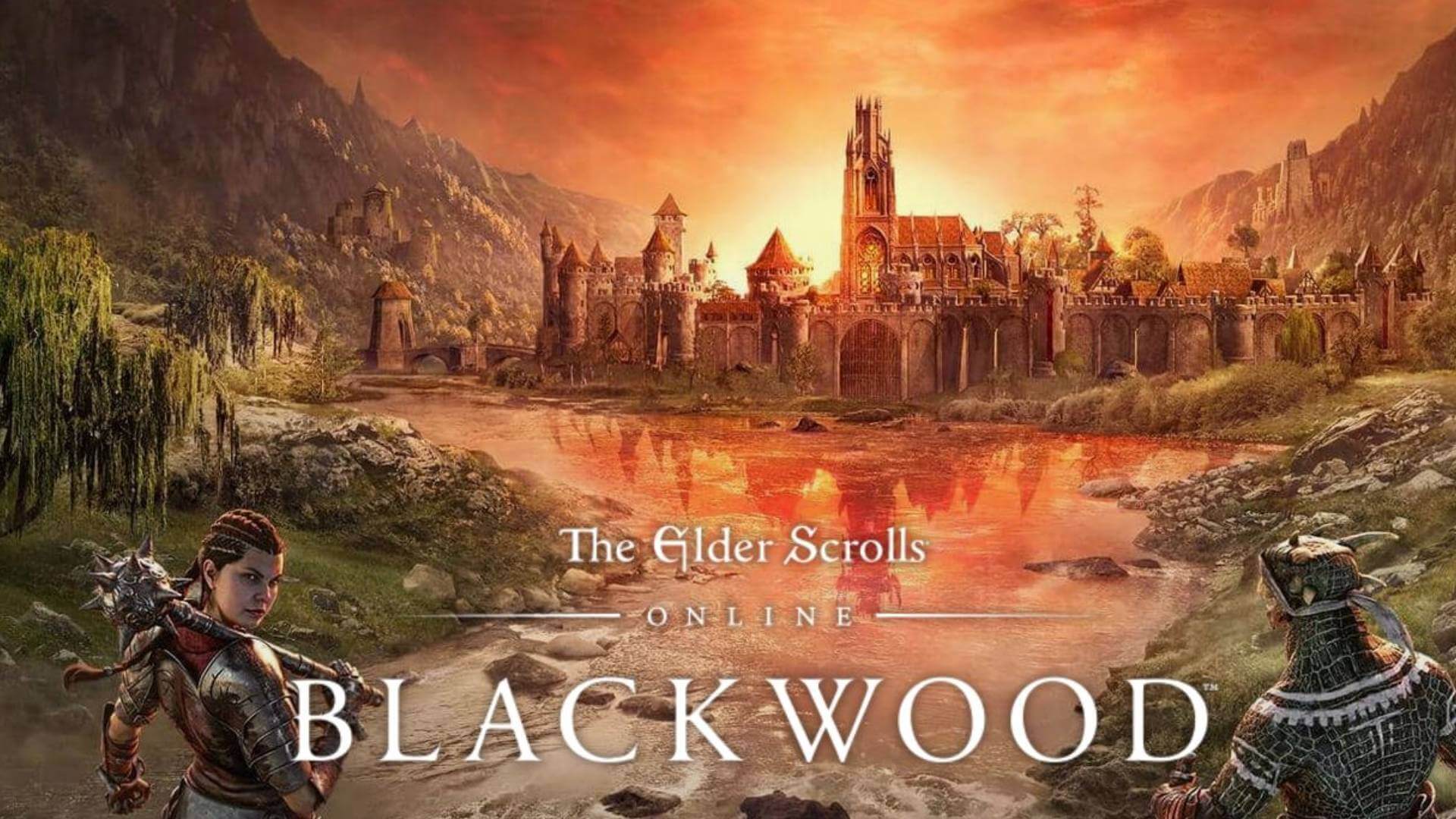
Blackwood-release-date-on-TESO-when-will-the-new-chapterI am going to admit something here, I was not fond of the idea to make the beloved Elder Scrolls series into MMO, but in time I gave it a go and I am really glad I did. This game is great and it is getting better and better as time progresses. It is buy to play without monthly fees and basic game free, same as FF14 but without fees. It has a decent community and offers a really good Elder Scrolls experience and now it is packing Morrowind expansions and other great areas. Highly recommended for any Elder Scrolls fan.

Lord of the Rings Online
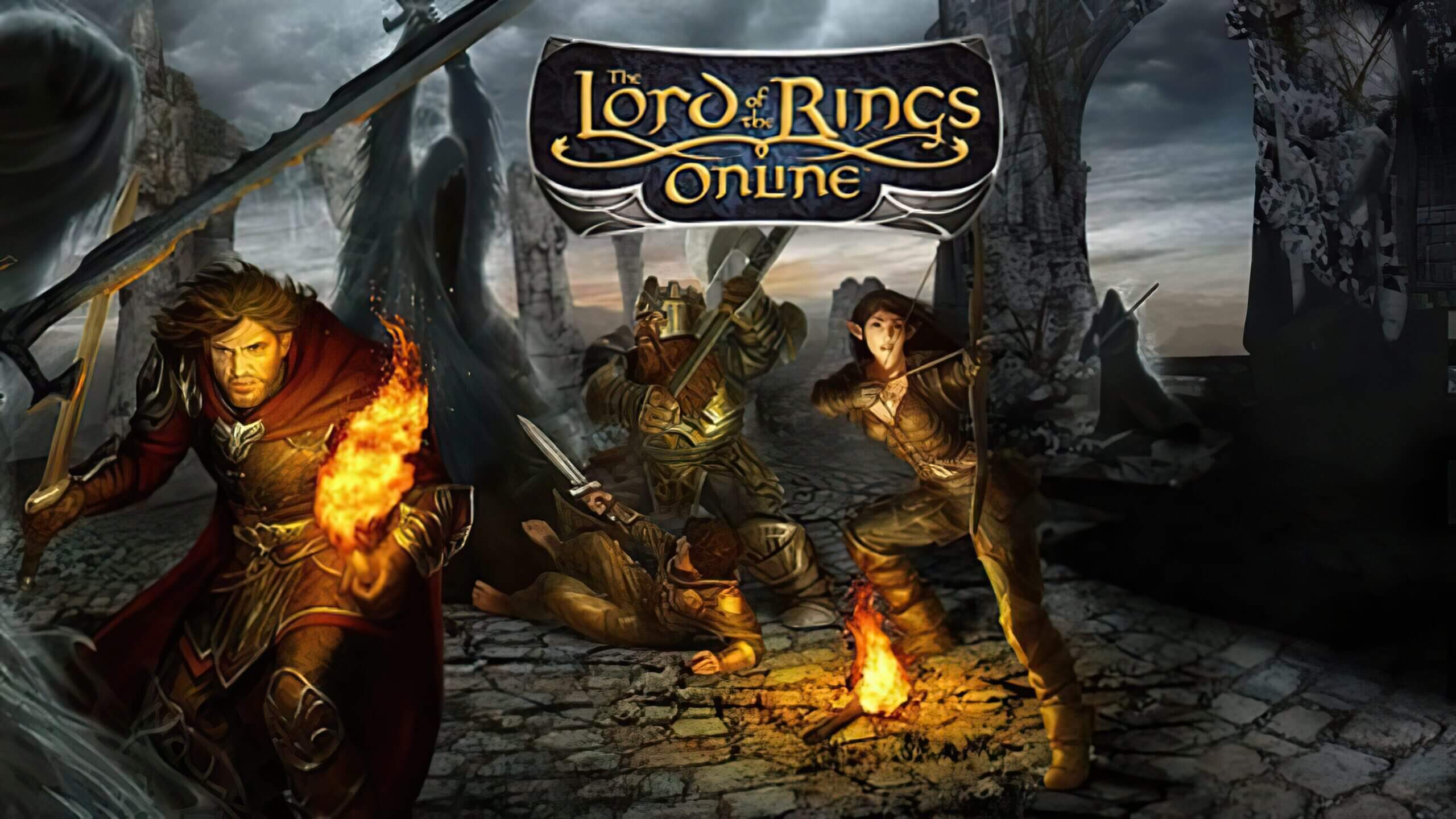
Lord-of-the-Rings-Online-to-Receive-VisualTech-Updates-asThis one is troublesome to recommend, on one side you have free to play games deeply inside Tolkien Lord of the Rings lore, on the other side, you have outdated graphics and some stupid item shop decisions like buys specific classes. But if you look past stupid item shop decisions and can live with playing free class in the game you will be pleasantly surprised. The game itself is surprisingly good, the story is great as expected from the game infused with lore taken from one of the best books series ever written, and the feeling when visiting iconic landscape is epic. But if I need to be real as I should, I would recommend this one to people appreciate good story and lore and ones that are fans of Lord of the Rings itself.

Neverwinter
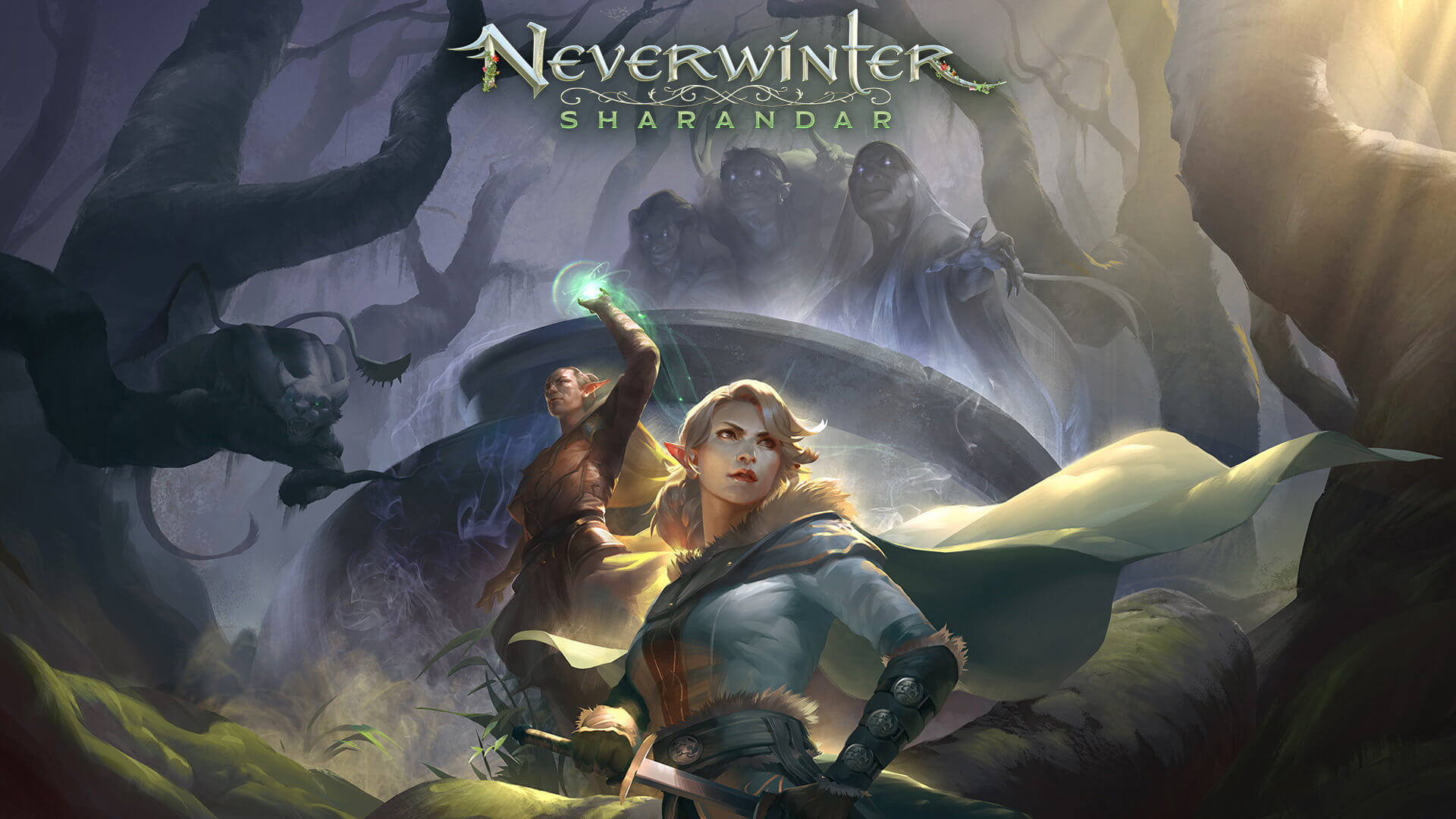
Neverwinter-Sharandar-Artwork-001Neverwinter is a premium and licensed D&D MMO game and it is well strange. The free-to-play model of the game will let you enjoy it until you hit the end game, then you will have to shell real money if you want to be competitive but the journey until then is great. I would recommend it to D&D lovers and people that love to try other people's maps, yup you read it correctly. Neverwinter has a map editor making it one of a kind MMO game where you can create your own dungeons and post them for other players to play, this user-generated content makes it a very specific beast in this list, and for that feature alone it has my recommendation.

Tera
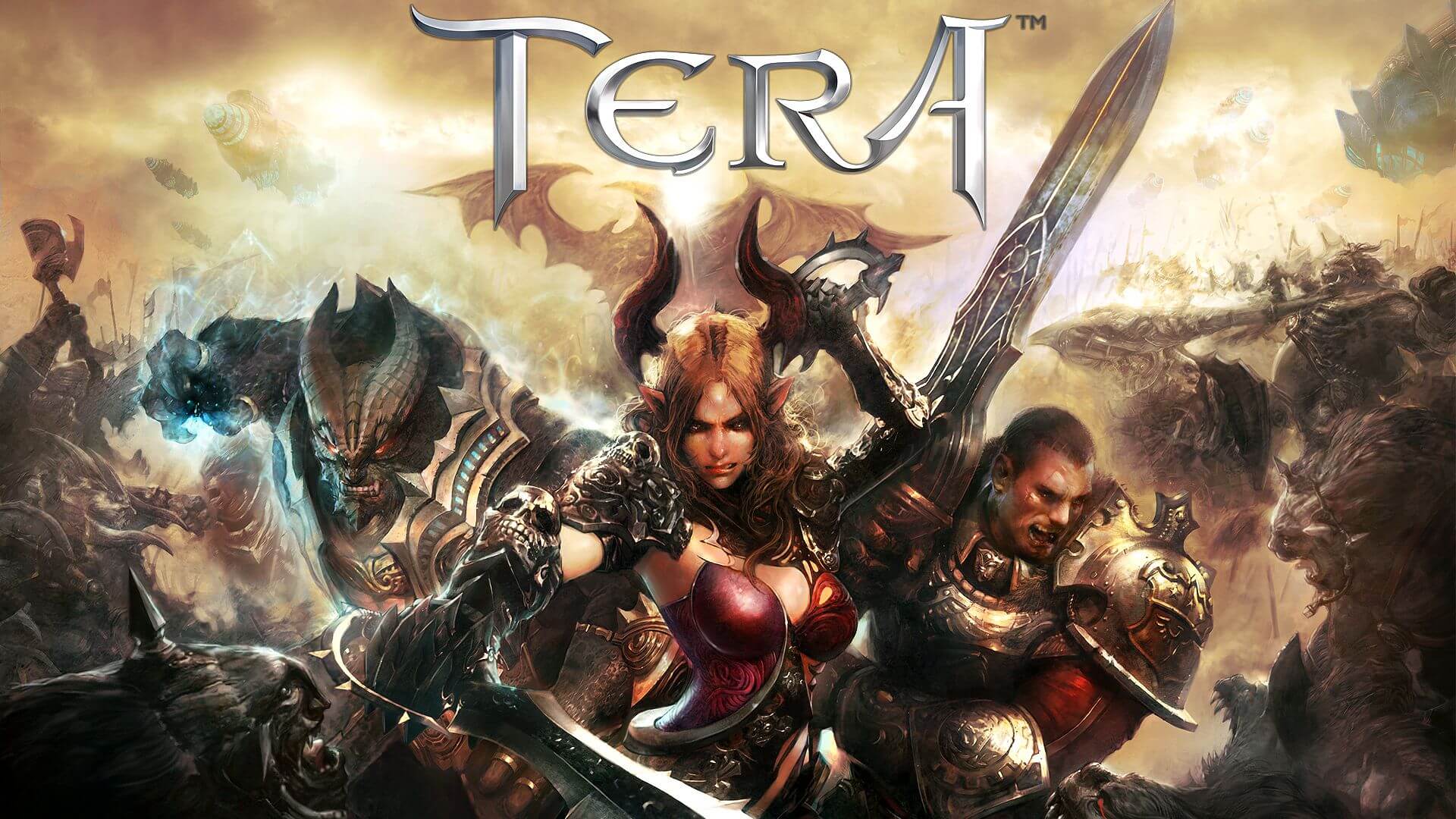
tera-classes-guideAnother one of the older titles, Tera will offer you nor depth nor anything new in terms of leveling, quests, or end game except… the COMBAT. This is maybe the greatest MMO Combat game ever created and it is quite fascinating that even after so many years no other game has managed to create a better combat system than one of Tera. If you enjoy action combat and like some specific aesthetics Tera is a game for you.

Albion
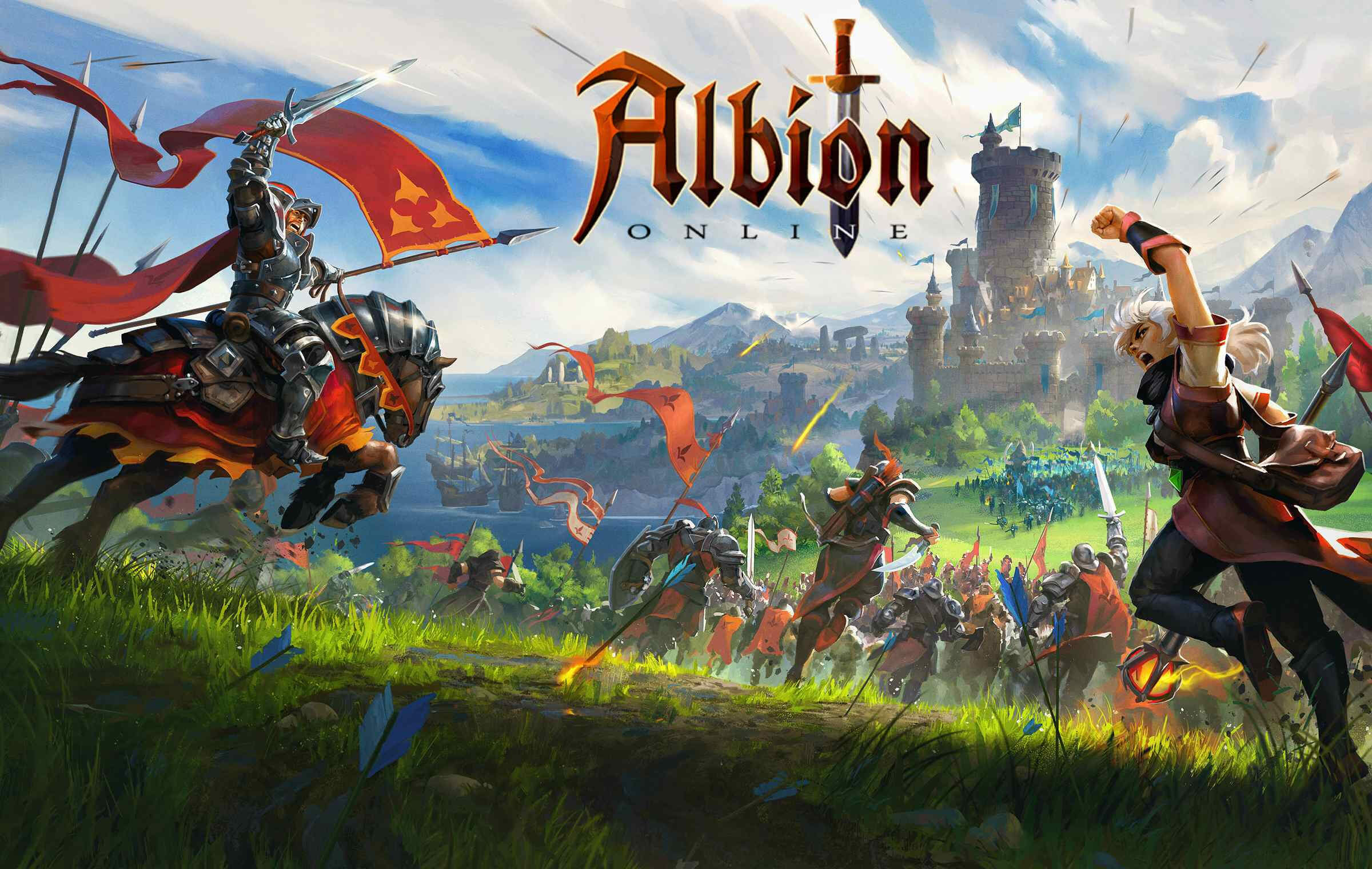
Albion-Online-LaunchAlbion is a sandbox game with open-world PvP and building mechanics where you can build your own forest, house, etc. You know, sandbox stuff, including a lot of crafting and well, other sandbox stuff. If you want great quests and some occasional play then skip Albion, this game is made for a more hardcore player base not being afraid to die and spend some time crafting and going through the economy. The best comparison might be with EVE but in fantasy settings.

Black Desert
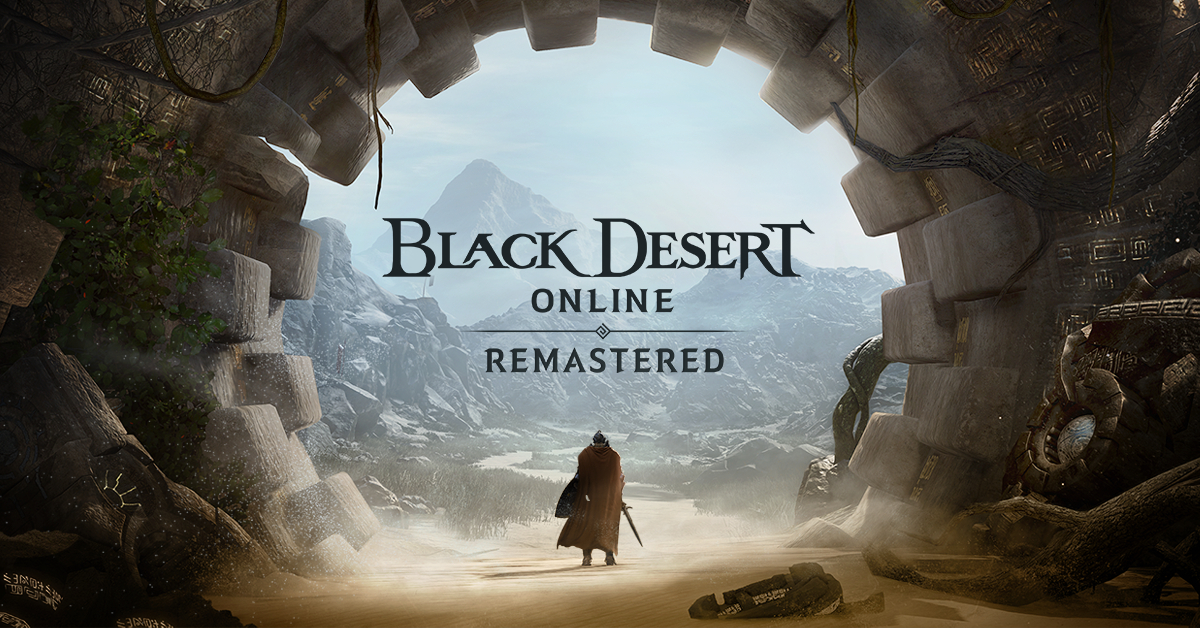
bdoBlack Desert is also a sandbox game but different from Albion, here you can organize and hire a workforce and send them to different nodes on a map to harvest resources and build an economy while you are on some epic adventure. Housing is also included but you can buy already made houses instead of making your own in the world. Combat is a game that comes very close to Tera combat and it is very enjoyable. The end game is money sink and PvP based so be careful when choosing this one.

Secret World Legends
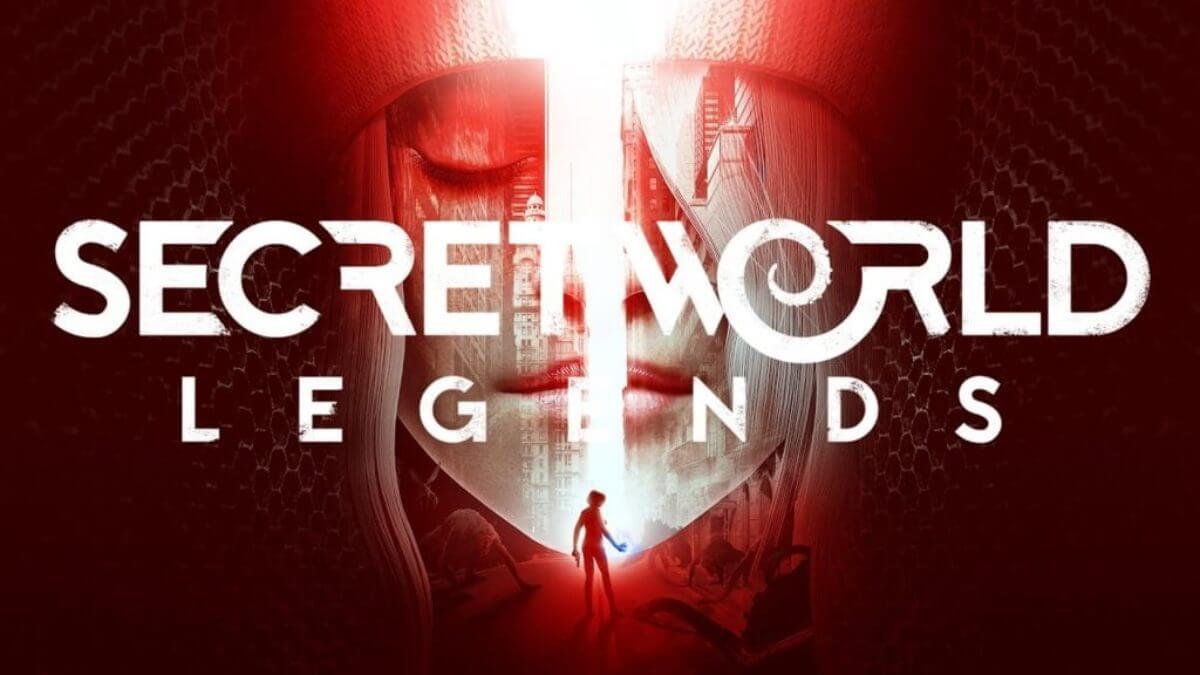
the-secret-world-relaunching-as-1200x675If you like occult and supernatural with new world order themes and conspiracy theories, Secret World Legends is the game for you. Somewhat little clunky its setting and story really set it apart in many many ways. It has semi-action combat and it is free to play with item shop but all the content can be experienced for free. Recommended for fans of deeper gameplay and horror lore.

Runescape
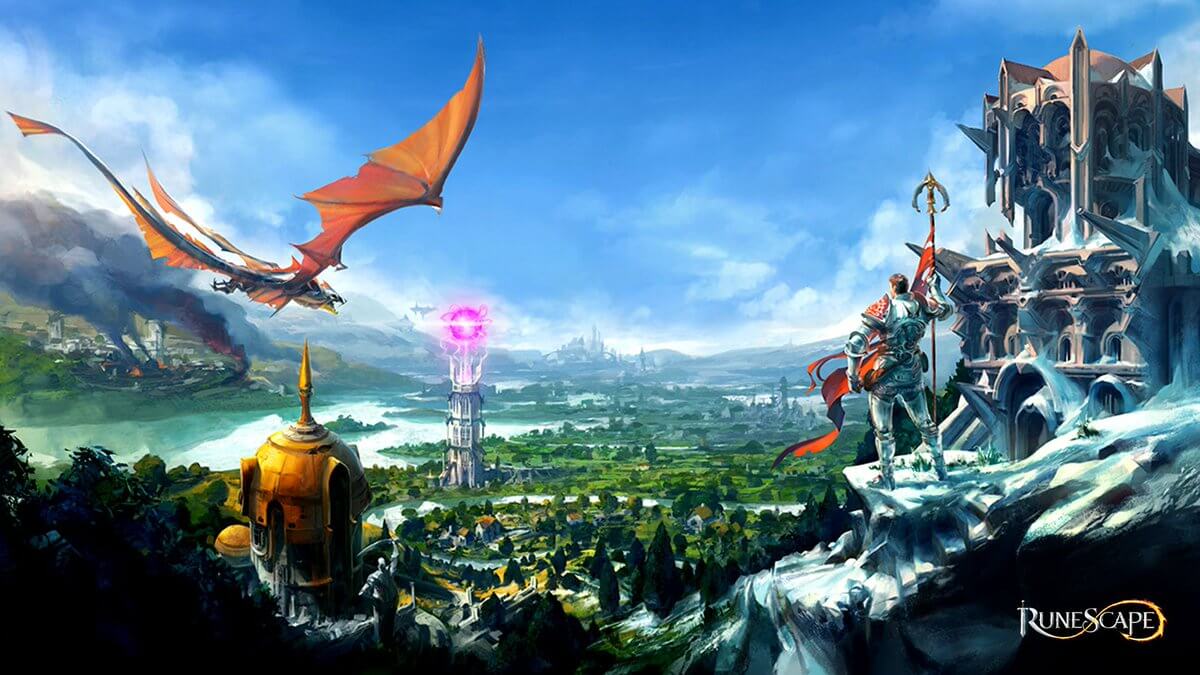
runescapeWhen I said no MMO list can be without World of Warcraft, it also cannot be without Runescape, one of the oldest games it was revamped with newer mechanics and graphics, free to play all the way and you can also pick old school Runescape if you really want to go all the way on a nostalgia trip. I would recommend a newer one for newer players, the game offers a great story and unusual quests infused with puzzles and interesting storylines. If you like really good quest design without fetch and grind quests along with interesting story this is a game for you.

AION

aionLast on my list would be AION, a very interesting game made also a long way back, but the fact that is completely free with the cosmetic shop will make it as one to recommend since you can experience the whole game for free. It has some limited flying mechanics in it and later game zone are open PvP zones, story is interesting and leveling process is enjoyable. Also game itself is not really easy and if not careful you can get yourself in danger quite quickly. Recommended for old-school feeling.

Conclusion

That's it, there are many more MMO games out there but some are on verge of closing down and some are plainly bad. I hope that I have made your choice easier and that you will find one or a few from this list to spend your time in it. Remember, stay safe and take care of yourself.

Read More
Fix Print Spooler Service Error 1068
There is one service in the Windows operating system that is responsible for managing all the print jobs as well as handles the interaction with the printer. This service is known as the Print Spooler service. However, if it stops running, then you won’t be able to print anything on your computer. In such a case, you can try to restart the Print Spooler service, and to do that, you have to open the Windows Services Manager and look for the Print Spooler Service. Once you found it, right-click on it and select Restart. If it isn’t running, select Start and if the Service starts working again, then good but if not and you got an error message instead that says, “Windows could not start the Print Spooler service on Local Computer, Error 1068, The dependency service or group failed to start”, then read on as this post will give you a couple of suggestions you can try to resolve the issue. The reason why you could not start the service is most likely because the Print Spooler service is dependent on other services which might not be properly running. If the following services are not running then it’s no wonder why you’re getting the error.
  • HTTP Service
  • Remote Procedure Control (RPC) Service
You might not see the RPC service which means that the Print Spooler Service does not recognize its dependency on the RPC service. In such a case, you have to manually configure the dependency by following the options given below.

Option 1 – Try configuring the dependency via CMD

The first thing you have to do is to configure the dependency using CMD. Refer to the steps below to do so:
  • Open an elevated Command Prompt.
  • Then type in “sc config spooler depend= RPCSS” and hit Enter.
  • After the command has been executed, restart your computer and then check if it fixed the problem. If not, proceed to the next given option below.

Option 2 – Fix dependency via the Registry Editor

You can also resolve dependency using the Registry Editor. How? Refer to these steps:
  • Tap the Win + R keys to open the Run dialog box.
  • Then type “Regedit” in the field and hit Enter to open the Registry Editor.
  • After that, navigate to this key: HKEY_LOCAL_MACHINESYSTEMCurrentControlSetServicesSpooler
  • Next, right-click on the “DependOnService” entry located on the right pane and select Modify.
  • Now change its value data to “RPCSS” and click OK to save the changes made and then exit the Registry Editor.
  • Reboot your computer and see if the issue is resolved.

Option 3 – Try running the Printer Troubleshooter

Another option you can check out is the Printer Troubleshooter. This built-in troubleshooter in Windows 10 can help you fix most print issues. It checks if you have the latest printer drivers and then tries to fix and update them automatically. Aside from that, it also checks if you have connectivity issues or if the Print Spooler and the required Services are running fine. To run it, follow the steps below.
  • Tap the Win + R keys to open the Run dialog box.
  • Next, type “exe /id PrinterDiagnostic” in the field and click OK or hit Enter to open the Printer Troubleshooter.
  • Then click the Next button and follow the next on-screen instructions to fix the issue with the printer.
Read More
Fix Your PC can’t project to another screen
In case you don’t know, Windows 10 comes with a native ability to project to another screen, be it wireless or wired. All it takes to do that is by tapping the Win + P key combination to display options to manage the extended display. However, there are times when you might encounter errors when you do that like the “Your PC can’t project to another screen” error. This kind of error stops you from projecting your computer to the other screen. Here’s the full content of the error message:
“Your PC can’t project to another screen, Try reinstalling the driver or using a different video card.”
This error could be due to loosely connected hardware or the display adapter. It is also possible that a recent Windows Update has messed up its settings. To resolve this issue, you can try several suggestions that will be given in this post. You can try to check the hardware cable connections or run the Hardware and Devices troubleshooter. You could also update or reinstall the display adapters or replace the graphics card.

Option 1 – Try checking the hardware connections

The first thing you have to do before you further troubleshoot the problem is to check the hardware connections of your computer and see if there are damaged ones, just like with the ports as it would also affect the overall connectivity of the device with the computer. You also have to make sure that no pin is missing from the ports. So if you notice some irregularities in the connecting cable physically, you might have to buy another one and replace it and then see if it fixes the problem or not.

Option 2 – Run the Hardware and Devices Troubleshooters

  • The first thing you need to do is click on Start and then on the gear-like icon to pull up the window for Settings.
  • After opening Settings, look for the Update and Security option and select it.
  • From there, go to the Troubleshoot option located on the left-hand side of the list.
  • Next, select Hardware and Devices from the list and open the Troubleshooter and run it. Once it is doing its job, wait for it to complete the process and then restart the system.
  • After the system restarts, check if the problem’s now fixed. If not, refer to the next option given below.

Option 3 – Try to update or reinstall the display adapters

You might also want to update the drivers for Display adapters and Monitors or you might also have to update or reinstall your NVIDIA driver if you’re using one. To update or reinstall the display adapters, follow these steps:
  • Tap the Win + R keys to open the Run dialog box and then type in MSC and tap Enter or click OK to open the Device Manager.
  • Expand the section for Display Adapters.
  • And then select the Display Driver and right-click on it.
  • From the drop-down menu, select the Update Driver option and follow the on-screen instructions to install the latest version of the Display Driver.
  • Restart your PC after the installation.
If you find that updating the drivers does not help, you can try to reinstall them. How? Simply follow the steps below.
  • Tap the Win + X keys and select the Device Manager.
  • After that, look for the affected driver in the Device Manager window. And if you see a yellow exclamation mark beside it, right-click on it and select the option “Rollback” to roll back the driver.
  • And if the Rollback option is not available, just select Uninstall and then restart your PC.
  • Finally, open the Devices Manager once again and select the option “Scan for hardware changes” to install the driver.

Option 4 – Consider replacing the graphics card

You might also want to consider replacing the graphics card of your computer to resolve the problem if the options provided above didn’t work.
Read More
CcSvcHst.exe Application Error Troubleshoot Guide

What is the ccSvcHst.exe Application Error?

The ccSvcHst.exe is an executable file. This is a part of the Symantec Service Framework. This file is added to your computer database when you install Norton products for example Norton Antivirus or Norton Internet Security. This file is saved in C:\Program Files\Common Files folder location. It runs along with the Norton programs in the background. This file helps to load up services and settings. When the ccSvcHst.exe file becomes infected and corrupt, you experience the ccSvcHst.exe application error pop up on your system. This error code hampers you from running Norton programs on your system.

Solution

Restoro box imageError Causes

The ccSvcHst.exe application error message is triggered by some of the following causes:
  • Temporary system misconfiguration
  • Viral infection
  • Damaged files
  • High CPU usage
  • Registry corruption
The ccSvcHst.exe application error should be repaired immediately as a delay in fixing this error can put you at risk of fatal system crashes and failure.

Further Information and Manual Repair

The best and possibly the easiest way to repair the ccSvcHst.exe application error on your computer is to install Restoro. Restoro is an innovative, intuitive, user-friendly, and feature-filled repair tool. This multi-functional tool functions as a registry cleaner, system optimizer, and antivirus too. With all these essential PC fixings and maintenance features integrated into one, you don’t need to install numerous programs offering limited functions on your PC. This PC Fixer has a sophisticated interface, neat layout along easy navigation. So, using it is not complex or challenging, not even for those trying it for the first time. It resolves PC errors like ccSvcHst.exe application error in seconds. Whether this error is generated due to viral infection or registry damage, it detects all and repairs your PC right away thus ensuring a smooth functioning and error-free PC. With Restoro you can resolve issues in just three simple steps, install the software, scan for errors and click repair to resolve. It’s that fast and easy to use. Now let’s get down to how this PC Fixer resolves the ccSvcHst.exe application error successfully. If a ccSvcHst.exe application error is caused by temporary system misconfiguration, a simple system reboot may stop the error from occurring again. However, if viral infection and registry corruption is the cause then installing Restoro is the way to go.

How Registry Errors Cause ccSvcHst.exe Application Error

ccSvcHst.exe application error indicates that your computer contains too many registry fragments and obsolete entries like junk files, temporary internet files, and files of uninstalled programs occupying a huge amount of RAM and disk space. The cluttering of the disk causes and malicious files causes the registry to corrupt. This is what the registry cleaning feature of Restoro takes care of. The registry cleaner scans and wipes out these unnecessary and obsolete system files freeing your disk space. It resolves errors like ccSvcHst.exe application error by repairing registry damages. With the help of its privacy error detector, it detects malicious viruses hidden on your system and in your hard disk. These usually gain access to your system via unsafe internet browsing, downloading programs from unreliable websites, and opening phishing emails. Without you being aware, these viruses and spyware enter your system giving hackers access to manipulate your confidential and private information like credit card number, bank account number, and SSN number, if such information is present on your PC. The ccSvcHst.exe application error hampers you in running Norton and thus exposes you to serious data security dangers. This is where Restoro not only serves as an error fixer but a powerful antivirus too. It removes all the viruses infecting your PC in a couple of seconds.

Restoro Benefits

Restoro is efficient and ensures user safety. Sometimes during repair, you may lose important data which may be hard to recover if you don’t have a backup. Unlike other tools, Restoro helps users create backup copies for safety purposes thus you don’t have the risk of losing your valuable data. You can restore and recover all your essential files in case data is lost during repair. This PC Fixer is compatible and runs smoothly with all Windows versions. So, if you have come across a ccSvcHst.exe application error on your system fix it by installing Restoro today. Click here to install Restoro.
Read More
Fix Error opening file for writing
If you got encounter an error message saying, “Error opening file for writing” while running a setup file to install some program on your computer, read on as this post will give you some suggestions on how you can fix it. You can encounter this error when running a setup file for installing a program like GlassWire, Notepad++, VLC, Steam, OBS, Mod Organizer, WinpCap, NSIS, FileZilla, BSPlayer, Kodi, Wireshark, rtcore64, qt5core.dll, MSI Afterburner, GWCtlSrv.exe, npf.sys, vcredist_86 and many more. And so when this error pops up while you run a setup file, refer to the steps given below which might help resolve the problem. Step 1: First, you have to make sure that there is no other installation in progress as multiple installations can most likely cause this error to show up. You can restart your computer and try to run the setup file again. Step 2: If you still got the error even after your restart your computer, click on Retry to try again and if it does nothing, click Abort to terminate the installation. After that, go to the folder where you’ve placed the setup file and then delete it. Step 3: Make sure that you have enough disk space on your computer. You can use the Windows 10 Storage Sense feature which can clean all the temporary files from your computer and help you save storage space. To use Storage Sense, follow the steps below.
  • Open Setting > System > Storage from the WinX Menu.
  • From there, you will see a list of all the local and connected storage devices along with the details on the free space.
  • Now make sure that the Storage Sense feature is turned On then go find a link that says “Free Up Space” and click it to open.
  • After that, a screen which is the built-in program in Windows 10 will appear and will scan your computer for the following junk files so you can free up disk space:
  • Windows Upgrade Log Files
  • The system created Windows Error Reporting Files
  • Thumbnails
  • Temporary Internet Files
  • Previous Windows Installation Files
  • Delivery Optimisation Files
  • DirectX Shader Cache
Note: Once you’re done freeing up space on your drive, try to run the setup file again. Step 4: If freeing up space didn’t help, you can just delete the setup file and download another one from the official homepage of the program. From there download the setup file and place it in a different location. After that, run the setup file once again. Step 5: Make sure that you have downloaded the correct setup file according to your operating system, i.e. x64 or x86. Step 6: Restart your computer once more and make sure that you sign in as administrator. After that, right-click on the setup file and click “Run as administrator”. If it still didn’t help, you might want to take ownership of the folder where you saved the setup file. How? Follow the steps below but before you do that, you have to create a System Restore Point first, once that’s done, proceed.
  • First, locate the concerned folder and right-click on it then select Properties.
  • Next, click on the Edit button in the Properties window and click OK to confirm if you got a User Account Control elevation request.
  • After that, select user/group from the permission windows or click on the Add button to add another user or group. It would be best if you add “Everyone” to give permission.
  • Then check “Full Control” under the “Allow” column to assign full access rights control permissions.
  • Now edit the permission to Full Control for “Everyone”.
  • Click OK to save the changes made and then exit.
Read More
Fix Something went wrong with the projection
As you know, Windows 10 is created with the goal of developing an operating system that caters to users’ needs and enhances productivity. That’s why modern computers that are running the Windows 10 OS have the capabilities to project their screen to an external display wirelessly. That said, Microsoft has a dedicated and pre-installed app called Connect which helps another device to project their screen on the computer. However, this feature is kind of delicate and won’t work unless it’s properly configured. So if some configuration does not work out well, it will throw an error message that says
“Something went wrong with the projection”.
This kind of error is caused by some issues with the Display driver, hardware, corrupted or damaged system files, and so on. And to fix it, there are several methods you can check out. You can try to update, roll back or reinstall the Display drivers. You could also run the Network Adapter troubleshooter or the Video Playback troubleshooter as well as run System Restore to undo any recent changes that might have triggered the error or reset your Windows 10 computer without deleting any files. For more details, refer to each one of the options provided below.

Option 1 – Try to update or rollback the Graphics driver

You can try to update your Graphics card driver using the Device Manager in your computer to resolve the blank dialog boxes problem or you can also go directly to the website of your graphics card manufacturers like NVIDIA, Intel, or AMD and go to the section called Drivers then check if there’s a new available update – if there is, download and install it. To update your Graphics driver via Device Manager, refer to these steps:
  • First, boot your computer into Safe Mode.
  • After that, tap the Win + R keys to launch Run.
  • Type in MSC into the box and tap Enter or click OK to open the Device Manager.
  • After that, a list of device drivers will be displayed. From there, look for the Display Adapters and click on them.
  • After that, right-click on each entry under the Display Adapters and select the “Uninstall Device” option from the menu.
  • Now restart your computer.
  • After restarting your computer, go to the Settings app and Check for Updates in the Windows Update section.
Note: If updating the Graphics driver didn’t fix the problem, you can also try to roll back to its previous version and see if that helps or you could also try to roll back, update or reinstall the Network Adapter drivers.

Option 2 – Try to run the Network Adapter troubleshooter

To run the Network Troubleshooter, refer to these steps:
  • Open the Search bar on your computer and type in “troubleshoot” to open the Troubleshoot settings.
  • Next, scroll down and select the “Network Adapter” option from the right pane.
  • Then click on the Run Troubleshooter” button.
  • After that, your computer will check for any possible errors and will pinpoint the root cause of the problem if possible.
  • Restart your computer.

Option 3 – Try to run the Video Playback troubleshooter

If the Network Adapter troubleshooter didn’t work in fixing the problem, you can try to run the Video Playback troubleshooter instead. To run it, simply go to Settings > Update & security > Troubleshoot. From there, scroll down until you see the Video Playback option and then click on the “Run the troubleshooter” button to get started. This troubleshooter will detect and automatically fix any problems related to video playback so it should help fix the error.

Option 4 – Try performing a System Restore

You might also want to perform a System Restore that might help you in fixing the error. You can do this option either by booting into Safe Mode or in System Restore. If you are already in the Advanced Startup Options, just directly select System Restore and proceed with the next steps. And if you have just booted your PC into Safe Mode, refer to the steps below.
  • Tap the Win + R keys to open the Run dialog box.
  • After that, type in “sysdm.cpl” in the field and tap Enter.
  • Next, go to the System Protection tab then click the System Restore button. This will open a new window where you have to select your preferred System Restore point.
  • After that, follow the on-screen instructions to finish the process and then restart your computer and check if the problem is fixed or not.

Option 5 – Reset your computer

  • Tap the Win key or click on the Start button located in the Taskbar.
  • Then click on the Power button at the bottom right portion of the screen.
  • Next, press and hold the Shift key on your keyboard and then click on Restart. This will restart your Pc into the Advanced Startup options.
Note: Once you have access to the Advanced Startup options, you have to go to the setting which allows you to Reset your Windows 10 PC. All you have to do is select Troubleshoot > Reset this PC to reach the following screen Afterward, select either the “Keep my files” option and then proceed to the next on-screen instructions that follow to reset your Windows 10 computer without losing your files.
Read More
0x80070780, The file cannot be accessed
Error 0x80070780 is a particularly nasty error since it means we can not access files on our hard drive. This might be an important file from work or anything similar and it can be frustrating when we can access it. In this article, we will address solutions to this error so you can continue with your activities where you have left off. Follow the guide step by step in the given order to minimize file damage and find the solution quickly.
  1. Run File and Folder built-in troubleshooter

    The simple and clean solution, try first by running Windows built-in tools. Leave troubleshooter to scan and attempt repairs and try to access a file after that.
  2. Run disk checker

    Maybe the file is corrupted or slightly damaged but repairable, run a built-in Windows disk checker and let it scan and repair any error found. Try accessing your file after the scan.
  3. Try copying file

    If the file is under a bad sector or cluster on a disk drive that could be a reason why you can not access it, try copying the file to another location and then opening it, if the operation fails, boot Windows in safe mode and try to copy or move file then. If you are successful with copying files in safe mode, reboot your computer and try to open the file.
  4. Reinstall the driver for the hard drive

    Like when the driver for USB is not working and you can not access files same can happen on your hard drive. Go to the device manager and reinstall the driver for your hard drive.
Read More
The executable program that ...
If you are trying to start a service using the Windows Services Manager but you got an error message stating, “The executable program that this service is configured to run in does not implement the service”, then you’ve come to the right place as this post will provide you instructions on how you can fix this error. Since almost all program requires service to run on your computer, if the service is not listed in the corresponding registry key, then you will most likely encounter this error on your Windows 10 computer. Here’s the entire content of the error message:
“Windows could not start the service on Local Computer. Error 1083: The executable program that this service is configured to run in does not implement the service.”
To fix this error, you have to add the service name in the respective host in the Registry Editor, and to do that, here are some steps you need to take on. Step 1: The first thing you have to do is to take note of the service name that’s given in the error message. For instance, you get the “Windows Management Service. Step 2: Next, you need to open the Services Manager by tapping the Win + R keys and typing “services.msc” in the Run dialog box, and then tapping Enter. Step 3: After opening the Services Manager, look for the Windows Management Service and once you see it, double click on it. This will open a new mini window. Step 4: From the newly opened window, copy the Service name and the Path to executable under the General tab. If the path to the executable is displayed as “C:/Windows/system32/svchost.exe -k netsvcs –p”, you need the “netsvcs” part only. Note that it can be different for different services and you need the part that comes after “-k”. Step 5: Now tap the Win + R keys again to open Run utility and type “Regedit” in the field and click OK to open the Registry Editor. Step 6: After that, navigate to the following registry path:
ComputerHKEY_LOCAL_MACHINESOFTWAREMicrosoftWindows NTCurrentVersionSvchost
Step 7: From the given registry path, look for a key named “REG_MULTI_SZ” located on your right-hand side. This key is named after the “Path to executable” part. For instance, you should see “netsvcs”. Step 8: Double click on the REG_MULTI_SZ key and enter the Service name that you’ve copied earlier and then write it down at the end of the preset list. Step 9: Now save the changes you’ve made and try to open the program or run the service again.
Read More
Location services are greyed out in Windows
Location services is a built-in tool in Windows 10 is a useful tool that offers users location information even when your laptop or desktop computer does not have a GPS since it uses Wi-Fi positioning as well as your device’s IP address. However, there are instances when you might encounter some problems when using this service. One instance is when you suddenly find the toggle button for Location service greyed out. This kind of program could be due to some glitch in the system or some third-party application on your computer. Because of this problem, you won’t be able to toggle the Location service on or off and you won’t be able to make any changes in its settings. Worry not, for this post will guide you on what you can do to fix the greyed-out toggle button of Location services in Windows 10. Before you perform some troubleshooting steps, you might want to restart your computer and see if it fixes the problem. If it didn’t, then this problem is not just some minor glitch. Thus, you have to follow the potential fixes provided below to fix the problem but before you do that, make sure that you create a System Restore point first. After that, follow each one of the following options.

Option 1 – Put your PC in a Clean Boot State

The first thing you can do to resolve the problem is to put your computer in a Clean Boot State. It could be that there is a third-party program that’s preventing the toggle button from functioning. To isolate this possibility, you need to put your computer in a Clean Boot State.
  • Log onto your PC as an administrator.
  • Type in MSConfig in the Start Search to open the System Configuration utility.
  • From there, go to the General tab and click “Selective startup”.
  • Clear the “Load Startup items” check box and make sure that the “Load System Services” and “Use Original boot configuration” options are checked.
  • Next, click the Services tab and select the “Hide All Microsoft Services” check box.
  • Click Disable all.
  • Click on Apply/OK and restart your PC. (This will put your PC into a Clean Boot State. And configure Windows to use the usual startup, just simply undo the changes.)
  • Now check if you can now use the toggle button of the Location service or not.

Option 2 – Try to use the Registry Editor

If putting your computer in a Clean Boot state didn’t fix the problem, you might want to make some adjustments in the Windows Registry via Registry Editor.
  • Tap the Win + R keys to open the Run utility and type “regedit” in the field and then tap Enter to open the Registry Editor.
  • After that, navigate to this registry path: HKEY_LOCAL_MACHINESYSTEMCurrentControlSetServiceslfsvcTriggerInfo
  • From there, select the Key (folder) named as “3” and right-click on it, and then delete it.
  • Once done, exit the Registry Editor and restart your computer.

Option 3 – Try to use the Windows Services Manager

  • Tap the Win + R keys to open the Run dialog box and type “services.msc” in the field and hit Enter to open the Services Manager.
  • Next, look for the “Geolocation Service” entry from the list of services.
  • Once you find it, right-click on it and select Properties. This will open a new mini window.
  • From there, make sure that it is “Running” and its Startup Type is set to “Automatic”.
  • After that, close the Services Manager and check if the problem is now resolved.

Option 4 – Try to use the Group Policy Editor

  • Tap the Win + R keys to launch Run and type “gpedit.msc” in the field and click OK to open the Group Policy Editor.
  • After that, navigate to this path: Administrative TemplatesWindows ComponentsLocation and Sensors
  • Next, double click on each one of the following settings and select the “Not configured” or “Disabled” option.
    • Turn off location scripting
    • Turn off location
    • Turn off sensors
  • Once done, navigate to this path: Administrative TemplatesWindows ComponentsLocation and SensorsWindows Location Provider
  • From there, double click on the “Turn off Windows Location Provider” policy setting and set its configuration to either “Disabled” or “Not configured”. You should see the following description of the policy setting in the window:
“This policy setting turns off the Windows Location Provider feature for this computer. If you enable this policy setting, the Windows Location Provider feature will be turned off, and all programs on this computer will not be able to use the Windows Location Provider feature. If you disable or do not configure this policy setting, all programs on this computer can use the Windows Location Provider feature.”
  • Now restart your computer.
Read More
1 2 3 171
Logo
Copyright © 2023, ErrorTools. All Rights Reserved
Trademark: Microsoft Windows logos are registered trademarks of Microsoft. Disclaimer: ErrorTools.com is not affiliated with Microsoft, nor claims direct affiliation.
The information on this page is provided for information purposes only.
DMCA.com Protection Status





