Logo

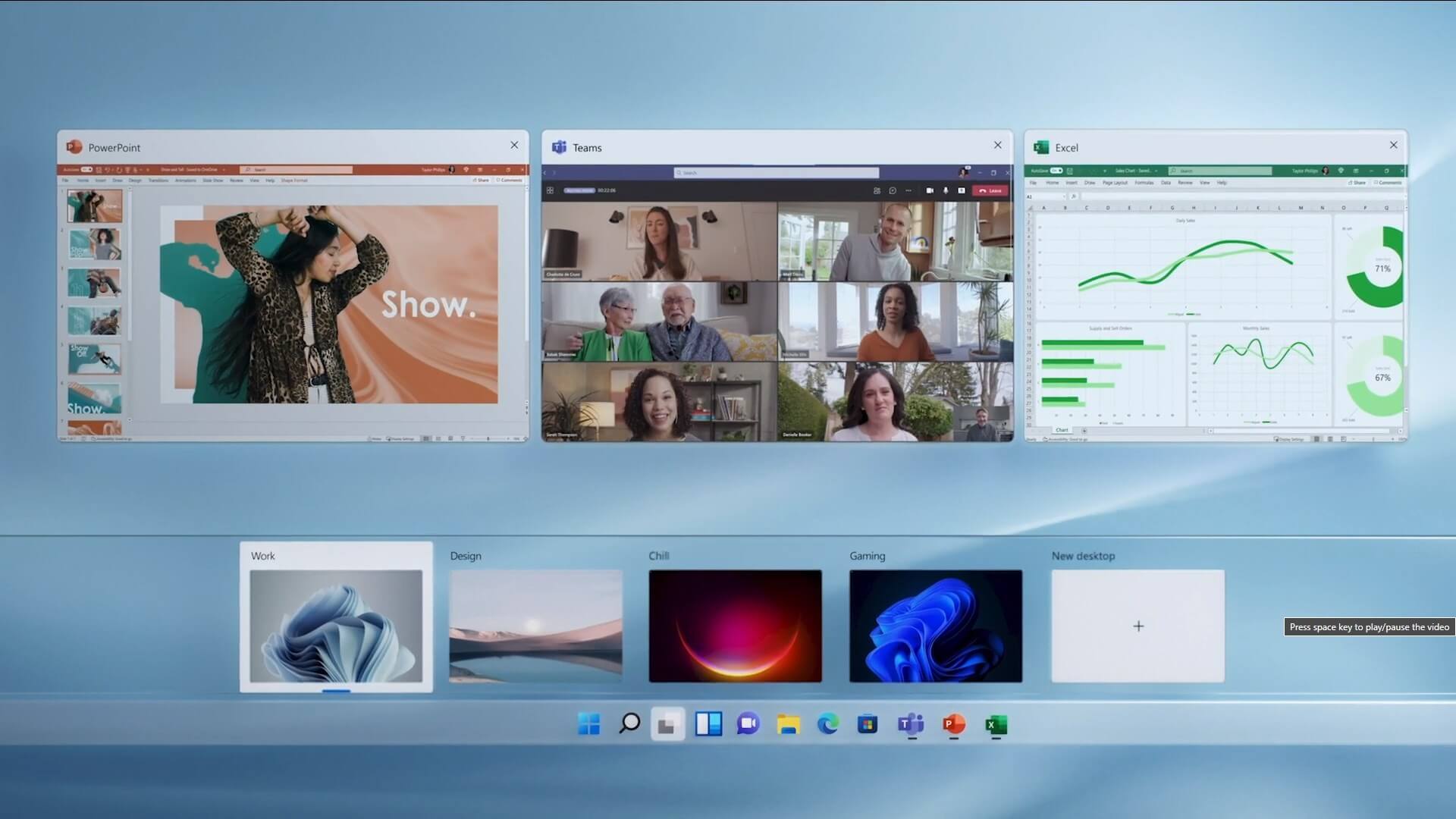
Virtual desktop with different wallpapers

Virtual desktopThe feature that was originally planned for now scrapped Windows 10X is included in Windows 11. You will be able to customize your Virtual desktop with different wallpapers for each screen.

In order to fully customize your virtual desktops with different wallpapers follow this easy step-by-step guide.

  1. Click on the Task View button in the taskbar
  2. When the Task View opens, select the desktop on which you want to set wallpaper
  3. The view will switch to the selected desktop. Right-click anywhere on the desktop and select personalize
  4. In personalization settings, click on the background
  5. Select wallpaper which you would like to have on the desktop by clicking on browse and navigating to the desired one
  6. Close the settings
  7. Repeat for each virtual desktop you would like to customize

Do You Need Help with Your Device?

Our Team of Experts May Help
Troubleshoot.Tech Experts are There for You!
Replace damaged files
Restore performance
Free disk space
Remove Malware
Protects WEB browser
Remove Viruses
Stop PC freezing
GET HELP
Troubleshoot.Tech experts work with all versions of Microsoft Windows including Windows 11, with Android, Mac, and more.

Share this article:

You might also like

Windows computer doesn’t recognize second GPU
A lot of Windows users, use a second GPU for their computer systems, especially gamers above the dedicated graphics card. The operating system is set such that the dedicated high-end graphics card is set to default but there are times when the system does not recognize or detect the second graphics card. Even though every computer system comes with an integrated graphics card, for the most part, it is insufficient for graphics-intensive games and software which is why if you have an extra dedicated graphics card and your computer does not seem to detect or recognize it, then this post is for you. It could be that the dedicated graphics card has failed or it could also be an issue with the drivers and so on. Follow the suggested options below to resolve the problem.

Option 1 – Update your Graphics drivers

  • First, boot your computer into Safe Mode.
  • After that, tap the Win + R keys to launch Run.
  • Type in msc into the box and tap Enter or click OK to open the Device Manager.
  • After that, a list of device drivers will be displayed. From there, look for the Display Adapters and click on them.
  • After that, right-click on each entry under the Display Adapters and select the “Uninstall Device” option from the menu.
  • Now restart your computer.
  • After restarting your computer, go to the Settings app and Check for Updates in the Windows Update section.
Note: You also have the option to go directly to the website of your graphics card manufacturers like NVIDIA, Intel, or AMD and go to the section called Drivers then check if there’s a new available update – if there is, download and install it.

Option 2 – Update the BIOS

Take note that you have to be careful when modifying something in the BIOS. So if you don’t know much about it, it’s best if you skip on this option and try the other ones instead. However, if you are well-versed in navigating the BIOS, then follow the steps below.
  • Tap the Win + R keys to open the Run dialog box.
  • Next, type “msinfo32” in the field and press Enter to open System Information.
  • From there, you should find a search field on the bottom where you have to search for the BIOS version and then press Enter.
  • After that, you should see the developer and version of the BIOS installed on your PC.
  • Go to your manufacturer’s website and then download the latest version of BIOS on your computer.
  • If you are using a laptop, make sure that you keep it plugged in until you have updated the BIOS.
  • Now double click on the downloaded file and install the new BIOS version on your computer.
  • Now restart your computer to apply the changes made.

Option 3 – Try changing the GPU settings

  • Right-click on any empty space on your Desktop and select Graphics Properties. Note that the Graphics Properties screen depends on the graphics drivers installed on your computer and are system-specific as they may be different for other systems but they aren’t hard to find.
  • After that, make sure that the dedicated Graphics card is selected as Default under the Select Display drop-down.
  • If the Graphics card isn’t set as Default, set it and click Apply and Exit.

Option 4 – Try disabling the driver for the integrated Graphics card

  • Tap the Win + R keys to open the Run dialog box.
  • Next, type “devmgmt.msc” in the field and hit Enter to open the Device Manager.
  • From there, expand the list of Display Adapters and then right-click and select Disable device for the Integrated Graphics card. However, if the dedicated Graphics card fails, the display won’t work so you need to restart the system and enable it.
Read More
How to Fix Windows 10 Error 0x80240016

Error Code 0x80240016 - What is it?

Error Code 0x80240016 is an error that appears when the Windows Update tool is unable to complete its operation. While it most commonly occurs in Windows 10, versions of this error are also present in past Windows systems, as well. The steps to resolve the error are the same for each of these systems. Common symptoms include:
  • Inability to complete the Windows Update process
  • Sluggishness or freezing
  • Crashing of your programs
  • The message that states “IMAP_LOGINFAILURE”
There are a number of different issues that can cause Error Code 0x80240016, so it is important to follow the steps below to address each of them in turn. While basic users can implement several of the methods, some of the methods may require advanced skills or knowledge. If needed, always get in touch with a qualified Windows repair professional to assist you in the process of error resolution.

Solution

Restoro box imageError Causes

Error Code 0x80240016 happens when the system believes that another installation is already occurring on your device while the Windows Update tool is attempting to run the installation of its own updates. While there may not always be an actual installation going on that prohibits Windows Update from running, several programs can leave traces of background activity that prevent Windows from proceeding as necessary.

Malicious software can also cause your system to believe that files are in use, so several of the methods to fix the error can address this particular set of issues.

Further Information and Manual Repair

There are a number of different background issues that can cause Error Code 0x80240016 to appear on your machine. Follow the steps below to address each aspect of the error code, making sure to restart your computer after each attempt. If you have difficulty in completing these steps, contact a qualified technician to assist you.

Here are the top methods to resolve Error Code 0x80240016:

Method One:  Use the Troubleshooting Tool in Windows Update

The first step to addressing Error Code 0x80240016 is to open up the Windows Update tool and click on the option to run the Troubleshooting Wizard. This can identify many of the issues associated with the error. If this tool makes any changes, make sure to restart your computer after it finishes.

Method Two:  Run the Registry Repair Tool

The registry repair tool can be a great resource for Error Code 0x80240016. Use it to run a scan on all of your registry entries and to repair any that may be extraneous, faulty, or missing. This step may take some time, so be prepared to wait a while for it to finish. Always restart your computer after running the registry repair tool so that any necessary changes can fully take effect and be recognized by your device.

Method Three:  Scan Your Computer for Malicious Software

Use the Microsoft Security Essentials tool to perform a scan of your computer to see if any malicious software has changed or corrupted your system files. Once all the files had been scanned and problems have been addressed, you can restart your computer to see if the error has been successfully resolved. You can also download a powerful automated tool to rectify Windows 10 error code 0x80240016.

Method Four:  Update Your Drivers and Perform Updates for Your Software and Operating System

Another method that can help to address Error Code 0x80240016 is to open up your driver settings from the control panel and scan to see if any updates are needed. If there are updates waiting to be installed, go ahead and perform those updates first, then restart your computer.

Next, check your Windows Update tool to see if there are any program or system updates that need to be performed. Allowing updates to stack up can cause a number of errors on your system, so it is important to keep your updates in check. Restart your computer after you finish this process.

Method Five:  Backup Your Files, Then Reinstall Your Operating System Version

If none of the above methods have completely fixed the problem, you may need to reinstall your operating system. Before doing so, make sure that you have a backup copy of any important programs and files so that you don’t lose anything during the fresh installation.

Read More
Repair Windows 10 Update Error 0x80070003, 0x20007

Error Code 0x80070003, 0x20007 - What is it?

Update Error 0x80070003, 0x20007 One of the most common errors encountered by users who updated to Windows 10 is the Error Code 0x80070003-0x20007. Normally, this error code is accompanied by the message saying “Windows could not search for new updates. An error occurred while checking for new updates or your computer” or “Error(s) found: Code 0x80070003 Windows update encountered an unknown error”.

This update-related error is often encountered any time while your device automatically installs updates once there’s an available system update or during manually installing updates for a specific app. Regardless if you are using a tablet, laptop, or PC, this update-related error could occur after upgrading your system to Windows 10.

Solution

Restoro box imageError Causes

There are several reasons why the update-related Error Code 0x80070003-0x20007 occurs. This includes the following:

  • Windows Firewall-related problem
  • A conflict in your device’s system might be present
  • Not enough space in your RAM
  • Not enough space in your installation disk
  • Problems in your system memory

Further Information and Manual Repair

An effective way to address problems like the Error Code 0x80070003-0x20007 is by applying certain manual repair methods. However, ensure that you strictly follow instructions since one slight slip-up might result in critical issues. If you’re not knowledgeable enough, it would be best to consult help from a professional Windows technician or you can make use of an automated tool to solve any issues you’re encountering.

When you encounter the update-related Error Code 0x80070003-0x20007, you must take action immediately to address the problem to lessen the risk of losing all your data or damaging the Windows registry host.

In fixing Error Code 0xC1900101-0x30018, you can repeat the same steps used for 0xc000021a (Method One) then apply the following steps as well:

  • Uninstall your antivirus prior to upgrading your system
  • Ensure that you have a simple machine name with no periods, dashes, or hyphens.
  • Restart several times then try again.
  • Disable the General USB Devices in your machine like the Smart Card Reader.
  • If you use a SCSI hard disk, ensure that you have available drivers you can use as your storage such as a thumb drive, and ensure as well that it is connected. Once you’re on the Windows 10 setup, click on Custom Advanced Option then use the Load Driver command in order to load the right driver for the SCSI drive. If this fails, try switching to an IDE-based hard disk.
  • Once done, perform a clean boot then try restarting the device again.
  • If you are upgrading your system using the .ISO file, disconnect your device from the Internet during setup. If your device is connected to the Internet by LAN or Wi-Fi, you need to disable both first then proceed to set up again.
  • If you’re performing the update through Windows Update, disconnect from the Internet LAN or Wi-Fi once the download reaches 100% then proceed with the installation.
  • If this still does not work, you can try using the .ISO file in upgrading.
  • Switch to a local account if your machine is connected to a domain.
  • Disconnect all external devices attached to your machine including gaming controllers, external hard disk, USB keys, and printers.

If the above steps still do not work, you can try performing a repair by doing the following steps:

  1. Put the installation disc into the disc drive. Afterward, boot the computer.
  2. Once the message: “Press any key to boot from CD or DVD…” appears, press any key.
  3. Choose a language, currency, time, and a keyboard or another input method. Click Next.
  4. Click on Repair your computer
  5. Select the operating system that you wish to repair then click Next
  6. Open the Command Prompt by clicking it in the System Recovery Options dialog box.
  7. Type BOOTREC /FIXMBR then hit Enter
  8. Type BOOTREC /FIXBOOT then hit Enter
  9. Type Drive:bootBootsect.exe /NT69 All then hit Enter

Can’t seem to put up with the long and technical manual repair process? You can still fix this error by downloading and installing a powerful automated tool that will surely get the job done in a jiffy!

Read More
Fix Chrome ERR QUIC PROTOCOL ERROR in Windows
If you aren’t able to pull up any website and instead got the ERR QUIC PROTOCOL ERROR error message in Google Chrome then read on as this post will help you resolve the problem. When you encounter such an error in Chrome, you will see the following error message:
“This site can’t be reached, The webpage at [website URL] might be temporarily down or it may have moved permanently to a new web address, ERR_QUIC_PROTOCOL_ERROR”
This kind of error message pops up when the URL is down. However, if you are certain that the site is not down and you’re still seeing this error message, then troubleshoot further using the suggestions given below.

Option 1 – Try to disable the QUIC Protocol

QUIC is an experimental transport layer network protocol that is present in Google Chrome in order to establish a connection between two endpoints over UDP. So if there is any problem on the development side, you will most likely encounter ERR_QUIC_PROTOCOL_ERROR on your Google Chrome browser when you try to open any website. Thus, you have to disable the QUIC protocol in order to resolve the error. How? Simply follow the steps below.
  • Open your Google Chrome browser.
  • Now type in “chrome://flags/” in the address bar and hit Enter.
  • After that, look for the Experimental QUIC protocol which should be set by default.
  • Then expand the drop-down menu and select Disable.
  • Restart Google Chrome and see if the error is fixed or not.

Option 2 – Disable VPN

As mentioned, if you are using VPN, this could be the reason why you’re getting the Windows Update error 0x800F0922 so the most obvious thing to do is for you to turn off the VPN and try to run the Windows Update once more. And if you use a VPN software that works using their software, you can just completely exit or log-off from its account. On the other hand, if you are using a built-in Windows 10 VPN, you can simply turn it off or delete all the settings you have created there. Although it’s understandable that you might have to use a VPN connection to connect to the work network, you really have to disable it at least until the Windows Update is no longer stuck in the error 0x800F0922. It would be best if you do this when you are not working.

Option 3 – Disable the Proxy server

You can also try to disable the Proxy server to fix the ERR_QUIC_PROTOCOL_ERROR in Chrome. Refer to these steps to do so:
  • Tap the Win + R keys to open the Run dialog box.
  • Then type “inetcpl.cpl” in the field and hit Enter to pull up the Internet Properties.
  • After that, go to the Connections tab and select the LAN settings.
  • From there. Uncheck the “Use a Proxy Server” option for your LAN and then make sure that the “Automatically detect settings” option is checked.
  • Now click the OK and the Apply buttons.
  • Restart your PC.
Note: If you are using a third-party proxy service, you have to disable it.
Read More
Fatal error occurred while trying to sysprep
There are several kinds of errors you could encounter when you are running Windows 10 on a virtual machine. The Windows OS knows the difference between booting up in a standalone computer or in a virtual machine. This is why some specific drivers and system capabilities are used while emulating the Windows OS on software and during this phase, there are times when the System Preparation may throw up an error that says, “A fatal error occurred while trying to sysprep the machine”. This kind of error arises due to a race condition wherein the Sysprep command tries to stop the Microsoft Distributed Transaction Coordinator or MSDTC service and the VMware tool tries to start the MSDTC service. You may also see the following messages logged in the Setuperr.log file:
  • [0x0f0082] SYSPRP LaunchDll:Failure occurred while executing ‘C:Windowssystem32msdtcprx.dll,SysPrepDtcCleanup’, returned error code -2146434815[gle=0x000000b7]
  • [0x0f0070] SYSPRP RunExternalDlls:An error occurred while running registry sysprep DLLs, halting sysprep execution. dwRet = -2146434815[gle=0x000000b7]
  • [0x0f00a8] SYSPRP WinMain:Hit failure while processing sysprep cleanup providers; hr = 0x80100101[gle=0x000000b7]
To fix the 0x0f0082, 0x0f0070, 0x0f00a8 Sysprep errors, you can check out two potential fixes. First, you have to check the status of the MSDTC service and the second one is to check the settings in the Windows Registry. Note that these fixes are proven to be effective on many users and apply to several versions of Windows, including Windows 10.

Option 1 – Check the status of the MSDTC service via Command Prompt

As mentioned, the error could be caused by the malfunctioning of the MSDTC service or it. Thus, you have to uninstall and reinstall the MSDTC service to resolve the problem and you can do that using Command Prompt. Follow the steps below.
  • In the Start Search, type “command prompt” and from the results, right-click on Command Prompt and then select the “Run as administrator” option to open it with admin privileges.
  • If a User Account Control or UAC prompt appears, just click on Yes to proceed.
  • Once you’ve opened Command Prompt, execute this command: msdtc –uninstall
  • The command you just entered will uninstall the MSDTC service. After that, you need to execute this second command to reinstall the service: msdtc –install
  • Now exit Command Prompt and check if the error is now fixed.

Option 2 – Check the Registry settings

  • Tap the Win + R keys to open the Run dialog box and type “Regedit” in the field and click OK or hit Enter to open the Registry Editor.
  • After opening the Registry Editor, navigate to this registry path: HKEY_LOCAL_MACHINESOFTWAREMicrosoftWindows NTCurrentVersionSoftwareProtectionPlatform
  • From there, look for a DWORD value that’s named “SkipRearm” and double click on it.
  • Then change its value data to “1”.
  • Restart your computer to apply successfully apply the changes made and check if it was able to fix the error.
Read More
NVIDIA Share is not working or responding
NVIDIA is undeniably the market leader as a Graphics Card manufacturer. Recently, NVIDIA came about a feature known as NVIDIA Share. This feature allows users to carry out a number of tasks such as streaming, recording, and sharing their gameplay with other users. NVIDIA Share allows users to take multiple snapshots of the gameplay which brings in capabilities to get the memories of the moments that happen during an awesome game. However, as of late, there were reports that NVIDIA Share is not working or responding. So if you are one of the users who are currently facing this issue, then read on as this post will guide you in resolving it. Make sure to follow the options given below carefully for a successful result.

Option 1 – Try to update the drivers from the official site of NVIDIA

The first thing you can do is to update the drivers from the official site of NVIDIA. And in case you don’t know the type of Nvidia graphics card that your computer is on, follow the steps below:
  • Tap the Win + R keys to open the Run dialog box.
  • Next type in “dxdiag” in the field and click OK or hit Enter to open the DirectX Diagnostic Tool.
  • From there, you can see what type of Nvidia graphics card that your system is on.
  • Take note of your graphics card information and then look for the best drivers for your operating system. Once you’ve downloaded and installed the file, restart your PC.

Option 2 – Try to roll back the driver to the previous version

If the first option didn’t work for you, then it’s time to roll back the device drivers. It is most likely that after you updated your Windows computer that your driver also needs a refresh.
  • Tap the Win + R keys to launch the Run window and then type in the “msc” command and hit Enter to open the Device Manager window.
  • Under the Device Manager, you will see a list of drivers. From there, look for the NVIDIA Drivers and expand them.
  • Next, select the driver entries that are labeled appropriately.
  • Then select each one of them and double click to open a new mini window.
  • After that, make sure that you’re on the Driver tab and if you are not, just navigate to it then click the Roll Back Driver button to switch back to the previous version of the NVIDIA Drivers.
  • Now restart your computer to successfully apply the changes made.

Option 3 – Try disabling NVIDIA Share

If the first two options given above didn’t work then you might want to try disabling NVIDIA Share. In case you didn’t make any modifications to the driver, chances are either your driver is out of date or there are some issues with the installation of the drivers. For you to find out, you need to first check if your NVIDIA drivers are really up to date. Once you’ve confirmed it, you can now disable the NVIDIA Share feature. Just refer to the steps below to do that.
  • Search for the NVIDIA GeForce Experience in the search box and then click on the appropriate result to open it.
  • After you open the NVIDIA GeForce Experience, go to the General tab.
  • Next, scroll down to the NVIDIA Share section and then select the toggle to turn off this feature.
  • Now restart your computer and try to check if there are any updates available for the NVIDIA Graphics card and install them again if there are any.
Read More
GitHub introduction and explanation
If you are starting to get into the “wonderful” world of coding there is a high chance that you have heard of GitHub or Git for short and there is a slight chance that you might be confused about what exactly GitHub is. If this is the case, we are welcoming you to go through our article and find everything about it and why it is so popular and used all around the world.

githubWhat exactly is GitHub?

If we want to go all technical and just point the obvious we could say that GitHub is basically a WEB site and cloud service used for storing and managing code in all languages. But to truly understand why you should use GitHub and not Dropbox or any storage service instead you need to understand concepts like Version Control and Git.

Version Control

Version control is meant to help developers to work separately on different parts of codes and update is separately not breaking the original one. Take note that this option is meant when there is a big project and has more than one coder working on it. If you are a solo coder on your personal project this might not be anything groundbreaking for you personally. But let’s now assume that you are part of a team and that your task is to edit only one function of a project and other people working will also have their tasks. With version control, you could take only part of the code and work on it and once you are finished merge it back into the main repository. All changes in the main code are automatically tracked and can be easily reverted back if needed. The good stuff is that rolling back can be used only let’s say on a code you submitted and other changes made to the source can be kept. As you can see this makes a very good and efficient working space and a good coding environment.

Git

Git itself is a specific version control system, an open-source version control system to be more precise created by Linus Torvalds in 2005. It is a distributed version control system, which means that the entire codebase and history is available on every developer’s computer, which allows for easy branching and merging. Currently, over 87% of worldwide developers are using Git on a daily basis.

So GitHub is?

GitHub is a profit company that offers a cloud-based Git repository hosting service, in other words, it automates and makes it easy for everyone to use Git for version control and collaboration. It focuses on user interface and ease of use so even beginner coders can use it right away without any large confusion and using command lines and setting it themselves manually. GitHub also has a free personal plan in which you can host a public code repository completely free. This option placed GitHub very popular with open source projects. If you are a company you can purchase a plan to have a private code repository shared only to members of your team or company.

Conclusion

As stated almost every developer on a planet uses some version of Git, many of them are on GitHub and there is a lot of open source projects on it. Some employers even ask to see your GitHub repository when deciding if they want to employ you, think of it as a portfolio for coders. There is not a single disadvantage and not a single argument against using it, especially it has a personal free option. So if you want to look better and more professional in the coding world go, make an account and place some code on it, share it with the world, and see how it goes. You might even get some help on projects from other coders if you need it.
Read More
Linkury Smartbar Engine Removal Guide for Windows

Linkury Smartbar Engine is a Brower Toolbar for Internet Explorer. Upon investigation, we discovered that this toolbar does not work with the latest versions of Internet Explorer.

From the Author:

What the Smartbar does: – Changes the default search engine in your web browser’s built-in search box. – Changes the default home page of your web browser. – Adds alternative “page not found” functionality. – Enable search from the address bar of your web browser. – Allows software updates of the application once a new version is released. – Adds, removes, or modifies components interacting with search input fields.

While installed, users may see additional unwanted ads throughout their browsing sessions.

Several anti-virus applications have marked this toolbar as a Browser Hijacker, and it is not recommended to keep it on your computer, especially if you are using a newer version of internet explorer that renders this toolbar useless.

About Browser Hijackers

Browser hijacking means a malicious program code has taken control over and modified the settings of your browser, without your permission. Browser hijackers will do a number of things on a computer. These are typically used to force visitors to a particular site, manipulating web traffic to earn ad revenue. It may appear naive, but the majority of these sites are not legitimate and may pose a serious threat to your online safety. They did not just screw up your web browsers, but browser hijackers can also modify the system registry, leaving your computer susceptible to other attacks.

How you can determine if your browser is hijacked

When your browser is hijacked, the following could happen: home-page is changed; you see new unwanted favorites or bookmarks added, usually directed to advertisement-filled or pornography sites; the default browser settings are changed and/or your default web engine is altered; you find unsolicited new toolbars added; never-ending pop-up adverts appear and/or your web browser pop-up blocker is disabled; your web browser starts running slowly or exhibits frequent errors; you can’t visit specific websites like home pages of security software.

Precisely how browser hijacker infects computer systems

Browser hijackers could use drive-by downloads or file-sharing websites or perhaps an e-mail attachment in order to reach a targeted computer. They may also come from any BHO, browser extension, add-on, toolbar, or plug-in with malicious intent. A browser hijacker can be installed as a part of freeware, shareware, demoware, and fake programs. A good example of a well-known browser hijacker is the latest Chinese malware called “Fireball”, which has infected 250 million PCs across the world. It works as a hijacker but can be turned into a fully functioning malware downloader afterward. The existence of any browser hijacker malware on your system could substantially diminish the web browsing experience, monitor your internet activities that lead to serious privacy concerns, create system stability problems and ultimately cause your PC to slow down or to a nearly unusable state.

Removing browser hijackers

Some kinds of browser hijackers can be removed from your computer by deleting malicious software applications or any other recently added freeware. At times, it could be a tough job to find and eliminate the malicious program since the associated file could be running as part of the operating system process. Also, manual removals require in-depth system understanding and thus can be a very difficult job for novice computer users. Browser hijackers could be effectively removed by installing and running an anti-malware program on the affected PC. To eradicate any kind of browser hijacker from your laptop or computer, you could download this certified malware removal application – SafeBytes Anti-Malware. Utilize a system optimizer together with your anti-malware software to fix various computer registry problems, eliminate computer vulnerabilities, and enhance your computer's overall performance.

Help! Malware Blocking Anti-virus Installation And Access To The Web

Practically all malware is bad, but certain kinds of malware do a lot more damage to your computer than others. Some malware sits in between the computer and your net connection and blocks some or all websites that you really want to check out. It would also block you from installing anything on your machine, especially anti-virus software. If you are reading this now, you have probably recognized that a malware infection is the real cause of your blocked web traffic. So how to proceed if you need to download and install an anti-malware application such as Safebytes? There are some steps you can take to circumvent this issue.

Eliminate viruses in Safe Mode

If the malware is set to load at Windows start-up, then booting in Safe Mode should prevent it. Only the minimum required applications and services are loaded whenever you start your laptop or computer in Safe Mode. You need to do the following to remove malware in Safe mode. 1) After switching on the computer, hit the F8 key before the Windows splash screen starts to load. This should bring up the Advanced Boot Options menu. 2) Select Safe Mode with Networking using arrow keys and hit ENTER. 3) As soon as this mode loads, you will have an internet connection. Now, utilize your web browser normally and navigate to https://safebytes.com/products/anti-malware/ to download and install Safebytes Anti-Malware. 4) Right after installation, run a complete scan and let the program get rid of the threats it detects.

Switch over to some other browser

Web-based malware can be environment-specific, aiming for a particular web browser or attacking particular versions of the web browser. The best solution to overcome this issue is to choose a browser that is well known for its security features. Firefox has built-in Phishing and Malware Protection to help keep you safe online.

Install antivirus on a USB drive

To successfully remove the malware, you will need to approach the issue of installing an antivirus program on the infected computer system from a different angle. To run antivirus using a thumb drive, follow these simple measures: 1) On a virus-free computer, install Safebytes Anti-Malware. 2) Plug the Thumb drive into the clean computer. 3) Double click on the exe file to run the installation wizard. 4) Choose a USB drive as the location when the wizard asks you where you wish to install the software. Follow activation instructions. 5) Transfer the pen drive from the clean PC to the infected PC. 6) Double-click the antivirus software EXE file on the USB flash drive. 7) Simply click “Scan Now” to run a scan on the affected computer for malware.

SafeBytes Anti-Malware Features

In order to protect your personal computer from many different internet-based threats, it’s important to install anti-malware software on your PC. But with so many anti-malware companies in the market, these days it’s challenging to decide which one you should purchase for your laptop. Some are really worth your money, but most aren’t. You must choose one that is efficient, practical, and has a strong reputation for its malware protection. While considering the trustworthy applications, Safebytes Anti-Malware is undoubtedly the strongly recommended one. SafeBytes anti-malware is really a powerful, highly effective protection application created to assist users of all levels of IT literacy in identifying and eliminating harmful threats from their PC. With its most advanced virus detection and repair technology, this software protects your PC against infections caused by different kinds of malware and similar internet threats, including adware, spyware, viruses, worms, trojans, keyloggers, potentially unwanted program (PUPs), and ransomware.

SafeBytes anti-malware offers a myriad of advanced features that sets it aside from all others. Here are some of the best ones:

Most Reliable AntiMalware Protection: Built upon a highly acclaimed antivirus engine, this malware removal application can detect and get rid of the most stubborn malware threats like browser hijackers, PUPs, and ransomware that other common anti-virus programs will miss. Real-time Threat Response: SafeBytes provides totally hands-free live protection and is set to check, block, and get rid of all computer threats at its very first encounter. They’re extremely efficient in screening and getting rid of numerous threats since they’re constantly revised with the latest updates and alerts. Web Protection: SafeBytes checks the links present on a web page for possible threats and notifies you whether the site is safe to browse or not, through its unique safety rating system. “Fast Scan” Features: Safebytes AntiMalware, using its enhanced scanning engine, gives super-fast scanning that can quickly target any active internet threat. Light-weight: This program is lightweight and can work silently in the background, and will not have an effect on your PC efficiency. 24/7 Online Support: Support service is accessible 24 x 7 x 365 days via email and chats to answer your concerns. To sum it up, SafeBytes has developed a meaningful anti-malware solution that is aimed to protect you against various malware. You can be sure that your PC will be protected in real-time once you put this software to use. So when you want advanced forms of protection features & threat detections, buying SafeBytes Anti-Malware could be worth the money!

Technical Details and Manual Removal (Advanced Users)

If you do not wish to use an automated tool and prefer to eliminate Linkury Smartbar Engine manually, you might do so by going to the Add/Remove Programs menu in the control panel and removing the offending program; in cases of web browser plug-ins, you may uninstall it by visiting the browsers Add-on/Extension manager. You’ll likely also want to reset your web browser. To be certain of complete removal, find the following Windows registry entries on your system and eliminate them or reset the values appropriately. Please note that this is for advanced users only and might be difficult, with wrong file removal leading to additional system errors. Furthermore, certain malware is capable of replicating itself or preventing deletion. Carrying out this in Safe Mode is suggested.
Files: %LOCALAPPDATA%\Smartbar\Application\Lrcnta.exe %LOCALAPPDATA%\Linkury\Application\Linkury.exe %LOCALAPPDATA%\Smartbar\Application\QuickShare.exe %USERPROFILE%\Local\AppData\Smartbar\Application\Delta.exe %ALLUSERSPROFILE%\WCService\WCService.exe %LOCALAPPDATA%\Smartbar\Application\Luckysave.exe %LOCALAPPDATA%\Smartbar\Application\Muvic.exe %LOCALAPPDATA%\Linkury\Application\Smartbar.exe %LOCALAPPDATA%\Smartbar\Application\SavePass.exe %LOCALAPPDATA%\Smartbar\Application\SafeFinder.exe %LOCALAPPDATA%\Smartbar\Application\WhiteSmoke.exe %LOCALAPPDATA%\Smartbar\Application\BrowserHelper.exe %LOCALAPPDATA%\Smartbar\Application\SnapDo.exe %LOCALAPPDATA%\Smartbar\Application\ProductsRemovalTool.exe %LOCALAPPDATA%\Smartbar\Application\MagicBox.exe Registry: HKEY_LOCAL_MACHINE\SOFTWARE\Microsoft\Tracing\Linkury_RASMANCS HKEY_LOCAL_MACHINE\SOFTWARE\Microsoft\Tracing\Linkury_RASAPI32 HKEY_LOCAL_MACHINE\SOFTWARE\Wow6432Node\Microsoft\Tracing\Linkury_RASMANCS HKEY_LOCAL_MACHINE\SOFTWARE\Wow6432Node\Microsoft\Tracing\Linkury_RASAPI32 HKEY_CURRENT_USER\Software\Microsoft\Internet Explorer\Main\FeatureControl\FEATURE_BROWSER_EMULATION, value: Linkury.exe HKEY_CURRENT_USER\Software\Microsoft\Installer\Products\C5670CA607D1C7C4AA305DE018401AA3 HKEY_CURRENT_USER\Software\Microsoft\Installer\Features\C5670CA607D1C7C4AA305DE018401AA3 HKEY_CURRENT_USER\Software\Linkury HKEY_LOCAL_MACHINE\SOFTWARE\Microsoft\Shared Tools\MSConfig\startupreg\Browser Infrastructure Helper HKEY_LOCAL_MACHINE\SOFTWARE\Classes\LinkurySmartBar.LinkurySmartBarBandObject HKEY_LOCAL_MACHINE\SOFTWARE\Classes\LinkurySmartBar.LinkuryMenuForm HKEY_LOCAL_MACHINE\SOFTWARE\Classes\LinkurySmartBar.DockingPanel HKEY_LOCAL_MACHINE\SOFTWARE\Classes\LinkurySmartBar.BandObjectAttribute HKEY_LOCAL_MACHINE\SOFTWARE\Microsoft\Windows\CurrentVersion\Run, value: Linkury Chrome Smartbar HKEY_LOCAL_MACHINE\SOFTWARE\Microsoft\Tracing\Mntz_Installer_RASAPI32 HKEY_LOCAL_MACHINE\SOFTWARE\Microsoft\Tracing\Mntz_Installer_RASMANCS HKEY_LOCAL_MACHINE\SOFTWARE\Wow6432Node\Microsoft\Tracing\Mntz_Installer_RASAPI32 HKEY_LOCAL_MACHINE\SYSTEM\CurrentControlSet\services\sulpnar HKEY_LOCAL_MACHINE\SYSTEM\ControlSet002\Services\Stpro HKEY_LOCAL_MACHINE\SYSTEM\ControlSet001\Services\Stpro HKEY_LOCAL_MACHINE\SOFTWARE\mtPlusdax HKEY_LOCAL_MACHINE\SOFTWARE\Wow6432Node\mtPlusdax

Read More
Disabling Absolute Volume in Windows 10
As you know, Bluetooth headphones allow users to connect to their mobile devices wirelessly. This allows you to talk on your mobile device or listen to music without having to connect any cords or wires. Additionally, it even allows you to adjust the volume of a left or right speaker. However, Bluetooth headphones in Windows 10 are another story as their scope is limited. For instance, the left and right pieces can’t have different volume levels. But if you still want to change the dual control of the volume of headphones separately in Windows 10. And in this post, you will be guided on how exactly you can do that. In addition, in this post, you will also be guided on what you can do if the Windows Update messed with the Bluetooth volume control and what you can do to disable the absolute volume in Windows 10. In case you don’t know, the Absolute Volume feature is actually incompatible with a number of Bluetooth devices which can result in the inability of the Bluetooth device to adjust its volume. Thus, if you experience this kind of issue, you’ll notice that the volume slider in the taskbar and the device volume control neither have any effect in adjusting the volume. And each time you try to adjust the volume level for one speaker, the volume of another speaker also automatically changes. In such a case, it would be difficult for you to separately change the dual volume control headphones. Worry not for there is an easy registry tweak you can try to make this possible to do. But before you proceed with the instructions provided below, make sure that you create a System Restore first. Once you have that covered, follow the steps below carefully. Step_1: Tap the Win + R keys to open the Run dialog box and type “Regedit” in the field and hit Enter to open the Registry Editor. Step_2: Next, navigate to this registry path: HKEY_LOCAL_MACHINESYSTEMControlSet001ControlBluetoothAudioAVRCPCT Step_3: After that, look for the entry named “DisableAbsoluteVolume” which should be located in the right pane. But if you’re unable to find this entry, you can just create it by right-clicking on the CT key and selecting New > DWORD (32-bit) value, and then assign “DisableAbsoluteVolume” as its name. Step_4: Once done, double click on the “DisableAbsoluteVolume” DWORD and set its value from 0 to 1. Step_5: Now exit the Registry Editor and restart your computer. On the other hand, you can also disable or enable the Absolute Volume feature by executing a command in the Command Prompt.
  • If you want to disable the Absolute Volume feature, just execute this command: reg add HKLMSYSTEMControlSet001ControlBluetoothAudioAVRCPCT /v DisableAbsoluteVolume /t REG_DWORD /d 1 /f
  • If you want to enable the Absolute Volume feature, just execute this command: reg add HKLMSYSTEMControlSet001ControlBluetoothAudioAVRCPCT /v DisableAbsoluteVolume /t REG_DWORD /d 0 /f
After you execute the command, just restart your computer.

After your computer restarts.

Once you’re done executing the given instructions above, you have to right-click on the speaker icon located in the system tray and select Open Sound Settings and click on Manage device settings – the same controls will be visible to you like earlier. Now when you change the volume level for one speaker, the other speaker should now remain as it is and won’t change alongside the speaker.
Read More
How to Fix Win32kbase.sys BSOD error
There is various Blue Screen of Death errors that you can encounter as you use your Windows 10 computer and some of these Stop errors have something to do with the win32kbase.sys file. This post will guide you in fixing the BSOD errors related to the win32kbase.sys file.
  • A problem has been detected and Windows has been shut down to prevent damage to your computer. The problem seems to be caused by the following file: Win32kbase.sys.
  • Your PC ran into a problem and needs to restart. If you would like to know more, you can search online later for this error: win32kbase.sys.
  • SYSTEM_SERVICE_EXCEPTION (win32kbase.sys)
  • STOP 0x0000000A: IRQL_NOT_LESS_EQUAL – win32kbase.sys
  • STOP 0x0000001E:
KMODE_EXCEPTION_NOT_HANDLED – win32kbase.sys
  • STOP 0×00000050:
PAGE_FAULT_IN_NONPAGED_AREA – win32kbase.sys
The win32kbase.sys file is a Windows operating system Base Win32 Kernel Driver file located in the System32 folder so if it ends up getting corrupted or if it went missing, your computer will throw up Blue Screen error. To fix BSOD errors that have something to do with the win32kbase.sys file, here are some possible fixes that could help. Worry not for these possible fixes are not complicated.

Option 1 – Run the Check Disk or CHDSK utility

One of the first things you can try to resolve the win32kbase.sys Blue Screen error is running the CHKDSK utility. If your hard drive has issues with integrity, the update will really fail as the system will think that it’s not healthy and that’s where the CHKDSK utility comes in. The CHKDSK utility repairs hard drive errors that might be causing the problem.
  • Open Command Prompt with admin privileges.
  • After opening Command Prompt, execute the following command and hit Enter:
chkdsk /f C:
  • Wait for the process to be completed and then restart your computer.

Option 2 – Run SFC or System File Checker scan

System File Checker or SFC is a built-in command utility that helps in restoring corrupted files as well as missing files. It replaces bad and corrupted system files to good system files. To run the SFC command, follow the steps given below.
  • Tap Win + R to launch Run.
  • Type in cmd in the field and tap Enter.
  • After opening Command Prompt, type in sfc /scannow
The command will start a system scan which will take a few whiles before it finishes. Once it’s done, you could get the following results:
  1. Windows Resource Protection did not find any integrity violations.
  2. Windows Resource Protection found corrupt files and successfully repaired them.
  3. Windows Resource Protection found corrupt files but was unable to fix some of them.
 Restart your PC.

Option 3 – Try to run the DISM commands

You might want to repair potentially corrupted files in your system as having them could also trigger the win32kbase.sys Blue Screen error. To repair these corrupted system files, you can run the DISM commands:
  • Tap the Win + X keys and click on the “Command Prompt (Admin)” option.
  • After that, input each one of the commands listed below sequentially to execute them:
    • Dism /Online /Cleanup-Image /CheckHealth
    • Dism /Online /Cleanup-Image /ScanHealth
    • Dism /Online /Cleanup-Image /RestoreHealth
  • Once you’ve executed the commands given above, restart your computer and check if the dxgkrnl.sys Blue Screen error is now fixed.

Option 4 – Try to run the Blue Screen Troubleshooter

As you know, the Blue Screen troubleshooter is a built-in tool in Windows 10 that helps users in fixing Blue Screen errors related to the win32kbase.sys file. It can be found in the Settings Troubleshooters page. To use it, refer to these steps:
  • Tap the Win + I keys to open the Settings panel.
  • Then go to Update & Security > Troubleshoot.
  • From there, look for the option called “Blue Screen” on your right-hand side and then click the “Run the troubleshooter” button to run the Blue Screen Troubleshooter and then follow the next on-screen options. Note that you might have to boot your PC into Safe Mode.
Read More
1 2 3 171
Logo
Copyright © 2023, ErrorTools. All Rights Reserved
Trademark: Microsoft Windows logos are registered trademarks of Microsoft. Disclaimer: ErrorTools.com is not affiliated with Microsoft, nor claims direct affiliation.
The information on this page is provided for information purposes only.
DMCA.com Protection Status