Logo

Setting Standard Desktop icons on Windows 11

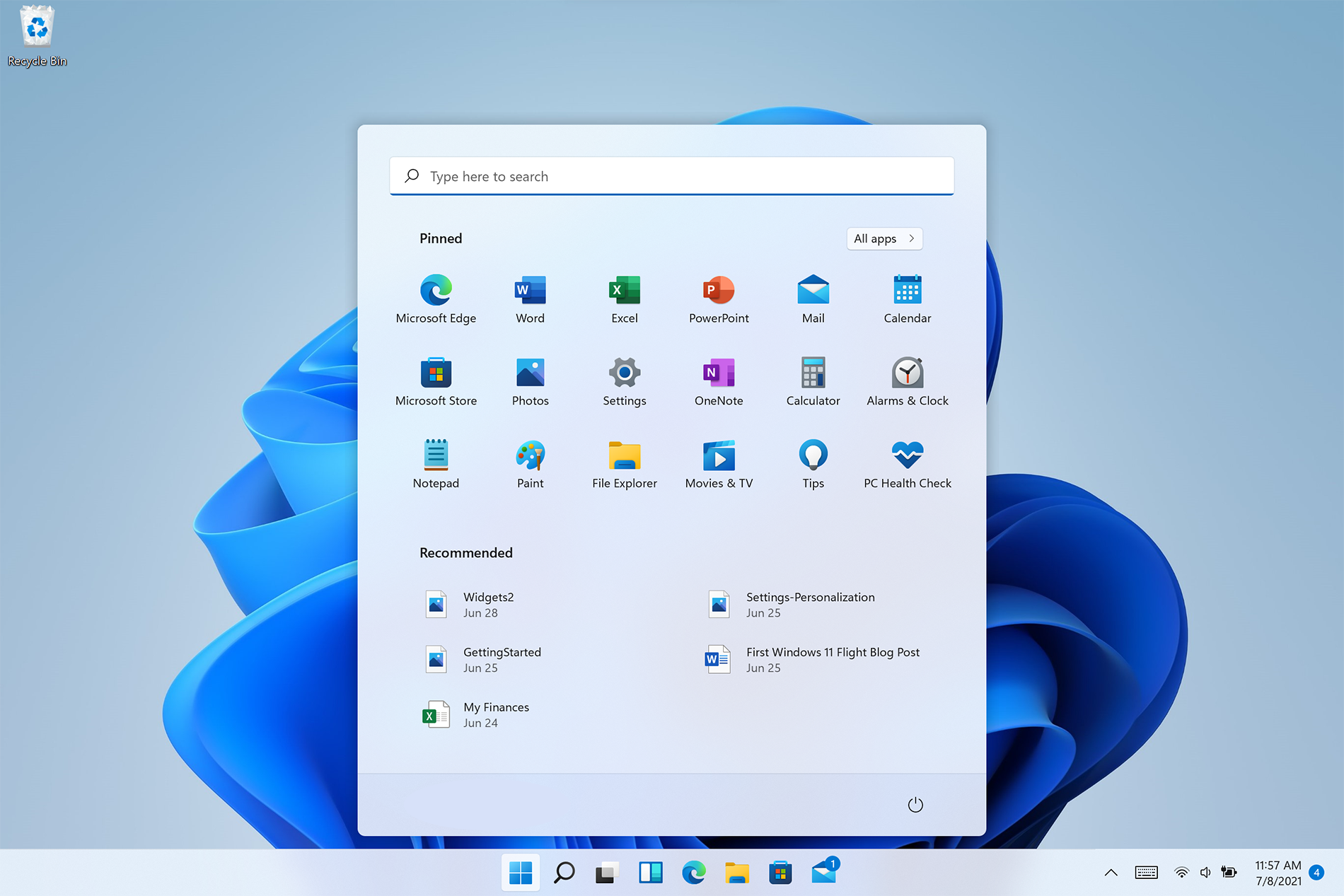
Strangely enough, Windows 11 does not feature any typical icon on its desktop when installed. No My PC, no Recycle Bin, nothing, just plain and clean wallpaper. Personally, I like this clean look and feel but of course, there are a lot of users that are used to have some system-related icons on their desktop for easy access.

windows 11 desktop iconsDo not sweat, we will turn them back on with ease. The best part is that you can choose which one would you like. So let’s dive right into it and get the icons back for the old Windows feel and look.

Showing selected Icons desktop

  1. Right-click on Desktop and select Personalize
  2. Select Themes from the list of personalization items
  3. Inside themes scroll down and click on Desktop Icon Settings
  4. Desktop Icon Settings will open and inside it, place checkmarks beside icons that you would like to appear on the desktop and click OK
  5. Close settings

As always settings and choices will be automatically applied and icons will appear right away on the desktop.

Do You Need Help with Your Device?

Our Team of Experts May Help
Troubleshoot.Tech Experts are There for You!
Replace damaged files
Restore performance
Free disk space
Remove Malware
Protects WEB browser
Remove Viruses
Stop PC freezing
GET HELP
Troubleshoot.Tech experts work with all versions of Microsoft Windows including Windows 11, with Android, Mac, and more.

Share this article:

You might also like

Toggle to turn Bluetooth On or Off is missing
Support for Bluetooth hardware has always been included in the Windows 10 operating system for a long time now. And it just keeps getting better especially now with the support for the latest version of Bluetooth 5.0 LE. However, there are still times when Bluetooth experiences a couple of issues one of which is users were not able to turn on or off Bluetooth on their Windows 10 Pc since the option to turn Bluetooth off or on is missing in the Windows 10 settings app and even in the Action Center. So if you are one of the users who experience the same problem, read on as this post will guide you in resolving the issue. To resolve this Bluetooth issue, here are some suggestions that could help:

Option 1 – Try running the Bluetooth Troubleshooter

As you know, Windows 10 has various troubleshooters with user-friendly interfaces where you can utilize them to fix issues in your PC. And since you’re dealing with some Bluetooth problem, you have to run the Bluetooth Troubleshooter.
  • Open the Windows 10 Settings.
  • Then go to Update & Security > Troubleshoot.
  • You should find the option for Bluetooth on your right-hand side – click on it then click on the “Run the troubleshooter” option.
  • Now follow the next screen options.

Option 2 – Try to reinstall or update the Bluetooth driver

The issue might have something to do with the Bluetooth drivers. It could be that it is outdated and needs to be updated or that you recently updated it and since then you have trouble removing the Bluetooth devices and so to fix the issue, you can update, roll back or uninstall the Bluetooth drivers. How? Follow the steps below.
  • Tap the Win + X keys to open the Device Manager.
  • Next, look for the Bluetooth device and right-click on it.
  • Select the option “Update driver”.
  • After that, a new popup window will appear. In there, select the option, “Search automatically for updated driver software”.
Note: Checking the update may take a few minutes so you’ll have to wait until it finishes. If it is able to find an update, you must install it. And if you want to reinstall the Bluetooth driver, just select the “Uninstall driver” option and follow the next on-screen instructions that follow.

Option 3 – Configure the Bluetooth Services

If the first two options didn’t work, the next thing you can do is configure Bluetooth Services. How? Simply follow these steps:
  • Tap the Win + R key combination to open the Run dialog box.
  • After that, type “services.msc” in the field and hit Enter to open the Windows Services Manager.
  • You will then see a list of services and from there, look for the following services and make sure that their default values are set as follows:
    • Bluetooth Handsfree Service – Manual (Triggered)
    • Bluetooth Audio Gateway Service – Manual (Triggered)
    • Bluetooth Support Service – Manual (Triggered)
    • Bluetooth User Support Service – Manual (Triggered)
  • Now click on the Start button to start all the aforementioned services and then check if you can now see the option to turn Bluetooth on or on.
Read More
Fix ATTEMPTED_WRITE_TO_READONLY_MEMORY
This post will help you fix the ATTEMPTED_WRITE_TO_READONLY_MEMORY Blue Screen issue with an error code 0x000000BE. If you encounter this kind of BSOD error when you try to boot into your Windows 10 computer, note that there are various possible causes for this error. It could be caused by an error with a device driver, hardware issues, or some error in the BIOS of your computer. The ATTEMPTED_WRITE_TO_READONLY_MEMORY Blue Screen error with a bug check of 0x000000BE appears when a driver tries to write a read-only memory segment. You’ll be able to see the name of the driver in the Blue Screen error if the driver that’s causing the error can be identified. You can also see it in memory at the location (PUNICODE_STRING) KiBugCheckDriver. In most cases, this kind of error is usually caused by various files such as iusb3hub.sys, ntkrnlpa exe or vhdmp.sys, ntoskrnl.exe, ntfs.sys, dxgkrnl.sys, tcpip.sys, atikmdag.sys, and win32k.sys. There are several possible fixes you can try to fix this issue but the main issue lies within booting into Windows since the error occurs as soon as you boot into your Windows 10 computer. Refer to each one of the options provided below to resolve the ATTEMPTED_WRITE_TO_READONLY_MEMORY Blue Screen error.

Option 1 – Try to rollback, update or disable drivers

The first thing you can do to fix the ATTEMPTED_WRITE_TO_READONLY_MEMORY Stop error is to roll back, or update, or disable device drivers. It is most likely that after you updated your Windows computer that your driver also needs a refresh. On the other hand, if you have just updated your device drivers then you need to roll back the drivers to their previous versions. Whichever applies to you, refer to the steps below.
  • Open the Devices Manager from the Win X Menu.
  • Then locate the device drivers and right-click on them to open the Properties.
  • After that, switch to the Driver tab and click on the Uninstall Device button.
  • Follow the screen option to completely uninstall it.
  • Finally, restart your computer. It will just reinstall the device drivers automatically.
Note: You can install a dedicated driver on your computer in case you have it or you could also look for it directly from the website of the manufacturer.

Option 2 – Try running the Memory Diagnostic Tool

The Memory Diagnostic tool in windows can help resolve the ATTEMPTED_WRITE_TO_READONLY_MEMORY Blue Screen error by checking and automatically fixing any memory-based issues. To run it, refer to these steps:
  • Tap the Win + R keys to open Run and type exe and hit Enter to open the Windows Memory Diagnostic Tool.
  • After that, it will give two options such as:
    • Restart now and check for problems (Recommended)
    • Check for problems the next time I start my computer
  • Once your computer has restarted, perform a basic scan or you could also go for the “Advanced” options such as “Test mix” or “Pass count”. Simply tap the F10 key to start the test.
Note: After you select your preferred option, your computer will restart and check for memory-based issues. If it finds any issues, it will automatically fix them and if there’s no issue found, then it’s most likely not a memory-based issue so you should try the other options given below.

Option 3 – Try to update the BIOS

Updating the BIOS can help you fix the ATTEMPTED_WRITE_TO_READONLY_MEMORY BSOD error but as you know, BIOS is a sensitive part of a computer. Even though it is a software component, the functioning of the hardware depends on it largely. Thus, you must be careful when modifying something in the BIOS. So if you don’t know much about it, it’s best if you skip on this option and try the other ones instead. However, if you are well-versed in navigating the BIOS, then follow the steps below.
  • Tap the Win + R keys to open the Run dialog box.
  • Next, type “msinfo32” in the field and press Enter to open System Information.
  • From there, you should find a search field on the bottom where you have to search for the BIOS version and then press Enter.
  • After that, you should see the developer and version of the BIOS installed on your PC.
  • Go to your manufacturer’s website and then download the latest version of BIOS on your computer.
  • If you are using a laptop, make sure that you keep it plugged in until you have updated the BIOS.
  • Now double click on the downloaded file and install the new BIOS version on your computer.
  • Now restart your computer to apply the changes made.

Option 4 – Try disabling BIOS Memory Options

Disabling the BIOS Memory options such as Caching and Shadowing can help you in fixing the ATTEMPTED_WRITE_TO_READONLY_MEMORY Stop error. All you have to do is enter the BIOS first and then use the Arrow and Enter keys to select your choices. And if you can’t seem to find it, look for specific instructions from your OEM or you could also look out for instructions from the manufacturer of your motherboard.

Option 5 – Try running the Blue Screen Troubleshooter

The Blue Screen troubleshooter is a built-in tool in Windows 10 that helps users in fixing BSOD errors like ATTEMPTED_WRITE_TO_READONLY_MEMORY. It can be found on the Settings Troubleshooters page. To use it, refer to these steps:
  • Tap the Win + I keys to open the Settings panel.
  • Then go to Update & Security > Troubleshoot.
  • From there, look for the option called “Blue Screen” on your right-hand side and then click the “Run the troubleshooter” button to run the Blue Screen Troubleshooter and then follow the next on-screen options. Note that you might have to boot your PC into Safe Mode.
Read More
Cortana can’t connect to the Internet
One of the most sophisticated Artificial Intelligence or AI assistants there is in the market is Cortana. However, no matter how sophisticated this AI assistant may be, there are still times when you encounter issues with it. So if your Cortana is not connecting to the internet, worry not for this post will guide you in fixing the problem. This connection issue in Cortana might have something to do with the settings, network connectivity, or your Microsoft account. In addition, it could also be that the Firewall or antivirus program interferes with its connection. Whichever the case is, here are some possible solutions that could help you resolve the problem.

Option 1 – Try to power cycle the modem, router, and computer

  • Connect the modem, router, and the PC hard-wired and then switch all of these three devices off.
  • Turn on the modem and wait for 30 seconds.
  • Turn on the router and wait for 30 seconds as well.
  • Finally, turn on the computer and check if you can now successfully connect to the internet.

Option 2 – Check if your router or ISP is properly working

Since the basis for this issue is that Cortana is not connecting to the internet even though you are able to access websites using your browser, you might want to check your router or ISP (Internet Service Provider) and see if they’re functioning properly.

Option 3 – Try changing your internet connection

You can also try changing your internet connection and see if it fixes the problem. If you are using Ethernet, you can try connecting to a Wi-Fi connection and see if Cortana is able to connect or not.

Option 4 – Try to run the Search and Indexing troubleshooter

You might also want to run the Search and Indexing troubleshooter in Windows 10 as it checks whether the settings for Cortana are in place and automatically corrects any issues if the update or software installation has changed the settings. To run it just click on the Start button and select Settings > Updates and Security > Troubleshoot. From there, select the Search and Indexing Troubleshooter. Note: You can also run the Network Troubleshooter as it can also help in resolving the issue especially if the problem is in the network.

Option 5 – Try to remove Proxy

Removing the Proxy might also help you in fixing the connection issue in Cortana. Here’s how you can do it:
  • Tap the Win + R keys to open the Run dialog box.
  • Then type “inetcpl.cpl” in the field and hit Enter to pull up the Internet Properties.
  • After that, go to the Connections tab and select the LAN settings.
  • From there. Uncheck the “Use a Proxy Server” option for your LAN and then make sure that the “Automatically detect settings” option is checked.
  • Now click the OK and the Apply buttons.
  • Restart your PC.
Note: If you are using a third-party proxy service, you have to disable it.

Option 6 – Verify your Microsoft account

In some cases, Cortana might not be able to connect to the internet because your Microsoft account is no longer verified. This usually happens when you use a two-step authentication system with your Microsoft account. To verify it, just open Settings and click on Accounts. After that, check if you have a Verify hyperlink under your Microsoft account or not then click on Verify. Afterward, follow the next on-screen prompts to verify your Microsoft account. Once your account is verified, restart your computer.

Option 7 – Try resetting Cortana

  • Open Cortana and go to the Settings section where you’ll see the “Turning off Cortana clears what Cortana knows on this device, but won’t delete anything from the Notebook. After Cortana is off, you can decide what you’d like to do with anything still stored in the cloud” option. Turn this option off.
  • Restart your PC.
  • After your computer boots, launch Cortana again and check.

Option 8 – Try to reinstall Cortana

If none of the options given above works, you must consider reinstalling Cortana.
  • First, right-click on the Start button and click on the Windows Powershell (Admin) option from the list.
  • Next, type the following command and hit Enter to execute it:
Get-AppXPackage -Name Microsoft.Windows.Cortana | Foreach {Add-AppxPackage -DisableDevelopmentMode -Register "$($_.InstallLocation)AppXManifest.xml"}
  • Restart your computer and check if Cortana is now able to connect.
Read More
Swap between headphones and speakers in 1 sec
Hello and welcome to errortools another tutorial which aims to make your computer life easier and more relaxed. This time we will be talking about how to switch sound output devices in Windows 10 in a matter of seconds between Headphones and external speakers, Between 2 different speakers, or any other audio output device in general. Windows 10 with its updates has really gone from OK to one of the greats, little hacks and shortcuts which every update has introduced have really made life easier. Now, your typical switching from one audio output device to another can be accomplished with your standard go to settings, go to devices, choose audio, pick one which you prefer and click on OK. This way altho nothing wrong with it is a little slow and if you need to switch your output devices several times in a single day often it can be time-consuming as well. Lucky for you we have a quick solution for you.

Switching guide

All right, now in order to be able to actually switch between your audio output devices make sure that all of them are working and that they are plugged in. For example, make sure that both of your headphones and speakers are turned ON and plugged in. Once you have confirmed that everything is in working order:
  1. Click with a left mouse button on a speaker icon located on the right part of your taskbar next to the clock
  2. Click on the small up arrow on the right next to your current audio output device.
  3. The list will open, choose, and left click with the mouse button on your choice.
And that's it, you have changed your default audio output device in a matter of seconds. The good thing about this method is that Windows will remember output audio levels for each device.

Potential issue

If by any chance when switching your audio devices this way freezes volume control just go to the task manager and restart Windows Explorer. To restart Windows explorer:
  1. Press CTRL + ESC to open task manager
  2. Right-click on Windows Explorer
  3. Left-click on restart
Read More
Makecab.exe is running & consuming CPU
The Makecab.exe process that’s running on your Windows 10 computer is a program that compresses the Component-Based Servicing log or CBS log files and they can get really huge if they’re not compressed. As a result, it would utilize important space on your operating system although makecab.exe does not consume high CPU resources in doing so. However, there are times when it recreates thousands of instances of itself and could cause overconsumption of system resources which slows down your computer. So when the makecab.exe process causes high CPU usage in your system, this could mean that there is a failed Windows Update. In addition, the high CPU usage of the makecab.exe process could also mean that your computer is infected with a virus or malware. Whichever the case is, you can check out several possible solutions that are given in this post to resolve the problem.

Option 1 – Try to delete log file using File Explorer

The CBS log files could reach up to 20GB size and so if you delete them, it would help in saving space in your computer and since they’re not much of use, deleting them won’t negatively affect the system at all. To delete the CBS log files, all you have to do is open the File Explorer and then go to C:/Windows/Logs/CBS and from there, open the CBS log files and delete them all. Doing so should ease the load in the makecab.exe process since it no longer has to compress the CBS log files. As a result, the process would be more relaxed. After that, you can restart your computer and check if the problem’s now fixed.

Option 2 – Try deleting the log file via Command Prompt

You can also try to delete the log files using an elevated Command Prompt. Refer to these steps to do so:
  • Type “command prompt” in the Windows Search bar and then right-click on the related search result and select the “Run as administrator” option.
  • Next, type the following command and hit Enter to execute it:
del /f %windir%logscbs*.log
  • Restart your computer afterward once the command has been executed. This should end the high disk usage by makecab.exe, if not, proceed to the next given options below.

Option 3 – Uninstall any suspicious programs you’ve installed recently

If you have recently installed some programs on your Windows 10 computer, and since then you’ve experienced high CPU usage brought on by makecab.exe, then you might want to uninstall those programs.
  • Tap the Win + R keys to open the Run dialog box
  • Then type “appwiz.cpl” in the field and hit Enter to open the Programs and Features in Control Panel.
  • From there, look for the suspicious programs you’ve installed, select them and then click on Uninstall to remove them.
  • After that, restart your computer and try to install the latest version of the program again. It should work now. If not, proceed to the next available option below.

Option 4 – Try running Disk Cleanup

You might want to run the Disk Cleanup utility as it is a useful tool that could delete temporary and useless files on your computer.
  • Tap the Win + R keys to open the Run dialog box and then type “cleanmgr” in the field and hit Enter to open the Disk Cleanup window.
  • After that, select the drive you want to clean.
  • Now click OK to clean the disk and restart your computer.

Option 5 – Try to run System File Checker scan

System File Checker or SFC is a built-in command utility that helps in restoring corrupted files and missing files. It replaces bad and corrupted system files to good system files. To run the SFC command, follow the steps given below.
  • Tap Win + R to launch Run.
  • Type in cmd in the field and tap Enter.
  • After opening Command Prompt, type in sfc /scannow
The command will start a system scan which will take a few whiles before it finishes. Once it’s done, you could get the following results:
  1. Windows Resource Protection did not find any integrity violations.
  2. Windows Resource Protection found corrupt files and successfully repaired them.
  3. Windows Resource Protection found corrupt files but was unable to fix some of them.
  • Restart your PC.

Option 6 – Try scanning your computer using Windows Defender

As mentioned, the high CPU usage of makecab.exe might be caused by some malware or virus in the system and so to eliminate it, you have to scan your computer using security programs like Windows Defender.
  • Tap the Win + I keys to open Update & Security.
  • Then click on the Windows Security option and open Windows Defender Security Center.
  • Next, click on Virus & threat protection > Run a new advanced scan.
  • Now make sure that Full Scan is selected from the menu and then click the Scan Now button to get started.
Read More
How to Fix Application Load Error 5:0000065434
When it comes to downloading and installing games in the Windows operating system, Steam is one of the well-known sources. You can find many big titles in Streams such as PUBG, Heaven Vaults, and a whole lot more. It is undeniably a great source of getting games in the Windows operating systems. However, just like other software, Steam is not immune to errors as you could encounter errors while using it. This isn’t caused by a bad code but also due to reliance on various factors in both respects to the software and hardware. One of these errors is the Application Load Error 5:0000065434. This kind of error can appear when you launch numerous game titles on your Windows 10 computer like Skyrim, Oblivion, Bully, Morrowind, Vortex, and many more. To fix this application error in Steam, you can try to copy the Steam executable file or use the Command Prompt. You could also try to verify the integrity of the game files feature or delete any conflicting files on your computer.

Option 1 – Try copying the Steam executable file

The first thing you can do to fix the error is to copy the executable file of Steam.
  • First, right-click on the desktop shortcut of steam located on your Desktop and click on the “Open file location” option.
  • After that, copy the executable file for Steam and navigate to the folder of the library of the games which is usually located in SteamSteamAppsCommon
  • Now paste the Steam executable file you just copied inside the folder of the game and see if it fixes the error or not.

Option 2 – Try to use the Command Prompt

  • In the Start Search, type “command prompt” and right-click on Command Prompt from the search results and then select the “Run as administrator” option.
  • After opening Command Prompt as administrator, execute the following command:
cd "C:Program Files (x86)Steamsteamappscommon" mklink "steam.exe" "C:Program Files (x86)Steamsteam.exe"
  • The command you entered will create a link between the executable file of Steam to the operating system. Once you see a message that states, “Operation completed successfully”, restart your computer.

Option 3 – Try to use the “Verify integrity of the game files” feature

The next thing you can do to get rid of the error is to use the “Verify integrity of the game files” feature. How? Refer to these steps:
  • Open Steam and right-click on the entry of the game where you encountered the error in the Library and then select Properties.
  • After that, navigate to the LOCAL FILES tab and click the “VERIFY INTEGRITY OF GAME FILES” button.
  • Wait for the process to be completed and see if the feature has helped in fixing the error or not.

Option 4 – Try to delete any conflicting files

The error might be caused by some conflicting files on your computer which is why you have to delete them. To do that, follow these steps:
  • Open the Documents folder and look for the folder created by the game that’s throwing the error. For instance, it could be stored in the “My Games” folder.
  • Next, delete the folder and then try to launch the game again and see if the error is now fixed.
Read More
Premiere Download Manager removal guide for Windows PC

Premiere Download Manager is a Browser Extension that comes bundled with Premiere Download Manager Potentially unwanted program, and other unwanted applications and extensions. This program was developed by Mindspark Interactive and offers users the ability to download files off the internet through the Download Manager provided. It also changes the home page and defaults the search engine to Myway.com.

This bundle monitors the user’s activity, and while the extension has access to your browsing activity, clicked links, visited pages, etc. the application itself has access to all the files that you downloaded, and have on your computer. This gathered data is later sent back to Mindspark’s servers where it is used to better target ads for users.

While installed, you will run into additional, sponsored links, and even pop-up ads while browsing the internet. Though it is not considered malware, it contains many behaviors disliked by users and is labeled as potentially unwanted. This bundle has been marked as a Browser Hijacker by several anti-virus applications and is therefore recommended to remove from your PC.

About Browser Hijackers

Browser hijacking is actually a form of unwanted software program, commonly a browser add-on or extension, which causes modifications in web browser’s settings. Browser hijacker malware is designed for many different reasons. Often, hijackers will force hits to sites of their preference either to increase web traffic producing higher ad revenue, or to obtain a commission for each and every user visiting there. Although it may seem naive, these tools are made by malicious people who always attempt to take full advantage of you, so that they can earn money from your naivety and distraction. Some browser hijackers are designed to make particular modifications beyond the web browsers, like changing entries in the computer registry and permitting other types of malware to further damage your computer.

Key symptoms that your internet browser has been hijacked

There are numerous symptoms that indicate your web browser is highjacked: the home page of the browser is changed all of a sudden; your browser is constantly being redirected to pornography sites; the default web engine has been changed and the browser security settings have been lowered without your knowledge; you’re getting browser toolbars you have never noticed before; you find lots of pop-up ads on your screen; your browser gets slow, buggy, crashes very often; You can’t access certain sites, in particular anti-virus websites.

Exactly how they get into your computer or laptop

There are several ways your computer or laptop can become infected by a browser hijacker. They generally arrive through spam email, via file-sharing networks, or by a drive-by download. They may also originate from any BHO, extension, toolbar, add-on, or plug-in with malicious purpose. Sometimes you may have mistakenly accepted a browser hijacker as part of an application bundle (usually freeware or shareware). Browser hijackers could affect the user’s web browsing experience significantly, monitor the websites frequented by users and steal financial information, cause difficulty in connecting to the net, and then finally create stability issues, making applications and computers freeze.

Removing browser hijackers

Certain browser hijacking can be quite easily reversed by finding and removing the corresponding malware application through your control panel. However, many hijackers are extremely tenacious and require specialized applications to eradicate them. Also, browser hijackers might modify the Computer registry therefore it could be very hard to restore all of the values manually, especially when you are not a very tech-savvy person. Installing and running antivirus applications on the affected system could automatically delete browser hijackers and also other unwanted applications. SafeBytes Anti-Malware discovers all types of hijackers – including Premier Download Manager – and removes every trace efficiently and quickly.

What To Do When You Cannot Install Safebytes Anti-Malware?

All malware is bad and the degree of the damage will differ greatly with regards to the type of malware. Certain malware variants modify internet browser settings by including a proxy server or modify the computer’s DNS configurations. When this happens, you’ll be unable to visit certain or all of the internet sites, and thus unable to download or install the required security software to get rid of the infection. If you are reading this article now, you have probably realized that virus infection is the cause of your blocked internet connectivity. So what to do when you want to download and install an anti-virus program such as Safebytes? There are some options you could try to get around with this particular issue.

Make use of Safe Mode to resolve the issue

In Safe Mode, you may change Windows settings, uninstall or install some applications, and get rid of hard-to-delete viruses and malware. In case the malware is set to load automatically when the computer starts, shifting into this mode could prevent it from doing so. To boot into Safe Mode, hit the “F8” key on the keyboard right before the Windows boot screen comes up; Or right after normal Windows boot up, run MSConfig, check the Safe Boot under the Boot tab, and click Apply. Once you are in Safe Mode, you can try to install your antivirus program without the hindrance of the malware. At this point, you can actually run the anti-malware scan to get rid of viruses and malware without interference from another application.

Switch to some other web browser

Some malware only targets certain internet browsers. If this sounds like your situation, employ another web browser as it can circumvent the computer virus. If you’re not able to download the anti-malware program using Internet Explorer, it means malware is targeting IE’s vulnerabilities. Here, you should switch over to a different internet browser like Chrome or Firefox to download Safebytes software.

Make a bootable USB anti-virus drive

Another option is to create a portable antivirus program onto your USB stick. To run anti-malware using a pen drive, follow these simple steps: 1) Download the anti-malware on a virus-free computer. 2) Plug the pen drive into the uninfected computer. 3) Double click on the downloaded file to run the installation wizard. 4) When asked, choose the location of the pen drive as the place where you want to store the software files. Do as instructed on the computer screen to finish up the installation process. 5) Transfer the USB drive from the clean computer to the infected PC. 6) Double-click the antivirus software EXE file on the USB flash drive. 7) Hit the “Scan Now” button to start the malware scan.

SafeBytes Anti-Malware: Lightweight Malware Protection for Windows PC

In order to protect your PC from many different internet-based threats, it is important to install anti-malware software on your computer system. But with countless numbers of anti-malware companies out there, nowadays it is hard to decide which one you should buy for your personal computer. Some of them are good and some are scamware applications that pretend as legit anti-malware software waiting around to wreak havoc on your computer. You have to be careful not to pick the wrong application, particularly if you buy a premium application. While considering the highly regarded applications, Safebytes AntiMalware is certainly the highly recommended one. SafeBytes anti-malware is a very effective and user-friendly protection tool that is suitable for end-users of all levels of computer literacy. Through its cutting-edge technology, this software will help you protect your personal computer against infections caused by different types of malware and similar threats, including adware, spyware, trojans, worms, computer viruses, keyloggers, ransomware, and potentially unwanted program (PUPs).

SafeBytes has great features when compared to other anti-malware programs. The following are a few of the great ones:

Active Protection: SafeBytes gives you round-the-clock protection for your personal computer limiting malware intrusions in real-time. It will regularly monitor your pc for hacker activity and also gives users sophisticated firewall protection. Antimalware Protection: With its advanced and sophisticated algorithm, this malware elimination tool can detect and get rid of the malware threats hiding in your computer system effectively. High-Speed Malware Scanning Engine: Safebytes AntiMalware, with its enhanced scanning engine, offers extremely fast scanning which can immediately target any active internet threat. Website Filtering: SafeBytes checks and gives a unique safety ranking to every website you visit and block access to webpages known to be phishing sites, thus protecting you from identity theft, or known to contain malicious software. Low CPU Usage: SafeBytes gives you complete protection from online threats at a fraction of the CPU load due to its advanced detection engine and algorithms. 24/7 Support: You could get high levels of support around the clock if you’re using their paid version. SafeBytes will keep your computer safe from the latest malware threats automatically, thus keeping your online experience safe and secure. Once you’ve downloaded and installed SafeBytes Anti-Malware, you will no longer have to bother about malware or other security concerns. So if you’re looking for the best anti-malware subscription for your Windows-based PC, we highly recommend SafeBytes Anti-Malware software.

Technical Details and Manual Removal (Advanced Users)

If you wish to carry out the removal of Premier Download Manager manually instead of employing an automated tool, you may follow these simple steps: Go to the Windows Control Panel, click the “Add or Remove Programs” and there, select the offending program to remove. In cases of suspicious versions of web browser plug-ins, you can easily get rid of it through your web browser’s extension manager. It is also suggested to reset your web browser to its default state to fix corrupt settings. Lastly, examine your hard drive for all of the following and clean your computer registry manually to remove leftover application entries following an uninstallation. Having said that, editing the registry is usually a difficult task that only experienced computer users and professionals should attempt to fix it. Also, certain malware is capable of replicating itself or preventing its deletion. It is advised that you do the removal process in Safe Mode.
Files: C:\Program Files\PremierDownloadManager_agEI\Installr.bin\NPagEISb.dl_ C:\Program Files\PremierDownloadManager_agEI\Installr.bin\NPagEISb.dll C:\Program Files\PremierDownloadManager_agEI\Installr.bin\agEIPlug.dl_ C:\Program Files\PremierDownloadManager_agEI\Installr.bin\agEIPlug.dll C:\Program Files\PremierDownloadManager_agEI\Installr.bin\agEZSETP.dl_ C:\Program Files\PremierDownloadManager_agEI\Installr.bin\agEZSETP.dll %PROGRAM FILES%\PREMIERDOWNLOADMANAGER\PDMANAGER_IE.DLL: %PROGRAM FILES%\PREMIERDOWNLOADMANAGER\PDMANAGER_IE.DLL Malware %PROGRAM FILES%\PREMIERDOWNLOADMANAGER\PDMANAGER_IE.DLL Dangerous %PROGRAM FILES%\PREMIERDOWNLOADMANAGER\PDMANAGER_IE.DLL High Risk %program files%\premierdownloadmanager\pdmanager_ie.dll %PROGRAM FILES%\PREMIERDOWNLOADMANAGER\PDMANAGER_IE.DLL %PROGRAM FILES%\PREMIERDOWNLOADMANAGER\PDM.ICO %PROGRAM FILES%\PREMIERDOWNLOADMANAGER\PDMANAGER.EXE %PROGRAM FILES%\PREMIERDOWNLOADMANAGER\PDMANAGER_IE.DLL %PROGRAM FILES%\PREMIERDOWNLOADMANAGER\PDMANAGER_IE.TLB %PROGRAM FILES%\PREMIERDOWNLOADMANAGER\REGASM.EXE Registry: key HKLM\Software\Classes\CLSID\819D045F-E9A2-39E0-B495-D615AD1A9471\InprocServer32.0.0.1\CodeBase: file:///C:/Program Files/PremierDownloadManager/PDManager_ie.DLL key HKLM\Software\Classes\CLSID\819D045F-E9A2-39E0-B495-D615AD1A9471\InprocServer32\CodeBase: file:///C:/Program Files/PremierDownloadManager/PDManager_ie.DLL key HKLM\Software\Classes\CLSID\87D1BD5F-0174-4AB2-FFC4-9E3A451F17EB\InprocServer32.0.0.1\CodeBase: file:///C:/Program Files/PremierDownloadManager/PDManager_ie.DLL key HKLM\Software\Classes\CLSID\87D1BD5F-0174-4AB2-FFC4-9E3A451F17EB\InprocServer32\CodeBase: file:///C:/Program Files/PremierDownloadManager/pdmanager_ie.dll key HKLM\Software\Classes\Record\EDF1D497-05B5-37F6-AAAC-3EB5E67D4DC2.0.0.1\CodeBase: file:///C:/Program Files/PremierDownloadManager/PDManager_ie.DLL key HKCU\SOFTWARE\PREMIERDOWNLOADMANAGER\INTERNET EXPLORER: %PROGRAM FILES%\PREMIERDOWNLOADMANAGER\PDMANAGER_IE.DLL

Read More
Fix MSVCR71.dll is missing in Windows 10
The program can’t start because MSVCR71.dll is missing from your computer, Try reinstalling the program to fix this problem.
If by any chance you have encountered this error know that you are not alone and that this is a solvable error. In this guide, we will show you how to fix this error. Usually, the MSVCR71.dll missing error is met when a new application is installed. So let us dive right into it and solve it.
  1. Reinstall application

    If only a certain application is reporting this error, try reinstalling it, there is a high possibility that by some mistake application was not properly installed and corrupted or removed the MSVCR71.dll file. If this is the case, reinstallation will help.
  2. Check recycle bin

    like mentioned above, if the application has by mistake deleted the file, open recycle bin and try to locate it there. If this is the case, restore it from recycle bin and everything should be back in normal working conditions.
  3. Download a new version of the file

    If the previous 2 methods failed and you still get the missing error, try downloading the file from Microsoft and placing it in C:\Windows\SysWOW64
  4. Reinstall C++ redistributable

    Having an incorrect C++ redistributable package can be an issue of the problem, get the latest version from Microsoft and reinstall it.
Read More
ERR_CERT_COMMON_NAME_INVALID error in Chrome
In case you don’t know, when you visit a website that uses HTTPS, it also offers an SSL certificate to the browser in order to verify the website’s identity. Although it may contain lots of things inside it, one of them is the URL of the website. So if the certificate does not match the URL to what you entered, you will most likely get the “Server’s certificate does not match, ERR CERT COMMON NAME INVALID” error which indicates that the connection is not private and the site may try to steal your data but worry not, as this post will guide you in resolving this issue. To fix the ERR_CERT_COMMON_NAME_INVALID error, here are some suggestions that might help.

Option 1 – Check the website’s certificate

If you own the website where you’re getting the error, then you might have to check if the website’s certificate is installed properly and configured on the server as it could be the reason why you’re suddenly getting the error.

Option 2 – Check the Windows Host file

You can also try to cross-check the Windows Hosts file to find out if the website you are trying to open has been blocked, because if it is, then it’s no wonder why you’re getting the ERR_CERT_COMMON_NAME_INVALID error. There are instances when some third-party application modifies the file and adds some websites to the blocklists. So if the website is indeed blocked, you need to remove it from the list.

Option 3 – Use the Google Public DNS

You might want to change your DNS to Google Public DNS as it could also help you in fixing the ERR_CERT_COMMON_NAME_INVALID error in Chrome. To do so, follow the steps below.
  • The first thing you have to do is right-click on the network icon in the Taskbar and select Network and Sharing Center.
  • Next, click on the “Change Adapter Settings” option.
  • After that, search for the network connection that you are using to connect to the internet. Note that the option might be “Wireless Connection” or “Local Area Connection”.
  • Right-click on your network connection and click on Properties.
  • Then select the new window to choose the “Internet Protocol 4 (TCP/IPv4)” option.
  • After that, click on the Properties button and click the checkbox in the new window for the option “Use the following DNS server addresses”.
  • Type in “8.8.8.8” and “8.8.4.4” and click OK and exit.

Option 4 – Run the built-in Malware Scanner and Cleanup Tool in Chrome

In case you don’t know, there is actually a built-in malware scanner and cleanup tool in Chrome that helps you get rid of any unwanted ads, pop-ups, and even malware, as well as unusual startup pages, toolbars, and other things that could affect the performance of the browser. In addition, this built-in tool in Chrome might also help in fixing the ERR_CERT_COMMON_NAME_INVALID error.

Option 5 – Reset Chrome

Resetting Chrome can also help you get rid of the error. Resetting Chrome means restoring its default settings, disabling all the extensions, add-ons, and themes. Aside from that, the content settings will be reset as well and the cookies, cache, and site data will also be deleted. To reset Chrome, here’s what you have to do:
  • Open Google Chrome, then tap the Alt + F keys.
  • After that, click on Settings.
  • Next, scroll down until you see the Advanced option, once you see it, click on it.
  • After clicking the Advanced option, go to the “Restore and clean up option and click on the “Restore settings to their original defaults” option to reset Google Chrome.
  • Now restart Google Chrome.
Read More
Troubleshoot Error 651 on Your PC

Error 651 - What is it?

Are you a Windows 7 PC user? Are you experiencing error 651? If yes, then read on. We will discuss what is this error, the causes, and easy DIY solutions to help you resolve this issue immediately. Error 651 is a common Windows 7 error. This error occurs when you try to connect using your PPPoE connections. The error message is displayed in the following format:
“Error 651: The Modem (or other connecting device) has reported an error.”

Solution

Restoro box imageError Causes

The error code 651 occurs due to multiple reasons. However, some of the most common error causes include:
  • The raspppoe.sys file saved in the wrong location
  • IP setting  issues
  • Registry issues

Further Information and Manual Repair

Here are some of the best and easiest solutions to resolve the error code 651 on your system immediately. These solutions are so easy to perform that you don’t need any technical expertise or knowledge to get started. So here we go!

Solution 1: Reset TCP/IP Settings

To reset TCP/IP settings on your PC, here’s what you need to do. Simply replace the RAS PPPoE driver. First open a command prompt, then write the following command in the command prompt:  TAKEOWN /F"C:Windowssystem32driversraspppoe.sys" ICACLS "C:Windowssystem32driversraspppoe.sys" /grant administrators:F. After that, press enter to continue. Now close the command prompt and go to the folder C:\Windows\system32\drivers, here rename the raspppoe.sys file to raspppoe2.sys. Now right click on save the link as Vista RAS PPPoE Driver and save it in the C:\Windows\system32\drivers folder. Once this process is complete, to activate changes made, restart your PC. This is most likely to resolve the error code 651 on your system.

Solution 2: Try Power Cycling your Modem and your Router

This is another way to resolve error 651. However, before you try this solution, it is recommended that you save all your work on your system, close all your open applications, and then shut down your PC. After that first turn your router off and wait for about 2 minutes. Then turn off your modem too. Now disconnect all the Ethernet cables that are connected to your modem, router and your system. Reconnect them again and make sure that the connections are not loose. After reconnecting the cables, reboot your PC and switch on the modem first. After your modem gets initialized, turn on the router. See if this procedure works. If it does, then that’s great the issue is resolved. However, if the error persists, then this indicates deeper problems. The error message is triggered due to registry issues.

Solution 3: Clean and Repair the Registry

Sometimes the underlying cause of error 651 is a corrupt and damaged registry. Registry is the database where operating system stores all the information associated with installed programs and activities performed on your PC. Registry issues typically result due to poor PC maintenance. When you don’t clean the registry the unnecessary and obsolete files accumulate and acquire a lot space. It damages the registry and DLL files. This often leads to disk fragmentation and files are then saved in segments in different locations. This also slows down your PC performance. This could also be the reason for why the raspppoe.sys file is saved in the wrong location. Though you can repair the registry manually but it may be complex for you especially if you are not technically sound. And besides, it is also slightly time-consuming.

Restoro - Premier Registry Cleaner

Therefore, to resolve errors like 651 triggered by the registry issues on your system in seconds, it is advisable to download Restoro. Restoro is a cutting-edge and multi-functional PC Fixer. It is deployed with a powerful intuitive algorithm and multiple highly functional utilities designed to resolve practically all types of PC errors. It includes utilities like a registry cleaner, an antivirus, and a system optimizer. The registry cleaning feature scans for all types of registry issues and errors and resolves them instantly. It wipes out unnecessary and redundant files like cookies, internet history, junk files, and bad/ invalid registry entries. It cleans the registry freeing up space. Furthermore, it also repairs the damaged files and restores the registry back to normal.

Restoro Special Features

Other features include an antivirus that removes all types of malicious software hiding in your PC including viruses, Trojans, spyware, malware, and adware. The system optimizer feature ensures that your computer performs at its optimal level at all times. Restoro is safe and bug-free. Its user-friendly interface and simple navigations makes it quite easy for users to operate it without any difficulty. Furthermore, compatibility is not an issue with this software. You can download it on any Windows version. Click here to download Restoro and fix error 651 on your PC today!
Read More
1 2 3 171
Logo
Copyright © 2023, ErrorTools. All Rights Reserved
Trademark: Microsoft Windows logos are registered trademarks of Microsoft. Disclaimer: ErrorTools.com is not affiliated with Microsoft, nor claims direct affiliation.
The information on this page is provided for information purposes only.
DMCA.com Protection Status