Logo

A Quick Guide to Resolving IRQL_NOT_LESS_OR_EQUAL Error

IRQL_NOT_LESS_OR_EQUAL - What is it?

IRQL_NOT_LESS_OR_EQUAL error is a type of blue screen of death (BSoD) error. It is a typical Windows PC error that occurs even in the latest Windows versions.

The IRQL_NOT_LESS_OR_EQUAL error occurs on the computer screen when a memory address triggers unauthorized access. This leads to the suspension of your login session. The computer screen turns blue.

Solution

Restoro box imageError Causes

IRQL_NOT_LESS_OR_EQUAL error occurs due to several reasons. However, the most common causes for this error code include:

  • Incompatible device drivers
  • The poor device driver installation
  • Faulty hardware
  • Disk fragmentation
  • Registry issues
  • Viruses and malware attack

Blue screen of death error codes like IRQL_NOT_LESS_OR_EQUAL is critical. If not resolved timely, this error code can pose serious threats to your PC.

It can lead to system crash and failure, due to which you can also lose your valuable data stored in your system.
How to Fix IRQL_NOT_LESS_OR_EQUAL Error Code?

Further Information and Manual Repair

Here are some of the best and easy DIY methods to resolve this error code on your PC:

1. Roll Back Drivers

If the underlying cause of IRQL_NOT_LESS_OR_EQUAL error is poor driver installation, then try this method to resolve the issue. This can be done by simply clicking the start menu.

Once you click on it, go to the control panel, then double click the system icon and locate the System Properties window. After that, click the hardware tab and then the device manager button. Now locate the device you recently installed.

Double click on the recently installed device driver, click the driver tab, and then the rollback driver button. This will take a while, so wait for the process to finish.  After that, reboot the system.

2. Run Hardware Diagnostic

The IRQL error may also be triggered by faulty hardware. To identify which hardware is causing the error to pop up, you will have to run a hardware diagnostic.

  • For this, go to the start menu, type Memory Diagnostic in the search bar.
  • Now access this tool and click on Diagnose your memory problems. As you click it, it will ask you to perform the check by either restarting the PC immediately or on the next restart.
  • Select the immediate one to get going. The system will carry a scan on the memory and show you the list of problematic errors detected during the scan. To resolve this error then all you have to do is replace the piece of faulty hardware.

Nonetheless, if no faulty hardware is detected, this means the error is related to memory. If so, try method 3 to resolve.

3. Disable Memory Caching

To fix the IRQL_NOT_LESS_OR_EQUAL error, try disabling the memory caching option. This is called BIOS memory caching.

This can be done by restarting your PC and pressing the BIOS setup keys to enter the settings screen. Mostly it is an F2 key, however, it may be different in some computers as the motherboards of different makes have their own respective keys.

Once you enter the BIOS settings look for options stating memory settings. Access these options and disable the memory caching feature.

4. Scan your PC for Malware

As mentioned above this error message can also result due to the intrusion of malicious software like malware, viruses, and spyware.

To detect and remove them from your PC, download an antivirus and perform a system scan. Remove the detected viruses and malware to resolve. Please note, antivirus installation may lower the speed of your PC.

5.  Repair Registry and Fragmented Disk

Due to poor PC maintenance, you may experience registry issues. The registry stores all the activities performed on the PC including the unnecessary pieces of information like junk files, internet history, temporary files, cookies, and other flies.

Such files take up a lot of disk space. When there is not much space on the storage device, the new data is saved in fragments. This is called disk fragmentation. When this file becomes fragmented it takes time to rearrange the data and reunite it to run the fragmented file on your PC.

If not resolved, this leads to registry issues and thereby generating various PC error codes including IRQL_NOT_LESS_OR_EQUAL errors.

The best way to clean the registry and repair the fragmented disk is to download Restoro.

This is an advanced and multi-functional PC Fixer. It is embedded with multiple system repair utilities including a powerful registry cleaner that detects all registry issues in seconds, removes and wipes out unnecessary files cluttering the registry, cleans and repairs the registry and the damaged files.

Other utilities include an antivirus that detects privacy errors and all types of malicious software infecting your system. It also functions as a system optimizer which means by running this software on your PC you won’t be compromising on your system’s performance. The system optimizer utility boosts the speed of your PC.

This tool is safe and efficient. It has a user-friendly interface and is compatible with all Windows versions.

Click here to download Restoro and resolve the IRQL_NOT_LESS_OR_EQUAL error code right away.

Do You Need Help with Your Device?

Our Team of Experts May Help
Troubleshoot.Tech Experts are There for You!
Replace damaged files
Restore performance
Free disk space
Remove Malware
Protects WEB browser
Remove Viruses
Stop PC freezing
GET HELP
Troubleshoot.Tech experts work with all versions of Microsoft Windows including Windows 11, with Android, Mac, and more.

Share this article:

You might also like

Cleaning your PC for better performance
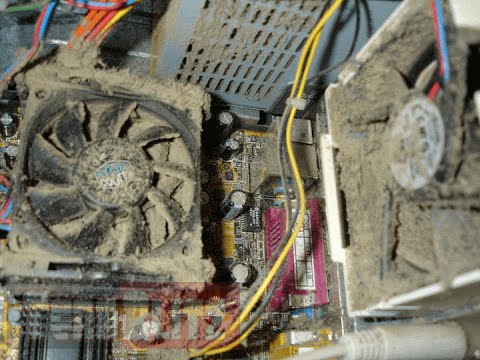
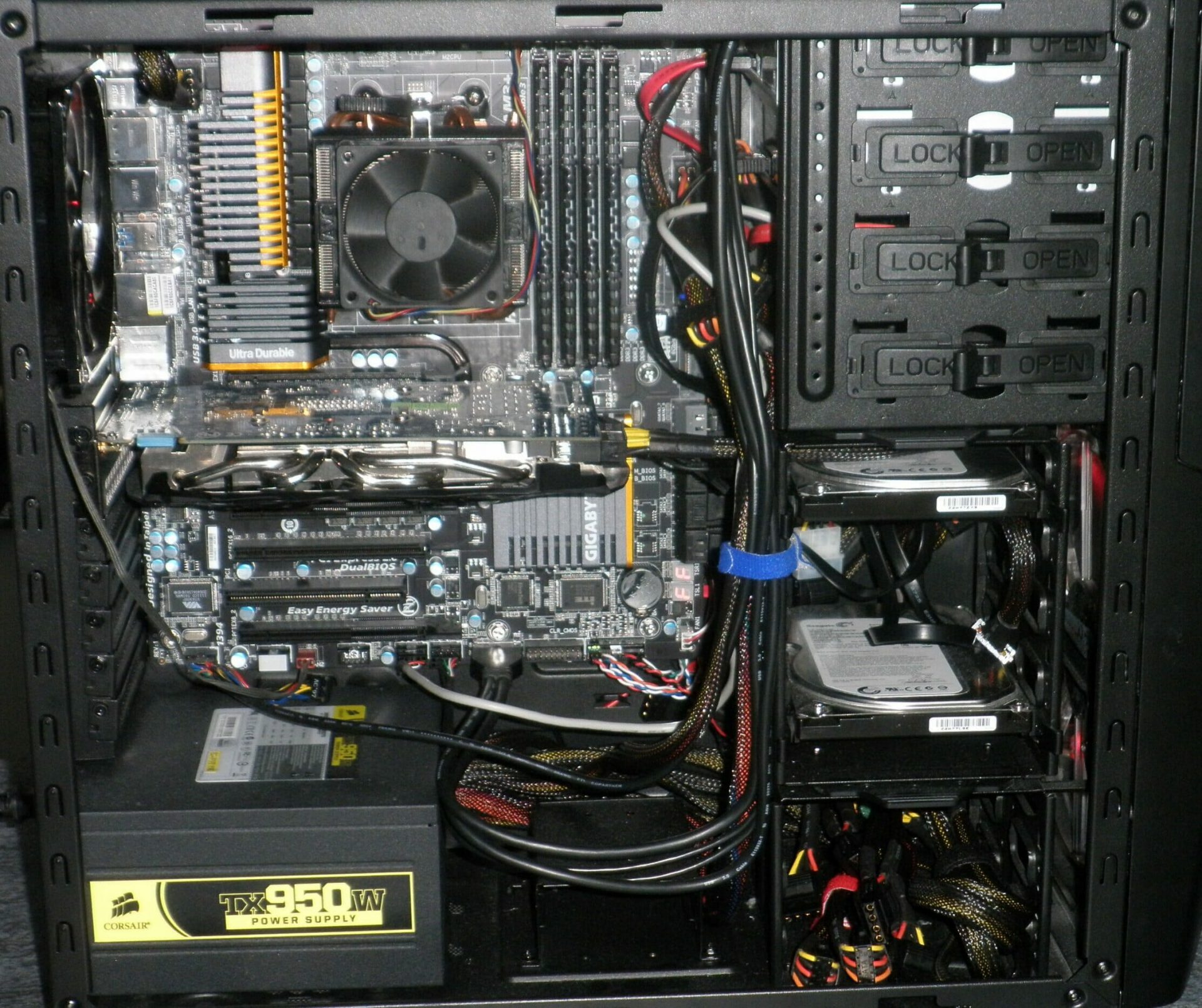
Hello everyone, last time we were talking about disk cleanup and its benefits, but as you need to keep your System clean you should also clean and keep your hardware clean as well. Many system issues could be traced and could happen due to dirty PC. In this article, we will give you tips on how to perform safely cleaning on your computer and hopefully point good sides to it so you can develop a healthy habit of regularly cleaning it and keeping it tidy. dirty PC that needs cleaningKeeping your PC clean is not rocket science and you can do it with things you already and probably have in your house. One thing that I would recommend tho to purchase is antistatic gloves since they could prevent any kind of electrostatic discharges thus protecting your electric components. If you have the option to disconnect your PC and get it outdoors, I would highly recommend this approach since all the dust will be dusted outside and not in the room where your computer is. If you can not it is still ok, but since some portion of dust will be set in the room, you might need to dust your room after cleaning your computer.

Cleaning outside case & redusting inside

The first thing after disconnecting your computer is to dust it from outside, here you will need a vacuum cleaner and a brush, gently brush outside dust from your casing and vacuum it with your vacuum cleaner. You can use dustcloth for larger parts but use the brush for fans and connectors. After you have done cleaning the outside part, open the side of your computer casing, put on your antistatic gloves, and get a fine and soft brush, repeat dusting and vacuuming of the inner parts of your computer. If your computer is not regularly been cleaned this part will take a little longer since there would be excess dust inside and it will take a longer time to vacuum it all but keep going until you are left with no dirt.

Cleaning it inside

Fans are troublesome to clean since they will rotate when brushed and that could make you miss certain sports, in order to battle this get a tape and stick the fan into one position, brush areas that you can reach, then unstick it, rotate the head, stick it again in another position and dust off remaining areas which you could not reach before. If your computer is very dirty and some hard dirt is at bottom of the connectors, disconnect desired component and clean the connection properly. plug it back in immediately after cleaning to avoid connecting it somewhere else. Harder stains that could not be dusted could be cleaned with little alcohol. Get your dustcloth just a little wet with alcohol, just a corner, and gently wipe out sticky dust or spills if they are present. Leave it 10 minutes for alcohol to evaporate before plugging it back into an electric socket.

Thermal paste and cable management

If you have money and expertise, every 2 years would be a good idea to change the thermal paste on your processor, all you need to do is buy it from your local computer store online, remove the CPU fan clean the CPU and bottom of the fan and apply new thermal paste, place fan back and lock it. If you do not have expertise in this area, call someone who has to show you how it is done. When cleaning it would be a good idea if you do not have any cable management to do it now, nice and tidy cables not only look good, they also improve your air circulation inside your casing making your computer cooling better. once you are done with it, close back the casing side and plug it back in the wall.

Peripherals

When you are cleaning your computer, do yourself a favor and clean your keyboard, mouse, and screen as well. the keyboard can be quickly cleaned with compressed air in the can and screen and mouse with dustcloth. That's it, remember, keep your PC clean and tidy and enjoy the benefits of non-hardware malfunctions caused by dirt and dust. cleaned PC
Read More
Fix NMI_HARDWARE_FAILURE in Windows
If you encounter the NMI_HARDWARE_FAILURE Blue Screen error while using your Windows 10 computer, then read on as this post will guide you in resolving this kind of Blue Screen of Death error. NMI HARDWARE FAILURE or “Non-Maskable Interrupt” Blue Screen error occurs when there is some hardware malfunction in your computer. When you encounter this Blue Screen error, you may get a stop code of 0x00000080 which can randomly occur while you use your computer. However, a lot of users reported encountering this error while they were trying to update or install their Graphics Card drivers. The stop code that you may get for this BSOD error is 0x00000080. The error can occur randomly during your usage of the computer – but a large number of users have reported this error while they are updating or installing their Graphics Card drivers. In this post, we will be covering all the possible fixes for this error. NMI_HARDWARE_FAILURE error on Windows The NMI_HARDWARE_FAILURE bug check has a value of 0x00000080. This bug check indicates that a hardware malfunction has occurred. There are various hardware malfunctions that can cause this kind of Blue Screen error. However, pinpointing the exact cause is quite difficult. Worry no more for the following fixes provided below can help you resolve the NMI_HARDWARE_FAILURE Blue Screen error no matter what the cause of the problem is.

Option 1 – Try removing hardware or drivers that you’ve installed recently

If you have recently installed some hardware or drivers, you might want to disable or remove them since external devices are proven to be one of the factors that trigger Blue Screen errors like NMI_HARDWARE_FAILURE. All you have to do is physically disconnect any external devices that are connected to your computer and then check if it fixes the BSOD error or not.

Option 2 – Try to rollback, update, or disable the Graphics card drivers

Since the NMI_HARDWARE_FAILURE Blue Screen error has something to do with Graphics card drivers, you can either roll back, update or disable them depending on your preference in order to resolve the error.
  • First, boot your computer into Safe Mode.
  • After that, tap the Win + R keys to launch Run.
  • Type in devmgmt.msc into the box and tap Enter or click OK to open the Device Manager.
  • After that, a list of device drivers will be displayed. From there, look for the Display Adapters and click on them.
  • After that, right-click on each entry under the Display Adapters and select the “Uninstall Device” option from the menu.
  • Now restart your computer.
  • After restarting your computer, go to the Settings app and Check for Updates in the Windows Update section.
Note: You also have the option to go directly to the website of your graphics card manufacturers like NVIDIA, Intel, or AMD and go to the section called Drivers then check if there’s a new available update – if there is, download and install it.

Option 3 – Make sure that all memory modules have the same type

This third option is quite technical and tricky. If you often use multiple physical RAMS on your Windows 10 computer, then you have to check first if they are of the same frequency. After that, the first thing you should verify is if the chip is properly compatible or not. And if the sockets are attached using some kind of adapter or non-recommended device, it could cause some issues while giving a performance hit to your computer.  If you were able to find such a setup, you have to undo it or install the proper and recommended as well as compatible hardware.

Option 4 – Try to run the Blue Screen Troubleshooter

As you know, the Blue Screen troubleshooter is a built-in tool in Windows 10 that helps users in fixing BSOD errors like the NMI_HARDWARE_FAILURE error. It can be found on the Settings Troubleshooters page. To use it, refer to these steps:
  • Tap the Win + I keys to open the Settings panel.
  • Then go to Update & Security > Troubleshoot.
  • From there, look for the option called “Blue Screen” on your right-hand side and then click the “Run the troubleshooter” button to run the Blue Screen Troubleshooter and then follow the next on-screen options. Note that you might have to boot your PC into Safe Mode.
Read More
Fix igfxem.exe application error in Windows 10
When you get an igfxem.exe error in Windows, it is not really clear what does this means, usually, Windows throw us some code or we get a DLL error, rarely we get an EXE error. So what does this error means? Intel Graphics Executable Main Module, shortly called as IgfxEM module is a part of the Windows operating system. When you run Microsoft .NET Framework applications that use the AS/400 Data Queue ActiveX control (Mseigdq.dll) to read from and to write to IBM iSeries (AS/400) data queues, you may experience this error. In order to overcome this error and cope with it try the following things:
  1. Increase Virtual Memory

    Go to the Start Menu and click on Settings. Type performance. Choose Adjust the appearance and performance of Windows. In the new window, go to the Advanced tab and under the Virtual memory section, click on Change. At the bottom of the new window, check what the Recommended value is and how it compares to Currently allocated. If the current setting is significantly less than the recommended, uncheck the Automatically manage paging file size for all drives box at the top of the same windows and then click on Custom size. Enter the Recommended value in the Initial Size box, and a larger figure in the Maximum size box. Click OK to save the new settings.
  2. Download and update .NET framework

    Go to the Microsoft website and download the latest .NET framework. Once the download is complete, install the package following onscreen instructions.
  3. Reinstall INTEL graphic drivers

    Go to the intel website and download the latest graphic drivers for your graphic card model. Once the download is complete, install the package following onscreen instructions.
  4. Run SCF scan

    If all else fails, run command prompt and inside type sfc /scannow
Read More
How to install and remove fonts in Windows 10
Once a tedious and unfriendly task of installing fonts has been severely made easier and more user-friendly. As technology advances daily so do some tasks. One of these tasks which today look unnecessarily complicated is fonts installation in Windows. What was once complicated navigation to control panel with an administrative account, today is two-click with the mouse anywhere, well anywhere on your hard drive, but still a great improvement nonetheless. Ok, so you have found cool new font which you like very much and you are eager to try it out, but how do you install it in Windows so your other software can find it and use it? The task is incredibly easy, let's presume that you have downloaded desired font or fonts to your hard drive from the internet, they are nicely placed in a folder, all you have to do is select which one you would like to install, right-click on any one selected and click on install. That's it, that is all that you need to do. Now in order to remove fonts first, you will have to go to the folder which has all fonts installed in the system. The location of this folder is conveniently enough c:\Windows\Fonts. In there select all fonts that you would like to uninstall from the system and simply delete them, that's it.
Read More
Display Stopped Responding and Has Recovered
The screen flickers into black, it comes back and on-screen there is a message Driver stopped responding and has recovered. If you have been through this you are aware that the issue is not serious but it can get pretty annoying fast since you are not aware when will it happen again, and it will happen again. In this guide, we will go through the usual reasons for this error and offer solutions to them. Follow the guide step by step in order to resolve the problem.
  1. Clean your PC Dirt and dust are your enemy no1, dirty graphic card can not be properly called and can cause overheating which can result in this particular error, make sure that your PC is clean and tidy in order to eliminate dust and dirt as a cause for malfunction.
  2. Turn off multiple applications and try running just one at a time Overburdening GPU can cause this error to appear since the graphic card can not handle all requests it gets from multiple active applications. Try to run just one application at a time for some time period to see if the error will appear again.
  3. Update driver Update your GPU driver to the latest version from the manufacturer's website, Display Driver Stopped Responding and Has Recovered Error in Windows 10 can be from outdated drivers not able to handle modern tasks
  4. Get newer GPU As hard as this advice is, sometimes the reason is an old graphic card that simply can not keep up with modern games and applications, upgrade it to a more modern GPU and watch errors go away.
Read More
There’s no Incognito Mode in Chrome
As you know, just like other web browsers, Google Chrome offers Incognito Mode or private browsing which you can use to make sure that your browsing activities are not being tracked by any websites you visit and it also keeps targeted ads at bay. On the other hand, signing in to a website, even when in Incognito Mode is a different thing since that website can track your browsing activities. Thus, Incognito Mode is still useful especially if you want to browse the web safely and without getting tracked except when you log in to some site. However, there have been reports recently that Incognito Mode is missing in Chrome and users are clueless as to how or why it happened. If you are one of them, worry not for this post will walk you through what you can do if there’s no Incognito Mode in Chrome on your Windows 10 computer. This is an unusual and strange issue since the Incognito Mode in Chrome is available by default and you don’t have to do anything to enable it. It is possible that there might be corruption in the Windows Registry which caused the disappearance of Incognito Mode, worry not though for there are some tweaks you can apply to restore the missing Incognito Mode. To apply these tweaks, you need to create first a System Restore point, and then once you’re done, follow the instructions provided below carefully. Step_1: Tap the Win + R keys to open the Run dialog box and type “Regedit” in the field and then hit Enter to open the Registry Editor. Step_2: Next, after opening the Registry Editor, navigate to this path – ComputerHKEY_LOCAL_MACHINESOFTWAREPolicies Step_3: From there, look for ChromePolicies and locate the DWORD named “IncognitoModeAvailability” and double click on it. Step_4: Edit the value of the “IncognitoModeAvailability” DWORD by changing its value from 1 to 0 so you can enable Incognito Mode in Chrome. Step_5: Once done, exit the Registry Editor and restart your computer and then check if you can now see Incognito Mode in Chrome. On the other hand, there is also another option that allows you to force open your Chrome browser in Incognito Mode. All you have to do is set the value of the “IncognitoModeAvailability” key to “2” instead of 0. This can be useful especially if you always browse the web in this mode. But you need to remember that you won’t be able to go back to the normal mode once you do this. Here are what the values of the IncognitoModeAvailability DWORD actually mean:
  • 0 – Incognito mode is enabled by default
  • 1 – Incognito mode is disabled
  • 2 – Chrome is forced to always open in Incognito mode
Read More
Firewall is preventing or blocking connections
As you know, the Windows Firewall is designed not just to protect your computer from viruses and malware, and other security threats but it’s also designed to block any program from accessing the internet. Users are given the option to block both inbound and outbound traffic for any apps on their computers. However, this kind of option can often lead to not being able to access the internet. In such cases, when you try to run the Windows Firewall Troubleshooter or the Windows Network Diagnostic troubleshooter, it will throw an error message that says, “Windows Firewall is preventing connections to your computer. The Windows Firewall rule HSS DNS Leak Rule may be blocking your connection”. If you are in this kind of scenario, then you’ve come to the right place as this post will guide you on how exactly you can fix this error. When you encounter this kind of error, there are several options you can check out to fix it. You can try to allow an app or feature through the Windows Firewall or uncheck the HSS DNS leak rule in both private and public. For more details, refer to the suggestions provided below.

Option 1 – Try to allow an app or feature through Windows Firewall

The first thing you can do to get rid of the error is to allow a feature or app through the Windows Firewall. To do this, follow these steps:
  • Open the Windows Defender Security Center.
  • From there, select the Firewall and Network Protection option.
  • Next, click on the “Allow an app through firewall” option and then click on the “Change Settings” button and make sure that you have administrative privileges.
  • After that, select the app or feature you want to allow through the Firewall from the menu. You also have the option to manually add the app by using the “Add an App” option.
  • Then select the between the type of network an app can access such as:
    • Private Network will allow the app to connect to the internet only at home or work.
    • Public Network will allow the app to connect to the internet from anywhere, including Public WiFi hotspots.
  • Once done, restart your computer and see if it fixed the error or not.

Option 2 – Try to uncheck the HSS DNS leak rule in both private and public

The next thing you can do to fix the error is to uncheck the HSS DNS leak rule in both private and public. You can do this by following these steps:
  • Open the Windows Defender Security Center.
  • From there, select the Firewall and Network Protection option.
  • After that, click on the “Allow an app through firewall” option and then click on the “Change Settings” button and make sure that you have administrative privileges.
  • Next, scroll down until you see the HSS DNS leak rule in both private and public option and then uncheck it.
  • Now restart your computer and check if the error is now gone.
Read More
Windows won’t go Sleep, Legacy Kernel Caller
If the display of your Windows 10 computer turns on all of a sudden no matter how put it to sleep over and over again, it always wakes up, read on as this post will guide you in resolving this peculiar issue. In case you don’t know, the Windows 10 computer Sleep state is made in such a way that if it’s really important, it wakes up. You may have configured this kind of behavior or there could be some hardware component that’s interrupting its Sleep state. Thus, this post will give you some troubleshooting tips to fix the Sleep state issue caused by the Legacy Kernel Caller. The Legacy Kernel Caller points to the external hardware that’s causing your Windows 10 to wake up even when it’s in a Sleep state. Step 1: Find out what’s keeping your computer from going to sleep. To figure out what really is keeping your computer from going to sleep, you can execute the “powercfg –requests” command instead of checking the power configuration of your computer. This command will look for requests from applications and drivers that prevent the computer from turning off the display or from going to sleep. To execute the command, simply open Command Prompt and type “powercfg –requests” and hit Enter. After that, you will see part of the result that looks like this:
“SYSTEM [DRIVER] USB AUDIO DEVICE An audio stream is currently in use [DRIVER] Legacy Kernel Caller.”
Step 2: The next thing you have to do is remove all the external hardware connected to your computer. In this step, you have to disconnect external hardware from your computer. Based on reports from users who experienced the same issue, the “TV card” is the culprit so make sure you remove that one. Once you’ve removed it, open Command Prompt and run the “powercfg –requests” command again and you’ll see that the “Legacy Kernel Caller” will no longer be on the list. In addition, your computer will get into its regular sleep mode once the hardware is removed. Once you do that, the driver gets hung and won’t release the power request despite being used. Step 3: Try using the request override option The powercfg command also offers a request override option which allows users to disable the requests from applications and services to wake the computer from sleep mode. To run this command, simply open Command Prompt with admin privileges. After you open Command Prompt, type the following command and hit Enter to disable requests from applications and services that causes the computer to wake from sleep state.
Powercfg -requestsoverride Driver "Legacy Kernel Caller" System
Step 4: Check the streaming and media applications You also have to check if your computer is running an audio or video service in the background. In such cases, your computer won’t be able to go to sleep mode if these services are running in the background. You might have noticed that when you play a video or audio, your computer never goes to sleep. And if you have put it to sleep in between watching the video, then it’s probably why your computer is waking up. Thus, you have to stop these services. Step 5: Check the devices that can wake your computer If you didn’t see the Legacy Kernel Caller in the result after you execute the ”powercfg –requests” command, then you can try to execute the following command instead.
powercfg –devicequery wake_armed
After you enter this command, it will give you a list of all the devices that can wake your computer. So if there is anything other than the mouse, keyboard, touchpad, you have to check the power configuration of that device. To do that, go to the Device Manager and disable the device’s “Allow this device to wake the computer” option in its Properties Step 6: Check the Sleep Advanced Settings
  • Click on the Windows key and type “control panel” in the field and select the related search result.
  • Next, select the Security and Maintenance option and click on the Power Options.
  • After that, you have to select the Change Plan Settings but keep in mind that this option is barely readable so you need to read each option carefully.
  • Now click on the Change advanced power settings button and a new window will appear.
  • Then look for the “Sleep” option and expand it. Make sure that the “Allow hybrid sleep” option is on.
  • Reboot your computer and check if your computer now functions properly. If it still didn’t work, you may have to reverse the changes you’ve made.
On the other hand, you could also run the Power Troubleshooter to resolve the Sleep state issue. This built-in troubleshooter will automatically fix any power-related issues in your computer.
Read More
Disable Windows print spooler in PowerShell
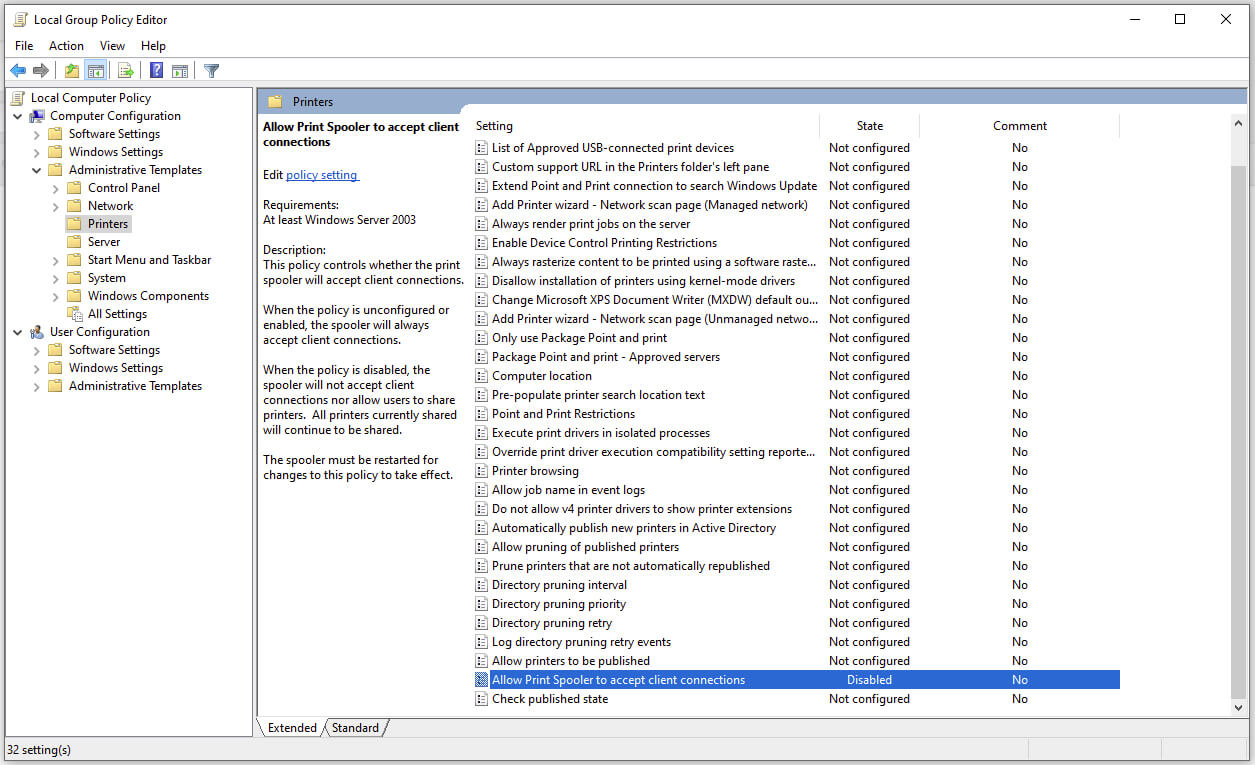
The third time is charm saying goes but not when we are talking about Microsoft. Print spooler is again in focus, in a bad way. This is the third print spooler vulnerability to emerge in just five weeks. While a critical flaw was originally identified and patched in June, a similar flaw came to light shortly after and was subsequently patched (with mixed success). print spoolerMicrosoft is once again advising its customers to disable Windows print spooler after a new vulnerability that allows hackers to execute malicious code on machines has emerged. While a patch fixing the flaw will be released in due course, the most effective workaround currently on the table is to stop and disable the print spooler service entirely.
"An elevation of privilege vulnerability exists when the Windows Print Spooler service improperly performs privileged file operations. An attacker who successfully exploited this vulnerability could run arbitrary code with SYSTEM privileges. An attacker could then install programs; view, change, or delete data; or create new accounts with full user rights."

Stop this service right away or you are risking a potential attack.

  1. Press ⊞ WINDOWS + X to open the hidden menu
  2. Click on Power Shell (admin)
  3. In Power Shell type in the following command to check if spool service is running: Get-Service -Name Spooler followed by ENTER
  4. If spooler service is running type in the next command to stop it: Stop-Service -Name Spooler –Force and press ENTER
  5. Then follow with this command to disable it at startup: Set-Service -Name Spooler -StartupType Disabled followed with ENTER
That’s it, we hope a patch will come soon for all the people that are using network printing and indeed need this service running in order to do work.
Read More
How to remove Fooriza from your PC

Fooriza is a browser extension for Google Chrome. This extension offers users the latest trending news from the internet. These news widgets are usually sponsored content that the application displays based on your search history or visited links. While this extension is not that dangerous on its own, it usually comes bundled with other Potentially Unwanted Programs and Browser Hijackers that could pose a security risk.

When installed this extension changes your default search engine to yahoo. And while active you might see some additional ads injected into the search results. Due to its bundled nature with other PUP-s and the potential dangers that might come with them, several anti-virus scanners have detected this extension as a Browser Hijacker and are marked for removal.

About Browser Hijackers

Browser hijackers (also called hijackware) are a kind of malware that alters internet browser configurations without the user’s knowledge or consent. These kinds of hijacks appear to be increasing at a worrying rate around the world, and it could be really nefarious and often dangerous too. They’re made to interfere with browser functions for many different purposes. In general, hijackers are programmed for the benefit of internet hackers often through revenue generation from forced advert clicks and site visits. However, it isn’t that harmless. Your internet safety is compromised and it is extremely irritating. Additionally, hijackers can make the whole infected system vulnerable – other destructive malware and viruses would seize these opportunities to get into your PC effortlessly.

Indications of browser hijack

Signs that your web browser is hi-jacked include: 1. your browser’s home page is suddenly different 2. you find yourself constantly directed to a different web page than the one you actually intended 3. default web engine is changed 4. you’re getting new toolbars you haven’t seen before 5. you may find numerous pop-up ads on your computer screen 6. your web browser gets sluggish, buggy, and crashes frequently 7. you are blocked to access those sites of anti-malware solution providers.

Exactly how browser hijacker finds its way to your computer

Browser hijackers infect computer systems in numerous ways, including via a file-share, a drive-by download, or an infected e-mail attachment. They are usually included with toolbars, BHO, add-ons, plug-ins, or browser extensions. Also, some freeware and shareware can put the hijacker in your PC through “bundling”. Some of the most well-known hijackers are Fooriza, Babylon Toolbar, Conduit Search, OneWebSearch, Sweet Page, and CoolWebSearch. Browser hijacking could lead to serious privacy issues and even identity theft, disrupt your web browsing experience by taking control over outbound traffic, drastically slows down your personal computer by consuming lots of resources, and cause system instability also.

Browser Hijacker Malware – Removal

Some hijackers can be simply removed by deleting the freeware they came with or by deleting any add-ons you have recently added to your system. At times, it can be a challenging task to discover and remove the malicious program since the associated file will be running as part of the operating system process. You should think of carrying out manual repairs only if you happen to be a tech-savvy person since there are potential risks associated with messing around with the computer registry and HOSTS file. Installing and running antivirus software on the affected system can automatically erase browser hijackers and other malicious applications. SafeBytes Anti-Malware detects all kinds of hijackers – such as Fooriza – and eliminates every trace quickly and efficiently.

What To Do If You Cannot Install Safebytes Anti-Malware?

Every malware is bad and the degree of the damage will vary greatly with regards to the type of infection. Some malware is designed to interfere with or prevent things that you wish to do on your personal computer. It may not allow you to download anything from the internet or prevent you from accessing some or all of the websites, in particular the antivirus websites. If you are reading this, you probably have infected by malware that prevents you from installing a computer security application like Safebytes Anti-Malware. There are a few actions you can take to get around this problem.

Get rid of malware in Safe Mode

If the malware is set to load at Windows start-up, then booting in Safe Mode should avoid it. Just minimal required programs and services are loaded when you boot your PC in Safe Mode. The following are the steps you should follow to eliminate malware in Safemode. 1) At power on, press the F8 key while the Windows splash screen starts to load. This will bring up the Advanced Boot Options menu. 2) Choose Safe Mode with Networking with arrow keys and press Enter. 3) When you are into this mode, you should have access to the internet again. Now, obtain the malware removal program you need by using the internet browser. To install the software, follow the guidelines within the installation wizard. 4) Once the software is installed, allow the diagnostic scan to run to eliminate viruses and other malware automatically.

Use an alternate web browser to download the anti-malware application

Some malware might target vulnerabilities of a specific web browser that block the downloading process. The ideal way to overcome this problem is to select an internet browser that is known for its security measures. Firefox contains built-in Malware and Phishing Protection to help keep you secure online.

Run anti-malware from your USB drive

Another option is to make a portable anti-malware program on your USB stick. Do these simple actions to clean up your affected PC using a portable antivirus. 1) On a clean PC, install Safebytes Anti-Malware. 2) Put the USB drive into the clean PC. 3) Double-click the executable file to run the installation wizard. 4) When asked, choose the location of the USB drive as the place in which you would like to put the software files. Follow the instructions on the computer screen to finish off the installation process. 5) Disconnect the USB drive. You may now use this portable anti-virus on the affected computer. 6) Double-click the antivirus program EXE file on the pen drive. 7) Press the “Scan” button to run a full system scan and remove malware automatically.

How SafeBytes Anti-Malware Keep your Machine Virus Free

Nowadays, an anti-malware program can protect your PC from different types of internet threats. But how to decide on the best one amongst plenty of malware protection application that’s available out there? As you might be aware, there are many anti-malware companies and tools for you to consider. A few of them do a good job in removing malware threats while many will ruin your computer by themselves. When searching for an antimalware program, purchase one that gives dependable, efficient, and complete protection against all known viruses and malware. Among few good applications, SafeBytes Anti-Malware is the highly recommended program for the security-conscious individual. SafeBytes anti-malware is a very effective and easy-to-use protection tool that is designed for end-users of all levels of IT literacy. With its cutting-edge technology, this application will assist you to get rid of several types of malware including computer viruses, trojans, PUPs, worms, adware, ransomware, and browser hijackers.

SafeBytes anti-malware takes computer protection to a whole new level with its enhanced features. These are some of the great features included in the software.

Active Protection: SafeBytes provides real-time active checking and protection against all known computer viruses and malware. This utility will constantly monitor your PC for any suspicious activity and updates itself regularly to keep abreast of the latest threats. Robust, Anti-malware Protection: Using its advanced and sophisticated algorithm, this malware elimination tool can detect and remove the malware threats hiding in the computer system effectively. Extremely Speed Scanning: This application has got one of the fastest and most efficient virus scanning engines in the industry. The scans are highly accurate and take a short amount of time to complete. Web Filtering: SafeBytes checks the links present on a web page for possible threats and alerts you whether the website is safe to explore or not, through its unique safety rating system. Light-weight: SafeBytes gives total protection from online threats at a fraction of the CPU load because of its enhanced detection engine and algorithms. 24/7 Assistance: You may get high levels of support round the clock if you’re using their paid software. All in all, SafeBytes Anti-Malware is a solid program as it has lots of features and can identify and remove any potential threats. You now may understand that this particular software does more than just scan and delete threats on your computer. So if you’re trying to find a comprehensive antivirus program that’s still simple enough to use, SafeBytes Anti-Malware is just what you need!

Technical Details and Manual Removal (Advanced Users)

If you want to perform the removal of Fooriza manually rather than employing an automated software tool, you may follow these steps: Go to the Windows Control Panel, click the “Add or Remove Programs” and there, choose the offending program to remove. In case of suspicious versions of browser plug-ins, you can easily remove them through your web browser’s extension manager. It is also advised to factory reset your browser to its default condition to fix corrupt settings. Finally, examine your hard disk for all of the following and clean your computer registry manually to remove leftover application entries following uninstalls. Please note that only experienced computer users should try to manually edit the system files mainly because deleting any single vital registry entry leads to a major problem or even a computer crash. Moreover, some malware keeps replicating which makes it tough to remove. Doing this malware-removal process in Safe Mode is recommended.
Files: %LOCALAPPDATA%\Google\Chrome\User Data\Default\Extensions\nnamllomkmngnaklpijbbaokmonnkcne %UserProfile%\Local Settings\Application Data\Google\Chrome\User Data\Default\Extensions\nnamllomkmngnaklpijbbaokmonnkcne

Read More
1 2 3 171
Logo
Copyright © 2023, ErrorTools. All Rights Reserved
Trademark: Microsoft Windows logos are registered trademarks of Microsoft. Disclaimer: ErrorTools.com is not affiliated with Microsoft, nor claims direct affiliation.
The information on this page is provided for information purposes only.
DMCA.com Protection Status