Logo

Increase your Internet Speed in Windows 10

If you are dissatisfied with your internet speed on your computer but do not want to shell out more money for a faster package or simply there is not a faster package, lay down and enjoy this article where we will go through some common practices and tweaks which will result in increasing your internet speed.

Please note that this guide will not be able to go beyond the limits of your internet provider's physical speed, this guide is made you can squeeze the maximum from your existing plan and eliminate speed drops.

      1. Modify IRPStackSize

        Press ⊞ WINDOWS + R to open the run dialog
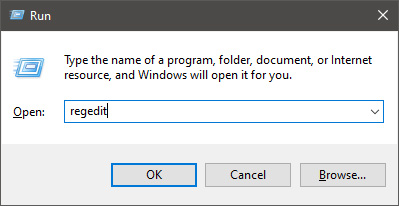
        keyboard with windows and r markedIn run dialog type RegEdit and press ENTER
        run dialog with regeditIn registry editor find HKEY_LOCAL_MACHINE\SYSTEM\CurrentControlSet\Services\LanmanServer\Parameters
        Right-click on Parameters> New> DWORD 32
        Name it IRPStackSize and change the value to 32
        Save and reboot your computer.

      2. Add a Default TTL

        Press ⊞ WINDOWS + R to open the run dialog
        keyboard with windows and r markedIn run dialog type RegEdit and press ENTER
        run dialog with regeditIn registry editor find a key Computer\HKEY_LOCAL_MACHINE\SYSTEM\CurrentControlSet\Services\Tcpip\Parameters
        Right-click on Parameters> New> DWORD 32
        Name it DefaultTTL and change the value to 64
        Save and Reboot

      3. Close Background Applications which are using the internet

        If some applications are running in the background that are using the internet, your speed will be much lower. CLose them to gain speed.

      4. Modify the TCP1323Opts value

        Press ⊞ WINDOWS + R to open the run dialog
        keyboard with windows and r markedIn run dialog type RegEdit and press ENTER
        run dialog with regeditIn registry editor find a key Computer\HKEY_LOCAL_MACHINE\SYSTEM\CurrentControlSet\Services\Tcpip\Parameters
        There should be a DWORD Value, TCP1323Opts, if not, then create it. Right-click on Parameters> New> DWORD (32-bit) Value.
        Double-click on it and change its value to 1
        Save and reboot

      5. Scan system for Viruses and other malware

        Viruses and malware applications can not only slow your entire system, but they can also reduce your internet speed as well. Do a complete scan of your system to be sure you do not have any malicious software on it.

Do You Need Help with Your Device?

Our Team of Experts May Help
Troubleshoot.Tech Experts are There for You!
Replace damaged files
Restore performance
Free disk space
Remove Malware
Protects WEB browser
Remove Viruses
Stop PC freezing
GET HELP
Troubleshoot.Tech experts work with all versions of Microsoft Windows including Windows 11, with Android, Mac, and more.

Share this article:

You might also like

iPhone Connects/Disconnects When Plugged In
If you own an iPhone, iPad, or iPod you might be aware of the phenomenon of connecting and disconnecting your device. In one moment device is connected and then it somehow loses connection and you have to plug in back again to be recognized. In this troubleshooting guide, we will address ways to eliminate this issue and to connect and have your devices working properly. We will go from the most common ones to the most uncommon so it is advisable to try solutions in order to how they are presented.
  1. Check cable

    The most common issue with this kind of behavior comes from a broken cable if you have the opportunity try another working cable to see if the device will behave differently. If everything is working fine with another cable, the issue is in the previous cable.
  2. Check USB ports and Cable Jack

    Usually, it is a cable issue, but it can also be a USB jack on cable or even a USB port on a PC, try putting the jack into another port to see if this will solve the issue.
  3. Check device settings

    From updates on your device comes a change of setting about privacy which can reflect on connection with the computer. In order to eliminate this, you will need to reset your device. Go to device settings and go to general Scroll down until you find the reset section and go into it In the reset, section click on reset location and privacy You will have to authenticate using your pin/passcode in order to complete the reset function Enter your passcode (or use any other authentication method you have chosen) and you can now reset the Location and Privacy settings. Click on reset Connect the device to PC and choose trust this device
  4. Update iTunes

    Outdated iTunes can also be a problem with this particular issue. Go to the apple website and download the latest version of iTunes or updating it via apple updater.
Read More
Fix an Unformattable and Unusable USB Drive
If you have a USB that has stopped working and does not show any signs of life do not throw it away just jet. Hello and welcome to another great tutorial on errortools.com, today we will explore how to bring back to life dead USB memories.

Detect a Corrupted  Drive:

If your computer is still able to detect your USB drive, you might want to know if it’s been corrupted. Select the Properties of the drive folder and check the device status. If it says This device is working properly this USB drive is worth saving. There’s no need to worry if you can’t see the USB drive folder.

Erase the USB Drive with Diskpart Tool

Press ⊞ WINDOWS + X top open start menu and choose Command prompt (admin) Type diskpart and press ENTER Type in list disk and press ENTER Locate your USB drive by size and type in select disk#, where # is the number of removable disks.

Reallocate the USB Drive Volume

Press ⊞ WINDOWS + R to open the run dialog and type in diskmgmt.msc Select the USB drive and Right-click on it and select create simple volume. It will lead to a new simple volume wizard window. Once you click next, you can specify the volume size for the pen drive. Select the maximum volume, which is shown as a default unit in MB. As soon as you see the next step, select assign drive letter which will help you view your pen drive once again. Format the partition in the next step. This may be just an extra step because you have already wiped the data clean. But it is always better to be sure. Click Finish to complete the new simple volume wizard which will now be allocated to the USB drive. After you reallocate the unallocated USB drive space, you will be able to view the USB drive storage once again.
Read More
Fix Windows Activation error code 0xC004F078
As you know, Windows 10 has a complicated mechanism for Activation which helps in the verification of a genuine copy of Windows 10. However, there are times when you might encounter some errors during the activation process. One of these errors is the error code 0xc000f074. This kind of error could be due to the Key Management Service or KMS which is unreachable by the client computer or if the key used in the SLSetAuthenticationData function call is incorrect. This kind of error mostly affects surfaces on computers that are upgraded from either Windows 7 or Windows 8.1 to Windows 10. In such cases, you may encounter any of the following error messages:
“Windows is unable to reach your company’s activation service. Please connect to your corporate network. If you are connected and continue to see the error, contact your system administrator. You can also click on the error detail to find the exact error. Error code: 0xC004F074.” “Activating Windows(R), (Key hash)… Error: 0xC004F074 The Software Licensing Service reported that the computer could not be activated. No Key Management Service (KMS) could be contacted. Please see the Application Event Log for additional information.” “Error 0xC004F074, SL_E_AUTHN_MISMATCHED_KEY, The Software Licensing Service reported that the key is mismatched.”
To fix the Windows 10 Activation error 0xC004F078, you have to use the correct key for your type of Windows copy or use Command Prompt to reinstall the key or you could also try running the Activation troubleshooter.

Option 1 – Try running the Windows 10 Activation Troubleshooter

The first thing you can do to resolve the Activation error code 0xc000f074 is to run the Windows 10 Activation Troubleshooter. To do so, follow these steps:
  • Go to Settings and then select Activation.
  • After that, click on the Windows Activation and then troubleshoot. This will help you address most of the commonly found activation issues in Windows devices.
The Windows 10 Activation Troubleshooter will determine if your license key is a valid Windows 10 digital license for an edition that is not currently installed. If it turns out that it’s not, then the troubleshooter will show you how to install the correct edition.

Option 2 – Try to use the correct key for the type of Windows version you have

If the Windows Activation troubleshooter wasn’t able to resolve the error, then you can try using the correct key for your type of Windows version. All you have to do so is check the type of your Windows copy if it’s OEM, retail, or volume. And make sure that you have the correct, valid product key for your operating system.

Option 3 – Try to use Command Prompt to reinstall the key

  • In the Start Search, type “command prompt” and right-click on Command Prompt from the search results, and then select “Run as administrator”.
  • After that, execute this command to uninstall the existing key: vbs /upk
  • Next, you need to install the KMS product key by executing this command: vbs /ipk <The KMS Product Key>
  • Once you’re done, you will see a prompt that’ll tell you whether the operation was either successful or not.
  • To active, the KMS product key online, use this command: vbs /ato
  • Use this command to activate the key using the telephone: exe 4
  • After you’ve activated the KMS product key, restart the Software Protection Service. You can also verify the Activation Status to check if your fix was successful or not.

Option 4 – Contact Microsoft Support for assistance

If you’re at your wits’ end in trying to upgrade your computer, you should consider contacting Microsoft Support for help as they can offer you various options that would make fixing Windows Activation error code 0xc000f074 a lot easier and faster.
Read More
A Quick Guide to Fixing Error 2046

Error 2046 - What is it?

Error 2046 is an error code related to Adobe Flash Player. It usually occurs while watching movies or videos on the web browser. This error code may interrupt video display and hamper you from watching your favorite movies and videos.

Solution

Restoro box imageError Causes

Narrowing down the reason for the occurrence of this error code is quite difficult virtually because it may trigger due to several reasons such as:
  • There might be issues with Adobe Flash Player settings
  • Ad-blocking products
  • Windows not updated
  • Registry issues
  • Malware infection
  • Flash Player Add on not properly installed

Further Information and Manual Repair

The good news is that the error 2046 is not fatal. It is easy to fix. In fact, it is so easy to repair that you can do it all by yourself even if you are not a computer whiz. You don’t have to hire a professional and spend hundreds of dollars on repairs. Here are some of the many manual solutions that you can try to fix this issue on your computer screen:

Reinstall Adobe Flash Player

Since this error code is largely related to Adobe Flash Player, it is advisable to start by reinstalling the Flash Player. Here is a step-by-step guide to help you work through it.
  1. First, click start and then select the control panel.
  2. Now click on programs and then uninstall Flash Player from the program list.
  3. After that’s done, reboot your computer.
  4. Now download Adobe Flash Player from a reliable website and run it.
If it works perfectly, then the issue is resolved. If not, then try other methods given below.

Re-Enable Flash Player Add-on

Adobe Flash Player add-on is basically installed in IE (Internet Explorer) which is loaded each time you load IE. Sometimes the problem with this add-on can also generate error 2046.
  1. To resolve this, open Internet Explorer and press Alt-Key.
  2. Select tools and then manage add-ons.
  3. Now select Adobe Flash Player Active X and then click disable tab.
Once that’s done, restart the web browser and repeat the same steps but this time click enable button. This will hopefully resolve the issue.

Unblock Ad Blocking Products

Sometimes error 2046 may pop up on your screen if you use ad-blocking products like AdBlock Plus. If so, then try uninstalling ad-blocking products installed on your PC to fix the issue.

Install Window Update

Microsoft releases new updates every now and then. These updates are made with the objective of solving bugs and run-time errors like error 2046. Therefore if the error code is related to Windows updates then to resolve it is it advisable to launch the Windows update program and update your operating system. For this, click Start, All Programs, and then click Windows Update. Now click the Check for updates button and download and install the new updates. Once that is complete, restart your PC to bring changes into effect.

Scan for Malware and Look For Registry issues

Whether the issue is related to malware or the registry, it is recommended to download Restoro. This is a next-generation and a multi-functional PC Fixer embedded with a powerful antivirus and a registry cleaner. Run it on your PC and scan for viruses and registry issues and click repair to resolve. It is user-friendly and compatible with all Windows versions. Click here to download Restoro to resolve error 2046.
Read More
How to Fix the Dnssd.dll Error Code

What is Dnssd.dll Error Code?

Dnssd.dll is a type of dynamic link library. It is developed for Windows Operating System by Apple Computer Inc. The latest version of fnssd.dll is 3.0.0.10 used in Windows Vista.  This file also functions like a typical dynamic link library.  DDL files are small programs similar to executable files which are used by multiple programs to load and run properly. Dnssd.dll error occurs when the dnssd.dll file fails to function properly and load to run the desired application/program.  The error may occur most often during computer startup and program startup. The dnssd.dll error message may be displayed on your PC on either one of the following formats:
  • "Dnssd.dll not found."
  • "Dnssd.dll Access Violation."
  • "Cannot register dnssd.dll."
  • "The file dnssd.dll is missing."
  • "Cannot find C:WindowsSystem32\dnssd.dll."
  • "This application failed to start because dnssd.dll was not found. Re-installing the application may fix this problem."
  • "Cannot start Bonjour. A required component is missing: dnssd.dll. Please install Bonjour again."

Solution

Restoro box imageError Causes

To narrow down the cause of the dnssd.dll error is difficult virtually because there are multiple reasons why this error occurs on your system. However, here are the most common causes for this error:
  • Missing  Dnssd.dll file
  • Corrupt and damaged Dnssd.dll file
  • Invalid  dnssd.dll registry entry
  • Viral Infection
  • Improperly shutting down your PC
  • Poor PC maintenance
  • Broken registry keys
  • Hardware failure
  • Dnssd.dll file deleted when uninstalling another program
It is advisable to fix this error right away, as it can create many troublesome problems on your PC such as slow system performance, computer freeze up, blue screen of death errors, system failure, and crash.

Further Information and Manual Repair

Here are some of the best and easiest DIY solutions that you can try to resolve this issue on your PC without hiring a professional.

1. Use System Restore Function

Since this error largely indicates poor PC maintenance, it is advisable to use the System Restore function built-in Windows to resolve the Dnssd.dll file error. It will help you restore the system back to its previous healthy status. It can also help you get a fresh copy of damaged and corrupted files. Here’s what you need to do:
  • Go to the start menu of Windows, type restore in the search box.
  • Choose the option that says ‘choose a different restore point’ this presents customizable options for users.
  • Here you will be presented with a list of restore points, choose the one that you believe has most likely caused the dnssd.dll error.
  • Confirm your selection.
This will help resolve the error. Now restart to see changes made. If the error still persists then try other solutions given below.

2. Reinstall the Program Causing the Dnssd.dll Error to Pop Up

As dll files are shared files, there is a possibility that the file got deleted when you tried to uninstall a certain program. Therefore, if this is the reason, then try to reinstall the program that is causing the error message. By doing so, you can set up the dnssd.dll file again on your PC.

3. Scan for Viruses and Registry Issues

Other reasons for the error are associated with viral infection and registry issues. Therefore it is advisable to download software to scan for these issues and remove them from your PC. Viruses can also corrupt dll files. On the other hand, dll errors like Dnssd.dll can also occur if the registry is not cleaned frequently. The registry becomes corrupt due to the accumulation of invalid/wasted and irrelevant files. This also causes disk defragmentation and hard disk problems which can also lead to hardware failure and dll file damage and corruption. Now to repair it you can either download 2 different programs, an antivirus, and a registry cleaner, or you can install multi-functional and advanced software, Restoro. Downloading 2 separate programs can reduce your PC performance even furthermore. Therefore we recommend you opt for Restoro. This is a one-stop solution for all your PC problems. It includes multiple utilities like an antivirus that detects all malicious software including spyware, malware, adware, Trojans, and viruses. A powerful registry cleaner that resolves all registry issues, wipes out bad registry entries and repairs broken registry keys, damaged dll files like Dnssd.dll, and restores the registry back to its optimum health. This software also functions as a system optimizer that boosts the speed of your PC dramatically. It is safe, bug-free, and efficient. All PC issues are resolved in seconds in just a few clicks. It is user-friendly and compatible with all Windows versions. Click here to download Restoro and resolve the dnssd.dll file error right away!
Read More
isapnp.sys, gv3.sys, storahci.sys, myfault.sys
One of the common causes of Blue Screen of Death or BSOD errors is system driver files due to varying reasons. So if you encounter a Stop error caused by some system driver files such as isapnp.sys, gv3.sys, storahci.sys, or myfault.sys, on your Windows 10 PC, then this post should help you fix the problem. These system driver files are associated with different error codes. The isapnp.sys file is related to the following error codes:
  • SYSTEM SERVICE EXCEPTION
  • PAGE FAULT IN A NONPAGED AREA
  • KERNEL DATA INPAGE
  • SYSTEM THREAD EXCEPTION NOT HANDLED
  • IRQL NOT LESS EQUAL
  • KMODE EXCEPTION NOT HANDLED.
While the gv3.sys file is related to the following BSOD error codes:
  • IRQL NOT LESS EQUAL
  • KMODE EXCEPTION NOT HANDLED
  • PAGE FAULT IN NONPAGED AREA.
On the other hand, the storahci.sys file is related to these error codes:
  • IRQL NOT LESS EQUAL
  • KMODE EXCEPTION NOT HANDLED
  • PAGE FAULT IN NONPAGED AREA.
And the myfault.sys file is associated with this error code: SYSTEM SERVICE EXCEPTION. Although this system driver file causes different kinds of Blue Screen errors, some of their potential fixes are quite the same so you need not carry out tons of troubleshooting steps. But before you troubleshoot the problem, you might want to check out System Restore first, especially if you create a System Restore point from time to time. To perform System Restore, follow these steps:
  • Tap the Win + R keys to open the Run dialog box.
  • After that, type in “sysdm.cpl” in the field and tap Enter.
  • Next, go to the System Protection tab then click the System Restore button. This will open a new window where you have to select your preferred System Restore point.
  • After that, follow the on-screen instructions to finish the process and then restart your computer and check if the problem is fixed or not.
If System Restore didn’t help in fixing the Blue Screen error, now’s the time for you to resort to the troubleshooting tips provided below but before you get started, make sure that you create a System Restore point first and boot your computer into Safe Mode.

Option 1 – Use the System Configuration utility

Note that this first fix is only applicable for Blue Screen errors associated with the myfault.sys file.
  • In the Cortana Search box, type “MSConfig” and click on the “System Configuration” entry to open it.
  • After opening System Configuration, go to the Processes tab.
  • Then scroll down and look for the “Digital Line Detection” process and disable it.
  • Now restart your computer and check if the Stop error is fixed or not.

Option 2 – Try to update, rollback or disable related device drivers

Incompatible and outdated drivers can also cause computer malfunctioning or crashing as well as Blue Screen errors. To fix that, you can update, roll back or disable the device drivers in your computer.
  • Tap the Win + R keys to launch the Run window and then type in the “devmgmt.msc” command and hit Enter to open the Device Manager window.
  • After opening the Device Manager, from the list of device drivers, look for the “WIN ISA Bus Driver” if you are facing a Stop error related to the isapnp.sys file. While you have to look for the Sony Recovery CDs PCG-Z1RAP Series device drivers if you face a Stop error concerning the gv3.sys file. For the storahci.sys, on the other hand, look for any outdated drivers and update them.
  • To update or roll back or disable these drivers, just right-click on each one of them, and depending on your preference, you can either select “Update driver”, “Disable device” or “Uninstall device”.
  • After that, restart your PC and see if it helped in fixing the Blue Screen error.

Option 3 – Use System File Checker

One of the built-in tools in Windows that you can use to fix Blue Screen errors is the System File Checker. This built-in command utility can help you restore corrupted or missing files as well as replace bad and corrupted system files. Chances are, any of the aforementioned system driver files might be corrupted so to fix them, use System File Checker.
  • First, right-click on the Start button and click on the “Command Prompt (Admin) option.
  • Next, type in the sfc /scannow command and hit Enter to execute it.
The command will start a system scan which will take a few whiles before it finishes. Once it’s done, you could get the following results:
  1. Windows Resource Protection did not find any integrity violations.
  2. Windows Resource Protection found corrupt files and successfully repaired them.
  3. Windows Resource Protection found corrupt files but was unable to fix some of them.
  • Now restart your computer.

Option 4 – Run the Blue Screen Troubleshooter

Troubleshooting Blue Screen of Death errors wouldn’t be complete without the Blue Screen troubleshooter. As you know, it is a built-in tool in Windows 10 that helps users in fixing BSOD errors. You can find it in Settings, under the Troubleshooters page. To use it, refer to these steps:
  • Tap the Win + I keys to open the Settings panel.
  • Then go to Update & Security > Troubleshoot.
  • From there, look for the option called “Blue Screen” on your right-hand side and then click the “Run the troubleshooter” button to run the Blue Screen Troubleshooter and then follow the next on-screen options.
  • Note that you might have to boot your PC into Safe Mode.
Read More
Gaming Wonderland Removal Tutorial

Gaming Wonderland is a Browser Extension for Google Chrome developed by Mindspark. This extension allows you to look up some popular browser games, as well as to find multiplayer games. When installed it changes your default search provider and your default home page to MyWebSearch. While browsing the internet, this extension will gather your browsing information, website visits, clicks, and other information that is later sent to Mindspark ad servers and used to better target ads.

While using this extension you will see additional unwanted ads appearing throughout your browser sessions.

Due to the nature of this application and the fact that it has been marked as a Browser Hijacker by several anti-virus scanners, it is not recommended to keep it on your computer.

About Browser Hijackers

Browser hijacking means that a malicious code has power over and modified the settings of your internet browser, without your consent. They are made to disrupt browser functions for a variety of reasons. These are generally used to force visitors to a specific site, manipulating web traffic to generate ad revenue. It may appear harmless, but the majority of such sites are not legitimate and will present a serious risk to your online safety. As soon as the program attacks your computer or laptop, it begins to mess things up a whole that slows your system down to a crawl. In the worse case, you could be pushed to tackle serious malware threats as well.

Browser hijacking symptoms

When your web browser is hijacked, the following could happen: you find unauthorized modifications to your web browser’s home-page; new bookmarks pointing to pornographic websites have been added to your bookmarks; default web engine is changed; you are finding browser toolbars you haven’t noticed before; unstoppable flurries of popup advertisements show up on your PC screen; your browser gets slow, buggy, crashes quite often; you’re prohibited access to specific websites, including the site of an anti-malware software firm like SafeBytes.

How does a browser hijacker infect a PC

Browser hijackers might use drive-by downloads or file-sharing websites or even an e-mail attachment in order to reach a targeted computer. They could also be deployed through the installation of a web browser toolbar, add-on, or extension. A browser hijacker can also be installed as a part of freeware, shareware, demoware, and pirated programs. A good example of a notorious browser hijacker is the latest Chinese malicious software called “Fireball”, which has attacked 250 million PCs worldwide. It works as a hijacker but can be turned into a fully functioning malware downloader later on. Browser hijackers will affect the user’s browsing experience severely, keep track of the websites visited by users and steal private information, cause problems in connecting to the net, and eventually create stability issues, making applications and computers freeze.

Browser Hijacker Malware – Removal

Some kinds of browser hijackers can be removed from your computer by deleting malicious software applications or any other recently added shareware. At times, it can be a tough task to discover and get rid of the malicious component since the associated file might be running as part of the operating system process. Novice PC users should not try for the manual form of removal, since it calls for thorough computer knowledge to do fixes on the system registry and HOSTS file. Installing and running antivirus applications on the affected system will automatically erase browser hijackers and also other unwanted applications. Safebytes Anti-Malware incorporates a cutting-edge anti-malware engine that will help you prevent browser hijacker infection in the first place, and clean up any existing problems. Use a system optimizer together with your antivirus software to fix various registry problems, remove system vulnerabilities, and boost your computer's overall performance.

Help! Malware Blocking Antivirus Installation And Access To The Web

Viruses can cause plenty of damage to your PC. Some malware variants alter internet browser settings by adding a proxy server or change the PC’s DNS settings. In such cases, you will be unable to visit certain or all websites, and therefore not able to download or install the required security software to eliminate the malware. So what you should do if malware keeps you from downloading or installing Safebytes Anti-Malware? There are a few actions you can take to circumvent this issue.

Use Safe Mode to resolve the issue

In Safe Mode, you may change Windows settings, uninstall or install some programs, and remove hard-to-delete viruses and malware. In case the virus is set to load immediately when the PC starts, shifting into this mode may well prevent it from doing so. To boot into Safe Mode, press the “F8” key on the keyboard right before the Windows logo screen appears; Or right after normal Windows boot up, run MSCONFIG, look over Safe Boot under Boot tab, and then click Apply. Once you’re in safe mode, you can try to install your antivirus program without the hindrance of malicious software. At this point, you can actually run the antivirus scan to get rid of viruses and malware without any interference from another malicious application.

Switch to an alternate internet browser

Some viruses might target vulnerabilities of a specific browser that obstruct the downloading process. If you seem to have a trojan attached to Internet Explorer, then switch to an alternate browser with built-in security features, such as Firefox or Chrome, to download your favorite antivirus program – Safebytes.

Create a bootable USB antivirus drive

Another solution is to save and run an antivirus software program completely from a USB drive. Adopt these measures to run the anti-malware on the infected computer. 1) On a virus-free computer, install Safebytes Anti-Malware. 2) Connect the USB drive to a USB port on the clean computer. 3) Double-click the Setup icon of the antivirus software to run the Installation Wizard. 4) Select the drive letter of the flash drive as the place when the wizard asks you exactly where you want to install the antivirus. Follow the activation instructions. 5) Unplug the USB drive. Now you can use this portable anti-virus on the affected computer. 6) Run the Safebytes Anti-malware directly from the USB drive by double-clicking the icon. 7) Simply click “Scan Now” to run a complete scan on the infected computer for viruses.

Detect And Remove Viruses With SafeBytes Anti-Malware

If you are looking to download the anti-malware program for your PC, there are various tools on the market to consider however, you cannot trust blindly anyone, regardless of whether it is paid or free program. A few are really worth your money, but most aren’t. You must opt for a company that creates industry-best antimalware and has earned a reputation as reliable. On the list of strongly recommended software is SafeBytes AntiMalware. SafeBytes carries a good track record of quality service, and customers appear to be happy with it. SafeBytes anti-malware is trustworthy software that not only protects your system completely but is also quite user-friendly for people of all skill levels. Using its outstanding protection system, this tool will automatically detect and eliminate most of the security threats, including browser hijackers, viruses, adware, PUPs, trojans, worms, and ransomware.

SafeBytes anti-malware takes computer protection to a totally new level with its advanced features. Below are some of the features you might like in SafeBytes.

Anti-Malware Protection: This deep-cleaning anti-malware software program goes much deeper than most anti-virus tools to clean out your personal computer. Its critically acclaimed virus engine locates and disables hard-to-remove malware that hides deep within your personal computer. Real-time Protection: SafeBytes delivers complete and real-time security for your PC. It’ll constantly monitor your pc for hacker activity and also provides end-users with sophisticated firewall protection. Website Filtering: SafeBytes gives an instant safety rating to the pages you are going to visit, automatically blocking unsafe sites and making sure that you are certain of your safety while browsing the net. High-Speed Malware Scanning Engine: SafeBytes’s high-speed malware scanning engine lessens scan times and extends battery life. Simultaneously, it will effectively find and get rid of infected computer files or any internet threat. Low CPU/Memory Usage: SafeBytes is well-known for its low impact on processing power and great detection rate of various threats. It runs silently and efficiently in the background so you are free to utilize your personal computer at full power all the time. 24/7 Premium Support: You can get 24/7 technical assistance to quickly resolve any issue with your security software. To sum it up, SafeBytes Anti-Malware provides outstanding protection combined with very low system resource usage with great malware prevention and detection. You now may know that this tool does more than just scan and remove threats from your PC. If you’re searching for the absolute best malware removal application out there, and if you don’t mind spending a few bucks for it, go for SafeBytes Anti-Malware.

Technical Details and Manual Removal (Advanced Users)

If you would like to do the removal of Gaming Wonderland manually instead of using an automated software tool, you may follow these measures: Go to the Windows Control Panel, click the “Add or Remove Programs” and there, select the offending application to uninstall. In case of suspicious versions of browser plug-ins, you can easily get rid of it through your web browser’s extension manager. You may even want to reset your home page and search engine providers, and also delete temporary files, browsing history, and cookies. In order to ensure the complete removal, manually examine your hard drive and registry for all of the following and remove or reset the values accordingly. Having said that, editing the Windows registry is really a difficult job that only advanced users and professionals should try to fix it. Furthermore, some malicious programs have the capability to defend against its deletion. It is advisable that you do the removal procedure in Windows Safe Mode.
Files: %PROGRAMFILES%\GamingWonderland %PROGRAMFILES(x86)%\GamingWonderland %USERPROFILE%\AppData\LocalLow\GamingWonderland %UserProfile%\Local Settings\Application Data\GamingWonderlandTooltab %LOCALAPPDATA%\GamingWonderlandTooltab %LOCALAPPDATA%\Google\Chrome\User Data\Default\Extensions\fenbipnfkodbfdjlgndbgokhkneidbom %UserProfile%\Local Settings\Application Data\Google\Chrome\User Data\Default\Extensions\hjkdfjgajdjedjpapojndcfhekhbpkjp %LOCALAPPDATA%\Google\Chrome\User Data\Default\hjkdfjgajdjedjpapojndcfhekhbpkjp Registry: HKEY_LOCAL_MACHINE\SOFTWARE\AppDataLow\HKEY_LOCAL_MACHINE\SOFTWARE\GamingWonderland HKEY_LOCAL_MACHINE\HKEY_LOCAL_MACHINE\SOFTWARE\Classes\GamingWonderland.DynamicBarButton.1 HKEY_LOCAL_MACHINE\HKEY_LOCAL_MACHINE\SOFTWARE\Classes\GamingWonderland.FeedManager HKEY_LOCAL_MACHINE\HKEY_LOCAL_MACHINE\SOFTWARE\Classes\GamingWonderland.FeedManager.1 HKEY_LOCAL_MACHINE\HKEY_LOCAL_MACHINE\SOFTWARE\Classes\GamingWonderland.HTMLMenu HKEY_LOCAL_MACHINE\HKEY_LOCAL_MACHINE\SOFTWARE\Classes\GamingWonderland.HTMLMenu.1 HKEY_LOCAL_MACHINE\HKEY_LOCAL_MACHINE\SOFTWARE\Classes\GamingWonderland.HTMLPanel HKEY_LOCAL_MACHINE\HKEY_LOCAL_MACHINE\SOFTWARE\Classes\GamingWonderland.HTMLPanel.1 HKEY_LOCAL_MACHINE\HKEY_LOCAL_MACHINE\SOFTWARE\Classes\GamingWonderland.MultipleButton HKEY_LOCAL_MACHINE\HKEY_LOCAL_MACHINE\SOFTWARE\Classes\GamingWonderland.PseudoTransparentPlugin.1 HKEY_LOCAL_MACHINE\HKEY_LOCAL_MACHINE\SOFTWARE\Classes\GamingWonderland.Radio HKEY_LOCAL_MACHINE\HKEY_LOCAL_MACHINE\SOFTWARE\Classes\GamingWonderland.Radio.1 HKEY_LOCAL_MACHINE\HKEY_LOCAL_MACHINE\SOFTWARE\Classes\GamingWonderland.RadioSettings HKEY_LOCAL_MACHINE\HKEY_LOCAL_MACHINE\SOFTWARE\Classes\GamingWonderland.RadioSettings.1 HKEY_LOCAL_MACHINE\SOFTWARE\Classes\GamingWonderland.ScriptButton HKEY_LOCAL_MACHINE\SOFTWARE\Classes\GamingWonderland.ScriptButton.1 HKEY_LOCAL_MACHINE\SOFTWARE\Classes\GamingWonderland.SettingsPlugin HKEY_LOCAL_MACHINE\SOFTWARE\Classes\GamingWonderland.SkinLauncher.1 HKEY_LOCAL_MACHINE\SOFTWARE\Classes\GamingWonderland.SkinLauncherSettings HKEY_LOCAL_MACHINE\SOFTWARE\Classes\GamingWonderland.SkinLauncherSettings.1 HKEY_LOCAL_MACHINE\SOFTWARE\Classes\GamingWonderland.ThirdPartyInstaller HKEY_LOCAL_MACHINE\SOFTWARE\Classes\GamingWonderland.ThirdPartyInstaller.1 HKEY_LOCAL_MACHINE\SOFTWARE\Classes\GamingWonderland.ToolbarProtector HKEY_LOCAL_MACHINE\SOFTWARE\Classes\GamingWonderland.ToolbarProtector.1 HKEY_LOCAL_MACHINE\SOFTWARE\Classes\GamingWonderland.XMLSessionPlugin.1 HKEY_LOCAL_MACHINE\SOFTWARE\Wow6432Node\Microsoft\Internet Explorer\Low Rights\ElevationPolicy\0c7bac04-8f5d-4bbd-956a-34fafa547752 HKEY_LOCAL_MACHINE\SOFTWARE\Wow6432Node\Microsoft\Internet Explorer\Low Rights\ElevationPolicy\16fbdf8c-476f-4d6b-8009-84471903cf96 HKEY_LOCAL_MACHINE\SOFTWARE\Wow6432Node\Microsoft\Internet Explorer\Low Rights\ElevationPolicy\82bacdc9-afce-41ee-92f5-b54f6db45a1c HKEY_LOCAL_MACHINE\SOFTWARE\Wow6432Node\Microsoft\Internet Explorer\Low Rights\ElevationPolicy\8b70e4e8-100a-4b4f-b928-6d8126b730bb HKEY_LOCAL_MACHINE\SOFTWARE\Wow6432Node\Microsoft\Internet Explorer\Low Rights\ElevationPolicy\c1151fbb-ef5b-4a2b-91e4-e8776f091f37 HKEY_LOCAL_MACHINE\SOFTWARE\Microsoft\Internet Explorer\Low Rights\ElevationPolicy\82bacdc9-afce-41ee-92f5-b54f6db45a1c HKEY_LOCAL_MACHINE\SOFTWARE\Microsoft\Internet Explorer\Low Rights\ElevationPolicy\8b70e4e8-100a-4b4f-b928-6d8126b730bb HKEY_LOCAL_MACHINE\SOFTWARE\Microsoft\Internet Explorer\Low Rights\ElevationPolicy\c1151fbb-ef5b-4a2b-91e4-e8776f091f37 HKEY_LOCAL_MACHINE\SOFTWARE\Microsoft\Internet Explorer\Low Rights\ElevationPolicy\e65f4fe3-b8a9-408f-9e8d-37689e565618 HKEY_LOCAL_MACHINE\SOFTWARE\Wow6432Node\Microsoft\Windows\CurrentVersion\explorer\Browser Helper Objects\ab5d199e-9659-47a2-930b-fc3b69061353 HKEY_LOCAL_MACHINE\SOFTWARE\Wow6432Node\Microsoft\Windows\CurrentVersion\Ext\PreApproved\f4d7584b-6643-4bc7-8e24-17c3258dc5ef HKEY_LOCAL_MACHINE\SOFTWARE\Wow6432Node\Microsoft\Windows\CurrentVersion\Ext\PreApproved\26A73C38-B71A-4D3A-80B7-E010420DA1E7 HKEY_LOCAL_MACHINE\SOFTWARE\Wow6432Node\Microsoft\Windows\CurrentVersion\Ext\PreApproved\1a30aa28-2fc6-4360-9e14-cfa627d51b6c HKEY_LOCAL_MACHINE\SOFTWARE\Wow6432Node\Microsoft\Windows\CurrentVersion\Ext\PreApproved\08fbcb5f-de4f-49e0-977e-e4269f4d7206 HKEY_LOCAL_MACHINE\SOFTWARE\Microsoft\Windows\CurrentVersion\Ext\PreApproved\f4d7584b-6643-4bc7-8e24-17c3258dc5ef HKEY_LOCAL_MACHINE\SOFTWARE\Microsoft\Windows\CurrentVersion\Ext\PreApproved\99c8d756-4d22-4d0f-898a-34a232884ce1 HKEY_LOCAL_MACHINE\SOFTWARE\Microsoft\Windows\CurrentVersion\Ext\PreApproved\75faf80f-56c7-4bb3-b825-39d0a706b5a4 HKEY_LOCAL_MACHINE\SOFTWARE\Microsoft\Windows\CurrentVersion\Ext\PreApproved\4c297ddf-0a36-4b17-b8fa-0c0395f2c5bc HKEY_LOCAL_MACHINE\SOFTWARE\Wow6432Node\MozillaPlugins\@GamingWonderland.com/Plugin HKEY_LOCAL_MACHINE\SOFTWARE\MozillaPlugins\@GamingWonderland.com/Plugin HKEY_LOCAL_MACHINE\SOFTWARE\Wow6432Node\Microsoft\Windows\CurrentVersion\Run, value: GamingWonderland Search Scope Monitor HKEY_LOCAL_MACHINE\SOFTWARE\Wow6432Node\Microsoft\Windows\CurrentVersion\Uninstall\GamingWonderlandbar Uninstall Firefox HKEY_LOCAL_MACHINE\SOFTWARE\Wow6432Node\Microsoft\Windows\CurrentVersion\Uninstall\GamingWonderlandbar Uninstall Internet Explorer HKEY_LOCAL_MACHINE\SOFTWARE\Microsoft\Windows\CurrentVersion\Run, value: GamingWonderland Search Scope Monitor HKEY_LOCAL_MACHINE\SOFTWARE\Wow6432Node\GamingWonderland HKEY_LOCAL_MACHINE\SOFTWARE\Wow6432Node\Google\Chrome\Extensions\hpflffkopmgalfhfholanbnhoiblmajp HKEY_LOCAL_MACHINE\SOFTWARE\Google\Chrome\Extensions\hpflffkopmgalfhfholanbnhoiblmajp HKEY_LOCAL_MACHINE\SOFTWARE\Wow6432Node\Microsoft\Internet Explorer\Toolbar, value: a899079d-206f-43a6-be6a-07e0fa648ea0 HKEY_LOCAL_MACHINE\SOFTWARE\Microsoft\Internet Explorer\Toolbar, value: a899079d-206f-43a6-be6a-07e0fa648ea0 HKEY_LOCAL_MACHINE\SOFTWARE\Wow6432Node\Microsoft\Windows\CurrentVersion\Uninstall\GamingWonderland Chrome Extension Uninstall HKEY_LOCAL_MACHINE\SOFTWARE\Wow6432Node\Microsoft\Internet Explorer\SearchScopes\3d29c02b-bf3e-4d3b-8a7a-e0e7d0f6dbab HKEY_LOCAL_MACHINE\SOFTWARE\Microsoft\Internet Explorer\SearchScopes\3d29c02b-bf3e-4d3b-8a7a-e0e7d0f6dbab HKEY_LOCAL_MACHINE\SOFTWARE\Wow6432Node\Microsoft\Internet Explorer\Low Rights\ElevationPolicy\c5ce0d8e-0300-4a17-a89c-6cc8078348ad HKEY_LOCAL_MACHINE\SOFTWARE\Microsoft\Internet Explorer\Low Rights\ElevationPolicy\c5ce0d8e-0300-4a17-a89c-6cc8078348ad HKEY_LOCAL_MACHINE\SOFTWARE\Microsoft\Internet Explorer\DOMStorage\free.gamingwonderland.com HKEY_LOCAL_MACHINE\SOFTWARE\Microsoft\Internet Explorer\DOMStorage\gamingwonderland.com HKEY_LOCAL_MACHINE\SOFTWARE\Microsoft\Internet Explorer\Approved Extensions, value: 7C8F8FE5-9785-4F74-BCF8-895EF9752D97 HKEY_LOCAL_MACHINE\SOFTWARE\Microsoft\Internet Explorer\Approved Extensions, value: A899079D-206F-43A6-BE6A-07E0FA648EA0 HKEY_LOCAL_MACHINE\SOFTWARE\Microsoft\Internet Explorer\Approved Extensions, value: AB5D199E-9659-47A2-930B-FC3B69061353 HKEY_LOCAL_MACHINE\SOFTWARE\Microsoft\Windows\CurrentVersion\Run, value: GamingWonderland EPM Support HKEY_LOCAL_MACHINE\SOFTWARE\Wow6432Node\Microsoft\Windows\CurrentVersion\Run, value: GamingWonderland EPM Support HKEY_LOCAL_MACHINE\SOFTWARE\Microsoft\Internet Explorer\DOMStorage\gamingwonderland.dl.myway.com

Read More
Preventing installation of Removable Devices
In case you don’t know, Windows 10 supports installation and use of a number of removable devices which includes plug and plays mouse, keyboard, and other USB-based devices. But this could actually pose a threat to the integrity of a computer system and thus, some organizations pose a restriction in using these kinds of devices. the restriction on these devices is also useful especially if you keep on leaving your computer idle and someone tries to mess it up by plugging in a removable device. In such situations, the restriction will defend the user against data theft. Thus, in this post, you will be guided on how you can prevent the installation of removable devices on your Windows 10 computer. There are two options that can help you in preventing the installation of any removable devices on your computer – you can either try to use the Registry Editor or use the Group Policy Editor instead. Follow whichever option you want to use the instructions given below but before you start, don’t forget to create a System Restore Point first.

Option 1 – Prevent installation of Removable Devices via Registry Editor

  • Tap the Win + R keys to open the Run dialog box and type “Regedit” in the field and hit Enter to open the Registry Editor.
  • Next, navigate to this registry path: HKEY_LOCAL_MACHINESOFTWAREPoliciesMicrosoftWindowsDeviceInstallRestrictions
  • From there, look for a DWORD named “DenyRemovableDevices” and set its value to “0”. On the other hand, if you can’t find this DWORD, just simply create it and set its value to 0.
  • Once done, exit the Registry Editor and reboot your PC to apply the changes made.

Option 2 – Prevent installation of Removable Devices via Group Policy Editor

Keep in mind that the Group Policy Editor is not available in the Home Edition of the Windows operating systems. Thus, if you are using one, just stick to the first option, otherwise, proceed to the following steps.
  • Tap the Win + R keys to open the Run utility and type “gpedit.msc” and click OK or tap Enter to open the Group Policy Editor.
  • After that, go to this policy setting: Computer ConfigurationAdministrative TemplatesSystemDevice InstallationDevice Installation Restrictions
  • Next, look for the “Prevent installation of removable devices” entry and once you find it, set it as “Enabled”. From this window, you should see the following description of this policy setting:
“This policy setting allows you to prevent Windows from installing removable devices. A device is considered removable when the driver for the device to which it is connected indicates that the device is removable. For example, a Universal Serial Bus (USB) device is reported to be removable by the drivers for the USB hub to which the device is connected. This policy setting takes precedence over any other policy setting that allows Windows to install a device. If you enable this policy setting, Windows is prevented from installing removable devices and existing removable devices cannot have their drivers updated. If you enable this policy setting on a remote desktop server, the policy setting affects redirection of removable devices from a remote desktop client to the remote desktop server. If you disable or do not configure this policy setting, Windows can install and update device drivers for removable devices as allowed or prevented by other policy settings.”
  • Then click the Apply and OK buttons to save the changes made.
  • Now restart your computer to save the changes made. This should prevent the installation of any removable devices in your Windows 10 computer.
Read More
Remove recommended icons from the start menu
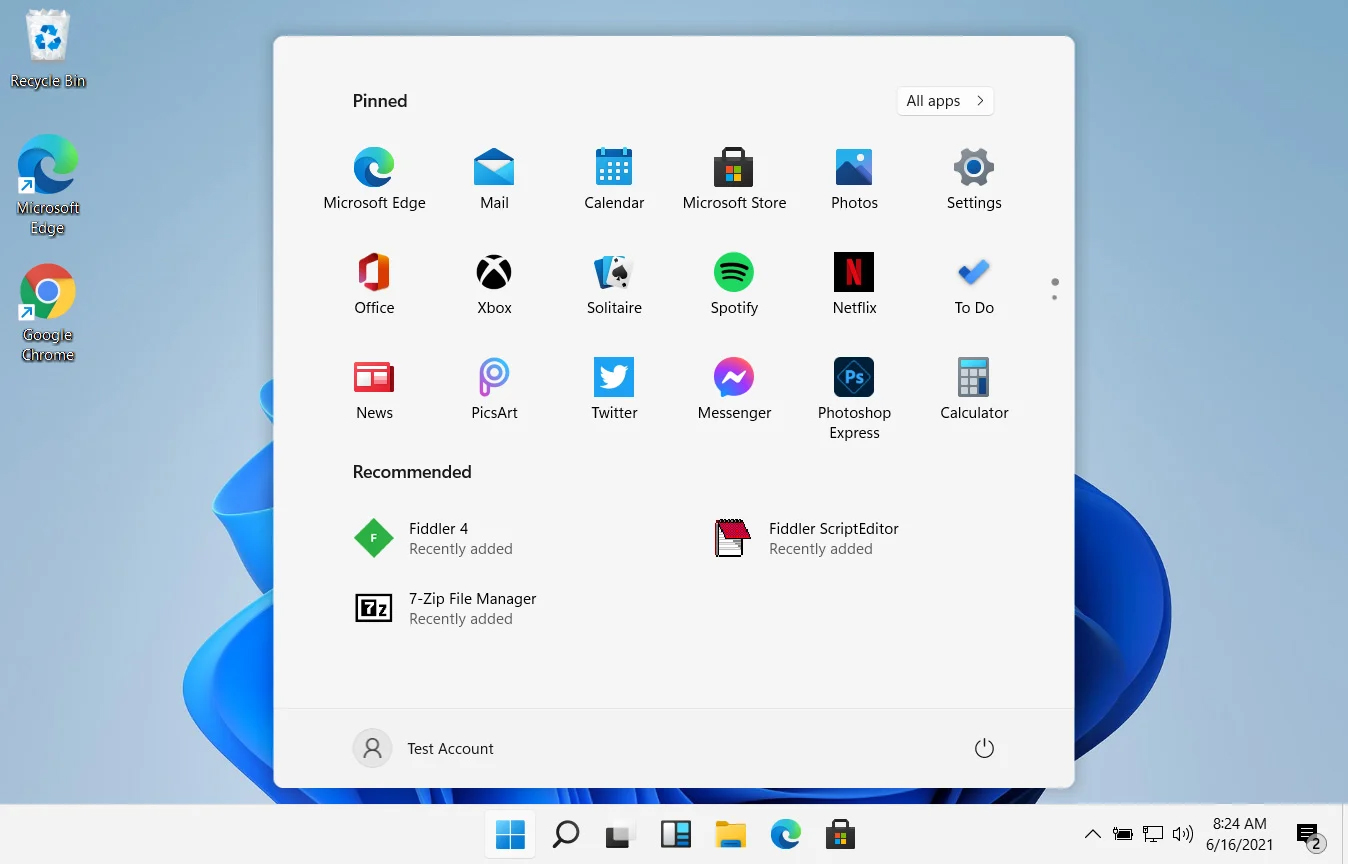
windows 11 start menuIn Windows 11 by default inside the Start menu, there is recommended section that contains recently opened folders, documents, and files. If you do not wish this section and do not want recent items in your Start menu there is an easy way to turn it off.

  1. Press ⊞ WINDOWS + I to open settings
  2. Click on Personalization
  3. On the right side scroll down and click on Start
  4. Click on the switch beside Show recently opened items in Start, Jump lists, and File Explorer
  5. Close settings
Settings will be automatically applied and there will be no more recommended items inside your Start menu to create clutter, it will be nice and clean.
Read More
Fix NMI_HARDWARE_FAILURE in Windows
If you encounter the NMI_HARDWARE_FAILURE Blue Screen error while using your Windows 10 computer, then read on as this post will guide you in resolving this kind of Blue Screen of Death error. NMI HARDWARE FAILURE or “Non-Maskable Interrupt” Blue Screen error occurs when there is some hardware malfunction in your computer. When you encounter this Blue Screen error, you may get a stop code of 0x00000080 which can randomly occur while you use your computer. However, a lot of users reported encountering this error while they were trying to update or install their Graphics Card drivers. The stop code that you may get for this BSOD error is 0x00000080. The error can occur randomly during your usage of the computer – but a large number of users have reported this error while they are updating or installing their Graphics Card drivers. In this post, we will be covering all the possible fixes for this error. NMI_HARDWARE_FAILURE error on Windows The NMI_HARDWARE_FAILURE bug check has a value of 0x00000080. This bug check indicates that a hardware malfunction has occurred. There are various hardware malfunctions that can cause this kind of Blue Screen error. However, pinpointing the exact cause is quite difficult. Worry no more for the following fixes provided below can help you resolve the NMI_HARDWARE_FAILURE Blue Screen error no matter what the cause of the problem is.

Option 1 – Try removing hardware or drivers that you’ve installed recently

If you have recently installed some hardware or drivers, you might want to disable or remove them since external devices are proven to be one of the factors that trigger Blue Screen errors like NMI_HARDWARE_FAILURE. All you have to do is physically disconnect any external devices that are connected to your computer and then check if it fixes the BSOD error or not.

Option 2 – Try to rollback, update, or disable the Graphics card drivers

Since the NMI_HARDWARE_FAILURE Blue Screen error has something to do with Graphics card drivers, you can either roll back, update or disable them depending on your preference in order to resolve the error.
  • First, boot your computer into Safe Mode.
  • After that, tap the Win + R keys to launch Run.
  • Type in devmgmt.msc into the box and tap Enter or click OK to open the Device Manager.
  • After that, a list of device drivers will be displayed. From there, look for the Display Adapters and click on them.
  • After that, right-click on each entry under the Display Adapters and select the “Uninstall Device” option from the menu.
  • Now restart your computer.
  • After restarting your computer, go to the Settings app and Check for Updates in the Windows Update section.
Note: You also have the option to go directly to the website of your graphics card manufacturers like NVIDIA, Intel, or AMD and go to the section called Drivers then check if there’s a new available update – if there is, download and install it.

Option 3 – Make sure that all memory modules have the same type

This third option is quite technical and tricky. If you often use multiple physical RAMS on your Windows 10 computer, then you have to check first if they are of the same frequency. After that, the first thing you should verify is if the chip is properly compatible or not. And if the sockets are attached using some kind of adapter or non-recommended device, it could cause some issues while giving a performance hit to your computer.  If you were able to find such a setup, you have to undo it or install the proper and recommended as well as compatible hardware.

Option 4 – Try to run the Blue Screen Troubleshooter

As you know, the Blue Screen troubleshooter is a built-in tool in Windows 10 that helps users in fixing BSOD errors like the NMI_HARDWARE_FAILURE error. It can be found on the Settings Troubleshooters page. To use it, refer to these steps:
  • Tap the Win + I keys to open the Settings panel.
  • Then go to Update & Security > Troubleshoot.
  • From there, look for the option called “Blue Screen” on your right-hand side and then click the “Run the troubleshooter” button to run the Blue Screen Troubleshooter and then follow the next on-screen options. Note that you might have to boot your PC into Safe Mode.
Read More
1 2 3 171
Logo
Copyright © 2023, ErrorTools. All Rights Reserved
Trademark: Microsoft Windows logos are registered trademarks of Microsoft. Disclaimer: ErrorTools.com is not affiliated with Microsoft, nor claims direct affiliation.
The information on this page is provided for information purposes only.
DMCA.com Protection Status