Logo

Use the Installation Media to Repair or Boot

If you are not able to access the Windows 10 Advanced troubleshooting options within Windows then you’ve come to the right place as this post will guide you on how you can repair or boot the Windows 10 installation without losing data using the bootable installation USB or DVD media. To repair or boot Windows 10 using the installation media, you have to download the Windows ISO, create a bootable USB or DVD drive, boot from the media and select “Repair your computer” and then select Startup Repair under Advanced troubleshooting. To get started, follow the given steps below carefully.

Step 1: Frist, download the Windows ISO.

Although this is not necessarily needed, it’s still better if you download the Windows ISO first so make sure that you download the same ISO version as installed on your computer.

Step 2: Next, create a bootable USB or DVD drive.

  • Insert your USB drive into your PC.
  • Tap the Win + R keys to open the Run dialog box and type in “cmd” and tap Enter to open the Command Prompt. Alternatively, you can also search for “cmd” in the Cortana search box to open Command Prompt.
  • Once you’ve opened CMD, type in this command to open the DISPART utility – diskpart
  • After that, you should see a new black and white window that would say, “DISKPART>”.
  • Next, type in “list disk” in the command line and tap Enter to see the list of all the Storage devices as well as your hard disk connected to your PC. Here, you have to identify your disk’s number.
  • Type in this command where “X” is the disk number you have identified and then tap Enter – disk X
  • Type in this command and hit Enter to clear the table records and all the visible data on the drive – clean
  • Now you have to recreate a new primary partition of the drive so you’ll have to type in this command and tap Enter right after – create part pri
  • A new primary partition has been created so you have to select it by typing this command and tapping Enter – select part 1
  • Now you have to format it to make it visible to normal users by typing – format fs=ntfs quick

Note: If your platform supports the Unified Extensible Firmware Interface or UEFI, replace the “NTFS” with “FAT32” in the command on Step 10.

  • After that, type in this command and tap Enter after – active
  • Finally, type this command and hit Enter to exit the utility – exit
  • After you prepare the image for the operating system, save it to the root of your USB Storage device.

Step 3: After creating a bootable drive, boot from the media and select the “Repair your computer” option.

Once you boot from the USB drive, it will start the Windows 10 installation right away. So you must not keep on clicking Next as you will end up installing Windows. You need to look for the “Repair your computer” link on the first installation screen and click on it and then boot your computer into Advanced Recovery.

Step 4: Select Startup Repair under the Advanced options screen

  • Once you’re at the Advanced Recovery screen, select Advanced Options and select Troubleshoot.
  • After that, look for the Startup Repair and click on it and then follow the next on-screen instructions. This solution will help you fix issues that do not allow you to boot into your computer.
  • On the next screen, you will see the admin account with its name. Click on it and verify using the account password associated with the email.
  • After verification, it will start to diagnose your computer and automatically resolve any detected issues related to boot.
  • After the issue is fixed, your computer should reboot normally and you should now be able to use it. Note that your personal files are still intact since the process didn’t delete or wipe them out.

Do You Need Help with Your Device?

Our Team of Experts May Help
Troubleshoot.Tech Experts are There for You!
Replace damaged files
Restore performance
Free disk space
Remove Malware
Protects WEB browser
Remove Viruses
Stop PC freezing
GET HELP
Troubleshoot.Tech experts work with all versions of Microsoft Windows including Windows 11, with Android, Mac, and more.

Share this article:

You might also like

Fix Failed to play test tone Error in Windows
If you are testing your headphone or your speaker but all of a sudden encountered an error that says, “Failed to play test tone” in your Windows 10 computer, worry not for this post will walk you through how you can fix this problem. The test tone is used to check the right-left balance of the headphones and speakers in your computer, however, if you are not able to use it, there are several options you can check out. You can try to run the Playing Audio troubleshooter or restart the services that are related to Windows Audio. Aside from these, you could also disable Audio Enhancements or you could also change the default test tone rate and bit depth.

Option 1 – Try to run the Playing Audio Troubleshooter

Since the Windows 10 operating system has the Playing Audio Troubleshooter, you can use this troubleshooter to try and fix the problem with the “No Audio Output Device is installed” error. You can access this tool in the Control Panel or in the Taskbar Search and even on the Troubleshooters page of Windows 10. Run this troubleshooter and see if it can fix the issue or not.

Option 2 – Try to restart the Windows Audio-related services

The next thing you can do to fix the problem is to restart the services related to Windows Audio. Although the audio services start automatically on every system boot, there are times when they might fail to start. Thus, you can start these services manually by following these steps:
  • Tap the Win + R keys to launch the Run utility and type “services.msc” in the field and hit Enter to open the Services Manager.
  • Then look for the services named “Windows Audio” and “Windows Audio Endpoint Builder”.
  • Double click on each one of these services and check if their Service Status is set to Running or not and also check if the Startup Type is set to Automatic.
  • If none of the services are running, just click on the Start button and select the Automatic option from the drop-down menu.
  • Now click on the Apply and OK buttons to save the changes made and then check if the error is fixed.

Option 3 – Try to update the Audio driver

You might also want to consider updating or the Audio driver as it could help in fixing the error.
  • Tap the Win + R keys to open the Run dialog box and then type in devmgmt.msc and tap Enter or click OK to open the Device Manager.
  • Expand the section for the outdated device drivers.
  • And then select the outdated driver(s) and right-click on it/them.
  • From the drop-down menu, select the Update Driver option and follow the on-screen instructions to install the latest version of the driver.
  • Then also click on the option, “Search automatically for updated driver software.
  • Restart your PC after the installation.
Note: If updating or reinstalling the Audio driver didn’t work, you can go to the manufacturer’s website and look for the support section where you can download the drivers for your computer. You just need to take note of your PC’s correct model and model number so you can find the appropriate driver.

Option 4 – Try changing the default test tone rate and bit depth

Windows selects a default test tone rate and bit depth depending on your headphone or speaker. This allows you to look for the best sound quality from your audio output device. So if your headphone or speaker has some problems with the default settings, then it’s no wonder why you’re getting the “Failed to play test tone” error. To fix this, you can try to change the default test tone rate and bit depth by following the steps below.
  • First, you need to open the Windows Settings panel and then go to System > Sound.
  • Next, look for the Device properties option located on your right-hand side and click on it.
  • After that, select the Additional device properties option and go to the Advanced tab.
  • From there, select a different test tone rate and bit depth and then click on the Test button.
  • Once done, check if it was able to fix the problem or not.

Option 5 – Try disabling the Sound or Audio enhancements

To make your operating system’s specific hardware sound nothing but perfect, both Microsoft and third-party vendors have shipped audio enhancement packages which are usually referred to as “Audio Enhancements” in Windows 10. However, there are instances when instead of improving the sound or audio quality of your computer, it can cause problems so to fix the problem you need to turn off these audio enhancements. How? Simply follow the steps below.
  • Type in “Sound” in the taskbar search and then from the list of results, select “Sound Control Panel”.
  • After clicking Sound, the Sound properties box will pop up. From there, go to the Playback tab and right-click on the default device i.e. Speakers or Headphones then select Properties.
  • After that, the Speakers properties box will appear. From there, go to the Enhancements tab and select the checkbox for the “Disable all enhancements” option.
Read More
Headphones are not visible in playback devices
If you connected headphones to your Windows 10 computer to listen to audio but when you check it in the playback devices, you’re not able to find it, read on as this post will guide you in what you can do to figure out what exactly caused this kind of problem and how you can resolve it. This kind of issue could simply be with the headphone itself or the headphone port or your operating system. So if it turns out that the problem is with the hardware, you might have to replace the components. However, it is recommended that you troubleshoot the problem first before doing that. The most basic thing you can do is to try changing the headphone port, although this can be quite difficult since most computers don’t have any extra port for headphones if your computer has one, then give it a go. If it still didn’t work, follow each one of the options provided below.

Option 1 – Try to run the Playing Audio troubleshooter

Since the Windows 10 operating system has the Playing Audio Troubleshooter, you can use this troubleshooter to try and fix the problem with the “No Audio Output Device is installed” error. You can access this tool in the Control Panel or in the Taskbar Search and even on the Troubleshooters page of Windows 10. Run this troubleshooter and see if it can fix the issue or not.

Option 2 – Try to update the Audio driver

If the error has something to do with software, chances are it might be related to the audio driver – it could be that the newest version of your Windows 10 does not work well with the old version of the driver. This is why you have to update your audio driver to the newest available version.
  • Tap the Win + R keys to open the Run dialog box and then type in MSC and tap Enter or click OK to open the Device Manager.
  • Expand the section of the Audio inputs and outputs.
  • And then from the drop-down menu, select the Update Driver option and follow the on-screen instructions to install the latest version of the driver.
  • Then also click on the option, “Search automatically for updated driver software.
  • Restart your PC after the installation.
Note: If updating the Audio driver didn’t work, you can go to the website of your PC manufacturer and look for the support section where you can download the drivers for your computer. You just need to take note of your PC’s correct model and model number so you can find the appropriate driver.

Option 3 – Try enabling the headphones from the playback devices

  • Tap the Win + R keys to open the Run dialog box and type the “CPL” command.
  • Tap Enter to open the Playback devices.
  • Next, right-click on any open space section and check the boxes for the “Show Disconnected Devices” and “Show Disabled Devices” options.
  • After that, this should help in displaying the headphones in the section of Playback devices.
  • And if they are disabled, you can just right-click them to have them enabled.
Read More
How to Fix Error Code 0x8007232B

Error Code 0x8007232B (Code 0x8007232B) – What is it?

Error code 0x8007232B (Code 0x8007232B) is an error that occurs when you attempt to activate Windows Server 2008 or Windows Vista.

Common symptoms include:

  • Attempting to activate Windows 7, Windows 8, or Windows Server 2012 and you receive an error message.
  • The error message says: “Windows could not be activated. Key management services host could not be located in domain name system, please have your system administrator verify that a KMS is published correctly in DNS”
  • The error message says “The directory name, file name, or volume label syntax is incorrect”.

Error Causes

  • Error Code 0x8007232B occurs when you attempt to use media that is volume licensed to install: Windows 8, Windows 7, Windows Vista Enterprise, Windows Vista Business, Windows Server 2012, Windows Server 2008, Windows Server 2008 R2.
  • This error code also occurs when the activation wizard is unable to connect to a Key Management Service host computer.

Further Information and Manual Repair

Error code 0x8007232B can be seen when you are trying to activate windows, on several different operating systems. This problem can usually be easily corrected, but in the event that it can't, please contact a computer repair technician. When you try to install any of the previously mentioned Windows products, they use a generic product key to install the volume-based license software. If you do have a KMS host computer configuration and see these error codes, that means the correct DNS entries are not being seen on the computer. If there is not a KMS host computer setup, you need to do this setup, otherwise switch to a MAK product key method, and activate the volume license installation that way.

Method One:

Using a Multiple Activation Key as opposed to KMS activation

  1. Click the Start icon, click on All Programs, click on Accessories, right-click on Command prompt.
  2. Click on “Run as administrator”. Type in the password or provide confirmation if prompted for administrator password or confirmation.
  3. When asked for the command prompt, enter in the following and then hit the Enter buuton: slmgr -ipk xxxxx-xxxxx-xxxxx-xxxxx-xxxxx  Note: this placeholder represents the MAK product key.

Method Two:

Configure a KMS host server for the clients to activate against.

A KMS host server needs to be configured for the clients to activate against. When there are no KMS host servers configured near you, install and activate a KMS server key. After this, configure a computer on the network to host this KMS software and publish the Domain Name System (DNS) settings.

Method Three:

When the client cannot locate a KMS host on the network for activation:

1. Verify that your computer has the KMS host installed and activated by using a KMS key that is registered in DNS. You will follow these steps to do that:

  1. Click the Start button, click on All Programs, click Accessories, and then right-click on Command Prompt.
  2. Click on Run as Administrator. Type the password or provide confirmation if you are asked for an administrator password or for confirmation.
  3. In the command prompt box, type the following command and press ENTER: nslookup -type=all _vlmcs.tcp>kms.txt
  4. Then open the KMS.txt file generated by this command. The file will contain at least one entry that relays the SRV service location.

2.  A KMS host server registers a DNS SRV record once every 24 hours by default. You should check the registry to see if the KMS host server is registering with the DNS. Follow these steps to do so:

  1. Click on Start, type in regedit, and then press Enter.
  2. Locate HKEY_LOCAL_MACHINESOFTWAREMicrosoftWindowsNTCurrentVersionSL and then click on it.
  3. The KMS server does not register in DNS if the DisableDnsPublishing subkey is existing and has a value of 1. If this subkey is missing altogether, create a DWORD value called the DisableDnsPublishing. If the dynamic registration is suitable, the subkey value should be changed to 0. Right-click DisableDnsPublishing, click on Modify, enter 0 into the Value data box, and click OK.
Read More
Best VR headsets in 2021 so far
Virtual Reality is slowly becoming standard in gaming. More and more affordable headsets are coming out lowering entry prices and making them affordable for all. But in a sea of new VR headsets, it is important to at least purchase a decent one that will perform nicely and hopefully last longer. Therefore in today’s article, we will address some of the best options currently available on the market,

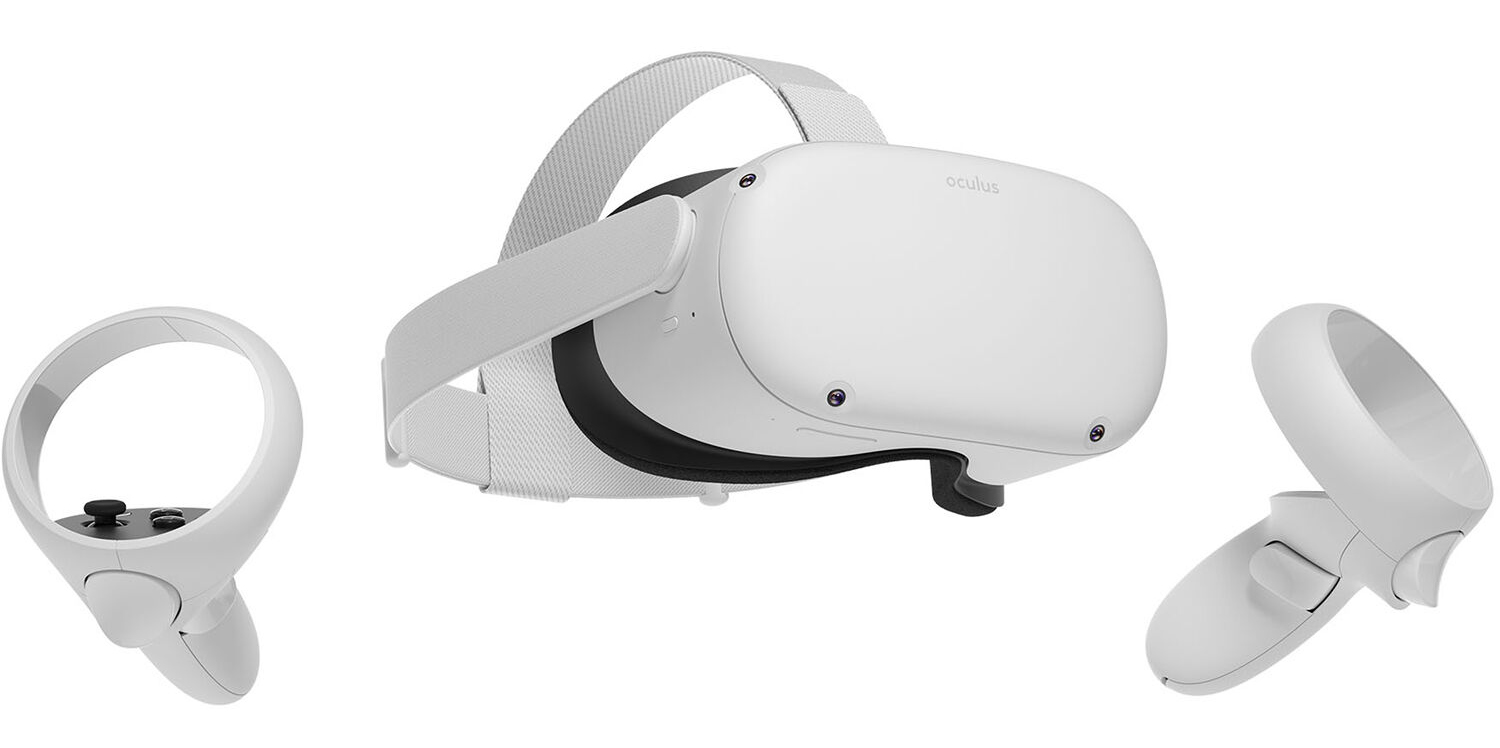
Oculus Quest 2

occulus quest 2 VRWith its Rift model, Oculus set itself as a big player in VR. Now the company is slowly bowing out of the dedicated, tethered VR headset with its latest Quest 2 designed to primarily be a standalone headset. In case you do not know, tethered headset means that the headset itself is connected to your PC and is using its power to drive your VR experience. Now technical specifications of Quest 2 are pretty OK and it can drive stuff pretty decently and if you want you can purchase the dedicated cable to connect it to your PC for the full experience of games requiring more capable hardware. Oculus Quest 2 is the cheapest headset on this list and with its stable performance, is highly recommended.

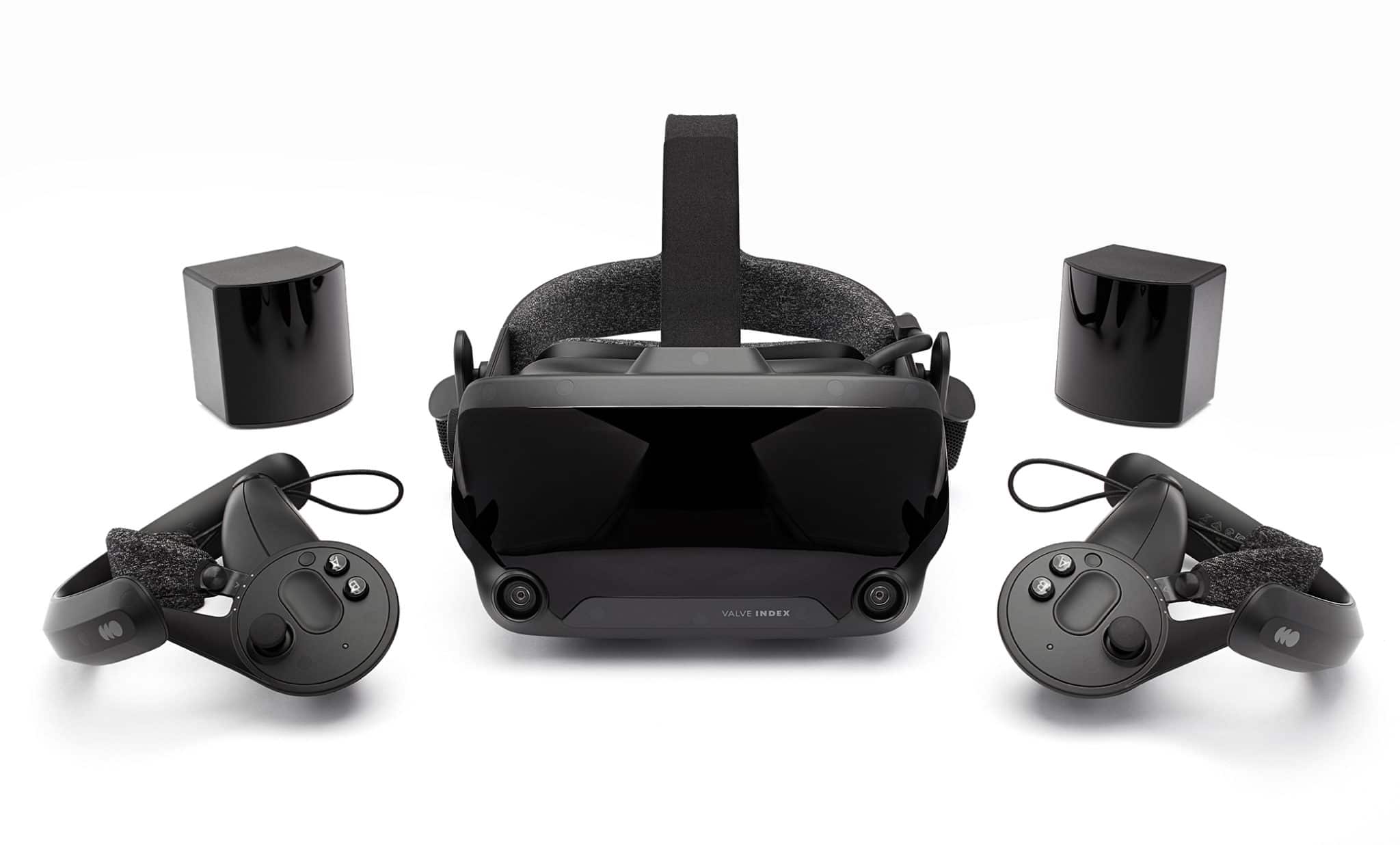
Valve Index VR

valve index vrAlthough the headset itself is nothing revolutionary or special its controllers are. They can track individual finger movements, making games (that take advantage of them) much more immersive than the standard trigger grips on other controllers. The Index's higher refresh rate makes for smoother action, as well, which is another nice bonus. If you already have an HTC Vive or Vive Cosmos Elite, and their base stations (not the regular Cosmos), you can buy only the controllers.

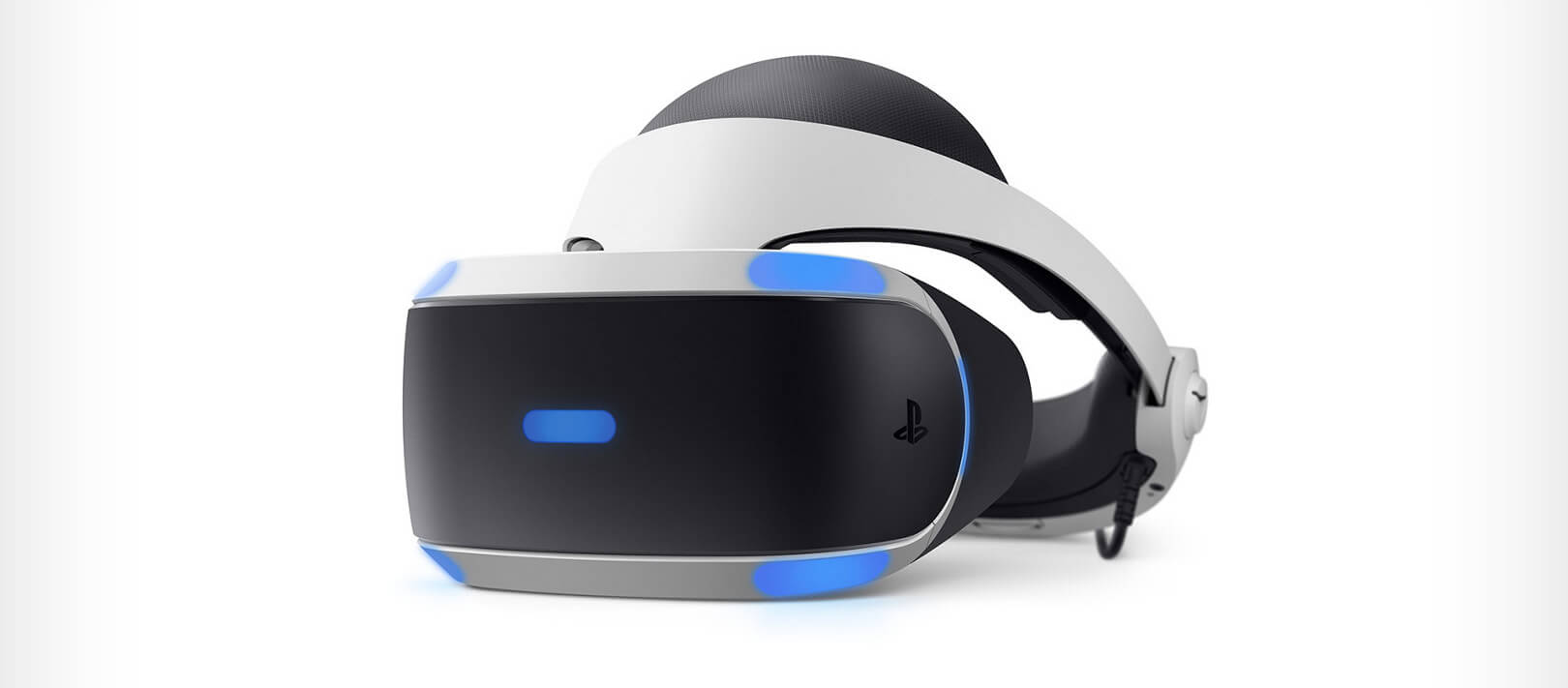
Sony PlayStation VR

playstation vrThe PlayStation VR is compelling thanks to Sony backing its development, plus the PlayStation 4's affordability and availability compared with gaming PCs. All you need is the headset, a PlayStation 4, and a PlayStation Camera (now included with most PlayStation VR bundles). Not really the best of the bunch but still one of the top ones for console gaming. Sony is working on a new PlayStation VR system for the PlayStation 5, with redesigned controllers. The new headset hasn't been revealed yet, but the company has released a preview of the new controllers.

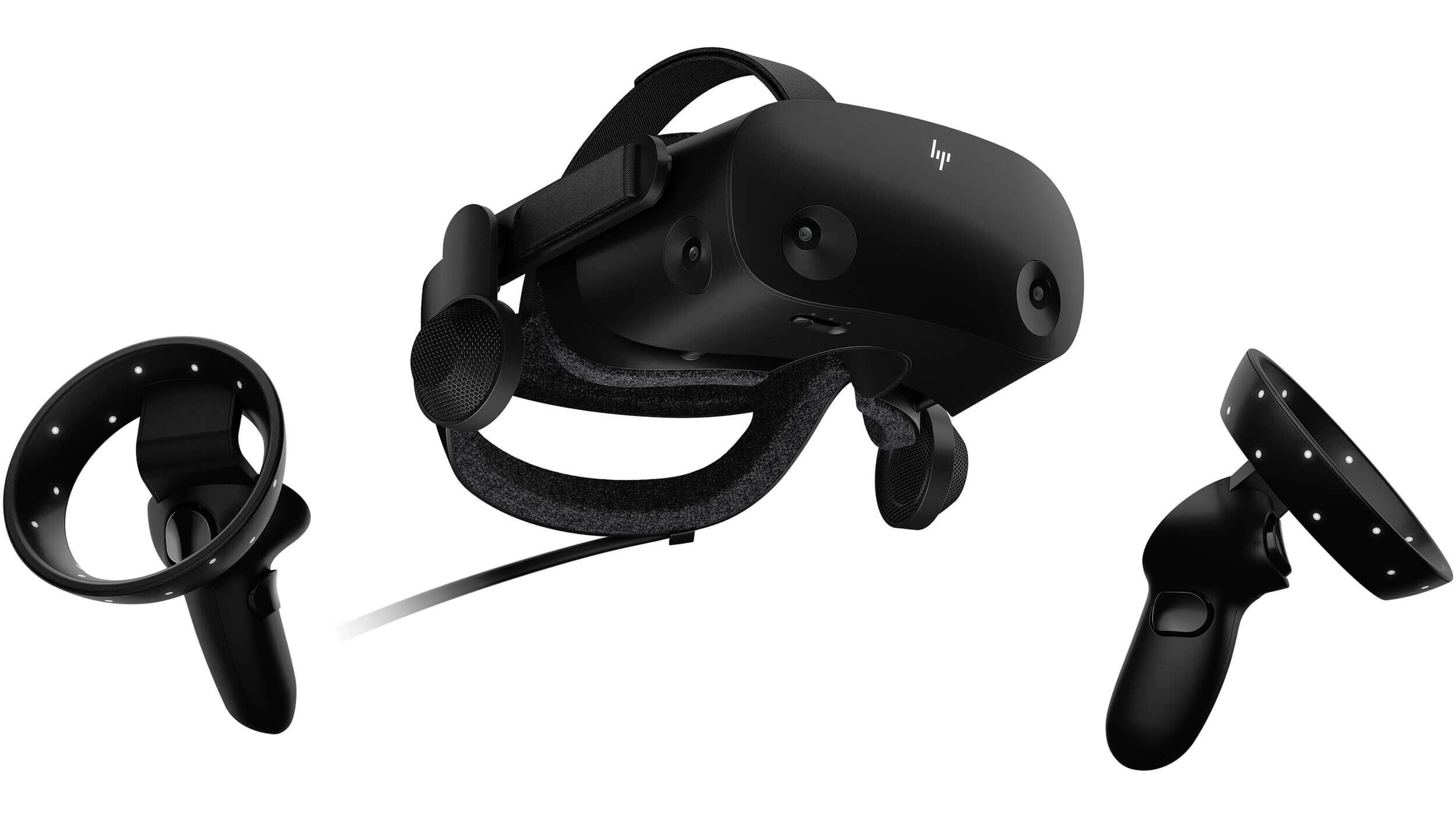
HP Reverb G2 VR

HP Reverb G2HP headset is one which you get if you want the best image quality in VR headset, sadly controllers did not follow the same quality of headset itself. But this is still a pretty decent headset overall and worth the purchase.

HTC Vive Cosmos

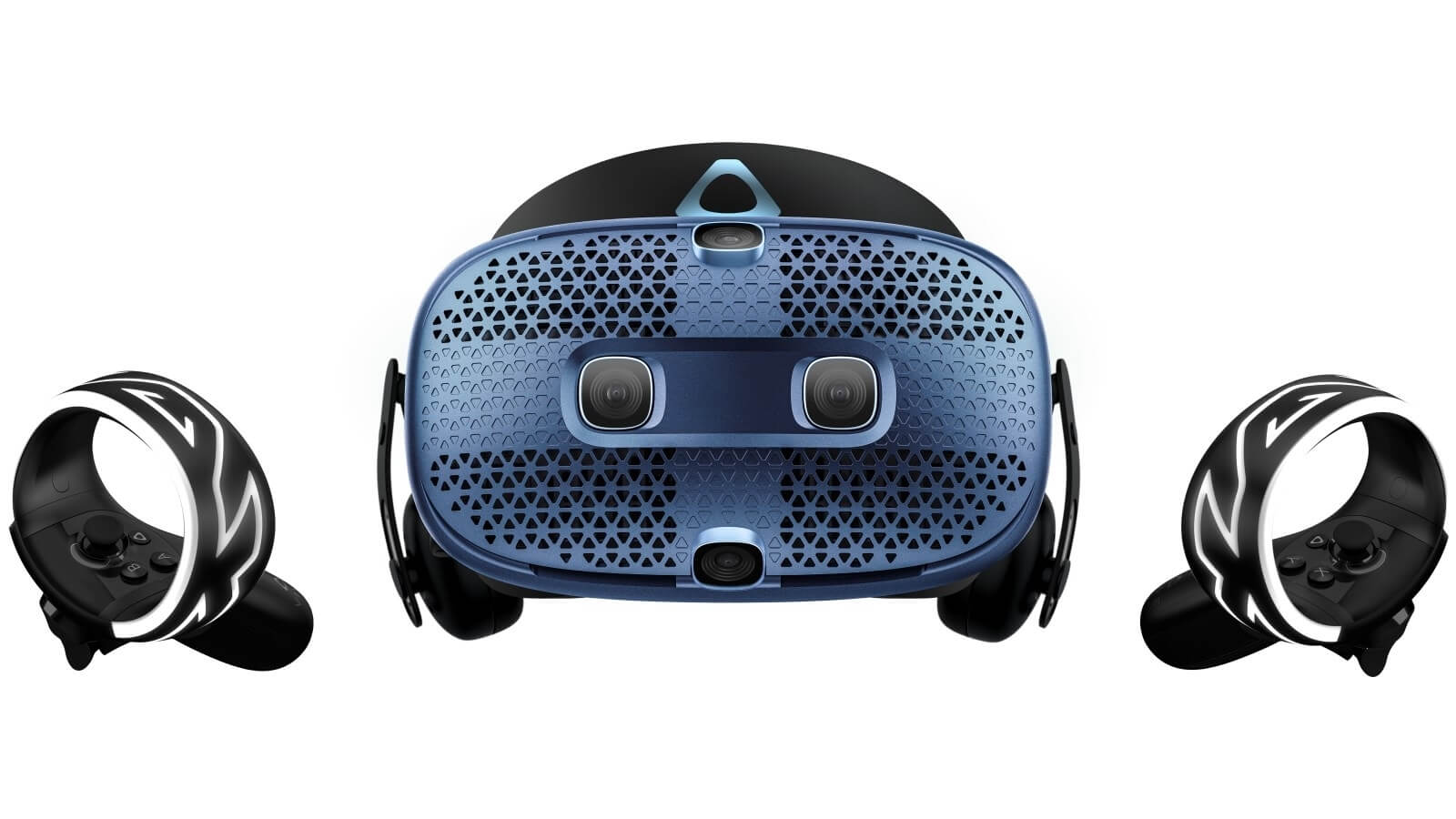
HTC Vive CosmosHTC's Vive Cosmos is the upgraded version of the Vive. It features a higher resolution and replaces the external base stations with outward-facing cameras for motion tracking. It's a comprehensive package for whole-room VR. HTC recently released the Vive Pro 2, a high-end VR headset targeting both enterprise users and consumers. This new headset features a 2,448-by-2,448 resolution display for each eye, making it the highest-resolution headset currently available. It's also more expensive than the Cosmos Elite. Sadly one thing that is bringing this headset down is the price.
Read More
An Easy Guide to Resolve Xpcom.dll Error

Xpcom.dll Error Code - What is it?

To understand the Xpcom.dll error better, first, you need to know what Xpcom.dll file is. Xpcom.dll is basically a typical DLL (Dynamic Link Library) file. It is associated with Firefox developed by Mozilla Foundation for the Windows Operating System. DLL file contains small programs similar to exe (executable) files. Just like any other DLL file, Xpcom.dll helps loads and run programs smoothly. Xpcom.dll functions as a shared file that can be used to run multiple programs on your PC. Xpcom.dll error code occurs when Windows cannot properly load the xpcom.dll file. The error may pop up on the screen in any one of the following formats:
  • "Xpcom.dll not found."
  • "The file xpcom.dll is missing."
  • "Cannot register xpcom.dll."
  • "Cannot find C:\Windows\System32\xpcom.dll."
  • "This application failed to start because xpcom.dll was not found. Re-installing the application may fix this problem."
  • "Xpcom.dll Access Violation."
  • "Cannot start Firefox. A required component is missing: xpcom.dll. Please install Firefox again."
The xpcom.dll error can occur during program installation or while rebooting your PC or when shutting it down.[/section]

Solution

Restoro box imageError Causes

It is difficult to narrow down a single cause of this error code simply because the Xpcom.dll error code may be triggered due to several reasons. Some of the common causes include:
  • Invalid or corrupt xpcom.dll registry entry
  • Viral infection
  • Outdated PC drivers
  • Another program overwrote the required version of xpcom.dll
  • Xpcom.dll file is accidentally deleted or uninstalled
  • Mozilla Foundation hardware failure

Further Information and Manual Repair

Here are the best, quick and easy DIY methods to resolve Xpcom.dll error code on your system within minutes:

Method 1: Update Window Drivers

To resolve the xpcom.dll error on your system, try updating Window drivers. To do this simply use the driver update wizard from within Device Manager. The driver update wizard walks you through the entire drive update process, making it easy and hassle-free for you to update drivers.

Method 2: Download and Install Xpcom.dll File

Since DLL are shared files and used to run and load multiple programs, it is possible that you might have accidentally removed this file while uninstalling a program on your system. This is the reason why the Xpcom.dll file goes missing. To retrieve the Xpcom.dll file simply go to the recycle bin. Reinstall the deleted program. However, if it still doesn’t resolve the error, then it is advisable to download and install the Xpcom.dll file from a trusted DLL file website over the internet.

Method 3: Scan for Viruses and Repair the Registry

If the error code occurs due to malware infection or is related to registry issues, then simply download Restoro. This is a user-friendly and multi-functional PC Fixer deployed with 6 scanners including a powerful antivirus and a registry cleaner. It is compatible with all Windows versions. Simply run it to remove all types of viruses infecting your system and clean/repair the registry. Click here to download Restoro and resolve the Xpcom.dll error on your PC.
Read More
Guide to Quick Fix Error 0x0000007B,0xF78524

0X0000007B (0xF78d2524) - What is it?

If you are a laptop or a notebook user and you are trying to install Windows XP on it, you might come across 0x0000007B (0xF78524) error message. This error is a popular blue screen of death error and very similar to the error 0x0000007B.

Solution

Restoro box imageError Causes

The common causes of 0x0000007B (0xF78524) error code on your laptop might be:
  • File Corruption
  • Device Configuration Issues
  • Adware/spyware invasion
  • Incomplete Installations
  • Problem with your computer’s hard drive controller

Further Information and Manual Repair

Many people panic when they experience 0x0000007B (0xF78524) error on their laptops and notebooks simply because it is a blue screen of death error. The BSoD has this whole persona of being deadly computer errors that can almost cripple systems. If you have also experienced this error on your laptop, remain calm and follow the solutions given below to ensure you fix the error quickly without any hassle. Here are various ways to fix and resolve the BSOD error code 0x0000007B (0xF78524):
  1. Whether you have Lenovo IdeaPad Y550 or Dell Latitude E4300 or any other laptop for that matter, if device driver configuration is the cause of the error 0x0000007B (0xF78524), then all you need to do is start up your laptop and press F2 to enter BIOS. Now expand the ‘Drives’ section. After doing so, go to ‘SATA Operation’. SATA is the abbreviation for Serial Advanced Technology Attachment which enables mass storage devices like hard drives and optical drives to communicate with the motherboard by using a high-speed serial cable. For successful communication between devices, you need to configure SATA controller mode. Once you go to the ‘SATA Operation’ mode, change this from RAID AHCI to RAID ATA. Save changes and exit BIOS. This helps resolve the error 0x0000007B (0xF78524) in no time.
  2. Another way to fix this error is to download and install the 0x0000007B (0xF78524) repair tool. Once this tool is installed on your laptop, click the scan button. Once the scan is complete, you will see a list of errors; click the ‘Repair’ button to fix the errors found and then restart.
  3. The 0x0000007B (0xF78524) error may also occur due to the boot volume corruption. In such an event, it is advisable to run chkdsk command on the hard drive. This is recovery console command is used to check the hard drive, repair and recover data on the drive successfully.
Read More
Fix 0x800f0982, PSFX E MATCHING COMPONENT
If you encounter an error saying, “0x800f0982 – PSFX_E_MATCHING_COMPONENT_NOT_FOUND”, when you try to install a Windows 10 cumulative update, then you’ve come to the right place as this post will help you sort this problem out. According to the reports, computers with Asian language packs installed are the ones that are mostly affected by this error. In fact, the same error code was also found with two KB4493509, KB4495667 and KB4501835. These cumulative updates are released as part of Patch Tuesday. However, it appears that it brought on issues. Thus, to fix the error, you can try to uninstall and reinstall any language packs you’ve added recently. You can also try to uninstall older KB updates or delay Windows Update, as well as reset Windows 10.

Option 1 – Try to uninstall and reinstall the language packs you’ve recently added

If you have installed a language pack recently, you have to uninstall it, restart your computer, and then reinstall it.
  • Go to the Settings app and select Time & Language.
  • Next, click on the Language option and select the language you have to uninstall.
  • After selecting the language, it will enable two-button namely the Options and Remove buttons.
  • Click on the Remove button and then reboot your PC.
  • Once your computer has restarted, install the language pack again.

Option 2 – Try to uninstall the KB updates

Microsoft has actually offered a solution, an odd one which is to install the April 2019 cumulative update. You have to uninstall the older KB4495667 and KB4501835 update from your Windows 10 computer. And after you’ve uninstalled them, click on the Update button and then install the April 2019 cumulative update.
  • Go to Settings and select Update and Security > Windows Update.
  • From there, click on the “View update history” option and then click on the “Uninstall Updates” option.
  • This will open a new window that contains the list of installed Windows Updates.
  • Now right click on the Windows Update you wish to uninstall and click Uninstall.
  • Once you’ve uninstalled the update, click the Update button and install the April 2019 cumulative update.

Option 3 – Try to delay Windows Update

If you have not installed the Windows 10 cumulative update KB4493509 yet and the Asian language is a must for you, then you have to delay or pause the Windows Update for at least a couple of days.

Option 4 – Reset your computer

  • Tap the Win key or click on the Start button located in the Taskbar.
  • Then click on the Power button at the bottom right portion of the screen.
  • Next, press and hold the Shift key on your keyboard and then click on Restart. This will restart your Pc into the Advanced Startup options.
Note: Once you have access to the Advanced Startup options, you have to go to the setting which allows you to Reset your Windows 10 PC. All you have to do is select Troubleshoot > Reset this PC to reach the following screen
  • Afterward, select either the “Keep my files” option and then proceed to the next on-screen instructions that follow to reset your Windows 10 computer without losing your files.
Read More
Enumerating user sessions to generate ...
There are times when the Windows Search doesn’t work and you wouldn’t have a clue as to why it happened since it does not give any error codes. In such cases, you have to check the error logs in the Event Viewer to find out more about the problem. From there, look for an error with the Event ID 3104 in the Windows error logs and if you see an error message that says, “Enumerating user sessions to generate filter pools failed”, read on as this post will guide you in fixing the problem. Apart from the error message, you might also see more information in the details section of the log that says, “(HRESULT: 0x80040210) (0x80040210)”. This kind of error is most likely caused by something that prohibits the search function from initializing. A lot of users assumed that it could be due to Cortana but it’s actually not. While some users also reported that they encounter the issue after they restarted their computers. This error was also reported with the same event ID 3104 on the Windows Server. According to security researchers, this error could be caused by problems in the Registry entry of Windows search. It could also be due to an issue with the SYSTEM account where it hasn’t been added to the DCOM Security. It is also possible that the Windows Search function has not been initialized. To fix this error, you can try to rebuild the Search Index manually or run the Search and Indexing troubleshooter. You can also check the startup type of the Windows Search service or try some registry tweak.

Option 1 – Try to rebuild the Search Index manually

The first thing you can do to fix the problem is to manually rebuild the Search Index. You can do that by going to Control Panel > Indexing Options and from there, click on Advanced. After that, go to the Index Settings tab and then click on Rebuild > OK. Once you’re done, check if it fixed the problem.

Option 2 – Try running the Search and Indexing troubleshooter

You could also run the Search and Indexing troubleshooter in Windows 10 as it checks whether the settings are in place and automatically corrects any issues with the Windows 10 search function. To run this troubleshooter, just click on the Start button and select Settings > Updates and Security > Troubleshoot. From there, select the Search and Indexing Troubleshooter. Once the troubleshooter is done, restart your computer and see if it fixed the error.

Option 3 – Try checking the startup type of the Windows Search Service

In this option, you have to check the startup type of the Windows Search service since the service won’t start. To do so, refer to these steps:
  • Tap the Win + R keys to open the Run utility and type “services.msc” in the field and then tap Enter to open the Services Manager.
  • Next, from the list of services, look for the Windows Search Service or WSearch. Once you find it, right-click on it and select Properties.
  • After that, change the Startup type to Automatic and click on the Start button if the service is in the Stop state.
  • Now click on the Apply and OK buttons to save the changes made and then restart your computer.

Option 4 – Try changing the Registry entry for Windows Search

Before you apply some registry tweak, you need to create a System Restore point first. Once you have that covered, follow these steps:
  • Tap the Win + R keys to open the Run utility and type “Regedit” in the field and tap Enter to open the Registry Editor.
  • If a User Account Control prompt appears, just click Yes to proceed.
  • After opening the Registry Editor, navigate to this registry path: HKEY_LOCAL_MACHINESOFTWAREMicrosoftWindows Search
  • From there, click on Windows Search and look for the key named “SetupCompletedSuccessfully” and change its value to “0”. Just right-click on it and select Modify.
  • Then input “0” as its value data and click on OK to save the changes made.
  • Exit the Registry Editor and restart your computer.
  • Now check if the Enumerating user sessions to generate filter pools failed is fixed or not.
Read More
Animated background on desktop on Windows 10
Windows Vista had in it animated wallpapers on desktop but sadly how they were heavy on system resources Microsoft abandoned the idea. Moving forward a couple of years later we have Windows 10 but still, we do not have live animated wallpapers. Since I am the kind of person who does not want to wait on Microsoft and now it is time to bring animated wallpapers back I am going to make one all by myself and you are welcome to join the ride and do the same for you as well. Enough talk, let's dive into how we can make animated wallpaper for our Windows 10.

Choosing the application

First, we will need some form of application which can we look at our animated wallpapers and since they are animations it means video, so we will need a video player and what better choice than a VLC player, an open-source light weighs all-format player. Get a VLC player from here and install it.

Finding video source

The next thing is to of course have some looping video that we will use as background. There are many sites and ways to get seamless loop videos, I use this youtube channel for my backgrounds. Altho you can use any video footage you want it is recommended that it is not too long, that it is hi-resolution so we do not have pixels on-screen, and if you can, get it as seamless since we do not want to see stutter when the video is lopped from the beginning. So hopefully you have desired video and VLC player installed.

Putting it all together

Copy the following code and paste it into your search bar in Windows to open the Startup folder, or navigate to the Startup folder yourself via file explorer if you know where it is. %appdata%\Microsoft\Windows\Start Menu\Programs\Startup Now, next thing is to copy and past the VLC shortcut into this folder so it is started when Windows is first time booted. Right-click on the shortcut and in the edit field paste this: "C:\Program Files\VideoLAN\VLC\vlc.exe" --video-wallpaper --qt-start-minimized --no-qt-fs-controller --repeat --no-video-title-show --qt-notification=0 "C:\videopath\filename.mp4" where "C:\Program Files\VideoLAN\VLC\vlc.exe" is the path where VLC is installed, point this to where you have installed it "C:\videopath\filename.mp4" is the path where you have your video that you wish to use as animated wallpaper. Please note also that in my case there is mp4 as an extension but it does not need to be mp4, just use any extension VLC can open and play.

Conclusion

And that's it, you have successfully made an animated background or live wallpaper on your Windows 10 computer. You can change your wallpaper anytime by editing shortcut and giving it a new path to a new video or simply overwrite the existing one with a new baring same name.

Read More
How to Fix DISM Error 1726 in Windows 10
What is DISM Error 1726? Every time you encounter some issues in your Windows 10 computer, especially when it comes to corrupted system files, you can always use the SFC scan and if the SFC can isn’t able to resolve the issue, there is also the DISM tool you can use which usually resolve the vast majority of system file corruption sufficiently. However, there are times when even the DISM commands experience issues as well. Such is the case with the 1726 error: “The remote procedure call failed”.

Some users reported that this DISM problem happens right before the process is supposed to end. According to experts, this error in DISM occurs due to any of the following reasons:

  1. A third-party program might have interrupted the DISM operation and is the one that triggered the 1726 error: “The remote procedure call failed”.
  2. The error could also pop up when there is a pending corruption repair. This usually happens when you tried to run a DISM command previously that was terminated manually or was halted because of some malfunction.
  3. Lastly, the error could also occur because the process that’s responsible for the procedure is disabled or was prevented from running.
Whichever the case is, here are some suggestions that might help you in resolving the 1726 error: “The remote procedure call failed”.

Option 1 – Try updating your PC to the latest Windows build available

Since the problem is specific to certain builds in Windows 10, you need to make sure that your computer is updated before you try other troubleshooting steps. Thus, follow the steps below to update your Windows 10 PC.
  • Tap the Win + R keys to open the Run dialog box.
  • Then type “ms-settings:windowsupdate” in the field and hit Enter to open the Windows Update screen.
  • After that, click on Check for Updates and then follow the next on-screen instructions to apply the latest Windows update.
  • Once the update has been installed, restart your PC and run the DISM command again and see if the problem is fixed.

Option 2 – Try to change the Startup Type of the Remote Procedure Call service

As stated early on, the error might also be caused by a disabled Remote Procedure Call service or RPC or that it might be prevented from running for some reason. In case you don’t know, RPC is the service control manager for both COM and DCOM servers and it’s responsible for performing object variation requests, exporting resolution as well as distributing collection for the servers. And so if the server is disabled, all programs that are using COM and DCOM including the DISM commands, will not function correctly. Thus, you need to make sure that the RPC service is scheduled to enable itself on every system boot. To do so, here’s what you have to do:
  • Tap the Win + R keys to open the Run dialog box.
  • Type “services.msc” in the field and hit Enter to open Services.
  • From there, scroll down until you see the Remote Procedure Call (RPC) service and then right-click on it and select Properties.
  • Then go to the General tab and change the drop-down menu next to Startup type to Automatic.
  • After that, click the Apply button and then OK to apply the changes made.
  • Restart your PC and run the DISM command once again at the next startup.

Option 3 – Try to modify the RpcSs registry key value

If the option didn’t work, you can also try enabling the RPC service using the Registry Editor. Before you proceed, make sure to create a System Restore point first and then follow the steps below afterward.
  • Tap the Win + R keys to open the Run dialog box.
  • Type “Regedit” in the field and hit Enter or click OK to open the Registry Editor. And if a User Account Control prompt appears, just click on Yes.
  • After that, navigate to this registry key: HKEY_LOCAL_MACHINE SYSTEM CurrentControlSet Services RpcSs
  • After selecting the aforementioned registry key, go to the right pane and double-click on the Start value.
  • Next, change the Value data of start to 2 and click OK to save the changes made.
  • Exit the Registry Editor and restart your PC and check if the 1726 error in DISM has already been resolved or not.

Option 4 – Try to disable the Windows Search service temporarily

Some users also recommended disabling the Windows Search service for the meantime as it could be the one that’s interrupting the DISM process.
  • Tap the Win + R keys to open the Run dialog box.
  • In the field, type “services.msc” to open the Services window again and hit Enter to open it.
  • Next, scroll down over the services list and double-click on the Windows Update service.
  • Afterward, go to Windows Search properties and click the General tab and then click the Stop button to stop the service from running temporarily.
  • Now try running the DISM commands again and see if the problem’s fixed or not.
  • Restart the Windows Search service and then restart your PC as well.
Read More
1 2 3 171
Logo
Copyright © 2023, ErrorTools. All Rights Reserved
Trademark: Microsoft Windows logos are registered trademarks of Microsoft. Disclaimer: ErrorTools.com is not affiliated with Microsoft, nor claims direct affiliation.
The information on this page is provided for information purposes only.
DMCA.com Protection Status