Logo

How to remove weather widget from W11

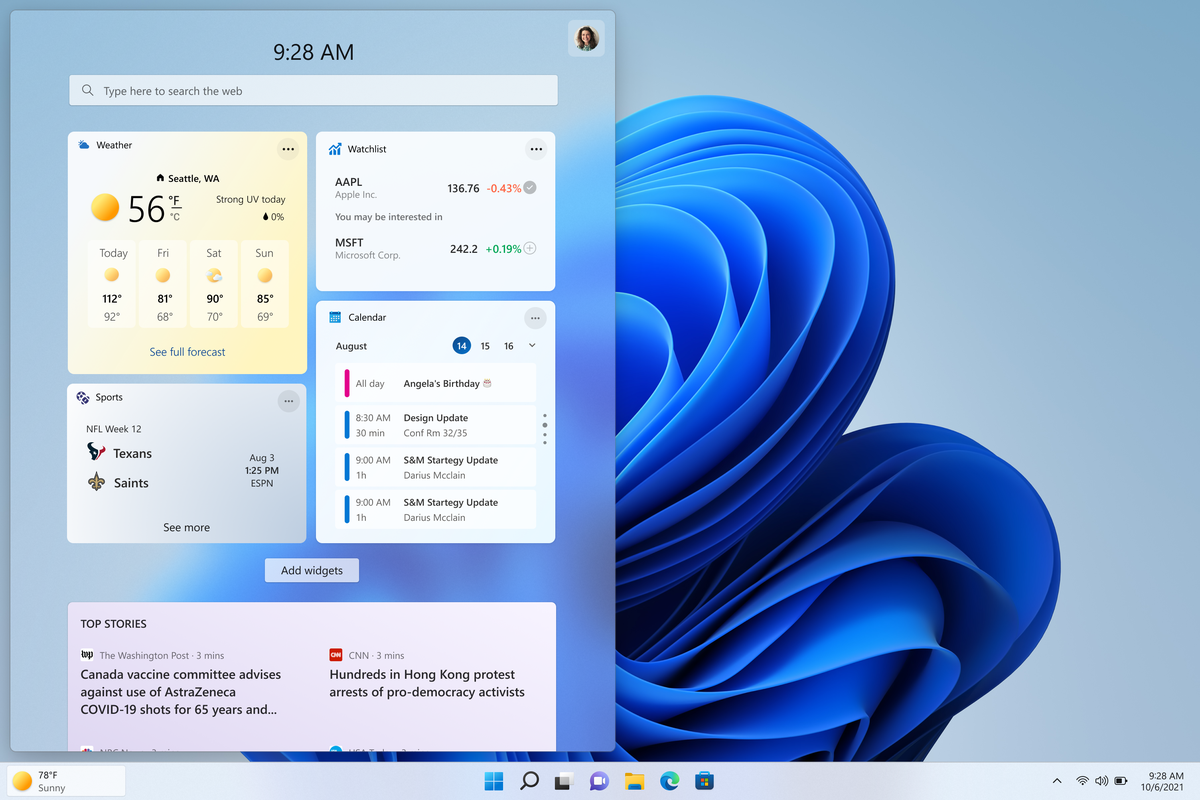
The latest Windows 11 update has brought with it not so popular widget from Windows 10, the weather widget that will reside into the taskbar and constantly show stuff like temperature, weather conditions, etc. The weather widget is not a bad thing but most users found it a little annoying and turned it off in Windows 10. If you wonder how can you do the same but this time inside Windows 11 please keep reading.

weather widgetThe first step is to right-click  anywhere on the taskbar (in empty space) and choose Taskbar settings

Once the taskbar settings are opened, find Widgets and click on the switch on the far right to turn it off, immediately no more information will be shown on the taskbar and it will be free again. And that is all there is to it.

Do You Need Help with Your Device?

Our Team of Experts May Help
Troubleshoot.Tech Experts are There for You!
Replace damaged files
Restore performance
Free disk space
Remove Malware
Protects WEB browser
Remove Viruses
Stop PC freezing
GET HELP
Troubleshoot.Tech experts work with all versions of Microsoft Windows including Windows 11, with Android, Mac, and more.

Share this article:

You might also like

How to Fix Error 0x8024a206 in Windows
When you upgrade or update your Windows 10 computer but you suddenly got Error 0x8024a206 while trying to install the updates, it is due to a rouge update that was downloaded or because of some corrupted component in Windows. In case you don’t know, any file downloaded by Windows is verified for its integrity and if the files don’t pass the integrity test, then Error 0x8024a206 will most likely pop up during the Windows update or upgrade.

Option 1 – Reset the Windows Update components to the default

You have to stop a couple of services such as BITS, Cryptographic, MSI Installer, and Windows Update Services. And to do that, you need to flush the contents in the SoftwareDistribution folder. The Software Distribution folder in the Windows operating system is a folder that can be found in the Windows directory and is used to store files temporarily which might be required to install the Windows Update on your PC. Thus, it is required by the Windows Update and maintained by WUAgent. Aside from that, it also contains all the Windows Update History files and once you delete them, you will most likely lose the Update history. As a result, the next time you run the Windows Update, it may result in a longer detection time.
  • Open the WinX Menu.
  • From there, open Command Prompt as admin.
  • Then type in the following command – don’t forget to hit Enter right after typing each one of them.
net stop wuauserv net start cryptSvc net start bits net start msiserver
  • After entering these commands, it will stop the Windows Update Service, Background Intelligent Transfer Service (BITS), Cryptographic, and the MSI Installer
  • Next, go to the C:/Windows/SoftwareDistribution folder and get rid of all the folders and files thereby tapping the Ctrl + A keys to select them all and then click on Delete. Note that if the files are in use, you won’t be able to delete them.
After resetting the SoftwareDistribution folder, you need to reset the Catroot2 folder to restart the services you just stopped. To do that, follow these steps:
  • Type each one of the following commands.
net start wuauserv net start cryptSvc net start bits net start msiserver
  • After that, exit Command Prompt and restart your computer, and then try to run Windows Update once more.

Option 2 – Re-register DLLs related to Windows Update

DLL files, also known as Dynamic Link Library, are parts of applications that are separated from the core program so that they can be used again as well as independently be updated. The DLL files are loaded into memory and then used. Note that they have to be registered with Windows so they can be loaded. So if they’re not, the main program will fail. And this is the same with the DLL files related to the Windows Update. Thus, you need to register them in order to resolve Error 0x8024a206.
  • In the Cortana search box, type “command prompt”.
  • From the search results that appear, right-click on Command Prompt and select the “Run as administrator” option.
  • After that execute the commands listed below one after the other and don’t forget to hit Enter right after you key in each one of them.
    • regsvr32 JSCRIPT.DLL
    • regsvr32 MSXML3.DLL
    • regsvr32 WUPS2.DLL
    • regsvr32 WUPS.DLL
    • regsvr32 WUAUENG.DLL
    • regsvr32 WUAPI.DLL
    • regsvr32 WUCLTUX.DLL
    • regsvr32 WUWEBV.DLL
Note: You also have the option to run the commands together via a batch file. Simply create a batch file by copying all the commands in a notepad and then save it as “WURegisterDLL.bat”. After that, run the batch file and it will execute the commands all at the same time. Then you have to restart your computer and see if it has fixed the Error 0x8024a206.

Option 3 – Run the System File Checker

The SFC or System File Checker scan could detect and automatically repair damaged system files that could be causing the Error 0x8024a206. SFC is a built-in command utility that helps in restoring corrupted files as well as missing files. It replaces bad and corrupted system files to good system files. To run the SFC command, follow the steps given below.
  • Tap Win + R to launch Run.
  • Type in cmd in the field and tap Enter.
  • After opening Command Prompt, type in sfc /scannow and hit Enter.
The command will start a system scan which will take a few whiles before it finishes. Once it’s done, you could get the following results:
  1. Windows Resource Protection did not find any integrity violations.
  2. Windows Resource Protection found corrupt files and successfully repaired them.
  3. Windows Resource Protection found corrupt files but was unable to fix some of them.

Option 4 – Run the Windows Update Troubleshooter

Running the built-in Windows Update troubleshooter could also help you resolve the Windows Update Error 0x8024a206. To run it, go to Settings and then select Troubleshoot from the options. From there, click on Windows Update and then click the “Run the troubleshooter” button. After that, follow the next on-screen instructions and you should be good to go.

Read More
Diablo 2 is trending after launch looking good
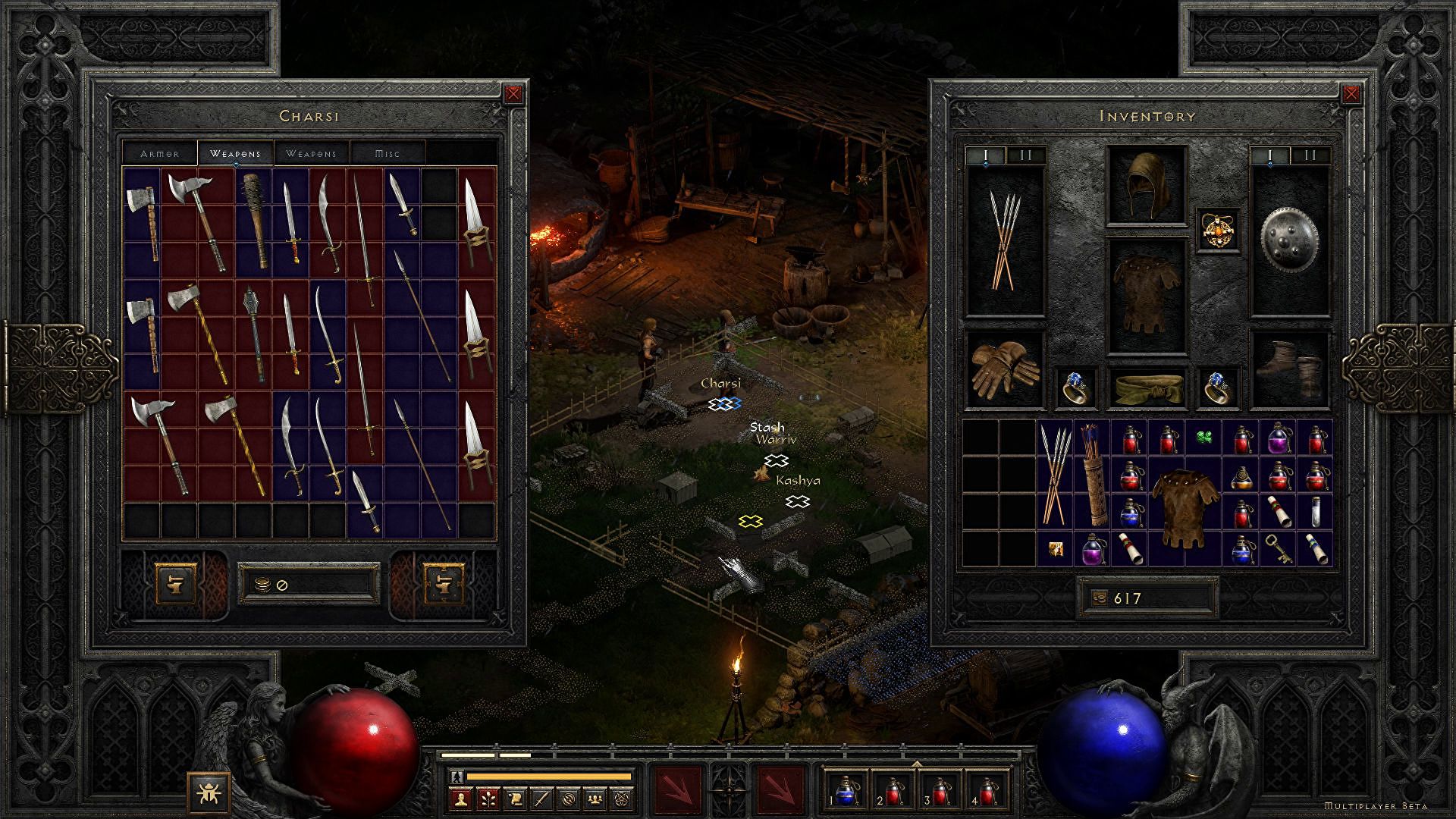
Finally, some good news for Blizzard entertainment after tons of bad stuff happening around it regarding lawsuits and people layoffs. Diablo 2 has become the most-watched game on Twitch after its official release and sold copies are on a satisfactory level. Diablo 2 resurrectedFor people not familiar with recent events, the state of California has sued Blizzard for various things including discrimination and offensive behavior. Later Blizzard executives were caught shredding some evidence and things just started to go to worse from there. After much drama, many people believed that this is the end for Blizzard entertainment and that they would not be able to recover from this since the community has sided with California and Blizzard has received a large punch as many subscribed WOW players have left the game. Things are not so grim as they were looking as their Diablo 2 remake has made moderate success despite being released in these troubling times and there are rumors of Overwatch 2 planned release date as of the first quarter of 2022. overwatch 2

Read More
Windows Setup in Continuous Reboot Loop on Windows 10 Fix

Windows Setup in Continuous Reboot Loop – What is it?

After upgrading to Windows 10 operating system from Windows 7 or Windows 8/8.1, a lot of Windows users are complaining about the Windows setup in a continuous reboot loop. The computer would just keep on rebooting every time the machine is booted and this incites frustration for a lot of Windows users.

Solution

Restoro box imageError Causes

When Windows launched the third update for Windows 10, users trying to upgrade to Windows 10 encountered an endless reboot loop problem. The computer will crash repeatedly. The KB3081424, which is a roll-up of bug fixes of Windows 10, continuously fails once you start the update process and then triggers a message showing: “We couldn’t complete the updates, undoing the changes.” The undoing process will then cause a system reboot mandatorily.

Once you log back on your computer again, the Windows 10 update will try to reinstall KB3081424. You will not be able to stop the update which will cause your Windows setup in a continuous reboot loop.

The KB3081424 will not be successfully installed since if it fails for the first time, that initial failure can be detected to create a bad entry in your Windows 10 registry. This will then prevent your subsequent attempts to reinstall KB3081424 to make it work correctly.

Further Information and Manual Repair

In order to fix the problem of Windows 10 setup in a continuous reboot loop, there are a few methods you can try. Try following these simple steps and you’ll be able to get rid of the problem.

Note: If you’re not highly confident to solve this issue on your own, it is highly recommended to consult an authorized computer technician who would be knowledgeable enough to fix the issue for you. In addition, you can also use a system optimizer to resolve the issue.

Method One: Check For Windows Update

Microsoft Windows released an updated fix for the Windows setup in continuous reboot loop problem. You can try fixing the issue through Windows Update.

  1. Open Settings
  2. Go to Update & Security
  3. Select Windows Update then choose Check for updates
At this point, an additional update will be installed and downloaded to your operating system to resolve the continuous reboot loop problem.

Method Two: Eliminate Bad Registry Entry

Before KB3081424 attempts to install again, you can try doing this solution:

  1. Click on the Start menu then type regedit
  2. Once the window opens, go to HKEY_LOCAL_MACHINESOFTWAREMicrosoftWindows NTCurrentVersionProfileList
  3. Create a backup for your registry key (since this process is a bit risky). Select ProfileList then click on File and Export then choose your backup name.
  4. From the ProfileList IDs, remove anything with ProfileImagePath in it.
  5. Close Regedit then reboot. By this time, the KB3081424 should properly install.

Method Three: Perform A Startup Repair

Another thing you can try to solve the Windows setup in continuous reboot loop problem is to perform a startup repair from a working computer.

  1. Ensure that all unnecessary devices are disconnected from your computer as your computer might detect them.
  2. If you are connected to a network, you need to disconnect from this as well.
  3. On a working computer, download the Windows 10 ISO then you can perform a startup repair.
  4. Boot your computer from the Windows 10 DVD.
To change your BIOS option to boot from the Windows 10 DVD, follow these steps:
  1. Boot your computer then press the F2 function key to enter setup.

NOTE: You must do this quickly since the BIOS loads rapidly.

  1. Once you’re inside the BIOS, navigate to the Boot Configuration screen. On this screen, you’ll be able to change the first device to be loaded.
  2. Go to Removable Devices then hit Enter. Removable devices could either be a thumb drive or DVD. Select DVD to put it at the top and be the first boot device.
  3. Save your changes by pressing on the F10 function key. A setup confirmation box will appear with a message Save configuration changes and exit now. Select Yes.
  4. Exit BIOS by pressing on the ESC key. You should be prompted to boot from the Windows 10 DVD at this point.
If you're not able to execute the aforementioned processes on your own, get help or download and install a powerful system optimizer to assist with the windows continuous reboot loop process and other Windows 10 error messages.
Read More
Is it wise to keep old electronics

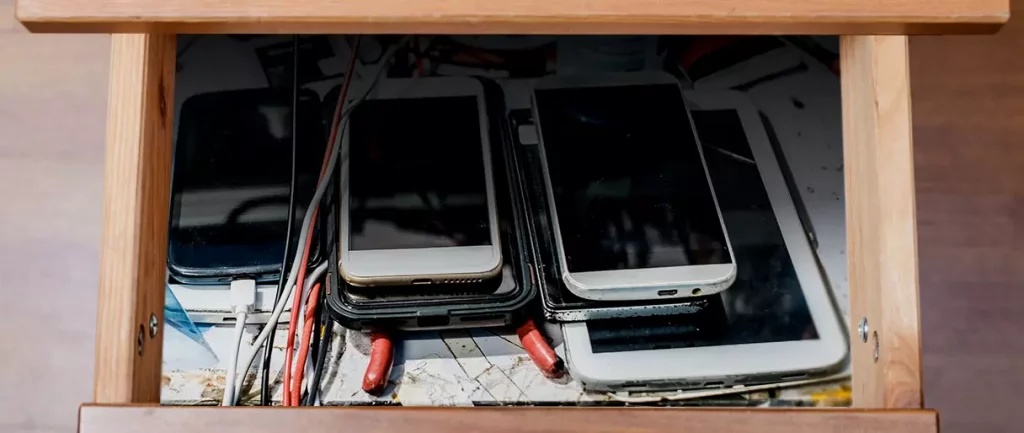
Hello all the wonderful people and welcome to our new article where we take a little different turn than usual and discuss why keeping old electronics around the house is not such a good idea. We all have some drawer or in some bag around the house and in the end of the day if that electronic has battery inside it is probably not the smart thing to keep it.

So naturally, the question comes why it is a bad idea to have old electronics with batteries in them? Well unlike a battery failure with, say, some AA batteries jammed in the back of an old toy, the risk with a lithium-ion battery failing isn’t just some leaking and corrosion in the battery compartment, it’s a potential fire as the battery swells up and the gases (combined with the stored energy) turn the battery into a potential fire hazard.

Good thing is that the battery will not explode just like that, it will swallow over time and get bigger and bigger until the breaking point is reached and all the fire breaks lose. So if by any chance you have some old gadgets lying around you can check up on them and see if has swelling process started, if yes, dispose properly of that piece of the old device immediately.

How to keep old electronics

If you’re not ready to get rid of the gadget then it’s best to charge it properly for storage. Proper charging keeps the battery cells and circuits in optimum health.

While recommendations vary by manufacturer and application, the general consensus is that lithium-ion batteries should be charged to approximately 40%. (Some manufacturers recommend charging 50% or 60% instead.)

Really, the important part here isn’t the exact percentage. What’s important is ensuring that the battery is charged to roughly half capacity and not stored with a completely discharged or completely full battery.

Discharge rates on lithium-ion batteries in completely powered-off devices are very slow, but you should still plan to top off the charge every 12-18 months or so to keep it around 50%.

If you wanted to go above and beyond, a metal storage container with a snug lid on a basement shelf with a desiccant pack inside to control the moisture would offer optimum conditions.

Read More
Adaptive Brightness is not working
The Adaptive Brightness setting in Windows 10 is a useful setting you can use in adjusting your computer’s brightness. It helps you get the brightness automatically based on the light around your computer. However, there are times when it does not work or it doesn’t turn off when you want it to. If this issue happened right after you update or install Windows 10, then read on as this post will give you a couple of options you can try to resolve the problem.

Option 1 – Try to run the Power Troubleshooter

The first thing you can do to resolve the issue with Adaptive Brightness is to run the Power Troubleshooter as the problem could occur due to some conflicted power settings. To use it, refer to the following steps:
  • Open the Windows 10 Settings panel and go to Update & Security and then to Troubleshoot.
  • After that, scroll down to your left-hand side and click the Power option.
  • From there, you should see the “Run the troubleshooter” button. Click on it to fix the problem.
  • Afterward, follow the next on-screen instructions that follow.

Option 2 – Try disabling or turning off the corresponding options in GPU settings

The problem might be due to the Graphics card settings. If you are using either an AMD graphics card or the HD graphics of Intel, you may have to disable the power-related options in the GPU settings. To be specific, you have to disable the Vari-Bright in AMD graphics card settings or the Display Power Saving Technology under Intel’s Graphics panel.
  • AMD users:
    • Open the AMD Radeon settings panel.
    • Then go to Preferences. From there, select Radeon Additional Settings.
    • Next, go to the Power tab and click the PowerPlay option.
    • You should find an option called “Enable Vari-Bright” located on your right-hand side. Remove the mark from its checkbox and then save the changes you’ve made.
  • Intel users:
    • Open the Intel Graphics and Media Control Panel from your Desktop.
    • Then select the Basic mode and go to the Power tab.
    • From there, select “On battery” as Power Source and then you’ll get the Display Power Saving Technology option. It should be set to enabled by default.
    • Now remove the mark from the checkbox and then save the changes you’ve made.

Option 3 – Try resetting the Power Plan defaults

You might also want to use a command-line tool to resolve the problem. This command-line tool is known as PowerCfg. It is a command utility tool that will scan your computer for 60 seconds to know its power. This tool gives detailed results in the form of an HTML report that will help you in evaluating the real cause of the battery drain issues. You can also use this tool to reset the Power Plan defaults of your computer. To use it, follow the steps below.
  • Open the Command Prompt as administrator.
  • Then type in the following command and tap Enter to execute it:
powercfg –restoredefaultschemes
  • After the command has been executed, restart your computer.

Option 4 – Try updating your Graphics drivers

  • First, boot your computer into Safe Mode.
  • After that, tap the Win + R keys to launch Run.
  • Type in devmgmt.msc into the box and tap Enter or click OK to open the Device Manager.
  • After that, a list of device drivers will be displayed. From there, look for the Display Adapters and click on them.
  • After that, right-click on each entry under the Display Adapters and select the “Uninstall Device” option from the menu.
  • Now restart your computer.
  • After restarting your computer, go to the Settings app and Check for Updates in the Windows Update section.
Note: You also have the option to go directly to the website of your graphics card manufacturers like NVIDIA, Intel, or AMD and go to the section called Drivers then check if there’s a new available update – if there is, download and install it.

Option 5 – Try disabling adaptive brightness via Registry Editor

Since you will be dealing with Registry files in this post, you need to create a System Restore point first. Once you have that covered, proceed to the following steps:
  • Tap the Win + R keys to open the Run dialog box.
  • Next, type “regedit” in the field and hit Enter to open the Registry Editor.
  • After that, navigate to this path: HKEY_LOCAL_MACHINESOFTWAREIntelDisplayigfxcuiprofilesMediaBrighten Movie
  • Now double click on the “ProcAmpBrightness” and set its value to “0”.
  • Now go to this path: HKEY_LOCAL_MACHINESOFTWAREIntelDisplayigfxcuiprofilesMediaDarken Movie
  • From there, double click on “ProcAmpBrightness” and set the value to “0”.
  • Then close the Registry Editor and restart your PC and then see if the problem’s fixed or not.
Read More
Ways to speed up your Computer
Having a PC is a great thing, more often we are enjoying it than we have issues, but as time passes it seems that our computer is slowing more and more as new applications and games are coming which demand more powerful computers. Before you decide to throw away your computer and buy a new one because you feel it is a bit slow, read through this guide where we will guide you to common tips & trick to make your PC run faster:
  1. Keep your PC clean and tidy

    Slowdowns and many other issues, even hardware failures can come from dirty PC. Make sure your PC is clean and tidy for maximum performance.
  2. Optimize airflow through PC casing

    Airflow is very important so your GPU and CPU and overall all hardware components can be kept in optimal working temperatures. If any device inside the casing is working in abnormal temperatures you will experience slowdowns and freezing on daily basis. Make sure that all fans are working and that your temperatures are in the optimal range to prevent overheating and make sure to have maximum performance.
  3. Check PC for malware

    Viruses, worms, and overall all malware can drastically reduce system performance. Make sure that your protection software is up to date with the latest definitions and that you have the latest Windows updates installed.
  4. Create a Hi-Performance power plan

    Windows power plans can be a very useful feature, especially if you are working on laptop but in order to boost performance and drain maximum, you will need to switch to a hi-performance power plan.
  5. Free space on the system drive

    Having little to no space on your Windows system drive can lead to extreme slowdowns, make sure that your hard drive is not on red when viewed from File explorer or you will experience even 50% poorer performance.
  6. Choose startup applications

    If you have many applications starting up with your Windows and many of them running in the background you will experience performance issues. Each application that runs in the background is taking RAM and CPU time for themselves which could be free and used for the program that you need.
  7. Do not open too many tabs in Browser

    Having too many tabs in Browser while working on a computer can also cause slowdowns, each tab is taking RAM for itself and even can cause Browser poor performance if a tab is LIVE and refreshing with new content all the time.
  8. Remove browser extensions

    Speaking of browser, having too many installed extensions which are active as soon as the browser is up and running can also lead to poor performances. Remove all which you really do not need and your computer will gain in speed.
  9. Make hardware upgrade

    Sometimes your system is just a little outdated, upgrading more RAM or switching to a new SSD with the greater speed can cause a world of difference in PC performance. Check to see how RAM is standard and upgrade accordingly, you can also upgrade the CPU and other bottlenecks in your system this way instead of completely buying a new PC.
  10. Format and reinstall system

    Drives, application traces, registry entries, etc. are piling up in your system over time, and if enough time is given it will clog your computer. From time to time it is a good idea to backup files and do a completely clean full format of HD and install a new and fresh copy of Windows with new and clean copies of applications and drivers.
That's it, 10 tips on how to make your Windows and PC perform better and speed it up. I hope that you found the read informative and helpful and I hope that I will see you soon.
Read More
How to Resolve Internal Error 2753

Internal Error 2753 - What is it?

Internal error 2753 is associated with Windows Installer failure. The Windows Installer is basically an in-built software program in Windows 7 and 8. It installs all programs on the system smoothly, saves the program in the computer program files and in the Windows Registry. Though this can be carried manually Windows Installer makes the installation process much easier. However, internal error 2753 can cause a great deal of distress and frustration during program installation. This error prevents you from installing your desired program successfully.

Solution

Restoro box imageError Causes

The 2 known causes for Internal Error 2753 are:
  • Viral infection
  • Windows Installer not properly registered

Further Information and Manual Repair

To resolve internal error 2753 on your system, try the methods discussed below. These methods are easy and require no technical expertise. Let’s get started:

Method 1 - Remove All Malicious Programs

Malicious programs like viruses, malware, adware, Trojan and spyware can corrupt programs on your PC like Windows Installer. If this is the underlying cause of error code 2753, then simply download a powerful antivirus on your system. Run it to scan for all such malicious programs and remove them. Once your PC is clean, try installing your desired program. This will hopefully resolve the issue. If the error still pops up then try method 2.

Method 2 - Register Windows Installer Properly

To do this, go to the start menu and then open Run and type ‘cmd’ in the box, and press OK. This will open the DOS command window. In the command prompt type "regsvr32 vbscript.dll" and then press Enter to proceed. After that, you will see a message that will read as "DllRegisterServer in vbscript.dll succeeded." This means Window Installer files have been successfully registered on your PC.  Now you can try installing your desired program again. If the installation begins and completes successfully, then the error is resolved.

Method 3 - Undo Recent Changes

If nothing works, then use the Windows System Restore Utility tool to undo recent changes. This will bring back your PC in the former state before you experienced the error 2753 on your PC. To access System Restore Utility, press Start and type System Restore in the search box. Now follow the steps in the Wizard to choose a restore point. Once you select the point, reboot your system to activate changes.
Read More
MS will release single office apps in MS Store
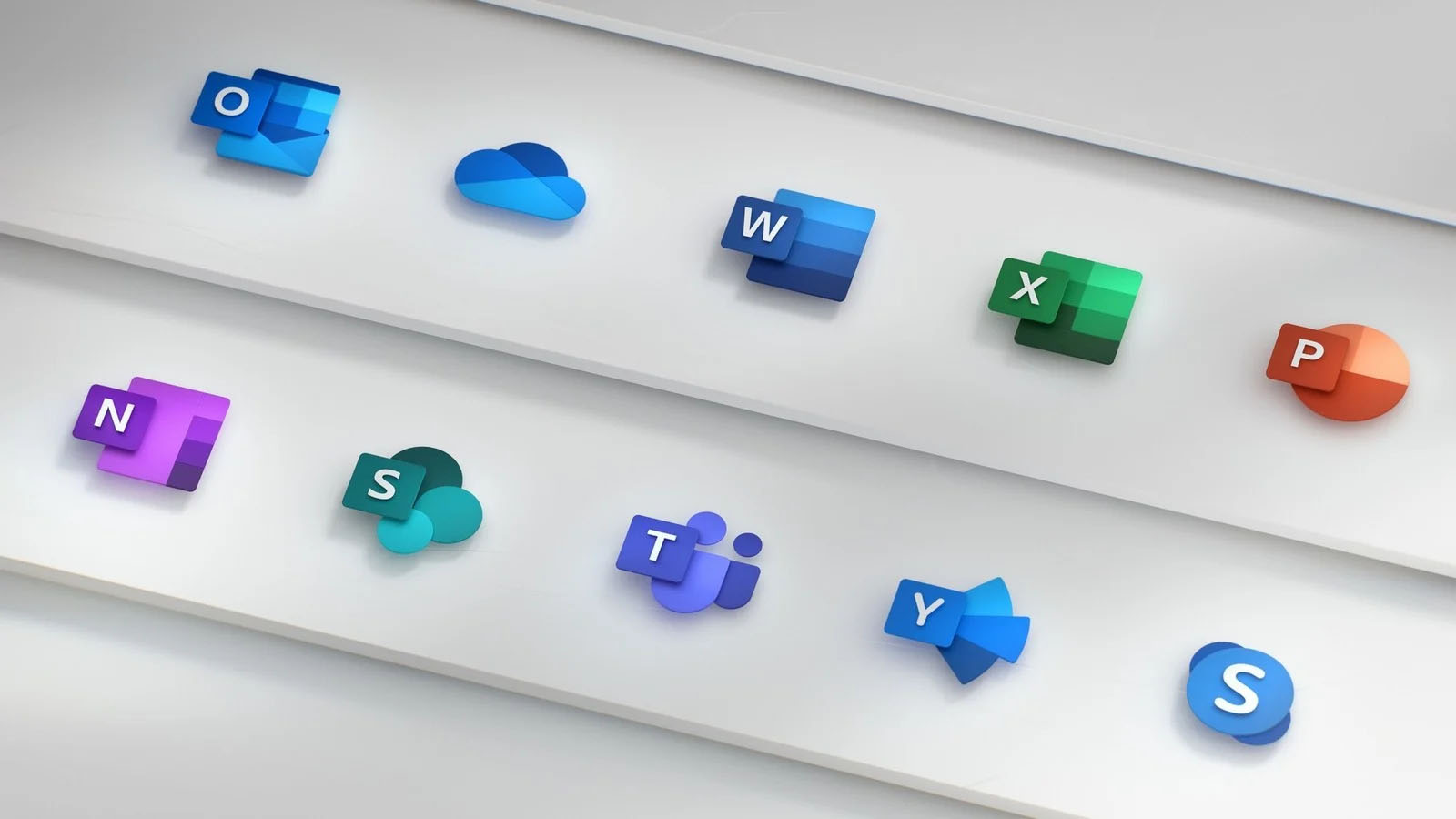
It seems that Microsoft is going to offer subscription and sales of individual office applications in the Windows Store. The office package will still be available as a package but for the first time, we will get single applications as standalone ones available for purchase. ms officeThis is a very interesting decision by Microsoft and I fully support it, this time users will be able to pay less and to choose only applications that they need instead of paying for the whole package and not using it.

Read More
Fix ERR_UNSAFE_PORT error on Chrome
As you know, one of the most useful web browsers all over the globe is Google Chrome. However, it is not without flaws as you could encounter errors while using it. One of these errors is the ERR_UNSAFE_PORT error. This kind of error is caused by the data being accessed using a port that isn’t recommended. When you encounter this kind of error in Chrome, you will see the following error message on your screen:
“The webpage is not available, The webpage at <Address> might be temporarily down or it may have moved permanently to a new address. Error code: ERR_UNSAFE_PORT”
In this post, you will be guided on how you can fix the ERR_UNSAFE_PORT error in Google Chrome on your Windows 10 computer. You can try to set allowed ports or reset or reinstall Google Chrome. For more details, refer to the given options below.

Option 1 – Try to set allowed ports

  • To get started, open Google Chrome.
  • After that, go to the Shortcut tab and type the following after the whole address in the field named Target: --explicitly-allowed-ports=xxx
  • It should look like this “C:/Documents and Settings/User/Local Settings/Application Data/Google/Chrome/Applicationchrome.exe --explicitly-allowed-ports=6666”.
  • Now click on Apply and click OK to save the changes made.

Option 2 – Reset Chrome

Resetting Chrome can also help you fix the error. This means that you will be restoring its default settings, disabling all the extensions, add-ons, and themes. Aside from that, the content settings will be reset as well and the cookies, cache, and site data will also be deleted. To reset Chrome, here’s what you have to do:
  • Open Google Chrome, then tap the Alt + F keys.
  • After that, click on Settings.
  • Next, scroll down until you see the Advanced option, once you see it, click on it.
  • After clicking the Advanced option, go to the “Restore and clean up option and click on the “Restore settings to their original defaults” option to reset Google Chrome.
  • Now restart Google Chrome

Option 3 – Try to clean reinstall Chrome

There are instances when programs leave files behind after you’ve uninstalled them and the same thing can happen to Chrome so before you reinstall Chrome, you have to make sure that you have deleted the User Data folder. To do so, refer to the following steps:
  • Hit the Win + R keys to open the Run dialog box.
  • Next, type “%USERPROFILE%AppDataLocalGoogleChromeUser Data” in the field and hit Enter to open the User Data folder.
  • From there, rename the default folder and name it something else, e.g. “Default.old”.
  • After that, install Google Chrome again and check if the issue is now fixed.
Read More
Guide to Fixing Error 0x800CCC0E

Error Code 0x800CCC0E - What is it?

The error code 0x800CCC0E is an Outlook error that appears while using either Microsoft Outlook or Outlook Express. The error message hampers your ability to send and receive emails.

Solution

Restoro box imageError Causes

0x800CCC0E Outlook error code is triggered by multiple reasons including:
  • Improper connection with SMTP (Simple Mail Transfer Protocol) server
  • Damaged files
  • Registry corruption
In most cases, it’s the registry that gets corrupted which leads to the occurrence of 0x800CCC0E error code display. This typically happens when you try to update your Outlook/Outlook Express version. When updating, you need to remove all the software files of the previous Outlook version which includes the registry too. If the files are not removed from the registry, the new version update will often fail. The junk files of the old version are likely to damage and corrupt the registry.

Further Information and Manual Repair

It is advisable to repair the error code 0x800CC0E right away to avoid inconvenience and system failure and fatal crashes which can lead to valuable data loss.

Cause: Improper connection with SMTP (Simple Mail Transfer Protocol) server

Solution: If the cause of the 0x800CCC0E is SMTP server connection failure, then the best way to resolve the error is to reconfigure your email account settings. Make sure that port 25 is being used in the SMTP area. Port 25 is the standard outgoing mail port. If the SMTP setting is on port 25 then another reason for the error 0x800CCC0E can be your anti-virus or firewall software enabled on your PC. Turn it off for a moment and then try sending emails from your Outlook.

Cause: Damaged Files and Registry Corruption

Solution: If the error code is triggered due to registry corruption and file damage, then the best way to resolve it is to download Restoro. Restoro is a safe, efficient, and highly functional inbox cleaner and a system optimizer embedded with numerous powerful utilities designed to repair multiple PC-related errors including the error code 0x800CCC0E when triggered by registry corruption. This cutting inbox cleaner scans your PC entirely and detects all the unnecessary and malicious files saved in your system’s registry like junk files, internet history, invalid entries, and files of the uninstalled programs. These files take up most of the registry disk space thus causing the registry files to get damaged and corrupt and triggering error codes like 0x800CCC0E. With the help of Restoro,  you can easily wipe out all such files from your system in just one click. After scanning for errors all you need to do is click the repair tab to make your registry disk clutter-free. Once the clutter is removed, update the new version of the Outlook/ Outlook Express again on your system and then try sending emails. You’ll see two noticeable differences after repairing your PC with Restoro. One is that you will be able to install the new version and send emails smoothly from your Outlook account without any 0x800CCC0E error pop-ups. And the second difference you’ll see is the change in your PC performance. This tool optimizing your PC speed and reduces boot time. This tool is very simple and easy to use. It has a neat design layout and a user-friendly interface which makes it easy for all levels of users to use Restoro smoothly with zero complexity. In just a few clicks the error message 0x800CCC0E is resolved. What makes this tool a favorite among users is that it does not require any skills or technical know-how. To get started here’s what you need to do:
  1. Click here to download Restoro software on your PC
  2. Once the download is complete, run it to scan for 0x800CC0E error
  3. After the scanning is successfully complete, click on the Repair button to fix the error right away.
  4. Then install the new version of Outlook/ Outlook Express again on your system
Read More
1 2 3 171
Logo
Copyright © 2023, ErrorTools. All Rights Reserved
Trademark: Microsoft Windows logos are registered trademarks of Microsoft. Disclaimer: ErrorTools.com is not affiliated with Microsoft, nor claims direct affiliation.
The information on this page is provided for information purposes only.
DMCA.com Protection Status