




Logo

Fix Windows Update Error 0x80244007

Getting errors while trying to update your Windows 10 computer is not an uncommon occurrence. Although some of them are easy to fix, there are others that need a lot of time and research in order to resolve. One of these tough Windows Update errors is Error 0x80244007. This kind of Windows Update error halts the process of Windows Update and a simple system restart won’t help much to fix it.

When you encounter this Windows Update error, you will see a description that says, “SOAP client failed because there was a SOAP fault for reasons of WU_E_PT_SOAP_* error codes”. One of the main causes of such an error is that Windows was not able to renew the cookies for Windows Update. To fix this error, here are some suggestions that might be useful.

Option 1 – Clear up temporary or junk files

The error could be caused by some temporary or junk files in your computer and so you need to clear them up to fix the problem. You can achieve that using the Storage Sense feature.

  • Open Setting > System > Storage from the WinX Menu.
  • From there, you will see a list of all the local and connected storage devices along with the details on the free space. Make sure that Storage Sense is on.
  • Next, find a link that says “Free Up Space” and click it to open.
  • After that, a screen which is the built-in program in Windows 10 will appear and will scan your computer for the following junk files so you can free up disk space:
    • Windows Upgrade Log Files
    • The system created Windows Error Reporting Files
    • Thumbnails
    • Temporary Internet Files
    • Previous Windows Installation Files
    • Delivery Optimisation Files
    • DirectX Shader Cache
  • Choose the files you want to get rid of and then click on the remove files option. Note that you’ll have an idea of the total size as you select any of the junk files listed above.
  • Now go to the “Free Up Space Now” section and click the Clear Now button. This will get rid of all the temporary or junk files in your computer and should hopefully fix the Windows Update error 0x80244007.

Option 2 – Try running the Windows Update troubleshooter

Windows 10 have various troubleshooters that can help you resolve many system issues. So if you’re dealing with Windows Update errors like Error 0x80244007, you can run the Windows Update troubleshooter to resolve it.

To run it, go to Settings and then select Troubleshoot from the options. From there, click on Windows Update and then click the “Run the troubleshooter” button. After that, follow the next on-screen instructions and you should be good to go.

Option 3 – Try to reset the Windows Update components

If by any chance that the second option didn’t work, resetting the Windows Update components could also help you resolve the problem. How? Refer to the following steps:

  • Open Command Prompt with admin privileges.
  • After that, type each one of the following commands and hit Enter after you key in one after the other.
    • net stop wuauserv
    • net stop cryptsvc
    • net stop bits
    • net stop msiserver

Note: The commands you entered will stop the Windows Update components such as Windows Update service, Cryptographic services, BITS and MSI Installer.

  • After disabling WU components, you need to rename both the SoftwareDistribution and Catroot2 folders. To do that, type each one of the following commands below and don’t forget to hit Enter after you type one command after the other.
    • ren C:WindowsSoftwareDistribution SoftwareDistribution.old
    • ren C:WindowsSystem32catroot2 Catroot2.old
  • Next, restart the services you’ve stopped by entering another series of commands. Don’t forget to hit Enter after you key in one command after the other.
    • net start wuauserv
    • net start cryptsvc
    • net start bits
    • net start msiserver
  • Close Command Prompt and reboot your PC.

Do You Need Help with Your Device?

Our Team of Experts May Help
Troubleshoot.Tech Experts are There for You!
Replace damaged files
Restore performance
Free disk space
Remove Malware
Protects WEB browser
Remove Viruses
Stop PC freezing
GET HELP
Troubleshoot.Tech experts work with all versions of Microsoft Windows including Windows 11, with Android, Mac, and more.

Share this article:

You might also like

VideoDownload Converter removal guide

Video Download Converter is a potentially unwanted toolbar distributed by Mindspark Interactive network. This toolbar offers users the ability to download and convert youtube and other online videos.

While this may seem useful at the start, this toolbar monitors user browsing activity and records visited websites, clicked links, and even personal data, that it later uses to display injected ads through your browsing session. When the toolbar is installed, it will automatically hijack your home page and search engine setting them to MyWay.com. This search engine uses google to display your search results, however, it injects ads into the search results to generate ad revenue. Several anti-virus scanners have detected VideoDownloadManager as a Browser Hijacker, and are therefore not recommended to keep on your computer.

About Browser Hijackers

Browser hijacking is actually a form of unwanted software, commonly a browser add-on or extension, which then causes modifications in the browser’s settings. There are lots of reasons why you might experience a browser hijack; however commercial, marketing, and advertising are definitely the key purposes for their creation. Usually, it will force users to predetermined sites which are looking to increase their advertising campaign earnings. It may seem naive, but the majority of these sites are not legitimate and can pose a major threat to your online safety. Browser hijackers can also allow other harmful programs without your knowledge to further damage the computer. How to determine if your browser has been hijacked There are many symptoms that indicate the internet browser has been hijacked: the home page of your browser is changed suddenly; you find yourself constantly directed to a different web page than the one you intended; the main web browser settings are modified and unwanted or insecure resources are added to the trusted websites listing; unsolicited new toolbars are added to your web browser; you may find numerous pop-up adverts on your computer screen; your browser has instability issues or exhibits frequent errors; you can’t navigate to certain websites, such as computer security software related websites.

So how does a PC get infected with a browser hijacker?

Browser hijackers can enter a PC by some means or other, for example via file sharing, downloads, and e-mail too. Many web browser hijackings originate from add-on applications, i.e., toolbars, browser helper objects (BHO), or extensions added to browsers to provide them additional features. Some browser hijackers spread in user’s computers using a deceptive software distribution method called “bundling” (commonly through freeware and shareware). Some of the popular hijackers are VideoDownload Converter, Babylon Toolbar, Conduit Search, OneWebSearch, Sweet Page, and CoolWebSearch. Browser hijackers might record user keystrokes to gather potentially invaluable information leading to privacy concerns, cause instability on computers, drastically disrupt user’s browsing experience, and eventually slow down the PC to a point where it becomes unusable.

The best ways to remove browser hijackers

Certain kinds of browser hijackers can be easily removed from your PC by uninstalling malicious software programs or any other recently added shareware. However, many hijacking codes are not very easy to get rid of manually, since they go deeper into the operating system. Moreover, manual removal demands you to do many time-consuming and complex procedures which are very difficult to carry out for beginner computer users. You can go for automatic browser hijacker removal by simply installing and running reliable anti-malware software. Safebytes Anti-Malware has a cutting-edge anti-malware engine to help you prevent browser hijacker infection in the first place, and clean up any pre-existing issues. Together with anti-malware, a PC optimizer tool, similar to Total System Care, could help you resolve registry errors, remove unwanted toolbars, secure online privacy, and improve overall system performance.

What to Do if Malware Stops You From Downloading Or Installing Anything?

Every malware is detrimental and the magnitude of the damage will vary greatly depending on the type of malware. Some malware sits in between your PC and the internet connection and blocks a few or all internet sites which you want to visit. It would also block you from adding anything to your system, particularly anti-malware software. If you are reading this article, chances are you’re stuck with a malware infection that is preventing you to download and install the Safebytes Anti-Malware program on your computer. There are a few steps you can take to circumvent this problem.

Eliminate viruses in Safe Mode

In the event the malware is set to load at Windows startup, then booting in safe mode should prevent it. Just bare minimum required programs and services are loaded when you boot your computer into Safe Mode. Here are the steps you need to follow to take out viruses in Safemode. 1) After switching on the computer, press the F8 key before the Windows splash screen begins to load. This would invoke the “Advanced Boot Options” menu. 2) Make use of the arrow keys to select Safe Mode with Networking and hit ENTER. 3) When you are into this mode, you should have an internet connection once again. Now, utilize your web browser to download and install Safebytes Anti-malware. 4) Right after installation, run a complete scan and let the software remove the threats it detects.

Obtain the security program using a different browser

Some malware mainly targets particular browsers. If this sounds like your situation, employ another web browser as it could circumvent the virus. If you appear to have a trojan attached to Internet Explorer, then switch over to a different browser with built-in security features, such as Firefox or Chrome, to download your favorite anti-malware program – Safebytes.

Install security software on a USB drive

Here’s yet another solution which is utilizing portable USB anti-malware software that can scan your computer for viruses without the need for installation. Adopt these measures to use a USB drive to fix your corrupted computer system. 1) Download Safebytes Anti-Malware or Windows Defender Offline onto a clean PC. 2) Mount the pen drive on the same PC. 3) Double click on the downloaded file to run the installation wizard. 4) Choose a thumb drive as the location when the wizard asks you where you wish to install the application. Follow the on-screen instructions to complete the installation. 5) Transfer the pen drive from the uninfected computer to the infected computer. 6) Double-click the EXE file to run the Safebytes program from the thumb drive. 7) Click on the “Scan” button to run a full system scan and remove viruses automatically.

Detect And Remove Viruses With SafeBytes Anti-Malware

If you’re looking to purchase anti-malware for your computer system, there are lots of brands and applications for you to consider. Some of them are good and some are scamware applications that pretend as legit anti-malware programs waiting around to wreak havoc on your personal computer. Make sure you choose a company that builds industry-best anti-malware and it has attained a reputation as reliable. One of the recommended software by industry analysts is SafeBytes Anti-Malware, the most dependable program for Windows computers. SafeBytes anti-malware is really a powerful, highly effective protection tool made to help users of all levels of IT literacy in detecting and removing harmful threats from their PC. Using its cutting-edge technology, this application will assist you to remove several types of malware including computer viruses, trojans, PUPs, worms, ransomware, adware, and browser hijackers. SafeBytes has got a plethora of amazing features which can help you protect your computer from malware attack and damage. Here are some of the features you will like in SafeBytes. Active Protection: SafeBytes offers a completely hands-free real-time protection that is set to monitor, block and kill all computer threats at its very first encounter. It will continuously monitor your computer for hacker activity and also provides end-users with sophisticated firewall protection. World-class AntiMalware Protection: This deep-cleaning anti-malware application goes much deeper than most antivirus tools to clean out your computer system. Its critically acclaimed virus engine locates and disables hard-to-remove malware that conceals deep inside your personal computer. Fast Scan: SafeBytes Anti-Malware possesses a multi-thread scan algorithm that works up to 5 times faster than any other antivirus software. Web Protection: Through its unique safety ranking, SafeBytes tells you whether a website is safe or not to visit it. This will make sure that you’re always certain of your safety when browsing the web. Light-weight: This software is not “heavy” on the computer’s resources, so you’ll not find any performance troubles when SafeBytes is working in the background. 24/7 Support: You could get high levels of support around the clock if you are using their paid software. To sum it up, SafeBytes Anti-Malware is pretty great for securing your computer against all sorts of malware threats. There is no doubt that your PC will be protected in real-time once you put this software program to use. So if you’re looking for the best anti-malware subscription for your Windows-based PC, we suggest the SafeBytes Anti-Malware software program.

Technical Details and Manual Removal (Advanced Users)

If you do not want to use malware removal software and like to remove VideoDownload Converter manually, you may do so by going to the Add/Remove Programs menu in the control panel and deleting the offending software; in cases of web browser extensions, you could uninstall it by going to the browsers Add-on/Extension manager. You may even want to reset your internet browser settings, and also delete temporary files, browsing history, and cookies. Finally, examine your hard disk for all of the following and clean your registry manually to remove leftover application entries following an uninstallation. Please keep in mind that this is for advanced users only and could be difficult, with wrong file removal causing additional PC errors. Furthermore, certain malware is capable of replicating or preventing removal. Doing this malware-removal process in Safe Mode is recommended.
Files: LOCALAPPDATA\VideoDownloadConverterTooltab\TooltabExtension.dll Folders: LOCALAPPDATA\Google\Chrome\User Data\Default\Extensions\ikgjglmlehllifdekcggaapkaplbdpje LOCALAPPDATA\Google\Chrome\User Data\Default\Local Extension Settings\ikgjglmlehllifdekcggaapkaplbdpje LOCALAPPDATA\Google\Chrome\User Data\Default\Sync Extension Settings\ikgjglmlehllifdekcggaapkaplbdpje LOCALAPPDATA\VideoDownloadConverterTooltab Registry: key VideoDownloadConverter at HKEY_CURRENT_USER\Software\ key VideoDownloadConverterTooltab Uninstall Internet Explorer at HKEY_LOCAL_MACHINE\Software\Microsoft\Windows\CurrentVersion\Uninstall\
Read More
Software review series: KRITA
Krita Desktop is a free and open-source painting application. Krita is a full-featured free digital painting studio for artists who want to create professional work from start to end. Krita is used by comic book artists, illustrators, concept artists, matte and texture painters, and in the digital VFX industry. Krita has been in development for over 10 years and has had an explosion in growth recently. It offers many common and innovative features to help the amateur and professional alike. Krita has a user-friendly interface. The dockers and panels can be moved and customized for your specific workflow. Once you have your setup, you can save it as your own workspace. You can also create your own shortcuts for commonly used tools. In addition to painting, Krita comes with vector, filter, group, and file layers. Combine, order, and flatten layers to help your artwork stay organized. There are also three different views on how to see the layers. Krita supports full color management through LCMS for ICC and OpenColor IO for EXR, allowing you to incorporate Krita into your existing color management pipeline. Open PSD files that even Photoshop cannot open. Load and save to PSD when you need to take your artwork across different programs. Krita is the only dedicated painting application that lets you open, save, edit and author HDR and scene-referred images. Furthermore, with OCIO and OpenEXR support, you can manipulate the view to examine HDR images, and use it in the most cutting-edge workflows from the film and visual effects industries.
Read More
How to always run the app in admin mode in W11
Each time you open an application inside your Windows 11 operating system, it is opened with standard privileges. Now, please note that your account privileges and application privileges are two different things, you might be the administrator of the system but when you open the app, it still opens with standard privilege. admin privilegesMost of the time running applications with typical settings is fine but from time to time we might have some applications that will require running with administrator privilege in order to work properly. In this case, it is very easy to do it, you just right-click and choose run as administrator. Although a very easy solution, it can be quite annoying if running the app is on a daily basis or even more times per day. If this is the case then right-clicking and choosing to run as administrator can be a daunting task, sometimes you can even forget to run it like this in heat of work and some unforeseen consequences might occur. Luckily there is an easy hack so you can open the chosen application each time as an administrator with a simple double click each time.

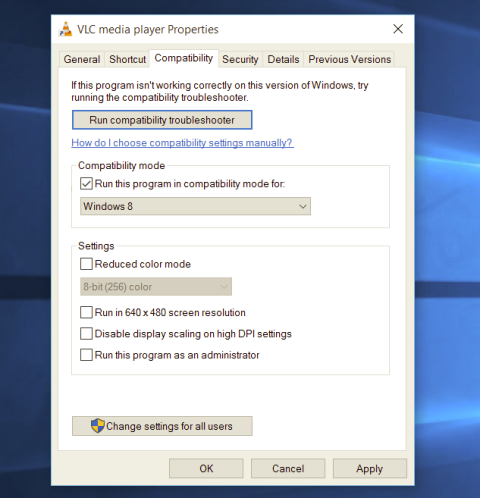
Setting application to run as administrator always

  1. Locate application executable file
  2. Right-click on in and choose properties
  3. Click on the Compatibility tab
  4. Check the box next to Run this Program as an Administrator
  5. Click on Apply
  6. Click on OK
From now on each time you open an application normally with a double click, it will be opened as administrator privileges.
Read More
Fix Invalid Product Key or Version mismatch
If you suddenly encounter Activation Error codes such as 0xC004E016, 0xC004F210, 0xC004F034, and 0xC004F00F on your Windows 10 computer, then they all point to the same issue – Invalid Product Key or Version mismatch. When you see any of the aforementioned error codes above, it indicates that you are either entering a wrong product key or you are using an incorrect ISO when installing it on your computer. In such cases, you may see either of the following error messages:
“You are running Windows 10 Pro, but you have a valid digital license for Windows 10 Home.” Or: “The specified product key is invalid or is unsupported by this version.”
If you got the error code 0xC004F00F then it means that you’ve entered a product key for the Enterprise edition of Windows to activate Windows 10 Pro or Windows 10 Home. It could be that you have a key from your work and you accidentally use it on your Home PC. If you got the error codes 0xC004E016, 0xC004F210, then it means that you have entered a product key that is meant for a different edition or version of Windows. On the other hand, if you got the error code 0xC004F034 instead, then it means that you have entered an invalid product key or a product key for a different Windows version. Whichever error codes you have, refer to the possible solutions given below to fix the Invalid Product Key or Version mismatch Activation Error in Windows 10.

Option 1 – Try running the Windows 10 Activation Troubleshooter

The first thing you can do to resolve this Activation error is to run the Windows 10 Activation Troubleshooter. To do so, follow these steps:
  • Go to Settings and then select Activation.
  • After that, click on the Windows Activation and then troubleshoot. This will help you address most of the commonly found activation issues in Windows devices.

Option 2 – Try purchasing a new license

There is an exception offered by Microsoft – if you are connected to a Microsoft account prior to the hardware change, then you can most certainly use the same license key to reactivate Windows 10 again. Microsoft calls this an “Exception path” which should be fixed easily by the Windows Activation Troubleshooter as pointed out earlier. However, if the Windows Activation Troubleshooter isn’t able to resolve the error you can try purchasing a new license. In such rate case, even if you do have a Microsoft account available on your Windows 10 computer, and if Windows was never activated, this solution will not work. And if you haven’t connected your Microsoft account with your Windows 10 computer prior to the major hardware change, then your only option left is to purchase a new license. For you to do that here are some steps you can follow.
  • To purchase a new Windows license, the first thing you have to do is click on the Start button > Settings > Update & Security.
  • From there, go to Activation and select the “Go to Microsoft Store” option.
  • After receiving your new license, you need to go back to Update & Security then go to Activation and select the “Change product key” option.
  • Now update your Windows 10 computer using the new key and it should automatically activate your computer.
  • Next, you have to create a Microsoft account or connect to your existing local account to your online account.
  • Once the system links the key and the account, you need not buy a new license in case something like this happens again.
Note: If you are an IT administrator, you need to keep in mind that there is a limit to the number of times you can reactivate Windows on your computer. Moreover, if you don’t see any option to reactivate the license, and it is a work computer, you need to contact your organization’s tech support.

Option 3 – Try activating Windows 10 via mobile phone

Activating Windows 10 can also be done using your phone. Just note that you have to call Microsoft to do so.
  • In the Start Search box, type in “Slui 4” and tap Enter.
  • Next, select your country and click on Next.
  • Keep the window open and call the toll-free number of the country you’re from.
  • Afterward, a confirmation ID should be given by the automated system which you must take a note of.
  • Finally, in the box on the window, type in the confirmation ID and click on the Activate button. That should do it.
Read More
Fix Windows Update error 0x80070003
If you are trying to run Windows Update but encountered an Error 0x80070003, read on as this post will guide you on how you can fix it. This kind of error in Windows Update can occur when you activate Windows Firewall or download from the Windows Store. This kind of error indicates that the Windows Update service or WUAUSERV is not started or that the Background Intelligent Transfer Service or BITS can’t be started. Aside from that, you can also encounter this error with the other Windows Update components. To fix the Windows Update error 0x80070003, you can try to run the built-in Windows Update troubleshooter or replace the old Configuration file named “Spupdsvc.exe”. You can also try to reset the Windows Update components or check the status of all the Windows Update-related services, as well as run a System File Checker scan.

Option 1 – Run the Windows Update Troubleshooter

Running the built-in Windows Update troubleshooter is one of the things you can first check out as it is known to automatically resolve any Windows Update errors like error code 0x80070003. To run this troubleshooter, Refer to these steps:
  • Tap the Win + I keys to open Settings.
  • From there, click Update and Security and go to the Troubleshoot section.
  • Next, select Windows Update and click the “Run the troubleshooter” button and wait until it’s finished, and then try to run Windows Update again.

Option 2 – Try replacing the old Configuration file named “Spupdsvc.exe”

The next thing you can do to fix the Windows Update error is to replace the Spupdsvc.exe file. This is a process file that comes under the Microsoft Update RunOnce service. So when an update becomes available for your computer, the process responsible for performing the upgrade is notified. In addition, the RunOnce entry is also added to the registry for the spupdsvc.exe and this process is executed when your computer restarts and when you log on.
  • In the Start Search, type “command prompt” and from the search results, right-click on Command Prompt and select the “Run as administrator” option.
  • Next, execute this command to replace the old configuration of the Spupdsvc.exe file with a new one: c m d (remove spaces on CMD) /c ren %systemroot%System32Spupdsvc.exe Spupdsvc.old
  • After that, try to run Windows Updates again and check if the error is now gone.

Option 3 – Try deleting the files from the SoftwareDistribution folder and resetting the Catroot2 folder

The downloaded Windows Updates are placed in a folder called “SoftwareDistribution”. The files downloaded in this folder are automatically deleted once the installation is completed. However, if the files are not clean up or if the installation is still pending, you can delete all the files in this folder after you pause the Windows Update service. For complete instructions, refer to the steps below.
  • Open the WinX Menu.
  • From there, open Command Prompt as admin.
  • Then type in the following command – don’t forget to hit Enter right after typing each one of them.
net stop wuauserv net start cryptSvc net start bits net start msiserver
  • After entering these commands, it will stop the Windows Update Service, Background Intelligent Transfer Service (BITS), Cryptographic, and the MSI Installer
  • Next, go to the C:/Windows/SoftwareDistribution folder and get rid of all the folders and files thereby tapping the Ctrl + A keys to select them all and then click on Delete. Note that if the files are in use, you won’t be able to delete them.
After resetting the SoftwareDistribution folder, you need to reset the Catroot2 folder to restart the services you just stopped. To do that, follow these steps:
  • Type each one of the following commands.
net start wuauserv net start cryptSvc net start bits net start msiserver
  • After that, exit Command Prompt and restart your computer.

Option 4 – Check the status of some Windows Update Services

  • Tap the Win + R keys to open the Run dialog box.
  • Next, type “services.msc” in the field and hit Enter or click OK to open Services.
  • From the list of Services, look for the following services and make sure that their Startup type is as follows:
    • Windows Update – Manual (Triggered)
    • Background Intelligent Transfer Service – Manual
    • Cryptographic Services – Automatic
    • Workstation Service – Automatic
  • After that, check if the Service status of the listed services above are set to Running. If they’re not, click on the Start button to start these services and then check if the Windows Update error 0x80070003 is now fixed or not.

Option 5 – Run the System File Checker Scan

If manually resetting the Windows Update components didn’t work, you can run a System File Checker scan instead. It is a built-in command-line utility that replaces bad and corrupted system files with good system files that might be the cause why you’re getting the error when you try updating your computer. To run the SFC command, follow the steps given below.
  • Tap Win + R to launch Run.
  • Type in cmd in the field and tap Enter.
  • After opening Command Prompt, type in sfc /scannow
The command will start a system scan which will take a few whiles before it finishes. Once it’s done, you could get the following results:
  1. Windows Resource Protection did not find any integrity violations.
  2. Windows Resource Protection found corrupt files and successfully repaired them.
  3. Windows Resource Protection found corrupt files but was unable to fix some of them.
  • Restart your computer.
Read More
The Steam Autumn sale is coming!

Oh, gamers rejoice, the Steam autumn sale is just around the corner!!!

The sale starts on November 22nd and lasts until November 29th. A great deal for any gamer, especially for ones that have plenty on their wishlist. Speaking of wishlists now would be a good time to place some interesting titles on them so you can be notified about discounts on them.

If you by any chance are unavailable to participate in the Autumn sale, do not worry, Steam winter sale is coming on December 22nd and it will last until January the 5th so you can save for it.

The best tactic for sale is not to jump on the train right away, it is best to wait until a few days, maybe even until the last 2 days since some games can go even lower on discount in the last days of the sale. Also, there might be also some packages that include games you wish to buy but are packed with other ones in a bundle and even with a higher discount.

So get prepared for the upcoming sale and treat yourself to something nice!

steam sale
Read More
How to Fix Windows Setup Error 0x80300002
Installing a Windows 10 upgrade is definitely not an easy task since the process is not always smooth sailing and you could encounter some errors when doing so. This isn’t unusual since there are various software configurations and hardware configurations as well as services it depends on in order to properly work. So if any of them malfunctions or becomes corrupted, it will affect the process which will result in errors like the error code 0x80300002. When you encounter this kind of Windows Update error, you will see the following error message on your screen:
“We couldn’t install Windows in the location you choose. Please check your media drive. Here’s more info about what happened: 0x80300002”
You can encounter this kind of error if there is corruption in the partition table of the drive where the installation is in progress. In addition, corruption on the Media device could also cause this problem. So if you encounter this error when running Windows Setup, read on as this post will guide you in fixing it. There are several ways to resolve this issue. The first thing you can do is to verify the compatibility between the BIOS and the installation media. You could also try recreating all the partitions as well as recreating the bootable USB drive. For more detailed information, follow the given options below.

Option 1 – Check if the BIOS is compatible with the installation media

The first thing you can do to fix the error is to check if there are any compatibility issues between the BIOS and the installation media you’re using. This is actually one of the most likely reasons why you’re getting the error since this is a complicated point for the Windows installation process. If the installation media is based on GPT, then your BIOS must be based on UEFI. So if you have your bootable media with the MBR partitioning, you need to set your BIOS to Legacy.
  • In the Windows Search box, type “command prompt” and from the search results that appear, right-click on Command Prompt and select the “Run as administrator” option.
  • After that, execute this command: exe /convert /allowfullOS
  • Now, wait until the process is completed since you can track its process on your screen.
  • Once it’s done, go to Settings > Update & Security > Advanced Startup options and from there, click on Restart Now. This will restart your computer and give you advanced options.
  • Next, select Troubleshoot > Advanced Options where you will see further options including System Restore, Startup Repair, Go back to the previous version, Command Prompt, System Image Recovery, and UEFI Firmware Settings.
  • Now select the “Legacy” option. This will take you to the BIOS. Boot Mode is typically available under Boot > Boot Configuration. Once you’re there, set it to Legacy and then save the changes you’ve made. After that, your computer will restart.

Option 2 – Try recreating a new bootable drive

  • Insert your USB drive into your PC.
  • Tap the Win + R keys to open the Run dialog box and type in “cmd” and tap Enter to open the Command Prompt. Alternatively, you can also search for “cmd” in the Cortana search box to open Command Prompt.
  • Once you’ve opened CMD, type in this command to open the DISPART utility – diskpart
  • After that, you should see a new black and white window that would say, “DISKPART>”.
  • Next, type in “list disk” in the command line and tap Enter to see the list of all the Storage devices as well as your hard disk connected to your PC. Here, you have to identify your disk’s number.
  • Type in this command where “X” is the disk number you have identified and then tap Enter – disk X
  • Type in this command and hit Enter to clear the table records and all the visible data on the drive – clean
  • Now you have to recreate a new primary partition of the drive so you’ll have to type in this command and tap Enter right after – create part pri
  • A new primary partition has been created so you have to select it by typing this command and tapping Enter – select part 1
  • Now you have to format it to make it visible to normal users by typing – format fs=ntfs quick
Note: If your platform supports the Unified Extensible Firmware Interface or UEFI, replace the “NTFS” with “FAT32” in the command on Step 10.
  • After that, type in this command and tap Enter after – active
  • Finally, type this command and hit Enter to exit the utility – exit
  • After you prepare the image for the operating system, save it to the root of your USB Storage device.

Option 3 – Try to recreate all the partitions

If none of the first two options given above worked, then you can try to recreate all the partitions instead. All you have to do is restart the Windows installation process and wait until you get to the part that says, “Where do you want to install Windows?”. From there, you will see options like delete, format, extend, create new partitions, and many more. Now you have to select the Delete all the partitions options and then use the “New” button to create new partitions. Just make sure that you have one primary partition at least where you can install Windows 10. After that, continue the installation of Windows on the new partition. Keep in mind that when you create a new partition, it also recreates the partition table configuration which means that the chances of getting an error are very unlikely.
Read More
MS will release single office apps in MS Store
It seems that Microsoft is going to offer subscription and sales of individual office applications in the Windows Store. The office package will still be available as a package but for the first time, we will get single applications as standalone ones available for purchase. ms officeThis is a very interesting decision by Microsoft and I fully support it, this time users will be able to pay less and to choose only applications that they need instead of paying for the whole package and not using it.

Read More
ERR_SSL_VERSION_OR_CIPHER_MISMATCH
If you encounter an error message saying, “ERR SSL VERSION OR CIPHER MISMATCH” while visiting a website, then it is not primarily your fault as an end-user. In fact, it can happen on any website like Chrome, Edge, Firefox, and even Internet Explorer. Getting this error means that the website you are visiting is using an SSL certificate which your browser seems to be rejected because there is some issue with the certificate. It is also possible that the certificate that’s downloaded on your computer is corrupted or that your computer configuration for TSL/SSL is misconfigured. Here are the complete details of the error message:
“A secure connection cannot be established because this site uses an unsupported protocol, Error code ERR_SSL_VERSION_OR_CIPHER_MISMATCH”
To resolve the ERR_SSL_VERSION_OR_CIPHER_MISMATCH error, refer to the options given below and see which one works for you.

Option 1 – Try to access the website with the only HTTP

The first thing you can do is to try accessing the website using HTTP instead of HTTPS. If you can open the website using HTTP then it means that the problem is in the website itself. And if you are the website owner, you can check the following:
  • Check if your website’s SSL certificate name is mismatched. Here you need to ensure that the name and alias of the websites match with the actual website URL where the certificate is installed.
  • Second, check if your server is using the RC4 Cipher. If it is, then you need to fix that.
On the other hand, you may also check if your CDN also supports SSL since most of the CDN nowadays supports SSL. All you have to do is configure it correctly and it should be good to go.

Option 2 – Try enabling SSL 3 / TLS and disable QUIC Protocol

If you were using Google Chrome when you got the ERR SSL VERSION OR CIPHER MISMATCH error, then you need to follow the protocol fixes for SSL3/TLS and QUIC which are usually some of the reasons that cause the SSL version / Cipher Mismatch. It also has a few fixes for Windows 10 computer where you can clear the certificates and make sure that your computer date and time is in sync with your time zone and so on. If you were using Edge or Internet Explorer when you got the error, then you have to follow the steps below.
  • Type “Internet” in the search box of your browser. After that, you should see the Internet Options from the search results.
  • Next, open the Internet Properties window and switch to the Advanced tab and then scroll down to the Security section.
  • From there, check the “Use TLS 1.1” checkbox as well as the “Use TLS 1.2” checkbox and then click OK to save the changes made.
  • Restart the browser.
On the other hand, if you were using Firefox when you go the error, here’s what you have to do.
  • Open Firefox and in the address bar, type “about:config” and hit Enter.
  • If a warning appears, just click on the “I accept the risk!” button to proceed.
  • Next, type in “TLS” in the search field and hit Enter.
  • Then look for “security.tls.version.min” and double click on it and set its integer value to 3 to force the protocol of TLS 1.3.
  • Now click OK and restart Firefox and do the same thing with SSL.
Read More
FreeDownloadManager Removal Tutorial

Free Download Manager is a software program developed by FreeDownloadManager.ORG. According to the publisher:

This software downloads files and converts videos. Its features include integration with all browsers, support of downloads from RapidShare, BitTorrent support, adjusting traffic usage, resuming broken downloads, and adds BitTorrent support, flash video download, upload manager, portable mode, and remote control.

During setup, the program creates a startup registration point in Windows in order to automatically start when any user boots the PC. It adds a browser extension to help it cache files you are downloading over your browser. The software is designed to connect to the internet and adds a Windows Firewall exception in order to do so without being interfered with. It also hooks up to start automatically and cache every download even if it's turned off.

This software comes bundled with video converters that some anti-virus programs marked as malware and therefore it is considered a potentially unwanted program.

About Potentially Unwanted Applications

If you’ve ever downloaded freeware or shareware, odds are high that your computer can get installed with a bunch of unwanted programs. These unwanted applications, officially known as Potentially Unwanted Programs (PUPs), often come bundled with other software and install themselves on user’s computers without their knowledge. They might not look like computer viruses to some individuals, but they can create huge annoyances and lead to serious difficulties for users. It’s clear by its name – unwanted programs – but did not really constitute “malware” in the traditional sense. What makes a PUP different from malware is the fact that when you download one, you’re doing it with your approval – even though in most cases unconsciously and unwillingly. Nevertheless, there is no doubt that PUPs continue to be bad news for PC users as they can be incredibly detrimental to your computer in several ways.

How does unwanted software affect you?

Unwanted programs come in various forms. Usually, they could be found in adware bundlers that are known to use aggressive and deceptive advertising. The majority of bundlers install multiple adware applications from a number of companies, each of which has its own EULA policy. Safebytes Anti-Malware entirely eliminates this threat and safeguards your PC against PUP or adware infection. They will also come in the form of web browser extension add-ons and toolbars. Not just they needlessly fill up space on your computer screen, toolbars could also manipulate search results, keep an eye on your web browsing activities, decrease your internet browser’s efficiency, and slow down your net connection to a crawl. Potentially unwanted programs utilize aggressive distribution methods to get in your computer. They will often include things like information gathering code that will collect and send your private information to other companies. Due to this unwanted program, your application may freeze, your security protections may get turned off that can leave your computer susceptible, your system could get damaged, and this list goes on and on.

Tips to prevent PUPs

• Always read the license agreement and privacy statement. Don’t agree unless you understand exactly what you are acknowledging. • Always choose “Custom” or “Advanced” installation and don’t blindly click the Next button, which will allow you to uncheck any foistware software programs you do not want. • Install an ad blocker/pop-up blocker; Add anti-malware products such as Safebytes Anti-Malware. These applications could establish a wall between the computer and cybercriminals. • Be alert if you install freeware, open-source programs, or shareware. Nowadays ‘freeware’ is not really freeware – but ‘crapware’ bundling nonsense. • Always download software from trusted sources like official websites instead of untrustworthy sharing space. Avoid file-hosting sites wherever possible.

Can't Install Safebytes Anti-malware due to the presence of Malware? Do This!

Malware could cause plenty of damage to your PC. Some malware types modify browser settings by including a proxy server or change the PC’s DNS configurations. In these cases, you’ll be unable to visit certain or all of the internet sites, and thus not able to download or install the required security software to remove the infection. If you are reading this article, you may have got infected by malware that stops you from installing a computer security program such as Safebytes Anti-Malware. There are some fixes you can attempt to get around with this obstacle.

Get rid of viruses in Safe Mode

In the event the malware is set to load at Windows startup, then booting in safe mode should avoid it. Only minimal required programs and services are loaded whenever you boot your PC in Safe Mode. To launch your Windows XP, Vista, or 7 computers in Safe Mode with Networking, do as instructed below. 1) Tap the F8 key continuously as soon as your PC boots, however, before the large Windows logo appears. This would conjure up the Advanced Boot Options menu. 2) Choose Safe Mode with Networking using arrow keys and hit Enter. 3) Once you get into this mode, you should have an internet connection once again. Now, use your browser normally and navigate to https://safebytes.com/products/anti-malware/ to download and install Safebytes Anti-Malware. 4) Following installation, run a complete scan and let the software program remove the threats it discovers.

Obtain the anti-malware program using an alternate browser

Web-based viruses could be environment-specific, targeting a particular web browser or attacking particular versions of the web browser. In case you suspect that your Internet Explorer has been hijacked by a computer virus or otherwise compromised by online hackers, the most effective thing to do would be to switch to a different browser like Chrome, Firefox, or Safari to download your chosen computer security program – Safebytes Anti-Malware.

Run antivirus from your pen drive

Here’s yet another solution which is creating a portable USB antivirus software package that can scan your computer for malicious software without the need for installation. Try these simple steps to clear up your infected computer by using a portable antivirus. 1) On a virus-free PC, download and install Safebytes Anti-Malware. 2) Put the pen drive into the clean PC. 3) Double click on the downloaded file to open the installation wizard. 4) Choose the drive letter of the flash drive as the location when the wizard asks you where you want to install the antivirus. Follow the directions to finish the installation process. 5) Unplug the pen drive. Now you can utilize this portable anti-virus on the affected computer system. 6) Run the Safebytes Anti-malware directly from the USB drive by double-clicking the icon. 7) Click on “Scan Now” to run a scan on the infected computer for malware.

Features and Benefits of SafeBytes Anti-Malware

If you are looking to purchase anti-malware for your computer system, there are numerous brands and applications for you to consider. A few of them do a good job in getting rid of malware threats while some will ruin your PC by themselves. You must choose a product that has gained a good reputation and detects not only viruses but other kinds of malware too. Among few good programs, SafeBytes Anti-Malware is the strongly recommended software for the security-conscious user. SafeBytes anti-malware is a very effective and easy-to-use protection tool that is created for users of all levels of IT literacy. Once you’ve got installed this software program, SafeBytes superior protection system will make sure that no viruses or malware can seep through your computer. SafeBytes anti-malware provides an array of advanced features that sets it aside from all others. The following are some of the good ones: World-class AntiMalware Protection: Safebytes is made on the very best virus engine in the industry. These engines can detect and remove threats even during the early stages of a malware outbreak. Real-time Active Protection: SafeBytes provides complete and real-time security for your personal machine. It will monitor your personal computer for suspicious activity at all times and shields your PC from unauthorized access. Fast Multi-threaded Scanning: Safebytes Anti-Malware, using its advanced scanning engine, provides super-fast scanning that can immediately target any active online threat. Safe Web Browsing: Through its unique safety rating, SafeBytes notifies you whether a website is safe or not to access it. This will ensure that you’re always certain of your safety when browsing the online world. Lowest Memory/CPU Usage: This software is lightweight and will work silently in the background, and that does not have an effect on your PC efficiency. 24/7 Live Expert Support: You can obtain high levels of support round the clock if you’re using their paid software.

Technical Details and Manual Removal (Advanced Users)

If you wish to manually remove FreeDownloadManager without the use of an automated tool, it may be possible to do so by removing the program from the Windows Add/Remove Programs menu, or in cases of browser extensions, going to the browsers AddOn/Extension manager and removing it. You will likely also want to reset your browser. To ensure the complete removal, manually check your hard drive and registry for all of the following and remove or reset the values accordingly. Please note that this is for advanced users only and may be difficult, with incorrect file removal causing additional PC errors. In addition, some malware is capable of replicating or preventing deletion. Doing this in Safe Mode is advised.

The following files, folders, and registry entries are created or modified by FreeDownloadManager

Files: C:WINDOWSsystem32netmsg.dll C:DocumentsUserLocalTempfdminst.exe C:DocumentsUserLocalTempis-FJKMF.tmpfdminst.tmp C:WINDOWSsystem32msctfime.ime C:DocumentsUserLocalTempis-FN3E3.tmp_isetup_shfoldr.dll C:WINDOWSsystem32shfolder.dll C:DocumentsUserLocalTempis-FN3E3.tmpfdminno.dll C:DocumentsUserLocalTempis-FN3E3.tmpnsProcessW_modified.dll C:WINDOWSsystem32shell32.dll C:Documents and SettingsUserStart Menudesktop.ini C:Documents and SettingsUserStart MenuProgramsdesktop.ini C:WINDOWSRegistrationR000000000007.clb C:WINDOWSwin.ini Registry: HKEY_CURRENT_USERSoftwareCodeGearLocales HKEY_LOCAL_MACHINESoftwareCodeGearLocales HKEY_CURRENT_USERSoftwareBorlandLocales HKEY_CURRENT_USERSoftwareBorlandDelphiLocales HKEY_LOCAL_MACHINESoftwareMicrosoftWindows NTCurrentVersionIMM HKEY_USERSS-1-5-21-1547161642-507921405-839522115-1004SoftwareMicrosoftWindows NTCurrentVersionAppCompatFlagsLayers HKEY_CURRENT_USERSOFTWAREMicrosoftCTF HKEY_LOCAL_MACHINESoftwareMicrosoftCTFSystemShared HKEY_LOCAL_MACHINESOFTWAREMicrosoftWindows NTCurrentVersionFontSubstitutes HKEY_LOCAL_MACHINESoftwareMicrosoftWindowsCurrentVersion HKEY_LOCAL_MACHINESOFTWAREMicrosoftWindows NTCurrentVersion HKEY_CURRENT_USERSoftwareFreeDownloadManager.ORGFree Download Manager 5 HKEY_LOCAL_MACHINESoftwareMicrosoftWindowsCurrentVersionPoliciesExplorer HKEY_CURRENT_USERSoftwareMicrosoftWindowsCurrentVersionPoliciesExplorer HKEY_LOCAL_MACHINESOFTWAREMicrosoftWindowsCurrentVersionShellCompatibilityObjects20D04FE0-3AEA-1069-A2D8-08002B30309D HKEY_CLASSES_ROOTHKEY_LOCAL_MACHINESoftwareClassesCLSID20D04FE0-3AEA-1069-A2D8-08002B30309DInProcServer32 HKEY_CLASSES_ROOTDriveshellexFolderExtensions HKEY_CLASSES_ROOTDriveshellexFolderExtensionsfbeb8a05-beee-4442-804e-409d6c4515e9 HKEY_CURRENT_USERSoftwareMicrosoftWindowsCurrentVersionExplorerUser Shell Folders HKEY_LOCAL_MACHINESoftwareMicrosoftWindowsCurrentVersionExplorerUser Shell Folders HKEY_LOCAL_MACHINESystemCurrentControlSetControlSession Manager HKEY_CURRENT_USERSoftwareMicrosoftWindowsCurrentVersionExplorerShell Folders HKEY_CURRENT_USERSoftwareMicrosoftWindowsCurrentVersionExplorerMountPoints2CPCVolume HKEY_CURRENT_USERSoftwareMicrosoftWindowsCurrentVersionExplorerMountPoints2CPCVolume475c7950-e3d2-11e0-8d7a-806d6172696f HKEY_CURRENT_USERSoftwareMicrosoftWindowsCurrentVersionExplorerMountPoints2CPCVolume475c7952-e3d2-11e0-8d7a-806d6172696f HKEY_CURRENT_USERSoftwareMicrosoftWindowsCurrentVersionExplorerMountPoints2475c7952-e3d2-11e0-8d7a-806d6172696f HKEY_CURRENT_USERSoftwareMicrosoftWindowsCurrentVersionExplorerMountPoints2475c7950-e3d2-11e0-8d7a-806d6172696f HKEY_CLASSES_ROOTDirectory HKEY_CLASSES_ROOTDirectoryCurVer HKEY_CLASSES_ROOTDirectory HKEY_CURRENT_USERSoftwareMicrosoftWindowsCurrentVersionExplorer HKEY_CURRENT_USERSoftwareMicrosoftWindowsCurrentVersionExplorer HKEY_CURRENT_USERSoftwareMicrosoftWindowsCurrentVersionPoliciesSystem HKEY_CURRENT_USERSoftwareMicrosoftWindowsCurrentVersionExplorerAdvanced HKEY_CLASSES_ROOTDirectoryShellExIconHandler HKEY_CLASSES_ROOTDirectoryClsid HKEY_CLASSES_ROOTFolder HKEY_CLASSES_ROOTFolderClsid HKEY_CURRENT_USERSoftwareMicrosoftwindowsCurrentVersionExplorerAutoComplete HKEY_LOCAL_MACHINESoftwareMicrosoftwindowsCurrentVersionExplorerAutoComplete HKEY_CURRENT_USERSoftwareMicrosoftWindowsCurrentVersionExplorerAutoComplete HKEY_LOCAL_MACHINESoftwareMicrosoftWindowsCurrentVersionExplorerAutoComplete HKEY_LOCAL_MACHINESoftwareMicrosoftCOM3 HKEY_USERSS-1-5-21-1547161642-507921405-839522115-1004_Classes HKEY_LOCAL_MACHINESoftwareClassesREGISTRYUSER HKEY_LOCAL_MACHINESoftwareClassesHKEY_LOCAL_MACHINESoftwareClassesCLSID0BB2765-6A77-11D0-A535-00C04FD7D062 HKEY_LOCAL_MACHINESoftwareClassesHKEY_LOCAL_MACHINESoftwareClassesCLSID0BB2765-6A77-11D0-A535-00C04FD7D062TreatAs HKEY_LOCAL_MACHINESoftwareClassesHKEY_LOCAL_MACHINESoftwareClassesCLSID0BB2765-6A77-11D0-A535-00C04FD7D062 HKEY_LOCAL_MACHINESoftwareClassesHKEY_LOCAL_MACHINESoftwareClassesCLSID0BB2765-6A77-11D0-A535-00C04FD7D062InprocServer32 HKEY_LOCAL_MACHINESoftwareClassesHKEY_LOCAL_MACHINESoftwareClassesCLSID0BB2765-6A77-11D0-A535-00C04FD7D062InprocServerX86 HKEY_LOCAL_MACHINESoftwareClassesHKEY_LOCAL_MACHINESoftwareClassesCLSID0BB2765-6A77-11D0-A535-00C04FD7D062LocalServer32 HKEY_LOCAL_MACHINESoftwareClassesHKEY_LOCAL_MACHINESoftwareClassesCLSID0BB2765-6A77-11D0-A535-00C04FD7D062InprocHandler32 HKEY_LOCAL_MACHINESoftwareClassesHKEY_LOCAL_MACHINESoftwareClassesCLSID0BB2765-6A77-11D0-A535-00C04FD7D062InprocHandlerX86 HKEY_LOCAL_MACHINESoftwareClassesHKEY_LOCAL_MACHINESoftwareClassesCLSID0BB2765-6A77-11D0-A535-00C04FD7D062LocalServer HKEY_CLASSES_ROOTHKEY_LOCAL_MACHINESoftwareClassesCLSID0BB2765-6A77-11D0-A535-00C04FD7D062 HKEY_CLASSES_ROOTHKEY_LOCAL_MACHINESoftwareClassesCLSID0BB2765-6A77-11D0-A535-00C04FD7D062TreatAs HKEY_LOCAL_MACHINESoftwareClassesHKEY_LOCAL_MACHINESoftwareClassesCLSID3C036F1-A186-11D0-824A-00AA005B4383 HKEY_LOCAL_MACHINESoftwareClassesHKEY_LOCAL_MACHINESoftwareClassesCLSID3C036F1-A186-11D0-824A-00AA005B4383TreatAs HKEY_LOCAL_MACHINESoftwareClassesHKEY_LOCAL_MACHINESoftwareClassesCLSID3C036F1-A186-11D0-824A-00AA005B4383 HKEY_LOCAL_MACHINESoftwareClassesHKEY_LOCAL_MACHINESoftwareClassesCLSID3C036F1-A186-11D0-824A-00AA005B4383InprocServer32 HKEY_LOCAL_MACHINESoftwareClassesHKEY_LOCAL_MACHINESoftwareClassesCLSID3C036F1-A186-11D0-824A-00AA005B4383InprocServerX86 HKEY_LOCAL_MACHINESoftwareClassesHKEY_LOCAL_MACHINESoftwareClassesCLSID3C036F1-A186-11D0-824A-00AA005B4383LocalServer32 HKEY_LOCAL_MACHINESoftwareClassesHKEY_LOCAL_MACHINESoftwareClassesCLSID3C036F1-A186-11D0-824A-00AA005B4383InprocHandler32 HKEY_LOCAL_MACHINESoftwareClassesHKEY_LOCAL_MACHINESoftwareClassesCLSID3C036F1-A186-11D0-824A-00AA005B4383InprocHandlerX86 HKEY_LOCAL_MACHINESoftwareClassesHKEY_LOCAL_MACHINESoftwareClassesCLSID3C036F1-A186-11D0-824A-00AA005B4383LocalServer HKEY_CLASSES_ROOTHKEY_LOCAL_MACHINESoftwareClassesCLSID3C036F1-A186-11D0-824A-00AA005B4383 HKEY_CLASSES_ROOTHKEY_LOCAL_MACHINESoftwareClassesCLSID3C036F1-A186-11D0-824A-00AA005B4383TreatAs HKEY_LOCAL_MACHINESoftwareClassesCLSID0BB2763-6A77-11D0-A535-00C04FD7D062 HKEY_LOCAL_MACHINESoftwareClassesCLSID0BB2763-6A77-11D0-A535-00C04FD7D062TreatAs HKEY_LOCAL_MACHINESoftwareClassesCLSID0BB2763-6A77-11D0-A535-00C04FD7D062 HKEY_LOCAL_MACHINESoftwareClassesCLSID0BB2763-6A77-11D0-A535-00C04FD7D062InprocServer32 HKEY_LOCAL_MACHINESoftwareClassesCLSID0BB2763-6A77-11D0-A535-00C04FD7D062InprocServerX86 HKEY_LOCAL_MACHINESoftwareClassesCLSID0BB2763-6A77-11D0-A535-00C04FD7D062LocalServer32 HKEY_LOCAL_MACHINESoftwareClassesCLSID0BB2763-6A77-11D0-A535-00C04FD7D062InprocHandler32 HKEY_LOCAL_MACHINESoftwareClassesCLSID0BB2763-6A77-11D0-A535-00C04FD7D062InprocHandlerX86 HKEY_LOCAL_MACHINESoftwareClassesCLSID0BB2763-6A77-11D0-A535-00C04FD7D062LocalServer HKEY_CLASSES_ROOTHKEY_LOCAL_MACHINESoftwareClassesCLSID0BB2763-6A77-11D0-A535-00C04FD7D062 HKEY_CLASSES_ROOTHKEY_LOCAL_MACHINESoftwareClassesCLSID0BB2763-6A77-11D0-A535-00C04FD7D062TreatAs HKEY_CLASSES_ROOTHKEY_LOCAL_MACHINESoftwareClassesCLSID3C036F1-A186-11D0-824A-00AA005B4383InProcServer32 HKEY_CLASSES_ROOTHKEY_LOCAL_MACHINESoftwareClassesCLSID0BB2763-6A77-11D0-A535-00C04FD7D062InProcServer32 HKEY_CURRENT_USERsoftwareMicrosoftWindowsCurrentVersionExplorerAdvanced HKEY_LOCAL_MACHINEsoftwareMicrosoftWindowsCurrentVersionExplorerAdvanced HKEY_LOCAL_MACHINESoftwareMicrosoftWindows NTCurrentVersionFontSubstitutes HKEY_USERSS-1-5-21-1547161642-507921405-839522115-1004 HKEY_LOCAL_MACHINESOFTWAREMicrosoftWindows NTCurrentVersionLanguagePackSurrogateFallback HKEY_CURRENT_USERSoftwareMicrosoftWindowsCurrentVersionUninstallFree Download Manager_is1 HKEY_LOCAL_MACHINESoftwareMicrosoftWindowsCurrentVersionUninstallFree Download Manager_is1 HKEY_CURRENT_USERSoftwareFreeDownloadManager.ORGFree Download ManagerSettingsCommunity HKEY_CURRENT_USERSoftwareFreeDownloadManager.ORGFree Download ManagerSettingsNetworkBittorrent HKEY_CURRENT_USERKeyboard LayoutToggle HKEY_CURRENT_USERSOFTWAREMicrosoftCTFLangBarAddIn HKEY_LOCAL_MACHINESOFTWAREMicrosoftCTFLangBarAddIn
Read More
1 2 3 171
Logo
Copyright © 2023, ErrorTools. All Rights Reserved
Trademark: Microsoft Windows logos are registered trademarks of Microsoft. Disclaimer: ErrorTools.com is not affiliated with Microsoft, nor claims direct affiliation.
The information on this page is provided for information purposes only.
DMCA.com Protection Status