Logo

How to Fix Win32kbase.sys BSOD error

There is various Blue Screen of Death errors that you can encounter as you use your Windows 10 computer and some of these Stop errors have something to do with the win32kbase.sys file. This post will guide you in fixing the BSOD errors related to the win32kbase.sys file.

  • A problem has been detected and Windows has been shut down to prevent damage to your computer. The problem seems to be caused by the following file: Win32kbase.sys.
  • Your PC ran into a problem and needs to restart. If you would like to know more, you can search online later for this error: win32kbase.sys.
  • SYSTEM_SERVICE_EXCEPTION (win32kbase.sys)
  • STOP 0x0000000A: IRQL_NOT_LESS_EQUAL – win32kbase.sys
  • STOP 0x0000001E:

KMODE_EXCEPTION_NOT_HANDLED – win32kbase.sys

  • STOP 0×00000050:

PAGE_FAULT_IN_NONPAGED_AREA – win32kbase.sys

The win32kbase.sys file is a Windows operating system Base Win32 Kernel Driver file located in the System32 folder so if it ends up getting corrupted or if it went missing, your computer will throw up Blue Screen error. To fix BSOD errors that have something to do with the win32kbase.sys file, here are some possible fixes that could help. Worry not for these possible fixes are not complicated.

Option 1 – Run the Check Disk or CHDSK utility

One of the first things you can try to resolve the win32kbase.sys Blue Screen error is running the CHKDSK utility. If your hard drive has issues with integrity, the update will really fail as the system will think that it’s not healthy and that’s where the CHKDSK utility comes in. The CHKDSK utility repairs hard drive errors that might be causing the problem.

  • Open Command Prompt with admin privileges.
  • After opening Command Prompt, execute the following command and hit Enter:

chkdsk /f C:

  • Wait for the process to be completed and then restart your computer.

Option 2 – Run SFC or System File Checker scan

System File Checker or SFC is a built-in command utility that helps in restoring corrupted files as well as missing files. It replaces bad and corrupted system files to good system files. To run the SFC command, follow the steps given below.

  • Tap Win + R to launch Run.
  • Type in cmd in the field and tap Enter.
  • After opening Command Prompt, type in sfc /scannow

The command will start a system scan which will take a few whiles before it finishes. Once it’s done, you could get the following results:

  1. Windows Resource Protection did not find any integrity violations.
  2. Windows Resource Protection found corrupt files and successfully repaired them.
  3. Windows Resource Protection found corrupt files but was unable to fix some of them.

 Restart your PC.

Option 3 – Try to run the DISM commands

You might want to repair potentially corrupted files in your system as having them could also trigger the win32kbase.sys Blue Screen error. To repair these corrupted system files, you can run the DISM commands:

  • Tap the Win + X keys and click on the “Command Prompt (Admin)” option.
  • After that, input each one of the commands listed below sequentially to execute them:
    • Dism /Online /Cleanup-Image /CheckHealth
    • Dism /Online /Cleanup-Image /ScanHealth
    • Dism /Online /Cleanup-Image /RestoreHealth
  • Once you’ve executed the commands given above, restart your computer and check if the dxgkrnl.sys Blue Screen error is now fixed.

Option 4 – Try to run the Blue Screen Troubleshooter

As you know, the Blue Screen troubleshooter is a built-in tool in Windows 10 that helps users in fixing Blue Screen errors related to the win32kbase.sys file. It can be found in the Settings Troubleshooters page. To use it, refer to these steps:

  • Tap the Win + I keys to open the Settings panel.
  • Then go to Update & Security > Troubleshoot.
  • From there, look for the option called “Blue Screen” on your right-hand side and then click the “Run the troubleshooter” button to run the Blue Screen Troubleshooter and then follow the next on-screen options. Note that you might have to boot your PC into Safe Mode.

Do You Need Help with Your Device?

Our Team of Experts May Help
Troubleshoot.Tech Experts are There for You!
Replace damaged files
Restore performance
Free disk space
Remove Malware
Protects WEB browser
Remove Viruses
Stop PC freezing
GET HELP
Troubleshoot.Tech experts work with all versions of Microsoft Windows including Windows 11, with Android, Mac, and more.

Share this article:

You might also like

Fix Failed to create a graphics device Error
As you know, the Windows 10 operating system has support for a dedicated high-end graphics processor that brings in capabilities inside to support Graphics Cards from NVIDIA or AMD. This helps the operating system to function in a much better way by segregating the graphics-intensive operations from the CPU to a dedicated processor. However, there are times when it also experiences some issues that lead to some errors like the “Failed to create a graphics device” error. It is possible that your computer has more than one screen or graphics card which is why you’re getting this error. To fix it, you need to try reinstalling DirectX or reinstall the Graphics Card driver. You could also try to manually check the hardware or power cycle of your computer. To start troubleshooting the “Failed to create a graphics device” error, follow the given suggestions below.

Option 1 – Try running the DirectX Diagnostic Tool

Since the error has something to do with the DirectX Graphics APIs, you can run the DirectX Diagnostic tool to resolve the problem.

Option 2 – Try updating or re-installing DirectX

If the DirectX Diagnostic tool didn’t work, you can try to update or reinstall DirectX instead. This can help in fixing the problem because when you reinstall or update DirectX, it will replace the incompatible or corrupted components of DirectX from your computer.

Option 3 – Update or reinstall the Graphics card drivers

  • First, boot your computer into Safe Mode.
  • After that, tap the Win + R keys to launch Run.
  • Type in MSC into the box and tap Enter or click OK to open the Device Manager.
  • After that, a list of device drivers will be displayed. From there, look for the Display Adapters and click on them.
  • After that, right-click on each entry under the Display Adapters and select the “Uninstall Device” option from the menu.
  • Now restart your computer.
  • After restarting your computer, go to the Settings app and Check for Updates in the Windows Update section.
Note: You also have the option to go directly to the website of your graphics card manufacturers like NVIDIA, Intel, or AMD and go to the section called Drivers then check if there’s a new available update – if there is, download and install it.

Option 4 – Try to physically check the hardware of your computer

You might also want to check the physical status of the hardware in your computer. You can clean the dust off the hardware components like the Graphics Card of the computer. In doing so, you have to use a small blower or you could also use a soft cloth and run the components gently. Make sure that you don’t damage any parts with moisture or cause harm to any circuits while you carry out this task.

Option 5 – Try to power cycle your computer

You could also try to power cycle your computer to fix the error. To do that, you have to turn off your computer in a way that the power is completely cut off and all the fresh configurations of files are loaded when your computer is booted up. The first thing you have to do is to shut down your computer and if you are using a laptop with a removable battery, you must remove the battery for a couple of minutes before you plug it back in and boot your laptop. On the other hand, if you are using a desktop computer, press and hold the power button until the CPU goes off and take out the power cable for a minute or so and then plug it back in. Boot your computer and see if the error has been resolved.
Read More
A Guide to Quick Fixing the Error Code 1723

What is Error 1723?

Error Code 1723 is a peculiar error type common in Windows PC. It is related to the Windows Installer package. This error is displayed in the following format:
"Error 1723- There is a problem with this Windows Installer package. A DLL required for this install could not be run. Contact your support personnel or package vendor...”
You are most likely to come across the error code 1723 if the Java installation is not completed successfully. In other words, the error indicates that the installation process has failed.

Solution

Restoro box imageError Causes

The 1723 error may occur due to several reasons, the most common being:
  • Corrupted installers
  • Files are not extracted successfully
  • Registry problems
  • Missing DLL files

Further Information and Manual Repair

To resolve this issue on your PC, you don’t always have to hire a professional technician and pay hundreds of dollars to get it fixed. The error code 1723 may not be a common Windows PC error but it is easy to fix. Here we have listed some of the best and easiest DIY ways to resolve this error on your system. These solutions are so easy to perform that even if you are not a computer programmer or technically adept, you can work through them and resolve the error in just a few simple clicks. So, let’s get started:

Solution 1: Install the latest Java Version

If the Java version previously installed on your system is not working properly and showing 1723 error messages then it is advisable to install the latest Java version. However, to do this first you will have to uninstall the old version and then download the latest Java version on your PC from a trusted website to ensure it does not contain malicious viruses and malware.

Solution 2: Ensure the Required Files are extracted in the ‘Temp’ Folder for Installers

Another method to resolve the 1723 error code is to check whether the required files are extracted in the temp folder for installers or not. The error may occur if the location is incorrect and the account is not permitted to extract files in the temp folder. In this scenario, the best way to resolve the issue is to change the permissions of the temp folder. This can be done by logging in to your account and opening file explorer or ‘My Computer’. Now copy and paste this link address in the address bar: DL:UsersUSERNAMEAppDataLocal. Please note, here DL is the drive letter of the Windows drive, and in the username insert the username of the account that you are using. Now right-click the ‘temp’ folder. Select properties and click on the Security tab. After that click edit below the list and press add. Again type the username here and click OK. The next step is to select the added account from the list and tick ‘FULL CONTROL’ box under ‘Permissions for Username’. Click OK and then close the properties. Once this process is complete, now try running the installer again. This will most likely resolve the issue. Nonetheless, if the error still persists, then this means the underlying cause of the error is deeper than you think. The error may be related to registry issues. In such situations, try solution 3 to fix the error 1723 on your system.

Solution 3: Download Restoro.

When the error code 1723 is triggered due to registry issues, then it is advisable to scan your PC with Restoro. Registry issues should be resolved immediately because they pose serious threats to your system. It can lead to system failure, crash and valuable data loss. Registry basically saves practically all the information and activities performed on your PC including the unnecessary and obsolete files like junk files, cookies, temporary files, and invalid entries. If these files are not removed they can corrupt the registry, damage dll files and installers thereby generating error codes like 1723 on your system. The easiest way to repair and clean the registry in seconds is to run Restoro on your PC. It is a smart, intuitive, advanced, and multi-functional PC repair tool. It is embedded with multiple powerful utilities and is a one-stop solution for all PC related issues. This software is compatible with all Windows versions. It is deployed with a highly functional registry cleaner that scans and detects all registry issues on your PC and removes them right away. It wipes out the unwanted files, repairs the damaged dll files and restores the registry. Other powerful utilities that are embedded in this software include an antivirus, a system optimizer and Active X controls and class modules. To resolve 1723 error code on your PC today, click here to download Restoro.
Read More
How to Fix Windows 10 Error 0x8007000b

Error Code 0x8007000b - What is it?

Error Code 0x8007000b has appeared on Windows operating systems from Windows 10 all the way back to Windows XP. In most cases, it occurs when there is a problem within the transaction log for the filing system within Windows.

Common symptoms include:

  • Inability to install one or more updates
  • Message regarding Windows Update having an unknown error

There are several different ways that you can attempt to resolve the problems that cause Error Code 0x800700b to appear on your operating system. Several of these methods are pretty easy for basic users, but others require some comfort and knowledge in working with advanced tools on your operating system.

If the methods below do not completely resolve the appearance of Error Code 0x800700b on your Windows operating system or if you are not confident in your ability to undertake these steps on your own, you may need to get in touch with a qualified computer repair professional to assist you with the error resolution process. If this error message is not resolved, you could expose your computer to other error codes such as error code 80070103.

Solution

Restoro box imageError Causes

The primary cause for Error Code 0x800700b is that there is an issue or corrupt entry in the transaction log for the file system within Windows. This makes it impossible for Windows to complete the Windows Update process. Although the error message states that an unknown error has been encountered, it is usually fairly simple to resolve the appearance of faulty or corrupt entries in the transaction log if you follow the steps below to complete.

Further Information and Manual Repair

There are several ways that you can attempt to resolve Error Code 0x800700b manually on your Windows operating system. At least one of these methods requires some advanced knowledge or skill in using the command prompt, so if you aren’t confident in your ability to follow these steps through to completion, be sure to get in touch with a qualified computer repair technician who can help you to resolve the error.

Here are the top three methods that can be used to resolve Error Code 0x800700b on your machine:

Method One:  Reset Your Transaction Log for the File System in Windows

To clear and reset the entries in your transaction log, there are a few simple steps that you should follow:

  • Step One: Open up the Start menu and go into the search bar. When it opens up, type in “cmd”.
  • Step Two: Right-click on the icon for the Command Prompt that opens up and selects the option to run it as an administrator.
  • Step Three: In the menu that appears, enter in this command:  “fsutil resource setautoreset true C:/
  • Step Four: Reboot your computer before re-attempting the download and install of the necessary update.

Method Two:  Run the System Update Readiness Tool

An alternative method to resolving Error Code 0x800700b is to open and run the System Update Readiness Tool on your machine. This program runs a scan on your Windows operating system to determine whether it is ready for updates, attempting to resolve any errors it encounters along the way.

After you have scanned and run this tool, you should always take the time to restart your computer before attempting to perform the update process, so that any changes made can be successfully applied to your computer.

Method Three:  Run the System File Checker Tool on Your Computer

The System File Checker is a tool for Windows that runs a basic scan for problem files and attempts to resolve them. To run this tool, follow these steps:

  • Step One: From the Start menu, open up the search box, and type in “cmd,” selecting the option to run the command prompt as an administrator.
  • Step Two: Type in this command and run it:  “sfc /scannow

This tool should tell you what the specific issues are so that you can resolve them. It may give you a message that the action couldn’t be performed, that corrupt files were fixed, or that corrupt files were encountered, but could not be fixed automatically.

Method Four: Use An Automated Tool

If you wish to always have at your disposal a utility tool to fix these Windows 10 and other related issues when they do arise, download and install a powerful automated tool.

Read More
ERR_SSL_VERSION_OR_CIPHER_MISMATCH
If you encounter an error message saying, “ERR SSL VERSION OR CIPHER MISMATCH” while visiting a website, then it is not primarily your fault as an end-user. In fact, it can happen on any website like Chrome, Edge, Firefox, and even Internet Explorer. Getting this error means that the website you are visiting is using an SSL certificate which your browser seems to be rejected because there is some issue with the certificate. It is also possible that the certificate that’s downloaded on your computer is corrupted or that your computer configuration for TSL/SSL is misconfigured. Here are the complete details of the error message:
“A secure connection cannot be established because this site uses an unsupported protocol, Error code ERR_SSL_VERSION_OR_CIPHER_MISMATCH”
To resolve the ERR_SSL_VERSION_OR_CIPHER_MISMATCH error, refer to the options given below and see which one works for you.

Option 1 – Try to access the website with the only HTTP

The first thing you can do is to try accessing the website using HTTP instead of HTTPS. If you can open the website using HTTP then it means that the problem is in the website itself. And if you are the website owner, you can check the following:
  • Check if your website’s SSL certificate name is mismatched. Here you need to ensure that the name and alias of the websites match with the actual website URL where the certificate is installed.
  • Second, check if your server is using the RC4 Cipher. If it is, then you need to fix that.
On the other hand, you may also check if your CDN also supports SSL since most of the CDN nowadays supports SSL. All you have to do is configure it correctly and it should be good to go.

Option 2 – Try enabling SSL 3 / TLS and disable QUIC Protocol

If you were using Google Chrome when you got the ERR SSL VERSION OR CIPHER MISMATCH error, then you need to follow the protocol fixes for SSL3/TLS and QUIC which are usually some of the reasons that cause the SSL version / Cipher Mismatch. It also has a few fixes for Windows 10 computer where you can clear the certificates and make sure that your computer date and time is in sync with your time zone and so on. If you were using Edge or Internet Explorer when you got the error, then you have to follow the steps below.
  • Type “Internet” in the search box of your browser. After that, you should see the Internet Options from the search results.
  • Next, open the Internet Properties window and switch to the Advanced tab and then scroll down to the Security section.
  • From there, check the “Use TLS 1.1” checkbox as well as the “Use TLS 1.2” checkbox and then click OK to save the changes made.
  • Restart the browser.
On the other hand, if you were using Firefox when you go the error, here’s what you have to do.
  • Open Firefox and in the address bar, type “about:config” and hit Enter.
  • If a warning appears, just click on the “I accept the risk!” button to proceed.
  • Next, type in “TLS” in the search field and hit Enter.
  • Then look for “security.tls.version.min” and double click on it and set its integer value to 3 to force the protocol of TLS 1.3.
  • Now click OK and restart Firefox and do the same thing with SSL.
Read More
Fixing the We can’t find a USB flash drive
One of the preferred ways to upgrade Windows 10 is by creating a bootable USB drive. However, you might change your mind when you encounter an error during the Windows 10 Setup that says, “We can’t find a USB flash drive”. Worry not for this error can be fixed using some suggestions that will be provided in this post. The funning thing about this error in Windows setup is that the computer says it’s not there when it’s clearly there. To fix this problem, you need to check if the USB device is accessible on your computer or you can also try a different USB device. In addition, you could check if there are any issues with both the USB 3.0 and USB 2.0 ports as it could be the reason why you’re getting the error or fix the bad sectors in the USB drive as well as see if the USB drive is set as the primary drive.

Option 1 – Try to check if the USB is accessible on your PC

The first thing you can do to resolve the problem is to check if you can access your USB device from your computer. All you have to do is open File Explorer and check if the USB device is listed there or not.

Option 2 – Try to connect a different USB device

The next thing you can do to fix the error is to try connecting a different USB device, specifically the one that has more significant storage space. You also have to make sure that it’s working on a different PC.

Option 3 – Fix any issues with the USB 3.0 and 2.0 ports

Although the USB 3.0 ports are compatible with the USB 2.0 ports, it does not necessarily mean that there wouldn’t be any problem when you use them which is why it’s best to fix any issues in them or better yet, use a compatible drive.

Option 4 – Try to fix the bad sectors in the USB drive via CHKDSK

When it comes to some issues concerning the hard drive or removable devices, there is a utility in Windows that might help which is called “chkdsk”. To use it, follow the steps below.
  • Tap the Win + S keys to open the Search box.
  • Then type “command prompt” in the field and from the search results that appear, right-click on Command Prompt and select “Run as administrator”.
  • After opening an elevated command prompt, copy and paste the following command and hit Enter:
CHKDSK [volume [[path] filename]] [/F] [/V] [/R] [/X] [/C] [: size]]
Note: In the command given above, “[/F]” will try to fix the system errors while “[/R]” will be the one to fix the bad sectors.
  • Now if you are prompted to run CHKDSK after your reboot your PC, just tap Y and reboot your PC.
  • If CHKDSK is not able to find any errors, tap the Win + E keys and navigate the access window. From there, right-click on the concerned drive and click on Properties.
  • After opening Properties, click on the tab Tools and then click on the “Check” button under the Error-checking section.
  • Wait until the process is completed and then restart your computer.

Option 5 – Try checking if the USB is set as the primary drive

You might also want to check if the USB drive is set as the primary drive because if it is, then it won’t appear on the list. It could also be that the USB drive has a primary disk in it. To undo it, you need to use the DISKPART utility.
  • In the Start Search, type “command prompt” and right-click on Command Prompt from the search results, and then select the “Run as administrator” option.
  • Next, execute the “diskpart” command to initiate the DISKPART utility.
  • After that, type the “list disk” command and tap Enter to display the list of disks on the computer. You have to take note of the drive number or letter of the concerned USB drive.
  • Once done, type the “select disk <X>” command where X is the drive letter or number and tap Enter.
  • Then execute the “list partition” command to see the list of all the partitions in your computer. It should be listed as 0, 1, or 2. 0 is the primary partition.
  • Now type the “select partition 0” command and tap Enter and then type “delete partition” to delete the selected partition.
  • You can do the same to the other partitions as well and when you’re done, execute the format command to turn the USB drive into a standard one.
Read More
How to Fix Windows Update Error 0x800706be
Error 0x800706be is a Windows error code that pops up when a particular system file is having some issue. This error pops up on other Windows-compatible software as well as driver vendors. This error signifies a misconfigured or corrupted system file so you might encounter this error in different instances. For instance, this error might pop up when you click the audio icon from the system tray or when the Windows Upgrade or Update has failed. Needless to say, this error can be caused by different factors. Anyhow, this post will show you what you can do to fix the problem when the error pops up during a Windows Update or Upgrade. If you are seeing this error when you try to install the latest Windows updates, it will show a Windows Update failed message and you obviously won’t be able to update your Windows 10 PC until you fix this error. You will keep seeing this error even when you try to reboot or update it a couple of times. As mentioned, the error code 0x800706be appears when there is something wrong with your system files – they are either corrupted or misconfigured. This error is most likely caused by the corrupted Windows Update Components. Corruption of these files is not unusual and it could happen anytime. So since the Windows Update files or components are corrupted, you won’t be able to successfully install the latest Windows Updates. Here are some options you can try to fix the problem.

Option 1 – Try running the Windows Update Troubleshooter

Running the Windows Update troubleshooter is one of the basic things to do when facing any kind of issue with Windows Updates. As long as it can it will detect the issue and automatically solve them so that there will be no need for you to do more technical steps to resolve the issue.
  • Tap the Windows and R keys on your keyboard to open the Run dialog box.
  • Then type in “control.exe /name Microsoft.Troubleshooting” in the field and tap Enter to open the Windows Update Troubleshooter.
  • After that, click Windows Update and follow the next on-screen instructions.

Option 2 – Try resetting the Windows Update Components

This is another basic thing to do in fixing the error 0x800706be. It is also one of the solutions that mostly worked for users who also got this error when trying to install Windows updates. And since the problem is caused by corrupted Windows update components, the most logical thing to do is to delete old files and reset components. To reset the Windows Update components, follow the given instructions below carefully.
  • Tap the Windows key once.
  • Then in the Windows Start Search, type in “command prompt”.
  • From the search results displayed, right-click on Command Prompt and select the “Run as administrator” option.
  • After that, type in “net stop wuauserv” and tap Enter.
  • Next, type in “net stop cryptSvc” and tap Enter.
  • Then type in “net stop bits” and tap Enter.
  • Type in “ren C:\Windows\Software\Distribution Software\Distribution.old” and then tap Enter.
  • Afterward, type in “C:\Windows\System32\catroot2\Catroot2.old” and tap Enter.
  • Next, type “net start cryptSvc” and tap Enter.
  • Then type “net start bits” and tap Enter.
  • Finally, type in “net start msiserver” and tap Enter.
  • Now close Command Prompt and then try updating Windows once more.
Read More
Fix An unspecified error 0x800700b7
If you receive an error that says, “An unspecified error occurred during System Restore (0x800700b7)” when you tried to restore your Windows 10 PC, worry not, for this post will help you resolve the problem. This kind of error typically occurs when System Restore was not completed successfully and fails instead with this error. Before you start, you must not abruptly shut down your computer and wait for the error to occur. You may receive this error due to many possible reasons. It could be caused by your antivirus program that’s not letting the process complete or corrupted system files which causes the failure or it could also be caused by an unsuccessful installation of a Windows Update. Here are some fixes you can check out if you can still boot into your computer:

Option 1 – Try to disable your antivirus program

Disabling the antivirus program or any security software installed in your computer is always a good idea you can try when the System Restore process does not go smoothly. So before you try updating your computer again, make sure to disable the antivirus or security program and then run System Restore again, don’t forget to enable the antivirus program back again.

Option 2 – Run the DISM tool

The next thing you can do is run the DISM tool. This tool is known to repair potentially corrupted files in your system as having them could also system issues like the blank dialog boxes. To repair these corrupted system files, you can run the DISM commands:
  • Tap the Win + X keys and click on the “Command Prompt (Admin)” option.
  • After that, input each one of the commands listed below sequentially to execute them:
    • Dism /Online /Cleanup-Image /CheckHealth
    • Dism /Online /Cleanup-Image /ScanHealth
    • Dism /Online /Cleanup-Image /RestoreHealth
  • Once you’ve executed the commands given above, restart your computer and check if the problem is now fixed.

Option 3 – Run the System File Checker

System File Checker or SFC is a built-in command utility that helps in restoring corrupted files as well as missing files. It replaces bad and corrupted system files to good system files that might be the cause why you’re getting the errors 0x8024a11a and 0x8024a112. To run the SFC command, follow the steps given below.
  • Type “cmd” in the Start search and then right-click on the appropriate search result.
  • Next, select “Run as administrator” to open Command Prompt with admin privileges.
  • After opening Command Prompt, type in sfc /scannow
The command will start a system scan which will take a few whiles before it finishes. Once it’s done, you could get the following results:
  1. Windows Resource Protection did not find any integrity violations.
  2. Windows Resource Protection found corrupt files and successfully repaired them.
  3. Windows Resource Protection found corrupt files but was unable to fix some of them.
  • Now restart your computer and see if the problem is fixed or not.

Option 4 – Try to run the System Restore in a Clean Boot State

If the first three given options didn’t work and the service still keeps on failing even though the service is running, you can try putting your computer in a Clean Boot State and then try to run System Restore again.
  • Log onto your PC as an administrator.
  • Type in MSConfig in the Start Search to open the System Configuration utility.
  • From there, go to the General tab and click “Selective startup”.
  • Clear the “Load Startup items” check box and make sure that the “Load System Services” and “Use Original boot configuration” options are checked.
  • Next, click the Services tab and select the “Hide All Microsoft Services” check box.
  • Click Disable all.
  • Click on Apply/OK and restart your PC. (This will put your PC into a Clean Boot State. And configure Windows to use the usual startup, just simply undo the changes.)
  • Now try to run System Restore again and see if the process goes smoothly.

Option 5 – Run the Windows Update Troubleshooter

You might also want to run the Windows Update Troubleshooter as it could also help in fixing the problem with System Restore. To run it, go to Settings and then select Troubleshoot from the options. From there, click on Windows Update and then click the “Run the troubleshooter” button. After that, follow the next on-screen instructions and you should be good to go. On the other hand, if you can’t boot into your Windows 10 computer, here are some fixes you can try instead:

Option 6 – Try running System Restore in Advanced Startup Options

If you cannot boot into your Windows 10 computer, you can try to run System Restore again in the Advanced Startup Options.
  • Boot your computer into the Advanced Startup Options screen.
  • From there, you will see some options to troubleshoot when you can’t log in to Windows in the usual way.
  • Now select Troubleshoot > Advanced Options > Command Prompt.
  • After that, type “rstrui” and hit Enter to execute the command which will start the System Restore process.

Option 7 – Run the SFC scan and DISM via Advanced Startup Options

Like what you did in the first given option, you can use the Advanced Startup Options to run both System File Checker and DISM. All you have to do is boot into the Advanced Startup Options and from there select Troubleshoot > Advanced Options > Command Prompt. After accessing Command Prompt, you can run the System File Checker scan first by entering the “sfc /scannow”. As for DISM, you can run the “Dism /Online /Cleanup-Image /RestoreHealth” command.

Option 8 – Try to run the Automatic Repair Utility

You might also want to use Automatic Repair in fixing the error. To do so, follow the steps below.
  • You can start by creating and booting from a bootable Windows 10 USB Stick.
  • After that, click on Repair your computer located in the bottom left corner when you are on the initial Windows Startup screen.
  • Next, click on Troubleshoot, and then on the other screen, click the Startup Repair option.
  • Now select the operating system you want to repair. Once you do that, it will start to repair your operating system. Wait until the process is completed and then check if the problem’s now fixed.
Read More
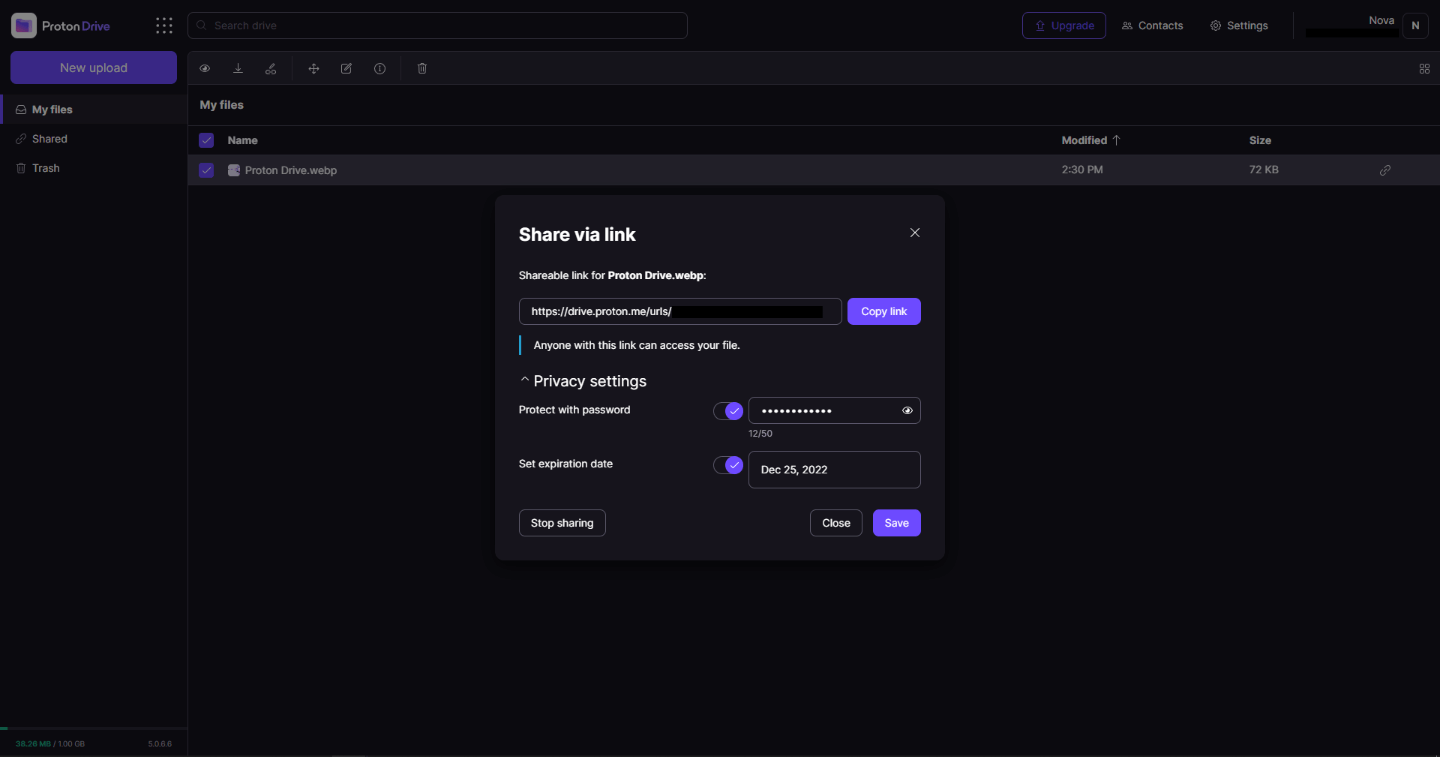
Proton Drive, privacy-first cloud storage

In 2014 Proton mail started as an end-to-end encrypted email service offering secure and private email services. Proton mail is still live and going with the same dedication to privacy and security but the company has expanded its offering into cloud storage drive services.

Starting as a public beta at the end of 2020, Proton Drive is keeping its privacy and security policy philosophy with the new service. Proton Drive is the newest service besides Proton Calendar, Proton VPN, and Proton Mail.

proton drive

Drive has end-to-end encryption for everything on it including files themselves, filenames, folder structure, folder names, extensions, and file sizes. This means that you and only you can access your files. Servers are located in Geneva, Switzerland and they are under Swiss privacy laws making sure that your files are protected. Proton services in general are all open source so anyone can take a look at them to be sure that nothing is lurking under the hood. For now, sync is done either via the android app or web interface but the desktop client will come soon since currently, it is under development.

Sadly free plan of Proton Drive will give you only 1GB of storage which is much less than other services and sadly payments plans are also not so jaw-dropping going for $4 USD per month for a 200GB plan or with Proton ultimate subscription that will set you $10 behind but you will get 500GB of drive storage. Of course, if you value privacy for your files these options are good but if you do not mind that part other services have much better options.

All in all Proton Drive is a great cloud storage solution if you need privacy and well worth the investment. With the ultimate subscription, you will get enough space for most people and company needs with other services and guaranteed privacy and security, on the other hand, if you just need a large amount of cloud storage not caring too much about privacy other options are better.

Read More
How to share games on Steam with someone
Sharing is caring, an old saying says. I completely agree and that is reason enough for this article filled with sharing goodness. Holidays are coming and I hope that the holiday spirit is strong with you, that you will spend them in peace and with loved ones. All that being said wouldn’t it be great if you can spend some joy with close ones and share some of your games on their account so they can enjoy them as well? steam libraryWell, you can and it is not complicated as well. Follow this easy guide to see how can you get someone’s account up and running with some of your games.

The steam Family sharing feature

The family Sharing feature inside Steam will let you share your games to another account so owners of that account can play games that you have purchased without the need to buy themselves. You can allow up to 5 accounts and 10 devices to play your library games, and owners of these accounts will have their own achievements. Be aware that enabling this option will place your entire library on the share, you will not be able to choose which games you would like to share and therefore any kind of parental controls are not applying here. Also know that once the game is running on one device, others will have to wait for one playing to finish before they can get a spin on it. Only the owner of the game can play whenever he wants as a priority but others will have to wait for the game to be not run by someone else.

How to Share Your Game Library

In order to share your game library have a person, you wish to share games with at his device on ready to go and enable steam guard on your account. To enable steam guard login into your account and on the top left corner click on Steam and then on Settings. Inside settings click on the Manage Steam Guard Account Security button. Choose the way of authentication either by mail or steam guard mobile app. Check Get Steam guard codes by email radio button and re-login into account.

Sharing Games on another Steam account

Now that Steam Guard is enabled on the primary account let’s share some games!!! Inside client again, in the top left click on Steam and again on settings. In the left panel choose and click on Family. Inside Family section check box beside Authorize Library Sharing on This Computer. Log out of your account and login into the client user account credentials you wish to share your library with (this is your friend or cousin account, they need to log in to Steam client on your computer but with their credentials). After they have successfully logged in, log them out and re-log with your account again. Now go again into Steam > Family and now you should see an account in the box at the bottom with the user name or your friend or relative. Confirm that this is an account that you wish to share the library with by clicking on the checkbox next to the name. Now let users login into the desired device with their credentials and they will have access to your entire library. Happy gaming!
Read More
Fix Windows Upgrade Error 0x800701E3
There are various components that take part during a Windows Upgrade process such as the CPU, Disk, Network, and many more. This is why the process of upgrading your Windows 10 computer can be quite complex and due to its complexity, there are times when you might encounter some errors like the Windows Upgrade error 0x800701E3. If you encounter this kind of error then it has something to do with the “disk” part of the whole upgrade process which could be due to a conflict with the storage of your Windows 10 computer. When you receive this error, you will see the following error message on your screen:
“Windows cannot install required files. Make sure all files required for installation are available and restart the installation. Error code: 0x800701e3.”
To fix this Windows Upgrade error, here are some suggestions that might help.

Option 1 – Delete Files from Software Distribution Folder & Catroot2 folders

The downloaded Windows Updates are placed in a folder called “SoftwareDistribution”. The files downloaded in this folder are automatically deleted once the installation is completed. However, if the files are not clean up or if the installation is still pending, you can delete all the files in this folder after you pause the Windows Update service. For complete instructions, refer to the steps below.
  • Open the WinX Menu.
  • From there, open Command Prompt as admin.
  • Then type in the following command – don’t forget to hit Enter right after typing each one of them.
net stop wuauserv net start cryptSvc net start bits net start msiserver
  • After entering these commands, it will stop the Windows Update Service, Background Intelligent Transfer Service (BITS), Cryptographic, and the MSI Installer
  • Next, go to the C:/Windows/SoftwareDistribution folder and get rid of all the folders and files thereby tapping the Ctrl + A keys to select them all and then click on Delete. Note that if the files are in use, you won’t be able to delete them.
After resetting the SoftwareDistribution folder, you need to reset the Catroot2 folder to restart the services you just stopped. To do that, follow these steps:
  • Type each one of the following commands.
net start wuauserv net start cryptSvc net start bits net start msiserver
  • After that, exit Command Prompt and restart your computer, and then try to run Windows Update once more.

Option 2 – Try running the DISM tool

You can try running the Deployment Imaging and Servicing Management or DISM tool to fix the Windows Upgrade problem. Using this built-in tool, you have various options such as the “/ScanHealth”, “/CheckHealth”, and “/RestoreHealth”.
  • Open the Command Prompt with admin privileges.
  • Then type in the following commands and make sure to hit Enter right after you type each one of them:
    • Dism /Online /Cleanup-Image /CheckHealth
    • Dism /Online /Cleanup-Image /ScanHealth
    • exe /Online /Cleanup-image /Restorehealth
  • Do not close the window if the process takes a while as it will probably take a few minutes to finish.

Option 3 – Run the System File Checker Scan

System File Checker or SFC is a built-in command utility that helps in restoring corrupted files as well as missing files. It replaces bad and corrupted system files with good system files. To run the SFC command, follow the steps given below.
  • Tap Win + R to launch Run.
  • Type in cmd in the field and tap Enter.
  • After opening Command Prompt, type in sfc /scannow
The command will start a system scan which will take a few whiles before it finishes. Once it’s done, you could get the following results:
  1. Windows Resource Protection did not find any integrity violations.
  2. Windows Resource Protection found corrupt files and successfully repaired them.
  3. Windows Resource Protection found corrupt files but was unable to fix some of them.
  • Restart your computer.

Option 4 – Try running the ChkDsk utility

You can also run the ChkDsk utility to fix the Windows Upgrade error 0x800701E3.
  • First, open This PC and right-click on your operating system partition for Windows.
  • Next, click on Properties and navigate to the Tools tab.
  • Then click on Check under the Error Checking section.
  • After that, a new mini window will be opened and from there click on Scan drive and let it scan your disk drive partition for any errors and then restart your computer.

Option 5 – Run the Windows Update Troubleshooter

Running the built-in Windows Update troubleshooter is one of the things you can first check out as it is known to automatically resolve any Windows Update or upgrade errors like error code 0x800701E3. To run it, go to Settings and then select Troubleshoot from the options. From there, click on Windows Update and then click the “Run the troubleshooter” button. After that, follow the next on-screen instructions and you should be good to go.

Option 6 – Run Microsoft’s online troubleshooter

Running Microsoft’s online troubleshooter might also help you fix the Windows Upgrade error code 0x800701E3. This online troubleshooter is known to help in fixing Windows Update errors, it scans your computer for issues that might be causing the problem and then fixes them automatically.
Read More
1 2 3 171
Logo
Copyright © 2023, ErrorTools. All Rights Reserved
Trademark: Microsoft Windows logos are registered trademarks of Microsoft. Disclaimer: ErrorTools.com is not affiliated with Microsoft, nor claims direct affiliation.
The information on this page is provided for information purposes only.
DMCA.com Protection Status