A lot of Windows 10 users have reported recently that their computers are frequently crashing with a Blue Screen error with an error code “VIDEO_DXGKRNL_FATAL_ERROR”. This kind of Stop error appears not so often and its bug check value of 0x00000113 is an indication that there is some violation in the Microsoft DirectX graphics kernel subsystem. This error also occurs when there is a corrupted driver that interferes with the GPU’s normal functionality.
According to some security experts, this kind of error is reported to only occur in Windows 10 PCs. Users started getting this error right after a large Windows Update. The cause of this error might have something to do with a violation in the DirectX graphics kernel subsystem where there could be a bad DirectX install or some corrupted Dynamic Link Library or DLL. Aside from that, the error might also be caused by the Nvidia driver which might have crashed or it could also be that there is an intermittent power supply. Moreover, an outdated BIOS as well as a third-party security program might be the ones behind this Blue Screen error. Whichever the case may be, you need to fix the VIDEO_DXGKRNL_FATAL_ERROR BSOD error by following the instructions given below carefully.
Option 1 – Try checking if the NVIDIA graphics card is enabled and update it as well
Although the problem is quite massive, the fix could be as simple as enabling the NVIDIA graphics card if it turns out to be disabled. There might be some strange reason why your graphics card disables itself. Thus, the best and first option you can try is to check if the NVIDIA graphics card is enabled or not. To do so, follow these steps:
Tap the Win + R keys to open the Run dialog box.
Then type “devmgmt.msc” in the field and hit Enter to open the Device Manager.
After opening the Device Manager, look for the Nvidia graphics card option among the list of device drivers. Once you found it, check if it is enabled or not. If it’s not enabled, you should see a gray arrow pointing downwards. Right-click on the card and select Enabled.
Next, right-click on the graphics card once more and click on the Update Driver Software option and then click on the “Search automatically for updated driver software” option.
Option 2 – Update or uninstall third-party security program
As mentioned, the VIDEO_DXGKRNL_FATAL_ERROR Blue Screen error might be caused by a third-party security program that’s installed on your computer. So you have to either update it or uninstall it to resolve the issue.
Option 3 – Check the power supply for any inconsistency
The Blue Screen error might also be caused by an intermittent power supply. If there is any intermittent changes between the main supply and the battery power, it might lead to bad contact on your supply to the charger and thus, causes the VIDEO_DXGKRNL_FATAL_ERROR Stop error to appear. So to check if this scenario is applicable to you, you have to monitor your computer for any frequent changes between the power supply and the battery power. If you see that the supply is displaying power On and Off, see if the same goes when the power supply is disconnected. However, if it does not occur, you might have to purchase a new power adapter cable and replace the one that you have right now.
Option 4 – Reinstall the Graphics card drivers
Tap Win + R to open Run then type “devmgmt.msc” in the field and hit Enter to open the Device Manager.
From there, look for the Display adapters and uninstall each one of the graphics card drivers by right-clicking on them and selecting the Uninstall device option.
After uninstalling the graphics card drivers, close the Device Manager and tap Win + R to open Run once again.
After that, type “appwiz.cpl” in the field and hit Enter to open Programs & Features in the Control Panel.
Next, look for any program that’s related to your GPU manufacturers like Nvidia, AMD, or Intel. Right-click on any GPU-related entry and click on Uninstall to uninstall them and then follow the next on-screen instructions that appear afterward.
Now restart your computer.
Once your computer has restarted, go to the GPU manufacturer’s website and download the latest driver version for your graphics card model and then install it.
Restart your computer once again. That should fix the problem.
Option 5 – Try checking if there are any BIOS updates available for your PC
Updating the BIOS may help you resolve the BSOD error. You can just go to the OEM’s website as they offer utility software that can download BIOS firmware and update it without any problem. BIOS updates usually offer enhancements and fixes to some issues like this one.
Option 6 – Perform a System Restore
Performing a System Restore on your computer can also help you fix the VIDEO_DXGKRNL_FATAL_ERROR Blue Screen of Death error. You can do this option either by booting into Safe Mode or in System Restore. If you are already in the Advanced Startup Options, just directly select System Restore and proceed with the next steps. And if you have just booted your PC into Safe Mode, refer to the steps below.
Tap the Win + R keys to open the Run dialog box.
After that, type in “sysdm.cpl” in the field and tap Enter.
Next, go to the System Protection tab then click the System Restore button. This will open a new window where you have to select your preferred System Restore point.
After that, follow the on-screen instructions to finish the process and then restart your computer and check if the problem is fixed or not.
Buying a product and then finding out that is not working is one of the most annoying and disappointing things that a consumer can experience. It is no secret that Adobe software and services online can malfunction or detect somewhat false information and behave accordingly placing buyers in an awkward position.
Adobe no matter how huge and great can also still sometimes has software that can misbehave in this way and sometimes downloading their suite and buying it after can not be 100% registered and even after the money is transferred and purchase has been completed you can still have a trial status for your adobe cloud applications.
In this guide, we will address this issue and see how we can fix it so you can get back to your creative work in no time.
Follow this guide as it is presented step by step.
Wait an hour
No, seriously, wait an hour. Sometimes transaction and registration of transaction along with activation can take up to one hour of time. If you just made a purchase and you are still under trial in the launcher, give it a little time to detect the purchase and adjust accordingly.
Check to see if your subscription is active
Sign in to https://account.adobe.com/plans. If you have more than one account, make sure you sign in with the proper one.
Under My plans, select Manage plan.
In the Plan Information section, check to make sure that your subscription is active. If it’s expired, it's likely why you’re seeing messaging that indicates you are in trial mode or that your trial has expired.
If your subscription is showing as active, then an out-of-date payment method may be the issue.
To see if your payment information is current, in the Plan information section, select Manage payment.
If your payment method isn’t current, update your credit card information in the pop-up window and select Save.
Your new payment method will take effect in the next billing cycle.
Sing out and then sign back in
Open the Creative Cloud desktop app. (Select the icon in your Windows taskbar or the macOS menu bar.)
Select the Account icon in the upper right, and then select Sign out.
In the confirmation dialog box, select Sign Out. The Creative Cloud apps and services associated with your account are deactivated on the computer.
Sign in again to your Adobe account.
Launch any Creative Cloud app included in your membership, such as Photoshop or Illustrator. If prompted, sign-in on the next screen.
Update creative cloud applications
Open the Creative Cloud desktop app. (Select the icon in your Windows taskbar or the macOS menu bar.)
Depending on your version of the Creative Cloud desktop app, do one of the following:
On the Help menu, select Check for updates.
or
Select the three vertical dots icon in the upper-right corner of the app.
Choose Check for App Updates from the menu.
If you aren’t using the latest version of your Creative Cloud app, an update prompt appears next to it on the apps list. Select Update.
Remove entries in the HOSTS file
If the previous solutions do not work, your computer could have trouble connecting to Adobe's activation servers. This could be because of an incorrectly configured Operating System hosts file (Operating system hosts files map host names to IP addresses).
To solve this issue, try removing Adobe-related entries from the hosts file. You can remove the Adobe-related entries from the hosts file in two ways:
Automatically repair the hosts file using the Limited Access Repair tool: Repair the hosts file using the Limited Access Repair tool. With this method, you do not have to manually edit the hosts file -- the tool automatically repairs the file.
Reset the hosts file manually: If the issue is not fixed even after you run the Limited Access Repair tool, reset the hosts file manually:
To reset the hosts file on Windows, do the following:
Navigate to C:\WINDOWS\System32\drivers\etc.
Open the hosts file with a text editor such as Notepad.
Check for any Adobe-related entries in the hosts file.
If there are Adobe-related entries in the hosts file, move the file to the desktop, for example by dragging.
Delete the Adobe-related entries from the hosts file. Make sure that you do not delete any other entries.
Save the hosts file that you edited in the previous step. The updated hosts file should not have any Adobe-related entries.
Move the file from desktop to the original location: C:\WINDOWS\System32\drivers\etc. When moving the file, select the Replace option.
To reset the hosts file on macOS, do the following:
To find the hosts file, open Finder and then choose to Go > Go to Folder. In the box, type the following location and then press Return:/private/etc/hosts
If you are unable to locate the file, it means that the hosts file is hidden. Type the following command in terminal to unhide the file, and then repeat Step 1. chflags nohidden /etc/hosts
Open the hosts file using a text editor such as Text Edit.
Check for any Adobe-related entries in the hosts file.
If there are Adobe-related entries in the hosts file, move the file to the desktop, for example by dragging.
Delete the Adobe-related entries from the hosts file. Make sure that you do not delete any other entries.
Save the hosts file that you edited in the previous step.
Move the file from the desktop to the original location: /private/etc/hosts. When moving the file, select the Replace option.
Windows has tendencies to remember WIFI passwords so it can reconnect automatically to them. But from time to time we change passwords and Windows does not let us change it since he has network remembered. In this case, we will not be able to connect to the internet.
In this helpful guide, we will let you know which steps you will need to take in order to solve this issue and to be able to connect to the internet again.
Restart Modem
First thing first, restart your modem. Windows might see it as a new network and offer you to type in the password for it.
Update driver
Sometimes the issue could be due to driver problems, open device manager and update WIFI driver or reinstall it.
Reset WIFI password
Press ⊞ Windows + R type “Control” > hit Enter. Now click Network and Internet > Network and Sharing Center > Change adapter settings.
Right-click on the connected Wifi and select Status.
Click Wireless Properties, change the password from the Network security key section, and then click OK to reset your WiFi password.
Forget the network
Click on Start > Settings > Network & Internet > Wi-Fi.
Click the Manage known networks link
Select the network you are looking for
Select Forget.
Delete your WIFI profile
Press ⊞ Windows + X to open the secret menu and click on Command prompt (admin)
In command prompt windows type:
netsh wlan show profilenetsh wlan delete profile name=<profile name>Reboot
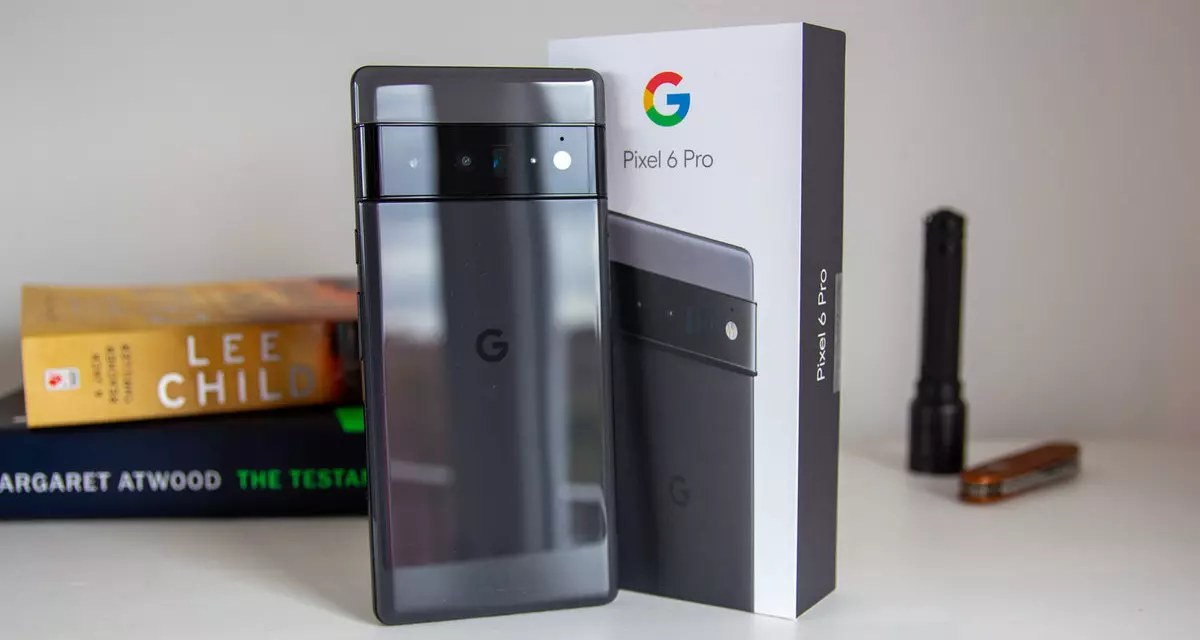
Google's Pixel smartphone is one if not the best Android smartphone on the market. It regularly gets updates and Google is really trying to keep it as a top choice for Android smartphone users. One of the new things that Google has released for its smartphone series is a new emergency dialer.
With an emergency dialer, you will be able to quickly access local contact information for police, fire, and medical services. This dialer is able to contact before mentioned services even when the phone is locked and when you are traveling.
The idea is to quickly access the default emergency number no matter in which country you are currently in, service will find the appropriate number and set it as default so if you need it there is no delay in searching for the appropriate number and dialing it.
Once the service is enabled on the device you can swipe up and tap Emergency call without unlocking your phone or you can press and hold the power button for five seconds and tap Emergency.
If you have a Pixel smartphone go to the Google support page and follow instructions on how to enable this service. It costs nothing and it could potentially even save your life.
If you are using your computer and you notice that Hard drive shows high space utilization even if you only have a few applications installed on your computer, then you’ve come to the right place as this post will guide you on what you can do to sort this problem.
Upon noticing the odd state of your hard drive and you check the actual volume that’s occupied by the apps in your drive and you see that they are not really occupying a lot of space. This kind of issue could indicate that your hard drive is not showing the correct value for the free storage space of the drive-in your Windows 10 computer.
This kind of problem could be passed off as a system bug, however, it could also be a serious problem. In fact, as you are aware, there are hidden folders and files in your computer that could be occupying space and since most of them are associated with system applications, you might not realize it unless you thoroughly check the folders.
The most common causes of the issue are as follows:
The system information folder might be utilizing a lot of space. If you wonder where the information for the system restore points is stored, they are stored in the system information folder which in turn is stored in the drive as a hidden file.
An issue with system maintenance could cause the problem.
Malware or some other software might have created an undetectable hidden file.
Space could be occupied by the trashbin folder.
These hidden files could occupy significant space in the folder, thus slowing down the system and impacting its performance. If you face this issue, try our suggestions and see if they help you.
Run ChkDsk
Clear all Junk files
Reduce the space occupied by the system restore points
Run the System Maintenance troubleshooter
Option 1 – Run CHKDSK utility to check the drive for errors
When it comes to some issues concerning the hard drive or removable devices, there is a utility in Windows that might help which is called “chkdsk”. To use it, follow the steps below.
Tap the Win + S keys to open the Search box.
Then type “command prompt” in the field and from the search results that appear, right-click on Command Prompt and select “Run as administrator”.
After opening an elevated command prompt, copy and paste the following command and hit Enter:
Note: In the command given above, “[/F]” will try to fix the system errors while “[/R]” will be the one to fix the bad sectors.
Now if you are prompted to run CHKDSK after your reboot your PC, just tap Y and reboot your PC.
If CHKDSK is not able to find any errors, tap the Win + E keys and navigate the access window. From there, right-click on the concerned drive and click on Properties.
After opening Properties, click on the tab Tools and then click on the “Check” button under the Error-checking section.
Wait until the process is completed and then restart your computer.
Option 2 – Try to delete the temporary files
The error could be caused by some temporary or junk files in your computer and so you need to clear them up to fix the problem. You can achieve that using the Storage Sense feature.
Open Setting > System > Storage from the WinX Menu.
From there, you will see a list of all the local and connected storage devices along with the details on the free space. Make sure that Storage Sense is on.
Next, find a link that says “Free Up Space” and click it to open.
After that, a screen which is the built-in program in Windows 10 will appear and will scan your computer for the following junk files so you can free up disk space:
Windows Upgrade Log Files
The system created Windows Error Reporting Files
Thumbnails
Temporary Internet Files
Previous Windows Installation Files
Delivery Optimisation Files
DirectX Shader Cache
Choose the files you want to get rid of and then click on the remove files option. Note that you’ll have an idea of the total size as you select any of the junk files listed above.
Now go to the “Free Up Space Now” section and click the Clean Now button. This will get rid of all the temporary or junk files in your computer and should hopefully fix the error.
Option 3 – Try to reduce the space occupied by the system restore points
In case you don’t know, system restore points actually occupy a significant space in your computer which is stored in the System Information folder. Thus, you need to check the size of this folder and unhide the folders and files and then click on the folder. The size of the folder should be displayed in the right pane of the window. To fix the storage space problem, you could delete all the old System Restore Points as well as Previous versions of files or you could also restrict the disk usage of the System Restore points.
Option 4 – Try to run the System Maintenance troubleshooter
The problem could also be caused by the System Maintenance and to fix it, you have to run the System Maintenance troubleshooter by following these steps:
In the Windows Search bar, type “control panel” and double click on Control Panel from the search results.
Next, go to this path: Control PanelAll Control Panel ItemsTroubleshootingSystem and Security.
After that, click on the System Maintenance troubleshooter to run it.
Once the process is completed, restart your computer.
Long working hours on a laptop can have some issues with laptop heating and thus slowing down. Today we will take a look at how can you prevent it from heating and keep it in a normal temperature range so it lasts longer and works better.
Close unnecessary programs or browser tabs
Usually, the main reason for high laptop temperature is the heavy and constant workload. Of course, the solution is very simple, turn off unnecessary browser tabs or applications running in the background, and less power will be needed for operation thus directly reducing workload and temperature.
Place it on a hard flat surface
Laptops generally have vents on the side and even under them, these vents, of course, are made so hot air is disposed of through them but if they are covered that will create issues. Placing computers on textiles, pillows, and legs can obstruct their venting holes and increase heat also since they are materials that are not taking heat away.
Your best practice should be placing the laptop onto a hard flat surface so air can flow freely and if you need to keep it in your lap there are lap desks made for this purpose.
Clean the laptop
With some good cleaning, the laptop can stop overheating, and generally, it will be cooler. Vents that has for ventilation can get clogged over large periods of time due to dust which is always present. Compressed air can be a quick easy solution to open the vents and redust it. Other methods include a compressor, vacuum, or brush in order to quickly remove any dust clogs. Taking it into service for complete redusting and paste change is also a great option.
Place it on the dedicated pad
There is some disagreement about using dedicated cooling pads for laptops, some say they are not effective at all, and some swear by them but from my experience good paired laptop and pad can indeed help with cooling it down. Usually, cooling pads will come with fans that will take away heat from the laptop itself reducing its overall heat.
Change your Windows power plan
If your laptop is constantly hot but you are not doing much with him check Windows power settings. There is a good chance it is set to run on a high-performance plan and if this is the case switch it back to a balanced power setting. Power plan like high performance will drain more power and more power will mean more heating. Of course, this will affect performance as well but for regular work that excludes some power gaming, video, and picture manipulations and other demanding tasks this power plan will work just fine.
Take control of the fans inside your laptop
Internal cooling is important and sometimes fans are not running to their full capacity so increasing their speed or changing their plan of work can cool down the computer nicely. Some laptops have fans controlling application already on them, especially gaming laptops but most of them do not. If your laptop does not have it, go to your laptop brand website and see if such an application exists for your model, if it does, download and install it but if there is no such application try general free ones like SpeedFan or Argus Monitor.
Reduce voltage of CPU and GPU
How more power means more heat, reducing the power that CPU and/or GPU take can be reduced inside BIOS by lowering voltage of these 2 components. First, go to BIOS and write down the voltage that is currently assigned to your CPU and/or GPU so you can bring it back if ever needed, also take note that reducing voltage and thus power will not affect negatively your components but increasing it thus overclocking can and will so be careful when bringing voltage back not to overdo it. You can always also reset your BIOS settings to bring them back to factory settings.
Do not use the laptop when charging it
When the laptop is placed on the charger in order to be charged and used at the same time, more power is drawn to it, and since the battery is taking electric charge instead of providing it more heat will be generated now since two different sources will be generating it, the battery itself and computer. When you really can not wait for the laptop to be charged, use it, but turn it off and wait to be fully charged if you can.
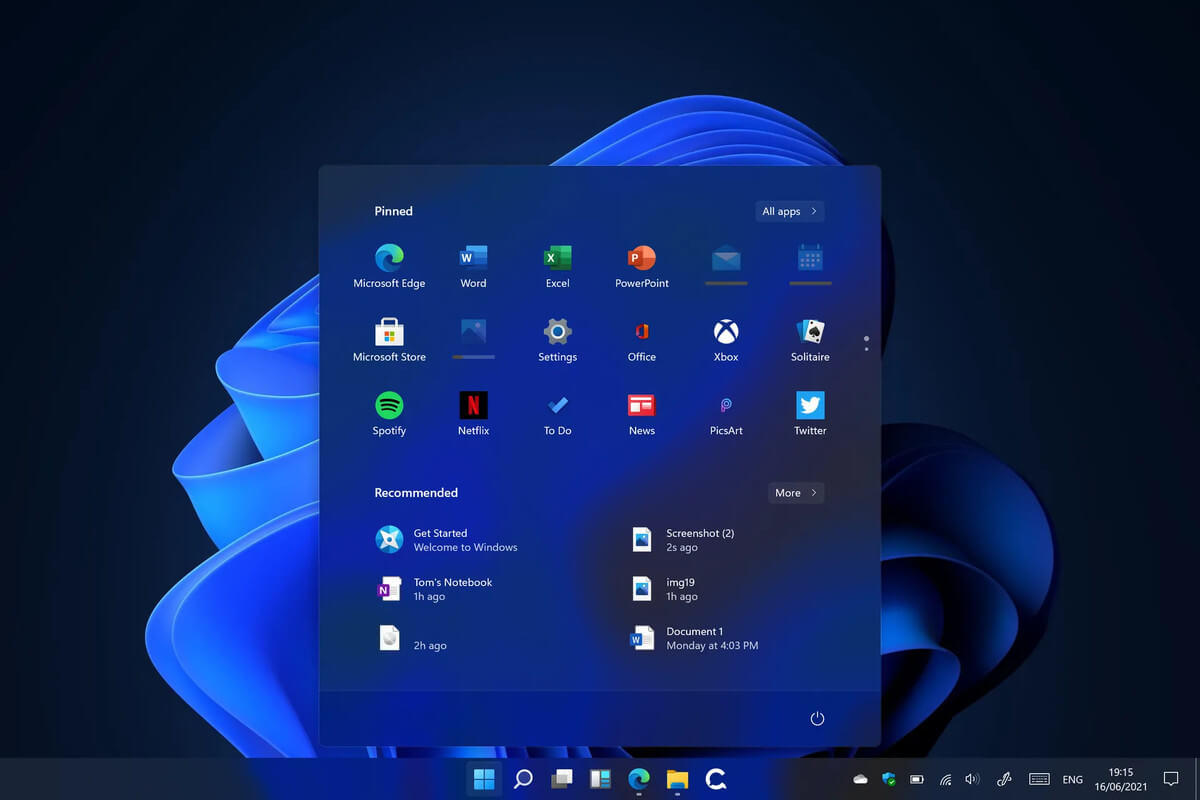
Microsoft’s initial Windows 11 hardware requirements were not really well received by users and they were not really clearly represented from the start making a lot of potential customers slowly drift away from the hype.
It seems that Microsoft has acknowledged this since they have changed their tune about system hardware requirements for the upcoming Windows 11.
It seems that Windows 11 will be able to be officially installed on unsupported computers but with a little inconvenience.
What is a catch?
Windows 11 will still have the same hardware requirements and if the PC meets them, that computer will be officially supported, other ones (any that can run Windows 10) that do not meet system requirements can still run Windows 11 but the system will have to be clean installed. So no upgrade option for old computer users, just a clean install.
This means of course that you will need to download the ISO image and make a bootable USB in order to install it. Also since you will be doing a clean install do a backup of the hard drive since it will need to be formatted.
Also, Microsoft has stated that with unofficially supported PC some driver updates might not be delivered leaving you with either older driver versions or relying on your hardware manufacturer on them. This is still not confirmed by Microsoft, just stated as an option. We will see how it goes.
Conclusion
It is very good that Microsoft has reconsidered its system requirements and will not stubbornly push its initiatives over the top requirements allowing even older computers to install new OS.
I am sure over time lot of users will upgrade their hardware and drive into officially supported waters, but it is good that they will be able to use new OS on their current hardware.
If you have a BlueTooth device on your computer, you know that each time you need to receive or transfer the file you need to find the icon in the system tray, right-click on it and choose the desired option. But there is a simpler solution, create a Bluetooth icon on the desktop so it is always easy to access.
Open File Explorer by pressing ⊞ WINDOWS + E
Go to C:\Windows\System32
Find fsquirt.exeRight-click on it and choose copy
Go to the desktop and right-click, choose pasteRename the file to Bluetooth
And, you are done!
In today's time, Wi-Fi is a common occurrence, each household has it, on town squares, there are free Wi-Fi hotspots, etc. But sometimes when relaxing at home WI-Fi can fail on us and stop working. If this happens to you do not lose your mind because we have several troubleshooting help tips and ways to get it back quickly so you can continue with your browsing and using your internet.
Restart the Router and Computer
Yes, we will start with this typical cliche in IT and tech in general. Surprisingly this method still proves over and over again to be true and effective. Over time some electric components simply start working a little bit differently, electrostatic electricity can accumulate on some parts and they can cause issues. By turning off the device and leaving it for some time you are discharging accumulated electrostatics and placing it again into normal working mode.
Unplug your router and leave it for at least 30s like that, a full 1 min is recommended, and then plug it back. Turn it on and restart your computer in order to reboot addresses.
Reset DHCP
If simple have you tried unplugging it and plugging it back in did not work let us reset DHCP. Click on the start button and type in PowerShell, then click on Run as administrator. Once inside the PowerShell type in the following command followed by ENTER: ipconfig /release and after the command finishes, type in: ipconfig /renew also followed by ENTER key. Try the connection again.
Reset TCP/IP stack
The next thing that we will try if the previous one failed is to reset the TCP/IP stack to eliminate corruption of settings files. Like in the previous step, press Start and type in PowerShell and click on run as administrator. inside type in: netsh int IP reset and press ENTER key. Wait for the process to finish and reboot your PC.
Reset WinSock
WinSock is yet another part of Windows OS that is responsible for network communication and resetting it could solve the issue. Again go to PowerShell as described in previous steps and type in this time: winsock reset and press ENTER. Wait for the process to finish and restart your computer.
Other things you can try
Change TCP IP setting back to automatic if you have set manual Ip address on your computer.
Update your network driver via the manufacturer's website of your network adapter. There is a chance that somewhat updates are available to address some issues discovered.
Factory reset your router on the back by locating the reset button on it and pressing and holding it for around 10s.
Turn off your firewall and antivirus protection in order to eliminate it from blocking your internet access.
Isn’t it annoying when you get an error message pop up stating ‘Cannot find propsys.dll” or “propsys.dll not found” when you start your computer or open a particular program?
The propsys.dll file is crucial to the Windows operating system. This file is located in one of the following locations: "C:\Windows", C:\Program Files, C:\WINDOWS\system32, or C:\Program Files\Common Files". And the propsys.dll error indicates that the propsys digital library file is damaged and corrupt.
The propsys.dll error may lead to a very unstable operating system.
It may also hamper your ability to access many programs on your computer, lead to program and system crash and slow down the system’s performance. Therefore, to avoid these system threats, it is advisable to fix the error immediately.
Solution
Error Causes
The common causes of propsys.dll file error are:
Registry problem
The propsys.dll file is damaged due to a virus or spyware
Improper software removal
Hardware Failure
The propsys.dll error message is displayed in either of the following forms:
Propsys.dll not found
Cannot find [Path]propsys.dll
This application failed to start because propsys.dll was not found. Reinstalling the application may fix this problem
The propsys.dll file is missing
Further Information and Manual Repair
There are many ways to fix the propsys.dll error. However, for optimum results from the fix, you must first identify the cause of the error and then choose the solution accordingly.
Recommended Solution for Registry Issue
If you use your system daily the resulting wasted/invalid/junk entries may dilate the registries.
This can result in registry malfunctioning which may result in a propsys.dll error on your screen. When this happens, it is advisable to use a registry cleaner to fix the problem.
Registry cleaner helps clean up the junk entries and repairing the corrupted registries.
For this, you will first have to download a registry cleaner repair tool. Download and install the software on your computer. After downloading it, click the start scan button to run. This helps scan and diagnose system errors on your computer in seconds.
Once the scanning is complete, click on the fix button to repair the registry problem.
Recommended Solution for File Damage and Corruption
Use the ‘System Restore’ option to restore corrupt and damaged files. The ‘System Restore’ function will help you get a fresh copy back and simultaneously help fix the error. Here’s how to use and access the ‘System Restore’ function on your computer:
Simply go to the start menu and in the search box type restore. Once you type, it will show you the system restore option. Now select ‘choose a different restore point’. After this, you will be presented with a list of restore points.
Choose a point that you believe happened before the propsys.dll error. Confirm your selection and restart.
Another alternative solution for file damage is to run a virus scan of your entire system; the damage could be related to a virus or malware infection.
Recommended Solution for Hardware Failure
If a propsys.dll error occurs due to hardware failure, then it is advisable to update the drivers for hardware devices that you think are related to propsys.dll. For example, if you receive the propsys.dll error when you play a 3D video game, then try updating the driver for your video card.
Windows 11 is getting adopted more and more each day, and how more and more users are installing it some smaller bugs show up. One of the things that have manifested lately is that in some cases installation assistant is not working throwing error 0x8007007f at you while you try to finish the update of Windows.
If you are one of the users that are experiencing this kind of annoyance, we have a solution for you. Follow this guide as presented and repair this annoying error.
Run installation assistant as administrator
This is the most simple solution that can solve problems right away and it is advised to be tried first.
Download standalone Installation assistant installer from Microsoft website here
Go to the location where you had the file downloaded
Right-click on file
Click on Run as administrator
On the permission box, click YES
Disable antivirus and/or firewall software
Antivirus or firewall software can sometimes interfere with Windows’s update and prevent for any reason download or installation of files they consider not safe. If the first solution has not provided success turn off your antivirus or firewall software and try again to install updates by running them as administrator.
Now, how many different antivirus or firewall applications are unique pieces of software it would take too much time to cover all of them but usually and most commonly if you right-click on the taskbar icon of security app most of the time you will have either option to open it and close it or simply just to snooze it for some time.
Set the compatibility
If you are still having issues with installing updates try setting compatibility mode for the installer.
Download standalone Installation assistant installer from Microsoft website here
Go to the location where you had the file downloaded
Right-click on file
Click on properties
Go to the Compatibility tab
Click on Run this program in compatibility mode for:
Choose Windows 7
Click on APPLY
Run installer
Run SFC scan
If you are still facing installation issues there is a high chance there is something wrong with Windows system files. Luckily Windows itself has a built-in tool to address these issues and fix them.
Open command prompt as administrator by pressing Start and searching for the command prompt and then on right-clicking on run as administrator
Once the command prompt opens type in SFC / SCANNOW and press ENTER
Wait for the whole process to complete and then restart your system






 icon in your Windows taskbar or the macOS menu bar.)
Select the Account icon in the upper right, and then select Sign out.
In the confirmation dialog box, select Sign Out. The Creative Cloud apps and services associated with your account are deactivated on the computer.
Sign in again to your Adobe account.
Launch any Creative Cloud app included in your membership, such as Photoshop or Illustrator. If prompted, sign-in on the next screen.
icon in your Windows taskbar or the macOS menu bar.)
Select the Account icon in the upper right, and then select Sign out.
In the confirmation dialog box, select Sign Out. The Creative Cloud apps and services associated with your account are deactivated on the computer.
Sign in again to your Adobe account.
Launch any Creative Cloud app included in your membership, such as Photoshop or Illustrator. If prompted, sign-in on the next screen.
 Microsoft’s initial Windows 11 hardware requirements were not really well received by users and they were not really clearly represented from the start making a lot of potential customers slowly drift away from the hype.
It seems that Microsoft has acknowledged this since they have changed their tune about system hardware requirements for the upcoming Windows 11.
It seems that Windows 11 will be able to be officially installed on unsupported computers but with a little inconvenience.
Microsoft’s initial Windows 11 hardware requirements were not really well received by users and they were not really clearly represented from the start making a lot of potential customers slowly drift away from the hype.
It seems that Microsoft has acknowledged this since they have changed their tune about system hardware requirements for the upcoming Windows 11.
It seems that Windows 11 will be able to be officially installed on unsupported computers but with a little inconvenience.

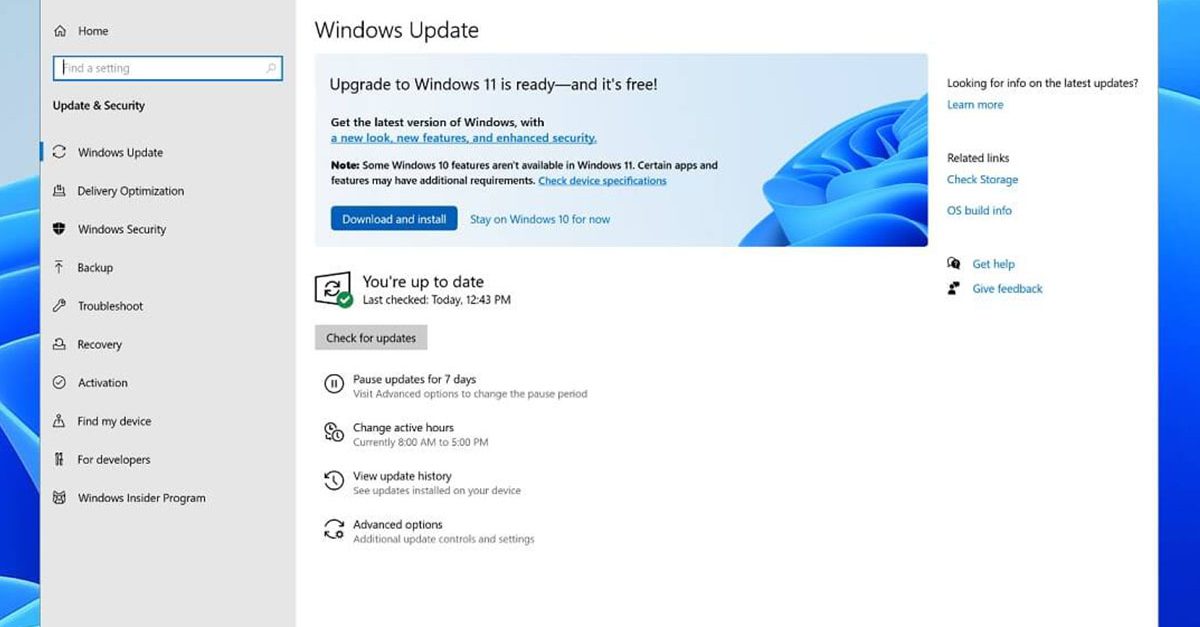 If you are one of the users that are experiencing this kind of annoyance, we have a solution for you. Follow this guide as presented and repair this annoying error.
