Logo

Fix UTCSVC high CPU and Disk usage in Windows

There is a lot of high resource utilization by any process that slows down a Windows operating system and one of the services that could cause such a thing is the utcsvc.exe process. This particular process at times can cause high CPU and disk usage. So if you are currently facing this problem, read on as this post will guide you on how you can resolve the problem.

UTC which stands for Universal Telemetry Client is a software that runs a service named Diagnostic Tracking Service or DiagTrak. This service is used by Microsoft to collect customer feedback, analyze customer’s problems, and push resolution via updates in order to make the Windows 10 operating system better. This service is an executable file that could be translated to Service Host and even though the process does not usually cause problems, there are actually times when it does especially if it results in high resource utilization. In such cases, you might want to consider disabling it to fix its high CPU and disk usage.

According to Microsoft:

“We collect information about you, your devices, applications and networks, and your use of those devices, applications, and networks. Examples of data we collect include your name, email address, preferences, and interests; browsing, search and file history; phone call and SMS data; device configuration and sensor data; and application usage.”

There are several ways you can disable the utcsvc.exe process. You can disable it using the Service Manager, Registry Editor, and Group Policy Editor. For more details, refer to the instructions laid out below.

Option 1 – Disable the Connected User Experience & Telemetry Service via Service Manager

Note that this option is for standalone systems, so if you’re not using one, refer to the next given options below.

  • Tap the Win + R keys to open the Run dialog box.
  • Then type “services.msc” in the field and tap Enter or click OK to open the Services Manager.
  • From the given list of services, look for the Connected User Experience service. Once you found it, click on it and you’ll see its description which states:

“The Connected User Experiences and Telemetry service enables features that support in-application and connected user experiences. Additionally, this service manages the event-driven collection and transmission of diagnostic and usage information (used to improve the experience and quality of the Windows Platform) when the diagnostics and usage privacy option settings are enabled under Feedback and Diagnostics.”

  • Next, right-click on it and select Properties.
  • Now, change its Startup Type to Disabled and click on the Apply and OK buttons to save the changes made.

Option 2 – Disable the Connected User Experience & Telemetry Service via Registry Editor

  • Tap the Win + R keys to launch the Run utility and type “Regedit” in the field and click OK to open the Registry Editor.
  • Next, navigate to this registry path: HKEY_LOCAL_MACHINESOFTWAREPoliciesMicrosoftWindowsDataCollection
  • After that, right-click on the folder named “DataCollection” and select New > DWORD (32-bit) Value.
  • Now name the new value “AllowTelemetry” and make sure that its Value data is “0” and then click on OK to save the changes made.
  • Restart your computer.

Option 3 – Disable the Connected User Experience & Telemetry Service via Group Policy Editor

If you have to disable the service related to the Universal Telemetry Client for company-managed systems, then you can do that using the Group Policy Editor.

  • Tap the Win + R keys to open the Run utility and type “gpedit.msc” in the field and hit Enter to open the Group Policy Editor.
  • Next, navigate to this path: Computer Configuration > Administrative Templates > Windows Components> Data Collection and Preview Build
  • After that, double-click on Data Collection and Preview Build to open its settings.
  • From there, look for the “Allow Telemetry” item and double click on it to open its Properties.
  • Next, set the radio button to Disabled and then click on the Apply button to save the changes made.
  • Restart your computer.

Option 4 – Run the Hardware and Devices Troubleshooter or the Performance Troubleshooter

Hardware and Devices Troubleshooter:

  • The first thing you need to do is click on Start and then on the gear-like icon to pull up the window for Settings.
  • After opening Settings, look for the Update and Security option and select it.
  • From there, go to the Troubleshoot option located on the left-hand side of the list.
  • Next, select Hardware and Devices from the list and open the Troubleshooter and run it. Once it is doing its job, wait for it to complete the process and then restart the system.
  • After the system restarts, check if the problem’s now fixed. If not, refer to the next option given below.

Performance Troubleshooter:

  • Tap the Win + R keys to open the Run dialog box.
  • Type “exe /id PerformanceDiagnostic” in the field and hit Enter to open the Performance troubleshooter.
  • Then click on Next to get started. Wait until the process is completed.

Do You Need Help with Your Device?

Our Team of Experts May Help
Troubleshoot.Tech Experts are There for You!
Replace damaged files
Restore performance
Free disk space
Remove Malware
Protects WEB browser
Remove Viruses
Stop PC freezing
GET HELP
Troubleshoot.Tech experts work with all versions of Microsoft Windows including Windows 11, with Android, Mac, and more.

Share this article:

You might also like

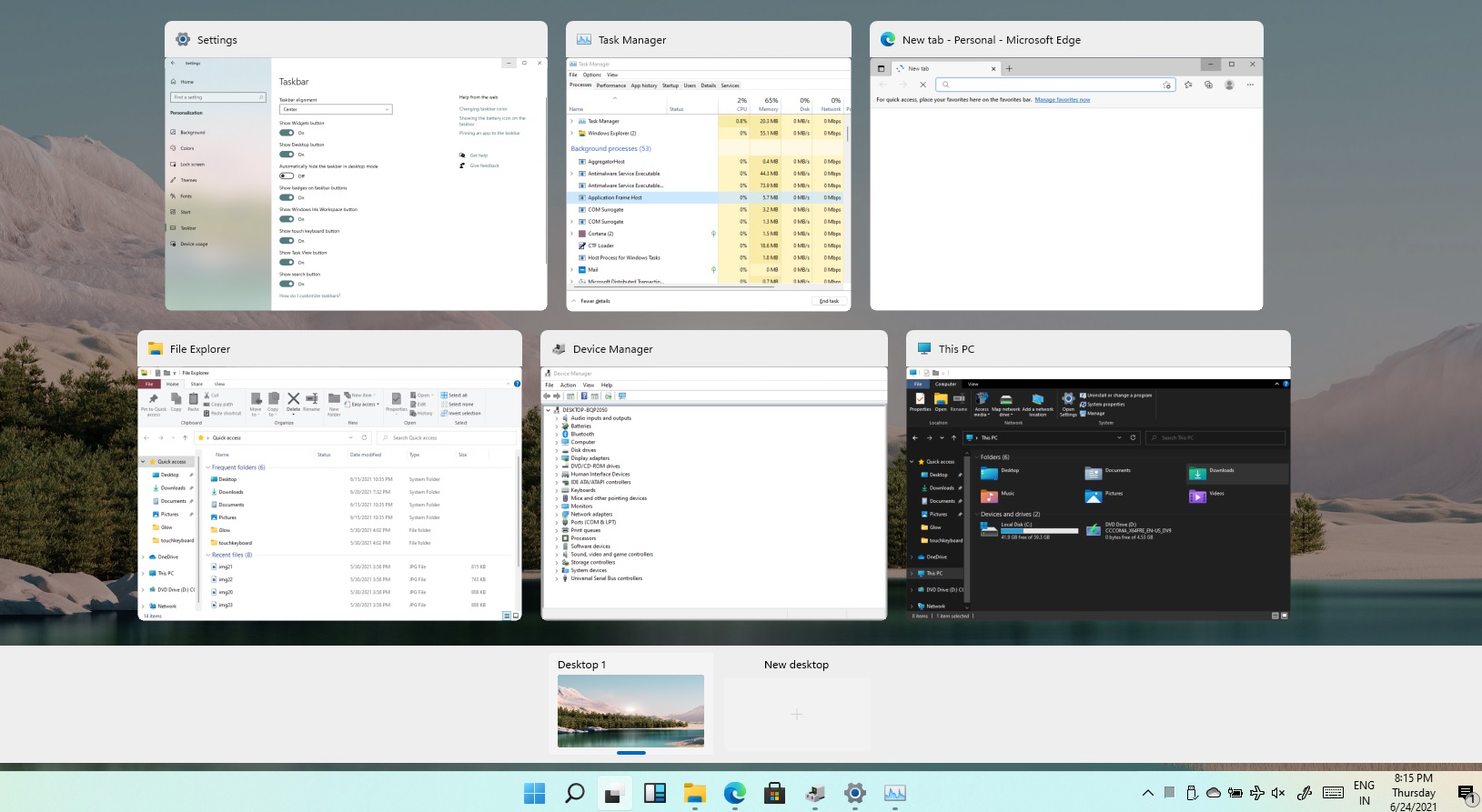
Remove Task View button from Windows 11
Task ViewTask View feature inside Windows 11 is actually a great feature, letting you quickly view open windows and virtual desktops. How Task view itself could be reached with keyboard shortcut combination of ⊞ WINDOWS + TAB some users will prefer this way of using it and thus button on the taskbar is something you do not want or need. There is a very easy way to remove mentioned button and I will show you how to do it. Right-click the taskbar button itself and click on Hide From Taskbar. That’s it, you have done it. Now in order for you to bring it back if you change your mind, you will have to do some extra steps but it is nothing difficult. Right-click on the taskbar and click on Taskbar settings, you will be lead to Personalization > Taskbar. Inside locate Taskbar Items and switch Task View to ON, you will see the Task View button right away showing itself again.
Read More
Rocketbook Fusion smartbook review

In today's age of smart gadgets and complete replacement of even some simple things with their smart counterpart, it is not really a surprise to see some strange innovations that try to take advantage of modern technology.

rocketbook

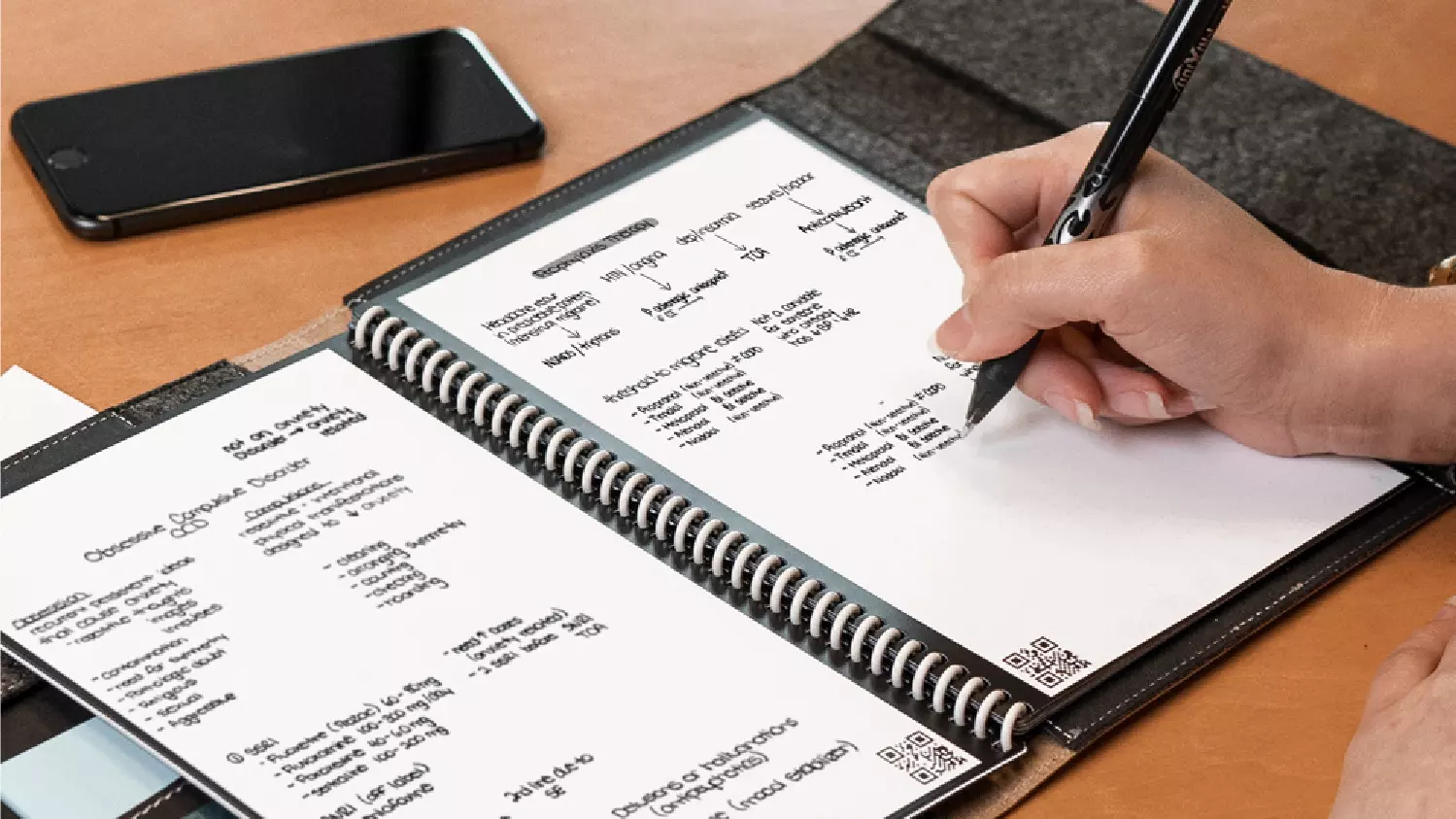
One of these innovations is a smart book, or to be more precise smart note, a reusable notebook that could be connected to your phone.

Why Rocketbook Fusion smartbook

One thing that could justify, well it should justify buying Rocketbook is the preservation of trees and the environment since it can be reused. The second argument would be its price since it is not expensive considering what it offers.

On top of all, you also have a free application for your phone in order to take full advantage of it.

What is a smartbook?

Imagine this scenario, you have a notebook of 42 pages with several different page styles inside. You write in it and after it is filled you upload its content to your email or cloud service of your choice, get a cloth, erase everything and start again from zero.

So as mentioned notebook comes with 42 pages of various page styles. Most of the pages are either lined or dotted but the notebook also includes a monthly calendar, two-week detailed calendar pages, and three pages for project or idea tracking. Since everything can be erased this is enough variety to cover all basis and eliminate any need for another workbook ever.

When you feel like you want to save work or once it is filled you can easily upload and save the workbook from the scan page option in the free Rocketbook app. Once scanned pages can be uploaded to your preferred cloud service or sent to your email.

Now in order to write and be able to erase any of Rocketbook's notebooks, you will have to use Pilot's Frixion writing pens. They will dry around 15s on the page and can be of course easily wiped with a damp microfiber cloth that is included with the purchase. One pen also comes with a workbook when purchased.

Application

Application has cool features, of course, the most important and most useful one is setting your upload scan destination so when you scan your pages they get automatically uploaded to your chosen destination.

In the application settings, you can also toggle some handwriting recognition features that will allow you to easily search your uploaded documents. For example, you can search through documents just by writing now or two words. There is also a Smart List feature as well that will take your checklist and make it into a virtual checklist.

The app also has a fun Explore section where you can find all sorts of fun hacks and different ideas on how to use your Rocketbook.


Read More
An Easy Guide to Resolving Error C00D11B1

Error C00D11B1- What is it?

Error C00D11B1 is a type of Windows Media Player error code. The error C00D11B1 hampers your ability to play videos, MP3 files and songs on Windows Media Player. The error is displayed in the following format:
Error C00D11B1:’Windows Media Player can’t play the file.’

Solution

Restoro box imageError Causes

The cause of error C00D11B1 message pop up on your computer can be narrowed down to one particular reason virtually because this error may be triggered due to several reasons, these include:
  • Corrupt DRM license
  • Enabled codec of the video in Windows Media Player codecs section
  • Registry Corruption
The good news is that this error is not fatal and does not pose serious PC threats like runtime and BSoD error codes. However, it is still advisable to resolve to ensure you are able to watch movies and listen to songs on Windows Media Player without any difficulty.

Further Information and Manual Repair

Here are some of the best and effective do it yourself methods to resolve the error C00D11B1 on your PC right away:

Method 1- Disable the codec of the video option in the Codecs Section

If you are unable to play downloaded movie files on your PC on Windows Media Player, then try this method to resolve the issue. Simply open Windows Media Player, Go to Tools, Options, DVD and then click Advanced Tab. Here find the codecs section, scroll down to the codec of the video you are trying to play and see if it says enabled. If it does, then disable it and then select a decorder for the codec. Now try running the video again on your Windows Media Player. This will hopefully resolve the issue. Nonetheless if the error still persists, try method 2.

Method 2- Delete DRM Licenses & cache and Download it Again

Sometimes the error C00D11B1 can also be trigged by corrupt DRM licenses & cache. To resolve the issue, simply delete all files. First open Windows Explorer (Windows key + E) and then go to C:ProgramDataMicrosoftWindowsDRM. Now delete all files in this folder. Once deleted, Let Windows Media Player download your license again. After downloading the DRM license again, run the Windows Media Player to see if it works.

Method 3- Disable Firewall Temporarily

Firewall can also be responsible for blocking the Windows Media Player streaming. Firewalls often block important ports that are required in order to run some programs. If this is the cause, then simply disable Firewall temporarily to resolve the issue.

Method 4- Repair the Registry

Registry is that part of your computer that saves all the activities performed on the PC and all the files too including both important and unimportant files like cookies, junk files and bad registry entries. If these unimportant and obsolete files are not removed frequently, the registry gets corrupt and damaged. And due to this reason you may experience error code C00D11B1 on your system. To resolve this issue, simply repair the damaged registry by downloading Restoro. This is a powerful PC Fixer integrated with a registry cleaner. The registry cleaner removes all unnecessary files, cleans and repairs the registry in seconds. Click here to download Restoro and fix error C00D11B1 on your PC right now!
Read More
Enumerating user sessions to generate ...
There are times when the Windows Search doesn’t work and you wouldn’t have a clue as to why it happened since it does not give any error codes. In such cases, you have to check the error logs in the Event Viewer to find out more about the problem. From there, look for an error with the Event ID 3104 in the Windows error logs and if you see an error message that says, “Enumerating user sessions to generate filter pools failed”, read on as this post will guide you in fixing the problem. Apart from the error message, you might also see more information in the details section of the log that says, “(HRESULT: 0x80040210) (0x80040210)”. This kind of error is most likely caused by something that prohibits the search function from initializing. A lot of users assumed that it could be due to Cortana but it’s actually not. While some users also reported that they encounter the issue after they restarted their computers. This error was also reported with the same event ID 3104 on the Windows Server. According to security researchers, this error could be caused by problems in the Registry entry of Windows search. It could also be due to an issue with the SYSTEM account where it hasn’t been added to the DCOM Security. It is also possible that the Windows Search function has not been initialized. To fix this error, you can try to rebuild the Search Index manually or run the Search and Indexing troubleshooter. You can also check the startup type of the Windows Search service or try some registry tweak.

Option 1 – Try to rebuild the Search Index manually

The first thing you can do to fix the problem is to manually rebuild the Search Index. You can do that by going to Control Panel > Indexing Options and from there, click on Advanced. After that, go to the Index Settings tab and then click on Rebuild > OK. Once you’re done, check if it fixed the problem.

Option 2 – Try running the Search and Indexing troubleshooter

You could also run the Search and Indexing troubleshooter in Windows 10 as it checks whether the settings are in place and automatically corrects any issues with the Windows 10 search function. To run this troubleshooter, just click on the Start button and select Settings > Updates and Security > Troubleshoot. From there, select the Search and Indexing Troubleshooter. Once the troubleshooter is done, restart your computer and see if it fixed the error.

Option 3 – Try checking the startup type of the Windows Search Service

In this option, you have to check the startup type of the Windows Search service since the service won’t start. To do so, refer to these steps:
  • Tap the Win + R keys to open the Run utility and type “services.msc” in the field and then tap Enter to open the Services Manager.
  • Next, from the list of services, look for the Windows Search Service or WSearch. Once you find it, right-click on it and select Properties.
  • After that, change the Startup type to Automatic and click on the Start button if the service is in the Stop state.
  • Now click on the Apply and OK buttons to save the changes made and then restart your computer.

Option 4 – Try changing the Registry entry for Windows Search

Before you apply some registry tweak, you need to create a System Restore point first. Once you have that covered, follow these steps:
  • Tap the Win + R keys to open the Run utility and type “Regedit” in the field and tap Enter to open the Registry Editor.
  • If a User Account Control prompt appears, just click Yes to proceed.
  • After opening the Registry Editor, navigate to this registry path: HKEY_LOCAL_MACHINESOFTWAREMicrosoftWindows Search
  • From there, click on Windows Search and look for the key named “SetupCompletedSuccessfully” and change its value to “0”. Just right-click on it and select Modify.
  • Then input “0” as its value data and click on OK to save the changes made.
  • Exit the Registry Editor and restart your computer.
  • Now check if the Enumerating user sessions to generate filter pools failed is fixed or not.
Read More
How to Fix the Sysfader iexplore.exe Application Error

The Sysfader iexplore.exe Application Error - What is it?

To understand Sysfader iexplore.exe application error, first, it is important to learn what is Sysfade.exe file. Sysfader.exe is basically an IE (Internet Explorer) application file that provides cool animation effects. These animation effects include fading menus in and out, animated windows and etc. It is responsible for the graphical enhancements for animated pages. The Sysfader iexplore.exe application error occurs when this file fails to execute properly and open animated websites on Internet Explorer. The error code is displayed in the following format:

“SysFader: iexplore.exe – Application Error The instruction at “0×00000000″ referenced memory at “0×00000000″. The memory could not be “read”.”

Solution

Restoro box imageError Causes

The Sysfader iexplorer.exe application error may be triggered due to many causes. These include:
  • Sysfader.exe file corrupted by malware and spyware
  • Recently upgraded Internet Explorer which resulted in the Sysfader iexplorer.exe application error due to incompatibility issues with the system program.
  • Issues with IE configuration
  • Damaged registry files
  • Damaged DLL files
  • Obsolete and bad registry entries
Due to Sysfader iexplorer.exe application error, your Internet Explorer browser may crash. Furthermore if the error is not fixed timely, it may result in even more severe PC problems like system slowdown, system crash and failure. This happens especially when Sysfader iexplorer.exe application error is related to the registry. The registry saves all the activities performed on the computer. This also includes junk files, invalid registry entries, bad registry keys, cookies, temporary internet files, and files of the programs uninstalled. If the registry is not cleaned frequently, these obsolete files overload the RAM causing great deal of damage to the registry. When you try to upgrade your browser, the installation fails and results in browser incompatibility issues because of the previous files of the uninstalled program saved in the registry. Furthermore, the error code may also pop up due to the Sysfader.exe file corrupted by malicious software like spyware and adware on your system if you don’t run an antivirus on your system regularly.

Further Information and Manual Repair

To prevent IE web browser and your PC from coming crashing, here are some solutions that you can try to resolve the Sysfader iexplorer.exe application error:
  1. Repair and restore the registry by changing the configuration settings in the Registry Editor Window. This is accessible by typing ‘Regedit’ in the Run window. However, to edit the configuration settings manually and restore the registry, you should be technically sound. If not then making the changes would be slightly complex and time-consuming for you.
  2. However, another alternative to this is to download Restoro. Restoro is a powerful, advanced, and highly functional PC repair tool that includes multiple utilities such as a registry cleaner and a system optimizer. The registry cleaning feature scans your entire PC for registry issues triggering error codes like Sysfader iexplorer.exe.It wipes out all the unnecessary and obsolete files and fixes the damaged dll files thus simultaneously restoring the registry. The antivirus utility scans for and removes viruses and spyware from your PC which as we explained earlier could be the reason for Sysfader error code.
With Restoro, it takes only a few seconds to resolve this error and repair the registry. If you have system slowdown issues, it takes care of that too. It has simple navigations and a user-friendly interface which makes it very easy to operate even if you are not technically sound. It is safe, efficient, and compatible on all Windows versions including Vista, XP, Windows 7, 8, 8.1, and 10. Click here to download Restoro and resolve Sysfader iexplorer.exe application error on your PC today!
Read More
Fix WIFI not asking for password
Windows has tendencies to remember WIFI passwords so it can reconnect automatically to them. But from time to time we change passwords and Windows does not let us change it since he has network remembered. In this case, we will not be able to connect to the internet. In this helpful guide, we will let you know which steps you will need to take in order to solve this issue and to be able to connect to the internet again.
  1. Restart Modem

    First thing first, restart your modem. Windows might see it as a new network and offer you to type in the password for it.
  2. Update driver

    Sometimes the issue could be due to driver problems, open device manager and update WIFI driver or reinstall it.
  3. Reset WIFI password

    Press ⊞ Windows + R type “Control” > hit Enter. Now click Network and Internet > Network and Sharing Center > Change adapter settings. Right-click on the connected Wifi and select Status. Click Wireless Properties, change the password from the Network security key section, and then click OK to reset your WiFi password.
  4. Forget the network

    Click on Start > Settings > Network & Internet > Wi-Fi. Click the Manage known networks link Select the network you are looking for Select Forget.
  5. Delete your WIFI profile

    Press ⊞ Windows + X to open the secret menu and click on Command prompt (admin) In command prompt windows type: netsh wlan show profile netsh wlan delete profile name=<profile name> Reboot
Read More
Fix Failed to transfer logged messages ...
One of the most common hardware issues with any PC usually has something to do with the hard drive so if your hard drive experiences some errors, you could end up losing a lot of important information that’s stored in your computer. This is why Windows provided users with the CHKDSK utility which helps in looking for bad sectors on the drive. However, there are times when the CHKDSK utility could also face issues like the following error:
“Failed to transfer logged messages to the log event with status 50.”
According to security experts, this error is most likely due to the hard drive or RAM being in a “Read-only” state. It could also be due to some physical issues with the hard drive. On the other hand, it could be that the system is prevented from creating logs by some drive, service, or malware. To fix this error, you have to check if the hard disk is writable. You could also try to run the CHKDSK utility in Safe Mode or you could also check the physical status of your hard disk or external drive.

Option 1 – Check if the hard disk is writable

Although the CHKDSK utility checks for bad sectors in the hard drive, it also has to create logs of the result. And as states in the error message, the CHKDSK utility is not able to log the logged messages. This kind of error occurs when the log can’t be written to an installation disk. You can find the log in this location, “C:WindowsSystem32LogfilesSrtSrtTrail.txt”. Now you have to check if the drive writable by following these steps:
  • Log in as administrator and right-click on the system drive.
  • Select Properties and then go to the Security tab. Here, check if you are allowed to modify the drive. If not, click on Edit (as an administrator).
  • Now edit the permissions for the SYSTEM and Administrators group. Note that these are the only default settings for these two groups or usernames.
  • Then click on the Apply button save the changes made and exit.

Option 2 – Run the CHKDSK utility in Safe Mode

You could also try to run the CHKDSK utility in Safe Mode as this might solve the error.
  • Boot your computer in Safe Mode.
  • Next, open Command Prompt with admin privileges.
  • Then type and enter this command to execute it: chkdsk c: /f /r
  • Wait until the process is completed and boot your computer normally and then run the CHKDSK utility again and check if the “Failed to transfer logged messages to the log event with status 50” error is now fixed.

Option 3 – Try to check the hard disk or external drive physically

If the first two options didn’t work, you might want to check the physical status of your hard disk or external drive as the problem could root from there. You can try to tighten the wires that connect the hard disk to the motherboard. However, if it doesn’t help, you should seek out assistance from a hardware technician.
Read More
The Steam Autumn sale is coming!

Oh, gamers rejoice, the Steam autumn sale is just around the corner!!!

The sale starts on November 22nd and lasts until November 29th. A great deal for any gamer, especially for ones that have plenty on their wishlist. Speaking of wishlists now would be a good time to place some interesting titles on them so you can be notified about discounts on them.

If you by any chance are unavailable to participate in the Autumn sale, do not worry, Steam winter sale is coming on December 22nd and it will last until January the 5th so you can save for it.

The best tactic for sale is not to jump on the train right away, it is best to wait until a few days, maybe even until the last 2 days since some games can go even lower on discount in the last days of the sale. Also, there might be also some packages that include games you wish to buy but are packed with other ones in a bundle and even with a higher discount.

So get prepared for the upcoming sale and treat yourself to something nice!

steam sale
Read More
Making your own Minecraft server in Windows
Minecraft has taken the world like a storm and if you tried it, you could tell why, procedurally created worlds, various modifications available and fun gameplay are just some of the things this game offers and it is non wonder why kids and adults are enjoying it. Minecraft is even more fun when you play with your friends on dedicated servers, where you all can adventure and build together. Sadly as everything costs, so does the Minecraft servers as well. Lucky you can create your own Minecraft server on your computer so your friends can join and play with you free of charge with just a little time you need to spend reading this guide and building one for yourselves. Without further delay let's dive right into it.

1. Install the most recent Java version

In order to run your personal server, you will need to own and have Minecraft: JAVA edition, not Windows 10 one. If you have this version of the game and it is already running it means that you already have JAVA as well but we will need to check to see if it is the latest version of JAVA, to check this do the following:
  • Press Windows and type in configure java followed by ENTER
  • Under the update tab, click on the update now button
  • If you have the latest version you are all good, if not follow the onscreen instruction on how to update it.
If by any chance you do not have JAVA installed you can get it here.

2. Prepare a dedicated location for your Minecraft server files

You can use any folder you like for your Minecraft server folder but it is highly recommended to create a new folder whose sole purpose will be to hold and run Minecraft server files. this will be very beneficial in the future when server files need to be updated or configured. Having things in one isolated space is always a good idea and keeping things organized is also a good idea.

3. Download, install and start the Minecraft: Java Edition server file

It is now time to download server files, you can get them here. Download the server.jar file and place it inside your server folder. Once everything is downloaded and prepared do the following:
  • Run the server.jar file, the first time it runs, the file will create some configuration files.
  • After additional files appear, there should be a text document called eula.txt. Open it with a text editor then change eula=false to eula=true.

4. Enable port forwarding on your router

This sep is required if you want to have people to play with you that are outside your router network, for example, if you want them to connect to your server from their home. If you do not wish to do this and want only people on your serves from your router network you can skip this step. Unfortunately, to enable port forwarding, you’ll need to make your computer on your local network to be accessible by other computers over the internet via a router. This will effectively make your port to be an open portThis can make your system vulnerable to malicious attacks. Once you’ve enabled it, set the default server port to 25565. You’ll need the Server IP address, which you can get by opening Command Prompt or PowerShell and run ipconfig. Your IP address is usually listed as IPv4 or IPv6 Address.

5. Run the Minecraft server

Simply double-click the server.jar file to run the server. If you want to have more control over it, use the command line.
  • Navigate to your Minecraft server directory using file explorer.
  • We will be using PowerShell instead of Command Prompt to enter commands. Hit Shift + Right-click on the directory window and select “Open PowerShell window here.
  • Once you are in the right directory, write the following command:
java -Xms1024M -Xmx1024M -jar {server file name} nogui
  1. Replace the {server file name} with the full name of .jar file. The command above will make the server run with no Graphical User Interface (GUI) and use 1024MB of allocated RAM space.
  2. If you want to enable the GUI, remove the nogui command. Additionally, you can edit the memory allocation for the server by changing the Xms and Xmx value.
  3. After the server is up, invite your friends to play by sharing your local or public IP address, depending on whether you are using a local or public network. For a local network, you can give the IPv4 or IPv6 Address earlier. For public networks, go to Google and type “what is my ip” to get the address.
Read More
Screensaver Timeout Settings
One of the cool and interesting features in Windows is the Screensaver which allows users to display animation or change the wallpaper automatically when the computer is not being used. This feature can also time out and lock your computer when it remains idle for quite some time. However, if you notice that the screensaver of your computer turns on a lot earlier, then you’ve come to the right place as this post will guide you on how you can change the timeout settings of the screensaver of your Windows 10 computer. Usually, the screensaver in Windows 10 is turned off by default, however, if some other user has turned it on or if you have turned it on, you can actually change the timeout settings of the screensaver using several methods. You can do it through the Personalization settings, Registry Editor, as well as the Group Policy Editor. Before you proceed with the instructions provided below, make sure that you create a System Restore point first. Once done, follow each one of the suggestions carefully to successfully change the Screensaver timeout settings in Windows 10.

Option 1 – Modify the timeout settings of Screensaver via Personalization settings

  • Open the Start menu and type “screen saver” in the field.
  • On the search results that appear, click on the “Change Screen Saver” option.
  • From there, you have the option to change the screen saver type, preview, open settings, change the wait time, as well as choose to display lock screen on your resume.
  • Now to change the timeout settings of your screensaver, you have to increase the wait time from 1 to 15 or anything that works for you.
  • Once done, click OK and exit to save the changes made.

Option 2 – Try to change the screensaver time via Registry Editor

The next option you can try to change the timeout settings in the screensaver is using the Registry Editor. To get started, follow these steps:
  • Tap the Win + R keys to launch the Run utility and type “regedit” in the field and hit Enter to open the Registry Editor.
  • Next, navigate to this registry path: ComputerHKEY_CURRENT_USERSoftwarePoliciesMicrosoftWindows
  • From there, right-click on Windows located in the right pane and select New > Key.
  • Name the key as “Control Panel” and right-click on it and select New > Key and then name it as “Desktop”.
  • Once done, click on the newly created Desktop key to highlight it.
  • After that, right-click on any empty space in the right pane and select New > String Value and then type “ScreenSaveTimeOut” and hit Enter to save it.
  • Now right-click on ScreenSaveTimeOut and select Modify and then set its value data in seconds.
  • Click on OK and exit the Registry Editor to save the changes made.

Option 3 – Change Screensaver timeout settings via Group Policy Editor

  • Tap the Win + R keys to open the Run dialog box and type “gpedit.msc” in the field and hit Enter to open the Group Policy Editor.
  • Next, navigate to User Configuration > Administrative Templates > Control Panel > Personalization.
  • Then look for a policy setting named “Screen saver timeout” and double click on it and then click on the Enabled option to enable it.
  • Add the screen timeout in seconds and click on the Apply and OK buttons to save the changes.
  • Restart your computer.
Note: If you want to disable the screensaver feature in your computer, you can always do so by disabling a policy setting named “Enable Screen Saver”.
Read More
1 2 3 171
Logo
Copyright © 2023, ErrorTools. All Rights Reserved
Trademark: Microsoft Windows logos are registered trademarks of Microsoft. Disclaimer: ErrorTools.com is not affiliated with Microsoft, nor claims direct affiliation.
The information on this page is provided for information purposes only.
DMCA.com Protection Status