




Logo

Fix terminated lsass.exe in Windows

The Local Security Authority Subsystem Service or LSASS.exe is a process in the Windows operating system that is valuable as it enforces the security policy on the computer. Every time you log in to the Windows Server, the LSASS.exe is the one that handles the password changes and creates the access tokens while updating the security log. However, it is also frequently targeted by malware and is often imitated. The original location of this file is at “C:/Windows/System32” so if you open the Task Manager and notice that a process with a similar name has a different location then it is definitely a threat and is exploiting the security of your computer.

To resolve issues related to LSASS.exe, here are some fixes that could help.

Option 1 – Use the Performance Monitor’s Active Directory Data Collector

Note that this option will only work on the recent Windows server versions. Refer to the steps below to use the Performance Monitor’s Active Directory Data Collector set on your computer.

  • Tap the WINKEY + R button to open the Run dialog box.
  • Then type “Perfmon.msc” in the field and hit Enter to open the Performance Monitor and from there open the Server Manager.
  • Next, navigate to Diagnostics > Reliability and Performance > Data Collector Sets > System from the left side of the navigation bar.
  • Then right-click on “Active Directory Diagnostics” and select Start from the context menu. This will take about 5 minutes or 300 seconds depending on the performance capabilities of your hardware to gather the data required and then take some more time to compile a report from the gathered data. Note that these timings are dependent on one another.
  • After the report is compiled, you can find it under Diagnostics > Reliability and Performance > Reports > System > Active Directory Diagnostics. The report will contain all the information as well as conclusions. However, it does not mean that it will also contain the exact cause of the problem with LSASS.exe. Nevertheless, it should help you in fixing the problem.

Option 2 – Try to run the System File Checker

System File Checker or SFC is a built-in command utility that helps in restoring corrupted files as well as missing files. It replaces bad and corrupted system files to good system files that might be the cause why the LSASS.exe file is having some issues. To run the SFC command, follow the steps given below.

  • Type “cmd” in the Start search and then right-click on the appropriate search result.
  • Next, select “Run as administrator” to open Command Prompt with admin privileges.
  • After opening Command Prompt, type in sfc /scannow

The command will start a system scan which will take a few whiles before it finishes. Once it’s done, you could get the following results:

  1. Windows Resource Protection did not find any integrity violations.
  2. Windows Resource Protection found corrupt files and successfully repaired them.
  3. Windows Resource Protection found corrupt files but was unable to fix some of them.

 Now restart your computer and see if the problem is fixed or not.

Option 3 – Put your computer in a Clean Boot State

If none of the options given above helped, you can try putting your computer in a Clean Boot State as this can help you in finding any incompatible programs that’s causing the problem.

  • Log onto your PC as an administrator.
  • Type in MSConfig in the Start Search to open the System Configuration utility.
  • From there, go to the General tab and click “Selective startup”.
  • Clear the “Load Startup items” check box and make sure that the “Load System Services” and “Use Original boot configuration” options are checked.
  • Next, click the Services tab and select the “Hide All Microsoft Services” check box.
  • Click Disable all.
  • Click on Apply/OK and restart your PC. (This will put your PC into a Clean Boot State. And configure Windows to use the usual startup, just simply undo the changes.)
  • From there, start to isolate the problem by checking which one of the programs you installed recently is the root cause of the problem.

Once you’ve found any incompatible programs, you need to uninstall them. Refer to the steps below to do so.

  • In the search box, type in “control” and then click on Control Panel (desktop app) among the search results.
  • After that, select Programs and Features from the list which will give you a list of all the programs installed on your computer.
  • From there, look for the concerned program and select it and then uninstall it.

Note: If you have downloaded the app from the Windows Store, you can simply right-click on it from the application list and then uninstall it.

Do You Need Help with Your Device?

Our Team of Experts May Help
Troubleshoot.Tech Experts are There for You!
Replace damaged files
Restore performance
Free disk space
Remove Malware
Protects WEB browser
Remove Viruses
Stop PC freezing
GET HELP
Troubleshoot.Tech experts work with all versions of Microsoft Windows including Windows 11, with Android, Mac, and more.

Share this article:

You might also like

How to remove Sadooma from your PC

Sadooma is a Browser Extension for Google Chrome. This extension offers users the ability to search for any trending news on the web.

This extension changes your default search engine to Yahoo, and while active it changes the displayed ads on your browser, allowing it to make revenue on every ad you click. While this is not inherently malicious, the extension redirects your search to its servers first before forwarding it to yahoo and displaying search results. The information that is sent back to the servers contains your browsing data & visited web pages. As this represents a security and privacy risk, Sadooma is classified as a browser hijacker for its potentially unwanted functions and poor user experience. From the Author:
We’ve got what you need! If you are like us, addicted to interesting viral content, you’ve reached the best place for this. Sadooma will help you to find what is trending right now on the internet in an easy and immediate way. Privacy – We don’t share your information with others. Trending Content – New viral content every day Up to Date – We update sources to keep things fresh. Made with Love – Our content is safe and suitable for all ages.

About Browser Hijackers

Browser hijacking is a type of unwanted software, commonly a browser add-on or extension, which then causes modifications in the web browser’s settings. Browser hijackers can do more than simply modifying home pages. It redirects you to the sponsored sites and inserts advertisements on the internet browser that helps its creator generate earnings. A lot of people think that these types of sites are legitimate and harmless but that is not true. Nearly all browser hijackers pose an existent threat to your online safety and it is vital to classify them under privacy dangers. In a much worst case, your web browser could be hijacked to download malicious software that will do a lot of damage to your computer.

Indications of browser hijack

There are many symptoms that point to a browser hijacking: you see unauthorized modifications to your web browser’s homepage; you get re-directed to sites you never intended to visit; default web engine is modified; you’re getting browser toolbars you haven’t noticed before; your internet browser will display constant pop-up windows; your web browser starts running slowly or presents frequent errors; You can’t access certain websites, particularly anti-virus websites.

How they get into your computer or laptop

Browser hijackers infect computers via malicious email attachments, downloaded infected computer files, or by visiting infected sites. Many web browser hijackings originate from add-on software, i.e., browser helper objects (BHO), toolbars, or extensions added to web browsers to give them extra features. Browser hijackers sneak to your computer along with free software application downloads that you unknowingly install alongside the original. An example of some well-known browser hijacker includes Conduit, Anyprotect, Babylon, SweetPage, DefaultTab, RocketTab, and Delta Search, but the names are regularly changing.

Removal

Certain browser hijacking could be quite easily stopped by finding and removing the corresponding malware application from your control panel. But, the majority of hijackers are really tenacious and require specialized applications to remove them. You should think about undertaking manual repairs only if you’re a tech-savvy individual, as potential risks are associated with fiddling with the system registry and HOSTS file. You might opt for automatic browser hijacker removal methods by simply installing and running a reliable anti-malware application. One of the top tools for correcting browser hijacker malware is SafeBytes Anti-Malware. It can help you remove any pre-existing malware in your computer and gives you real-time monitoring and protection from the latest internet threats. Together with the anti-malware tool, a system optimizer will help you in removing all linked files and modifications in the computer registry automatically.

What To Do When You Cannot Install Any Antivirus?

All malware is inherently dangerous, but certain kinds of malware do a lot more damage to your computer than others. Some malware variants modify internet browser settings by including a proxy server or change the computer’s DNS configurations. In such cases, you’ll be unable to visit some or all websites, and thus unable to download or install the required security software to clear out the computer virus. If you are reading this, you may have infected by a virus that prevents you from downloading computer security software like Safebytes Anti-Malware. Although this sort of issue will be difficult to circumvent, there are some steps you can take.

Make use of Safe Mode to resolve the problem

In Safe Mode, you could adjust Windows settings, un-install or install some programs, and eliminate hard-to-delete malware. If the malicious software is set to load immediately when the computer starts, switching into this mode may well prevent it from doing so. In order to enter into Safe Mode or Safe Mode with Networking, press the F8 key while the computer is starting up or run MSCONFIG and locate the “Safe Boot” options under the “Boot” tab. Once you are in safe mode, you can try to download and install your anti-malware software program without the hindrance of malicious software. After installation, run the malware scanner to eliminate most standard infections.

Switch to some other browser

Malicious code may exploit vulnerabilities on a specific internet browser and block access to all anti-virus software websites. When you suspect that your Internet Explorer happens to be hijacked by a computer virus or otherwise compromised by hackers, the best plan of action is to switch to a different internet browser such as Google Chrome, Mozilla Firefox, or Apple Safari to download your chosen security application – Safebytes Anti-Malware.

Install and run anti-virus from your Thumb drive

Another solution is to save and run an antivirus program entirely from a USB drive. Try these simple actions to clear up your infected PC using a portable antivirus. 1) Make use of another virus-free PC to download Safebytes Anti-Malware. 2) Plug the Flash drive into the clean computer. 3) Double-click the Setup icon of the antivirus software to run the Installation Wizard. 4) Select the drive letter of the flash drive as the location when the wizard asks you where you would like to install the anti-virus. Follow the on-screen instructions to finish the installation process. 5) Remove the pen drive. You may now use this portable anti-malware on the infected computer. 6) Double click the Safebytes Anti-malware icon on the flash drive to run the program. 7) Run Full System Scan to identify and get rid of all kinds of malware.

Let's Talk About SafeBytes Anti-Malware!

If you are looking to download the anti-malware program for your computer, there are several tools in the market to consider however, you cannot trust blindly anyone, no matter whether it is paid or free program. Some of them do a great job in getting rid of malware threats while some will affect your PC themselves. You have to purchase a tool that has got a good reputation and detects not just viruses but other sorts of malware as well. One of the recommended tools by industry analysts is SafeBytes Anti-Malware, the safest program for Microsoft Windows. SafeBytes anti-malware is a powerful, very effective protection software made to assist users of all levels of IT literacy in finding and removing malicious threats out of their personal computers. Using its cutting-edge technology, this application will help you get rid of several types of malware including computer viruses, PUPs, trojans, worms, ransomware, adware, and browser hijackers. There are many great features you’ll get with this security product. Below are some of the highlighted features included in the tool. Real-time Threat Response: SafeBytes provides round-the-clock protection for your PC restricting malware intrusions instantly. It will regularly monitor your laptop or computer for hacker activity and also provides users with advanced firewall protection. World-class AntiMalware Protection: Safebytes is made on the best virus engine in the industry. These engines will find and get rid of threats even during the early phases of a malware outbreak. Faster Scanning: This software has got one of the quickest and most effective virus scanning engines in the industry. The scans are very accurate and take a short amount of time to complete. Safe Web Browsing: SafeBytes provides an instant safety rating on the web pages you are about to check out, automatically blocking unsafe sites and make sure that you’re certain of your online safety while browsing the net. Lightweight Tool: SafeBytes is a lightweight and user-friendly anti-virus and antimalware solution. Since it uses minimal computer resources, this application leaves the computer’s power exactly where it belongs to: with you actually. 24/7 Online Technical Support: You could get high levels of support round the clock if you’re using their paid software. To sum it up, SafeBytes Anti-Malware is pretty great for securing your laptop or computer against all sorts of malware threats. There is no doubt that your computer will be protected in real-time as soon as you put this software to use. So if you’re trying to find a comprehensive antivirus program that’s still simple enough to use, SafeBytes Anti-Malware is exactly what you will need!

Technical Details and Manual Removal (Advanced Users)

If you don’t want to use malware removal software and prefer to eliminate Sadooma manually, you could do so by going to the Add/Remove Programs menu in the Control Panel and removing the offending software; in cases of browser add-ons, you may uninstall it by visiting the browser’s Add-on/Extension manager. You might even want to reset your browser settings, as well as clear your web browser cache and cookies. In order to ensure the complete removal, manually examine your hard disk and registry for all the following and eliminate or reset the values as needed. However, editing the Windows registry is actually a complicated job that only advanced users and professionals should try to fix it. In addition, certain malicious programs have the capability to defend against its deletion. You are encouraged to do this procedure in Safe Mode.
Files: %USERPROFILE%\AppData\Local\Google\ Registry: HKEY_CURRENT_USER\Software\Microsoft\Windows\CurrentVersion\Run HKEY_LOCAL_MACHINE\SOFTWARE\Microsoft\Windows\CurrentVersion\Run HKEY_LOCAL_MACHINE\SOFTWARE\Wow6432Node\Microsoft\Windows\CurrentVersion\Run
Read More
How to Use and Configure Active Hours
The issue with the abrupt system reboots to force Windows 10 updates on a computer has been lessened with Active Hours. This feature keeps a record of the hours during which a system remains active and prevents the installation of updates during such hours. For example, when a system restart is needed to complete the installation of an update, Active Hours delays the update and allows you to finish what you’re doing on your computer. Thus, if you haven’t heard of this feature, then now is the time you do, read this post to configure and use Active Hours in your Windows 10 computer. There are three ways you can configure Active Hours. The first one is for general users, whereas the rest of the two methods are for users who knows their way about the Windows Registry and Group Policy. To get started, refer to every given option below.

Option 1 – Configure Active Hours via Windows 10 Settings

  • Go to Settings > Update & Security. From there, click on the “Change active hours” option under the Windows Update section.
  • Next, you can select a time (“Start time” and “End time”) during which the restart can occur.
  • After that, click on the Save button and exit.
Note: Keep in mind that the values you’ve entered indicate the hours during which your system is in use, namely, ACTIVE. It is important for your active hour’s interval period and it can be anything between 1 and 18 hours since you can’t go beyond 18 hours. In addition, there is no option to configure different active hours on different days and you can’t specify different active hours for weekends and weekdays as well. On the other hand, Windows 10 also offer users an option to override Active Hours. All you have to do is go to Settings > Update & Security > Windows Update > Restart Options. From there, you can choose a custom restart time when your computer will restart to install the updates but this is only a one-time setting.

Option 2 – Configure Active Hours via Registry Editor

  • Tap the Win + R keys to open the Run utility and type “Regedit” in the field and tap Enter or click OK to open the Registry Editor.
  • Next, navigate to this registry path: HKEY_LOCAL_MACHINESOFTWAREMicrosoftWindowsUpdateUXSettings
  • In the given registry path, you can choose to change “ActiveHoursStart” and “ActiveHoursEnd”.
Note: There are no extra settings available in the Registry Editor but you can change the remote computer’s Active hours settings using the Registry Editor.

Option 3 – Configure Active Hours via Group Policy

Note that this option is available for the Windows 10 Pro and Educational or Enterprise versions. It is mostly used by computers in Business or through remote access. To get started, follow these steps:
  • Tap the Win + R keys to launch Run and type “gpedit.msc” in the field and tap Enter or click OK to open the Group Policy Editor.
  • Next, navigate to this group policy setting: Local Computer Policy > Computer Configuration > Administrative Templates > Windows Components > Windows Updates.
  • From there, look for a policy labeled “Turn off auto-restart for updates during active hours” and double click on it. This will open a new window.
  • Click on the Enabled radio button to enable Active Hours. You also have the option to choose active hours just like in the first given option above. It works just fine except when the following policies don’t override:
    • No Auto-restart with logged-on users for scheduled automatic updates installations.
    • Always automatically restart at the scheduled time.
  • Since Group Policy allows you to reduce the range of active hours, you can configure it if you want it to be less than 18 hours. Just find the policy setting labeled “Specify Active hours range for auto -restarts. The minimum is 8 hours”.
  • After you set the Active Hours, click the Apply and OK buttons to save the changes made.
Read More
Windows can’t find one of the files in theme
Recently, a number of Windows 10 users getting an error on their computers that state, “Windows can’t find one of the files in this theme”. According to the affected users, this error occurs at random times even when they didn’t make any changes to their computer’s theme prior to getting the error. If you are one of these users, read on as this post will help you resolve this problem. If you click on the Yes button of the dialog box where the error is displayed, it won’t fix the problem as you will still get the same error from time to time. This kind of error could be caused by the executable file named “SettingSyncHost.exe”. It is possible that this executable file is unable to sync your theme all over your computer. On the other hand, it could also be due to some problems with the active theme. To resolve this issue, you can try to change the active theme, or disable the custom screensaver or disable theme syncing on your computer, as well as run a System File Checker or run the DISM tool. For more instructions, follow the options given below.

Option 1 – Try to change the active theme

The first thing you can do to fix the error is to change the active theme of your computer since the SettingSyncHost.exe file might not be able to properly sync the theme on the computer.
  • Go to Settings and click on Personalization.
  • Next, click on Themes and scroll down to apply a theme, and change the theme of the operating system.
  • After that, tap the Win + R keys to open the Run dialog box and type “%windir%ResourcesThemes” in the field, and then tap Enter to open the folder where the theme files are located.
  • Once you’re done, right-click and select delete for the active theme to remove the theme and its resources. This should fix the root cause of the problem. If not you can try to create a new Windows 10 theme and save it.

Option 2 – Try to disable the custom screensaver

The custom screensaver is a part of the mechanism of the lock screen. Although they were needed in the earlier Windows versions to prevent the discoloration of CRT monitor screens, they are no longer needed in the current version of Windows. Thus, you can try to disable it as it could be the one that’s causing the problem.
  • Click on the Start button and go to Settings > Personalization > Lock screen.
  • Here, scroll down and click on the Screen Saver settings.
  • After that, select the “Screen saver to (None)” option from the drop-down menu. This will disable the custom screensaver.

Option 3 – Try to disable theme syncing on your computer

You could also try to disable the theme sync feature to fix the problem. This has worked out for some users. To do so, follow these steps:
  • Click on the Start button and go to Settings > Account > Sync your settings.
  • From there, toggle off Themes in the individual sync settings column. This will disable the Theme syncing.
  • Restart your computer and see if the problem is now fixed.

Option 4 – Run the DISM tool

The next thing you can do is run the DISM tool. This tool is known to repair potentially corrupted files in your system as having them could also system issues like the “Windows can’t find one of the files in this theme” error. To repair these corrupted system files, you can run the DISM commands:
  • Tap the Win + X keys and click on the “Command Prompt (Admin)” option.
  • After that, input each one of the commands listed below sequentially to execute them:
    • Dism /Online /Cleanup-Image /CheckHealth
    • Dism /Online /Cleanup-Image /ScanHealth
    • Dism /Online /Cleanup-Image /RestoreHealth
  • Once you’ve executed the commands given above, restart your computer and check if the problem is now fixed.

Option 5 – Run the System File Checker

System File Checker or SFC is a built-in command utility that helps in restoring corrupted files as well as missing files. It replaces bad and corrupted system files to good system files that might be the cause why you’re getting the “Windows can’t find one of the files in this theme” error. To run the SFC command, follow the steps given below.
  • Type “cmd” in the Start search and then right-click on the appropriate search result.
  • Next, select “Run as administrator” to open Command Prompt with admin privileges.
  • After opening Command Prompt, type in sfc /scannow
The command will start a system scan which will take a few whiles before it finishes. Once it’s done, you could get the following results:
  1. Windows Resource Protection did not find any integrity violations.
  2. Windows Resource Protection found corrupt files and successfully repaired them.
  3. Windows Resource Protection found corrupt files but was unable to fix some of them.
  • Now restart your computer and see if the problem is fixed or not.
Read More
Completely Remove MixGames from Your Windows PC

mixGames is an Extension for Google Chrome that adds “Games:” functions to Google Chrome. In our testing, this function did not work and only redirects you back to the extension page. There are two variations of mixGames: mixGames Search, which changes the Chrome homepage to one managed by their own advertising-driven search; and mixGames Start, which changes the homepage in Chrome. These extensions utilize Searchalo to change search engine functions from the default or user-set preferences to Yahoo, injecting additional advertising. Due to the browser function modifications, mixGames is classified as potentially unwanted and is flagged for detection and optional removal by some Antivirus programs.

About Browser Hijackers

Browser hijacking is a common type of online fraud where your web browser configuration settings are altered to allow it to do things you do not intend. They are created to disrupt web browser programs for a variety of reasons. These are typically used to force hits to predetermined sites, manipulating web traffic to generate ad revenue. Nevertheless, it isn’t that innocent. Your internet safety is jeopardized and it is also extremely annoying. What’s more, hijackers can make the entire infected system fragile – other dangerous malware and viruses would use these opportunities to get into your system very easily.

Indications of browser hijack

There are various symptoms that could indicate a browser hijacking: 1. the browser’s home page is modified 2. new bookmarks pointing to pornographic websites are added to your favorite pages 3. the main web browser settings are modified and unwanted or unsafe resources are added to the trusted websites listing 4. you’re getting new toolbars you have never noticed before 5. your browser will display constant pop-up windows 6. your internet browser starts running sluggishly or exhibits frequent errors 7. you cannot go to certain sites like home pages of antivirus software.

Exactly how browser hijacker finds its way onto your computer

Browser hijackers infect computers by numerous means, including through a file-share, a drive-by download, or an infected e-mail attachment. Many internet browser hijackings come from add-on programs, i.e., browser helper objects (BHO), toolbars, or plug-ins added to web browsers to give them extra capabilities. A browser hijacker can be installed as a part of freeware, demoware, shareware, and fake programs. A good example of a well-known browser hijacker is the latest Chinese malicious software known as “Fireball”, which has infected 250 million computer systems globally. It works as a hijacker but can be turned into a full-functioning malware downloader later on. Browser hijacking can cause severe privacy problems and even identity theft, disrupt your web browsing experience by taking command over outbound traffic, substantially slows down your personal computer by depleting a lot of resources, and result in system instability at the same time.

How you can fix a browser hijack

Some hijackers can be easily removed by uninstalling the free software they were included with or by eliminating any extension you’ve recently added to your browser. But, the majority of hijacking codes aren’t easy to remove manually, since they go deeper into your operating system. Besides, browser hijackers can modify the Windows registry therefore it can be quite hard to restore all of the values manually, especially if you’re not a very tech-savvy individual.

How To Install Safebytes Anti-Malware On An Infected PC

All malware is bad and the consequences of the damage will vary according to the specific kind of malware. Certain malware types modify web browser settings by including a proxy server or change the computer’s DNS settings. In such cases, you will be unable to visit certain or all internet sites, and therefore unable to download or install the required security software to remove the infection. If you are reading this, you may have affected by a virus that stops you from downloading a computer security application like Safebytes Anti-Malware. Do as instructed below to remove malware by alternate methods.

Get rid of viruses in Safe Mode

In Safe Mode, you could modify Windows settings, uninstall or install some applications, and remove hard-to-delete viruses. In the event the malware is blocking internet access and affecting your computer, running it in Safe Mode allows you to download anti-malware and run a diagnostic scan while limiting possible damage. To get into Safe Mode or Safe Mode with Networking, press the F8 key while the PC is starting up or run MSConfig and find the “Safe Boot” options in the “Boot” tab. Once you are in Safe Mode, you can try to download and install your antivirus software program without the hindrance of the malware. Following installation, run the malware scanner to get rid of standard infections.

Switch over to an alternative browser

Some malware only targets specific internet browsers. If this sounds like your situation, make use of another internet browser as it could circumvent the computer virus. The ideal way to avoid this issue is to pick a web browser that is well known for its security features. Firefox contains built-in Malware and Phishing Protection to keep you secure online.

Create a portable USB antivirus for removing malware

Another option would be to make a portable antivirus program on your USB flash drive. Do these simple steps to clean up your affected computer using a portable antivirus. 1) On a clean computer, download and install Safebytes Anti-Malware. 2) Plug the USB drive into the uninfected computer. 3) Double-click the executable file to open the installation wizard. 4) Choose the drive letter of the pen drive as the location when the wizard asks you where you want to install the antivirus. Follow activation instructions. 5) Transfer the flash drive from the clean PC to the infected PC. 6) Double-click the EXE file to run the Safebytes program from the pen drive. 7) Run Full System Scan to detect and get rid of all types of malware.

Protect Your Computer & Privacy With SafeBytes Anti-Malware

These days, an anti-malware tool can protect your computer from different kinds of online threats. But how do choose the best one among several malware protection software that’s available on the market? You may be aware, there are lots of anti-malware companies and tools for you to consider. Some are well worth your money, but most aren’t. You have to be very careful not to choose the wrong application, especially if you purchase a paid software. Among few good applications, SafeBytes Anti-Malware is the highly recommended program for the security-conscious user. SafeBytes anti-malware is a powerful, very effective protection software intended to assist users of all levels of IT literacy in identifying and removing harmful threats out of their personal computers. Using its outstanding protection system, this software will quickly detect and remove the majority of the security threats, which include browser hijackers, viruses, adware, ransomware, PUPs, and trojans. SafeBytes anti-malware takes PC protection to a whole new level with its enhanced features. The following are some of the best ones: World-class AntiMalware Protection: Using its enhanced and sophisticated algorithm, this malware removal tool can identify and eliminate the malware threats hiding in your computer effectively. Active Protection: SafeBytes delivers complete and real-time security for your PC. It’ll constantly monitor your pc for hacker activity and also provides users with superior firewall protection. Website Filtering: Through its unique safety rating, SafeBytes alerts you whether a site is safe or not to visit it. This will assure that you’re always certain of your online safety when browsing the web. Faster Scan: This tool has one of the fastest and most efficient virus scanning engines in the industry. The scans are very accurate and take a short amount of time to complete. Low Memory/CPU Usage: SafeBytes is really lightweight software. It consumes an extremely small amount of processing power as it works in the background therefore you will not see any computer performance problems. 24/7 Assistance: You can get totally free 24/7 technical support from their computer experts on any product queries or computer security issues.

Technical Details and Manual Removal (Advanced Users)

If you do not wish to use malware removal software and like to remove mixGames manually, you may accomplish this by going to the Windows Add/Remove Programs menu in the control panel and removing the offending program; in cases of browser extensions, you could uninstall it by going to the browser’s Add-on/Extension manager. It is also suggested to factory reset your browser settings to their default state. Lastly, examine your hard disk for all of the following and clean your Windows registry manually to remove leftover application entries following an uninstallation. But bear in mind, this is a complicated task and only computer experts can perform it safely. In addition, certain malware is capable of replicating or preventing deletion. Completing this task in Safe Mode is recommended.
Registry: HKEY_CURRENT_USERSoftwareMicrosoftInternet ExplorerMain Default_Page_URL HKEY_LOCAL_MachineSoftwareClassesmixGame HKEY_CURRENT_USERSoftwareMicrosoftWindowsCurrentVersionRun .exe HKCUSoftwareMicrosoftWindowsCurrentVersionInternet Settingsrandom HKEY_LOCAL_MACHINESOFTWAREMicrosoftWindowsCurrentVersionrunrandom HKEY_CURRENT_USERSoftwareMicrosoftWindowsCurrentVersionInternet Settings CertificateRevocation = ’0
Read More
Fix W11 Installation assistant is not working
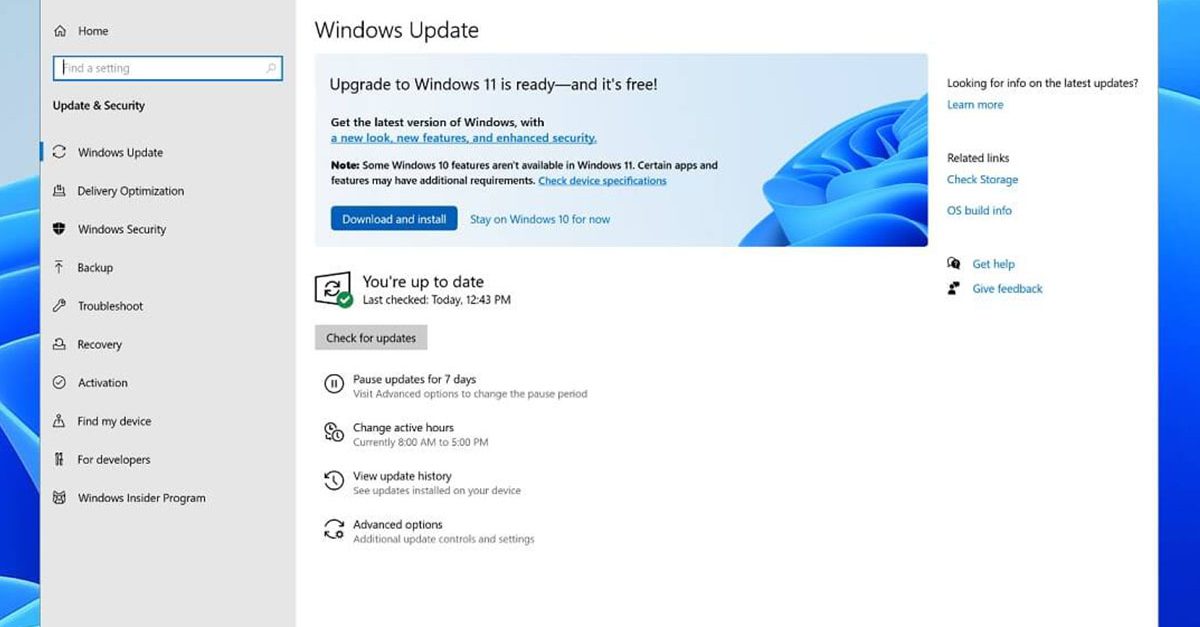
Windows 11 is getting adopted more and more each day, and how more and more users are installing it some smaller bugs show up. One of the things that have manifested lately is that in some cases installation assistant is not working throwing error 0x8007007f at you while you try to finish the update of Windows. Win not working thumb If you are one of the users that are experiencing this kind of annoyance, we have a solution for you. Follow this guide as presented and repair this annoying error.
Run installation assistant as administrator

This is the most simple solution that can solve problems right away and it is advised to be tried first.
  1. Download standalone Installation assistant installer from Microsoft website here
  2. Go to the location where you had the file downloaded
  3. Right-click on file
  4. Click on Run as administrator
  5. On the permission box, click YES

Disable antivirus and/or firewall software

Antivirus or firewall software can sometimes interfere with Windows’s update and prevent for any reason download or installation of files they consider not safe. If the first solution has not provided success turn off your antivirus or firewall software and try again to install updates by running them as administrator. Now, how many different antivirus or firewall applications are unique pieces of software it would take too much time to cover all of them but usually and most commonly if you right-click on the taskbar icon of security app most of the time you will have either option to open it and close it or simply just to snooze it for some time.

Set the compatibility

If you are still having issues with installing updates try setting compatibility mode for the installer.
  1. Download standalone Installation assistant installer from Microsoft website here
  2. Go to the location where you had the file downloaded
  3. Right-click on file
  4. Click on properties
  5. Go to the Compatibility tab
  6. Click on Run this program in compatibility mode for:
  7. Choose Windows 7
  8. Click on APPLY
  9. Run installer

Run SFC scan

If you are still facing installation issues there is a high chance there is something wrong with Windows system files. Luckily Windows itself has a built-in tool to address these issues and fix them.
  1. Open command prompt as administrator by pressing Start and searching for the command prompt and then on right-clicking on run as administrator
  2. Once the command prompt opens type in SFC / SCANNOW and press ENTER
  3. Wait for the whole process to complete and then restart your system
Read More
Schedule restart update on Windows 11
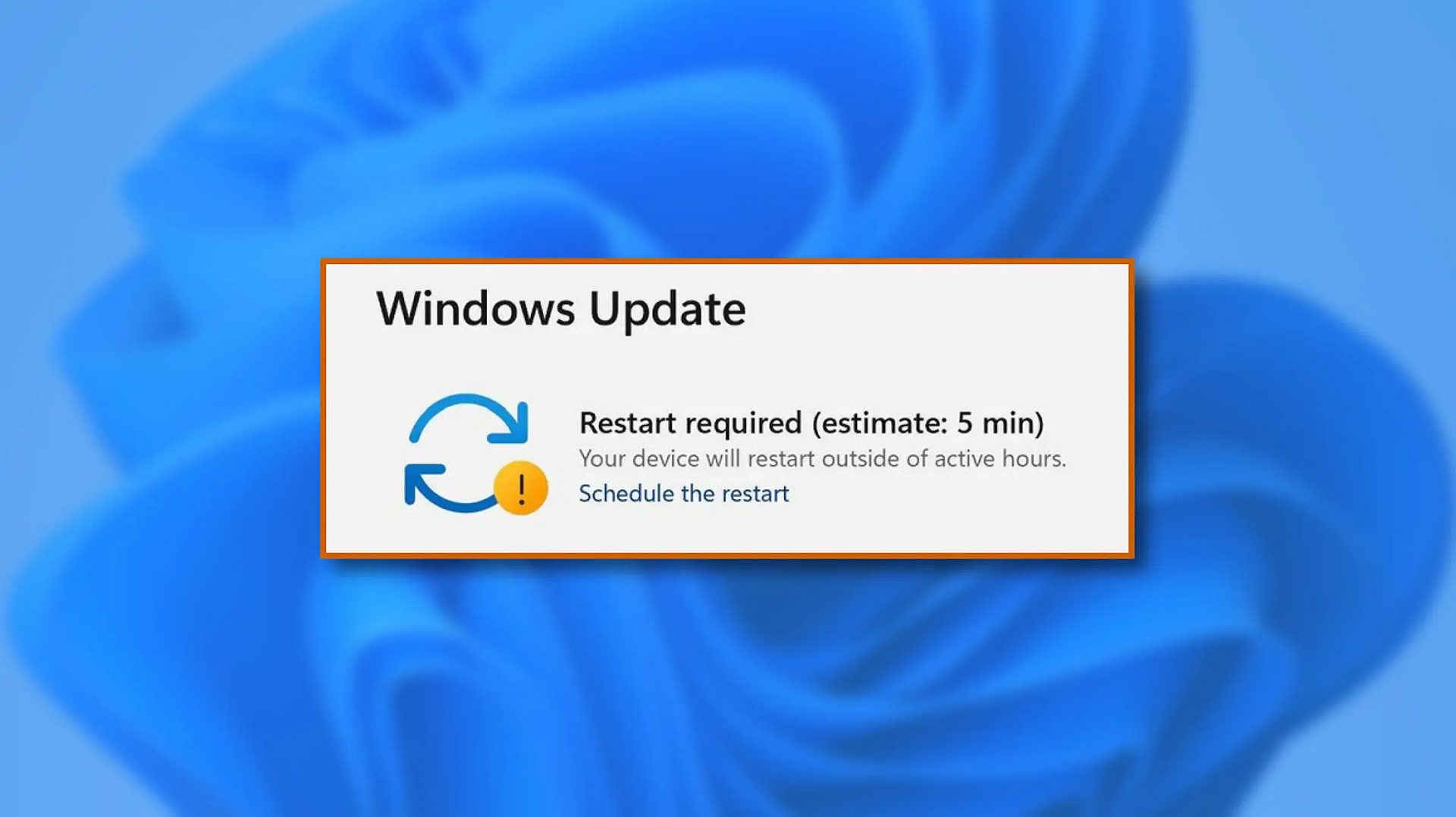
windows 11 schedule updateWhen Windows 11 update is available but you do not wish to restart right away because you are in the middle of using a computer, you can schedule a restart for up to 7 days. It is very easy and we will show you how to do it.

  1. Press ⊞ WINDOWS + I to open settings
  2. Click on Windows Update
  3. At the top, under the Restart required to click on Schedule the Restart
  4. Click the switch under Schedule a Time to turn it ON
  5. Use the Pick a Time and Pick a Day menu to set time and day when you want to update
  6. Go back to one screen and visually confirm that the date is set
  7. Close the settings
The scheduled restart will be confirmed in a message on the Windows Update page.
Read More
Windows 10 won't upgrade to a newer version
If when hovering over the upgrade icon on the taskbar you get:
Your version of Windows 10 would reach the end of service soon, Click to download a newer version of Windows 10 to stay supported. or An unsupported version of Windows will no longer receive software updates from Windows Update. These updates include security updates that can help protect your PC from harmful viruses, spyware, and other malicious software which can steal your personal information. Windows Update also installs the latest software updates to improve the reliability of Windows—such as new drivers for your hardware.
and you are unable to perform updates then this guide is for you. There are several things you can do to fix this issue presented here, it is advisable to follow them in a way how they are presented for best performance and system safety.
  1. Run setupdiag

    Download and run Setupdiag from the official MICROSOFT website. SetupDiag is a standalone diagnostic tool that can be used to obtain details about why a Windows 10 upgrade was unsuccessful. It works by examining Windows Setup log files to determine the root cause of a failure to update or upgrade the computer. Once the scan is completed, check the generated log files. The SetupDiagResults.log will be generated and saved in the same folder where you downloaded Setupdiag. Open SetupDiagResults.log using Notepad. You may need to take a look at these folders:
    • \Windows\Panther
    • \$Windows.~bt\sources\panther
    • \$Windows.~bt\Sources\Rollback
    • \Windows\Panther\NewOS
    If there are any issues or conditions that are blocking the upgrade, they will be listed here.
  2. Edit TargetReleaseVersionInfo Registry key

    Press ⊞ WINDOWS + R to open the run dialog In run dialog type Regedit and press ENTER Locate: HKLM\SOFTWARE\Policies\Microsoft\Windows\WindowsUpdate Locate two DWORD files, if they do not exist, create them as: TargetReleaseVersion TargetReleaseVersionInfo Set the value of TargetReleaseVersion to 1 If you are stuck on Windows 10 1909 and want to upgrade to Windows 10 20H2 now, you need to set the value for TargetReleaseVersionInfo to 20H2 Reboot the computer
  3. Use Windows 10 update assistant

    Visit Microsoft.com and hit the ‘Update now’ button visible on the page Download tool and run it Click on Update now to start the upgrade process
Read More
Fix Chrome is Waiting for cache in Windows
There are times when you may encounter some glitches on your Google Chrome browser in your Windows 10 computer. One of these glitches is when the connection status of Chrome keeps on saying “Waiting for cache” which is displayed at the bottom-left side of the browser in the Status bar. At the time of writing, it isn’t clear yet what could be causing this problem. Although it is possible that it’s caused by browser cache, some extensions in the browser. On the other hand, it could also be caused by the browser profile or due to some fragmented files or that the SSD is occupied. Whatever the cause is, you can check out each one of the given options below to fix the problem.

Option 1 – Try clearing browser cache

There are times when some data in the browser is conflicting with the loading of the website and triggers some problems like “Waiting for cache”. And so you can try to clear your browser’s data. This might be a very basic solution but oftentimes it works in fixing this kind of error in Google Chrome. Follow the steps below to clear the data in your browser.
  • Open your Google Chrome browser.
  • After that, tap the Ctrl + H keys. Doing so will open a new panel that allows you to delete the browsing history and other data in your browser.
  • Now select every checkbox that you see and click on the Clear browsing data button.
  • Then restart your Chrome browser and check if you can now open any website or not.

Option 2 – Try to disable writing of Cache files to the SSD

You can also disable the writing of Cache files to the SSD to stop Google Chrome’s dependency on the SSD to gather all the cache files.

Option 3 – Delete the User Profile in Chrome

You can also try deleting the User Profile folder in Chrome. To do so, follow these steps:
  • You need to first end every single process of Google Chrome. To do so, right-click on the Taskbar then select the Task Manager. And if the Task Manager is not responding, you can just use the Alt + Ctrl + Del keys and then select the Task Manager.
  • After opening the Task Manager, under Processes, look for Google Chrome’s process which would most likely be named “chrome.exe”.
  • Right-click on Google Chrome’s process and then select the End task option.
  • Next, tap the Win + R keys to open the Run dialogue box.
  • Then copy and paste “%USERPROFILE%AppDataLocalGoogleChromeUser Data” and hit Enter.
  • From there, look for a folder named “Default folder” and then copy the folder to another drive as a backup.
  • After creating a copy of the folder, delete the Default folder.
  • Next, open Google Chrome again and go to Settings > Advanced > Reset.

Option 4 – Reset Chrome

Resetting Chrome can also help you fix the error. This means that you will be restoring its default settings, disabling all the extensions, add-ons, and themes. Aside from that, the content settings will be reset as well and the cookies, cache, and site data will also be deleted. To reset Chrome, here’s what you have to do:
  • Open Google Chrome, then tap the Alt + F keys.
  • After that, click on Settings.
  • Next, scroll down until you see the Advanced option, once you see it, click on it.
  • After clicking the Advanced option, go to the “Restore and clean up option and click on the “Restore settings to their original defaults” option to reset Google Chrome.
  • Now restart Google Chrome.

Option 5 – Try to clean reinstall Chrome

There are instances when programs leave files behind after you’ve uninstalled them and the same thing can happen to Chrome so before you reinstall Chrome, you have to make sure that you have deleted the User Data folder. To do so, refer to the following steps:
  • Hit the Win + R keys to open the Run dialog box.
  • Next, type “%LOCALAPPDATA%GoogleChromeUser Data” in the field and hit Enter to open the User Data folder.
  • From there, rename the default folder and name it something else, e.g. “Default.old”.
  • After that, install Google Chrome again and check if the issue is now fixed.
Read More
Application failed to initialize 0xc0000005
If you suddenly encountered an error saying, “The application failed to initialize properly (0xc0000005)” when you are using an application on your Windows 10 computer, read on as this post will provide you some potential fixes that could help you fix the error. You can encounter the “The application failed to initialize properly (0xc0000005)” error on many applications such as VLC, Chrome, Word, and any other executable files and even the operating system files. When you get this kind of error, you will see the following error message:
“The application failed to initialize properly (0xc0000005). Click on OK to close the application.”
This kind of application error can occur due to several reasons which include damaged installation of the application or system files may have gotten corrupted or damaged. It could also be caused by a malware infection. There are a couple of suggestions provided in this post to help you resolve the error. You can try to run both a System File Checker scan and the DISM tool or reinstall the problematic application or repair-install Windows 10 as well as run a malware scan. Note that the options provided below do not have to be followed in sequence.

Option 1 – Try to run a System File Checker scan

As mentioned, the error could be due to corrupted or damaged system files and one of the ways you can fix that is by running a System File Checker or SFC scan on your computer. To do so, follow these steps:
  • In the Windows Start Search, type “command prompt” and right-click on Command Prompt from the search results, and then select the “Run as administrator” option.
  • After opening Command Prompt with admin privileges, type the “sfc /scannow” and tap Enter to execute it.
  • Once the scan is finished, restart your computer and see if the “The application failed to initialize properly (0xc0000005)” error is fixed or not.

Option 2 – Run the DISM tool

You can try running the Deployment Imaging and Servicing Management or DISM tool to fix the application error. Using this built-in tool, you have various options such as the “/ScanHealth”, “/CheckHealth”, and “/RestoreHealth”.
  • Open the Command Prompt with admin privileges.
  • Then type in the following commands and make sure to hit Enter right after you type each one of them:
    • Dism /Online /Cleanup-Image /CheckHealth
    • Dism /Online /Cleanup-Image /ScanHealth
    • exe /Online /Cleanup-image /Restorehealth
  • Do not close the window if the process takes a while as it will probably take a few minutes to finish.

Option 3 – Try reinstalling the application

You might also want to uninstall the application and download its latest working version and then install it back again. Note that when you do this, you will lose all your app data.

Option 4 – Try to repair install Windows 10

  • First, you have to click this link and then click the Download Tool Now button.
  • Next, click the “Use the tool to create installation media (USB flash drive, DVD, or ISO file)…” option and follow the next given instructions on the screen.
  • Now select the ISO file option in step 5.
  • After that, you should now have an ISO file.
  • Next, go to the location where you’ve downloaded the ISO file.
  • Then right-click on the Windows 10 ISO file and select the Open with option and then select File Explorer.
  • Now click on “setup.exe” and follow the next instructions that appear on the screen. When asked, you have to select either Nothing (clean install) or Keep personal files only option. Take note that you must not select the “Keep personal files, apps, and Windows settings”.

Option 5 – Try scanning your computer using Windows Defender

It is possible that your computer is infected with malware which could be why you’re getting the “The application failed to initialize properly (0xc0000005)” error. Thus, you need to scan your computer using Windows Defender.
  • Tap the Win + I keys to open Update & Security.
  • Then click on the Windows Security option and open Windows Defender Security Center.
  • Next, click on Virus & threat protection > Run a new advanced scan.
  • Now make sure that Full Scan is selected from the menu and then click the Scan Now button to get started.
Read More
Fix UNEXPECTED STORE EXCEPTION in Windows 10
Blue Screen of Death or Stop errors are definitely one of the most difficult issues to face in your Windows computer. One of them is the UNEXPECTED STORE EXCEPTION BSOD error. When you encounter this Stop error on your Windows 10 computer, this means that the store component has caught an unexpected exception. There are many potential causes for this error, but we’ve narrowed it down to a few specific causes – for one, this error could be caused by your antivirus program installed on your computer, two, it could also be caused by outdated hardware drivers on your computer, it could also be an error in the file system as well as some issue with the lock screen app, or even output to an unexpected port. Whichever the cause may be, you can use a couple of fixes laid out below. Make sure to carefully follow them.

Option 1 – Try to update your Display driver

  • First, boot your computer into Safe Mode.
  • After that, tap the Win + R keys to launch Run.
  • Type in devmgmt.msc into the box and tap Enter or click OK to open the Device Manager.
  • After that, a list of device drivers will be displayed. From there, look for the Display Adapters and click on them.
  • After that, right-click on each entry under the Display Adapters and select the “Uninstall Device” option from the menu.
  • Now restart your computer.
  • After restarting your computer, go to the Settings app and Check for Updates in the Windows Update section.
Note: You also have the option to go directly to the website of your graphics card manufacturers like NVIDIA, Intel, or AMD and go to the section called Drivers then check if there’s a new available update – if there is, download and install it.

Option 2 – Run both the System File Checker scan and DISM tool

If the problem is caused by corrupted system files, then you can use both the System File Checker and the DISM tool. To use them, follow the instructions below.
  • Tap the Win + X keys or right-click on the Start button and click the “Command Prompt (Admin)” option. Alternatively, you can also search for “cmd” in the Cortana search box and right-click on Command Prompt from the search results, and select the “Run as administrator” option.
  • After that, if a User Account Control prompt pops up, click on Yes to proceed.
  • Once the Command Prompt window is pulled up, type the following command and hit Enter:
DISM.exe /Online /Cleanup-image /Restorehealth
  • Wait for the process to be completed. Once it’s done, type the following command and hit Enter:
sfc /scannow
  • The command will start a system scan which will take a few whiles before it finishes. Once it’s done, you could get the following results:
  1. Windows Resource Protection did not find any integrity violations.
  2. Windows Resource Protection found corrupt files and successfully repaired them.
  3. Windows Resource Protection found corrupt files but was unable to fix some of them.
  • Restart your PC.
Note: You should see the “Windows Resource Protection found corrupt files and successfully repaired them. Details are included in the CBS.Log %WinDir%LogsCBSCBS.log” message on your screen. On the other hand, if you see the “Windows Resource Protection found corrupt files but was unable to fix some of them. Details are included in the CBS.Log %WinDir%LogsCBSCBS.log” message instead, then you should run the following command in Command Prompt:
findstr /c:"[SR]" %windir%LogsCBSCBS.log >"%userprofile%Desktopsfclogs.txt"
The command you entered will open up the logs on your Desktop where you can look for files that are causing the error on your computer manually.

Option 3 – Disable Fast Start-up

If you want your computer to boot faster, then you might have enabled Fast Start-up. This feature is ideal for computers that are using a hard disk drive. However, turning on this feature also means that when the computer boots, it might lag some drivers that are loaded when it initially boots up. Thus, it might be the potential cause of the UNEXPECTED STORE EXCEPTION BSOD error. Thus, you need to disable Fast Start-up. To do that, follow these steps:
  • Boot your PC into Safe Mode.
  • Then tap the Win + R keys to open the Run dialog box.
  • Next, type in “control” to open Control Panel.
  • After that, select Hardware and Sound and click on Power Options.
  • Select “Choose what the power buttons do” from the left side menu pane and click on Change settings that are currently unavailable.
  • Afterward, uncheck the “Turn on fast startup (Recommended)” entry and click on Save Changes.
  • Now restart your PC for the changes to take effect and then check if the problem’s fixed afterward.

Option 4 – Try to run the Chkdsk utility

You can also run the Chkdsk utility to resolve the UNEXPECTED STORE EXCEPTION BSOD error. If your hard drive has issues with integrity, the update will really fail as the system will think that it’s not healthy and that’s where the Chkdsk utility comes in. The Chkdsk utility repairs hard drive errors that might be causing the problem.
  • Open Command Prompt with admin privileges.
  • After opening Command Prompt, execute the following command and hit Enter:
chkdsk /f /r
  • Wait for the process to be completed and then restart your computer.
Read More
1 2 3 171
Logo
Copyright © 2023, ErrorTools. All Rights Reserved
Trademark: Microsoft Windows logos are registered trademarks of Microsoft. Disclaimer: ErrorTools.com is not affiliated with Microsoft, nor claims direct affiliation.
The information on this page is provided for information purposes only.
DMCA.com Protection Status