If you suddenly encounter a Blue Screen error that points out to either the mfewfpk.sys and epfwwfp.sys files, then this post might help. Both of these files are created by third-party software. The mfewfpk.sys file is created by the McAfee security software while the epfwwfp.sys is created by the ESET Antivirus. These files are residual files and sometimes it blocks upgrading Windows 10.
Aside from blocking Windows 10 upgrade/update, these files can also cause a Blue Screen error after an upgrade which leaves your Windows 10 computer useless. When you get a Blue Screen error caused by any of these files, you will see an accompanying error message that states, “DRIVER IRQL NOT LESS OR EQUAL”. To fix this Blue Screen error, you can check out the suggestions laid out below but before you do that, you need to create a System Restore point first as it can help you undo any unwanted changes. In addition, make sure to also boot your computer into Safe Mode with Networking before you troubleshoot.
Option 1 – Try to remove the epfwwfp.sys file
You can try to remove the epfwwfp.sys file using Command Prompt. To do so, refer to the following steps:
Right-click on the Start button and click on Command Prompt (Admin) from the menu to open Command Prompt with admin privileges.
Next, type the following command and hit Enter to delete the epfwwfp.sys file:
DEL /F /S /Q /A “%systemroot%System32driversepfwwfp.sys”
After the scan is completed, restart your computer and see if it fixed the Blue Screen error.
Note: You can also use the ESET AV Remover tool to uninstall Eset security software to remove the epfwwfp.sys file.
Option 2 – Try to remove the mfewfpk.sys file
The same with the first option, you can remove the mfewfpk.sys file using CMD.
First, right-click on the Start button and click on Command Prompt (Admin) from the menu to open Command Prompt with admin privileges.
After, type the following command and hit Enter to delete the epfwwfp.sys file:
DEL /F /S /Q /A “%systemroot%System32driversmfewfpk.sys”
Once the scan is completed, restart your computer and see if it fixed the Stop error.
Note: You also have the option to remove the mfewfpk.sys file using McAfee Product Removal tool to uninstall the McAfee security software. All you have to do is download the McAfee Product Removal tool and run it and then follow the onscreen instructions to install it. Once it is installed, click on Next. After you select the radio button to agree to the terms of use, click on Next once again. Finally, restart your computer and check if it is able to resolve the problem or not.
Option 3 – Run the Blue Screen Troubleshooter
Troubleshooting Blue Screen of Death errors wouldn’t be complete without the Blue Screen troubleshooter. As you know, it is a built-in tool in Windows 10 that helps users in fixing BSOD errors. It can be found on the Settings Troubleshooters page. To use it, refer to these steps:
Tap the Win + I keys to open the Settings panel.
Then go to Update & Security > Troubleshoot.
From there, look for the option called “Blue Screen” on your right-hand side and then click the “Run the troubleshooter” button to run the Blue Screen Troubleshooter and then follow the next on-screen options. Note that you might have to boot your PC into Safe Mode.
Option 4 – Try running the DISM tool
You can try running the Deployment Imaging and Servicing Management or DISM tool to fix the Blue Screen error. Using this built-in tool, you have various options such as the “/ScanHealth”, “/CheckHealth”, and “/RestoreHealth”.
Open the Command Prompt with admin privileges.
Then type in the following commands and make sure to hit Enter right after you type each one of them:
Dism /Online /Cleanup-Image /CheckHealth
Dism /Online /Cleanup-Image /ScanHealth
exe /Online /Cleanup-image /Restorehealth
Do not close the window if the process takes a while as it will probably take a few minutes to finish.
If your internet suddenly stops working on your Windows 10 computer and you get an error message saying, “Windows is still setting up the class configuration for this device (Code 56)”, then read on as this post will show you what you can do to resolve it. This kind of issue has something to do with the Network Adapter and you can see this error message in the Properties menu of the corresponding Network Adapter under the Device Manager.
This kind of issue could be caused by many things. For one, it could be caused by your VPN connection if you are using one or it could also be due to an outdated driver. Whatever the cause may be, here are some suggestions you have to check out to fix the error.
Option 1 – Check your VPN
When you install a virtual machine or VPN software on your computer, a new setup will be added in the Network Connection settings and helps your computer in using that adapter setting each time the VPN is turned on. Assuming that you are using an Ethernet connection but your system is trying to use another adapter or settings, that’s when issues occur and one of them is the “Windows is still setting up the class configuration for this device” error. To fix it, you can try to disable your VPN temporarily and see if the error is resolved or not and if turns out that your VPN is the culprit, you have to uninstall it and install a new one or its latest version. To uninstall it, follow the steps below.
Tap the Win + R keys to open the Run dialog box
Then type “appwiz.cpl” in the field and hit Enter to open the Programs and Features in Control Panel.
From there, look for the VPN service you are using, select it and then click on Uninstall to remove it.
After that, restart your computer and try to install the latest version of the program again. It should work now. If not, proceed to the next available option below.
Option 2 – Try to update or rollback or uninstall the Network Adapter drivers
You might also want to update, roll back or disable your Network drivers to fix the “This operation failed as no adapter is in the state permissible for this operation” error.
Tap the Win + R keys to launch the Run window and then type in the “devmgmt.msc” command and hit Enter to open the Device Manager window.
Under the Device Manager, you will see a list of drivers. From there, look for the Network Adapters and expand it.
Then right-click on each one of the Network drivers and depending on your preference, you can either select “Update driver”, “Disable device” or “Uninstall device”.
After that, restart your PC and see if it helped in fixing the netio.sys Blue Screen error.
Option 3 – Try to run the Network Adapter troubleshooter
To run the Network Troubleshooter, refer to these steps:
Open the Search bar on your computer and type in “troubleshoot” to open the Troubleshoot settings.
Next, scroll down and select the “Network Adapter” option from the right pane.
Then click on the Run Troubleshooter” button.
After that, your computer will check for any possible errors and will pinpoint the root cause of the problem if possible.
Restart your computer.
Option 4 – Try to reset the Network
You might perform a Network Reset to resolve the problem if none of the three given options above worked. This will reset the entire network configuration including your IP address. To perform Network Reset, follow these steps:
Tap the Win + I keys to open Settings.
From there, go to the Network and Internet section.
Next, scroll down and look for “Network Reset” under the status pane.
After that, click on Network Reset and then on Reset now to start resetting the network configuration. Once done, check if it is able to fix the error or not.
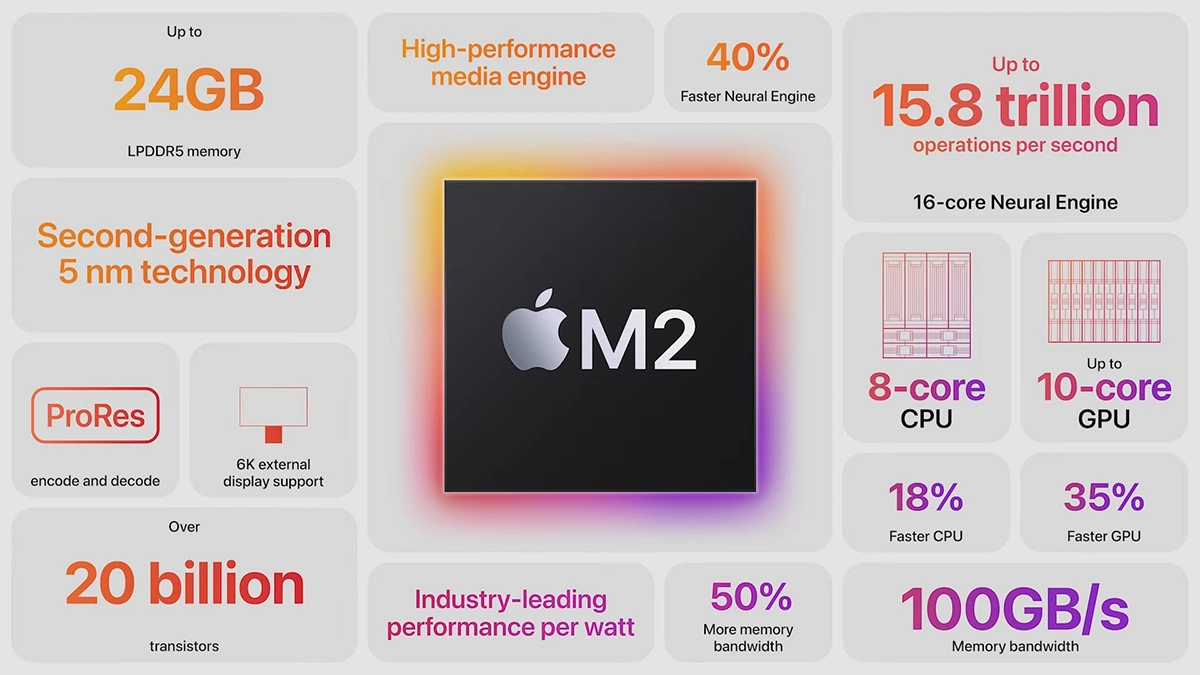
Direct replacement for Apple M1 Chip is near. There were some M1 Chips versions like M1 MAX and M1 ULTRA that were upgrades of the existing M1 chip, but the new and upcoming M2 is something different and it is aiming to replace M1 completely.
Made in a 5-nanometer design, with 20 billion transistors and 100GB/s of unified memory bandwidth is meant to increase performance over M1. It has the same M1 8 core design with 4 high-efficiency cores and 4 high-performance ones.
All CPU and GPU cores are faster than their M1 equivalents and Apple states that when running M1 and M2 at the same power level M2 will perform 25% faster. The first version of the chip will place focus on power efficiency so if you are more on side of being a power user wait for the MAX or ULTRA version of M2.
Tech details of M2
M2 system on a chip like its predecessor M1 combines both CPU and GPU on a single chip with shared memory in order to increase performance compared to systems that have separate CPU and GPU. M2 so far has been only announced for MacBook Air and the 13-inch MacBook Pro that suppose to hit the market somewhere around July this year. Of course, we expect that M2 is included in future iPad series or Mac Mini series as well.
Have you been feeling anxious in the digital space? Feeling like you have a million eyes on you each time you visit a website? It can definitely make you uneasy. Luckily there’s an easy fix, and it’s called a VPN.
In this article we’ll take you through the basics of what a VPN does and some of the biggest benefits you can reap from buying one.
VPN: definition and how it works
VPN stands for Virtual Private Network, so its name already says a lot about what it does.
A VPN is specialized software that keeps your browsing private and secure. Essentially it hides your identity, preventing possible cyberattacks and data theft. This is especially important in cases of public network use, where you’re highly exposed to potential threats.
To be more specific, this software encrypts your Internet Protocol (IP) address by filtering it through a server hosted by the VPN provider first. That way, it prevents your Internet service provider, third parties and lurking online thieves from tracking the actual you.
Credit: FLY:D on Unsplash
Some providers, such as Surfshark VPN with its IP Rotator feature, even make it a habit to frequently change your IP address to further protect your identity. With most VPN providers, you can also appear to be in a completely different country, adding to your disguise.
There are tons of advantages you can look forward to if you decide to use a VPN. Take a look at some of the crucial ones.
Benefits of using a VPN
When choosing a VPN, you can find both free and paid options. We recommend you go with the paid ones, since they have stronger security, encryption and data protection, as well as more advanced features. Free VPNs come with limitations and risk of malicious attacks on the software itself.
You can choose to buy a singular VPN service or opt for antivirus software that has a VPN built in, for example Bitdefender’s Ultimate Security plan. That depends on what you use your computer for and how much.
When you pick one, here’s what it can do for you.
1. Access region-specific content
When we said you could change your location, we meant it. Say you’re using a streaming service and a show you desperately want to watch isn’t available in your country. You can use your VPN to make it look like you’re browsing from a country where it’s unlocked.
This option is also convenient for gamers who want to access maps, skins and other in-game items unavailable in their location.
In addition, you can use this powerful feature when you’re traveling to a region where some of your favorite content may not be accessible.
Do keep in mind that you need to read the Terms and Conditions (yeah, we know - who does that?) of your games and services before doing this, since you could end up getting a penalty. It’s also important to remember that there are entire countries that have strict regulations or even bans on VPNs, for example Belarus, Russia and China. So make sure to be very cautious with your VPN use, friends.
2. Browse like no one’s watching
VPNs shield your browsing habits from prying eyes on the web. Those can be malicious hackers or just third-party cookies tracking your every move to later bombard you with targeted ads. For example, Surfshark VPN features a Cookie blocker that blocks all cookie-related pop-ups and lets you browse in peace (and secret). It works even when the VPN is turned off, which is also pretty neat.
In addition, their CleanWeb 2.0 technology makes sure ads and especially malware don’t stand a chance at all, since they’re blocked before they can even load.
The inability of sites to track your browsing means they can’t collect and analyze any of your data. So, your personal information - or your company’s information in case that’s what you’re using your computer for - is entirely hidden and secure.
3. Save money
It’s well-known that the prices of certain items and services vary based on your location, browsing time, age and many other factors. This most commonly goes for airline tickets and hotel stays.
You can use your VPN to avoid high prices and surcharges. Clear all cookies, turn on your VPN and visit an online shopping site to check out their prices. Then compare your findings with the offers you see when your VPN is off, when you spend a long time on the site or have an active account with the company.
Sometimes this can really help you find the best deals and avoid breaking the bank. But again, check the Terms and Conditions before you purchase something using a VPN.
4. Secure your smart home
The more smart devices you have connected to your network, the more exposed you are to potential cyberattacks. Phones and computers are generally designed to be decently secure even without a VPN or antivirus, but smart home devices leave a lot to be desired in that regard.
Protecting your home network with a VPN software means all devices connected to it are secure, be it an air purifier or Alexa.
Credit: Bence Boros on Unsplash
5. Prevent connection slowdown
Your ISP can intentionally slow down your internet speed based on how much data you’ve consumed (data throttling) or your activities online (bandwidth throttling).
But with a VPN, what kind of data you send and receive and how much is entirely hidden. Therefore, if your ISP can’t see you, they can’t control you and they can’t throttle down your speed.
The bottom line
You can never be too safe online. So definitely think about getting yourself a solid VPN to pump up your privacy and security as much as you can. And if you have any questions or need help choosing the perfect software for you, feel free to reach out to us.
Code 42 Error is referred to as a Device Manager Error code. Before we explain what this code indicates, it is important to understand what ‘Device Manager’ is and its functions.
Device Manager is basically a Windows tool that helps manage devices attached to the system such as the Printer, Scanner and the USB Device. The Device Manager Error code 42 occurs when a duplicate device is detected.
Error Code 42 is displayed in the following format:
“Windows cannot load the device driver for this hardware because there is a duplicate device already running in the system. Code 42”
Solution
Error Causes
Narrowing down to one particular cause for error code 42 is not virtually possible because it may be triggered due to many underlying reasons. These include:
When a bus driver incorrectly generates and creates 2 identically named devices
When a device with a serial number is found in a new location without being removed from its original location
Mis-configured drivers
No matter what the reason for this error code,, to avoid inconvenience and to ensure proper hardware performance, it is advisable to fix it right away without any delay.
Further Information and Manual Repair
If you’re not technically sound, the code 42 message display can panic you. But don’t worry, the error message sounds complex but it is quite easy to fix.
To resolve code 42 in a few minutes, simply try the methods given below. These methods are easy-to-perform, effective and more importantly require no technical expertise.
Method 1 - Restart Your System
Code 42 can pop up due to some temporary glitch in the Device Manager. By simply restarting your PC, you can resolve this problem.
Therefore, first things first, restart your system. However, in case it doesn’t work out, try other methods.
Method 2 - Launch the Troubleshooting Wizard
Launch the troubleshooting wizard to find the underlying problem and resolve it accordingly. To do this, proceed with the following steps:
Go to the start menu
Type Device Manager in the search bar and press enter
Now click on the ‘General Tab’
Then click on ‘Trouble Shoot’ to launch the Troubleshooting Wizard
After that follow the instructions in this Wizard to diagnose the problem and resolve it.
Method 3 - Restore Your PC to its Previous State
Another method to fix code 42 is to use the System Restore tool to restore your PC to its previous working state before the error popped up. To do this,
Go to the start menu
Type System Restore in the search bar and press enter
Now click on ‘Restore my computer to an earlier time’ and then click ‘Next’
After that select the restore point on the restore point list and confirm settings
Restart your PC to activate changes
Before restoring your PC to its previous state, create a backup. By creating data backup you can avoid data loss issues, which are likely to occur during this process.
Creating backup manually can be time-consuming and a painstaking task. The best way to create backup and restore your PC to its normal state is to download DriverFIX.
It is a user-friendly device driver management software that helps create data backup automatically and simultaneously restores your PC back to its normal working state in a few seconds.
This software is compatible with all Windows versions.
Click here to download DriverFIX on your system to resolve error code 42.
If you’ve been using your Windows 10 PC for a long time now, you might have come across a couple of issues – from minimal ones to critical ones like the Blue Screen of Death or BSOD stop errors. One of these BSOD errors you can encounter is the DRIVER_IRQL_NOT_LESS_OR_EQUAL Blue Screen error. This particular BSOD error is caused by iaStorA.sys, iaisp64 sys, Netwtw04.sys, nvlddmkm.sys, ndis.sys, wrUrlFlt.sys, and other driver files on Windows 10. This error indicates that a kernel-mode driver tried to access pageable memory at a process IRQL that was too high. When you encounter this error, just like a typical BSOD error, your computer will abruptly stop and you will see a blue screen with an error message saying:
“Your PC ran into a problem and needs to restart. We’re just collecting some error info, and then we’ll restart for you. (100% complete)If you’d like to know more, you can search online later for this error:DRIVER_IRQL_NOT_LESS_OR_EQUAL (wrUrlFlt.sys)”
The iaStorA.sys file is a software component that’s related to the Intel Rapid Storage Technology by Intel. It is a software solution supported by Intel Smart Response Technology which allows the PC to communicate with the hardware as well as externally connected devices. The Intel Rapid Storage Technology enables the Peripheral Component Interconnect Express or PCIe storage support, serial ATA RAID or Redundant Array of Independent Disks 0, 1, 5, and 10 support, and the PUIS or power-up in standby is also supported.
To resolve this kind of BSOD error, you have to update, roll back or fresh-install the problematic driver. Refer to the options laid out below for detailed instructions.
Option 1 – Try removing the Intel Rapid Storage Technology or IRST drivers
The first thing you can try is to fix the Wi-Fi driver or the Ethernet driver on your computer to resolve the BSOD error. Take note that this option works not only on Windows 10 but also other Windows versions.
Tap the Win + R keys on your keyboard to open the Run dialog box.
After that, type “devmgmt.msc” in the field and hit Enter or click OK to open the Device Manager.
After opening the Device Manager, click on the “IDE ATA/ATAPI Controller” entry and expand it.
Next, right-click on all the driver entries that are appropriately labeled, and then click on Uninstall device.
Now restart your PC and check if the problem’s fixed or not. If not, proceed to the next given option below.
Option 2 – Try updating the Intel Rapid Storage Technology or IRST drivers
If you’ve already tried uninstalling the IRST driver but you’re still getting the DRIVER IRQL NOT LESS OR EQUAL Blue Screen error when you use your Windows 10 PC, then this means that the drivers might be corrupted or not compatible with the operating system version that you are using right now. So to fix the problem, you have to update your drivers. To do that, follow the steps below.
The first thing you need to do is to go to your OEM’s website.
Once you’re already on the OEM’s website, go to the Drivers section and get the latest version for your device and then try to overwrite it.
Alternatively, you can also update the drivers via the Device Manager:
Tap the Win + R keys on your keyboard to open the Run dialog box.
After that, type “devmgmt.msc” in the field and hit Enter or click OK to open the Device Manager.
After opening the Device Manager, click on the “IDE ATA/ATAPI Controller” entry and expand it.
Next, right-click on all the driver entries that are appropriately labeled, and then click the Update driver option.
Now restart your PC and check if the BSOD error is fixed or not.
Option 3 – Try using the System File Checker via Command Prompt
System File Checker or SFC is a built-in command utility that helps in restoring corrupted files as well as missing files. It replaces bad and corrupted system files to good system files that might be causing the DRIVER IRQL NOT LESS OR EQUAL Blue Screen error. To run the SFC command, follow the steps given below.
Tap Win + R to launch Run.
Type in cmd in the field and tap Enter.
After opening Command Prompt, type in sfc /scannow
The command will start a system scan which will take a few whiles before it finishes. Once it’s done, you could get the following results:
Windows Resource Protection did not find any integrity violations.
Windows Resource Protection found corrupt files and successfully repaired them.
Windows Resource Protection found corrupt files but was unable to fix some of them.
In this post, you will be guided on what to do if the Recent Items are no longer visible in the Taskbar icons in Windows 10. This can be quite inconvenient especially if you work simultaneously on many files and documents together and would require you to visit them regularly to incorporate changes. Thus, if you find that the Recent items are not visible in the Windows Taskbar, read on.
In order for the Recent Items to appear on the taskbar icons in Windows 10 again, there are four potential fixes you can check out. You can try to show the recently opened items via Settings or clear the cache of the recent items. You could also make some changes in the Windows Registry or use the Group Policy Editor.
But before you proceed with these potential fixes, it’s best if you create a System Restore Point first just in case something goes wrong after you made changes in the system. The System Restore Point allows you to undo these changes and bring back the previous state of your computer. Thus, you need to create one and then carefully follow the given options below.
Option 1 – Show the recently opened items via Settings
The first thing you can do to fix the problem is to show the recently opened items through the Settings app.
Open the Settings app and select Personalization.
From there, select the Start option and scroll down until you see the “Show recently opened items in Jump Lists on Start or the taskbar” option.
Make sure that its toggle button is turned on.
Option 2 – Try to clear the Recent Items cache
Tap the Win + E keys to open File Explorer.
Next, copy and paste this link on the address bar: %AppData%Microsoftwindowsrecentautomaticdestinations
Once you’re in the given location, you should see multiple files. Now select all these files and completely delete them.
Note: These files are automatically recreated when you interact with the system like performing tasks such as opening apps or accessing files.
After that, go to this next location: %AppData%Microsoftwindowsrecentcustomdestinations
Once there, delete all of its files and restart your computer. This should resolve the problem.
Option 3 – Try making changes via Registry Editor
The next thing you can do to fix the problem is to apply some tweaks in the Registry by following these steps:
Tap the Win + R keys to open the Run dialog box and type “Regedit” in the field and hit Enter to open the Registry Editor.
Next, navigate to this registry sub-path: HKEY_CURRENT_USERSoftwareMicrosoftWindowsCurrentVersion
From there, select the Policies Explorer folder located in the left pane.
Then move to the right pane and look for the “NoRecentDocsHistory” entry and right-click on it.
Now delete this entry.
Note: This entry is the one that stores the Group Policy setting for “Do not keep the history of recently opened documents. The Group Policy adds this entry to the registry with a value of 1 if you enable the “Do not keep the history of recently opened documents” policy. On the other hand, if you disable the policy by setting it to “Not configured” or deleting it, the Group Policy will delete the entry from the registry, and the system will act as though the value is 0 – for instance, it keeps the history of the recently opened files in your computer.
Option 4 – Try to use the Group Policy Editor
Tap the Win + R keys to open the Run utility and type “gpedit.msc” in the field and tap Enter to launch the Group Policy Editor.
Next, navigate to User Configuration > Administrative Templates > Start Menu and Taskbar.
Afterward, double click on the “Do not keep a history of recently opened documents” policy located on the right panel. This is the policy that lets you enable or disable recent items and frequent places.
Now to enable the recent items, as well as the frequent places, feature, click on the “Disabled” or the “Not Configured” option.
Once you’re done, close the Group Policy Editor and restart your PC.
Note: If you choose to enable this setting, the system and Windows programs will not create shortcuts to documents opened while the setting is in effect. Aside from that, they also stay but won’t display the existing document shortcuts and the system will empty the Recent Items menu on the Start menu and the Windows programs won’t also display shortcuts in the Start Menu. In addition, the Taskbar won’t also show the recently opened or frequently used folders, files, or websites.
A lot of things can go wrong even when you’re only doing some simple operations or tasks on your computer and this is due to the fact that there are various small operations make up in order to perform the larger operations on your computer. So if any of these smaller operations are not properly working, it crashes the operation as a whole and it throws an error code instead. And one of these error codes is Error 0x800701e3. This particular error pops up when an error has occurred in the File Explorer when a transfer is initiated from one disk to another in your Windows 10 computer. When you encounter this error, you will get the following error message:
“Error 0x800701e3: The request failed due to a fatal hardware error.”
There are several methods you can check out to fix this error – you can try to run System Restore or Check Disk or format the destination drive or check the SMART attribute of the drive. For more details, refer to each one of the following options.
Option 1 – Try to run System Restore
Error 0x800701e3 might be due to some adjustments you’ve made in your computer’s settings. Thus, to fix this error, you can try undoing those changes using System Restore. How? Refer to these steps:
Tap the Win + R keys to open the Run dialog box.
After that, type in “sysdm.cpl” in the field and tap Enter.
Next, go to the System Protection tab then click the System Restore button. This will open a new window where you have to select your preferred System Restore point.
After that, follow the on-screen instructions to finish the process and then restart your computer and then check if your mouse is now back to its normal state.
Option 2 – Try running the Check Disk utility
You can also run the Check Disk utility in fixing Error 0x800701e3.
In the Windows Search box, type “command prompt” and from the search results, right-click on Command Prompt and select “Run as administrator”.
After opening Command Prompt, type this command and tap Enter: chkdsk <Partition Letter>: /f /r /x /b
The command you entered will start to check for errors and fix them automatically. Else, it will throw an error message saying, “Chkdsk cannot run because the volume is in use by another process. Would you like the schedule this volume to be checked the next time the system restarts? (Y/N)”.
Tap the Y key to schedule Disk Check the next time your computer restarts.
Option 3 – Try to format the destination drive
Formatting the destination drive could also help you resolve error 0x800701e3. To format your drive, follow these steps:
First, open File Explorer and then right-click on the drive where you encountered the error.
Next, select Format from the context menu. This will open a new mini window.
Then select the NTFS option from the drop-down menu for the File System menu.
After that, check the box labeled as Quick Format.
Now click on Start. Keep in mind that doing so will remove all the contents of your storage device.
Option 4 – Verify the hard drive using SMART attributes
In case you don’t know, Windows has a built-in feature of SMART analysis which analyzes the hard drive/SSD and checks all the parameters by performing some minor operations. To use it, follow these steps:
Tap the Win + S keys and type “command prompt” in the field then right-click on the related search result and select the “Run as administrator” option.
After opening Command Prompt as admin, type the “wmic diskdrive get status” command and hit Enter.
You should get a result after that, and if you see that it’s “normal”, proceed to the next option below
If you have multiple products with Windows on them, Copy & Paste text between them is easy as 1,2,3 and we will be happy to tell you how can you do it.
Hello and welcome everyone, today we will see how can we share text information between 2 devices using Windows 10 in instant. In order for you to be able to share text information between devices, there are two prerequisites that you must meet. The first is that all devices must be connected to the internet, the second is that you must have a Microsoft account.
If you have both of these things continue with the tutorial, if you do not have a Microsoft account go to Microsoft website and create one for free.
Also, know that this option needs to be turned ON on all devices in order to work. So steps we will explain will have to be done on each device, if you already have some device logged in and connected to Microsoft account, you can skip setting it up.
Click on ⊞ WINDOWS and click on settings.
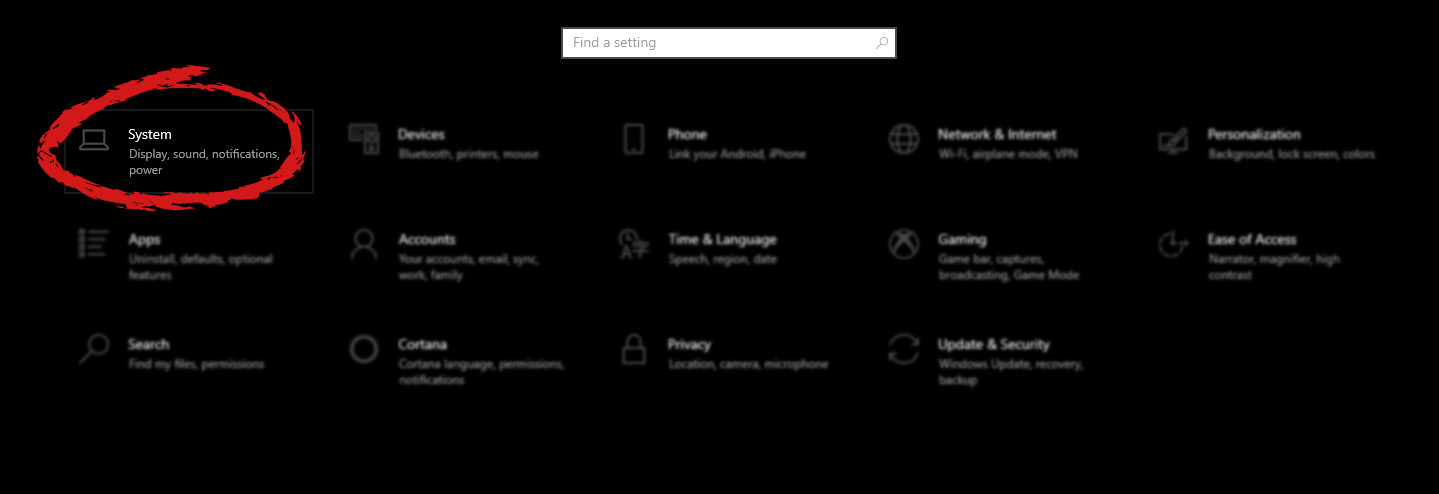
Then click on System.
Once you are in the system, on the left tabs find and click on Clipboard.If you are not logged in to your Microsoft account do so on the right panel by locating Sync across devices and click on sign in.
When you are signed in click on the option to turn it on.
One option is turned ON, you will be greeted with two choices, to copy everything from the clipboard automatically or to choose text which you want to sync and paste it with ⊞ WINDOWS + V. Choose whatever better suits your needs, and you are done.
Repeat these steps for other devices and you are done.
In Windows 11 by default inside the Start menu, there is recommended section that contains recently opened folders, documents, and files. If you do not wish this section and do not want recent items in your Start menu there is an easy way to turn it off.
Press ⊞ WINDOWS + I to open settings
Click on Personalization
On the right side scroll down and click on Start
Click on the switch beside Show recently opened items in Start, Jump lists, and File Explorer
Close settings
Settings will be automatically applied and there will be no more recommended items inside your Start menu to create clutter, it will be nice and clean.
The PST file could be around 2 gigabytes if you are using MS Outlook 2002 or any earlier versions for your own personal Folders. The 2GB filesize malfunction occurs when your PST memory both reaches or exceeds this limit.
The 2GB size problem code is, in addition, referred to as an outsize PST file error.
When this error happens you may be unable to deliver or receive e-mails via your Outlook account. Moreover, you'll likewise not be able to add any new data or even view your important calendar items, notes, and saved drafts.
MS-Outlook shows several types of problem codes which indicate the 2GB file size dilemma. Listed below are some of the messages that can be displayed on your monitor:-
The file could not be added to the folder. The action could not be completed.
Errors have been detected in the file xxxx.pst. Quit all mail-enabled applications.
Task 'Microsoft Exchange Server' reported error (0x00040820):'Errors in background synchronization. In most cases, further information is available in a synchronization log in the Deleted Items folder.'
xxxx.pst cannot be accessed - 0x80040116
Solution
Error Causes
The simple explanation for this malfunction is that you have maxed out the two gigabytes account limit. This happens in case you continue downloading fresh data and saving files and the old emails in your Outlook account.
Over time, the space becomes limited and along with it the 2 GB file limit error.
This error also presents a critical danger of data loss which is a possibility in your Outlook account, which hinders you as well from fully utilizing your email account.
For regular Outlook customers, who utilize this program for practically all email communication within as well as outside the office, this error is annoying and frustrating as it causes a great deal of annoyance as well as decreases their performance and productivity.
What exactly are the Symptoms?
Below are a few signs that will help you recognize the 2GB file-size error:
Inability to fill and open the OST and PST files
Error messages pop-ups
Failure to send emails
Failure to make or edit new contacts
Inability to synchronize the file
Further Information and Manual Repair
It is desirable to fix this error code right away especially if this is the preferred strategy to carry out communication in your office. Fix it immediately or else you might not receive e-mails that are important from your colleagues.
There are 3 ways to solve this issue.
Method 1
One is to remove the old e-mails and connections and replace them with new ones. This may not be the best option for you in case you don't wish to lose emails and your old contacts.
Method 2
The second alternative would be to install a fresh version of MS-Outlook like 2010. The file-size limits of OST and PST files in these editions are larger than in ms-outlook 2002.
On the other hand, this is a good idea for the long run but may not be the best idea for today as you will not have the ability to recover your previous e-mails and contacts that are outdated.
Method 3
The third and maybe the method that is best to resolve the 2GB file size limit error while ensuring the restoration of your old e-mails and contacts as well as increasing the limit to 4GB, is Restoro program's installation. Here may be the best recovery program on the market.
It is really easy to use, safe, exceptionally functional, secure, and especially can resolve this issue. Technical expertise isn't needed by you to perform your way around this device.
All you should do is:
Click here to download and install the Restoro repair tool on your computer. In your MS Outlook account, you can restore all your data in just a couple of clicks.
Talking of data recovery, this software can also help you recover all those other e-mails before the PST malfunction happened, or that you may have deleted. So, if you have deleted any significant email that you want to recover, this will undoubtedly be of use for you.
By installing it on your system you can double your Outlook account's quality to twice as much as the standard size.










 Then click on System.
 Once you are in the system, on the left tabs find and click on Clipboard.
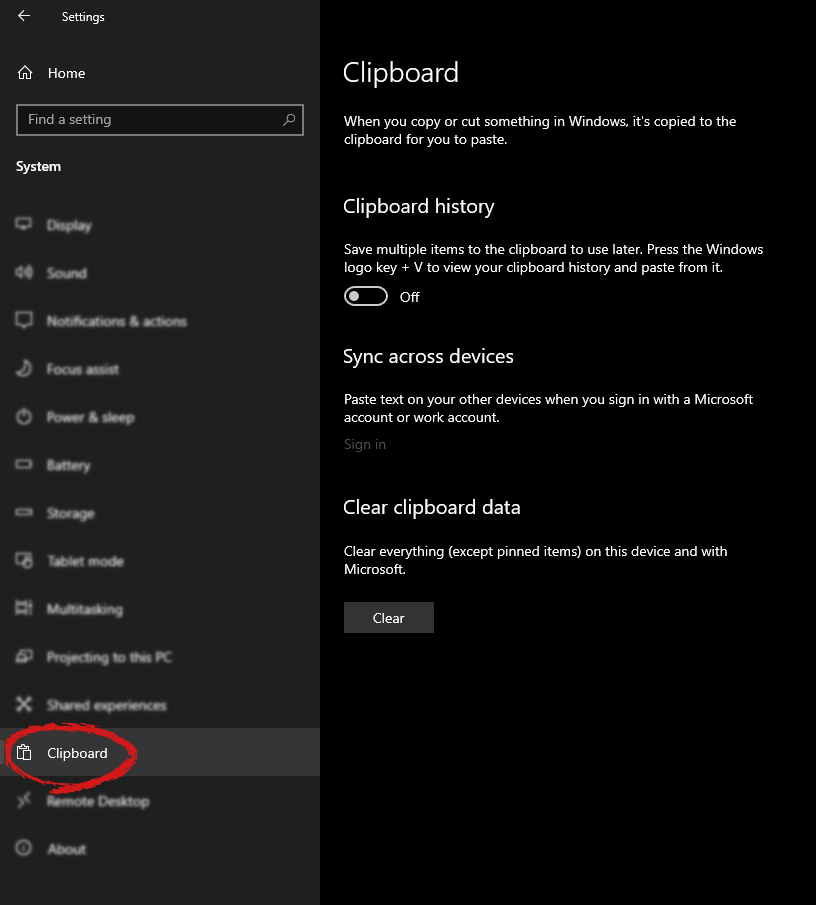 If you are not logged in to your Microsoft account do so on the right panel by locating Sync across devices and click on sign in.
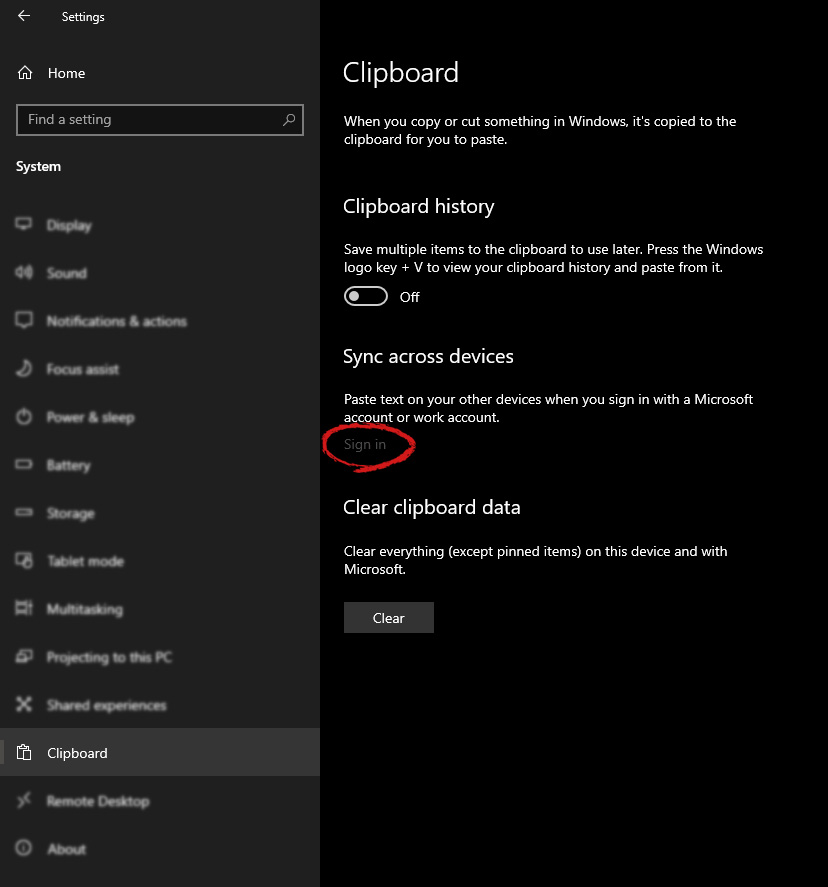 When you are signed in click on the option to turn it on.
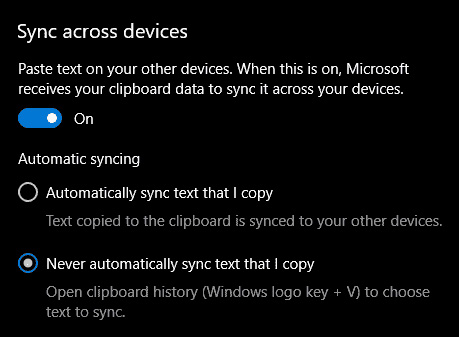 One option is turned ON, you will be greeted with two choices, to copy everything from the clipboard automatically or to choose text which you want to sync and paste it with ⊞ WINDOWS + V. Choose whatever better suits your needs, and you are done.
Repeat these steps for other devices and you are done.
One option is turned ON, you will be greeted with two choices, to copy everything from the clipboard automatically or to choose text which you want to sync and paste it with ⊞ WINDOWS + V. Choose whatever better suits your needs, and you are done.
Repeat these steps for other devices and you are done. 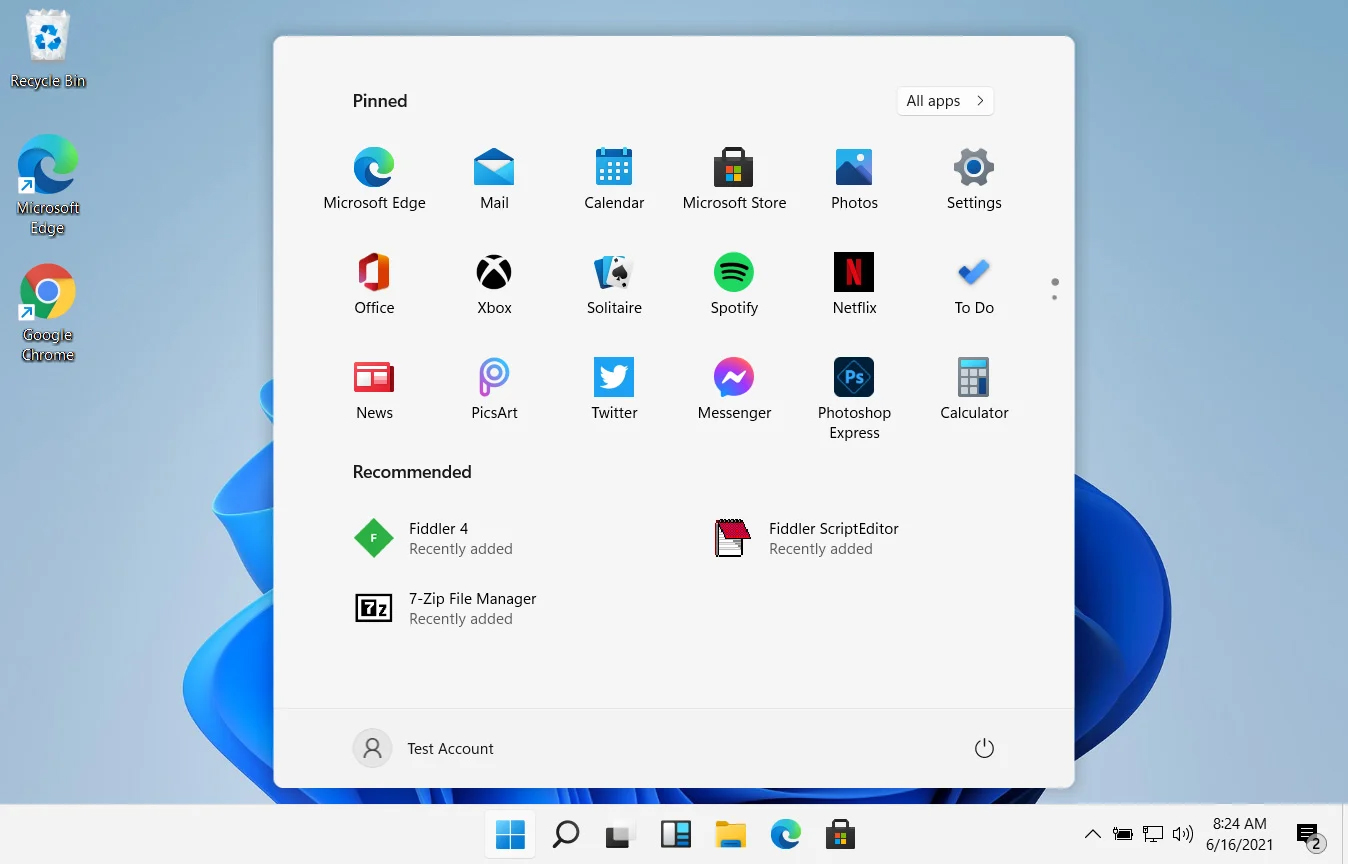 In Windows 11 by default inside the Start menu, there is recommended section that contains recently opened folders, documents, and files. If you do not wish this section and do not want recent items in your Start menu there is an easy way to turn it off.

