




Logo

Fix Error code 30068 when installing Office

If you are trying to install Microsoft Office on your Windows 10 computer but encounter an error code 30068 instead, read on as this post will guide you in fixing this problem. One of the causes of this error is an issue with the Office Click-to-Run service. It can also occur due to issues with the installation. And aside from the error code 30068, the error codes could also appear like this: 30068-29 (2), 30068-4 (3), 30068-4 (1715), 30068-39 (3), and many more.

In most cases, the installation of Microsoft Office happens directly from the Microsoft servers which work via Click-to-Run service. This service is an alternative to MSI or offline installation. It is a Microsoft streaming and virtualization technology that helps in reducing the time that’s required to install Microsoft Office. Although it saves a lot of time, it also requires a good and stable internet connection for it to properly work. So if you encounter error code 30068 or any of the aforementioned error codes above when using this service, here are some potential fixes that could help.

Option 1 – Try to restart your computer and reinstall Office

The first thing you can do is restart your computer and then try installing Office again. It is possible that there’s some glitch and a restart might fix it. Once you’ve restarted your computer, install Office again. And if the online installation didn’t work, you can also try to download an offline Office setup.

Option 2 – Try checking if the Click-to-Run service is disabled

The next thing you can do is to verify if the Click-to-Run service is enabled or disabled. You can check its status in Services. How? Refer to these steps:

  • Tap the Win + R keys to open the Run dialog box and then type “services.msc” in the field and tap Enter or click OK to open Services.
  • Next, look for the Microsoft Click-to-Run service from the list of services and once you found it, double click on it.
  • After that, go to the General tab and in the Startup type section, click on the drop-down menu and select Automatic.
  • Then click on the Apply and OK buttons to save the changes made.
  • Once you’re done, try to install Office again and see if the error is now fixed.

Option 3 – Try to uninstall and reinstall Office

If neither of the two given options above worked, then you might want to uninstall Office and reinstall it. All you have to do is download the Microsoft Office Uninstall tool from the official site of Microsoft and run it. This will remove any incomplete Office installation as well as unwanted files. It will also get rid of all the Office apps and settings on your computer. This same option can be also applied if you encountered error code 30068-4 (3) when installing Office. On the other hand, if the Uninstaller tool throws an error that says, “Office installation is missing”, you have to check if there is an ongoing installation of Office.

Do You Need Help with Your Device?

Our Team of Experts May Help
Troubleshoot.Tech Experts are There for You!
Replace damaged files
Restore performance
Free disk space
Remove Malware
Protects WEB browser
Remove Viruses
Stop PC freezing
GET HELP
Troubleshoot.Tech experts work with all versions of Microsoft Windows including Windows 11, with Android, Mac, and more.

Share this article:

You might also like

Fix Windows 10 Error Code 0x800703e3

Error Code 0x800703e3, What is it?

Error Code 0x800703e3 is an error that arises on Windows 10, as well as on many of the past versions of the Windows operating system, dating back to Windows 7. It is an error that is associated with a number of different causes, and therefore, there are many different ways to attempt to resolve the error.

Common symptoms include:

  • Programs running slowly or locking up
  • Computer freezing or going to a blue screen
  • Report of an error message

In most cases, users experience Error Code 0x800703e3 when they attempt to install new software or upgrade their programs and operating systems on their Windows machine. Error Code 0x800703e3 is fairly simple to fix and many of the methods used do not require advanced computer skills or knowledge. However, if you have any difficulty in implementing the steps below on your device, it is recommended that you contact a qualified computer repair technician to assist you.

Solution

Restoro box imageError Causes

There are a number of different causes for Error Code 0x800703e3. The most common ones that Windows users experience are:
  • Incomplete installations interfering with system files
  • Outdated operating system or programs
  • Updates left unfinished for long periods of time
  • Manual cancellation of the installation process
  • Malware or viruses
  • Corrupted files in the operating system
  • Redundancy in the installations of a program on the device

Further Information and Manual Repair

As there are many different things that can cause Error Code 0x800703e3 to appear on your Windows device, there are many methods that you can use to attempt to resolve the error. While many of these are easy to complete for basic users, some of the methods below require familiarity with advanced computing techniques. If you have trouble using the methods below, contact a qualified Windows repair technician.

Here are the top ways to resolve Error Code 0x800703e3:

Method One:  Update Your Device Drivers and Registries

The best place to start in resolving Error Code 0x800703e3 is to open up your settings for your drivers and check to see if any updates are necessary. After updating your drivers, it is important to restart your computer to allow any changes to take effect.

Secondarily, you can also run the Windows Registry Repair tool to see if there are any system files in your library that can be fixed, removed, or added automatically by the repair wizard. Again, it is important that you restart your computer after the tool has finished its scan and repair process to ensure that all necessary changes become fully active and recognized by the system.

Method Two:  Check for System and Program Updates

If it has been a while since you last updated your software and operating system, open up the settings for your system updates. Always restart your computer after a system update has been completed to allow the necessary changes to take effect.

Remember that it is important to regularly update both your Windows operating system and your programs to ensure that there is not a backlog of updates to be completed.  This can help to keep your computer in optimum health and eliminate future errors during installations and standard operation of your computer.

Method Three:  Restore Your System

In some cases, the best way to address Error Code 0x800703e3 is to reinstall the Windows operating system on your machine. If the core issue of the error is that there is a missing or damaged system file, this is the best way to address the problem quickly and efficiently. Before you attempt to reinstall the Windows operating on your machine, make sure that all of your programs and information have been backed up in a secure manner so that you can restore these items after the installation is complete.

Method Four:  Remove Recently Added Programs

If you just began to experience the error after installing a new program, try removing the new program from your machine using the “uninstall” process, then restart your computer.

If you have any difficulty in completing the above methods on your own or if the problem has not been fully resolved using these methods, get in touch with a certified Windows technician who can help you to fix the issues at hand and get your computer up and running again.

Method Five: Use An Automated Tool

If you wish to always have at your disposal a utility tool to fix these Windows 10 and other related issues when they do arise, download and install a powerful automated tool.
Read More
What to do if Cortana Search Box turned white
A lot of Windows 10 users prefer the black theme on their computers and when you see anything but black it can get quite annoying. Such as is the case of the Taskbar which, as you know, is usually dark, however, when you take a look at the Cortana search bar, instead of seeing black, you’ll see that it has turned white. To fix this issue, read on as we will provide you some options you can try to set the Cortana search bar back to black. Before you proceed, take note that the options provided below will change all white search boxes to black and that one of these options needs administrative privileges.

Option 1 – Try changing the default App mode

As you know, Windows 10 has two modes, namely the Light and the Dark. Thus, you can switch to the Dark mode so that your Cortana search bar will be black as well. However, remember that it will completely change everything into dark mode so there will be no more Light mode elsewhere.
  • First, you need to click on the Start button and then click on the cog icon to open the Windows 10 Settings.
  • Next, from the Settings Menu, select Personalization and then select Colours from the left pane.
  • Then scroll down until you see the “Choose your default app mode” option and select “Dark”.
After you apply the changes, it will change the Cortana search bar into black instantly. Aside from that, you will also see the User Interface changing into dark mode.

Option 2 – Try changing the Registry value

If you are well-versed in editing registry keys, then you need to try this option. But before you go over the steps below, make sure that you create a System Restore point first so that if anything goes wrong, you can always go back to how it was before the changes were applied.
  • Tap the Win + R keys to open the Run prompt.
  • Then in the field, type in “regedit” and hit Enter to open the Registry Editor. If a User Account Control prompt appears, just click Yes.
  • Now that you’ve opened the Registry Editor, navigate to the following key:
HKEY_CURRENT_USERSoftwareMicrosoftWindowsCurrentVersionSearchFlightingWhiteSearchBox
  • After that, double-click on the “Value” key located on the right pane and set the value to “0” instead of “1” and then click Ok to save the changes made. You should now see a black or grey text box color instead of white.

Option 3 – Try changing the Region

In some forums, a lot of users stated that changing the Region also worked out for them in changing the white Cortana search bar to white. Thus, you need to change the region settings of your computer temporarily. To do so, follow the steps below.
  • Type in “Regional Settings” in the box and then click it as soon as it appears from the search results.
  • Next, make sure to select a region where Cortana is not available.
  • Then select apply to that region. After that, it will change the Cortana search bar color to black.
  • Now sign out and sign back in and revert to the original settings. But the changes you made earlier in Cortana will still remain.
Read More
Firefox shows wrong or no bookmark favicon
If you have just updated your Mozilla Firefox browser as of late and you noticed that it’s showing wrong or no bookmark favicon at all, then read on as this post will provide you with potential solutions that can help you resolve the problem. The basic thing you can do to fix it is to either refresh or reset the cache for favicon and then force restart the favicon service. However, if you’ve already tried this and it didn’t work, then there are still other options you can try. You can try to rebuild the configuration file for the favicon or restart the favicon service. You could also try disabling all the add-ons on your browser or scan your computer for adware. For more details, refer to each one of the options laid out below.

Option 1 – Try to rebuild the favicon configuration file

Mozilla Firefox actually creates a file each time you bookmark a webpage and this is called “favicons.SQLite”. This file is located on your computer and for you to fix the issue in Firefox, you need to rebuild this file and in order to do that, follow these steps:
  • First, you need to unhide the hidden files in your computer by enabling the “Show hidden files” option so that you’ll be able to see the hidden files in your computer.
  • After that, navigate to this path: C:Usersyour_usernameAppDataLocalMozillaFirefoxProfilesyour_profile_name
  • From there, you need to find the “favicons.SQLite” file and once you found it, delete it.
  • Next, you have to open the Firefox browser and create the same favicon configuration file which should be automatically created.
  • Now check if you can now see bookmark favicons on your Firefox browser or not.

Option 2 – Try to restart the favicon service

If the first option didn’t work, you can try to restart the favicon service instead. Restarting the favicon service can help if you do not see the correct bookmark favicon on your Firefox browser. To restart this service, follow the steps below.
  • You need to first open the Firefox browser and in the address bar, type “about:config” and tap Enter.
  • After that, you will see a page that displays a warning message. On that page, you need to click the “I accept the risk!” button to proceed.
  • Next, using the search box on the page, look for the “devtools.chrome.enabled” option. The value for this option should be set to “False” by default.
  • Double click on this option to set its value to “True”.
  • Once done, go to Menu > Web Developer > Browser Console or you could also tap the Ctrl + Shift + J keys, alternatively.
  • Afterwards, paste this command in the pop-up window that appears and then tap the Enter button: var fS = Components.classes["@mozilla.org/browser/favicon-service;1"] .getService(Components.interfaces.nsIFaviconService); fS.expireAllFavicons();
  • Once you’re done, restart your Firefox browser to check if it fixes the problem or not.

Option 3 – Try to disable all the add-ons in Firefox

The next option you can try to fix the problem is to disable all the installed add-ons in Firefox. More often than not, add-ons can cause issues in the browser so it is possible that one of the add-ons in Firefox is causing it to show incorrect or no bookmark favicon. To resolve this problem, you have to disable all the add-ons by opening Firefox and then going to Menu > Add-ons or you could also tap the Ctrl + Shift + A keys. After that, go to the Extensions section and click on the respective Disable buttons for each one of the add-ons. Once done, restart your computer and check if you can now see the bookmark favicons or not.

Option 4 – Try scanning your computer using Windows Defender

It is possible that the bookmark favicon problem is caused by some adware in the Firefox browser so you have to scan your computer to check by using security programs like Windows Defender.
  • Tap the Win + I keys to open Update & Security.
  • Then click on the Windows Security option and open Windows Defender Security Center.
  • Next, click on Virus & threat protection > Run a new advanced scan.
  • Now make sure that Full Scan is selected from the menu and then click the Scan Now button to get started.
Read More
Dune part two is officially green-lighted
Dune, arguably one of the best science fiction novels ever written was brought to a big screen first time by David Linch. Sadly movie itself went through development hell and a lot of troubles and the end result was somewhat strange. The audience was divided on it, some hated it, some loved it but for sure it left a mark in cinema history. Years have passed and just when people forgot about ever receiving another try on a book adaptation Denis Villeneuve has brought his vision of Frank Herbert's novel into its full glory on a big screen. The interesting thing about this new Dune movie was that from the start Denis envisioned it as a two-movie part openly saying that book itself is too complex to be done in a single movie. But, the issue arises when information about Dune part two was hanging on a thread on how well Dune part one will be received and performed in the box office. This naturally brought all kinds of speculation and worry among fans of the franchise, especially because the movie itself was really good and well made. Well for all of you fans and people who wanted to see a continuation of the story can rest at peace now since the Legendary picture has officially announced and green-lighted Dune part two. The budget was given and we can expect part two at the beginning of 2023. dune 2 annoucment
Read More
Override default Regional settings in Windows
As you probably know, Windows 10 does not offer lots of choices for its Regional settings depending on where you are and what locale you work with or belong to. The standard region settings for Windows 10 allow users to select one set of formats for the calendar and more. However, this has somewhat changed in the Windows 10 v1809. If you don’t want such a change, you can just override the default regional format settings in the Windows 10 Improved local experience. So in this post, you will be guided on how you can do such a thing. Follow the given instructions below to override the default Regional Format settings in Windows 10. Step 1: Go to Settings > Time and Language > Region. Step 2: From there, the default region is what Windows and apps might use to provide you with local content. However, this won’t be much of use if you work for a different locale and need to have different format settings like Calendar, Dates, Times, Currency, and First day of the week, all of which you can modify under the Regional format. Step 3: You need not reboot your Windows 10 computer after changing. On the other hand, some of the apps will have to close and launch again in order to apply the new format. Thus, if you need to use apps that are of different locales, you will only see the changes after you re-launch the app. Note: You can also select a different language that makes more sense to you. In other words, if you prefer more common words to standard words for your Windows 10 computer, then this is definitely the way to do it. This local format will be used for messages, menus, navigation, settings, and other topics. Step 4: Look for a link that says “Add a Windows display language with local experience packs” under Languages. In case you don’t know, Local Experience Packs are Microsoft Store apps that deliver Windows display language quality improvements. So once you click the link, it will download the packs from the Microsoft Store. In addition, Windows has already begun using AI or Artificial Intelligence as well as neural network-based Machine Learning for Windows localization. And as the number increase, the Machine language improvements and feedback from users will help in making the translations a lot better and make them available to even more languages. All in all, it’s pretty much an interesting and a good move for Microsoft as the demands for topics and machines to be available in local languages have been increasing for the past couple of years.
Read More
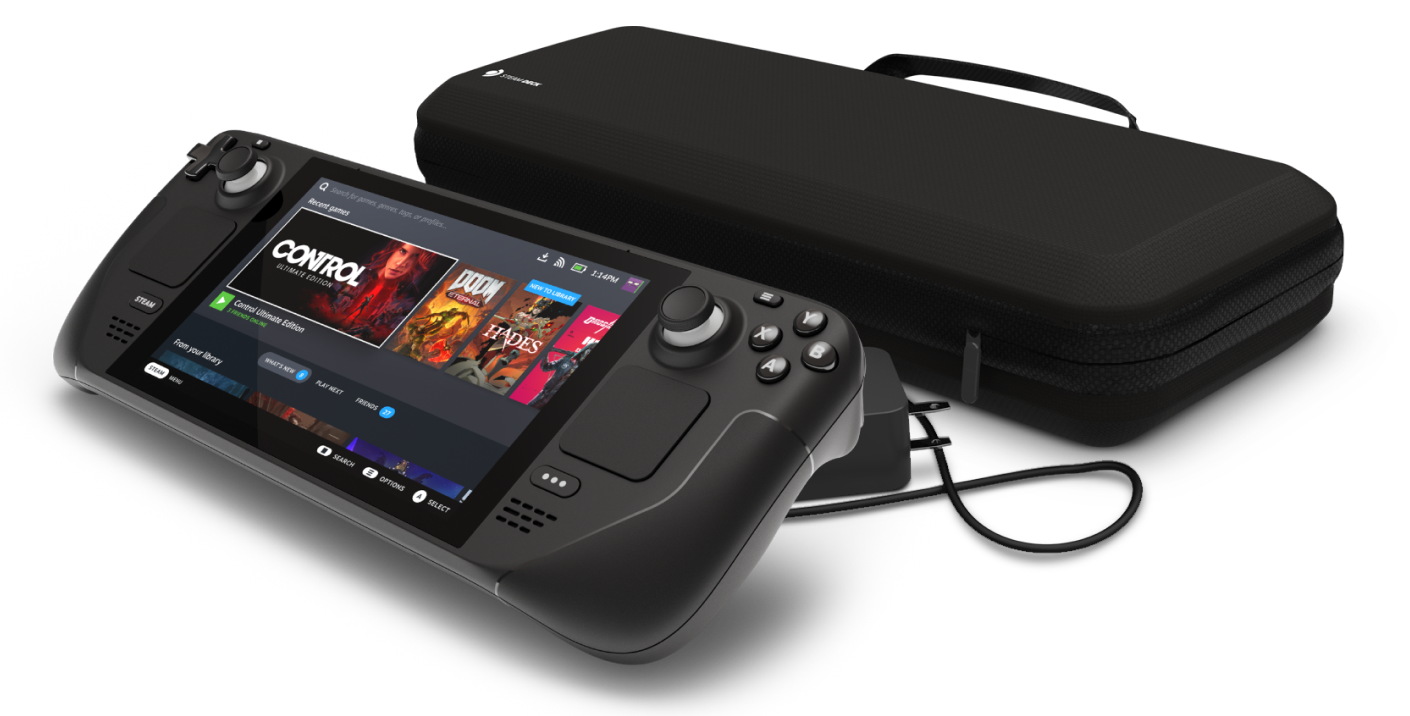
Steam Deck will be able to dual boot
Steam Deck release is almost upon us and more news comes to light. The Latest officially confirmed technical detail is that the user will have access to device's BIOS and that dual booting will be officially supported. steam deckThis, of course, means that you will be able to have both Proton and Windows on your device letting you play anything that you wish if the hardware is strong enough. Valve also said that you can launch OS from an SD card! This of course will save space available for games themselves, especially for entry models with less than one available. All of this information really pushes Deck into the territory of a handheld PC and not just another console and I must admit that this announcement left a smile on my face.
Read More
Fix Chrome ERR_SOCKET_NOT_CONNECTED
Recently, a number of users reported an error in Google Chrome that says, “ERR_SOCKET_NOT_CONNECTED”. If you are one of these users, read on as this post will guide you in resolving this error. This kind of error in Chrome is kind of vague so it could be caused by a couple of factors like DNS server issues, Socket Pools, third-party plugins or extensions, and many more. Whatever the cause may be, there are several options you can check out to resolve the problem. You can try to flush the Socket Pool or change the DNS address or remove unwanted extensions or reset your Google Chrome browser.

Option 1 – Try to flush the Socket Pool

  • Open Google Chrome and in the address bar, type “chrome://net-internals/”.
  • After that, select Sockets on the left side panel.
  • Next, select Flush socket pools from the right-side panel.
  • And once it’s done, restart your Chrome browser and check if the “ERR_SOCKET_NOT_CONNECTED” is fixed or not.

Option 2 – Try to change the DNS Server

In this option, you can try changing your current DNS settings to the Google Public DNS as it could also help in fixing the “ERR_SOCKET_NOT_CONNECTED” error. To do so, follow the steps below.
  • The first thing you have to do is right-click on the network icon in the Taskbar and select Network and Sharing Center.
  • Next, click on the “Change Adapter Settings” option.
  • After that, search for the network connection that you are using to connect to the internet. Note that the option might be “Wireless Connection” or “Local Area Connection”.
  • Right-click on your network connection and click on Properties.
  • Then select the new window to choose the “Internet Protocol 4 (TCP/IPv4)” option.
  • After that, click on the Properties button and click the checkbox in the new window for the option “Use the following DNS server addresses”.
  • Type in “8.8.8.8” and “8.8.4.4” and click OK and exit.

Option 3 – Get rid of any conflicting browser extensions

  • Open Chrome and press Alt + F keys.
  • Go to More tools and click Extensions to look for any suspicious browser extensions or toolbars.
  • Click the Recycle bin and select Remove.
  • Restart Chrome and press Alt + F keys again.
  • Proceed to On Startup and mark Open a specific page or set of pages.
  • To check if the browser hijacker is still active, click Set pages, if it is active, overwrite the URL.

Option 4 – Try to reset Google Chrome

Before you proceed, make sure that the Chrome browser is not running anywhere in the background via Task Manager. Once you’ve made sure that it’s no longer running, refer to these steps:
  • Tap the Win + R keys to open the Run dialog box.
  • Then type “%USERPROFILE%AppDataLocalGoogleChromeUser Data” in the field and tap Enter to open this location.
  • From there, look for the Default folder and then tap the Shift + Delete button and if a confirmation prompt appears, click on Yes.
  • After deleting the Default folder, open Google Chrome and click on the three vertical dots icon located in the top-right corner to open the menu.
  • Next, click on Settings and scroll down and then click on Advanced to open the Advanced Settings.
  • Then scroll down until you see the “Reset and clean up” section and click the “Restore Settings to their original defaults” option.
  • After that, you will see a confirmation box and from there, click on the Reset settings button to reset your Google Chrome browser.
Read More
How to turn the game mode off in Windows 11
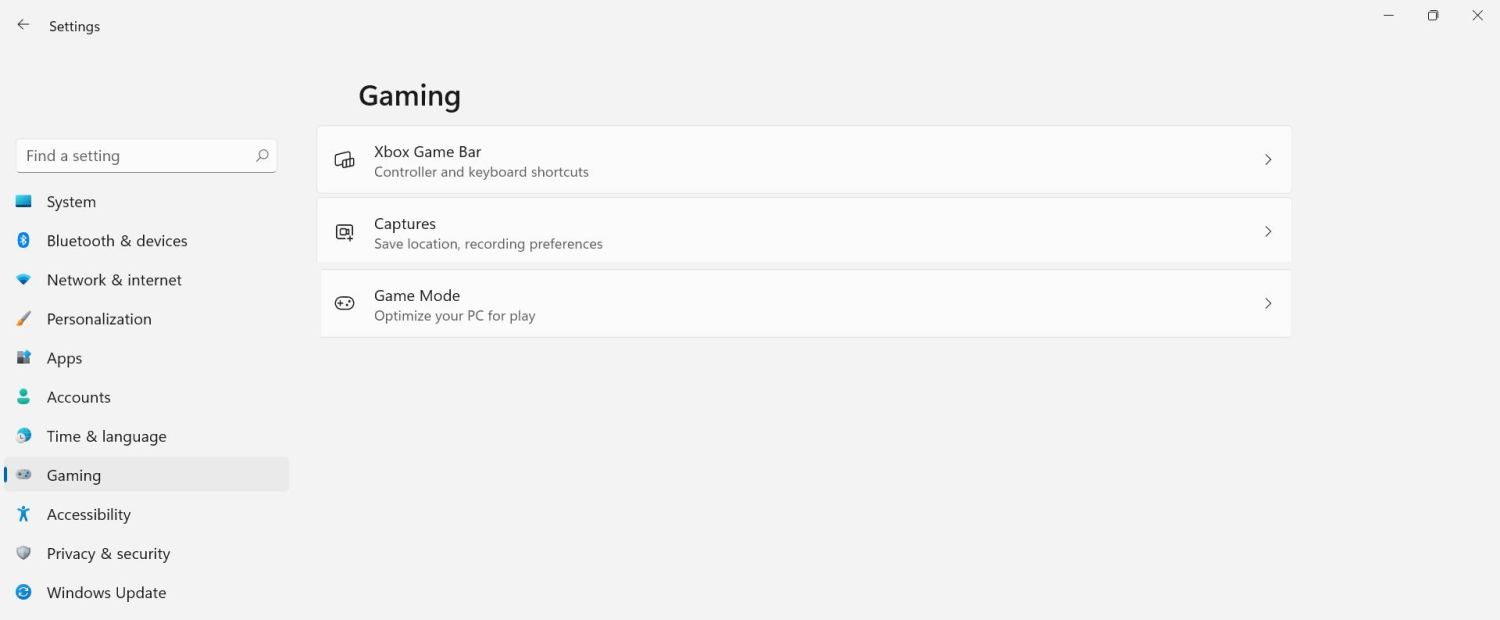
Among other things and innovations, Windows 11 brings to the table is the game mode. The game mode is a system designed to release some resources and optimize your system when Windows 11 detects that you are playing games. It also turns off automatic updates while the game is active. game mode in Windows 11The game mode is active at all times and usually, everything works great but in some instances, it can sadly cause some performance issues. If you are one of these unlucky people where game mode is not working as supposed to do, don’t panic, we have a quick guide for you on how to turn it off.

  1. Press ⊞ WINDOWS + I to open settings
  2. Inside click on Gaming
  3. Select Game mode
  4. Click switch beside Game mode to turn it off
  5. Close settings
Everything will be automatically saved and applied and you should not have any issues from now on. If for any reason you wish to turn game mode back ON, just follow the same steps and turn the switch to ON.
Read More
Fix Printer driver issue in Windows
The printer can stop working for many various reasons, some of them are however tied to the printer driver itself. In this guide, we will address issues and provide you with advice on how to get your printer back in working order in no time. All of that being said let us fix your Printer driver issue.
  1. Check to see if the printer is plugged and that it has toner or colors and paper in the tray

    The simplest solutions are the best ones, and most of the time simplest issues are overlooked. To eliminate any basic issues check the printer cable does it has paper in the tray and check the status of toner or colors in it.
  2. Check if Windows troubleshooter will resolve the issue

    Bring up settings and choose devices, under devices click on printers and scanners. On the far right top, you have a link to start the troubleshooter, click on it. Windows built-in tools could resolve issues and fix them for you. If by any chance Windows is not able to find or resolve issues move to the next step.
  3. Check if the Device Manager is reporting an error and update the driver

    If the hardware is functioning properly then the issue might be in Windows not detecting device or driver malfunction. In any case, the Device Manager will be the one who will report this problem. In order to check to see if the driver is properly working press ⊞ WINDOWS + X to open the hidden start menu. keyboard with windows and x marked Once it opens, click on Device Manager to open it, If you have a driver device error inside Windows, you should see it immediately when entering the Device Manager, it will have a yellow exclamation mark beside it. Right-click on it and choose update driver.

  4. Reinstall driver

    If driver update failed or you already have the latest drivers, reinstalling them could fix the issue since drivers might have corrupted during installation of some update or application. Follow steps from point 3 to get to the driver in Device Manager, then right-click on it but instead of update choose to uninstall. Reboot Windows once the driver is uninstalled and Windows will install a new one automatically. If you do not want to update drivers automatically install the latest driver for your device, then reboot.
  5. Check Windows update

    Check to see if the latest Windows update is installed, update your Windows if needed
  6. Fix driver issue with DRIVERFIX

    If everything else fails, get DRIVERFIX, a premium solution for your PC issues, and fix driver errors.
Read More
How to Resolve Runtime Error 372

What is the Runtime Error 372?

Runtime Error 372 is one of the various types of runtime errors on Windows PC. This error code hampers your ability to access and run Microsoft Visual Basic applications on the system.

Solution

Restoro box imageError Causes

Runtime Error 372 can occur due to multiple reasons:
  • Corrupt application due to viral infection
  • Missing or damaged DLL file
  • Poor PC maintenance
  • Data overload
  • Registry damages
Delay in resolving the runtime error 372  exposes your PC to further problems like the inability to install new programs, Windows startup issues, slow PC performance, system hang-ups, and crashes, etc. Therefore, it is recommended to take measures to resolve the runtime error 372 immediately.

Further Information and Manual Repair

The registry is one of the most critical components of Windows PC. It stores every data and configuration of your computer. Every hardware and software on the system has to connect to the registry to function properly. However, everyday and frequent PC usage keeps creating wasted, obsolete and invalid entries on your system and saves them in the registry. And if not cleaned, these files dilate the registry and eventually cause the registry to malfunction. DLL files go missing and often get damaged or corrupt. This leads to runtime error pop-ups like the error code 372. Furthermore, sometimes the registry also gets damaged due to malware attacks and viral infections. This malicious software damages the registry and exposes your system to serious PC threats like system failures, data loss, and data breaches.

Solutions To Runtime Error 372

To resolve the runtime error 372 on your system, clean and restore your registry. For this, you don’t have to hire a technician and spend hundreds of dollars when you can repair it for free. All you have to do is download Restoro. This is a powerful one-stop solution for all your PC-related problems. It functions as a registry cleaner and a system optimizer. Restoro is a user-friendly Windows PC repair tool that can be used by all levels of users. To run and operate this software on your system you don’t have to be a computer programmer or an expert. Its simple navigation and layout make it very easy to use. It resolves disk fragmentation issues which lead to missing DLL files. It also repairs the damaged and corrupted registry thereby resolving runtime errors like the error code 372. Restoro is a bug-free, reliable, and efficient tool. It is compatible with all Windows versions. Click here to download Restoro to repair the runtime error 372 on your PC.
Read More
1 2 3 171
Logo
Copyright © 2023, ErrorTools. All Rights Reserved
Trademark: Microsoft Windows logos are registered trademarks of Microsoft. Disclaimer: ErrorTools.com is not affiliated with Microsoft, nor claims direct affiliation.
The information on this page is provided for information purposes only.
DMCA.com Protection Status