Logo

Fix ERR_SSL_VERSION_INTERFERENCE on Chrome

If you encounter the ERR_SSL_VERSION_INTERFERENCE error on your Google Chrome browser then this means that the browser is trying to load a website with SSL protocol but is not able to do so. This error can occur for many reasons and in this post, you will be given potential fixes that could help you in resolving the problem. But bear in mind that these potential fixes are not that straightforward forward so if you encounter an option you don’t understand much, just skip to the options you have the knowledge of.

There is no direct fault in the browser for the ERR_SSL_VERSION_INTERFERENCE error as there are issues with caching the website data locally on your computer. Moreover, this kind of error can also appear when a website is coded incorrectly or if there are conflicting browser extensions installed in the browser that prevents the website to function properly.

Refer to the suggestions given below to fix the ERR_SSL_VERSION_INTERFERENCE error in Chrome on Windows 10.

Option 1 – Try clearing browser data

There are times when some data in the browser is conflicting with the loading of the website and triggers errors like ERR_CACHE_MISS. And so you can try to clear your browser’s data. This might be a very basic solution but oftentimes it works in fixing this kind of error in Google Chrome. Follow the steps below to clear the data in your browser.

  • Open your Google Chrome browser.
  • After that, tap the Ctrl + H keys. Doing so will open a new panel that allows you to delete the browsing history and other data in your browser.
  • Now select every checkbox that you see and click on the Clear browsing data button.
  • Then restart your Chrome browser and check if you can now open any website or not.

Option 2 – Try disabling TSL 1.3

If clearing the browser data didn’t fix the problem, you can also try to disable TSL 1.3 in Chrome. To do so, refer to these steps:

  • Open Google Chrome.
  • Next, type in “chrome://flags/#tls13-variant” in the address bar and tap Enter.
  • After that, you should see the experimental features page for Google Chrome where you can set TSL 1.3 to disabled.
  • After disabling TSL 1.3, restart your computer and check if the problem is fixed or not.

Option 3 – Reset Winsock, TCP/IP & Flush DNS cache

Resetting Winsock, TCP/IP, and flushing DNS might help in resolving the ERR_SSL_VERSION_INTERFERENCE error just follow these steps:

  • Right-click on the Start button and click on Command Prompt (administrator) so you can pull up an elevated Command Prompt.
  • After that, execute each one of the commands listed below. And after you typed in one after the other, you have to hit Enter.
  1. netsh winsock reset – type in this command to reset Winsock
  2. netsh int ip reset resettcpip.txt – type in this command to reset TCP/IP
  3. ipconfig /flushdns – type in this command to flush the DNS cache
  • Next, restart your PC and check if the problem’s fixed.

Option 4 – Get rid of any conflicting browser extensions

  • Open Chrome and press Alt + F keys.
  • Go to More tools and click Extensions to look for any suspicious browser extensions or toolbars.
  • Click the Recycle bin and select Remove.
  • Restart Chrome and press Alt + F keys again.
  • Proceed to On Startup and mark Open a specific page or set of pages.
  • To check if the browser hijacker is still active, click Set pages, if it is active, overwrite the URL.

Option 5 – Reset Google Chrome

Resetting Chrome can also help you get rid of the error. Resetting Chrome will restore its default settings, disabling all the extensions, add-ons, and themes. Aside from that, the content settings will be reset as well and the cookies, cache, and site data will also be deleted. To reset Chrome, here’s what you have to do:

  • Open Google Chrome, then tap the Alt + F keys.
  • After that, click on Settings.
  • Next, scroll down until you see the Advanced option, once you see it, click on it.
  • After clicking the Advanced option, go to the “Restore and clean up option and click on the “Restore settings to their original defaults” option to reset Google Chrome.
  • Now restart Google Chrome.

Do You Need Help with Your Device?

Our Team of Experts May Help
Troubleshoot.Tech Experts are There for You!
Replace damaged files
Restore performance
Free disk space
Remove Malware
Protects WEB browser
Remove Viruses
Stop PC freezing
GET HELP
Troubleshoot.Tech experts work with all versions of Microsoft Windows including Windows 11, with Android, Mac, and more.

Share this article:

You might also like

Removing Linkey From Windows Tutorial

Linkey is a potentially unwanted web browser search extension for the top browsers, designed to modify the user’s search and home pages in order to direct advertising. This extension changes your default search provider, redirects new tabs, and distributes information & statistics to the server. This extension will display unwanted ads, redirect you through unwanted search engines, and send your browsing information (potentially private information) back to its ad network.

From the publisher: Linkey is compatible with all the latest versions of Internet Explorer, Chrome, and Firefox. Linkey is a simple browser extension that allows you to get the best sites in one click in visualized & friendly interface.

About Browser Hijackers

Browser hijacking is actually a type of unwanted software, often a browser add-on or extension, which causes modifications in the browser’s settings. Browser hijackers could do many different things on your PC. Usually, hijackers will force hits to websites of their preference either to increase traffic producing higher advertisement revenue, or to obtain a commission for each and every user visiting there. Nonetheless, it’s not that harmless. Your online safety is compromised and it is also extremely annoying. Browser hijackers could also allow other malicious programs without your knowledge to further damage your computer.

How to know whether the web browser is hijacked?

The typical symptoms that suggest having this malicious software on your PC are: 1. your homepage has been reset to some unfamiliar site 2. your browser is constantly being redirected to adult sites 3. the essential web browser settings are modified and undesirable or insecure resources are put into the trusted sites listing 4. unsolicited new toolbars are added to your browser 5. you may notice endless pop-up ads on your screen 6. your web browser starts running sluggishly or exhibits frequent errors 7. You simply can’t access particular sites, particularly anti-malware websites.

How it infects your computer

Browser hijackers attack computers through malicious e-mail attachments, downloaded infected computer files, or by checking out infected internet sites. They could be included with toolbars, BHO, add-ons, plug-ins, or browser extensions. Also, certain freeware and shareware can put the hijacker in your PC through the “bundling” technique. Examples of well-known browser hijackers are Fireball, GoSave, Ask Toolbar, CoolWebSearch, Babylon Toolbar, and RocketTab. Browser hijackers could interrupt the user’s browsing experience severely, keep track of the websites visited by users and steal financial information, cause problems in connecting to the internet, and ultimately create stability issues, making applications and computers crash.

How you can get rid of a browser hijacker

Some hijackers can be simply removed by deleting the free software they came with or by removing any extension you have recently added to your computer. Unluckily, the majority of the software products used to hijack a browser are deliberately built to be difficult to eliminate or detect. Moreover, manual removals demand in-depth system knowledge and therefore can be an extremely difficult job for novices.

What To Do When You Cannot Download Safebytes Anti-Malware?

All malware is bad and the magnitude of the damage may vary greatly in accordance with the type of infection. Certain malware variants modify internet browser settings by including a proxy server or modify the computer’s DNS configurations. When this happens, you will be unable to visit some or all of the websites, and therefore unable to download or install the necessary security software to remove the malware. If you’re reading this, you may have infected by a virus that prevents you from downloading computer security software like Safebytes Anti-Malware. There are a few options you can attempt to get around with this obstacle.

Install in Safe Mode

The Windows-based PC has a special mode called “Safe Mode” in which just the bare minimum required programs and services are loaded. If the malware is blocking internet access and affecting your PC, running it in Safe Mode will let you download antivirus and run a diagnostic scan while limiting potential damage. In order to get into Safe Mode or Safe Mode with Networking, press F8 while the system is starting up or run MSConfig and look for the “Safe Boot” options under the “Boot” tab. After you restart into Safe Mode with Networking, you could download, install, as well as update anti-malware software from there. After installation, run the malware scanner to remove most standard infections.

Use an alternate browser to download an antivirus application

Certain viruses might target vulnerabilities of a specific web browser that obstruct the downloading process. If you appear to have a virus attached to Internet Explorer, then switch over to an alternate internet browser with built-in safety features, such as Chrome or Firefox, to download your favorite antivirus program – Safebytes.

Install security software on a thumb drive

Here’s another solution which is creating a portable USB anti-malware software that can check your system for malicious software without needing installation. Do these simple actions to clean up your affected PC using portable anti-malware. 1) Download the anti-malware program on a virus-free computer. 2) Plug the Flash drive into the clean computer. 3) Double-click on the downloaded file to open the installation wizard. 4) Choose the USB flash drive as the destination for saving the software file. Follow the on-screen instructions to finish the installation. 5) Unplug the USB drive. You may now utilize this portable anti-malware on the infected computer system. 6) Double click the Safebytes Anti-malware icon on the flash drive to run the software. 7) Click on “Scan Now” to run a complete scan on the infected computer for malware.

A Look at the Best AntiMalware Program

Want to download the very best anti-malware software for your laptop? There are several applications in the market that come in paid and free versions for Microsoft Windows systems. Some of them are excellent, some are ok types, while some will destroy your PC themselves! When searching for an anti-malware tool, choose one which provides dependable, efficient, and complete protection against all known computer viruses and malware. On the list of highly recommended software programs is SafeBytes AntiMalware. SafeBytes carries a good track record of top-quality service, and customers are very happy with it. Safebytes is one of the well-established computer solutions companies, which offer this all-inclusive anti-malware software. Using its cutting-edge technology, this application will allow you to eradicate multiples types of malware such as computer viruses, trojans, PUPs, worms, ransomware, adware, and browser hijackers. SafeBytes has got a variety of wonderful features that can help you protect your PC from malware attacks and damage. Below are some typical features present in this tool: Live Protection: SafeBytes offers a totally hands-free active protection that is set to observe, prevent and remove all threats at its very first encounter. This utility will always monitor your computer for any suspicious activity and updates itself regularly to keep current with the newest threats. Most Reliable AntiMalware Protection: This deep-cleaning anti-malware software program goes much deeper than most antivirus tools to clean your computer system. Its critically acclaimed virus engine finds and disables hard-to-remove malware that conceals deep inside your PC. Internet Security: Through its unique safety rating, SafeBytes notifies you whether a site is safe or not to access it. This will make sure that you’re always certain of your safety when browsing the net. Lightweight Utility: The program is lightweight and can run silently in the background, and that does not have an effect on your PC efficiency. 24/7 Live Professional Support: SafeBytes provides 24/7 technical support, automatic maintenance, and upgrades for the best user experience.

Technical Details and Manual Removal (Advanced Users)

If you wish to manually remove Linkey without the use of an automated tool, it may be possible to do so by removing the program from the Windows Add/Remove Programs menu, or in cases of browser extensions, going to the browsers AddOn/Extension manager and removing it. You will likely also want to reset your browser. To ensure the complete removal, manually check your hard drive and registry for all of the following and remove or reset the values accordingly. Please note that this is for advanced users only and may be difficult, with incorrect file removal causing additional PC errors. In addition, some malware is capable of replicating or preventing deletion. Doing this in Safe Mode is advised.

The following files, folders, and registry entries are created or modified by Linkey

Files: C:Users%USER%AppDataLocalTempis33084504mysearchdial.dll C:Users%USER$AppDataLocalTempis357113909833170_stpsetup.exe c:Users%USER$AppDataLocalTempMega Browsemegabrowse_setup.exe C:Program Files (x86)Linkeylog.log C:Program Files (x86)LinkeyHelper.dll C:Program Files (x86)LinkeyChromeExtensionChromeExtension.crx C:Program Files (x86)Linkey C:Program Files (x86)LinkeyChromeExtension C:Program Files (x86)LinkeyIEExtension C:Users%USER$AppDataRoamingDigitalSitesUpdateProc Registry: HKLMSOFTWARECLASSESAPPID6A7CD9EC-D8BD-4340-BCD0-77C09A282921 HKLMSOFTWAREWOW6432NODECLASSESAPPID6A7CD9EC-D8BD-4340-BCD0-77C09A282921 HKLMSOFTWARECLASSESCLSID181F2C09-56DD-4F98-86D7-59BA2BC59B5A HKLMSOFTWARECLASSESCLSID4D9101D6-5BA0-4048-BDDE-7E2DF54C8C47 HKLMSOFTWAREMICROSOFTWINDOWSCURRENTVERSIONEXPLORERBROWSER HELPER OBJECTS HKLMSOFTWARELINKEY HKLMSOFTWAREWOW6432NODELINKEY HKLMSOFTWAREWOW6432NODESYSTEMKGeneral HKUS-1-5-18-ED1FC765-E35E-4C3D-BF15-2C2B11260CE4-0SOFTWARECONDUITValueApps HKLMSOFTWAREWOW6432NODEMICROSOFTWINDOWSCURRENTVERSIONEXPLORERBROWSER HELPER OBJECTSEF5625A3-37AB-4BDB-9875-2A3D91CD0DFD HKLMSOFTWARELINKEY|ie_jsurl, http://app.linkeyproject.com/popup/IE/background.js HKLMSOFTWAREWOW6432NODELINKEY|ie_jsurl, http://app.linkeyproject.com/popup/IE/background.js
Read More
Fix “We couldn’t find any drives” Error
If you encountered an error message saying, “We couldn’t find any drives, To get a storage driver, click Load driver” when you try to install Windows in a VirtualBox machine, then you’ve come to the right place as this post will guide you in fixing this error. This error message is displayed on the screen where you have to choose a partition to install the guest operating system. This error is most likely due to the lack of correct settings as well as a corrupted virtual disk. To fix this error, you have to remove existing storage devices, create a new storage device and select the correct ISO file.

For complete instructions, follow the given steps below.

Step_1: The first thing you have to do is remove all the existing Storage devices and since this option is already available in VirtualBox by default, there is no need for you to install any third-party software. Step_2: After that, open VirtualBox and select the virtual machine and then click the Settings button. Step_3: Next, switch to the Storage section and on your right-hand side, you will see “Controller: SATA” and two other sub-labels. From there, select Controller: SATA and then click on the red cross button that says, “Remove selected storage controller”. Step_4: Now click on the Add new storage controller icon and select the “Add SATA Controller” option from the given list. Step_5: Afterwards, click the “Add hard disk” button and select the “Create new disk” option, and then you have to create a new virtual disk for your virtual machine. Step_6: Verify if you have selected Dynamically allocated while you create the virtual hard disk. Once the process is completed, you will get a “.vdi” file in the list. Step_7: Next, click on the “Add optical drive” button and select the “Choose disk” option. Here, you have to select the ISO file and if you can find an ISO file in the given list, select it from there, else, you have to click the Add button and navigate to the folder where the ISO file is located. Step_8: Once you’re done, click the OK button and boot your virtual machine. You should see options instead of the “We couldn’t find any drives, To get a storage driver, click Load driver” error message. If you see the options, you can now create a new partition and start the installation process of the Windows operating system in the VirtualBox machine without any problem.
Read More
Remove recommended icons from the start menu
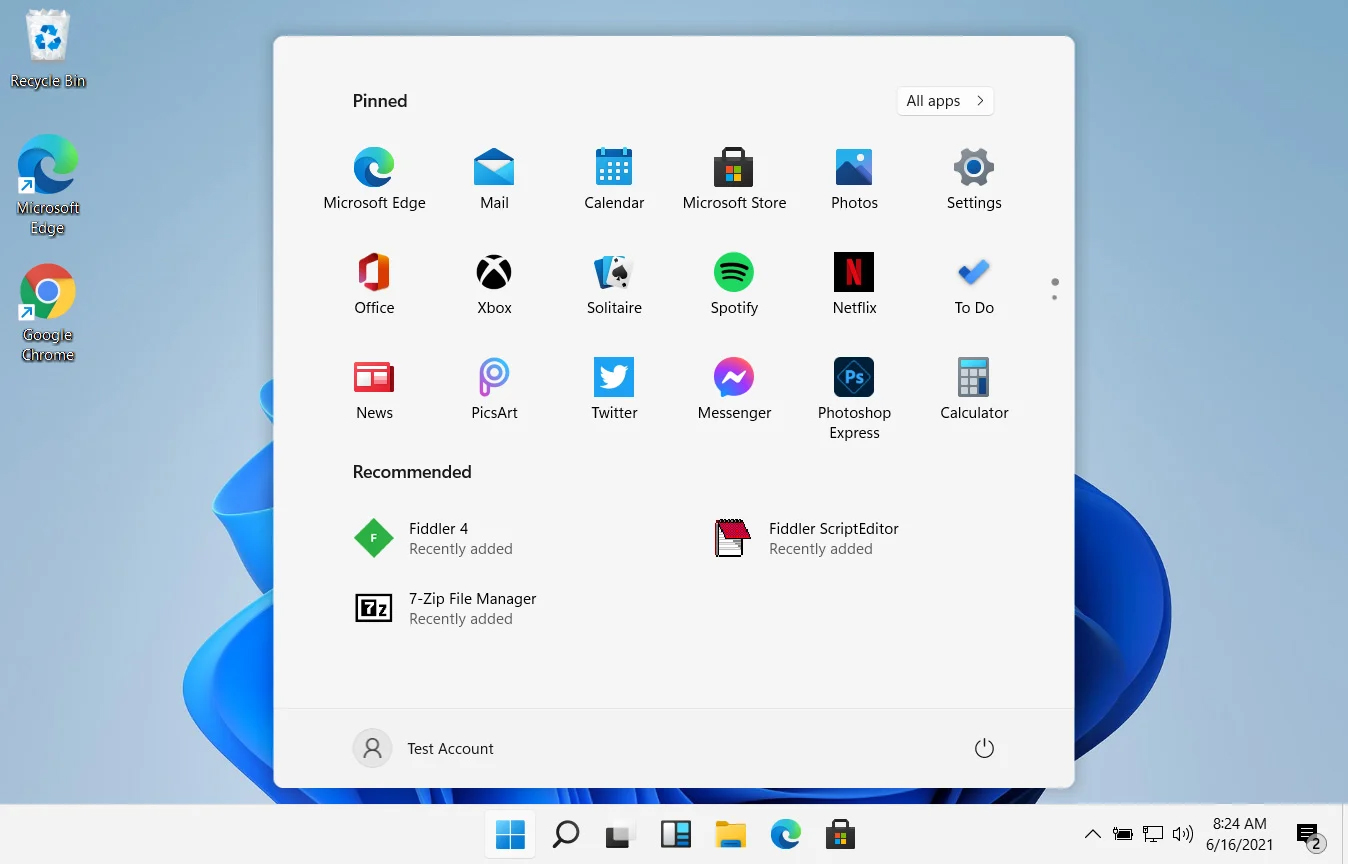
windows 11 start menuIn Windows 11 by default inside the Start menu, there is recommended section that contains recently opened folders, documents, and files. If you do not wish this section and do not want recent items in your Start menu there is an easy way to turn it off.
  1. Press ⊞ WINDOWS + I to open settings
  2. Click on Personalization
  3. On the right side scroll down and click on Start
  4. Click on the switch beside Show recently opened items in Start, Jump lists, and File Explorer
  5. Close settings
Settings will be automatically applied and there will be no more recommended items inside your Start menu to create clutter, it will be nice and clean.
Read More
NoteHomepage removal guide

NoteHomepage (by MyWay) is a browser extension that may be bundled with other free software that you download off of the Internet, or delivered via other advertising means. When installed NoteHomepage will set the homepage and search engine for your web browser to http://search.myway.com. While installing this extension will gather information from your browsing sessions, including website visits, clicked links, and sometimes even private information, that it later sends back to display unwanted ads into your browser. Several anti-virus scanners have marked this extension as a Browser Hijacker and are therefore not recommended to keep on your computer. It is considered potentially unwanted, and many users wish to remove it, so it is flagged for optional deletion.

About Browser Hijackers

Browser hijacking is a form of unwanted software program, usually a web browser add-on or extension, which then causes modifications in the web browser’s settings. Browser hijacker malware is developed for many different reasons. Generally, browser hijacking is utilized for earning advertising revenue from forced advert mouse clicks and site visits. Even though it might seem harmless, these tools are designed by malicious individuals who always look to take full advantage of you, so that they can earn money from your naivety and distraction. Some browser hijackers are programmed to make certain modifications beyond the browsers, like altering entries on the system registry and letting other malware further damage your machine.

Find out how to identify a browser hijack

Below are some signs and symptoms that suggest your browser has been hijacked: the home page of your browser is changed unexpectedly; your browser is constantly being redirected to adult websites; the default search engine is changed; you are getting browser toolbars you have never noticed before; never-ending pop-up advertisements show up and/or your web browser popup blocker is disabled; your web browser gets sluggish, buggy, crashes regularly; Inability to navigate to certain websites, particularly anti-malware and also other security software websites.

So how exactly does a browser hijacker infect a computer?

Browser hijackers might use drive-by downloads or file-sharing networks or an e-mail attachment in order to reach a targeted PC. They could also come from add-on programs, also called browser helper objects (BHO), web browser plug-ins, or toolbars. Browser hijackers sneak into your computer in addition to free software application downloads also that you unknowingly install alongside the original. A good example of some infamous browser hijackers includes Babylon, Anyprotect, Conduit, SweetPage, DefaultTab, Delta Search, and RocketTab, however, the names are regularly changing. Browser hijackers will affect the user’s web surfing experience severely, track the websites frequented by users and steal personal information, cause difficulty in connecting to the web, and eventually create stability problems, causing software programs and systems to crash.

Learn how to remove browser hijackers

Some hijackers can be removed by just uninstalling the corresponding freeware or add-ons through the Add or Remove Programs in the Windows control panel. But, many browser hijackers are difficult to get rid of manually. No matter how much you try to get rid of it, it might keep returning again and again. Additionally, manual removals demand in-depth system knowledge and thus can be a very difficult job for novices. Industry experts always suggest users remove any malicious software including browser hijacker with an automatic malware removal tool, which is easier, safer, and quicker than the manual removal method. Employ a PC optimizer along with your anti-malware software to solve various registry issues, remove computer vulnerabilities, and boost your computer performance.

Download the software in Safe Mode with Networking

If the malware is set to run immediately when Windows starts, stepping into safe mode may block the attempt. Just minimal required applications and services are loaded whenever you start your laptop or computer in Safe Mode. To launch your Windows XP, Vista, or 7 PCs in Safe Mode with Networking, follow the instructions below. 1) At power on, hit the F8 key before the Windows splash screen begins to load. This would invoke the “Advanced Boot Options” menu. 2) Select Safe Mode with Networking with arrow keys and press ENTER. 3) As soon as this mode loads, you should have an internet connection. Now, get the malware removal software you want by utilizing the web browser. To install the program, follow the directions in the installation wizard. 4) Immediately after installation, run a full scan and let the software remove the threats it discovers.

Switch over to an alternate browser

Some viruses may target vulnerabilities of a particular web browser that obstruct the downloading process. If you’re not able to download the anti-virus software program using Internet Explorer, this means malware is targeting IE’s vulnerabilities. Here, you need to switch to a different internet browser such as Firefox or Chrome to download the antivirus program.

Run anti-virus from a pen drive

To successfully get rid of the malware, you have to approach the problem of installing anti-malware software on the affected computer system from a different perspective. Adopt these measures to run the anti-virus on the affected computer system. 1) Download the anti-malware software on a virus-free computer. 2) Plug the USB drive into the clean computer. 3) Double click on the downloaded file to open the installation wizard. 4) Select flash drive as the location when the wizard asks you exactly where you wish to install the application. Follow the on-screen instructions to finish the installation process. 5) Remove the flash drive. Now you can utilize this portable anti-malware on the affected computer. 6) Double-click the anti-malware software EXE file on the USB drive. 7) Press the “Scan” button to run a full computer scan and remove viruses automatically.

Technical Details and Manual Removal (Advanced Users)

To eliminate NoteHomepage manually, navigate to the Add or Remove programs list in the Windows Control Panel and select the program you want to get rid of. For web browser plug-ins, go to your web browser’s Addon/Extension manager and choose the add-on you want to disable or remove. You might also want to reset your home page and search providers, as well as clear your web browser cache and cookies. Finally, check your hard disk for all of the following and clean your Windows registry manually to remove leftover application entries after uninstalls. Please be aware that this is for professional users only and could be challenging, with incorrect file removal resulting in additional PC errors. In addition to that, certain malware is capable of replicating or preventing deletion. You’re advised to do this procedure in Windows Safe Mode.
Files: C:\Users\%USERNAME%\AppData\Local\Google\Chrome\User Data\Default\Extensions\lamecoaceiheggdhlnjnmciaonfdamlg.600.11.14900_0 C:\Users\%USERNAME%\AppData\Local\Google\Chrome\User Data\Default\Local Extension Settings\lamecoaceiheggdhlnjnmciaonfdamlg C:\Users\%USERNAME%\AppData\Local\Google\Chrome\User Data\Default\Sync Extension Settings\lamecoaceiheggdhlnjnmciaonfdamlg C:\Users\%USERNAME%\AppData\Local\NoteHomepageTooltab C:\Users\%USERNAME%\AppData\Roaming\Mozilla\Firefox\Profiles\profile\extensions\[email protected] C:\Users\%USERNAME%\AppData\Roaming\Mozilla\Firefox\Profiles\profile\extensions\[email protected]\chrome C:\Users\%USERNAME%\AppData\Roaming\Mozilla\Firefox\Profiles\profile\extensions\[email protected]\META-INF C:\Users\%USERNAME%\AppData\Roaming\Mozilla\Firefox\Profiles\profile\notehomepage_j Registry: HKLM\SOFTWARE\Classes\AppID\NoteHomepage Toolbar.exe HKEY_LOCAL_MACHINE\SOFTWARE\Microsoft\Internet Explorer\Extensions HKEY_LOCAL_MACHINE\Software\Microsoft\Windows\CurrentVersion\Explorer\Browser Helper Objects HKEY_LOCAL_MACHINE\Software\Microsoft\Internet Explorer\Toolbar HKEY_LOCAL_MACHINE\SOFTWARE\Google\Chrome\Extensions HKEY_LOCAL_MACHINE\SOFTWARE\Mozilla\Firefox\Extensions HKEY_CURRENT_USER\Software\Opera Software\Explorer\Main\Start Page Redirect=http://random.com HKEY_LOCAL_MACHINE\SOFTWARE\Microsoft\Windows NT\CurrentVersion\NoteHomepage HKEY_CURRENT_USER\Software\Microsoft\Windows NT\CurrentVersion\Winlogon Shell = %AppData%\IDP.ARES.Generic.exe HKEY_CURRENT_USER\Software\Microsoft\Windows\CurrentVersion\Run Random HKEY_LOCAL_MACHINE\Software\Microsoft\Windows NT\CurrentVersion\Random. HKEY_CURRENT_USER\Software\Microsoft\Internet Explorer\Main HKEY_CURRENT_USER\Software\Microsoft\Windows\CurrentVersion\Uninstall\NoteHomepageTooltab Uninstall Internet Explorer HKEY_CURRENT_USER\Software\NoteHomepage
Read More
Free Wifi Hotspot Removal Guide for Windows

The Free Wifi Hotspot is offered to users that own a laptop and a desktop PC that has a wired connection to the Internet and no WiFi modem. The Free Wifi Hotspot is said to help users share their Internet connection with mobile devices that support the 2G/3G/4G/USB tethering connectivity. However, users will need a 2G/3G/4G modem attached to the computer/laptop with access to the Internet if they intend to benefit from the Free Wifi Hotspot software. Additionally, the Free Wifi Hotspot may collect data like your Internet history, downloads log, and software configuration for product placement optimization. PC users that run the Free Wifi Hotspot software may be shown pop-up windows with marketing materials from time to time and maybe redirected to promotional offers.

Several anti-virus applications have flagged Free Wifi Hotspot as a Potentially Unwanted Applications and may come bundled with other PUP-s that may harm your computer or steal some information, due to these risks it is marked for optional removal.

About Potentially Unwanted Applications

Everybody has experienced it – you download a piece of free application, then you see some unwanted applications on your computer or find a strange toolbar has been included with your browser. You didn’t install them, so how did they appear? These unwanted applications, which are referred to as Potentially Unwanted Programs, or PUPs in short, typically tag along as a software package when downloading the application and can ruin your PC or cause major annoyances. PUP does not involve malware in the traditional sense. The reason is, the majority of PUPs end up in a computer not because they slip through the security holes, for example, but because the users have got installed them themselves – totally unintentionally needless to say. A PUP might not be regarded as malicious or harmful but nonetheless, it is a standard reason for clunky OSs; some PUPs are a lot more aggressive by deliberately slowing down your computer or laptop.

How does unwanted software impact you?

Unwanted programs come in many forms. Usually, they can be seen in adware bundlers that are known to utilize aggressive and misleading advertising. The majority of bundlers install many adware programs from several vendors, each of which has its own EULA policy. Safebytes Anti-malware totally eliminates this threat and safeguards your machine against PUP or adware infection. The PUPs likewise get installed into your computer in the form of browser add-ons and toolbars. They will modify web browser settings, change the default search engine, substitute the default home page with their very own websites, slow down browsing speed, and also will ruin your system also. Potentially unwanted programs apply aggressive distribution methods to get onto your personal computer. The worst part of installing a PUP is the spyware, adware, and keystroke loggers that may hide inside. These are software programs that don’t do anything good for you; in addition to occupying space on the hard disk, they will also slow down your PC, often change settings without your approval, the list of troublesome features goes on and on.

Tips on avoiding PUPs

• When installing anything on your desktop, always read the fine print, like the license agreement. Do not accept terms of use that are for bundled programs. • Don’t accept standard, express, default, or any other installation settings which are recommended. Always opt for “custom” installation. • Make use of an antivirus program to boost your protection. Anti-malware programs like Safebytes Anti-malware has got real-time features that will block PUPs before they harm your computer. • Avoid adding freeware software you won’t make use of. Nowadays ‘freeware’ isn’t actually freeware – but ‘crapware’ bundling nonsense. • Always download programs from the original website. Most PUPs find their way onto your PC is through download portals, so avoid it entirely. Comply with these tips and you will almost never get potentially unwanted programs on your computer.

How To Get Rid Of Malware That Is Blocking Antivirus Downloads?

Every malware is bad and the level of the damage can vary greatly depending on the type of malware. Some malware sits in between the computer and the internet connection and blocks some or all websites that you really want to check out. It will also block you from adding anything to your PC, especially the anti-virus program. If you’re reading this, you may have affected by a virus that prevents you from downloading a security application such as Safebytes Anti-Malware. There are some options you could try to get around with this particular issue.

Use Safe Mode to resolve the problem

In the event the malware is set to run at Windows startup, then booting in safe mode should avoid it. Since just the bare minimum programs and services launch in “Safe Mode”, there are rarely any reasons for conflicts to happen. Listed here are the steps you need to follow to boot into the Safe Mode of your Windows XP, Vista, or 7 computers (check out Microsoft site for directions on Windows 8 and 10 PCs). 1) At power on, press the F8 key before the Windows splash screen starts to load. This will conjure up the “Advanced Boot Options” menu. 2) Make use of the arrow keys to select Safe Mode with Networking and hit ENTER. 3) When you are into this mode, you should have access to the internet once again. Now, use your browser normally and navigate to https://safebytes.com/products/anti-malware/ to download and install Safebytes Anti-Malware. 4) Following installation, run a complete scan and allow the program to delete the threats it detects.

Switch over to some other internet browser

Certain malware might target vulnerabilities of a particular web browser that obstruct the downloading process. If you suspect that your Internet Explorer happens to be hijacked by a trojan or otherwise compromised by cybercriminals, the most effective thing to do is to switch to an alternate browser such as Chrome, Firefox, or Safari to download your chosen security application – Safebytes Anti-Malware.

Install security software on a USB drive

Another solution is to download and transfer antivirus software from a clean PC to run a scan on the affected computer. Abide by these steps to run the antivirus on the infected computer. 1) On a virus-free PC, install Safebytes Anti-Malware. 2) Plug in the pen drive to a USB slot on the uninfected computer. 3) Double-click the Setup icon of the antivirus software to run the Installation Wizard. 4) Select the flash drive as the destination for saving the software file. Follow activation instructions. 5) Now, insert the thumb drive into the infected system. 6) Double click the Safebytes Anti-malware icon on the pen drive to run the application. 7) Click “Scan Now” to run a complete scan on the infected computer for viruses.

SafeBytes Anti-Malware Benefits

If you are looking to download anti-malware software for your PC, there are lots of tools on the market to consider however, you should not trust blindly anyone, regardless of whether it is free or paid software. Some are very good ones, some are decent, and some are just bogus anti-malware software that will harm your computer themselves! You should opt for a tool that has gained a good reputation and detects not only viruses but other kinds of malware too. On the list of recommended software by industry leaders is SafeBytes Anti-Malware, a popular security application for Microsoft Windows. Safebytes is one of the well-established PC solutions companies, which provide this complete anti-malware software program. When you have installed this software, SafeByte's state-of-the-art protection system will ensure that no viruses or malware can seep through your computer.

SafeBytes anti-malware provides a plethora of enhanced features which set it apart from all others. Below are some of the best ones:

Live Protection: SafeBytes offers an entirely hands-free active protection and is set to monitor, block, and get rid of all computer threats at its first encounter. They’re very efficient in screening and getting rid of different threats because they are continuously revised with new updates and safety measures. World-class AntiMalware Protection: This deep-cleaning anti-malware program goes much deeper than most anti-virus tools to clean out your computer. Its critically acclaimed virus engine finds and disables hard-to-remove malware that conceals deep inside your personal computer. Safe Web Browsing: SafeBytes checks and provides a unique safety rating to every single website you visit and block access to webpages considered to be phishing sites, thus safeguarding you from identity theft, or known to contain malware. Lightweight Tool: SafeBytes is a lightweight and easy-of-use antivirus and antimalware solution. As it uses minimum computer resources, this program leaves the computer power exactly where it belongs to: with you actually. Fantastic Technical Support: Expert technicians are at your disposal 24/7! They will promptly resolve any technical issues you may be encountering with your security software. SafeBytes can keep your PC protected from most advanced malware threats automatically with almost no input needed from you again. Once you’ve downloaded and installed SafeBytes Anti-Malware, you will no longer need to bother about malware or other security worries. If you want sophisticated forms of protection features & threat detections, buying SafeBytes Anti-Malware could be worth the dollars!

Technical Details and Manual Removal (Advanced Users)

If you’d like to perform the removal of Free Wifi Hotspot manually instead of using an automated software tool, you may follow these steps: Go to the Windows Control Panel, click the “Add or Remove Programs” and there, select the offending application to uninstall. In case of suspicious versions of browser extensions, you can actually remove them via your web browser’s extension manager. You’ll probably also want to totally reset your internet browser to its default configuration settings. To ensure the complete removal, manually examine your hard drive and Windows registry for all of the following and eliminate or reset the values accordingly. Please remember that only professional users should attempt to manually edit the registry because incorrect file removal leads to a major problem or even a computer crash. Furthermore, certain malware is capable of replicating itself or preventing deletion. It is advisable that you carry out the removal procedure in Windows Safe Mode.
Files: %APPDATA%\Microsoft\Windows\Start Menu\Programs\Free WiFi Hotspot %ALLUSERSPROFILE%\Microsoft\Windows\Start Menu\Programs\Free WiFi Hotspot %ALLUSERSPROFILE%\Application Data\Start Menu\Programs\Free WiFi Hotspot %Appdata%\Free WiFi Hotspot New Version Available Registry: HKEY_LOCAL_MACHINE\Software\[APPLICATION]\Microsoft\Windows\CurrentVersion\Uninstall..Uninstaller Free WiFi Hotspot_is1
Read More
How to turn off auto brightness

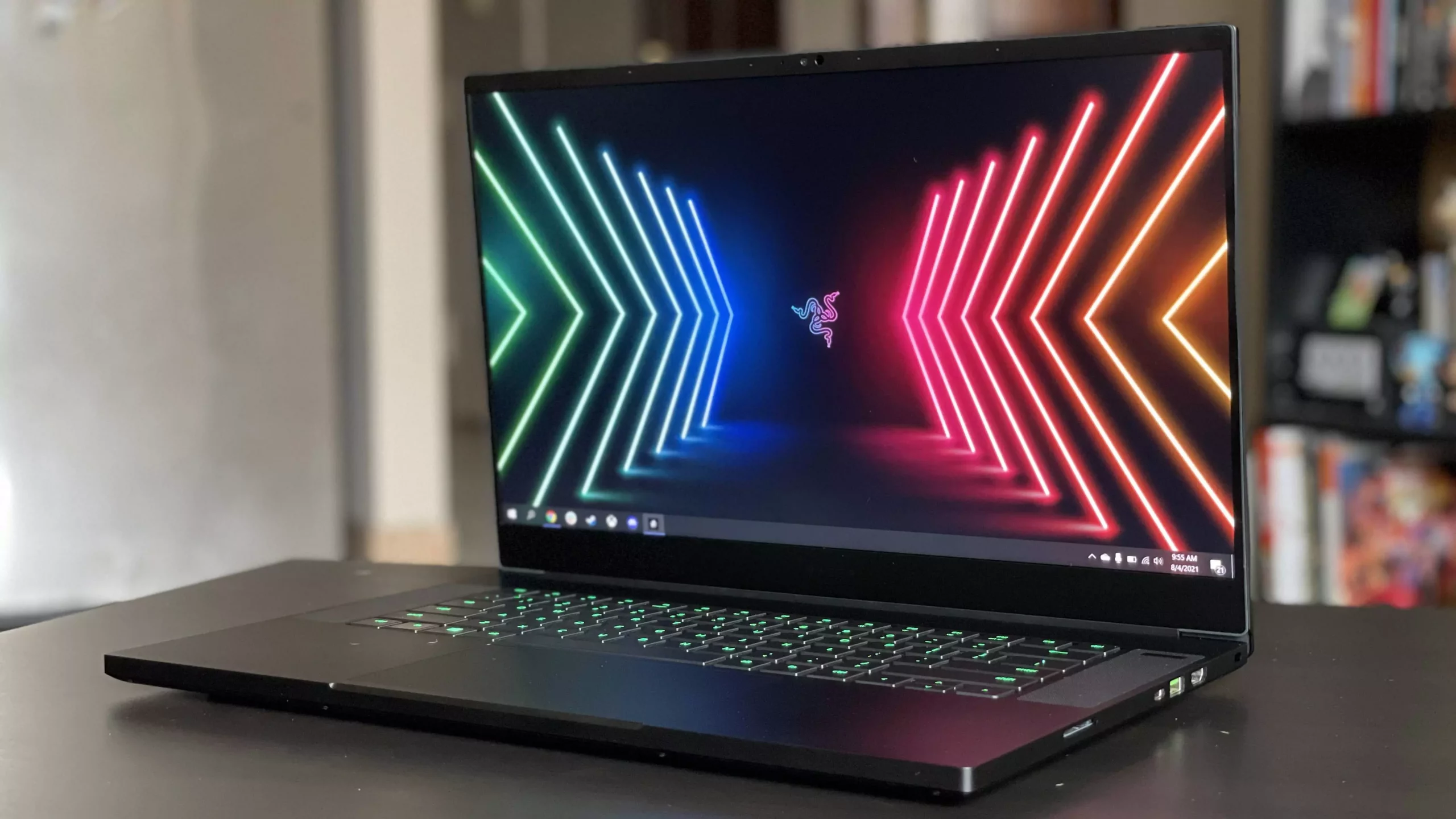
Windows 10 and Windows 11 have automatic dynamic screen brightness depending on the surrounding light inside the room. Please take note that this option is available only on devices with build-in screens like laptops, tablets, and all in one desktop PC. If you are connected with your PC via an external monitor you will not have these settings available and probably feature is not even working.

screen brightness

Some computers will also allow automatic brightness changes also on what is displayed on the screen. This option is meant to save battery life on devices. Microsoft calls this automatic brightness feature Content adaptive brightness control. In order to change this setting, we will go to settings inside Windows.

Disabling automatic brightness inside Windows

Open Settings inside Windows, in Windows 11 press WINDOWS + I to open settings, then click on the system in the sidebar and then go to Display. Click on the small arrow beside the Brightness slider in order to expand a small menu and then uncheck Help improve battery by optimizing the content show and brightness. If you see Change brightness automatically when lighting changes, uncheck that as well. Close the settings and you are good to go, now brightness will always be as set in settings.

Inside Windows 10, go to Settings and then go to System and then in Display under the Brightness and Color section look below and locate the box that says Automatically adjust contrast based on the displayed content to help improve battery and uncheck it, if the box below with text Change brightness automatically when lighting changes exists, uncheck it as well. Close settings and you are done.

Read More
Transferring characters in diablo 2 remake
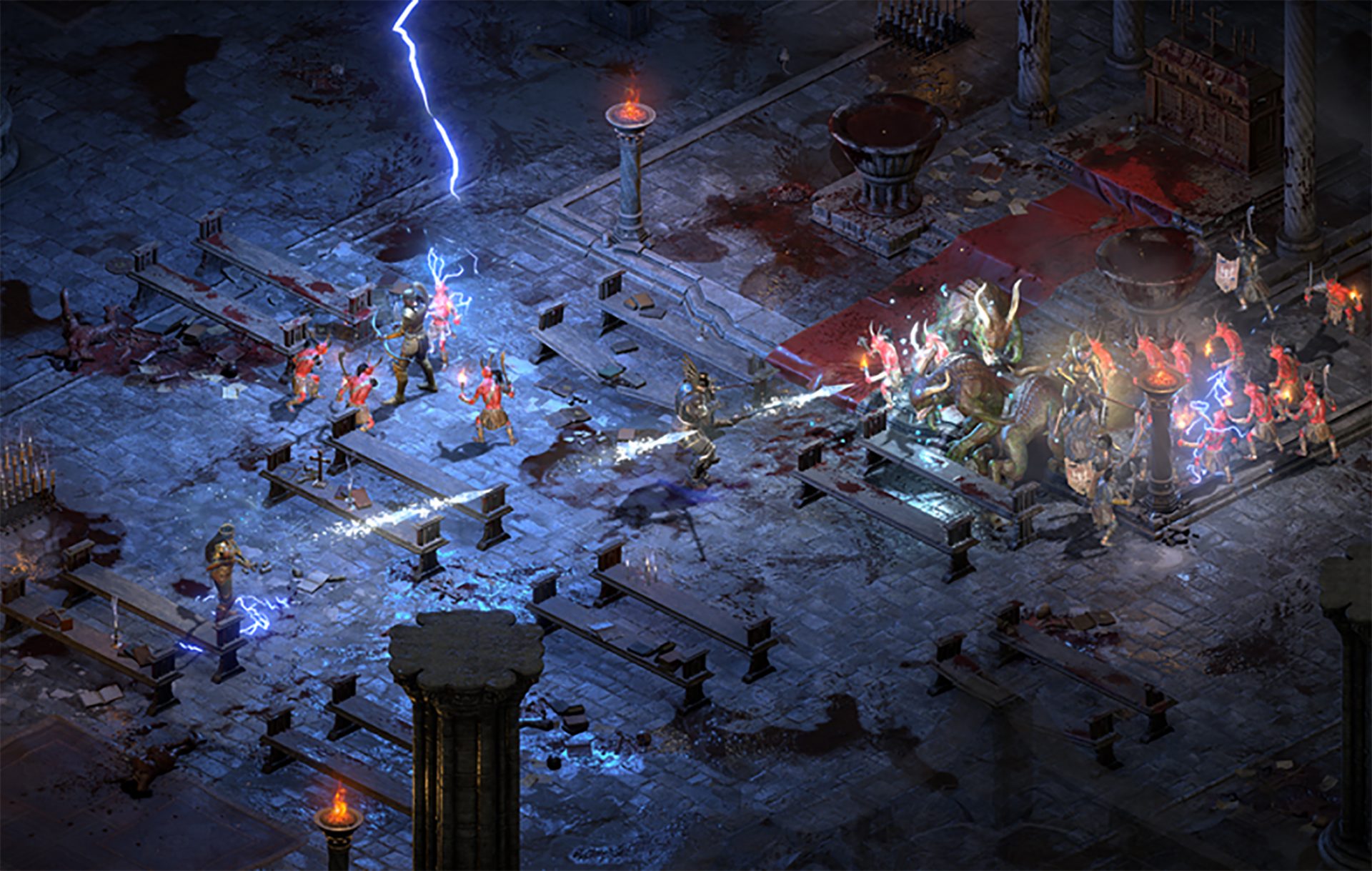
Diablo 2 resurrected has hit official release and servers seem to be finally taken care of and everything seems to be running smoothly now. The game also received great praise from gamers and attracted old players of the original Diablo 2 game. diablo 2 gameplaySpeaking of old players of old Diablo 2, they can transfer their old characters into remaster and continue playing them within this new great HD environment. There are some steps and requirements but we are here to help and transferred characters will bring full stash, inventory, and equipped items with them.


Requirements

There are not many requirements for this transfer to occur but they must be respected in order to be successful. The first thing is a minor requirement and somewhat annoying but it needs to be done, firstly fire up Diablo 2 resurrected and create a character, any kind of character with any kind of name, any kind of class. This strange requirement is to actually create a character folder and register it inside D2 resurrected so we can copy old ones there. The second requirement will be that characters that you wish to be transferred must be offline characters. Old battle net online characters cannot be transferred at this moment and probably will not be in the future as well. So for all of you that wish to transfer online characters, bad luck, for the rest of us casuals playing offline single-player mode, we can enjoy our characters.

Process of diablo 2 character trasfer

The process itself of transferring characters when previously mentioned requirements are met is just a simple and copy operation. If you have somewhere backed your characters go into your backup folder and copy files in c:\users\*current user*\saved games\*diablo 2 resurrected folder* If you do not have characters backed up and just have old Diablo 2 installed and playing it, you can go to c:\users\*current user*\saved games\*diablo 2 folder* and just copy all characters files into c:\users\*current user*\saved games\*diablo 2 resurrected folder* Your old characters end with .d2s extension, grab all that you want to transfer, and copy them into D2R. Take note that copied characters cannot be brought back into Diablo 2, once they are copied into Diablo 2 resurrected all further progress on them will be tied to the new game.

Conclusion

That’s it about the transfer process and requirements for it. Fire up the new game version and enjoy.
Read More
Fix Windows defender 0x800700AA Error
Windows defender error 0x800700AA, service can not be started comes when the user is trying to run Windows defender scan on their system. This kind of behavior happens for two reasons mostly, third-party application conflict or corrupted system files. In this article, we will tackle both scenarios and provide you with solutions in both cases.

Third-party application conflict

In this rare scenario when Windows defender can not start scan due to conflict with installed service or application in the system solution is quite simple. Restart your PC into safe mode and run the scan from there. In a safe mode environment, minimum drivers and services are only loaded eliminating any conflicts that might occur when everything is booted. If Windows defender can not run the scan in safe mode and you get the same 0x800700AA error then you can eliminate application conflict as a reason and move to the next solution which will tackle corrupted system files. If you, however, managed to run a scan then you have a rare third-party application conflict, you can boot normally into windows and try to eliminate one by one to see which one is causing the issue. The safest bet would be to start with security software because most of the time that is what causes conflicts in running services and applications.

Corrupted system files

If the previous solution has not provided you with results then you have system file corruption that needs to be fixed. Move from one solution to another as presented below:
  1. Run SFC scan

    SFC scan is a built-in Windows tool for solving corrupted system files issues, it is fully automated and does not require from the user any kind of knowledge or information. To run it and scan the system do the following: Press ⊞ WINDOWS + X to open the secret menu Left-click on the command prompt (admin) In command prompt type SFC /SCANNOW and press ENTER Wait for the process to finish, do not interrupt it and once it is done, restart your computer
  2. Run DISM scan

    DISM scan is similar to SFC scan but it tackles different types of system file corruption and it is recommended to run it also after SFC has been completed. Please note that for DISM scan to be successful you will need a stable internet connection since DISM will replace corrupted files with new ones downloaded from Microsoft. To run it do the following: Press ⊞ WINDOWS + X to open the secret menu Left-click on the command prompt (admin) inside command prompt type: exe /online /cleanup-image /scanhealth followed by ENTER, then type: Dism.exe /online /cleanup-image /restorehealth also followed with ENTER. Leave scan to finish and reboot your PC
Read More
How To Fix the I/O System Error
The failure of MS Vista or XP to execute an Input or Output Signal activity is that which we refer to as an  I/O device error. This malfunction takes place when MS Vista is not able to execute activities for example reading and duplication different kinds of information from the disk or drive.

Solution

Restoro box imageError Causes

  • A piece of destroyed hardware equipment: You are getting messages informing you about the I/O device Malfunction when your Computer features an equipment apparatus that Windows is not able to utilize.
  • Broken/Faulty hardware Apparatus: If for whatever reason the equipment hardware is broken at all, or includes a flaw, you will also get such messages suggesting the existence of an I/O device error.
  • Incompatible/Broken Hardware Drivers: Such malfunctions are frequently the result of incompatible or broken equipment drivers.
  • Cable Link Problems: Technicians have determined the existence of link trouble, for instance, a cable that's in a bad situation, as another variable that can also cause these error messages.
  • Terrible/Dusty CD or DVD Disc: Yet another variable that's frequently accountable for the I/O device error is a broken CD or DVD disc. If it has not been cleaned by you, and in case the disc is dirty, prepare yourself to receive such messages often.

Further Information and Manual Repair

You should not stress yourself ill over the I/O Device Malfunction when it occurs on your own Computer. You can really fix it. First, before you spend lots of cash on the problem and sprint off to find a technician, reboot the pc. Subsequently, strive to obtain the push or disc, that you were not able to formerly. Second, clean the disc. Locate a great cleansing agent, and execute this. Utilize another pc to access the disc which you're incapable of using on the present pc. If it opens on another pc, then the disk is functional and should work on your computer as well. Let's assume that you lack another pc, search for a distinct disc, and strive to start it with your current pc. If the problem is not with the computer, the fresh disk should open and you can access the contents. If you fail completely, you're totally within your rights to move searching for a tech to repair the situation, if you attempt every one of the preceding choices. You could also do these aI/O device sections to view if you would repair the problem yourself. a) Network Cable Connections: Clearly, this is really something you can do without requiring a tech. Always check to see whether the networking and computer cables are well-connected. If you believe it's broken in case utilizing an exterior push, you could change the cable with yet another one. For inner cabling, unless you've high-level pc abilities, you shouldn't make an effort to change them. b) Attempt a Clean Boot of the PC: You can do this by yourself. Likely, the driver or software is incompatible together with the drive available on the PC. Clean boot up the pc is similar to configuring MS Windows. If the error is fixed following the preceding action, then it indicates your pc features a driver or software which is incompatible with the rest. c) Recognize the IDE Channel Attributes, and Adjust the Transfer Mode: It's feasible that you, or somebody otherwise, changed the Transfer Mode, which makes it challenging/impossible for the transport of information in the disk of your PC. If you understand the I/O Device right transfer mode, and if this occurred, just change it. Don't attempt a change or alter the Main IDE Channel. d) Check the Condition of Device: Confirming the working nature of the hardware device, which you may do under Device Manager, may inform you if it's operating right or not. e) Search the Manufacturing Company: When the rest fails, and you've likely employed a tech that can't solve the problem, you need to contact the producer, or check out their site, and see when there is an upgrade. It's possible to obtain to resolve the I/O Device Error, once for all through a simple upgrade.
Read More
How to get rid of CinematicFanatic

CinematicFanatic (by MyWay) is a browser extension for Google Chrome that may come bundled with other free software that you download off of the Internet. When installed CinematicFanatic will set the homepage and search engine for your web browser to http://search.myway.com

While browsing the internet with this extension installed, you will see additional ads, sponsored content, and even pop-up ads throughout your browsing sessions. While CinematicFanatic is active, it will log user information, visited websites, product categories. This information is later used/sold to better display targeted ads through your web pages as sponsored content and banner ads.

CinematicFanatic has been marked as a Browser Extension by several popular anti-malware scanners, and due to its information-gathering behavior, it is recommended to remove it from your computer.

About Browser Hijackers

Browser hijack is a very common type of internet fraud where your web browser configurations are modified to allow it to do things you never intend. Browser hijacker malware is developed for many different reasons. These are typically used to force visitors to predetermined sites, manipulating web traffic to generate ad revenue. Even though it may seem naive, all browser hijackers are dangerous and thus always regarded as security risks. They not only screw up your web browsers, but browser hijackers can even modify the computer registry to make your PC susceptible to other forms of hacking.

How to know if your internet browser is hijacked

There are several symptoms of browser hijacking. Here are a few of them: 1. home-page is modified 2. bookmark and the new tab are likewise changed 3. The default search page of your browser is altered 4. you’ll see multiple toolbars in your internet browser 5. you will find random pop-ups start showing regularly 6. websites load slowly and often incomplete 7. You simply can’t access particular sites, particularly anti-malware websites.

How they get into your computer or laptop

Browser hijackers could use drive-by downloads or file-sharing websites or perhaps an e-mail attachment in order to reach a targeted computer. Many web browser hijackings originate from add-on programs, i.e., browser helper objects (BHO), toolbars, or plug-ins added to browsers to provide them additional functionality. A browser hijacker could also come bundled up with some freeware which you unintentionally download to your PC, compromising your internet security. Some of the well-known hijackers are CinematicFanatic, Babylon Toolbar, Conduit Search, Sweet Page, OneWebSearch, and CoolWebSearch. Browser hijackers could disrupt the user’s web surfing experience greatly, keep track of the websites visited by users and steal financial information, cause difficulty in connecting to the net, and ultimately create stability issues, making applications and systems crash.

Browser hijacker removal

Certain browser hijacking could be easily reversed by discovering and removing the corresponding malware software through your control panel. Having said that, many hijackers are really tenacious and need specialized tools to eliminate them. Additionally, manual removals demand deep system understanding and thus can be a very difficult job for inexperienced computer users. You might opt for automatic browser hijacker removal by simply installing and running an efficient anti-malware program. One of the top tools for fixing browser hijacker infections is SafeBytes Anti-Malware. It assists you to get rid of any pre-existing malware on your system and gives you real-time monitoring and protection from new threats. Together with the antivirus tool, a system optimizer, such as SafeBytes’s Total System Care, will help you in removing all related files and modifications in the computer registry automatically.

What To Do When You Cannot Download Safebytes Anti-Malware?

Viruses could cause a lot of damage to your PC. Some malware is designed to interfere with or block things that you’d like to do on your personal computer. It may not allow you to download anything from the net or it will stop you from accessing a few or all of the sites, especially the antivirus sites. If you’re reading this, chances are you’re stuck with a malware infection that is preventing you to download and/or install the Safebytes Anti-Malware program on your PC. Refer to the instructions below to remove malware in alternate ways.

Install in Safe Mode

In Safe Mode, you can change Windows settings, uninstall or install some applications, and get rid of hard-to-delete viruses and malware. In case the malicious software is set to load automatically when the PC starts, shifting into this particular mode may prevent it from doing so. In order to get into Safe Mode or Safe Mode with Networking, press the F8 key while the computer is starting up or run MSCONFIG and look for the “Safe Boot” options under the “Boot” tab. Once you’re in safe mode, you can try to install your anti-malware software program without the hindrance of the virus. Now, you can run the anti-malware scan to remove viruses and malware without hindrance from another application.

Switch to an alternate browser

Web-based malware could be environment-specific, targeting a particular browser or attacking specific versions of the browser. If you appear to have a virus attached to Internet Explorer, then switch to a different browser with built-in safety features, such as Firefox or Chrome, to download your preferred antivirus program – Safebytes.

Install and run anti-virus from the USB drive

Another solution is to store and operate an antivirus software program entirely from a Thumb drive. Adopt these measures to use a USB drive to clean your corrupted PC. 1) Download the anti-malware on a virus-free PC. 2) Plug the Flash drive into the uninfected computer. 3) Double-click the Setup icon of the anti-malware software to run the Installation Wizard. 4) When asked, select the location of the pen drive as the place where you would like to put the software files. Follow the instructions on the computer screen to finish off the installation process. 5) Transfer the USB drive from the uninfected computer to the infected computer. 6) Double-click the EXE file to run the Safebytes program right from the pen drive. 7) Hit the “Scan Now” button to start the malware scan.

SafeBytes Anti-Malware - More Protection For You

If you’re looking to purchase anti-malware for your computer, there are various brands and utilities for you to consider. A few of them are excellent, some are ok types, and some will damage your computer themselves! While looking for antivirus software, choose one that provides reliable, efficient, and complete protection against all known viruses and malware. Amongst few good applications, SafeBytes Anti-Malware is the highly recommended software for the security-conscious user. SafeBytes can be described as a highly effective, real-time antivirus application that is created to assist the regular computer end user in protecting their computer from malicious threats. This tool can easily identify, remove, and protect your PC from the most advanced malware intrusions including spyware, adware, trojan horses, ransomware, worms, PUPs, parasites along other potentially harmful software applications.

SafeBytes carries a variety of features that can help you protect your PC from malware attacks and damage. A few of them are given as below:

Best AntiMalware Protection: By using a critically acclaimed malware engine, SafeBytes offers multilayered protection that is designed to catch and remove viruses and malware that are concealed deep inside your computer system. Real-Time Protection: SafeBytes gives round-the-clock protection for your computer limiting malware attacks instantly. This utility will always monitor your PC for suspicious activity and updates itself regularly to keep abreast of the latest threats. Safe Browsing: Safebytes allots all websites a unique safety score that helps you to get an idea of whether the website you’re about to visit is safe to view or known to be a phishing site. Fast Multi-threaded Scanning: SafeBytes’s virus scan engine is one of the fastest and most efficient within the industry. It's targeted scanning tremendously increases the catch rate for viruses that are embedded in various computer files. Light-weight Tool: SafeBytes is a lightweight and easy-of-use antivirus and anti-malware solution. As it uses minimal computer resources, this application leaves the computer’s power exactly where it belongs to: with you. Premium Support: You will get 24/7 technical support to quickly resolve any issue with your security tool. SafeBytes will keep your computer safe from most advanced malware threats automatically with hardly any input needed from you again. Now you may understand that this software does more than just scan and remove threats on your PC. If you’re trying to find a comprehensive anti-malware program that’s still simple enough to use, SafeBytes Anti-Malware is exactly what you will need!

Technical Details and Manual Removal (Advanced Users)

If you don’t want to use a malware removal software and prefer to get rid of CinematicFanatic manually, you may do so by going to the Windows Add/Remove Programs menu in the Control Panel and delete the offending program; in cases of web browser plug-ins, you could remove it by going to the browser’s Add-on/Extension manager. It is also recommended to factory reset your web browser settings to their default state. Lastly, check your hard drive for all of the following and clean your registry manually to get rid of leftover application entries after uninstallation. Please note that only professional users should try to manually edit the registry because removing any single critical system file leads to a serious problem or even a system crash. In addition, some malware is capable of replicating itself or preventing its deletion. It is advised that you do the removal process in Windows Safe Mode.
Files: %UserProfile%\Local Settings\Application Data\Google\Chrome\User Data\Default\Sync Extension Settings\bpkmogbhibhnpebcaipnknfkgibdheoc %LOCALAPPDATA%\Google\Chrome\User Data\Default\Local Extension Settings\bpkmogbhibhnpebcaipnknfkgibdheoc %UserProfile%\Local Settings\Application Data\Google\Chrome\User Data\Default\Local Extension Settings\bpkmogbhibhnpebcaipnknfkgibdheoc %LOCALAPPDATA%\Google\Chrome\User Data\Default\Extensions\bpkmogbhibhnpebcaipnknfkgibdheoc %UserProfile%\Local Settings\Application Data\Google\Chrome\User Data\Default\Extensions\bpkmogbhibhnpebcaipnknfkgibdheoc %LOCALAPPDATA%\CinematicFanaticTooltab %UserProfile%\Local Settings\Application Data\CinematicFanaticTooltab Registry: HKEY_LOCAL_MACHINE\Software\CinematicFanatic HKEY_LOCAL_MACHINE\Software\Wow6432Node\CinematicFanatic HKEY_LOCAL_MACHINE\Software\[APPLICATION]\Microsoft\Windows\CurrentVersion\Uninstall..Uninstaller CinematicFanaticTooltab Uninstall Internet Explorer
Read More
1 2 3 171
Logo
Copyright © 2023, ErrorTools. All Rights Reserved
Trademark: Microsoft Windows logos are registered trademarks of Microsoft. Disclaimer: ErrorTools.com is not affiliated with Microsoft, nor claims direct affiliation.
The information on this page is provided for information purposes only.
DMCA.com Protection Status