Windows 10 has a UWP app for its Camera that you can use to take pictures and videos. However, if you suddenly encounter an error code 0xa00f4243 while using the Camera UWP app, then you’ve come to the right place as this post will provide some potential fixes that you can use to fix the problem.
This kind of error could be due to an outdated or corrupted driver or a third-party program. When this error appears on the Camera UWP app, you will see the following error message:
“Close other apps. It looks as though another app is already using the camera. If you need it, here’s the error code: 0xA00F4243 (0xC00D3704)”
To fix the error code: 0xA00F4243 (0xC00D3704) in the Camera UWP app, you can try to run the Windows Store Apps troubleshooter or reset the Camera app or update or reinstall the driver or apply some tweaks in the Registry Editor. In addition, you can also try checking the Windows Services or run the System File Checker.
Option 1 – Try to run the Windows Store Apps troubleshooter
The Windows 10 Store Apps Troubleshooter will help you in fixing the Camera UWP app error code: 0xA00F4243 (0xC00D3704). This is a great built-in tool from Microsoft that helps users fix any app installation issues. So this is worth a try to solve the problem. This built-in tool also helps you fix the Windows 10 Store if it isn’t working.
To use the Windows Store Apps Troubleshooter, follow the steps below.
Tap Win + I keys again to open the Windows Settings panel.
Go to Update & Security and then go to Troubleshoot.
Under the Troubleshoot section, on your left-hand side, scroll down to find Window Store Apps.
Then click on the Run the troubleshooter option and follow the on-screen instructions and then see if it fixes the problem.
Option 2 – Try to reset the Camera app to fix
As pointed out earlier, you can also reset the Camera app to fix the error. To do so, follow the steps below.
The first thing you have to do is go to the My Pictures folder under the C: drive of the File Explorer and then delete the Camera Roll folder.
Once you’re done, right-click on an empty area on your screen and create a new folder and name it “Camera Roll”.
Then from the Start menu open the Settings app and select System.
From there, navigate to the Apps and features section.
Now go to Camera and click on the Advanced Options and click the Reset button.
Option 3 – Try to reinstall the drivers for the Camera app
You might want to reinstall the Camera drivers as it could resolve the problem. To do so, refer to these steps:
First, boot your computer into Safe Mode.
After that, tap the Win + R keys to launch Run.
Type in devmgmt.msc into the box and tap Enter or click OK to open the Device Manager.
After that, a list of device drivers will be displayed. From there, look for the driver listed under the Camera section and then, right-click on each entry of the device drivers and select the “Uninstall Device” option from the menu.
Now restart your computer.
After restarting your computer, go to the Settings app and Check for Updates in the Windows Update section.
Option 4 – Try to use the Registry Editor
Tap the Win + R keys to open the Run utility and type “Regedit” in the field and hit Enter to open the Registry Editor.
After that, navigate to this registry key: ComputerHKEY_LOCAL_MACHINESOFTWAREWOW6432NodeMicrosoftWindows Media FoundationPlatform
Here, look for a DWORD named “EnableFrameServerMode” and if you can’t see it, just create a new DWORD by right-clicking on any empty space.
Then select New > DWORD (32-bit) Value and name it as “EnableFrameServerMode”.
Double click on the newly created DWORD and set its Value data to “0” and click on OK.
Restart your computer and see if it fixes the Camera UWP app error code: 0xA00F4243 (0xC00D3704).
Option 5 – Try checking the Windows Services
Note that this option only applies to computers with Intel Hardware for the Camera.
Tap the Win + R keys to open the Run dialog box and type “services.msc” and hit Enter to open the Services Manager.
Next, look for the “Intel(R) RealSense(TM) Depth” service from the list of services and double click on it to open its Properties.
After that, change its Startup Type to “Automatic” and make sure it’s running and then click on the Apply and OK buttons to save the changes made.
Restart your computer and check if the problem has been resolved.
Option 6 – Try running System File Checker or SFC scan
System File Checker or SFC is a built-in command utility that helps in restoring corrupted files as well as missing files. It replaces bad and corrupted system files to good system files. To run the SFC command, follow the steps given below.
Tap Win + R to launch Run.
Type in cmd in the field and tap Enter.
After opening Command Prompt, type in sfc /scannow
The command will start a system scan which will take a few whiles before it finishes. Once it’s done, you could get the following results:
Windows Resource Protection did not find any integrity violations.
Windows Resource Protection found corrupt files and successfully repaired them.
Windows Resource Protection found corrupt files but was unable to fix some of them.
Bandoo application, specifically product version 5.0.2.4762, is a bundled program. What does this mean? Simply, Bandoo, upon installation, installs additional programs, extensions, and add-ons to a computer and computer’s browser, without the knowledge of the user. This version of Bandoo concentrates on providing features for entertainment and also functionality/tools for backing up your computer files. Once executed, the file installs the iLivid Download Manager Software.
Additional tools installed within the bundle include a Movie Toolbar and the thriving search engine ‘Ask.com.’
Technical details about Bandoo include:
Digital Signature/Publisher: Bandoo Media, Inc.
Product Version: 5.0.2.4762
Entry Point: 0x000038AF
Assessment of Bandoo Potentially Unwanted Program
Interestingly, before the installation of Bandoo product version 5.0.2.4762 was complete, Spyhunter detected that the software was a PUP. After the installation was complete, product version 5.0.2.4762 of Bandoo added add-ons and extensions to both Internet Explorer and Chrome Browsers (these were the only 2 browsers used within the assessment). These appeared in the form of a Movie toolbar, providing quick access to movie trailers, reviews, ratings, and other video functionality, and ‘Ask’ (Ask.com) search engine.
Areas of Infiltration by Bandoo
Bandoo product version 5.0.2.4762 infiltrated several areas of the computer system. After installation, folders were neatly placed as files within all programs. Within “All Programs” there were 3 newly added programs. These included:
iLivid
Movies Search App for Chrome
Movies Search App for Internet Explorer
The iLiVid application seems to be the main offer while the others, namely Movies App for Internet Explorer by Ask was featured as promotions or advertisements. Additionally, just below the 'END USER LICENSE AGREEMENT AND PRIVACY POLICY' a request was made that the user set Ask.com as both their homepage, new tab, and default search engine. This is just another well-concocted plan to get Internet users onto the 'Ask.com' search engine.
Along with the 3 programs installed as a bundle, a new folder was found within the computer's local drive. This program was termed OLBPre.
What is OLBPre?
OLBPre.exe is reputed as dangerous adware that weakens the security settings of a computer system. It's also covertly used for dropping files on a targeted computer, often without the user's consent or knowledge.
Manual Steps for Removal of Movie Search Apps
I found this removal pretty simple. Depending on your Operating System, there will be slight discrepancies in the manual removal steps. Using the Windows 8 (8.1) OS on your computer:
Step 1: from your desktop, right-click on the ‘Start Button’. A menu box will then appear.
Step 2: from the menu box, click ‘Search’.
Step 3: enter “Programs and Features” within the Input Box.
Step 4: locate the installed apps. You should be able to see “Movies Search App for Chrome” & “Movies Search App for Internet Explorer”.
Step 5: right-click on the names of the Apps (the ones you want to remove) when you’ve located them.
Note: you will have to remove the apps one after the other.
Step 6: after right-clicking the app, click the uninstall option (probably the only option available anyway).
Note: If a box appears asking If you wish to ‘block’ or ‘allow’, select the allow option. That’s just the Publisher’s way to annoy you out of uninstalling the app.
Step 7: follow instructions until the app is fully removed.
Step 8: Repeat steps for the other app.
Since Bandoo also changed your search engine, you’ll have to reset that manually for Internet Explorer and Chrome. Follow the steps below:
Step 1: Open your Internet Explorer browser.
Step 2: Click the tool option located in the top right-hand corner of the page.
Step 3: Click the “Internet Options” option.
Step 4: Under the “General” tab, you’ll be able to see approximately 3 buttons. Click the button labeled ‘Use Default”.
Step 5: At the bottom right-hand corner of the pop-up menu, select the “Apply” button and “OK”. That should do the trick.
Removal for Chrome Extension
This removal is simple.
Step 1: Open your Chrome browser.
Step 2: A pop-up box will be visible.
Step 3: Click the “Remove from Chrome” option.
After removing the extensions/add-ons, perform another scan with Spyhunter. You’ll pick up a few threats. The second scan should clear up everything.
To completely remove Bandoo from your computer, click here to download and install Spyhunter.
You will notice the blurred background on the login screen right away when you start your Windows 10 computer that’s running the v1903 and up. This kind of blurred background is known as “Acrylic Blur Effect on Sign-in Screen”. This new feature delivers a beautiful experience to users by adding more focus to the login screen. However, no matter how nice this feature is and even if it only stays for less than a minute, not all users like it and if you’re one of these users, read on as this post will guide you in disabling the blurred background login screen in your Windows 10 computer.
Disabling the blurred background in the login screen can be done in two methods. The first one is via the Registry Editor and the second one is via the Group Policy Editor. Before you proceed, make sure that you are using an admin account and you must create a System Restore point first. Once you have that covered, follow the options provided below.
Option 1 – Disable the Blurred background in the login screen via Registry Editor
First, tap the Win + R keys to open the Run dialog box and type “Regedit” in the field, and hit Enter to open the Registry Editor.
After that, navigate to this registry path: KEY_LOCAL_MACHINESOFTWAREPoliciesMicrosoftWindowsSystem
Next, right-click on any empty space in the right pane and create a new DWORD (32 bit) and name it as “DisableAcrylicBackgroundOnLogon”.
Once you’ve created the DWORD, double click on it and set its value to 1 to disable it and 0 to enable it.
After you make the necessary changes, restart your computer. You won’t now see the blurred background on the login screen.
Note: No matter what option you select to change the background, it will stay blurred when you click on the login button. At the time of writing, there is no way to disable this feature in the Personalization section so the Registry Editor will have to suffice for now.
Option 2 – Disable the Blurred background in the login screen via Group Policy Editor
Tap the Win + R keys to open the Run utility and type “gpedit.msc” in the field and tap Enter to open the Group Policy Editor.
After that, navigate to this policy setting: Computer ConfigurationAdministrative TemplatesSystemLogon
From there, double click on the “Show clear logon background settings” and since its default value is “Not configured”, set it to “Disabled”. You will see the following description under this setting:
“This policy setting disables the acrylic blur effect on the logon background image.”
“If you enable this policy, the logon background image shows without blur.”
Now click on OK and then check the login screen.
Note: If you don’t configure or if you disable this policy, the logon background image adopts the acrylic blur effect. However, if it didn’t work, you have to restart your computer and then check.
PST file is the acronym for Private Storage Table. It is a proprietary file structure utilized in the ms-outlook program shop and to preserve attachments as well as e-mails, notifications, scheduled calendar events, and even more.
This structure can also be called a Personal Folder File. The storage limit or the size varies today with respect to the Outlook version you've got installed.
The PST file size limit depends on the edition you have installed. Outlook 2002 and earlier versions have a memory limitation of 2GB while later versions such as Outlook 2013 have up to 50GB memory limit.
Error Causes
You will be amazed to discover there is not a single cause behind this problem. The File can be damaged due to a number of reasons including:
Virus infection
Incorrect file system recovery
Data storage device failure
Storage size limit exceeds
Sometimes due to power failure when accessing the PST files
Once this File becomes corrupted and broken, it places you in danger of losing your important e-mails and attachments.
Moreover, this stops you from getting or sending e-mails to and from your own associates. And in case you would like to add new contacts, you are greatly hindered. It reduces your productivity.
For individuals relying completely on the Outlook program for communicating via e-mails and maintaining a track of important dates that they have set reminders for and scheduled in their calendars, the PST file problem is a nightmare.
It decreases productiveness and performance.
Further Information and Manual Repair
To regain the damaged File without removing old e-mails Install a PST File Repair Tool. The latter one is probably the best way to resolve this issue without compromising on your old important emails and contacts.
There are a number of repair resources out there. Each device provides a distinct degree of characteristics and performance. We urge you to use Stellar Phoenix Outlook PST Repair Tool.
Not only does this repair tool aid work out PST file error that is damaged, but it also helps with data recovery. With this particular tool, it is possible to recover even the erased files you've removed from your Outlook Installation before the PST file got corrupted.
Wait there is more! It is also possible to raise the memory limit by installing this repair tool on your computer.
What this means is in the event the PST file corruption's cause was associated with the storage size limit, it is easily worked out. With an increase in memory, you can keep your older emails and continue storing new mail from associates.
To begin, Click here to Download Install Stellar Phoenix Outlook PST Repair on your personal computer and run it to restore the PST files.
In case you don’t know, the .Net Framework is a programming infrastructure introduced by Microsoft. You will need it to run on lots of services and applications. Note that most of the applications that require the .Net Framework are packed with their installation files which is why it will be installed automatically on your computer when you install an application. However, there are instances when you’ll get an error message saying, “The .NET Framework 4.7 is not supported on this operating system” while trying to install the .NET Framework as a standalone service.
The very reason why this error message appears is stated in the error message itself. Although the .Net Framework is supported on Windows 10, it is not actually compatible with some other Windows 10 versions. So it is most likely that you are seeing this error message because the .Net Framework in your computer is not compatible with the Windows 10 version you are running. Since that’s the case, you need to update Windows 10 to fix the problem.
Updating your Windows 10 computer is the only solution you can try to fix this problem. Thus, it is advised that you check for Windows Updates even if you are now using the latest version of Windows 10. And since the issue is caused by an incompatible operating system version, once you install the exact version of Windows 10 required by the .Net Framework, the problem will be fixed. Simply follow the steps given below to do so.
Step 1: Tap the Win + R keys to open the Run dialog box.
Step 2: After that, type in “winver” in the field and tap Enter.
Step 3: Next, your Windows 10 version should be given in the new window that appears. Take note that the number after the Version which is in the second line is your version number of Windows 10. And that the number must be 1507 or 1709. The first two digits in these numbers are the year while the second two represent the month when the update was released. So if you are running a 1709 version, this means that the Windows 10 version you are using was released in September 2017.
Step 4: The next thing you have to do is to make sure that you have the Windows 10 version that’s compatible with the .Net Framework. To verify, you need to click here and click on the System Requirements.
After opening the link, take a look at the Supported Operating System section where it says, “Windows 10 Anniversary Update” and “Windows 10 Creators Update”. Since there are users who are not familiar with the version numbers related to both the Anniversary and Creators updates, refer to the list given below.
November Update (1511)
Anniversary Update (14393)
Creators Update (1703)
Fall Creators Update (1709)
Spring Creators Update (1803)
As you can see, the Creators Update has version 1703 while the Anniversary Update has version number 14393 so if you are using a version lower than the 14393 version then it’s no wonder you aren’t able to install the .Net Framework 4.7 on your Windows 10 PC. Now all that’s left to do is to update your Windows 10 version and make sure that you will be updating it to the latest version available and then try installing the .Net Framework again.
Did you know you can use emoji in file names inside Windows 10?
It is no secret that emojis are basically everywhere and Microsoft has seen this and integrated them into Windows itself, so you can name files using emojis or combine them with text.
Placing emojis in file names or in the text is extremely easy, all you have to do is press ⊞ WINDOWS + . and the emoji dialog will open from where you can find which emoji you would like to use.
And that's it, you just used emoji for the file naming.
!!!NOTE!!!
In theory, some applications may not like these emojis if they don’t support Unicode characters. However, modern applications are designed to work with a broad set of languages that should properly support emojis.
For example, the classic Windows Command Prompt can’t see emoji characters in file names properly, but both PowerShell and Microsoft’s new Windows Terminal can display them properly.
If you do run into a problem, you can always open File Explorer and rename the affected files and folders to remove the emoji characters. You can then use those files in applications that don’t properly support emoji file names.
Upgrading your computer from Windows 7 or Windows 8 to Windows 10 or even upgrading Windows 10 to a new version is not that simple. The setup initially checks for all the drivers and other software utilities installed on your computer and verifies and blockages or upgrade or upgrade blocks with respect to any of those drivers or any of those software utilities regardless if you use the Windows 10 ISO or the Windows 10 Upgrade Assistant. One of these common errors, when you upgrade or update your computer, is the “The Display is not compatible with Windows 10” error. This kind of Windows Upgrade error is related to the compatibility of the Graphics Driver installed in your computer. But worry not for this post will guide you in fixing this problem.
The “The display is not compatible with Windows 10” error has the same workarounds as the following errors:
These devices aren’t fully compatible with Windows 10.
The display is not compatible with Windows 10. Check with the manufacturer for support.
The display manufacturer hasn’t made your display compatible with Windows 10. Check with the manufacturer for support.
To resolve this Windows Upgrade error, here are some suggestions that could help:
Option 1 – Check for incompatible drivers in your computer
Open the Device Manager from the WinX Menu.
Then expand the list for Display Adapters.
Next, right-click on the NVIDIA Graphics Card list and select Enable.
After that, right-click on it again and click on the “Update Driver Software…” option.
After doing so, a new window will appear and from there, click on the “Search automatically for updated driver software” option.
Then check if Windows is now able to detect your Graphics Card as well as the latest driver for it. If not, proceed to the next step.
Right-click on the driver again and click on the “Update Driver Software…” option.
Now click on the Browse my computer for driver software option and then click on Let me pick from a list of device drivers on my computer.
Afterward, select a compatible driver for your computer named NVIDIA Graphics Card and then proceed.
Wait for the whole process to be completed and restart your computer to successfully apply the changes made.
Option 2 – Get the latest version of Graphics drivers from the manufacturer’s website
In case you don’t know the manufacturer of the Graphics Processing Unit or GPU of your computer, you need to check first. They’re usually NVIDIA, Intel, or AMD. So if your computer’s Graphics Processing Unit is manufactured by NVIDIA, you need to get the latest version from their official website.
Option 3 – Try to install the latest Graphics driver in Compatibility Mode
If you’re not able to install the Graphics drivers you’ve downloaded, you can try installing them again but this time using Compatibility mode. Follow the steps below to do so:
You need to download the driver and place it on your desktop.
After that, right-click on it and select Properties.
Next, switch to the Compatibility tab where you should see two options:
Compatibility troubleshooter, and let Windows figure out what works best for you. If it fails, follow the next.
Manually choose the version of Windows it was correctly working.
You also have the option to change the DPI settings and see if that helps. Then click the Apply and OK buttons.
Now right-click on the file and select the “Run as administrator” option to install. After that, you should now be able to change your screen aspect ratio to what you were using early on.
Note: If you have other programs that won’t work on the existing version of Windows, then make sure to run the program in a Compatibility mode.
Option 4 – Try to run the Program Compatibility Troubleshooter
You might also want to run the Program Compatibility Troubleshooter. This built-in troubleshooter is available in the Windows Update & Security section. From there, select Troubleshoot. This will find a list of programs for you and since you have already downloaded the driver files, just click on Not Listed located at the top of the program list. After that, browse and select the driver files and then let the program do its job.
Rstrui.exe is a service assigned to controlling system restore, it is considered an essential part of the Windows system and without it working you will not be able to perform a system restore operation.
Without system restore working you will not be able to "rewind" Windows into a working state if needed which can create in itself many new complications. Luckily we have working solutions for this specific problem, so get ready, and let's start.
SFC scan
Sfc scan is a built-in Windows tool that scans and repairs system corrupted and missing files. To run it open up the command prompt in administrator mode and type in it:
SFC /SCANNOW
then, let the whole process finish, do not interrupt it, and reboot after it is done.
DISM scan
Similar to SFC scan, DISM is also a built-in tool for fixing files linked to Windows essential working. Start a command prompt in administrator mode and type in:
DISM /Online /Cleanup-Image /RestoreHealth
Again let the process completely finish and then reboot your system.
Scan for viruses and other malware
Viruses and other malware can seriously damage the system and with it rstrui.exe along with it. Scan your system with Windows defender or even better with some other dedicated security suite to eliminate malicious threats if they exist.
Update Windows
Keeping Windows updated can bring you more good than harm, it is very advisable to keep it up to date all the time so all security leaks and bugs are repaired and that you have your OS in top-notch working order. Updating can also fix corrupted system files or replace them with newer versions so if your Windows is not updated go to update central and do it.
Congratulations, you have just Fixed the Rstrui.exe error in Windows 10 all by yourself. If you would like to read more helpful articles and tips about various software and hardware visit errortools.com daily.
Your Rstrui.exe error in Windows 10 should have been fixed now.
If your Windows 10 computer is downloading or installing updates but suddenly an error pops up saying, “GWXUX has stopped working”, read on as this post will show you what you can do to resolve the problem. GWXUX is a process responsible for downloading and installing Windows updates and is installed on your computer via Windows Updates. That particular update is known as “KB3035583”. Through this process, the “Get Windows 10” pop-ups are installed and initiated by Microsoft. This process is also capable of checking the compatibility of your PC to run Windows 10 as well as preparing it for installation. However, this process might also result in excessive usage of Disk and sometimes, CPU. So in this post, you will be guided on how you can fix the issue with the GWXUX. Follow the instructions given below carefully.
Option 1 – Disable GWXUX in the Task Scheduler
You will have to disable the gwxux.exe process to run from the Task Scheduler. Thus, you need to follow the steps below to do so.
Open the Cortana Search box and then type “task scheduler” in the field.
Then click on Task Scheduler from the related search results that appear to open it.
After opening the Task Scheduler, navigate to Microsoft > Windows > Setup > gwx on the left panel from the Task Scheduler Library.
Once you select the GWX folder, you will see two tasks that are listed under that folder. Select both of these tasks and permanently disable them.
Restart your computer to apply the changes made and check if the issue is now fixed or not.
Option 2 – Uninstall the KB3035583 Windows Update
To uninstall the KB3035583 Windows Update, you need to go to Control Panel, and for you to do that, type “control panel” in the Cortana Search box.
After that, click on Control Panel from the related search results given.
Once Control Panel is pulled up, search for “View Installed Updates” in the search field from the top right part of the window.
Next, click on a link labeled, “View Installed Updates” under the Programs and Features menu.
After clicking the link, you will see the list of all the installed updates in your computer from the Windows Updates.
Now look for an update named “KB3035583” and select it.
You should notice the Uninstall button located at the top portion of the sub-menu ribbon as you can see on the snippet below. Click on that button to uninstall the KB3035583 Windows Update.
After uninstalling the update, make sure to restart your computer to apply the changes made.
Option 3 – Try using the System File Checker
System File Checker or SFC is a built-in command utility that helps in restoring corrupted files as well as missing files. It replaces bad and corrupted system files with good system files that might be causing the error 0x80200056. To run the SFC command, follow the steps given below.
Tap Win + R to launch Run.
Type in cmd in the field and tap Enter.
After opening Command Prompt, type in sfc /scannow
The command will start a system scan which will take a few whiles before it finishes. Once it’s done, you could get the following results:
Windows Resource Protection did not find any integrity violations.
Windows Resource Protection found corrupt files and successfully repaired them.
Windows Resource Protection found corrupt files but was unable to fix some of them.
After running the System File Checker, restart your computer and check if the error with the GWXUX.exe file is now fixed or not.
Buying a product and then finding out that is not working is one of the most annoying and disappointing things that a consumer can experience. It is no secret that Adobe software and services online can malfunction or detect somewhat false information and behave accordingly placing buyers in an awkward position.
Adobe no matter how huge and great can also still sometimes has software that can misbehave in this way and sometimes downloading their suite and buying it after can not be 100% registered and even after the money is transferred and purchase has been completed you can still have a trial status for your adobe cloud applications.
In this guide, we will address this issue and see how we can fix it so you can get back to your creative work in no time.
Follow this guide as it is presented step by step.
Wait an hour
No, seriously, wait an hour. Sometimes transaction and registration of transaction along with activation can take up to one hour of time. If you just made a purchase and you are still under trial in the launcher, give it a little time to detect the purchase and adjust accordingly.
Check to see if your subscription is active
Sign in to https://account.adobe.com/plans. If you have more than one account, make sure you sign in with the proper one.
Under My plans, select Manage plan.
In the Plan Information section, check to make sure that your subscription is active. If it’s expired, it's likely why you’re seeing messaging that indicates you are in trial mode or that your trial has expired.
If your subscription is showing as active, then an out-of-date payment method may be the issue.
To see if your payment information is current, in the Plan information section, select Manage payment.
If your payment method isn’t current, update your credit card information in the pop-up window and select Save.
Your new payment method will take effect in the next billing cycle.
Sing out and then sign back in
Open the Creative Cloud desktop app. (Select the icon in your Windows taskbar or the macOS menu bar.)
Select the Account icon in the upper right, and then select Sign out.
In the confirmation dialog box, select Sign Out. The Creative Cloud apps and services associated with your account are deactivated on the computer.
Sign in again to your Adobe account.
Launch any Creative Cloud app included in your membership, such as Photoshop or Illustrator. If prompted, sign-in on the next screen.
Update creative cloud applications
Open the Creative Cloud desktop app. (Select the icon in your Windows taskbar or the macOS menu bar.)
Depending on your version of the Creative Cloud desktop app, do one of the following:
On the Help menu, select Check for updates.
or
Select the three vertical dots icon in the upper-right corner of the app.
Choose Check for App Updates from the menu.
If you aren’t using the latest version of your Creative Cloud app, an update prompt appears next to it on the apps list. Select Update.
Remove entries in the HOSTS file
If the previous solutions do not work, your computer could have trouble connecting to Adobe's activation servers. This could be because of an incorrectly configured Operating System hosts file (Operating system hosts files map host names to IP addresses).
To solve this issue, try removing Adobe-related entries from the hosts file. You can remove the Adobe-related entries from the hosts file in two ways:
Automatically repair the hosts file using the Limited Access Repair tool: Repair the hosts file using the Limited Access Repair tool. With this method, you do not have to manually edit the hosts file -- the tool automatically repairs the file.
Reset the hosts file manually: If the issue is not fixed even after you run the Limited Access Repair tool, reset the hosts file manually:
To reset the hosts file on Windows, do the following:
Navigate to C:\WINDOWS\System32\drivers\etc.
Open the hosts file with a text editor such as Notepad.
Check for any Adobe-related entries in the hosts file.
If there are Adobe-related entries in the hosts file, move the file to the desktop, for example by dragging.
Delete the Adobe-related entries from the hosts file. Make sure that you do not delete any other entries.
Save the hosts file that you edited in the previous step. The updated hosts file should not have any Adobe-related entries.
Move the file from desktop to the original location: C:\WINDOWS\System32\drivers\etc. When moving the file, select the Replace option.
To reset the hosts file on macOS, do the following:
To find the hosts file, open Finder and then choose to Go > Go to Folder. In the box, type the following location and then press Return:/private/etc/hosts
If you are unable to locate the file, it means that the hosts file is hidden. Type the following command in terminal to unhide the file, and then repeat Step 1. chflags nohidden /etc/hosts
Open the hosts file using a text editor such as Text Edit.
Check for any Adobe-related entries in the hosts file.
If there are Adobe-related entries in the hosts file, move the file to the desktop, for example by dragging.
Delete the Adobe-related entries from the hosts file. Make sure that you do not delete any other entries.
Save the hosts file that you edited in the previous step.
Move the file from the desktop to the original location: /private/etc/hosts. When moving the file, select the Replace option.
Wondering if upgrading to Windows 11 will boost your gaming experience? We can’t give you a straightforward answer, sadly. But we can take you through the tweaks you can expect if you have all the right requirements and help you make a final decision.
Is Windows 11 good for gaming?
Essentially, the answer to this question is yes. Microsoft has definitely added a bunch of enhancements and features to its latest OS to give gamers the best possible experience. However, you have to keep in mind that this may not work out smoothly for every single user.
Whether you’ll be able to fully take advantage of the Windows 11 gaming features really depends on your setup. As expected, Windows 11 has more demanding system requirements than its predecessor.
Credit: Florian Olivo on Unsplash
So, unless your hardware can run the new OS comfortably, you might not be able to make the most of all these gaming perks. In that case, we recommend you first upgrade your hardware and then make the switch. Be prepared to be a little surprised by a few other interesting changes in comparison to Windows 10, though!
For some of the new gaming features to work, it’ll also be necessary for you to have an NVMe SSD and an HDR-compatible monitor. So let’s take a look at 4 big improvements you can expect if your setup is compatible.
Gaming enhancements on Windows 11
1. Enjoy faster loading speed with DirectStorage
For this powerful feature to work, you need a compatible graphics card and, as stated before, an NVMe SSD. It’s also important for your GPU to support the DirectX 12 graphics API at least. And since we’re on that subject, you’ll be happy to know that Windows 11 has also introduced a new version of the API called DirectX 12 Ultimate.
Now, what does DirectStorage do? It’s a new feature designed to make full use of the speedy storage of NVMe SSDs. It also transfers game data directly onto the graphics card, lightening the load on your CPU. Normally the CPU would have to decompress the data first, but DirectStorage helps bypass this. That’s how loading times are reduced and games run more smoothly.
2. Fully immerse yourself through Game Mode
Windows 11’s Game Mode is certainly a welcomed addition. When you turn on Game Mode, usage of background apps that aren’t essential to your game is reduced. This results in the game you’re running becoming a priority process. This way, it uses your hardware and system resources to the max. Ultimately, the Game Mode means less lag and higher frame rates so you can play undisturbed and fully enjoy your gaming session.
3. Vibrant visual experience thanks to AutoHDR
For this one you’ll absolutely need an HDR-compatible monitor. Basically, HDR (High Dynamic Range) means a wider range of contrasts and colors that can be displayed on a monitor.
Windows 10 has an HDR feature, but you have to turn it on and off manually (“Use HDR”). Plus, users have reported that, if left on, it results in an unappealing appearance of content other than movies and games.
Windows 11 fixes that problem with its AutoHDR feature. Toggling it results in the system automatically adjusting the color contrast, balance and brightness based on what you’re currently looking at. For gamers, this means vivid imagery in every single game, resulting in a supreme visual experience. You can check out Microsoft’s own video showcasing the power of AutoHDR.
Aside from AutoHDR, another way Windows 11 improves the visual aspect is through its support for refresh rates of up to 360Hz.
4. Xbox Game Pass & Game Bar
It’s no secret that Microsoft wants to integrate Windows and Xbox. We’ve seen some attempts with Windows 10, but they’re pretty wonky compared to the new OS.
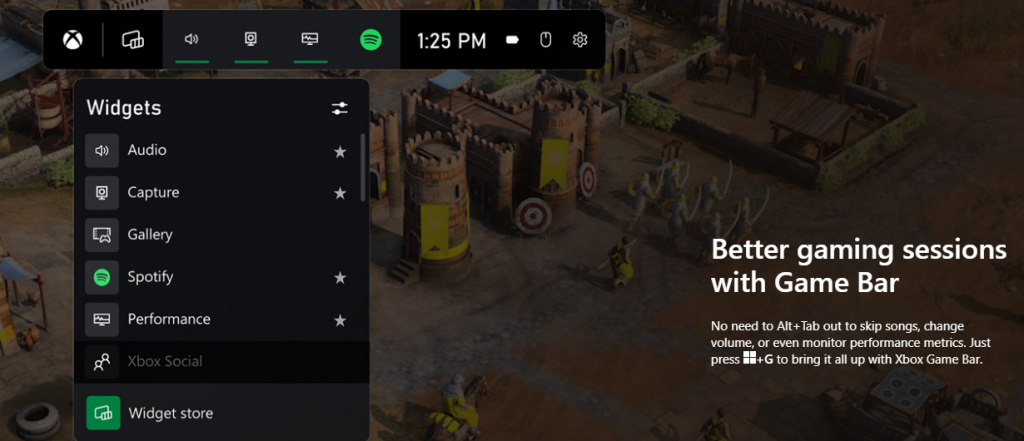
Windows 11’s built-in Xbox Game Bar enables quite a few options all gamers desire. You can take screenshots and videos of your game and send them, for starters. Furthermore, you can use it to see audio settings and monitor your PC’s performance without having to leave the game or open the Task Manager.
Widgets are also a really cool part of the Game Bar. You can choose from a wide variety of widgets, such as Xbox Achievements, Spotify, Gallery, Xbox Social and more.
Moreover, the Xbox Game Pass has been streamlined on Windows 11. Game Pass is a subscription service that unlocks hundreds of awesome games and supports cloud streaming. Do keep in mind that the games are only unlocked for a certain period of time, as the selection rotates once in a while.
What can you do for a better gaming experience?
Windows 11 does offer tweaks that require zero input from you. However, there are a few things you can do manually to get even more out of your new OS while gaming.
Turn off enhanced pointer precision. Most games enhance precision by default, so having this feature on might interfere with that.
Make sure to select your high performance graphics card for each game. Go to Settings > Gaming > Game Mode and tap ‘Graphics’ from the ‘Related settings’ menu. Find the game you want to adjust, click on ‘Options’ and choose your high performance graphics card to be the default setting. While there, you can also turn on ‘Hardware-accelerated GPU scheduling’ at the top.
Disable unnecessary apps and programs. As long as they aren’t essential to running your game, they might take up valuable system resources, so disable them to make space for your gaming requirements.
Check for pending updates and install them. It’s well-known that out-of-date software causes bugs, latency and crashes. The same goes for your GPU drivers.
Use the High-performance power plan (Control Panel > Power Options > Additional plans) to maximize the use of resources for the best possible performance.
Summary
Windows 11 has done quite a bit for avid gamers. We hope your setup is compatible with all these new features and you can experience these enhancements ASAP!







 icon in your Windows taskbar or the macOS menu bar.)
Select the Account icon in the upper right, and then select Sign out.
In the confirmation dialog box, select Sign Out. The Creative Cloud apps and services associated with your account are deactivated on the computer.
Sign in again to your Adobe account.
Launch any Creative Cloud app included in your membership, such as Photoshop or Illustrator. If prompted, sign-in on the next screen.
icon in your Windows taskbar or the macOS menu bar.)
Select the Account icon in the upper right, and then select Sign out.
In the confirmation dialog box, select Sign Out. The Creative Cloud apps and services associated with your account are deactivated on the computer.
Sign in again to your Adobe account.
Launch any Creative Cloud app included in your membership, such as Photoshop or Illustrator. If prompted, sign-in on the next screen.