Logo

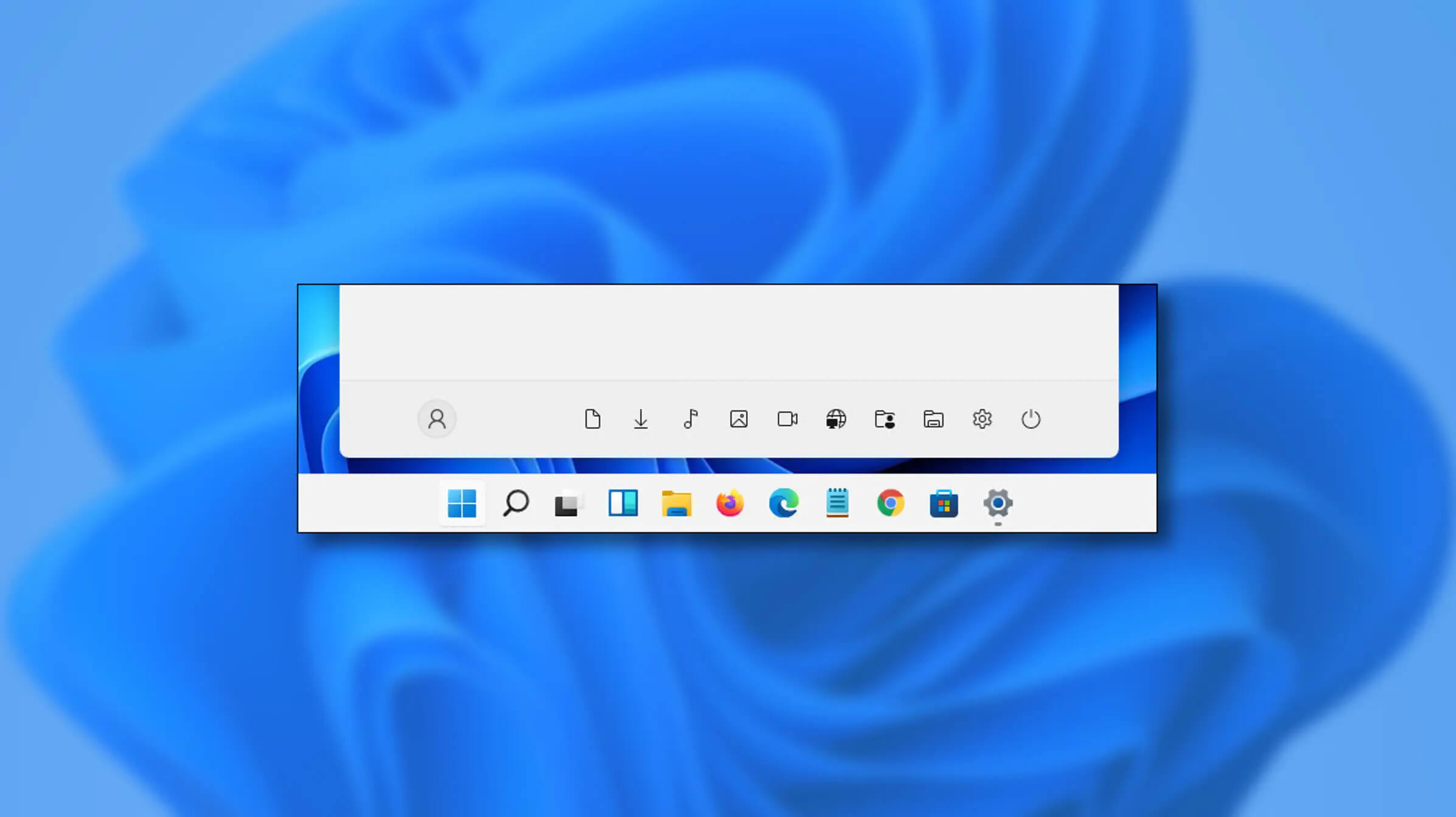
Folder shortcuts in Windows 11 on Start menu

Special folders like music, pictures, download, videos, etc, can be placed as shortcuts in the start menu inside Windows 11 for easy access.

Shortcuts will appear in the start menu on the bottom as simple glyphs. They are not present in the start menu by default so it needs to be turned ON first.

Folder shortcutsIf you want to place these icons in your Star menu follow this step-by-step guide and you will have them in no time.

  1. Open Windows settings
  2. In settings go to Personalization > Start
  3. In Start click on Folders
  4. On the given list of Settings, File Explorer, Documents, Downloads, Music, Pictures, Videos, Network, and Personal folder click on the switch beside them if you want them as shortcuts in the Start menu. You can choose whichever you want.
  5. Close settings

You can revisit the settings menu to add more icons or remove some of them later if you wish so.

Do You Need Help with Your Device?

Our Team of Experts May Help
Troubleshoot.Tech Experts are There for You!
Replace damaged files
Restore performance
Free disk space
Remove Malware
Protects WEB browser
Remove Viruses
Stop PC freezing
GET HELP
Troubleshoot.Tech experts work with all versions of Microsoft Windows including Windows 11, with Android, Mac, and more.

Share this article:

You might also like

Bluetooth A2dp Source not working Code 52
A number of users have recently reported that they were going through an issue with their Bluetooth devices on their Windows 10 computers. This issue involves an error saying,
“Windows cannot verify the digital signature for the drivers required for this device. A recent hardware or software change might have installed a file that is signed incorrectly or damaged, or that might be malicious software from an unknown source. (Code 52).”
If you are one of the users who encountered this kind of error on your Windows 10 computer, read on as this post will guide you on how you can fix this Bluetooth error. According to security experts, the key to fixing this error is to sign the Bluetooth A2DP files with the built-in tool, System File Checker. Apart from that, you could also run the Hardware and Devices troubleshooter or perform System Restore, as well as update or reinstall the concerned drivers. For more details, refer to each one of the options provided below.

Option 1 – Try to check Bluetooth-related services

In Services, there is a Bluetooth-related service that helps users use Bluetooth so if that particular service suddenly malfunctions for some reason, you will most likely get the “Windows was unable to connect with your Bluetooth network device” error message. That’s why you need to check Services and to do that, refer to these steps:
  • Tap Win + R keys to open Run prompt and type in “services.msc” then tap Enter to open Services.
  • Next, look for the Bluetooth Support Service and double click on it to open Properties.
  • From there, verify if the Service status is showing “Running” or “Stopped”. If it’s the latter, you have to click the Start button.
  • Lastly, check if the Startup type is set to Manual.

Option 2 – Try running System File Checker or SFC scan

You could also run System File Checker or SFC scan to fix the Bluetooth error. It is a built-in command utility that helps in restoring corrupted files as well as missing files. It replaces bad and corrupted system files with good system files. To run the SFC command, follow the steps given below.
  • Tap Win + R to launch Run.
  • Type in cmd in the field and tap Enter.
  • After opening Command Prompt, type in sfc /scannow
The command will start a system scan which will take a few whiles before it finishes. Once it’s done, you could get the following results:
  1. Windows Resource Protection did not find any integrity violations.
  2. Windows Resource Protection found corrupt files and successfully repaired them.
  3. Windows Resource Protection found corrupt files but was unable to fix some of them.
  • Reboot your PC.

Option 3 – Try to perform System Restore

You might also want to perform System Restore as the error might be caused by system modifications. Thus, to undo them, you can use System Restore. Run it using these steps:
  • First, tap the Win + R keys to open the Run dialog box.
  • After that, type in “sysdm.cpl” in the field and tap Enter.
  • Next, go to the System Protection tab then click the System Restore button. This will open a new window where you have to select your preferred System Restore point.
  • After that, follow the on-screen instructions to finish the process and then restart your computer and check if the problem is fixed or not.

Option 4 – Try running the Hardware and Devices Troubleshooter

The next thing you can do to fix the problem is to run the Hardware and Devices troubleshooter. Although it won’t make much of a difference, there’s still a possibility that it could automatically fix the Bluetooth error. To use it, refer to these steps:
  • The first thing you need to do is click on Start and then on the gear-like icon to pull up the window for Settings.
  • After opening Settings, look for the Update and Security option and select it.
  • From there, go to the Troubleshoot option located on the left-hand side of the list.
  • Next, select Hardware and Devices from the list and open the Troubleshooter and run it. Once it is doing its job, wait for it to complete the process and then restart the system.
  • After the system restarts, check if the problem’s now fixed. If not, refer to the next option given below.

Option 5 – Try to reinstall or update the Bluetooth driver

The issue might have something to do with the Bluetooth drivers. It could be that it is outdated and needs to be updated or that you recently updated it and since then you have trouble removing the Bluetooth devices and so to fix the issue, you can update, roll back or uninstall the Bluetooth drivers. How? Follow the steps below.
  • Tap the Win + X keys to open the Device Manager.
  • Next, look for the Bluetooth device and right-click on it.
  • Select the option “Update driver”.
  • After that, a new popup window will appear. In there, select the option, “Search automatically for updated driver software”.
Note: Checking the update may take a few minutes so you’ll have to wait until it finishes. If it is able to find an update, you must install it. And if you want to reinstall the Bluetooth driver, just select the “Uninstall driver” option and follow the next on-screen instructions that follow.
Read More
Software review series:CodeTwo QR Code Desktop

What is a QR Code

QR code or if you want to be more technical Quick Response code is a two-dimensional code made of square dots creating a pattern that can be scanned via QR scanner and then interpreted. Usually, they are present on product packaging, on business cards, websites, etc. When you decode a QR code you can get a link to a website or link to a file or whatever, you can get text, image, email, contact information, etc.

QR Code Desktop Reader & Generator sample code

How to decode a QR Code? You can scan it with your mobile devices like iPhone, iPad, Android or Blackberry equipped with additional software for scanning QR Codes. You might want to check out tools like Barcode Scanner or Red Laser. If you don’t have a mobile device or you need to scan a barcode on your PC, simply use CodeTwo QR Code Desktop Reader & Generator.

How this program works

QR Code reading

CodeTwo QR Code Desktop Reader & Generator is a free tool that will let you quickly scan any QR Code from your screen – be it a part of the website, email, banner, or document. Simply run the program and hit From the screen on the top menu. Your standard mouse cursor will change into a cross to help you make a selection on your screen. Simply select an area with a QR Code and the program will automatically scan it. You can scan QR codes from websites, documents, movie files – you name it. You can also select an image file that contains a QR Code and the program will locate it automatically and decode it. To do that, simply click From file on the top menu of the program and select the desired image from your hard drive. If you have a file copied to your clipboard, or if you make a screenshot of a QR Code, QR Code Desktop Reader & Generator will let you decode those QR codes in one click. Just click From clipboard and the program will automatically locate and decode the QR code for you. That is not all, you can also use your camera to scan QR codes. If you have more than one camera, the program will let you choose which one to use. To use this option, simply click From webcam, and you will be able to scan QR codes with your recording device.

QR Code generation

  • CodeTwo QR Code Desktop Reader & Generator also acts as a QR code generator. Creating QR codes is as easy as reading them. Here is how to generate a QR code:
  • In the top menu, click Generate mode on and enter the text you want to translate into QR Code
  • Choose if you want to copy it to the clipboard or save it in a file. The QR Code will be scaled automatically, but you can resize it in the Size settings tab.
  • The resulting QR code can be used however you like. To name just a few options, you can:
  • Upload it to your blog/website which is especially useful for mobile users.
  • Print it on a poster, providing easily accessible links with more information on your event.
  • Send it in newsletters, or include it in your email signature.

QR Codes in email signatures

Inserting QR codes in email signatures lets mobile users quickly grab your contact details, or provides them with links so that they can get more information on your company or topic you were discussing. You can also provide your recipients with a link to QR Code Desktop Reader & Generator. This will help them easily decode QR codes when they open your email on a PC.

QR code

If you want to include a QR code automatically in email signatures throughout a whole organization, try CodeTwo central email signature management solution. It is a very useful tool, which enables you to unify email signatures on Exchange Server and Office 365 (Microsoft 365).
Read More
A Quick Way to Fixing Error 0x8007045D

What Does 0x8007045D Error Code Mean?

The 0x8007045D error code is an I/O (input and output) error that is associated with the registry. It indicates that the Windows operating system has become overloaded with invalid system references in the registry. This may prevent you from executing reading and writing to and from devices successfully.

Error Causes

Registry is the main database of your PC. This portion of your computer saves all the activities that you perform on your PC including the junk files, temporary internet files, invalid entries, bad registry keys, and more. This clutters the hard disk. If the unnecessary files are not removed from the registry, it may lead to I/O errors like 0x8007045D. On the hard drive, some parts of the drive may fail to function. If this is not fixed on the time it may lead to serious disk damage and registry corruption eventually resulting in system failure. System failure can make you lose all the valuable data saved on your system for good.

How to Fix the Error Code 0x8007045D?

Error codes on your PC are like warnings. These codes indicate that your PC has some issue. Therefore ignoring it is not wise. To spare yourself from such serious PC damages, it is advisable to take correct measures timely instead of prolonging and making the situation go from bad to worse.
Read More
CHKDSK cannot continue in read-only mode
As you know, the CHKDSK utility is proven to be one of the useful tools to fix any issues that concerns file system, storage, and disk. However, as useful as it may be, it is still not immune to issues as you could encounter errors when running it. One of these errors is the “One such error is the CHKDSK cannot continue in read-only mode” error. If you receive such an error message while running CHKDSK, then you’ve come to the right place as this post will help you sort the problem out. It is possible that the drive is read-only or that the Write Protection is enabled. It could also be that the drive is already being used and scanned by a different program or utility. To get rid of this error, there are a couple of suggestions you need to check out. You can try to run the CHKDSK utility from Recovery or run it on Boot. You could also try to disable Write Protection. For more detailed steps, follow the given instructions below.

Option 1 – Try to run the CHKDSK utility from Recovery

The first thing you can do to resolve the error in CHKDSK is to run the CHKDSK utility from Recovery. How? Follow these steps:
  • First, boot into the installation environment for Windows 10 from a Windows installation media.
  • Next, click on the “Repair your computer” option.
  • After that, select Troubleshoot > Advanced options > Command Prompt.
  • After opening Command Prompt, type this command and tap Enter: chkdsk <Partition Letter>: /r /f
  • Wait until the disk error checking process is completed.
  • Once it’s done, exit the Command Prompt window and restart your computer and then see if the error is fixed.

Option 2 – Try running the CHKDSK utility on Boot

On the other hand, you can also try to run the CHKDSK utility on Boot so you can fix the error and recover any damaged segments of the drive.
  • Open an elevated Command Prompt and enter this command: chkdsk /r
  • After that, you will a message that says, “Chkdsk cannot run because the volume is in use by another process. Would you like to schedule this volume to be checked the next time the system restarts? (Y/N)”
  • Type Y and tap Enter to schedule a CHKDSK scan once your computer reboots next time.

Option 3 – Try to remove the Write Protection from the drive

As mentioned, removing the Write-Protection on the concerned drive could also help you fix the problem and there are two ways to get rid of the write protection – you can either use the Diskpart utility or the Registry Editor. How? Refer to the following steps.

Via Diskpart utility:

  • Open Command Prompt with admin privileges and then type the “diskpart” command and tap Enter to execute it.
  • Next, type “list disk” and tap Enter to get the list of all the Disk connects or all the partitions that are formed on those disks.
  • After that, you need to choose one command depending on the list of commands you entered. Type “select disk #” and tap Enter to select the disk or partition you want to select.
  • Then type “attribute disk clear readonly” and tap Enter to Disable the Write Protection on the selected disk or partition.

Via Registry Editor:

  • Tap the Win + R keys to open the Run utility and type “Regedit” in the field and then tap Enter to open the Registry Editor.
  • Next, navigate to the following registry key:
ComputerHKEY_LOCAL_MACHINESYSTEMCurrentControlSetControlStorageDevicePolicies
  • After that, look for the DWORD named “WriteProtect” and double click on it, and then set its Value Data to “0”.
  • Now restart your computer and see if the problem is now fixed or not.
Read More
Fix STOP 0XC000021A, error in Windows 10
Upgrading your Windows computer may not always go as expected as you could end up getting some error messages along the way. One of the error messages you can encounter is the “STOP 0XC000021A or STATUS_SYSTEM_PROCESS_TERMINATED” error. This error indicates that is some security issue within the Windows operating system. It could be that the system files have an issue and they have been modified incorrectly. Although this does not necessarily mean that malware is behind the modification, one of the applications you installed recently might have something to do with the problem. The application might have modified or corrupted some of the core system files. When you encounter this error, you will see a blue screen along with the following error message:
“Your PC ran into a problem and needs to restart. We’re just collecting some error info, and then we’ll restart for you. (0% complete) If you’d like to know more, you can search online later for this error: 0xc000021a”
This error pops up when a user-mode subsystem like the WinLogon or the Client Server Run-Time Subsystem or CSRSS has been compromised fatally and security can no longer be guaranteed in the system. Thus, the operating system switches to kernel mode, and Windows won’t be able to run without the WinLogon or the Client Server Run-Time Subsystem. This is why it’s one of the few cases where the failure of a user-mode service can shut down the system. To resolve the issue, here are some fixes that might help.

Option 1 – Uninstall programs you installed lately

  • In the search box, type in “control” and then click on Control Panel (desktop app) among the search results.
  • After that, select Programs and Features from the list which will give you a list of all the programs installed on your computer.
  • From there, look for the concerned program and select it and then uninstall it.
Note: If you have downloaded the app from the Windows Store, you can simply right-click on it from the application list and then uninstall it.

Option 2 – Perform System Restore

Performing System Restore can also help you fix the “STOP 0XC000021A or STATUS_SYSTEM_PROCESS_TERMINATED” error. You can do this option either by booting into Safe Mode or in System Restore. If you are already in the Advanced Startup Options, just directly select System Restore and proceed with the next steps. And if you have just booted your PC into Safe Mode, refer to the steps below.
  • Tap the Win + R keys to open the Run dialog box.
  • After that, type in “sysdm.cpl” in the field and tap Enter.
  • Next, go to the System Protection tab then click the System Restore button. This will open a new window where you have to select your preferred System Restore point.
  • After that, follow the on-screen instructions to finish the process and then restart your computer and check if the problem is fixed or not.

Option 3 – Run the System File Checker or SFC scan

System File Checker or SFC is a built-in command utility that helps in restoring corrupted files as well as missing files. It replaces bad and corrupted system files to good system files that might be the cause why you’re getting the “STOP 0XC000021A or STATUS_SYSTEM_PROCESS_TERMINATED” error. To run the SFC command, follow the steps given below.
  • Tap Win + R to launch Run.
  • Type in cmd in the field and tap Enter.
  • After opening Command Prompt, type in sfc /scannow
The command will start a system scan which will take a few whiles before it finishes. Once it’s done, you could get the following results:
  1. Windows Resource Protection did not find any integrity violations.
  2. Windows Resource Protection found corrupt files and successfully repaired them.
  3. Windows Resource Protection found corrupt files but was unable to fix some of them.

Option 4 – Rebuild the BCD and fix MBR

Rebuilding the BCD can help you in fixing the “STOP 0XC000021A or STATUS_SYSTEM_PROCESS_TERMINATED” error.
  • You can start by booting into the installation environment for Windows 10 from an installation media.
  • After that, click on Repair your computer and on the blue screen, select Troubleshoot and then select the Advanced options menu.
  • Next, select Command Prompt and type in the commands below one by one, and tap Enter right after you do so.
  • exe /FixMbr
  • exe /FixBoot
    • exe /RebuildBcd
The commands you entered should rebuild the BCD and repair MBR.

Option 5 – Run the CHKDSK utility

You can also run the Chkdsk utility to resolve the problem. If your hard drive has issues with integrity, the update will really fail as the system will think that it’s not healthy and that’s where the Chkdsk utility comes in. The Chkdsk utility repairs hard drive errors that might be causing the problem.
  • Open Command Prompt with admin privileges.
  • After opening Command Prompt, execute the commands listed below, and don’t forget to hit Enter right after you type in each one of them.
  • chkntfs /t
  • chkntfs /t:10
Read More
Display isn't compatible with Windows Error
Upgrading your computer from Windows 7 or Windows 8 to Windows 10 or even upgrading Windows 10 to a new version is not that simple. The setup initially checks for all the drivers and other software utilities installed on your computer and verifies and blockages or upgrade or upgrade blocks with respect to any of those drivers or any of those software utilities regardless if you use the Windows 10 ISO or the Windows 10 Upgrade Assistant. One of these common errors, when you upgrade or update your computer, is the “The Display is not compatible with Windows 10” error. This kind of Windows Upgrade error is related to the compatibility of the Graphics Driver installed in your computer. But worry not for this post will guide you in fixing this problem. The “The display is not compatible with Windows 10” error has the same workarounds as the following errors:
  • These devices aren’t fully compatible with Windows 10.
  • The display is not compatible with Windows 10. Check with the manufacturer for support.
  • The display manufacturer hasn’t made your display compatible with Windows 10. Check with the manufacturer for support.
To resolve this Windows Upgrade error, here are some suggestions that could help:

Option 1 – Check for incompatible drivers in your computer

  • Open the Device Manager from the WinX Menu.
  • Then expand the list for Display Adapters.
  • Next, right-click on the NVIDIA Graphics Card list and select Enable.
  • After that, right-click on it again and click on the “Update Driver Software…” option.
  • After doing so, a new window will appear and from there, click on the “Search automatically for updated driver software” option.
  • Then check if Windows is now able to detect your Graphics Card as well as the latest driver for it. If not, proceed to the next step.
  • Right-click on the driver again and click on the “Update Driver Software…” option.
  • Now click on the Browse my computer for driver software option and then click on Let me pick from a list of device drivers on my computer.
  • Afterward, select a compatible driver for your computer named NVIDIA Graphics Card and then proceed.
  • Wait for the whole process to be completed and restart your computer to successfully apply the changes made.

Option 2 – Get the latest version of Graphics drivers from the manufacturer’s website

In case you don’t know the manufacturer of the Graphics Processing Unit or GPU of your computer, you need to check first. They’re usually NVIDIA, Intel, or AMD. So if your computer’s Graphics Processing Unit is manufactured by NVIDIA, you need to get the latest version from their official website.

Option 3 – Try to install the latest Graphics driver in Compatibility Mode

If you’re not able to install the Graphics drivers you’ve downloaded, you can try installing them again but this time using Compatibility mode. Follow the steps below to do so:
  • You need to download the driver and place it on your desktop.
  • After that, right-click on it and select Properties.
  • Next, switch to the Compatibility tab where you should see two options:
    • Compatibility troubleshooter, and let Windows figure out what works best for you. If it fails, follow the next.
    • Manually choose the version of Windows it was correctly working.
  • You also have the option to change the DPI settings and see if that helps. Then click the Apply and OK buttons.
  • Now right-click on the file and select the “Run as administrator” option to install. After that, you should now be able to change your screen aspect ratio to what you were using early on.
Note: If you have other programs that won’t work on the existing version of Windows, then make sure to run the program in a Compatibility mode.

Option 4 – Try to run the Program Compatibility Troubleshooter

You might also want to run the Program Compatibility Troubleshooter. This built-in troubleshooter is available in the Windows Update & Security section. From there, select Troubleshoot. This will find a list of programs for you and since you have already downloaded the driver files, just click on Not Listed located at the top of the program list. After that, browse and select the driver files and then let the program do its job.
Read More
How to fix random Computer crashes
Computer crashes are one of the most annoying things that can happen to users. It often loses your data and work, you must spend extra time if you were in the middle of something and can even break Windows itself. Computer without crashes working fineBefore we move to the article I just want to say that technically there are no random crashes, there is always a reason why the system hangs up, why you received blue screen, annoying restarts out of nowhere and many more PC crashes. In this article, we will explore many possible reasons why something may occur and offer you straight forward solution on how to escape the situation and prevent it from happening again. Without further delay, let's begin:
  1. Check switch connectors and power outlets

    Yes, sometimes the most basic approach provides the best results, check to see if your power outlet is stable and providing you with constant voltage, if not, maybe you want to invest in a UPS system so you do not face random shutdowns and restarts during work, also while you are at it, check to see if that reset and power switch are connected properly and that they are not dirty or loose.
  2. Clean your PC and check connectors

    Dirt can cause many issues with computers, from overheating to shutdowns to blue screens and memory dumps, check to see if your computer is clean enough and that all connectors are connected tight into their respective sockets.
  3. Check the temperature of your CPU

    CPU overheating can cause so-called random freezes and blue screens, the computer might shut down or restart also without any visible reason. Check to see if your fan on the CPU is working properly and change the thermal paste if needed.
  4. Check the health of your hard drive

    If your hard drive is beginning to go down the path of dying out, many issues can come from this condition. There are many tools on the internet and in Windows itself to check if your hard drive is working properly.
  5. Run antivirus and firewall

    Random lock-ups or similar issues can also occur if by any chance you have some malware on your system, run protection software, and keep it updated to make sure the issue does not come from the computer being infected with malicious applications.
  6. Keep system clean

    Have a habit to clean regularly system files and registries, keep removing unnecessary files from your computer and regularly update your Windows and applications along with drivers.
  7. Run memory test

    Bad RAM bank can cause many issues during the work, check it out to be sure the problem is not RAM itself.
  8. Do not run applications that are too demanding for your system

    Some applications require stronger hardware, and some require the latest hardware, if your computer is a little outdated, running a demanding application can cause issues like freezing, restarts, etc.
  9. Remove applications you do not use

    This does not seem like anything important but if you are not using a specific application just remove it from the system, why? Sometimes an application has some ties to certain services and if it is outdated can cause issues for newer ones.
  10. Stop installing everything you find on the internet

    Yes, that extension for chrome looks cool, yes, that fancy new player seems sick but if it is from an unverified source and from the unknown publisher without any reviews maybe you are better off with it. You can never tell what you might be placing into your system from the internet.
And that's it, 10 reasons and solutions on what to do on random computer freezes, crashes, etc.
Read More
Fix CSGO Crashes in Windows 10
Counter strike has evolved from half-life mod into the full-featured game and has kept in popularity for years, even today game is wildly popular and has a huge player base. Sadly game can crash in Windows 10. Here in this article, we will address how to fix csgo crashing in Windows 10 so you can play it smoothly and crash-free as it was meant to be played.
  1. Update your display drivers

    Often in the gaming world having the latest display drivers can mean a world of difference. Counterstrike GO is no different, make sure that your drivers are updated to the latest version, if they are not, go to your manufacturer's website and download the latest version.
  2. Update Windows

    Just how much important is it to have the latest display drivers so it is to have the latest Windows update. Often problematic things are addressed in the update itself.
  3. Turn off compatibility mode

    Compatibility mode is most often the cause of crashes. Go to the game installation folder and search for csgo.exe. Once you locate it right-click on it and choose properties. Under properties, find the compatibility tab and turn off compatibility mode if it is ON. Uncheck run as administrator also
  4. Delete CSGO.EXE and add cl_disablehtmlmotd 1

    If disabling compatibility mode has not solved the issue do next: Pull up the installation directory folder, find csgo.exe, and delete it Pull up the Steam Library and locate Counter-Strike Global Offensive Right-click on it to select properties Find the local tab and click on verify integrity of game files When that is complete, go back into the Counter-Strike Global Offensive installation folder and search for cgo.exe Turn compatibility OFF like in the previous step Return to the Steam Library, right-click on Counter-Strike Global Offensive and click on properties again Go under the launch options settings In the new window, type in cl_disablehtmlmotd 1 Save the changes and restart the game
  5. Lower game settings

    If previous steps did not help and the game still crashes, try lowering game graphic settings. Crashes can happen if a game is heavy on the current system resources.
Read More
How to remove SearchAnonymo from your computer

SearchAnonymo is a Google Chrome browser extension. This extension allegedly allows you to browse the internet anonymously without your data being tracked. From the Author: Search Anonymo – Search the Web Privately

Switch your default search to Search Anonymo and become safer on the web. Search through our Search Anonymo extension instead of search engines that track your personal profile and your search history. Search Anonymo provides you with an easy and safe search tool. -Advanced Security -No User Profiling -No Tracking -No Search Leakage This extension replaces your Default Search to Search Anonymo. This extension reroutes your search algorithms through a few websites before finally forwarding it to Yahoo Search. It changes your default search engine to Yahoo, which keeps track of any search information you make. It will change your homepage, search provider, and in our testing added considerable delay to the speed of search. This browser hijacker is considered a low-risk threat but is detected for optional removal for previous reasons.

About Browser Hijackers

Browser hijacking means that a malicious program code has power over and altered the settings of your internet browser, without your permission. Nearly all browser hijackers are created for marketing or advertising purposes. In most cases, it will force users to predetermined websites that are trying to increase their advertising campaign revenue. Nonetheless, it isn’t that harmless. Your web safety is compromised and it is also really irritating. Browser hijackers can also let other malicious programs without your knowledge further damage your PC.

How one can know whether the web browser is hijacked?

There are many symptoms that could indicate a browser hijacking: the browser’s home-page is changed; you see new unwanted favorites or bookmarks added, typically directed to ad-filled or porn sites; the default browser configurations have been changed and/or your default search engine is altered; you’re getting browser toolbars you have never found before; never-ending pop-up ads appear and/or your web browser popup blocker is disabled; web pages load very slowly and at times incomplete; you can’t visit specific sites like homepages of security software.

How they get into your computer or laptop

There are a number of ways your PC can get infected by a browser hijacker. They usually arrive by way of spam e-mail, via file-sharing networks, or by a drive-by download. They can be included with toolbars, BHO, add-ons, plugins, or browser extensions. Also, certain freeware and shareware can put the hijacker in your PC through “bundling”. Examples of well-known browser hijackers are Fireball, GoSave, Ask Toolbar, CoolWebSearch, Babylon Toolbar, and RocketTab. The presence of any browser hijacker on your computer can considerably diminish the browsing experience, record your internet activities that lead to major privacy issues, develop system stability problems, and eventually cause your computer to slow down or to a practically unusable condition.

Getting rid of browser hijackers

Certain hijackers could be removed by just uninstalling the related freeware or add-ons through the Add or Remove Programs in the Windows control panel. Having said that, the majority of hijackers are very tenacious and need specialized tools to get rid of them. And there’s no denying the very fact that the manual fixes and removal methods can be a complicated job for a novice computer user. Additionally, there are plenty of risks connected with tinkering around with the system registry files. You can opt for automatic browser hijacker removal methods by simply installing and running an efficient anti-malware application. To eradicate any browser hijacker from your PC, you can download this particular certified malware removal application – SafeBytes Anti-Malware. In addition to anti-malware, a system optimizer software can help you correct registry errors, get rid of unwanted toolbars, secure internet privacy, and stabilize software programs installed on your computer.

What you can do if Virus Stops You From Downloading Or Installing Anti-malware?

All malware is inherently harmful, but certain kinds of malicious software do a lot more damage to your PC than others. Some malware is designed to hinder or prevent things that you want to do on your computer system. It may not allow you to download anything from the web or stop you from accessing some or all websites, especially the anti-virus sites. If you’re reading this, chances are you’re stuck with a malware infection that is preventing you to download or install Safebytes Anti-Malware software on your system. Do as instructed below to get rid of the malware by alternate methods.

Use Safe Mode to fix the problem

In Safe Mode, you could change Windows settings, un-install or install some software, and get rid of hard-to-delete viruses. In the event the malware is blocking internet connection and affecting your computer, starting it in Safe Mode enables you to download antivirus and run a scan while limiting possible damage. In order to get into Safe Mode or Safe Mode with Networking, press the F8 key while the PC is starting up or run MSConfig and locate the “Safe Boot” options in the “Boot” tab. As soon as you restart the PC into Safe Mode with Networking, you could download, install, as well as update anti-malware software from there. After installation, run the malware scanner to remove standard infections.

Switch to an alternate web browser

Some malware mainly targets particular internet browsers. If this sounds like your case, make use of another web browser as it might circumvent the virus. When you suspect that your Internet Explorer happens to be hijacked by a trojan or otherwise compromised by online hackers, the best thing to do is to switch over to an alternate browser such as Firefox, Chrome, or Safari to download your chosen security software – Safebytes Anti-Malware.

Run anti-malware from your USB drive

Another technique is to download and transfer anti-malware software from a clean PC to run a scan on the infected system. Do these simple actions to clean up your infected computer by using a portable antivirus. 1) On a virus-free computer, download and install Safebytes Anti-Malware. 2) Plug in the pen drive into the clean computer. 3) Double-click the executable file to run the installation wizard. 4) Select the USB flash drive as the location for saving the software file. Follow the onscreen instructions to finish the installation process. 5) Now, transfer the USB drive to the infected PC. 6) Run the Safebytes Anti-malware directly from the USB drive by double-clicking the icon. 7) Run Full System Scan to identify and get rid of all kinds of malware.

Overview of SafeBytes Anti-Malware

Do you want to install the very best anti-malware software program for your PC? There are numerous applications in the market that comes in paid and free versions for Windows systems. A few of them are great and some are scamware applications that pretend as legitimate anti-malware programs waiting to wreak havoc on your personal computer. When searching for anti-malware software, choose one that gives dependable, efficient, and comprehensive protection against all known viruses and malware. Amongst few good applications, SafeBytes Anti-Malware is the strongly recommended tool for the security-conscious individual. SafeBytes can be described as a powerful, real-time anti-malware application that is created to assist the everyday computer end user in protecting their PC from malicious threats. With its cutting-edge technology, this application will help you get rid of multiples types of malware such as computer viruses, worms, PUPs, trojans, adware, ransomware, and browser hijackers. SafeBytes anti-malware offers an array of enhanced features that sets it apart from all others. Listed below are some of the features you may like in SafeBytes. Most effective AntiMalware Protection: Built on a highly acclaimed anti-virus engine, this malware removal tool can find and remove numerous obstinate malware threats like browser hijackers, potentially unwanted programs, and ransomware that other common anti-virus applications will miss. Real-time Threat Response: SafeBytes offers a completely hands-free real-time protection that is set to monitor, block and destroy all threats at its first encounter. It will regularly monitor your pc for hacker activity and also gives end-users superior firewall protection. Web protection: SafeBytes checks the hyperlinks present on a webpage for possible threats and tells you whether the site is safe to visit or not, through its unique safety rating system. Lightweight: SafeBytes is renowned for its low effect on computer resources and great detection rate of countless threats. It runs quietly and efficiently in the background so you’re free to utilize your computer or laptop at full power all the time. 24/7 Guidance: You will get 24/7 technical assistance to immediately resolve any issue with your security application. To sum it up, SafeBytes Anti-Malware is pretty great for securing your computer against all sorts of malware threats. Malware problems can become a thing of the past once you put this tool to use. If you want advanced forms of protection features & threat detections, purchasing SafeBytes Anti-Malware will be well worth the dollars!

Technical Details and Manual Removal (Advanced Users)

If you wish to manually remove SearchAnonymo without using an automated tool, it may be possible to do so by removing the program from the Windows Add/Remove Programs menu, or in cases of web browser plug-ins, going to the browser’s AddOn/Extension manager and removing it. Additionally, it is suggested to reset your browser to its default state to fix corrupt settings. In order to ensure the complete removal, manually check your hard drive and computer registry for all the following and eliminate or reset the values as needed. But bear in mind, this is often a complicated task and only computer professionals could accomplish it safely. Furthermore, certain malware is capable of replicating itself or preventing deletion. Carrying out this in Safe Mode is recommended.

Read More
Fix Could not find the Recovery Environment
If you suddenly find the Windows Recovery Environment not working and you see an error message saying, “Could not find the recovery environment”, then you’ve come to the right place as this post will guide you on how you can fix it. In times when you can’t boot into the Windows Recovery Environment, there could be several reasons behind it. However, have you ever wondered where exactly the Windows Recovery Environment is in your computer? Windows initially places the Windows RE Image file in the installation partition during Windows Setup so if you have installed Windows in the C drive, you can find the Windows RE at the C:/Windows/System32/Recovery or C:/Recovery folder. Keep in mind that this folder is hidden and later on, the system copies the image file into the recovery tools partition to make sure that one can boot into recovery if there are any issues with the drive partition. The “Could not find the recovery environment” error mostly occurs if the Windows Recovery Environment is disabled or if the “Winre.wim” file is corrupted. Thus, to fix this error, you need to refer to the given suggestions below.

Option 1 – Try to enable Windows Recovery Environment

  • In the Windows Start Search, type “PowerShell” and from the search results that appear, right-click on Windows PowerShell and then select the “Run as administrator” option to open it with admin privileges.
  • Next, type the “reagentc /info” command and tap Enter to execute it.
  • After that, if the output states that Status is enabled, then you’re all set.
  • Now type the “reagentc /enable” command and tap Enter to enable the Windows Recovery Environment. You will see a success message at the end signifying that Windows RE is available.

Option 2 – Try to fix the corrupted or missing “Winre.wim” file

If the Winre.wim file is either corrupted or missing, you need to get a new copy of this file from another computer where the Windows RE is working. Once you’re able to get a new copy of the Winre.wim file, you have to set the image path to a new location. For more details, refer to these steps:
  • First, type “Powershell” in Windows Start Search and right-click on Windows PowerShell from the results, and select Run as administrator.
  • Next, execute the given command below to change the path of the WIM file to the new location. Note that the steps should be used when the file path of the Windows Recovery Environment is different from the usual spot.
Reagentc /setreimage /path C:RecoveryWindowsRE
  • As mentioned, if the file is corrupted, you just have to get a new copy from another PC but before you do that, make sure that the WINRE on that computer is disabled (just enable it later on) and then place it in the C:/Recovery path and then set its path again using the command given above and then verify its path by executing the following command.
reagentc /info command
Note: Since the Recovery folder is hidden as well as the WINRE folder in it and you won’t be able to access them using the Windows File Explorer, you need to use the Windows PowerShell or Command Prompt so that you can access them.

Option 3 – Try checking and fixing the WinRE Reference in the Windows Boot Loader

The Windows Boot Loader is the one that determines if it has to load the Windows Recovery Environment. It could be that the boot loader is pointing to an incorrect location which is why you’re getting the error. To resolve it, you have to check and fix the WinRE Reference in the boot loader. How? Follow these steps:
  • In the Windows Start Search, type “PowerShell” and from the search results that appear, right-click on Windows PowerShell and then select the “Run as administrator” option to open it with admin privileges.
  • After that, execute the “bcdedit /enum all” command.
  • Next, look for an entry in the Windows Boot Loader identifier set as Current and look for “recoverysequence” in that section and take note of the GUID.
  • Ensure that the device and the osdevice items show the path for the Winre.wim file and that they are the same. If not, you need to point the current identifier to the one which has the same.
  • Once you’ve found the new GUID, execute this command: bcdedit /set {current} recoverysequence {GUID_which_has_same_path_of_device_and_device}
  • Now check if the error in the Recovery Environment is fixed or not.

Option 4 – Try creating a Recovery Media

You could also try creating a Recovery Media to resolve the error in the Windows RE. All you have to do is download the Windows 10 ISO file using the Media Creation tool and then create a recovery drive. Once you’re done, check if it fixes the problem or not.
Read More
1 2 3 171
Logo
Copyright © 2023, ErrorTools. All Rights Reserved
Trademark: Microsoft Windows logos are registered trademarks of Microsoft. Disclaimer: ErrorTools.com is not affiliated with Microsoft, nor claims direct affiliation.
The information on this page is provided for information purposes only.
DMCA.com Protection Status