Logo

How to Fix Windows 10 Error Code 0x8024001e

Error Code 0x8024001e - What is it?

Error Code 0x8024001e is most commonly associated with the installation of apps from the Windows store, although versions of the error have been present in multiple versions of the Windows operating system. At its most basic level, the error says that a program has not been installed, even after the installation wizard has run through to completion.

Common symptoms include:

  • Inability to open or run apps downloaded from the Windows store
  • The error message reads, “Something happened and this app couldn’t be installed. Please try again.”

The solutions to Error Code 0x8024001e are somewhat complex, so it is a good idea to get in touch with a computer repair professional if you do not feel confident in your ability to follow the steps below to complete. However, most users should be able to follow the steps below and achieve the desired results.

Solution

Restoro box imageError Causes

There are a couple of different causes that can lead to the appearance of Error Code 0x8024001e. In some cases, extraneous data left in the app cache can cause the problem. In other cases, particular processes may need to be manually reset to clear the problem. Last, but not least, unresolved updates may lead to Error Code 0x8024001e causing issues with downloaded and installed apps from the Windows Store.

Further Information and Manual Repair

There are three primary methods to address the appearance of Error Code 0x8024001e. These should work for all users, regardless of the specific cause for their machine. The methods below do require some advanced skills in computing, so be sure to contact a Windows repair technician if you have trouble following the instructions below.

Here are the top ways to repair Error Code 0x8024001e on Windows 10:

Method One:  Clear the App Cache and Use Power User Options

In many cases, simply clearing your app cache can resolve the errors that pop up when you are downloading, installing, or updating any apps that have come from the Windows store. This method may not perfectly resolve the problem every time, but it is a step that should always be done before any others.

Next, open up the Power User options by pressing both the Windows key and the X key at the same time. Choose “Command Prompt (Admin)” from the options that appear. Then type in the commands into the prompt, one at a time:

  • net stop wuauserv
  • cd/windows
  • rename SoftwareDistribution SoftwareDistribution.bck
  • net start wuauserv

Restart your computer after these changes have been made so that all changes can take effect. You may be able to access the desired programs and apps after this is complete.

Method Two:  Run Your Registry Repair Tools

Sometimes, the best way to repair Error Code 0x8024001e is to simply open up the Window Registry tools and run the repair process. This will scan your registry for any errant entries, corrupted entries, or missing entries, repairing them automatically as the device is able to do. This process may take some time to complete, so plan accordingly.

After this process is complete, it is always a good idea to restart your computer to apply any changes that have been made. Reattempt to install or run the program in question one this is done.

Method Three:  Run Windows Updates as Necessary

Last, open up the Windows Update tools to check to see if any of your programs need to be updated or if your operating system needs to be updated. Install each of the updates, restarting your computer after the entire process has been completed so that they can fully take effect on your machine. You should be able to run the programs that had caused problems once this is complete.

It is important to keep up-to-date on your system and program updates to avoid future errors in installations and downloads from the Windows store.

In most cases, using the steps above should allow you to use the apps that you’ve downloaded from the Windows store without Error Code 0x8024001e popping back up. If the problem persists or if you have not been able to follow the steps listed above to remedy the error, it is a good idea to contact a qualified professional who is experienced in working with Windows 10 errors.

Method Four: Use An Automated Tool

If you wish to always have at your disposal a utility tool to fix these Windows 10 and other related issues when they do arise, download and install a powerful automated tool.

Do You Need Help with Your Device?

Our Team of Experts May Help
Troubleshoot.Tech Experts are There for You!
Replace damaged files
Restore performance
Free disk space
Remove Malware
Protects WEB browser
Remove Viruses
Stop PC freezing
GET HELP
Troubleshoot.Tech experts work with all versions of Microsoft Windows including Windows 11, with Android, Mac, and more.

Share this article:

You might also like

Fix can not open EXE file in Windows 10
Can not open and run EXE file in Windows is not a new issue and sadly it can still happen from time to time, luckily this step by step solution will help you to resolve this problem fast and effective in no time. Try the below solutions in no particular order and I hope that you will solve the issue fast and be able to return to using the computer like it never happened
  1. Run SFC scan

    As the EXE file not opening issue lies in the Windows OS, the SFC tool will be able to identify the cause and fix this issue. Press ⊞ WINDOWS + X and choose command prompt (admin) in command prompt type: sfc /scannow Press ENTER
  2. Check registry and modify if needed

    Sometimes value in the registry key is wrong and can cause this error, in order to check if this is the case, we will open the registry editor and find out Press ⊞ WINDOWS + R to bring run dialog up type in it: RegEdit and press ENTER In the left pane of the Registry Editor window, click on the HKEY_CLASSES_ROOT to expand the section Scroll down to find out the .exe registry and click on it Go to the right pane of the window and double-click on the Default and set the Value Data as exefile Click on the OK button Next, located the given in the window: HKEY_CLASSES_ROOT>exefile>shell>open>command Click on the “Command” in the left pane of the window In the right pane of the window double-click on the Default and set Value Data as “%1” %* Click on the OK button Restart your computer and check if the issue persists
  3. Turn off Firewall and defender

    If you have a firewall and antivirus active there might be a chance of a conflict and that firewall or antivirus is preventing the EXE file from starting, disable your firewall and anti-virus and try again to open the EXE file.
  4. Turn off user account control

    User account control can also like a firewall prevent some files from executing, go into accounts and turn off user account control to see if this might be an issue preventing you from opening the file.
Read More
How to Fix the Dnssd.dll Error Code

What is Dnssd.dll Error Code?

Dnssd.dll is a type of dynamic link library. It is developed for Windows Operating System by Apple Computer Inc. The latest version of fnssd.dll is 3.0.0.10 used in Windows Vista.  This file also functions like a typical dynamic link library.  DDL files are small programs similar to executable files which are used by multiple programs to load and run properly. Dnssd.dll error occurs when the dnssd.dll file fails to function properly and load to run the desired application/program.  The error may occur most often during computer startup and program startup. The dnssd.dll error message may be displayed on your PC on either one of the following formats:
  • "Dnssd.dll not found."
  • "Dnssd.dll Access Violation."
  • "Cannot register dnssd.dll."
  • "The file dnssd.dll is missing."
  • "Cannot find C:WindowsSystem32\dnssd.dll."
  • "This application failed to start because dnssd.dll was not found. Re-installing the application may fix this problem."
  • "Cannot start Bonjour. A required component is missing: dnssd.dll. Please install Bonjour again."

Solution

Restoro box imageError Causes

To narrow down the cause of the dnssd.dll error is difficult virtually because there are multiple reasons why this error occurs on your system. However, here are the most common causes for this error:
  • Missing  Dnssd.dll file
  • Corrupt and damaged Dnssd.dll file
  • Invalid  dnssd.dll registry entry
  • Viral Infection
  • Improperly shutting down your PC
  • Poor PC maintenance
  • Broken registry keys
  • Hardware failure
  • Dnssd.dll file deleted when uninstalling another program
It is advisable to fix this error right away, as it can create many troublesome problems on your PC such as slow system performance, computer freeze up, blue screen of death errors, system failure, and crash.

Further Information and Manual Repair

Here are some of the best and easiest DIY solutions that you can try to resolve this issue on your PC without hiring a professional.

1. Use System Restore Function

Since this error largely indicates poor PC maintenance, it is advisable to use the System Restore function built-in Windows to resolve the Dnssd.dll file error. It will help you restore the system back to its previous healthy status. It can also help you get a fresh copy of damaged and corrupted files. Here’s what you need to do:
  • Go to the start menu of Windows, type restore in the search box.
  • Choose the option that says ‘choose a different restore point’ this presents customizable options for users.
  • Here you will be presented with a list of restore points, choose the one that you believe has most likely caused the dnssd.dll error.
  • Confirm your selection.
This will help resolve the error. Now restart to see changes made. If the error still persists then try other solutions given below.

2. Reinstall the Program Causing the Dnssd.dll Error to Pop Up

As dll files are shared files, there is a possibility that the file got deleted when you tried to uninstall a certain program. Therefore, if this is the reason, then try to reinstall the program that is causing the error message. By doing so, you can set up the dnssd.dll file again on your PC.

3. Scan for Viruses and Registry Issues

Other reasons for the error are associated with viral infection and registry issues. Therefore it is advisable to download software to scan for these issues and remove them from your PC. Viruses can also corrupt dll files. On the other hand, dll errors like Dnssd.dll can also occur if the registry is not cleaned frequently. The registry becomes corrupt due to the accumulation of invalid/wasted and irrelevant files. This also causes disk defragmentation and hard disk problems which can also lead to hardware failure and dll file damage and corruption. Now to repair it you can either download 2 different programs, an antivirus, and a registry cleaner, or you can install multi-functional and advanced software, Restoro. Downloading 2 separate programs can reduce your PC performance even furthermore. Therefore we recommend you opt for Restoro. This is a one-stop solution for all your PC problems. It includes multiple utilities like an antivirus that detects all malicious software including spyware, malware, adware, Trojans, and viruses. A powerful registry cleaner that resolves all registry issues, wipes out bad registry entries and repairs broken registry keys, damaged dll files like Dnssd.dll, and restores the registry back to its optimum health. This software also functions as a system optimizer that boosts the speed of your PC dramatically. It is safe, bug-free, and efficient. All PC issues are resolved in seconds in just a few clicks. It is user-friendly and compatible with all Windows versions. Click here to download Restoro and resolve the dnssd.dll file error right away!
Read More
How to Fix Runtime Error 339

What is Runtime Error 339?

Runtime Error 339 is a common error code format that appears when a computer overloads with too much data. However, in some cases, it may occur due to the missing registry keys, DLL files, or during installation. It may lead some programs to shut down all of a sudden and may also corrupt files on the system.

Solution

Download Available to Completely Repair Runtime Error 339

Restoro box imageError Causes

This error code is alarming as it is a critical sign of an unstable system followed by improper maintenance of the computer. The potential risks associated with the Runtime Error 339 include:
  • System startup issues
  • Slow PC performance
  • System crash and failure
  • System file corruption
Therefore, to avoid these risks and system failure, it is advisable to fix the runtime error 339 immediately.

Further Information and Manual Repair

If you have a Runtime Error 339 issue on your computer, here is a great way how you can fix it right away:

Scan For Viruses

Improper maintenance of the computer indicates that your system might be exposed to viruses and malware. Viruses can modify the Windows registry and lead to Runtime Error 339. Therefore, first, it is important to scan for viruses on your PC.

Identify Software that Causes Errors

Scanning will help you identify software that produces this error on your PC. Once you identify them, either uninstall them or update the program. To uninstall the program, go to the Control Panel and then click on the Add/Remove program if you have Windows XP, if not then click on the Programs and Features item. Now delete the program from your system.

Obtain the Latest Version of the Installer and Re-install the Deleted Program

Once you get your hands on the latest version of the installer, run it on your system by following the on-screen instructions. Install the program. There is also another way to fix Runtime Error 339 and that is by downloading the Runtime Error tool.

Use a Professional Runtime Error Fixer Tool

To fix the error you can also use a professional Runtime Error fixer tool to scan for viruses on your PC. It is available for free download here. Download the tool and install it on your computer. Simply scan your PC after installation. Click the repair button once the scan is complete. This tool fixes problems in just a few minutes.
Read More
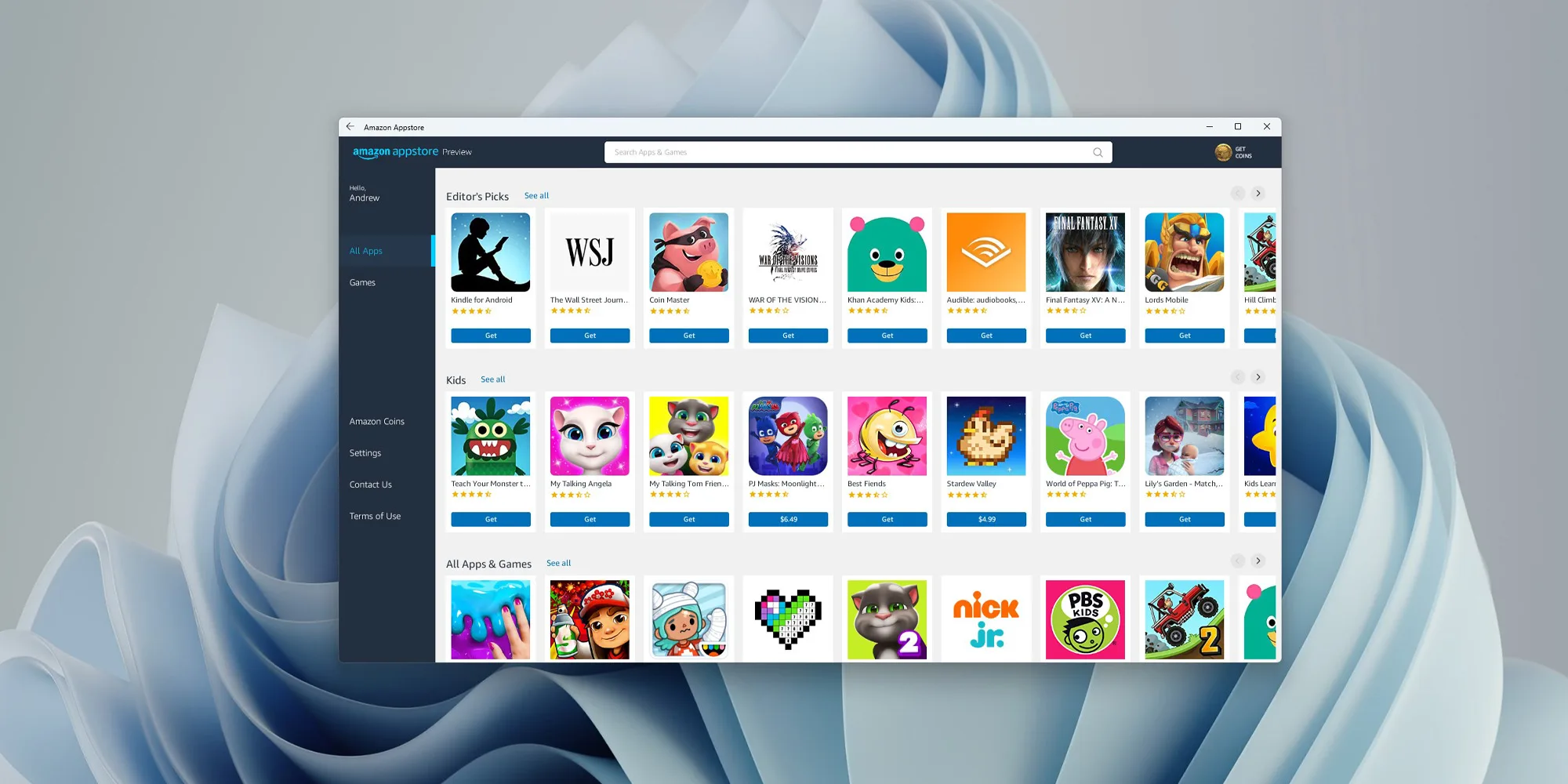
Windows 11 android apps update

One of the selling points of Windows 11 was the ability to run Android apps natively in it without the need for any third-party software. It is not a big surprise that even after its release Microsoft is evolving and expanding Windows 11 and its features.

Windows 11 Android apps

Microsoft is now rolling out an update for the Windows Subsystem for Android on the Dev Channel of the Windows Insiders program. The new version upgrades the core operating system from Android 11 to Android 12.1 (also known as Android 12L), which means the new system and app features in Android 12 and 12.1 are now available on Windows for the first time. However, not the new features in those updates apply to the modified version that runs on top of Windows. For example, one of the main improvements in 12.1 was a dual-pane notification panel for larger screens, but Android app notifications on Windows just show up in the Windows notification panel.

The upgrade also improves how Android apps integrate into Windows. The Windows taskbar will now show which Android apps are currently using the microphone, location, and other system services — similar to many native Windows applications. Toasts messages (the small popups that some apps use for temporary messages) are now displayed as Windows notifications, and the titlebar on Android apps will use the current activity name for the title.

Full changelog

  • Windows Subsystem for Android updated to Android 12.1
  • Advanced networking on by default for newer x64 Windows builds
  • Updated Windows Subsystem for Android Settings app: redesigned UX and diagnostics data viewer added
  • Simpleperf CPU profiler recording now works with Windows Subsystem for Android
  • Windows taskbar now shows which Android apps are using microphone and location
  • Improvements to Android app notifications appearing as Windows notifications
  • Reduced flicker when apps are restored from minimized state
  • Apps are not restarted when devices come out of connected standby on recent Windows builds
  • New video hardware decoding (VP8 and VP9)
  • Fixes for on-screen keyboard in apps
  • Fixes for full-screen Android apps and auto-hidden Windows taskbar
  • Windows Subsystem for Android updated with Chromium WebView 100
  • Added support for Android NetworkLocationProvider in addition to GpsLocationProvider
  • Improved general stability, performance, and reliability

The new update is limited to Windows Insiders for now, but once Microsoft fixes all the bugs, it should start rolling out to everyone on Windows 11 that has the Android Subsystem enabled.

Read More
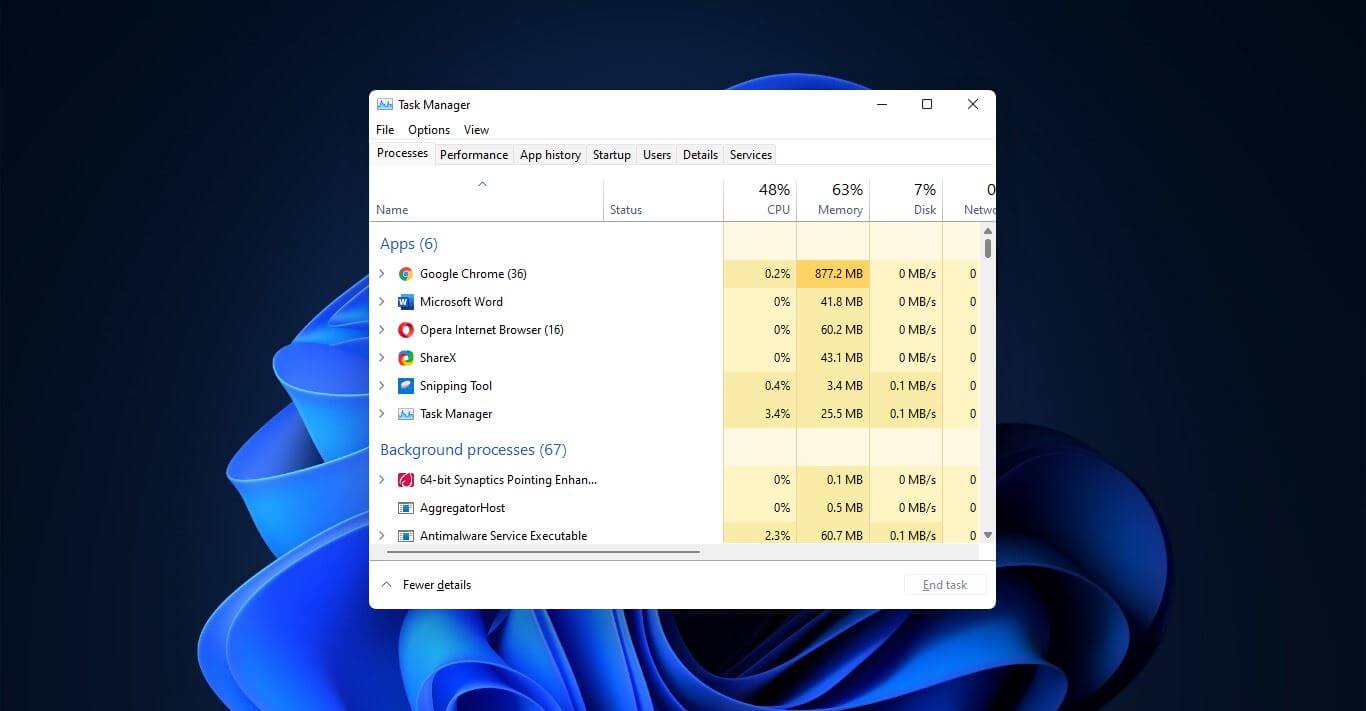
5 ways to open task manager in Windows 11
Something we are used to doing in a certain way inside Windows 10 is slightly changed in Windows 11. One of those things is how you open task manager, well kind of. task managerOption to right-click on the taskbar and launch task manager is gone but do not worry there are other same and simple ways you can launch it.
  1. Press CTRL + SHIFT + ESC or CTRL + ALT + DEL
  2. Right-click on the START button
  3. Type task manager in start search on top in the start menu
  4. Type taskmgr in command prompt
  5. Press ⊞ WINDOWS + R to open run dialog and type in taskmgr
And that’s it, now depending on your situation, you might use different methods to evoke task manager.
Read More
How to Fix the Error Code 28

Error Code 28- What is it?

The error code 28 is a driver error. This is one of the many device manager error codes. When this error occurs on your computer, the following message is displayed:

“The drivers for this device are not installed. (Code 28)”

Another driver device error message you might encounter is error code 41. 

Error Causes

Error 28 occurs because of unsuccessful device driver installation. This usually happens when you try to update new drive versions on your system. It is advisable to repair this error right away as it can hamper your ability to use certain hardware. For example, if error 28 occurs due to the unsuccessful installation of the USB driver, then it if not fixed and resolved it may prevent you from using hardware devices. Unsuccessful driver installation means you either didn’t install it properly or your computer has registry issues. If it’s the registry then you must fix it without any delay because it can expose your PC to serious threats like system crash and failure. To avoid such inconvenience, repair it.

Further Information and Manual Repair

When it comes to repairing the error code 28, here’s what you can do: Simply go to the control panel and click on the Device Manager option:
  • In the details pane with the list of devices, locate the device for which you want to reinstall the driver software.
  • Double click on it to open the properties dialog box.
  • Now click on the driver tab and then click update driver.
After updating, try using that device again if it doesn’t work and shows the error code 28 on your computer screen then this means the underlying cause is the registry.
Read More
Remove PriceGong from your Windows PC

PriceGong is a browser add-in for Internet Explorer, Chrome and Firefox that analyzes web sites your browser visits and attempts to find coupons and other deals associated with the merchant’s product offerings or services. If PriceGoing sees a corresponding deal, it will attempt to inject an affiliate ‘code’ in order to collect various affiliate based commissions if a purchase is made while trying to offer you the best price of that particular product, or, in many cases try and show you an alternative product that is similar even if it is sold by a different merchant. Upon further inspection it was found that PriceGong failed to function in our testing.

While installed, this extension might display additional ads, inject sponsored content into webpages, even if the sponsored content is of lower quality than the original ones.

About Browser Hijackers

Browser hijackers (sometimes known as hijackware) are a kind of malicious software that alters web browser settings without the computer owner’s knowledge or consent. These types of hijacks are increasing at an alarming rate around the globe, and it could be really nefarious and often dangerous too. They’re created to disrupt browser programs for various purposes. In most cases, hijackers are designed for the benefit of online hackers usually through income generation from forced advert mouse clicks and site visits. Though it might seem naive, all browser hijackers are damaging and thus always regarded as security risks. In a much worst case, your browser could be hi-jacked to download malware that will do a great deal of damage to your computer or laptop. Major symptoms that an internet browser has been hijacked Signs that an internet browser is hijacked include: 1. home page is changed 2. bookmark and the new tab are also modified 3. the essential web browser settings are modified and unwanted or insecure sites are put into the trusted websites list 4. discover new toolbars that you didn’t add 5. never-ending pop-up ads appear and/or your web browser popup blocker is disabled 6. your web browser has become unstable or starts running sluggishly 7. you’re disallowed access to specific web pages, for example, the website of an antivirus software manufacturer like SafeBytes.

Precisely how browser hijacker infects computers

A browser hijacker can be installed on your computer if you visit an infected website, click an email attachment, or download something from a file-sharing site. They are usually included with toolbars, add-ons, BHO, plug-ins or browser extensions. Other times you may have accidentally accepted a browser hijacker as part of a software program bundle (usually freeware or shareware). An example of some well-known browser hijacker includes Anyprotect, Conduit, Babylon, SweetPage, DefaultTab, RocketTab, and Delta Search, but the names are regularly changing. The existence of any browser hijacker on your computer can substantially diminish the web browsing experience, record your internet activities that result in troublesome privacy issues, create system stability problems and finally cause your computer to slow down or to a practically unusable state.

Browser Hijacker Malware – Removal

Some hijackers can be removed by uninstalling the freeware they were included with or by removing any extension you have recently added to your system. However, most browser hijackers are hard to get rid of manually. No matter how much you try to eliminate it, it might come back over and over. You should think about performing manual repairs only if you are a tech-savvy individual, as there are potential risks associated with messing around with the system registry and HOSTS file. Installing and running antivirus application on the affected computer could automatically erase browser hijackers and other malicious programs. SafeBytes Anti-Malware discovers all kinds of hijackers – including PriceGong – and eliminates every trace quickly and efficiently. Use a system optimizer along with your antivirus software to solve various computer registry issues, remove system vulnerabilities, and improve your computer's overall performance.

Tips on How to Remove Malware that is Blocking Websites or Preventing Downloads

Practically all malware is bad, but certain kinds of malware do much more damage to your PC than others. Some malware variants alter browser settings by including a proxy server or modify the PC’s DNS configuration settings. In these cases, you’ll be unable to visit some or all of the websites, and therefore unable to download or install the required security software to eliminate the infection. If you are reading this now, you may have perhaps recognized that a virus infection is the real cause of your blocked web traffic. So how to proceed if you want to install an anti-malware application like Safebytes? There are a few fixes you can attempt to get around with this particular issue.

Use Safe Mode to resolve the problem

Safe Mode is actually a unique, simplified version of Windows where just bare minimum services are loaded to counteract viruses as well as other troublesome programs from loading. In case the malware is set to load automatically when computer boots, switching into this particular mode could prevent it from doing so. To boot into Safe Mode, hit “F8” key on the keyboard right before Windows boot screen shows up; Or after normal Windows boot up, run MSCONFIG, look over “Safe Boot” under Boot tab, and click Apply. Once you’re in Safe Mode, you can attempt to download and install your antivirus program without the hindrance of the virus. At this point, you could run the antivirus scan to eliminate viruses and malware without any hindrance from another malicious application.

Download the anti-malware program in an alternate web browser

Malicious program code may exploit vulnerabilities in a specific internet browser and block access to all anti-malware software websites. If you appear to have a virus attached to Internet Explorer, then switch to an alternate web browser with built-in security features, such as Firefox or Chrome, to download your favorite anti-malware program – Safebytes. Create a bootable USB antivirus drive Another option is to save and operate an anti-malware software program entirely from a Flash drive. Follow these steps to use a flash drive to clean your infected PC. 1) On a virus-free computer, install Safebytes Anti-Malware. 2) Plug in the USB drive to a USB port on the uninfected computer. 3) Double-click on the downloaded file to open the installation wizard. 4) Choose the flash drive as the location for saving the software file. Follow activation instructions. 5) Transfer the flash drive from the clean computer to the infected PC. 6) Double-click the anti-malware software EXE file on the pen drive. 7) Run Full System Scan to detect and clean-up up all sorts of malware.

SafeBytes Anti-Malware: Light-weight Malware Protection for Windows Computer

If you’re looking to buy anti-malware for your laptop or computer, there are lots of brands and packages for you to consider. A few of them do a great job in eliminating threats while some will harm your computer by themselves. You should select a company that builds industry-best anti-malware and has earned a reputation as trustworthy. On the list of highly recommended application by industry analysts is SafeBytes Anti-Malware, a popular security application for Microsoft Windows. SafeBytes antimalware is a very effective and easy to use protection tool which is ideal for users of all levels of IT literacy. This software could easily detect, eliminate, and protect your computer from the most advanced malware intrusions such as spyware, adware, trojan horses, ransomware, PUPs, worms, parasites as well as other potentially harmful software applications.

SafeBytes possesses a plethora of wonderful features that can help you protect your computer from malware attack and damage. Let’s check out some of them below:

Robust, Anti-malware Protection: Using a critically acclaimed malware engine, SafeBytes provides multilayered protection which is designed to find and remove threats which are hidden deep inside your computer’s operating system. Real-time Threat Response: SafeBytes provides a totally hands-free live protection that is set to observe, block, and remove all threats at its very first encounter. It will constantly monitor your laptop or computer for hacker activity and also provides users with advanced firewall protection. Web Filtering: SafeBytes inspects the hyperlinks present on a webpage for possible threats and notifies you if the website is safe to browse or not, through its unique safety ranking system. Fast Scan: Safebytes Anti-Malware, with its enhanced scanning engine, offers ultra-fast scanning which will immediately target any active on-line threat. Lightweight: SafeBytes is a light-weight and user friendly anti-virus and antimalware solution. Since it utilizes very little computer resources, this application leaves the computer’s power exactly where it belongs: with you. 24/7 Guidance: Support service is readily available for 24 x 7 x 365 days through chat and email to answer your queries. SafeBytes can keep your PC protected from most advanced malware threats automatically, thus keeping your internet experience secure and safe. You can rest assured that your computer will be protected in real-time as soon as you put this software to use. So if you are looking for the best anti-malware subscription for your Windows-based PC, we highly recommend SafeBytes Anti-Malware program.

Technical Details and Manual Removal (Advanced Users)

To eliminate PriceGong manually, navigate to the Add/Remove programs list in the Control Panel and choose the offending program you want to remove. For web browser extensions, go to your web browser’s Addon/Extension manager and choose the add-on you want to disable or remove. You might even want to reset your home page and search engine providers, and also clear your web browser cache and cookies. Finally, check your hard disk for all of the following and clean your registry manually to remove leftover application entries following uninstalls. However, editing the Windows registry is actually a complicated job that only advanced computer users and professionals should attempt to fix the problem. In addition to that, certain malware is capable of replicating or preventing deletion. You’re advised to do this procedure in Windows Safe Mode.
Folders: C:\Documents and Settings\Lynn\Application Data\PriceGong C:\Documents and Settings\Lynn\Application Data\PriceGong\Data Files: C:\Documents and Settings\Lynn\Application Data\PriceGong\Data.xml C:\Documents and Settings\Lynn\Application Data\PriceGong\Data\a.xml C:\Documents and Settings\Lynn\Application Data\PriceGong\Data\b.xml C:\Documents and Settings\Lynn\Application Data\PriceGong\Data\c.xml C:\Documents and Settings\Lynn\Application Data\PriceGong\Data\d.xml C:\Documents and Settings\Lynn\Application Data\PriceGong\Data\e.xml C:\Documents and Settings\Lynn\Application Data\PriceGong\Data\f.xml C:\Documents and Settings\Lynn\Application Data\PriceGong\Data\g.xml C:\Documents and Settings\Lynn\Application Data\PriceGong\Data\h.xml C:\Documents and Settings\Lynn\Application Data\PriceGong\Data\i.xml C:\Documents and Settings\Lynn\Application Data\PriceGong\Data\J.xml C:\Documents and Settings\Lynn\Application Data\PriceGong\Data\k.xml C:\Documents and Settings\Lynn\Application Data\PriceGong\Data\l.xml C:\Documents and Settings\Lynn\Application Data\PriceGong\Data\m.xml C:\Documents and Settings\Lynn\Application Data\PriceGong\Data\mru.xml C:\Documents and Settings\Lynn\Application Data\PriceGong\Data\n.xml C:\Documents and Settings\Lynn\Application Data\PriceGong\Data\o.xml C:\Documents and Settings\Lynn\Application Data\PriceGong\Data\p.xml C:\Documents and Settings\Lynn\Application Data\PriceGong\Data\q.xml C:\Documents and Settings\Lynn\Application Data\PriceGong\Data\r.xml C:\Documents and Settings\Lynn\Application Data\PriceGong\Data\s.xml C:\Documents and Settings\Lynn\Application Data\PriceGong\Data\t.xml C:\Documents and Settings\Lynn\Application Data\PriceGong\Data\u.xml C:\Documents and Settings\Lynn\Application Data\PriceGong\Data\v.xml C:\Documents and Settings\Lynn\Application Data\PriceGong\Data\w.xml C:\Documents and Settings\Lynn\Application Data\PriceGong\Data\x.xml C:\Documents and Settings\Lynn\Application Data\PriceGong\Data\y.xml C:\Documents and Settings\Lynn\Application Data\PriceGong\Data\z.xml Registry: HKEY_CURRENT_USER\Software\PriceGong

Read More
How to Repair Runtime Error 216

What is Runtime Error 216?

Runtime Error 216 is not a common error message like Runtime Error 339. However, it may sometimes occur when starting up the computer if you are using a Windows-based application or using Internet Explorer.

Solution

Download Available to Completely Repair Runtime Error 216

Restoro box imageError Causes

The runtime error 216 error occurs when your computer gets infected with one or more viruses. The most common virus, in this case, is the SubSeven Trojan virus. Once your computer gets infected with a virus(es) it creates a backdoor on your Windows system. This might give hackers access to monitor your PC remotely. This poses a great risk to confidential information and personal data stored on your PC. The hackers can easily monitor your PC, access your private information and misuse it.

Further Information and Manual Repair

If you experience this error message, it is advisable to repair it immediately without any delays; Runtime Error 216 can make your system vulnerable. Here’s what you must do:
  • First things first, disconnect the internet connection so that the hacker can’t access your PC.
  • Now perform a boot scan through a powerful antivirus.  The antivirus will scan your system for viruses. After the scan is complete, all the disinfected files will appear in the scan report results. You are advised to delete them and click repair to fix the error.
  • Remember the antivirus will not scan infected Windows Registry entries, therefore to remove SubSeven.exe Windows Registry entries go to the start menu and type REGEDIT in the search box.
  • Click on REGEDIT and select Run as Administrator. Now type the following registry path HKEY_LOCAL_MACHINESoftware. This will help locate SubSeven.exe infected files. Once located, delete all of them and close Windows Registry Editor.
To ensure your computer is completely free from SubSeven Trojan Virus and other possible viruses, it is advisable to remove all the recently installed programs and downloaded applications. This is recommended because sometimes while downloading programs, we tend to download corrupted programs which include viruses. It’s, therefore, best to delete all the programs you’ve installed recently. Secondly, to prevent virus and hacker attacks, you must frequently update your security program by installing a powerful antivirus program. Following the repair guide steps will protect your system from malware. It will also help fix runtime error 216 and ensure your PC is protected from similar threats.
Read More
WebShield Malware Removal Tutorial

Web Shield is a free application that allows you to view insightful analyses about the websites that you visit and specifically how they’re tracking you online. Web Shield cannot determine exactly who is tracking your computer usage. Instead, Web Shield allows a user to see which websites have placed tracking code onto their computer.

This software is ad-supported and displays advertisements in the form of injected banner ads, popups, and context hyperlinks in the user’s web browser. It adds Windows Background services, displays unwanted advertisements, and can modify the browser’s home page.

About Browser Hijackers

Browser hijackers (also called hijackware) are a type of malicious software that modifies web browser settings without the user’s knowledge or permission. These hijacks appear to be increasing at a worrying rate across the world, and it could be really nefarious and sometimes dangerous too. There are lots of reasons why you may experience a browser hijack; but commercial, marketing, and advertising are the main reasons for their creation. The idea is to force users to visit specific sites that are looking to increase their site visitor traffic and generate higher ad income. Nevertheless, it is not that harmless. Your web safety is jeopardized and it is also very irritating. Furthermore, hijackers will make the entire infected system fragile – other destructive malware and viruses would seize these opportunities to intrude into your system very easily.

Browser hijacking signs

Here are some symptoms that indicate you have been hijacked: home-page is modified; you see new unwanted favorites or bookmarks added, typically directed to ad-filled or pornography sites; the default search engine has been changed and the web browser security settings have been cut down without your knowledge; you notice many toolbars on the internet browser; you see lots of pop-up ads on your computer screen; your internet browser has become unstable or starts running slowly; you can’t visit certain websites like home pages of anti-malware software.

How does a PC get infected with a browser hijacker?

Browser hijackers might use drive-by downloads or file-sharing networks or even an email attachment to reach a targeted computer system. They may also originate from any BHO, browser extension, add-on, toolbar, or plug-in with the malicious objectives. Some browser hijackers spread in user’s PC by using a deceptive software distribution strategy called “bundling” (usually through shareware and freeware). A good example of a popular browser hijacker is the most recent Chinese malware named “Fireball”, which has attacked 250 million computers across the world. It acts as a hijacker but could be changed into a fully functioning malware downloader later on. Browser hijackers will affect the user’s web surfing experience severely, record the websites frequented by users and steal personal information, cause problems in connecting to the net, and eventually create stability issues, causing applications and systems to crash.

Browser hijacker removal

Some browser hijacking could be quite easily reversed by finding and removing the corresponding malware software from your control panel. But, most browser hijackers are difficult to get rid of manually. No matter how much you try to remove it, it can come back over and over. Moreover, manual removal requires you to carry out several time-consuming and intricate actions that are hard to do for novice computer users.

Malware Blocking Access To Safebytes Website And Anti-Malware Downloads - What To Do?

Every malware is bad and the effects of the damage can vary based on the specific type of malicious software. Some malware types alter browser settings by including a proxy server or change the computer’s DNS settings. In these cases, you’ll be unable to visit some or all internet sites, and therefore unable to download or install the required security software to get rid of the malware. If you’re reading this, chances are you’re stuck with a malware infection that is preventing you to download and/or install Safebytes Anti-Malware software on your PC. Even though this type of problem can be tougher to circumvent, there are some steps you can take.

Start your system in Safe Mode

If the malware is set to load at Windows start-up, then booting in Safe Mode should avoid it. Since just the bare minimum programs and services start-up in Safe Mode, there are rarely any reasons for issues to occur. The following are the steps you need to follow to start your computer into the Safe Mode of your Windows XP, Vista, or 7 computers (go to Microsoft website for directions on Windows 8 and 10 computers). 1) Tap the F8 key continuously as soon as your computer boots, but before the large Windows logo or black screen with white texts appears. This would conjure up the “Advanced Boot Options” menu. 2) Make use of the arrow keys to choose Safe Mode with Networking and press ENTER. 3) Once this mode loads, you should have internet access. Now, get the malware removal program you need by using the browser. To install the program, follow the guidelines within the setup wizard. 4) Right after installation, run a complete scan and allow the program to delete the threats it detects.

Switch over to an alternate browser

Some malware only targets particular browsers. If this is your situation, make use of another internet browser as it might circumvent the malware. If you appear to have a trojan attached to Internet Explorer, then switch to a different web browser with built-in safety features, such as Firefox or Chrome, to download your favorite antivirus program – Safebytes.

Install and run anti-virus from your Thumb drive

Here’s yet another solution which is utilizing a portable USB antivirus software that can scan your system for malware without the need for installation. Follow these steps to use a thumb drive to clean your infected computer system. 1) Make use of another virus-free PC to download Safebytes Anti-Malware. 2) Plug in the USB flash drive to a USB port on the uninfected computer. 3) Run the setup program by double-clicking the executable file of the downloaded software, which has a .exe file extension. 4) When asked, choose the location of the pen drive as the place where you want to put the software files. Follow the directions to complete the installation process. 5) Now, transfer the pen drive to the infected PC. 6) Double-click the anti-malware software EXE file on the USB flash drive. 7) Click on “Scan Now” to run a scan on the affected computer for malware.

Review of SafeBytes Anti-Malware

Do you want to download the very best anti-malware software program for your desktop? You can find many applications available that come in free and paid versions for Windows systems. A few of them are great, some are ok types, and some will harm your computer themselves! You need to pick one that is reliable, practical, and has a good reputation for its malware protection. When considering the reliable software programs, Safebytes Anti-Malware is undoubtedly the highly recommended one. SafeBytes anti-malware is a trusted software that not only secures your PC completely but is also quite user-friendly for people of all ability levels. Through its cutting-edge technology, this software protects your computer against infections caused by different types of malware and other threats, including spyware, adware, trojans horses, worms, computer viruses, keyloggers, ransomware, and potentially unwanted program (PUPs). SafeBytes anti-malware comes with a plethora of enhanced features that sets it apart from all others. Here are a few popular features present in this program: World-class AntiMalware Protection: This deep-cleaning anti-malware software program goes much deeper than most antivirus tools to clean out your personal computer. Its critically acclaimed virus engine locates and disables hard to remove malware that hides deep within your PC. Real-time Active Protection: SafeBytes offers complete and real-time security for your computer system. It’ll regularly monitor your laptop or computer for hacker activity and also provides users with advanced firewall protection. Web protection: SafeBytes checks and provides a unique safety rating to every website you visit and block access to web pages considered to be phishing sites, thus protecting you from identity theft, or known to contain malware. Low CPU Usage: SafeBytes is a lightweight and simple-to-use anti-virus and anti-malware solution. Since it uses very little computer resources, this software leaves the computer power exactly where it belongs to: with you actually. 24/7 Guidance: You could get high levels of support 24/7 if you’re using their paid version.

Technical Details and Manual Removal (Advanced Users)

If you’d like to manually get rid of WebShield without the use of an automated tool, it may be actually possible to do so by deleting the program from the Microsoft Windows Add/Remove Programs menu, or in cases of web browser extensions, going to the browsers AddOn/Extension manager and removing it. You’ll probably also want to totally reset your browser to its default settings. If you choose to manually delete the system files and registry entries, make use of the following list to make sure you know precisely what files to remove before undertaking any actions. Please keep in mind that this is for advanced users only and might be challenging, with incorrect file removal leading to additional system errors. In addition to that, certain malware is capable of replicating or preventing deletion. It is recommended that you do the removal procedure in Safe Mode.
Files: %ProgramData%webshield %ALLUSERSPROFILE%Application DataWebShield %ALLUSERSPROFILE%WebShield Registry: [HKEY_LOCAL_MACHINESOFTWAREMicrosoftWindowsCurrentVersionUninstallmweshield] [HKEY_LOCAL_MACHINESOFTWAREmweshield] [HKEY_LOCAL_MACHINESYSTEMCurrentControlSetservicesmwescontroller]
Read More
NVIDIA Control Panel is not opening
Users who constantly use graphic-intensive applications like games or any video-rendering software need to control how their graphics card is used. There are some who always toggle their Graphic Quality settings to get the Frames Per Second or FPS up. While some tend to adjust the size, orientation, scaling, and other display settings in order to use their PCs in a more efficient way or to simply work better. And in all of that, that’s where the NVIDIA Graphics Card comes into the picture. Take note that this software only works on PCs which has NVIDIA Graphics Card attached to them. Thus, if you use another Graphics Card then this post is not for you, otherwise, proceed reading to know what you can do if the NVIDIA Control Panel is not opening on your Windows 10 PC. Here are a couple of things you can try if the NVIDIA Control Panel is not opening, not responding, or not working:
  • Restart the process of the NVIDIA Control Panel
  • Restart the NVIDIA Display Driver Service
  • Update your NVIDIA Display Drivers
For more details, refer to the instructions provided below.

Option 1: Restart the process of the NVIDIA Control Panel.

  • Tap the Ctrl + Shift + Esc keys to open the Task Manager.
  • After opening the Task Manager, look for the process named NVIDIA Control Panel Application.
  • Once you found it, expand it and right-click on the NVIDIA Control Panel sub-process, and click on End Task.
  • Now try opening the NVIDIA Control Panel from the Start Menu and see if it now works fine or not.

Option 2: Restart the NVIDIA Display Driver Service

  • Tap the Win + R keys to open the Run dialog box.
  • Then type “services.msc” in the field and hit Enter to open the Windows Services Manager.
  • After opening the Services window, you will see a list of services. From there, look for services named “NVIDIA Display Container LS” and double click on it to open its Properties.
  • Now make sure that the service is Started. If it isn’t, you need to start it, otherwise, you need to Stop it and Start It again. You also have to make sure that the Startup Type is set to Automatic.
  • Do the same for the NVIDIA LocalSystem Container service.
  • Restart your computer and check if the problem’s fixed.

Option 3: Try updating the drivers from the official site of NVIDIA

If both the first and second given options didn’t work, you can also try updating the drivers from the official NVIDIA website. And in case you don’t know the type of Nvidia graphics card that your computer is on, follow the steps below:
  • Tap the Win + R keys to open the Run dialog box.
  • Next type in “dxdiag” in the field and click OK or hit Enter to open the DirectX Diagnostic Tool.
  • From there, you can see what type of Nvidia graphics card that your system is on.
  • Take note of your graphics card information and then look for the best drivers for your operating system. Once you’ve downloaded and installed the file, restart your PC.
Read More
1 2 3 171
Logo
Copyright © 2023, ErrorTools. All Rights Reserved
Trademark: Microsoft Windows logos are registered trademarks of Microsoft. Disclaimer: ErrorTools.com is not affiliated with Microsoft, nor claims direct affiliation.
The information on this page is provided for information purposes only.
DMCA.com Protection Status