Logo

Fix missing files in Recycle bin

Have you ever deleted a file by mistake? Do not feel bad, we all have, but what if you deleted the file by mistake and then you went to Recycle bin to restore it only to find out that the bin is empty?

If you experienced this kind of issue then you know how unpleasant and frustrating it is but do not worry, we are here to help and provide you with solutions to this problem and hopefully get your file back.

Follow the next steps from first to last since they are organized in a way to minimalize the permanent deletion of lost files.

  1. Refresh Recycle bin view

    If you spend any amount of time on this site reading through articles, you know I am a big fan of simple and effective solutions and there is nothing simpler than a single press of a button. Open your recycle bin and press F5 to refresh view or right-click anywhere inside and choose refresh. If your file does not appear with this method go to the next step.

  2. Set Windows to show hidden system files

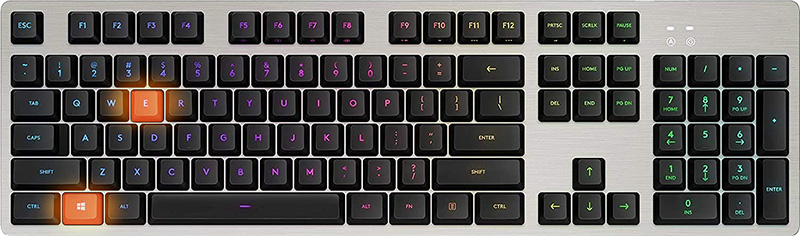
    In order for this to work first, you will need to open File Explorer by pressing ⊞ WINDOWS + E
    Keyboard with windows and e markedWhen File Explorer opens go to VIEW > OPTIONS. Inside options select “Show hidden files, folders, and drives”, uncheck “Hide protected operating system files (Recommended)”, and click APPLY > OK
    Go to the recycle bin and check to see if files have managed to show up.

  3. Check if Don't move the file to the recycle bin is enabled

    Right-click on recycle bin and choose properties, under properties, there is the option that says Don’t move files to the Recycle Bin, Remove files immediately when deleted. This option is not selected by default, but it could be turned on by someone else or by mistake. If you see that this option is enabled sadly your file is gone and you will have to get the file back by using some third-party undelete application, uncheck this option to prevent future deletion of files by mistake.

  4. Increase recycle bin size

    This will not help you to get your file back sadly but it will help you in storing more files in recycle bin. This is helpful since if you reach your recycle bin limit all further files will be permanently deleted and not been able to get them back. So by increasing bin size you will have more space for deleted files to be saved. To do that, right-click on Recycle Bin, select Properties. Now, increase the Maximum size from the Custom size option, and click Apply and OK.

  5. Reset recycle bin

    To reset and fix corrupted recycle bin do the following:
    Press ⊞ WINDOWS + X to open the secret Windows menu and click on command prompt (admin)
    keyboard with windows and x markedIn the command prompt type in the following: rd /s /q C:\$Recycle.bin
    Reboot your system

Do You Need Help with Your Device?

Our Team of Experts May Help
Troubleshoot.Tech Experts are There for You!
Replace damaged files
Restore performance
Free disk space
Remove Malware
Protects WEB browser
Remove Viruses
Stop PC freezing
GET HELP
Troubleshoot.Tech experts work with all versions of Microsoft Windows including Windows 11, with Android, Mac, and more.

Share this article:

You might also like

Fix Windows Update Error 0x8007001E
This post will provide you a couple of fixes you can try to resolve the Windows Update Error 0x8007001E in Windows 10. So if you are one of the users who encountered this particular Windows Update error then you’ve come to the right place. The error code in this error message also happens to be linked to some random BSOD crashes. The error code 0x8007001E is related to a storage space error or out-of-memory-type error. On the other hand, there are also instances when this error has nothing to do with your computer’s space or shortage of memory – it could be that there are broken software components or corrupted system files that are causing this error. Whichever your case is, refer to the options given below to fix the Windows Update Error 0x8007001E.

Option 1 – Run the Windows Update Troubleshooter

Running the built-in Windows Update troubleshooter is one of the things you can first check out as it is known to automatically resolve any Windows Update errors like Error 0x8007001E. To run it, go to Settings and then select Troubleshoot from the options. From there, click on Windows Update and then click the “Run the troubleshooter” button. After that, follow the next on-screen instructions and you should be good to go.

Option 2 – Free up some space on your drive

As mentioned, storage space error or out-of-memory-type error might have something to do with this problem so you need to free up some space on your drive. Make sure that you have enough space on your drive (15GB or so should do) and then restart your computer. After your computer reboots, ensure that all the major RAM hoggers are closed before you try to install the update or upgrade again.

Option 3 – Run the SFC scan

The SFC or System File Checker scan could detect and automatically repair damaged system files that could be causing the Windows Update Error 0x8007001E to appear. SFC is a built-in command utility that helps in restoring corrupted files as well as missing files. It replaces bad and corrupted system files with good system files. To run the SFC command, follow the steps given below.
  • Tap Win + R to launch Run.
  • Type in cmd in the field and tap Enter.
  • After opening Command Prompt, type in sfc /scannow and hit Enter.
The command will start a system scan which will take a few whiles before it finishes. Once it’s done, you could get the following results:
  1. Windows Resource Protection did not find any integrity violations.
  2. Windows Resource Protection found corrupt files and successfully repaired them.
  3. Windows Resource Protection found corrupt files but was unable to fix some of them.

Option 4 – Run the DISM tool

Running the DISM Tool helps in repairing the Windows System Image as well as the Windows Component Store in Windows 10 which might be the reason behind the Windows Update error 0x8007001E. Using this built-in tool, you have various options such as the “/ScanHealth”, “/CheckHealth”, and “/RestoreHealth”.
  • Open the Command Prompt as admin.
  • Then type in this command: exe /Online /Cleanup-image /Restorehealth
  • Do not close the window if the process takes a while as it will probably take a few minutes to finish.
  • Once it’s done, restart your computer and then check if the issue is resolved or not on the next startup.

Option 5 – Perform a System Restore

You can also try to perform a System Restore as it can also help you fix the Windows Update error 0x8007001E. You can do this option either by booting into Safe Mode or in System Restore. If you are already in the Advanced Startup Options, just directly select System Restore and proceed with the next steps. And if you have just booted your PC into Safe Mode, refer to the steps below.
  • Tap the Win + R keys to open the Run dialog box.
  • After that, type in “sysdm.cpl” in the field and tap Enter.
  • Next, go to the System Protection tab then click the System Restore button. This will open a new window where you have to select your preferred System Restore point.
  • After that, follow the on-screen instructions to finish the process and then restart your computer and check if the problem is fixed or not.

Option 6 – Try running Microsoft’s online troubleshooter

You also have the option to run Microsoft’s online troubleshooter which could help you fix Windows Update errors including the Windows Update error 0x8007001E.
Read More
Capture screen with Windows 10
if you were following our articles you are aware that Windows 10 has a build-in-game mode that you can summon by pressing ⊞ WINDOWS + G. But did you know that you can use this to capture and record your screen? Hello and welcome to another great tutorial about how to get the maximum out of your Windows 10, today our topic will be recording your screen using Windows 10 game mode.
  • In order to start recording first, we need to bring game mode by pressing ⊞ WINDOWS + G
  • In the Game Bar overlay screen, look for the “Capture” window.
  • If you don’t see it, click the Widget menu icon on the left. It looks like several lines with bullet points to their left.
  • A drop-down list will appear; click “Capture.” The “Capture” shortcut may also be in the Game Bar toolbar.
  • Look for the “Capture” widget window in the overlay. There are four buttons on the Capture widget (from left to right):
    • Screenshot: Takes a screenshot of the active window.
    • Record last 30 seconds: Creates a recording of the previous 30 seconds.
    • Start recording: Starts recording your active window.
    • Turn on the mic while recording: If this option is enabled, Windows 10 will capture audio from your computer’s microphone and include it in the recording.
  • You’ll notice text underneath the buttons. This is how you’ll know what the active window is, aka what will be recorded. For example, if you’re browsing the web, it will show the title of the open tab.
  • To start recording your screen, you must first decide whether you want to use your mic, which is useful if you’re trying to explain something on the screen.
  • Next, simply click the Start Recording button.
  • The screen recording will begin, and you’ll see a little toolbar appear in the corner of the screen. It will show the running time of the recording, and it also has buttons to stop recording and toggle the microphone.
  • When you’re finished, click the Stop icon to end the recording.
  • From the Capture widget, click “Show All Captures” to see your recording.
  • Your recording will be at the top of the list. Click the folder icon to see all recordings and screenshots in File Explorer.
  • These recordings are stored under your Windows user folder at C:\Users\NAME\Videos\Captures by default.
Read More
Fix GWXUX has stopped working in Windows
If your Windows 10 computer is downloading or installing updates but suddenly an error pops up saying, “GWXUX has stopped working”, read on as this post will show you what you can do to resolve the problem. GWXUX is a process responsible for downloading and installing Windows updates and is installed on your computer via Windows Updates. That particular update is known as “KB3035583”. Through this process, the “Get Windows 10” pop-ups are installed and initiated by Microsoft. This process is also capable of checking the compatibility of your PC to run Windows 10 as well as preparing it for installation. However, this process might also result in excessive usage of Disk and sometimes, CPU. So in this post, you will be guided on how you can fix the issue with the GWXUX. Follow the instructions given below carefully.

Option 1 – Disable GWXUX in the Task Scheduler

You will have to disable the gwxux.exe process to run from the Task Scheduler. Thus, you need to follow the steps below to do so.
  • Open the Cortana Search box and then type “task scheduler” in the field.
  • Then click on Task Scheduler from the related search results that appear to open it.
  • After opening the Task Scheduler, navigate to Microsoft > Windows > Setup > gwx on the left panel from the Task Scheduler Library.
  • Once you select the GWX folder, you will see two tasks that are listed under that folder. Select both of these tasks and permanently disable them.
  • Restart your computer to apply the changes made and check if the issue is now fixed or not.

Option 2 – Uninstall the KB3035583 Windows Update

  • To uninstall the KB3035583 Windows Update, you need to go to Control Panel, and for you to do that, type “control panel” in the Cortana Search box.
  • After that, click on Control Panel from the related search results given.
  • Once Control Panel is pulled up, search for “View Installed Updates” in the search field from the top right part of the window.
  • Next, click on a link labeled, “View Installed Updates” under the Programs and Features menu.
  • After clicking the link, you will see the list of all the installed updates in your computer from the Windows Updates.
  • Now look for an update named “KB3035583” and select it.
  • You should notice the Uninstall button located at the top portion of the sub-menu ribbon as you can see on the snippet below. Click on that button to uninstall the KB3035583 Windows Update.
  • After uninstalling the update, make sure to restart your computer to apply the changes made.

Option 3 – Try using the System File Checker

System File Checker or SFC is a built-in command utility that helps in restoring corrupted files as well as missing files. It replaces bad and corrupted system files with good system files that might be causing the error 0x80200056. To run the SFC command, follow the steps given below.
  • Tap Win + R to launch Run.
  • Type in cmd in the field and tap Enter.
  • After opening Command Prompt, type in sfc /scannow
The command will start a system scan which will take a few whiles before it finishes. Once it’s done, you could get the following results:
  1. Windows Resource Protection did not find any integrity violations.
  2. Windows Resource Protection found corrupt files and successfully repaired them.
  3. Windows Resource Protection found corrupt files but was unable to fix some of them.
After running the System File Checker, restart your computer and check if the error with the GWXUX.exe file is now fixed or not.
Read More
How to Fix (1058) ERROR_SERVICE_DISABLED Error in Windows 10
This post will guide you in fixing the (1058) ERROR_SERVICE_DISABLED error you can encounter when trying to launch various games. Usually, this error pops up during startup and prevents you from running the game. In fact, this error has become quite a headache for many users. Some of the games it affects are Smite, Paladins, Far Cry, and many more. In most cases, this error is caused by missing or corrupted game files. It could also be caused by the anti-cheat utility you might have installed along with your games. Whichever the cause is, you can try to check out the possible fixes given below to resolve the (1058) ERROR_SERVICE_DISABLED error.

Option 1 – Verify the Integrity of the Game files

This is the first option you can try no matter what kind of issues you are having with Steam games.
  • Double click on the game’s icon located on your Desktop and then go to the Library tab in the Steam window.
  • From there, look for GTA V from the list of games installed in your library.
  • Next, right-click on its entry and select Properties.
  • After that, navigate to the Local Files tab and click the “Verify Integrity of Game Files” button.
  • Now, wait for the tool to complete checking the game’s integrity. You should see that some of the files may have been downloaded.
  • Reopen the game and see if it now runs properly without crashing.

Option 2 – Apply some tweaks in the Service’s startup settings

As pointed out earlier, the error can also occur due to the anti-cheat tools that were installed alongside the game. These tools are usually used by games to check if you are running something which might give you an unfair advantage over other players. These anti-cheat tools include but are not limited to BattlEye, EasyAntiCheat, and PunkBuster. The error might occur if the service’s startup settings are not correctly configured which is why you can apply some tweaks in order to resolve the problem.
  • Tap the Win + R keys to open the Run dialog box.
  • Next, type “services.msc” in the field and hit Enter or click OK to open Services.
  • From the list of Services, look for any of the services mentioned above such as BattlEye, EasyAntiCheat Service, or PunkBuster Service. Then right-click on the service and select Properties from the context menu.
  • After that, check if the service is started by checking the Service status. If it is started, click on the Stop button to stop the service and if it is already stopped, leave it as it is, at least for now.
  • Next, make sure that the Startup type menu in the Service’s properties is set to Automatic before you go on.
  • Now confirm any dialog boxes that may appear as you set the Startup type and then click on the Start button located in the middle before you exit Properties.
Note: You might get the following error message when you click on the Start button:
“Windows could not start the service on Local Computer. Error 1079: The account specified for this service differs from the account specified for other services running in the same process.”
If you got the error message above, then here’s how you can fix it:
  • Tap the Win + R keys to open the Run dialog box.
  • Next, type “services.msc” in the field and hit Enter or click OK to open Services.
  • From the list of Services, look for any of the services mentioned above such as BattlEye, EasyAntiCheat Service, or PunkBuster Service. Then right-click on the service and select Properties from the context menu.
  • Now go to the Log On tab and click on the “Browse…” button.
  • After that, type in your account’s name under the “Enter the object name to select” box and click on Check Names then wait for the name to be recognized.
  • Then click OK once you’re done and type in the password in the Password field when you are prompted to do so. This should resolve the issue.

Option 3 – Try reinstalling the Anti-cheat program

If the first two options did not work out, you can try reinstalling the anti-cheat program.
  • Open Steam from your Desktop or by searching for it in the Start menu.
  • After opening the Steam client, go to the Library tab in the Steam window and then look for the Rust entry from the list.
  • Next, right-click on the game’s icon in the library and select Properties.
  • Now go to the Local Files tab under Properties and click the Browse Local Files button.
  • From there, look for BattlEye, EasyAntiCheat, or PunkBuster folder depending on the game, and then double click on it to open the folder.
  • Then right-click on EasyAntiCheat_setup.exe or the BattlEye installed file in the folder or PunkBuster and select the Run as administrator option.
  • Exit the Steam client by clicking Steam > Exit from the menu located at the top.
Read More
Windows Updates failed to install, 0x80073701
Recently, a number of users reported an error while trying to update their computers. This particular Windows Update error has an error code of 0x80073701. If you are one of the users who encounter this error, then read on as this post will guide you on how exactly you can fix it. Here’s the exact context of the error:
“Updates failed. There were problems installing some updates, but we’ll try again later. 2019-07 Cumulative Update for Windows 10 Version 1903 for x86-based Systems (KB4507453) – Error 0x80073701”
The Windows Update Error 0x80073701 also comes with a code “ERROR_SXS_ASSEMBLY_MISSING” which indicates that some system files are missing on your computer that caused the update installation failure error. Although this Windows Update error does not cause any severe issues, it is still being reported in the section of Windows Update where it is marked as “Update failed”. There are several potential solutions you can check out to resolve this error. You can try to run the DISM tool or the SFC or System File Checker scan. You could also try to run the Windows Update troubleshooter. For more information, make sure to follow the options given below.

Option 1 – Restart your computer and try installing the Updates again

Restarting your computer can also help in fixing the Windows Update failed to install error 0x80073701. There are cases where the issue resolves on its own as it could just be some simple network or PC error.

Option 2 – Try to run the DISM tool

Running the DISM Tool helps in repairing the Windows System Image as well as the Windows Component Store in Windows 10. Using this built-in tool, you have various options such as the “/ScanHealth”, “/CheckHealth”, and “/RestoreHealth”.
  • Open the Command Prompt as admin.
  • Then type in this command: exe /Online /Cleanup-image /Restorehealth
  • Do not close the window if the process takes a while as it will probably take a few minutes to finish.
After you run this tool, a log file is created at C:WindowsLogsCBSCBS.log. On the other hand, if the Windows Update client is already broken, you will be prompted to use a running Windows installation as the repair source or use a Windows side-by-side folder from a network share, as the source of the files. Although the chances of this happening is less, if it turns out to be the case, you need to run an advanced command in the DISM tool to repair a broken Windows Update. Just repeat the process above but use the following command instead:
DISM.exe /Online /Cleanup-Image /RestoreHealth /Source:C:RepairSourceWindows /LimitAccess

Option 3 – Try to run the System File Checker

System File Checker or SFC is a built-in command utility that helps in restoring corrupted files as well as missing files. It replaces bad and corrupted system files to good system files that might be causing the error 0x80073701. To run the SFC command, follow the steps given below.
  • Tap Win + R to launch Run.
  • Type in cmd in the field and tap Enter.
  • After opening Command Prompt, type in sfc /scannow
  • The command will start a system scan which will take a few whiles before it finishes. Once it’s done, you could get the following results:
  1. Windows Resource Protection did not find any integrity violations.
  2. Windows Resource Protection found corrupt files and successfully repaired them.
  3. Windows Resource Protection found corrupt files but was unable to fix some of them.
  • Restart your computer.

Option 4 – Try running the Windows Update Troubleshooter

Running the built-in Windows Update troubleshooter could also help you resolve the Windows Update error 0x80073701. To run it, go to Settings and then select Troubleshoot from the options. From there, click on Windows Update and then click the “Run the troubleshooter” button. After that, follow the next on-screen instructions and you should be good to go.
Read More
Instagram posts available now on computer
Instagram posting has been reserved for mobile phones for a very long time but in October 2021 that privilege has come to an end. Instagram added the long-awaited ability to post to Instagram from the website. You get nearly all of the same filters and editing tools that you can find in the iPhone and Android app, too. Instagram logoIn order to post via computer on your Instagram account all you need is a browser. The first step, of course, is to go to instagram.com and login into your account, if you do not have an account, you can make one for free. Next, click on the + icon in the upper right corner. Create a new post screen will open, in this screen click on the Select from computer blue button on the bottom. The file manager will open, choose your desired photo and confirm. After that, you will be presented will an adjustment screen for a photo, here you can crop the photo, zoom in, adjust the aspect ratio, or if you wish add more photos to create a slide show. Once you are done will all of these adjustments, click on Next in the upper right. From there you will be taken into a filter screen where you can apply one of many filters or if you want, you can adjust brightness, contrast, saturation, temperature, etc. just like in the application on your phone. Once you have the desired result, again click on Next in the upper right part of the screen. Lastly, you will be given an option to write a caption for the photo if you wish and add a location. Once this step is finished you can post the feed by clicking on share in the upper right part. That is all to it, just like in a mobile application you can now use your computer for Instagram posting.
Read More
A Quick Guide to Resolving Missing Dciman32.dll Error

Missing Dciman32.dll Error – What is it?

Dciman32.dll is a type of dynamic link library. Just like any other dll file, it includes instructions and is called to load and run different programs. The Missing Dciman32 dll error code occurs when the program dependent on this dll file type is unable to load the file. This error can occur while using or installing certain programs on your system.
  • "Dciman32.dll Not Found"
  • "Cannot find [PATH]dciman32.dll"
  • "This application failed to start because dciman32.dll was not found. Re-installing the application may fix this problem."
  • "The file dciman32.dll is missing."
  • "Cannot start [APPLICATION]. A required component is missing: dciman32.dll. Please install [APPLICATION] again."

Solution

Restoro box imageError Causes

The Dciman32.dll error causes include:
  • Dciman32.dll file corruption or removal
  • Poor program installation that uses Dciman32.dll file
  • Registry issues
  • Hardware failure
  • Malware infection

Further Information and Manual Repair

Here are some of the easiest and effective ways to fix the Dciman32 dll error on your PC:

Method 1 - Restore Dciman32 dll file Back on your PC

Remember DLL files are shared files. You might have deleted this file while uninstalling some other program on your PC. Therefore to restore Dciman32.dll file, first check your recycle bin. If you locate it, then that’s great however if you don’t, then another way to restore the Dciman32.dll file is to download it from the internet.

Method 2 - Update Drivers for Hardware Devices

To update the driver first download the latest drivers from the hardware manufacturer’s website. Now go to the start menu, then the control panel and then click the device manager. Once you open the device manager, locate the hardware device you want to update the driver for. For example, if you experience a Dciman32 dll error when you play a 3D video game, then this indicates that you need to update the drivers for your video card. Navigate through different categories of hardware devices by clicking the icon to find the hardware you want to update. After finding the hardware you’re updating the driver for, right-click on the hardware’s name and then choose properties and then the driver tab. Click update driver button. This method will take approximately 10 to 12 minutes. To activate the changes you will have to restart your PC.

Method 3 - Reinstall the Program that Uses Dciman32.dll File

Another way to resolve the Dciman32.dll error code on your system is to reinstall the program showing the error message. Poor program installation can also be the reason for the error occurrence. To reinstall the program, first, you will have to uninstall the program showing the error message, and then restart your PC to activate changes. Once your computer restarts, reinstall the deleted program. Make sure that the disc or the CD you are reinstalling the program from is bug-free and not scratched.

Method 4 - Scan your PC for Registry Issues and Viruses

If the dll error still persists, then this means either the error is triggered by viruses or registry issues. To resolve these issues you will have to install and run programs on your PC antivirus and a registry cleaner. However, you should note that installing too many programs can slow down your system’s performance.

Restoro

The best way to scan for viruses and registry issues without compromising your PC performance is to download Restoro. This is a multi-functional PC Fixer embedded with 4 powerful and unique PC repair utilities including an antivirus that scans all kinds of viruses, Trojans, and malware. It also features a registry cleaner that removes all unwanted files saved in the registry, cleans the registry, repairs the damaged dll and system files including the Dciman32.dll file, and restores them back to normal. Furthermore, to ensure your system performance at its optimum level, it is also embedded with a system optimizer. And forth utility it features is Active X controls and class scanner. This is a safe and a user-friendly program compatible with all Windows versions. Click here to download Restoro now.
Read More
How to remove Action Classic Games (actionclassicgames.com) from your Computer

Action Classic Games Toolbar is another product from Mindspark Interactive Network, Inc. that may claim to relieve users of their boredom with more than 500 online games. The Action Classic Games toolbar is available for download from its official web page and Google Web Store, though it is normally distributed via advertising directly from its website. When installed, it will change your home page and new tab to MyWay.com and start gathering user browsing information while active.

Browsing the internet with Action Classic Games enabled will result in the additional ad and sponsored content placement throughout the browsing sessions. This extension has been flagged as a Browser Hijacker by several top anti-virus applications and is therefore not recommended to keep on your computer.

About Browser Hijackers

Browser hijacking is a type of unwanted program, usually a browser add-on or extension, which causes modifications in web browser’s settings. There are plenty of reasons why you might experience an internet browser hijack; however commercial, marketing, and advertising are definitely the key reasons for their creation. The idea is to force users to visit particular websites which are looking to increase their website visitor traffic and produce higher advertisement revenue. While it might appear naive, these tools were created by vicious people who always look to take full advantage of you, so that they could make money from your naive and distraction. In a much worst case, your internet browser could be hi-jacked to download malicious software that will do a lot of damage to your computer or laptop.

Key signs that your web browser has been highjacked

Symptoms that a web browser is a hi-jacked include: 1. home-page is changed 2. your internet browser is constantly being redirected to pornography sites 3. default search engine is changed 4. you’ll see multiple toolbars in your browser 5. you find numerous ads appear on your browsers or computer screen 6. your browser has instability issues or exhibits frequent errors 7. you’ve disallowed entry to particular websites, including the website of an anti-malware software developer like SafeBytes.

How does a PC get infected with a browser hijacker

Browser hijackers infect computers via malicious email attachments, downloaded infected documents or by checking out infected internet sites. They also come from add-on software, also called browser helper objects (BHO), browser plug-ins or toolbars. Other times you might have accidentally accepted a browser hijacker as part of an application package (usually freeware or shareware). A good example of a well-known browser hijacker is the latest Chinese malware known as “Fireball”, which has attacked 250 million computer systems around the world. It works as a hijacker but can be changed into a full-functioning malware downloader afterward. The presence of any browser hijacker malware on your computer might considerably diminish the web browsing experience, monitor your online activities that result in major privacy issues, create system stability issues and eventually cause your computer to slow down or to a practically unusable condition.

Browser hijacker removal

The one thing you can try to get rid of a browser hijacker is to find the malicious software inside the “Add or Remove Programs” list in the Microsoft Windows Control Panel. It may or may not be there. If it is, try and uninstall it. However, many browser hijackers are hard to get rid of manually. No matter how much you attempt to remove it, it may keep coming back again and again. Besides, browser hijackers could modify Windows registry so it could be very difficult to restore all the values manually, particularly when you’re not very tech-savvy individual. You might opt for automatic browser hijacker removal by just installing and running a reliable anti-malware application. To eradicate any type of browser hijacker from your personal computer, you should download the following professional malware removal tool – SafeBytes Anti-Malware. Together with the anti-malware tool, a PC optimizer, such as SafeBytes Total System Care, will help you in removing all related files and modifications in the Windows registry automatically.

Learn How to Remove a Virus that is Blocking Websites or Preventing Downloads

Malware could potentially cause all sorts of damage after they invade your computer, from stealing your personal information to deleting data files on your PC. Certain malware types modify web browser settings by adding a proxy server or modify the PC’s DNS configurations. In these instances, you will be unable to visit some or all of the sites, and therefore unable to download or install the necessary security software to remove the computer virus. If you are reading this article right now, you might have probably recognized that a malware infection is a reason behind your blocked web traffic. So what to do if you need to download and install an anti-malware application like Safebytes? There are a few steps you can take to circumvent this issue.

Boot your PC in Safe Mode

If the virus is set to run automatically when Microsoft Windows starts, stepping into Safe Mode may block the attempt. Just bare minimum required applications and services are loaded when you boot your computer into Safe Mode. To launch your Windows XP, Vista, or 7 computers in Safe Mode with Networking, follow the instructions below. 1) At power on, hit the F8 key before the Windows splash screen starts to load. This should bring up the Advanced Boot Options menu. 2) Make use of the arrow keys to choose Safe Mode with Networking and hit ENTER. 3) When you are into this mode, you should have online access once again. Now, utilize your browser normally and navigate to https://safebytes.com/products/anti-malware/ to download and install Safebytes Anti-Malware. 4) After installation, do a full scan and let the software program delete the threats it discovers.

Download the security program using an alternate browser

Some malware may target vulnerabilities of a specific browser that block the downloading process. If you are not able to download the anti-malware software program using Internet Explorer, this means the virus may be targeting IE’s vulnerabilities. Here, you should switch over to an alternative internet browser such as Chrome or Firefox to download the Safebytes program.

Make a bootable USB antivirus drive

Another option would be to make a portable antivirus program on your USB stick. Try these simple actions to clean up your affected PC using portable anti-malware. 1) On a virus-free PC, install Safebytes Anti-Malware. 2) Put the pen drive into the clean computer. 3) Double-click on the downloaded file to run the installation wizard. 4) When asked, choose the location of the pen drive as the place where you want to store the software files. Follow the instructions on the computer screen to finish up the installation process. 5) Now, plug the pen drive into the corrupted PC. 6) Double-click the EXE file to open the Safebytes tool right from the thumb drive. 7) Hit the “Scan Now” button to begin the malware scan.

Features and Benefits of SafeBytes Anti-Malware

Would you like to install the very best anti-malware program for your computer? There are various applications in the market that comes in paid and free versions for Windows computers. A few of them are good but there are numerous scamware applications that pretend as genuine anti-malware software waiting to wreak havoc on your computer. You should pick a product that has gained a strong reputation and detects not just computer viruses but other kinds of malware too. While thinking about reliable programs, Safebytes Anti-Malware is certainly the highly recommended one. SafeBytes anti-malware is a trusted software that not only protects your computer completely but is also very easy to use for people of all ability levels. Using its outstanding protection system, this utility will instantly detect and remove the majority of the security threats, including browser hijackers, viruses, adware, ransomware, trojans, worms, and PUPs.

There are numerous amazing features you’ll get with this security product. Listed below are some of the highlighted features included in the application.

Active Protection: SafeBytes gives real-time active checking and protection against all known viruses and malware. They’re highly efficient in screening and eliminating various threats because they’re regularly revised with the latest updates and safety measures. Best AntiMalware Protection: Safebytes is made on the best virus engine within the industry. These engines will detect and remove threats even during the early stages of a malware outbreak. Safe Web Browsing: Safebytes allots all sites a unique safety ranking that helps you to have an idea of whether the webpage you’re going to visit is safe to browse or known to be a phishing site. Light-weight: SafeBytes is renowned for its minimal influence on computer resources and great detection rate of various threats. It works silently and efficiently in the background so you are free to utilize your computer at full power all of the time. 24/7 Customer Support: Support service is accessible 24 x 7 x 365 days via email and chats to answer your questions. To sum it up, SafeBytes Anti-Malware is really great for securing your laptop or computer against all sorts of malware threats. There is no doubt that your PC will be protected in real-time once you put this software program to use. So if you’re searching for the very best malware removal tool out there, and when you don’t mind shelling out some dollars for it, opt for SafeBytes Anti-Malware.

Technical Details and Manual Removal (Advanced Users)

To remove Action Classic Games manually, go to the Add or Remove programs list in the Windows Control Panel and select the program you want to get rid of. For web browser plug-ins, go to your web browser’s Addon/Extension manager and select the plug-in you intend to disable or remove. Additionally, it is advised to factory reset your web browser settings to their default state. To be certain of complete removal, find the following Windows registry entries on your system and remove it or reset the values accordingly. Please keep in mind that only advanced users should try to manually edit the registry because removing any single vital system file results in a major problem or even a system crash. Moreover, some malware keeps replicating which makes it tough to get rid of. Doing this malware-removal process in Safe Mode is suggested.
Files: %LOCALAPPDATA%\Action Classic GamesTooltab %UserProfile%\Local Settings\Application Data\Action Classic GamesTooltab %LOCALAPPDATA%\Google\Chrome\User Data\Default\Extensions\dbkmigdeafonnkpjndllhadgclnkamdm %UserProfile%\Local Settings\Application Data\Google\Chrome\User Data\Default\Extensions\dbkmigdeafonnkpjndllhadgclnkamdm %PROGRAMFILES(x86)%\ActionClassicGames_e1 %PROGRAMFILES%\ActionClassicGames_e1 %USERPROFILE%\Application Data\ActionClassicGames_e1 %USERPROFILE%\AppData\LocalLow\ActionClassicGames_e1 %UserProfile%\Local Settings\Application Data\ActionClassicGames_e1 Registry: HKEY_CURRENT_USER\Software\AppDataLow\Software\ActionClassicGames_e1 HKEY_LOCAL_MACHINE\SOFTWARE\Wow6432Node\Microsoft\Internet Explorer\Low Rights\ElevationPolicy\4f521f8c-b472-4fad-be00-340c2803ed56 HKEY_LOCAL_MACHINE\SOFTWARE\Wow6432Node\Microsoft\Internet Explorer\Low Rights\ElevationPolicy\6ff6226a-4c91-44e5-b2cb-93c96033f842 HKEY_LOCAL_MACHINE\SOFTWARE\Wow6432Node\Microsoft\Internet Explorer\Low Rights\ElevationPolicy\8fed6e71-aaf0-4fd9-a25d-ccd01216caef HKEY_LOCAL_MACHINE\SOFTWARE\Wow6432Node\Microsoft\Internet Explorer\Low Rights\ElevationPolicy\f134110e-125c-4df0-a36f-e29d6dc48bf8 HKEY_LOCAL_MACHINE\SOFTWARE\Microsoft\Internet Explorer\Low Rights\ElevationPolicy\3e8810b8-21bc-4567-9d53-21a575f0aa4e HKEY_LOCAL_MACHINE\SOFTWARE\Microsoft\Internet Explorer\Low Rights\ElevationPolicy\4f521f8c-b472-4fad-be00-340c2803ed56 HKEY_LOCAL_MACHINE\SOFTWARE\Microsoft\Internet Explorer\Low Rights\ElevationPolicy\6ff6226a-4c91-44e5-b2cb-93c96033f842 HKEY_CURRENT_USER\Software\Action Classic Games

Read More
How to Fix Error 2200

What is Error 2200?

Error 2200 is an error code that you are likely to experience if you have Dell Photo All in One Printer 926. Dell Photo Printer 926 is an inkjet multifunction device. It offers features like print, copy, scan, and fax.

Error 2200 may stop you from scanning and printing documents on your Dell Photo All in One Printer 926.

Solution

Restoro box imageError Causes

Error 2200 may occur due to several reasons. However, the most common causes include:

  • Registry issues
  • Broken or missing system files
  • Corrupted driver
  • Malware

Further Information and Manual Repair

To resolve error 2200 on your system try the methods listed below. These DIY methods are easy and effective and can repair this error in no time. These solutions require zero technical expertise and knowledge.

This means if you are not technically sound or you are not a computer programmer, you can try these solutions and repair error 2200 on your system easily.

Method 1

When the underlying cause of error 2200 is related to a corrupted driver then follow these steps to resolve the issue. Go to the Start menu, click Control Panel, Performance and Maintenance tab, System and Device Manager.

Navigate the device, click properties, driver, and then uninstall. Now reboot your PC to activate changes.  Now download the latest version of the Dell Photo All in One Printer 926 drivers from a reliable website and save install it on your PC.

Method 2

Malware can also damage and corrupt drivers and system files. If the reason for error 2200 on your PC is malware then download a powerful antivirus and scan your entire PC. Remove all malware and viruses infecting your system to resolve the error.

Method 3

The Windows registry is that part of the computer that stores much of the information and settings for software programs, operating system configurations, and hardware devices.

It also saves unnecessary and obsolete files like junk files, cookies, internet history, bad registry entries, and invalid files. If these files are not removed from the registry frequently, they accumulate in the registry and corrupt it thereby triggering different error codes.

These files damage the registry and other important system files.

To repair the registry and error codes triggered due to registry issues, it is suggested you download Restoro. This is a cutting-edge and user-friendly PC Fixer deployed with a powerful and intuitive registry cleaner.

The registry cleaner scans your entire PC, removes all the bad entries and obsolete files. It cleans the registry, repairs the damaged and corrupt system files thereby resolving registry issues instantly.

Click here to download Restoro and repair error 2200.

Method 4: Locate and Install the Driver As was pointed out, you might need to reinstall the printer driver again. Using DriverFIX, you’ll be able to automatically update your computer system and install the drivers your computer needs to operate smoothly.
Read More
Guide to Patching Error Code 34

Code 34 - What is it?

Code 34 is one of the several Device Manager error codes. This error code indicates that a hardware device on your PC is not properly configured.

This usually occurs when the device installed on your system is a non-plug and play. Non-plug and play devices don’t configure automatically and require manual configuration from the users end.

Error code 34 is usually displayed in the following format:

“Windows cannot determine the settings for this device. Code 34”

Solution

driverfix boxError Causes

Error code 34 may be triggered due to several reasons like:

  • Improper device configuration
  • Missing or outdated drivers

Device Manager error codes like code 34 are easy to fix. These error codes don’t indicate any serious PC problem, nor are they fatal like blue screen of death error codes.

Nonetheless fixing it immediately is advisable to ensure the proper functioning of the plugged-in hardware device. If you don’t resolve it, you may not be able to use the device.

Further Information and Manual Repair

When PC users experience error codes like code 34, they instantly think of hiring a professional for repair especially if they lack technical understanding.

If you are not a technical whiz and you are also thinking of hiring a professional for the repair job, then don’t! Here’s why, to begin with, Device Manager error codes can be resolved easily, better yet you can fix it by yourself without spending a dime even if you are not technically sound.

To help you, below is a list of easy and effective repair solutions for error code 34. Try them to resolve the issue.

Method 1 - Configure the Device by Using Device Manager

This is one of the best ways to resolve error code 34 on your system. The procedure will take 5 to 7 minutes. Simply follow the steps illustrated below to configure the problematic device on your PC.

  1. First off, go to the start menu
  2. Now type Device Manager in the search bar and press enter to continue
  3. Now in the Device Manager locate the problematic device and click on it
  4. Click on the resources tab to change the resource settings
  5. Now click on the Use Automatic Settings check box
  6. After that click on the Settings based on the tab and then click on the hardware configuration of the device you want to change
  7. Press resource type in the resource settings box to make further changes
  8. Once that is done, click change settings and type a new value for the resource type

Method 2 - Consult the Hardware Manufacturer for Resource Settings

You may not be able to configure resource settings for some devices in such an event it is advisable to consult your hardware manufacturer. Your hardware manufacturer can provide you with specific resource settings. Follow the manufacturer’s instructions to repair error code 34.

If the error continues to persist even after device configuration, then the problem may be linked to driver corruption. In that case, try method 3.

Method 3 - Download DriverFIX to Update Drivers Automatically

Whether code 34 is caused by outdated or corrupted drivers, simply download DriverFIX to resolve. DriverFIX is an advanced and user-friendly software program deployed with an intelligent programming system.

The software scans your PC to detect all problematic drivers. It finds and matches the latest and compatible versions and then updates the drivers accordingly that too automatically and on a regular basis.

Click here to download DriverFIX to repair Device Manager error code 34 on your PC automatically.

Read More
1 2 3 171
Logo
Copyright © 2023, ErrorTools. All Rights Reserved
Trademark: Microsoft Windows logos are registered trademarks of Microsoft. Disclaimer: ErrorTools.com is not affiliated with Microsoft, nor claims direct affiliation.
The information on this page is provided for information purposes only.
DMCA.com Protection Status