Logo

Fix Minecraft Realms Internal Server Error 500

Many Minecraft players are experiencing Realms internal server error 500, luckily for all of that players, we are offering you solutions.

Preliminary Fixes

Before heading towards the fixes here it is suggested to try some quick tweaks that might work in your case to fix Minecraft Internal Server Error 500.
Restart your PC – Very first it is suggested to shut down your computer and after that restart the system. This worked for many players to get rid of the server outages issue.
Update your Windows version – Check if you are running an outdated Windows version then make sure to install the latest Windows update and then run the game.
Update Your Game Version – Also make sure you are running an updated version of Minecraft Realms. Installing the latest updates not only makes the game more stable but also helps you to solve common glitches and issues with the game. So, check if any recent updates are available to make sure to download and install them
Modify the Game Settings – Check if you have tweaked some of the game settings then this might be the reason for the problem. So try to reconfigure the settings to default. This may work for you.
Now after following the preliminary solutions check if the Minecraft Realms Internal Server Error 500 is resolved or else head to the next solution.

Check your Internet Connection

As said above if the internet connection is not working properly or it is preventing you from accessing the servers, then this can also cause the Internal Server Error 500 in the Minecraft server.
So, very first make sure your internet connection is stable and working properly. Also if you are using Wi-Fi then use a wired connection to get a stable network.
Moreover, if your internet connection is working fine then there is a possibility that your internet connection is causing interruption and preventing you from accessing the Minecraft Realms server.
So, if this is the case then here it is suggested to use a VPN connection to get exceptionally fast & reliable speeds without getting detected.

Check for the Minecraft Server Outage

Well, there is a possibility the Minecraft servers are down and if this is the case then you don’t have any other option than just waiting for the servers to get restarted and the service becomes available again.
Also, the service outages can affect the ability of the game and as a result, you are unable to play the game. Additionally, you can also inquire about Minecraft’s server status by visiting the Downdetector website.
But if you find the services are running fine then the issue is from your side.

Disable Background Applications

If you are still getting the Minecraft Realms Internal Server Error 500, then there are chances that other applications running in the background are causing a limit to your internet bandwidth.
It is suggested to disable the internet-connected apps and after that try connecting to Microsoft Realms again.

  • Hit CTRL + SHIFT + ESC keys > to open the Task Manager.
  • Then under the Process tab,> right-click on unwanted background process, > click on the End Task 

After disabling the applications running in the background, relaunch Minecraft and check if the internal server error 500 still appears or not.

Delete UUID Files in Minecraft

If you are still getting the Minecraft Realms Internal Server Error 500 then here it is suggested to delete the UUID files in Minecraft.

  • First, visit the website by clicking the https://mcuuid.net/ and enter all the credentials to get the player’s UUID
  • Then login to the server > proceed to server files > head to the world
  • Here locate the PlayerData folder > click to open it.
  • And from here choose the file containing the same name like the player’s Username or UUID > after that hit the Delete
  • Lastly, restart your server to save the changes

Remove Resource Packs & Mods

If you are getting the Minecraft realms internal server error 500 after the installation of a particular mod or the resource pack then this is what causing the issue while playing the realm.
So, here it is suggested to delete it immediately, also uninstall the mod as well as the resource pack you installed recently.
It is estimated this works for you but if you have a doubt related to any specific mod or the resource pack causing an error you should uninstall then also and check if the Minecraft internal error 500 is fixed.

Disable the Plugins

If you are still encountering the error then check for the plugins installed on your PC. Many times the installed plugin starts causing issues with the game as they are not compatible with the game version.
So here it is recommended to try disabling the plugins on the PC and check if this works for you.

  • On your system > open the plugin window > rename the plugins files from “[plugin name].jar to [plugin name].jar.disabled”.
  • Next restart the server and check if the Minecraft Realms Internal Server Error 500 problem is resolved or not.

Uninstall & Reinstall Minecraft

If none of the above-given solutions works for you then here it is suggested to uninstall and reinstall Minecraft.
Well, it is suggested to uninstall the game using the third-party uninstaller. Manually uninstalling the program won’t remove it completely, some of its registry entries, junk files are left behind and causes interruption when the next time you install it.

If you are looking to uninstall it manually then follow the steps given:

  • Hit Window + R key > to open the Run box
  • And in the run box type appwiz.cpl command > hit Enter
  • Now the application manager window pops up on your screen > locate the Minecraft application > right-click to Uninstall

And as the uninstalling process is completed > head to the Minecraft official website and tries downloading and installing the game.
Check if the Minecraft Realms Internal Server Error 500 is resolved or not.

Contact Support Center

If after trying all the solutions given you are still unable to fix the error then the only option left is to contact the Customer Support Center and fill the form in the link and describe the problem in a detailed way.
And within few days you will get feedback from them to fix Minecraft Realms internal error 500.

Do You Need Help with Your Device?

Our Team of Experts May Help
Troubleshoot.Tech Experts are There for You!
Replace damaged files
Restore performance
Free disk space
Remove Malware
Protects WEB browser
Remove Viruses
Stop PC freezing
GET HELP
Troubleshoot.Tech experts work with all versions of Microsoft Windows including Windows 11, with Android, Mac, and more.

Share this article:

You might also like

Fix microphone not working in Windows 10
The microphone has become from exclusive niche hardware to everyday requirements. In today's world when we live in a pandemic most of the work has shifted from office to home where people need working computers with microphones, working microphones. So what do we do when the microphone stops working? Keep reading on to find out and hopefully, we will fix this as fast as possible.

Check Microphone Privacy Settings

In 2019, Microsoft introduced new privacy features to Windows that give you more granular control over which apps are accessing your microphone. The side effect of this is that certain apps may be blocked from using your microphone without you even knowing. To find out if this is the issue, go to Settings > Privacy > Microphone. Click Change and make sure the slider is set to On. This will broadly mean that the mic is now enabled on your PC.
Next, make sure the slider under Allow apps to access your microphone is set to On, then look through the list of Microsoft Store apps to make sure the apps you want to use are selected.
You’re likely to be using many apps, not from the Microsoft Store, so to make sure these are enabled, scroll down even further and set the Allow desktop apps … slider to On.

Check Microphone Driver

The outdated or corrupted driver could be the issue for the microphone not working in Windows 10. To check the driver status, follow these steps:
  1. In your Start menu search for Device Manager
  2. In the device manager window search for sound and expand it.
  3. Once expanded, you should see your audio drivers. Note that the names of these will vary depending on the manufacturer.
  4. On Audio, right-click, and select properties. On the General tab, check to see if the device is working properly.
  5. If it is not working properly, click on the driver tab and select the update option.
  6. Repeat for the other audio drivers.
  7. Restart the computer.

Check the Sounds setting

  1. In the taskbar, right-click on the speaker icon at the far-right corner and select the sound option.
  2. On the Recording tab, click on the microphone and select the Properties option.
  3. Select the levels tabs and increase the volume for both microphone and microphone boost.
  4. Go to the Enhancement tab of the same pop-up and make sure that the immediate mode checkbox is checked.
  5. Click Ok and restart the computer.

The sound troubleshooter

  1. Right-click on the sound icon at the far-right corner of the taskbar and select troubleshoot sound problems.
  2. The computer will detect any fault that exists with your audio and recommend fixes for you. You just need to read through the prompts and click the options that you think will work for you.

Try microphone on another computer

If previous steps have not produced results, try the microphone on another computer, if it is not working there then it is a hardware malfunction
Read More
A Quick Guide to Fixing JavaScript Void 0 Error

JavaScript Void 0 Error - What is it?

JavaScript is a computer programming language used to make a website work smoothly with the internet. It helps to display visual effects, animations, and other web page functions. You may come across the JavaScript Void (0) error message when there is a problem in loading JavaScript from a web page or the internet browser.

Error Causes

JavaScript Void (0) error is triggered by multiple reasons such as:
  • It can be due to a simple random Windows application glitch.
  • You are visiting an unsafe website that contains malware
  • JavaScript’s web browser implementation  is broken due to poor program installation
  • Active X controls, Java applets, and active scripting, the key components of JavaScript are disabled
  • Registry issues like invalid or misconfigured registry keys

Further Information and Manual Repair

For JavaScript Void (0) error-free web surfing, it is advisable to repair the issue without any delays. Let’s take a look at different methods to resolve this error on your system.

Cause: Simple Random Glitch

Solution: If the cause for the JavaScript Void 0 error is a simple glitch, then it is advisable to restart your system and then run the program again.

Cause: JavaScript’s web browser implementation is broken

Solution: If you experience the JavaScript Void 0 error message after the installation of the new browser on your system, then poor installation of the program or program conflict is most likely to be the deep-rooted cause of this error code. To resolve it, uninstall the program and undo the recent changes.

Cause: Active X controls, Java applets, and active scripting, the key components of JavaScript are disabled

Solution: You should know that components including Active X controls, Java applets, and active scripting are all essential to JavaScript in order to make your browsers run properly. If these are disabled, you may come across the JavaScript Void (0). To fix it open your browser and select the Tools tab. Then click the options button and select content. Here check the ‘enable JavaScript’ check box and click Ok to enable these components.

Cause:  Registry Issues

Solution: If after performing all the solutions discussed above, you still come across JavaScript Void (0) error code, then you should know that the problem is bigger than what you expected. It triggers registry issues. Either the cause of the error is misconfigured or invalid registry keys. To reconfigure the registry keys setting may be a challenging task and complex if you are not a computer programmer.
Read More
Windows is stuck in Airplane Mode
As of late, a number of users reported experiencing a problem where their Windows 10 computers get stuck on Airplane mode for some unknown reason. According to the affected users, they were unable to turn off the Airplane mode which means that their computers are also not able to connect to the internet. One of the possible reasons why this kind of issue occurs is that there could be a bug with the airplane mode or it could also be the doing of faulty network drivers or physical switch that’s turned on, and so on. If you are one of the few users who experience the same issue, then read on as this post will guide you on what to do if your Windows 10 computer gets stuck on Airplane mode. There are a couple of suggestions you can check out to resolve the problem. You can try to check the status of the Radio Management service, flush the DNS cache or you could turn off the airplane mode via system settings. You could also update the network drivers or turn off the physical switch for airplane mode or make some adjustments in the Windows Registry. For more details, refer to each one of the suggestions provided below.

Option 1 – Try to check the Radio Management Service status

  • First, tap the Win + R keys to open the Run dialog box and type “services.msc” in the field, and hit Enter to open the Windows Services Manager.
  • Next, look for the Radio Management service and select Properties.
  • From there, change its Startup type to Disabled and click on the Apply and OK buttons to save the changes made.
  • Once done, restart your computer and check if you can now turn off the airplane mode.

Option 2 – Flush the DNS cache

You could also try to flush the DNS cache to fix the “ERR_ICAN_NAME_COLLISION” error. All you have to do is open Command Prompt as an administrator and then execute each one of the following commands sequentially to flush the DNS cache:
  • ipconfig/release
  • ipconfig/renew
  • ipconfig/flushdns

Option 3 – Try turning off the airplane mode via System settings

If flushing the DNS cache did not help in fixing the problem, then you might want to turn off airplane mode via system settings.
  • In the Windows Search bar, type “airplane mode”.
  • From the search results that appear, click on Airplane mode.
  • After that, a window will appear where you have to turn off the toggle button for Airplane mode.

Option 4 – Try to update, rollback or reinstall the Network adapter drivers

The next thing you can do to resolve the problem is to update the Network Adapter drivers by following these steps:
  • Tap the Win + R keys to launch the Run window and then type in the “devmgmt.msc” command and hit Enter to open the Device Manager window.
  • Under the Device Manager, you will see a list of drivers. From there, look for the Network Adapters and expand them.
  • Look for the Broadcom Network Adapter and right-click on it, as well as other network adapters that have an exclamation icon, and update them all.
  • Restart your PC and see if it helped in fixing the problem.
Note: If updating the network drivers didn’t help in fixing the problem, you can also try to roll back the very same drivers from their previous versions and restart your Windows 10 PC. After that, the system itself will reinstall the drivers you just uninstalled. Alternatively, you can also download and install the drivers from the manufacturer’s website directly. To reinstall the network adapter drivers, refer to these steps:
  • Open the Devices Manager from the Win X Menu.
  • Then locate the device drivers and right-click on them to open the Properties.
  • After that, switch to the Driver tab and click on the Uninstall Device button.
  • Follow the screen option to completely uninstall it.
  • Finally, restart your computer. It will just reinstall the device drivers automatically.

Option 5 – Try to turn off the physical switch for Airplane mode

If your computer has a physical switch to turn on or off the airplane mode, then you might want to check that switch if you have one. Chances are, it could be the reason why you’re unable to turn off Airplane mode on your computer.

Option 6 – Try to make some adjustments in the Registry

  • Tap the Win + R keys to launch the Run utility.
  • Then type “Regedit” in the field and hit Enter to open the Registry Editor.
  • Next, navigate to this registry path: HKEY_LOCAL_MACHINESystemCurrentControlSetControlClass
  • From there, edit the registry value of “RadioEnable” to “1”.
  • Exit the Registry Editor once done, and restart your computer.
Read More
Changing color of START menu in Windows 10
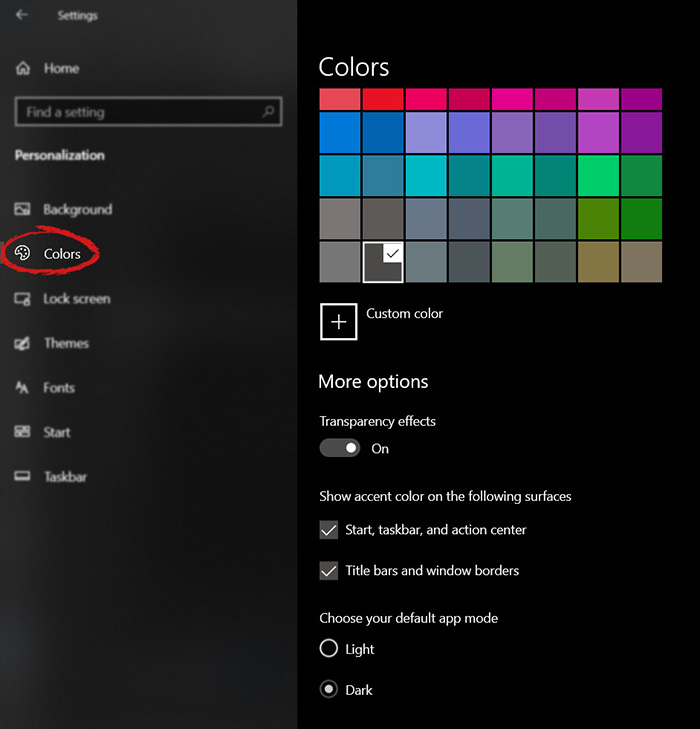
The new Windows 10 update has brought some fixes, improvements, and little things to personalize our computer more. One of these personalization updates we have received is that we can now finally change the color of our START menu and taskbar and it is easy as 1,2,3. In order to change and personalize your START menu and/or title bars all you have to do is click on your windows icon to bring the start menu up and then click on settings. Windows 10 Start menu with marked settings iconOnce you are in setting windows go to personalization settings. Windows 10 settings menu with marked Personalization groupWhen the personalization setting opens go-to color tab on left and scroll down until you find 2 checkboxes under "show accent color on the following surfaces:" Windows 10 Color settings marked with optionscheck ones you wish to apply the effect to and you are done. Now your START menu and/or title bars are using the color scheme of your choice.
Read More
Fix Err Connection Timed Out issue in Chrome
If you are using Google Chrome browser in surfing the web, you might have experienced a situation where you’re trying to connect to a website but were unable to since Chrome failed to fetch the website to the browser and throws an error that says, This webpage is not available – Err Connection Timed Out. Aside from an issue with the network connection, there are also other reasons why this error suddenly shows up, read on to fix it. There are times when the Windows computer is responsible for this kind of issue. And it can happen not just to Google Chrome but to other browsers as well. To resolve this issue, here are some suggestions that might be of help.

Option 1 – Try checking the network cables and then restart your router and reconnect

The first thing you can do is to check if all the network cables are properly connected be it to your computer or to the router. And if your computer is connected via Wi-Fi, you need to restart your router once. And of course, you can always opt to forget the Wi-Fi details and then reconnect again just make sure that you know the password.

Option 2 – Check the Windows Host file

You can also try to cross-check the Windows Hosts file to find out if the website you are trying to open has been blocked because if it is, then it’s no wonder why you’re getting the ERR CONNECTION TIMED OUT error in Chrome. There are instances when some third-party application modifies the file and adds some websites to the blocklists. So if the website is indeed blocked, you need to remove it from the list.

Option 3 – Try removing Proxy

Removing the Proxy might also help you in fixing the ERR CONNECTION TIMED OUT error. Here’s how you can do it:
  • Tap the Win + R keys to open the Run dialog box.
  • Then type “inetcpl.cpl” in the field and hit Enter to pull up the Internet Properties.
  • After that, go to the Connections tab and select the LAN settings.
  • From there. Uncheck the “Use a Proxy Server” option for your LAN and then make sure that the “Automatically detect settings” option is checked.
  • Now click the OK and the Apply buttons.
  • Restart your PC.
Note: If you are using a third-party proxy service, you have to disable it.

Option 4 – Try to clear the browsing data of Google Chrome

If your browsing data in Chrome hasn’t been cleared for some time now then that might be the reason why you’re suddenly getting the ERR CONNECTION TIMED OUT error when you browse the web. To fix this error, you need to clear your web browsing data. Refer to the following steps to do so.
  • Tap the Ctrl + Shift + Delete buttons to go to the Clear browsing data section in Chrome.
  • Next, set the time range to “All time” and tick all the boxes and then click on the Clear data button.
  • After that, restart the Chrome browser and try to open the website you were trying to open earlier.

Option 5 – Flush the DNS and reset TCP/IP

You might also want to flush the DNS and reset TCP/IP as it could help in fixing the ERR CONNECTION TIMED OUT error. To do so, refer to these steps:
  • Click the Start button and type in “command prompt” in the field.
  • From the search results that appear, right-click on Command Prompt and select the “Run as administrator” option.
  • After opening Command Prompt, you have to type each one of the commands listed below. Just make sure that after you type each command, you hit Enter
    • ipconfig /release
    • ipconfig /all
    • ipconfig /flushdns
    • ipconfig /renew
    • netsh int ip set dns
    • netsh winsock reset
After you key in the commands listed above, the DNS cache will be flushed and the Winsock, as well as the TCP/IP, will reset.
  • Now restart your computer and open Google Chrome then try opening the website you were trying to open earlier.

Option 6 – Run the built-in Malware Scanner and Cleanup Tool in Chrome

In case you don’t know, there is actually a built-in malware scanner and cleanup tool in Chrome that helps you get rid of any unwanted ads, pop-ups, and even malware, as well as unusual startup pages, toolbars, and other things that could affect the performance of the browser.

Option 7 – Reset Chrome

Resetting Chrome can also help you get rid of the ERR CONNECTION TIMED OUT error. Resetting Chrome means restoring its default settings, disabling all the extensions, add-ons, and themes. Aside from that, the content settings will be reset as well and the cookies, cache, and site data will also be deleted. To reset Chrome, here’s what you have to do:
  • Open Google Chrome, then tap the Alt + F keys.
  • After that, click on Settings.
  • Next, scroll down until you see the Advanced option, once you see it, click on it.
  • After clicking the Advanced option, go to the “Restore and clean up the option and click on the “Restore settings to their original defaults” option to reset Google Chrome.
  • Now restart Google Chrome.
Read More
Fix Update Error 0x800705B3 in Windows
Some Windows users are encountering the 0x800705b3 error code after failing to install a pending update on Windows 10. Most commonly this particular issue is reported to occur with Integrated webcam drivers updates and Bluetooth adapter driver updates. Follow the guide below in order to fix the issue and update your Windows successfully

Running the Windows Update Troubleshooter

The majority of users that were dealing with this issue reported that the issue was fixed after they ran the Windows Update Troubleshooter and applied the recommended fix.
  1. Open a Run dialog box by pressing ⊞ WINDOWS + R. Inside the text box, type ‘ms-settings:troubleshoot’ and press ENTER to open up the Troubleshooting menu. Opening the Troubleshooting tab on Windows 10
  2. Once you’re inside the Troubleshooting tab, move over to the right-hand section of the screen and click on Windows Update (under Get up and Running). Next, from the context menu that just appeared, click on Run the Troubleshooter.
  3. Once you’re inside the Windows Update troubleshooter, wait until the initial scan is complete and see if a viable repair strategy is found.
  4. If the scan has identified a strategy with the potential to fix your ongoing issue, click on Apply this fix and wait until the procedure is complete. Applying the fix Note: Depending on the type of fix that was recommended, you might need to follow an additional set of instructions before the fix will be properly imposed.
  5. After you’ve done this, reboot your computer and wait for the next startup to complete.
  6. Open Windows Update once again and see if the installation of this pending update is now successful.

Installing the pending Update Manually

Whether you’re experiencing this issue with an integrated webcam driver or with anything else, chances are you’ll be able to circumvent the apparition of the 0x800705b3 error by using the Microsoft Update Catalog to find, download and install the pending update manually.
  1. Open your default browser and navigate to the root web page of the Microsoft Update Catalog.
  2. Once you’re inside the Microsoft Update Catalog, use the search function (top-right corner of the screen) to search for the update that is failing.
  3. After the search is completed and you get the list of results, look for an updated driver version that is compatible with your Windows version and CPU architecture.
  4. Once you manage to identify the correct Windows Update, click on the hyperlink associated with the update that you want to install, then click the Download button and wait for the process to complete.
  5. After the download is complete, use File Explorer to navigate to the location where you previously downloaded the update.
  6. When you get to the correct location, right-click on the .inf file and choose Install from the context menu that just appeared. Note: If you have multiple failing updates with the same 0x800705b3, repeat the instructions above with every Windows Update that you’re having trouble installing.
  7. At the end of this operation, reboot your computer and see if the problem is fixed at the next computer startup.

Enabling the Windows Installer Service

The Windows installer service is responsible for installing pending updates that get downloaded by the Windows Update component. If this service is disabled on your configuration, none of the updates waiting to get installed will get completed.
  1. Press ⊞ WINDOWS + R to open up a Run dialog box. Inside the text box, type ‘services.msc’ and press ENTER to open up the Services utility.
  2. Once you’re inside the Services screen, move over to the right-hand tab of the screen, scroll down through the list of services and locate the Windows Installer service. When you find it, right-click on it and choose Properties from the context menu that just appeared.
  3. Once you are inside the Properties screen of the Windows Installer services, access the General tab, click on the Start button to force-start the service. Note: If you can, also change the Startup type to Automatic via the associated drop-down menu. However, depending on your administrator settings, this might not be possible.
  4. Restart your computer and wait for the next startup to complete. Once your PC boots back up, attempt to reinstall the driver that was previously triggering the 0x800705b3 error and see if the issue is now fixed.

Performing a Winsock Reset

In case the 0x800705b3 error is related to some kind of network inconsistency (TCP or IP related), you might see Windows Updates failing due to bad data that forces the Windows to abort the installation of new pending updates. In this case, you should proceed by doing a complete Winsock reset procedure to fix the majority of the socket and temporary data-related issues that might cause this behavior. Several affected users have confirmed that this method was the only thing that allowed them to finally fix the Windows Update issue and install pending updates normally. Here are some step-by-step instructions that will walk you through the process of performing Winsock Reset:
  1. Open up a Run dialog box by pressing ⊞ WINDOWS + R. Inside the text box, type ‘cmd’, then press CTRL + SHIFT + ENTER to open up an elevated Command Prompt. Accessing an elevated CMD prompt Note: When prompted by the UAC (User Account Control) prompt, click Yes to grant admin access.
  2. Inside the elevated CMD prompt, type and taste the following commands in order and press ENTER after each one to effectively reset the TCP and IP data that might be responsible for the apparition of the 0x800705b3 error code:
    nbtstat -R
    nbtstat -RR
    netsh int reset all
    netsh int ip reset
    netsh winsock reset
  3. Once every command above is processed successfully, you can go ahead and close the elevated Command Prompt and reboot your computer.
  4. After the next startup is complete, repeat the installation of the Windows Update that was previously failing and see if the issue is now fixed.

Performing SFC and DISM Scans

If none of the ‘superficial’ causes have worked in your case, you should start considering some type of system corruption that might affect your computer’s ability to complete pending updates that are currently waiting to be installed. In case you find yourself in this particular scenario, you should run a couple of built-in utilities capable of fixing corrupted instances that might be currently affecting the Windows Update component. Our recommendation is to start with a simple System File Checker scan. An SFC scan will cross-check every Windows File against a local archive that maintains healthy copies. In case corrupted instances are found, this utility will swap the corrupted instance with the healthy equivalent.

Performing an SFC scan

Once the SFC scan is complete, reboot your computer and wait for the next startup to complete. After your computer boots back up, initiate a DISM scan. This utility works differently in the sense that it relies on a sub-component of Windows Update to download healthy copies for the corrupted Windows files that need to be replaced. Because of this, it’s important to make sure that you have a reliable Internet connection before initiating this operation.

Doing a DISM scan

After the DISM scan is complete, reboot your computer one final time and see if the issue is fixed once the next startup is complete.
Read More
Fix Memory error 0x0000001A on Windows
One of the hardest issues you can encounter on your Windows computer is the Blue Screen of Death error. There are various kinds of BSOD or Stop errors and one of them is the “Memory Management Error 0x0000001A” error. This kind of Stop error might signify a hardware problem in your computer and is most likely caused by an issue with RAM or hard disk or even malware that takes up all your computer’s memory, thus, making it crash and display a BSOD error like the Memory Management Error 0x0000001A. Moreover, this kind of Stop error can also occur during the Windows upgrading process. So in this post, we’ll show you what you can do to fix the Memory Management error on your Windows 10 PC.

Option 1 – Run the Blue Screen Troubleshooter

The Blue Screen troubleshooter is a built-in tool in Windows 10 that can be found on the Settings Troubleshooters page. To use it, refer to these steps:
  • Tap the Win + I keys to open the Settings panel.
  • Then go to Update & Security > Troubleshoot.
  • From there, look for the option called “Blue Screen” on your right-hand side and then click the “Run the troubleshooter” button to run the Blue Screen Troubleshooter and then follow the next on-screen options. Note that you might have to boot your PC into Safe Mode.

Option 2 – Update the device drivers

  • Tap the Win + R keys to launch Run.
  • Type in devmgmt.msc into the box and tap Enter or click OK to open the Device Manager.
  • After that, a list of device drivers will be displayed. Look for the device driver you and then select either “Update driver” or “Uninstall device”. And if you find any “Unknown device”, you need to update it as well.
  • Select the “Search automatically for updated driver software” option and then follow the instructions to complete the process.
  • If you have chosen to uninstall the driver, follow the screen options to complete the process and then restart your PC.
  • Connect the device and Scan for hardware changes – you can see this option under Device Manager > Action.

Option 3 – Run the Windows Memory Diagnostics Tool to test RAM

Since the issue concerns the memory of your computer, you can also try running the Windows Memory Diagnostics Tool to find out if the RAM module of your computer has become corrupted. To run this tool, follow these steps:
  • Tap the Win + S keys to open Search.
  • Then type “Windows Memory Diagnostics Tool” in the field and hit Enter to open the Windows Memory Diagnostics Tool.
  • After that select any of the following option from the prompt that appears:
    • “Restart now and check for problems (recommended)”
    • “Check for problems the next time I start my computer”
  • After that, if you find that your RAM is corrupted, you might have to purchase a new one or change the motherboard of your computer.

Option 4 – Run the DISM tool

There are cases when the Memory Management Error 0x0000001A error is caused by the Windows System Image so you need to repair it using the DISM or Deployment Imaging and Servicing Management tool. The DISM tool is another command-line tool in the Windows operating system that could help users fix various corrupted system files. To use it, follow these steps:
  • Open the Command Prompt as admin.
  • Then type in this command: Dism /Online /CheckHealth
  • Do not close the window if the process takes a while as it will probably take a few minutes to finish.

Option 5 – Run the SFC scan

  • Tap Win + R to launch Run.
  • Type in cmd in the field and tap Enter.
  • After opening Command Prompt, type in sfc /scannow
The command will start a system scan which will take a few whiles before it finishes. Once it’s done, you could get the following results:
  1. Windows Resource Protection did not find any integrity violations.
  2. Windows Resource Protection found corrupt files and successfully repaired them.
  3. Windows Resource Protection found corrupt files but was unable to fix some of them.

Option 6 – Try using System Restore

You can also try to perform a System Restore as it can also help you fix the BSOD error. You can do this option either by booting into Safe Mode or in System Restore. If you are already in the Advanced Startup Options, just directly select System Restore and proceed with the next steps. And if you have just booted your PC into Safe Mode, refer to the steps below.
  • Tap the Win + R keys to open the Run dialog box.
  • After that, type in “sysdm.cpl” in the field and tap Enter.
  • Next, go to the System Protection tab then click the System Restore button. This will open a new window where you have to select your preferred System Restore point.
  • After that, follow the on-screen instructions to finish the process and then restart your computer and check if the problem is fixed or not.
Read More
Enable or Disable Automatic Encryption
You might be familiar with the Encryption File System or EFS algorithm if you rather keep your files and folders encrypted. Encryption File System is a built-in feature in Windows 10 which allows users to secure their important files. Although there is an alternative way for you to secure your data on your Windows 10 computer, you can’t ignore the fact that the main advantage of an Encryption File System over BitLocker is that the former can help you encrypt a particular folder rather than encrypting the whole hard drive partition. If you move a file inside a folder encrypted with the Encrypting File System it will automatically get encrypted. There are some users who like this feature but unsurprisingly, there are some that don’t. So if whether you want your files encrypted when you place them in an encrypted folder or if you want to keep it as it is, read on as to how you can do it either way. You can enable or disable automatic encryption of files moved to encrypted folders in Windows 10 using the Registry Editor or the Group Policy Editor. Before you proceed, make sure to create a System Restore Point first because the modifications you’re about to make in your computer might affect its overall functioning so if anything goes wrong, you can always undo the changes. Once you have that covered, refer to the options given below to enable or disable automatic encryption in Windows 10.

Option 1 – Enable or disable automatic encryption using Registry Editor

  • Press the Win key + R key at the same time to open the Run dialog box.
  • Then type “Regedit” in the field and press Enter to open the Registry Editor and if a User Account Control or UAC prompt appears, just click Yes to proceed.
  • After opening the Registry Editor, navigate to this key location: HKEY_LOCAL_MACHINESOFTWAREMicrosoftWindowsCurrentVersionPoliciesExplorer
  • Next, right-click on Explorer and select New > DWORD (32-bit) Value and then name the newly create DWORD to “NoEncryptOnMove” and press Enter to save it.
  • After that, double click on the NoEncryptOnMove DWORD and set its value to the following preferences:
    • 1 – Disable Auto Encryption of files moved to encrypted folders.
    • 0 – Enable Auto Encryption of files moved to encrypted folders.
  • Now close the Registry Editor and restart your computer to successfully apply the changes made.

Option 2 – Enable or disable automatic encryption using the Group Policy Editor

  • Press the Win + R keys to open the Run box and type “gpedit.msc” in the field and press Enter to open the Group Policy Editor.
  • After that, navigate to this path: Computer ConfigurationAdministrative TemplatesSystem
  • Next, look for the “Do not automatically encrypt files moved to encrypted folders” option and double click on it to set the policy. From there, you will see the following description:
“This policy setting prevents File Explorer from encrypting files that are moved to an encrypted folder. If you enable this policy setting, File Explorer will not automatically encrypt files that are moved to an encrypted folder. If you disable or do not configure this policy setting, File Explorer automatically encrypts files that are moved to an encrypted folder. This setting applies only to files moved within a volume. When files are moved to other volumes, or if you create a new file in an encrypted folder, File Explorer encrypts those files automatically.”
  • Now select one of the radio buttons below depending on your preference:
    • Not Configured or Disabled: Enable Auto Encrypt of files moved to EFS Encrypted folders.
    • Enabled: Disable Auto Encrypt of files moved to EFS Encrypted folders.
  • Then click on the Apply and OK buttons to save the changes made.
  • Exit the Group Policy Editor and restart your computer.
Read More
BuzzDock Removal Guide

What is BuzzDock?

Buzzdock is a browser extension. Buzzdock will be automatically enabled on IE and Chrome following installation, and you may begin using Buzzdock with no further action required. If you elect to optimize Buzzdock performance, the settings preferences of your browser may be adjusted after installation. This browser extension changes your default search provider to Buzzdock.com custom search. It displays additional unwanted ads, banners & sponsored links on web pages that you visit, and it hijacks your browser home page. This browser extension has been flagged as malware by many anti-virus scanning programs.

About Browser Hijackers

Browser hijackers (sometimes called hijackware) are a type of malicious software that modifies web browser configuration settings without the user’s knowledge or consent. These hijacks are rising at an alarming rate worldwide, and it could be actually nefarious and sometimes dangerous too. They’re created to interfere with web browser programs for many different reasons. In most cases, hijackers are made for the benefit of online hackers often through income generation from forced ad clicks and site visits. Nonetheless, it’s not that harmless. Your online safety is jeopardized and it is extremely irritating. They not only screw up your browsers, but browser hijackers can even modify the computer registry, leaving your PC susceptible to other attacks.

Symptoms of browser hijacker malware

There are several signs that indicate the web browser is hijacked: 1. the home page of your browser is changed unexpectedly 2. you find new unwanted bookmarks or favorites added, typically directed to ad-filled or porn sites 3. The default search page of your web browser is changed 4. you see unsolicited new toolbars added 5. you notice a lot of pop-ups on your computer screen 6. your web browser gets slow, buggy crashes frequently 7. you are prohibited access to specific web pages, including the site of an anti-malware software firm like SafeBytes. Exactly how browser hijacker finds its way onto your computer system Browser hijackers infect computer systems in numerous ways, including through a file-share, a drive-by download, or an infected email. They are usually included with toolbars, BHO, add-ons, plug-ins, or browser extensions. Browser hijackers sneak to your computer along with free software downloads also that you unknowingly install alongside the original. Some of the most well-known hijackers are BuzzDock, Babylon Toolbar, Conduit Search, Sweet Page, OneWebSearch, and CoolWebSearch. Browser hijacking can cause severe privacy problems and even identity theft, affect your web browsing experience by taking command over outbound traffic, substantially slows down your computer by consuming lots of resources, and result in system instability as well.

The best ways to get rid of browser hijackers

Certain browser hijacking can be quite easily corrected by discovering and removing the corresponding malware application from your control panel. However, most hijackers are hard to remove manually. No matter how much you try to get rid of it, it may keep returning over and over again. You should consider doing manual fixes only if you’re a tech-savvy person because there are potential risks associated with fiddling around with the system registry and HOSTS file. Browser hijackers could be effectively removed by installing and running anti-malware software on the affected PC. Safebytes Anti-Malware can counter relentless browser hijackers and provide you proactive computer protection against all kinds of malware. Together with anti-malware, a system optimizer program, similar to Safebytes Anti-Malware, can help you correct registry errors, remove unwanted toolbars, secure online privacy, and enhance overall system performance.

Find Out How to Get rid of Malware that is Blocking Websites or Preventing Downloads

Malware could cause all sorts of damage when they invade your computer, starting from stealing your personal information to erasing files on your PC. Some malware sits in between the computer and the internet connection and blocks a few or all internet sites which you want to visit. It might also block you from adding anything to your system, especially anti-malware applications. So what should you do when malicious software prevents you from downloading or installing Safebytes Anti-Malware? There are a few fixes you can attempt to get around with this problem.

Boot Windows in Safe Mode

The Windows OS includes a special mode called “Safe Mode” where only the minimum required programs and services are loaded. In the event, the malicious software is set to load automatically when the computer starts, shifting to this mode may well prevent it from doing so. To get into Safe Mode or Safe Mode with Networking, press the F8 key while the computer is booting up or run MSCONFIG and find the “Safe Boot” options in the “Boot” tab. After you restart the PC into Safe Mode with Networking, you could download, install, as well as update anti-malware software from there. Right after installation, run the malware scanner to eliminate standard infections.

Use an alternate internet browser to download the anti-malware application

Malicious program code might exploit vulnerabilities in a specific browser and block access to all antivirus software sites. In case you suspect that your Internet Explorer has been hijacked by malware or otherwise compromised by online hackers, the best plan of action would be to switch to an alternate internet browser like Mozilla Firefox, Google Chrome, or Apple Safari to download your favorite computer security program – Safebytes Anti-Malware.

Create a portable USB antivirus for removing malware

Another way is to download and transfer an anti-malware program from a clean PC to run a scan on the affected computer. Adopt these measures to run the antivirus on the affected computer. 1) Download Safebytes Anti-Malware or Windows Defender Offline onto a clean computer. 2) Plug the Thumb drive into the uninfected computer. 3) Double-click the executable file to run the installation wizard. 4) Pick a USB flash drive as the location when the wizard asks you where you intend to install the software. Follow the directions to finish the installation process. 5) Transfer the thumb drive from the uninfected computer to the infected PC. 6) Run the Safebytes Anti-malware directly from the pen drive by double-clicking the icon. 7) Run Full System Scan to identify and clean-up up all types of malware.

A Look at the Best AntiMalware Program

If you’re looking to download an anti-malware application for your PC, there are various tools out there to consider however, you just cannot trust blindly anyone, irrespective of whether it is free or paid software. Some of them are excellent, some are ok types, and some will harm your PC themselves! You need to pick a tool that has gained a good reputation and detects not just computer viruses but other types of malware as well. Amongst few good programs, SafeBytes Anti-Malware is the highly recommended program for the security-conscious individual. SafeBytes anti-malware is a trustworthy tool that not only secures your PC completely but is also quite user-friendly for people of all skill levels. This software could easily detect, remove, and protect your computer from the latest malware threats including spyware, adware, trojan horses, ransomware, worms, PUPs, along with other possibly damaging software programs. There are numerous great features you will get with this security product. The following are some of the great features included in the software. Robust Anti-malware Protection: With its advanced and sophisticated algorithm, this malware removal tool can find and eliminate the malware threats hiding within your PC effectively. Live Protection: SafeBytes gives real-time active monitoring and protection against all known computer viruses and malware. This software will continuously monitor your PC for any suspicious activity and updates itself regularly to keep current with the constantly changing threat landscape. Website Filtering: Safebytes assigns all websites a unique safety score that helps you to get an idea of whether the webpage you are going to visit is safe to view or known to be a phishing site. Low CPU and Memory Usage: SafeBytes is really a lightweight application. It consumes an extremely small amount of processing power as it runs in the background so you’re free to use your Windows-based PC the way you really want. 24/7 Online Tech Support: For any technical issues or product support, you could get 24/7 expert assistance through chat and email. To sum it up, SafeBytes Anti-Malware offers great protection combined with an acceptable low system resources usage with both great malware detection and prevention. You now may understand that this particular software does more than just scan and delete threats from your PC. For optimum protection and the best value for your money, you can’t get better than SafeBytes Anti-Malware.

Technical Details and Manual Removal (Advanced Users)

If you wish to manually remove BuzzDock without the use of an automated tool, it may be possible to do so by removing the program from the Windows Add/Remove Programs menu, or in cases of browser extensions, going to the browsers AddOn/Extension manager and removing it. You will likely also want to reset your browser. To ensure the complete removal, manually check your hard drive and registry for all of the following and remove or reset the values accordingly. Please note that this is for advanced users only and may be difficult, with incorrect file removal causing additional PC errors. In addition, some malware is capable of replicating or preventing deletion. Doing this in Safe Mode is advised. The following files, folders, and registry entries are created or modified by BuzzDock
Files: File at $COMMONPROGRAMSBuzzdockBuzzdock Support Site.lnk. File at $COMMONPROGRAMSBuzzdockBuzzdock.lnk. File at $COMMONPROGRAMSBuzzdockUninstall.lnk. File at $PROGRAMFileSBuzzdockBuzzdock Support.url. File at $PROGRAMFileSBuzzdockBuzzdock.ico. File at $PROGRAMFileSBuzzdockBuzzdock.url. File at $PROGRAMFileSBuzzdockBuzzdockIEClient.dll. File at $PROGRAMFileSBuzzdockUninstall.url. Directory at $COMMONPROGRAMSBuzzdock. Directory at $LOCALAPPDATAGoogleChromeUser DataDefaultExtensionsejaodgecffaefnnoggjpogblnlpejkma.1.5_0. Directory at $LOCALAPPDATAGoogleChromeUser DataDefaultExtensionsejaodgecffaefnnoggjpogblnlpejkma. Directory at $PROGRAMFileSBuzzdock. Registry: A key in HKEY_CLASSES_ROOT named BuzzdockIEClient.Api.1 A key in HKEY_CLASSES_ROOT named BuzzdockIEClient.Api A key in HKEY_CLASSES_ROOT named BuzzdockIEClient.Layers.1 A key in HKEY_CLASSES_ROOT named BuzzdockIEClient.Layers Key 220EB34E-DC2B-4B04-AD40-A1C7C31731F2 at HKEY_LOCAL_MACHINESOFTWAREMicrosoftWindowsCurrentVersionUninstall. Key 435D09AA-DDE4-4B40-9129-08F025ECA349 at HKEY_CLASSES_ROOTCLSID. Key 435D09AA-DDE4-4B40-9129-08F025ECA349 at HKEY_LOCAL_MACHINESOFTWAREMicrosoftWindowsCurrentVersionExplorerBrowser Helper Objects. Key 4A3DEECA-A579-44BC-BCF3-167F4B9E8E4C at HKEY_CLASSES_ROOTCLSID. Key 83C58580-EC6E-48CD-9521-B95874483BEB at HKEY_CLASSES_ROOTCLSID. Key BE3A76AC-F071-4C7F-9B7A-D974B4F52DCA at HKEY_CLASSES_ROOTAppID. Key C8C107B2-28C2-472D-9BD4-6A25776841D1 at HKEY_CLASSES_ROOTTypeLib. Key BuzzdockIEClient.DLL at HKEY_CLASSES_ROOTAppID. Key ejaodgecffaefnnoggjpogblnlpejkma at HKEY_LOCAL_MACHINESOFTWAREGoogleChromeExtensions.

Read More
Fix HAL INITIALIZATION FAILED Error 0x0000005C
When your computer boots up or when it just woke up from sleep but it suddenly encounters a Blue Screen of Death error, saying, “HAL INITIALIZATION FAILED error with STOP CODE 0x0000005C”, then read on as this post will give you some fixes that might help in resolving the problem. You will see the following error message on your computer’s screen when this error pops up:
“Your PC ran into a problem and needs to restart. We’re just collecting some error info, and then we’ll restart for you. If you’d like to know more, you can search online later for this error: HAL_INITIALIZATION_FAILED HAL INITIALIZATION FAILED 0x0000005C”
This kind of Blue Screen error indicates that there is a hardware or device driver problem in your PC. Aside from that, it also signifies that the initialization of the Hardware Abstraction Layer or HAL has failed. This happens only during the relatively short period that the Windows operating system is being initialized, specifically during phase 4 of Windows startup. What’s worse about this kind of Stop error is that it does not just go away after a computer reboot. You may have to boot your computer into Safe mode with Networking using the Advanced startup options which you can access by tapping the F2 or F8 key. Once you’ve accessed the Advanced startup options, follow the fixes prepared below.

Option 1 – Run CHKDSK command to repair hard disk errors

Running the Chkdsk utility could help you resolve the HAL INITIALIZATION FAILED error with STOP CODE 0x0000005C. If your hard drive has issues with integrity, the update will really fail as the system will think that it’s not healthy and that’s where the Chkdsk utility comes in. The Chkdsk utility repairs hard drive errors that might be causing the problem.
  • After you access the Advanced Startup options, select Command Prompt by using the arrow keys on your keyboard.
  • After opening Command Prompt, execute the following command and hit Enter:
chkdsk /f /r
  • The command you entered will scan the hard disk for any errors and will automatically fix it if it finds some issues. Wait for the process to be completed and then restart your computer.

Option 2 – Run the DISM tool

If the first option didn’t work, then running the Deployment Imaging and Servicing Management tool can help you resolve the HAL INITIALIZATION FAILED error as it will repair the Windows System Image as well as the Windows Component Store in Windows 10.
  • After you access the Advanced Startup options, select Command Prompt by using the arrow keys on your keyboard.
  • Next, type in this command: DISM /Online /Cleanup-Image /RestoreHealth
  • Do not close the window if the process takes a while as it will probably take a few minutes to finish.

Option 3 – Update the Device drivers

  • Tap the Win + R keys to launch Run.
  • Type in msc into the box and tap Enter or click OK to open the Device Manager.
  • After that, a list of device drivers will be displayed. Look for the device driver you and then select either “Update driver” or “Uninstall device”. And if you find any “Unknown device”, you need to update it as well.
  • Select the “Search automatically for updated driver software” option and then follow the instructions to complete the process.
  • If you have chosen to uninstall the driver, follow the screen options to complete the process and then restart your PC.
  • Connect the device and Scan for hardware changes – you can see this option under Device Manager > Action.

Option 4 – Try removing any external hardware

You might also want to remove any connected devices and external hardware in your computer as it might help in fixing the BSOD error.

Option 5 – Disable Fast Start-up

If you want your computer to boot faster, then you might have enabled Fast Start-up. This feature is ideal for computers that are using a hard disk drive. However, turning on this feature also means that when the computer boots, it might lag some drivers that are loaded when it initially boots up. Thus, it might be the potential cause of the UNEXPECTED STORE EXCEPTION BSOD error. Thus, you need to disable Fast Start-up. To do that, follow these steps:
  • Boot your PC into Safe Mode.
  • Then tap the Win + R keys to open the Run dialog box.
  • Next, type in “control” to open Control Panel.
  • After that, select Hardware and Sound and click on Power Options.
  • Select “Choose what the power buttons do” from the left side menu pane and click on Change settings that are currently unavailable.
  • Afterward, uncheck the “Turn on fast startup (Recommended)” entry and click on Save Changes.
  • Now restart your PC for the changes to take effect and then check if the problem’s fixed afterward.

Option 6 – Disable your antivirus program

There are times when the antivirus program installed in your computer blocks file access and even disk access. Thus, disabling the antivirus program or any security software installed in your computer is always a good idea you can try when the Windows Update process does not go smoothly. So before you try updating your computer again, make sure to disable the antivirus or security program and once the Windows Update is done, don’t forget to enable the antivirus program back again.

Option 7 – Perform a Clean Boot

There are some instances that some conflicting programs installed in your computer might be the one that’s causing the HAL INITIALIZATION FAILED error. To identify which program is causing the problem, you need to put your computer in a Clean Boot State. To do so, follow the steps below.
  • Log onto your PC as an administrator.
  • Type in MSConfig in the Start Search to open the System Configuration utility.
  • From there, go to the General tab and click “Selective startup”.
  • Clear the “Load Startup items” check box and make sure that the “Load System Services” and “Use Original boot configuration” options are checked.
  • Next, click the Services tab and select the “Hide All Microsoft Services” check box.
  • Click Disable all.
  • Click on Apply/OK and restart your PC. (This will put your PC into a Clean Boot State. And configure Windows to use the usual startup, just simply undo the changes.)
  • From there, start to isolate the problem by checking which one of the programs you installed recently is the root cause of the problem.
Read More
1 2 3 171
Logo
Copyright © 2023, ErrorTools. All Rights Reserved
Trademark: Microsoft Windows logos are registered trademarks of Microsoft. Disclaimer: ErrorTools.com is not affiliated with Microsoft, nor claims direct affiliation.
The information on this page is provided for information purposes only.
DMCA.com Protection Status