Logo

Fix Mic not working in DOTA2

DOTA2 involves teams of five players each, where each player chooses a “hero” character. Each game has two teams pitted against each other, on opposite sides of a map. Once you start, you and your teammates try to level up by fighting and defeating heroes from other teams as well as non-player characters who exist within the game universe. Once you have a strong enough team, you would then try to attack an opposing team’s base. If you destroy their “ancient,” your team wins.

The teamwork and interactivity required to play the game are some of its biggest attractions. You can text and voice chat as part of the Dota 2 gameplay, enabling you and your team to come up with strategies to take over your opponents’ base and fortifications. For this reason, a properly working microphone and headset are important if you are to get the most out of this exciting online game. However, there are many times when you find that there are audio dropouts when you try to speak into your microphone. The question “How do I get my mic to work on Dota 2?” is one of the most commonly asked on gaming forums related to this game.

Here are solutions for why this can happen:

  1. You are logged in to another computer that is running the STEAM client

    While entirely rare, there are cases where the microphone in Steam is disabled because the same account is active and in use on a different computer. It may not notify you that your account is in use elsewhere. If this is the error, try to log out on other devices and then test it on only one system. If you cannot access the other computer that has access to your account, then change your password. This will automatically disconnect your Steam account from the other computer and let you enjoy voice chat in Dota 2 and other Steam games.

  2. Your microphone is not properly set up in Dota 2

    From the main Dota 2 menu, before you start a match, you can set up your microphone for voice chat.
    At the top, left-hand corner, click the gear icon to open Settings
    Select the AUDIO tab and ensure that the Sound Device and Speaker Configuration are set to default.
    On the same tab, activate Voice (Party) and set your Push to Talk shortcut key for your team.
    Select the appropriate Open Mic Threshold using the slider at the bottom of this tab to get your microphone recorded at a comfortable level.

  3. The Windows Audio Enhancements setting is turned on

    If you still cannot get your microphone to work properly, then your problem could be Windows Audio Enhancement. It is possible to get your microphone to work with Dota 2 by disabling these features.
    Right-click your volume icon on the system tray and select Recording Devices.
    Choose your active microphone then click its Properties button.
    On the Microphone Enhancements tab, make sure the checkboxes marked Voice enhancements and Acoustic Echo cancellation is unchecked
    Reboot your PC and retry using your microphone to chat.

  4. Your audio drivers need to be updated

    If you try all of the steps above and still have Dota 2 not recognizing your mic input update mic drivers by going in device manager and choosing update driver.

Do You Need Help with Your Device?

Our Team of Experts May Help
Troubleshoot.Tech Experts are There for You!
Replace damaged files
Restore performance
Free disk space
Remove Malware
Protects WEB browser
Remove Viruses
Stop PC freezing
GET HELP
Troubleshoot.Tech experts work with all versions of Microsoft Windows including Windows 11, with Android, Mac, and more.

Share this article:

You might also like

Fix This device is currently in use, USB Error
USB storage devices, peripherals, and other devices are almost used on a daily basis. And as you know, when removing the USB storage devices, it is recommended to always use the “Safely remove the USB storage device” option in order to prevent data corruption in the USB storage device. However, there are times when you may see the following error message after you use the “Safely remove the USB storage device” option:
“Problem ejecting USB Mass Storage – This device is currently in use, close any programs or windows that might be using this device, and then try again.”
This kind of error message occurs when the device is still interacting with the operating system in the background. There are several ways you can fix this error but before you check them out below, you need to close all the open windows and programs that may be using the USB storage device and then wait for a couple of seconds and then try safely removing it again. However, if you are still getting the same error message, then here are some tips you should try:

Option 1 – Try to use the Task Manager

  • Tap the Ctrl + Shift + Esc keys on your keyboard to open the Task Manager.
  • After that, look for the running processes and programs hogging on your USB Storage device. The error could be due to a program or process that’s using the USB device. This program or process will hog onto some Disk or CPU while transferring data and interacting with the device.
  • Once you find the culprits, right-click on each one of them and select End Process or End Task. You could also try to restart the process for “Explorer.exe” and see if it fixes the problem.

Option 2 – Try using DISKPART

The next thing you can try to resolve the issue is to use DISKPART. Refer to the given steps below to do so.
  • Tap the Win + R keys to launch Run and then type “cmd” in the field and tap Enter or click OK to open an elevated Command Prompt.
  • Next, type and enter this command to execute it: diskpart
  • The command you entered will initiate the DISKPART utility. After that, type and enter this second command: list disk
  • Next, type and enter this third command: list volume
  • The commands you just executed will help you in either listing all the Disk connects or all the partitions on those disks formed and from there, you need to select one command depending on the “list” command you entered. You can execute either of the two following commands:
    • select disk #
    • select volume #
  • After that, it will select the Disk or Partition you want to select.
  • Now type either one of the following commands:
    • offline disk #offline volume #
  • The command you entered will mark the selected disk is Offline. Afterward, try to safely remove your USB Storage device. Just remember that when you plug it back in again, you have to carry out the same method except for the last given command as this time you will have to enter either of these commands in order to get your USB storage device back online:
    • online disk #
    • online volume #

Option 3– Try using the Disk Management utility

  • Tap the Win + R keys to open Run.
  • Then type “diskmgmt.msc” in the field and hit Enter to open the Disk Management utility.
  • Next, look for the entry for your USB Storage device and once you’ve found it, right-click on it and select Offline.
  • After that, try to safely remove your USB Storage device again and see if the error is fixed. Note that you need to go over the same steps again if you want to plug your USB Storage device back in but make sure to select the Online option instead of Offline to get your device back online.
Read More
How to get rid of DailyBibleGuide

Daily Bible Guide is a browser extension developed by Mindspark Inc. for Google Chrome Browser. This extension offers users a fast and easy way to find Bible passages, view daily verses, study the Bible and view the current weather. When installed, this extension changes your default search engine and your home page to MyWay.

When installed this extension gathers user browsing information such as visited websites, search queries, clicked links, and other information. This information is later used to better target ads.

While active, you may encounter additional unwanted ads and sponsored links throughout your browsing sessions. Daily Bible Guide was marked as a Browser Hijacker by several anti-virus scanners, and due to its information mining behavior, it is considered a security risk and it is not recommended to keep on your computer; being flagged for optional removal.

About Browser Hijackers

Browser hijackers (sometimes known as hijackware) are a kind of malware that alters internet browser settings without the computer owner’s knowledge or approval. These kinds of hijacks are rising at a worrying rate around the globe, and it could be actually nefarious and sometimes dangerous too. There are plenty of reasons why you might experience an internet browser hijack; but commercial, advertising, and marketing are definitely the key reasons for their creation. Generally, the idea would be to force users to visit particular sites which are looking to improve their site visitor traffic and produce higher advertisement revenue. While it might seem harmless, these tools were created by malicious individuals who always attempt to take full advantage of you, so that they could make money from your naivety and distraction. Furthermore, hijackers can make the entire infected system vulnerable – other destructive malware and viruses will grab these opportunities to intrude into your computer effortlessly.

Signs of browser hijacker infection

The typical symptoms that signify having this malware on your computer are: home page is modified; you find new unwanted favorites or bookmarks added, typically directed to ad-filled or porn websites; the default search engine is modified; discover new toolbars which you did not add; you may see random pop-ups start occurring frequently; your internet browser has instability issues or exhibits frequent errors; you cannot visit specific websites like home pages of antivirus software.

So how does a PC get infected with a browser hijacker?

Browser hijackers attack computer systems via malicious email attachments, downloaded infected files, or by visiting infected sites. They sometimes are included with toolbars, add-ons, BHO, plugins, or browser extensions. A browser hijacker can also come bundled up with some free application that you inadvertently download to your computer, compromising your internet security. A good example of a popular browser hijacker is the most recent Chinese malware named “Fireball”, which has infected 250 million PCs throughout the world. It works as a hijacker but could be changed into a fully functioning malware downloader afterward. Browser hijackers will interrupt the user’s browsing experience significantly, keep track of the websites frequented by users and steal private information, cause difficulty in connecting to the net, and ultimately create stability problems, causing software programs and computers to crash.

Browser Hijacker Malware – Removal

Certain browser hijacking can be quite easily reversed by identifying and removing the corresponding malware program through your control panel. However, the majority of hijackers are extremely tenacious and need specialized tools to eradicate them. Additionally, manual removals require deep system knowledge and thus can be quite a difficult task for inexperienced computer users. Installing and running anti-malware programs on the affected computer could automatically delete browser hijackers and other malicious programs. Safebytes Anti-Malware features a cutting-edge anti-malware engine that will help you prevent browser hijacking in the first place, and clean up any pre-existing issues. In addition to anti-malware, a PC optimizer software, for example, Total System Care, will help you fix Windows registry errors, remove unwanted toolbars, secure online privacy, and stabilize software programs installed on the computer.

Malware Blocking Internet And All Antivirus Software? Do This!

Malware can cause a lot of damage to your PC. Some malware variants modify internet browser settings by including a proxy server or change the PC’s DNS settings. When this happens, you will be unable to visit some or all of the websites, and therefore not able to download or install the necessary security software to clear out the infection. If you’re reading this right now, you’ve perhaps recognized that virus infection is a reason behind your blocked internet connectivity. So how to proceed when you want to download and install an anti-malware program like Safebytes? Although this sort of issue will be difficult to get around, there are some steps you can take.

Install in Safe Mode

If the malware is set to run at Windows startup, then booting in safe mode should avoid it. Only minimal required programs and services are loaded when you start your PC into Safe Mode. You will have to do the following to remove malware in Safe mode. 1) At power-on/startup, press the F8 key in 1-second intervals. This will invoke the Advanced Boot Options menu. 2) Choose Safe Mode with Networking with arrow keys and press Enter. 3) As soon as this mode loads, you should have an internet connection. Now, obtain the malware removal program you want by using the browser. To install the software, follow the directions within the installation wizard. 4) Once the software is installed, let the scan run to eliminate viruses and other malware automatically.

Switch over to some other web browser

Web-based viruses could be environment-specific, aiming for a specific web browser or attacking particular versions of the web browser. If you are not able to download the security software using Internet Explorer, it means the virus may be targeting IE’s vulnerabilities. Here, you should switch to an alternate internet browser such as Chrome or Firefox to download the Safebytes application.

Create a portable USB antivirus for removing viruses

To effectively remove the malware, you should approach the issue of running an anti-malware program on the affected computer from a different perspective. To run anti-malware using a USB flash drive, follow these simple steps: 1) Download the anti-malware on a virus-free PC. 2) Mount the USB drive onto the same system. 3) Double-click the Setup icon of the anti-malware program to run the Installation Wizard. 4) Choose the drive letter of the USB drive as the location when the wizard asks you exactly where you would like to install the anti-virus. Do as instructed on the screen to finish off the installation process. 5) Now, transfer the flash drive to the infected PC. 6) Double click the Safebytes Anti-malware icon on the USB drive to run the application. 7) Run Full System Scan to detect and clean-up up all types of malware.

SafeBytes Anti-Malware - More Protection For You Personally

These days, an anti-malware tool can protect your computer from different kinds of online threats. But exactly how to select the best one among plenty of malware protection software that’s available on the market? You may be aware, there are many anti-malware companies and tools for you to consider. Some are worth your money, but many aren’t. You must be careful not to choose the wrong application, especially if you purchase a paid program. While thinking about the highly regarded software programs, Safebytes AntiMalware is undoubtedly the strongly recommended one. SafeBytes anti-malware is a powerful, very effective protection application designed to assist users of all levels of computer literacy in detecting and eliminating harmful threats out of their PC. Once you’ve got installed this tool, SafeByte's state-of-the-art protection system will make sure that absolutely no viruses or malware can seep through your computer.

SafeBytes anti-malware takes computer protection to a whole new level with its advanced features. Listed below are some of the great ones:

Anti-Malware Protection: This deep-cleaning anti-malware software goes much deeper than most antivirus tools to clean out your personal computer. Its critically acclaimed virus engine finds and disables hard to remove malware that hides deep inside your computer. Real-time Threat Response: Malware programs attempting to get into the computer are identified and stopped as and when detected by the SafeBytes real-time protection shields. It’ll inspect your personal computer for suspicious activity regularly and its unparalleled firewall shields your PC from illegal access by the outside world. “Fast Scan” Features: SafeBytes’s virus scan engine is among the fastest and most efficient in the industry. It's targeted scanning highly increases the catch rate for viruses which is embedded in various PC files. Web Protection: SafeBytes gives an instant safety rating to the web pages you are going to visit, automatically blocking dangerous sites and ensuring that you are certain of your safety while browsing the world wide web. Light-weight: SafeBytes is a lightweight and user-friendly antivirus and antimalware solution. As it uses very little computer resources, this tool leaves the computer’s power exactly where it belongs to: with you. 24/7 Guidance: SafeBytes provides 24/7 technical support, automatic maintenance, and software upgrades for the best user experience. To sum it up all, SafeBytes Anti-Malware offers great protection combined with very low system resource usage with both great malware prevention and detection. Malware trouble will become a thing of the past when you put this application to use. If you’re looking for the very best malware removal application out there, and when you don’t mind shelling out some money for it, opt for SafeBytes Anti-Malware.

Technical Details and Manual Removal (Advanced Users)

If you’d like to manually remove Daily Bible Guide without using an automated tool, it might be possible to do so by deleting the program from the Windows Add/Remove Programs menu, or in cases of browser extensions, going to the browsers AddOn/Extension manager and uninstalling it. You will probably also want to reset your internet browser. If you choose to manually remove the system files and Windows registry entries, utilize the following list to ensure that you know exactly what files to remove before performing any actions. Please remember that only experienced users should try to manually edit the system files simply because removing any single critical registry entry results in a major problem or even a PC crash. In addition, certain malicious programs have the capability to defend against its removal. It is advisable that you carry out the removal process in Safe Mode.
Files: Search and Delete: 2vauxstb.dll 2vbar.dll 2vbarsvc.exe 2vbprtct.dll 2vbrmon.exe 2vbrstub.dll 2vdatact.dll 2vdlghk.dll 2vdyn.dll 2vfeedmg.dll 2vhighin.exe 2vhkstub.dll 2vhtmlmu.dll 2vhttpct.dll 2vidle.dll 2vieovr.dll 2vimpipe.exe 2vmedint.exe 2vmlbtn.dll 2vmsg.dll 2vPlugin.dll 2vradio.dll 2vregfft.dll 2vreghk.dll 2vregiet.dll 2vscript.dll 2vskin.dll 2vsknlcr.dll 2vskplay.exe 2vSrcAs.dll 2vSrchMn.exe 2vtpinst.dll 2vuabtn.dll AppIntegrator64.exe AppIntegratorStub64.dll BOOTSTRAP.JS 2vffxtbr.jar CHROME.MANIFEST CREXT.DLL CrExtP2v.exe DPNMNGR.DLL EXEMANAGER.DLL Hpg64.dll LOGO.BMP NP2vStub.dll T8EXTEX.DLL T8EXTPEX.DLL T8HTML.DLL T8RES.DLL T8TICKER.DLL VERIFY.DLL s_pid.dat 2vEIPlug.dll 2vEZSETP.dll NP2vEISb.dll 00082350.exe files.ini Folders: %APPDATA%\DailyBibleGuide\ %PROGRAMFILES%\DailyBibleGuide\ %PROGRAMFILES%\DailyBibleGuideEI\ Registry: HKLM\SOFTWARE\Microsoft\Windows\CurrentVersion\Run\ Value: DailyBibleGuide Browser Plugin Loader Key HKLM\SOFTWARE\Microsoft\Windows\CurrentVersion\Run\ Value: DailyBibleGuide Search Scope Monitor Key HKCU\Software\DailyBibleGuide Key HKLM\SOFTWARE\DailyBibleGuide Key HKLM\SOFTWARE\MozillaPlugins\@DailyBibleGuide.com/Plugin Key HKLM\SOFTWARE\Microsoft\Windows\CurrentVersion\Uninstall\DailyBibleGuidebar Uninstall Internet Explorer Key HKLM\SOFTWARE\Microsoft\Windows\CurrentVersion\Uninstall\DailyBibleGuidebar Uninstall Firefox Key HKLM\SOFTWARE\Microsoft\Windows\CurrentVersion\Explorer\Browser Helper Objects\beea7fa9-d1f4-49a2-9b1f-6fb7a2d9bc2a Key HKLM\SOFTWARE\Microsoft\Windows\CurrentVersion\Explorer\Browser Helper Objects\0631bff0-6846-48ca-982d-d62d7f376e97 Key HKLM\SOFTWARE\Classes\DailyBibleGuide.XMLSessionPlugin Key HKLM\SOFTWARE\Classes\DailyBibleGuide.UrlAlertButton Key HKLM\SOFTWARE\Classes\DailyBibleGuide.ToolbarProtector Key HKLM\SOFTWARE\Classes\DailyBibleGuide.ThirdPartyInstaller Key HKHKLM\SOFTWARE\Classes\DailyBibleGuide.SkinLauncherSettings Key HKLM\SOFTWARE\Classes\DailyBibleGuide.SkinLauncher Key HKLM\SOFTWARE\Classes\DailyBibleGuide.SettingsPlugin Key HKLM\SOFTWARE\Classes\DailyBibleGuide.ScriptButton Key HKLM\SOFTWARE\Classes\DailyBibleGuide.RadioSettings Key HKLM\SOFTWARE\Classes\DailyBibleGuide.Radio Key HKLM\SOFTWARE\Classes\DailyBibleGuide.PseudoTransparentPlugin Key HKLM\SOFTWARE\Classes\DailyBibleGuide.MultipleButton Key HKLM\SOFTWARE\Classes\DailyBibleGuide.HTMLPanel Key HKLM\SOFTWARE\Classes\DailyBibleGuide.HTMLMenu Key HKLM\SOFTWARE\Classes\DailyBibleGuide.FeedManager Key HKLM\SOFTWARE\Classes\DailyBibleGuide.DynamicBarButton
Read More
Intel Arc A770 GPU

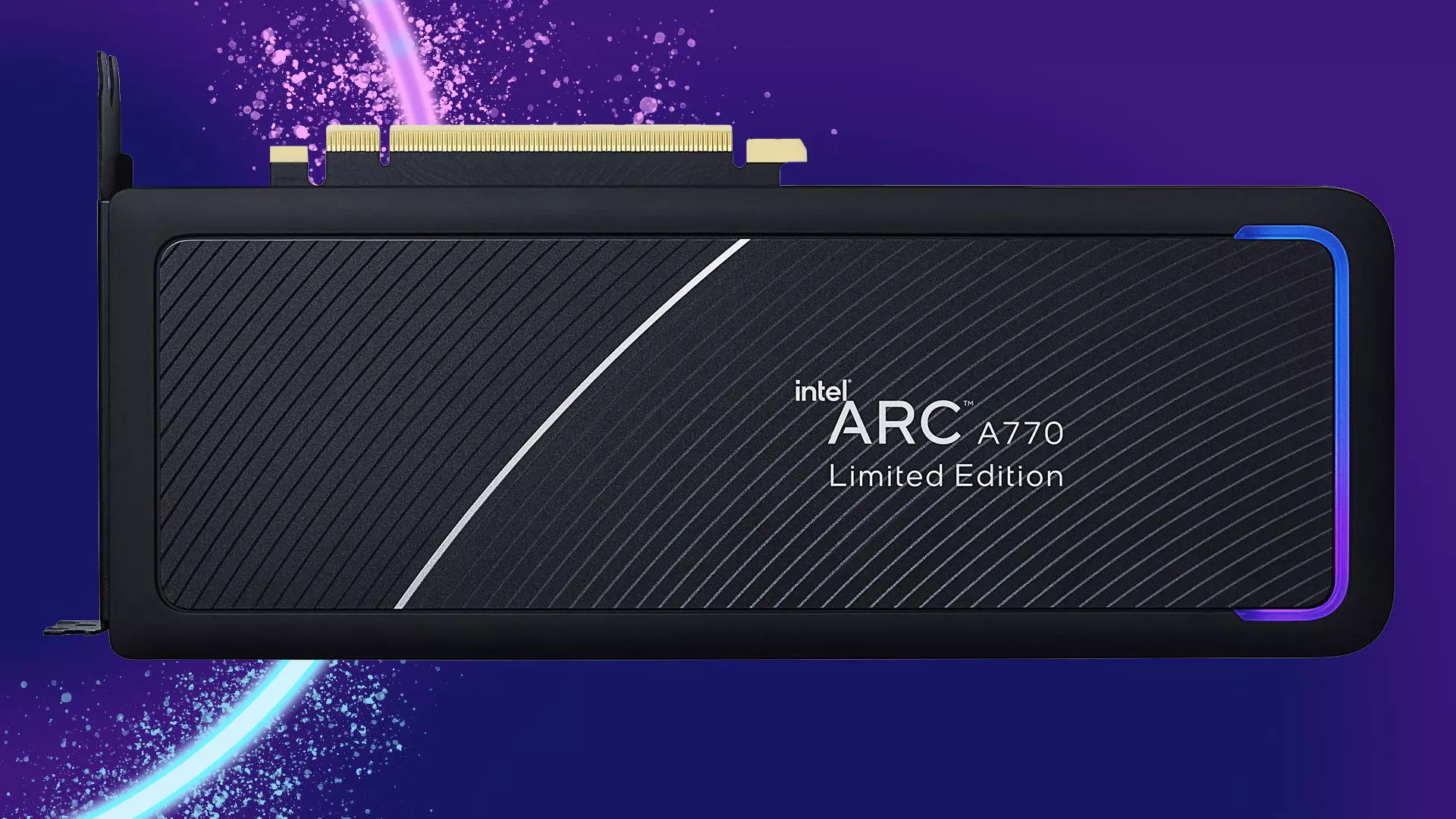
intel's first gaming card that will hit the market soon has been shown in its innovation event, the Intel Arc A770. In its core ticks ACM-G10, coming with 32 Xe-cores and all the way up to 16GB of GDDR6 memory (the basic entry-level version will have 8GB of GDDR6). The card will support ray tracing and supersampling with Intel's XeSS.

intel arc a770

This is Intel's first gaming desktop GPU and after testing with some YouTube channels it turned out that the card itself sits somewhere between nVIDIA RTX 3060 Ti and an RTX 3070 so it will still be low in performance compared with the new RTX 4090 or AMD's new RDNA3 upcoming lineup. But as stated this is Intel's first gaming graphics card and having this kind of performance is no small feat for the first-time product.

One thing that is really great tho and that is going for Arc A770 GPU is its price! The Limited Edition card will cost $329 which is at this moment most cheapest GPU currently on the market in that performance range. nVIDIA is between $500 and $700 for comparison and if Intel can hold on to its performance with almost half the price card could be a great hit among gamers. GPU itself will launch on October 12th.

Read More
There’s no Incognito Mode in Chrome
As you know, just like other web browsers, Google Chrome offers Incognito Mode or private browsing which you can use to make sure that your browsing activities are not being tracked by any websites you visit and it also keeps targeted ads at bay. On the other hand, signing in to a website, even when in Incognito Mode is a different thing since that website can track your browsing activities. Thus, Incognito Mode is still useful especially if you want to browse the web safely and without getting tracked except when you log in to some site. However, there have been reports recently that Incognito Mode is missing in Chrome and users are clueless as to how or why it happened. If you are one of them, worry not for this post will walk you through what you can do if there’s no Incognito Mode in Chrome on your Windows 10 computer. This is an unusual and strange issue since the Incognito Mode in Chrome is available by default and you don’t have to do anything to enable it. It is possible that there might be corruption in the Windows Registry which caused the disappearance of Incognito Mode, worry not though for there are some tweaks you can apply to restore the missing Incognito Mode. To apply these tweaks, you need to create first a System Restore point, and then once you’re done, follow the instructions provided below carefully. Step_1: Tap the Win + R keys to open the Run dialog box and type “Regedit” in the field and then hit Enter to open the Registry Editor. Step_2: Next, after opening the Registry Editor, navigate to this path – ComputerHKEY_LOCAL_MACHINESOFTWAREPolicies Step_3: From there, look for ChromePolicies and locate the DWORD named “IncognitoModeAvailability” and double click on it. Step_4: Edit the value of the “IncognitoModeAvailability” DWORD by changing its value from 1 to 0 so you can enable Incognito Mode in Chrome. Step_5: Once done, exit the Registry Editor and restart your computer and then check if you can now see Incognito Mode in Chrome. On the other hand, there is also another option that allows you to force open your Chrome browser in Incognito Mode. All you have to do is set the value of the “IncognitoModeAvailability” key to “2” instead of 0. This can be useful especially if you always browse the web in this mode. But you need to remember that you won’t be able to go back to the normal mode once you do this. Here are what the values of the IncognitoModeAvailability DWORD actually mean:
  • 0 – Incognito mode is enabled by default
  • 1 – Incognito mode is disabled
  • 2 – Chrome is forced to always open in Incognito mode
Read More
Fix Error 0xe0434f4d

What is Error 0xe0434f4d?

Error 0xe0434f4d displays when a remote computer runs an instance of the SQL Server 2005 but it fails to initialize. When the plan is started, this error displays in a status window on the SQL Server. Also, when the Update-OffilineAddressBook cmdlet is started in Microsoft Exchange Server, this error can occur.

Solution

Restoro box imageError Causes

Error 0xe0434f4d can occur for possibly two main reasons. The first one is when the System Attendant Service is not properly running, and the second when you don’t have the permission to run the update. Other causes are when the .NET Framework 2.0 security does not allow sqlplanlaunch access to run from a shared network. Another cause is when the Offline Address Book (OAB) is not found in the Configuration Domain Controller server that the server of OAB generation uses.

Further Information and Manual Repair

In case you didn’t know, the Offline Address Book generation server is a mailbox server, and in order to resolve error 0xe0434f4d, you will have to replicate the OAB object to the Configuration Domain Controller server. In order to do so, follow steps:
  • Go to start and click on All Programs, then go and click on Microsoft Exchange Server 2010. Click on Exchange Management Console
  • In Exchange Management Console, go to Server Configuration and click on Mailbox
  • In the details, go to mailbox server that generates Offline Address Book and right-click it, then go to Properties
  • In the Properties, click on System Setting and locate the domain controller name in the box that reads Domain controller servers being used by Exchange
Make sure the OAB object is reproduced in the Configuration Domain Controller Server. Follow these steps to do that:
  • Go to Start and click on Run. Type Adsiedit.msc in Open box and press Enter. Right-click on ADSI Edit and click on Connect to
  • Locate a list reading Select a well-known naming context, and from there select Default naming context. In a Select or type a domain or server window, type FQDN (fully qualified domain name) of the Configuration Domain Controller server which was determined in step 1, and click OK
  • Expand Configuration [dc.domain.com], expand CN=Configuration, DC=domain, DC=com, expand CN=Services, expand CN=First Organization, and expand CN=Address Lists Container
  • Click on CN=Offline Address Lists and make sure the OAB object is listed on the details pane
When the OAB generation server receives this, then it will connect to the Configuration Domain Controller server and will locate the OAB object. If the OAB generation server is unable to find the OAB object, then the error will return on the cmdlet. On SQL Server, you should change the .NET permissions to allow sqlplanlaunch application access to run from shared administration. For that, follow these steps:
  • On ArchiveIQ Server, open System from the Control Panel and note down the computer name
  • On SQL Server, log in as administrator and open the command prompt
  • On the command prompt type, ‘C:windowsmicrosoft.netframeworkv2.0.50727caspol.ece –m –ag l – url file:\[Archive IQServer Computer Name]AlQRemote$*FullTrust and Press Enter. Type yes and press Enter again to confirm the permission changes.
Read More
Fix 0X800F080C Error in Windows 10
Error 0X800F080C is tied to corrupted system files and .NET framework issues. In this article, we will focus on how to fix it starting first with .NET fixes and then moving to system-related ones. Follow the guide step by step so you can fix this error fast and easily.

.NET issues

As previously stated 0X800F080C error can occur due to issues with .NET framework, 3.5 framework to be more precise and there are two ways we can fix this error. Follow the guide below as presented:
  1. Install .NET 3.5 framework from Windows features

    First thing is to try and install the framework from Window features itself. Sometimes installation and activation of .NET 3.5 in other ways can result in this error. To install it do the following: Press ⊞ WINDOWS + R to open the run dialog Inside run type in appwiz.cpl and press ENTER to open up the Programs and Features menu Inside the Programs and Features menu click on Turn Windows features on or off. Check the box associated with .NET Framework 3.5 (this package includes .NET 2.0 and 3.0) Press OK Click on YES and wait for the package to be installed then reboot your PC
  2. Run the .NET Repair Tool

    If the previous step was not successful or you already had .NET 3.5 installed then run the troubleshooter in order to fix issues. Go to the official Microsoft .NET framework repair tool website here and download it. Once downloaded install the tool and follow onscreen instructions.

Corrupted system files

If the previous solution has not provided you with results then you have system file corruption that needs to be fixed. Move from one solution to another as presented below:
  1. Run SFC scan

    SFC scan is a built-in Windows tool for solving corrupted system files issues, it is fully automated and does not require from the user any kind of knowledge or information. To run it and scan the system do the following: Press ⊞ WINDOWS + X to open the secret menu Left-click on the command prompt (admin) In command prompt type SFC /SCANNOW and press ENTER Wait for the process to finish, do not interrupt it and once it is done, restart your computer
  2. Run DISM scan

    DISM scan is similar to SFC scan but it tackles different types of system file corruption and it is recommended to run it also after SFC has been completed. Please note that for DISM scan to be successful you will need a stable internet connection since DISM will replace corrupted files with new ones downloaded from Microsoft. To run it do the following: Press ⊞ WINDOWS + X to open the secret menu Left-click on the command prompt (admin) inside command prompt type: exe /online /cleanup-image /scanhealth followed by ENTER, then type: Dism.exe /online /cleanup-image /restorehealth also followed with ENTER. Leave scan to finish and reboot your PC
Read More
Disabling Security Questions in Windows
We’ve already covered disabling Security Questions If you want to disable Security Questions on your Windows 10 computer then you’ve come to the right place as this post will guide you in doing exactly that. In this post, you will be disabling Security Questions using a PowerShell script. This PowerShell script is called “Update-AllUsersQA”. It is designed to remove or disable the security questions and answers for local users on a Windows 10 computer. It lets administrators take control of the security questions in the environment and at the same time minimizes the risk that comes with them. If a user has a Microsoft account that’s configured to sign in to Windows 10 then he will not probably notice the Password Recovery questions. On the other hand, if he has a chosen local account for installing Windows, he will e prompted to create three security questions that can be used to reset the password and log into the Windows 10 account in case there is any misfortune. However, if you do not have much use for these Security Questions, then you can definitely have them disabled using a simple PowerShell script which you can download from GitHub. For more details on how to disable security questions in a Windows 10 machine, refer to the steps provided below. Step 1: You need to first download the .ps1 file from the GitHub repository. Step 2: Once you’ve downloaded the file, open the PowerShell window with admin privileges. Step 3: After that, navigate to the folder where you had saved the .ps1 file. Then copy the address of the folder location. Step 4: Next, change the directory by using the following command:
cd "folder location address"
Step 5: After that, enter the following script to disable the security questions:
Update-AllUsersQA
Once you’ve completed the steps above, the Security Questions should be disabled and you will be notified with a message stating that the feature has been disabled. On the other hand, if you have a change of heart and you want to enable the Security Questions back, here are some steps you need to take: Step 1: First, open the PowerShell window as admin. Step 2: Next, run the same script with one more parameter such as:
Update-AllUsersQA -answer SecretAnswer
Step 3: And that’s about it. Do not forget to replace the Secret Answer with your preferred one and once you’re done, it will be set as the answer for all the Security Questions. Step 4: Now all that’s left to do is go to the Settings app to change the answer to the questions and you should be good to go.
Read More
How to get rid of YourTemplateFinder from PC

YourTemplateFinder is a browser extension developed by Mindspark for Google Chrome. This extension allows users to browse and download various templates that can be used for all kinds of occasions.

When installed, it changes your default search engine and home page to MyWay.com. During your browsing sessions, YourTemplateFinder will monitor user activity, recording website visits, user information, product purchases, etc. This data is later used to target better ads to users.

While browsing the internet with this extension active you will see additional ads displayed throughout your browsing sessions. Sponsored content such as links, banners, and pop-up ads will appear on websites sometimes even covering the website content.

This extension has been marked for removal by several anti-virus applications and has been classified as a Browser Hijacker due to its aggressive behavior and ad injections. It is flagged for optional removal.

About Browser Hijackers

Browser hijacking is a common type of online fraud where your web browser settings are altered to make it carry out things you never intend. There are various reasons why you might experience a browser hijack; however commercial, advertising, and marketing are the main reasons for their creation. It redirects you to the sponsored websites and inserts adverts on your web browser that helps its creator generate revenue. However, it is not that innocent. Your online safety is jeopardized and it is also extremely irritating. As soon as the program attacks your PC, it begins to mess things up a whole that slows your system down to a crawl. In the worse case, you may be forced to deal with serious malware threats too.

How to know whether the browser is hijacked?

Symptoms that your internet browser is hi-jacked include: 1. the home page of your browser is changed unexpectedly 2. you observe new unwanted favorites or bookmarks added, typically directed to advertisement-filled or porn sites 3. the default browser settings are changed and/or your default web engine is altered 4. you see unsolicited new toolbars added 5. you’ll find random pop-ups start occurring frequently 6. webpages load slowly and sometimes incomplete 7. you can’t navigate to specific websites, like security software-related sites.

How they infect computer systems

There are a number of ways your computer or laptop could become infected by a browser hijacker. They generally arrive by way of spam e-mail, via file-sharing networks, or by a drive-by-download. They can also come from any BHO, extension, toolbar, add-on, or plug-in with malicious intent. A browser hijacker can also be installed as a part of freeware, demoware, shareware, and fake programs. Well-known examples of browser hijackers include CoolWebSearch, Conduit, RocketTab, OneWebSearch, Coupon Server, Delta Search, Searchult.com, and Snap.do. Browser hijackers can affect the user’s browsing experience greatly, track the websites visited by users and steal personal information, cause problems in connecting to the internet, and eventually create stability problems, causing applications and computers to freeze.

How you can get rid of a browser hijacker

Certain hijackers can be removed by simply uninstalling the corresponding freeware or add-ons through the Add or Remove Programs in the Microsoft Windows Control Panel. However, most browser hijackers are hard to remove manually. Irrespective of how much you try to get rid of it, it could come back over and over. Furthermore, manual removals demand deep system understanding and thus can be a very difficult job for novices. Installing and running anti-malware software on the affected system could automatically erase browser hijackers and also other malicious applications. If you’d like to eliminate persistent hijackers effectively, install the award-winning Anti-Malware program Safebytes Anti-Malware.

Can't Install Safebytes Anti-malware due to the presence of a Virus? Try This!

All malware is bad and the level of the damage will differ greatly depending on the type of infection. Some malware variants modify browser settings by including a proxy server or change the PC’s DNS settings. In such cases, you will be unable to visit some or all sites, and therefore not able to download or install the necessary security software to get rid of the infection. If you’re reading this right now, you have probably realized that virus infection is the reason for your blocked internet traffic. So what to do if you need to download and install an antivirus program such as Safebytes? There are a few solutions you can attempt to get around with this particular obstacle.

Install in Safe Mode with Networking

Safe Mode is actually a special, basic version of Microsoft Windows in which only the bare minimum services are loaded to prevent viruses and also other troublesome applications from loading. In the event the malware is obstructing the internet connection and affecting your computer, running it in Safe Mode will let you download antivirus and run a diagnostic scan while limiting potential damage. To enter into Safe Mode or Safe Mode with Networking, press the F8 key while the system is booting up or run MSConfig and locate the “Safe Boot” options in the “Boot” tab. Once you are in safe mode, you can attempt to download and install your antivirus software program without the hindrance of the virus. Now, you are able to run the antivirus scan to get rid of viruses and malware without interference from another application.

Switch to some other web browser

Malicious code can exploit vulnerabilities in a specific web browser and block access to all anti-virus software sites. In case you suspect that your Internet Explorer has been hijacked by malware or otherwise compromised by cybercriminals, the ideal approach would be to switch to an alternate internet browser like Mozilla Firefox, Google Chrome, or Apple Safari to download your chosen security software – Safebytes Anti-Malware.

Create a portable USB antivirus for eliminating malware

Here’s another solution which is using portable USB anti-virus software that can scan your computer for viruses without the need for installation. Try these simple steps to clean up your infected computer by using a portable antivirus. 1) Make use of another virus-free computer system to download Safebytes Anti-Malware. 2) Insert the USB drive into the uninfected computer. 3) Double-click the Setup icon of the anti-malware program to run the Installation Wizard. 4) Select the USB stick as the destination for saving the file. Follow activation instructions. 5) Now, plug the USB drive into the infected computer. 6) Double-click the antivirus program EXE file on the thumb drive. 7) Simply click “Scan Now” to run a complete scan on the infected computer for malware.

SafeBytes AntiMalware Overview

These days, an anti-malware program can protect the computer from different forms of internet threats. But wait, how to choose the right one among various malware protection software that’s available out there? Perhaps you might be aware, there are lots of anti-malware companies and tools for you to consider. Some are good ones, some are ok types, while some are simply just fake anti-malware programs that could harm your personal computer themselves! You must select one that is efficient, practical, and has a good reputation for its malware source protection. Among few good programs, SafeBytes Anti-Malware is the highly recommended software for the security-conscious individual. SafeBytes anti-malware is a powerful, very effective protection software made to help end-users of all levels of computer literacy in identifying and eliminating malicious threats out of their PC. With its outstanding protection system, this software will quickly detect and remove the majority of the security threats, including adware, viruses, browser hijackers, ransomware, trojans, worms, and PUPs.

SafeBytes anti-malware takes computer protection to a totally new level with its enhanced features. Let us discuss a few of the great ones:

World-class AntiMalware Protection: Safebytes is built on the best virus engine within the industry. These engines can identify and remove threats even during the initial phases of a malware outbreak. Real-time Protection: SafeBytes offers real-time active monitoring and protection against all known computer viruses and malware. It will inspect your computer system for suspicious activity at all times and shields your personal computer from illegal access. Web Security: SafeBytes checks the links present on a webpage for possible threats and informs you if the website is safe to look at or not, through its unique safety rating system. Low CPU and Memory Usage: The program is lightweight and will run silently in the background, and that does not impact your PC efficiency. 24/7 Customer Service: Support service is available 24 x 7 x 365 days via email and chats to answer your queries. SafeBytes has created an amazing anti-malware solution that can help you conquer the latest malware threats and virus attacks. You can rest assured that your PC will be protected in real-time once you put this software program to use. So if you are looking for the best anti-malware subscription for your Windows-based PC, we recommend the SafeBytes Anti-Malware application.

Technical Details and Manual Removal (Advanced Users)

To remove YourTemplateFinder manually, go to the Add or Remove programs list in the Windows Control Panel and select the program you want to remove. For internet browser extensions, go to your web browser’s Addon/Extension manager and select the add-on you intend to remove or disable. You will probably also want to reset your web browser. Finally, examine your hard disk for all of the following and clean your computer registry manually to remove leftover application entries following uninstalls. Please note that only advanced computer users should try to manually edit the registry because removing any single critical system file results in a serious problem or even a system crash. Also, some malware is capable of replicating itself or preventing its removal. You are encouraged to do this process in Windows Safe Mode.
Files: %LOCALAPPDATA%\YourTemplateFinder_br %UserProfile%\Local Settings\Application Data\YourTemplateFinder_br %UserProfile%\Local Settings\Application Data\Google\Chrome\User Data\Default\Extensions\jadhamcfimejpbemfkgoeijaimpciehj %LOCALAPPDATA%\Google\Chrome\User Data\Default\Extensions\jadhamcfimejpbemfkgoeijaimpciehj %PROGRAMFILES%\YourTemplateFinder_br %PROGRAMFILES(x86)%\YourTemplateFinder_br Registry: HKEY_CURRENT_USER\Software\Microsoft\Internet Explorer\SearchScopes\42f6cdef-be6a-48e4-b6ef-bc987c64fed9 HKEY_LOCAL_MACHINE\SOFTWARE\Wow6432Node\Microsoft\Internet Explorer\SearchScopes\42f6cdef-be6a-48e4-b6ef-bc987c64fed9 HKEY_CURRENT_USER\Software\Microsoft\Internet Explorer\DOMStorage\free.yourtemplatefinder.com HKEY_CURRENT_USER\Software\Microsoft\Internet Explorer\Approved Extensions, value: F724FE0B-8C05-4498-B99E-9192CF2AECF4 HKEY_CURRENT_USER\Software\Microsoft\Internet Explorer\Approved Extensions, value: 4D283A70-2D2F-4CBB-81DA-C75B8DF410CC HKEY_CURRENT_USER\Software\Microsoft\Internet Explorer\Approved Extensions, value: 3C417C00-968B-48B7-822E-407A82A47AE1 HKEY_LOCAL_MACHINE\SOFTWARE\Microsoft\Internet Explorer\DOMStorage\yourtemplatefinder.dl.tb.ask.com HKEY_LOCAL_MACHINE\SOFTWARE\Microsoft\Internet Explorer\DOMStorage\yourtemplatefinder.com

Read More
Android malware spies while posing as a Update
New malware with extensive spyware capabilities steals data from infected Android devices and is designed to automatically trigger whenever new info is read to be exfiltrated. The spyware can only be installed as a 'System Update' app available via third-party Android app stores as it was never available on Google's Play Store. This drastically limits the number of devices it can infect, given that most experienced users will most likely avoid installing it in the first place. The malware also lacks a method to infect other Android devices on its own, adding to its limited spreading capabilities. However, when it comes to stealing your data, this remote access trojan (RAT) can collect and exfiltrate an extensive array of information to its command-and-control server. Zimperium researchers who spotted it observed it while "stealing data, messages, images and taking control of Android phones."

What happens when malicious software is installed

"Once in control, hackers can record audio and phone calls, take photos, review browser history, access WhatsApp messages, and more," they added. Zimperium said its extensive range of data theft capabilities includes:
  • Stealing instant messenger messages;
  • Stealing instant messenger database files (if the root is available);
  • Inspecting the default browser's bookmarks and searches;
  • Inspecting the bookmark and search history from Google Chrome, Mozilla Firefox, and Samsung Internet Browser;
  • Searching for files with specific extensions (including .pdf, .doc, .docx, and .xls, .xlsx);
  • Inspecting the clipboard data;
  • Inspecting the content of the notifications;
  • Recording audio;
  • Recording phone calls;
  • Periodically take pictures (either through the front or back cameras);
  • Listing of the installed applications;
  • Stealing images and videos;
  • Monitoring the GPS location;
  • Stealing SMS messages;
  • Stealing phone contacts;
  • Stealing call logs;
  • Exfiltrating device information (e.g., installed applications, device name, storage stats).

How does it work?

Once installed on an Android device, the malware will send several pieces of info to its Firebase command-and-control (C2) server, including storage stats, the internet connection type, and the presence of various apps such as WhatsApp. The spyware harvests data directly if it has root access or will use Accessibility Services after tricking the victims into enabling the feature on the compromised device. It will also scan the external storage for any stored or cached data, harvest it, and deliver it to the C2 servers when the user connects to a Wi-Fi network. Unlike other malware designed to steal data, this one will get triggered using Android's contentObserver and Broadcast receivers only when some conditions are met, like the addition of a new contact, new text messages, or new apps being installed. "Commands received through the Firebase messaging service initiate actions such as recording of audio from the microphone and exfiltration of data such as SMS messages," Zimperium said. "The Firebase communication is only used to issue the commands, and a dedicated C&C server is used to collect the stolen data by using a POST request."

Camouflage

The malware will also display fake "Searching for the update.." system update notifications when it receives new commands from its masters to camouflage its malicious activity. The spyware also conceals its presence on infected Android devices by hiding the icon from the drawer/menu. To further evade detection, it will only steal thumbnails of videos and images it finds, thus reducing the victims' bandwidth consumption to avoid drawing their attention to the background data exfiltration activity. Unlike other malware that harvests data in bulk, this one will also make sure that it exfiltrates only the most recent data, collecting location data created and photos taken within the last few minutes. If you would like to read more helpful articles and tips about various software and hardware visit errortools.com daily.
Read More
Windows 11 23H2 Update Details Revealed

Loving Windows 11 so far? We sure are. Microsoft has clearly decided to take its OS to the next level and keeps showing it through every update. It makes you wonder what’s next - and today, you’ll find out!

Tons of new features have been leaked, and we can probably expect them with the 23H2 update. Here’s everything you need to know so far.

What’s Windows 11 23H2 bringing?

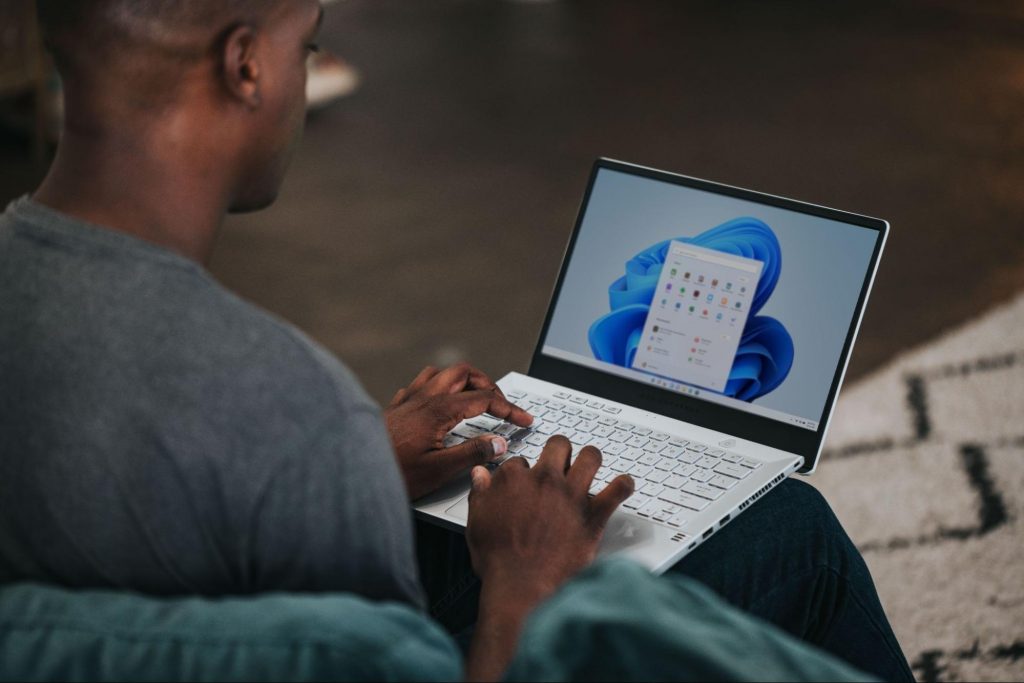
Windows 11
Credit: Windows on Unsplash

There are plenty of new features already confirmed for Windows 11. The only issue is we don’t know for sure if they’re coming with the 23H2 update or separately, at a different time. Whatever the case, a lot of them are pretty exciting.

Here’s an overview of what we might be getting this fall.

  • Windows Copilot. Microsoft wants to add this AI-powered feature based on chatbots like Bing Chat and ChatGPT to assist users with all kinds of actions and tasks on the platform. As part of this development, the integration of first- and third-party plugins and the Bing Chat AI will be enhanced. This is a pretty amazing addition to look forward to, if you ask us.
  • Dynamic Lighting. RGB lovers will rejoice upon this one! Dynamic Lighting will allow you to control your RGB-powered components directly through the Windows Settings, allowing smooth integration of your favorite peripherals with your OS. No need for third-party software anymore!
  • Taskbar enhancements. Microsoft has announced some neat improvements to the Windows 11 taskbar. For one, we’ll be able to hide the Time and Date now, which is extremely useful for focus, but also for clean screenshots. Another change is the ability to shut down programs directly from the Taskbar, without having to run the Task Manager.
  • Expanding native support for archive formats 7-zip, rar, gz and others on the libarchive open-source projects.
  • Microsoft Store AI features. The theme of AI power is clearly being taken up a notch, because the Microsoft Store seems to be getting several awesome features in this regard. One of them is AI hub, which “curate the best AI experiences built by the developer community and Microsoft” (Windows Developer Blog). We’re not sure what that means exactly, but we sure can’t wait to see.

Another is AI-generated keywords, designed to improve the discoverability of apps you’re searching for. Moreover, the AI-generated review summary is designed to give us a simpler experience looking at reviews. Huge numbers of reviews will be compiled into a summary that’s easy to scan and lets us discover new content faster.

  • Other Microsoft Store improvements. Business owners will be happy to hear that Microsoft Store ads will now reach 150+ regions worldwide, significantly increasing the audiences they can target. Furthermore, there will be enhancements to the Backup and Restore functionality to give users a more seamless experience in case they switch devices. 
  • File Explorer changes. Rumor has it that Microsoft is working on a Gallery to be embedded within the File Explorer. The addition of a Recommended section might be on the horizon as well. 
  • Widget Panel update. The introduction of the Widget Panel in itself was exciting for many. As a next step in the development of this feature, Microsoft is planning to make it possible to pin widgets to the desktop. 
  • Presence sensor. You might actually already have this one, as it was rolled out as part of Moment 3 for compatible devices. With the Presence sensing app, found in the Privacy settings, you can decide which (if any) apps use APIs to detect the state of your activity on Windows. This can significantly enhance privacy and security, as you can have apps containing sensitive data lock automatically when unattended. If you’re a laptop user, it can also be beneficial to your battery life.
  • Bluetooth LE. Microsoft is adding support for Bluetooth Low Energy, a functionality that allows reduced battery consumption when devices are connected.
  • Adding more languages to the Live Captions feature. This specification is only as powerful as the languages it supports. Microsoft is reportedly working on expanding the list with 10 more languages.

Summary

We’ve got some interesting stuff to look forward to with the next major Windows 11 update. And these are just the things the Internet’s actually heard of, so who knows what else Microsoft might be planning? It remains to be seen, hopefully just a few months from now. 23H2 has been released on October 31st.

Read More
1 2 3 171
Logo
Copyright © 2023, ErrorTools. All Rights Reserved
Trademark: Microsoft Windows logos are registered trademarks of Microsoft. Disclaimer: ErrorTools.com is not affiliated with Microsoft, nor claims direct affiliation.
The information on this page is provided for information purposes only.
DMCA.com Protection Status