Logo

Fix Dism.exe error 1392 in Windows 10

Dism.exe error 1392 is usually displayed whenever a file or directory is corrupted, and unreadable. The location specified in the error message states that some temporary files are corrupt. Since the files are only temporary, you could delete the mentioned file in the error message and check if the issue persists. The error is caused by missing system files or broken corrupt data, which should be fixed as soon as possible. Taking action should prevent further hardware and app damage, as this can lead to system crashes, data loss, or hardware failure in most cases.

  1. Temporarily disable the antivirus program

    Antivirus applications are well known that they can detect certain things as false positives and quarantine them or cut their system access, to make sure that this is not the case in this situation, disable your antivirus and try the operation again.

  2. Perform an SFC scan

    Press ⊞ WINDOWS + X to open the windows menu
    Click on Command prompt (admin)
    In the command prompt window type: sfc /scannnow and press ENTER
    Wait for the operation to complete
    Reboot

  3. Run Check disk to check and fix disk errors

    Press ⊞ WINDOWS + X to open the windows menu
    Click on Command prompt (admin)
    In the command prompt window type: chkdsk /f c: where c: is hard drive with issue and press ENTER

  4. Scan your computer for malware

    Malware and other malicious software can be a problem for this type of behavior, run your security's software scan on the whole system and remove any found malware.

  5. Perform a system restore

    If anything else failed run system restore and bring Windows back to a date when everything was working fine.

Do You Need Help with Your Device?

Our Team of Experts May Help
Troubleshoot.Tech Experts are There for You!
Replace damaged files
Restore performance
Free disk space
Remove Malware
Protects WEB browser
Remove Viruses
Stop PC freezing
GET HELP
Troubleshoot.Tech experts work with all versions of Microsoft Windows including Windows 11, with Android, Mac, and more.

Share this article:

You might also like

How to Fix Fmod.dll Error Code

Error Fmod.dll - What is it?

This is a type of DLL error code. DLL is the abbreviation of Dynamic Link Library. DLL files contain small programs which are similar to executable files. One DLL file may be used to load and run several programs. Fmod.dll is created by Electronic Arts Inc. and associated with Crysis. This file is developed for the Windows OS. This error code occurs when you are unable to access, run and load programs supported by Crysis on your PC. Fmod.dll error code message is displayed in different formats such as:
  • "Fmod_event.dll not found."
  • "The file fmod_event.dll is missing."
  • "This application failed to start because fmod_event.dll was not found. Re-installing the application may fix this problem."
  • "Cannot start Crysis. A required component is missing: fmod_event.dll. Please install Crysis again."
  • "Fmod_event.dll Access Violation."
  • "Cannot register fmod_event.dll."
  • "Cannot find C:\Windows\System32\fmod_event.dll."
Error Fmod.dll may pop up when you start-up or shut down the PC or even during the installation of a program.

Solution

Restoro box imageError Causes

Narrowing down to one cause for Fmod.dll error code is impossible virtually because this error may result due to different reasons on your system. Some of the common causes associated with this error code are:
  • Viral Infection
  • Hardware failure
  • Missing, Corrupt, or Deleted Fmod.dll file
  • Improper program installation
  • Registry issues
No matter what the underlying cause of the reason may be, it is recommended to resolve the issue immediately to avoid serious PC threats.

Further Information and Manual Repair

To resolve this error on your system, try the methods discussed below:

Method 1 - Check the Recycle Bin

As mentioned above, Fmod.dll is a DLL file that is used to run and load a variety of programs on your system. There is a possibility that you uninstalled a program that was supported by the Fmod.dll file and accidentally deleted it. In such a scenario, the easiest way to resolve the Fmod.dll error code is to re-install the deleted file from the recycle bin. For this, go to the recycle bin and search for the file. If you find it reinstall if you can’t then simply download the Fmod.dll file from a reliable website.

Method 2 - Scan for Malware

Malware usually enters through phishing emails and downloads. These malicious programs then hide in your system disguising as either DLL or EXE files. The occurrence of fmod.dll file error may be due to malicious programs hiding in your system. Therefore scan your entire PC with a powerful anti-virus. An antivirus detects and removes all malicious software programs such as viruses, malware, Trojans, spyware, and adware. Try this, to resolve error code Fmod.dll and see the results.

Method 3 - Fix Hardware Problems

Fmod.dll file error may also pop on your screen due to hardware failure. If this is the reason, then we advise you to use the Device Manager an in-built tool in Windows 7 and 8 to fix hardware failures. For this go to the start menu then control panel. Now click on the ‘hardware and sound link’ and then click on the Device Manager. If you find any devices in red exclamation point, then this means this device is problematic. Uninstall the driver for that hardware device and then update the driver. Install the latest version to resolve. Remember, hardware problems are mostly related to outdated drivers.

Method 4 - Restore Points

Use System Restore, an in-built utility also known as the recovery tool, to restore points and ensure your PC is back to its previous working condition before the error code occurred. Simply put, it helps undo recent changes. You can find the System Restore tool in the System Tools folder.

Method 5 - Clean and Repair the Registry

The registry is that part of your PC that stores all the information, activities performed, and files including the junk files, invalid keys, bad entries, and cookies. When these files accumulate on your PC, they take up all the registry space and corrupt the important system and DLL files also stored in the registry, thereby generating such errors. Now you can clean the registry manually. But this process can be time-consuming and slightly technical, hence we advise you to download Restoro. This is a PC Fixer integrated with a registry cleaner. It is easy to use deployed with an intuitive interface. The registry cleaner scans the entire PC and removes all registry errors. It wipes out all the obsolete files and repairs the damaged DLL and system files. Click here to download Restoro.
Read More
Shift Key is not working in Windows
A lot of users rely on keyboard shortcuts to carry out tasks on their PCs. One of the most common keyboard shortcuts used is the Ctrl + Shift + Esc which opens the Task Manager. As you can see, the Shift key is not just used to capitalize a text as it can also be used for other functions and plays an essential role in operating a computer. However, if you suddenly find it not working, read on as this post will help you fix the problem. If your Shift key is not working, there are several potential fixes you can check out to fix it. These are the different ways to get rid of the Shift key not working issue on Windows 10:
  1. Physically clean the key and keyboard
  2. Disable Sticky Keys.
  3. Update, Reinstall, or Rollback Keyboard driver.
  4. Test the keyboard on another system.
  5. Check your connections
  6. Run the Hardware troubleshooter
  7. Troubleshoot in Clean Boot State.

Option 1 – Clean the keyboard keys physically

Your keyboard might not be working properly due to some dirt or other corrosion. Thus, you need to clean your keyboard, especially the Shift key. First, you need to shut down your computer and then unplug the keyboard if you are using a desktop computer and then prepare it for cleaning. After that, use a small cotton ear cleaning tool to get between the creases and clean them. You can dip it slightly in alcohol to make it more efficient in cleaning dust and dirt. And if you can, you have the option to pull apart the keyboard completely and then wipe away all the corrosion from the inside. Once you’re done, put the keyboard back together and then plug it back into your PC. Now turn your PC on and check if the Shift key is now working.

Option 2 – Try to disable the Sticky keys

Another thing you can try is to disable the Stick keys. How? Refer to these steps:
  • Tap the Win + I keys to open the Settings app.
  • After that, navigate to the Ease of Access section, and here, select Keyboard.
  • Next, make sure that the option for Press one key at a time under the Sticky Keys is toggled off.

Option 3 – Reinstall, update or rollback your keyboard driver

Once you’ve determined that the problem is in the software part of the keyboard, it is now time to try to reinstall, update or roll back your keyboard drivers. To reinstall the driver for your keyboard, refer to these steps:
  • From the WinX Menu, open the Device Manager.
  • In the Device Manager, you should find your laptop’s keyboard under the “Keyboards” option. Right-click on it and select the “Uninstall” option.
Note: If you’re not quite certain about your laptop’s keyboard, you can uninstall all the keyboards if there’s more than one.
  • After that, restart your PC and see if the keyboard driver is installing automatically. If not, open the Device Manager again and right-click on Keyboards, and select the option “Scan for hardware changes” to install it.
Once the keyboard driver is installed again, check if your keyboard is now working properly or not.

Option 4 – Try connecting the keyboard to a different USB port or another computer

The problem might have something to do with the USB port that’s currently in use by your keyboard. It could be that it’s not working so it makes sense to unplug it and attach it to another USB port. You can also clean the USB port on both ends to ensure that they are not affected by corrosion. In addition, you can also try connecting the keyboard to a different computer and see if the Shift key works there or not.

Option 5 – Try to check your connections

You can also try checking if the connection mode you are using for your keyboard is functioning properly. For instance, if you are using a Surface 2-in-device, you can clean the connection pins and see if it resolves the problem.

Option 6 – Run the Hardware and Devices Troubleshooters

  • The first thing you need to do is click on Start and then on the gear-like icon to pull up the window for Settings.
  • After opening Settings, look for the Update and Security option and select it.
  • From there, go to the Troubleshoot option located on the left-hand side of the list.
  • Next, select Hardware and Devices from the list and open the Troubleshooter and run it. Once it is doing its job, wait for it to complete the process and then restart the system.
  • After the system restarts, check if the problem’s now fixed. If not, refer to the next option given below.

Option 7 – Put your PC in a Clean Boot State

You might also want to put your computer in a Clean Boot State to fix the problem with the Shift key. It could be that there is a third-party program that’s preventing the Shift key from functioning. To isolate this possibility, you need to put your computer in a Clean Boot State.
  • Log onto your PC as an administrator.
  • Type in MSConfig in the Start Search to open the System Configuration utility.
  • From there, go to the General tab and click “Selective startup”.
  • Clear the “Load Startup items” check box and make sure that the “Load System Services” and “Use Original boot configuration” options are checked.
  • Next, click the Services tab and select the “Hide All Microsoft Services” check box.
  • Click Disable all.
  • Click on Apply/OK and restart your PC. (This will put your PC into a Clean Boot State. And configure Windows to use the usual startup, just simply undo the changes.)
  • Now try to connect the external devices and check if the error is now gone.
Read More
NVIDIA driver keeps crashing in Windows
As you know, NVIDIA is one of the topmost graphics cards used and it has been that way for several years already. And in those years, the company has managed to release the best cards on the market. However, there are still times when some things fail and don’t work as expected due to some NVIDIA driver issues. As of late, one of the issues users reported about NVIDIA drivers is that it keeps on crashing on a daily basis. It gets to the point where they aren’t able to play games anymore while some users experience lag and rendering issues. In addition, some users also reported that their computer display tends to freeze sometimes, and then things would seem to go back to normal but only for a short span of time as the crash seems to happen every 10 minutes. This can be extremely annoying as you won’t be able to use your computer properly. If you are one of these users, worry not for there are several ways you can try to resolve the problem in your Windows 10 computer. Make sure to carefully follow the options given below.

Option 1 – Try checking if the NVIDIA graphics card is enabled

Although the problem is quite massive, the fix could be as simple as enabling the NVIDIA graphics card if it turns out to be disabled. There might be some strange reason why your graphics card disables itself. Thus, the best and first option you can try is to check if the NVIDIA graphics card is enabled or not. To do so, follow these steps:
  • Tap the Win + R keys to open the Run dialog box.
  • Then type “devmgmt.msc” in the field and hit Enter to open the Device Manager.
  • After opening the Device Manager, look for the Nvidia graphics card option among the list of device drivers. Once you found it, check if it is enabled or not. If it’s not enabled, you should see a gray arrow pointing downwards. Right-click on the card and select Enabled.
  • Next, right-click on the graphics card once more and click on the Update Driver Software option and then click on the “Search automatically for updated driver software” option.

Option 2 – Try to choose Maximum Performance and disable Vsync

If the first option didn’t work out for you, then you might want to try turning off Vsync and adjust the performance to the maximum. Refer to these steps to disable Vsync and adjust performance to the maximum.
  • The first thing you have to do is right-click on your desktop and select the NVIDIA Control Panel among the options.
  • After opening the NVIDIA Control Panel, select Manage 3D Settings.
  • After that, set Vsync to off, and then in the Power Management Mode, set it to Maximum Performance. That should fix the problem.

Option 3 – Try updating the drivers from the official site of NVIDIA

If both the first and second given options didn’t work, you can also try updating the drivers from the official NVIDIA website. And in case you don’t know the type of Nvidia graphics card that your computer is on, follow the steps below:
  • Tap the Win + R keys to open the Run dialog box.
  • Next type in “dxdiag” in the field and click OK or hit Enter to open the DirectX Diagnostic Tool.
  • From there, you can see what type of Nvidia graphics card that your system is on.
  • Take note of your graphics card information and then look for the best drivers for your operating system. Once you’ve downloaded and installed the file, restart your PC.
Read More
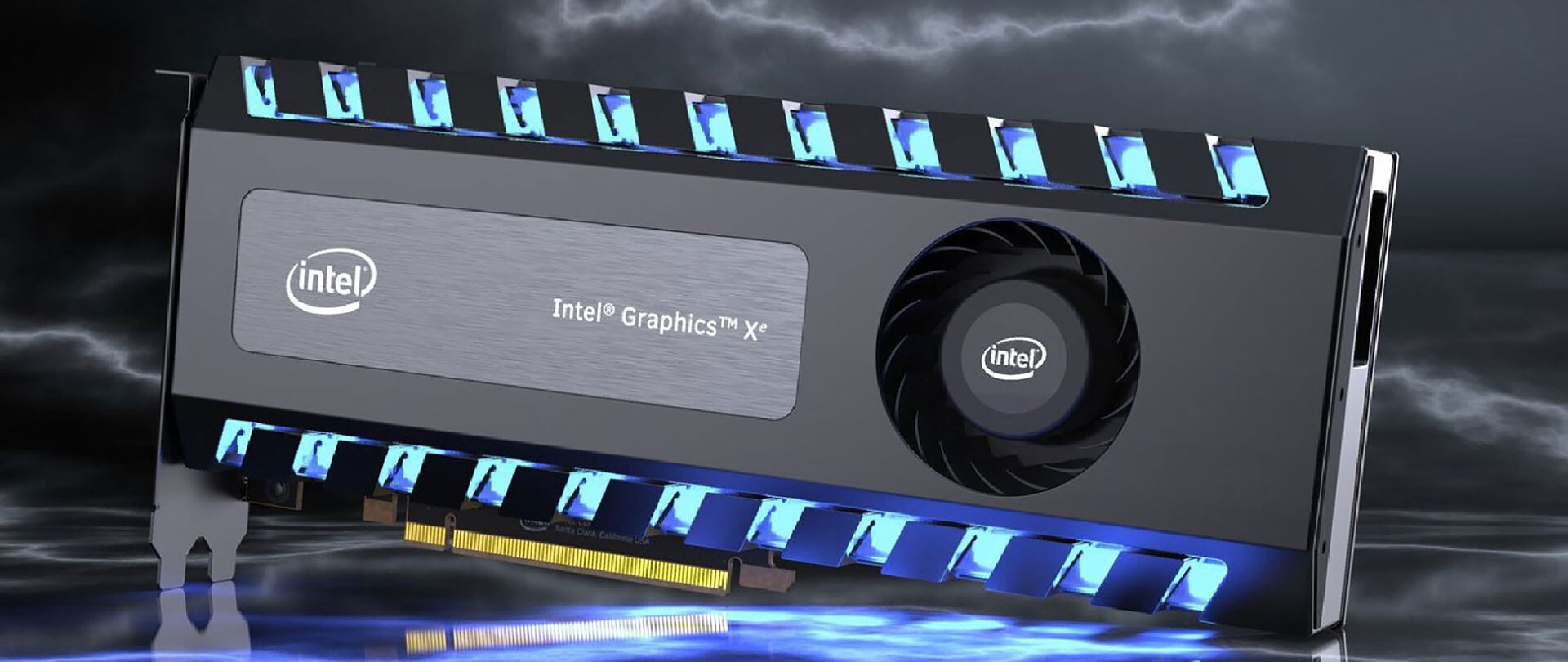
Intel’s GPU ARC coming aimed at AMD & Nvidia
intel ARCThis is not the first time that Intel is trying to enter the GPU field but its adventures so far were, well let us agree not so good. All of that is hoping to be changed with the upcoming ARC GPU. The first generation of Arc graphics, code-named Alchemist and previously known as DG2, will support desktop PCs and laptops and is set to arrive in the first quarter of 2022. Alchemist will have hardware-based Ray tracing and AI-driven supersampling. This indicates that GPU is aimed to compete in the Hi-end spectrum and battle side by side with Nvidia and AMD on the market. Alchemist will also pack full DirectX 12 Ultimate support. Intel also released names for the next upcoming future generations of ARC GPUs: Battlemage, Celestial & Druid. More information about ARC products will be released later this year. “Today marks a key moment in the graphics journey we started just a few years ago. The launch of the Intel Arc brand and the reveal of future hardware generations signifies Intel’s deep and continued commitment to gamers and creators everywhere,” Roger Chandler, Intel vice president, and general manager of client graphics products and solutions.
Read More
Quick Fix Guide To Runtime Error r6034

What Is Runtime Error R6034?

Runtime Error r6034 is one of the most commonly occurring errors.  This error usually arises in Windows Vista and Windows 7. The message that appears to the user states ‘An application has made an attempt to load C runtime library incorrectly, please contact the support team for more information’. As the message suggests, this problematic error occurs simply because an application attempts to load the C runtime library without a manifest.

Solution

Restoro box imageError Causes

Runtime Error r6034 occurs when the system compiler fails to compile the working application. While this is the primary reason, there are some other conditions that trigger Runtime Error r6034 which are outlined below.
  • Existence of viruses and malware in the system.
  • Corrupt or missing system files.
  • Power outages.
  • Hardware problems.
  • Hardware driver problems.
There are several other reasons that may trigger Runtime Error r6034 that are beyond the scope of this article. Regardless of what triggers this error, it is crucial to ensure that it is fixed as soon as possible.

Further Information and Manual Repair

There are several ways to deal with Runtime Error r6034. However, one of the most effective ways is listed below as follows.
  • When this error occurs, restart your computer. Make sure you press F8 before the windows logo is displayed.
  • Choose safe mode and press enter.
  • Go to the ‘Start’ button and type ‘msconfig’ in the search box. Press enter.
  • The MSConfig program will now open.
  • Choose ‘Start up’ in the general tab and then click on the ‘Load Start Up’ item.
  • Click on the ‘Services’ tab. Now click ‘Hide all Microsoft Services’ and then choose ‘Disable All’.
  • Close the system configuration window.
  • Restart the computer.
After restarting your computer, you will notice that the Runtime Error r6034 has been removed. If this approach fails to deliver the desired results, it is advised to follow the steps listed below.
  • Go to the start button. In the search box, type ‘System Restore’.
  • When System Restore appears, click on it.
  • The system restore window will open. Make sure any process or application that’s open is now closed.
  • In the System Restore window, if a calendar list appears, it means the restore point is open. Now choose the point from where the error appeared and click Next.
  • This process may take some time. Your system will restart automatically and the Runtime Error r6034 will disappear.
Read More
HolidayPhotoEdit Removal Guide for Windows

Holiday Photo Edit is a Browser Extension for Google Chrome developed by Mindspark Inc. and offers users a basic photo editing tool alongside links to some popular editing websites.

When installed this extension changes your default search engine to MyWay and hijacks your New Tab page, changing it to HolidayPhotoEdit. It monitors user browsing activity recording visited websites and clicked links in order to learn more about the user, this data is later used/sold to better target Injected Ads.

While browsing the internet with the HolidayPhotoEdit extension enabled, users will experience more ads throughout their search results, additional sponsored links to partner products, and sometimes even pop-up ads with special giveaways designed to lure users to buy something.

Popular anti-virus scanners have marked HolidayPhotoEdit as a Browser Hijacker, and it is recommended to remove it from your computer.

About Browser Hijackers

Browser hijackers (sometimes called hijackware) are a type of malware that changes internet browser configuration settings without the computer owner’s knowledge or approval. These hijacks appear to be increasing at an alarming rate across the world, and they could be actually nefarious and often dangerous too. Practically all browser hijackers are made for advertising or marketing purposes. In most cases, it will drive users to particular sites which are trying to boost their advertising campaign revenue. Though it might appear naive, all browser hijackers are harmful and therefore always regarded as security risks. Browser hijackers can even permit other vicious programs without your knowledge to further damage your PC.

Find out how to identify a browser hijack

The typical signs that signify having this malicious software on your PC are: 1. the home page of the web browser is changed suddenly 2. you observe new unwanted bookmarks or favorites added, usually directed to advertisement-filled or pornography websites 3. the essential web browser settings are modified and unwanted or unsafe resources are put into the trusted sites list 4. unwanted new toolbars are added to your browser 5. many pop-up ads appear and/or your web browser pop-up blocker is disabled 6. your web browser has become unstable or starts running sluggishly 7. you have prohibited entry to particular websites, for example, the website of an anti-malware software developer like SafeBytes.

How does a browser hijacker infect a computer?

Browser hijackers can get into a PC by some means or other, including via file sharing, downloads, and email also. They also come from add-on software, also called browser helper objects (BHO), web browser plug-ins, or toolbars. Some internet browser hijackers spread in user’s PC using a deceptive software distribution method called “bundling” (generally through freeware and shareware). A good example of some well-known browser hijackers includes Anyprotect, Conduit, Babylon, SweetPage, DefaultTab, Delta Search, and RocketTab, but the names are constantly changing.

Removing browser hijackers

Certain hijackers can be removed by just uninstalling the related free software or add-ons from the Add or Remove Programs in the Microsoft Windows Control Panel. However, many hijackers are quite tenacious and require specialized tools to get rid of them. And there is no denying the very fact that the manual fixes and removal methods could be a difficult job for an amateur computer user. Furthermore, there are various risks associated with tinkering around with the pc registry files. Browser hijackers can be effectively removed by installing and running anti-malware software on the affected PC. To eradicate any kind of browser hijacker from your PC, you could download this particular professional malware removal program – SafeBytes Anti-Malware. Together with the antivirus tool, a system optimizer, such as SafeBytes’s Total System Care, could help you in deleting all related files and modifications in the registry automatically.

Can't Install Safebytes Anti-malware because of Malware? Try This!

Malware could potentially cause many different types of damage to PCs, networks, and data. Some malware variants modify internet browser settings by adding a proxy server or change the PC’s DNS configuration settings. When this happens, you’ll be unable to visit certain or all internet sites, and thus not able to download or install the required security software to clear out the computer virus. If you’re reading this right now, you may have probably realized that a malware infection is the cause of your blocked internet traffic. So how to proceed if you need to download and install an anti-malware program such as Safebytes? Even though this kind of issue will be difficult to get around, there are a few actions you can take.

Install the antivirus in Safe Mode

If the malware is set to load at Windows startup, then booting in safe mode should prevent it. Only the bare minimum required applications and services are loaded whenever you start your computer in Safe Mode. You will have to do the following to eliminate malware in Safe mode. 1) At power-on/startup, hit the F8 key in 1-second intervals. This would invoke the “Advanced Boot Options” menu. 2) Select Safe Mode with Networking using arrow keys and hit ENTER. 3) When this mode loads, you should have internet access. Now, use your web browser normally and go to https://safebytes.com/products/anti-malware/ to download Safebytes Anti-Malware. 4) After installation, run a full scan and allow the program to delete the threats it discovers.

Utilize an alternate internet browser to download anti-malware software

Malicious program code may exploit vulnerabilities on a particular internet browser and block access to all anti-virus software websites. The ideal way to overcome this issue is to select an internet browser that is renowned for its security features. Firefox contains built-in Malware and Phishing Protection to help keep you secure online.

Create a bootable USB antivirus drive

Another way is to download and transfer an anti-malware program from a clean PC to run a scan on the infected computer. Adopt these measures to employ a flash drive to clean your corrupted PC. 1) On a clean computer, download and install Safebytes Anti-Malware. 2) Plug the Thumb drive into the uninfected computer. 3) Double-click the Setup icon of the anti-malware program to run the Installation Wizard. 4) Choose the drive letter of the flash drive as the place when the wizard asks you where you would like to install the antivirus. Follow the instructions on the computer screen to finish off the installation process. 5) Now, insert the pen drive into the corrupted PC. 6) Double click the Safebytes Anti-malware icon on the flash drive to run the software. 7) Click on the “Scan” button to run a full computer scan and remove viruses automatically.

Protect Your PC and Privacy With SafeBytes Anti-Malware

To protect your PC from various internet-based threats, it’s very important to install an anti-malware application on your PC. However, with countless numbers anti-malware companies in the marketplace, nowadays it’s hard to decide which one you should purchase for your personal computer. Some of them are great and some are scamware applications that pretend as authentic anti-malware software waiting around to wreak havoc on your PC. You have to look for a product that has got a good reputation and detects not just computer viruses but other types of malware too. One of the recommended software is SafeBytes AntiMalware. SafeBytes has a superb reputation for top-quality service, and clients are very happy with it. SafeBytes anti-malware is a highly effective and easy-to-use protection tool that is made for end-users of all levels of computer literacy. After you have installed this software program, SafeBytes advanced protection system will ensure that no viruses or malicious software can seep through your computer.

SafeBytes anti-malware offers an array of enhanced features that sets it aside from all others. Some of them are given as below:

Live Protection: SafeBytes provides complete and real-time security for your personal machine. It’ll continuously monitor your computer for hacker activity and also gives end-users sophisticated firewall protection. World-class AntiMalware Protection: Built upon a highly acclaimed anti-virus engine, this malware removal application can identify and get rid of many obstinate malware threats like browser hijackers, PUPs, and ransomware that other typical antivirus programs will miss. Safe Browsing: SafeBytes checks and gives a unique safety ranking to each and every website you visit and block access to web pages known to be phishing sites, thus safeguarding you from identity theft, or known to contain malicious software. Lightweight Application: SafeBytes is a lightweight and user-friendly anti-virus and antimalware solution. As it utilizes minimal computer resources, this tool leaves the computer’s power exactly where it belongs: with you. Fantastic Tech Support Team: You could get high levels of support 24/7 if you’re using their paid software. SafeBytes has developed a wonderful anti-malware solution to help you conquer the latest computer threats and virus attacks. There is no doubt that your computer system will be protected in real-time as soon as you put this software program to use. You will get the very best all-around protection for the money you pay on SafeBytes anti-malware subscription, there’s no question about it.

Technical Details and Manual Removal (Advanced Users)

If you do not want to use malware removal software and prefer to get rid of HolidayPhotoEdit manually, you may accomplish this by going to the Windows Add/Remove Programs menu in the control panel and removing the offending software; in cases of web browser plug-ins, you could uninstall it by visiting the browsers Add-on/Extension manager. You’ll probably also want to totally reset your internet browser to its default configuration settings. Lastly, examine your hard disk for all of the following and clean your computer registry manually to remove leftover application entries following an uninstallation. But bear in mind, this is often a challenging task and only computer experts could accomplish it safely. Furthermore, some malware keeps replicating which makes it difficult to remove. Completing this task in Safe Mode is recommended.
Files: %LOCALAPPDATA%\HolidayPhotoEditTooltab %LOCALAPPDATA%\Google\Chrome\User Data\Default\Local Extension Settings\ompcmhnafgchjgmdcdopfhlebohkgall %UserProfile%\Local Settings\Application Data\Google\Chrome\User Data\Default\Local Extension Settings\ompcmhnafgchjgmdcdopfhlebohkgall %LOCALAPPDATA%\Google\Chrome\User Data\Default\Extensions\ompcmhnafgchjgmdcdopfhlebohkgall %UserProfile%\Local Settings\Application Data\Google\Chrome\User Data\Default\Extensions\ompcmhnafgchjgmdcdopfhlebohkgall Registry: HKEY_LOCAL_MACHINE\Software\Microsoft\Internet Explorer\DOMStorage\www.holidayphotoedit.com HKEY_LOCAL_MACHINE\Software\Google\Chrome\PreferenceMACs\Default\extensions.settings, value: ompcmhnafgchjgmdcdopfhlebohkgall HKEY_LOCAL_MACHINE\Software\Microsoft\Internet Explorer\DOMStorage\holidayphotoedit.dl.myway.com HKEY_LOCAL_MACHINE\Software\Microsoft\Internet Explorer\DOMStorage\holidayphotoedit.dl.tb.ask.com HKEY_CURRENT_USER\SOFTWARE\HolidayPhotoEdit HKEY_CURRENT_USER\SOFTWARE\Wow6432Node\HolidayPhotoEdit HKEY_LOCAL_MACHINE\Software\[APPLICATION]\Microsoft\Windows\CurrentVersion\Uninstall..Uninstaller HolidayPhotoEditTooltab Uninstall Internet Explorer
Read More
How to Fix Chrome error 1603 & 0x00000643
If you encounter errors 1603 and 0x00000643 on your Windows 10 computer while trying to install or update your Google Chrome browser. Although most errors can be fixed by some simple troubleshooting steps, that is not the case for these two errors since they have pretty specific solutions. To resolve errors 1603 and 0x00000643 on your Chrome browser, here are some solutions you need to check out.

Option 1 – Try to run Microsoft Install and Uninstall Troubleshooter

Running the Microsoft Install and Uninstall Troubleshooter could help you fix errors 1603 and 0x00000643 in Chrome as well as the following issue in your Windows 10 computer:
  • Corrupted registry keys on 64-bit operating systems.
  • Corrupted registry keys that control the updated data.
  • Problems that:
    • Prevent new programs from being installed.
    • Prevent new programs from being installed.
    • Problems that block you from uninstalling a program through Add or Remove Programs (or Programs and Features) in Control Panel.
To use the Microsoft Install and Uninstall Troubleshooter, refer to the given steps below.
  • First, right-click on the downloaded MicrosoftProgram_Install_and_Uninstall.meta.diagcab file and run it with administrative privileges.
  • Next, it will offer you two scenarios to troubleshoot namely, “Installing” or “Uninstalling” and you have to select Installing to resolve the current errors.
  • After that, it will show you a list of available programs on your computer. From there, select Google Update Helper and then click Next.
  • It will then start to troubleshoot the problem and will automatically apply the fixes for you. It will offer you to uninstall Chrome if it turns out that it’s the root cause of the problem.
  • After that, you need to download Google Chrome again and then reinstall it.

Option 2 – Try to clean reinstall Chrome

There are instances when programs leave files behind after you’ve uninstalled them and the same thing can happen to Chrome so before you reinstall Chrome, you have to make sure that you have deleted the User Data folder. To do so, refer to the following steps:
  • Hit the Win + R keys to open the Run dialog box.
  • Next, type “%LOCALAPPDATA%GoogleChromeUser Data” in the field and hit Enter to open the User Data folder.
  • From there, rename the default folder and name it something else, e.g. “Default.old”.
  • After that, install Google Chrome again and check if the issue is now fixed.

Option 3 – Try running the Chrome Cleanup tool

You might want to run Google Chrome’s built-in Malware Scanner & Cleanup tool as it could also help in getting rid of any unwanted ads, pop-ups, and even malware, as well as unusual startup pages, toolbars, and anything else that might overtake the network and could affect the performance of the browser.

Option 4 – Try to run the Network Troubleshooter

  • Open the Search bar on your computer and type in “troubleshoot” to open the Troubleshoot settings.
  • Next, scroll down and select the “Network Adapter” option from the right pane.
  • Then click on the Run Troubleshooter” button.
  • After that, your computer will check for any possible errors and will pinpoint the root cause of the problem if possible.

Option 5 – Reset Chrome

Resetting Chrome can also help you fix the error. This means that you will be restoring its default settings, disabling all the extensions, add-ons, and themes. Aside from that, the content settings will be reset as well and the cookies, cache, and site data will also be deleted. To reset Chrome, here’s what you have to do:
  • Open Google Chrome, then tap the Alt + F keys.
  • After that, click on Settings.
  • Next, scroll down until you see the Advanced option, once you see it, click on it.
  • After clicking the Advanced option, go to the “Restore and clean up option and click on the “Restore settings to their original defaults” option to reset Google Chrome.
  • Now restart Google Chrome.
Read More
How to Remove MovieGoat - Malware Removal Guide

MovieGoat is a browser extension that allegedly lets you search for your favorite videos using its simple search engine. From the author:

Search for your favorite movies online, stay updated with the latest news and trends, and keep an eye on what’s up and coming in the world of cinema.

Simply type goat+ SpaceTab + query at the chrome search bar.
MovieGoat hijacks your browser, replacing your default search engine, displaying sponsored videos when you use its search and will display pop-up ads during your browsing experience. This extension has been detected as a Browser Hijacker by several anti-virus scanners and is not recommended to keep on your computer, especially because it serves no other purpose than to display pop-up ads and negatively impact your browsing experience.

About Browser Hijackers

Browser hijack is a common type of internet fraud where your internet browser configuration settings are modified to make it carry out things you never intend. There are numerous reasons why you may have an internet browser hijack; however commercial, advertising, and marketing are definitely the primary reasons for their creation. Usually, hijackers are made for the benefit of cyber hackers usually through income generation from forced ad clicks and site visits. Most people assume that these types of websites are legitimate and harmless but that is incorrect. Almost every browser hijacker poses an actual threat to your online safety and it’s important to categorize them under privacy risks. Some browser hijackers are designed to make particular modifications beyond the web browsers, like altering entries on the system registry and permitting other types of malware to further damage your PC.

How you can recognize a browser hijack

When your browser is hijacked, the following could happen: your homepage has been reset to some unfamiliar webpage; you find yourself regularly directed to some other site than the one you meant; The default search page of web browser is altered; you are finding new toolbars you have never witnessed before; you’ll notice random pop-ups start showing regularly; websites load very slowly and sometimes incomplete; Inability to navigate to particular websites, particularly anti-malware as well as other computer security software websites.

How it infects your computer

Browser hijackers can get into a computer in some way or other, for example via downloads, file sharing, and email too. They may also be deployed through the installation of a web browser toolbar, add-on, or extension. A browser hijacker can also come bundled up with some freeware which you unwittingly download and install the browser hijack, compromising your computer security. A good example of some infamous browser hijackers includes Anyprotect, Conduit, Babylon, SweetPage, DefaultTab, Delta Search, and RocketTab, however, the names are constantly changing. Browser hijacking can bring about severe privacy problems and even identity theft, affect your browsing experience by taking control over outbound traffic, substantially slows down your computer by consuming lots of resources, and cause system instability also.

Removal

One thing you could try to eliminate a browser hijacker is to locate the malicious software within the “Add or Remove Programs” list of the Windows Control Panel. It might or might not be there. If it is, uninstall it. But, most browser hijackers are hard to eliminate manually. Irrespective of how much you attempt to get rid of it, it could come back again and again. On top of that, manual removal demands you to carry out several time-consuming and complicated procedures which are very hard to complete for new computer users.

What you can do if Virus Prevents You From Downloading Or Installing Antivirus?

Malware can cause all sorts of damage if they invade your PC, ranging from stealing your personal information to erasing files on your computer. Some malware is created to restrict or block things that you want to do on your PC. It may not allow you to download anything from the net or it will prevent you from accessing a few or all of the internet sites, particularly the antivirus sites. If you’re reading this article, odds are you’re stuck with a virus infection that is preventing you to download or install Safebytes Anti-Malware software on your computer system. There are a few solutions you can attempt to get around with this particular obstacle.

Boot your computer in Safe Mode

If the malware is set to load automatically when Microsoft Windows starts, entering safe mode could block this attempt. Just the minimum required applications and services are loaded whenever you boot your computer or laptop in Safe Mode. Here are the steps you need to follow to boot into the Safe Mode of your Windows XP, Vista, or 7 computers (visit Microsoft site for directions on Windows 8 and 10 PCs). 1) At power on, hit the F8 key before the Windows splash screen begins to load. This would conjure up the Advanced Boot Options menu. 2) Select Safe Mode with Networking using arrow keys and hit Enter. 3) Once you get into this mode, you will have internet access once again. Now, obtain the malware removal program you want by using the internet browser. To install the software, follow the directions in the installation wizard. 4) Following installation, do a complete scan and allow the program to remove the threats it detects.

Use an alternate web browser to download security software

Malicious code could exploit vulnerabilities in a particular browser and block access to all antivirus software websites. If you are not able to download the anti-virus software program using Internet Explorer, it means malware may be targeting IE’s vulnerabilities. Here, you need to switch over to another web browser such as Chrome or Firefox to download Safebytes Anti-malware software.

Install and run anti-malware from a USB drive

Here’s yet another solution which is utilizing a portable USB antivirus software package that can check your computer for viruses without the need for installation. Follow these steps to use a USB flash drive to clean your corrupted computer system. 1) Download Safebytes Anti-Malware or Windows Defender Offline onto a clean PC. 2) Insert the USB drive into the clean computer. 3) Double-click the exe file to run the installation wizard. 4) When asked, choose the location of the USB drive as the place in which you would like to store the software files. Follow the on-screen instructions to complete the installation. 5) Disconnect the flash drive. You can now utilize this portable anti-malware on the affected computer system. 6) Double-click the antivirus program EXE file on the USB flash drive. 7) Hit the “Scan” button to run a full computer scan and remove viruses automatically.

Protect your PC from Malware With SafeBytes Security Suite

If you are looking to install anti-malware software for your computer, there are plenty of tools on the market to consider nonetheless, you should not trust blindly anyone, no matter whether it is a paid or free software. A few are good ones, some are ok types, and some are simply just bogus anti-malware applications that can damage your personal computer themselves! You need to pick one that is efficient, practical, and has a strong reputation for its malware protection. On the list of strongly recommended software by industry analysts is SafeBytes Anti-Malware, the safest program for Microsoft Windows. SafeBytes anti-malware is a trusted software that not only secures your computer permanently but is also very user-friendly for people of all ability levels. With its outstanding protection system, this tool will automatically detect and remove most of the security threats, including browser hijackers, viruses, adware, ransomware, PUPs, and trojans. SafeBytes possesses a plethora of amazing features that can help you protect your PC from malware attack and damage. Here are a few of the best ones: Most effective AntiMalware Protection: Using its enhanced and sophisticated algorithm, this malware removal tool can identify and eliminate the malware threats hiding within your computer system effectively. Active Protection: Malware programs trying to get into the system are identified and stopped as and when detected by the SafeBytes active protection shields. It will constantly monitor your laptop or computer for hacker activity and also gives users advanced firewall protection. Web Protection: SafeBytes checks and provides a unique safety rating to every single website you visit and block access to web pages considered to be phishing sites, thus safeguarding you against identity theft, or known to contain malware. High-Speed Malware Scanning Engine: This tool has got one of the fastest and most efficient virus scanning engines in the industry. The scans are very accurate and take a little time to complete. Lowest CPU and Memory Usage: SafeBytes is a lightweight tool. It consumes a very small amount of processing power as it operates in the background so you are free to use your Windows-based PC the way you really want. 24/7 Online Support: For any technical queries or product support, you can get 24/7 expert assistance through chat and e-mail.

Technical Details and Manual Removal (Advanced Users)

If you wish to manually remove MovieGoat without the use of an automated tool, it may be possible to do so by removing the program from the Windows Add/Remove Programs menu, or in cases of browser extensions, going to the browsers AddOn/Extension manager and removing it. You will likely also want to reset your browser. To ensure the complete removal, manually check your hard drive and registry for all of the following and remove or reset the values accordingly. Please note that this is for advanced users only and may be difficult, with incorrect file removal causing additional PC errors. In addition, some malware is capable of replicating or preventing deletion. Doing this in Safe Mode is advised.

The following files, folders, and registry entries are created or modified by MovieGoat

Files: %Documents and Settings%All UsersApplication DataMovie Goat virus %program files %internet explorer Movie Goat[random].mof %program files (x86)%common filesspeechengines %programData%suspicious folders %windows%system32drivermessy code.dll %AppData%[malware program name]toolbar uninstallStatIE.dat %app data% Movie Goat virus Registry: [HKEY_LOCAL_MACHINESOFTWAREMicrosoftMATSWindowsInstallerEAF386F0-7205-40F2-8DA6-1BABEEFCBE8914.07.30.07.52.18]”ProductName”=”Movie Goat” [HKEY_LOCAL_MACHINESOFTWAREWow6432NodeMicrosoftTracingMuvic_RASAPI32] [HKEY_LOCAL_MACHINESOFTWAREWow6432NodeMicrosoftTracingMuvic_RASMANCS] [HKEY_LOCAL_MACHINESOFTWAREWow6432NodeMicrosoftWindowsCurrentVersionUninstallEAF386F0-7205-40F2-8DA6-1BABEEFCBE89] “DisplayName”=”Movie Goat” [HKEY_USERSS-1-5-21-3825580999-3780825030-779906692-1001SoftwareMicrosoftWindowsCurrentVersionUninstall50f25211-852e-4d10-b6f5-50b1338a9271] “DisplayName”=”Movie Goat”

Read More
YOU ARE NOT AUTHORIZED TO ACCESS ...
If you have encountered the “YOU ARE NOT AUTHORIZED TO ACCESS THIS WEB PAGE AS PER THE DOT COMPLIANCE” error while trying to visit a website using either Firefox or Chrome browser, then read on as this post will guide you on how you can fix this error. Apart from this error message, you might also see an alternative message that says, “Web Page Blocked! The page you have requested has been blocked because the URL is banned as per the Government Rules”. When you get any of the aforementioned error messages when visiting a website, this means that it has been marked. It is mostly recommended to not access the site as it might be blocked for some illegal reason. However, if you are certain that the website is legitimate and safe and you believe that it has been blocked by accident, then you can check out the given methods in this post to unblock and access the blocked or restricted website. There isn’t actually a straightforward way to remove the restriction on the website or the DOT compliance. And it won’t matter what browser you use as you will still get the same error. Thus, the best way to go about this issue is for you to bypass the ISP restriction. But before you proceed, keep in mind that the ISPs (Internet Service Providers) can block any website when a request goes through their servers.

Option 1 – Try changing the DNS

If the request to access the website does not go through the ISP’s DNS server, you might have a chance in accessing it by changing your DNS settings. You can try using the Google Public DNS.
  • Tap the Win + R keys to open the Run dialog box.
  • Then type “inetcpl.cpl” in the field and hit Enter to pull up the Internet Properties.
  • After that, go to the Connections tab and select the LAN settings.
  • From there. Uncheck the “Use a Proxy Server” option for your LAN and then make sure that the “Automatically detect settings” option is checked.
  • Now click the OK and the Apply buttons.
  • Restart your PC.
Note: If you are using a third-party proxy service, you have to disable it.

Option 2 – Try to install a Proxy Extension

You could also try installing a Proxy extension or Proxy software as it could also help you access the website you are trying to open as it allows you to access the blocked websites by routing the request through their server. Aside from that, it can also hide it from ISPs to make them look like the content is coming from the proxy servers.

Option 3 – Try using a VPN connection

There are instances when the network that your computer is logged on might have blocked your access to the website you are trying to open and so to fix it, you can try to use a VPN connection. There is a lot of free VPN software out there but just make sure that you install a trusted one. Once you’ve connected using VPN, try to open the website again and see if you can now access it.

Option 4 – Check the Windows Host file

You can also try to cross check the Windows Hosts file to find out if the website you are trying to open has been blocked because if it is, then it’s no wonder why you’re getting the ERR CONNECTION TIMED OUT error in Chrome. There are instances when some third party application modifies the file and add some websites to the block lists. So if the website is indeed blocked, you need to remove it from the list.

Option 5 – Try to contact your ISP

If none of the options given above worked, then you can try to contact your ISP as there are times when DOT clears a website, the ISPs are still blocking it. Thus, it’s probably better if you reach out to them and ask them to unblock the website from their end.
Read More
How To Solve The Cyclic Redundancy Check Error

Cyclic Redundancy Check Error - What is it?

To begin with, Cyclic Redundancy Check is basically an error checking technique. This technique is used for data verification. It detects accidental changes in the data. It is used by computers to specifically check the data stored in the hard drive or optical disks (DVD’s and CD’s). The Cyclic Redundancy Check error occurs when the data being verified on the hard drive or optical disks is corrupt. Symptoms for this error code include program lock-ups, slow PC performance, inability to run and execute the desired program, system freeze and shutdown and startup issues.

Error Causes

The Cyclic Redundancy Check error code occurs due to the following reasons:
  • Cluttered hard disk
  • Registry corruption
  • Misconfigured files
  • Unsuccessful program installation
All these causes points towards registry issues and poor PC maintenance. The registry is the main database of the computer. This part of the PC saves practically every activity you perform on it including activities like application installation and deletion and web browsing to name a few. With time and frequent PC usage, the files generated from every activity you execute on your system begin to load the registry. These include even the unnecessary files like junk files, internet files and files of applications that you’ve uninstalled. All these files overload the registry and acquire a lot of hard disk space. And when you don’t remove these files on your system, eventually it leads to file misconfiguration, cluttered disk, and registry corruption. New program versions that you want to install and run on your system also don’t function because the files of the old program version still saved in the registry.

Further Information and Manual Repair

As the Cyclic Redundancy Check Error causes data corruption on the hard disk, it is advisable to fix this error right away. The reason is that it can have serious consequences. It can lead to data loss, fatal crashes, and system failures. When it comes to resolving Cyclic Redundancy Check Error, there are two ways to fix it:

Run the CHKDSK application.

This is a built-in feature in your Windows system. It checks for hard disk damage and attempts to resolve it.
Read More
1 2 3 171
Logo
Copyright © 2023, ErrorTools. All Rights Reserved
Trademark: Microsoft Windows logos are registered trademarks of Microsoft. Disclaimer: ErrorTools.com is not affiliated with Microsoft, nor claims direct affiliation.
The information on this page is provided for information purposes only.
DMCA.com Protection Status