
DirectX encountered unrecoverable error usually face gamers when they try to star certain game. In this guide, we will help you to get over it and solve the issue.
Follow steps in this guide one after another since they go from most simple ones to complex ones so following is advised in order not to waste a ton of time and resources doing wrong tasks.
The first and most common thing that can cause this type of error is when your installed DirectX is not the same version that the game requires. Check the game store page to see system requirements and write down which DirectX version it requires in order to run. Then press ⊞ WINDOWS + R to bring run dialog and type in it DXDIAG and press ENTER
DX diagnostic window will pop up and at the bottom, you can find which DirectX version is installed on your system. If versions are different, install the required DirectX version and run the game.
DirectX can get corrupted via bad driver update, in order to fix this, reinstall or update your Graphic drivers to the latest version from the official manufacturers' website.
Go into Windows settings and set custom Display scaling to a value of 100, sign out, and then sign back in.
Note that you should do this as the last option and be very careful since you can crash whole Windows in this way. Press ⊞ WINDOWS + R to open the run dialog and type RegEdit in it to open the registry editor. Find this key:
ComputerHKEY_CLASSES_ROOTPROTOCOLSFiltertext/XML
and delete it from the registry, you might want to do a backup of the registry first, just in case.






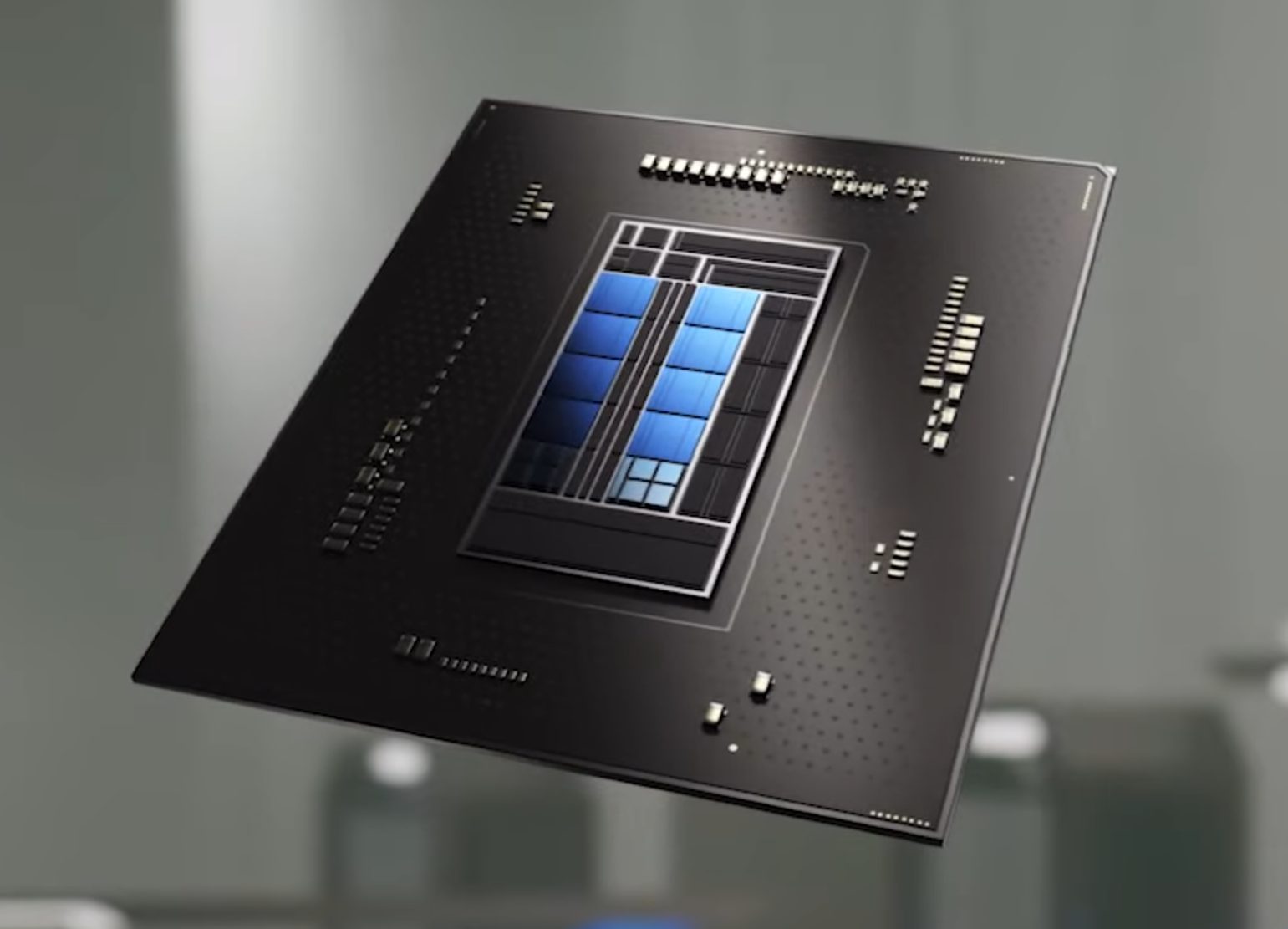 Now before you go on the bandwagon on bashing Intel itself take note that it is not Intel’s fault at all. The issue that arises is mostly due to DRM software and how it works. As you might know or not, Alder Lake has two sets of cores, standard performance cores, and power cores, and with Intel’s Thread Director on-chip right cores will be used for the right tasks, and here lies the issue.
DRM software might detect Thread Director as something suspicious and malicious, and then cut access to the game because of this. Intel, of course, has reached DRM manufacturers and places documentation about how software should be developed with this hybrid technology in mind.
Of course, newer games will be updated if needed and everything will work fine, also games on GOG will work fine because of GOG’s policy of no DRM store but some older ones might be left in limbo. They could work fine but DRM might be triggered and prevent them from loading, usually, game developer itself removes DRM protection after some time but that is not really always the case and there is a chance that some games might simply just not work on Alder Lake CPU only because of DRM protection.
Now before you go on the bandwagon on bashing Intel itself take note that it is not Intel’s fault at all. The issue that arises is mostly due to DRM software and how it works. As you might know or not, Alder Lake has two sets of cores, standard performance cores, and power cores, and with Intel’s Thread Director on-chip right cores will be used for the right tasks, and here lies the issue.
DRM software might detect Thread Director as something suspicious and malicious, and then cut access to the game because of this. Intel, of course, has reached DRM manufacturers and places documentation about how software should be developed with this hybrid technology in mind.
Of course, newer games will be updated if needed and everything will work fine, also games on GOG will work fine because of GOG’s policy of no DRM store but some older ones might be left in limbo. They could work fine but DRM might be triggered and prevent them from loading, usually, game developer itself removes DRM protection after some time but that is not really always the case and there is a chance that some games might simply just not work on Alder Lake CPU only because of DRM protection.
"STOP 0×00000050: PAGE_FAULT_IN_NONPAGED_AREA – dxgkrnl.sys"A problem has been detected and Windows has been shut down to prevent damage to your computer. The problem seems to be caused by the following file: Dxgkrnl.sys."
"STOP 0x0000000A: IRQL_NOT_LESS_EQUAL – dxgkrnl.sys""Your PC ran into a problem and needs to restart. We’re just collecting some info, and then we’ll restart for you. If you would like to know more, you can search online later for this error: dxgkrnl.sys."
"STOP 0x0000001E: KMODE_EXCEPTION_NOT_HANDLED – dxgkrnl.sys"Some of the common symptoms of this error code include
 Error Causes
Code 42 Error is referred to as a Device Manager Error code. Before we explain what this code indicates, it is important to understand what ‘Device Manager’ is and its functions.
Device Manager is basically a Windows tool that helps manage devices attached to the system such as the Printer, Scanner and the USB Device. The Device Manager Error code 42 occurs when a duplicate device is detected.
Error Code 42 is displayed in the following format:
“Windows cannot load the device driver for this hardware because there is a duplicate device already running in the system. Code 42”
 Error Causes
Narrowing down to one particular cause for error code 42 is not virtually possible because it may be triggered due to many underlying reasons. These include:
No matter what the reason for this error code,, to avoid inconvenience and to ensure proper hardware performance, it is advisable to fix it right away without any delay.
If you’re not technically sound, the code 42 message display can panic you. But don’t worry, the error message sounds complex but it is quite easy to fix.
To resolve code 42 in a few minutes, simply try the methods given below. These methods are easy-to-perform, effective and more importantly require no technical expertise.
Code 42 can pop up due to some temporary glitch in the Device Manager. By simply restarting your PC, you can resolve this problem.
Therefore, first things first, restart your system. However, in case it doesn’t work out, try other methods.
Launch the troubleshooting wizard to find the underlying problem and resolve it accordingly. To do this, proceed with the following steps:
Another method to fix code 42 is to use the System Restore tool to restore your PC to its previous working state before the error popped up. To do this,
Creating backup manually can be time-consuming and a painstaking task. The best way to create backup and restore your PC to its normal state is to download DriverFIX.
It is a user-friendly device driver management software that helps create data backup automatically and simultaneously restores your PC back to its normal working state in a few seconds.
This software is compatible with all Windows versions.
Click here to download DriverFIX on your system to resolve error code 42.
powercfg –lastwakeOnce you enter the command given above, it will show you the last device that woke your PC up. After that, you need to type in the next command:
powercfg –devicequery wake_armedAfter entering the command, it will show you a list of all the devices that could wake your PC up. The goal in running these commands is to understand the reason what’s really causing your PC to turn on and see the reason is on the hardware level or not. Here are a couple of options you can try if your Windows 10 PC turns on by itself.
resource setautoreset true C:
net stop wuauserv net start cryptSvc net start bits net start msiserver
net start wuauserv net start bits
 When the settings window opens, choose DEVICES on it.
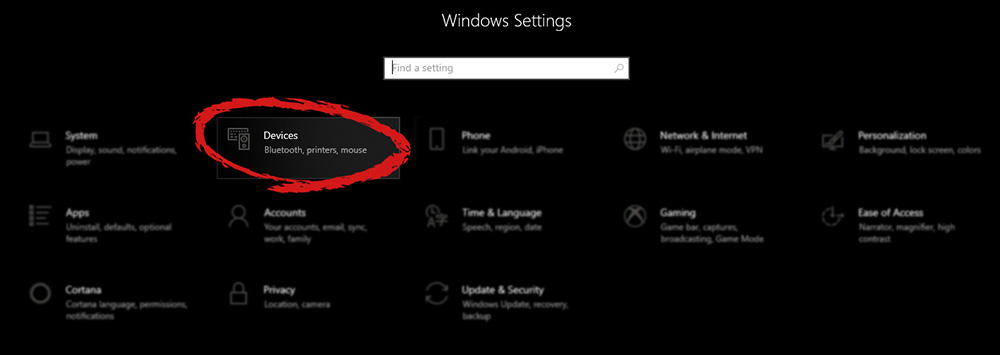 Once the device window opens, click once on printers and scanners, and on the right window go to the bottom and uncheck Let windows manage my default printer.
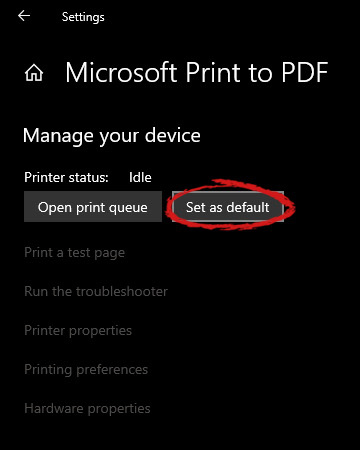
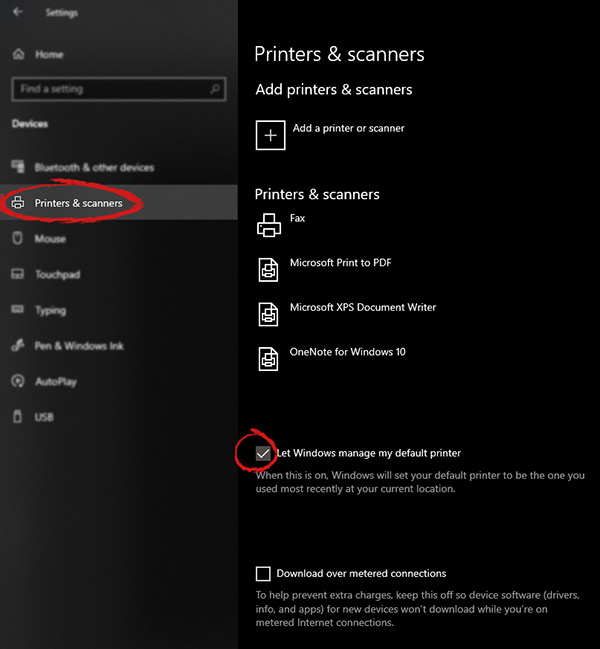 Unchecking that box will let Windows know that we do not wish anymore for him to set our default printers according to their use. Once the checkbox is clear go up to your printer list and click on the printer you wish to use as the default one. I will choose Microsoft Print to PDF as my default printer and click on it. Once the printer is clicked option menu will appear.
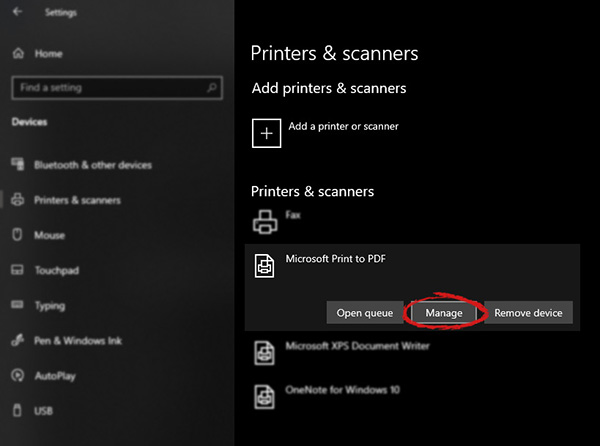 When the option menu appears under the printer name, click on Manage which will take you to the printer management screen. When you are on the manage screen, click on the Set as default button, and you are done.
 Once it opens, click on Device Manager to open it,
If you have a driver device error inside Windows, you should see it immediately when entering the Device Manager, it will have a yellow exclamation mark beside it. Right-click on it and choose update driver.
Once it opens, click on Device Manager to open it,
If you have a driver device error inside Windows, you should see it immediately when entering the Device Manager, it will have a yellow exclamation mark beside it. Right-click on it and choose update driver.