Logo

Fix BlueTooth issues in Windows 10

Bluetooth troubleshooting, I believe firmly that each one of us who has Bluetooth sooner or later had some issues with it, after all, it seems that it is in nature of radio transmitters to from time to time due to nature of signal and nature of Windows loose communication between them and can cause device which seems to work properly but can not establish the connection.

Most of the time Bluetooth issues are like that, the signal gets lost, the connection is broken, and establishing it again can be sometimes real pain, luckily for you, we have experience in this field and are here to help you and provide you with tips how to solve Bluetooth connection issues based on our own struggles.

  1. Check if BlueTooth is ON

    Yes, this seems stupid and sounds a lot like is it plugged in but here me out. Due to lost connections and different power plans setting inside your Windows, your Bluetooth receiver might be actually turned OFF thus preventing your other device to find your computer. Checking to see if Bluetooth has been by some accident turned OFF and switching it back ON should be the first thing to do and this could be a simple solution for your problem.

  2. Restart the BlueTooth device.

    Yup, another of these have you tried turning it OFF and turn it back ON advice which seems like tech cliche but in the case of Bluetooth, this can actually solve your problem. Radio signals and radio connections are not the same kinds of beasts like cable ones and sometimes Bluetooth device remembers certain information and can cause conflict. Turning it OFF and then back ON will clear its memory and cache and you will be ready for a new start hopefully solving your issue along the way.

  3. Check power supply

    If your Bluetooth device does not have a battery indicator, it would be wise to check on the battery status of the device. Sometimes we forget to charge batteries, sometimes someones have drained them. Checking the battery or just checking if the power supply is working properly should not be overlooked and it definitely should be on your to-do list of quick solutions.

  4. Restart PC

    Sometimes most simple solutions work and if restarting your Bluetooth device did not work, maybe restarting your PC will. When you restart the PC, you clear the cache and many other things that could potentially be the reason for connection issues.

  5. Checks BlueTooth device distance from computer or interference from obstacles

    The Bluetooth device operates via radio waves, and like wi-fi, if the distance from the computer is too large or you have some thick walls in between signal will degrade and be almost useless. Be aware that your PC might catch device waves and detect them but the signal itself could be too weak for the connection to work properly. Take the device and move it closer to the PC to see if the problem will go away, if it does issue was in distance or walls.

  6. Reinstall or update device drivers.

    Sometimes the issue could be in Windows update and old drivers, make sure that all of your drivers are updated with the latest version and that Windows itself has the most recent update in it. Trying to reinstall device cold also solve some the issue.

  7. Remove and Pair deice again

    if you tried all previous steps, try removing the device from Windows and then pairing it again. This could solve the issue since Windows itself could have mistakenly saved it like something else and can not recognize it.

  8. Use Windows troubleshooter

    If everything else failed, right-click and go to troubleshoot. Windows troubleshooter will try to find the issue and direct you to a solution.

If sadly none of these things do work, you should contact the device manufacturer since it is a very good chance that the problem is one of a hardware nature.

Do You Need Help with Your Device?

Our Team of Experts May Help
Troubleshoot.Tech Experts are There for You!
Replace damaged files
Restore performance
Free disk space
Remove Malware
Protects WEB browser
Remove Viruses
Stop PC freezing
GET HELP
Troubleshoot.Tech experts work with all versions of Microsoft Windows including Windows 11, with Android, Mac, and more.

Share this article:

You might also like

Microsoft Designer, a new app from MS

Microsoft Designer, a new application developed by Microsoft will bring design backed with DALL-E 2, an AI image creation open-source software. The new app is shown as a dedicated graphic design tool that will help you in the creation of stunning social media posts, invitations, digital postcards, graphics, and more, all in a flash.

Use of the application will be by typing headings and then typing text into the prompt to generate a background image. Since Microsoft uses DALL-E 2 for image creation output should be fairly good but if you wish you will be able to use your own images instead of using AI to generate one.

microsoft designer

The designer will be a free application once it is ready and it already has a web preview version, also free but with a waitlist. There will be premium features inside the app once it is released that will be available to Microsoft 365 Personal and Family subscribers. Microsoft also wants to add a version of a designer directly to the Edge browser as well.

Read More
Couldn’t open PDF in Edge Error in Windows
As you know, Microsoft Edge is the default web browser in Windows 10 operating system. It is a built-in browser that replaced the ancient Internet Explorer for its performance and features. Aside from being the default web browser, it is also set as a default PDF viewer in Windows 10. So if you open a PDF file, it will be automatically opened in the Edge browser even if you have installed a PDF reader on your computer. However, some users recently reported getting an error that says, “Couldn’t open PDF in Edge, Something’s keeping this PDF from the opening” when they tried to open a PDF file or view an internet link that has a downloadable PDF file in the Edge browser. If you are one of these users, read on as this post will help you troubleshoot the problem and fix it. This kind of error mostly occurs if you have installed other PDF viewers on your computer. They could be interrupting Edge while it tries to open the PDF documents. To fix it, check if Microsoft Edge is set as the default PDF viewer or you could also try to clear its browsing cache. In addition, you could also reset or repair Edge. For detailed instructions, refer to the given options below.

Option 1 – Check if Microsoft Edge is set as the default PDF viewer

The first thing you can do is to check if Edge is set as the default PDF viewer. If it’s not, you have to set it as one to fix the problem.
  • Open Control Panel and go to Default Programs.
  • Then click on the “Associate a file type or protocol with a program” option.
  • Next, select the PDF file option and click on Change program.
  • After that, select Microsoft Edge in the pop-up window and then select the “Always use this app to open .pdf” option.
  • Now click the OK button to set Edge as the default PDF viewer and then check if you can now open the PDF file in the Edge browser.

Option 2 – Clear the browser cache of Microsoft Edge

  • Open Microsoft Edge.
  • Then click on the three horizontal dots to open the menu.
  • From there, click on Settings. And under Settings, click the “Choose what to clear” button under the Clear browsing data section.
  • Next, check all the checkboxes and then click the Clear button to clear the browsing data in the Edge browser.
  • Restart Edge.

Option 3 – Reset, repair or reinstall Microsoft Edge via Settings

You can reset, repair or reinstall the Edge browser through Settings. If none of it helped, you can try the following:
  • Open File Explorer and then go to this path – C:/Users/YourUsername/AppData/Local/Packages
Note: Before you type in the path in the Address bar, make sure that you put your user account name in place with the “YourUsername”.
  • Tap Enter to proceed.
  • Next, look for the folder named “MicrosoftEdge_8wekyb3d8bbwe” then right-click on it.
  • Click on Properties and uncheck the option “Read-only” under the General tab in the Properties window.
  • Click on Apply and then OK to save the changes made.
  • After that, look for the MicrosoftEdge_8wekyb3d8bbwe folder again and delete it. And if a prompt stating “Folder Access Denied” appears on your screen, just click on the Continue button to proceed – doing so will delete most of the content inside the folder except for the folder named “AC”.
  • Restart your PC.
  • Now all you have to do is to re-register Microsoft Edge using PowerShell. In the Start Menu, search “Windows PowerShell”.
  • Right-click on Windows PowerShell from the search results and select the “Run as administrator” option.
  • Type in this command in the PowerShell windows and tap Enter – Cd C:/Users/YourUsername
Note: Once again, make sure that you key in your user account name in place of “YourUsername.
  • After that, type in this command and tap Enter – Get-AppXPackage -AllUsers -Name Microsoft.MicrosoftEdge | Foreach {Add-AppxPackage -DisableDevelopmentMode -Register "$($_.InstallLocation)AppXManifest.xml" -Verbose}
  • Restart your PC.
Read More
Regular vs Gaming mouse comparison

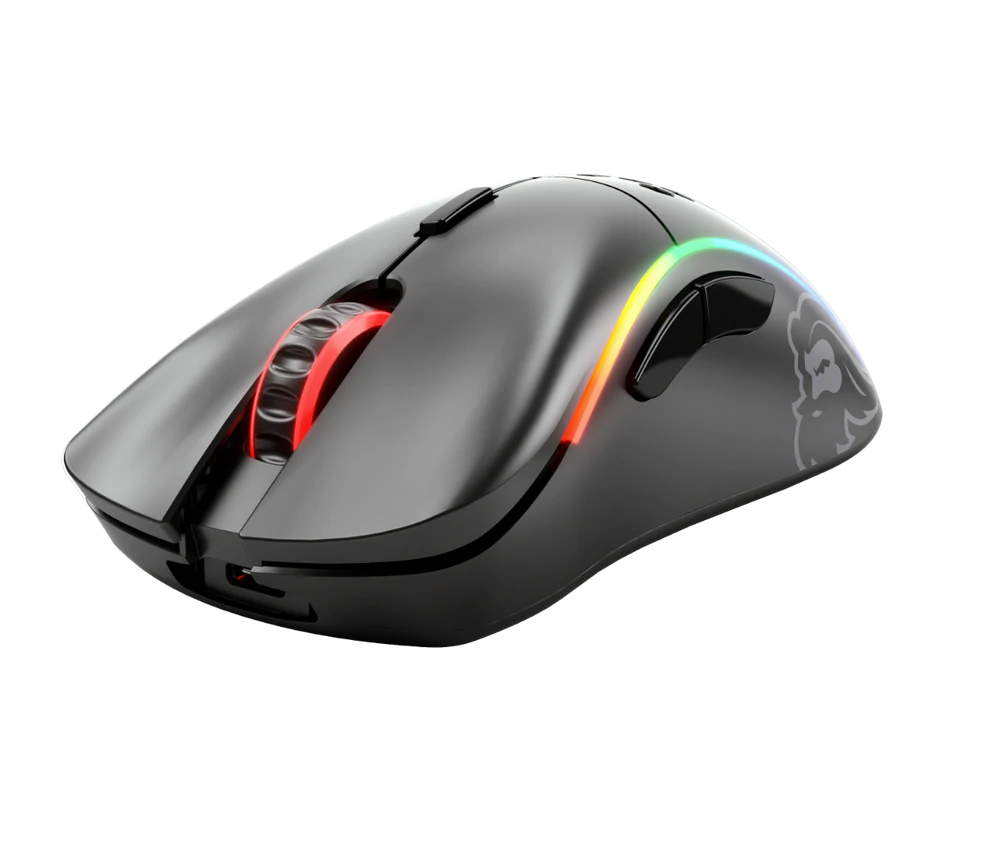
You have probably heard a lot of good things about gaming mice, how they are better feeling, better in any way possible and it is all true, everything you heard is actually true, they are superior in any way to a regular mouse but with one big disadvantage, and that would be the price. While you can find a regular mouse for pocket change, a gaming mouse is in comparison very expensive even for entry-level ones.

gaming mouse

In this article we will explore all advantages and compare it with the regular one so you can come up with your own conclusion about do you really need one for yourself or if you are fine with regular.

Price

As stated price is one factor that does not favor gaming mice. Regular mouse for a personal computer goes around 10 or 20 USD, while entry-level in gaming one will be 40 USD and can go up to 250 USD, this large gap in price is usually determining factor why people pick up regular one. If you are on a really tight budget go for the regular one, but if you can afford a gaming one get it without second thoughts.

Software

This is where you will see the big difference between mice. Regular ones when connected are recognized and the driver is automatically installed and you can use it, same goes with gaming ones but with one big difference, you have an option to install additional manufacturers' software specially tailored for your mouse. In the application, you will be able to access some features that are specific to the mouse model that you could not set in typical Windows mouse properties. Beside more options software can also have features like setting your profiles and saving them to be recalled when you need them on the fly.

Sensitivity of mouse

The sensitivity of the mouse is measured in dots per one inch or short DPI, this is directly shown on your screen by how fast your mouse can move, higher sensitivity means your mouse will move faster across the screen and lower means it will move slower. All gaming mice come with buttons and settings that will allow you to change DPI on the fly and you can choose precise DPI settings in the software.

The regular mouse comes with DPI around 800 and goes to 1200 typically and does not have usually the option to change this while gaming mice start at 400 and can go as high as 26000 with the option to change it. Some regular mice can have only 1 option of DPI, usually very cheap ones.

Polling rates in mice

Pooling rate is the measurement of how often your mouse reports where it is positioned on the computer. The higher the pooling rate, the more responsive your mouse will be and vice versa. It is measured in hertz (Hz) and regular mice have them around 125Hz that is enough if you are using a computer for office, internet, and mail work.

If you are working in design or gaming you will need more than 125Hz polling rate, luckily gaming mice come with a minimum of 500Hz as an entry point and some hi-end models are going as far as 8000Hz. This very high pooling rate will get some extra load on your CPU but the mouse itself will be maximally responsive and will respond even to the smallest moves.

Ergonomics

Regular mice are well just mice, they are typical shape and size, gaming mice are made with ergonomics in mind. How they are made for extensive daily use of several hours per day they are constructed in a way to offer a pleasant and pain-free experience.

If you work on a computer for long periods of time consider gaming an ergonomic mouse since it will take the strain from hands and place them in a more natural position.

Macro keys

Gaming mice most of the time come with more keys compared with regular ones and good thing is that via its software you can tie certain actions to these extra keys making work or gaming more pleasant and quicker.

Components and material quality

In order to make regular mice more affordable and cheaper materials and quality of components had to suffer. Gaming mice have millions of guaranteed clicks by companies that make them before they break and regular ones usually do not guarantee a single one. This is due of course quality of materials that have been used in constructing these devices.

In the long term, if you use a gaming mouse for typical daily tasks it will outlive your regular one and on the side offer you more pleasant and responsive use along the way.

Read More
Fix Windows Update Error 0x80070652
If you encounter a Windows Update error with an error code 0x80070652 and an error message saying, “ERROR_INSTALL_ALREADY_RUNNING”, then it indicates that there was a previous Windows Update that was not installed successfully. This kind of Windows Update error typically happens when it gets stuck and so to resolve it, here are some suggestions that might help.

Option 1 – Restart your computer and try installing the Updates again

You can restart your computer and then try installing the updates once again. There are instances when a simple restart resolves Windows Update errors. Thus, after you restart your computer, check for updates once again and see if you’re still getting the error or not.

Option 2 – Try running the Windows Update troubleshooter

You might also want to run the Windows Update Troubleshooter as it could also help in fixing Windows Update error code 0x80070652. To run it, go to Settings and then select Troubleshoot from the options. From there, click on Windows Update and then click the “Run the troubleshooter” button. After that, follow the next on-screen instructions and you should be good to go.

Option 3 – Try downloading the Windows Update that failed

If the Windows Update that has failed is not a feature update and only a cumulative update, you can download the Windows Update and install it manually. But first, you need to find out which update has failed, and to do so, refer to the following steps:
  • Go to Settings and from there go to Update and Security > View Update History.
  • Next, check which particular update has failed. Note that Updates that have failed to install will be displayed under the Status column which has a label of “Failed”.
  • After that, go to the Microsoft Download Center and look for that update using its KB number and once you find it, download and then install it manually.
Note: You can also use the Microsoft Update Catalog, a service from Microsoft that provides a list of software updates that can be distributed over a corporate network. With the help of this service, it can be easier for you to find Microsoft software updates, drivers as well as fixes.

Option 4 – Try to restart the Background Intelligent Transfer Service

The Background Intelligent Transfer Service or BITS is a part of the Windows Update service and is the one that manages the background download of Windows Update, as well as scans for new updates and so on. And if Windows Update is experiencing some problems, you can try restarting BITS but make sure that you have admin privileges to do so.
  • Tap the Win + R keys to open the Run dialog box.
  • Next, type “services.msc” in the field and hit Enter to open Windows Services.
  • From the list of Services, look for the Background Intelligent Transfer Service and double-click on it to open Properties.
  • After that, you need to set the Startup type to “Automatic (Delayed Start) and click on Apply.
  • Now click the Stop button to stop BITS and then click the Start button to restart the service.
  • Click OK to save the changes made and then restart your PC.

Option 5 – Try to update Windows after a couple of minutes or an hour

There are times when the issue is from Microsoft’s end. It could be that there’s some issue with Microsoft’s server so it would be better if you give it a couple of minutes or an hour or so before trying to run Windows Update again.
Read More
Completely Remove iLivid Malware Removal Guide from PC

iLivid is a video download manager for YouTube and other third-party video-hosted websites. iLivid download manager has powerful features that make it the fastest and easiest way to download hosted files. iLivid includes XBMC plug-ins that let you play almost all popular audio and video formats, in any available protocol and in any media type: streaming, CDs, DVDs, and RAR and archived files from your hard drive.

Livid is a program developed by Bandoo Media Inc. Upon installation, it defines an auto-start registry entry which allows the program to run on each boot for the user who installed it. A scheduled task is added to Windows Task Scheduler in order to launch the program at various scheduled times. The software is designed to connect to the Internet and adds a Windows Firewall exception in order to do so without being interfered with.

Multiple Anti-Virus scanners have detected iLivid as a possible Malware and are therefore not recommended.

About Potentially Unwanted Applications

Have you ever discovered an unwanted program running on your computer system and wondered how the heck it got there? These unwanted programs, which are referred to as Potentially Unwanted Programs, or PUP briefly, typically tag along as a software package when downloading the program and could cause serious problems for computer users. The term PUP was actually coined to identify this downloadable crapware as something other than malicious software. The primary reason for this is the fact that the majority of PUPs get into users’ computers not because they exploit security weaknesses, for instance, but mainly because the users grant consent to install it – unwittingly in many instances. However, it is obvious that PUPs continue to be bad news for PC users as they could be really detrimental to your computer in numerous ways.

How does unwanted software affect you?

PUPs come in various forms; having said that, many are classified as adware, which always displays irritating ads and advertising banners on internet pages that you’re exploring. Additionally, they come in the form of web browser extension add-ons and toolbars. Not only they entirely fill up space on your computer screen, but toolbars could also manipulate search engine results, monitor your web browsing activities, decrease your web browser’s efficiency, and slow down your web connection to a crawl. PUPs load up a nasty bite if left unchecked. Some PUPs carry keyloggers, dialers, and other software to gather your personal details which might lead to identity theft. Often, such software will turn off security protections and settings to take control over your computer, making that computer susceptible to online hackers and data thieves. At a minimum, PUPs slow your PC down with every added program.

Preventing unwanted programs

• When installing anything on your desktop, always study the fine print, including the EULA. Don’t accept terms of use that are for bundled programs. • Choose the “custom” install whenever installing an application. In particular, focus on those tiny boxes that have been checked as default, where you may ‘agree’ to get advertisements or install software bundlers. • Use an advert blocker/pop-up blocker; Deploy anti-malware products such as Safebytes Anti-malware. These software programs will establish a wall between your computer and cybercriminals. • Avoid installing applications you don’t really need. Do not ever install software programs that appear suspicious or malicious. • Don’t download programs from popups, internet advertising, file sharing sites, and also other unreliable sources; be cautious about any preset, unwanted options when downloading software. Avoid going to weblogs and sites that promote pirated software.

Can't Install Safebytes Anti-malware because of a Virus? Do This!

Malware could potentially cause a lot of damage to your personal computer. Some malware is designed to interfere with or prevent things that you wish to do on your computer. It may not allow you to download anything from the net or it will stop you from accessing some or all of the internet sites, particularly the anti-virus websites. If you’re reading this article, chances are you’re stuck with a virus infection that is preventing you to download and/or install the Safebytes Anti-Malware program on your computer system. There are a few solutions you could try to get around with this issue.

Download the software in Safe Mode with Networking

If the malware is set to load automatically when Microsoft Windows starts, getting into Safe Mode may block the attempt. Since just the bare minimum programs and services launch in safe mode, there are hardly any reasons for conflicts to take place. Below are the steps you have to follow to boot into the Safe Mode of your Windows XP, Vista, or 7 computers (visit Microsoft site for directions on Windows 8 and 10 PCs). 1) After switching on the computer, hit the F8 key while the Windows splash screen begins to load. This should bring up the Advanced Boot Options menu. 2) Choose Safe Mode with Networking with arrow keys and press Enter. 3) Once this mode loads, you will have the internet. Now, make use of your web browser to download and install Safebytes Anti-malware. 4) Immediately after installation, run a full scan and allow the software program to get rid of the threats it finds.

Switch to an alternate browser

Web-based malware could be environment-specific, targeting a particular internet browser or attacking particular versions of the browser. If you seem to have malware attached to Internet Explorer, then switch to a different internet browser with built-in safety features, such as Chrome or Firefox, to download your preferred antivirus program – Safebytes.

Run anti-virus from your USB drive

Another option is to save and run an anti-malware software tool entirely from a Pen drive. Follow these steps to use a USB drive to fix your corrupted computer. 1) On a virus-free computer, install Safebytes Anti-Malware. 2) Put the USB drive into the uninfected computer. 3) Double-click the Setup icon of the anti-malware software package to run the Installation Wizard. 4) Select the drive letter of the flash drive as the place when the wizard asks you where you want to install the antivirus. Follow the on-screen instructions to complete the installation process. 5) Unplug the USB drive. Now you can use this portable anti-malware on the infected computer system. 6) Double-click the antivirus program EXE file on the pen drive. 7) Run Full System Scan to identify and clean-up up all kinds of malware.

Let's Talk About SafeBytes Security Suite!

If you’re looking to download an anti-malware application for your computer, there are various tools in the market to consider nonetheless, you should not trust blindly anyone, no matter whether it is a free or paid program. Some of them are excellent, some are decent, while some will ruin your computer themselves! You have to select a company that creates industry-best anti-malware and has earned a reputation as reliable. Among few good programs, SafeBytes Anti-Malware is the highly recommended tool for the security-conscious individual. Safebytes is one of the well-established PC solutions companies, which offer this complete anti-malware application. This software program could easily identify, eliminate, and protect your PC from the most advanced malware attacks such as spyware, adware, trojan horses, ransomware, worms, PUPs, and other possibly damaging software applications. There are lots of amazing features you will get with this security product. Here are some popular features present in this software: Real-time Threat Response: SafeBytes gives complete and real-time security for your personal machine. It will check your personal computer for suspicious activity at all times and safeguards your personal computer from unauthorized access. Anti-Malware Protection: This deep-cleaning anti-malware application goes much deeper than most anti-virus tools to clean your computer. Its critically acclaimed virus engine detects and disables hard-to-remove malware that conceals deep inside your PC. Web Security: Through its unique safety score, SafeBytes informs you whether a site is safe or not to access it. This will make sure that you’re always certain of your online safety when browsing the net. High-Speed Malware Scanning Engine: Safebytes Anti-Malware, with its advanced scanning engine, offers super-fast scanning that can promptly target any active online threat. Lowest CPU/Memory Usage: SafeBytes gives you complete protection from online threats at a fraction of the CPU load due to its enhanced detection engine and algorithms. 24/7 Online Technical Support: You will get 24/7 technical support to quickly resolve any problem with your security application.

Technical Details and Manual Removal (Advanced Users)

If you wish to manually get rid of iLivid without using an automated tool, it may be possible to do so by deleting the program from the Windows Add/Remove Programs menu, or in cases of browser extensions, going to the browser’s AddOn/Extension manager and uninstalling it. It is also recommended to factory reset your browser to its default condition to fix corrupt settings. If you decide to manually remove the system files and registry entries, utilize the following list to ensure that you know exactly what files to remove before executing any actions. However, editing the registry is really a complicated job that only advanced computer users and professionals should try to fix the problem. Moreover, certain malicious programs are capable to defend against its deletion. It is recommended that you do the removal process in Windows Safe Mode.
Folders: %Application Data%iLivid Registry: Key HKEY_CURRENT_USERSoftwareiLivid Key HKEY_CURRENT_USERSOFTWAREMicrosoftWindowsCurrentVersionUninstalliLivid Key HKEY_CLASSES_ROOTSOFTWAREClassesApplicationsiLividSetupV1.exe HKEY_CLASSES_ROOT.torrent HKEY_CLASSES_ROOTiLivid.torrent HKEY_CLASSES_ROOTMagnetDefaultIcon HKEY_CLASSES_ROOTMagnetshellopencommand HKEY_CURRENT_USERSoftwareiLivid HKEY_CURRENT_USERSoftwareMicrosoftWindowsCurrentVersionExplorerFileExts.torrent HKEY_CURRENT_USERSoftwareMicrosoftWindowsCurrentVersionExplorerFileExts.torrentUserChoice HKEY_CURRENT_USERSoftwareMicrosoftWindowsCurrentVersionRun HKEY_CURRENT_USERSoftwareTrolltechOrganizationDefaultsQt Factory Cache 4.8com.trolltech.Qt.QImageIOHandlerFactoryInterface:C:Users N A M E AppDataLocaliLivid HKEY_CURRENT_USERSoftwareTrolltechOrganizationDefaultsQt Plugin Cache 4.8.falseC:Users N A M E AppDataLocaliLivid

Read More
Complete Ethernet cable guide

In today's modern world many households have internet access, most of the connection nowadays is done via Wi-Fi or wireless but there is a high probability that you have also a few devices connected via cable. There are of course many disadvantages and advantages between cable connection and wireless connection.

lan network cables

The main advantages of a hard cable connection are of course faster speed and stability compared to Wi-Fi. But if we look into the cables themselves there is also a big difference between them. Not all cables are the same and quality as well as speed vary a lot between them. Choosing the right cable is essential in order to make a maximum of your internet and we have some great tips and explanations of what cables do so you can make the right choice and enjoy your full internet potential.

Not all cables are the same

Cheap cables and expensive ones are not the same no matter what everyone tells you. The old proverb you get what you pay is true and more expensive cables will be made from better materials and will have a higher transfer rate.

Quality network cables are separated into different categories with proper markings and when buying one you should always look for these markings on the cables themselves, do not buy cables that do not have markings since they will often provide lower transfer rates or will not be shielded from outside influences resulting in packet drops and instability in a network.

Categories and what they mean are:

  • Cat-5 with a maximum speed of 100Mbps, typically unshielded.
  • Cat-5e with a maximum speed of 1Gbps, available in both shielded and unshielded varieties.
  • Cat-6 with a maximum speed of 10Gbps for runs under 55 meters (around 180ft), available in both shielded and unshielded varieties.
  • Cat-6a with a maximum speed of 10Gbps, shielded.
  • Cat-7 uses a proprietary GG45 connector rather than the standard RJ-45 connector seen on other cables for speeds of 10Gbps, shielded.
  • Cat-8 with a maximum speed of 25Gbps (Cat-8.1) or 40Gbps (Cat-8.2) at a distance of around 30 meters (around 100ft), shielded.

Unless stated, these standards are typically rated at their quoted speeds for a run of around 100 meters (around 330 ft) and use a standard RJ-45 Ethernet connector. Each generation of cable is designed to be compatible with the generations that came before it, so it’s possible (for example) to use a Cat-6a cable with a router that only supports speeds of 1Gbps.

Shielded cables

When purchasing higher quality cable you might not be able to choose if you have shielding or not since some standards like Cat-6a, Cat-7, and Cat-8 are always shielded. But if you do not have the need for these and you are satisfied with Cat-5e for example you can choose.

Shielded cables are a little more expensive but they will provide you with a coating that will eliminate interference from outside waves making cables more reliable. Of course, if the cable will go through a room that does not have many radio waves or some other interferences then buying a shielded cable is a waste of money.

Cable platings

Usually, there are two types of connector platings on connectors, silver, and gold, and people usually think that gold is much better but there are major differences between silver and gold platings and truth to be told there is no better one, both are different and should be considered depending on your need.

Silver plating will provide you with faster speed since its conductivity is larger than gold, but gold is slower on the oxidation front so its life span is longer. On the other hand, if your cables are always connecting and disconnecting gold will be first to be scrubbed off from the surface since the gold coating is much thinner.

Overall if you would only connect cable once and have slower internet than cable capacity gold is the way to go, in another case if you would use the cable as always connecting and switching and your internet plan is the same as cable transfer capacity you might want to go with silver one.

Cable material quality

Network cables are made from copper, your standard conduction material but even here there are differences in quality and therefore the chance of pocket losses over it. More quality less loss and more stable connection and this will depend on the purity of copper that is used in the cable itself. More purity in copper, more stability, simple as that.

Conclusion

So as you can see, there are a lot of different things that will influence your pick of proper network cable but the overall best advice is to get one that will fit well into your needs and setup. pair it up with your router and your internet plan since just simply buying something that you can not use is really a waste of money.

Read More
How to Fix Runtime Error 339

What is Runtime Error 339?

Runtime Error 339 is a common error code format that appears when a computer overloads with too much data. However, in some cases, it may occur due to the missing registry keys, DLL files, or during installation. It may lead some programs to shut down all of a sudden and may also corrupt files on the system.

Solution

Download Available to Completely Repair Runtime Error 339

Restoro box imageError Causes

This error code is alarming as it is a critical sign of an unstable system followed by improper maintenance of the computer. The potential risks associated with the Runtime Error 339 include:
  • System startup issues
  • Slow PC performance
  • System crash and failure
  • System file corruption
Therefore, to avoid these risks and system failure, it is advisable to fix the runtime error 339 immediately.

Further Information and Manual Repair

If you have a Runtime Error 339 issue on your computer, here is a great way how you can fix it right away:

Scan For Viruses

Improper maintenance of the computer indicates that your system might be exposed to viruses and malware. Viruses can modify the Windows registry and lead to Runtime Error 339. Therefore, first, it is important to scan for viruses on your PC.

Identify Software that Causes Errors

Scanning will help you identify software that produces this error on your PC. Once you identify them, either uninstall them or update the program. To uninstall the program, go to the Control Panel and then click on the Add/Remove program if you have Windows XP, if not then click on the Programs and Features item. Now delete the program from your system.

Obtain the Latest Version of the Installer and Re-install the Deleted Program

Once you get your hands on the latest version of the installer, run it on your system by following the on-screen instructions. Install the program. There is also another way to fix Runtime Error 339 and that is by downloading the Runtime Error tool.

Use a Professional Runtime Error Fixer Tool

To fix the error you can also use a professional Runtime Error fixer tool to scan for viruses on your PC. It is available for free download here. Download the tool and install it on your computer. Simply scan your PC after installation. Click the repair button once the scan is complete. This tool fixes problems in just a few minutes.
Read More
Preventing installation of Removable Devices
In case you don’t know, Windows 10 supports installation and use of a number of removable devices which includes plug and plays mouse, keyboard, and other USB-based devices. But this could actually pose a threat to the integrity of a computer system and thus, some organizations pose a restriction in using these kinds of devices. the restriction on these devices is also useful especially if you keep on leaving your computer idle and someone tries to mess it up by plugging in a removable device. In such situations, the restriction will defend the user against data theft. Thus, in this post, you will be guided on how you can prevent the installation of removable devices on your Windows 10 computer. There are two options that can help you in preventing the installation of any removable devices on your computer – you can either try to use the Registry Editor or use the Group Policy Editor instead. Follow whichever option you want to use the instructions given below but before you start, don’t forget to create a System Restore Point first.

Option 1 – Prevent installation of Removable Devices via Registry Editor

  • Tap the Win + R keys to open the Run dialog box and type “Regedit” in the field and hit Enter to open the Registry Editor.
  • Next, navigate to this registry path: HKEY_LOCAL_MACHINESOFTWAREPoliciesMicrosoftWindowsDeviceInstallRestrictions
  • From there, look for a DWORD named “DenyRemovableDevices” and set its value to “0”. On the other hand, if you can’t find this DWORD, just simply create it and set its value to 0.
  • Once done, exit the Registry Editor and reboot your PC to apply the changes made.

Option 2 – Prevent installation of Removable Devices via Group Policy Editor

Keep in mind that the Group Policy Editor is not available in the Home Edition of the Windows operating systems. Thus, if you are using one, just stick to the first option, otherwise, proceed to the following steps.
  • Tap the Win + R keys to open the Run utility and type “gpedit.msc” and click OK or tap Enter to open the Group Policy Editor.
  • After that, go to this policy setting: Computer ConfigurationAdministrative TemplatesSystemDevice InstallationDevice Installation Restrictions
  • Next, look for the “Prevent installation of removable devices” entry and once you find it, set it as “Enabled”. From this window, you should see the following description of this policy setting:
“This policy setting allows you to prevent Windows from installing removable devices. A device is considered removable when the driver for the device to which it is connected indicates that the device is removable. For example, a Universal Serial Bus (USB) device is reported to be removable by the drivers for the USB hub to which the device is connected. This policy setting takes precedence over any other policy setting that allows Windows to install a device. If you enable this policy setting, Windows is prevented from installing removable devices and existing removable devices cannot have their drivers updated. If you enable this policy setting on a remote desktop server, the policy setting affects redirection of removable devices from a remote desktop client to the remote desktop server. If you disable or do not configure this policy setting, Windows can install and update device drivers for removable devices as allowed or prevented by other policy settings.”
  • Then click the Apply and OK buttons to save the changes made.
  • Now restart your computer to save the changes made. This should prevent the installation of any removable devices in your Windows 10 computer.
Read More
Edge DevTools An error occurred while ...
In case you don’t know, Microsoft Edge, the new default browser of Windows 10, is equipped with the essential tools that are needed to help web developers in testing their websites in the Edge browser. However, it is not without its flaws as there are instances when you could also encounter some errors when using DevTools. One of these errors is the “An error occurred while starting the profiling session” error. You can see this error message in the DevTools Memory Panel, worry not for this post will help you resolve it. A memory panel is one that primarily measures your memory resource usage and compares heap snapshots in different states of code execution. The Memory panel also provides profiling of three different types, such:
  • Head Snapshot
  • Record Allocation timeline
  • Record Allocation profiles
Using a memory panel, you can find issues that affect the page performance in the most common scenarios like bloats and memory leaks. There are two steps you need to carry out to fix this error that’s associated with the Memory Panel of Microsoft Edge (Chromium) DevTools. First, you need to access the Microsoft (R) Diagnostics Hub Standard Collector Service. Second, you need to restart this service. For detailed steps, follow the instructions provided below. Step 1: Access the Microsoft (R) Diagnostic Standard Collector Service To access the Microsoft (R) Diagnostic Standard Collector Service, follow these steps:
  • Tap the Win + R keys to open the Run dialog box.
  • Then type “services.msc” in the field and hit Enter or click OK.
  • This will open the Services Manager. Here, look for the Microsoft (R) Diagnostic Service from the Services panel that opens on the right-hand side.
Step 2: Now restart the Microsoft (R) Diagnostic Hub Standard Collector Service
  • After accessing the Microsoft (R) Diagnostic Standard Collector Service, right-click on it and select the Restart option.
  • Once it’s done, exit the Microsoft Edge Developer Tools as well as the tab.
  • Next, open a new tab and navigate to your page and tap the F12 key.
  • Now, try to check if profiling begins.
Read More
How to Fix 0x80040154 Error Code

What is 0x80040154 Error Code?

0x80040154 is a typical ‘class not registered’ error message. It occurs when PC users try to register and Run a 32-bit DLL (dynamic link library) Windows programs on a 64-bit version of Windows.

Solution

Restoro box imageError Causes

  • The 0x80040154 error causes include:
  • Incompatible software
  • Invalid entry command path
  • Damaged and corrupt DLL files
  • COM components not properly registered
  • Active X control and class issues
To avoid the inconvenience of running programs on your Windows PC, it is advisable to resolve the 0x80040154 error.

Further Information and Manual Repair

Here are some of the best methods that you can try to resolve the 0x80040154 error code on your PC:

# 1. Use Regsvr32.exe to Re-register the Failing COM Component

This is one way to resolve the 0x80040154 error code. Regsvr32.exe is a program that you can use to register DLLs (Dynamic Link Libraries) and ActiveX controls in the registry. To use this file to re-register the failing COM components, simply open an elevated command prompt. If the 32-bit DLL is in the %systemroot%System32 folder, then move it to the %systemroot%SysWoW64 folder. After that run the following command: %systemroot%SysWoW64regsvr32 <full path of the DLL>. This will help resolve the issue.

# 2. Install and Run Restoro PC Fixer.

Another alternative is to download Restoro. This is a new, advanced, and innovative PC repair tool deployed with multiple utilities like Active X control and class fixer, system optimizer, an antivirus, and a registry cleaner. It has a user-friendly interface with simple navigation. This makes it quite easy to use for all levels of users. It is safe, fast, and compatible on all Windows versions. The Active X control and class utility scans your entire PC, detects and resolves all errors like 0x80040154 triggering ActiveX and class ID issues in seconds. Besides this, Restoro also offers other benefits. By running this software on your system you can also ensure good PC health and performance as it also removes anti-viruses, repairs registry issues, fixes damaged DLL files, and also boosts the speed of your PC. DLL files often can get damaged and corrupt due to data overload. This is associated with the registry. If you don’t clean the registry frequently, it overloads with data and damages the DLL files. However, with the help of the registry cleaner utility embedded inside this software, you can repair these files easily. The registry cleaner wipes out all the unnecessary files from your system occupying your disk space and simultaneously fixes the damaged DLL files and restores the registry. However, if the DLL files are damaged due to a malware attack, the antivirus module takes care of them. It removes all the malicious software like adware, spyware, viruses, and Trojans and restores your files. Click here to download Restoro on your PC and resolve the error 0x80040154 on your PC now!
Read More
1 2 3 171
Logo
Copyright © 2023, ErrorTools. All Rights Reserved
Trademark: Microsoft Windows logos are registered trademarks of Microsoft. Disclaimer: ErrorTools.com is not affiliated with Microsoft, nor claims direct affiliation.
The information on this page is provided for information purposes only.
DMCA.com Protection Status