Logo

Disabling the Recently Opened Files in Windows

The Windows 10 operating system comes with a user-friendly interface as well as better security features compared to its previous versions. One of these new features is the “Recently Opened Files” feature which displays all the files you’ve opened recently in File Explorer. Although it might seem useful, some users see this as a privacy concern especially if there are other users that use the same computer. If you are one of these users, read on as this post will guide you on how you can disable the “Recently Opened Files” feature in Windows 10.

There are three ways you can disable the “Recently Opened Files” feature. You can manually clear the recent files, or disable the feature via Control Panel. You can also do it using the Group Policy Editor.

Option 1 – Manually clear the recent files

The first thing you can do is to clear the recent files manually. Since the information about the recently opened files is stored in the form of cached data, you can locate this data and delete it manually, from time to time. To do that, follow these steps:

  • Tap the Win + R keys to open the Run utility and copy this address in the field: %AppData%MicrosoftWindowsRecent
  • Next, tap the Ctrl + A keys to select all the items and then tap the Shift + Delete keys simultaneously.
  • After that, a prompt will appear where you have to click on Yes. This will delete all the recently opened files in the File Explorer the next time you open it.

Option 2 – Disable the feature via Control Panel

The next option you can try to disable the feature is via Control Panel. Refer to these steps to do so:

  • First, click on the Start Menu button and select the Settings icon.
  • After that, click on Personalization and then on Start located on the left pane.
  • Next, scroll down until you see the “Show recently opened items” in Jump Lists on the Start or the Taskbar and click on it and then toggle it off.

Option 3 – Disable the feature using the Group Policy Editor

If you are using the Windows 10 Pro version, then you have access to edit the functions in the Group Policy. The Group Policy function has the option that can disable all the default services of Windows 10. Note that in this step, you will permanently disable the “Recently Opened Files” feature. So before you proceed, make sure that you really want to disable this feature permanently and not in the meantime.

  • Tap the Win + R keys to open the Run dialog box and type “gpedit.msc” in the field and click OK or tap Enter to open the Group Policy Editor.
  • Next, on the left side pane, click on the “User Configuration” option and then click the “Administrative Templates” option.
  • After that, select the “Start Menu and Taskbar” option and select the “Don’t keep the history of recently opened documents” option in the right pane.
  • Now double click on this option and check the “Enabled” option and then click on Apply and OK buttons to save the changes made.

Do You Need Help with Your Device?

Our Team of Experts May Help
Troubleshoot.Tech Experts are There for You!
Replace damaged files
Restore performance
Free disk space
Remove Malware
Protects WEB browser
Remove Viruses
Stop PC freezing
GET HELP
Troubleshoot.Tech experts work with all versions of Microsoft Windows including Windows 11, with Android, Mac, and more.

Share this article:

You might also like

Fix ERR_EMPTY_RESPONSE error in Chrome
It is a fact that Google Chrome is one of the world’s most used web browsers and it’s because this search giant is focused on following the standards of the web. Although this web browser has become quite bloated over the years, it still remains at the top of the list of browsers used most by users. If you are a user of Google Chrome for a long time now, you have most likely come across a couple of issues in the past while using this browser. In this post, we’ll help you fix one of the issues commonly encountered in Chrome which is the “No Data Received – ERR_EMPTY_RESPONSE” error. This kind of error message in Chrome pops up when you try to log into a website. It isn’t clear what’s the cause of this error but worries not, for there are several ways you can try to fix it.

Option 1 – Try checking if your network connection is working

The No Data Received – ERR_EMPTY_RESPONSE error is not usually related to a downed network. However, anything is possible so you need to check if your internet connection is working just fine or not as it might be the reason why you’re getting this error in Chrome.

Option 2 – Try resetting the network

There are instances when a network goes into haywire because of a bad DNS. Thus, a bad DNS might be the one that’s causing this headache so it’s time for you to reset the entire network to resolve the issue. To reset the network, here’s what you have to do:
  • Click the Start button and type in “command prompt” in the field.
  • From the search results that appear, right-click on Command Prompt and select the “Run as administrator” option.
  • After opening Command Prompt, you have to type each one of the commands listed below. Just make sure that after you type each command, you hit Enter
    • ipconfig /release
    • ipconfig /all
    • ipconfig /flushdns
    • ipconfig /renew
    • netsh int ip set dns
    • netsh winsock reset
After you key in the commands listed above, the DNS cache will be flushed and the Winsock, as well as the TCP/IP, will reset.
  • Now restart your computer and open Google Chrome then try opening the website you were trying to open earlier.

Option 3 – Try to clear the browsing data of Google Chrome

If your browsing data in Chrome hasn’t been cleared for some time now then that might be the reason why you’re suddenly getting the ERR_EMPTY_RESPONSE error when you browse the web. To fix this error, you need to clear your web browsing data. Refer to the following steps to do so.
  • Tap the Ctrl + Shift + Delete buttons to go to the Clear browsing data section in Chrome.
  • Next, set the time range to “All time” and tick all the boxes and then click on the Clear data button.
  • After that, restart the Chrome browser and try to open the website you were trying to open earlier.

Option 4 – Reset Google Chrome

If none of the options given above worked, you can try resetting the Chrome browser. To do that, follow these steps:
  • Open Google Chrome, then tap the Alt + F keys.
  • After that, click on Settings.
  • Next, scroll down until you see the Advanced option, once you see it, click on it.
  • After clicking the Advanced option, go to the “Restore and clean up an option and click on the “Restore settings to their original defaults” option to reset Google Chrome.
  • Restart Chrome and check if you can now open the webpage or not.
Read More
Fix Windows Update error 0x80070003
If you are trying to run Windows Update but encountered an Error 0x80070003, read on as this post will guide you on how you can fix it. This kind of error in Windows Update can occur when you activate Windows Firewall or download from the Windows Store. This kind of error indicates that the Windows Update service or WUAUSERV is not started or that the Background Intelligent Transfer Service or BITS can’t be started. Aside from that, you can also encounter this error with the other Windows Update components. To fix the Windows Update error 0x80070003, you can try to run the built-in Windows Update troubleshooter or replace the old Configuration file named “Spupdsvc.exe”. You can also try to reset the Windows Update components or check the status of all the Windows Update-related services, as well as run a System File Checker scan.

Option 1 – Run the Windows Update Troubleshooter

Running the built-in Windows Update troubleshooter is one of the things you can first check out as it is known to automatically resolve any Windows Update errors like error code 0x80070003. To run this troubleshooter, Refer to these steps:
  • Tap the Win + I keys to open Settings.
  • From there, click Update and Security and go to the Troubleshoot section.
  • Next, select Windows Update and click the “Run the troubleshooter” button and wait until it’s finished, and then try to run Windows Update again.

Option 2 – Try replacing the old Configuration file named “Spupdsvc.exe”

The next thing you can do to fix the Windows Update error is to replace the Spupdsvc.exe file. This is a process file that comes under the Microsoft Update RunOnce service. So when an update becomes available for your computer, the process responsible for performing the upgrade is notified. In addition, the RunOnce entry is also added to the registry for the spupdsvc.exe and this process is executed when your computer restarts and when you log on.
  • In the Start Search, type “command prompt” and from the search results, right-click on Command Prompt and select the “Run as administrator” option.
  • Next, execute this command to replace the old configuration of the Spupdsvc.exe file with a new one: c m d (remove spaces on CMD) /c ren %systemroot%System32Spupdsvc.exe Spupdsvc.old
  • After that, try to run Windows Updates again and check if the error is now gone.

Option 3 – Try deleting the files from the SoftwareDistribution folder and resetting the Catroot2 folder

The downloaded Windows Updates are placed in a folder called “SoftwareDistribution”. The files downloaded in this folder are automatically deleted once the installation is completed. However, if the files are not clean up or if the installation is still pending, you can delete all the files in this folder after you pause the Windows Update service. For complete instructions, refer to the steps below.
  • Open the WinX Menu.
  • From there, open Command Prompt as admin.
  • Then type in the following command – don’t forget to hit Enter right after typing each one of them.
net stop wuauserv net start cryptSvc net start bits net start msiserver
  • After entering these commands, it will stop the Windows Update Service, Background Intelligent Transfer Service (BITS), Cryptographic, and the MSI Installer
  • Next, go to the C:/Windows/SoftwareDistribution folder and get rid of all the folders and files thereby tapping the Ctrl + A keys to select them all and then click on Delete. Note that if the files are in use, you won’t be able to delete them.
After resetting the SoftwareDistribution folder, you need to reset the Catroot2 folder to restart the services you just stopped. To do that, follow these steps:
  • Type each one of the following commands.
net start wuauserv net start cryptSvc net start bits net start msiserver
  • After that, exit Command Prompt and restart your computer.

Option 4 – Check the status of some Windows Update Services

  • Tap the Win + R keys to open the Run dialog box.
  • Next, type “services.msc” in the field and hit Enter or click OK to open Services.
  • From the list of Services, look for the following services and make sure that their Startup type is as follows:
    • Windows Update – Manual (Triggered)
    • Background Intelligent Transfer Service – Manual
    • Cryptographic Services – Automatic
    • Workstation Service – Automatic
  • After that, check if the Service status of the listed services above are set to Running. If they’re not, click on the Start button to start these services and then check if the Windows Update error 0x80070003 is now fixed or not.

Option 5 – Run the System File Checker Scan

If manually resetting the Windows Update components didn’t work, you can run a System File Checker scan instead. It is a built-in command-line utility that replaces bad and corrupted system files with good system files that might be the cause why you’re getting the error when you try updating your computer. To run the SFC command, follow the steps given below.
  • Tap Win + R to launch Run.
  • Type in cmd in the field and tap Enter.
  • After opening Command Prompt, type in sfc /scannow
The command will start a system scan which will take a few whiles before it finishes. Once it’s done, you could get the following results:
  1. Windows Resource Protection did not find any integrity violations.
  2. Windows Resource Protection found corrupt files and successfully repaired them.
  3. Windows Resource Protection found corrupt files but was unable to fix some of them.
  • Restart your computer.
Read More
Setting a default printer in Windows 10
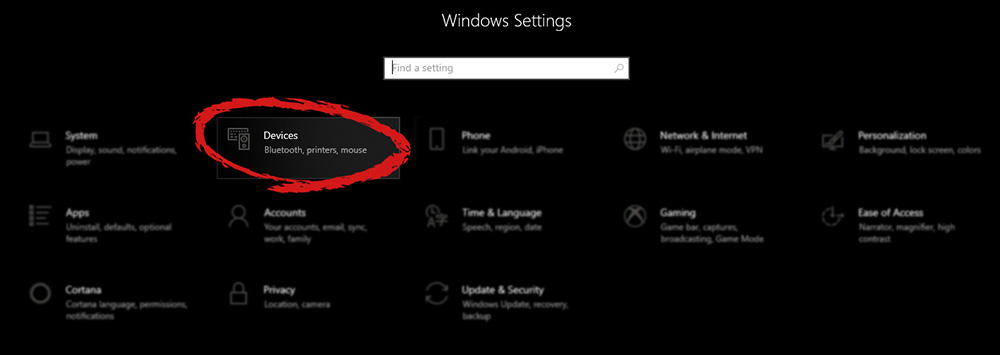
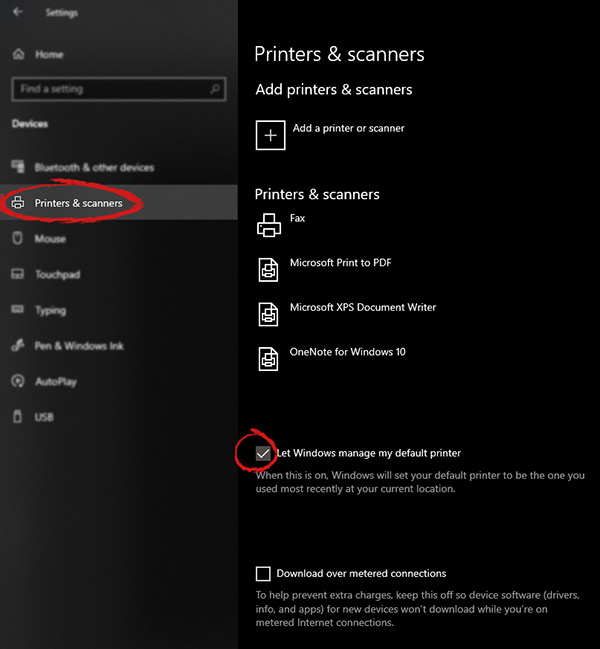
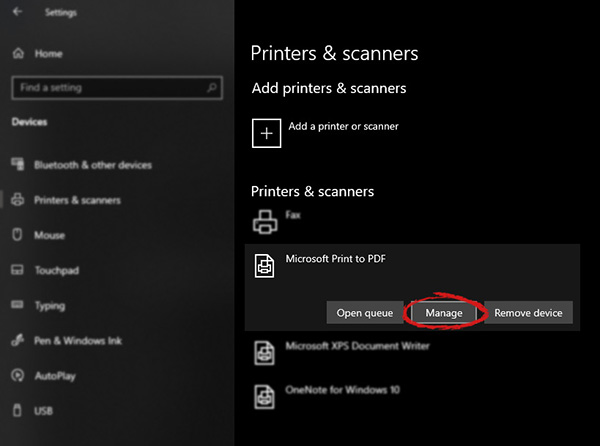
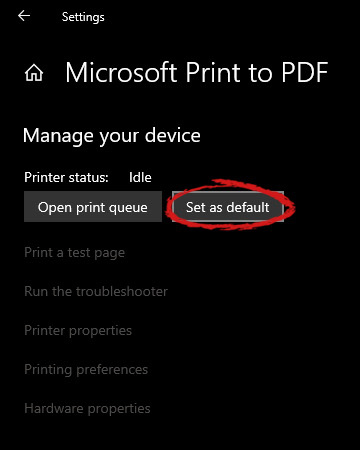
Windows 10 is by far the most personalized Windows so far, most of its personalization comes from him learning our habits on computers and setting future experiences taking them into account. One of these things that Windows likes to set for us is also the default printer. The default printer is set as one which is most used but sometimes we do not want that, we might like to use another printer as default despite Windows choosing one for us. Never worry, setting default printer is easy and this guide will take you to step by step journey of how you can do it in 5 min on your personal computer. Let us begin: First thing is to click on the windows icon on the bottom left and open start menu, from start menu click once on settings. Windows 10 Star menu with marked settings iconWhen the settings window opens, choose DEVICES on it. Windows settings with marked devices sectionOnce the device window opens, click once on printers and scanners, and on the right window go to the bottom and uncheck Let windows manage my default printer. Windows settings for printerUnchecking that box will let Windows know that we do not wish anymore for him to set our default printers according to their use. Once the checkbox is clear go up to your printer list and click on the printer you wish to use as the default one. I will choose Microsoft Print to PDF as my default printer and click on it. Once the printer is clicked option menu will appear. Windows settings manage printerWhen the option menu appears under the printer name, click on Manage which will take you to the printer management screen. When you are on the manage screen, click on the Set as default button, and you are done. Windows settings printer setting
Read More
How to Fix Error Code 0x8024002e

Error Code 0x8024002e - What is it?

Windows 10 error code 0x8024002e is related to the Windows update service. When you see the error code displayed on your screen, it means that the Windows update service has been blocked or not working. As a result of this error code, your computer might lag and the system may freeze while performing normal operations. The error may read as follows:
“There were some problems installing updates, but we’ll try again later. If you keep seeing this and want to search the web or contact support for information this may help: (0x8024002e)”.
Common symptoms include:
  • Slow computer performance
  • System freezes while performing normal operations or freezes while multitasking
  • BSOD error is showing
  • Some unwanted files get opened automatically
  • Updating is not possible

Solution

Restoro box imageError Causes

This error code appears because of the following reasons:
  • Incomplete installation of the Windows operating system
  • Incorrect registry entry
  • Corrupt or damaged system files
  • The computer has come under a virus attack
  • Miscommunication between the computer and the Windows Automatic Update service
The decline in RAM or outdated Hard Disk Drive

Further Information and Manual Repair

Method 1:

  • Remove any external media connected to the computer
  • Crash reboot your PC 2 to 3 times.
  • Now check if you are still having the problem.
If the problem still persists, try the following methods if you are able to boot to the desktop and check for the problem.

Method 2:

Changing Windows Update property to automatic: You might see this error if your Windows update property is set to manual. Follow the steps below to change it to automatic. Open Task Manager.
  1. Click on the Services tab. Find “Open Services” at the bottom of the window.
  2. A new window will pop up. Scroll down and find “Windows Update” from the list. Double click on the Windows Update. It will open its properties.
  3. Select Automatic for ‘Startup Type.’ Click Apply, Start, and OK.
Now, try the Windows Update and check if you are still getting the error message. If the problem isn’t resolved, reboot your PC for the changes to take effect and then try again.

Method 3:

Disable Antivirus program: If you have any antivirus installed on your PC, you might need to disable it first and see if that helps. Although, most of the antivirus makers have made changes to work smoothly with Windows 10, it is a new Operating System and some antivirus may cause conflict. Disable the antivirus and check for updates to see if it is preventing you from updating your system and displaying the error code 0x8024002e.

Method 4:

Run inbuilt Windows update troubleshooter. Follow the steps given below:
  1. Press Windows + W keys on your keyboard to enable the search option.
  2. In the Search box type Troubleshooting.
  3. Click on View all
  4. Click on Windows update and follow the prompts to run the troubleshooter.
If the issue persists, try Method 5

Method 5:

Run the System File Checker tool (sfc.exe):
  1. Open Command prompt.
  2. Type sfc /scannow and hit Enter.
  3. The sfc /scannow will scan all protected system files and replace corrupted files with a cached copy that is located in a compressed folder at %WinDir%System32dllcache. The %WinDir% has the Windows Operating System folder. For example, C:\Windows.
Do not close the Command prompt window until the verification is 100% complete. The command prompt will show the scan results when it is done. After it is done, you may receive one of the following messages:
“Windows Resource Protection did not find any integrity violations.” This means you do not have any missing or damaged system files.
OR you may receive a message saying:
“Windows Resource Protection could not perform the requested operation.”
To resolve this problem, run the System File Checker in safe mode and make sure that the PendingDeletes and PendingRenames folders exist under %WinDir%WinSxSTemp.
OR you may also receive a message saying, “Windows Resource Protection found corrupt files and successfully repaired them. Details are included in the CBS.Log%WinDir%LogsCBSCBS.log.” OR you may receive a message saying, “Windows Resource Protection found corrupt files but was unable to fix some of them. Details are included in the CBS.Log%WinDir%LogsCBSCBS.log.”
Read More
Tailor Made Solution For Windows AppCrash Error

What is AppCrash Error?

As the name implies the AppCrash error is an error code that indicates a crashed program/application on your system. This term is used by Windows to designate an application crash. It is reported and displayed on the system as “Problem Event Name: AppCrash,” which is followed by additional technical information which unless you are a computer programmer, you may not fully decode. There are various symptoms that trigger the occurrence of this error code on your system such as:
  • Application becoming unresponsive and intermittent
  • Momentary application freezing
  • Application times out and then successfully recovers itself

Solution

Restoro box imageError Causes

The reason for AppCrash error occurrence cannot be narrowed down to a specific cause. This error code is triggered by multiple causes such as:
  • The system is stressed out. This happens when your CPU is held at 100% usage for an unacceptable length of time.
  • Lack of system resources
  • Windows version incompatibility with the application
  • Malware and viral infection
  • Poor PC maintenance
  • Registry damage and corruption
  • Data overload
No matter what the cause for the AppCrash error may be, if you experience this error on your system you must repair it right away before the damage sets in. This is a serious error posing severe consequences. If not repaired on time, it not only hampers your ability to use your desired application but also exposes your PC to fatal crashes, data loss, and system failure.

Further Information and Manual Repair

Though this is a serious Windows error, the good news is that it is an easy-to-fix error code, so resolving it is not a problem. There are three ways to fix the AppCrash error:
  • Hiring a technician, this by the way is quite costly. You may have to pay hundreds of dollars to get professional assistance to fix this error code.
  • Giving your computer adequate rest to cool down. Stressing out your PC heats the hardware which triggers such errors and eventually results in system failure. Try cooling it, and see if it fixes the error.
  • Downloading Restoro. This is by far the best, simple, quick, and money-saving way to resolve the AppCrash error on your system. Restoro is an innovative, performance-driven and multi-functional user-friendly PC Fixer that helps resolve practically all types of PC-related errors including the AppCrash error. It has an intuitive and powerful in-built registry cleaner which scans and detects all types of registry issues on your PC in seconds. It helps you clear up all the unnecessary files saved on your hard disk like junk files, internet history, invalid entries and files from the programs that you’ve uninstalled. Such files not only occupy a lot of disk space but they also lead to registry damage and corruption thus shooting error code pop-ups like the AppCrash error.

Restoro features

Restoro performs an in-depth scan and removes all these files cluttering the system and repairs the damaged registry. It resolves the error AppCrash and simultaneously boosts the speed of your PC making it easy for you to access and run applications fast and smoothly without any application errors. Sometimes malicious software programs like malware and viruses may also damage and corrupt the registry. If the underlying cause of the AppCrash error is a viral infection on your PC corrupting the registry, then don’t worry; Restoro, with the help of its built-in anti-virus program, resolves it too. It scans for viruses on your system and removes them immediately. Restoro is easy to use. Whether you are a novice or an experienced user, working around this PC Fixer is simple. It has a user-friendly interface that allows users to navigate through it without any hassle. In addition to this, it offers enhanced compatibility. It smoothly runs on all Windows versions.

Get Restoro

To get started, all you need to do is Click here to download Restoro. Once it is installed on your system, run it to scan for registry issues like the AppCrash error. This intuitive tool will detect all the errors on your PC in just a few seconds and display them on your Windows screen in the form of a comprehensive scan report. Now simply hit the repair tab to resolve. Once repairing is successfully complete, try running your desired application. You will notice two significant differences:
  1. No AppCrash error code message pop-ups
  2. The application runs fast and smoothly regardless of whether it’s Windows Media Player or any gaming application.
Read More
Fix Can’t Find Games on Twitch
Can’t Find Games on Twitch is a common error happening to a vast variety of people. The issue can be traced back to browser issues to others like malware infection. In this guide, we will provide you with common fixes on how to overcome this issue so you can continue watching your favorite streamer.
  1. Sign out of Twitch, then sign back in

    If it is a browser issue or some glitch in the Twitch system simply signing out and then signing back in will solve the issue since information about the account will be resent to the twitch platform.
  2. Refresh the application

    Sometimes servers are having high traffic and can get overloaded, refresh the application in the upper left corner to reload content.
  3. Use browser instead of Twitch application

    If you are still having issues with the application, open the twitch website and access content there.
  4. Close twitch

    But in task manager. Sometimes just closing it via the X button is not enough, some glitches stay and the application is still running in the background. Open task manager and close it from there.
  5. Scan system for malware

    Scan the entire system for malware, various malware can halt twitch and cause issues.
  6. Reinstall application

    If everything else failed, reinstall the application.
Read More
Fix Device not migrated on Windows 10
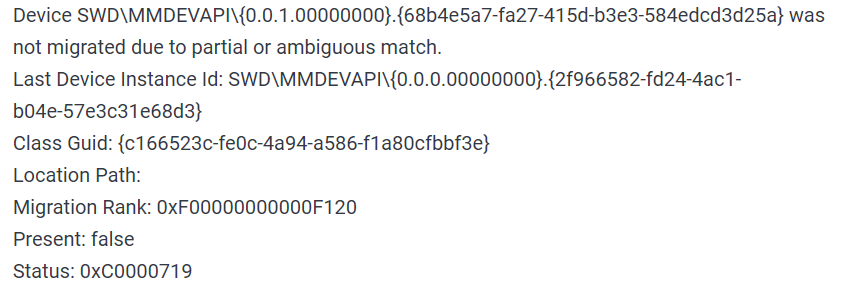
Hello everyone, in today's tips and tricks we will focus on providing you with various solutions on how to solve the Device not migrated error that appears after the Windows update has been performed. Sometimes sadly updates to our operating systems can introduce us to various issues that look scary but in reality, they are solvable and not so scary at all. After all who would not find this message concerning, especially when it happens in the middle of work. device error messageThe first thing that would pop into my mind is that I have lost tons of work and that something in my hardware has gone very wrong and it is dead. Luckily that is not the case and this error means that due to Windows update drivers were not properly transferred due to some compatibility issues, maybe it was a corrupt update file, etc. Of course, the reason could be hardware malfunction as well, but if everything was working fine before the update, it is a software issue, and I must say it is a common one and fixable. Please keep reading this guide in order to fix the Device not migrated error.
  1. Update the Driver

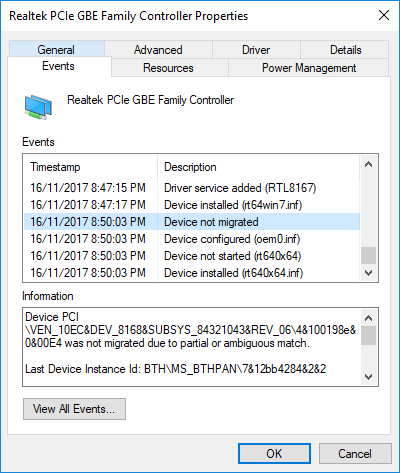
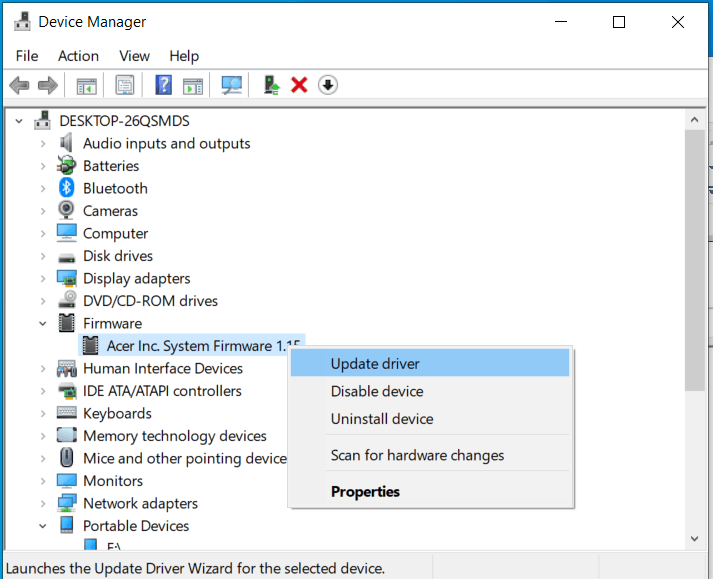
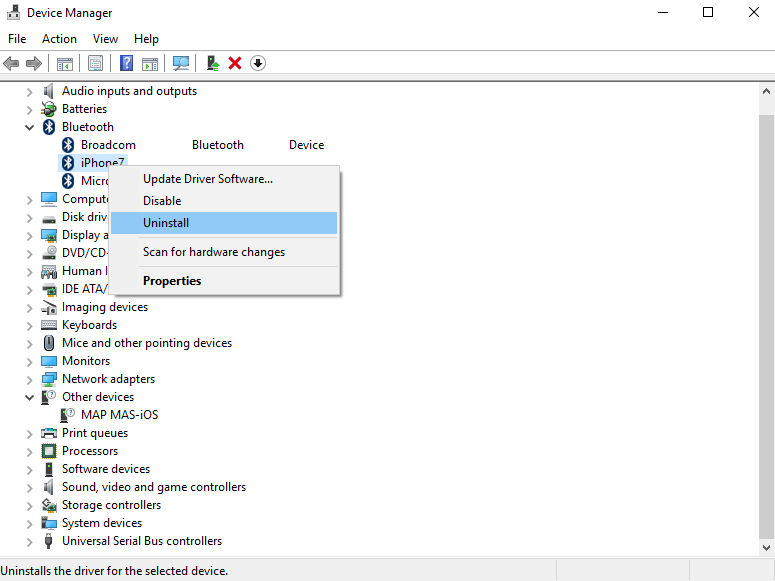
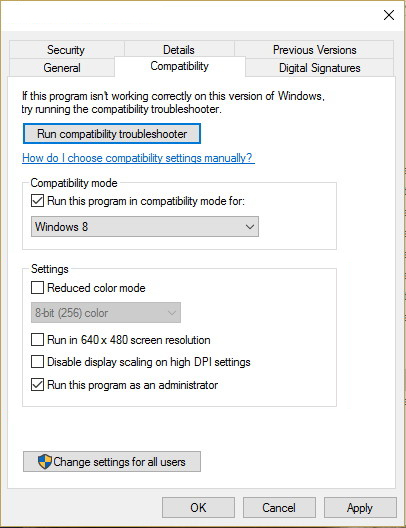
    You should always try this first, if the device is not recognizable, try updating its driver and see if the problem vanishes. In order to update the driver, we will need first to locate which device has not been migrated properly, we will do this with help of a search engine on the internet like google for example. So open your browser of choice, go to a search engine (google for example) and type in the search box first line from your error message, yes, that scary one. You will be given which device has malfunctioned and was not migrated properly, now we will locate the device and update its drivers. To do this press WINDOWS + X on your keyboard to bring up Windows secret menu and choose device manager. keyboard with windows and x marked Find device inside device manager, right-click on it, and choose properties. Go to the events tab and make sure that the device has migration issues. device not migrates status You have now 3 options for updating the driver, you can do it manually, automatically, or with the driver installer. We will cover all 3 options so you choose which one best suits you. OPTION 1: Manually. Close the Properties tab, go to the device manufacturer website and download the latest driver, if there are no drivers there, the only executable installer for the device skip this step and try the other 2. After you have downloaded the driver package from the website, right-click on the device and choose update driver. device update driver Now navigate to the folder where you have downloaded your driver package and update the driver. Reboot your system. OPTION 2: Automatic update. Close the Properties tab, right-click on the device and choose to uninstall. device manager uninstall device Once the device is uninstalled, restart your system, and Windows will automatically search and install the latest driver for the device. OPTION 3: Via driver installer. If you have downloaded .EXE or executable driver installer from device manufacturers web site try installing it, if the installation fails, try using compatibility mode for the installer. Navigate where the installer is located, right-click on it, and choose properties. Go to compatibility TAB and try installing it with administrator privileges in Windows 8 mode. device run compatibility troubleshooterReboot your system after this step. This should solve the issues, however, if the issue still persists, follow the next steps.
  2. Verify the Corrupted System Files

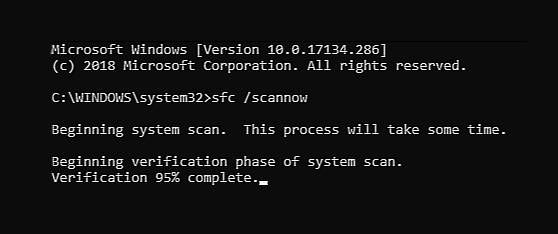
    Press WINDOWS + X on the keyboard to open the hidden system menu and choose Command prompt (administrator) keyboard with windows and x marked In the command prompt type in: sfc /scannow and press ENTER. command prompt SFC scan The scanning process and repair of files will take around 15 min. Leave it to finish completely, do not restart, work on the computer or shut it down while the process is active, and only after it is finished reboot your system.
  3. Update Windows.

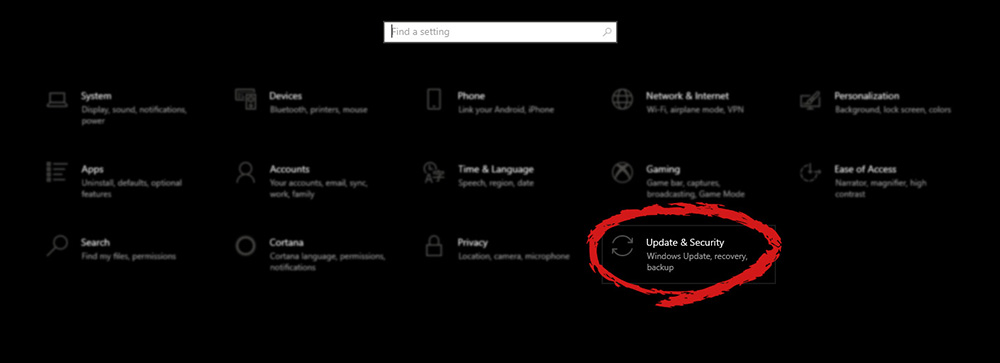
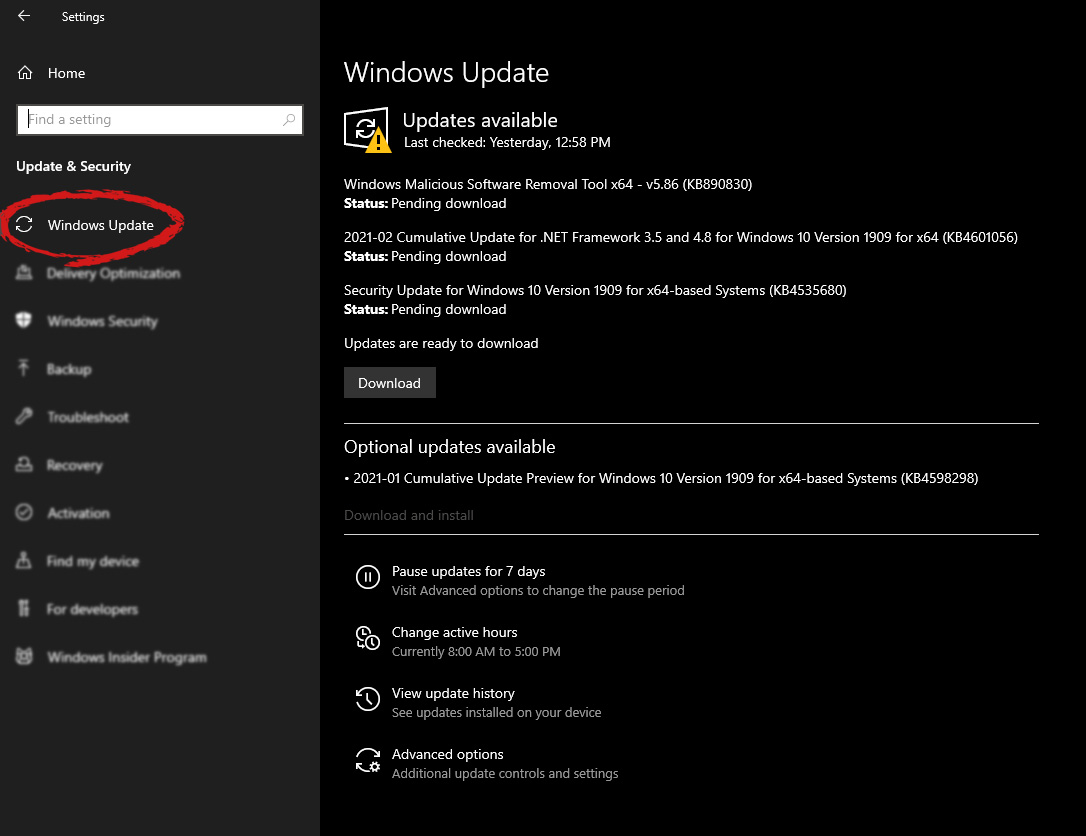
    If your Windows is not updated sometimes this issue can be resolved by updating it on the latest version. Click on start and then on settings. Windows 10 Star menu with marked settings icon Once the settings screen is opened, find and click on Update and Security. Windows settings update and security section marked Go to the Windows update tab and click on DOWNLOAD or click on check for updates for the latest Windows fix. windows settings windows update selected
  4. Reset BIOS to factory settings.

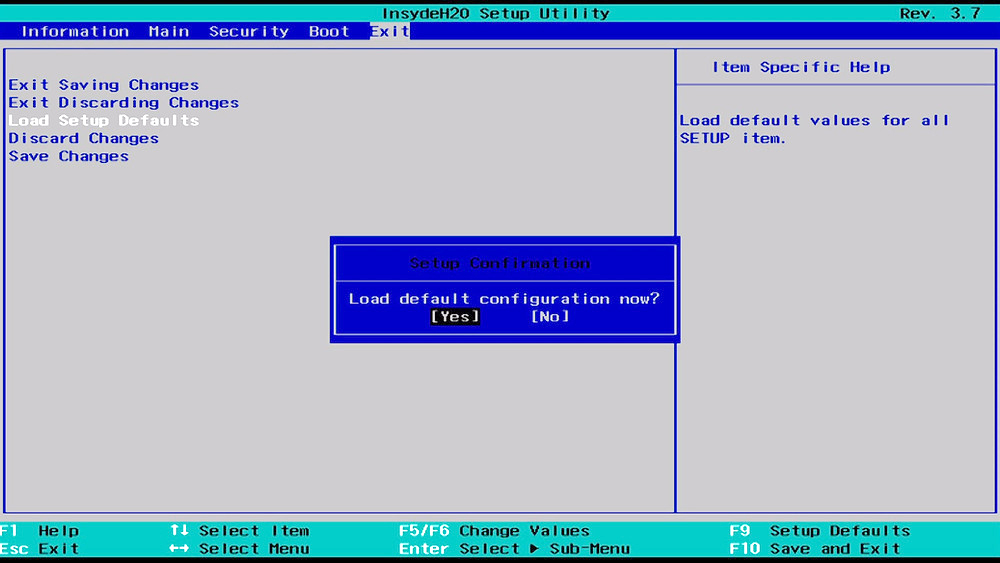
    Sometimes BIOS not being properly configured can cause issues in Windows itself and prevent it from detecting PnP devices thus creating this error. Restoring BIOS back to the factory setting can help. Turn off your computer and turn it back on. Press delete, f12, f11, or any other key which will take you to BIOS (default key is delete but sometimes manufacturers map this to another one. Once your screen turns ON you will see in the bottom message which key needs to be pressed in order to enter BIOS). Sadly since every BIOS could be different we can not cover step by step guide for each but you need to find the option where you load BIOS defaults, click on it save, and exit. Your computer will restart and boot into Windows, check to see if the problem still persists. BIOSD load defaults
  5. Update BIOS

    BIOS can cause issues with certain PnP devices when the newest Windows update is rolled. If reverting BIOS to the factory setting has not been successful try update. Go to your motherboard manufacturer website, find the update and read step by step guide there since updating BIOS differs from version to version and from manufacturer to manufacturer. After the update is done, restart the computer and hopefully, the error is gone.
  6. Perform a System Restore

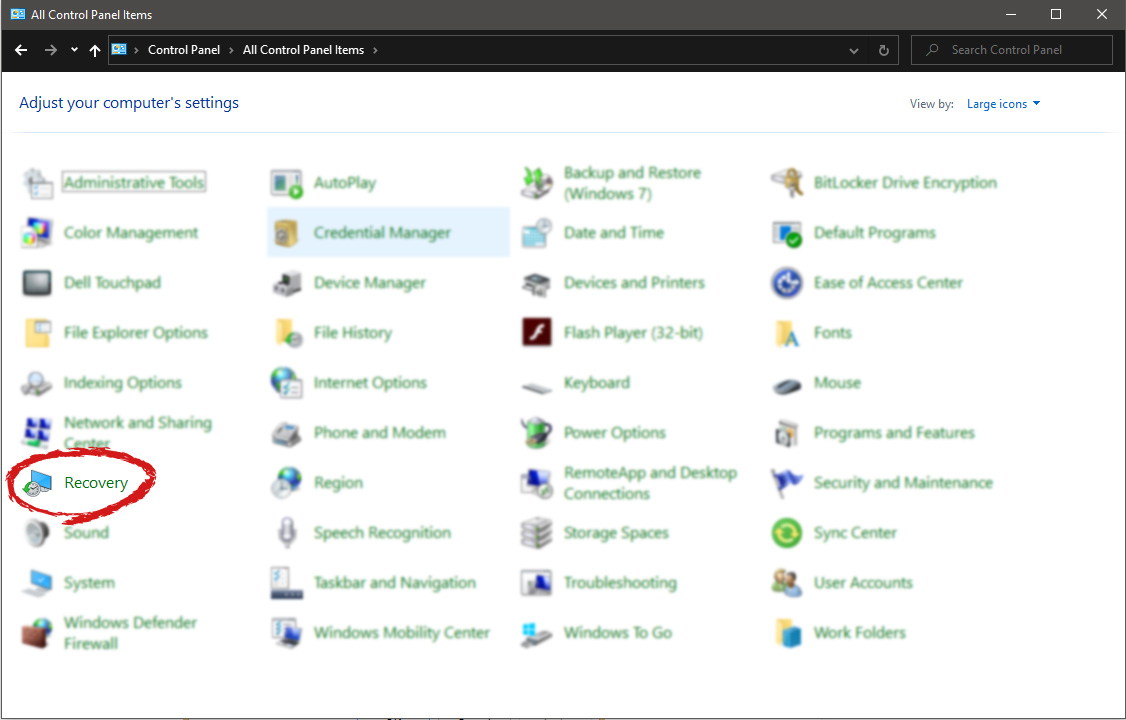
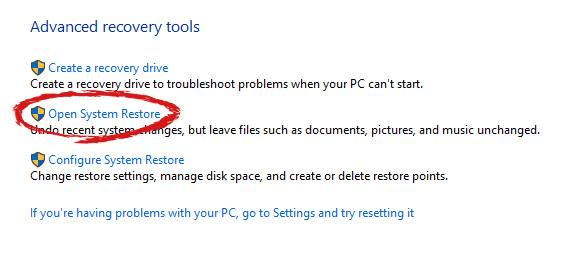
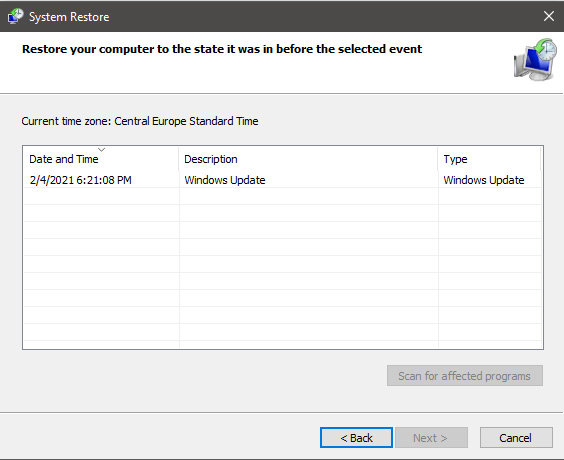
    If everything else fails, perform a system restore to get Windows back into the state before the update was installed and when everything was working fine. Press WINDOWS + R on the keyboard to open the run dialog. keyboard with windows and r marked In the run dialog, type control panel and press enter to enter control panel, locate recovery and click on it. control panel recovery selected Inside the recovery screen click on Open System Restore. advanced recovery tools Choose a date when everything was working in order, the best bet is the date before Windows update and roll it back. system restore latest backup restore Click on date, and then on next.
Read More
Making your own Minecraft server in Windows
Minecraft has taken the world like a storm and if you tried it, you could tell why, procedurally created worlds, various modifications available and fun gameplay are just some of the things this game offers and it is non wonder why kids and adults are enjoying it. Minecraft is even more fun when you play with your friends on dedicated servers, where you all can adventure and build together. Sadly as everything costs, so does the Minecraft servers as well. Lucky you can create your own Minecraft server on your computer so your friends can join and play with you free of charge with just a little time you need to spend reading this guide and building one for yourselves. Without further delay let's dive right into it.

1. Install the most recent Java version

In order to run your personal server, you will need to own and have Minecraft: JAVA edition, not Windows 10 one. If you have this version of the game and it is already running it means that you already have JAVA as well but we will need to check to see if it is the latest version of JAVA, to check this do the following:
  • Press Windows and type in configure java followed by ENTER
  • Under the update tab, click on the update now button
  • If you have the latest version you are all good, if not follow the onscreen instruction on how to update it.
If by any chance you do not have JAVA installed you can get it here.

2. Prepare a dedicated location for your Minecraft server files

You can use any folder you like for your Minecraft server folder but it is highly recommended to create a new folder whose sole purpose will be to hold and run Minecraft server files. this will be very beneficial in the future when server files need to be updated or configured. Having things in one isolated space is always a good idea and keeping things organized is also a good idea.

3. Download, install and start the Minecraft: Java Edition server file

It is now time to download server files, you can get them here. Download the server.jar file and place it inside your server folder. Once everything is downloaded and prepared do the following:
  • Run the server.jar file, the first time it runs, the file will create some configuration files.
  • After additional files appear, there should be a text document called eula.txt. Open it with a text editor then change eula=false to eula=true.

4. Enable port forwarding on your router

This sep is required if you want to have people to play with you that are outside your router network, for example, if you want them to connect to your server from their home. If you do not wish to do this and want only people on your serves from your router network you can skip this step. Unfortunately, to enable port forwarding, you’ll need to make your computer on your local network to be accessible by other computers over the internet via a router. This will effectively make your port to be an open portThis can make your system vulnerable to malicious attacks. Once you’ve enabled it, set the default server port to 25565. You’ll need the Server IP address, which you can get by opening Command Prompt or PowerShell and run ipconfig. Your IP address is usually listed as IPv4 or IPv6 Address.

5. Run the Minecraft server

Simply double-click the server.jar file to run the server. If you want to have more control over it, use the command line.
  • Navigate to your Minecraft server directory using file explorer.
  • We will be using PowerShell instead of Command Prompt to enter commands. Hit Shift + Right-click on the directory window and select “Open PowerShell window here.
  • Once you are in the right directory, write the following command:
java -Xms1024M -Xmx1024M -jar {server file name} nogui
  1. Replace the {server file name} with the full name of .jar file. The command above will make the server run with no Graphical User Interface (GUI) and use 1024MB of allocated RAM space.
  2. If you want to enable the GUI, remove the nogui command. Additionally, you can edit the memory allocation for the server by changing the Xms and Xmx value.
  3. After the server is up, invite your friends to play by sharing your local or public IP address, depending on whether you are using a local or public network. For a local network, you can give the IPv4 or IPv6 Address earlier. For public networks, go to Google and type “what is my ip” to get the address.

Read More
Videos folder missing from File Explorer
As you know, the Videos folder can be found under “This PC” by default on your Windows 10 computer. However, as per the reports of some users, there are a few occasions where it somehow gets replaced by the Documents folder. In other words, the Videos folders are replaced by a duplicated copy of the Documents folder. Out of the two Documents folder, one Document folder will contain all the usual files and subfolders while the second one is empty. Although when you click the Documents icon on your Desktop (if you have a shortcut), it will still take you to the right Documents folder. To fix this particular issue and get the Videos folder back in the File Explorer, here are some potential fixes that should help.

Option 1 – Run System Restore

The first thing you can try to do to resolve the problem is to run System Restore. This can help you go back to the previous state of your computer before the issue with the Videos and Documents folder.
  • Tap the Win + R keys to open the Run dialog box.
  • After that, type in “sysdm.cpl” in the field and tap Enter.
  • Next, go to the System Protection tab then click the System Restore button. This will open a new window where you have to select your preferred System Restore point.
  • After that, follow the on-screen instructions to finish the process and then restart your computer and check if the problem is fixed or not.

Option 2 – Try to restore Defaults

The next thing you can do is to restore Defaults. How? Refer to these steps:
  • Open File Explorer and then right-click on any of the two Documents folders.
  • After that, select the Properties option from the context menu and switch to the Location tab and click on Find target.
  • Next, copy the address and paste it in the field above the “Find target” option, and then click the “Restore Default” button.

Option 3 – Try to change the Registry Path

  • Tap the Win + R keys to open the Run dialog box.
  • Then type “Regedit” in the field and tap Enter to open the Registry Editor.
  • Next, navigate to this registry path: HKEY_CURRENT_USERSoftwareMicrosoftWindowsCurrentVersionExplorerUser Shell Folders
  • After that, edit the path for {35286A68-3C57-41A1-BBB1-0EAE73d76C95} under the “User Shell Folders” key to match the path shown for My Videos: %USERPROFILE%Videos.
  • Once you’re done, open the folder under “This PC” that has the Documents icon and tap Shift + right-click in the folder background, and then select the “Open PowerShell window here” option to fix the naming of the Documents folder. The path should read: “C:users<UserName>Documents.
  • Next, execute this command: ri desktop.ini –force
  • The command you entered will delete the files and folders and so when added for Documents, it will get rid of the empty Documents folder.
  • Now all you that’s left to do is to find where the target location is going to be for both folders and check if anyone foes to the user name location.
  • Then delete the one which goes to the incorrect location.
Read More
Fix Chrome is Waiting for cache in Windows
There are times when you may encounter some glitches on your Google Chrome browser in your Windows 10 computer. One of these glitches is when the connection status of Chrome keeps on saying “Waiting for cache” which is displayed at the bottom-left side of the browser in the Status bar. At the time of writing, it isn’t clear yet what could be causing this problem. Although it is possible that it’s caused by browser cache, some extensions in the browser. On the other hand, it could also be caused by the browser profile or due to some fragmented files or that the SSD is occupied. Whatever the cause is, you can check out each one of the given options below to fix the problem.

Option 1 – Try clearing browser cache

There are times when some data in the browser is conflicting with the loading of the website and triggers some problems like “Waiting for cache”. And so you can try to clear your browser’s data. This might be a very basic solution but oftentimes it works in fixing this kind of error in Google Chrome. Follow the steps below to clear the data in your browser.
  • Open your Google Chrome browser.
  • After that, tap the Ctrl + H keys. Doing so will open a new panel that allows you to delete the browsing history and other data in your browser.
  • Now select every checkbox that you see and click on the Clear browsing data button.
  • Then restart your Chrome browser and check if you can now open any website or not.

Option 2 – Try to disable writing of Cache files to the SSD

You can also disable the writing of Cache files to the SSD to stop Google Chrome’s dependency on the SSD to gather all the cache files.

Option 3 – Delete the User Profile in Chrome

You can also try deleting the User Profile folder in Chrome. To do so, follow these steps:
  • You need to first end every single process of Google Chrome. To do so, right-click on the Taskbar then select the Task Manager. And if the Task Manager is not responding, you can just use the Alt + Ctrl + Del keys and then select the Task Manager.
  • After opening the Task Manager, under Processes, look for Google Chrome’s process which would most likely be named “chrome.exe”.
  • Right-click on Google Chrome’s process and then select the End task option.
  • Next, tap the Win + R keys to open the Run dialogue box.
  • Then copy and paste “%USERPROFILE%AppDataLocalGoogleChromeUser Data” and hit Enter.
  • From there, look for a folder named “Default folder” and then copy the folder to another drive as a backup.
  • After creating a copy of the folder, delete the Default folder.
  • Next, open Google Chrome again and go to Settings > Advanced > Reset.

Option 4 – Reset Chrome

Resetting Chrome can also help you fix the error. This means that you will be restoring its default settings, disabling all the extensions, add-ons, and themes. Aside from that, the content settings will be reset as well and the cookies, cache, and site data will also be deleted. To reset Chrome, here’s what you have to do:
  • Open Google Chrome, then tap the Alt + F keys.
  • After that, click on Settings.
  • Next, scroll down until you see the Advanced option, once you see it, click on it.
  • After clicking the Advanced option, go to the “Restore and clean up option and click on the “Restore settings to their original defaults” option to reset Google Chrome.
  • Now restart Google Chrome.

Option 5 – Try to clean reinstall Chrome

There are instances when programs leave files behind after you’ve uninstalled them and the same thing can happen to Chrome so before you reinstall Chrome, you have to make sure that you have deleted the User Data folder. To do so, refer to the following steps:
  • Hit the Win + R keys to open the Run dialog box.
  • Next, type “%LOCALAPPDATA%GoogleChromeUser Data” in the field and hit Enter to open the User Data folder.
  • From there, rename the default folder and name it something else, e.g. “Default.old”.
  • After that, install Google Chrome again and check if the issue is now fixed.
Read More
1 2 3 171
Logo
Copyright © 2023, ErrorTools. All Rights Reserved
Trademark: Microsoft Windows logos are registered trademarks of Microsoft. Disclaimer: ErrorTools.com is not affiliated with Microsoft, nor claims direct affiliation.
The information on this page is provided for information purposes only.
DMCA.com Protection Status