Logo

Configure Windows 10 to create Dump Files on Blue Screen of Death

If your Windows PC encounters an error, it will display a Blue Screen of Death or BSOD error which usually comes up for a fraction of second and creates some logs or Dumps Files as what other user prefers to call it and then boots your PC suddenly. This process usually takes place quickly that most users find it hard to get the error code and won’t probably be able to check what really went wrong with their PCs. This is where the dump files come in. They are stored internally in your computer and can only be accessed by an administrator. They are classified into 4 main types and in Windows 10 they are either:

  1. Complete Memory Dump
  2. Kernel Memory Dump
  3. Small Memory Dump (256 KB)
  4. Active Memory Dumps

Dump Files are useful as they could help you in resolving the problem and so you need to configure your Windows 10 PC to create them but first, you need to make a system restore point. This is essential as you are about to modify some system files as well as critical Windows 10 settings. There are two ways you can create Dump files – first is by modifying the settings in the Startup and Recovery and lastly is via the WMIC command line. Refer to the instructions prepared below to be guided on how you can create Dump files after any BSOD error using these options.

Option 1 – via Startup and Recovery

  • Type in “control panel” in the Cortana Search box and then click on Control Panel from the search results to open it.
  • After opening Control Panel, you need to make sure that you view the contents by their Category then click on the header link which is labeled “System and Security” or you could also right-click on the This PC icon and then click on Properties.
  • Next, select the Advanced system settings from the left panel. Once you do, a new and small window will pop up.
  • Under the newly opened window, look for the section called Startup and Recovery and then click on the Settings button.
  • And from the System Failure section, you can choose any option from the drop-down for Write debugging information such as:
    • None – this means that there is no dump file created by Windows
    • Small Memory Dump – this means that Windows will create a Minidump file on BSOD
    • Complete Memory Dump – this means that Windows will create a Complete Memory Dump file on BSOD
    • Automatic Memory Dump – this means that Windows will create an Automatic Memory Dump file on BSOD
    • Active Memory Dump – this means that Windows will create an Active Memory Dump file on BSOD

Note: The complete dump needs a page file that is allowed to be the size of the physical memory installed in your PC with a dedicated 1 MB of space for just the page header.

  • Now once you have selected the most suitable option for you, just click on OK/Apply and then exit.
  • Restart your PC to successfully apply the changes made.

Option 2 – via the WMIC command line

  • The first thing you need to do to create Dump files via the WMIC command line is to tap the Win + X keys combination or simply right-click on the Start button and then select the Command Prompt (Admin) option. You could also type in “cmd” in the Cortana search box and then right-click on Command Prompt from the results and select Run as administrator.
  • After that, type in any of the commands given below depending on your preferences so that your Windows 10 PC will be configured to create Dump Files:
    • No dump file: wmic RECOVEROS set DebugInfoType = 0
    • Small Memory Dump: wmic RECOVEROS set DebugInfoType = 3
    • Kernel Memory Dump: wmic RECOVEROS set DebugInfoType = 2
    • Complete Memory Dump: wmic RECOVEROS set DebugInfoType = 1
    • Automatic Memory Dump: wmic RECOVEROS set DebugInfoType = 7
    • Active Memory Dump: wmic RECOVEROS set DebugInfoType = 1

Note: A complete dump has to have a Page file which is allowed to be the size of the physical memory installed on your PC accompanied by a 1 MB space for just the page header.

  • Now type in “exit” in the Command Prompt to exit it.
  • Restart your PC to apply the changes made successfully.

Do You Need Help with Your Device?

Our Team of Experts May Help
Troubleshoot.Tech Experts are There for You!
Replace damaged files
Restore performance
Free disk space
Remove Malware
Protects WEB browser
Remove Viruses
Stop PC freezing
GET HELP
Troubleshoot.Tech experts work with all versions of Microsoft Windows including Windows 11, with Android, Mac, and more.

Share this article:

You might also like

How to Remove RelevantKnowledge From PC

RelevantKnowledge is a potentially unwanted program. It is typically bundled by 3rd-party installers and download managers that include other potentially unwanted programs (PUPs). In most cases, the installer will present the user with an RK survey at the end of the setup in order to relate the user’s future behavior to various questions.

From the published: RelevantKnowledge is an online market research community consisting of over 2 million members worldwide, which provides insight into how its members interact with the Internet. In exchange for an agreement to have their Internet behavior monitored, computer users who join RelevantKnowledge are offered various value propositions, including the ability to download screensavers or other software offerings, entry into sweepstakes, and a host of other benefits.

Multiple anti-virus scanners have detected possible malware in RelevantKnowledge.

About Browser Hijackers

If you’ve ever downloaded software via the internet (shareware, freeware, etc,), it’s quite possible you’ve unintentionally installed unwanted programs on your PC. Potentially Unwanted Programs (PUP), also referred to as Potentially Unwanted Applications (PUA), are applications that you never wanted in the first place and often come bundled with freeware. Once installed, the majority of these applications can be tough to get rid of and become much more of an annoyance rather than a necessity. It is clear by its name – unwanted applications – but did not really constitute “malware” in the traditional sense. This is because, the majority of PUPs get into a computer not because they slip through the security holes, for instance, but because the users have got installed them themselves – 100 % unknowingly needless to say. A PUP might not be regarded as malicious or dangerous but nevertheless, it is a common reason for clunky OSs; some PUPs are a lot more aggressive by deliberately slowing down your PC.

The harm unwanted programs could do

PUPs come in various forms. Typically, they could be seen in adware bundlers that are known to use aggressive and misleading advertising. The majority of bundlers install many adware programs from a number of vendors, each of which features its own EULA policy. Safebytes Anti-Malware totally eradicates this threat and safeguards your computer against PUP or adware infection. Additionally, the majority of free programs nowadays come with a few unwanted add-ons; in most cases a web browser toolbar or browser modification such as a homepage hijacker. They can modify browser settings, change the default search engine, replace the default home page with their own websites, slow down internet speed, and also will damage your system as well. PUPs carry a dangerous bite if left unchecked. The most detrimental part of installing a PUP is the spyware, adware, and keystroke loggers that might hide inside. These are programs that don’t really do anything good for you; in addition to taking up space on your hard disk drive, they also slow down your PC, often modify settings without your authorization, the list of frustrating features goes on and on.

Tips on how to avoid getting a PUP

• When installing anything on your personal computer, always study the fine print, including the license agreement. Do not accept terms of use that are for bundled programs. • Use ONLY custom or manual install method – and never thoughtlessly click Next, Next, Next. • Use good antimalware software, such as Safebytes Anti-Malware which offers real-time protection against PUPs. • Think carefully before you download any kind of shareware or freeware. Turn off or get rid of toolbars and browser extensions you don’t actually need. • Always download applications from the original website. The majority of PUPs find their way onto your laptop or computer is via download portals, so steer clear of it entirely.

What To Do If You Cannot Install Safebytes Anti-Malware?

Viruses may cause a lot of damage to your personal computer. Some malware is meant to interfere with or block things that you want to do on your computer system. It may well not allow you to download anything from the net or stop you from accessing some or all websites, particularly the anti-malware sites. If you are reading this article now, you’ve probably realized that virus infection is the real cause of your blocked internet connectivity. So how to proceed if you need to download and install an anti-malware program like Safebytes? Although this kind of problem can be harder to get around, there are a few actions you can take.

Download the application in Safe Mode with Networking

In Safe Mode, you may change Windows settings, un-install or install some applications, and remove hard-to-delete viruses. If the malware is set to load automatically when the computer starts, shifting to this mode can prevent it from doing so. To start the computer into Safe Mode, press the “F8” key on your keyboard just before the Windows boot screen appears; Or right after normal Windows boot up, run MSCONFIG, look over “Safe Boot” under Boot tab, and then click Apply. As soon as you reboot into Safe Mode with Networking, you can download, install, and update anti-malware software from there. Right after installation, run the malware scanner to eliminate standard infections.

Use an alternate web browser to download antivirus software

Web-based viruses could be environment-specific, aiming for a specific internet browser or attacking specific versions of the browser. The most effective solution to overcome this problem is to go with a browser that is well known for its security measures. Firefox has built-in Phishing and Malware Protection to keep you secure online.

Install anti-malware on a USB drive

Another option is to save and operate an antivirus software tool entirely from a Flash drive. Do these simple actions to clean up your infected PC using a portable antivirus. 1) On a virus-free computer, download and install Safebytes Anti-Malware. 2) Insert the USB drive into the clean PC. 3) Double click on the downloaded file to open the installation wizard. 4) Select the drive letter of the flash drive as the location when the wizard asks you exactly where you would like to install the antivirus. Follow the directions to complete the installation process. 5) Transfer the thumb drive from the uninfected computer to the infected PC. 6) Double-click the Safebytes Anti-malware icon on the pen drive to run the application. 7) Simply click “Scan Now” to run a complete scan on the affected computer for malware.

Protect Your Computer & Privacy With SafeBytes Anti-Malware

Want to download the best anti-malware software program for your laptop? There are lots of applications on the market that comes in free and paid versions for Windows systems. A few are really worth your money, but many aren’t. You need to pick a tool that has got a good reputation and detects not only computer viruses but other types of malware also. Among few good applications, SafeBytes Anti-Malware is the highly recommended program for the security-conscious individual. SafeBytes antimalware is a highly effective and user-friendly protection tool that is suitable for end-users of all levels of IT literacy. After you have installed this application, SafeByte's sophisticated protection system will make sure that no viruses or malware can seep through your PC. SafeBytes has excellent features when compared to other anti-malware programs. Here are some popular features present in this tool: World-class AntiMalware Protection: Safebytes is made on the best virus engine within the industry. These engines will detect and remove threats even during the early stages of a malware outbreak. Real-time Active Protection: SafeBytes delivers complete and real-time security for your laptop or computer. They’re highly efficient in screening and getting rid of numerous threats because they’re constantly revised with the latest updates and safety measures. Internet Security: Through its unique safety score, SafeBytes informs you whether a site is safe or not to visit it. This will ensure that you’re always certain of your safety when browsing the net. Very Low CPU and Memory Usage: This program is not “heavy” on the computer’s resources, so you will not notice any overall performance difficulties when SafeBytes is operating in the background. 24/7 Online Technical Support: SafeBytes provides 24/7 technical support, automatic maintenance, and upgrades for the best user experience.

Technical Details and Manual Removal (Advanced Users)

If you wish to manually remove RelevantKnowledge without the use of an automated tool, it may be possible to do so by removing the program from the Windows Add/Remove Programs menu, or in cases of browser extensions, going to the browsers AddOn/Extension manager and removing it. You will likely also want to reset your browser. To ensure the complete removal, manually check your hard drive and registry for all of the following and remove or reset the values accordingly. Please note that this is for advanced users only and may be difficult, with incorrect file removal causing additional PC errors. In addition, some malware is capable of replicating or preventing deletion. Doing this in Safe Mode is advised.

The following files, folders, and registry entries are created or modified by RelevantKnowledge

Files: File%COMMONPROGRAMSRelevantKnowledgeAbout RelevantKnowledge.lnk. File%COMMONPROGRAMSRelevantKnowledgePrivacy Policy and User License Agreement.lnk. File%COMMONPROGRAMSRelevantKnowledgeSupport.lnk. File%COMMONPROGRAMSRelevantKnowledgeUninstall Instructions.lnk. File%PROGRAMFILESRelevantKnowledgechrome.manifest. File%PROGRAMFILESRelevantKnowledgecomponentsrlxg.dll. File%PROGRAMFILESRelevantKnowledgecomponentsrlxh.dll. File%PROGRAMFILESRelevantKnowledgecomponentsrlxi.dll. File%PROGRAMFILESRelevantKnowledgecomponentsrlxj.dll. File%PROGRAMFILESRelevantKnowledgeinstall.rdf. File%PROGRAMFILESRelevantKnowledgerlcm.crx. File%PROGRAMFILESRelevantKnowledgerlcm.txt. File%PROGRAMFILESRelevantKnowledgerlls.dll. File%PROGRAMFILESRelevantKnowledgerlls64.dll. File%PROGRAMFILESRelevantKnowledgerloci.bin. File%PROGRAMFILESRelevantKnowledgerlph.dll. File%PROGRAMFILESRelevantKnowledgerlservice.exe. File%PROGRAMFILESRelevantKnowledgerlvknlg.exe. File%PROGRAMFILESRelevantKnowledgerlvknlg64.exe. File%PROGRAMFILESRelevantKnowledgerlxf.dll. Directory %COMMONPROGRAMSRelevantKnowledge. Directory %PROGRAMFILESRelevantKnowledgecomponents. Directory %PROGRAMFILESRelevantKnowledge. Registry: Key mkndcbhcgphcfkkddanakjiepeknbgle at HKEY_LOCAL_MACHINESOFTWAREGoogleChromeExtensions. Key RelevantKnowledge at HKEY_LOCAL_MACHINESOFTWAREMicrosoftWindows NTCurrentVersionWinlogonNotify. Key rlvknlg at HKEY_LOCAL_MACHINESOFTWAREMicrosoftESENTProcess. Value 3C5F0F00-683D-4847-89C8-E7AF64FD1CFB at HKEY_LOCAL_MACHINESOFTWAREMozillaFirefoxExtensions. Value %PROGRAMFILESrelevantknowledgerlvknlg.exe at HKEY_LOCAL_MACHINESYSTEMControlSet001ServicesSharedAccessParametersFirewallPolicyStandardProfileAuthorizedApplicationsList. Value %PROGRAMFILESrelevantknowledgerlvknlg.exe at HKEY_LOCAL_MACHINESYSTEMControlSet002ServicesSharedAccessParametersFirewallPolicyStandardProfileAuthorizedApplicationsList. Value %PROGRAMFILESRelevantKnowledgerlvknlg.exe at HKEY_LOCAL_MACHINESYSTEMControlSet003ServicesSharedAccessParametersFirewallPolicyStandardProfileAuthorizedApplicationsList.
Read More
Fixing Tcpip.sys Blue Screen Error in Windows
One of the most common Blue Screen of Death errors you can encounter on your Windows 10 computer is the Tcpip.sys Blue Screen error. The Tcpip.sys file is a driver file that is associated with the Transmission Control Protocol over Internet Protocol. When you see this kind of BSOD error, you may see any of the following error descriptions:
  • IRQL_NOT_LESS_EQUAL
  • KMODE_EXCEPTION_NOT_HANDLED
  • PAGE_FAULT_IN_NONPAGED_AREA
Whichever error description you got, you need to do use the following instructions below as a reference to obliterate the Tcpip.sys Blue Screen error.

Option 1 – Run the Blue Screen Troubleshooter

The Blue Screen troubleshooter is a built-in tool in Windows 10 that helps users in fixing BSOD errors like Tcpip.sys Blue Screen error. It can be found on the Settings Troubleshooters page. To use it, refer to these steps:
  • Tap the Win + I keys to open the Settings panel.
  • Then go to Update & Security > Troubleshoot.
  • From there, look for the option called “Blue Screen” on your right-hand side and then click the “Run the troubleshooter” button to run the Blue Screen Troubleshooter and then follow the next on-screen options. Note that you might have to boot your PC into Safe Mode.

Option 2 – Try resetting TCP/IP

In case you didn’t notice, the Tcpip.sys file is associated with the TCP/IP protocols in your computer system which is why resetting TCP/IP can help in resolving the Tcpip.sys Blue Screen of Death error especially when the TCP/IP has been modified.
  • First, you need to type “command prompt” in the Windows Search bar and then right-click on the related search result and select the “Run as administrator” option to open Command Prompt.
  • After that, type the following command in the elevated cmd window and hit Enter:
netsh int ip reset
  • Now reboot your computer after the command has been executed and check if it helped to fix the Blue Screen error.

Option 3 – Try to rollback your Network driver

If you have updated the driver software as of late and you suddenly got this BSOD error, you might have to roll back the device driver – in other words, switch back to the previous working version. To do that, follow these steps:
  • Tap the Win + R keys to launch the Run window and then type in the “devmgmt.msc” command and hit Enter to open the Device Manager window.
  • Under the Device Manager, you will see a list of drivers. From there, look for the Network Adapters and expand it.
  • Next, select the driver entries that are labeled appropriately other than anything in the context of the WAN Miniport.
  • Then select each one of them and double click to open a new mini window.
  • After that, make sure that you’re on the Driver tab and if you are not, just navigate to it then click the Roll Back Driver button to switch back to the previous version of your Network adapters.
  • Now restart your computer to successfully apply the changes made.

Option 4 – Try to update the Network drivers

You might also want to try updating all your network drivers in order to fix the Tcpip.sys Blue Screen error. To do so, here’s what you have to do:
  • Tap the Win + R keys to launch the Run window and then type in the “MSC” command and hit Enter to open the Device Manager window.
  • Under the Device Manager, you will see a list of drivers. From there, look for the Network Adapters and expand it.
  • Then right-click on each one of the Network drivers and update them all.
  • Restart your PC and see if it helped in fixing the BSOD error.
Note: If updating the network drivers didn’t help in fixing the problem, you can also try to uninstall the very same drivers and restart your Windows 10 PC. After that, the system itself will reinstall the drivers you just uninstalled. Alternatively, you can also download and install the drivers from the manufacturer’s website directly.

Option 5 – Try to disable both the Antivirus program and Firewall temporarily

There are times when antivirus programs and the firewall blocks a website that they consider to be malicious or even because of false-positive effects which is why you have to disable these programs temporarily as it might be the reason why you’ve encountered the error when trying to browse the internet.
Read More
How to Fix 0x0000007B Error

What is 0x0000007B Error?

0x0000007B is the most common Windows stop error. The error is displayed on the blue-colored screen which is also called the blue screen of death. You may receive a 0x0000007B error message during Windows XP setup or while running the setup program. The message is often displayed as ‘a problem has been detected and Windows has been shut down to prevent damages’ or ‘inaccessible boot device error’.

Solution

Restoro box imageError Causes

The 0x0000007B error code is usually triggered by:
  • Poor Window XP installation
  • Registry corruption
  • Device Drivers Issues
  • Boot sector viruses

Further Information and Manual Repair

The 0x0000007B error makes your system vulnerable and reduces its speed significantly. And besides, you can’t run the programs smoothly on your PC either. Therefore, it’s advisable to fix the error right away. To fix and repair the 0x0000007B error successfully, you must first understand the cause of the error. Let’s take a look at all the solutions available to fix the 0x0000007B error.

Cause: Boot Sector Viruses

Solution: If your computer is infected with boot sector viruses, then you will first have to download a powerful antivirus. After downloading the antivirus program, run it on your PC to check your computer for viruses. Delete the viruses found and click the repair option. Sometimes even an antivirus program may fail to remove the virus and repair the system. In such cases, you must repartition and format your hard disk and also reinstall Windows XP.

Cause: Device Driver Issues

Solution: Device driver issues may occur if the boot controller is not properly configured or the driver is not up to date. If device driver configuration is the cause of the 0x0000007B error on your PC, then all you need to do is restart your PC, and while restarting press F8 to go to the advanced boot options. Now choose the ‘Last Known Good Configuration’ option. After selecting it, boot into windows and then perform a system restore. Now go to Device Manager and perform a driver rollback to reinstall the drivers. This will resolve the configuration issues. However, if you need an updated driver, all you need to do go on the web and download software to update the driver. It is advisable to download software from the manufacturer’s website in order to successfully update the device driver.

Cause: Poor Windows Installation

Solution: In this case, you will have to perform a Windows start-up repair. To do this: boot Windows XP from CD. Press ‘enter’ at setup Windows Screen when prompted. Then press R to repair Windows Installation. This procedure will not delete any user data and files. In fact, it will copy only the original Windows files over the bad or existing ones. Some of the best ways to avoid Ox0000007B blue screen errors are
  • To scan for viruses every time you use your PC
  • Never open web pages, emails, or download content that you think looks suspicious because that’s probably a virus.
  • Always keep your computer updated.
Read More
How to Fix Error Code 0xC004C003 When Installing Windows 10

What is Error Code 0xC004C003?

Error code 0xC004C003 has to do with activating Windows 10 after a clean install. This problem has been a frequent nuisance to users trying to update from Windows 7 or 8.1 following the invite path they got from Microsoft.

Solution

Restoro box imageError Causes

There are several problems that may have caused error code 0xC004C003. The most common of them are:
  • The product key entered was invalid, and cannot be used to activate the new OS.
  • The user followed the proper installation procedure, but the Windows update servers were too busy to handle the activation at that moment.
  • The free upgrade invitation was followed but after the reinstallation, the copy of Windows 10 was still not activated.
  • The user tried to perform a full clean install of Windows 10 instead of upgrading from Windows to Windows 10

Further Information and Manual Repair

A lot of solving error code 0xC004C003 has to do with the method in which the user has tried to update the system. If one decided to try and update the program before being invited to do so by the update manager, he must wait. Unfortunately, if one chooses to do it on his own and download a clean install, he was never given a product code to authenticate the process. There are two options to address error code 0xC004C003 — either restore to the previous Windows Operating System or call Microsoft (or visit their Website) and purchase a product key. The Windows update servers are very busy. There are lots of Microsoft users around the world, and the servers are doing their best to get to each and every one of the users as fast as possible, but they can only move at a certain speed. Your best bet is to sit back and wait a while. But what if you were invited, and properly downloaded Windows 10, then decided to do a clean install? It is advised that one do not try to enter Windows 7 or 8.1 serial code as this will not work. However, unlike the problem above, these users will NOT need to purchase a product key. According to Microsoft Support Staff, the installation servers are also very jammed because of the high numbers of installations going on right now. No matter what posts you may read, the key IS genuine, and it is NOT blocked, broken, or invalid. To check if Windows has been properly activated, open the Command Window. Make sure you are logged into an administrator profile; otherwise this check will not work. Type in “slmgr.vbs/ato” and click Enter and then wait. While waiting, the command will check on the status of the activation. Windows Script Host will open and show whether or not it is activated. A lot of users have reported that the activation did not work for the first few times. However they later reported after some more attempts, no issue was found in the way the operating system updated and that the activation process went smoothly. This is most likely due to the overload on the Windows Update servers, so bear with Microsoft. Users have reported that when trying to correct error code 0xC004C003, they have followed the upgrade path and then been told by Microsoft that the key was invalid and they had to purchase a new one. If the upgrade path provided by Windows 7 and Windows 8.1 is correctly followed then there is nothing to worry about Just wait a while and try it again. If there are prolonged issues, speak with a technician by visiting the Microsoft website and contacting the help center by calling the number provided. Give them all relevant information and they will be sure to help accordingly. The best solution to fix error code 0xC004C003 is to wait. In essence, the user will be waiting to reenter the same product key. According to Microsoft, and many user posts found online, it is recommended to wait a while and then try to activate again. This seemed to be an answer to most users' problems, and seem to work just fine. If the problem persists, take it to a windows repair technician to have it sorted out. If that does not work, use a powerful automated tool to fix the problem.
Read More
How to Fix the EhRecvr.exe Error on Your PC

EhRecvr.exe Error Code - What is it?

EhRecvr.exe is an executable file located in a subfolder of C:\Windows (usually C:\WINDOWS). An executable file is denoted by the filename extension .exe. You should only run executable files from the publisher you trust because .exe files are prone to errors. Executable files can potentially change your computer settings and harm your computer.  These files can easily get corrupted. Similarly, when the EhRecvr.exe fails to run on the computer and gets corrupt, you experience an EhRecvr.exe error on your system. This error code may pop up while playing games on the PC or using any other program. EhRecvr.exe error may be displayed in any one of the following formats:
  • “ehRecvr.exe cannot be found."
  • “There was a problem starting [path]ehRecvr.exe. The specified module could not be found."
  • "Runtime Error. ehRecvr.exe pure virtual function call."
  • "This program can't start because ehRecvr.exe is missing from your computer."
  • "Unable to launch the software located at path: [path]ehRecvr.exe"
  • "This application requires the file ehRecvr.exe, which was not found on this system."
  • "ehRecvr.exe is missing."
  • "Access Violation File [path]ehRecvr.exe"

Solution

Restoro box imageError Causes

There are plenty of reasons why this error may occur these include:
  • EhRecvr.exe file is mistakenly deleted
  • EhRecvr.exe file is corrupted and damaged
  • Viral/Malware infection
  • Bad registry entries
  • Outdated drivers
Though this error code is not fatal but nonetheless it is advisable to fix it immediately because EhRecvr.exe error not just hampers your ability to run and access different programs on your system but it also triggers issues like viral infection and registry problems which if not resolved can put your big at greater risk like system failure, freeze, and crash.

Further Information and Manual Repair

To resolve the EhRecvr.exe error on your system, you don’t have to hire a professional and spend hundreds of dollars in repair. Here are the best and easy DIY methods that you can try to fix this error. To work around these methods you don’t need to be a technical whiz. Let’s get started:

Method 1 - Restore EhRecvr.exe from Recycle Bin

In the case of EhRecvr.exe file deletion, it is advisable to check the recycle bin. Search through the bin for the file. If you find it, then simply restore it, if not then if you have access to the internet, then download it from a trusted website.

Method 2 - Reinstall the Associated Software That Uses EhRecvr.exe File

If you receive this error when you want to use certain software on your PC, then try reinstalling that software again on your PC. This will be very helpful to obtain the EhRecvr.exe file that is not provided by Microsoft. To re-install, first, uninstall the program. Go to Add/Program in the control panel and find the program and then uninstall it. Once uninstalled, simply follow the same steps but this time round install the software. This will hopefully help resolve the EhRecvr.exe error code.

Method 3 - Update Drivers for Hardware Devices

Sometimes the error may pop up due to outdated drivers. If this is the cause then the best way to resolve the issue would be to update the driver. Use the wizard within the Device Manager to update the outdated drivers.

Method 4 - Scan for Viruses

Viruses and malware can disguise as executable files. These usually enter your PC through downloads from unreliable websites and phishing emails. In such an event, it is recommended to install a powerful antivirus. Scan your entire PC and remove all viruses to repair the issue.

Method  5 - Clean and Repair the Registry

Another method is to clean and repair the registry. If you don’t clean the registry regularly it may get accumulated with obsolete files and get corrupt. This may generate EhRecvr.exe error codes. To resolve, simply download Restoro. This is a user-friendly PC Fixer with a powerful registry cleaner. It scans for all registry errors, wipes out all the invalid entries and obsolete files and repairs corrupted DLL and .exe files in minutes. Click here to download Restoro and resolve the EhRecvr.exe error now!
Read More
Domain Users Sign in using Biometrics
The use of Biometrics is supported by Windows 10. Aside from that, it also supports PIN, password, picture password on all computers and if your computer has the proper hardware, Windows 10 also supports facial scanning, iris scanning, and even fingerprint scanning. You can see all these exciting features inside Settings > Accounts > Sign In Options. On the other hand, you can’t really expect to make use of all the above-mentioned features since it depends if the hardware is available to support them. One of the most interesting features is the use of Biometrics which is really useful in workplaces and so this post will show you how you can enable or disable the Domain Users Sign In on Windows 10 using Biometrics via Registry Editor or Group Policy Editor. But before you go on, you need to create a System Restore Point first since the modifications you’re about to do might affect the functioning of your computer. So in case something went wrong, you can always undo the changes you’ve made.

Option 1 – via Registry Editor

  • Tap the Win + R keys to open the Run dialog box.
  • Next, type “Regedit” in the field and hit Enter to open the Registry Editor.
  • After that, navigate to the following registry path:
HKEY_LOCAL_MACHINESOFTWAREPoliciesMicrosoftBiometricsCredential Provider
  • From there, right-click on the right-side panel and click on New > DWORD (32-bit) Value.
  • And then set the name of the newly created DWORD as “Domain Accounts”.
  • Afterward, click on “Domain Accounts” and set its value to “1”. This will allow the domain users to sign in to Windows 10 using Biometrics. While the value of 0 will disable the domain users sign in to Windows 10 using Biometrics.
  • Exit the Registry Editor and restart your computer for the changes to take effect.

Option 2 – via Group Policy Editor

  • Tap the Win + R keys to open the Run dialog box.
  • Next, type “gpedit.msc” in the field and hit Enter to open the Group Policy Editor.
  • After that, navigate to the following setting:
Computer Configuration > Administrative Templates > Windows Components > Biometrics
  • Then double click on the following entries located on the right-side panel and set the radio button to Enabled on all of them.
    • Allow the use of Biometrics.
    • Allow users to log on using Biometrics.
    • Allow domain users to log on using biometrics.
  • Now exit the Group Policy Editor and restart your computer to apply the changes made properly.
Read More
How to remove SearchApp

SearchApp by Blpsearch is a Browser Hijacker that is presently targeting Google Chrome browsers. It is offered as a tool gives user enhanced online search experience. Search App also has other amazing tools that let you quickly search the web from a new tab window.

This extension changed your home page and new tab search to blpsearch. While installing you will see additional ads and sponsored links displaying throughout your browsing sessions. It collects user browsing information and uses it to better serve sponsored content.

About Browser Hijackers

Browser hijacking means a malicious code has control over and altered the settings of your web browser, without your approval. There are numerous reasons why you might experience an internet browser hijack; however commercial, marketing, and advertising are the key reasons for their creation. Generally, hijackers will force hits to websites of their preference either to increase web traffic generating higher ad earnings, or to obtain a commission for every user visiting there. Nonetheless, it is not that naive. Your internet safety is jeopardized and it is also very annoying. In a much worst case, your browser could be hi-jacked to download malicious software that will do a lot of damage to your computer or laptop.

Find out how to identify a browser hijack

Symptoms that your internet browser is hijacked include: your web browser’s homepage is suddenly different; bookmark and the new tab are also modified; the default browser configurations have been changed and/or your default web engine is altered; unsolicited new toolbars are added to your web browser; you observe numerous ads appear on your web browsers or display screen; your browser has instability issues or displays frequent errors; Inability to navigate to certain sites, especially anti-malware and other computer security software sites.

How it infects your personal computer

Browser hijackers can enter a PC by some means or other, for example via file sharing, downloads, and email too. Many internet browser hijackings come from add-on applications, i.e., toolbars, browser helper objects (BHO), or extensions added to web browsers to provide them extra capabilities. Some browser hijackers spread in user’s computers by using a deceptive software distribution strategy known as “bundling” (generally through shareware and freeware). Examples of popular browser hijackers are Fireball, GoSave, Ask Toolbar, CoolWebSearch, RocketTab, and Babylon Toolbar. Browser hijackers may record user keystrokes to gather potentially important information leading to privacy issues, cause instability on systems, drastically disrupt the user experience, and ultimately slow down the system to a stage where it becomes unusable.

How to repair a browser hijack

The one thing you could try to remove a browser hijacker is to discover the malicious software within the “Add or Remove Programs” list of the Windows Control Panel. It might or might not be there. When it is, uninstall it. Yet, some hijackers will be more difficult to locate or remove since they might get themselves associated with certain important computer files that enable it to operate as a necessary operating-system process. You should think about carrying out manual fixes only if you’re a tech-savvy individual because there are negative consequences associated with messing around with the system registry and HOSTS file. Installing and running antivirus software on the affected computer could automatically erase browser hijackers and other malicious programs. Safebytes Anti-Malware features a cutting-edge anti-malware engine to help you prevent browser hijacker infection in the first place, and clean up any existing issues. Together with the anti-malware tool, a PC optimizer, can help you in getting rid of all linked files and modifications in the computer registry automatically.

What To Do If You Cannot Install Any Anti-Malware?

Malware can cause plenty of damage to your personal computer. Some malware goes to great lengths to stop you from downloading or installing anything on your computer, particularly anti-virus software programs. If you are reading this now, you’ve perhaps realized that a malware infection is a reason behind your blocked net traffic. So how to proceed if you need to download and install an antivirus application such as Safebytes? There are a few steps you can take to circumvent this problem.

Install anti-virus in Safe Mode with Networking

In Safe Mode, you can actually change Windows settings, uninstall or install some program, and eradicate hard-to-delete malware. In the event the malware is obstructing the internet connection and affecting your computer, running it in Safe Mode allows you to download antivirus and run a scan whilst limiting potential damage. To boot into Safe Mode, hit the “F8” key on the keyboard right before the Windows boot screen shows up; Or right after normal Windows boot up, run MSConfig, check Safe Boot under Boot tab, and click Apply. Once you’re in Safe Mode, you can attempt to install your antivirus software program without the hindrance of the malware. Following installation, run the malware scanner to eliminate most standard infections.

Use an alternate browser to download security software

Some malware only targets particular web browsers. If this is your situation, use another web browser as it could circumvent the virus. In the event you suspect that your Internet Explorer happens to be hijacked by a virus or otherwise compromised by cybercriminals, the most effective thing to do is to switch to an alternate web browser such as Google Chrome, Mozilla Firefox, or Apple Safari to download your chosen security program – Safebytes Anti-Malware.

Install antivirus on a flash drive

Here’s yet another solution which is utilizing a portable USB anti-virus software that can scan your system for malware without needing installation. Do these simple steps to clear up your affected computer using a portable antivirus. 1) On a clean PC, download and install Safebytes Anti-Malware. 2) Connect the flash drive to a USB port on the clean computer. 3) Run the setup program by double-clicking the executable file of the downloaded application, which has a .exe file extension. 4) Select thumb drive as the place when the wizard asks you where you want to install the application. Follow the directions to finish the installation process. 5) Transfer the USB drive from the clean computer to the infected computer. 6) Run the Safebytes Anti-malware directly from the pen drive by double-clicking the icon. 7) Click “Scan Now” to run a scan on the affected computer for viruses.

Protect your Computer against Malware With SafeBytes Security Suite

If you’re looking to download the anti-malware program for your PC, there are various tools in the market to consider but you just cannot trust blindly anyone, irrespective of whether it is paid or free program. Some of them are excellent, some are ok types, and some will ruin your computer themselves! When searching for anti-malware software, pick one that offers reliable, efficient, and complete protection against all known computer viruses and malware. In terms of commercial tool options, most people go with well-known brands, like SafeBytes, and are quite happy with it. SafeBytes anti-malware is a powerful, highly effective protection tool created to help users of all levels of computer literacy in identifying and eliminating harmful threats out of their computer. Through its cutting-edge technology, this software protects your personal computer against infections brought on by different types of malware and other threats, including spyware, adware, computer viruses, worms, trojan horses, keyloggers, potentially unwanted programs (PUPs), and ransomware. SafeBytes anti-malware offers a myriad of enhanced features that sets it apart from all others. Listed below are some of the features you might like in SafeBytes. World-class AntiMalware Protection: Using its enhanced and sophisticated algorithm, this malware elimination tool can identify and eliminate the malware threats hiding in your PC effectively. Active Protection: SafeBytes gives round-the-clock protection for your computer restricting malware attacks in real-time. This software will always keep track of your PC for suspicious activity and updates itself regularly to keep abreast of the latest threats. Website Filtering: SafeBytes checks and gives a unique safety rating to every single website you visit and block access to web pages considered to be phishing sites, thus safeguarding you against identity theft, or known to contain malware. Light-weight: SafeBytes is a lightweight and user-friendly antivirus and anti-malware solution. As it utilizes minimal computer resources, this program leaves the computer’s power exactly where it belongs to: with you. Fantastic Tech Support: You can get high levels of support round the clock if you’re using their paid software. To sum it up all, SafeBytes Anti-Malware gives you outstanding protection combined with very low system resource usage with both great malware detection and prevention. Once you’ve installed SafeBytes Anti-Malware, you no longer need to worry about malware or any other security concerns. So when you need advanced forms of protection features and threat detections, purchasing SafeBytes Anti-Malware could be worth the dollars!

Technical Details and Manual Removal (Advanced Users)

If you don’t wish to use an automated tool and prefer to remove SearchApp manually, you could possibly do so by going to the Windows Add/Remove Programs menu in the control panel and deleting the offending program; in cases of browser extensions, you can uninstall it by going to the browser’s Add-on/Extension manager. You’ll probably also want to totally reset your internet browser to its default configuration settings. In order to ensure the complete removal, manually examine your hard drive and registry for all the following and eliminate or reset the values as needed. But bear in mind, this is often a difficult task and only computer professionals can perform it safely. In addition, some malware is capable of replicating or preventing deletion. It is advisable that you carry out the removal procedure in Safe Mode.
Files: %Documents and Settings%\All Users\Application Data\Blpsearch.com %program files %\internet explorer\Blpsearch.com\random.mof %program files (x86)%\common files\speechengines\ %programData%\suspicious folders\ %windows%\system32\driver\messy code.dll %AppData%\blpsearch.com\toolbar uninstallStatIE.dat %app data%\Blpsearch.comn Blpsearch.com Registry: HKEY_LOCAL_MACHINE\SOFTWARE\Microsoft\MATS\WindowsInstaller\EAF386F0-7205-40F2-8DA6-1BABEEFCBE8914.07.30.07.52.18 ProductName=Blpsearch.com HKEY_LOCAL_MACHINE\SOFTWARE\Wow6432Node\Microsoft\Tracing\Muvic_RASAPI32 HKEY_LOCAL_MACHINE\SOFTWARE\Wow6432Node\Microsoft\Tracing\Muvic_RASMANCS HKEY_LOCAL_MACHINE\SOFTWARE\Wow6432Node\Microsoft\Windows\CurrentVersion\Uninstall\EAF386F0-7205-40F2-8DA6-1BABEEFCBE89\DisplayName=Blpsearch.com HKEY_USERS\S-1-5-21-3825580999-3780825030-779906692-1001\Software\Microsoft\Windows\CurrentVersion\Uninstallf25211-852e-4d10-b6f5-50b1338a9271\DisplayName=Blpsearch.com

Read More
Could not connect to the System Event
Could not connect to the System Event explanation: Although logging into a Windows 10 computer may seem like a simple process, it’s actually not since the Windows operating system has built a mechanism in a way that any third party or malware intervention would not compromise access to the system. This mechanism is supported by numerous services, functions, and DLL files. And Microsoft has been taking this security to a whole new level with the introduction of Windows Hello. Recently, a number of users reported getting the “Windows could not connect to the System Event Notification Service service. Please consult your system administrator” error when logging into their computers. While some users also reported that although they can log in, they encounter the same error message from the Notification area. There are several options you can check out to resolve the error. You have to check the status of several Windows Services and make sure that they are running. You also have to reset Winsock as well as run the System File Checker scan.

Option 1 – Check for certain Windows Services

  • First, you need to tap the Win + R keys on your keyboard to open the Run dialog box.
  • Next, type “services.msc” in the field and click OK or tap Enter to open the Windows Services Manager.
  • After that, you will see a list of services and from there, look for the following Windows Services:
    • DHCP Client
    • System Event Notification Service
    • Windows Font Cache Service
  • Now make sure that the Startup Type of each service is started and running.

Option 2 – Try resetting the Winsock drivers

  • In the Start Search, type “command prompt” and right-click on Command Prompt from the search results, and then select the “Run as administrator” option.
  • After opening Command Prompt, execute this command: netsh winsock reset
Note: If you are using IPv4, execute the “netsh int ipv4 reset” instead. On the other hand, if you are using IPv6, execute the “netsh int ipv6 reset
  • Now exit Command Prompt and see if the error is now fixed.

Option 3 – Try running System File Checker or SFC scan

You could also run System File Checker or SFC scan to fix the BSOD error. It is a built-in command utility that helps in restoring corrupted files as well as missing files. It replaces bad and corrupted system files with good system files. To run the SFC command, follow the steps given below.
  • Tap Win + R to launch Run.
  • Type in cmd in the field and tap Enter.
  • After opening Command Prompt, type in sfc /scannow
The command will start a system scan which will take a few whiles before it finishes. Once it’s done, you could get the following results:
  1. Windows Resource Protection did not find any integrity violations.
  2. Windows Resource Protection found corrupt files and successfully repaired them.
  3. Windows Resource Protection found corrupt files but was unable to fix some of them.
  • Reboot your PC.
Read More
Custom widgets in Windows 11 later
windows custom widgetsOriginally Microsoft has imagined its widgets menu as Microsoft-only widgets but it seems that they have changed their mind. Due to the latest leak, it seems that Microsoft will open the widgets menu to 3rd party developers as well but at launch, it will be only official widgets. It was hinted that later widgets menu will be open to developers who want to bring their own stuff into it. Distribution, date, and technology that will need to be used in order to create your widget have not been discussed nor leaked at a given time but in some way, I am very glad that at least some customization will be in Windows 11. It is funny and amusing how some things that were in Windows Vista are getting back like glass design, round corners, and widgets. Let’s just hope Windows 11 will be a better Windows than Vista was.

Read More
How to choose default applications in Windows
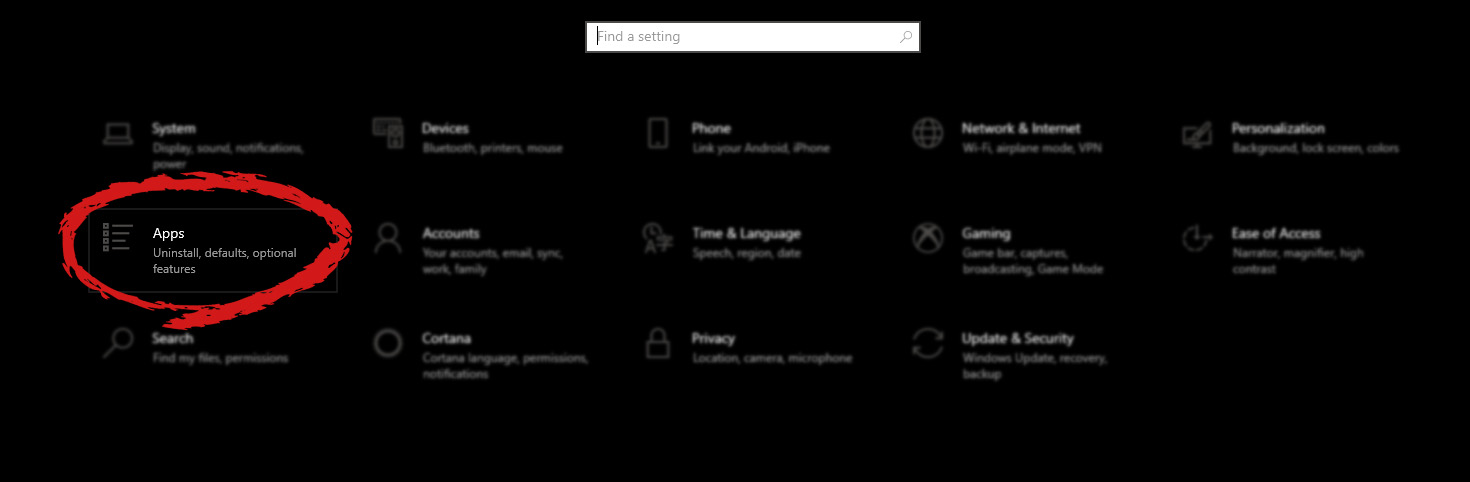
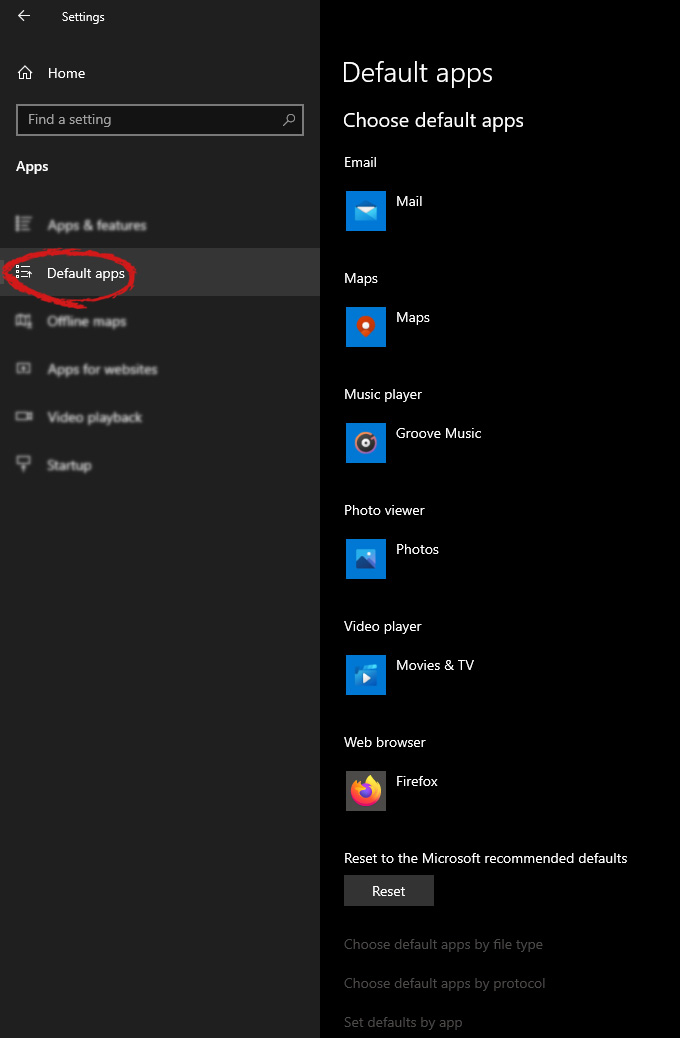
Hello everyone and welcome to another tutorial on errortools.com, Windows itself when it is installed has a general idea about certain file types and how to open them, for example, image files would be opened with application photos, web links with the edge, etc. So when we double click on the known file type, Windows will start the default application for that type and open the file in it. But what if we do not want to open files in applications Microsoft thinks we should? What if we want to open the website in firefox or images in photoshop, or whatever. Luckily we can easily change which application Windows uses for which file type. Click on ⊞ WINDOWS to open the start menu and choose settings. Windows 10 Star menu with marked settings iconOn the settings screen, choose Apps. Windows settings apps section markedWhen the Apps screen opens on the left click on Default apps. Windows settings default apps markedOn right, you will get a list of Windows default applications for certain types of files. Click on any application you would like to change and choose from the drop-down list a new one. Click on it and you are done.

Read More
1 2 3 171
Logo
Copyright © 2023, ErrorTools. All Rights Reserved
Trademark: Microsoft Windows logos are registered trademarks of Microsoft. Disclaimer: ErrorTools.com is not affiliated with Microsoft, nor claims direct affiliation.
The information on this page is provided for information purposes only.
DMCA.com Protection Status