Logo

Best free & paid eMail clients in 2021

Having an eMail in today's modern world is no longer a privilege or being geeky, it has surely become a necessity. From Facebook to LinkedIn or Steam many services today require you to have an account in order to use them, and in order to create an account, you need working eMail.

That being said many people today have several eMail accounts, one for social media, one for work, maybe even one for very close friends and family. How creating eMail today is completely free we might end up with several eMail accounts.

eMail clients have also evolved much since their first days and became more than just applications for receiving eMails, today they can take various different tasks having additional features built into them like calendar, batch eMail processing, etc.

Taking all of said into account I am presenting to you within my personal opinion some of the best eMail clients starting with free ones.

Best free eMail clients

Google Gmail

https://gmail.com
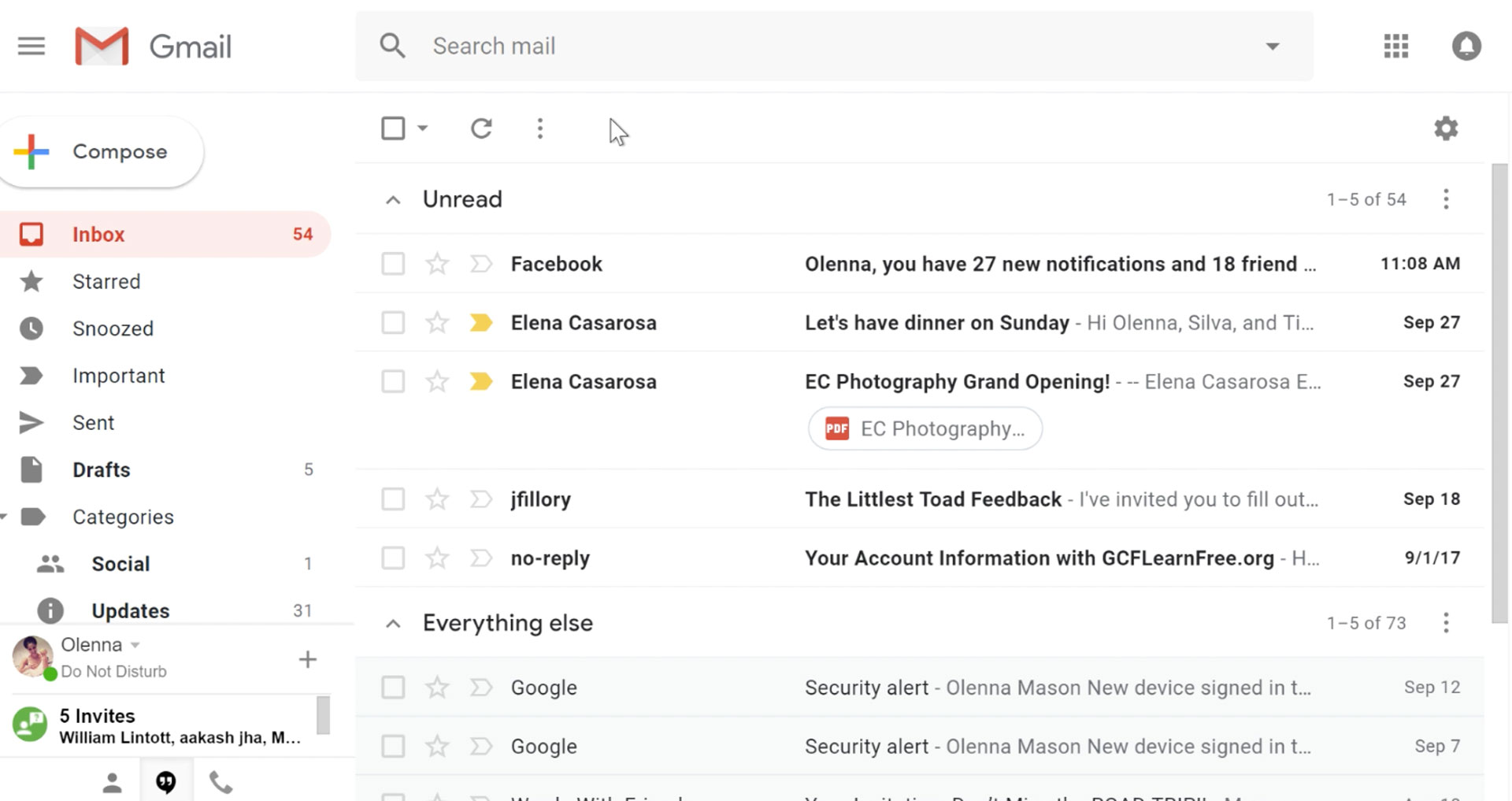
gmail eMail clientIt would be very difficult to even start a free eMail list without mentioning Google's Gmail. Introduced all the way back in 2004 as an invite-only service it became over time the most popular email platform largely due to the fact Google is offering free eMail accounts.

There are a lot of good things to be said about Gmail itself, most of the area is clutter-free and the largest space is reserved for eMail itself letting users focus on what is important. WEB client itself means that you do not need to have any application installed on your device, altho via Google chrome, you can use Gmail offline offering you flexibility if needed.

The ability to connect and manage other accounts like Outlook, Yahoo, etc is just making Gmail even more attractive, and the snooze feature is a really neat little detail that will pause eMail notifications if you need to focus on other things.

Lack of organizing messages into folders is a little confusing since Gmail offers its own unique label system but sometimes I need to have old reliable save eMail to folder.

All in all, Gmail is a great service and it offers a great eMail on the go experience.

Mail eMail client

https://www.microsoft.com/en-us/p/mail-and-calendar/
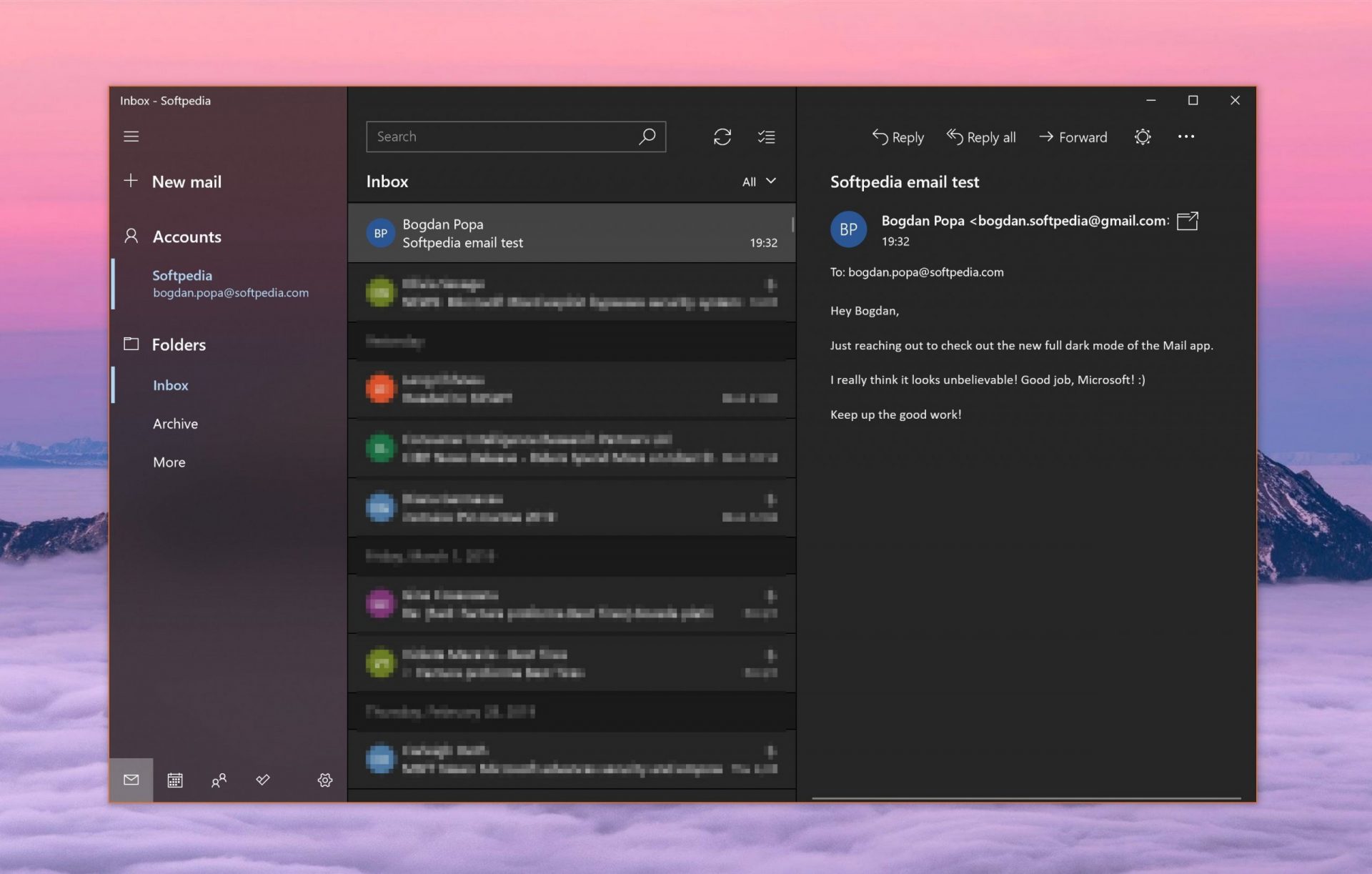
mail eMail appFree Windows eMail client simply called Mail is what was once outlook express. Mail itself has the ability to work with other popular accounts like Google Gmail account, Yahoo, iCloud etc. How it comes with Windows OS and it integrates very well with Microsoft Calendar, this eMail client is for many the first choice.

On the negative side, I might say this is a strip-down version of Outlook which is paid solution so some features are missing if we would compare the two.

Overall, a simple and nice eMail client worth your time, especially if you are on the Windows platform.

Mozilla Thunderbird

https://www.thunderbird.net
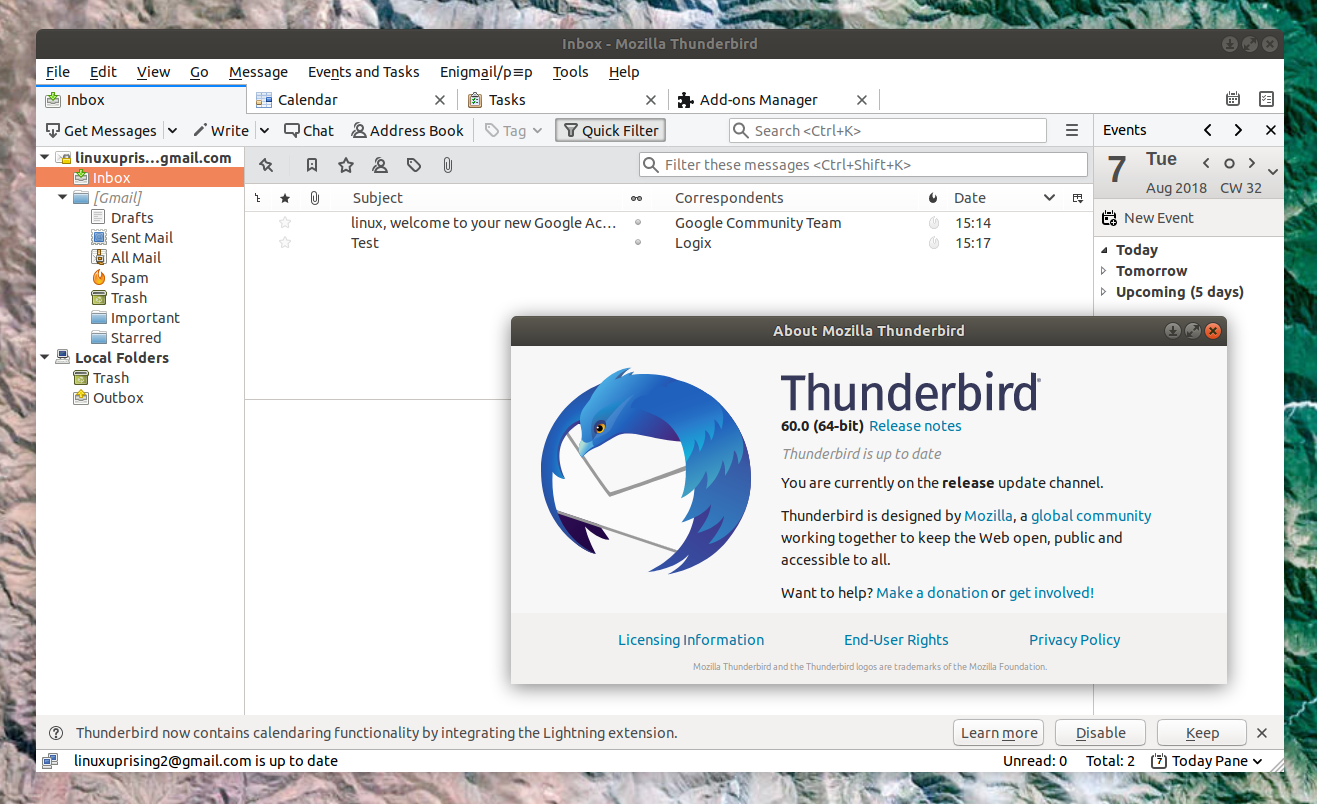
mozilla thunderbird eMailGreat eMail client matching in functions against paid and premium solutions of big tech companies. Fueled with plenty of customization options and reskinning ones this eMail client offers a lot for its free price tag.

It is also fueled by Mozilla community focusing on privacy and security. It can work with any mail service and it is lightweight with a clean look, altho the look itself can be heavily customized.

The bad side is that client itself relies on email services to provide cloud-based emails, so if you are receiving your email via a service that does not have a cloud-based service in itself all of your received emails will be locked to the computer where you have received them. Also customizing it can be sometimes a little too technical for the average computer user.

All in all, Thunderbird is one great eMail client and it would be a shame not to use it because of its technical side, if you need a reliable and secure eMail client on a single machine, look no further than Thunderbird.

Paid eMail clients

Microsoft Outlook

https://www.microsoft.com/en-us/microsoft-365/
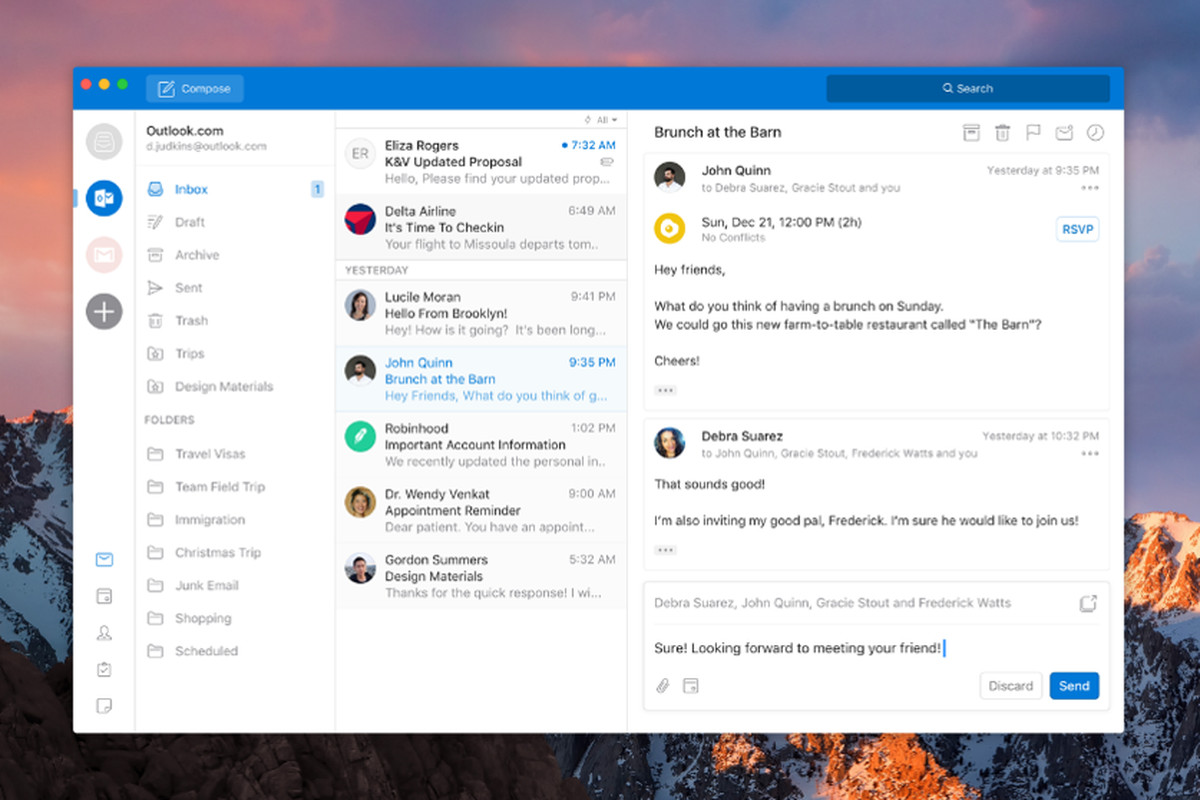
microsoft outlookOutlook comes as a part of the Microsoft Office suite and as one of the oldest eMail clients, it is still widely popular and adopted through many users and businesses. It has tight integration with all Microsoft services and full integration with Calendar making it one of the if not the best eMail client out there.

Outlook also has a free online service completely free for personal use as well.

The downside is that you can not get it as a separate product if you want a business version other than as a part of the Office suite.

The final verdict would be that this is perhaps the best eMail client out but the big downside is that there is no desktop version outside the Office suite.

eM Client

https://www.emclient.com/
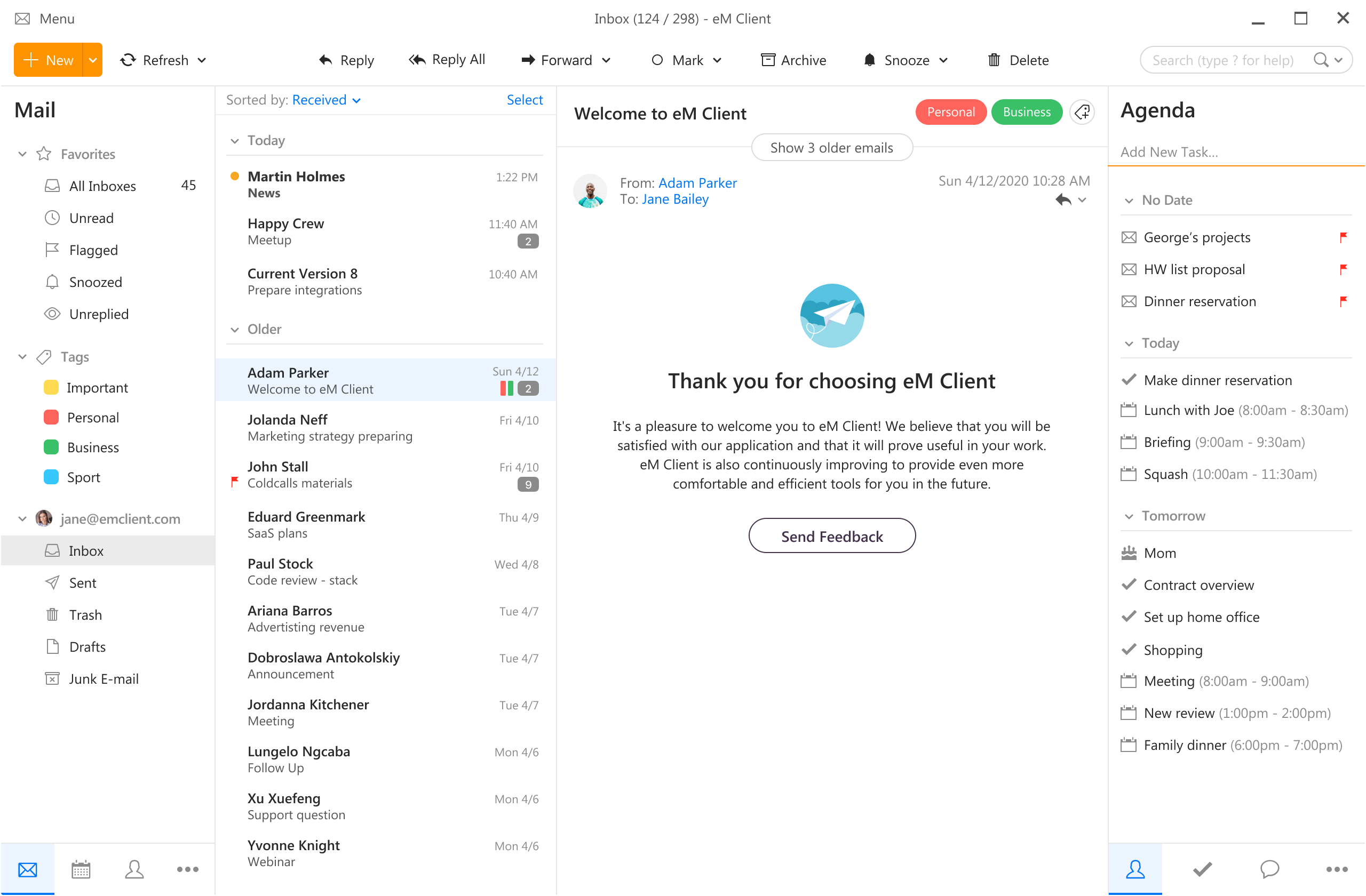
em clienteM Client offers a wide array of features, including a calendar, contacts, and chat. Support is provided for all the major email services including Gmail, Yahoo, iCloud, and Outlook.com. The latest version also offers PGP encryption, live backup, basic image editing capabilities, and auto-replies for Gmail.

Its automatic system makes it very easy to get emails from other services since there is no manual setting, all that is needed is to type in your email and eM Client will do everything else automatically.

A one-time purchase is not pricy and it could offer some features that some free clients are missing. Go check it out with a free trial and see if it is for you.

Mailbird

https://www.getmailbird.com
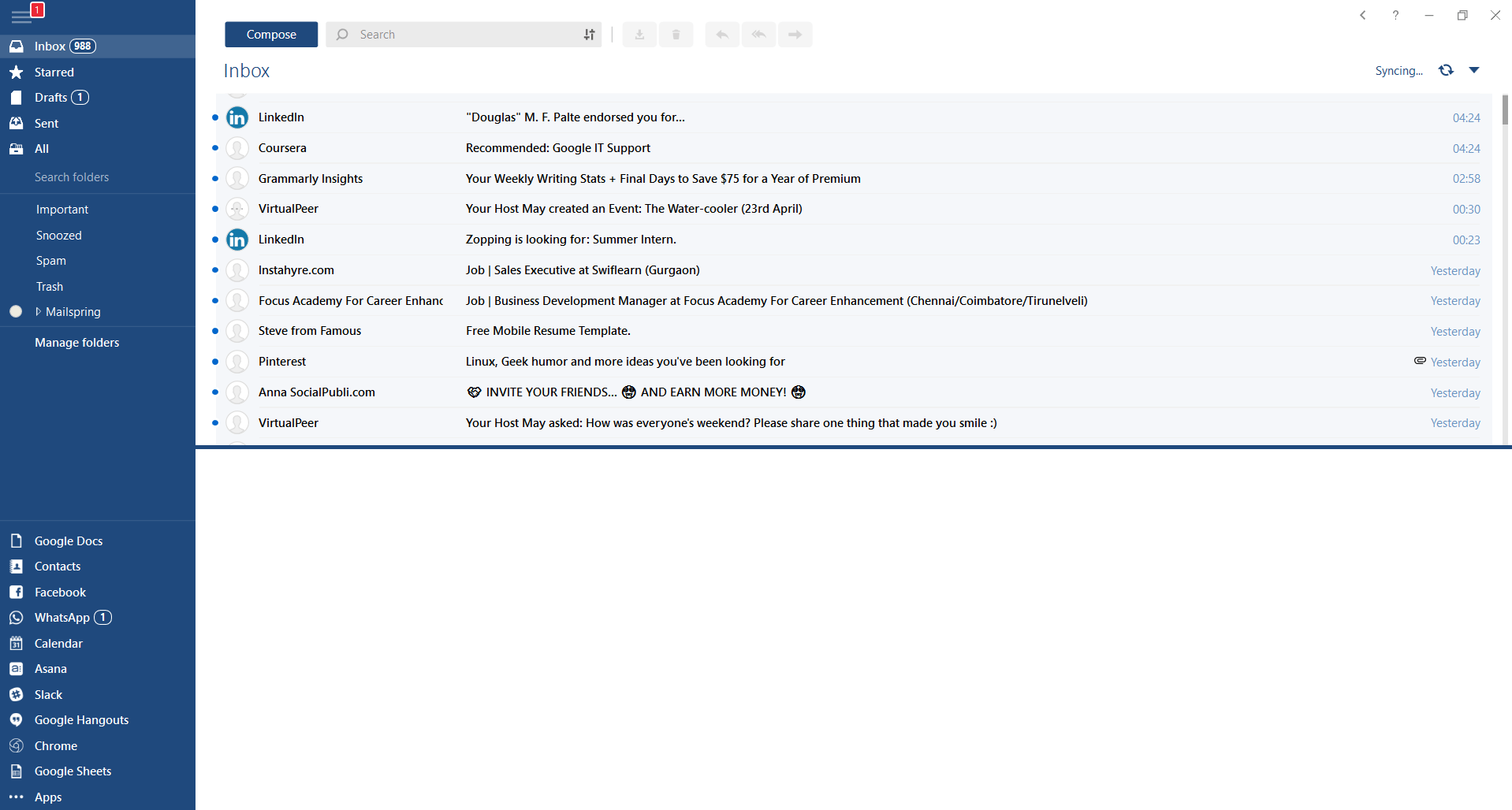
mailbirdThis eMail client's main focus is the simplicity of use with visual appeal while tackling multiple eMail accounts. It has many built-in apps along with a customizable interface. Unlike some more Microsoft-centric email clients, Mailbird Business supports a diverse range of integrated apps, including WhatsApp, Google Docs, Google Calendar, Facebook, Twitter, Dropbox, and Slack, all making for a better-streamlined workflow.

The downside of this client is the yearly subscription plan. I think people, in general, want to get away from software subscription plans so I will include this as a downside but bear in mind it is downside just in terms of a business plan not in the client itself.

Inky

https://www.inky.com/
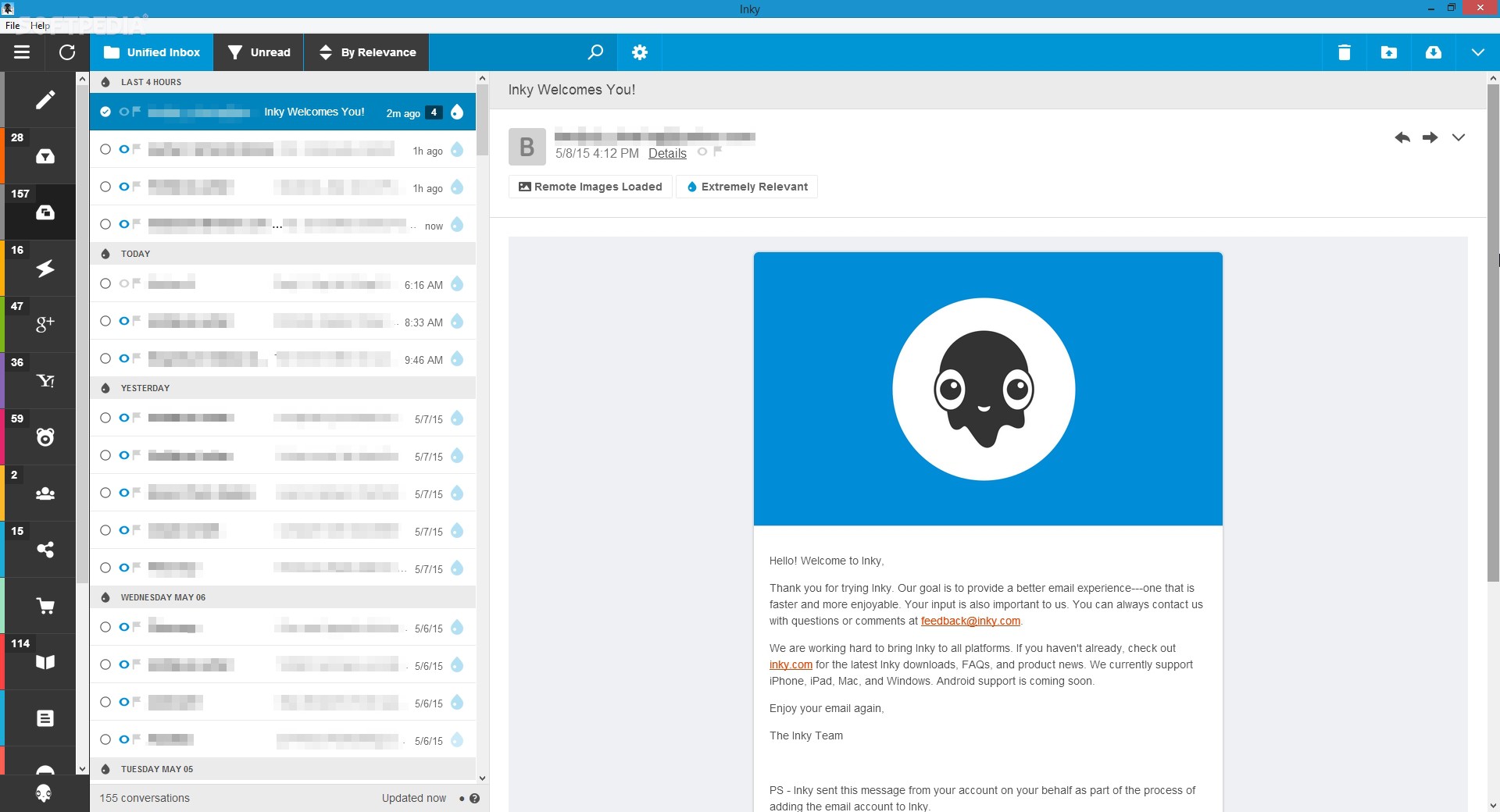
inky eMail clientInky is eMail client if you are looking for security. It uses AI along with machine learning in order to block all types of phishing attacks that can get through to other clients. The proprietary machine learning technology can literally read an email to determine if it has phishing content, and then is able to quarantine the email or deliver it with the malicious links disabled. It also takes things a step further and offers an analytics dashboard, which allows an administrator to see patterns of attacks based on dates, or targeted users.

The downside is that client itself is so much focused on security that sometimes some nonsecurity features get overlooked and provide a poor experience but if you need a good and greatly secured eMail client Inky is one to check out.


Do You Need Help with Your Device?

Our Team of Experts May Help
Troubleshoot.Tech Experts are There for You!
Replace damaged files
Restore performance
Free disk space
Remove Malware
Protects WEB browser
Remove Viruses
Stop PC freezing
GET HELP
Troubleshoot.Tech experts work with all versions of Microsoft Windows including Windows 11, with Android, Mac, and more.

Share this article:

You might also like

MS Store and Electron Bot

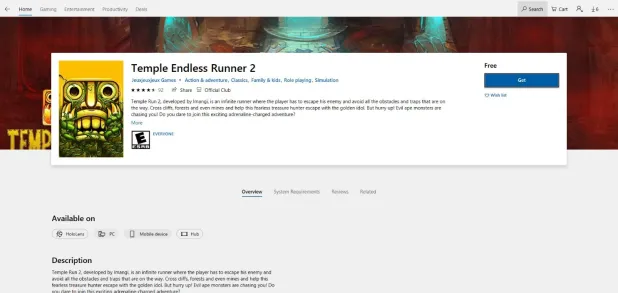
So, what is Electron bot, and why it even matters if it is in the MS store. Electron bot is malware that somehow found its way inside MS Store via game clones of popular games temple run and subway surfer. This infiltration led to the infection of around 5000 systems over the globe in a very short period of time.

electron bot malware

This malware is a backdoor that gives complete system control to the attacker. Any type of execution can be performed remotely in real-time. Usually, this kind of attack was aimed at a spread of click fraud over popular social media like Facebook, google, youtube, etc.

Primary goal

Electron Bot's primary goals in the ongoing campaign analyzed by researchers are:

  • SEO poisoning – Create malware-dropping sites that rank high on Google Search results.
  • Ad clicking – Connect to remote sites in the background and click on non-viewable advertisements.
  • Social media account promotion – Direct traffic to specific content on social media platforms.
  • Online product promotion – Increase store rating by clicking on its advertisements.

These functions are offered as services to those who want to increase their online profits illegitimately, so the gains for the malware operators are indirect.

Publishers that contain malware

For now, users may take note of the publishers who released confirmed malicious game apps using the following names:

  • Lupy games
  • Crazy 4 games
  • Jeuxjeuxkeux games
  • Akshi games
  • Goo Games
  • Bizzon Case
Read More
Fix The selected boot device failed in Windows
If you suddenly receive an error message that says, “The selected boot device failed, Press <Enter> to Continue” during an installation on your Windows 10 computer, you should know that this kind of error can occur when you use a USB stick as well as a DVD Disk to boot from. This error indicates that some settings inside your BIOS are not compatible with the bootable device that you have created. Note that fixing this kind of error does not vary from device to device at all. All you have to do is change some settings in the BIOS and create a proper bootable disk. Follow the options given below to fix the “The selected boot device failed, Press <Enter> to Continue” error. The options below do not have to be necessarily followed in the same sequence since you can create a bootable USB drive before you change some settings in the BIOS.

Option 1 – Disable the Secure Boot in the BIOS

Disabling the Secure Boot in the BIOS settings is definitely recommended to resolve the issue. To disable Secure Boot, here’s what you have to do:
  • First, boot your computer into Windows 10.
  • Next, go to Settings > Windows Update. From there, check if there is anything that you have to download and install if you see any available updates. Usually, OEMs send and update the list of trusted hardware, drivers, and operating systems for your computer.
  • After that, go to the BIOS of your computer.
  • Then go to Settings > Update & Security > Advanced Startup options. If you click on Restart Now, it will restart your computer and give you all the advanced options.
  • Next, select Troubleshoot > Advanced Options. As you can see, this screen offers you further Options including System Restore, Startup repair, Go back to the previous version, Command Prompt, System Image Recovery, and UEFI Firmware Settings.
  • Select the UEFI Firmware Settings which will take you to the BIOS.
  • From there, go to the Security > Boot > Authentication tab where you should see Secure Boot. Note that every OEM has its own way of implementing the options so it varies.
  • Next, set Secure Boot to Disabled and set Legacy Support to On or Enabled.
  • Save the changes made and exit. Afterward, your computer will reboot.

Option 2 – Make a proper bootable USB Drive/Stick

To make a proper bootable USB drive, you need to use the Windows Media Creation tool. The Media Creation tool in Windows allows you to use the ISO installation file to make a bootable device that you can use to install Windows on your PC. Note that this is kind of different from the usual installation process as it could erase your computer’s current settings and data on the primary drive. Thus, before you proceed, you need to backup all your data into some removable drive and then use the Media Creation Tool to make a bootable drive.
  • After making the bootable drive, you need to plug it into your computer and then reboot.
  • Next, tap the F10 or Esc key to open the boot options.
  • Now set the boot priority of the removable drive the highest. Once the setup comes forth, follow the next onscreen instructions and install Windows without any problems.
Read More
Fix 0xC000007B STATUS INVALID IMAGE FORMAT
If you are trying to open a program or a game but you suddenly see a dialog box with a message stating that the application was unable to start correctly along with the Error Code 0xC000007B , STATUS INVALID IMAGE FORMAT then this indicates that the application is not compatible with the architecture of your Windows 10 computer or is missing dependencies. Although error code 0xC000007B can also occur with other various programs, the STATUS_INVALID_IMAGE_FORMAT error code also means that when you try to run an application that’s designed to run on a 64-bit system and hence gets into a termination state. In addition, if you are also pointed to the NTStatus.h file then it means that the error might be caused by some file corruption. Here’s the full context of the error message:
“0xC000007B | STATUS_INVALID_IMAGE_FORMAT | {Bad Image} %hs is either not designed to run on Windows or it contains an error. Try installing the program again using the original installation media or contact your system administrator or the software vendor for support.”
When you see this error message, the first thing you can do is to click on OK to close the application and then try installing the media again to see if it fixes the issue. If not, then you can check out the suggestions given below.

Option 1 – Try installing the application with admin privileges

The first thing you can do to fix the error is to restart your Windows 10 computer and then try installing the application again and this time with admin privileges. Just right-click on the application and select the “Run as Administrator” option. And if your account is a regular one, you need to make sure to ask an admin to help you in installing the application by entering the password when you are prompted to do so.

Option 2 – Install and update Dependencies

There are times when programs and applications need to have drivers and supporting software installed for them to properly work. Although the installation usually takes care of it, it’s time for you to do some manual checks especially if you are getting this issue of abnormal program termination.

1. Install some qualified drivers

A number of high-end games and applications need to have correct and valid drivers for them to work. They just don’t work with general drivers though. Microsoft has this Windows Hardware Quality Labs testing also known as WHQL testing which makes sure that drivers meet the correct experience and pass through the proper testing before certification. Thus, when installing drivers, you need to ensure that they are qualified drivers for your Windows 10 PC.

2. Download and install or update DirectX

As you know, Microsoft DirectX is a suite of technologies developed by Microsoft to provide hardware acceleration for heavy multimedia applications like HD videos and 3D games. Since you are using Windows 10, you have the DirectX 12 version while the earlier Windows versions use the DirectX 11 version.

3. Install the Microsoft DirectX End-user runtime

The Microsoft DirectX end-user runtime gives updates to version 9.0c as well as previous versions of DirectX. To install it, click on this link and download it.

4. Update or install the .NET framework

The .NET framework is used by games and applications during development which means that without the runtime files that are installed in your computer, it definitely won’t work. Thus, you need to install or update this framework. You can also use the .NET setup verification tool to verify it.

Option 3 – Try running the System File Checker Scan

The SFC or System File Checker scan could detect and automatically repair damaged system files that could be causing the Error Code 0xC000007B , STATUS INVALID IMAGE FORMAT error. SFC is a built-in command utility that helps in restoring corrupted files as well as missing files. It replaces bad and corrupted system files with good system files. To run the SFC command, follow the steps given below.
  • Tap Win + R to launch Run.
  • Type in cmd in the field and tap Enter.
  • After opening Command Prompt, type in sfc /scannow
The command will start a system scan which will take a few whiles before it finishes. Once it’s done, you could get the following results:
  1. Windows Resource Protection did not find any integrity violations.
  2. Windows Resource Protection found corrupt files and successfully repaired them.
  3. Windows Resource Protection found corrupt files but was unable to fix some of them.
Read More
Folder shortcuts in Windows 11 on Start menu
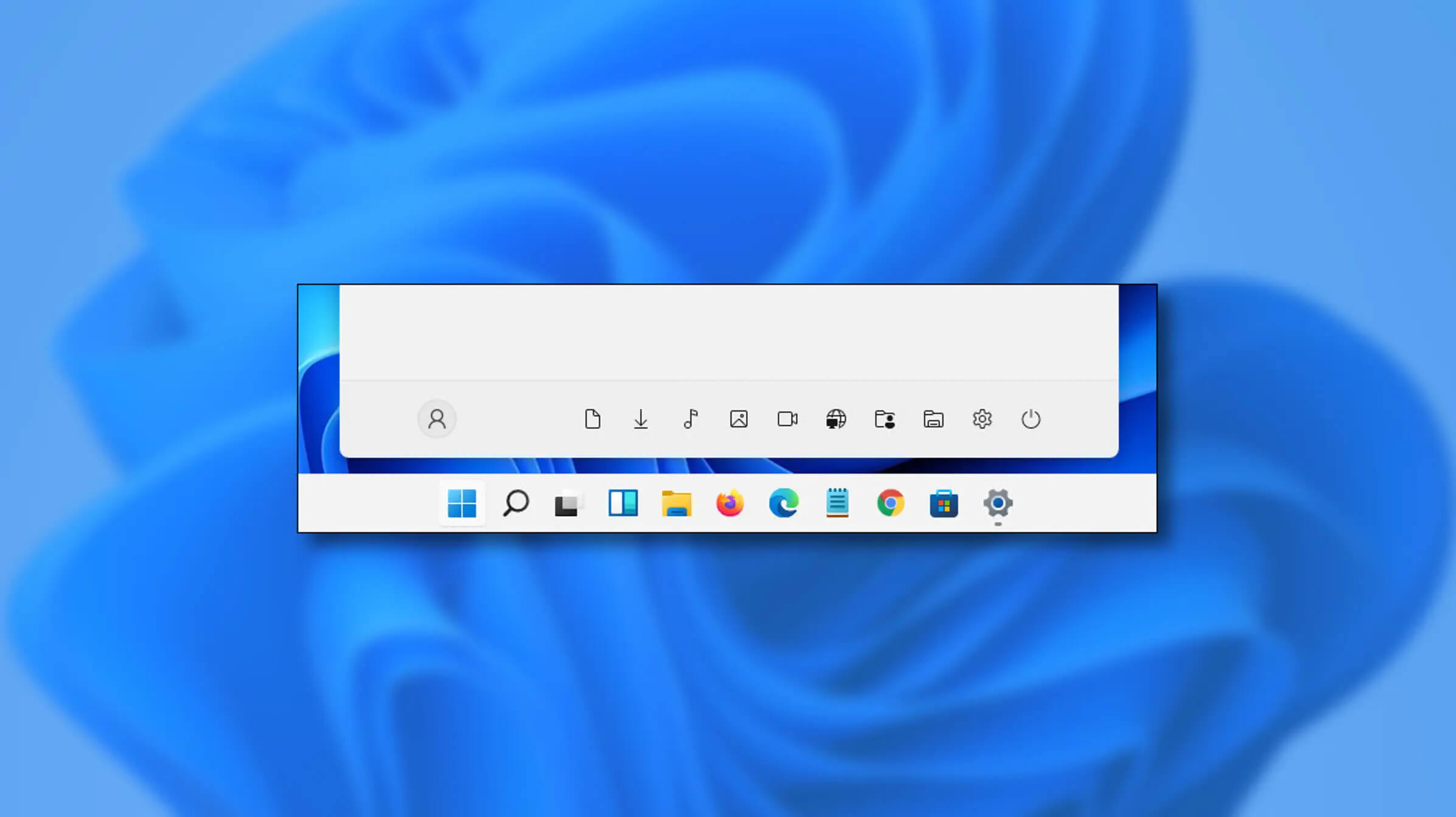
Special folders like music, pictures, download, videos, etc, can be placed as shortcuts in the start menu inside Windows 11 for easy access. Shortcuts will appear in the start menu on the bottom as simple glyphs. They are not present in the start menu by default so it needs to be turned ON first. Folder shortcutsIf you want to place these icons in your Star menu follow this step-by-step guide and you will have them in no time.

  1. Open Windows settings
  2. In settings go to Personalization > Start
  3. In Start click on Folders
  4. On the given list of Settings, File Explorer, Documents, Downloads, Music, Pictures, Videos, Network, and Personal folder click on the switch beside them if you want them as shortcuts in the Start menu. You can choose whichever you want.
  5. Close settings
You can revisit the settings menu to add more icons or remove some of them later if you wish so.
Read More
Surefire Methods of Fixing Error Code 47

Error Code 47 – What is it?

It is a device driver error that users encounter when they use Windows 2000 operating system and its later versions.

The error occurs when the connected peripheral device, upon removal using the ‘Safe Removal Hardware’ program, hangs up a problem within the process. The error prompt you then see is referred to within the operating system as error code 47.

It usually pops up on your computer screen with the following message:

Windows cannot use this hardware device because it has been prepared for "safe removal", but it has not been removed from the computer. (Code 47)

Solution

driverfix boxError Causes

There are many factors responsible for the Error Code, the primary ones are listed below:

  • An incomplete program installation
  • An incomplete program uninstallation
  • System recovery from viruses
  • Corrupted Windows system registry entries

Further Information and Manual Repair

Error Code 47, like other device driver error codes, is relatively easy to solve. You can fix the error code in the following ways:

Method 1 – Reconnect the device to your computer

Unplugging and plugging the USB cable of the device into the computer is the easiest way to resolve the error.

Doing this will help refresh the system and increase the likelihood of the device driver files loading and function properly.

Method 2 – Restart your PC

Another simple method you can use to solve your PC error code is to simply restart your Windows system.

It may be that the error prompted upon connecting the device you have connected is merely a temporary problem, and upon restart, will resume functioning smoothly.

Method 3 – Manually uninstall then reinstall the device driver

If both of the above-listed methods fail to resolve the problem, you may have to resort to manually uninstalling and then reinstalling the device driver causing the problem.

This would be necessary since the remaining incomplete files due to a partial removal or installation of programs is what contributes to the error code. By uninstall and reinstalling the device driver program, it would lead to the completion of the files.

You can do this by firstly logging in as Administrator and open Device Manager. Select the device that is causing the problem and double click it and make sure that the peripheral is connected properly to the PC.

Upon opening, click on the ‘Driver’ tab and then select ‘Update Driver’. Make sure to refer to the system documentation that you received with your PC or computer to check for the motherboard details and driver specifics.

Method 4 – Use software to automatically download the driver

Manually uninstalling and reinstalling the driver will usually do the trick; however, it may be time-consuming especially when you would have to resort to your hardware user manual.

Therefore, using a program such as DriverFIX can save you a lot of time and frustration in having your device work properly on your computer.

DriverFIX, with its user-friendly approach to help you fix your PC issues, comes with an integrated database that detects which drivers you need to reconfigure within just a few seconds and downloads it automatically. It further ensures that your drivers are installed in their entirety leaving no room for any incomplete files to remain that create Error Code 47. It also has the added advantage of being able to backup and restores your files should there be the slightest possibility of system file damage. Thus, registry damage can be averted by letting the software roll back the system files to an earlier healthy checkpoint. DriverFIX is the answer to fixing your PC error codes accurately and quickly. Click here to download DriverFIX to fix Error Code 47 quickly and effectively!
Read More
How to Permanently Disable Active History
What is Active History? A new feature has been introduced in Windows 10 that allows users to stay connected to their tasks across their devices. This new feature is called “Windows Timeline” and using this feature, users could continue their tasks all over their Windows 10 computers as well as on devices that run Android and iOS as well. This new feature was included in Microsoft Launcher and Microsoft Edge on Android devices as well as in Microsoft Edge for iOS devices. In order for the feature to work, you have to send either Basic or Full data and diagnostics of your computer to Microsoft which would sync it all over your devices with the help of the cloud. And now since all your data is stored on your Windows 10 computer and with Microsoft under your account, it is easier for you to access the back and start where you left off. This kind of option is called Active History. In this post, you will be guided on how you can permanently disable Active History using either the Windows Registry or Group Policy. Before you go on further, it is recommended that you create a System Restore Point first in case anything goes wrong. This is a precautionary measure you must take so that you can easily undo the changes you’ve made. After creating a System Restore Point, proceed to the given instructions below.

Option 1 – Disable Active History via Registry Editor

  • Tap the Win + R keys to open the Run dialog box and type in “Regedit” in the field and hit Enter to open the Registry Editor.
  • Next, navigate to this registry key: ComputerHKEY_LOCAL_MACHINESOFTWAREPoliciesMicrosoftWindowsSystem
  • From there, check if you can find a DWORD named “PublishUserActivities”. If you can’t find this DWORD, just create one with the same name and make sure that the base is selected to Hexadecimal.
  • After that, double-click on the DWORD and change its value from 1 to 0 to disable Active History.
  • Restart your computer to apply the changes you’ve made successfully.

Option 2 – Disable Active History via Group Policy Editor

Note that this second option won’t work if you are using the Home edition of Windows 10. This is because the Group Policy Editor does not come with Windows 10 Home. So if you are not using Windows 10 Home, follow the given steps below.
  • Tap the Win + R keys to open the Run box.
  • Then type in “gpedit.msc” in the field and hit Enter to open the Group Policy Editor.
  • Next, navigate to this path: Computer ConfigurationAdministrative TemplatesSystemOS Policies
  • After that, double click on the configuration listing named “Allow publishing of User Activities” to open the configuration page which has the following description:
“This policy setting determines whether User Activities can be published. If you enable this policy setting, activities of type User Activity are allowed to be published. If you disable this policy setting, activities of type User Activity are not allowed to be published. Policy change takes effect immediately.”
  • Now you have to select Disabled or Not Configured if you want to disable Publishing of User Activities or Enabled to Enable Publishing of User Activities depending on your preferences.
  • Next, click OK and exit the Group Policy Editor and then restart your computer to successfully apply the changes made.
Read More
New Chrome update brings surveillance debate
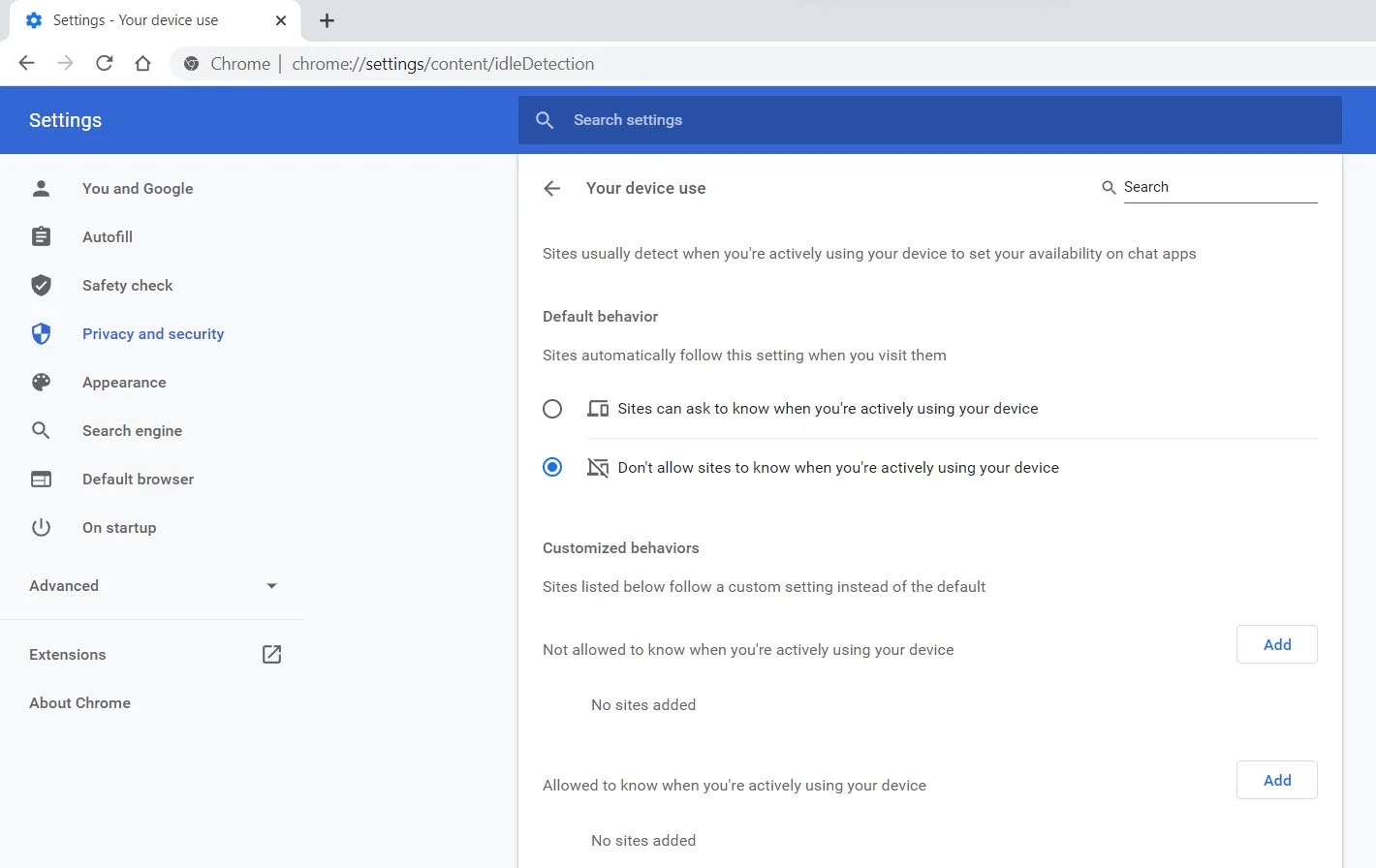
Google Chrome 94 is here and it has introduced a controversial idle detection API. For those people that do not know what idle detection API is, well basically Chrome can be asked by a website to report when a user of the site has a site open and is idle on the device. The issue that people have with this is that this particular feature can be used to report when the user is not using a computer at all. chrome idle detection featureGood thing is that website or web application will prompt you to allow it to use this feature like when a site/application wants to use your microphone or web camera. Developers are on board with this feature since it can provide them with more telemetric data on how users are interacting with their website/application but there are some that are strongly voicing against this. Tantek Çelik, Mozilla Standards Lead, commented on GitHub, saying:

As it is currently specified, I consider the Idle Detection API too tempting of an opportunity for surveillance capitalism motivated websites to invade an aspect of the user’s physical privacy, keep long-term records of physical user behaviors, discerning daily rhythms (e.g. lunchtime), and using that for proactive psychological manipulation (e.g. hunger, emotion, choice)… Thus I propose labeling this API harmful and encourage further incubation, perhaps reconsidering simpler, less-invasive alternative approaches to solve the motivating use-cases.
Others who have spoken against this feature are people from the WebKit development team inside Apple. Ryosuke Niwa, an Apple software engineer who works on WebKit said:
That doesn’t seem like a strong enough use case for this API. For starters, there is no guarantee that the user won’t immediately come back to the device. Also, who is such a service supposed to know what another device user might be using at any given point? We’re definitely not going to let a website know all the devices a given user might be using at any given point. That’s a very serious breach of the said user’s privacy. It seems to me that such a suppression/distribution mechanism is best left for the underlying operating systems/web browsers to handle.
Of course, technology itself as always can be used for good or for bad and time will tell if this feature has brought good stuff or it has paved another brick in surveillance and privacy manipulation. As said for now option will prompt for agreement and let's hope that it will be used for good causes from this day into the future.
Read More
A Guide to Fixing Error 0x80070652 Windows 10

Error Code 0x80070652 – What is it?

Error code 0x80070652 occurs when Windows users attempt to upgrade their operating system while another program is in the process of being downloaded. It may also occur due to problems related to previously failed update attempts within Window Update. When this Windows 10 upgrade occurs, Windows users fail to access the version of Windows they are attempting to download. Instead, a message box occurs stating that error code 0x80070652 has occurred on the device. If this error message is not rectified, it could give birth to other Windows 10 errors such as error code 0x80072EE2.

Solution

Restoro box imageError Causes

Error code 0x80070652 may result from Windows 10 users attempting to download another program while upgrading their operating system. It may also be caused by an issue related to previous installations of updates. For instance, in some cases, your previous installation of the Windows process may have been interrupted or it was simply not completed properly. This causes any other upgrade process that follows to result in error code 0x80070652.

Further Information and Manual Repair

But what can be done in such a situation to resolve the error code? Windows users have several options available. For instance, they can wait on any additional program that may be in the process of downloading to complete the process before attempting to upgrade Windows. They may also troubleshoot problems related to any failed updates or select a system restore point in which the error code was not present.

The manual repair methods Windows 10 users choose may involve any of the solutions mentioned previously. The choice is largely dependent on the user and his determination to fix the error code. However, note that automated tools or Windows repair technicians may also provide solutions to PC issues like error code 0x80070652.

Method One: Verify and Troubleshoot Failed Upgrades

Since previously failed updates within Windows Update can lead to the occurrence of error code 0x80070652, Windows 10 users will need to verify which of these failed updates occurred by checking the history section of the Windows Update tool. Once you’ve been able to verify that failed updates have occurred in the recent past, you’ll need to troubleshoot these problems to rectify the error code. Follow the instructions below to check for updates that have failed to install properly via Windows Update.

  • Step one: Type Windows Update in the Search box near Start Menu
  • Step two: Select Windows Update settings
  • Step three: Select Update history
  • Step four: Review updates from the most recent to least recent to see which updates have failed
  • Step five: Click failed updates for more details and troubleshoot accordingly.

Once you’ve completed the troubleshooting of any updates which failed, proceed by rebooting your device. You may then reattempt to upgrade to the latest version of Windows 10 once no other program is in the process of being downloaded.

If the problem causing error code 0x80070652 was related to failed updates of the past, these issues will likely be resolved once you successfully troubleshoot them. However, if the error code reoccurs, apply the next manual repair solution mentioned in this article.

Method Two: Download Updates Manually via Microsoft Download Center

Another option available to users is simply downloading updates manually by visiting the official Microsoft website, specifically the Windows section which provides downloads. To successfully complete this process, ensure you look for stand-alone packages of these downloads available on the website. You will need to know the Microsoft Knowledge Base (KB) article number related to the specific update(s) which failed.

Once a Windows user has verified the KB article number of the specific update, download it from the Microsoft website, then select Run to install the update. Reboot your PC, then check Windows Update to see if you are able to successfully complete the Windows 10 upgrade.

If the upgrade fails, you may need to implement the next manual repair method as is mentioned below.

Method Three: Use Windows System Restore

One of the best options for Windows 10 users facing certain PC problems is to apply System Restore. This allows them to reset their machine for a period of time in which the problem was not present. This is known as the restore point. To apply this manual repair method, follow the steps below.

  • Step one: In the search box beside the Start Menu, type System Restore
  • Step two: Select Create a restore point
  • Step three: Select the System Protection tab then Configure or Create
  • Step four: Provide details regarding a system restore point of your choice
  • Step five: Select Create, then OK.

Method Four: Download an Automated Tool

If you wish to always have at your disposal a utility tool to fix these Windows 10 and other related issues when they do arise, download and install a powerful automated tool.

Read More
4 Methods of Fixing Error Code 48

Error Code 48 – What is it?

Error Code 48 is a device driver error code that users can encounter on any Windows 2000 operating system and later versions.

It occurs when the connected peripheral device cannot be run as the Windows operating system’s driver required to install the programs for peripheral devices has either been corrupted or is incompatible with the system.

It prompts the user with the following message on the screen:

The software for this device has been blocked from starting because it is known to have problems with Windows. Contact the hardware vendor for a new driver. (Code 48)

Solution

driverfix boxError Causes

Like most other Windows error codes, error code 48 is triggered by the following factors.

  • Corrupted system registry files
  • Presence of viruses in the device
  • The device driver is out-of-date
If this error code is not rectified, it could give birth to other driver device errors such as error code 52.

Further Information and Manual Repair

Method 1 – Run a complete scan for malware and spyware

Identifying and removing the viruses in the system registry and in the connected devices is the easiest method to fix the corrupted registry files.

Viruses such as spyware and malware infect the registry entries and eat up the files that lead to incomplete or missing data. This creates problems for installing external devices as the driver required to install them is not complete.

Method 2 – Use System Restore

You can also use system restore to eliminate the problem. Here is how you can use it:

  • Log in using an Administrator account
  • Click ‘Start’ button and select All Programs > Accessories > System Tools > System Restore
  • Click ‘Restore my computer to an earlier time’ and click ‘Next’
  • Select the last Windows to restore point from the ‘On this list, click a restore point’ list, and click ‘Next’
  • Click ‘Next’ on the confirmation window to proceed
  • Restart your PC after restoration is complete

By restoring the system via the last saved system checkpoint, you can obtain undamaged Windows system registry files that can help resolve the error code.

Method 3 – Manually uninstall and reinstall the device driver

Since Error Code 48 is due to a missing or an out-of-date device driver, uninstalling and then reinstalling the device driver can help solve the error.

You can do this by firstly logging in as Administrator and opening Device Manager. Select the device that is causing the problem and double click it; make sure that the peripheral is connected properly to the PC.

Upon opening, click on the ‘Driver’ tab and then select ‘Update Driver’. Make sure to refer to the system documentation that you received with your PC or computer to check for the motherboard details and driver specifics.

Method 4 – Use software to automatically download the driver

Manually uninstalling and reinstalling the driver will do the trick; however, it may be time-consuming especially when you would have to resort to your hardware user manual. Therefore, using a program such as DriverFIX can save you a lot of time and frustration in having your device work properly on your computer. DriverFIX, with its user-friendly approach to help you fix your PC issues, comes with an integrated database that detects which drivers you need to reconfigure within just a few seconds and downloads it automatically. It further ensures that your drivers are installed in their entirety leaving no room for any incomplete files to remain that create Error Code 48. It also has the added advantage of being able to backup and restores your files should there be the slightest possibility of system file damage. DriverFIX is the answer to fixing your PC error codes accurately and quickly. Click here to download DriverFIX to fix Error Code 48 quickly and effectively!
Read More
How to get rid of Chedot

Chedot is a Chromium-based Browser that replaces your default System Internet Browser. This browser offers users tools for downloading videos, faster browsing, and custom searches. From the publisher: A feature of our browser is a high speed on slow computers, high speed download on a poor internet, support resuming file download when connection is broken and the download in multiple threads, the ability to go on blocked websites and downloading videos from video sites.

While this may seem interesting and good at start, this browser has been marked as a Potentially Unwanted Program. It monitors user activity, collects web traffic data, and user information. While using Chedot you may see additional ads throughout your browsing sessions.

About Potentially Unwanted Applications

Exactly what is a Potentially Unwanted Program (PUP)?

People have encountered it – you download a free software, you then discover some unwanted applications on your computer system or discover a strange toolbar has been included with your browser. You didn’t have them installed, so how did they appear? These unwanted applications, which are called Potentially Unwanted Programs, or PUP in short, usually tag along as a software bundle when downloading the application and could cause serious problems for computer users. PUP does not involve malware in the traditional sense. What normally makes a PUP different from malicious software is the fact that when you download one, you’re doing it with your consent – although in most cases unintentionally and reluctantly. But, there is no doubt that PUPs remain bad news for computer users as it can be incredibly damaging to the PC in many ways.

How do unwanted programs affect you?

Unwanted programs come in many forms. More commonly, they will be found in adware bundlers which are known to utilize aggressive and misleading advertising. The majority of bundlers install many adware applications from a number of vendors, each of which features its own EULA policy. Safebytes Anti-malware completely removes this threat and safeguards your PC against PUP or malware infection. PUPS also appear in the form of undesirable toolbars or internet browser plug-ins. Not just they needlessly use up space on your screen, toolbars can also manipulate search results, track your web browsing activities, decrease your internet browser’s performance, and slow down your web connection to a crawl. They could seem harmless but PUPs are generally spyware. They may include dialers, keyloggers, and also other software built inside them that could monitor you or send out your sensitive information to 3rd parties. Because of this unwanted program, your application may freeze, your security protections can get disabled that could leave your computer susceptible, your system could get ruined, and this list goes on and on.

Tips for preventing PUPs

• Study cautiously prior to agreeing to the license agreement as it could have a clause about PUPs. • Always opt for the custom if you are given an option between Recommended and Custom Installations – never click Next, Next, Next thoughtlessly. • Install an advert blocker/pop-up blocker; Deploy anti-malware products such as Safebytes Anti-malware. These software programs will establish a wall between the computer and online criminals. • Be alert when you download and install freeware, open-source software, or shareware. Avoid downloading and installing browser extensions and applications you are not knowledgeable about. • Always download software from reliable sources like official sites as opposed to untrustworthy sharing space. Avoid torrents and peer-to-peer clients.

What To Do If You Cannot Download Safebytes Anti-Malware?

All malware is bad, but certain types of malware do much more damage to your PC than others. Some malware sits in between your computer and the net connection and blocks some or all internet sites that you really want to check out. It will also block you from installing anything on your PC, especially anti-malware applications. So what to do when malicious software keeps you from downloading or installing Safebytes Anti-Malware? Although this type of issue will be tougher to get around, there are some actions you can take.

Install the antivirus in Safe Mode

In Safe Mode, you can adjust Windows settings, un-install or install some software, and get rid of hard-to-delete viruses. In the event the virus is set to load immediately when PC starts, shifting into this mode may well prevent it from doing so. In order to get into Safe Mode or Safe Mode with Networking, press the F8 key while the PC is booting up or run MSConfig and look for the “Safe Boot” options under the “Boot” tab. Once you’re in Safe Mode, you can try to install your antivirus program without the hindrance of the virus. Now, you can run the anti-malware scan to eliminate computer viruses and malware without any hindrance from another malicious application.

Download the antivirus software using a different browser

Some viruses might target vulnerabilities of a specific browser that block the downloading process. If you suspect that your Internet Explorer happens to be hijacked by a virus or otherwise compromised by cybercriminals, the best approach is to switch over to an alternate web browser like Chrome, Firefox, or Safari to download your chosen security software – Safebytes Anti-Malware.

Make a bootable USB anti-virus drive

Here’s another solution which is creating a portable USB anti-virus software that can scan your system for malware without the need for installation. Follow these steps to run the anti-virus on the affected PC. 1) Download Safebytes Anti-Malware or Windows Defender Offline onto a clean computer. 2) Plug the USB drive into the uninfected PC. 3) Double-click on the downloaded file to open the installation wizard. 4) Choose the drive letter of the flash drive as the place when the wizard asks you exactly where you would like to install the anti-virus. Follow the on-screen instructions to complete the installation process. 5) Now, transfer the pen drive to the infected PC. 6) Double-click the EXE file to run the Safebytes tool from the flash drive. 7) Press the “Scan Now” button to start the virus scan.

SafeBytes Anti-Malware - More Protection For You

These days, an anti-malware tool can protect the computer from different forms of online threats. But wait, how to choose the right one amongst various malware protection software that is available on the market? Perhaps you might be aware, there are lots of anti-malware companies and products for you to consider. Some of them are good, some are decent, while some will affect your computer themselves! You must be careful not to pick the wrong product, especially if you purchase premium software. When it comes to commercial anti-malware software options, many people opt for popular brands, like SafeBytes, and they are very happy with it. Safebytes is among the well-established computer solutions firms, which provide this all-inclusive anti-malware software. Using its cutting edge technology, this application can help you eradicate multiples types of malware which includes computer viruses, worms, PUPs, trojans, adware, ransomware and browser hijackers. SafeBytes has outstanding features when compared with various other anti-malware programs. Below are a few of the great ones: Real-time Protection: Malware programs aiming to enter the computer are discovered and stopped as and when detected by the SafeBytes active protection shields. It’ll examine your computer system for suspicious activity regularly and shields your personal computer from unauthorized access. Optimum AntiMalware Protection: Safebytes is built on the best virus engine within the industry. These engines can find and remove threats even during the initial stages of a malware outbreak. “Fast Scan” Features: SafeBytes’s high speed malware scanning engine lessens scan times and extends battery life. Simultaneously, it’ll effectively identify and remove infected files or any online threat. Web Filtering: SafeBytes provides instant safety rating to the webpages you are about to check out, automatically blocking harmful sites and to ensure that you’re certain of your online safety while browsing the internet. Lightweight: SafeBytes is really a lightweight tool. It use up an extremely small amount of processing power as it operates in the background therefore you will not observe any system performance difficulties. Premium Support: For any technical concerns or product support, you can obtain 24/7 professional assistance via chat and e-mail.

Technical Details and Manual Removal (Advanced Users)

If you don’t wish to use malware removal software and prefer to get rid of Chedot manually, you could possibly do so by going to the Windows Add/Remove Programs menu in the Control Panel and deleting the offending program; in cases of browser extensions, you may uninstall it by visiting the browsers Add-on/Extension manager. It’s also highly recommended to factory reset your browser to its default state to fix corrupt settings. To make sure of complete removal, find the following registry entries on your computer and delete it or reset the values accordingly. Please keep in mind that only advanced users should try to manually edit the system files mainly because deleting any single critical registry entry results in a major problem or even a system crash. Furthermore, certain malware keeps replicating which makes it tough to get rid of. You’re encouraged to do this procedure in Safe Mode.
Files: %APPDATA%\Microsoft\Windows\Start Menu\Programs\Chedot %PROGRAMFILES%\Chedot %USERPROFILE%\Documents\chedot.reg Registry: HKEY_LOCAL_MACHINE\ HKEY_LOCAL_MACHINE\SOFTWARE\Wow6432Node\Microsoft\Windows\CurrentVersion\App Paths\chedot.exe HKEY_LOCAL_MACHINE\SOFTWARE\Wow6432Node\Microsoft\Windows\CurrentVersion\Run value: Chedot HKEY_LOCAL_MACHINE\SOFTWARE\Microsoft\Windows\CurrentVersion\Run value: Chedot HKEY_LOCAL_MACHINE\SOFTWARE\Wow6432Node\RegisteredApplications value: Chedot.NSJA6BHDA3NCFCFMXW3QSCUYUQ HKEY_LOCAL_MACHINE\Software\Chedot HKEY_LOCAL_MACHINE\SOFTWARE\Classes\.htm\OpenWithProgIds value: ChedotHTML.NSJA6BHDA3NCFCFMXW3QSCUYUQ HKEY_LOCAL_MACHINE\SOFTWARE\Classes\.html\OpenWithProgIds value: ChedotHTML.NSJA6BHDA3NCFCFMXW3QSCUYUQ HKEY_LOCAL_MACHINE\SOFTWARE\Classes\.xhtml\OpenWithProgIds value: ChedotHTML.NSJA6BHDA3NCFCFMXW3QSCUYUQ HKEY_LOCAL_MACHINE\SOFTWARE\Classes\ChedotHTML.NSJA6BHDA3NCFCFMXW3QSCUYUQ HKEY_LOCAL_MACHINE\SOFTWARE\Clients\StartMenuInternet\Chedot.NSJA6BHDA3NCFCFMXW3QSCUYUQ HKEY_LOCAL_MACHINE\SOFTWARE\Microsoft\Windows\CurrentVersion\App Paths\chedot.exe HKEY_LOCAL_MACHINE\SOFTWARE\RegisteredApplications value: Chedot.NSJA6BHDA3NCFCFMXW3QSCUYUQ HKEY_CURRENT_USER\Software\Microsoft\Windows\CurrentVersion\Explorer\FileExts\.html\OpenWithProgids value: ChedotHTML.NSJA6BHDA3NCFCFMXW3QSCUYUQ HKEY_CURRENT_USER\Software\Microsoft\Windows\CurrentVersion\Explorer\FileExts\.htm\OpenWithProgids value: ChedotHTML.NSJA6BHDA3NCFCFMXW3QSCUYUQ HKEY_LOCAL_MACHINE\SOFTWARE\Wow6432Node\Chedot HKEY_LOCAL_MACHINE\SOFTWARE\Microsoft\MediaPlayer\ShimInclusionList\chedot.exe HKEY_LOCAL_MACHINE\Software\Chedot\Microsoft\Windows\CurrentVersion\Uninstall..Uninstaller Chedot
Read More
1 2 3 171
Logo
Copyright © 2023, ErrorTools. All Rights Reserved
Trademark: Microsoft Windows logos are registered trademarks of Microsoft. Disclaimer: ErrorTools.com is not affiliated with Microsoft, nor claims direct affiliation.
The information on this page is provided for information purposes only.
DMCA.com Protection Status