Logo

Remove Polimva from your PC

Polimva is a Browser Extension for Google Chrome. This extension offers users the ability to search for any recipe on the web.

From the Author:

Polimva will help you discover new content!
You will be exposed to cool and fun content every day!
You can search and find new articles, videos, and reviews on daily basis.

-Amazing search experience.
-Access to new interesting articles and videos every hour.
-Polimva Changes the default search.
-Updated content every day.
-Follow any channel and topic that you like.
-Choose the interface and the design of the results you get every time.

This extension changes your default search engine to Yahoo, and while active it changes the displayed ads on your browser, allowing it to make revenue on every ad you click. While this is not malicious, the extension redirects your search to its servers first before forwarding it to yahoo and displaying search results. The information that is sent back to the servers contains your browsing data & visited web pages. As a result, Polimva is considered a potentially unwanted browser hijacker and if flagged for optional removal.

About Browser Hijackers

Browser hijackers (also known as hijackware) are a kind of malware that modifies internet browser settings without the computer owner’s knowledge or approval. These kinds of hijacks appear to be rising at an astonishing rate worldwide, and they could be truly nefarious and often harmful too. They are designed to disrupt browser functions for many different reasons. It redirects you to the sponsored websites and injects adverts on the browser which helps its developer generate ad revenue. Even though it might seem naive, all browser hijackers are damaging and therefore always regarded as security threats. What’s more, hijackers could make the entire infected system vulnerable – other destructive malware and viruses will grab these opportunities to get into your computer system effortlessly.

Indications of browser hijack

Here are some signs that suggest you’ve been hijacked:
1. your browser’s home page is reset to some unfamiliar webpage
2. bookmark and the new tab are also modified
3. the default web browser configurations have been changed and/or your default web engine is altered
4. you see multiple toolbars on your web browser
5. your internet browser displays endless pop-up windows
6. your internet browser starts running slowly or displays frequent errors
7. you’re disallowed access to certain websites, for example, the website of an antimalware software manufacturer like SafeBytes.

Exactly how browser hijacker infects PCs

Browser hijackers can enter a PC in some way or other, including via downloads, file sharing, and email also. They can also come from any BHO, extension, add-on, toolbar, or plug-in with malicious purpose. Some internet browser hijackers spread in user’s PC by using a deceptive software distribution method called “bundling” (generally through freeware and shareware). Some of the popular hijackers are Polimva, Conduit Search, Babylon Toolbar, OneWebSearch, Sweet Page, and CoolWebSearch.

The best ways to remove a browser hijacker

Some browser hijacking could be simply corrected by finding and removing the corresponding malware software from your control panel. Unluckily, many of the software applications used to hijack an internet browser are deliberately built to be difficult to remove or detect. You should think of doing manual fixes only if you’re a tech-savvy person since there are possible risks associated with tinkering around with the computer registry and HOSTS file.

You can opt for automatic browser hijacker removal methods by simply installing and running an efficient anti-malware program. If you need to get rid of persistent hijackers effectively, install the top-rated, award-winning anti-malware software Safebytes Anti-Malware.

Malware Blocking Internet And All Anti-Malware Software? Do This!

Malware could cause many different types of damage to computer systems, networks, and data. Some malware variants alter browser settings by adding a proxy server or modify the PC’s DNS settings. In such cases, you will be unable to visit certain or all of the websites, and thus unable to download or install the required security software to eliminate the malware. So what to do when malicious software prevents you from downloading or installing Safebytes Anti-Malware? There are a few steps you can take to circumvent this issue.

Use Safe Mode to fix the issue

Safe Mode is a special, simplified version of Microsoft Windows where just bare minimum services are loaded to counteract viruses and also other troublesome applications from loading. In case the malware is set to load immediately when the computer starts, shifting into this mode may well prevent it from doing so. In order to get into Safe Mode or Safe Mode with Networking, press F8 while the computer is starting up or run MSConfig and find the “Safe Boot” options in the “Boot” tab. Once you are in safe mode, you can attempt to install your anti-malware software application without the hindrance of the malicious software. Now, you could run the anti-virus scan to eliminate viruses and malware without any interference from another application.

Switch over to a different browser

Certain malware might target vulnerabilities of a specific web browser that block the downloading process. In case you suspect that your Internet Explorer has been hijacked by a trojan or otherwise compromised by cybercriminals, the ideal thing to do would be to switch to an alternate browser such as Mozilla Firefox, Google Chrome, or Apple Safari to download your chosen computer security software – Safebytes Anti-Malware.

Install security software on a thumb drive

To successfully eliminate the malware, you might want to approach the issue of running an anti-malware software program on the affected computer system from a different angle. Follow these steps to run the anti-malware on the infected computer.
1) Download the anti-malware on a virus-free PC.
2) Plug in the pen drive to a USB slot on the clean computer.
3) Run the setup program by double-clicking the executable file of the downloaded software, with a .exe file format.
4) Choose a USB flash drive as the location when the wizard asks you exactly where you want to install the program. Follow the instructions on the computer screen to finish off the installation process.
5) Now, plug the pen drive into the corrupted computer.
6) Double-click the EXE file to run the Safebytes software from the thumb drive.
7) Click on “Scan Now” to run a scan on the infected computer for viruses.

A Look at the Best Anti-Malware Program

Want to install the very best anti-malware software for your desktop? There are numerous applications on the market that comes in free and paid versions for Microsoft Windows computers. Some of them are good, some are ok types, and some will destroy your computer themselves! You must be very careful not to choose the wrong product, particularly if you purchase a paid program. On the list of recommended software by industry experts is SafeBytes Anti-Malware, well-known security software for Windows computers.

SafeBytes anti-malware is really a powerful, highly effective protection application created to assist end-users of all levels of IT literacy in identifying and removing malicious threats out of their PC. With its outstanding protection system, this software will automatically detect and eliminate most of the security threats, including adware, viruses, browser hijackers, ransomware, trojans, worms, and PUPs.

There are plenty of wonderful features you will get with this particular security product. Listed below are a few of the great ones:

Robust, Anti-malware Protection: By using a critically acclaimed malware engine, SafeBytes gives multilayered protection that is made to catch and remove viruses and malware that are hidden deep inside your PC.

Live Protection: SafeBytes gives you round-the-clock protection for your personal computer limiting malware intrusions instantly. This software will constantly monitor your computer for suspicious activity and updates itself continuously to keep current with the constantly changing threat scenarios.

Safe Web Browsing: Through its unique safety rating, SafeBytes tells you whether a website is safe or not to visit it. This will assure that you’re always certain of your safety when browsing the internet.

Lightweight Tool: SafeBytes is a lightweight and easy-of-use anti-virus and anti-malware solution. As it utilizes very little computer resources, this application leaves the computer power exactly where it belongs to: with you.

24/7 Support: Expert technicians are at your disposal 24/7! They will quickly fix any technical issues you may be experiencing with your security software.

Put simply, SafeBytes has formulated a meaningful anti-malware solution that is aimed to protect your computer against various malware. Malware problems can become a thing of the past when you put this application to use. So if you’re searching for the very best malware removal application out there, and when you don’t mind shelling out a few bucks for it, opt for SafeBytes Anti-Malware.

Technical Details and Manual Removal (Advanced Users)

To get rid of Polimva manually, navigate to the Add or Remove programs list in the Control Panel and choose the program you want to get rid of. For browser plug-ins, go to your browser’s Addon/Extension manager and select the plug-in you intend to disable or remove. You might even want to reset your home page and search engine providers, and also delete browsing history, temporary files, and internet cookies.

If you choose to manually delete the system files and Windows registry entries, use the following checklist to make sure you know exactly what files to remove before undertaking any actions. However, this can be a complicated task and only computer experts can accomplish it safely. Furthermore, certain malware keeps replicating which makes it tough to eliminate. You are advised to do this process in Windows Safe Mode.


Files:
%UserProfile%\Local Settings\Application Data\Google\Chrome\User Data\Default\Extensions\epngjnkooalbmphkdlahcdhnfondeicc

Registry:
HKEY_CURRENT_USER\Software\Microsoft\Windows\CurrentVersion\Run
HKEY_LOCAL_MACHINE\SOFTWARE\Microsoft\Windows\CurrentVersion\Run
HKEY_LOCAL_MACHINE\SOFTWARE\Wow6432Node\Microsoft\Windows\CurrentVersion\Run

Do You Need Help with Your Device?

Our Team of Experts May Help
Troubleshoot.Tech Experts are There for You!
Replace damaged files
Restore performance
Free disk space
Remove Malware
Protects WEB browser
Remove Viruses
Stop PC freezing
GET HELP
Troubleshoot.Tech experts work with all versions of Microsoft Windows including Windows 11, with Android, Mac, and more.

Share this article:

You might also like

Disabling Auto Update in Chrome & Firefox
As you know, all the web browsers come with the support of auto-updates which include both Google Chrome and Mozilla Firefox. However, with these updates, the browser comes with the support of a new web APIs and better rendering. Although there could be a lot of problems that may arise due to these updates. These problems consist of depreciation of features, incompatibility with some websites, to name a few. It includes incompatibility with some websites, depreciation of features, and more. This might push someone to stop the auto-updates of these web browsers. So, in this guide, we will be checking out how to stop auto-update in Google Chrome and Mozilla Firefox on Windows 10. Thus, if you want to be rid of these issues, then you can disable the Chrome & Firefox auto-update and you can do that by either using the Windows Services Manager and the System Configuration utility.

Option 1 – Disable Chrome & Firefox auto-update via Windows Services Manager

The first thing you can do to disable the Chrome auto-update is through the Windows Services Manager. To do so, follow these steps:
  • First, tap the Win + R keys to open the Run dialog box.
  • Next, type “services.msc” in the field and hit Enter to open the Windows Services Manager.
  • After that, you will see a list of services and from there, look for the Google Update Services (gupdate) and Google Update Service (gupdatem).
  • Once you find these services, right-click on each one of them and select Properties and then make sure that the Service Status is set to be Stopped.
  • You should also select the Startup Type to Disabled and click on the Apply and OK buttons.
  • Now restart your computer. This should stop the automatic update of the Chrome browser.

Option 2 – Disable Chrome & Firefox auto-update via System Configuration utility or MSConfig

  • Tap the Win + R keys to open the Run utility and type “msconfig” in the field and tap Enter to open the System Configuration.
  • After that, go to the Services tab and uncheck the two entries, namely Google Update Service (gupdate) and Google Update Service (gupdatem).
  • Next, click on the Apply and OK buttons to save the changes made.
  • Restart your computer.
Note: Now that you’ve stopped the auto-update in Firefox, it’s time for you to stop the auto-update in Mozilla Firefox. To get started, follow the steps below.
  • Open the Mozilla Firefox browser and click on the hamburger menu located on the top-right portion of the screen.
  • After that, select Options and under the General panel and then go to the Firefox Updates section.
  • Next, click on the radio button for updates but select the option to let you install them.
  • You also have to uncheck the options named “Use a background service to install updates” and “Automatically update search engines”.
  • Once done, restart the Firefox browser. This should stop the automatic update.
Read More
HTTP Error 500 – Edge Installation or Update
If you are trying to install or update Microsoft Edge on your Windows 10 computer but ended up getting HTTP Error 500 or Error 0x8004xxxx or 0x8007xxxx, then you’ve come to the right place as this post will help you sort this problem out. The aforementioned errors when either installing or updating the Edge browser occur due to a Network issue. There is actually a range of error codes that are associated with the network connection issue. These error codes include Error 500 or 0x80010108, 0x80040801, 0x80042193, 0x80042194, 0x800421F4, 0x800421F6, 0x800421F7, 0x800421F8, 0x80072742, 0x80072EE2, 0x80072EE7, 0x80072EFD, and 0x80072EFE. To fix them, there are several options you can try. You can try to run the Network Adapter troubleshooter or update or reset the Network Adapter as well as check and the proxy configuration.

Option 1- Try updating the Network Adapter Driver

Follow the steps below to update your Network Adapter Driver:
  • Tap the Win + R keys to launch the Run window and then type in the “MSC” command and hit Enter to open the Device Manager window.
  • From there, expand the list of all the network drives and update each one of them.
Note: If updating the network drivers didn’t help in fixing the problem, you can also try to uninstall the very same drivers and restart your Windows 10 PC. After that, the system itself will reinstall the drivers you just uninstalled. Alternatively, you can also download and install the drivers from the manufacturer’s website directly.

Option 2 – Run the Network Adapter troubleshooter

To run the Network Troubleshooter, refer to these steps:
  • Open the Search bar on your computer and type in “troubleshoot” to open the Troubleshoot settings.
  • Next, scroll down and select the “Network Adapter” option from the right pane.
  • Then click on the Run Troubleshooter” button.
  • After that, your computer will check for any possible errors and will pinpoint the root cause of the problem if possible.
  • Restart your computer.

Option 3 – Try to reset the Network Adapter

You can also try to perform a Network Reset to resolve the problem. This will reset the entire network configuration including your IP address. To perform Network Reset, follow these steps:
  • Tap the Win + I keys to open Settings.
  • From there, go to the Network and Internet section.
  • Next, scroll down and look for “Network Reset” under the status pane.
  • After that, click on Network Reset and then on Reset now to start resetting the network configuration. Once done, check if it is able to fix the error or not.

Option 4 – Try to fix the Proxy Settings

  • In the Cortana search box, search for Internet Explorer and then click on the related search result.
  • After that, tap the Win + T keys on your keyboard and click on Internet Options.
  • Next, navigate to the Connections tab and click on LAN Settings.
  • Then click on the Advanced button and delete all the entries in the list generated in the Exceptions section. And if the Advanced button is disabled because the “Use a proxy server for your LAN (These settings will not apply to dial-up or VPN connections)” option is disabled then you are good to go. Now proceed to the next step.
  • Tap the Win + X keys or right-click on the Start button and select Command Prompt (Admin) or you could also search for “cmd” in the Cortana search box and right-click on Command Prompt from the search results and select the “Run as administrator” option.
  • If a User Account Control appears, click on Yes to proceed. After that, type each one of the commands listed below, and don’t forget to hit Enter after you type each one of them.
    • netsh winhttp reset proxy
    • net stop wuauserv
    • net start wuauserv
  • Now restart your computer and check if the problem is fixed or not by installing or updating Microsoft Edge again.
Read More
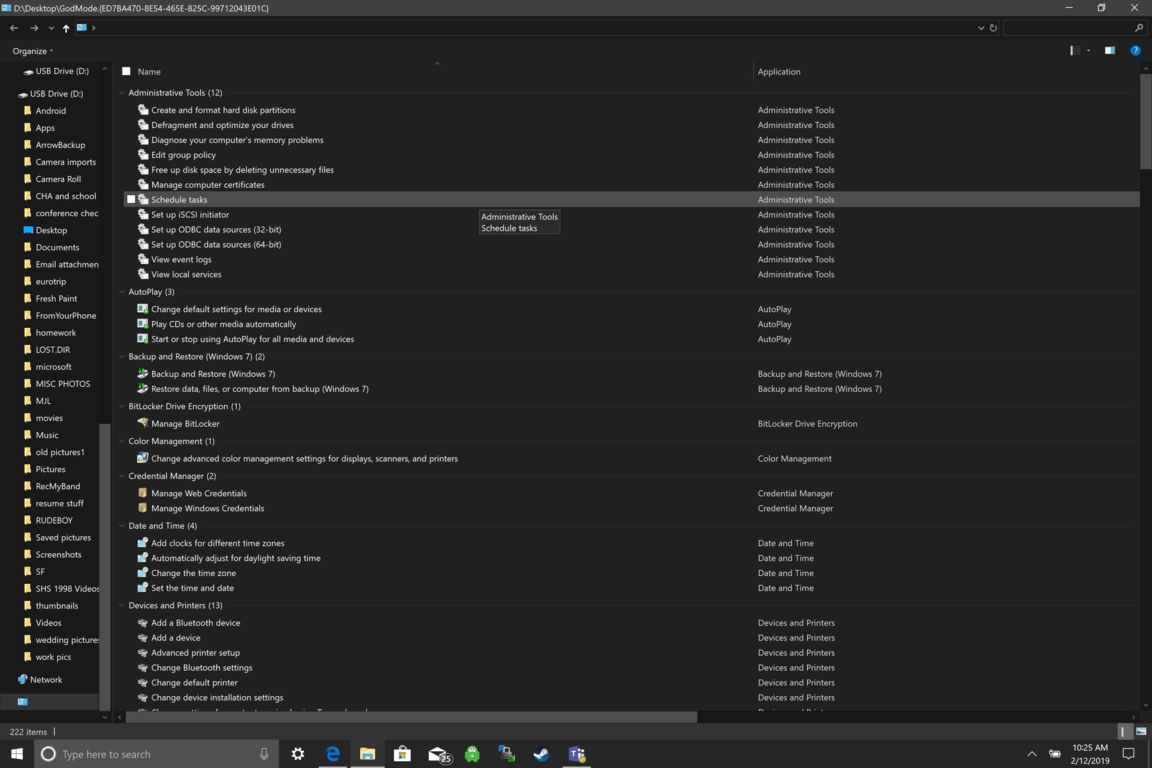
How to enable God mode inside Windows 11
God mode windows 11Like in Windows 10, Windows 11 will also support God mode to be enabled and used. For those readers that do know what God mode is, let me explain it in simple terms. God mode is the icon on the desktop that once clicked will open and let you adjust every option in the control panel and some hidden features for Windows inside one application. There are a lot of advantages to having this one-click fast access to features, especially if you are a power user. Luckily creating such an awesome icon and enabling God mode is very easy to accomplish, all you have to do is:
  1. Create a new folder where you want to have the God mode icon
  2. Rename folder exactly: {ED7BA470-8E54-465E-825C-99712043E01C}
  3. Enjoy God mode
As you can see creating and accessing all settings at your fingertips is much easier than most people think. Enjoy your ultimate access to Windows 11 features and if you wish you can drag and drop sections from it into the desktop or anywhere for easy access to that specific topic.
Read More
Fix Windows Update Error 0x80240020
There are instances when the Windows 10 installation needs interaction before it reaches the file process. And so if you suddenly encounter the Windows Update Installation Failure 0x80240020 error under the Windows Update History, then you need to get it fixed. When you encounter this kind of Windows Update Error, you will see an error message that says, “The operation did not complete because there is no logged-on interactive user”. This error also indicates the “WU_E_NO_INTERACTIVE_USER” code. To resolve this issue, in this post we’ll walk you through a couple of steps but before you get started, know that you don’t have to run any troubleshooter or delete any file just to fix this error since all you have to do is enable one option that can automatically login with your account and complete the installation for you. With that said, just make sure to only try running Windows Update once you’re told to do so. There are two ways you can enable the option that could resolve the Windows Update Installation Failure 0x80240020 error. One is via Settings while the second one is via Registry Editor.

Option 1 – via Settings

Step 1: Go to Settings > Accounts > Sign-in Options. Step 2: From there, toggle on the “Use my sign-in info to automatically finish setting up my device and reopen my apps after an update or restart” option. Step 3: After that, it will make sure that the interaction part is removed from the Windows Update process. Note: If your device is joined in a domain or if some work or email policies are applied to your device by your company or organization, then you wouldn’t be able to see this option in Settings and that’s where the Registry Editor comes in. Just make sure that you’re logged in as an administrator and that you create a System Restore Point first since registry hacks are sensitive and could highly impact how your computer behaves or functions. Once you have that covered, follow the steps below.

Option 2 – via Registry Editor

Step 1: In the Start search, type “Regedit” and hit Enter to open the Registry Editor. Step 2: Navigate to the following registry key:
HKEY_LOCAL_MACHINESOFTWAREMicrosoftWindowsCurrentVersionWindowsUpdateOSUpgrade
Note: If the above-given registry key does not exist, you can simply create it. All you have to do is right-click on the WindowsUpdate key and then select the New Key option and type “OSUpgrade” as its name. Afterward, create a new DWORD (32-bit) Value and name it “AllowOSUpgrade” and set its value to 0x00000001. Step 3: Restart your computer and check if the error is now fixed. And then try to update your Windows 10 computer again and while you’re at it, make sure that you’re around your computer to interact with the prompts needed to complete the installation process.
Read More
OneDrive thumbnails are not showing
A lot of users prefer to use Microsoft OneDrive when it comes down to cloud storage as it does not only come with the seal of approval from Microsoft but it’s also primarily good and better compared to other cloud storage services. However, that doesn’t mean that OneDrive isn’t without any issues. For one, you might encounter an issue where the OneDrive thumbnails do not show in File Explorer in Windows 10. If you are currently experiencing this problem, read on as this post will help you fix it. As you know, you can add OneDrive to your Windows 10 computer and have all the files locally synchronize to the cloud and so on. This means that whatever is available in the cloud will be seen on your computer. It is smooth and definitely saves you a lot of time which is why a lot of users prefer to use it. So if you suddenly not see any thumbnails in OneDrive, then that would be a problem. You are actually not the only one having this problem as there are other users who reported getting the same issue recently about the picture thumbnails that no longer show up in the OneDrive folders in the File Explorer. At the time of writing, it isn’t clear yet what the cause of the issue really is. Even so, there are still potential fixes you can check out to resolve it, and the sooner you do it, the better as this can be a major problem. To get started, refer to the instructions given below.

Option 1 – Try to disable Files on Demand

The first thing you can do to fix the problem is to disable the Files on Demand. This is what you have to do to get things under control.
  • First, right-click on the OneDrive icon located in the taskbar and go-to of OneDrive.
  • After that, click on More and Settings. This will open a new window where you have to click on the Settings tab and uncheck the “Files on Demand” service.
  • Once done, restart your computer and check if you can now see the thumbnails in the OneDrive folder. However, if it didn’t work, then proceed to the next given option below.

Option 2 – Try to change the icon view

The next thing you can do to fix the problem is to change the icon view. It is possible that the problem might have something to do with the size of the icons than anything else. So you have to change the icon view and to do that, follow these steps:
  • First, open Control Panel in Windows 10.
  • Next, in the search box, type “folder” and then click on the File Explorer Options.
  • From there, click on the View tab and uncheck the “Always show icons” option, and make sure that showing thumbnails is active.
  • Now go back to Control Panel and type “system” in the search box. This will open a new window where you have to select the “View advanced system settings” option.
  • Then under the Performance section, click on Settings and click on the option that allows you to show the thumbnails instead of icons.
Read More
Fix Windows Updates Error code 0x80246007
Downloading Windows Updates does not always go smoothly as you can encounter several issues like the “Some updates did not finish downloading, We will keep trying, Error code 0x80246007” error. In fact, this error can also occur on other Windows applications like OneNote. According to security experts, this error happens for many reasons. For one, it could be that the Windows Update database is corrupted. It could also be that there is another process that’s in conflict with the Windows Update components or there might be some issue with the Background Intelligent Transfer Service (BITS). Whichever the cause may be, you can fix it by following the solutions given below.

Option 1 – Delete the contents in the Temporary folder

You can also try deleting the contents in the Temporary folder – all the downloaded, pending, or failed Windows 10 updates. You can do that using the simple and easy steps below.
  • Tap the Win + R keys to open the Run dialog box.
  • Then type “%temp%” in the field and press Enter to open the Temporary folder.
  • After that, select all the folders and files within the Temp folder and delete all of them.

Option 2 – Try running the Windows Update Troubleshooter

Running the built-in Windows Update troubleshooter is one of the things you can first check out as it is known to automatically resolve any Windows Update errors like Error code 0x80246007. To run it, go to Settings and then select Troubleshoot from the options. From there, click on Windows Update and then click the “Run the troubleshooter” button. After that, follow the next on-screen instructions and you should be good to go.

Option 3 – Try renaming or removing the pending .xml file

The problem might be due to some pending .xml file so you need to rename or remove it. To do so, just go to C:/Windows/WinSxS folder. From there, look for a pending .xml file – you can either rename it or delete it. This will allow the Windows Update to delete any pending tasks and build a new and fresh update check.

Option 4 – Restart the Background Intelligent Transfer Service (BITS)

The Background Intelligent Transfer Service or BITS is a part of the Windows Update service that manages the background download of Windows Update, as well as scans for new updates and so on. Thus, if your Windows Update fails a couple of times, you might want to restart BITS. For you to do that, make sure that you have admin privileges.
  • Press the Win + R keys to open the Run dialog box.
  • Then type “msc” in the field and hit Enter to open Services.
  • After opening Services, look for the Background Intelligent Transfer Service from the list of services and then double click on it to open Properties.
  • Next, set the Startup type to Manual and click on the Start button. If it doesn’t help, you can try setting it to Automatic (Delayed) and then reboot your PC.

Option 5 – Run the DISM tool

Running the DISM Tool helps in repairing the Windows System Image as well as the Windows Component Store in Windows 10. Using this built-in tool, you have various options such as the “/ScanHealth”, “/CheckHealth”, and “/RestoreHealth”.
  • Open the Command Prompt with admin privileges.
  • Then type in the following commands and make sure to hit Enter right after you type each one of them:
    • Dism /Online /Cleanup-Image /CheckHealth
    • Dism /Online /Cleanup-Image /ScanHealth
    • exe /Online /Cleanup-image /Restorehealth
  • Do not close the window if the process takes a while as it will probably take a few minutes to finish.

Option 6 – Delete the files from the Software Distribution folder

The downloaded Windows Updates are placed in a folder called “SoftwareDistribution”. The files downloaded in this folder are automatically deleted once the installation is completed. However, if the files are not clean up or if the installation is still pending, you can delete all the files in this folder after you pause the Windows Update service. For complete instructions, refer to the steps below.
  • Open the WinX Menu.
  • From there, open Command Prompt as admin.
  • Then type in the following command – don’t forget to hit Enter right after typing each one of them.
net stop wuauserv net start cryptSvc net start bits net start msiserver
  • After entering these commands, it will stop the Windows Update Service, Background Intelligent Transfer Service (BITS), Cryptographic, and the MSI Installer
  • Next, go to the C:/Windows/SoftwareDistribution folder and get rid of all the folders and files thereby tapping the Ctrl + A keys to select them all and then click on Delete. Note that if the files are in use, you won’t be able to delete them.

Option 7 – Reset the Catroot2 folder

After resetting the SoftwareDistribution folder, you need to reset the Catroot2 folder to restart the services you just stopped. To do that, follow these steps:
  • Type each one of the following commands.
net start wuauserv net start cryptSvc net start bits net start msiserver
  • After that, exit Command Prompt and restart your computer, and then try to run Windows Update once more.
Read More
Fix LoadLibrary failed with error 1114
If you are using a couple of graphics-intensive applications like video rendering software or some games, then something in the background of the system could get messed up and you might encounter the “LoadLibrary failed with error 1114, A dynamic link library (DLL) initialization routine failed” error message. This kind of error can usually get fixed by twerking some graphic settings, fixing and updating the drivers, and allowing your PC to work by leveraging the maximum use of the resources it’s got. Thus, in this post, you will be guided on some measures you can apply to resolve this kind of error message as soon as possible. Before you go over the options given below, if you have made any changes to any software component in your computer or installed new software recently, then you might want to undo them and then check if it fixes the “LoadLibrary failed with error 1114 “ error. Once you have that covered but you’re still getting the error, use the options given below as a reference to fix the error.

Option 1 – Try to modify the Dynamic Graphics Settings

You might want to modify the Dynamic Graphics Settings in order to fix the error. To do so, follow the steps below.
  • Open Control Panel and then Power Options.
  • From there, click on the Change plan settings option for your chosen power plan.
  • After that, click on Change advanced power settings.
  • Then look for the Switchable Dynamic Graphics option and then click on it to expand it.
  • Afterward, expand the Global Settings option and then select Maximize Performance for both the “On battery” and “Plugged in” options.
  • Now click on the Apply button and then OK to save the changes made.
Note: If the Switchable Dynamic Graphics option is not available on your computer, you can try the next given option below.

Option 2 – Try switching the Graphics card to High-Performance mode

Note that this second option varies from computer to computer since most computers use the Graphics card made by NVIDIA, while some by AMD and others use Intel HD Graphics. Thus, depending on which graphics card your computer uses, pick one of the three fixes below.

NVIDIA Graphics Drivers:

If your computer uses a graphics card made by NVIDIA and has the drivers are properly installed and updated, then follow the steps below.
  • Right-click on any empty space on your desktop and then click on the NVIDIA Control Panel.
  • After that, expand the 3D Settings on the left-hand side tree-structured list and then click on Manage 3D Settings.
  • Next, select your preferred GPU on the right-side panel and then set it to the High-Performance NVIDIA Card from the drop-down menu.
  • As an alternative, you can also go to the Program Settings tab,
  • From there, select the program that you are trying to run from the drop-down menu and click on Add.
  • Now set the graphics processor to a High-performing processor and then restart your computer to apply the changes made.

AMD Graphics card:

If your computer uses a graphics card made by AMD and has the drivers are properly installed and updated, then follow the steps below.
  • Right-click on any empty space on your desktop.
  • Click on AMD Control or Configure Switchable Graphics.
  • Next, click on Browse and select the program where you encounter the error.
  • Finally, click on High Performance for the selected program and then restart your computer to successfully apply the changes made.

Intel HD graphics:

If your computer uses the Intel HD graphics and then its drivers are properly installed and updated, then follow these steps:
  • Right-click on any empty space on your desktop and then click on the Intel Graphics Settings.
  • Next, click on the Power menu.
  • After that, select a Graphics Power Plan for both the “On battery” and “Plugged in” options to High-Performance Power Plan.
  • Then click on the Apply button and restart your computer.
Read More
Change system font in Windows 10
In previous versions of Windows changing the system, the font was a pretty straightforward process, but it seems Microsoft did not want this feature to keep for whatever reason and there is no option as of the time of the writing of this article to do it in standard options in Windows 10. But do not worry, you are still able to customize your Windows and choose which font would you like to see inside it in all of its dialogs. You can choose whichever font you desire, the only prerequisite is it to be installed on your system. This guide will require you to change values in the registry of Windows itself so please follow step-by-step instructions and always make a backup of the registry before changing it in order to prevent some permanent Windows issues. All of that being said, let's start.

Setting new font

First thing is to open notepad, in the notepad paste the next block of code:
Windows Registry Editor Version 5.00 [HKEY_LOCAL_MACHINE\SOFTWARE\Microsoft\Windows NT\CurrentVersion\Fonts] "Segoe UI (TrueType)"="" "Segoe UI Bold (TrueType)"="" "Segoe UI Bold Italic (TrueType)"="" "Segoe UI Italic (TrueType)"="" "Segoe UI Light (TrueType)"="" "Segoe UI Semibold (TrueType)"="" "Segoe UI Symbol (TrueType)"="" [HKEY_LOCAL_MACHINE\SOFTWARE\Microsoft\Windows NT\CurrentVersion\FontSubstitutes] "Segoe UI"="NEW_FONT"
Where in "Segoe UI"="NEW_FONT" instead of NEW_FONT you need to write the exact name of the font that you wish to use as a system font. Once you have replaced the default system font with your desired one, go to File and save as, from file type drop-down menu, choose all files and save this file as .REG type giving it whatever name you wish. When the file is saved, close notepad, right-click on the saved file and choose the merge option. Confirm with YES and click on OK. Reboot your system and your Windows will now use the font of your choice as its default system font.

Restoring default font

If you wish to return the old default system font as it was, follow the same steps but in your notepad paste this code:
Windows Registry Editor Version 5.00 [HKEY_LOCAL_MACHINE\SOFTWARE\Microsoft\Windows NT\CurrentVersion\Fonts] "Segoe UI (TrueType)"="segoeui.ttf" "Segoe UI Black (TrueType)"="seguibl.ttf" "Segoe UI Black Italic (TrueType)"="seguibli.ttf" "Segoe UI Bold (TrueType)"="segoeuib.ttf" "Segoe UI Bold Italic (TrueType)"="segoeuiz.ttf" "Segoe UI Emoji (TrueType)"="seguiemj.ttf" "Segoe UI Historic (TrueType)"="seguihis.ttf" "Segoe UI Italic (TrueType)"="segoeuii.ttf" "Segoe UI Light (TrueType)"="segoeuil.ttf" "Segoe UI Light Italic (TrueType)"="seguili.ttf" "Segoe UI Semibold (TrueType)"="seguisb.ttf" "Segoe UI Semibold Italic (TrueType)"="seguisbi.ttf" "Segoe UI Semilight (TrueType)"="segoeuisl.ttf" "Segoe UI Semilight Italic (TrueType)"="seguisli.ttf" "Segoe UI Symbol (TrueType)"="seguisym.ttf" "Segoe MDL2 Assets (TrueType)"="segmdl2.ttf" "Segoe Print (TrueType)"="segoepr.ttf" "Segoe Print Bold (TrueType)"="segoeprb.ttf" "Segoe Script (TrueType)"="segoesc.ttf" "Segoe Script Bold (TrueType)"="segoescb.ttf" [HKEY_LOCAL_MACHINE\SOFTWARE\Microsoft\Windows NT\CurrentVersion\FontSubstitutes] "Segoe UI"=-
Reboot your system and your Windows will now revert the font of your choice as its default system font.
Read More
Install Windows 11 on any computer officially
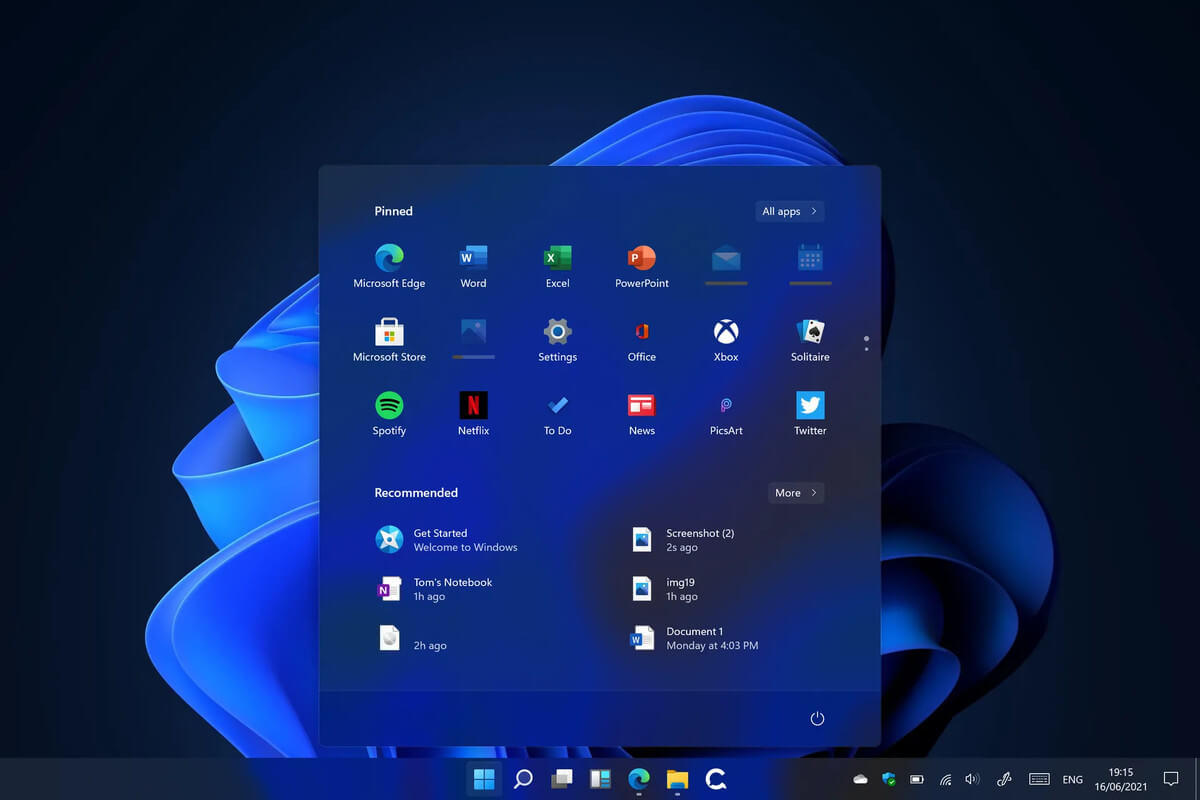
Windows 11 system requirementsMicrosoft’s initial Windows 11 hardware requirements were not really well received by users and they were not really clearly represented from the start making a lot of potential customers slowly drift away from the hype. It seems that Microsoft has acknowledged this since they have changed their tune about system hardware requirements for the upcoming Windows 11. It seems that Windows 11 will be able to be officially installed on unsupported computers but with a little inconvenience.

What is a catch?

Windows 11 will still have the same hardware requirements and if the PC meets them, that computer will be officially supported, other ones (any that can run Windows 10) that do not meet system requirements can still run Windows 11 but the system will have to be clean installed. So no upgrade option for old computer users, just a clean install. This means of course that you will need to download the ISO image and make a bootable USB in order to install it. Also since you will be doing a clean install do a backup of the hard drive since it will need to be formatted. Also, Microsoft has stated that with unofficially supported PC some driver updates might not be delivered leaving you with either older driver versions or relying on your hardware manufacturer on them. This is still not confirmed by Microsoft, just stated as an option. We will see how it goes.

Conclusion

It is very good that Microsoft has reconsidered its system requirements and will not stubbornly push its initiatives over the top requirements allowing even older computers to install new OS. I am sure over time lot of users will upgrade their hardware and drive into officially supported waters, but it is good that they will be able to use new OS on their current hardware.
Read More
Runtime Error How to Fix

A runtime error is commonly an error that's created after the PC is operating software and encounters a problem of some form. For instance, a runtime error like run-time error code 7 reveals an "out of memory" dilemma.

Solution

Error Cause

Run-time errors are normally brought on by clashes with TSR (Terminate and Stay Resident) applications or additional operating applications, software problems, storage problems, or pc viruses.

Troubleshooting a Run-time Error

First, enter the run-time error signal into a search engine to see what info you will get about the precise runtime issue you are receiving. Next, end - job all running applications and TSRs to make sure these aren't the origin of the issue. You can certainly do so by obtaining the job manager by striking Control Alt Delete.

In case your issue is regularly occurring with a unique program, go to that system programmer's site and obtain any upgrades and patches. If unavailable, try uninstalling the application involved and reinstalling it.

In the event the issue is occurring with the os, you may consider reinstalling it although it is a huge commitment. A much better idea would be to try a fix for both Windows XP or Windows 2,000. It is possible to fix and scan files by typing : sfc / scannow, heading to the Begin switch, Run, and then pushing enter. Make certain to put an area between sfc and the reduce.

You might have an equipment or storage dilemma if these measures have not resolved your run-time errors. If that is the situation, contact the support of the application under consideration for potential support accompanied by the pc or motherboard manufacturer.

Many run-time problems can be solved by upgrading the application that's creating the problem. This is only because the programmer's frequently releasing patches and improvements for their applications as insects are found and repaired.

Storage problems may frequently be fixed by rebooting the pc. Consider a reboot a short-term repair. Rebooting clears the memory but in case your COMPUTER does not have adequate memory for your applications you're operating, or sufficient hard-drive space you'll immediately run out of memory again. Something less than this sum may cause memory issues since the computer's swap file isn't in a position to expand in dimension as required.

To assess the quantity of free area, available My Computer and right-click on the HDD, generally the D: drive. Select Attributes in the menu and see the disc's ability. Perform the disk clean-up function by following prompts and pressing the Disk Clean-up button, if the room is reduced.

You may be getting run-time errors, in case your storage chip is really failing. Eliminating and changing the awful memory chip will solve the difficulty. If you're encountering other runtime-related errors, like an install runtime issue, try cleaning away the portions of the registry with some software solution. 

Read More
1 2 3 171
Logo
Copyright © 2023, ErrorTools. All Rights Reserved
Trademark: Microsoft Windows logos are registered trademarks of Microsoft. Disclaimer: ErrorTools.com is not affiliated with Microsoft, nor claims direct affiliation.
The information on this page is provided for information purposes only.
DMCA.com Protection Status