Logo

FreeMaps Removal Tutorial

FreeMaps is a google chrome extension by Mindspark powered by Ask or MyWay. This extension offers users a quick and easy way to find the routes or locations that they desire. While all of this may seem appealing, this extension was classified as a Browser Hijacker by many anti-virus applications and was marked for removal.

When installed FreeMaps will change your home page, new tab and default search engine to MyWay.com, it will monitor your browsing activity and send it back to Mindspark ad servers. This data is later used/sold to better display targeted ads depending on your search queries.

While browsing the internet with this extension active you will see additional pop-up ads, sponsored links, and injected ads displaying throughout your browsing sessions, and even injected into websites that should be ad-free. Due to poor code optimization, these ads can sometimes cover a part of the page, making it unreadable or inaccessible.

About Browser Hijackers

Browser hijacking is a form of unwanted software, commonly a browser add-on or extension, which then causes modifications in the web browser’s settings. Browser hijackers are capable of doing more than simply changing home pages. These are typically used to force hits to a specific site, manipulating web traffic to earn ad revenue. It could seem naive, but most of such websites aren’t legitimate and could present a major threat to your online safety. As soon as the malware attacks your laptop or computer, it begins to mess things up a whole that slows your computer down to a crawl. In the worse case, you will be forced to tackle serious malware threats too.

How you can know whether the browser is hijacked?

Signs that your web browser is hi-jacked include: your browser’s homepage is suddenly different; bookmark and the new tab are likewise modified; default web engine is modified; find new toolbars which you didn’t add; unstoppable flurries of popup adverts show up on your computer screen; your browser has instability issues or exhibits frequent errors; you cannot visit specific websites such as home pages of anti-malware software.

Exactly how browser hijacker finds its way onto your computer

A browser hijacker could be installed on your PC if you check out an infected website, click an e-mail attachment, or download something from a file-sharing website. They can also be deployed via the installation of a web browser toolbar, extension, or add-on. Some browser hijackers spread in user’s computer systems by using a deceptive software distribution method known as “bundling” (usually through freeware and shareware). Typical examples of browser hijackers include Conduit, CoolWebSearch, OneWebSearch, Coupon Server, RocketTab, Searchult.com, Snap.do, and Delta Search.

Browser hijackers can record user keystrokes to gather potentially invaluable information that leads to privacy issues, cause instability on systems, drastically disrupt user’s browsing experience, and eventually slow down the system to a point where it becomes unusable.

Tips on how to remove browser hijackers

Some types of browser hijackers can be removed from your PC by deleting malicious software applications or any other recently installed shareware. Having said that, many hijackers are very tenacious and require specialized tools to eliminate them. You should think of carrying out manual repairs only if you are a tech-savvy person since there are dangers associated with messing around with the computer registry and HOSTS file.

Professionals always suggest users to remove any malicious software including browser hijacker with an automatic malware removal tool, which is better, safer and faster than the manual removal procedure. One of the best tools for repairing browser hijacker malware is SafeBytes Anti-Malware. It will help you remove any pre-existing malicious software in your pc and provides you real-time monitoring and protection against the latest threats.

How To Install Safebytes Anti-Malware On An Infected Computer

All malware is inherently harmful, but certain kinds of malware do a lot more damage to your computer or laptop than others. Certain malware goes to great lengths to prevent you from downloading or installing anything on your PC, especially antivirus applications. So what should you do if malware prevents you from downloading or installing Safebytes Anti-Malware? Follow the instructions below to get rid of the malware in alternate ways.

Start Windows in Safe Mode

In the event the malware is set to run at Windows start-up, then booting in safe mode should avoid it. Only the bare minimum required programs and services are loaded when you start your PC in Safe Mode. Here are the steps you should follow to start your computer into the Safe Mode of your Windows XP, Vista, or 7 computers (visit Microsoft website for directions on Windows 8 and 10 computers).

1) Hit the F8 key repeatedly as soon as your PC boots, however, before the big Windows logo or black screen with white texts comes up. This should bring up the Advanced Boot Options menu.
2) Use the arrow keys to choose Safe Mode with Networking and press ENTER.
3) As soon as this mode loads, you will have an internet connection. Now, obtain the malware removal software you want by utilizing the internet browser. To install the program, follow the directions within the setup wizard.
4) After installation, run a full scan and let the program get rid of the threats it discovers.

Obtain the anti-malware software in a different internet browser

Some malware mainly targets specific browsers. If this sounds like your case, employ another web browser as it could circumvent the virus. If you appear to have malware attached to Internet Explorer, then switch to an alternate internet browser with built-in safety features, such as Chrome or Firefox, to download your preferred antivirus program – Safebytes.

Install antivirus on a flash drive

Here’s yet another solution which is using portable USB anti-malware software that can scan your system for viruses without the need for installation. Abide by these steps to run the anti-virus on the affected computer system.
1) Download Safebytes Anti-Malware or Microsoft Windows Defender Offline onto a virus-free PC.
2) Insert the USB drive into the clean PC.
3) Double click on the exe file to open the installation wizard.
4) Select the flash drive as the location for saving the software file. Follow activation instructions.
5) Transfer the thumb drive from the uninfected computer to the infected PC.
6) Double-click the Safebytes Anti-malware icon on the pen drive to run the program.
7) Press the “Scan Now” button to start the virus scan.

Protect your PC from Malware With SafeBytes Security Suite

In order to protect your computer from many different internet-based threats, it is important to install an anti-malware application on your laptop. However, with so many anti-malware companies out there, these days it’s tough to decide which one you should purchase for your PC. Some of them are great while some are scamware applications that pretend as legit anti-malware programs waiting around to wreak havoc on your PC. You have to be very careful not to pick the wrong product, especially if you purchase a premium application. When it comes to commercial anti-malware software options, the majority of people go with popular brands, like SafeBytes, and they are very happy with it.

SafeBytes anti-malware is a highly effective and user-friendly protection tool that is designed for end-users of all levels of computer literacy. This program could easily detect, remove, and protect your PC from the latest malware intrusions including adware, spyware, trojan horses, ransomware, parasites, worms, PUPs, along with other potentially harmful software applications.

SafeBytes has fantastic features when compared with other anti-malware programs. The following are some of the great features included in the software.

Live Protection: SafeBytes gives real-time active supervision and protection from all known viruses and malware. It’ll continuously monitor your pc for hacker activity and also provides end-users with advanced firewall protection.

World-class AntiMalware Protection: Safebytes is built on the best virus engine in the industry. These engines will detect and remove threats even during the initial stages of a malware outbreak.

Safe Browsing: SafeBytes inspects the hyperlinks present on a web page for possible threats and tells you whether the website is safe to explore or not, through its unique safety rating system.

“Fast Scan” Features: Safebytes AntiMalware, using its advanced scanning engine, gives ultra fast scanning which can quickly target any active online threat.

Lowest CPU/Memory Usage: This software is lightweight and can work quietly in the background, and will not impact your computer efficiency.

Premium Support: You can get 24/7 technical assistance to immediately resolve any issue with your security application.

To conclude, SafeBytes Anti-Malware is really great for securing your laptop or computer against all kinds of malware threats. Now you may realize that this particular software does more than just scan and eliminate threats in your PC. If you’re searching for the best malware removal application out there, and if you don’t mind spending some dollars for it, go for SafeBytes Anti-Malware.

Technical Details and Manual Removal (Advanced Users)

If you’d like to manually get rid of FreeMaps without the use of an automated tool, it may be actually possible to do so by removing the program from the Microsoft Windows Add/Remove Programs menu, or in cases of browser extensions, going to the browser’s AddOn/Extension manager and removing it. It’s also suggested to factory reset your browser settings to their default state.

If you opt to manually remove the system files and registry entries, use the following list to ensure that you know precisely what files to remove before executing any actions. Please remember that this is for professional users only and may be challenging, with incorrect file removal resulting in additional PC errors. In addition, certain malware is capable of replicating or preventing removal. Completing this task in Safe Mode is advised.


Files:
%LOCALAPPDATA%\FreeMapsTooltab\TooltabExtension.dll
%TEMP%\nsf516A.tmp\nsDialogs.dll
%TEMP%\nsf516A.tmp\System.dll
%APPDATA%\Microsoft\Windows\Cookies\[email protected][1].txt
%LOCALAPPDATA%\Microsoft\Internet Explorer\Recovery\High\Active\RecoveryStore.E9B13F93-5957-11E6-93FC-0A00273BA4BE.dat
%LOCALAPPDATA%\Microsoft\Windows\Temporary Internet Files\Content.IE5\T1CS2ORS\installerParams[1].jhtml
%TEMP%\nsf516A.tmp\installerParams

Do You Need Help with Your Device?

Our Team of Experts May Help
Troubleshoot.Tech Experts are There for You!
Replace damaged files
Restore performance
Free disk space
Remove Malware
Protects WEB browser
Remove Viruses
Stop PC freezing
GET HELP
Troubleshoot.Tech experts work with all versions of Microsoft Windows including Windows 11, with Android, Mac, and more.

Share this article:

You might also like

Fix GeForce Experience error code 0x0001
The GeForce Experience on graphics card manufactured by NVIDIA is an advantage for users who loves gaming as it makes enhances users’ gaming experience. However, there are times when it may also encounter some problems. One of the problems users may encounter is the error code 0x0001. This kind of error occurs when users open the NVIDIA GeForce Experience utility. Here’s the full content of the error message:
“Something went wrong, try rebooting your PC and then launch GeForce Experience, ERROR CODE: 0x0001.”
Errors like this one diminish the overall experience of users due to the fact that when this error occurs, the NVIDIA GeForce experience wouldn’t even start which renders its features useless. There are several potential fixes you can check out to resolve this error but before you check them out, you can try to restart your computer first and then open the NVIDIA GeForce Experience once again, if you still encounter the error, then you need to check the NVIDIA Display Driver Services or update your NVIDIA display drivers or switch to the BETA release. You could also try to install and reinstall the NVIDIA display drivers or perform System Restore and see if it helps. For detailed instructions, follow the given options below.

Option 1 – Try to check the NVIDIA Display driver services

  • Tap the Win + R keys to open Run and then type “services.msc” in the field and hit Enter to open the Services Manager.
  • From there, look for the following NVIDIA services and make sure that their Startup types are as follows:
    • NVIDIA Display Container LS – Automatic
    • NVIDIA NetworkService Container – Manual
    • NVIDIA LocalSystem Container – Automatic
    • NVIDIA LocalSystem Container – Automatic
    • NVIDIA GeForce Experience Service – Automatic (Delayed Start)
    • NVIDIA Geforce Experience Backend Service – Automatic (Delayed Start)
    • NVIDIA Telemetry Container service – Automatic
  • Next, double click on each one of the services and go to Properties. Here, check if the service is running. If it’s not, just click on the Start button. On the other hand, if they’re already running, just click on Stop and then click on Start again.

Option 2 – Try to update the NVIDIA Display drivers

You can also try updating the NVIDIA display drivers as it might help in fixing the error. To update them, follow the steps below.
  • Tap the Win + R keys to open the Run dialog box.
  • Next type in “dxdiag” in the field and click OK or hit Enter to open the DirectX Diagnostic Tool.
  • From there, you can see what type of NVIDIA graphics card that your system is on.
  • Take note of your graphics card information and then look for the best drivers for your operating system. Once you’ve downloaded and installed the file, restart your PC.
Note: If you want to try out the beta release of the NVIDIA display drivers, click on this link. Beware though that the beta software is unstable and buggy and may cause some different bugs.

Option 3 – Try to roll back the driver to the previous version

If updating the NVIDIA display drivers didn’t work for you, then it’s time to roll back the device drivers. It is most likely that after you updated your Windows computer that your driver also needs a refresh.
  • Tap the Win + R keys to launch the Run window and then type in the “msc” command and hit Enter to open the Device Manager window.
  • Under the Device Manager, you will see a list of drivers. From there, look for the NVIDIA Drivers and expand it.
  • Next, select the driver entries that are labeled appropriately.
  • Then select each one of them and double click to open a new mini window.
  • After that, make sure that you’re on the Driver tab and if you are not, just navigate to it then click the Roll Back Driver button to switch back to the previous version of the NVIDIA Drivers.
  • Now restart your computer to successfully apply the changes made.

Option 4 – Try to run System Restore

You could also run System Restore as it might help fix the error code 0x0001 in NVIDIA GeForce Experience.
  • Tap the Win + R keys to open the Run dialog box.
  • After that, type in “sysdm.cpl” in the field and tap Enter.
  • Next, go to the System Protection tab then click the System Restore button. This will open a new window where you have to select your preferred System Restore point.
  • After that, follow the on-screen instructions to finish the process and then restart your computer and then check if the error code 0x0001 in GeForce Experience is now fixed.

Option 5 – Do a clean install on the NVIDIA driver

  • Before you do a clean install on the NVIDIA driver, you have to download the latest version of the Display Driver first.
  • Boot your Windows 10 PC into Safe Mode.
  • After that, double click on the executable file of the Display Driver Uninstaller to run and install it.
  • After the installation, open the program. Once you do, you should see the following window on your screen:
  • In the program window, click on the “Clean and restart” button.
  • After your PC has rebooted, download the NVIDIA drivers.
  • Then select your Product Type, Product Series, Product, Operating System, and Language appropriate for your hardware specifications as well as personal requirements.
  • Next, click on Search to display the latest available driver as per the information you entered.
  • And click on Agree and Download to start downloading the latest driver executable file.
  • Run the executable file after you finished downloading the latest driver executable file and then select Custom and click on Next.
  • Afterward, select “Clean Install” and proceed. Doing so would install the latest driver on your PC.
  • Restart your PC and check if the error’s now fixed. If not, you can try installing an older version of the driver instead.
Read More
Bluetooth Headset in Windows gets disconnected
Many Windows 10 users use a Bluetooth headset as these kinds of Audio devices, as you know, lack wires since wires tend to get entangled and break which could get quite inconvenient. This is why using a wireless headphone is more preferable since it’s much simpler, however, using a wireless headphone also means it comes with a charging requirement and if it fails to charge, there is no music or audio or anything that you need a Bluetooth headphone for. However, wireless headphones are also susceptible to problems as you might encounter some problems when connecting your wireless headphone to your Windows 10 computer. One of these problems include when you try to get sound from the wireless device but nothing happened. This indicates that the Bluetooth headphone is disconnected in some way for some unknown reason even if you’ve already plugged it in. Thus, if you encounter this scenario, then there are several options you need to check out to fix the problem. To start troubleshooting the problem, here are the options you need to use as a reference.

Option 1 – Try turning off the device and turning it back on

The first thing you can do to resolve the problem is to turn off your wireless audio device and wait for a couple of seconds before you turn it back on. In most cases, this should fix the problem. In fact, you can also try to unpair and pair the Bluetooth audio device and see if it fixes the problem or not.

Option 2 – Try to set the headphone as the default device manually

There are times when you plug a headphone, it does not toggle the default audio device. Thus, to fix this issue, you have to set the default audio device to the headphones manually. To do that, follow these steps:
  • First, right-click on the volume icon located on the system tray.
  • Next, select the Open sound settings option to open the Sound section in the Windows 10 Settings app.
  • After that, go to the Output section and select Headphones for the “Choose your output device” option. This should fix the problem for you.

Option 3 – Try running the Bluetooth Troubleshooter

As you know, Windows 10 has various troubleshooters with user-friendly interfaces where you can utilize them to fix issues in your PC. And since you’re dealing with some Bluetooth problem, you have to run the built-in Bluetooth Troubleshooter. To do this, follow these steps:
  • Open the Windows 10 Settings.
  • Then go to Update & Security > Troubleshoot.
  • You should find the option for Bluetooth on your right-hand side – click on it then click on the “Run the troubleshooter” option.
  • Now follow the next screen options.

Option 4 – Try to update or reinstall the Bluetooth driver

The issue might have something to do with the Bluetooth drivers. It could be that it is outdated and needs to be updated or that you recently updated it and since then you have trouble in removing the Bluetooth devices and so to fix the issue, you can update, roll back or uninstall the Bluetooth drivers. How? Follow the steps below.
  • Tap the Win + X keys to open the Device Manager.
  • Next, look for the Bluetooth device and right-click on it.
  • Select the option “Update driver”.
  • After that, a new popup window will appear. In there, select the option, “Search automatically for updated driver software”.
Note: Checking the update may take a few minutes so you’ll have to wait until it finishes. If it is able to find an update, you must install it. And if you want to reinstall the Bluetooth driver, just select the “Uninstall driver” option and follow the next on-screen instructions that follow.
Read More
Completely Remove EasyEmailSuite PUP Removal Tutorial

EasyEmailSuite is a browser extension made by MyWay that may come bundled with other free software that you download off of the Internet. When installed EasyEmailSuite will set the homepage and search engine for your web browser to http://search.myway.com. EasyEmailSuite is an application that allows users to access their emails. Initially, this app may seem legitimate and useful, however, EasyEmailSuite is categorized as a browser hijacker. This extension changes your home page and searches engine to MyWay. It monitors your search activity and collects data, that is later sold/forwarded to display additional unwanted ads in your browser. Several anti-virus scanners have classified EasyEmailSuite as a Browser Hijacker / PUP and are therefore not recommended to keep on your computer.

About Browser Hijackers

Browser hijacking is a common type of internet fraud where your web browser settings are altered to allow it to carry out things you don’t intend. They are designed to disrupt browser functions for several reasons. Usually, it will drive users to particular sites which are trying to increase their advertisement earnings. While it might seem harmless, these tools are made by malicious individuals who always attempt to take full advantage of you, so that they could earn money from your naivety and distraction. They not only screw up your internet browsers, but browser hijackers could also modify the system registry to make your computer vulnerable to other malicious programs.

Symptoms of browser hijacker infection

There are plenty of symptoms that indicate your internet browser has been highjacked: 1. the home page of your web browser is changed unexpectedly 2. bookmark and the new tab are likewise changed 3. the default web browser settings are modified and/or your default web engine is altered 4. you see unsolicited new toolbars added 5. you may notice never-ending pop-up adverts on your screen 6. websites load very slowly and often incomplete 7. you are blocked to access the websites of security solution providers.

Exactly how they get into your computer

Browser hijackers infect computer systems via malicious e-mail attachments, downloaded infected computer files, or by visiting infected sites. They can also come from any BHO, extension, add-on, toolbar, or plug-in with malicious objectives. Other times you might have mistakenly accepted a browser hijacker as part of a software program bundle (generally freeware or shareware). Some of the most popular hijackers are EasyEmailSuite, Babylon Toolbar, Conduit Search, Sweet Page, OneWebSearch, and CoolWebSearch. Browser hijackers will interrupt the user’s browsing experience significantly, keep track of the websites frequented by users and steal private information, cause difficulty in connecting to the web, and then finally create stability issues, causing software programs and computers to freeze.

Browser hijacker removal methods

Some hijackers could be removed by uninstalling the freeware they were included with or by removing any add-ons you have recently added to your PC. However, many hijacking codes are not very easy to get rid of manually, since they go deeper into the operating system. You should think about undertaking manual fixes only if you happen to be a tech-savvy person, as risks are associated with tinkering with the system registry and HOSTS file. Experts always recommend users remove any malware including browser hijacker with an automatic malware removal tool, which is easier, safer, and quicker than the manual removal procedure. Safebytes Anti-Malware discovers all kinds of hijackers – such as EasyEmailSuite – and eliminates every trace efficiently and quickly. Along with anti-malware, a PC optimizer tool can help you resolve Windows registry errors, eliminate unwanted toolbars, secure online privacy, and stabilize programs installed on the computer.

Help! Malware Blocking Antivirus Installation And Access To The Web

Malware could cause several different types of damage to PCs, networks, and data. Some malware sits in between your computer and the internet connection and blocks a few or all internet sites which you want to visit. It will also prevent you from adding anything to your PC, especially anti-virus software. If you are reading this article, odds are you’re stuck with a virus infection that is preventing you to download or install the Safebytes Anti-Malware program on your PC. There are some options you can try to get around with this obstacle.

Install the anti-malware in Safe Mode

If the virus is set to load automatically when Windows starts, getting into Safe Mode could block this attempt. Since only the minimal programs and services start-up in “Safe Mode”, there are hardly any reasons for issues to take place. To start your Windows XP, Vista, or 7 computers in Safe Mode with Networking, do as instructed below. 1) Tap the F8 key continuously as soon as your computer boots, but before the big Windows logo shows up. This would conjure up the “Advanced Boot Options” menu. 2) Select Safe Mode with Networking with arrow keys and press Enter. 3) When this mode loads, you will have the internet. Now, make use of your browser to download and install an anti-malware application. 4) Immediately after installation, do a full scan and let the software remove the threats it detects.

Utilize an alternate internet browser to download the anti-malware application

Some malware only targets certain web browsers. If this sounds like your case, utilize another web browser as it may circumvent the virus. The best solution to avoid this issue is to opt for an internet browser that is well known for its security measures. Firefox contains built-in Phishing and Malware Protection to keep you secure online.

Install antivirus on a flash drive

Here’s yet another solution which is using a portable USB anti-malware software package that can check your system for viruses without the need for installation. To run anti-virus using a USB flash drive, follow these simple steps: 1) Download the anti-malware on a virus-free PC. 2) Put the USB drive into the uninfected computer. 3) Double click on the downloaded file to open the installation wizard. 4) Select flash drive as the place when the wizard asks you exactly where you wish to install the application. Follow the directions to finish the installation process. 5) Transfer the thumb drive from the clean PC to the infected PC. 6) Double-click the EXE file to open the Safebytes software right from the thumb drive. 7) Click on “Scan Now” to run a complete scan on the infected computer for malware. If no other method of downloading and installing antivirus software works, then you’ve got no other choice than to hit the last resort: a complete Windows reinstallation, the only solution proven to have a 100% rate of success at virus removal. If you’re not sure which method to employ, simply call our toll-free number 1-844-377-4107 to speak to our technical support team. Our experts can take you step-by-step through the virus removal process on the phone and also fix your personal computer remotely.

A Look at the Best AntiMalware Program

These days, an anti-malware program can protect your PC from various types of online threats. But exactly how to choose the best one amongst plenty of malware protection software that is available out there? You may be aware, there are many anti-malware companies and products for you to consider. Some are good ones, some are ok types, while some are merely bogus anti-malware programs that can harm your computer themselves! When searching for antivirus software, choose one which provides dependable, efficient, and complete protection against all known computer viruses and malware. When considering commercial anti-malware software options, the majority of people opt for well-known brands, like SafeBytes, and they are very happy with it. SafeBytes anti-malware is a very effective and user-friendly protection tool that is made for end-users of all levels of computer literacy. Once you have installed this application, SafeByte's sophisticated protection system will ensure that no viruses or malicious software can seep through your computer. SafeBytes anti-malware takes PC protection to a totally new level with its advanced features. The following are some typical features found in this program: Most effective AntiMalware Protection: Safebytes is based on the very best virus engine within the industry. These engines can find and get rid of threats even during the early phases of a malware outbreak. Real-time Threat Response: SafeBytes provides round-the-clock protection for your PC restricting malware attacks instantly. It’ll constantly monitor your laptop or computer for hacker activity and also gives end-users superior firewall protection. High-Speed Malware Scanning Engine: SafeBytes Anti-Malware has a multi-thread scan algorithm that works up to 5x faster than any other protection software. Web Filtering: SafeBytes provides an instant safety rating to the web pages you’re about to check out, automatically blocking dangerous sites and ensuring that you’re certain of your safety while browsing the net. Light-weight: SafeBytes is a lightweight and simple to use antivirus and antimalware solution. Since it utilizes minimum computer resources, this tool leaves the computer’s power exactly where it belongs to: with you actually. 24/7 Live Expert Support: You can get high levels of support around the clock if you are using their paid version.

Technical Details and Manual Removal (Advanced Users)

If you wish to manually remove EasyEmailSuite without the use of an automated tool, it may be possible to do so by removing the program from the Windows Add/Remove Programs menu, or in cases of browser extensions, going to the browsers AddOn/Extension manager and removing it. You will likely also want to reset your browser. To ensure the complete removal, manually check your hard drive and registry for all of the following and remove or reset the values accordingly. Please note that this is for advanced users only and may be difficult, with incorrect file removal causing additional PC errors. In addition, some malware is capable of replicating or preventing deletion. Doing this in Safe Mode is advised. The following files, folders, and registry entries are created or modified by EasyEmailSuite
Files: %UserProfile%Local SettingsApplication DataGoogleChromeUser DataDefaultLocal Extension Settingsifbgbfdfdgfngigejacbmmkeklfahmka %LOCALAPPDATA%GoogleChromeUser DataDefaultExtensionsifbgbfdfdgfngigejacbmmkeklfahmka %UserProfile%Local SettingsApplication DataGoogleChromeUser DataDefaultSync Extension Settingsifbgbfdfdgfngigejacbmmkeklfahmka Search and Delete: chrome-extension_ifbgbfdfdgfngigejacbmmkeklfahmka_0.localstorage-journal Search and Delete: chrome-extension_ifbgbfdfdgfngigejacbmmkeklfahmka_0.localstorage Search and Delete: http_easyemailsuite.dl.tb.ask.com_0.localstorage-journal Search and Delete: http_easyemailsuite.dl.tb.ask.com_0.localstorage %UserProfile%Local SettingsApplication DataEasyEmailSuiteTooltab %LOCALAPPDATA%EasyEmailSuiteTooltab %LOCALAPPDATA%GoogleChromeUser DataDefaultLocal Extension Settingsifbgbfdfdgfngigejacbmmkeklfahmka %UserProfile%Local SettingsApplication DataGoogleChromeUser DataDefaultExtensionsifbgbfdfdgfngigejacbmmkeklfahmka Registry: HKEY_LOCAL_MACHINESoftwareWow6432NodeEasyEmailSuite HKEY_LOCAL_MACHINESoftwareEasyEmailSuite HKEY_LOCAL_MACHINESoftwareMicrosoftInternet ExplorerLowRegistryDOMStorageeasyemailsuite.dl.tb.ask.com HKEY_LOCAL_MACHINESoftwareMicrosoftInternet ExplorerLowRegistryDOMStorageeasyemailsuite.dl.myway.com HKEY_LOCAL_MACHINESoftware[APPLICATION]MicrosoftWindowsCurrentVersionUninstall..Uninstaller HKEY_LOCAL_MACHINEEasyEmailSuiteTooltab Uninstall Internet Explorer
Read More
Microsoft Surface Go 2 review

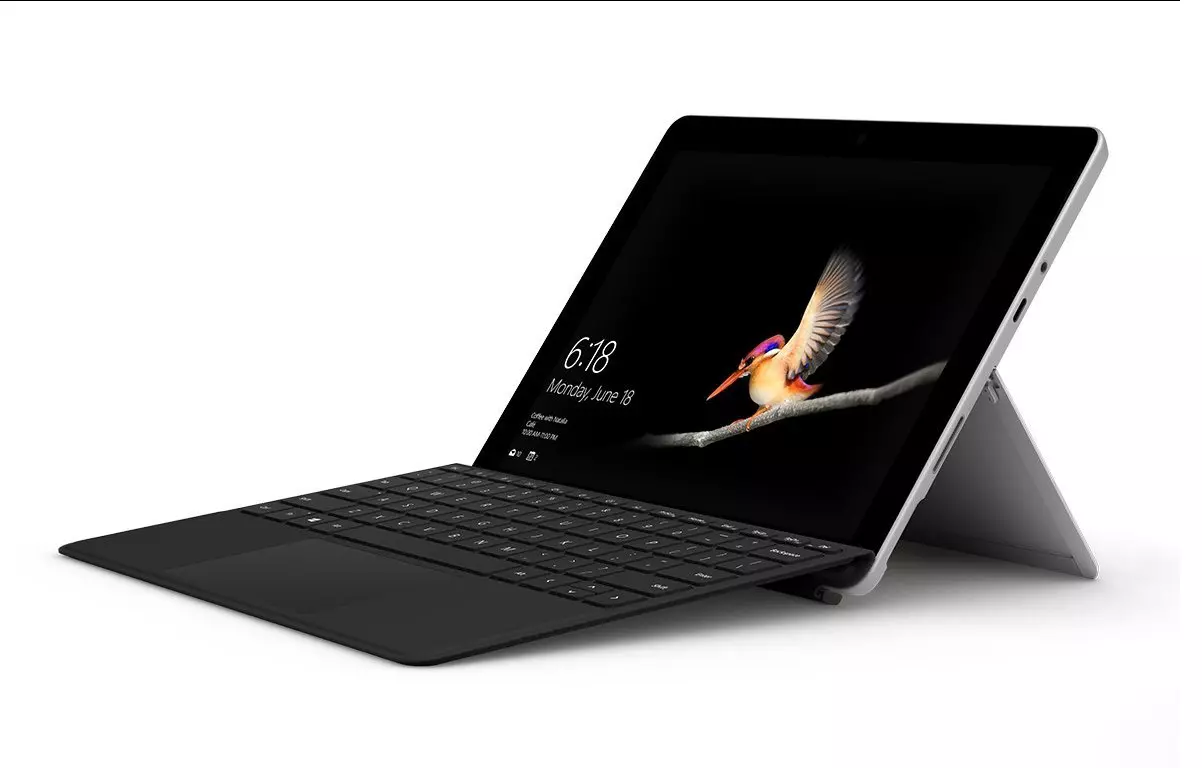
The new upgraded Surface Laptop Go 2 is the new iteration of the affordable original Surface Laptop Go aimed to offer good performance at a lower price of under $1000. The new version is not anything vastly different from the original but it comes with much-needed upgrades.

microsoft surface go 2 laptop

The biggest and main upgrade is the CPU, the Surface Laptop Go 2 is packing now Intel Core i5 1135G7, an Intels 11th generation CPU that should increase battery life. The laptop is also coming with an improved WEB camera and the cheapest one comes now with 128GB of storage instead of 64GB. Price went up from $550 to $599 which is not a big increase considering what was upgraded.

The bad news of new models is that sadly they are still packing only 4GB of RAM, that's really not enough for most applications released in 2022 and the screen is having a relatively low resolution of 1536 X 1024.

Microsoft is still offering all the color variations as in its first offering but added as well a new Sage color that is muted green in tint.

When we look at hardware it seems a little weak but for this price, there is not much competition in the field, and after all this line of models is aimed to provide good performance for an affordable price. If you really need something better you will go with a standard Surface or MAC book instead.

The new laptops are available to pre-order at Best Buy and Microsoft’s online store, and they’ll start shipping on June 7.

Read More
Fix Setup has failed Error in Windows
If you encounter the “Setup has failed to determine supported install choices” error when trying to downgrade or upgrade your Windows 10 computer, this signifies that there are some compatibility issues with the installation process and that Windows was not able to either downgrade or upgrade to another version. Usually, this error occurs when you are using the built-in options in Windows 10 upgrade or downgrade to another version of Windows. This option is mostly used as it keeps the user settings as well as data intact. Thus, you need to keep in mind a lot of parameters before you proceed with the installation because if there is any conflict in the process, you certainly won’t be able to downgrade or upgrade your Windows computer. To resolve the issue, here are some suggestions that might help.

Option 1 – Try running in Compatibility mode

This is the first thing you can try to resolve the issue instead of going right ahead on making a bootable device. So if you are downgrading Windows, you can try to run the installer in the compatibility mode for that specific Windows version.
  • Look for the setup file.
  • Once you find it, right-click on it and select Properties from the context menu.
  • After that, go to the Compatibility tab and mark the checkbox for “Run this program in compatibility mode for:” and from the drop-down list, select either Windows 7 or Windows 8.
  • You also have to check the “Run as administrator” option.
  • Now click the Apply button and then click OK to save the changes made and check if it has resolved the issue or not.

Option 2 – Option 2 – Try troubleshooting compatibility

This option is almost the same as the first one except it is an alternative way of fixing the “Setup has failed to determine supported install choices” error in case the first one didn’t work. In this option, you will troubleshoot the compatibility issue.
  • Look for the setup file.
  • Then right-click on it and select the “Troubleshoot compatibility” from the context menu.
  • After that, click on the “Try recommended setting” option. Once the process is done, the error message should be gone.

Option 3 – Try to use the setup file instead of an image

If you are running the Windows ISO image for the installation, you can try running the setup file instead. This is because when you try to install Windows from an image file directly, it has to be loaded into a virtual CD drive first, and then from there, further operations are carried out. And so, you can just bypass this mechanism to avoid getting the “Setup has failed to determine supported install choices” error.
  • First, you need to extract the disk file to an accessible location.
  • After that, go to Sources > Setup.exe.
  • Now run the setup file to upgrade or downgrade the Windows version. Just make sure that you do run the setup file as an administrator.

Option 4 – Try to do the upgrade or downgrade in a Clean Boot state

Putting your PC in a Clean Boot state can also help when you want to upgrade or downgrade your version of Windows without any trouble because, during this state, you can start the system with a minimum number of drivers and startup programs that will surely help you in isolating the root cause of the issue.
  • Log onto your PC as an administrator.
  • Type in MSConfig in the Start Search to open the System Configuration utility.
  • From there, go to the General tab and click “Selective startup”.
  • Clear the “Load Startup items” checkbox and make sure that the “Load System Services” and “Use Original boot configuration” options are checked.
  • Next, click the Services tab and select the “Hide All Microsoft Services” checkbox.
  • Click Disable all.
  • Click on Apply/OK and restart your PC. (This will put your PC into a Clean Boot State. And configure Windows to use the usual startup, just simply undo the changes.)
  • After that, try to install the Windows Updates or upgrade again.

Option 5 – Try to use the Media Creation tool

The Media Creation tool in Windows allows you to use the ISO installation file to make a bootable device that you can use to install Windows on your PC. Note that this is kind of different from the usual installation process as it could erase your computer’s current settings and data on the primary drive. Thus, before you proceed, you need to backup all your data into some removable drive and then use the Media Creation Tool to make a bootable drive.
  • After making the bootable drive, you need to plug it into your computer and then reboot.
  • Next, tap the F10 or Esc key to open the boot options.
  • Now set the boot priority of the removable drive the highest. Once the setup comes forth, follow the next onscreen instructions and install Windows without any problems.
Read More
Fix Error 0xe0434f4d

What is Error 0xe0434f4d?

Error 0xe0434f4d displays when a remote computer runs an instance of the SQL Server 2005 but it fails to initialize. When the plan is started, this error displays in a status window on the SQL Server. Also, when the Update-OffilineAddressBook cmdlet is started in Microsoft Exchange Server, this error can occur.

Solution

Restoro box imageError Causes

Error 0xe0434f4d can occur for possibly two main reasons. The first one is when the System Attendant Service is not properly running, and the second when you don’t have the permission to run the update. Other causes are when the .NET Framework 2.0 security does not allow sqlplanlaunch access to run from a shared network. Another cause is when the Offline Address Book (OAB) is not found in the Configuration Domain Controller server that the server of OAB generation uses.

Further Information and Manual Repair

In case you didn’t know, the Offline Address Book generation server is a mailbox server, and in order to resolve error 0xe0434f4d, you will have to replicate the OAB object to the Configuration Domain Controller server. In order to do so, follow steps:
  • Go to start and click on All Programs, then go and click on Microsoft Exchange Server 2010. Click on Exchange Management Console
  • In Exchange Management Console, go to Server Configuration and click on Mailbox
  • In the details, go to mailbox server that generates Offline Address Book and right-click it, then go to Properties
  • In the Properties, click on System Setting and locate the domain controller name in the box that reads Domain controller servers being used by Exchange
Make sure the OAB object is reproduced in the Configuration Domain Controller Server. Follow these steps to do that:
  • Go to Start and click on Run. Type Adsiedit.msc in Open box and press Enter. Right-click on ADSI Edit and click on Connect to
  • Locate a list reading Select a well-known naming context, and from there select Default naming context. In a Select or type a domain or server window, type FQDN (fully qualified domain name) of the Configuration Domain Controller server which was determined in step 1, and click OK
  • Expand Configuration [dc.domain.com], expand CN=Configuration, DC=domain, DC=com, expand CN=Services, expand CN=First Organization, and expand CN=Address Lists Container
  • Click on CN=Offline Address Lists and make sure the OAB object is listed on the details pane
When the OAB generation server receives this, then it will connect to the Configuration Domain Controller server and will locate the OAB object. If the OAB generation server is unable to find the OAB object, then the error will return on the cmdlet. On SQL Server, you should change the .NET permissions to allow sqlplanlaunch application access to run from shared administration. For that, follow these steps:
  • On ArchiveIQ Server, open System from the Control Panel and note down the computer name
  • On SQL Server, log in as administrator and open the command prompt
  • On the command prompt type, ‘C:windowsmicrosoft.netframeworkv2.0.50727caspol.ece –m –ag l – url file:\[Archive IQServer Computer Name]AlQRemote$*FullTrust and Press Enter. Type yes and press Enter again to confirm the permission changes.
Read More
Runtime Error How to Fix

A runtime error is commonly an error that's created after the PC is operating software and encounters a problem of some form. For instance, a runtime error like run-time error code 7 reveals an "out of memory" dilemma.

Solution

Error Cause

Run-time errors are normally brought on by clashes with TSR (Terminate and Stay Resident) applications or additional operating applications, software problems, storage problems, or pc viruses.

Troubleshooting a Run-time Error

First, enter the run-time error signal into a search engine to see what info you will get about the precise runtime issue you are receiving. Next, end - job all running applications and TSRs to make sure these aren't the origin of the issue. You can certainly do so by obtaining the job manager by striking Control Alt Delete.

In case your issue is regularly occurring with a unique program, go to that system programmer's site and obtain any upgrades and patches. If unavailable, try uninstalling the application involved and reinstalling it.

In the event the issue is occurring with the os, you may consider reinstalling it although it is a huge commitment. A much better idea would be to try a fix for both Windows XP or Windows 2,000. It is possible to fix and scan files by typing : sfc / scannow, heading to the Begin switch, Run, and then pushing enter. Make certain to put an area between sfc and the reduce.

You might have an equipment or storage dilemma if these measures have not resolved your run-time errors. If that is the situation, contact the support of the application under consideration for potential support accompanied by the pc or motherboard manufacturer.

Many run-time problems can be solved by upgrading the application that's creating the problem. This is only because the programmer's frequently releasing patches and improvements for their applications as insects are found and repaired.

Storage problems may frequently be fixed by rebooting the pc. Consider a reboot a short-term repair. Rebooting clears the memory but in case your COMPUTER does not have adequate memory for your applications you're operating, or sufficient hard-drive space you'll immediately run out of memory again. Something less than this sum may cause memory issues since the computer's swap file isn't in a position to expand in dimension as required.

To assess the quantity of free area, available My Computer and right-click on the HDD, generally the D: drive. Select Attributes in the menu and see the disc's ability. Perform the disk clean-up function by following prompts and pressing the Disk Clean-up button, if the room is reduced.

You may be getting run-time errors, in case your storage chip is really failing. Eliminating and changing the awful memory chip will solve the difficulty. If you're encountering other runtime-related errors, like an install runtime issue, try cleaning away the portions of the registry with some software solution. 

Read More
Setting Standard Desktop icons on Windows 11
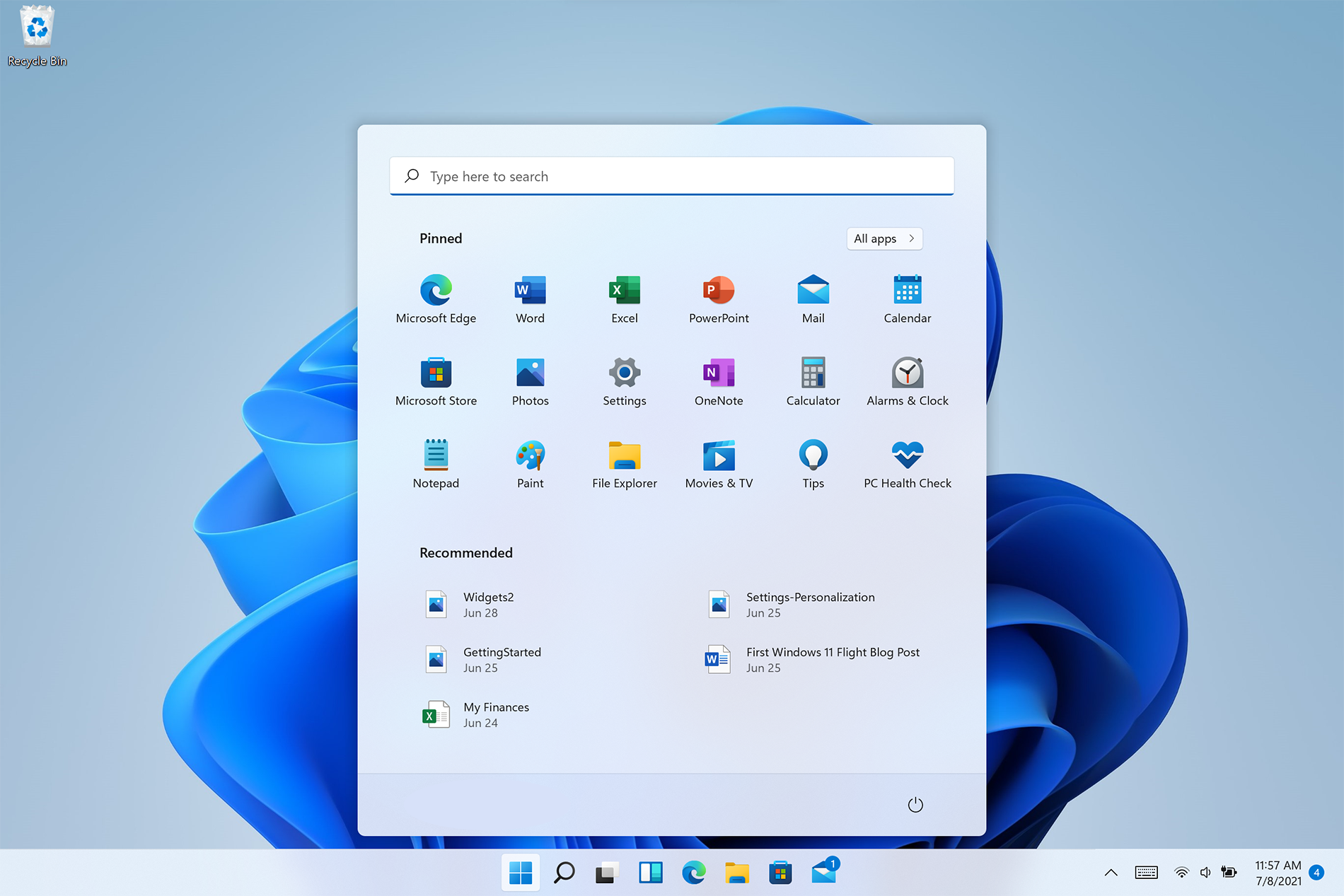
Strangely enough, Windows 11 does not feature any typical icon on its desktop when installed. No My PC, no Recycle Bin, nothing, just plain and clean wallpaper. Personally, I like this clean look and feel but of course, there are a lot of users that are used to have some system-related icons on their desktop for easy access. windows 11 desktop iconsDo not sweat, we will turn them back on with ease. The best part is that you can choose which one would you like. So let’s dive right into it and get the icons back for the old Windows feel and look.
Showing selected Icons desktop

  1. Right-click on Desktop and select Personalize
  2. Select Themes from the list of personalization items
  3. Inside themes scroll down and click on Desktop Icon Settings
  4. Desktop Icon Settings will open and inside it, place checkmarks beside icons that you would like to appear on the desktop and click OK
  5. Close settings
As always settings and choices will be automatically applied and icons will appear right away on the desktop.
Read More
Bluetooth A2dp Source not working Code 52
A number of users have recently reported that they were going through an issue with their Bluetooth devices on their Windows 10 computers. This issue involves an error saying,
“Windows cannot verify the digital signature for the drivers required for this device. A recent hardware or software change might have installed a file that is signed incorrectly or damaged, or that might be malicious software from an unknown source. (Code 52).”
If you are one of the users who encountered this kind of error on your Windows 10 computer, read on as this post will guide you on how you can fix this Bluetooth error. According to security experts, the key to fixing this error is to sign the Bluetooth A2DP files with the built-in tool, System File Checker. Apart from that, you could also run the Hardware and Devices troubleshooter or perform System Restore, as well as update or reinstall the concerned drivers. For more details, refer to each one of the options provided below.

Option 1 – Try to check Bluetooth-related services

In Services, there is a Bluetooth-related service that helps users use Bluetooth so if that particular service suddenly malfunctions for some reason, you will most likely get the “Windows was unable to connect with your Bluetooth network device” error message. That’s why you need to check Services and to do that, refer to these steps:
  • Tap Win + R keys to open Run prompt and type in “services.msc” then tap Enter to open Services.
  • Next, look for the Bluetooth Support Service and double click on it to open Properties.
  • From there, verify if the Service status is showing “Running” or “Stopped”. If it’s the latter, you have to click the Start button.
  • Lastly, check if the Startup type is set to Manual.

Option 2 – Try running System File Checker or SFC scan

You could also run System File Checker or SFC scan to fix the Bluetooth error. It is a built-in command utility that helps in restoring corrupted files as well as missing files. It replaces bad and corrupted system files with good system files. To run the SFC command, follow the steps given below.
  • Tap Win + R to launch Run.
  • Type in cmd in the field and tap Enter.
  • After opening Command Prompt, type in sfc /scannow
The command will start a system scan which will take a few whiles before it finishes. Once it’s done, you could get the following results:
  1. Windows Resource Protection did not find any integrity violations.
  2. Windows Resource Protection found corrupt files and successfully repaired them.
  3. Windows Resource Protection found corrupt files but was unable to fix some of them.
  • Reboot your PC.

Option 3 – Try to perform System Restore

You might also want to perform System Restore as the error might be caused by system modifications. Thus, to undo them, you can use System Restore. Run it using these steps:
  • First, tap the Win + R keys to open the Run dialog box.
  • After that, type in “sysdm.cpl” in the field and tap Enter.
  • Next, go to the System Protection tab then click the System Restore button. This will open a new window where you have to select your preferred System Restore point.
  • After that, follow the on-screen instructions to finish the process and then restart your computer and check if the problem is fixed or not.

Option 4 – Try running the Hardware and Devices Troubleshooter

The next thing you can do to fix the problem is to run the Hardware and Devices troubleshooter. Although it won’t make much of a difference, there’s still a possibility that it could automatically fix the Bluetooth error. To use it, refer to these steps:
  • The first thing you need to do is click on Start and then on the gear-like icon to pull up the window for Settings.
  • After opening Settings, look for the Update and Security option and select it.
  • From there, go to the Troubleshoot option located on the left-hand side of the list.
  • Next, select Hardware and Devices from the list and open the Troubleshooter and run it. Once it is doing its job, wait for it to complete the process and then restart the system.
  • After the system restarts, check if the problem’s now fixed. If not, refer to the next option given below.

Option 5 – Try to reinstall or update the Bluetooth driver

The issue might have something to do with the Bluetooth drivers. It could be that it is outdated and needs to be updated or that you recently updated it and since then you have trouble removing the Bluetooth devices and so to fix the issue, you can update, roll back or uninstall the Bluetooth drivers. How? Follow the steps below.
  • Tap the Win + X keys to open the Device Manager.
  • Next, look for the Bluetooth device and right-click on it.
  • Select the option “Update driver”.
  • After that, a new popup window will appear. In there, select the option, “Search automatically for updated driver software”.
Note: Checking the update may take a few minutes so you’ll have to wait until it finishes. If it is able to find an update, you must install it. And if you want to reinstall the Bluetooth driver, just select the “Uninstall driver” option and follow the next on-screen instructions that follow.
Read More
DDR5 what we know so far about it
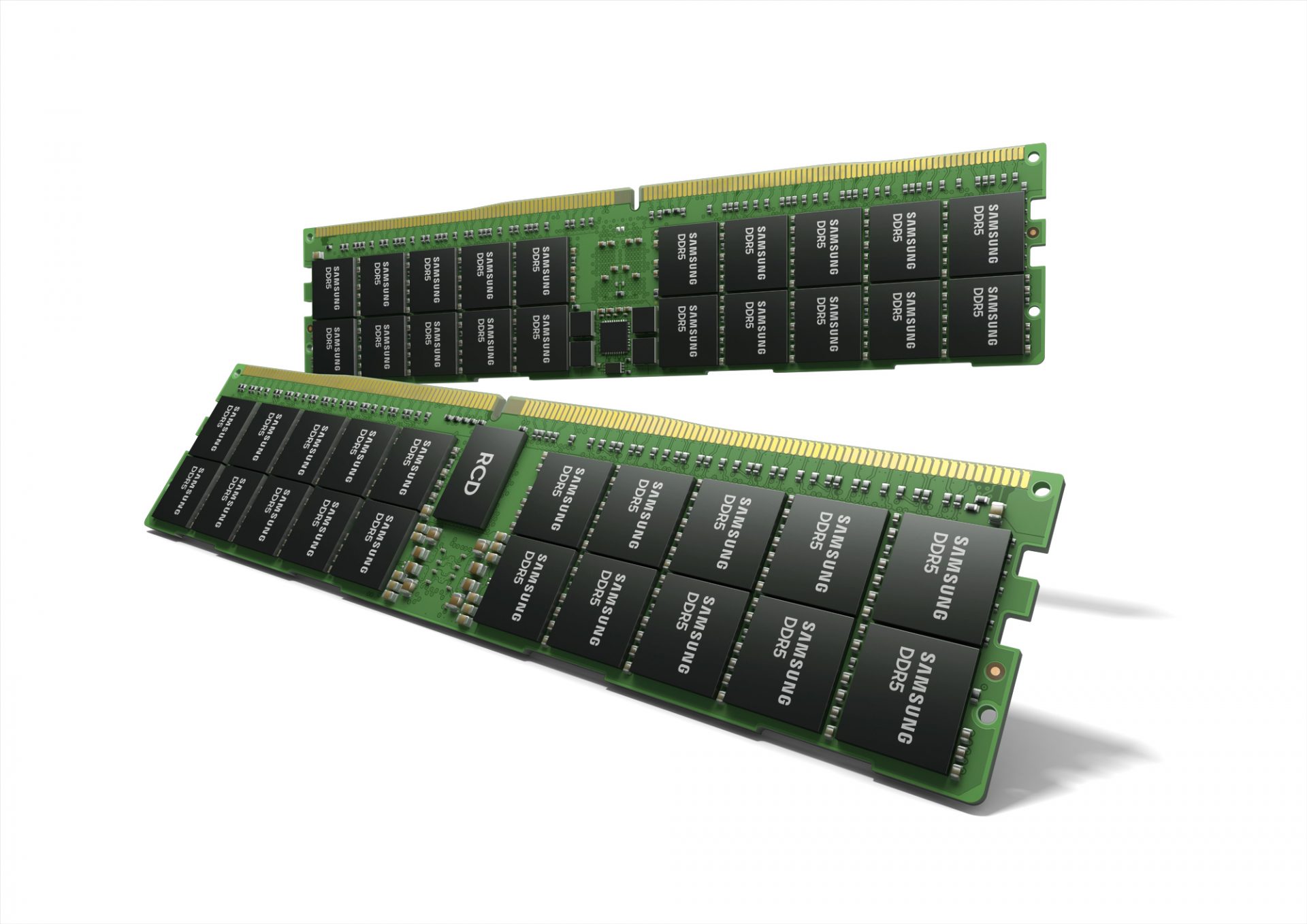
DDR5 memory moduleNext-generation of RAM, DDR5 supposed to hit shelves around late summer or fall in 2021if everything goes as planned. Its goal is to increase speed and efficiency, wants to pack more memory in a single stick, and have better power management.

Hardware requirements for DDR5

Using the latest memory technology will require other hardware to follow certain standards and the first ones that will need to follow are CPUs and Motherboards. Intel is already prepared with its Alder Lake CPUs that suppose to come out also later this year. AMD on other hand has not stated anything at the time of this writing but it is a bet that their next generation that will come in 2022 will have full support. It is speculated that bot companies and their respective CPUs will have both support for DDR4 and DDR5. A story about motherboards is a little different. Motherboards will support DDR4 or DDR5 memory banks, not both, so make sure that your motherboard will support the memory you plan on getting.

Capacity of memory

The goal and aim for the DDR5 memory stick are to reach a whopping 126GB per stack. This will be done by using a dual in-line module or DIMM enabling larger capacity. That being said, the first modules that we will see are more likely to be 16GB as standard and 8GB as low entry ones.

Power consumption of DDR5 memory

The standard voltage that DDR4 operates under is 1.2V. DDR5 wants to lower this to 1.1V without sacrificing speed. Voltage regulation on modules themselves will be now integrated on memory banks instead of leaving that to motherboards which will help to detect memory errors directly on the memory bank.

Speed of memory

The most common speed of DD4 memory banks is 2,666MHz, more expansive ones go from 3,600 to 4,000MHz. DD5 aims to raise this bar to 4,800MHz and offers greater speed.

Should you get it right away?

Hardware is ever-evolving, we have PCIe 3.0 to PCIe 4.0, and taking into account that sometimes the newest tech can cause some unexpected behavior it is always the best strategy to wait for a little. Price for the newest tech has also been in its heist just when it is released and seeing how DDR5 will benefit mostly servers mostly since even today memory, processors, and other available equipment can tackle all daily tasks.
Read More
1 2 3 171
Logo
Copyright © 2023, ErrorTools. All Rights Reserved
Trademark: Microsoft Windows logos are registered trademarks of Microsoft. Disclaimer: ErrorTools.com is not affiliated with Microsoft, nor claims direct affiliation.
The information on this page is provided for information purposes only.
DMCA.com Protection Status