Upcoming comic book movies with release dates

upcoming comic moviesThe World of Superhero movies has gone through some interesting variations, from good ones to bad ones, from big-budget ones to small ventures, even from large well-known characters to niche ones.

No matter what you think of some of them no one would disagree that since the release of Iron Man and starting Marvel cinematic universe superheroes movies exploded in popularity.

Following the Superhero craze, let’s see what is coming up in comic books transferred to big screens with their release dates.

List of upcoming movies

Shang-Chi and the Legend of the Ten Rings, Sept. 3, 2021 Trailer

Venom: Let There Be Carnage, Oct. 15, 2021 Trailer

Eternals, Nov. 5, 2021 Trailer

Spider-Man: No Way Home, Dec. 17, 2021 Trailer

Morbius, Jan. 28, 2022 Trailer

The Batman, March 4, 2022 Trailer

Doctor Strange in the Multiverse of Madness, March 25, 2022

Thor: Love and Thunder, May 6, 2022

DC League of Super-Pets, May 22, 2022

Black Panther: Wakanda Forever, July 8, 2022

Black Adam, July 29, 2022 Trailer

Spider-Man: Into the Spider-Verse 2, Oct. 7, 2022

The Flash, Nov. 4, 2022

The Marvels, Nov. 11, 2022

Aquaman and the Lost Kingdom, Dec. 16, 2022

Do You Need Help with Your Device?

Our Team of Experts May Help
Troubleshoot.Tech Experts are There for You!
Replace damaged files
Restore performance
Free disk space
Remove Malware
Protects WEB browser
Remove Viruses
Stop PC freezing
GET HELP
Troubleshoot.Tech experts work with all versions of Microsoft Windows including Windows 11, with Android, Mac, and more.

Share this article:

You might also like

Radeon Settings are currently not available
One of the most common brands of GPUs that comes in a large number of computers is AMD’s Radeon Graphics processing units. AMD included the Radeon Settings panel so that users can control how the hardware functions. However, as of late, a lot of users reported that the Radeon Settings panel throws an error that says, “Radeon Settings are currently not available. Please try again after connecting AMD graphics” when they try to use it. This kind of error in the Radeon Settings panel is most likely caused by either corrupted drivers or incompatible drivers. If you are one of the users who are facing this problem, worry not for this post will guide you in fixing this error. You can either use the Device Driver Uninstaller or change the driver version. For more details, make use of the options provided below.

Option 1 – Try to use the Device Driver Uninstaller

The first thing you can do to fix the problem is to uninstall the AMD Radeon drivers by using the Device Driver Uninstaller software. After you’ve uninstalled the AMD Radeon drivers using this software, go to the official website of AMD to download the AMD Radeon drivers. Once you’ve downloaded them, you can install them by simply running the executable file. Once the installation of the new AMD Radeon drivers is done, try to open the Radeon Settings panel and see if the error is now fixed or not. If not, refer to the next given option below.

Option 2 – Try changing the Driver version

If you have followed the instructions in the first option then you can proceed to the next given steps below.
  • Now that you’ve completely uninstalled the AMD Radeon drivers and reinstalled their latest working versions, check if the drivers are still updating. If they are, you need to stop them.
  • To disable the drivers being automatically updated, you need to go to the Group Policy Editor by tapping the Win + R keys to open the Run utility and then type “gpedit.msc” in the field and tap Enter or click OK.
  • After opening the Group Policy Editor, navigate to this policy setting: Computer Configuration > Administrative Templates > System > Device Installation > Device Installation Restrictions
  • From there, double click on the “Prevent installation of devices that match any of these device IDs” policy setting to open a new window, and from this window, you will see the following description of the setting:
“This policy setting allows you to specify a list of Plug and Play hardware IDs and compatible IDs for devices that Windows is prevented from installing. This policy setting takes precedence over any other policy setting that allows Windows to install a device. If you enable this policy setting Windows is prevented from installing a device whose hardware ID or compatible ID appears in the list you create. If you enable this policy setting on a remote desktop server the policy setting affects the redirection of the specified devices from a remote desktop client to the remote desktop server. If you disable or do not configure this policy setting devices can be installed and updated as allowed or prevented by other policy settings.”
  • Now set the radio button of the policy setting to “Enabled”. This will turn off the delete confirmation prompt. Note that setting the radio button to either Not Configured or Disabled will turn off the driver being automatically updated.
  • Next, click on the Show button under the Options section. And in the field that pops up, type in the Hardware ID of your GPU and click OK. You can find the GPU’s Hardware ID under this location: Device Manager > <DEVICE NAME> Properties > Details > Hardware IDs
  • Once you’re done, click the Apply and OK buttons to save the changes made.
  • Close the Group Policy Editor and restart your PC and see if the “Radeon Settings are currently not available. Please try again after connecting AMD graphics” error is now fixed.
Read More
Error: 0x80070035. Network path was not found
As you know, Windows allows you to share files between systems that are on the same network even though they are not connected physically. All you have to do is to make sure that the folder administrator allows access to the intended use and that your computer should be connected to the internet. Once you meet these conditions, you can share files between systems. However, recently a number of users reported that despite fulfilling these conditions, they end up getting errors instead when they try to access the shared drive. The error states:
“Error code: 0x80070035. The network path was not found.”
One of the common causes of this error is the antivirus program or the Firewall installed on your computer. It could also be that the drive is not shared in the first place or there are some issues with your network drivers. Whichever the case is, here are some potential fixes you need to check out to fix the Error code: 0x80070035.

Option 1 – Try to temporarily disable anti-virus and Windows Defender Firewall

As mentioned, the error could be due to the antivirus program or the Windows Defender Firewall installed on your computer. Thus, disabling them or any security software installed in your computer is always a good idea you can try when you’re not able to access the shared drive on your computer. There are times when you encounter problems like Error code: 0x80070035 due to interference of antivirus or security programs. Thus, you have to disable both your antivirus program and Windows Defender Firewall for the meantime and check if it fixes the error or not.

Option 2 – Check if the drive is shared

Before you further troubleshoot the problem, make sure that the drive you are trying to access is shared first. To do so, follow these steps:
  • Right-click on the folder and select Properties.
  • Go to the Sharing tab and check the status of the Network File and Folder Sharing.
  • And if the status is “Not Shared”, you need to select Share.
  • Next, select the intended Network User for sharing the file and choose the permission level for the user.
  • After that, click on the Apply and OK buttons to save the changes made. You or the intended user should now be able to access the shared folder or file.

Option 3 – Try to ping the IP address of the targeted computer

Even though the shared folder or file is shared correctly, it is possible that the network channel is not connected properly which is why you have to test it by pinging the IP address of the targeted computer from the primary computer.
  • Tap the Win + R keys to launch the Run dialog box.
  • Type “cmd” in the field and tap Enter to open Command Prompt.
  • Next, type the “ipconfig/all” command and tap Enter to execute it. This will populate various details.
  • From the given details, take note of the IPv4 address.
  • Afterward, open Command Prompt on the primary computer and then type the “ping <IPv4 address of the target computer>” command and hit Enter.
  • Now check if you get 4 confirmation replies or not. If not, you can try to access the Network Adapter Troubleshooter.
To run the Network Troubleshooter, refer to these steps:
  • Open the Search bar on your computer and type in “troubleshoot” to open the Troubleshoot settings.
  • Next, scroll down and select the “Network Adapter” option from the right pane.
  • Then click on the Run Troubleshooter” button.
  • After that, your computer will check for any possible errors and will pinpoint the root cause of the problem if possible.
  • Restart your computer.

Option 4 – Verify if Network Discovery is enabled

All you have to do is go to Start > Settings > Network & Internet and from there, click on the “Change connection properties” option and shift the radio button for Network profile to Private. After that, check if folder sharing is now working.

Option 5 – Try to modify the Network Security settings

There are times when the Network Security settings interfere with the folder or file sharing process. And if that’s the case, you can modify it to resolve the problem. How? Refer to these steps:
  • Tap the Win + R keys to open the Run dialog box.
  • Then type “secpol.msc” in the field and tap Enter to open the Local Security Policy manager window.
  • After that, go to Local Policies > Security Options located on the left pane.
  • Next, double click on Network security: LAN Manager authentication level in the right pane to open its Properties.
  • And then select the “Send LM & NTLM-use NTLMv2 session security if negotiated” option from the drop-down menu.
  • Now click on Apply and OK buttons to save the changes made.
  • Reboot your computer.

Option 6 – Try to enable NetBIOS over TCP/IP

  • Tap the Win + R keys to open the Run dialog box.
  • Then type “ncpa.cpl” in the field and tap Enter to open the Network Connections window.
  • After that, right-click on your network and select Properties.
  • Next, double click on Internet Protocol Version 4 and click on the Advanced button.
  • From there, go to the WINS tab and shift the radio button to Enable NetBIOS over TCP/IP.
  • Now click OK to save the changes made and then restart your computer.

Option 7 – Update the Network Adapter drivers

You might also want to update the Network Adapter drivers by following these steps:
  • Tap the Win + R keys to launch the Run window and then type in the “MSC” command and hit Enter to open the Device Manager window.
  • Under the Device Manager, you will see a list of drivers. From there, look for the Network Adapters and expand it.
  • Then right-click on each one of the Network drivers and update them all.
  • Restart your PC and see if it helped in fixing the BSOD error.
Note: If updating the network drivers didn’t help in fixing Error code: 0x80070035, you can also try to uninstall the very same drivers and restart your Windows 10 PC. After that, the system itself will reinstall the drivers you just uninstalled. Alternatively, you can also download and install the drivers from the manufacturer’s website directly. To reinstall the network adapter driver, refer to these steps:
  • Open the Devices Manager from the Win X Menu.
  • Then locate the device drivers and right-click on them to open the Properties.
  • After that, switch to the Driver tab and click on the Uninstall Device button.
  • Follow the screen option to completely uninstall it.
  • Finally, restart your computer. It will just reinstall the device drivers automatically.
Read More
Complete Ethernet cable guide

In today's modern world many households have internet access, most of the connection nowadays is done via Wi-Fi or wireless but there is a high probability that you have also a few devices connected via cable. There are of course many disadvantages and advantages between cable connection and wireless connection.

lan network cables

The main advantages of a hard cable connection are of course faster speed and stability compared to Wi-Fi. But if we look into the cables themselves there is also a big difference between them. Not all cables are the same and quality as well as speed vary a lot between them. Choosing the right cable is essential in order to make a maximum of your internet and we have some great tips and explanations of what cables do so you can make the right choice and enjoy your full internet potential.

Not all cables are the same

Cheap cables and expensive ones are not the same no matter what everyone tells you. The old proverb you get what you pay is true and more expensive cables will be made from better materials and will have a higher transfer rate.

Quality network cables are separated into different categories with proper markings and when buying one you should always look for these markings on the cables themselves, do not buy cables that do not have markings since they will often provide lower transfer rates or will not be shielded from outside influences resulting in packet drops and instability in a network.

Categories and what they mean are:

  • Cat-5 with a maximum speed of 100Mbps, typically unshielded.
  • Cat-5e with a maximum speed of 1Gbps, available in both shielded and unshielded varieties.
  • Cat-6 with a maximum speed of 10Gbps for runs under 55 meters (around 180ft), available in both shielded and unshielded varieties.
  • Cat-6a with a maximum speed of 10Gbps, shielded.
  • Cat-7 uses a proprietary GG45 connector rather than the standard RJ-45 connector seen on other cables for speeds of 10Gbps, shielded.
  • Cat-8 with a maximum speed of 25Gbps (Cat-8.1) or 40Gbps (Cat-8.2) at a distance of around 30 meters (around 100ft), shielded.

Unless stated, these standards are typically rated at their quoted speeds for a run of around 100 meters (around 330 ft) and use a standard RJ-45 Ethernet connector. Each generation of cable is designed to be compatible with the generations that came before it, so it’s possible (for example) to use a Cat-6a cable with a router that only supports speeds of 1Gbps.

Shielded cables

When purchasing higher quality cable you might not be able to choose if you have shielding or not since some standards like Cat-6a, Cat-7, and Cat-8 are always shielded. But if you do not have the need for these and you are satisfied with Cat-5e for example you can choose.

Shielded cables are a little more expensive but they will provide you with a coating that will eliminate interference from outside waves making cables more reliable. Of course, if the cable will go through a room that does not have many radio waves or some other interferences then buying a shielded cable is a waste of money.

Cable platings

Usually, there are two types of connector platings on connectors, silver, and gold, and people usually think that gold is much better but there are major differences between silver and gold platings and truth to be told there is no better one, both are different and should be considered depending on your need.

Silver plating will provide you with faster speed since its conductivity is larger than gold, but gold is slower on the oxidation front so its life span is longer. On the other hand, if your cables are always connecting and disconnecting gold will be first to be scrubbed off from the surface since the gold coating is much thinner.

Overall if you would only connect cable once and have slower internet than cable capacity gold is the way to go, in another case if you would use the cable as always connecting and switching and your internet plan is the same as cable transfer capacity you might want to go with silver one.

Cable material quality

Network cables are made from copper, your standard conduction material but even here there are differences in quality and therefore the chance of pocket losses over it. More quality less loss and more stable connection and this will depend on the purity of copper that is used in the cable itself. More purity in copper, more stability, simple as that.

Conclusion

So as you can see, there are a lot of different things that will influence your pick of proper network cable but the overall best advice is to get one that will fit well into your needs and setup. pair it up with your router and your internet plan since just simply buying something that you can not use is really a waste of money.

Read More
Fix Windows Activation Error 0x80070005
Windows uses 2 types of keys for its activation, KMS or MAK. These keys should work without any issues since they are elevated with higher permissions but in some cases, they are by accident run without their proper permission, and then we have access denied error or error 0x80070005 To resolve this issue please first check if not by any chance your antivirus or firewall is preventing slmgr.bs file to access the right permissions, that being said if the previous solution is not working note that you have to be an administrator of the system or have administrator privileges. As an administrator, you will have to use Software Licencing Management Tool or short SLMGR.VBS, a VBS file in Windows used for its activation purposes. As an administrator, open Command prompt with admin permissions and then run slmgr.vbs This will make sure that activation goes through, make sure to use proper options like:
/ipk <ProductKey> or /ato [<Activation ID>]
Read More
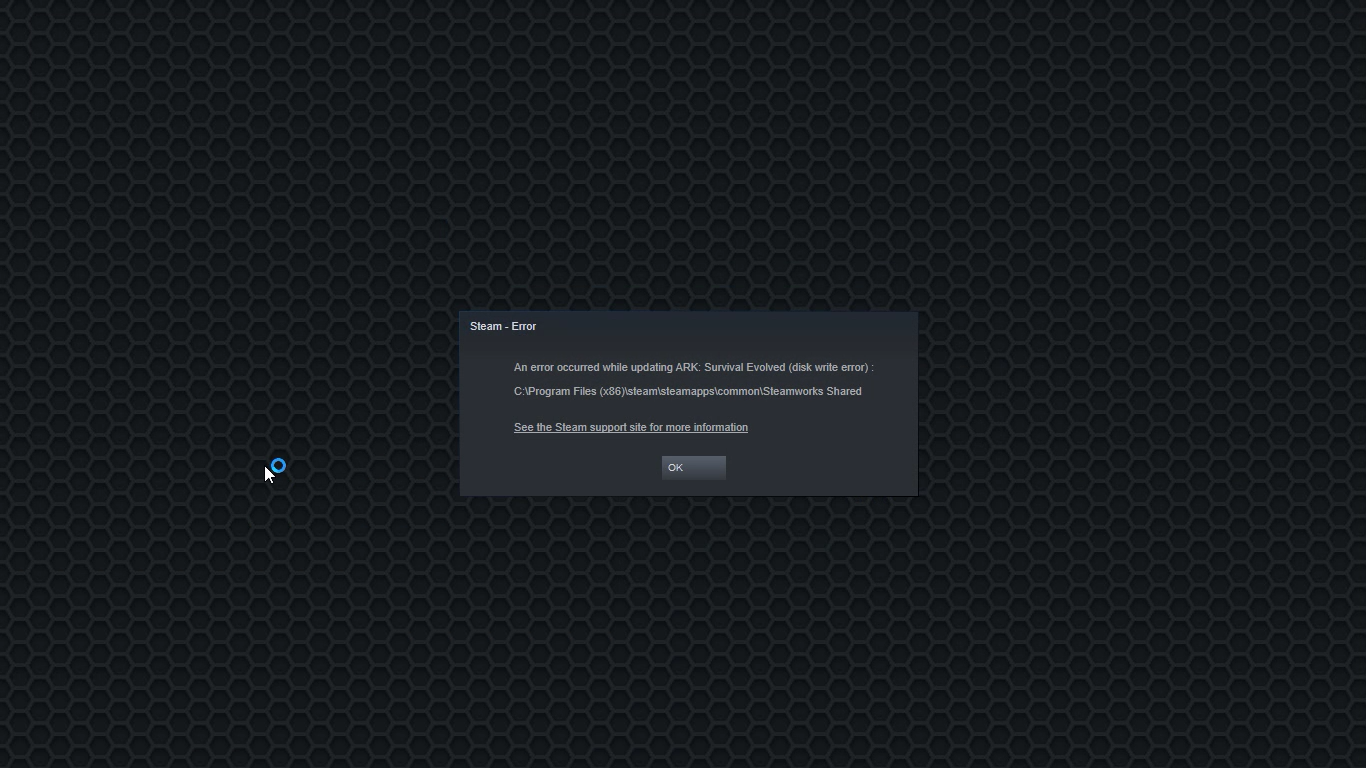
Fix a Steam Disk Write error

Disk Write Error in Steam is thrown at you while you try to download or update the game in your library. If you are an unfortunate user of Steam that has encountered this error do not sweat, the error is usually tied to permission in windows or file corruption and not to hardware issues and can be easily resolved.

In this guide, we will go through solutions for this specific error and it is advisable to go through solutions as they are presented since they go from the easiest and most common issues.

steam disk write error

Restart PC and Steam

The easiest and quickest way of resolving this issue is just a simple restart of the Steam client. Just completely quit Steam and they run it again, if this has not solved the issue try rebooting your PC. In most cases, this can solve the issue since this error is known to be introduced with some communication issues with OS (Windows)

Set Write permissions

Disk write permissions could also cause this error because if by any chance the Steam library folder has been set or changed to the read-only client would be unable to write anything in it. To easily solve this issue completely exit the Steam client and rerun it as administrator. Just right-click on it and select Run as Administrator. If this has solved your issue run Steam always as an administrator.

To run always as an administrator right click on the steam executable, go to properties, and inside properties go to the compatibility tab. In the compatibility tab check run as administrator and click on OK.

Clear download cache

If for any reason cache has become corrupted there is a big chance that this might be an issue why there is a disk drive error in Steam. To clear download, cache goes into your client, and on top drow down menu click on steam. Find and open settings and inside go to the downloads tab. Locate a clear download cache and immediately you will be prompted to restart Steam. After restart, you will be asked to login into steam and the issue with disk write should be gone.

Repair library folder

Library folder issues can also be the source of disk write annoyance so let's repair them. Click steam in the top left and go to the settings. Locate and click on Downloads and then go to Steam library folders. You will be here shown all disk drivers you are using for steam games and all of the games that are downloaded.

Select the game you are getting errors with and click on three dots on the far right. From the menu choose the repair folder option. Take note that the more games you have installed, the more time the repair process will need.

Change download server

Sometimes the issue is not at your end at all, servers can experience problems and outrages and this can directly reflect at your end with a disk write error. If any of the previous solutions have not resolved the issue this is the next logical step to try. If the server is facing issues then changing the download server will resolve the issue at your end.

Click on settings in the top drop-down menu and then click on the Steam library folder. Find the downloads page and then click on download region, Choose another server than one nearest to your location since that's what will Steam choose by default.

Read More
Make FLASH content available in your browser
FLASH icon Hello and welcome everyone, just a few years ago we had FLASH video content on the internet, we had FLASH games, full FLASH website experiences, and more, but then flash was shut down mostly due to security reasons meaning that in just a few months we have lost most of FLASH web content. However, there is still FLASH content on the internet even today, there are still FLASH videos and flash games, but we can not play any of that content since browsers do not support FLASH and you can not get the FLASH plugin for browsers. So what might be the solution for this situation?

Ruffle and FLASH emulation

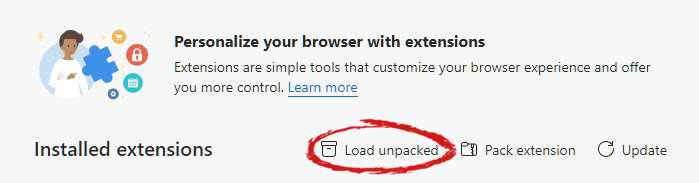
Emulation of course. We will not be able to get the flash player working, well at least not the original and official one, but we can make flash content playable again inside our browsers. The first thing is first, we need to get an emulator package from the internet in order for this trick to work, one we will be using is RUFFLE. It is lightweight, it is free, it is open source and it is reliable, everything we need. Download RUFFLE from its official website here. For Chrome and Edge download the ZIP package, for Firefox, go to the Firefox section of the tutorial. There is also a desktop version of RUFFLE there so if you are keen on playing your flash content on your desktop computer you might well grab that as well, but for the sake of this tutorial where we are enabling flash in our browsers, we will not focus on that part since it is pretty straightforward. Now once you have downloaded the RUFFLE emulator, please extract it to the desired folder somewhere on your computer. Once it is extracted, start your browser of choice and follow instructions.

FOR CHROME:

  1. Navigate to: chrome://extensions/
  2. Turn ON developer mode in the top right corner
  3. Click on Load unpacked
  4. Navigate to the folder where you have extracted RUFFLE
chrome extensions

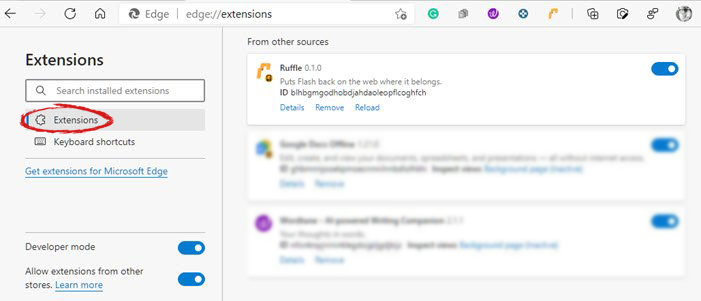
FOR EDGE:

  1. Navigate to: edge://extensions/
  2. Turn ON developer mode on the bottom left corner
  3. Navigate to the folder where you have extracted RUFFLE
  4. Turn RUFFLE ON
edge extensions

FOR FIREFOX:

  1. Go to the RUFFLE download page, we can not use the zip package we were using for Chrome and Edge
  2. Right-click on the Firefox download link
  3. Save link by clicking on Save link as...
  4. Navigate to about: debugging
  5. Click on this Firefox
  6. Click Load Temporary Add-on
  7. Select the .xpi that you have downloaded

BONUS:

If you want to enable FLASH content live on your website use:  <script src="path_to_ruffle/ruffle.js"></script>
Read More
Repair Windows 10 Error Code 0xC1900200, 0x20008

Code 0xC1900200, 0x20008, What is it?

Error Code 0xC1900200, 0x20008 (Code 0xC1900202 – 0x20008)  is an error that occurs when you attempt to upgrade to Microsoft Windows 10, but the minimum requirements have not been met by your computer. You will therefore be unable to upgrade to Microsoft Windows 10 until your computer is updated or upgraded to meet those requirements. Common symptoms include:
  • When attempting to upgrade a dialog box with Code 0xC1900200 – 0x20008 (Code 0xC1900202 – 0x20008) is displayed.
  • Your computer is unable to begin the Microsoft Windows 10 upgrade process.

Solution

Restoro box imageError Causes

Error Code 0xC1900200 – 0x20008 (Code 0xC1900202 – 0x20008)  occurs when you are unable to begin the Microsoft Windows 10 upgrade because your computer does not meet the minimum requirements to run Microsoft Windows 10.
  • You are unable to begin the upgrade because your computer does not meet the required system or hardware specifications.
  • You are not running the correct version of Microsoft Windows to be able to begin the upgrade.
  • You are not running the latest updated version of Microsoft Windows 7 SP1 or Microsoft Windows 8.1. Error Code 0xC1900200 – 0x20008 (Code 0xC1900202 – 0x20008) as stated, simply means your computer does not meet the requirements to update and does not indicate a permanent problem or inability to continue to use your computer. This error only means that you will not be able to upgrade to Microsoft Windows 10 until your computer is made to meet these requirements.

Further Information and Manual Repair

There are several solutions that the user can complete at home that should fix the problem resulting in a manifestation of Error Code 0xC1900200 – 0x20008 (Code 0xC1900202 – 0x20008). Below are several options that should resolve this error.

Method 1:

Verify what version of Microsoft Windows you are currently running, older, outdated, or no longer supported versions of Microsoft Windows are not able to upgrade to Microsoft Windows 10. If you are not running one of the following versions you will have to update before being able to upgrade.
  • The most current version of Microsoft Windows 7 SP1
  • The most current version of Microsoft Windows 8.1

Method 2:

Your computer's system specifications do not meet the requirements to be able to upgrade to and run Microsoft Windows 10. To check your system specifications do the following.
  • Click on the start button in the bottom left corner, then locate the control panel on the menu, click on it to open.
  • Once it opens, locate system and security on the menu and click to open, click on system and this will show you your amount of RAM and processor speed.
  • Find device manager on the left-hand side click this then select display adapter, and it will show you your current video card.
  • Click on the start button again, then click on the computer in the menu, this will show you your hard drive size, and available space.
If you have the option available you can simply run the get Microsoft Windows 10 app to check compatibility. Once you have your system specs make sure they meet or exceed the following.
  • 1 GHz or higher processor or SoC
  • 1 gig of RAM for 32 bit and 2 gigs of RAM for 64 bit
  • 16 GB available hard drive space for 32 bit, 20 GB for 64 bit
  • Minimum of DirectX9 that has 1.0 WDDM
  • At least an 800x600 display
If your computer does not meet these minimum requirements, upgrade the components necessary to meet them. If you do not possess the technical expertise required to accomplish this yourself or do not feel comfortable doing so, download and install a powerful automated tool to get the job done.

Method 3:

Your computer might not meet the aforementioned requirements to make an upgrade because of insufficient hard drive space or resources. Learn how to create space on your computer.

Method 4:

Many people hold on to and use the same computer for a very long time. It is possible that your computer cannot be upgraded to meet the requirements, or that the cost to do so would be so high that a new computer would be cheaper. If that is the case, your only option may be to replace your computer.
Read More
Simple Manual to Fix Corrupted PST Files Quick

Just what is a PST File?

PST file is the acronym for Private Storage Table. It is a proprietary file structure utilized in the ms-outlook program shop and to preserve attachments as well as e-mails, notifications, scheduled calendar events, and even more. This structure can also be called a Personal Folder File. The storage limit or the size varies today with respect to the Outlook version you've got installed. The PST file size limit depends on the edition you have installed. Outlook 2002 and earlier versions have a memory limitation of 2GB while later versions such as Outlook 2013 have up to 50GB memory limit.

Error Causes

You will be amazed to discover there is not a single cause behind this problem. The File can be damaged due to a number of reasons including:
  • Virus infection
  • Incorrect file system recovery
  • Data storage device failure
  • Storage size limit exceeds
  • Sometimes due to power failure when accessing the PST files
Once this File becomes corrupted and broken, it places you in danger of losing your important e-mails and attachments. Moreover, this stops you from getting or sending e-mails to and from your own associates. And in case you would like to add new contacts, you are greatly hindered. It reduces your productivity. For individuals relying completely on the Outlook program for communicating via e-mails and maintaining a track of important dates that they have set reminders for and scheduled in their calendars, the PST file problem is a nightmare. It decreases productiveness and performance.

Further Information and Manual Repair

To regain the damaged File without removing old e-mails Install a PST File Repair Tool. The latter one is probably the best way to resolve this issue without compromising on your old important emails and contacts. There are a number of repair resources out there. Each device provides a distinct degree of characteristics and performance. We urge you to use Stellar Phoenix Outlook PST Repair Tool. Not only does this repair tool aid work out PST file error that is damaged, but it also helps with data recovery. With this particular tool, it is possible to recover even the erased files you've removed from your Outlook Installation before the PST file got corrupted. Wait there is more! It is also possible to raise the memory limit by installing this repair tool on your computer. What this means is in the event the PST file corruption's cause was associated with the storage size limit, it is easily worked out. With an increase in memory, you can keep your older emails and continue storing new mail from associates. To begin, Click here to Download Install Stellar Phoenix Outlook PST Repair on your personal computer and run it to restore the PST files.
Read More
Gaming Wonderland Removal Tutorial

Gaming Wonderland is a Browser Extension for Google Chrome developed by Mindspark. This extension allows you to look up some popular browser games, as well as to find multiplayer games. When installed it changes your default search provider and your default home page to MyWebSearch. While browsing the internet, this extension will gather your browsing information, website visits, clicks, and other information that is later sent to Mindspark ad servers and used to better target ads.

While using this extension you will see additional unwanted ads appearing throughout your browser sessions.

Due to the nature of this application and the fact that it has been marked as a Browser Hijacker by several anti-virus scanners, it is not recommended to keep it on your computer.

About Browser Hijackers

Browser hijacking means that a malicious code has power over and modified the settings of your internet browser, without your consent. They are made to disrupt browser functions for a variety of reasons. These are generally used to force visitors to a specific site, manipulating web traffic to generate ad revenue. It may appear harmless, but the majority of such sites are not legitimate and will present a serious risk to your online safety. As soon as the program attacks your computer or laptop, it begins to mess things up a whole that slows your system down to a crawl. In the worse case, you could be pushed to tackle serious malware threats as well.

Browser hijacking symptoms

When your web browser is hijacked, the following could happen: you find unauthorized modifications to your web browser’s home-page; new bookmarks pointing to pornographic websites have been added to your bookmarks; default web engine is changed; you are finding browser toolbars you haven’t noticed before; unstoppable flurries of popup advertisements show up on your PC screen; your browser gets slow, buggy, crashes quite often; you’re prohibited access to specific websites, including the site of an anti-malware software firm like SafeBytes.

How does a browser hijacker infect a PC

Browser hijackers might use drive-by downloads or file-sharing websites or even an e-mail attachment in order to reach a targeted computer. They could also be deployed through the installation of a web browser toolbar, add-on, or extension. A browser hijacker can also be installed as a part of freeware, shareware, demoware, and pirated programs. A good example of a notorious browser hijacker is the latest Chinese malicious software called “Fireball”, which has attacked 250 million PCs worldwide. It works as a hijacker but can be turned into a fully functioning malware downloader later on. Browser hijackers will affect the user’s browsing experience severely, keep track of the websites visited by users and steal private information, cause problems in connecting to the net, and eventually create stability issues, making applications and computers freeze.

Browser Hijacker Malware – Removal

Some kinds of browser hijackers can be removed from your computer by deleting malicious software applications or any other recently added shareware. At times, it can be a tough task to discover and get rid of the malicious component since the associated file might be running as part of the operating system process. Novice PC users should not try for the manual form of removal, since it calls for thorough computer knowledge to do fixes on the system registry and HOSTS file. Installing and running antivirus applications on the affected system will automatically erase browser hijackers and also other unwanted applications. Safebytes Anti-Malware incorporates a cutting-edge anti-malware engine that will help you prevent browser hijacker infection in the first place, and clean up any existing problems. Use a system optimizer together with your antivirus software to fix various registry problems, remove system vulnerabilities, and boost your computer's overall performance.

Help! Malware Blocking Antivirus Installation And Access To The Web

Viruses can cause plenty of damage to your PC. Some malware variants alter internet browser settings by adding a proxy server or change the PC’s DNS settings. In such cases, you will be unable to visit certain or all websites, and therefore not able to download or install the required security software to eliminate the malware. So what you should do if malware keeps you from downloading or installing Safebytes Anti-Malware? There are a few actions you can take to circumvent this issue.

Use Safe Mode to resolve the issue

In Safe Mode, you may change Windows settings, uninstall or install some programs, and remove hard-to-delete viruses and malware. In case the virus is set to load immediately when the PC starts, shifting into this mode may well prevent it from doing so. To boot into Safe Mode, press the “F8” key on the keyboard right before the Windows logo screen appears; Or right after normal Windows boot up, run MSCONFIG, look over Safe Boot under Boot tab, and then click Apply. Once you’re in safe mode, you can try to install your antivirus program without the hindrance of malicious software. At this point, you can actually run the antivirus scan to get rid of viruses and malware without any interference from another malicious application.

Switch to an alternate internet browser

Some viruses might target vulnerabilities of a specific browser that obstruct the downloading process. If you seem to have a trojan attached to Internet Explorer, then switch to an alternate browser with built-in security features, such as Firefox or Chrome, to download your favorite antivirus program – Safebytes.

Create a bootable USB antivirus drive

Another solution is to save and run an antivirus software program completely from a USB drive. Adopt these measures to run the anti-malware on the infected computer. 1) On a virus-free computer, install Safebytes Anti-Malware. 2) Connect the USB drive to a USB port on the clean computer. 3) Double-click the Setup icon of the antivirus software to run the Installation Wizard. 4) Select the drive letter of the flash drive as the place when the wizard asks you exactly where you want to install the antivirus. Follow the activation instructions. 5) Unplug the USB drive. Now you can use this portable anti-virus on the affected computer. 6) Run the Safebytes Anti-malware directly from the USB drive by double-clicking the icon. 7) Simply click “Scan Now” to run a complete scan on the infected computer for viruses.

Detect And Remove Viruses With SafeBytes Anti-Malware

If you are looking to download the anti-malware program for your PC, there are various tools on the market to consider however, you cannot trust blindly anyone, regardless of whether it is paid or free program. A few are really worth your money, but most aren’t. You must opt for a company that creates industry-best antimalware and has earned a reputation as reliable. On the list of strongly recommended software is SafeBytes AntiMalware. SafeBytes carries a good track record of quality service, and customers appear to be happy with it. SafeBytes anti-malware is trustworthy software that not only protects your system completely but is also quite user-friendly for people of all skill levels. Using its outstanding protection system, this tool will automatically detect and eliminate most of the security threats, including browser hijackers, viruses, adware, PUPs, trojans, worms, and ransomware.

SafeBytes anti-malware takes computer protection to a totally new level with its advanced features. Below are some of the features you might like in SafeBytes.

Anti-Malware Protection: This deep-cleaning anti-malware software program goes much deeper than most anti-virus tools to clean out your personal computer. Its critically acclaimed virus engine locates and disables hard-to-remove malware that hides deep within your personal computer. Real-time Protection: SafeBytes delivers complete and real-time security for your PC. It’ll constantly monitor your pc for hacker activity and also provides end-users with sophisticated firewall protection. Website Filtering: SafeBytes gives an instant safety rating to the pages you are going to visit, automatically blocking unsafe sites and making sure that you are certain of your safety while browsing the net. High-Speed Malware Scanning Engine: SafeBytes’s high-speed malware scanning engine lessens scan times and extends battery life. Simultaneously, it will effectively find and get rid of infected computer files or any internet threat. Low CPU/Memory Usage: SafeBytes is well-known for its low impact on processing power and great detection rate of various threats. It runs silently and efficiently in the background so you are free to utilize your personal computer at full power all the time. 24/7 Premium Support: You can get 24/7 technical assistance to quickly resolve any issue with your security software. To sum it up, SafeBytes Anti-Malware provides outstanding protection combined with very low system resource usage with great malware prevention and detection. You now may know that this tool does more than just scan and remove threats from your PC. If you’re searching for the absolute best malware removal application out there, and if you don’t mind spending a few bucks for it, go for SafeBytes Anti-Malware.

Technical Details and Manual Removal (Advanced Users)

If you would like to do the removal of Gaming Wonderland manually instead of using an automated software tool, you may follow these measures: Go to the Windows Control Panel, click the “Add or Remove Programs” and there, select the offending application to uninstall. In case of suspicious versions of browser plug-ins, you can easily get rid of it through your web browser’s extension manager. You may even want to reset your home page and search engine providers, and also delete temporary files, browsing history, and cookies. In order to ensure the complete removal, manually examine your hard drive and registry for all of the following and remove or reset the values accordingly. Having said that, editing the Windows registry is really a difficult job that only advanced users and professionals should try to fix it. Furthermore, some malicious programs have the capability to defend against its deletion. It is advisable that you do the removal procedure in Windows Safe Mode.
Files: %PROGRAMFILES%\GamingWonderland %PROGRAMFILES(x86)%\GamingWonderland %USERPROFILE%\AppData\LocalLow\GamingWonderland %UserProfile%\Local Settings\Application Data\GamingWonderlandTooltab %LOCALAPPDATA%\GamingWonderlandTooltab %LOCALAPPDATA%\Google\Chrome\User Data\Default\Extensions\fenbipnfkodbfdjlgndbgokhkneidbom %UserProfile%\Local Settings\Application Data\Google\Chrome\User Data\Default\Extensions\hjkdfjgajdjedjpapojndcfhekhbpkjp %LOCALAPPDATA%\Google\Chrome\User Data\Default\hjkdfjgajdjedjpapojndcfhekhbpkjp Registry: HKEY_LOCAL_MACHINE\SOFTWARE\AppDataLow\HKEY_LOCAL_MACHINE\SOFTWARE\GamingWonderland HKEY_LOCAL_MACHINE\HKEY_LOCAL_MACHINE\SOFTWARE\Classes\GamingWonderland.DynamicBarButton.1 HKEY_LOCAL_MACHINE\HKEY_LOCAL_MACHINE\SOFTWARE\Classes\GamingWonderland.FeedManager HKEY_LOCAL_MACHINE\HKEY_LOCAL_MACHINE\SOFTWARE\Classes\GamingWonderland.FeedManager.1 HKEY_LOCAL_MACHINE\HKEY_LOCAL_MACHINE\SOFTWARE\Classes\GamingWonderland.HTMLMenu HKEY_LOCAL_MACHINE\HKEY_LOCAL_MACHINE\SOFTWARE\Classes\GamingWonderland.HTMLMenu.1 HKEY_LOCAL_MACHINE\HKEY_LOCAL_MACHINE\SOFTWARE\Classes\GamingWonderland.HTMLPanel HKEY_LOCAL_MACHINE\HKEY_LOCAL_MACHINE\SOFTWARE\Classes\GamingWonderland.HTMLPanel.1 HKEY_LOCAL_MACHINE\HKEY_LOCAL_MACHINE\SOFTWARE\Classes\GamingWonderland.MultipleButton HKEY_LOCAL_MACHINE\HKEY_LOCAL_MACHINE\SOFTWARE\Classes\GamingWonderland.PseudoTransparentPlugin.1 HKEY_LOCAL_MACHINE\HKEY_LOCAL_MACHINE\SOFTWARE\Classes\GamingWonderland.Radio HKEY_LOCAL_MACHINE\HKEY_LOCAL_MACHINE\SOFTWARE\Classes\GamingWonderland.Radio.1 HKEY_LOCAL_MACHINE\HKEY_LOCAL_MACHINE\SOFTWARE\Classes\GamingWonderland.RadioSettings HKEY_LOCAL_MACHINE\HKEY_LOCAL_MACHINE\SOFTWARE\Classes\GamingWonderland.RadioSettings.1 HKEY_LOCAL_MACHINE\SOFTWARE\Classes\GamingWonderland.ScriptButton HKEY_LOCAL_MACHINE\SOFTWARE\Classes\GamingWonderland.ScriptButton.1 HKEY_LOCAL_MACHINE\SOFTWARE\Classes\GamingWonderland.SettingsPlugin HKEY_LOCAL_MACHINE\SOFTWARE\Classes\GamingWonderland.SkinLauncher.1 HKEY_LOCAL_MACHINE\SOFTWARE\Classes\GamingWonderland.SkinLauncherSettings HKEY_LOCAL_MACHINE\SOFTWARE\Classes\GamingWonderland.SkinLauncherSettings.1 HKEY_LOCAL_MACHINE\SOFTWARE\Classes\GamingWonderland.ThirdPartyInstaller HKEY_LOCAL_MACHINE\SOFTWARE\Classes\GamingWonderland.ThirdPartyInstaller.1 HKEY_LOCAL_MACHINE\SOFTWARE\Classes\GamingWonderland.ToolbarProtector HKEY_LOCAL_MACHINE\SOFTWARE\Classes\GamingWonderland.ToolbarProtector.1 HKEY_LOCAL_MACHINE\SOFTWARE\Classes\GamingWonderland.XMLSessionPlugin.1 HKEY_LOCAL_MACHINE\SOFTWARE\Wow6432Node\Microsoft\Internet Explorer\Low Rights\ElevationPolicy\0c7bac04-8f5d-4bbd-956a-34fafa547752 HKEY_LOCAL_MACHINE\SOFTWARE\Wow6432Node\Microsoft\Internet Explorer\Low Rights\ElevationPolicy\16fbdf8c-476f-4d6b-8009-84471903cf96 HKEY_LOCAL_MACHINE\SOFTWARE\Wow6432Node\Microsoft\Internet Explorer\Low Rights\ElevationPolicy\82bacdc9-afce-41ee-92f5-b54f6db45a1c HKEY_LOCAL_MACHINE\SOFTWARE\Wow6432Node\Microsoft\Internet Explorer\Low Rights\ElevationPolicy\8b70e4e8-100a-4b4f-b928-6d8126b730bb HKEY_LOCAL_MACHINE\SOFTWARE\Wow6432Node\Microsoft\Internet Explorer\Low Rights\ElevationPolicy\c1151fbb-ef5b-4a2b-91e4-e8776f091f37 HKEY_LOCAL_MACHINE\SOFTWARE\Microsoft\Internet Explorer\Low Rights\ElevationPolicy\82bacdc9-afce-41ee-92f5-b54f6db45a1c HKEY_LOCAL_MACHINE\SOFTWARE\Microsoft\Internet Explorer\Low Rights\ElevationPolicy\8b70e4e8-100a-4b4f-b928-6d8126b730bb HKEY_LOCAL_MACHINE\SOFTWARE\Microsoft\Internet Explorer\Low Rights\ElevationPolicy\c1151fbb-ef5b-4a2b-91e4-e8776f091f37 HKEY_LOCAL_MACHINE\SOFTWARE\Microsoft\Internet Explorer\Low Rights\ElevationPolicy\e65f4fe3-b8a9-408f-9e8d-37689e565618 HKEY_LOCAL_MACHINE\SOFTWARE\Wow6432Node\Microsoft\Windows\CurrentVersion\explorer\Browser Helper Objects\ab5d199e-9659-47a2-930b-fc3b69061353 HKEY_LOCAL_MACHINE\SOFTWARE\Wow6432Node\Microsoft\Windows\CurrentVersion\Ext\PreApproved\f4d7584b-6643-4bc7-8e24-17c3258dc5ef HKEY_LOCAL_MACHINE\SOFTWARE\Wow6432Node\Microsoft\Windows\CurrentVersion\Ext\PreApproved\26A73C38-B71A-4D3A-80B7-E010420DA1E7 HKEY_LOCAL_MACHINE\SOFTWARE\Wow6432Node\Microsoft\Windows\CurrentVersion\Ext\PreApproved\1a30aa28-2fc6-4360-9e14-cfa627d51b6c HKEY_LOCAL_MACHINE\SOFTWARE\Wow6432Node\Microsoft\Windows\CurrentVersion\Ext\PreApproved\08fbcb5f-de4f-49e0-977e-e4269f4d7206 HKEY_LOCAL_MACHINE\SOFTWARE\Microsoft\Windows\CurrentVersion\Ext\PreApproved\f4d7584b-6643-4bc7-8e24-17c3258dc5ef HKEY_LOCAL_MACHINE\SOFTWARE\Microsoft\Windows\CurrentVersion\Ext\PreApproved\99c8d756-4d22-4d0f-898a-34a232884ce1 HKEY_LOCAL_MACHINE\SOFTWARE\Microsoft\Windows\CurrentVersion\Ext\PreApproved\75faf80f-56c7-4bb3-b825-39d0a706b5a4 HKEY_LOCAL_MACHINE\SOFTWARE\Microsoft\Windows\CurrentVersion\Ext\PreApproved\4c297ddf-0a36-4b17-b8fa-0c0395f2c5bc HKEY_LOCAL_MACHINE\SOFTWARE\Wow6432Node\MozillaPlugins\@GamingWonderland.com/Plugin HKEY_LOCAL_MACHINE\SOFTWARE\MozillaPlugins\@GamingWonderland.com/Plugin HKEY_LOCAL_MACHINE\SOFTWARE\Wow6432Node\Microsoft\Windows\CurrentVersion\Run, value: GamingWonderland Search Scope Monitor HKEY_LOCAL_MACHINE\SOFTWARE\Wow6432Node\Microsoft\Windows\CurrentVersion\Uninstall\GamingWonderlandbar Uninstall Firefox HKEY_LOCAL_MACHINE\SOFTWARE\Wow6432Node\Microsoft\Windows\CurrentVersion\Uninstall\GamingWonderlandbar Uninstall Internet Explorer HKEY_LOCAL_MACHINE\SOFTWARE\Microsoft\Windows\CurrentVersion\Run, value: GamingWonderland Search Scope Monitor HKEY_LOCAL_MACHINE\SOFTWARE\Wow6432Node\GamingWonderland HKEY_LOCAL_MACHINE\SOFTWARE\Wow6432Node\Google\Chrome\Extensions\hpflffkopmgalfhfholanbnhoiblmajp HKEY_LOCAL_MACHINE\SOFTWARE\Google\Chrome\Extensions\hpflffkopmgalfhfholanbnhoiblmajp HKEY_LOCAL_MACHINE\SOFTWARE\Wow6432Node\Microsoft\Internet Explorer\Toolbar, value: a899079d-206f-43a6-be6a-07e0fa648ea0 HKEY_LOCAL_MACHINE\SOFTWARE\Microsoft\Internet Explorer\Toolbar, value: a899079d-206f-43a6-be6a-07e0fa648ea0 HKEY_LOCAL_MACHINE\SOFTWARE\Wow6432Node\Microsoft\Windows\CurrentVersion\Uninstall\GamingWonderland Chrome Extension Uninstall HKEY_LOCAL_MACHINE\SOFTWARE\Wow6432Node\Microsoft\Internet Explorer\SearchScopes\3d29c02b-bf3e-4d3b-8a7a-e0e7d0f6dbab HKEY_LOCAL_MACHINE\SOFTWARE\Microsoft\Internet Explorer\SearchScopes\3d29c02b-bf3e-4d3b-8a7a-e0e7d0f6dbab HKEY_LOCAL_MACHINE\SOFTWARE\Wow6432Node\Microsoft\Internet Explorer\Low Rights\ElevationPolicy\c5ce0d8e-0300-4a17-a89c-6cc8078348ad HKEY_LOCAL_MACHINE\SOFTWARE\Microsoft\Internet Explorer\Low Rights\ElevationPolicy\c5ce0d8e-0300-4a17-a89c-6cc8078348ad HKEY_LOCAL_MACHINE\SOFTWARE\Microsoft\Internet Explorer\DOMStorage\free.gamingwonderland.com HKEY_LOCAL_MACHINE\SOFTWARE\Microsoft\Internet Explorer\DOMStorage\gamingwonderland.com HKEY_LOCAL_MACHINE\SOFTWARE\Microsoft\Internet Explorer\Approved Extensions, value: 7C8F8FE5-9785-4F74-BCF8-895EF9752D97 HKEY_LOCAL_MACHINE\SOFTWARE\Microsoft\Internet Explorer\Approved Extensions, value: A899079D-206F-43A6-BE6A-07E0FA648EA0 HKEY_LOCAL_MACHINE\SOFTWARE\Microsoft\Internet Explorer\Approved Extensions, value: AB5D199E-9659-47A2-930B-FC3B69061353 HKEY_LOCAL_MACHINE\SOFTWARE\Microsoft\Windows\CurrentVersion\Run, value: GamingWonderland EPM Support HKEY_LOCAL_MACHINE\SOFTWARE\Wow6432Node\Microsoft\Windows\CurrentVersion\Run, value: GamingWonderland EPM Support HKEY_LOCAL_MACHINE\SOFTWARE\Microsoft\Internet Explorer\DOMStorage\gamingwonderland.dl.myway.com

Read More
How to Fix Windows 10 Error 0x80248014

Error Code 0x80248014 - What is it?

Error Code 0x80248014 is an error that is particularly associated with the Windows 10 operating system. It generally appears during the Windows Update process and can interrupt the update installation, causing it to fail.

Common symptoms include:

  • Inability to download, install, or run updates on the Windows 10 operating system
  • The vague message that appears when the error occurs
  • Inability to finalize purchases made from the Windows Store
  • Inability to run a check to see if updates need to be installed

The resolutions available for Error Code 0x80248014 include the use of the command prompt and delving into the settings for Windows. While most users should be able to navigate the resolution methods on their own if you do not feel comfortable undertaking these steps on your own or if you aren’t able to resolve the error fully using these methods, get in touch with a qualified Windows repair technician who is familiar with issues in Windows updates.

Solution

Restoro box imageError Causes

There are several common culprits that can make Error Code 0x80248014 appear on your Windows device. The most common ones include problems with your connections, interference on the server, or problems in the settings for the Windows Store itself from which the updates are downloaded.

If you believe that your error relates most specifically to the Windows Store, you may want to jump directly to method two in order to attempt to resolve the issue.

Further Information and Manual Repair

There are a number of ways that you can try to resolve Error Code 0x80248014 on your Windows 10 operating system. The first will attempt to reset the issue using the command prompt, while the second attempts to address the issues that are associated directly with the Windows Store.

If you do not feel comfortable taking the steps below, be sure to get in touch with a qualified Windows repair technician to assist you.

Here are the top two methods to resolve Error Code 0x80248014 on the Windows 10 operating system:

Method One:  Attempt to Resolve the Error Using the Command Prompt

To use this method, employ the following steps in order:

  • Step One: To begin, open up the Start menu and select the option for the Command Prompt, choosing to run it in Admin mode.
  • Step Two: Put in the commands below, hitting the Enter key after each one:
    • net stop WuAuServ
    • %windir%
  • Step Three: Open up the Windows folder on your local hard drive. Look for the folder labeled “SoftwareDistribution” and change the name to “SDold”.
  • Step Four: Go back into the Command Prompt as an administrator and enter this command:  “net start WuAuServ”.
  • Step Five: Attempt to run your check for Updates again.

You may want to reboot your computer after running the steps above to ensure that the changes that you’ve made are fully applied to your device.

Method Two:  Reset Your Windows Store Settings

In some cases, Error Code 0x80248014 can appear on a device when the settings for the Windows Store have been altered or cannot be successfully read by the machine in question. If you believe that this is the case on your machine, you can run a simple command to renew your Windows Store settings.

To attempt to reset your Windows Store settings, open up your search bar and type in the following phrase “wsreset.exe,” then hitting Enter. Running this command will reset your Windows Store settings to their defaults.

After you reset your Windows Store settings, it may be a good idea to reboot your computer to ensure that all changes have fully taken effect on your device. Once this has been done, you can open the Windows Store back up and try to download or install the programs that you were attempting to purchase when the error code occurred.

If you are still experiencing the effects on your Windows 10 operating system or if you have not been able to follow the steps above to completion, it may be time to get in touch with a qualified Windows repair technician to assist you with the error resolution process.

Method Three: Use An Automated Tool

If you wish to always have at your disposal a utility tool to fix these Windows 10 and other related issues when they do arise, download and install a powerful automated tool.

Read More
1 2 3 171
Logo
Copyright © 2023, ErrorTools. All Rights Reserved
Trademark: Microsoft Windows logos are registered trademarks of Microsoft. Disclaimer: ErrorTools.com is not affiliated with Microsoft, nor claims direct affiliation.
The information on this page is provided for information purposes only.
DMCA.com Protection Status