Logo

Driver Power State Failure Error in Windows

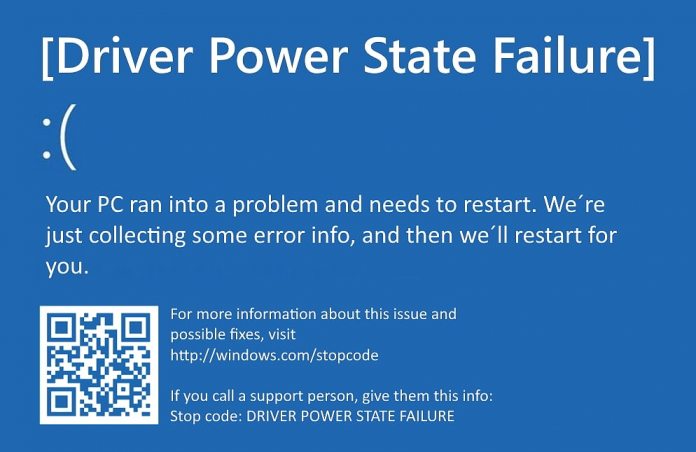
Driver state power failure error can be linked to three things happening in your computer. Incorrect power settings, driver issues, or incompatible hardware. Sadly when this error happens you only receive a blue screen of death with this message:

Blue screen of death driver power state failureSadly receiving this blue screen does not really explain which of the three cases is the correct one and causing the unwanted issue.

That being said, this article will not offer you a direct solution this time, it will be more like a guide on what to check and to do in order to remove this error, reason for this is the nature of the error itself.

If your computer is booting properly and you can enter Windows without issues the first thing you can try is going into power options and set it to high performance, if you are on a laptop set high performance both ways, when plugged and when on battery. Power performance settings can reflect on some hardware and can cause mayhem. After setting reboot the computer and see if the error repeats itself.

If the error persists go to the device manager and see if there is hardware that has any kind of warning beside it. If there is, update the driver or remove the driver of the device to see if this fixes the issue.

If all of the previous two things fail there is another thing you could try. Turn off your computer and disconnect all hardware except the most basic one. Now, this may take a long period of time but boot your computer and then repeat this process but each time add a new piece of hardware to eliminate and find which one is causing the issue. When found try to see if it is repairable through driver updates or get a new device.

Do You Need Help with Your Device?

Our Team of Experts May Help
Troubleshoot.Tech Experts are There for You!
Replace damaged files
Restore performance
Free disk space
Remove Malware
Protects WEB browser
Remove Viruses
Stop PC freezing
GET HELP
Troubleshoot.Tech experts work with all versions of Microsoft Windows including Windows 11, with Android, Mac, and more.

Share this article:

You might also like

Fix Libmysql.dll is Missing Error in Windows
Libmysql.dll is missing or not found error appears in Windows when the user is trying to open and run the application. In this guide, we will offer you solutions on how to fix and remove this annoying error.
  1. Check recycle bin

    Some applications or purely by accident itself libmysql.dll gets deleted. If you have not turned recycle bin off go to it and check to see if the file is by any chance there. If you find it, right-click on it, choose restore, the error will be gone.
  2. Update drivers

    Press ⊞ WINDOWS + X to open the Windows menu and click on Device manager In device manager locate device which has alert mark next to it Right-click on it and choose update driver Reboot your computer
  3. Run SFC scan

    Press ⊞ WINDOWS + X and choose command prompt (admin) In command prompt type in sfc /scannow and press ENTER wait for the operation to complete and Reboot your system
  4. Reinstall application

    if you are getting an error only on one application or an error has started to appear after the installation of a particular application go to Windows applications, uninstall it and then install it again. There is a chance that the file has been corrupted during the installation process.
Read More
The proxy server is refusing connections
If you receive an error message saying, “The proxy server is refusing connections” while trying to open a website on your Google Chrome or Mozilla Firefox browser in Windows 10, then read on as this post will guide you in fixing this error. This kind of error occurs when you have a wrong or dead proxy configuration or when you are using some VPN service. However, this kind of error could also mean that your computer might be infected by malware which caused some changes in the internal settings. Whatever triggered the error, here are some suggestions that could help in fixing it.

Option 1 – Check the proxy settings in your browser

Like other browsers, Firefox allows users to set up proxy in several ways. However, if you’ve made any changes recently which might have caused the error, the first thing you can do is to check the proxy settings in your Firefox browser. Follow the steps below to do so.
    • Open the browser and go to Menu and then click Options.
    • After that, go to the General tab and scroll down and click the Settings button under Network Settings.
  • From there, make sure that the Use system proxy settings option is set. If not, you have to enable No proxy and then save the changes made.
  • Now check if the “The proxy server is refusing connections” error is fixed or not.
Note: If you want to use a proxy in Firefox, you have to select the Manual proxy configuration and set it up properly. And if your network has a proxy setting and you want to grab that, you have to opt for the Auto-detect proxy settings for this network option.

Option 2 – Try disabling the proxy server for your LAN

If your PC was just attacked by some adware or malware as of late, it is possible that it has changed the network settings in the system and might display spam advertisements. Thus, you have to disable the proxy server for your LAN. To do that, refer to these steps:
  • Tap the Win + R keys to open the Run dialog box.
  • Then type “inetcpl.cpl” in the field and hit Enter to pull up the Internet Properties.
  • After that, go to the Connections tab and select the LAN settings.
  • From there. Uncheck the “Use a Proxy Server” option for your LAN and then make sure that the “Automatically detect settings” option is checked.
  • Now click the OK and the Apply buttons.
  • Restart your PC.
Note: If you are using a third-party proxy service, you have to disable it.

Option 3 – Try disabling the manual proxy setup from Settings

In case you miss it, there is actually an option in the Settings panel that you can use to set up a proxy in your Windows 10 computer. So if you encounter the “The proxy server is refusing connections” error, you should disable manual proxy for the meantime and check if it fixed the error or not.
  • Tap the Win + I keys to open the Windows Settings.
  • Then go to Network & Internet > Proxy.
  • And on your right-hand side, ensure that the Automatically detect settings are enabled and that the Use a proxy server option under the Manual proxy setup is disabled.
  • Now try to open any website again and see if the problem’s fixed.

Option 4 – Check your VPN

If you are using a VPN application, there are times when it causes some issues like this error. If that’s the case, you can try to disable your VPN temporarily and see if the error is resolved or not and if turns out that your VPN is the culprit, you have to uninstall it and install a new one or its latest version. To uninstall it, follow the steps below.
  • Tap the Win + R keys to open the Run dialog box
  • Then type “appwiz.cpl” in the field and hit Enter to open the Programs and Features in Control Panel.
  • From there, look for the VPN service you are using, select it and then click on Uninstall to remove it.
  • After that, restart your computer and try to install the latest version of the program again. It should work now. If not, proceed to the next available option below.

Option 5 – Clear your browser’s internet cache

You actually have the option to Hard Refresh in order to clear the cache of your browser either pressing key combination Ctrl +F5.

Option 6 – Try scanning your computer using Windows Defender

As mentioned, the “The proxy server is refusing connections” might be caused by some malware in the system and so to eliminate the malware, you have to scan your computer using security programs like Windows Defender.
  • Tap the Win + I keys to open Update & Security.
  • Then click on the Windows Security option and open Windows Defender Security Center.
  • Next, click on Virus & threat protection > Run a new advanced scan.
  • Now make sure that Full Scan is selected from the menu and then click the Scan Now button to get started.
Read More
Disable non MS store apps in Windows 11
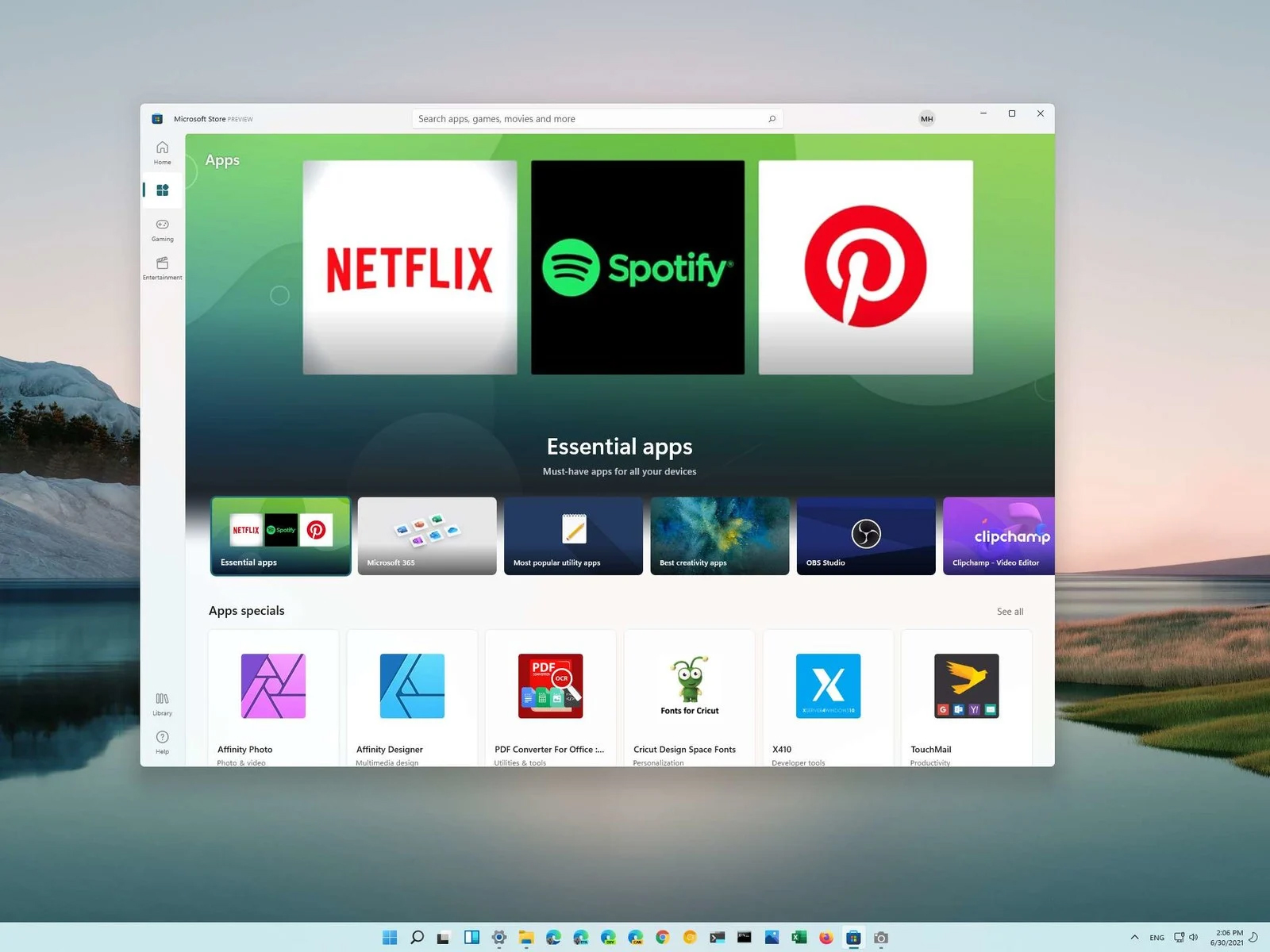
Disable non MS store apps in Windows 11 post pictureYou can prevent starting of app installations files if they have not come from the MS store inside Windows 11. This can make your PC more secure because all apps in the store will have to be digitally signed and overall it can provide you with more control over what will be installed. Follow the guide below to find out how can you easily turn this feature ON.
  1. Press ⊞ WINDOWS + I to open Windows settings
  2. Select Apps and then choose Apps & Features
  3. Click on Choose where to get apps to bring a drop-down menu
  4. Select The Microsoft Store only (Recommended)
  5. Close settings
Settings will apply changes immediately and you continue using Windows right away. With these settings turned ON if you want to install a downloaded application or run the installer you will not be able to, and message The app you’re trying to install isn’t a Microsoft-verified app will show on your screen. You can always reverse this setting by choosing Anywhere in settings instead of Microsoft store only.
Read More
Disabling the Recently Opened Files in Windows
The Windows 10 operating system comes with a user-friendly interface as well as better security features compared to its previous versions. One of these new features is the “Recently Opened Files” feature which displays all the files you’ve opened recently in File Explorer. Although it might seem useful, some users see this as a privacy concern especially if there are other users that use the same computer. If you are one of these users, read on as this post will guide you on how you can disable the “Recently Opened Files” feature in Windows 10. There are three ways you can disable the “Recently Opened Files” feature. You can manually clear the recent files, or disable the feature via Control Panel. You can also do it using the Group Policy Editor.

Option 1 – Manually clear the recent files

The first thing you can do is to clear the recent files manually. Since the information about the recently opened files is stored in the form of cached data, you can locate this data and delete it manually, from time to time. To do that, follow these steps:
  • Tap the Win + R keys to open the Run utility and copy this address in the field: %AppData%MicrosoftWindowsRecent
  • Next, tap the Ctrl + A keys to select all the items and then tap the Shift + Delete keys simultaneously.
  • After that, a prompt will appear where you have to click on Yes. This will delete all the recently opened files in the File Explorer the next time you open it.

Option 2 – Disable the feature via Control Panel

The next option you can try to disable the feature is via Control Panel. Refer to these steps to do so:
  • First, click on the Start Menu button and select the Settings icon.
  • After that, click on Personalization and then on Start located on the left pane.
  • Next, scroll down until you see the “Show recently opened items” in Jump Lists on the Start or the Taskbar and click on it and then toggle it off.

Option 3 – Disable the feature using the Group Policy Editor

If you are using the Windows 10 Pro version, then you have access to edit the functions in the Group Policy. The Group Policy function has the option that can disable all the default services of Windows 10. Note that in this step, you will permanently disable the “Recently Opened Files” feature. So before you proceed, make sure that you really want to disable this feature permanently and not in the meantime.
  • Tap the Win + R keys to open the Run dialog box and type “gpedit.msc” in the field and click OK or tap Enter to open the Group Policy Editor.
  • Next, on the left side pane, click on the “User Configuration” option and then click the “Administrative Templates” option.
  • After that, select the “Start Menu and Taskbar” option and select the “Don’t keep the history of recently opened documents” option in the right pane.
  • Now double click on this option and check the “Enabled” option and then click on Apply and OK buttons to save the changes made.
Read More
Removal guide for Movie Mode Potentially Unwanted Program

MovieMode is a Potentially Unwanted Program developed by GenTechnologies Apps that allegedly ads a “Lights Off” function to video streaming websites like Youtube. This feature allows a user to dim the entire background around the video, allowing for better video focus. Although this sounds interesting and useful, upon further inspection it was discovered that this program does not work with modern browsers.

While installed, MovieMode may modify your browser settings, changing your home page, displaying additional ads, and other suspicious behavior. From the Terms Of Use: “Applications may be automatically enabled on your web browsers following installation. Applications or advertisements may require changing your web browser’s default home page, default page, or set of pages on startup, default search provider, and other browser settings. So that Applications can function most efficiently and with the least annoyance, Applications may modify or disable certain web browser or operating system features including, but limited to load time alerts, accelerator features, and Content Security Policy functionality. Applications may also include features to notify you when you are launching an application or visiting a web domain that may interfere with your installed Applications. “

About Potentially Unwanted Applications

What is a Potentially Unwanted Program (PUP)?

Have you ever detected an unwanted program running on your computer and wondered how the heck it got there? These unwanted programs, which are referred to as Potentially Unwanted Programs, or PUPs in short, usually tag along as a software bundle when downloading the program and could cause significant problems for users. From the technical perspective, a PUP is not true “malware”. A basic difference between PUP and malware is distribution. Malware is normally dropped via vulnerability exploitation while PUP gets installed with the consent of the end-user, who knowingly or unintentionally approves the PUP installation on their computer system. On the other hand, it is obvious that PUPs are still bad news for computer users as they could be quite dangerous to the computer in lots of ways.

How do unwanted programs impact you?

Unwanted programs can be found in many forms. Typically, they will be found in adware bundlers that are known to use aggressive and deceptive advertising. Most bundlers install numerous adware applications from various vendors, each of which has its own EULA policy. Safebytes Anti-malware completely eradicates this threat and safeguards your PC against unwanted programs or malware infection. Additionally, most free software programs these days include a few unwanted add-ons; in many instances an internet browser toolbar or browser modification like a homepage hijacker. Not only they needlessly use up space on your screen, but toolbars may also manipulate search results, track your browsing activities, decrease your web browser’s overall performance, and slow down your web connection to a crawl. They could seem innocent but PUPs are sometimes spyware. The worst part of setting up a PUP is the spyware, adware, and keystroke loggers that may hide inside. Most PUPs don’t have any significant value or advantages. As soon as they are installed, they could waste your valuable system resources and also drastically slow down computer performance. Many of these programs are harmful to computer systems and put your private information and perhaps your identity at stake.

The best ways to stop PUPs

• Always study the license agreement and privacy statement. Don’t agree unless you understand exactly what you’re agreeing to. • Always pick the custom if you’re provided a choice between Recommended and Custom Installations – never ever click Next, Next, Next blindly. • Use an ad blocker/pop-up blocker; Install anti-malware products such as Safebytes Anti-malware. These kinds of programs can establish a wall between your computer and online criminals. • Avoid adding freeware software you simply won’t utilize. Avoid downloading and installing browser extensions and applications you aren’t familiar with. • Always download applications from the original site. The majority of PUPs find their way to your computer is through download portals, so stay away from it entirely.

What To Do If You Cannot Install Safebytes Anti-Malware?

Malware could cause all sorts of damage after they invade your computer, from stealing your private details to deleting files on your PC. Some malware goes to great lengths to prevent you from downloading or installing anything on your computer system, especially antivirus software programs. If you’re reading this, you probably have infected by malware that prevents you from installing a computer security program like Safebytes Anti-Malware. There are a few fixes you can attempt to get around with this particular problem.

Download the software in Safe Mode with Networking

In the event the malware is set to load at Windows startup, then booting in Safe Mode should prevent it. Just bare minimum required applications and services are loaded whenever you boot your computer or laptop into Safe Mode. You will need to do the following to get rid of malware in Safe mode. 1) At power on/start-up, press the F8 key in 1-second intervals. This will invoke the Advanced Boot Options menu. 2) Use the arrow keys to choose Safe Mode with Networking and press ENTER. 3) Once you get into this mode, you should have internet access again. Now, utilize your web browser normally and go to https://safebytes.com/products/anti-malware/ to download and install Safebytes Anti-Malware. 4) Immediately after installation, do a complete scan and let the program get rid of the threats it detects.

Obtain the anti-malware program using an alternate browser

Some malware only targets certain internet browsers. If this is your situation, utilize another web browser as it might circumvent the malware. If you are not able to download the security software using Internet Explorer, this means the virus could be targeting IE’s vulnerabilities. Here, you must switch to an alternate internet browser such as Firefox or Chrome to download Safebytes Anti-malware software.

Create a portable USB antivirus for eliminating viruses

Another option is to create a portable anti-malware program on your USB stick. Follow these steps to use a thumb drive to clean your infected computer. 1) On a clean computer, install Safebytes Anti-Malware. 2) Insert the pen drive on the same system. 3) Run the setup program by double-clicking the executable file of the downloaded software, which has a .exe file extension. 4) Pick a USB flash drive as the location when the wizard asks you exactly where you want to install the software. Follow activation instructions. 5) Disconnect the USB drive. Now you can use this portable anti-malware on the infected computer system. 6) Double-click the antivirus software EXE file on the pen drive. 7) Click on “Scan Now” to run a complete scan on the affected computer for malware.

SafeBytes Anti-Malware Features

Are you looking to download the best anti-malware software for your system? There are plenty of applications in the market that comes in paid and free versions for Microsoft Windows systems. Some of them are good, some are ok types, and some will ruin your computer themselves! While looking for antimalware software, pick one which gives dependable, efficient, and total protection against all known viruses and malware. On the list of recommended software is SafeBytes AntiMalware. SafeBytes carries a really good reputation for excellent service, and customers are happy with it. SafeBytes anti-malware is a highly effective and user-friendly protection tool that is designed for users of all levels of IT literacy. With its most advanced virus detection and repair technology, this software protects your personal computer against infections caused by various kinds of malware and similar threats, including adware, spyware, trojans horses, worms, computer viruses, keyloggers, ransomware, and potentially unwanted program (PUPs). SafeBytes has outstanding features when compared to other anti-malware programs. Here are some of the features you might like in SafeBytes Anti-Malware. Real-time Protection: SafeBytes gives complete and real-time security for your personal machine. It’ll monitor your computer for suspicious activity regularly and safeguards your computer from illegal access. Most Reliable AntiMalware Protection: Built on a greatly acclaimed antivirus engine, this malware removal tool has the capacity to find and remove several obstinate malware threats like browser hijackers, potentially unwanted programs, and ransomware that other typical antivirus software will miss. Safe Browsing: Safebytes assigns all sites a unique safety rating that helps you to have an idea of whether the webpage you are going to visit is safe to view or known to be a phishing site. Lightweight: SafeBytes provides total protection from online threats at a fraction of the CPU load due to its advanced detection engine and algorithms. Premium Support: You can get 24/7 technical assistance to quickly resolve any concern with your security application. Overall, SafeBytes Anti-Malware is a solid program since it has loads of features and can identify and remove any potential threats. Malware problems can become a thing of the past once you put this application to use. If you need advanced forms of protection features and threat detections, purchasing SafeBytes Anti-Malware could be well worth the dollars!

Technical Details and Manual Removal (Advanced Users)

If you don’t wish to use malware removal software and like to get rid of Movie Mode manually, you could possibly accomplish this by going to the Add/Remove Programs menu in the control panel and removing the offending program; in cases of browser add-ons, you can remove it by visiting the browser’s Add-on/Extension manager. You may even want to reset your browser settings, and also clear your web browser cache and cookies. To ensure the complete removal, manually check your hard drive and computer registry for all of the following and remove or reset the values as needed. Having said that, editing the Windows registry is often a hard task that only advanced computer users and professionals should attempt to fix it. Moreover, some malware keeps replicating which makes it difficult to get rid of. It is advisable that you carry out the removal process in Safe Mode.
Files: C:\ProgramData\MovieMode\MovieMode.exe C:\ProgramData\MovieMode\MovieModeService.exe C:\ProgramData\MovieMode\Uninstall.exe C:\Users\All Users\MovieMode\MovieMode.exe C:\Users\All Users\MovieMode\MovieModeService.exe C:\Users\All Users\MovieMode\Uninstall.exe C:\ProgramData\MovieMode C:\Users\All Users\MovieMode
Read More
Merge or Delete an OEM Partition in Windows
OEM Partition, also known as System Reserved Partition, is placed by the OEM to help users recover their computers or bring back the original state of the computer when it was bought. If you’ve observed that a part of your hard drive says “Healthy (OEM partition)” in the Disk Management and it occupies space in GBs, then this means that it’s normal and there’s nothing to worry about except that part of the storage space is not available and even when you right-click on it, the only thing it displays is the Help menu. Thus, in this guide, you will be guided on how you can merge as well as delete an OEM partition in your Windows 10 computer. Since the Disk Management tool in Windows won’t let you merge or delete the OEM partition, you can just use the built-in command-line tool known as Diskpart. Note that you have to be extra careful when you run the commands as it could mess your computer up and before you proceed with the instructions provided below, make sure that you create a System Restore point first. Once you have that covered, follow the instructions below. Step 1: Tap the Win + R keys to open the Run dialog box and type “cmd” in the field and tap Enter to open the Command Prompt. Step 2: Next, execute this command to launch the Diskpart tool: diskpart Step 3: Execute this second command to view the list of the disks in your computer: list disk Step 4: Now select the disk you want to manage by executing this command: select disk x Note: In the command above, replace “x” with the letter of your disk. Step 5: After that, execute this command to display all the volumes or partitions: list partition Step 6: Now execute this command to select the partition you want to delete: select partition x Note: You have to replace “x” with the partition you want to delete. Step 7: Once done, execute this command to delete the selected partition: delete partition override Step 8: Afterwards, execute this command to merge the OEM partition with the adjoining value: Extend Note: if you only want to merge part of the partition, you need to use this command “extend [size=<size>]”. For instance, you want to extend its size by 5GB, then you need to type “Extend size=5000”. The size you set is the size you select from the OEM partition. This will extend the selected volume by size in MB or megabytes.
Read More
Windows 10 tips and tricks for easy work
Hello everyone and welcome to our new Windows 10 tips and tricks article. Today we will be focusing on small Windows tricks that could prove very useful in everyday workflow and hopefully make your life easier by implementing them in your daily routine. I am very excited to share this with you all and I hope that you will use them from now on. That being said let us begin.

Tip 1: Minimize all open windows except one.

Daily to the daily routine can involve many opened windows on a desktop and sometimes things can get messy, if you want to minimize all windows to the taskbar except one do this: Click on one window thus selecting him, click and hold the left mouse button on that windows title bar, now shake it up and down and all other windows will escape down to taskbar leaving only one you are shaking on the desktop.

Tip 2: Open the Secret Windows menu.

Through our tutorials on various errors and fixes, we have used this method already but here it is again since it is worth mentioning. If you want to open the command prompt easy and fast, or device manager, event viewer, shut down, etc. In order to open this secret menu all you need to do is press ⊞ WINDOWS + X.

Tip 3: Create an Event without opening the calendar application.

You can easily create an event without opening a calendar application, all you have to do is left-click on the clock in the taskbar, click once on a date for the event, and under calendar in event field type event description. The event will show in the calendar application like it was entered there.

Tip 4: Taking a screenshot.

This one is my favorite and it speeds up workflow very very much. Typically you take screenshots by pressing the PrntScr button on your keyboard. Now, the problem with this approach is that the screen is placed in computer memory, in the clipboard and you will need another picture processing application in order to save it. Now if you would press ⊞ WINDOWS + PrntScr, the picture would be automatically saved in your pictures/screenshots folder. And if that is not enough, you can press ⊞ WINDOWS + S + SHIFT to start Snip & Sketch tool and select the area which you would like to screen capture, this method will also place pictures in the clipboard.

Tip 5: Open pinned applications in your taskbar with your keyboard.

We have covered this one in our Windows keyboard shortcuts tips and tricks here, but if you missed that article here is the tip again. By pressing ⊞ WINDOWS + number 1,2,3...0 you will start the application from your taskbar counted from left to right.

Tip 6: Check how much Hard drive space installed applications are taking.

Applications and temporary files grow over time and can slow the system and cause some other unpleasant experiences. Go to Settings > System > Storage, click on the Hard drive on which you have installed applications, and see how much each one is taking, you can remove it from this screen also freeing some space.

Tip 7: Remove ads from the START menu.

Windows has so-called suggestions in the START menu, no matter how Microsoft is calling them, let's face it, they are ads and in my opinion, they do not belong in my START menu. To turn them off, go to Settings > Personalization > Start. Toggle the setting called Show suggestions occasionally in Start to the off position.

Tip 8: Shut down background applications.

Some applications are running in the back and are taking system resources and can send telemetry information, if you want to turn them all off go to Settings > Privacy > Background apps. To stop all apps from running in the background, toggle Let apps run in the background to off. You can choose which apps to run in the background individually by going down the list on the same page.

Tip 9: Use Background scrolling.

Did you know that you can scroll on inactive windows? To do this, just hover over the inactive background window and roll your mouse when the content of the window should be scrolling even if it's not one you are working on. If by any chance this is not happening, go to Settings > Devices > Mouse, and toggle Scroll inactive windows when I hover over them to On.

Tip 10: Show file extensions in File Explorer.

By default extensions of files are hidden, so let's say that for example, you are in a folder with pictures, you have plenty of pictures there but you do not know are they JPG or JPEG for example, do not worry there is an easy fix to bring showing extensions back. Start File Explorer, click on view top menu item, click on options, Uncheck the box that says Hide extensions for known file types. Click Apply, and OK.

Tip 11: Use focus assist.

Set it up by going to Settings > System > Focus assist. Choose from three options: Off (get all notifications from your apps and contacts), Priority (see only selected notifications from a priority list that you customize, and send the rest to your action center), and Alarms only (hide all notifications, except for alarms). You can also choose to automatically turn this feature on during certain hours, or when you're playing a game.

Tip 12: Rotate your screen.

If you have multiple screens set up or you have the rotatable screen press and hold CTRL + ALT together, then use a directional arrow to flip the screen. The right and left arrows turn the screen 90 degrees, while the down arrow will flip it upside down. Use the up arrow to bring the screen back to its normal position.

Tip 13: Enable GOD mode.

Have you always felt limited with Windows settings? Don't be, Right-click on the desktop and select New > Folder. Re-name the new folder with this bit of code: GodMode.{ED7BA470-8E54-465E-825C-99712043E01C} To enter the "God Mode" window, double-click the folder.

Tip 14: Use Virtual Desktops.

Click on Task View (the icon next to the search box). This will separate all your open windows and apps into icons. You can then drag any of them over to where it says "New desktop," which creates a new virtual desktop. Once you click out of Task View, you can toggle between virtual desktops by pressing the ⊞ WINDOWS + CTRL + right/left arrows. To remove the virtual desktops, just go back into task view and delete the individual virtual desktops, this will not close out the apps contained within that desktop, but rather just send them to the next lower desktop.

Tip 15: Customize the command prompt.

Yes, you can customize the command prompt, in order to do so, open it and right-click on its title bar, choose properties and go wild. Special badge if you make it look like commodore 64 BASIC.

Tip 16: Dictate, not type.

If you have speech recognition ON, pressing ⊞ WINDOWS + H will bring up a voice recorder, just speak and see how you can easily "write" emails, etc.

Tip 17: Use sandbox.

In Windows you have a sandbox option, which will open another Windows instance inside Windows, what do you need this? Well once the sandbox is closed everything in it is closed and if you catch the virus or other dangerous software, closing the sandbox will destroy it not affecting your actual Windows. Use it for safety testing and enjoy an easy life. Enable Windows Sandbox inside the Control Panel.

Tip 18: Use a hidden game bar.

Press the ⊞ WINDOWS + G, you can pull up the new-and-improved Game Bar. This lets you switch your Windows PC into gaming mode, which pools system resources to the game, turns off notifications, and lets you record and broadcast your gaming, along with added panels for controlling your audio, monitoring FPS, and tracking achievements. And that's it, Our 18 tips and trick to make your Windows 10 life easier, more productive, and overall more enjoyable. I certainly hope you have enjoyed reading this article same as I was writing it. Until next time if I do not see you, good afternoon, good evening, and good night.
Read More
Fix Wi-Fi doesn't have a valid IP configuration

In today's time, Wi-Fi is a common occurrence, each household has it, on town squares, there are free Wi-Fi hotspots, etc. But sometimes when relaxing at home WI-Fi can fail on us and stop working. If this happens to you do not lose your mind because we have several troubleshooting help tips and ways to get it back quickly so you can continue with your browsing and using your internet.

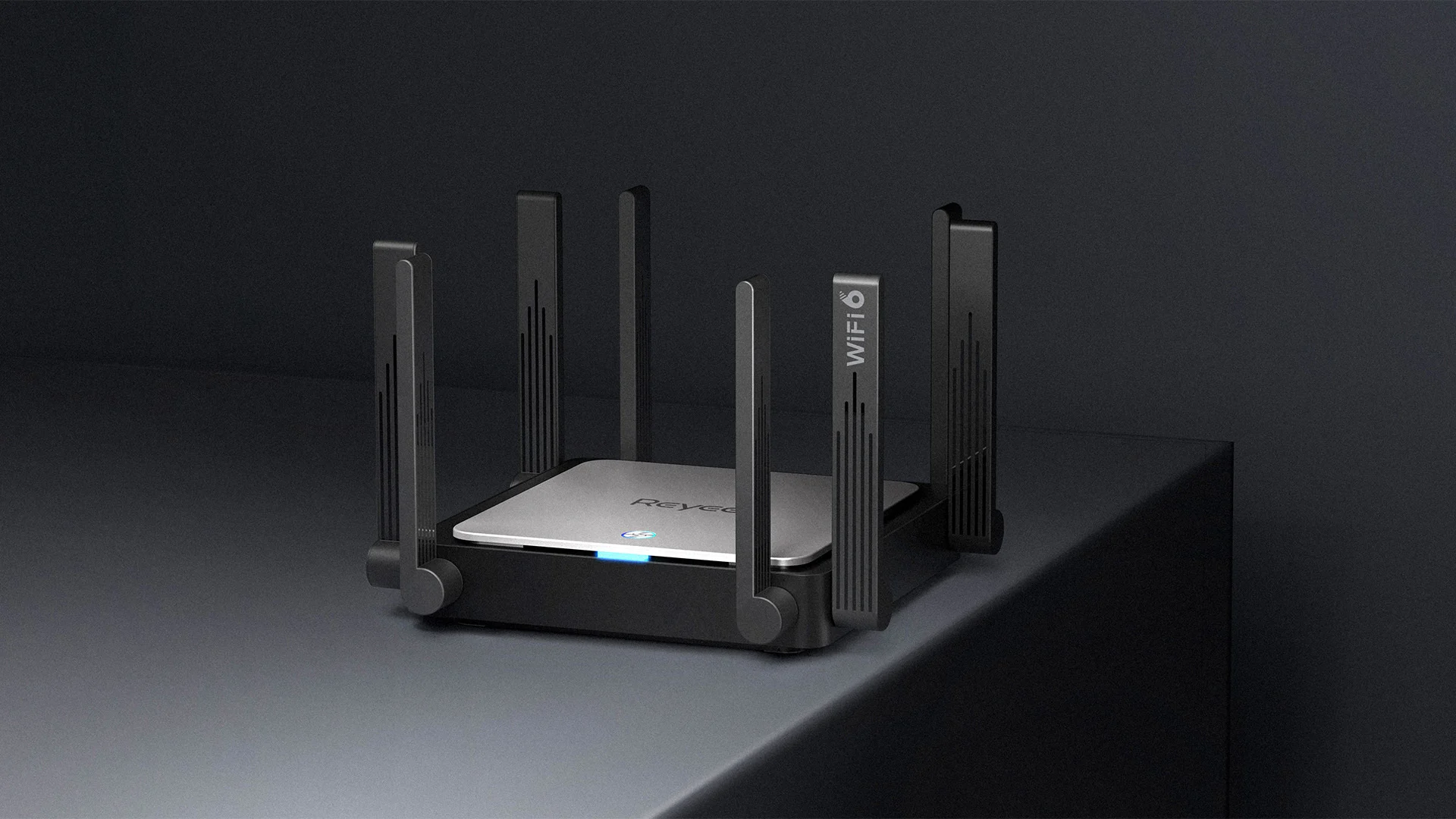
wi-fi router

Restart the Router and Computer

Yes, we will start with this typical cliche in IT and tech in general. Surprisingly this method still proves over and over again to be true and effective. Over time some electric components simply start working a little bit differently, electrostatic electricity can accumulate on some parts and they can cause issues. By turning off the device and leaving it for some time you are discharging accumulated electrostatics and placing it again into normal working mode.

Unplug your router and leave it for at least 30s like that, a full 1 min is recommended, and then plug it back. Turn it on and restart your computer in order to reboot addresses.

Reset DHCP

If simple have you tried unplugging it and plugging it back in did not work let us reset DHCP. Click on the start button and type in PowerShell, then click on Run as administrator. Once inside the PowerShell type in the following command followed by ENTER: ipconfig /release and after the command finishes, type in: ipconfig /renew also followed by ENTER key. Try the connection again.

Reset TCP/IP stack

The next thing that we will try if the previous one failed is to reset the TCP/IP stack to eliminate corruption of settings files. Like in the previous step, press Start and type in PowerShell and click on run as administrator. inside type in: netsh int IP reset and press ENTER key. Wait for the process to finish and reboot your PC.

Reset WinSock

WinSock is yet another part of Windows OS that is responsible for network communication and resetting it could solve the issue. Again go to PowerShell as described in previous steps and type in this time: winsock reset and press ENTER. Wait for the process to finish and restart your computer.

Other things you can try

Change TCP IP setting back to automatic if you have set manual Ip address on your computer.

Update your network driver via the manufacturer's website of your network adapter. There is a chance that somewhat updates are available to address some issues discovered.

Factory reset your router on the back by locating the reset button on it and pressing and holding it for around 10s.

Turn off your firewall and antivirus protection in order to eliminate it from blocking your internet access.

Read More
Quick Guide to Fixing 0x0000007E Error

What is 0x0000007E Error Code?

If you’ve been experiencing a 0x0000007E error code pop message on your PC frequently then you need to get it fixed before it causes serious damage to your system. 0x0000007E is a Stop error or Blue Screen of Death error code. This error message turns your computer screen blue and locks you out of the program running on your computer. It freezes your system and hampers your ability to perform any type of task on your PC.

Solution

Restoro box imageError Causes

Error 0x0000007E, a blue screen of death error triggers registry issues. It’s not easy to narrow down the cause of 0x0000007E as it results due to many reasons like memory overload, cluttered disk space, viral infection, malware attack, and if the hardware malfunctions. Ignoring 0x0000007E error pop up is not wise. It is more like a warning of the serious damage that can happen to your PC if it is not fixed timely. It also leads to slowing down the system and increases boot time. This error message exposes you to dangerous Windows PC threats like registry corruption and damage. Registry corruption can lead to system crash and failure and you may also lose all your important data saved on your PC.

Further Information and Manual Repair

Install Restoro

You don’t always have to spend hundreds of dollars to hire a technician to fix error pop-ups on your PC try using Restoro Restoro is an advanced and multi-functional PC repair tool with a comprehensive suite of powerful features designed to resolve almost all types of PC errors in seconds including 0x0000007E error code. It is a next-generation PC repair tool that serves as a system optimizer, anti-virus, and quality registry cleaner. Its built-in intuitive technology enables Restoro to scan, identify and repair the ultimate cause of the error code 0x0000007E in just a few seconds. Eventually, it spares you from the hassle of finding the root cause of the 0x0000007E error message and then selecting a tool specifically designed to resolve only that particular cause with limited features. This highly functional PC error tool is the answer for all your registry issues. By running Restoro on your PC, you can fix the 0x0000007E BSOD error code and avoid registry corruption.

Why Restoro?

The smart registry cleaner utility embedded in this tool enables it to scan for registry errors and clear up disk space accumulated by junk files, internet temporary files, invalid entries, and other types of unnecessary files taking up a good chunk of your disk space. This clutter also slows down your PC performance as it requires more power than it has to run the system because of the excess load on the RAM. However, by wiping out the clutter with this helper, you can optimize the speed of your PC and see a significant difference in its performance. Restoro backup feature enables you to create backup files for safety purposes. Furthermore, it has several other built-in value-adding features like privacy error utility and system stability utility for enhanced functionality. To resolve the error code 0x0000007E in seconds, all you need to do is download and install Restoro on your system and run it to scan for errors. In a few seconds, you will see a scanning report with comprehensive details of the types of PC damages. To fix the issue right away, create backups and click ‘fix’ to resolve. In just a few clicks you can repair your PC. Download Restoro Today!
Read More
How to Fix Windows 10 Error 0x80072ee7

Error Code 0x80072ee7 - What is it?

Error Code 0x80072ee7 is an error code that is most commonly associated with Windows 10 and the use of the Windows Store. Several things can cause this error, which has been present as an error message in Windows 10 and all the way back through Windows 8.

Common symptoms include:

  • An error message when you attempt to connect to the Windows Store.
  • Inability to download or install purchases from the Windows Store.

Fortunately, there are several simple methods that can be used to attempt to resolve Error Code 0x80072ee7 on your Windows machine. These methods don’t require advanced computer knowledge or familiarity with high-level tools, so the average user should be able to complete them without help. However, if you feel like you need assistance in resolving Error Code 0x80072ee7, always contact a qualified Windows repair technician who can assist you.

Solution

Restoro box imageError Causes

There are four basic things that can cause Error Code 0x80072ee7 to appear on a Windows device. The first is that the connection to the Internet is limited in some manner, either due to a system or equipment error. Secondly, some parts of the update components could be missing. Next, an error within the DNS can be a cause. Finally, having any kind of compatibility errors on the machine (for example, between the antivirus software that you run and the Windows Update tool) can lead to the appearance of Error Code 0x80072ee7.

Further Information and Manual Repair

There are a few different methods that you can try in order to resolve the appearance of Error Code 0x80072ee7 on your Windows machine. These are fairly simple to complete, but if you do not feel confident in your ability to carry them out successfully, you may want to get in touch with a qualified computer repair technician to help you.

Here are the best methods to employ as you seek to resolve Error Code 0x80072ee7 on your Windows device:

Method One: Check Your Connection

Make sure that you are able to connect to the Internet by visiting several common sites like Google in order to ensure that your issue is not related to your Internet service provider or the equipment that you are using to access the Internet.

Method Two: Use an Alternative DNS

If you believe that your DNS connection may be the problem, you can change the specific DNS that you are using to one that is provided by Google. This can resolve any conflicts that may occur because of the IP address detected on your device. In order to do this, simply follow these steps:

  • Step One: Go into your control panel and click on the option for “Network and Internet,” then select “Network and Sharing Center.” You’ll want to find the option to “change adapter settings,” which is normally located on the left bar of the navigation panel.
  • Step Two: Find the connection method that you are employing (i.e. Wi-Fi network).
  • Step Three: Right-click and find the connection properties menu. Under the TCP/IPV4 menu, click on the option to change your DNS numbers to manual entry and set your preferred DNS server to “8.8.8.8” and your alternate server to “8.8.4.4”.

Once these steps are complete, you can reattempt to connect to the Windows Store. You may need to restart your computer before connecting.

Method Three: Run the Fix It Tool from Windows

Microsoft has created a great tool that can automatically scan your computer for a number of common errors and attempt to fix them as they are encountered. This can be downloaded directly from the Windows site and can be used to try to fix not only Error Code 0x80072ee7 but also many other error messages that may pop up on your computer.

After you have run the Fix It tool, it is always a good idea to restart your computer to allow any changes that have been made to fully take effect.

Method Four: Use An Automated Tool

If you wish to always have at your disposal a utility tool to fix these Windows 10 and other related issues when they do arise, download and install a powerful automated tool.

Read More
1 2 3 171
Logo
Copyright © 2023, ErrorTools. All Rights Reserved
Trademark: Microsoft Windows logos are registered trademarks of Microsoft. Disclaimer: ErrorTools.com is not affiliated with Microsoft, nor claims direct affiliation.
The information on this page is provided for information purposes only.
DMCA.com Protection Status