Logo

Proton Drive, privacy-first cloud storage

In 2014 Proton mail started as an end-to-end encrypted email service offering secure and private email services. Proton mail is still live and going with the same dedication to privacy and security but the company has expanded its offering into cloud storage drive services.

Starting as a public beta at the end of 2020, Proton Drive is keeping its privacy and security policy philosophy with the new service. Proton Drive is the newest service besides Proton Calendar, Proton VPN, and Proton Mail.

proton drive

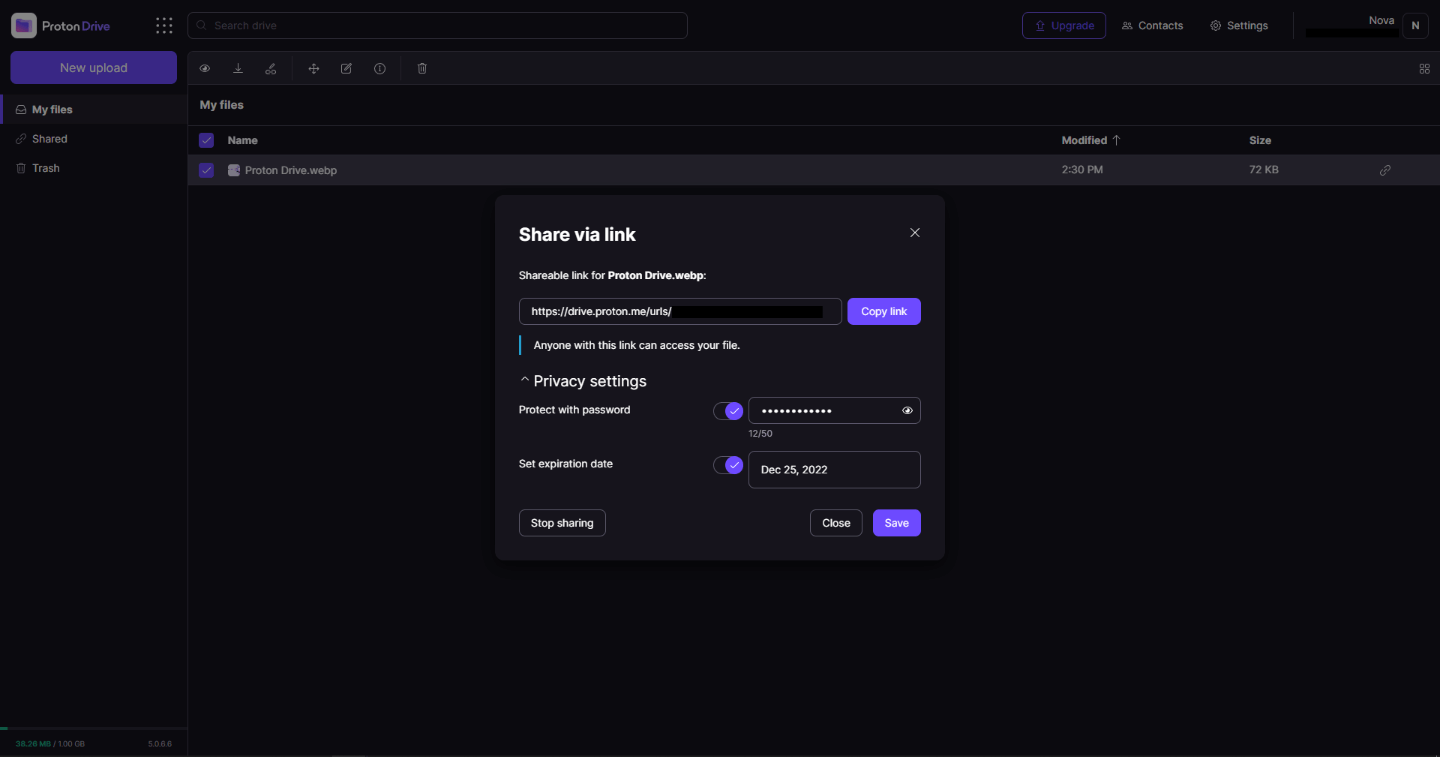
Drive has end-to-end encryption for everything on it including files themselves, filenames, folder structure, folder names, extensions, and file sizes. This means that you and only you can access your files. Servers are located in Geneva, Switzerland and they are under Swiss privacy laws making sure that your files are protected. Proton services in general are all open source so anyone can take a look at them to be sure that nothing is lurking under the hood. For now, sync is done either via the android app or web interface but the desktop client will come soon since currently, it is under development.

Sadly free plan of Proton Drive will give you only 1GB of storage which is much less than other services and sadly payments plans are also not so jaw-dropping going for $4 USD per month for a 200GB plan or with Proton ultimate subscription that will set you $10 behind but you will get 500GB of drive storage. Of course, if you value privacy for your files these options are good but if you do not mind that part other services have much better options.

All in all Proton Drive is a great cloud storage solution if you need privacy and well worth the investment. With the ultimate subscription, you will get enough space for most people and company needs with other services and guaranteed privacy and security, on the other hand, if you just need a large amount of cloud storage not caring too much about privacy other options are better.

Do You Need Help with Your Device?

Our Team of Experts May Help
Troubleshoot.Tech Experts are There for You!
Replace damaged files
Restore performance
Free disk space
Remove Malware
Protects WEB browser
Remove Viruses
Stop PC freezing
GET HELP
Troubleshoot.Tech experts work with all versions of Microsoft Windows including Windows 11, with Android, Mac, and more.

Share this article:

You might also like

Fix Black border or bar on Monitor
If you suddenly see a black border in your computer’s display then you might be wondering how come this happened but worry not for this post will give you a couple of suggestions that could help you resolve the problem. The black bar could appear at the bottom or just the sides of the screen. Whichever it may be, there are options you can check out. Refer to the options givens below and make sure to follow them carefully.

Option 1 – Try checking the screen resolution

You might want to try checking the resolution of your screen.
  • Open the Windows 10 Settings and go to Display.
  • Next, go for the “100% (Recommended)” option under Scale and layout for the size of the text, apps, and other items.
  • After that, select the Recommended setting again under Resolution.
Now check to see if the black bars are still there. They should be gone at this point, but if for some strange reason nothing has changed, then attempt the steps below.

Option 2 – Try updating Graphics & Monitor drivers

You might want to try updating your graphics and monitor drivers if you haven’t updated them for some time now. To do that, refer to these steps:
  • First, boot your computer into Safe Mode.
  • After that, tap the Win + R keys to launch Run.
  • Type in devmgmt.msc into the box and tap Enter or click OK to open the Device Manager.
  • After that, a list of device drivers will be displayed. From there, look for the Graphics drivers or the Monitor drivers and then click each one of them.
  • After that, right-click on each entry and select the “Uninstall Device” option from the menu.
  • Now restart your computer.
  • After restarting your computer, go to the Settings app and Check for Updates in the Windows Update section.
Note: You can also try to roll back the graphics and monitor drivers back to their previous versions if updating them didn’t work. You can also try visiting the manufacturer’s website and download the graphics or monitor driver setup for your operating system.

Option 3 – Try to run the DISM tool

You can also run the DISM Tool as it might also help in getting rid of the black border or bar on your Windows 10 computer. Using this built-in tool, you have various options such as the “/ScanHealth”, “/CheckHealth”, and “/RestoreHealth” which could help you resolve the problem.
  • Open the Command Prompt with admin privileges.
  • Then type in the following commands and make sure to hit Enter right after you type each one of them:
    • Dism /Online /Cleanup-Image /CheckHealth
    • Dism /Online /Cleanup-Image /ScanHealth
    • exe /Online /Cleanup-image /Restorehealth
  • Do not close the window if the process takes a while as it will probably take a few minutes to finish.

Option 4 – Troubleshot the problem in a Clean Boot State

There are some instances that some conflicting programs installed in your computer might be the one that’s causing the Black border issue. To identify which program is causing the problem, you need to put your computer in a Clean Boot State. To do so, follow the steps below.
  • Log onto your PC as an administrator.
  • Type in MSConfig in the Start Search to open the System Configuration utility.
  • From there, go to the General tab and click “Selective startup”.
  • Clear the “Load Startup items” check box and make sure that the “Load System Services” and “Use Original boot configuration” options are checked.
  • Next, click the Services tab and select the “Hide All Microsoft Services” check box.
  • Click Disable all.
  • Click on Apply/OK and restart your PC. (This will put your PC into a Clean Boot State. And configure Windows to use the usual startup, just simply undo the changes.)
  • From there, start to isolate the problem by checking which one of the programs you installed recently is the root cause of the problem.
Read More
NVIDIA GameStream is not working
The GameStream is an NVIDIA service that allows users to stream games from their Windows 10 computers to other supported devices which includes the NVIDIA SHIELD devices. However, a number of users reported that the NVIDIA GameStream is not working on their Windows 10 computers. This kind of issue is most likely caused by improper installation, some glitches with the network, and many more. To fix this issue in the NVIDIA GameStream, there are several options you need to check out to fix the problem. You can try to lo logout of GameStream and try logging back in again. You could also try to update or uninstall and reinstall the drivers related to NVIDIA or fix some network glitches or update the NVIDIA SHIELD device. For more details, you can refer to each one of the given potential fixes below.

Option 1 – Try to logout and log back into NVIDIA GameStream

The first thing you can do is to log out and then log back into NVIDIA GameStream. Some users claimed that by doing this simple task, they were able to resolve the problem. This is probably because with the re-login, the entire cache of the system and service is rebuilt and any bad sectors of that data will be replaced with the fresh one so this should resolve the problem with the NVIDIA GameStream, if not, refer to the other given options below.

Option 2 – Try updating the drivers from the official site of NVIDIA

If both the first and second given options didn’t work, you can also try updating the drivers from the official NVIDIA website. And in case you don’t know the type of Nvidia graphics card that your computer is on, follow the steps below:
  • Tap the Win + R keys to open the Run dialog box.
  • Next type in “dxdiag” in the field and click OK or hit Enter to open the DirectX Diagnostic Tool.
  • From there, you can see what type of Nvidia graphics card that your system is on.
  • Take note of your graphics card information and then look for the best drivers for your operating system. Once you’ve downloaded and installed the file, restart your PC.

Option 3 – Try to roll back the driver to the previous version

If updating the NVIDIA display drivers didn’t work for you, then it’s time to roll back the device drivers. It is most likely that after you updated your Windows computer that your driver also needs a refresh.
  • Tap the Win + R keys to launch the Run window and then type in the “MSC” command and hit Enter to open the Device Manager window.
  • Under the Device Manager, you will see a list of drivers. From there, look for the NVIDIA Drivers and expand it.
  • Next, select the driver entries that are labeled appropriately.
  • Then select each one of them and double click to open a new mini window.
  • After that, make sure that you’re on the Driver tab and if you are not, just navigate to it then click the Roll Back Driver button to switch back to the previous version of the NVIDIA Drivers.
  • Now restart your computer to successfully apply the changes made.

Option 4 – Try fixing your network

The next thing you can do to fix the problem with the NVIDIA GameStream is to fix the glitches in your network. Make sure that you connect both of your devices to a 5 GHz Wi-Fi network and you also have to ensure that the Wi-Fi connection you’re connected to is strong enough for both the devices for the latency to go down. Once you’ve covered all of these things with your network, restart your computer and change the Wi-Fi channel both devices are connected to. This should resolve the problem.

Option 5 – Try to update the NVIDIA SHIELD device

You might also want to update the NVIDIA SHIELD device. There are times when an outdated NVIDIA SHIELD device can result to several issues like the problem with the NVIDIA GameStream. Thus, you need to update NVIDIA SHIELD and check if it fixes the problem or not.
Read More
Taskbar is not visible in Remote Desktop
Recently, several users reported an issue on their Windows 10 computers where the taskbar is not visible when they tried to connect to a computer via Remote Desktop Protocol or RDP. The Remote Desktop Connection feature uses the RDP which allows users to access a computer remotely. This is actually different from the taskbar being hidden automatically until the pointer hovers on it since, in this scenario, the taskbar is completely not accessible which makes using the remote computer entirely difficult, if not impossible. There are several suggestions you can check out to resolve this problem, you can try to restart the process of Windows Explorer via Task Manager or you could clear the cache for multiple processes. You could also try to reinstall the Shell Experience components or show the local taskbar in the Remote desktop. Moreover, you could also try to update, uninstall or roll back the display driver/graphics card driver. For more details, refer to each one of the options given below.

Option 1 – Try to restart the Windows Explorer process

The first option you have to try to fix the problem with the taskbar is to simply restart the Windows Explorer process in the Task Manager.
  • Tap the Ctrl + Shift + Esc keys to open the Task Manager.
  • Next, go to the Processes tab and find the process of Windows Explorer.
  • Once you find it, right-click on it and select Restart to restart its process.
  • After that, restart your computer and see if you can now see the Taskbar.

Option 2 – Try clearing the cache of multiple processes

The next thing you can do to resolve the problem is to clear the cache of many processes in your computer. To do so, follow these steps:
  • Open the Notepad app and paste the following content in the text area:
@echo off taskkill /f /im explorer.exe taskkill /f /im shellexperiencehost.exe timeout /t 3 /NOBREAK > nul del %localappdata%PackagesMicrosoft.Windows.ShellExperienceHost_cw5n1h2txyewyTempState* /q timeout /t 2 /NOBREAK > nul start explorer @echo on
  • After that, tap the Ctrl + S keys to save the changes you’ve made in Notepad and select the “All files” as its file type, and then name it “CacheClearTWC.bat”.
  • Next, go to the location where you saved the file using File Explorer and then run it. This will run a couple of batch scripts which will clear the cache of multiple processes in the system.
  • Tap the Win + X keys and select the “Windows PowerShell (Admin)” option to open PowerShell as admin.
  • Next, execute this command in the command line: Get-appxpackage -all *shellexperience* -packagetype bundle |% {add-appxpackage -register -disabledevelopmentmode ($_.installlocation + “appxmetadataappxbundlemanifest.xml”)}
  • After the command has been executed, this will reinstall the Shell Experience components and should fix the problem with the taskbar.

Option 4 – Update, uninstall or rollback the Graphics card drivers

  • First, boot your computer into Safe Mode.
  • After that, tap the Win + R keys to launch Run.
  • Type in MSC into the box and tap Enter or click OK to open the Device Manager.
  • After that, a list of device drivers will be displayed. From there, look for the Display Adapters and click on them.
  • After that, right-click on each entry under the Display Adapters and select the “Uninstall Device” option from the menu.
  • Now restart your computer.
  • After restarting your computer, go to the Settings app and Check for Updates in the Windows Update section.
Note: You also have the option to go directly to the website of your graphics card manufacturers like NVIDIA, Intel, or AMD and go to the section called Drivers then check if there’s a new available update – if there is, download and install it.
Read More
Fix Windows Update Error 0x8007025D-0x2000C
Recently, a number of users reported getting an error code 0x8007025D-0x2000C while updating their Windows 10 computers using an ISO or the Media Creation tool. You will also see a detailed error message saying, “The installation failed in the SAFE_OS phase with an error during APPLY_IMAGE operation” together with the error code 0x8007025D-0x2000C. This kind of issue usually occurs when there is some problem with the installation files and when Windows Update fails to apply upgrade using the Media Creation Tool or ISO. To resolve this issue, you can use the troubleshooting options given below as a reference.

Option 1 – Try recreating the Windows 10 installation USB

Recreating the Windows 10 installation USB might help in fixing the problem. You can use a USB drive to do so but make sure that it has a great read-write speed. Follow the steps below to recreate Windows 10 installation USB”
  • Click this link and then click the Download Tool Now button.
  • Next, click the “Use the tool to create installation media (USB flash drive, DVD, or ISO file)…” option and follow the next given instructions on the screen.
  • Now select the ISO file option in step 5.
  • After that, you should now have an ISO file.
  • Next, go to the location where you’ve downloaded the ISO file.
  • Then right-click on the Windows 10 ISO file and select the Open with option and then select File Explorer.
  • Now click on “setup.exe” and follow the next instructions that appear on the screen. When asked, you have to select either Nothing (clean install) or Keep personal files only option. Take note that you must not select the “Keep personal files, apps, and Windows settings since it doesn’t really work.

Option 2 – Try running the Windows Update troubleshooter

You might also want to run the Windows Update Troubleshooter as it could also help in fixing Windows Update error code 0x8007025D-0x2000C. To run it, go to Settings and then select Troubleshoot from the options. From there, click on Windows Update and then click the “Run the troubleshooter” button. After that, follow the next on-screen instructions and you should be good to go.

Option 3 – Update the BIOS

Take note that you have to be careful when modifying something in the BIOS. So if you don’t know much about it, it’s best if you skip on this option and try the other ones instead. However, if you are well-versed in navigating the BIOS, then follow the steps below.
  • Tap the Win + R keys to open the Run dialog box.
  • Next, type “msinfo32” in the field and press Enter to open System Information.
  • From there, you should find a search field on the bottom where you have to search for the BIOS version and then press Enter.
  • After that, you should see the developer and version of the BIOS installed on your PC.
  • Go to your manufacturer’s website and then download the latest version of BIOS on your computer.
  • If you are using a laptop, make sure that you keep it plugged in until you have updated the BIOS.
  • Now double click on the downloaded file and install the new BIOS version on your computer.
  • Now restart your computer to apply the changes made.

Option 4 – Try restarting the Background Intelligent Transfer Service

The Background Intelligent Transfer Service or BITS is a part of the Windows Update service and is the one that manages the background download of Windows Update, as well as scans for new updates and so on. And if Windows Update is experiencing some problems, you can try restarting BITS but make sure that you have admin privileges to do so.
  • Tap the Win + R keys to open the Run dialog box.
  • Next, type “services.msc” in the field and hit Enter to open Windows Services.
  • From the list of Services, look for the Background Intelligent Transfer Service and double-click on it to open Properties.
  • After that, you need to set the Startup type to “Automatic (Delayed Start) and click on Apply.
  • Now click the Stop button to stop BITS and then click the Start button to restart the service.
  • Click OK to save the changes made and then restart your PC.

Option 5 – Try to update Windows after a couple of minutes or an hour

There are times when the issue is from Microsoft’s end. It could be that there’s some issue with Microsoft’s server so it would be better if you give it a couple of minutes or an hour or so before trying to run Windows Update again.
Read More
Easy Remove FoxTab From Windows

FoxTab Toolbar is a browser hijacking toolbar add-on for IE, Firefox, Chrome, and Opera browsers that claims that it allows you to access your favorite sites faster, and improving your overall search and browsing experience. 1-click access to search results, most popular websites, and web services directly from our Foxtab browser toolbar.

Fox tab will integrate itself into your browser, modifying the search engine, welcome page, and new tab. This toolbar may change some browser settings, display unwanted ads, and sometimes displays additional ads from its ad sponsor. Some of the settings that this toolbar changes can lower the security of your browser.

Upon installation the toolbar ads scheduled tasks in Windows, allowing it to run with your browser every time, and to automatically update itself. Several anti-virus programs have flagged this software as Malware and therefore it is classified as a browser hijacker and recommended for optional removal.

About Browser Hijackers

Browser hijackers (sometimes called hijackware) are a type of malicious software that modifies internet browser settings without the user’s knowledge or approval. These types of hijacks are rising at an astonishing rate across the world, and they can be actually nefarious and sometimes dangerous too. They are created to interfere with web browser programs for many different reasons. Often, hijackers will force hits to internet sites of their choice either to increase targeted traffic generating higher ad revenue, or to gain a commission for every user visiting there. Although it might appear harmless, these tools are made by malicious people who always try to take full advantage of you, so that hackers can earn money from your naivety and distraction. What’s more, hijackers can make the whole infected system fragile – other destructive malware and viruses will take hold of these opportunities to get into your computer system effortlessly.

How to know whether the browser is hijacked?

Symptoms that your internet browser is hijacked include: 1. your home page has been reset to some unknown webpage 2. bookmark and the new tab are also changed 3. default web engine is changed 4. you see unwanted new toolbars added 5. you’ll notice random pop-ups start showing regularly 6. your web browser starts running sluggishly or exhibits frequent glitches 7. Inability to navigate to particular sites, particularly anti-malware as well as other computer security software webpages.

How it infects your PC

Browser hijackers infect PCs in numerous ways, including via a file-share, a drive-by download, or an infected email. They can also be deployed via the installation of an internet browser toolbar, extension, or add-on. Also, certain shareware and freeware can put the hijacker in your PC through “bundling”. Browser hijackers can record user keystrokes to collect potentially invaluable information that leads to privacy issues, cause instability on systems, drastically disrupt the user experience, and ultimately slow down the PC to a point where it becomes unusable.

Tips on how to get rid of browser hijackers

Certain kinds of browser hijackers can be removed from your computer by deleting malicious applications or any other recently added freeware. Often, it can be a tough task to find and eliminate the malicious component because the associated file might be running as part of the operating system process. Also, manual removals require in-depth system understanding and thus can be a very difficult task for beginner computer users. Professionals always suggest users remove any malicious software including browser hijacker by using an automatic removal tool, which is easier, safer, and quicker than the manual removal process. Safebytes Anti-Malware detects all kinds of hijackers – including FoxTab – and eliminates every trace efficiently and quickly. Employ a pc optimizer along with your antivirus software to solve various computer registry problems, eliminate system vulnerabilities, and boost your computer performance.

Malware Blocking Access To Safebytes Website And Anti-Malware Downloads - What You Should Do?

Malware may cause many different types of damage to computer systems, networks, and data. Some malware is meant to interfere with or prevent things that you wish to do on your PC. It may well not permit you to download anything from the internet or prevent you from accessing some or all of the sites, particularly the anti-malware sites. If you’re reading this, you may have affected by a virus that stops you from downloading a computer security program like Safebytes Anti-Malware. There are a few steps you can take to get around this problem.

Download the software in Safe Mode with Networking

If any virus is set to load automatically when Microsoft Windows starts, getting into Safe Mode could very well block the attempt. Just the minimum required programs and services are loaded when you start your PC in Safe Mode. To start your Windows XP, Vista, or 7 computers in Safe Mode with Networking, please do as instructed below. 1) Tap the F8 key repeatedly as soon as your system boots, but before the large windows logo comes up. This would conjure up the Advanced Boot Options menu. 2) Choose Safe Mode with Networking using arrow keys and hit ENTER. 3) When this mode loads, you will have the internet. Now, get the virus removal software you want by utilizing the internet browser. To install the software, follow the guidelines within the setup wizard. 4) Immediately after installation, do a complete scan and let the program remove the threats it finds.

Download the antivirus program in a different web browser

Some malware mainly targets particular browsers. If this is your situation, employ another web browser as it could circumvent the computer virus. In the event you suspect that your Internet Explorer has been hijacked by malware or otherwise compromised by online hackers, the ideal course of action would be to switch over to a different browser like Chrome, Firefox, or Safari to download your favorite computer security application – Safebytes Anti-Malware. Create a bootable USB anti-virus drive Another option is to make a portable anti-malware program onto your USB flash drive. Try these simple measures to clean up your infected PC using a portable antivirus. 1) Make use of another virus-free computer to download Safebytes Anti-Malware. 2) Insert the pen drive into the clean PC. 3) Double-click the Setup icon of the antivirus software to run the Installation Wizard. 4) When asked, choose the location of the USB drive as the place in which you would like to store the software files. Follow the on-screen instructions to finish the installation. 5) Disconnect the USB drive. You may now utilize this portable anti-virus on the affected computer system. 6) Run the Safebytes Anti-malware directly from the thumb drive by double-clicking the icon. 7) Hit the “Scan Now” button to start the malware scan.

Protect Your PC and Privacy With SafeBytes Anti-Malware

Do you want to install the best anti-malware software for your computer? There are plenty of applications on the market that comes in free and paid versions for Windows computers. Some are very good ones, some are decent, and some are simply just bogus anti-malware software that will damage your PC themselves! You need to be very careful not to pick the wrong product, particularly if you buy a paid application. On the list of recommended software programs is SafeBytes AntiMalware. SafeBytes has a very good reputation for excellent service, and clients seem to be happy with it. SafeBytes anti-malware is a trusted tool that not only protects your computer system permanently but is also quite easy to use for people of all skill levels. After you have installed this application, SafeBytes' superior protection system will make sure that absolutely no viruses or malware can seep through your computer. SafeBytes has great features when compared with other anti-malware programs. Below are some of the great features included in the application. Active Protection: SafeBytes offers real-time active monitoring service and protection against all known viruses and malware. It’ll monitor your computer system for suspicious activity regularly and its unparalleled firewall guards your PC against illegal access by the outside world. World-class AntiMalware Protection: Built on a highly acclaimed anti-virus engine, this malware removal tool is able to detect and remove numerous obstinate malware threats such as browser hijackers, potentially unwanted programs, and ransomware that other common antivirus software will miss. Safe Browsing: SafeBytes checks and provides a unique safety rating to every single site you visit and block access to web pages known to be phishing sites, thus protecting you from identity theft, or known to contain malicious software. Low Memory/CPU Usage: This software is lightweight and will run quietly in the background, and that does not have an effect on your PC efficiency. 24/7 Online Technical Support: SafeBytes provides you with 24/7 technical support, automatic maintenance, and updates for the best user experience. Overall, SafeBytes Anti-Malware is a solid program since it has plenty of features and can detect and remove any potential threats. There is no doubt that your computer will be protected in real-time as soon as you put this software program to use. If you’re looking for the absolute best malware removal tool out there, and if you don’t mind shelling out some money for it, go for SafeBytes Anti-Malware.

Technical Details and Manual Removal (Advanced Users)

If you wish to manually remove FoxTab without the use of an automated tool, it may be possible to do so by removing the program from the Windows Add/Remove Programs menu, or in cases of browser extensions, going to the browsers AddOn/Extension manager and removing it. You will likely also want to reset your browser. To ensure the complete removal, manually check your hard drive and registry for all of the following and remove or reset the values accordingly. Please note that this is for advanced users only and may be difficult, with incorrect file removal causing additional PC errors. In addition, some malware is capable of replicating or preventing deletion. Doing this in Safe Mode is advised.

The following files, folders, and registry entries are created or modified by FoxTab

Registry: HKEY_CURRENT_USERSoftwareMicrosoftWindowsCurrentVersionRunrandom.exe HKEY_CURRENT_USERSoftwareMicrosoftWindowsCurrentVersionUninstallFoxTab HKEY_CURRENT_USERSoftwareMicrosoftWindowsCurrentVersionUninstallFoxTabDisplayIcon %AppData%[RANDOM CHARACTERS][RANDOM CHARACTERS].exe HKEY_CURRENT_USERSoftwareMicrosoftWindowsCurrentVersionUninstallFoxTabDisplayName Trojan horse name HKEY_CURRENT_USERSoftwareMicrosoftWindowsCurrentVersionRunOnce[RANDOM CHARACTERS] %AppData%RANDOM CHARACTERS[RANDOM CHARACTERS].exe
[/section][/vc_column_text][/vc_column][/vc_row][/vc_section]

Read More
How to Fix Error Code 0x80070005 in Windows 10

Error Code 0x80070005 – What is it?

Error code 0x80070005 is also known as the “Access Denied” error code because it prevents Windows users from accessing updates on their machines. This error code exists due to a lack of permissions on one’s system files or registry, permissions which are necessary for the updates via Windows Update to complete successfully. Error code 0x80070005 affects multiple versions of the Windows operating system including Windows 8, 8.1, and Windows 10.

Solution

Restoro box imageError Causes

The lack of files or registry permissions which result in the presence of error code 0x80070005 on your device may occur based on several reasons. The most common of these relates to the existence of malware programs on your machine. Malware can disrupt and change system files which are required for the update process to occur. Thus, this error code requires a systematic approach to first find missing or corrupt files, as well as cleaning up malware programs that could be preventing your machine from accessing updates.

Further Information and Manual Repair

Windows 10 users can repair error code 0x80070005 by implementing manual repair procedures. These procedures include the installation of tools like SubInACL.exe which enable users to access information about registry keys and files, thus detecting issues that may be preventing them from completing the update process in Windows Update.

These manual repair methods are listed below with clear instructions that even average Windows users can understand and follow. However, if you attempt the procedures and experience any issues that prevent you from successfully fixing error code 0x80070005, contact a Windows repair technician. Also, consider downloading an automated tool since these tools often help users fix PC performance issues that cause error codes to occur within various versions of the Windows operating system.

Method One: Log on as Administrator to Install Updates

By logging on as an administrator, Windows users may be able to access updates via Windows Update and thereby fix error code 0x80070005 in Windows 10. Follow the steps below to complete this manual repair method.

  • Step one: Click the Search bar near the Start button
  • Step two: Type User Accounts in Search
  • Step three: Select User Accounts
  • Step four: Click Manage User Accounts, then type in password if prompted to do so

Once you are logged on as an administrator, go to Settings to access Windows Update. You will be given the option to install the latest updates. Select this option and wait for the process to be completed. If error code 0x80070005 reoccurs, however, you will need to proceed to manual repair method two which requires that you scan for malware.

Method Two: Scan for Malware

This method is very simple. As you scan for malware on your machine, you will be able to detect any malicious programs that may be preventing you from installing updates on your device. This will in turn enable Windows users to clean up their system, fix the error code, and prevent others from occurring.

First, be sure you have a viable antimalware program on your machine. Scan for viruses and other harmful programs using this third-party software. Another option is to run Windows Defender on your machine.

Once you’ve completed the scan and error Code 0x80070005 moved any malware that may be present, attempt to install updates via Windows Update. If the problem causing error code 0x80070005 in Windows 10 is resolved, you will be able to install the updates. However, proceed to the next manual repair method if the error code remains on your device after you have scanned and removed malware programs.

Method Three: Install SubInACL Tool

The SubInACL tool enables Windows users to access security details and other information regarding files and registry permissions. Use this tool to fix files and registry permissions by following the instructions below.

  • Step one: Download the SubInACL tool via Microsoft’s official website
  • Step two: Run program as administrator
  • Step three: Restart machine
  • Step four: Go to Settings, Update & security, then Windows Update
  • Step five: Reattempt installation of updates

Once you’ve been able to run the SubInACL tool and fix files or registry permissions, your machine should be able to access updates. If error code 0x80070005 reoccurs, however, you may need to contact a Windows repair technician to verify if issues unrelated to permissions are causing the error code to occur.

Method Four: Download an Automated Tool

If you wish to always have at your disposal a utility tool to fix these Windows 8 and other related issues when they do arise, download and install a powerful automated tool.
Read More
A Quick Guide to Resolving Error 1713

Error 1713 - What is it?

If you use Microsoft-developed programs, then you might experience this error code on your PC. It indicates programming limitations. This error, Error 1713 may pop up during the installation of 2007 or 2010 Microsoft Office Suite. The error message appears in the format stated below:
“Error 1713: Microsoft Office has encountered a problem and needs to close. We are sorry for the inconvenience.”
Common symptoms for error 1713 include system crashes, system freeze and sometimes you may feel your Windows running sluggishly.

Solution

Restoro box imageError Causes

Error 1713 may be triggered due to many reasons. However, common causes for this error occurrence include:
  • Corrupt Microsoft Office Software
  • Corrupt Windows Registry
  • Malware
  • Deleted Microsoft Office Related Files

Further Information and Manual Repair

No matter, what the cause of this error is, it is advisable to resolve it immediately without any delays. This error may pose serious threats to your PC is not repaired timely and also cause you a great deal of inconvenience limiting you from using Microsoft software programs. Here are some of the best and easy DIY methods that you can try to resolve this issue. To work around these methods you don’t have to be a technical whiz or a computer programmer. Let’s get started:

Method 1 - Use System Restore to Undo Changes Made Recently

During any program deletion, you may have accidentally deleted Microsoft related files because of which you may be experiencing error 1713 on your PC. In such an event, the best way to resolve is to undo recent system changes. To do this, use Windows System Restore Utility. This is inbuilt in Windows. To access System Restore Utility, simply press start and type System Restore in the search box and press enter. Now follow the steps in the Wizard to choose a restore point. Once you select, reboot your PC to activate changes.

Method 2 - Update Drivers

One of the many causes of error 1713 is hardware failure. Hardware failure indicates driver issues. To resolve the problem it is advisable to delete the outdated drivers and update new versions on your PC.

Method 3 - Scan for Malware

Malware can also trigger such error codes on your system and corrupt important files. Therefore remove malware immediately from your PC by running an antivirus. Antivirus will detect and delete all malicious programs in no time.

Method 4 - Repair the Registry

Broken entries, junk files, and invalid registry keys corrupt the registry thereby generating error codes. To resolve you first need to clean the registry and repair it. For this download Restoro. It is a PC Fixer deployed with a registry cleaner. The registry cleaner removes all bad entries stored in the registry, cleans it and repairs the damaged files in just a few clicks. Click here to download Restoro.
Read More
How to turn off auto brightness

Windows 10 and Windows 11 have automatic dynamic screen brightness depending on the surrounding light inside the room. Please take note that this option is available only on devices with build-in screens like laptops, tablets, and all in one desktop PC. If you are connected with your PC via an external monitor you will not have these settings available and probably feature is not even working.

screen brightness

Some computers will also allow automatic brightness changes also on what is displayed on the screen. This option is meant to save battery life on devices. Microsoft calls this automatic brightness feature Content adaptive brightness control. In order to change this setting, we will go to settings inside Windows.

Disabling automatic brightness inside Windows

Open Settings inside Windows, in Windows 11 press WINDOWS + I to open settings, then click on the system in the sidebar and then go to Display. Click on the small arrow beside the Brightness slider in order to expand a small menu and then uncheck Help improve battery by optimizing the content show and brightness. If you see Change brightness automatically when lighting changes, uncheck that as well. Close the settings and you are good to go, now brightness will always be as set in settings.

Inside Windows 10, go to Settings and then go to System and then in Display under the Brightness and Color section look below and locate the box that says Automatically adjust contrast based on the displayed content to help improve battery and uncheck it, if the box below with text Change brightness automatically when lighting changes exists, uncheck it as well. Close settings and you are done.

Read More
Fix Error Code 0x80090016 for PIN and MS Store
If you encounter Error Code 0x80090016 while trying to create a PIN or when you are using Microsoft Store, then you’ve come to the right place as this post will guide you in how you can fix this problem. Recently some users reported that they were unable to sign in or set up the Windows 10 Login PIN. Note that the potential fixes for this issue are totally different in both scenarios. Here’s the error message you get when you encounter the PIN related error:
“Something went wrong, We weren’t able to set up your PIN. Sometimes it helps to try again or you can skip for now and do this later.”
On the other hand, here’s the error message you get for the Microsoft Store-related error:
“Try that again, Something happened on our end and we couldn’t sign you in.”
Here are some potential fixes you can try to fix the Error Code 0x80090016 in the Microsoft Store:

Option 1 – Try to sync the Date and Time

The first thing you can try is to sync the Date and Time of your computer as the wrong Date and Time settings are one of the most common causes of connection problems like the Error Code 0x80090016. This is because of the incompatibility between the SSL Certificate validation date and the System Clock. Thus, you have to sync your System Clock. Refer to the steps below to do so.
  • Start by tapping the Win + I keys to open the Windows Settings.
  • Next, go to Time & Language > Date & time.
  • From there, turn the toggle on for the “Set time automatically and Set time zone automatically” option on the right-side panel.
  • After that, click on Region & language located on the left side panel and make sure that the Country or region on the right-side panel is set to the country you live in.
  • Now close the Settings app and restart your computer and see if it fixes the problem or not.

Option 2 – Try to re-register the Microsoft Store app via PowerShell

  • Tap the Win + X key combination or right-click on the Start button and click on the Windows PowerShell (Admin) option.
  • If a User Account Control or UAC prompt appears, just click on Yes to proceed and open the Windows PowerShell window.
  • Next, type in or copy-paste the following command to re-register the Microsoft Store app and tap Enter:
powershell -ExecutionPolicy Unrestricted Add-AppxPackage -DisableDevelopmentMode -Register $Env:SystemRootWinStoreAppxManifest.xml
  • Wait for the process to be completed and then restart your computer.

Option 3 – Try to reset the Microsoft Store cache

Just like browsers, Microsoft Store also caches as you view apps and games so it is most likely that the cache is no longer valid and must be removed. To do so, follow the steps below.
  • Right-click on the start button and click on Command Prompt (administrator).
  • Next, type in the command, “exe” and tap Enter. Once you do, the command will clear the cache for the Windows Store app.
  • Now restart your PC and afterward, try opening Microsoft Store again and then see if Error Code 0x80090016 is resolved or not.

Option 4 – Try to run the Windows Store Troubleshooter

The Windows 10 Store Apps Troubleshooter will help you in fixing the Error Code 0x80090016. This is a great built-in tool from Microsoft that helps users fix any app installation issues. So this is worth a try to solve the problem. This built-in tool also helps you fix the Windows 10 Store if it isn’t working. To use the Windows Store Troubleshooter, follow the steps below.
  • Tap Win + I keys again to open the Windows Settings panel.
  • Go to Update & Security and then go to Troubleshoot.
  • On your right-hand side, scroll down to find the Windows Store Apps and then click on Run the troubleshooter option and see if it fixes the problem.
On the other hand, you can use the options below if you encounter Error Code 0x80090016 while setting up your PIN.

Option 5 – Try to manage the NGC Folder

  • You need to boot your computer into Safe Mode first.
  • Next, delete all the contents of the NGC folder and you can do that by taking ownership of the folder first. To do so, refer to these sub-steps:
    • First, locate the concerned folder and right-click on it then select Properties.
    • Next, click on the Edit button in the Properties window and click OK to confirm if you got a User Account Control elevation request.
    • After that, select user/group from the permission windows or click on the Add button to add another user or group. It would be best if you add “Everyone” to give permission.
    • Then check “Full Control” under the “Allow” column to assign full access rights control permissions.
    • Now edit the permission to Full Control for “Everyone”.
    • Click OK to save the changes made and then exit.
  • After you take ownership of the folder, you can now delete all of its contents.
  • Once you’re done, restart your computer and see if the problem is fixed.

Option 6 – Try to use the Group Policy Editor

  • Tap the Win + R keys to open the Run dialog box
  • Then type “gpedit.msc” in the field and hit Enter or click OK to open the Group Policy Editor.
  • Next, navigate to this setting: Computer Configuration > Administrative Templates > System > Logon
  • After that, double click on “Turn on convenience PIN Sign-in” and set its radio button to Enable. This policy setting has the following description:
“This policy setting allows you to control whether a domain user can sign in using a convenience PIN. If you enable this policy setting, a domain user can set up and sign in with a convenience PIN. If you disable or don’t configure this policy setting, a domain user can’t set up and use a convenience PIN. Note: The user’s domain password will be cached in the system vault when using this feature. To configure Windows Hello for Business, use the Administrative Template policies under Windows Hello for Business.”
  • After you set the radio button to Enable, it will turn on the Logins using the PIN. Note that setting the radio button to Disabled or Not Configured will turn off the Logins using the PIN.
  • Now exit the Group Policy Editor and restart your PC so that the changes can take effect.
Read More
Cooler Master's Orb X upcoming gaming chair
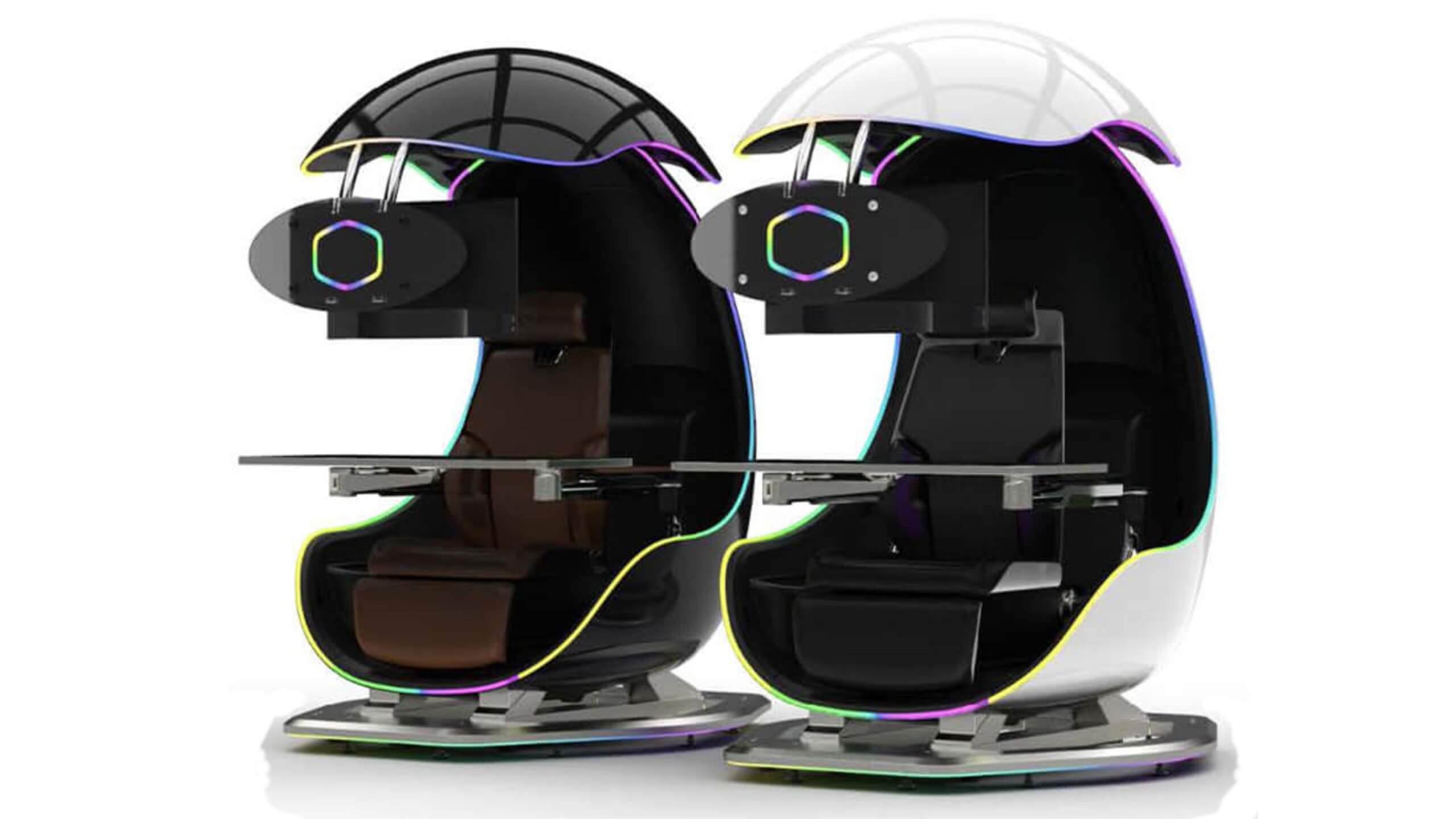
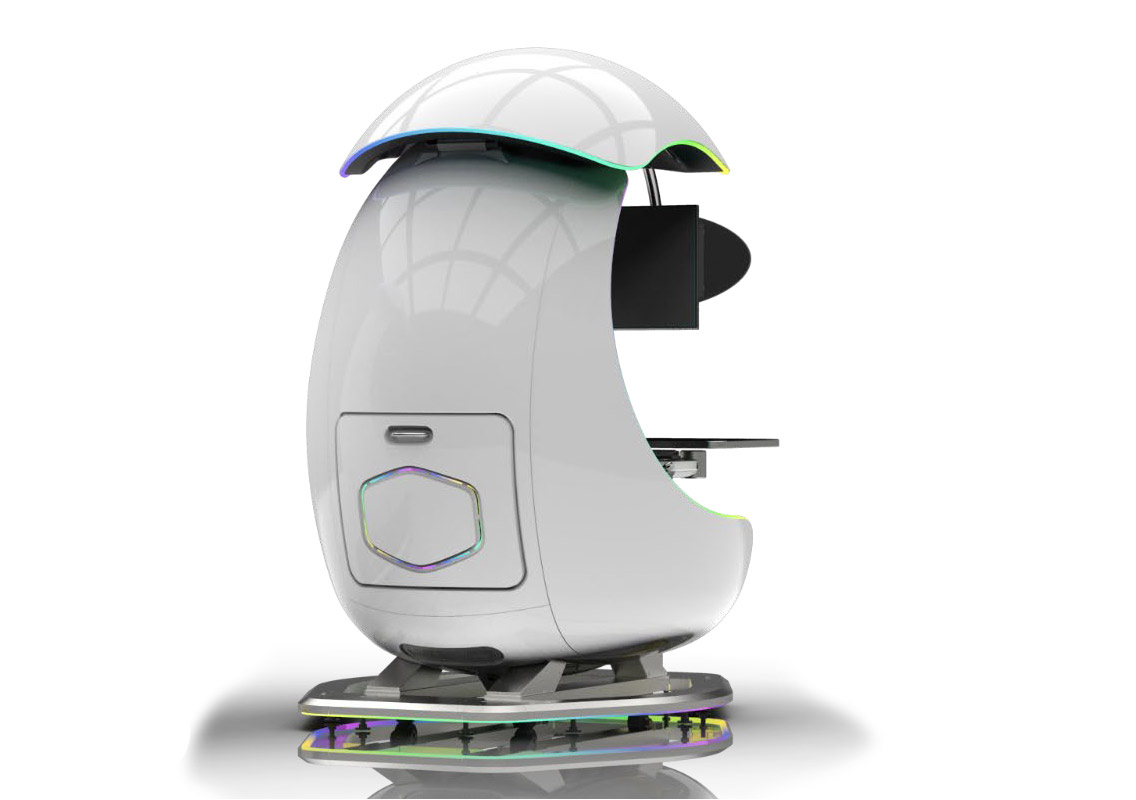
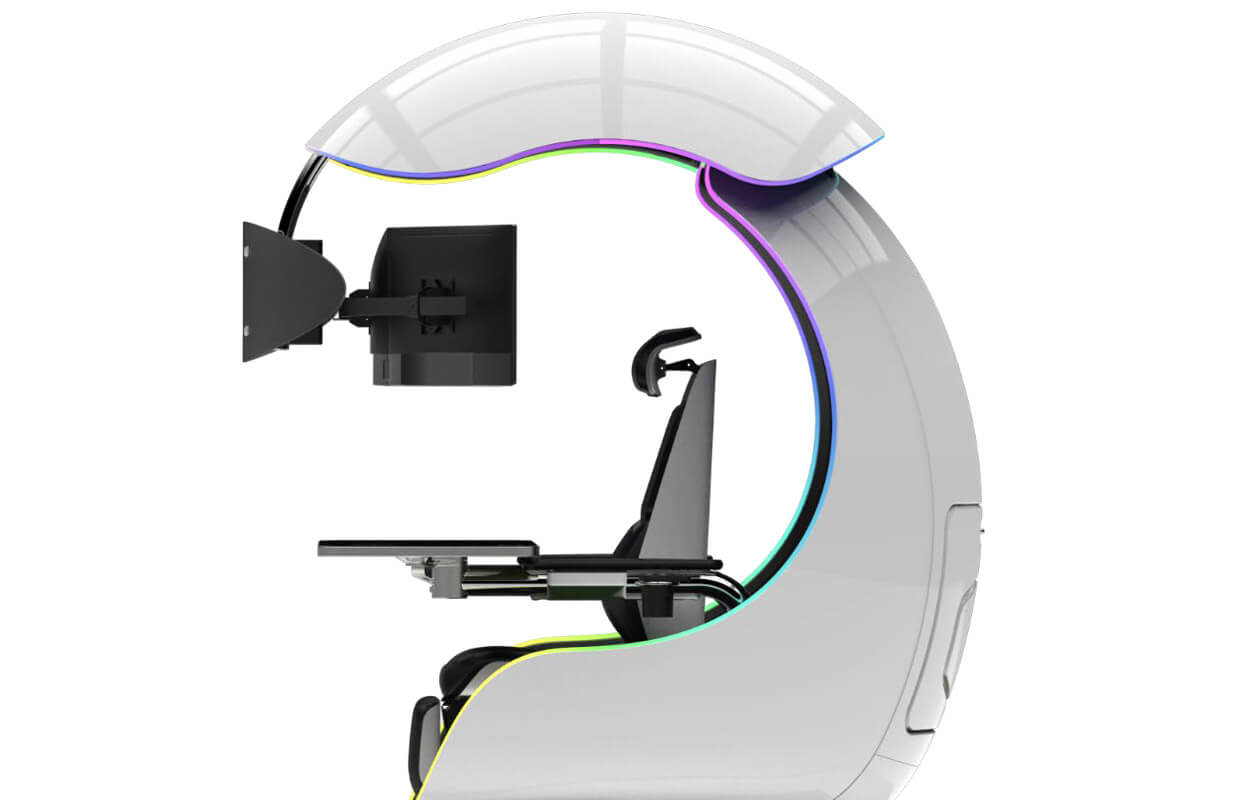
The newest piece of hardware for PC or console users is not really what anyone has expected and for sure not from a company like Cooler Master. orb x black and whiteI going to admit right here that I am a big fan of Cooler Master PC cases, I like them and they are always one of the things that I consider when building a new PC, overall I like their ideas and quality so personal for me it was quite a surprise to see that they are one that is making a new generation gaming chair. Now truth to be told Orb X is not your typical gaming chair as you can clearly see from the pictures. The chair itself will come in two colors: white or black and RGB lighting looks to be prominently featured throughout. orb x backThe chair itself is advertised as both meant and aimed for professional and gaming crowds but I believe the gaming crowd is in general more interested in this hardware piece. Hardware is enclosed in a fully motorized shuttle dome which aims to maximize your privacy, it supports a single 49inch display or three 27inch monitors along with surround speakers if you do not wish to use headphones. Orb x sideIt offers an adjustable headrest, lumbar support, and footrest so you can spend some time in it and be comfortable. Controls on the chair itself allow you to raise or lower the dome for easier getting in and out of it. Orb X also has a compartment in its backside, it folds out and has a sliding tray designed to hold your PC or console. Everything is enclosed so wiring is not the issue. Overall Orb X seems really like the computer chair of the future, Cooler Master expects to release the Orb X by December 2021, priced around $12,000-$14,000.

Read More
1 2 3 171
Logo
Copyright © 2023, ErrorTools. All Rights Reserved
Trademark: Microsoft Windows logos are registered trademarks of Microsoft. Disclaimer: ErrorTools.com is not affiliated with Microsoft, nor claims direct affiliation.
The information on this page is provided for information purposes only.
DMCA.com Protection Status