Logo

Chrome Roblox malware

Roblox is a very popular online game with millions of gamers playing it each day and as such it will naturally bring a lot of malware and attack on players trying to steal and exploit them for monetary gains. The latest attack and high-profile stealing of currency and assets happened exactly in Roblox.

roblox

Malicious activities have been reported to come from chrome extensions. So far 2 extensions have been identified that have hidden malware inside them but there could be more of them currently undetected. Extensions work as a front while in the back they mine user logins and other data in order to steal stuff from the Roblox platform.

To make things worse some of the malware is within long extensions like SearchBlox. The SearchBlox extension allows you to search quickly for other users if it was legitimate but has been compromised within the last month. There is evidence that people are stealing Roblox currency with the data gathered by the hidden backdoor in it.

SearchBlox extension is still Active in Chrome Web Store, with the primary listing still with the "Featured " badge. Google is actively removing malicious software from its storefront on a regular basis but this one still lingers in it.

If you or your kid have this Chrome extension installed, uninstall it right away and always be careful about which extension you install and give access to your system, keep them updated and check various blogs and article sites to inform yourself when a bad one is found.

Do You Need Help with Your Device?

Our Team of Experts May Help
Troubleshoot.Tech Experts are There for You!
Replace damaged files
Restore performance
Free disk space
Remove Malware
Protects WEB browser
Remove Viruses
Stop PC freezing
GET HELP
Troubleshoot.Tech experts work with all versions of Microsoft Windows including Windows 11, with Android, Mac, and more.

Share this article:

You might also like

Fix Chrome is Waiting for cache in Windows
There are times when you may encounter some glitches on your Google Chrome browser in your Windows 10 computer. One of these glitches is when the connection status of Chrome keeps on saying “Waiting for cache” which is displayed at the bottom-left side of the browser in the Status bar. At the time of writing, it isn’t clear yet what could be causing this problem. Although it is possible that it’s caused by browser cache, some extensions in the browser. On the other hand, it could also be caused by the browser profile or due to some fragmented files or that the SSD is occupied. Whatever the cause is, you can check out each one of the given options below to fix the problem.

Option 1 – Try clearing browser cache

There are times when some data in the browser is conflicting with the loading of the website and triggers some problems like “Waiting for cache”. And so you can try to clear your browser’s data. This might be a very basic solution but oftentimes it works in fixing this kind of error in Google Chrome. Follow the steps below to clear the data in your browser.
  • Open your Google Chrome browser.
  • After that, tap the Ctrl + H keys. Doing so will open a new panel that allows you to delete the browsing history and other data in your browser.
  • Now select every checkbox that you see and click on the Clear browsing data button.
  • Then restart your Chrome browser and check if you can now open any website or not.

Option 2 – Try to disable writing of Cache files to the SSD

You can also disable the writing of Cache files to the SSD to stop Google Chrome’s dependency on the SSD to gather all the cache files.

Option 3 – Delete the User Profile in Chrome

You can also try deleting the User Profile folder in Chrome. To do so, follow these steps:
  • You need to first end every single process of Google Chrome. To do so, right-click on the Taskbar then select the Task Manager. And if the Task Manager is not responding, you can just use the Alt + Ctrl + Del keys and then select the Task Manager.
  • After opening the Task Manager, under Processes, look for Google Chrome’s process which would most likely be named “chrome.exe”.
  • Right-click on Google Chrome’s process and then select the End task option.
  • Next, tap the Win + R keys to open the Run dialogue box.
  • Then copy and paste “%USERPROFILE%AppDataLocalGoogleChromeUser Data” and hit Enter.
  • From there, look for a folder named “Default folder” and then copy the folder to another drive as a backup.
  • After creating a copy of the folder, delete the Default folder.
  • Next, open Google Chrome again and go to Settings > Advanced > Reset.

Option 4 – Reset Chrome

Resetting Chrome can also help you fix the error. This means that you will be restoring its default settings, disabling all the extensions, add-ons, and themes. Aside from that, the content settings will be reset as well and the cookies, cache, and site data will also be deleted. To reset Chrome, here’s what you have to do:
  • Open Google Chrome, then tap the Alt + F keys.
  • After that, click on Settings.
  • Next, scroll down until you see the Advanced option, once you see it, click on it.
  • After clicking the Advanced option, go to the “Restore and clean up option and click on the “Restore settings to their original defaults” option to reset Google Chrome.
  • Now restart Google Chrome.

Option 5 – Try to clean reinstall Chrome

There are instances when programs leave files behind after you’ve uninstalled them and the same thing can happen to Chrome so before you reinstall Chrome, you have to make sure that you have deleted the User Data folder. To do so, refer to the following steps:
  • Hit the Win + R keys to open the Run dialog box.
  • Next, type “%LOCALAPPDATA%GoogleChromeUser Data” in the field and hit Enter to open the User Data folder.
  • From there, rename the default folder and name it something else, e.g. “Default.old”.
  • After that, install Google Chrome again and check if the issue is now fixed.
Read More
Fix Device not migrated on Windows 10
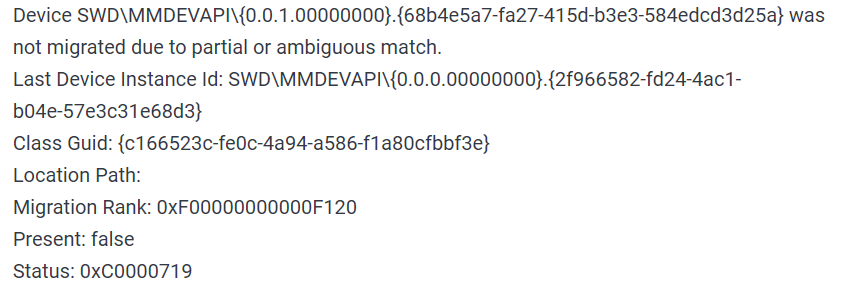
Hello everyone, in today's tips and tricks we will focus on providing you with various solutions on how to solve the Device not migrated error that appears after the Windows update has been performed. Sometimes sadly updates to our operating systems can introduce us to various issues that look scary but in reality, they are solvable and not so scary at all. After all who would not find this message concerning, especially when it happens in the middle of work. device error messageThe first thing that would pop into my mind is that I have lost tons of work and that something in my hardware has gone very wrong and it is dead. Luckily that is not the case and this error means that due to Windows update drivers were not properly transferred due to some compatibility issues, maybe it was a corrupt update file, etc. Of course, the reason could be hardware malfunction as well, but if everything was working fine before the update, it is a software issue, and I must say it is a common one and fixable. Please keep reading this guide in order to fix the Device not migrated error.
  1. Update the Driver

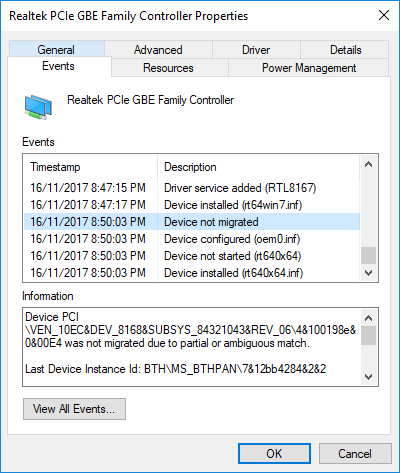
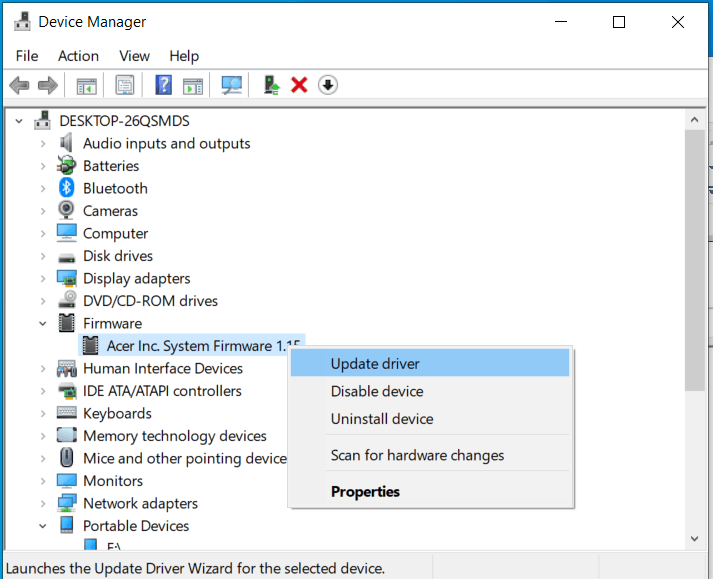
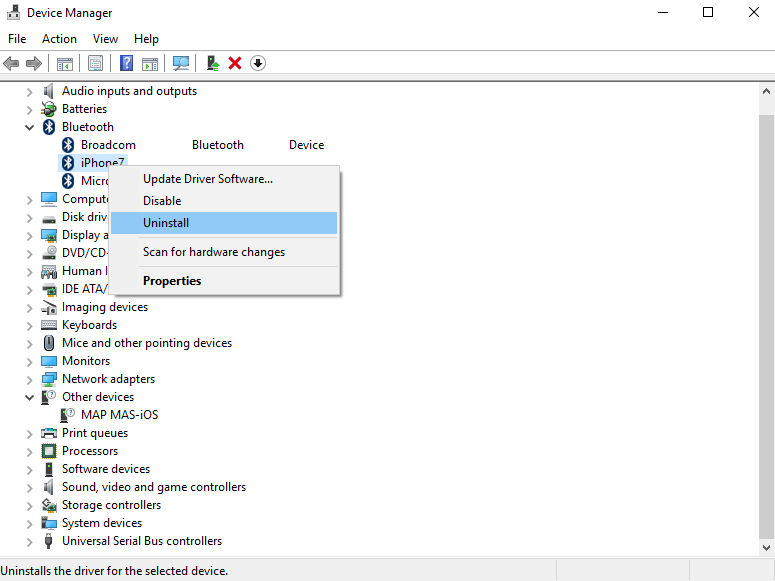
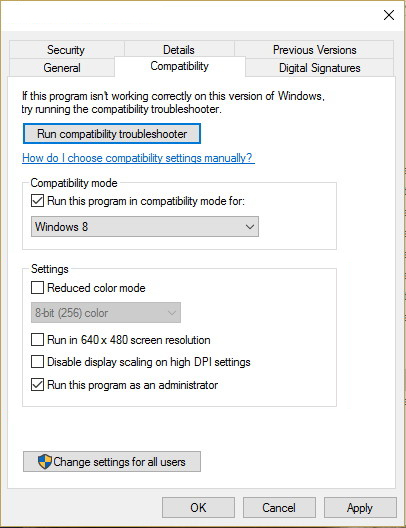
    You should always try this first, if the device is not recognizable, try updating its driver and see if the problem vanishes. In order to update the driver, we will need first to locate which device has not been migrated properly, we will do this with help of a search engine on the internet like google for example. So open your browser of choice, go to a search engine (google for example) and type in the search box first line from your error message, yes, that scary one. You will be given which device has malfunctioned and was not migrated properly, now we will locate the device and update its drivers. To do this press WINDOWS + X on your keyboard to bring up Windows secret menu and choose device manager. keyboard with windows and x marked Find device inside device manager, right-click on it, and choose properties. Go to the events tab and make sure that the device has migration issues. device not migrates status You have now 3 options for updating the driver, you can do it manually, automatically, or with the driver installer. We will cover all 3 options so you choose which one best suits you. OPTION 1: Manually. Close the Properties tab, go to the device manufacturer website and download the latest driver, if there are no drivers there, the only executable installer for the device skip this step and try the other 2. After you have downloaded the driver package from the website, right-click on the device and choose update driver. device update driver Now navigate to the folder where you have downloaded your driver package and update the driver. Reboot your system. OPTION 2: Automatic update. Close the Properties tab, right-click on the device and choose to uninstall. device manager uninstall device Once the device is uninstalled, restart your system, and Windows will automatically search and install the latest driver for the device. OPTION 3: Via driver installer. If you have downloaded .EXE or executable driver installer from device manufacturers web site try installing it, if the installation fails, try using compatibility mode for the installer. Navigate where the installer is located, right-click on it, and choose properties. Go to compatibility TAB and try installing it with administrator privileges in Windows 8 mode. device run compatibility troubleshooterReboot your system after this step. This should solve the issues, however, if the issue still persists, follow the next steps.
  2. Verify the Corrupted System Files

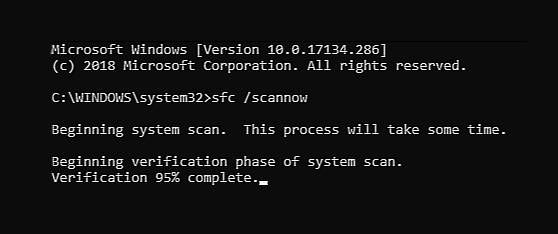
    Press WINDOWS + X on the keyboard to open the hidden system menu and choose Command prompt (administrator) keyboard with windows and x marked In the command prompt type in: sfc /scannow and press ENTER. command prompt SFC scan The scanning process and repair of files will take around 15 min. Leave it to finish completely, do not restart, work on the computer or shut it down while the process is active, and only after it is finished reboot your system.
  3. Update Windows.

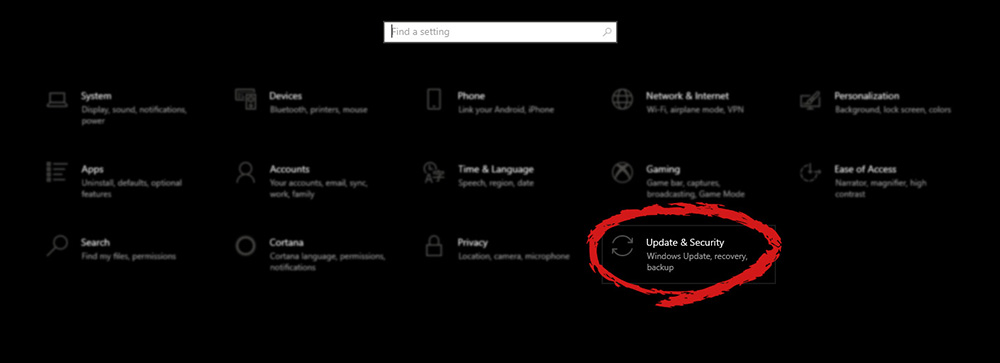
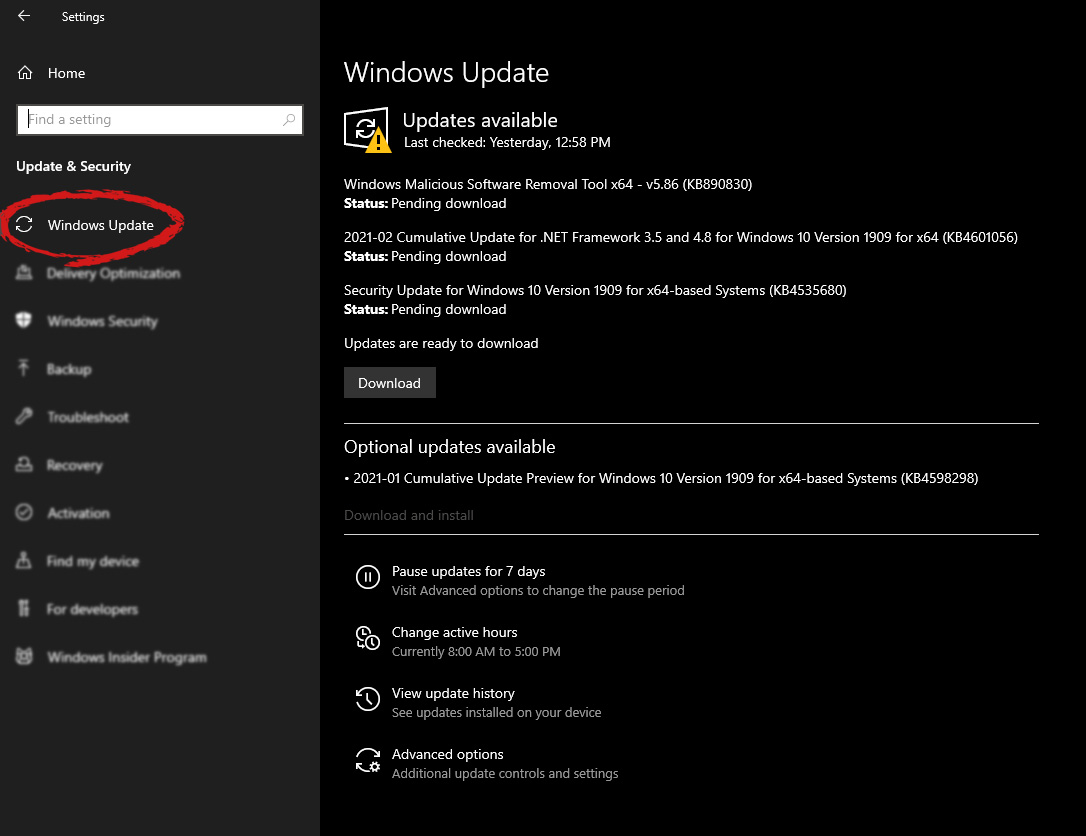
    If your Windows is not updated sometimes this issue can be resolved by updating it on the latest version. Click on start and then on settings. Windows 10 Star menu with marked settings icon Once the settings screen is opened, find and click on Update and Security. Windows settings update and security section marked Go to the Windows update tab and click on DOWNLOAD or click on check for updates for the latest Windows fix. windows settings windows update selected
  4. Reset BIOS to factory settings.

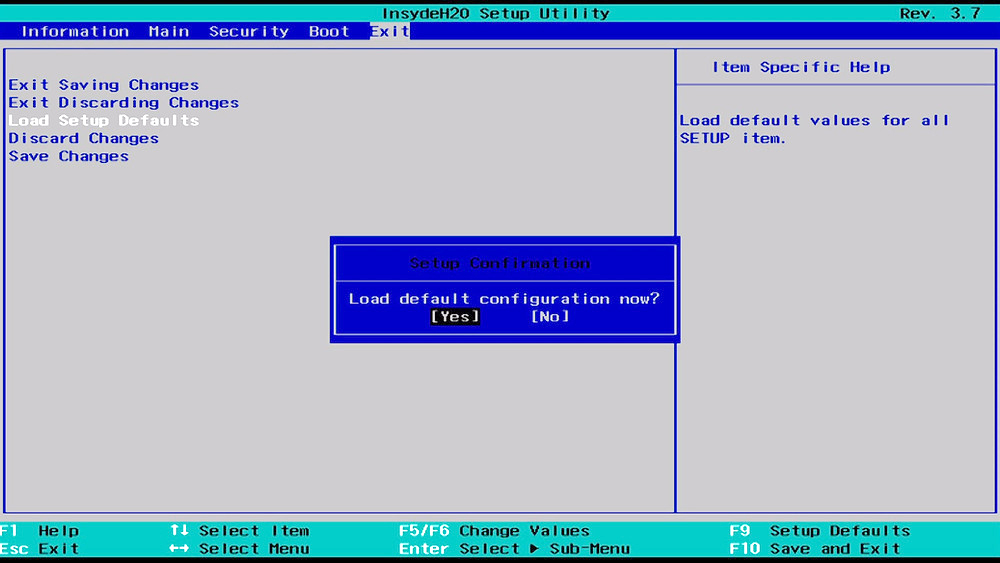
    Sometimes BIOS not being properly configured can cause issues in Windows itself and prevent it from detecting PnP devices thus creating this error. Restoring BIOS back to the factory setting can help. Turn off your computer and turn it back on. Press delete, f12, f11, or any other key which will take you to BIOS (default key is delete but sometimes manufacturers map this to another one. Once your screen turns ON you will see in the bottom message which key needs to be pressed in order to enter BIOS). Sadly since every BIOS could be different we can not cover step by step guide for each but you need to find the option where you load BIOS defaults, click on it save, and exit. Your computer will restart and boot into Windows, check to see if the problem still persists. BIOSD load defaults
  5. Update BIOS

    BIOS can cause issues with certain PnP devices when the newest Windows update is rolled. If reverting BIOS to the factory setting has not been successful try update. Go to your motherboard manufacturer website, find the update and read step by step guide there since updating BIOS differs from version to version and from manufacturer to manufacturer. After the update is done, restart the computer and hopefully, the error is gone.
  6. Perform a System Restore

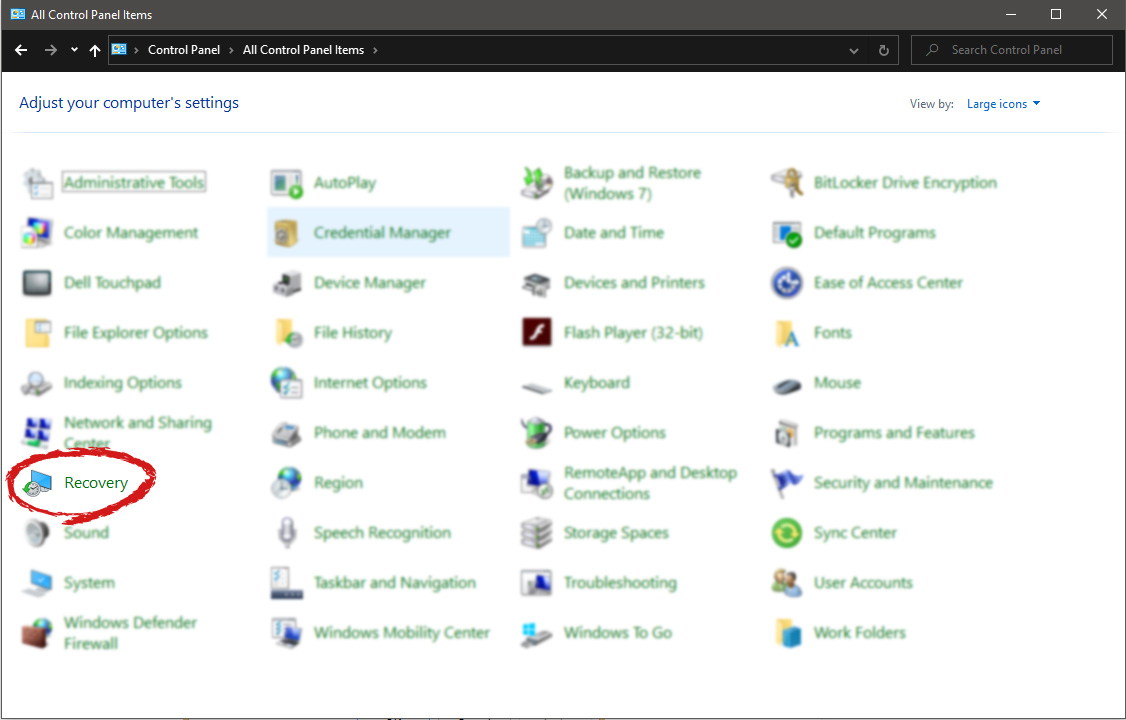
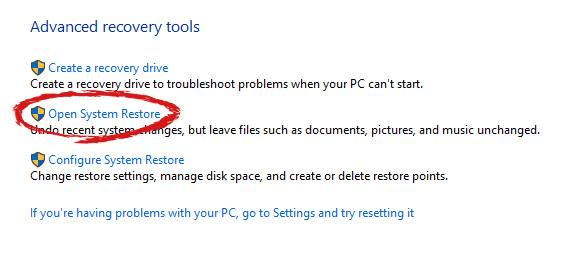
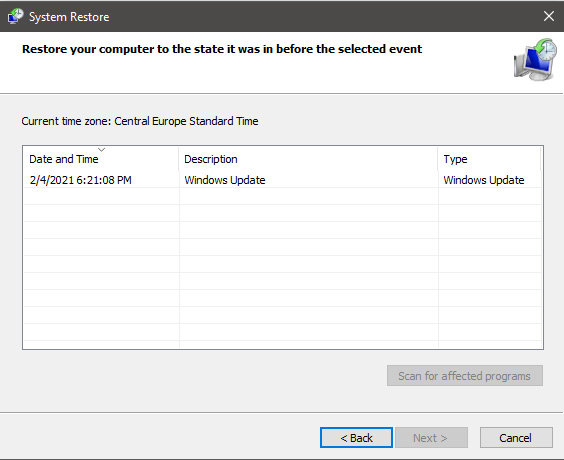
    If everything else fails, perform a system restore to get Windows back into the state before the update was installed and when everything was working fine. Press WINDOWS + R on the keyboard to open the run dialog. keyboard with windows and r marked In the run dialog, type control panel and press enter to enter control panel, locate recovery and click on it. control panel recovery selected Inside the recovery screen click on Open System Restore. advanced recovery tools Choose a date when everything was working in order, the best bet is the date before Windows update and roll it back. system restore latest backup restore Click on date, and then on next.
Read More
Fix Error Code 0x80072EE7 in Windows
Installing or updating Google Chrome does not always go smoothly as there are times when it also encounters some errors like the error code 0x80072EE7. This kind of error in Chrome is most likely caused by the Windows Firewall or third-party Firewall (if you’re using one) that blocks the installation or update process. Aside from this known culprit, there are also other factors to consider such as corrupted or incompatible installation files or it could also be caused by some issue with your internet connection. If you face this kind of problem when installing or updating Chrome, you will see the following error message on your screen:
“An error occurred while checking for updates: Unable to connect to the Internet. If you use a firewall, please whitelist GoogleUpdate.exe. (error code 7: 0x80072EE7 — system level).”
Whatever the cause of this error is, you need to use the options prepared below to fix it.

Option 1 – Whitelist the “googleupdate.exe” in Firewall

If the issue is really caused by the Firewall, you need to whitelist the googleupdate.exe program to fix the error. To do that, follow these steps:
  • Tap the Win + E keys to open the File Explorer.
  • Next, copy and paste the following location in the address bar and tap Enter to go there.
Control Panel/All Control Panel Items/Windows Defender Firewall/Allowed apps
  • After that, click on the Change Settings button, and from the given list, look for Google Chrome.
  • Now check both Private and Public connections for it and then click on OK and see if it fixes the error or not.

Option 2 – Disable the proxy server for LAN

If the problem has something to do with your internet connection, then you can try disabling the proxy server for LAN and see if that helps.
  • Tap the Win + R keys to open the Run dialog box.
  • Then type “inetcpl.cpl” in the field and hit Enter to pull up the Internet Properties.
  • After that, go to the Connections tab and select the LAN settings.
  • From there. Uncheck the “Use a Proxy Server” option for your LAN and then make sure that the “Automatically detect settings” option is checked.
  • Now click the OK and the Apply buttons.
  • Restart your PC.
Note: If you are using a third-party proxy service, you have to disable it.

Option 3 – Check your VPN

If you are using a VPN application, then this option should apply to you, if not, skip this option and proceed to the next one. There are times when VPN software causes some issues like this error. If that’s the case, you can try to disable your VPN temporarily and see if the error is resolved or not and if turns out that your VPN is the culprit, you have to uninstall it and install a new one or its latest version. To uninstall it, follow the steps below.
  • Tap the Win + R keys to open the Run dialog box
  • Then type “appwiz.cpl” in the field and hit Enter to open the Programs and Features in Control Panel.
  • From there, look for the VPN service you are using, select it and then click on Uninstall to remove it.
  • After that, restart your computer and try to install the latest version of the program again. It should work now. If not, proceed to the next available option below.

Option 4 – Try to run the Chrome Cleanup tool

You might want to run Google Chrome’s built-in Malware Scanner & Cleanup tool as it could also help in getting rid of any unwanted ads, pop-ups, and even malware, as well as unusual startup pages, toolbars, and anything else that might overtake the network and could affect the performance of the browser.

Option 5 – Reset Google Chrome

Before you proceed, make sure that the Chrome browser is not running anywhere in the background via Task Manager. Once you’ve made sure that it’s no longer running, refer to these steps:
  • Tap the Win + R keys to open the Run dialog box.
  • Then type “%USERPROFILE%AppDataLocalGoogleChromeUser Data” in the field and tap Enter to open this location.
  • From there, look for the Default folder and then tap the Shift + Delete button and if a confirmation prompt appears, click on Yes.
  • After deleting the Default folder, open Google Chrome and click on the three vertical dots icon located in the top-right corner to open the menu.
  • Next, click on Settings and scroll down and then click on Advanced to open the Advanced Settings.
  • Then scroll down until you see the “Reset and clean up” section and click the “Restore Settings to their original defaults” option.
  • After that, you will see a confirmation box and from there, click on the Reset settings button to reset your Google Chrome browser.
Read More
Guide for Removing SMSFromBrowser Malware

What is SMSFromBrowser

SMSFromBrowser is a Browser Extension developed by MindSpark. This extension usually comes bundled up with other software or via online advertising. Allegedly this extension allows you to send SMS messages from your computer, however, all it does is point you to other websites that offer this service. While active this extension monitors your browsing behavior, it records your website visits, clicks, links, and sometimes even private information, in order to use this data to better serve additional ads. During your browsing sessions, you may encounter additional unwanted ads, sponsored links, and sometimes even pop-up ads. Several anti-virus scanners have detected this extension as a potentially unwanted extension / Browser Hijacker, and due to its privacy mining behavior, it is not recommended to keep it on your computer.

Browser hijackers (sometimes referred to as hijackware) are a kind of malicious software that modifies web browser settings without the computer owner’s knowledge or permission. These hijacks appear to be increasing at an astonishing rate around the world, and they could be actually nefarious and sometimes harmful too. Browser hijackers are capable of doing more than just modifying homepages. These are typically used to force hits to a specific site, manipulating web traffic to generate ad revenue. Though it might seem naive, these tools are made by vicious people who always try to take advantage of you, so that they can easily make money from your naive and distraction. As soon as the program attacks your laptop or computer, it starts to mess things up a whole lot that slows your system down to a crawl. In the worst-case scenario, you will be forced to deal with serious malware threats as well.

Indications of browser hijack

There are many signs of web browser hijacking: 1. home page is changed 2. your browser is constantly being redirected to porn sites 3. the default online search engine and the default browser settings are altered 4. discover new toolbars that you simply didn’t add 5. you notice numerous ads pop up on the browsers or computer screen 6. your browser gets sluggish, buggy crashes very often 7. you can’t go to specific sites such as homepages of anti-malware software.

How it infects your personal computer

A browser hijacker can be installed on your computer or laptop when you visit an infected site, click on an e-mail attachment, or download something from a file-sharing website. They can be included with toolbars, BHO, add-ons, plug-ins, or browser extensions. Some internet browser hijackers spread in user’s PC by using a deceptive software distribution technique known as “bundling” (often through freeware and shareware). A good example of a notorious browser hijacker is the most recent Chinese malware known as “Fireball”, which has attacked 250 million PCs worldwide. It acts as a hijacker but could be turned into a fully functioning malware downloader afterward. Browser hijackers could interrupt the user’s web surfing experience greatly, keep track of the websites visited by users and steal financial information, cause difficulty in connecting to the web, and eventually create stability problems, making applications and computers freeze.

Removal

Some types of browser hijackers can be effortlessly removed from your PC by deleting malicious applications or any other recently added freeware. Many times, it could be a tough job to discover and get rid of the malicious program because the associated file will be running as part of the operating system process. And there’s no denying the very fact that manual repairs and removal methods can be a difficult job for an amateur computer user. Also, there are several risks associated with fiddling around with the pc registry files. Browser hijackers could be effectively removed by installing and running an anti-malware application on the affected computer. To remove any browser hijacker from your PC, you can download the following professional malware removal program – Safebytes Anti-Malware. And utilize a system optimizer, such as Safebytes Anti-Malware, to erase all associated files in the registry and repair browser problems. All malware is detrimental and the degree of the damage may vary greatly according to the type of infection. Certain malware types alter web browser settings by adding a proxy server or modify the computer’s DNS configuration settings. In such cases, you will be unable to visit some or all internet sites, and thus unable to download or install the required security software to eliminate the infection. If you’re reading this article, odds are you’re stuck with a virus infection that is preventing you to download or install the Safebytes Anti-Malware program on your system. Follow the instructions below to get rid of the malware by alternative methods.

Install the anti-virus in Safe Mode

If the malware is set to run automatically when Microsoft Windows starts, entering Safe Mode could very well block the attempt. Just bare minimum required programs and services are loaded whenever you boot your PC into Safe Mode. To start your Windows XP, Vista, or 7 PCs in Safe Mode with Networking, follow the instructions below. 1) Tap the F8 key continuously as soon as your PC boots, however, before the large Windows logo shows up. This would invoke the “Advanced Boot Options” menu. 2) Use the arrow keys to choose Safe Mode with Networking and press ENTER. 3) Once this mode loads, you should have an internet connection. Now, get the malware removal application you need by using the web browser. To install the program, follow the guidelines in the installation wizard. 4) Right after the software is installed, let the diagnostic scan run to eliminate trojans and other malware automatically. Use an alternate internet browser to download an antivirus application Some malware only targets specific web browsers. If this sounds like your situation, employ another browser as it might circumvent the virus. The best way to avoid this problem is to opt for an internet browser that is known for its security measures. Firefox has built-in Phishing and Malware Protection to help keep you secure online.

Create a bootable USB anti-virus drive

Another option is to store and run an antivirus software program completely from a Flash drive. To run anti-malware from a flash drive, follow these simple steps: 1) On a virus-free PC, download and install Safebytes Anti-Malware. 2) Insert the pen drive on the same PC. 3) Run the setup program by double-clicking the executable file of the downloaded software, which has a .exe file extension. 4) Choose the USB flash drive as the destination for saving the software file. Follow the directions to complete the installation process. 5) Now, transfer the thumb drive to the infected computer system. 6) Double click the Safebytes Anti-malware icon on the pen drive to run the application. 7) Press the “Scan” button to run a full computer scan and remove malware automatically.

Benefits and Features of SafeBytes Anti-Malware

These days, an anti-malware tool can protect your computer or laptop from various types of internet threats. But wait, how to select the best one amongst plenty of malware protection applications that are available on the market? You may be aware, there are several anti-malware companies and products for you to consider. Some of them are good, some are ok types, and some will ruin your PC themselves! You need to be very careful not to select the wrong application, particularly if you purchase a premium application. When it comes to commercial antimalware tool options, many people opt for well-known brands, like SafeBytes, and they are quite happy with it. SafeBytes can be described as a powerful, real-time anti-malware application that is created to assist the average computer end user in safeguarding their computer from malicious internet threats. Through its cutting-edge technology, this software will help you protect your PC against infections caused by various kinds of malware and other threats, including spyware, adware, computer viruses, worms, trojan horses, keyloggers, ransomware, and potentially unwanted program (PUPs).

SafeBytes has excellent features when compared to various other anti-malware programs. A few of them are given as below:

Real-time Active Protection: SafeBytes gives you round-the-clock protection for your personal computer limiting malware attacks instantly. They are extremely effective in screening and removing various threats because they’re continuously revised with new updates and alerts. Robust, Anti-malware Protection: Safebytes is made on the best virus engine within the industry. These engines will detect and get rid of threats even during the early stages of a malware outbreak. Internet Security: SafeBytes inspects the hyperlinks present on a webpage for possible threats and informs you if the website is safe to visit or not, through its unique safety rating system. Low CPU Usage: SafeBytes is a lightweight and user-friendly anti-virus and anti-malware solution. Since it uses minimum computer resources, this application leaves the computer power exactly where it belongs to: with you actually. 24/7 Online Tech Support: You may get absolutely free 24/7 technical support from their computer experts on any product queries or computer security concerns. SafeBytes will keep your personal computer safe from the latest malware threats automatically with almost no input needed from you again. Once you have downloaded and installed this software, you will no longer have to bother about malware or any other security concerns. You will get the best all-around protection for the money you pay on SafeBytes anti-malware subscription, there isn’t any doubt about it.

Technical Details and Manual Removal (Advanced Users)

If you wish to manually remove SMSFromBrowser without the use of an automated tool, it may be possible to do so by removing the program from the Windows Add/Remove Programs menu, or in cases of browser extensions, going to the browsers AddOn/Extension manager and removing it. You will likely also want to reset your browser. To ensure the complete removal, manually check your hard drive and registry for all of the following and remove or reset the values accordingly. Please note that this is for advanced users only and may be difficult, with incorrect file removal causing additional PC errors. In addition, some malware is capable of replicating or preventing deletion. Doing this in Safe Mode is advised. The following files, folders, and registry entries are created or modified by SMSFromBrowser
Files: %ALLUSERSPROFILE%MicrosoftWindowsStart MenuProgramsSMSfromBrowser %ALLUSERSPROFILE%Start MenuProgramsSMSfromBrowser %LOCALAPPDATA%SMSfromBrowserTooltab %UserProfile%Local SettingsApplication DataSMSfromBrowserTooltab Registry: HKEY_CURRENT_USERSoftwareWow6432NodeMicrosoftWindowsCurrentVersionexplorerBrowser Helper ObjectsFFE35078-94B2-4FC0-990D-BF8289BC25E4 HKEY_CURRENT_USERSoftwareMicrosoftWindowsCurrentVersionexplorerBrowser Helper ObjectsFFE35078-94B2-4FC0-990D-BF8289BC25E4 HKEY_CURRENT_USERSoftwareWow6432NodeMicrosoftWindowsCurrentVersionexplorerBrowser Helper Objects3188EEFD-9259-445D-8CCD-B99D6296AD1A HKEY_CURRENT_USERSoftwareMicrosoftWindowsCurrentVersionExtStats3188EEFD-9259-445D-8CCD-B99D6296AD1A HKEY_CURRENT_USERSoftwareMicrosoftWindowsCurrentVersionExtSettingsFFE35078-94B2-4FC0-990D-BF8289BC25E4 HKEY_CURRENT_USERSoftwareMicrosoftWindowsCurrentVersionExtSettingsB1D7EA4A-79CA-454E-897F-F5A052E467F6 HKEY_CURRENT_USERSoftwareMicrosoftWindowsCurrentVersionExtSettings3188EEFD-9259-445D-8CCD-B99D6296AD1A HKEY_CURRENT_USERSoftwareMicrosoftInternet ExplorerApproved Extensions, value: 3188EEFD-9259-445D-8CCD-B99D6296AD1A HKEY_CURRENT_USERSoftwareMicrosoftInternet ExplorerApproved Extensions, value: B1D7EA4A-79CA-454E-897F-F5A052E467F6 HKEY_CURRENT_USERSoftwareMicrosoftInternet ExplorerApproved Extensions, value: FFE35078-94B2-4FC0-990D-BF8289BC25E4 HKEY_CURRENT_USERSoftwareMicrosoftInternet ExplorerToolbar, value: B1D7EA4A-79CA-454E-897F-F5A052E467F6 HKEY_CURRENT_USERSoftwareWow6432NodeMicrosoftTracingSMSfromBrowser_RASMANCS HKEY_CURRENT_USERSoftwareMicrosoftTracingSMSfromBrowser_RASMANCS HKEY_CURRENT_USERSoftwareWow6432NodeMicrosoftTracingSMSfromBrowser_RASAPI32 HKEY_CURRENT_USERSoftwareMicrosoftTracingSMSfromBrowser_RASAPI32 HKEY_CURRENT_USERSoftwareAppDataLowHKEY_CURRENT_USERSoftwareSMSfromBrowser_f7 HKEY_CURRENT_USERSoftwareMicrosoftInternet ExplorerDOMStoragesmsfrombrowser.dl.myway.com HKEY_CURRENT_USERSoftwareSMSfromBrowser HKEY_LOCAL_MACHINEHKEY_CURRENT_USERSoftware[APPLICATION]MicrosoftWindowsCurrentVersionUninstall..Uninstaller
Read More
How to Fix Windows Update Error 0x80070103

What is error code 0x80070103?

When visiting the Windows Update Website or the Microsoft Update Website to download the latest update for hardware drives, you could possibly receive Error Code 0x80070103 when clicking on the update driver. This error code occurs when Windows tries to download a piece of identical hardware for a second time. It could also occur when Windows tries to update a currently installed driver to an unsuitable version of that driver.

Solution

Restoro box imageFurther Information and Manual Repair

There aren’t many ways to handle this issue. Below are two methods of fixing Error Code 0x80070103.

Method 1:

  • Visit the Microsoft Update Website
  • After the "scan for updates" is complete, click the Welcome or Custom page.
  • Next, click Hardware, in the navigation panel, and then on the tab for "optional hardware Updates", the Update client will display the available updates.
  • For the graphics card, scan the second update after which you'll click to select the option that says "do not show this update again".
  • Hit the "Review and install updates" button.
  • Confirm that the second update for the graphics card is not present, then move on the installing the updates.
  • Click on the start button, go to All Programs, and then click on Windows Update.
  • Hit the "Check for updates" tab.
  • After the "scan for updates" is over, click the"Optional updates" link.
  • In the "Select the updates you want to install" section, right-click the update that is not needed and hide them.
  • Hit the OK button.
  • To install any additional updates that are selected, click "Install Updates". Close Windows Update if no other updates are selected,
  • For touch screens, swipe in from the right edge of the screen, tap Search (or point to the upper-right corner of the screen if you're using a mouse, moving the pointer down, before clicking Search). Enter "Windows Updates" in the search box, click Settings, and then click "Check for updates".
  • After the scan is complete, click the"Optional updates are available" link.
  • Right-click or Tap and hold the update you want to hide, select"Hide update", and then select OK.
  • If any other updates are available, save all work in "other programs", then restart the computer to the install updates; otherwise, opt out of the Windows Update window.
Open the search window and type “Windows Update” in the search box.

Method 2:

When trying to repair error code 0x80070103, if you find method one hard to follow, can contact Microsoft directly. Call up the help center number listed on their website, and a technician will be able to walk you through the process of ensuring the updater is not attempting to download multiple copies of hardware or trying to install unusable updates on your computer. Because the Windows Updater is set to a generic method of searching for updates, it may not be set to optimize the personal computer's settings. This is why you must select all of the optional update options and why this process is so long. It may be made easier by having a computer repairs technician walk you through it. However, if you want to automate the process of getting that problem solved, you can use a powerful tool to get the job done.
Read More
How to Fix the Error Code 3

Error Code 3 - What is it?

Error code 3 is a type of PC windows error that can occur on any Windows version including Windows XP, Vista, Windows 7, or 8. This error code means that the system cannot find the path specified. The error 3 messages are displayed in the following format: “Error_ Path_Not_Found” or it may sometimes be displayed with the value 3 in this format:  (0x80070003: Error_Path_Not_Found)

Solution

Restoro box imageError Causes

The error code 3 indicates poor PC maintenance. It is a critical sign of an unstable system. The causes of this error code are:
  • Missing or broken system files
  • Registry issues
This error code poses serious system threats and should be resolved immediately before the damage is done. If you don’t address this error timely, your PC may be exposed to risks like system failure and crash. And this may lead to valuable data loss.

Further Information and Manual Repair

To resolve this error on your system, you don’t have to hire a technician or be technically sound yourself. What you simply need to do is clean the registry. Here are 2 ways to clean the registry:

1. Manually by Launching Registry Editor

First, launch the Windows registry editor by clicking the start button and selecting run. In the text box type, 'Regedit' and press enter and click OK. Before you make changes to the registry, make sure you create a backup of your existing registry. This is advisable because if you accidentally lose important data during the cleaning process you can also recover the lost data. Once you create a backup, now get started with the cleaning process. Expand HKEY_CURRENT_USER" key, then click on the software key and look for applications that you think could have corrupted the registry. Now delete them. After that, remove the unwanted start-up items, by accessing this link:  My Computer HKEY_LOCAL_MACHINE SOFTWARE Microsoft Windows Current Version. Now click on the run tab and delete invalid entries/ values. This process may be time-consuming and for some, it may be slightly technical to identify unwanted start-up items.

2. Download Restoro Registry Cleaner

Another way to clean and repair the registry is to download Restoro. This is an innovative and a highly-functional registry cleaner. It is embedded with an intuitive algorithm that detects all the registry issues instantly and removes them right away in just a few simple clicks. It removes all the unnecessary and obsolete files, repairs the registry, and fixes the damaged dll and system files. It has a user-friendly interface and simple navigation which makes it easy for all levels of users to work around it. This software is compatible with all Windows versions. Besides functioning as a registry cleaner, Restoro also functions as an antivirus and a system optimizer. It scans and removes all kinds of malicious software and simultaneously boosts the speed of your PC. Click here to download Restoro and resolve error 3 “Entry_Path_Not_Found” on your PC now!
Read More
Enable or Disable Optional Windows Features
As you know, Windows operating system comes with tons of features. Some of which are not intended to be used by normal customers or users directly which means that only a small percentage of the huge user base of the operating system leverages the use of such features. However, they’ve added some major value to the feature list of the operating system. You can find these features under the “Turn Windows Features on and off” option. This indicates that if you want to, you can just type in “Turn Windows Features on and off” in the search box and then enable any feature that you want to enable. Aside from that, there are other ways you can disable or enable the optional Windows Features in your Windows 10 computer.

Option 1 – via Control Panel

  • Open Control Panel and select Uninstall a Program.
  • After that, select the “Turn Windows features On or Off” option on the left side.

Option 2 – via Command Prompt

  • Tap the Win + X combination on your keyboard or right-click on the Start button and then click on Command Prompt (Admin). Alternatively, you can also type “cmd” in the Cortana search box and right-click on the Command Prompt icon, and select the “Run as administrator” option.
  • If a User Account Control or UAC prompt appears, click on Yes.
  • Next, type in the following command to see the list of the available features.
DISM /online /get-features /format:table | more
  • Now all you have to do is copy the name of the feature that you want to enable and for you to do that, you need to execute the following command:
DISM /online /enable-feature /featurename:[Enter the name of the feature here] –All
Note: Now if you want to disable a feature that’s already enabled in your computer, refer to these sub-steps:
  • First, you need to check what features are enabled, and for you to find out, enter this command: DISM /online /get-features /format:table | find “Enabled" | more
  • And if you want to check the detailed information about a particular feature, you can enter this command: DISM /online /get-featureinfo/featurename:[Enter the name of the feature here]

Option 3 – via Windows Powershell

As you know, the Windows Powershell is a very important tool in Windows 10, and a powerful one at that since you can do a lot of things using this command line. So while you use this tool you need to populate the list of available features first and then you have to download the feature your desired feature.
  • Search for PowerShell in the Cortana search box and then run it with administrator privileges.
  • Next, type in the following command to populate the list of available features:
Get-WindowsOptionalFeature –Online
  • After that, enter the following command to install any feature you want to enable from the list of available features:
Get-WindowsOptionalFeature -Online -FeatureName *Type feature name*
  • Now enter the following command to enable your desired feature:
Enable-WindowsOptionalFeature -Online -FeatureName “Type feature name” –all
  • And if you want to disable any enabled feature, just enter the following command:
Disable-WindowsOptionalFeature -Online -FeatureName “Type feature name”

Option 4 – via an external installation source

You also have the option to fetch the latest features from an updated offline source. The source could be an ISO any other type of image or just a folder. So you need to decide if you want to use Windows Powershell or Command Prompt.
  • If you want to use Command Prompt, just enter this command: exe /online /enable-feature /featurename:< /All /Source:<Enter the path of the feature here>
  • If you want to use Windows Powershell, use this command: Install-WindowsFeature –Source “<Enter the path of the feature here>”
Note: If you want to get the latest features, you need to get the latest version of the image of the operating system that you are trying to install the feature from.
Read More
Easy Remove SpeedItUp Tutorial

SpeedItUp is a potentially unwanted application made by MicroSmarts LLC. The program claims to optimize RAM, clean the registry, and boost internet connection speed. It is designed to speed up your computer by removing some background processes. While not malicious itself, SpeedItUp Free and its variations are often installed via third-party installer bundles, causing many users to unwittingly install the program. Aliases of the program include CheckMeUp, SpeedCheck, SpeedChecker, SpeedItUp Free, Speeditup-Checkup, and Speeditup-Nova. While intended to speed up the performance, its background processes and startup tasks may actually slow PCs down in some cases. Some versions of SpeedItUp also include a browser extension.

About Browser Hijackers

Browser hijacking is a type of unwanted software program, usually a web browser add-on or extension, which causes modifications in the browser’s settings. Browser hijacker malware is designed for a number of reasons. Typically, browser hijacking is used for earning advertising revenue that comes from forced advert mouse clicks and website visits. Though it might seem naive, these tools are designed by vicious individuals who always attempt to take full advantage of you, so that hackers can make money from your naive and distraction. On top of that, hijackers can make the whole infected system vulnerable – other destructive malware and viruses would grab these opportunities to get into your computer effortlessly.

Symptoms of browser hijack

There are many symptoms that could indicate a browser hijacking: your web browser’s homepage is suddenly different; your web browser is constantly being redirected to adult sites; the default online search engine has been changed and your browser security settings have been brought down without your knowledge; discover new toolbars which you did not add; your internet browser displays endless pop-up windows; your internet browser has become unstable or starts running slowly; Inability to navigate to certain websites, particularly anti-malware as well as other security software sites.

How they infect computer systems

A browser hijacker can be installed on your computer or laptop if you check out an infected site, click an email attachment, or download something from a file-sharing site. They may also originate from any BHO, browser extension, add-on, toolbar, or plug-in with the malicious objective. A browser hijacker can also come bundled up with some freeware that you inadvertently download to your PC, compromising your internet security. An example of some notorious browser hijacker includes Babylon, Anyprotect, Conduit, DefaultTab, SweetPage, Delta Search, and RocketTab, but the names are regularly changing.

The best ways to remove a browser hijacker

Certain kinds of browser hijackers can be removed from the computer by deleting malicious applications or any other recently added shareware. Often, it can be a challenging task to discover and get rid of the malicious piece because the associated file could be running as part of the operating system process. Moreover, manual removals demand deep system knowledge and thus can be quite a difficult job for novice computer users. Experts always recommend users remove any malware including browser hijackers by using an automatic malware removal tool, which is better, safer, and quicker than the manual removal method. One of the greatest tools for repairing browser hijacker malware is Safebytes Anti-Malware. It will help you remove any pre-existing malicious software in your system and provides you real-time monitoring and protection from the latest threats. Together with the anti-virus tool, a PC optimizer will help you in deleting all associated files and modifications in the computer registry automatically.

Virus Blocking Internet And All Antivirus Software? Do This!

Every malware is detrimental and the effects of the damage will vary based on the specific type of malicious software. Some malware goes to great lengths to stop you from installing anything on your computer, particularly anti-virus software programs. If you are reading this article, you probably have got affected by a virus that prevents you from installing a computer security program such as Safebytes Anti-Malware. Refer to the instructions below to remove malware through alternative ways.

Install antivirus in Safe Mode with Networking

If the virus is set to load immediately when Microsoft Windows starts, getting into safe mode could block this attempt. Since only the minimum applications and services launch in Safe Mode, there are seldom any reasons for conflicts to occur. Listed here are the steps you have to follow to start into the Safe Mode of your Windows XP, Vista, or 7 computers (go to Microsoft site for instructions on Windows 8 and 10 computers). 1) At power on/start-up, tap the F8 key in 1-second intervals. This would conjure up the “Advanced Boot Options” menu. 2) Use the arrow keys to select Safe Mode with Networking and hit ENTER. 3) As soon as this mode loads, you should have an internet connection. Now, make use of your internet browser normally and navigate to https://safebytes.com/products/anti-malware/ to download Safebytes Anti-Malware. 4) After the software is installed, allow the diagnostic scan run to remove trojans and other malware automatically.

Obtain the anti-malware software in a different internet browser

Some malware mainly targets particular web browsers. If this is your situation, utilize another internet browser as it could circumvent the virus. When you suspect that your Internet Explorer happens to be hijacked by a trojan or otherwise compromised by cybercriminals, the most effective plan of action would be to switch to a different web browser such as Chrome, Firefox, or Safari to download your favorite computer security program – Safebytes Anti-Malware.

Run antivirus from a pen drive

To successfully eliminate the malware, you might want to approach the issue of running an antivirus software program on the affected computer from a different angle. Adopt these measures to employ a flash drive to clean your corrupted computer. 1) Download Safebytes Anti-Malware or MS Windows Defender Offline onto a clean PC. 2) Insert the USB drive onto the same system. 3) Double click on the exe file to open the installation wizard. 4) Select the USB stick as the destination for saving the software file. Follow the on-screen instructions to complete the installation process. 5) Unplug the pen drive. You may now use this portable antivirus on the infected computer system. 6) Run the Safebytes Anti-malware directly from the USB drive by double-clicking the icon. 7) Press the “Scan” button to run a full computer scan and remove viruses automatically.

Protect Your PC & Privacy With SafeBytes Anti-Malware

Do you want to install the very best anti-malware application for your computer system? There are several applications available that come in paid and free versions for Microsoft Windows computers. Some of them do a good job in eliminating malware threats while many will damage your computer themselves. You must opt for a company that builds industry-best anti-malware and has gained a reputation as reliable. When considering the reliable software programs, Safebytes Anti-Malware is certainly the highly recommended one. SafeBytes can be described as a powerful, real-time antivirus application that is designed to assist everyday computer users in protecting their computer from malicious threats. With its outstanding protection system, this tool will automatically detect and get rid of most of the security threats, which include viruses, adware, browser hijackers, ransomware, PUPs, and trojans. SafeBytes anti-malware takes PC protection to a whole new level with its advanced features. Let’s have a look at some of them below: Active Protection: SafeBytes provides 100 % hands-free real-time protection which is set to monitor, prevent and get rid of all computer threats at its very first encounter. They are very effective in screening and getting rid of numerous threats because they are continuously revised with the latest updates and alerts. Antimalware Protection: This deep-cleaning anti-malware software goes much deeper than most anti-virus tools to clean out your PC. Its critically acclaimed virus engine locates and disables hard to remove malware that hides deep inside your PC. SuperSpeed Scanning: SafeBytes’s very fast malware scanning engine lessens scanning times and extends battery life. At the same time, it will effectively identify and eliminate infected files or any online threat. Web Security: SafeBytes provides an instant safety rating about the web pages you are about to visit, automatically blocking dangerous sites and make sure that you’re certain of your online safety while browsing the net. Lightweight Utility: This program is not “heavy” on the computer’s resources, so you’ll not notice any performance difficulties when SafeBytes is operating in the background. Premium Support: Support service is readily available for 24 x 7 x 365 days through chat and email to answer your questions.

Technical Details and Manual Removal (Advanced Users)

If you wish to manually remove SpeedItUp without the use of an automated tool, it may be possible to do so by removing the program from the Windows Add/Remove Programs menu, or in cases of browser extensions, going to the browsers AddOn/Extension manager and removing it. You will likely also want to reset your browser. To ensure the complete removal, manually check your hard drive and registry for all of the following and remove or reset the values accordingly. Please note that this is for advanced users only and may be difficult, with incorrect file removal causing additional PC errors. In addition, some malware is capable of replicating or preventing deletion. Doing this in Safe Mode is advised.

The following files, folders, and registry entries are created or modified by SpeedItUp

Files: C:DOCUME1USER1LOCALS1Tempinproc.temp C:DOCUME1USER1LOCALS1Temptmp1.tmp C:DOCUME1USER1LOCALS1Temptmp2.tmp C:DOCUME1USER1LOCALS1Temptmp3.tmp C:DOCUME1USER1LOCALS1Temptmp4.tmp C:DOCUME1USER1LOCALS1Temptmp5.tmp C:DOCUME1USER1LOCALS1Temptmp6.tmp c:autoexec.bat C:DOCUME1USER1LOCALS1Temptmp1.tmp C:DOCUME1USER1LOCALS1Temptmp2.tmp C:DOCUME1USER1LOCALS1Temptmp4.tmp C:DOCUME1USER1LOCALS1TemptmpA.tmp C:DOCUME1USER1LOCALS1TemptmpE.tmp C:DOCUME1USER1LOCALS1TemptmpF.tmp C:DOCUME1USER1LOCALS1Tempsearchprotect_w_prechecker.exe C:WINDOWSsystem32rsaenh.dll C:WINDOWSRegistrationR000000000007.clb C:DOCUME1USER1LOCALS1Tempinproc.temp C:DOCUME1USER1LOCALS1Temptmp1.tmp C:DOCUME1USER1LOCALS1Temptmp2.tmp C:DOCUME1USER1LOCALS1Temptmp3.tmp C:DOCUME1USER1LOCALS1Temptmp4.tmp C:DOCUME1USER1LOCALS1Temptmp5.tmp C:DOCUME1USER1LOCALS1Temptmp6.tmp C:DOCUME1USER1LOCALS1Temptmp7.tmp C:DOCUME1USER1LOCALS1Tempsearchprotect_w_prechecker.exe C:DOCUME1USER1LOCALS1Tempwajam_validate.exe C:DOCUME1USER1LOCALS1Temptmp1.tmp C:DOCUME1USER1LOCALS1Temptmp2.tmp C:DOCUME1USER1LOCALS1Temptmp3.tmp C:DOCUME1USER1LOCALS1Temptmp4.tmp C:DOCUME1USER1LOCALS1Temptmp5.tmp C:DOCUME1USER1LOCALS1Temptmp6.tmp C:DOCUME1USER1LOCALS1Temptmp7.tmp C:DOCUME1USER1LOCALS1TemptmpA.tmp C:DOCUME1USER1LOCALS1Tempsearchprotect_w_prechecker.exe C:DOCUME1USER1LOCALS1Tempwajam_validate.exe File %COMMONDESKTOPSpeedItup Free.lnk. File %COMMONPROGRAMSSpeedItup Free.lnk. File %COMMONPROGRAMSSpeedItup FreeSpeedItup Free.lnk. File %COMMONPROGRAMSSpeedItup FreeUninstall SpeedItup Free.lnk. File %COMMONSTARTMENUSpeedItup Free.lnk. File %LOCALSETTINGSTempspuad0.exe. File %LOCALSETTINGSTempspuad1.exe. File %PROGRAMFILESDisplay Offerdelayexec.exe. File %PROGRAMFILESDisplay Offerwait.exe. File %PROGRAMFILESSpeedItup Freedelayexec.exe. File %PROGRAMFILESSpeedItup Freespdfrmon.exe. File %PROGRAMFILESSpeedItup Freespeeditupfree.exe. File %SYSDRIVEProgram Files (x86)SpeedItup Freeupgradepath.ini. File %WINDIRSpeedItup Freeuninstall.exe. Directory %COMMONPROGRAMSSpeedItup Free. Directory %PROGRAMFILESDisplay Offer. Directory %PROGRAMFILESSpeedItup Free. Directory %SYSDRIVEProgram Files (x86)SpeedItup Free. Directory %WINDIRSpeedItup Free. Registry: Key HKEY_CLASSES_ROOT named spdfrmon.Gate.1, plus associated values. Key HKEY_CLASSES_ROOT named spdfrmon.Gate, plus associated values. Key 0142D788-C4FC-4ED8-2222-D654E27AF7F8 at HKEY_CLASSES_ROOTInterface. Key A1011E88-B997-11CF-2222-0080C7B2D6BB at HKEY_CLASSES_ROOTTypeLib. Key A1843388-EFC2-49C9-2222-FC0C403B0EBB at HKEY_CLASSES_ROOTInterface. Key A19F8F88-F91E-4E49-2222-BD21AB39D1BB at HKEY_CLASSES_ROOTAppID. Key A19F8F88-F91E-4E49-2222-BD21AB39D1BB at HKEY_CLASSES_ROOTCLSID. Key A1D87888-DEAA-4971-2222-5D5046F2B3BB at HKEY_CLASSES_ROOTInterface. Key A245B088-41FA-478E-8DEA-86177F1394BB at HKEY_CLASSES_ROOTAppID. Key spdfrmon.exe at HKEY_CLASSES_ROOTAppID. Key spdfrmon at HKEY_LOCAL_MACHINESYSTEMControlSet001Services. Key spdfrmon at HKEY_LOCAL_MACHINESYSTEMControlSet002Services. Key spdfrmon at HKEY_LOCAL_MACHINESYSTEMControlSet003Services. Key SpeeditupFree at HKEY_LOCAL_MACHINESoftwareMicrosoftWindowsCurrentVersionUninstall.

Read More
GoDaddy data breach compromised 1.2M accounts
A very serious data breach has happened to the unfortunate GoDaddy hosting service placing a little over 1.2 million accounts affected. Security breaches sadly are not a rare occurrence but this time it is a little different. GoDaddy breachEach time when the company is breached data is stolen and that places the company in a bad light usually because its user database has been compromised and people are concerned about their data being misused. This is very rational fear and concern but this time things are a little bit different than usual, why is that, you might ask? Well, as before mentioned GoDaddy is a hosting company and the vector of attack was aimed at the part where it is hosting WordPress. Attackers were able to get their hands on the sFTP credentials of customers on that server meaning that all of the websites are also been relieved of their user base as well. This potentially means that there is a high chance that all of the hosted web site's content is also compromised, meaning that your data could also be compromised even if you were not a GoDaddy customer, all you needed to do is to be a member of any site hosted on their platform. GoDaddy has reset WordPress passwords and private keys, so it’s already taken the steps required to stock the attacker from exploiting anything with the passwords obtained. The company is in the process of generating new SSL certificates for customers. Bad thing is that the attack used a compromised password to get into systems all the way back around September 6th, 2021, the breach was discovered on November 17th, 2021, which is more than a 2-month active time where the attacker could harvest tons of data. The outcome of this attack will be seen in the upcoming time, until then be safe, and Just in case change your passwords.

Read More
Windows laptop turns off when unplugged
If your Windows 10 laptop suddenly turns off when you unplug its power cord, then you’ve come to the right place as this post will guide you on how you can fix this issue. One of the most common causes for this kind of issue is that there is some problem with your laptop’s battery. It is possible that it might have gone bad or has been damaged. However, this couldn’t be the case especially if the laptop is new. The problem could have something to do with the system settings, connections, laptop hardware, and so on. To fix it, there are various suggestions you can check out such as follows:

Option 1 – Perform a hard reset on your laptop

This option works in most cases when the laptop with a removable battery is charging slowly as it is plugged in constantly. Refer to the steps below to do a hard reset on your laptop.
  1. Switch off the power of your laptop.
  2. Disconnect your laptop’s charger and then remove the battery.
  3. Tap and hold the power button for at least 30 seconds – doing so will discharge the capacitors of the motherboard and reset the memory chips that were active constantly.
  4. Plug the battery back and then charge the laptop again.
Check if the problem is fixed, if not, proceed to the next option below.

Option 2 – Try to change the Power Options

  • Tap the Win + R keys to open the Run utility.
  • Then type “powercfg.cpl” and tap Enter to open the Power Options window.
  • Next, go to your selected power plan and click the “Change plan settings” option to open a new page.
  • From there, click on the “Change advanced power settings” option. This will open a new window where you can see various power consumption options.
  • Now on the next window that appears, click on “Change advanced power settings”. This will open another window where you have to expand the Processor power management > Maximum processor state.
  • Then change the value for On battery mode to 25% and enable Adaptive brightness.
  • Now shut down your computer and try to boot it with the power cord unplugged.

Option 3 – Try to run the Power troubleshooter

The next thing you can do is to run the Power troubleshooter. To do so, follow these steps:
  • Go to Settings and navigate to Update & Security > Troubleshoot.
  • After that, look for the “Power” option from the given list of built-in troubleshooters and click on it.
  • Next, click on the “Run the troubleshooter” button to run the Power troubleshooter.
  • Once the troubleshooter is done identifying the problems, follow the next on-screen instructions to resolve the problem.

Option 4 – Try to run the Power Efficiency Diagnostics Report

You could also try to run the Power Efficiency Diagnostics Report to fix the problem. This tool is helpful and will help you analyze the status of the battery but note that this can be quite overwhelming especially if you’re not well-versed in this matter.

Option 5 – Try to uninstall or reinstall the Battery driver

You might also want to uninstall or reinstall the battery driver as it can also resolve the problem. But before you start, you have to shut down your computer and remove the power chord as well as the battery. Once you’re done, follow these steps:
  • Plug the power cord and restart your computer.
  • Once your computer has restarted, tap the Win + R keys to open the Run utility and type “devmgmt.msc” in the field and tap Enter to open the Device Manager.
  • After that, look for the “Batteries” driver from the list of drivers and expand it.
  • Then right-click on the “Microsoft ACPI-Compliant System” driver and click on the “Uninstall device” option.
  • Once it’s done, restart shut down your computer and remove the power cord and then attach the battery.
  • Now attach the power chord again and restart your computer to automatically install the driver.

Option 6 – Try to update the BIOS

Updating the BIOS can help you fix the problem but as you know, BIOS is a sensitive part of a computer. Even though it is a software component, the functioning of the hardware depends on it largely. Thus, you must be careful when modifying something in the BIOS. So if you don’t know much about it, it’s best if you skip on this option and try the other ones instead. However, if you are well-versed in navigating the BIOS, then follow the steps below.
  • Tap the Win + R keys to open the Run dialog box.
  • Next, type “msinfo32” in the field and press Enter to open System Information.
  • From there, you should find a search field on the bottom where you have to search for the BIOS version and then press Enter.
  • After that, you should see the developer and version of the BIOS installed on your PC.
  • Go to your manufacturer’s website and then download the latest version of BIOS on your computer.
  • If you are using a laptop, make sure that you keep it plugged in until you have updated the BIOS.
  • Now double click on the downloaded file and install the new BIOS version on your computer.
  • Now restart your computer to apply the changes made.
Note: If updating the BIOS didn’t help, you might want to consider resetting it instead.
Read More
1 2 3 171
Logo
Copyright © 2023, ErrorTools. All Rights Reserved
Trademark: Microsoft Windows logos are registered trademarks of Microsoft. Disclaimer: ErrorTools.com is not affiliated with Microsoft, nor claims direct affiliation.
The information on this page is provided for information purposes only.
DMCA.com Protection Status