Logo

Choosing right LINUX distribution

LINUX has become more than just a dedicated server Operating system, more and more it is gaining ground in home computers as well and as services like Steam and Gog are offering their titles for LINUX it is gaining more and more ground daily.

Why LINUX?

So, what makes LINUX so good? First of all security, no other Operating system has that high level of security like LINUX and that is the reason why it is widely used as a server. Other advantages are it is less resource hungry and its architecture is made in such a way that it does not has applications remains and traces which remain in the system, once an application is deleted from OS, it is deleted and every trace is removed from OS. Apple OS is based on LINUX kernel but made specifically for their hardware.

LINUX popularity

So naturally, the question pops up why LINUX is not more popular? One of the reasons is its difficulty, to work in LINUX you need to have some level of computer knowledge, Windows is more user-friendly and a lot of people prefer the ease of use to features. This is somewhat been fixed sort of speak in last years since we have LINUX distributions which aim to be more simple and user friendly but it is far from easy of use of one Windows.

Another big reason was software support. Altho some powerhouse software has its LINUX versions and works just fine, even better than on Windows, your typical user applications lack and games were almost non-existent making LINU users rely on Windows emulation software for simple applications, and often it did not work properly. This has also changed for the better in later years but as with the previous point, it is still far from being Windows wide.

What is LINUX distro?

Linux comes in different versions called distributions. What this means is that the basic core of the Operating system is the same though all LINUX versions and all LINUX drivers and software will work on anyone, they will visually and feature-wise be different. Also, they will be more complex for use or they will have different hardware requirements.

Choosing the right LINUX distribution is no easy task and we are here to help you by offering you certain points and guides in hopes to direct you on the right path.

What Do You Need the Distro for?

This might be perhaps the most crucial question when trying to decide which LINUX distribution you want to install.

Depending on your preferences and goal like work, games, security, media you will need to consider the best distributions in the field of your preference. A very good place to get this kind of information is on DistroWatch. When on-site, navigate to the Distribution category search filter and choose the option best suited to your needs.

What Kind of Software Will You Be Using?

Like the previous question, this one is also your personal preference but it will make difference if you are planning to use a different type of software. If your plans are gaming for example you will want the latest and greatest LINUX kernel version for maximum hardware compatibility. If you are a regular desktop user you will aim for a distro that is updated constantly so you are working with the latest versions of Chrome or Firefox. In some cases, depending on your software you might want to run older but faster distribution.

What Kind of Hardware Will You Be Using?

If your computer is up to date you can run any distribution that you like but if it is an older rig your options might be a little limited. Now depending on the technical characteristics of your computer and its age it may come down to just a few available distributions which are specially tailored to run on old hardware. These kinds of distributions are lightweight and do not take much space but sadly can not offer you the latest and greatest in software but for usual everyday tasks like web browsing, word processing, email viewing, etc they work perfectly fine. You can have a great office machine with proper lightweight distribution offering you all that you need to be able to work.

How Much do you know about computers?

As stated before, LINUX is not as user-friendly as WIndows and your overall technical knowledge can play a big role in deciding which LINUX you want to adapt. If you are more of a casual user then avoid technical distributions which will require to manually tweak tons of stuff, go for more automated ones. If you are a power user however and enjoy wrestling with each detail then perhaps some distro with more command-oriented nature.

What Kind of Community Are You Looking For?

Now you might ask what does community has to do with the operating systems but the same as Windows, LINUX also can have some issues, and sometimes installing drivers will require certain steps to be taken. How it is much easier to find a solution when having a great community surrounding the project I suggest not dismissing this part when choosing your distro. Every community is helpful, but they’re all helpful in different ways.

If you would like to read more helpful articles and tips about various software and hardware visit errortools.com daily.

Do You Need Help with Your Device?

Our Team of Experts May Help
Troubleshoot.Tech Experts are There for You!
Replace damaged files
Restore performance
Free disk space
Remove Malware
Protects WEB browser
Remove Viruses
Stop PC freezing
GET HELP
Troubleshoot.Tech experts work with all versions of Microsoft Windows including Windows 11, with Android, Mac, and more.

Share this article:

You might also like

Fix The update isn’t applicable in Windows
There are times when you install a Windows update to your Windows 10 computer but you only got an error message saying, “The update isn’t applicable to your computer”. This is unusual as Windows was the one that downloaded them in the first place. To understand the reason behind this error, read on as this post will also give you a couple of suggestions you can try to fix the problem. One of the main reasons why this error occurs is that your computer might not have the required installed updates and many more. Other reasons include:
  1. The update might be replaced. There are instances when a newer Windows version is already available on the computer and that the version you are trying to manually install is an older version which is why the Windows update failed.
  2. The update might already be installed. There are times when the update process is still in progress and the earlier payload might have already been installed.
  3. It could also be that it’s a wrong update for architecture. As you know, updates are designed accordingly based on the architecture of the computer so if the update you are trying to install does not match the architecture of your CPU then it’s no wonder you’re getting an error message.
  4. Your computer might be missing a prerequisite update. There are Windows updates that depend on other updates so if you missed one and you’re installing another one, it could be the reason why you’re getting the error.
To fix the problem, here are some suggestions that might help.

Option 1 – Try verifying the package and the Processor Architecture

As pointed out earlier, updates are made according to the Windows versions. Thus, if one of the updates failed to install, you need to check if it’s applicable or not. The best way to do that is by searching the Windows update name on the official website of Windows. It could be that the Processor Architecture is not compatible with the Windows Update you are trying to install. If you have an X86-based processor, you can’t install x64-based installations of Windows and vice-versa. This usually happens when you’ve downloaded the update manually and then tried installing it.

Option 2 – Try checking if the update is old

The issue might be because you are trying to install an old Windows update which is why it didn’t work. To check, go to Settings > Update and Security > View Update history. From there, you can look for the update.

Option 3 – Try checking if the update is already installed

To verify the update, just go to the Windows Update history once more as you did in option 2, and then see if the update is already installed or not.

Option 4 – Try checking the prerequisites

AS mentioned earlier, there are some updates that depend on other updates before they get installed on your computer. The best way to verify is by checking the Microsoft Knowledge Base (KB). And to verify if the prerequisite updates are installed or not, just run the command below in PowerShell:
get-hotfix KB1111111, KB2222222, KB3333333
Note: In the command given above, you need to replace “KB1111111, KB2222222, KB3333333” with the actual update KB numbers.

Option 5 – Try running the Windows Update Troubleshooter

As you know, Windows 10 has various auto-repair built-in tools to help users fix small issues which used to get fixed manually. And in this case, you will need the Windows Update Troubleshooter to fix the issue.
  • Go to Settings and click on Update and Security.
  • From there, click Troubleshoot and click on Windows Update and then click the “Run the troubleshooter” option.
  • After that, it will try to detect and automatically fix common issues in the Windows Updates which can be resolved by Windows itself. Note that the process may take several minutes before it completes so you need to wait until it’s done. Once it’s done, in case you have some pending update that wasn’t realized by the system early on, it will apply the fix right away and restart the Windows Update service.
Read More
How to block websites in Windows
There are a lot of reasons to ban or block different websites in your Windows. From wanting to limit yourself from distraction to block certain sites for sake of kids not going into them. Whatever your reason might be, keep reading in order to find out how you can block any website inside Windows for all browsers. The technique I am going to share with you is universal and not tied to Windows versions, they will work in any Windows from XP onward. Also, the technique will block desired websites on any browser, already installed or even ones that will be installed after doing the trick. And we will also be looking at applications that can help you in this task if you do not wish to do it manually.

Block websites using dedicated software

A small free application called Focal Filter which can be found here: https://www.focalfilter.com/ is a software solution for your needs. It is a pretty straightforward and easy-to-understand application and not really much can be said here about it. You simply download and install it, set your websites, and you are done, the app does rest.

Blocking manually via host file

Another method besides mentioned one using the dedicating application is to manually set site addresses inside the Windows host file. The first thing, of course, is to open the host file, run a notepad with administrator privileges, go to file open, and navigate to c:\windows\system32\drivers\etc\hosts. Once the file is opened go all the way down and add: 127.0.0.1 SITENAME For example: 127.0.0.1 www.youtube.com or 127.0.0.1 www.facebook.com This way each time user on a PC tries to access a listed website computer will reroute it to the given address which is your PC's local address and asked website will not be able to load.
Read More
How to Fix Screen Flickering in Windows 10 Error

Screen flickering in Windows 10 - What Is It?

Screen flickering when you’re using Windows 10 is quite a common problem. It is often caused by apps that are not compatible with the operating system, or faulty display drivers.

There are a lot of possibilities for why this issue occurs. If you are one of the many users that encounter this kind of problem, you might want to check on your task manager to see if everything is working fine. One common sign that something wrong has happened is if the task manager flickers, as well. To fix this, you will need to update an app, uninstall an app, or update your display driver.

Solution

Restoro box imageError Causes

Common causes of the screen flickering when running on Windows 10 are software issues. This is most likely caused by the following:

  • Faulty display driver
  • You have an application installed that is not compatible with your operating system

Further Information and Manual Repair

In order to fix the issue of your screen flickering when you have Windows 10 as your operating system, follow these simple steps.

Note: It is very important to consult with an authorized computer technician if you are not highly confident in solving this issue by yourself. Furthermore, you can also use software to fix this problem.

  • The first method is by checking if your task manager is flickering. To open the task manager, all you have to do is right-click or press and hold the start button, then select task manager.

If you have confirmed that the task manager is the one causing the screen flickers, the display driver can possibly be your problem. To fix it, all you have to do is update your display driver.

How to update the display driver

  1. You have to reset your computer and boot it on Safe Mode.

      -In order to do this, you have to hold the Shift key while selecting Power>Restart. When your computer boots up, you will be greeted by a Choose an option screen. From there, you have to select Troubleshoot, then Advanced Options, then Startup Settings, and then Restart. When your computer restarts, select 4 or hit the F4 key to enter into Safe Mode.

  1. When your computer finally boots up in Safe Mode, right-click or press and hold the Start button. From there, click Device Manager.
  1. From the Device Manager screen, you have to expand the Display Drivers section, right-click on the driver that might be causing the problem then select Uninstall. Don’t forget to tick the Delete the driver software for this device box, press the OK button, and then restart your computer.

            - When you have two, or more, drivers installed on your computer, all you have to do is disable the other drivers. You can do this by right-clicking on the driver in the Device Manager and click the Yes box next to disable. Shut down your PC after this, disconnect the installation, and boot your computer back on.

  1. When your PC boots up after the restart, click on the Start button then click on Settings.
  1. You need to go to Update & Security, then Windows Update, and then check for updates.

            - If you are using multiple drivers and this technique doesn’t work, repeat the process in Step 3 and try to disable a different driver.

Remove an incompatible app

There are two ways to remove an incompatible app to fix the issue of a screen flicker on Windows 10. Apps like Norton AV, iCloud, and IDT Audio are usually the ones causing the problem. Uninstalling these apps could solve the problem. Uninstall the apps by using the methods below:

First Solution: Uninstall an app in Settings

  1. Click Start, and then click Settings.
  2. Click on System, and then click on Apps & Features.
  3. A window will pop up and from there you will need to select the application you wish to uninstall. Click the app, and then click uninstall. Follow the screen prompt to fully uninstall the program.

Second Solution: Uninstall an app in the Start Menu

  1. Click Start, and then click All Apps.
  2. Look for the application you will need to uninstall, right-click the said app, and then click Uninstall. Follow the screen prompt to fully uninstall the program.
[/section]
Read More
Fix Boot Device Not Found Error in Windows
If you encounter an error saying, “Boot Device Not Found” when you turn on your Windows 10 computer, then you’ve come to the right place as this post will guide you on how you can fix this problem. Apart from the error message, you will also see a message that states, “Please install an operating system on your hard disk, Hard Disk<xxx>”. You will then be asked to tap the F2 key to initiate the System Diagnostics. If you install the Windows operating system, it becomes the boot device, and when your computer boots, the UEFI or the BIOS looks for the operating installed on your drive and continues the process. So when you encounter the “Boot Device Not Found” error, this means that the UEFI or the BIOS wasn’t able to locate the drive where it can boot. There are several suggestions you can check out to resolve this error. You can try checking the connection with your boot drive or change the boot order. You can also fix the Boot Record from Recovery and see if the primary partition is active or not. But before you troubleshoot the problem, make sure that you have a bootable Windows USB drive ready since two of the options provided below will require you to boot into the Advanced Recovery mode. Once you have this covered, proceed to each one of the following options.

Option 1 – Try checking the connection with the boot drive

If you have a custom computer that comes with a cabinet, you might want to open it and remove any connected power supply, and then check the wires. As you know, drives are connected with the motherboard using a cable. So all you have to do is check if both ends are connected properly and make sure that the connection is not loose. You could also try to unplug the cable and plug it back in.

Option 2 – Try changing the boot order

You might also want to try changing the boot order of your computer. Each time a computer boots, the BIOS or the UEFI follows a boot order. It is the one that tells where to first look for the boot drive and if for some reason, a USB is connected to your computer and the first boot device found in the USB, then you have resolved the problem. All you have to do is to remove the USB device and boot or go into the BIOS and change the boot order yourself.

Option 3 – Try to rebuild the BCD files

The next thing you can do to resolve the issue is to Rebuild Boot Configuration Data or BCD files.
  • You can start by booting into the installation environment for Windows 10 from an installation media.
  • After that, click on Repair your computer and on the blue screen, select Troubleshoot and then select the Advanced options menu.
  • From there, select Command Prompt and once you open it, enter each one of the commands given below by sequence.
    • bootrec /FixMbr
    • bootrec /FixBoot
    • bootrec /ScanOS
    • bootrec /RebuildBcd
  • Once you’re done executing the commands given above, type “exit” to close the Command Prompt window and then restart your computer and see if it fixed the “Boot Device Not Found” error.

Option 4 – Try setting the System Partition to Active

Like the first given option, you also have to make sure that you have a bootable Windows 10 USB drive before you proceed to set the System Partition to Active. Once you have it covered, refer to these steps:
  • Boot your computer using the bootable Windows 10 USB drive.
  • Next, click Next when you get to the Welcome Screen.
  • Then click on Repair your computer located at the bottom left part of the window and select Troubleshoot > Advanced Options > Command Prompt.
  • After opening Command Prompt, type the following command and hit Enter to start the Diskpart utility. It is a command line-based utility just like Command Prompt but has a UAC prompt once you provoke it. So if you encounter a UAC prompt, just click on Yes to proceed.
diskpart
  • Now type the following command:
list disk
  • From there, select your primary disk by typing the following command:
select disk number
  • After that, list all the partitions on the selected disk by entering the following command:
list partition
  • The command you just entered will list all the partitions created on your PC including both types of partitions that are visible to a normal user in the File Explorer as well as the ones created by Windows 10 by default which helps it in storing the boot files and other important system files.
  • Now type the following command to select the partition that is usually around 100 MB in size:
select partition number
  • Finally, type the following command to mark the partition active:
active
  • Then type the “exit” command to exit the disk part utility.
Once it’s done, the primary drive should now be active and you should now be able to boot into your computer without the “Boot Device Not Found” error.
Read More
iPhone Connects/Disconnects When Plugged In
If you own an iPhone, iPad, or iPod you might be aware of the phenomenon of connecting and disconnecting your device. In one moment device is connected and then it somehow loses connection and you have to plug in back again to be recognized. In this troubleshooting guide, we will address ways to eliminate this issue and to connect and have your devices working properly. We will go from the most common ones to the most uncommon so it is advisable to try solutions in order to how they are presented.
  1. Check cable

    The most common issue with this kind of behavior comes from a broken cable if you have the opportunity try another working cable to see if the device will behave differently. If everything is working fine with another cable, the issue is in the previous cable.
  2. Check USB ports and Cable Jack

    Usually, it is a cable issue, but it can also be a USB jack on cable or even a USB port on a PC, try putting the jack into another port to see if this will solve the issue.
  3. Check device settings

    From updates on your device comes a change of setting about privacy which can reflect on connection with the computer. In order to eliminate this, you will need to reset your device. Go to device settings and go to general Scroll down until you find the reset section and go into it In the reset, section click on reset location and privacy You will have to authenticate using your pin/passcode in order to complete the reset function Enter your passcode (or use any other authentication method you have chosen) and you can now reset the Location and Privacy settings. Click on reset Connect the device to PC and choose trust this device
  4. Update iTunes

    Outdated iTunes can also be a problem with this particular issue. Go to the apple website and download the latest version of iTunes or updating it via apple updater.
Read More
Windows Setup in Continuous Reboot Loop on Windows 10 Fix

Windows Setup in Continuous Reboot Loop – What is it?

After upgrading to Windows 10 operating system from Windows 7 or Windows 8/8.1, a lot of Windows users are complaining about the Windows setup in a continuous reboot loop. The computer would just keep on rebooting every time the machine is booted and this incites frustration for a lot of Windows users.

Solution

Restoro box imageError Causes

When Windows launched the third update for Windows 10, users trying to upgrade to Windows 10 encountered an endless reboot loop problem. The computer will crash repeatedly. The KB3081424, which is a roll-up of bug fixes of Windows 10, continuously fails once you start the update process and then triggers a message showing: “We couldn’t complete the updates, undoing the changes.” The undoing process will then cause a system reboot mandatorily.

Once you log back on your computer again, the Windows 10 update will try to reinstall KB3081424. You will not be able to stop the update which will cause your Windows setup in a continuous reboot loop.

The KB3081424 will not be successfully installed since if it fails for the first time, that initial failure can be detected to create a bad entry in your Windows 10 registry. This will then prevent your subsequent attempts to reinstall KB3081424 to make it work correctly.

Further Information and Manual Repair

In order to fix the problem of Windows 10 setup in a continuous reboot loop, there are a few methods you can try. Try following these simple steps and you’ll be able to get rid of the problem.

Note: If you’re not highly confident to solve this issue on your own, it is highly recommended to consult an authorized computer technician who would be knowledgeable enough to fix the issue for you. In addition, you can also use a system optimizer to resolve the issue.

Method One: Check For Windows Update

Microsoft Windows released an updated fix for the Windows setup in continuous reboot loop problem. You can try fixing the issue through Windows Update.

  1. Open Settings
  2. Go to Update & Security
  3. Select Windows Update then choose Check for updates
At this point, an additional update will be installed and downloaded to your operating system to resolve the continuous reboot loop problem.

Method Two: Eliminate Bad Registry Entry

Before KB3081424 attempts to install again, you can try doing this solution:

  1. Click on the Start menu then type regedit
  2. Once the window opens, go to HKEY_LOCAL_MACHINESOFTWAREMicrosoftWindows NTCurrentVersionProfileList
  3. Create a backup for your registry key (since this process is a bit risky). Select ProfileList then click on File and Export then choose your backup name.
  4. From the ProfileList IDs, remove anything with ProfileImagePath in it.
  5. Close Regedit then reboot. By this time, the KB3081424 should properly install.

Method Three: Perform A Startup Repair

Another thing you can try to solve the Windows setup in continuous reboot loop problem is to perform a startup repair from a working computer.

  1. Ensure that all unnecessary devices are disconnected from your computer as your computer might detect them.
  2. If you are connected to a network, you need to disconnect from this as well.
  3. On a working computer, download the Windows 10 ISO then you can perform a startup repair.
  4. Boot your computer from the Windows 10 DVD.
To change your BIOS option to boot from the Windows 10 DVD, follow these steps:
  1. Boot your computer then press the F2 function key to enter setup.

NOTE: You must do this quickly since the BIOS loads rapidly.

  1. Once you’re inside the BIOS, navigate to the Boot Configuration screen. On this screen, you’ll be able to change the first device to be loaded.
  2. Go to Removable Devices then hit Enter. Removable devices could either be a thumb drive or DVD. Select DVD to put it at the top and be the first boot device.
  3. Save your changes by pressing on the F10 function key. A setup confirmation box will appear with a message Save configuration changes and exit now. Select Yes.
  4. Exit BIOS by pressing on the ESC key. You should be prompted to boot from the Windows 10 DVD at this point.
If you're not able to execute the aforementioned processes on your own, get help or download and install a powerful system optimizer to assist with the windows continuous reboot loop process and other Windows 10 error messages.
Read More
Run File Explorer with admin privileges in W11
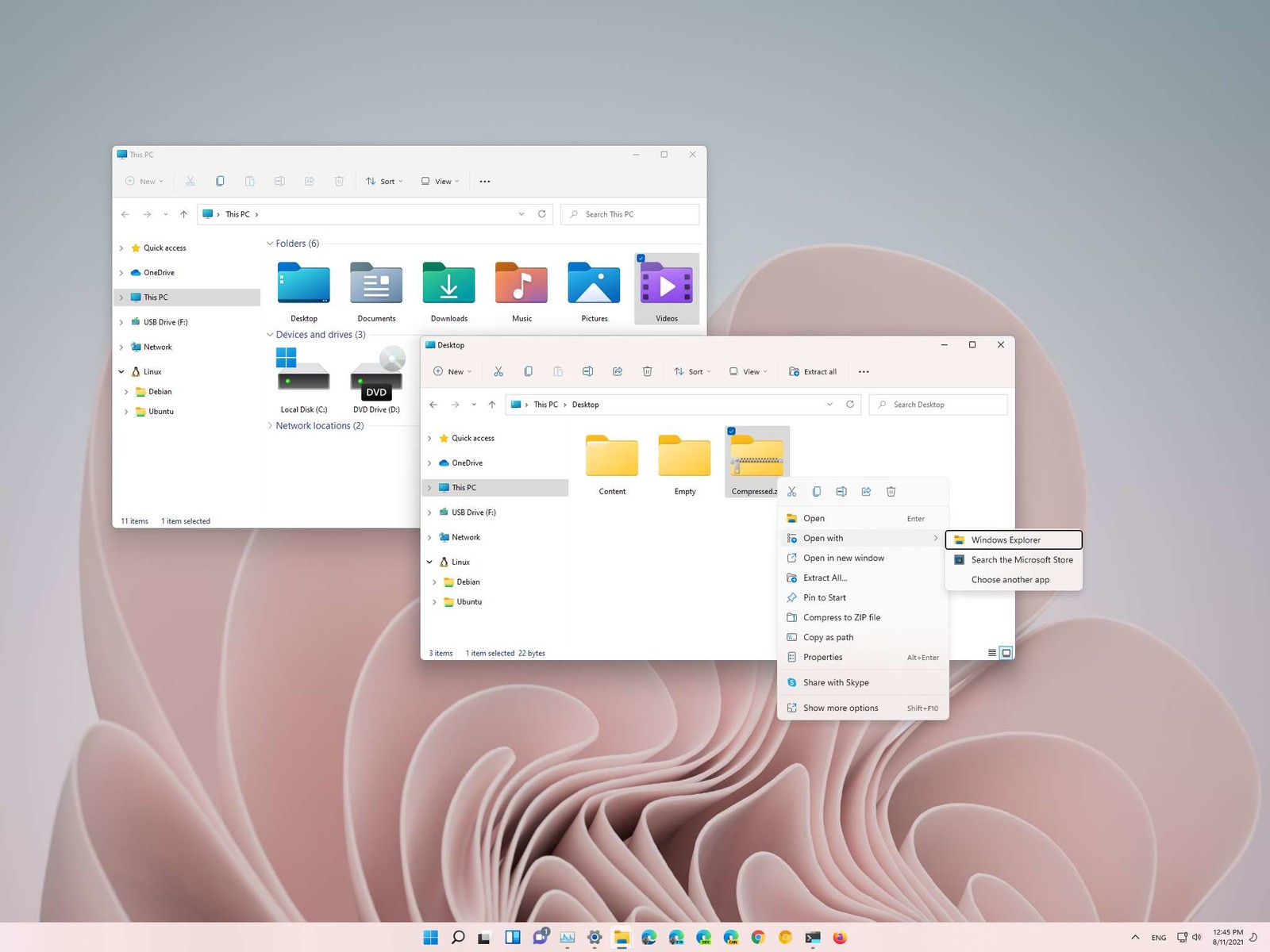
Typical use of file explorer will probably not need any kind of elevated privileges, but from time to time you might encounter some tasks that will require administrator rights in order to perform them. If this is the case you will need to run file explorer with these rights but inside Windows 11 that is somewhat hidden and not 1 click away. File Explorer W11How this is the case we have decided to put a little tutorial on how to accomplish this very task and run file explorer with administrator privileges.

Open File Explorer via EXE file

  1. Open File Explorer typically
  2. Navigate to This PC > Windows (C:) > Windows
  3. Locate file explorer application
  4. Right-click on it and select Run as Administrator
  5. Run File Explorer
A new instance of file explorer will pop with elevated administrator privileges.

Run it as an administrator using the Task Manager

  1. Open the Task Manager ( CTRL + SHIFT + ESC )
  2. Click on More details (at the bottom)
  3. After the task manager expands click on the File tab
  4. Click on Run New Task
  5. Type in explorer.exe and check the box next to it that says Create this task with administrative privileges
  6. Click on OK
File Explorer will now run as administrator.
Read More
Repair Windows 10 Error 0xC1900101, 0x4000D

Error Code 0xC1900101, 0x4000D - What Is It?

Error Code 0xC1900101, 0x4000D is not very common among the many error codes emerging when updating to Windows 10. It is specific to Windows 7 users who try to upgrade to Windows 10 system.

This error hinders Windows 7 users to install the Windows 10 update. Once the update is launched, the process will go smoothly until a certain percentage (normally upon hitting 70% or more) and then it gets stuck. The user will then see a notification stating: “The installation failed in the SECOND_BOOT phase with an error during MIGRATE_DATA operation.”

You’ll be able to get past the error after a while. The error message will disappear and continue with the configuration process. But, not for long as it will reoccur at around 90% of installation with another error message saying: “The installation failed in the SECOND_BOOT phase with an error during PRE_OOBE operation.”

Solution

Restoro box imageError Causes

You’re most likely to encounter Error Code 0xC1900101 – 0x4000D when you upgrade to Windows 10 using a USB drive. There are several reasons why this update-related error happens such as wrong update, incompatibility with an antivirus program, or incompatibilities with some software.

Further Information and Manual Repair

In attempting to fix error code-related problems, it is best to do manual repair methods. Employing repair methods manually can help users pinpoint the root causes of the issues they are encountering and apply permanent solutions to fix the problem.

While every Windows user can do most manual repair methods, there are certain cases where help from a Windows expert is needed. If you’re not confident in employing the manual repair methods yourself, you can always consider seeking help from a professional Windows technician who is equipped with enough knowledge to address any issues you are facing or you can just simply use a powerful automated tool.

In fixing Error Code 0xC1900101 – 0x4000D, you can try doing any of the following manual repair methods:

Method One: Disable Background Applications

Error Code 0xC1900101-0x4000D probably occurs when there are programs running in the background of the system as you are in the process of updating. On that note, you must ensure that any programs running in the background must be disabled through Task Manager.

  1. Press Ctrl+Alt+Del then choose Task Manager.
  2. Right-click on all background applications then chooses End Task to close the apps.

NOTE: If there are any processes you are unfamiliar with, you can always right-click that process then “search online.” Be careful not to end “Windows process” tasks under the “Type” column as it might cause further problems.

  1. Restart your device then proceed to Windows 10 system upgrading.

Method Two: Uninstall Anti-Malware Tools

Anti-malware tools normally trigger problems since they consist of files that are possibly incompatible with some software. If Error Code 0xc1900101-0x4000d is caused by incompatibility with an antivirus program, follow the following steps:

  1. Open the Control Panel then choose System and Security.
  2. Select Windows Solution Center.
  3. Click Security to locate your antivirus.
  4. Once you’ve located your antivirus, click on it then choose
  5. Restart your device then check if it eliminates the problem.

Method Three: Install System Updates

  1. Click on the Start menu then select System and Security – Windows Updates.
  2. Choose Check for updates.
  3. If there are any required updates detected by the system, select them all then choose Install Updates.
  4. Restart your device.

Method Four: Check System For Any Incompatibilities

In doing this method, you need to use the System Readiness tool.

  1. Download System Update Readiness Tool for Windows 7 for x64-based Systems (KB947821).
  2. Once the download is finished, open Windows 6.1-KB947821-v34-x64.msu
  3. Run the program to check for any incompatibilities in your system.

NOTE: The process might take a while depending on the speed of your device.

  1. If there are no results found, you can now try updating again to Windows 10. However, if there are any issues found, you need to have them fixed first.

Method Five: Download A Powerful Automated Tool

Can’t seem to put up with the long and technical manual repair process? You can still fix this error by downloading and installing a powerful automated tool that will surely get the job done in a jiffy!

Read More
Removal guide for Movie Mode Potentially Unwanted Program

MovieMode is a Potentially Unwanted Program developed by GenTechnologies Apps that allegedly ads a “Lights Off” function to video streaming websites like Youtube. This feature allows a user to dim the entire background around the video, allowing for better video focus. Although this sounds interesting and useful, upon further inspection it was discovered that this program does not work with modern browsers.

While installed, MovieMode may modify your browser settings, changing your home page, displaying additional ads, and other suspicious behavior. From the Terms Of Use: “Applications may be automatically enabled on your web browsers following installation. Applications or advertisements may require changing your web browser’s default home page, default page, or set of pages on startup, default search provider, and other browser settings. So that Applications can function most efficiently and with the least annoyance, Applications may modify or disable certain web browser or operating system features including, but limited to load time alerts, accelerator features, and Content Security Policy functionality. Applications may also include features to notify you when you are launching an application or visiting a web domain that may interfere with your installed Applications. “

About Potentially Unwanted Applications

What is a Potentially Unwanted Program (PUP)?

Have you ever detected an unwanted program running on your computer and wondered how the heck it got there? These unwanted programs, which are referred to as Potentially Unwanted Programs, or PUPs in short, usually tag along as a software bundle when downloading the program and could cause significant problems for users. From the technical perspective, a PUP is not true “malware”. A basic difference between PUP and malware is distribution. Malware is normally dropped via vulnerability exploitation while PUP gets installed with the consent of the end-user, who knowingly or unintentionally approves the PUP installation on their computer system. On the other hand, it is obvious that PUPs are still bad news for computer users as they could be quite dangerous to the computer in lots of ways.

How do unwanted programs impact you?

Unwanted programs can be found in many forms. Typically, they will be found in adware bundlers that are known to use aggressive and deceptive advertising. Most bundlers install numerous adware applications from various vendors, each of which has its own EULA policy. Safebytes Anti-malware completely eradicates this threat and safeguards your PC against unwanted programs or malware infection. Additionally, most free software programs these days include a few unwanted add-ons; in many instances an internet browser toolbar or browser modification like a homepage hijacker. Not only they needlessly use up space on your screen, but toolbars may also manipulate search results, track your browsing activities, decrease your web browser’s overall performance, and slow down your web connection to a crawl. They could seem innocent but PUPs are sometimes spyware. The worst part of setting up a PUP is the spyware, adware, and keystroke loggers that may hide inside. Most PUPs don’t have any significant value or advantages. As soon as they are installed, they could waste your valuable system resources and also drastically slow down computer performance. Many of these programs are harmful to computer systems and put your private information and perhaps your identity at stake.

The best ways to stop PUPs

• Always study the license agreement and privacy statement. Don’t agree unless you understand exactly what you’re agreeing to. • Always pick the custom if you’re provided a choice between Recommended and Custom Installations – never ever click Next, Next, Next blindly. • Use an ad blocker/pop-up blocker; Install anti-malware products such as Safebytes Anti-malware. These kinds of programs can establish a wall between your computer and online criminals. • Avoid adding freeware software you simply won’t utilize. Avoid downloading and installing browser extensions and applications you aren’t familiar with. • Always download applications from the original site. The majority of PUPs find their way to your computer is through download portals, so stay away from it entirely.

What To Do If You Cannot Install Safebytes Anti-Malware?

Malware could cause all sorts of damage after they invade your computer, from stealing your private details to deleting files on your PC. Some malware goes to great lengths to prevent you from downloading or installing anything on your computer system, especially antivirus software programs. If you’re reading this, you probably have infected by malware that prevents you from installing a computer security program like Safebytes Anti-Malware. There are a few fixes you can attempt to get around with this particular problem.

Download the software in Safe Mode with Networking

In the event the malware is set to load at Windows startup, then booting in Safe Mode should prevent it. Just bare minimum required applications and services are loaded whenever you boot your computer or laptop into Safe Mode. You will need to do the following to get rid of malware in Safe mode. 1) At power on/start-up, press the F8 key in 1-second intervals. This will invoke the Advanced Boot Options menu. 2) Use the arrow keys to choose Safe Mode with Networking and press ENTER. 3) Once you get into this mode, you should have internet access again. Now, utilize your web browser normally and go to https://safebytes.com/products/anti-malware/ to download and install Safebytes Anti-Malware. 4) Immediately after installation, do a complete scan and let the program get rid of the threats it detects.

Obtain the anti-malware program using an alternate browser

Some malware only targets certain internet browsers. If this is your situation, utilize another web browser as it might circumvent the malware. If you are not able to download the security software using Internet Explorer, this means the virus could be targeting IE’s vulnerabilities. Here, you must switch to an alternate internet browser such as Firefox or Chrome to download Safebytes Anti-malware software.

Create a portable USB antivirus for eliminating viruses

Another option is to create a portable anti-malware program on your USB stick. Follow these steps to use a thumb drive to clean your infected computer. 1) On a clean computer, install Safebytes Anti-Malware. 2) Insert the pen drive on the same system. 3) Run the setup program by double-clicking the executable file of the downloaded software, which has a .exe file extension. 4) Pick a USB flash drive as the location when the wizard asks you exactly where you want to install the software. Follow activation instructions. 5) Disconnect the USB drive. Now you can use this portable anti-malware on the infected computer system. 6) Double-click the antivirus software EXE file on the pen drive. 7) Click on “Scan Now” to run a complete scan on the affected computer for malware.

SafeBytes Anti-Malware Features

Are you looking to download the best anti-malware software for your system? There are plenty of applications in the market that comes in paid and free versions for Microsoft Windows systems. Some of them are good, some are ok types, and some will ruin your computer themselves! While looking for antimalware software, pick one which gives dependable, efficient, and total protection against all known viruses and malware. On the list of recommended software is SafeBytes AntiMalware. SafeBytes carries a really good reputation for excellent service, and customers are happy with it. SafeBytes anti-malware is a highly effective and user-friendly protection tool that is designed for users of all levels of IT literacy. With its most advanced virus detection and repair technology, this software protects your personal computer against infections caused by various kinds of malware and similar threats, including adware, spyware, trojans horses, worms, computer viruses, keyloggers, ransomware, and potentially unwanted program (PUPs). SafeBytes has outstanding features when compared to other anti-malware programs. Here are some of the features you might like in SafeBytes Anti-Malware. Real-time Protection: SafeBytes gives complete and real-time security for your personal machine. It’ll monitor your computer for suspicious activity regularly and safeguards your computer from illegal access. Most Reliable AntiMalware Protection: Built on a greatly acclaimed antivirus engine, this malware removal tool has the capacity to find and remove several obstinate malware threats like browser hijackers, potentially unwanted programs, and ransomware that other typical antivirus software will miss. Safe Browsing: Safebytes assigns all sites a unique safety rating that helps you to have an idea of whether the webpage you are going to visit is safe to view or known to be a phishing site. Lightweight: SafeBytes provides total protection from online threats at a fraction of the CPU load due to its advanced detection engine and algorithms. Premium Support: You can get 24/7 technical assistance to quickly resolve any concern with your security application. Overall, SafeBytes Anti-Malware is a solid program since it has loads of features and can identify and remove any potential threats. Malware problems can become a thing of the past once you put this application to use. If you need advanced forms of protection features and threat detections, purchasing SafeBytes Anti-Malware could be well worth the dollars!

Technical Details and Manual Removal (Advanced Users)

If you don’t wish to use malware removal software and like to get rid of Movie Mode manually, you could possibly accomplish this by going to the Add/Remove Programs menu in the control panel and removing the offending program; in cases of browser add-ons, you can remove it by visiting the browser’s Add-on/Extension manager. You may even want to reset your browser settings, and also clear your web browser cache and cookies. To ensure the complete removal, manually check your hard drive and computer registry for all of the following and remove or reset the values as needed. Having said that, editing the Windows registry is often a hard task that only advanced computer users and professionals should attempt to fix it. Moreover, some malware keeps replicating which makes it difficult to get rid of. It is advisable that you carry out the removal process in Safe Mode.
Files: C:\ProgramData\MovieMode\MovieMode.exe C:\ProgramData\MovieMode\MovieModeService.exe C:\ProgramData\MovieMode\Uninstall.exe C:\Users\All Users\MovieMode\MovieMode.exe C:\Users\All Users\MovieMode\MovieModeService.exe C:\Users\All Users\MovieMode\Uninstall.exe C:\ProgramData\MovieMode C:\Users\All Users\MovieMode

Read More
How to fix Windows 10 Error 0x803f7000

Error code 0x803f7000 -What is it?

Error code 0x803f7000 refers to an issue in Windows 10 with downloading apps through Windows Store. When you choose the app or game to download, it heads to Downloads in the Store app. Then it says it is acquiring a license but then fails. When you click the “See details” link, you see the error code 0x803F7000. It could mean that the date and time or region settings in your Windows 10 are incorrect or there are some problems with the Windows Store Cache.

Symptoms

  • This error appears when you are running Windows 10 and trying to download an app through the Microsoft store. The error code may appear with this message: Something went wrong. The error code is 0x803f7000, in case you need it
  • You might also see this message along with the error code: "It looks like you've reached your device limit for installing apps and games from the Store on your Windows 10 device. If you want to install apps and games from the Store on another Windows 10 device, remove a device from the device list."

Solution

Restoro box imageError Causes

There may be several reasons for this error:
  1. This problem may arise if the date and time in Windows 10 are incorrect.
  2. If the region has been set incorrectly.
  3. Problems with Windows store cache.
  4. Windows store server overloaded.
  5. The Windows version you are using is pirated.

Further Information and Manual Repair

Method 1:

Correcting date and time:
  • Open up Control Panel > Clock, Language, and Region.
  • Then click on Date & Time.
  • Now click on Change date & time to correct your time.

Method 2:

Correcting region:
  • Navigate to Control Panel > Clock, Language, and Region.
  • Then click on Region.
  • Then click on the Location tab.
  • Now set your actual region from Home location section.
  • Click Apply & OK.

Method 3:

Resetting Windows Store:
  • Press Windows Flag Key + X from your keyboard. Then select Command Prompt (Admin). It will launch Command prompt as administrator.
  • Then type wsreset and hit Enter.
  • Wait for a few seconds. It will automatically open Windows Store.
  • Then try to download any apps.

Method 4:

  1. Open Command prompt in local machine and type in the Windows Store reset tool exe
  2. Activate Windows by going to Settings>Updates and Security
  3. Run the Modern UI/metro app troubleshooter from Microsoft
  4. Keep trying it several times.
  5. Try changing locale and time zone to the United States as shown below
  6. Go to control panel, Language settings
  7. Select location to the United States
  8. This will reset the language to US English. After this try downloading the apps again.
  9. Try restarting the Windows Updater service or restart the machine once.
You must make sure that you have a good internet connection. You need that for the updates and downloads complete without disruption.

Method 5:

Make sure the app isn’t blocked by the Windows firewall: To make your PC more secure, some apps are blocked by Windows Firewall by default. For proper functioning, you might need to enable an app to receive info through the firewall. For more info, see the "Allow an app to receive info through the firewall," and follow the procedure from start to finish.

Method 6:

Check with your system admin: If your PC is part of a network in an organization, like a business, school, or government agency, your system administrator might have turned off the use of certain apps using the Group Policy. Contact your system admin if you believe that Group Policy is preventing you from using an app.

Method 7:

Make sure your apps are up-to-date: To make the apps working properly, you must keep your apps up-to-date. This could be done by turning on automatic updates in the Windows Store.

Method 8:

Contact the app publisher To view the publisher’s app support info, follow these steps:
  1. On the Start screen, tap or click Store to open the Windows Store.
  2. Search or browse for the app, and then tap or click it.
  3. Scroll to the Details section of the app's description page, and then tap or click the support link for the app under Learn more. The link will open an email message for you to contact support or will take you to a support website.
If you do not possess the technical expertise required to accomplish this yourself or do not feel comfortable doing so, download and install a powerful automated tool to get the job done.
Read More
1 2 3 171
Logo
Copyright © 2023, ErrorTools. All Rights Reserved
Trademark: Microsoft Windows logos are registered trademarks of Microsoft. Disclaimer: ErrorTools.com is not affiliated with Microsoft, nor claims direct affiliation.
The information on this page is provided for information purposes only.
DMCA.com Protection Status