Logo

Best TV streaming services 2021

We live in a world that is in a pandemic, our lives, both social and work are turned upside down. Most of our free time is spent indoors now, maybe with some close relatives or friends, no large gathering, no party. In this world keeping yourself busy and entertained is very important so we do not lose our minds and try to function as well as we can. Keep up the positive spirit, the pandemic will be over soon but in meantime, let's see some premium streaming services for tv and film so we can kill time faster with some quality entertainment.

  1. Netflix

    If you're a connoisseur of movies and/or TV, there's only one must-have player in town and that's Netflix. It is, unequivocally, the biggest and best streaming service, despite not always stocking its digital shelves with must-have new movies and TV; that said, this is the staple streamer you need to own if you ever plan on cutting the cord and surviving without it.

    These days, most smart TVs have Netflix apps, and finding a streaming box without it is the equivalent of finding a needle in a haystack. The quality of the movies and TV we tried – mostly streamed in Ultra HD – on both TV and on tablets is exquisite.

  2. Amazon Prime Video

    Like Netflix, Amazon Prime Video has its own set of original series The Expanse, Hunters, and The Boys among others – but, generally speaking, they don't receive the same fanfare as their Netflix-bred brethren.

    Although Netflix is as guilty for dud programming as the rest of them, it's worth mentioning Amazon Prime does get some pretty terrible new additions from time to time. So always check out the guide to the best Amazon Prime TV shows before you dive in head-first.

    The two big differentiators between the services are the fact that access to Amazon's streaming service comes standard with a subscription to Amazon Prime – meaning access to Amazon Music and premium delivery services.

  3. Hulu

    Video streaming service Hulu offers big-name titles like The Simpsons, Saturday Night Live, and South Park alongside a huge number of titles from NBC, FOX, and Comedy Central. It's also the only streaming service app on the Nintendo Switch.

    Hulu comes in two flavors: the standard on-demand streaming service you've always known and loved, and the new Hulu with Live TV

  4. Disney Plus

    Disney Plus doesn't feel like it's trying to be the main TV streaming offering in your life. Instead, it's a family-friendly option that feels like it lives alongside a Netflix or Amazon Prime Video subscription. It has a very specific selection of content: Disney animated movies, Star Wars, Pixar, Marvel, and National Geographic.

    Essentially, if Disney owns it and kids can watch it, it's on here, and often streaming in 4K for no additional price. The real reason to sign up are big originals across those different subject areas – WandaVision, The Mandalorian, and Pixar's Soul, for example, all demonstrate an intention to invest big in blockbuster content for the platform.

  5. YouTube TV

    Ask someone what they think was the biggest internet revolution of the 21st century and they'll probably say it was YouTube. And with good reason – the user-generated video-blogging site has changed the online landscape forever.

    It lets anyone, however well known they are (or not), whatever the quality of their content and wherever they hail from, upload their weird and wonderful videos for anyone around the world to watch at their convenience. The beauty of YouTube is that in the blink of an eye it's taken the broadcasting power from the bigwigs and placed it right in our hands.

    OK, so it might not have stopped people wanting to watch a high-quality, professionally made production in their living room TVs, but it's an insight into how TV might be produced in the future. After all, with YouTube you don't need a big budget or indeed any budget at all to produce your own TV series and establish a massive following.

    While the free portion of YouTube will always remain the most popular (the latest statistic says that a whopping eight years' worth of content is uploaded each and every day to the site), but if you're looking for quality content, YouTube TV is also an excellent option worth considering.

  6. HBO Max

    HBO Max is a new streaming service built on top of an old one. The next evolution of HBO Go and HBO Now, it takes the basis of HBO's content – which includes many phenomenal shows, like The Sopranos, Game of Thrones, Barry, The Leftovers, and Succession – and adds a heap more content to make it into more of a Netflix competitor.

    That's why a lot of the original fare we're seeing on the service so far is a bit broader in targeting different audiences, with Anna Kendrick's Love Life kicking us off, and Kaley Cuoco's dark comedy The Flight Attendant also feeling a little different to the usual heavy HBO dramas. You'll find original movies on the service, as well as series previously available on the DC Universe app, like Titans and Harley Quinn.

    There's a big archive of existing shows to enjoy on there, too, like The Fresh Prince of Bel-Air, South Park, and Rick and Morty. The content channels on HBO Max are great, with Studio Ghibli, Adult Swim, and Cartoon Network among those in the mix.

  7. Sling TV

    Sling TV is a kind of cure-all for the cord-cutting generation, something that we knew we needed but no company stepped up to make. That said, it's everything cable's not. It's affordable. It's no-obligation. And there are absolutely zero sales reps trying to stop you from canceling your contract. Best of all, you won't have to give up some of the perks cable provided in the last few years like the ability to pause live TV or watch something that aired up to 72 hours ago.

  8. Crunchyroll

    Crunchyroll is the best streaming service any anime, manga, or East-Asian cinema fan in your life has always wanted and never knew about.

    Founded by Berkeley graduates back in 2006, Crunchyroll started as a bootleg website of sorts where users uploaded their favorite shows without the permission of the original owners. Not the humblest of beginnings. But now it's an essential offering for anime fans.

    While you won't find genre staples like Dragon Ball Z, Digimon or Pokémon around, most of the site's 200-plus series are available to watch for free in SD

  9. Apple TV Plus

    Apple's newest streaming service has money bags and talent on its side. Launching back in 2019 with The Morning Show, an expensive drama starring Jennifer Aniston, Reese Witherspoon and Steve Carrell, as well as See with Jason Momoa, Apple is flexing its muscles to get the best talent.

    Unfortunately, it doesn't have a deep content library, which is what the platform would need to be the best streaming service in 2021

  10. Peacock

    NBC Universal's attempt to enter the streaming market is buoyed by one big benefit: it's free to sign up and use, with an ad-supported tier letting you enjoy a healthy helping of its content for absolutely nothing. That said, a lot of the better stuff is behind a paywall – $4.99 per month if you want to access all of it with ads, and $9.99 if you want to enjoy without ads.

  11. Twitch

    For a certain crowd, Twitch (formerly known as Justin.tv) is about the best invention since sliced bread. Essentially it's a live-streaming platform that focuses primarily on videogames where you can find everything from world tournament coverage to someone muddling their way through that indie darling you had your eye on buying.

    It's not traditional by any means, but you'll find plenty to see and do on Twitch. Best of all the app is free on almost any platform you can think of: iOS, Android, Xbox One, PS4, Chromecast, Amazon Fire TV … you name it, it probably has a Twitch app.

If you would like to read more helpful articles and tips about various software and hardware visit errortools.com daily.

Do You Need Help with Your Device?

Our Team of Experts May Help
Troubleshoot.Tech Experts are There for You!
Replace damaged files
Restore performance
Free disk space
Remove Malware
Protects WEB browser
Remove Viruses
Stop PC freezing
GET HELP
Troubleshoot.Tech experts work with all versions of Microsoft Windows including Windows 11, with Android, Mac, and more.

Share this article:

You might also like

MS Store keeps updating the same apps
As you know, the Microsoft store is a built-in tool in Windows 10 where you can find a variety of applications. It helps users in downloading or updating apps in the system. However, there are instances when you could encounter issues while using it. One of the issues that you could face when using the Microsoft Store app is when it keeps on offering apps you have just updated or when you are not able to update any apps at all. This kind of issue in the Microsoft Store app might be caused by other issues like a damaged Windows Store cache. There are several options you can check out to resolve the problem. You can try to check the registry setting or run the Windows Store apps troubleshooter or clear the Windows Store cache manually or reset its settings. You could also try to re-register the Microsoft Store app. For more details, refer to each one of the options provided below but before you troubleshoot the problem, make sure that you create a System Restore point.

Option 1 – Run the Windows Store App troubleshooter

The Windows 10 Store Apps Troubleshooter will help you in fixing the problem in Microsoft Store. This is a great built-in tool from Microsoft that helps users fix any app issues. To use the Windows Store Apps Troubleshooter, follow the steps below.
  • Tap Win + I keys again to open the Windows Settings panel.
  • Go to Update & Security and then go to Troubleshoot.
  • Under the Troubleshoot section, on your left-hand side, scroll down to find Window Store Apps.
  • Then click on the Run the troubleshooter option and follow the on-screen instructions and then see if it fixes the problem.

Option 2 – Try checking the settings in the Windows Registry

The next thing you can do to fix the problem is to check the Registry settings for the Windows Store.
  • Tap the Win + R keys to open the Run utility and type “Regedit” in the field and then hit Enter to open the Registry Editor.
  • Next, navigate to this registry path: HKEY_LOCAL_MACHINESOFTWAREMicrosoftWindows NTCurrentVersionCurrentVersion
  • From there, look for the DWORD named “CurrentVersion” and make sure that its value data is set to 6.3, but if it’s not then change its value data to 6.3
  • Exit the Registry Editor and restart your computer and then see if it fixed the problem with the Microsoft Store app.

Option 3 – Try to reset the Microsoft Store cache

Just like browsers, Microsoft Store also caches as you view apps and games so it is most likely that the cache is no longer valid and must be removed. To do so, follow the steps below.
  • Right-click on the start button and click on Command Prompt (administrator).
  • Next, type in the command, “exe” and tap Enter. Once you do, the command will clear the cache for the Windows Store app.
  • Now restart your PC and afterward, try opening Microsoft Store again and then try to install your app or update your computer again.

Option 4 – Try to re-register the Microsoft Store app via Windows PowerShell

  • Tap the Win + X key combination or right-click on the Start button and click on the Windows PowerShell (Admin) option.
  • If a User Account Control or UAC prompt appears, just click on Yes to proceed and open the Windows PowerShell window.
  • Next, type in or copy-paste the following command to re-register the Microsoft Store app and tap Enter:
powershell -ExecutionPolicy Unrestricted Add-AppxPackage -DisableDevelopmentMode -Register $Env:SystemRootWinStoreAppxManifest.xml
  • Wait for the process to be completed and then restart your computer.
Read More
What is Trojan Kryptik and what does it do
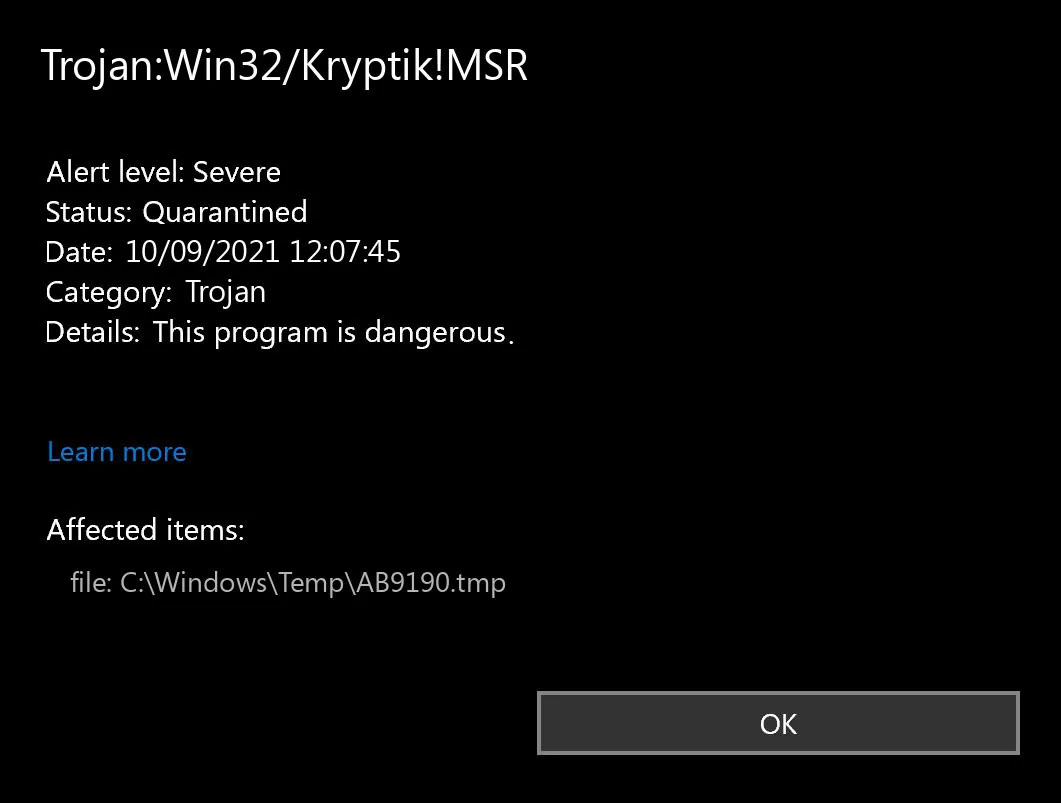
Trojan. Kryptik is a malicious computer infection known as a Trojan horse. Trojan. Kryptik can load at startup and recreate itself which makes it difficult to manually remove from the infected computer. Trojan. Kryptik can compromise the infected system by allowing a remote hacker to gain access without the user's permission or knowledge. Trojan. Kryptik can also lead to the infection of other unknown malware parasites.

trojan krypticTrojan.Kryptik creates the following registry entry or registry entries:

Directory %ALLUSERSPROFILE%\windrivgr 19.7 %LOCALAPPDATA%\DsHcaJnIIz File name without path scaalqtw.exe Regexp file mask %ALLUSERSPROFILE%\sqldump.exe %APPDATA%\b[NUMBERS].exe %APPDATA%\Microsoft\Windows\Start Menu\Programs\Startup\[RANDOM CHARACTERS].com.url %APPDATA%\Origin\update.vbe %APPDATA%\Stanfind.exe %APPDATA%\vpn gui.exe %LOCALAPPDATA%\Microsoft\Windows\Symbols\wvfilters.sys %TEMP%\nvc.exe %TEMP%\system.exe %TEMP%\winsrvcs32.exe
Read More
Star Wars movies & series, chronological order
Besides Star Trek, Star Wars was one of my favorite movie franchises, as a kid, it was the first movie I have seen in Theatre and over the years I have rewatched and reached each entry in the franchise. It has significantly grown over the years, sometimes for worse, sometimes for better but what it always did is explored and expanded lore, characters and brought stories interesting and original enough. The Series has always been original and innovative enough with interesting characters and locations and it managed to capture the imagination of many viewers around the globe. If you or someone else is watching the franchise for the first time it is recommended actually to watch everything how it was released because of some information that is spoiled in prequels that could spoil some interesting revelations later. But if you have already watched everything and would like to follow the story from the beginning to end we are presenting you with the list of all TV series and movies in tar Wars canon in their chronological order so you can enjoy some good character developments and see the whole story unfold how it was meant to be. In the following list, as told, we are including TV series (both released and currently in production) in the Star Wars canon.

Chronological order of Star Wars franchise:

Star Wars: The Acolyte Acolyte is upcoming TV series exploring times in the old republic and the rise of the dark side within Star Wars Episode I: The Phantom Menace The first movie entry in the franchise introducing some key characters who will go through various adventures yet to come Star Wars Episode II: Attack of the Clones Continuation of story and deepening of the plot laid out in the previous movie Star Wars: The Clone Wars Animated TV series exploring war in more detail, set in the period between episodes 2 and 3, before series there is clone wars full length animated movie titles simply as Star wars clone wars serving as a pilot to series. Star Wars Episode III: Revenge of the Sith Last movie in so-called prequel trilogy finishing some stories and finalizing some character arcs Star Wars: The Bad Batch Upcoming animated series Bad batch will focus on few troopers find their way in changing the galaxy Solo: A Star Wars Story Story of everyone loved Han Solo character, this origin story will introduce you to some key characters in the later entry of series Obi-Wan Kenobi Upcoming series that will focus on everyone's favorite JEDI master Obi-Wan Star Wars Rebels Animated series exploring first sparks of forming rebel alliance against dreaded empire Andor Upcoming series set five years before the events of Rogue One, the series follows rebel spy Cassian Andor during the formative years of the Rebellion. Star Wars Rogue One Full feature movie setting up events for episode 4 Star Wars Episode IV: A New Hope First Star Wars movie, little outdated today with special effects but with a strong story and introducing some new characters which will become main icons of franchise Star Wars Episode V: The Empire Strikes Back Arguably the best movie in the whole series, leaning more to serious note and darker than previous entries. Besides Episode 3 this is the most serious and dark movie of the series. Star Wars Episode VI: Return of the Jedi Last movie entry in the so-called original trilogy, finishing some stories and wrapping up one era. Star Wars The Mandalorian Set after episode 6 show focuses on a Mandalorian bounty hunter character following his adventures in the galaxy. The Book of Boba Fett Upcoming Mandalorian spin-off TV series focusing on Bobba Fet, one of most loved bounty hunter characters in the Star Wars universe Ahsoka Star Wars: Ahsoka is an upcoming live-action television limited series exploring the character of Ashoka Tano first seen in Clone Wars Rangers of the New Republic Set within the timeline of The Mandalorian, Rangers of the New Republic is a new upcoming live-action series. Star Wars: Resistance Animated series exploring resistance against first-order setting up events to be followed in the newest trilogy of movies. Star Wars Episode VII: The Force Awakens First full feature movie set in the post-empire era introducing new characters and bringing back some fan favorites. Star Wars Episode VIII: The Last Jedi The second movie in the last order trilogy, continuing stories of previously establishes characters Star Wars Episode IX: The Rise of Skywalker Last entry in new order trilogy of movies, finishing some open stories and concluding arcs for characters previously introduced in Force Awakens. That's it, chronological order of canon TV shows and movies of the Star Wars franchise. We are sure there will be more movies and shows in the future and someday we will revisit this list to include them as well. Until then, may the force be with you. If you would like to read more helpful articles and tips about various software and hardware visit errortools.com daily.

Read More
How to personalize STEAM with custom skin
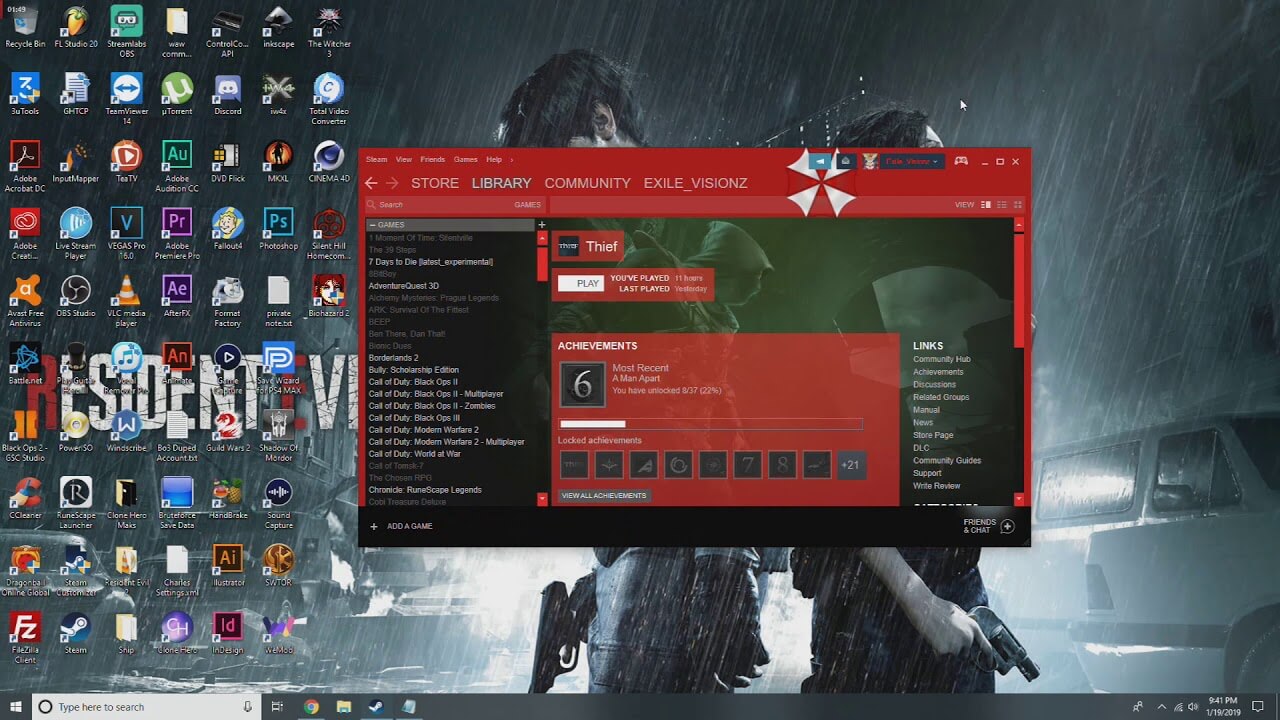
steam skinSkinning of applications is not new to PC users, but did you knew you could skin Steam? With skin, you can customize the UI and style of the client to what you want making it more personal and to your liking. First thing is to find the skin that you would like to install. There are a lot of sites where you could find custom made Steam skins but we would recommend steamskins.org The site itself is organized in tabs with different sections, once you click on the tab you will get a list of skins available for chosen section. If you click on the skin you will be taken to skin page detail where you can find what skin is aiming for, its legibility, a record of how the skin has been altered over time, or some mix of these aspects. Note that some skins might have issues like some buttons might be missing from big picture mode but so far none of the skins has any kind of client breaking feature, only functionality one.

Downloading skin

Once you have chosen desired skin and while on the skin details page, scroll to the middle of the page just above the Related Skins sections with two options: Direct Download and External Download. Now usually I would recommend Direct download but in this case, I would advise going with External Download for the simple reason that the External link will send you to the developer's website where there is a higher chance to get the latest updated skin.

Installing it in Steam

Once the skin is downloaded you will first need to create a skin folder inside your Steam installation location. Navigate to your Steam installation folder (default: C:\Program Files (x86)\Steam) and create a new folder inside it. Give new folder name Skins and confirm. Extract the skin zip file in the newly made folder. Once the file is extracted you can delete the ZIP file if you wish. Go to your Steam client and go to Steam>Settings. In settings select Interface on the left bar and on the right part then click the Select the skin you wish Steam to use the drop-down menu and select the skin that you wish to use. Confirm and restart your Steam client

Reverting to old skin

If you found skin unappealing or, unfortunately, has some functions missing you can always choose another skin or revert back to default Steam skin. Default Steam skin is named in the drop-down menu as < default skin >.
Read More
Malware Guide: How to Remove BitCoinMiner

What is BitCoinMiner Malware?

BitCoinMiner is a Malware created with the intent to force computer systems to generate crypto-currency, namely Bitcoin. This is done without the consent and knowledge of a computer/system holder. This unwanted file bears no digital signature or publisher since the creators of such a heinous invention do not wish to be known. Technical details about BitCoinMiner Malware include:
Product Version: 1.0.0.0 Original File Name: crss.exe Entry Point:  0x000C5AAE

Assessment of BitCoinMiner Malware

After installation of the BitCoinMiner Malware, there were no visible signs of an infection or program files installed. However, based on research, BitcoinMiner Malware utilizes the CPU’s resources (est. to be about 50%). Computer users have reported that they recognized an unknown process utilizing the majority of their processing space. the bitcoin miner is used by the creators to penetrate a user’s system, in effect coercing each infected system to mine Bitcoins covertly. After years of mining, a user might discern that their computer is moving slouchy and may even encounter various forms of BSODs.   After Bitcoins have been mined in the infiltrated system, the cyber currency is then returned/ sent to the creator of the malware. This venture is a sly and deceptive way to earn Bitcoins since the currency is gaining much popularity.

Further Information on BitCoinMiner

BitCoinMiner works covertly. There are no obvious traces of this program running on a computer system. However, once a computer system is infiltrated, the computer user will realize that their CPU resources are strangely being used up, even while the computer idles. Another expression of BitCoinMiner is the addition of cookies of various sorts to a computer system. These include:
  • Tracking cookies
  • Advert (Adware) cookies
  • Casale Media (Spyware) cookies
  • Atwola (Spyware) cookies
  • Adtech (Spyware) cookies
Once BitCoinMiner is present on a computer system, it can potentially slow it down and also create back doors as a means to install other unwanted and harmful programs. To completely remove BitCoinMiner Malware from your computer, click here to download and install Spyhunter.
Read More
A fast Guide to Fixing 2GB filesize Error

What exactly is the 2GB filesize Error?

The PST file could be around 2 gigabytes if you are using MS Outlook 2002 or any earlier versions for your own personal Folders. The 2GB filesize malfunction occurs when your PST memory both reaches or exceeds this limit. The 2GB size problem code is, in addition, referred to as an outsize PST file error. When this error happens you may be unable to deliver or receive e-mails via your Outlook account. Moreover, you'll likewise not be able to add any new data or even view your important calendar items, notes, and saved drafts. MS-Outlook shows several types of problem codes which indicate the 2GB file size dilemma. Listed below are some of the messages that can be displayed on your monitor:-
  • The file could not be added to the folder. The action could not be completed.
  • Task 'Microsoft Exchange Server - Receiving' reported error (0x8004060C): 'Unknown Error 0x8004060C'
  • Can't copy the item
  • Errors have been detected in the file xxxx.pst. Quit all mail-enabled applications.
  • Task 'Microsoft Exchange Server' reported error (0x00040820):'Errors in background synchronization. In most cases, further information is available in a synchronization log in the Deleted Items folder.'
  • xxxx.pst cannot be accessed - 0x80040116

Solution

Restoro box imageError Causes

The simple explanation for this malfunction is that you have maxed out the two gigabytes account limit. This happens in case you continue downloading fresh data and saving files and the old emails in your Outlook account. Over time, the space becomes limited and along with it the 2 GB file limit error. This error also presents a critical danger of data loss which is a possibility in your Outlook account, which hinders you as well from fully utilizing your email account. For regular Outlook customers, who utilize this program for practically all email communication within as well as outside the office, this error is annoying and frustrating as it causes a great deal of annoyance as well as decreases their performance and productivity.

What exactly are the Symptoms?

Below are a few signs that will help you recognize the 2GB file-size error:
  • Inability to fill and open the OST and PST files
  • Error messages pop-ups
  • Failure to send emails
  • Failure to make or edit new contacts
  • Inability to synchronize the file

Further Information and Manual Repair

It is desirable to fix this error code right away especially if this is the preferred strategy to carry out communication in your office. Fix it immediately or else you might not receive e-mails that are important from your colleagues. There are 3 ways to solve this issue.

Method 1

One is to remove the old e-mails and connections and replace them with new ones. This may not be the best option for you in case you don't wish to lose emails and your old contacts.

Method 2

The second alternative would be to install a fresh version of MS-Outlook like 2010. The file-size limits of OST and PST files in these editions are larger than in ms-outlook 2002. On the other hand, this is a good idea for the long run but may not be the best idea for today as you will not have the ability to recover your previous e-mails and contacts that are outdated.

Method 3

The third and maybe the method that is best to resolve the 2GB file size limit error while ensuring the restoration of your old e-mails and contacts as well as increasing the limit to 4GB, is Restoro program's installation. Here may be the best recovery program on the market. It is really easy to use, safe, exceptionally functional, secure, and especially can resolve this issue. Technical expertise isn't needed by you to perform your way around this device.

All you should do is:

Click here to download and install the Restoro repair tool on your computer. In your MS Outlook account, you can restore all your data in just a couple of clicks. Talking of data recovery, this software can also help you recover all those other e-mails before the PST malfunction happened, or that you may have deleted. So, if you have deleted any significant email that you want to recover, this will undoubtedly be of use for you. By installing it on your system you can double your Outlook account's quality to twice as much as the standard size.
Read More
One or more Network Protocols are missing
Windows 10 users a set of rules or standards called Network Protocols in communicating over the internet. These protocols are the ones that made sure that the data is correctly sent between computers. However, if any of the Network Protocol is missing in your Windows 10 computer, then you will most likely encounter a problem like not being able to browse the internet, or share files. For this, you can try to run the Incoming Connections troubleshooter: As you were not able to connect to your internet connection using your PC, you can try to run the Incoming Connections troubleshooter as it might resolve the problem. Refer to the following steps to run this troubleshooter:
  • Tap the Win + I keys to open Settings.
  • After opening Settings, go to Update and Security.
  • Next, navigate to the Troubleshoot pane and select the Incoming Connections section and click the Run Troubleshooter button to get started.
  • Wait until the troubleshooter is finished doing its job and then try connecting to your network again.
If after running the Incoming Connections troubleshooter you receive an error message instead that says, “Network Protocol is missing”, then here are some suggestions you need to check out to fix it. Take note that you must have admin privileges before you start troubleshooting the problem.

Option 1 – Try to update or rollback or uninstall the Network drivers

You might also want to update, roll back, or disable your Network drivers to fix the “This operation failed as no adapter is in the state permissible for this operation” error.
  • Tap the Win + R keys to launch the Run window and then type in the “devmgmt.msc” command and hit Enter to open the Device Manager window.
  • Under the Device Manager, you will see a list of drivers. From there, look for the Network Adapters and expand it.
  • Then right-click on each one of the Network drivers and depending on your preference, you can either select “Update driver”, “Disable device” or “Uninstall device”.
  • After that, restart your PC and see if it helped in fixing the netio.sys Blue Screen error.

Option 2 – Try to reset Winsock, TCP/IP & Flush DNS

You might also want to try resetting Winsock, TCP/IP, and flushing DNS might help you resolve errors. To do so, follow these steps:
  • Right-click on the Start button and click on Command Prompt (administrator) so you can pull up an elevated Command Prompt.
  • After that, execute each one of the commands listed below. And after you typed in one after the other, you have to hit Enter.
  1. netsh winsock reset – type in this command to reset Winsock
  2. netsh int ip reset resettcpip.txt – type in this command to reset TCP/IP
  3. ipconfig /flushdns – type in this command to flush the DNS cache
  • Next, restart your PC and check if the problem’s fixed.

Option 3 – Diagnose the Network Adapter

To diagnose the Network Adapter, go to Control Panel > All Control Panel Items > Network Connections, and from there, look for the network adapter that could be causing the error. Note that if you are using a Wi-Fi connection, then it’s probably your Wi-Fi adapter, otherwise it has something to do with your Ethernet adapter. Just right-click on the problematic network adapter and select diagnose to troubleshoot.

Option 4 – Try to perform Network Reset

You can also try to perform a Network Reset to resolve the problem. This will reset the entire network configuration including your IP address. To perform Network Reset, follow these steps:
  • Tap the Win + I keys to open Settings.
  • From there, go to the Network and Internet section.
  • Next, scroll down and look for “Network Reset” under the status pane.
  • After that, click on Network Reset and then on Reset now to start resetting the network configuration. Once done, check if it is able to fix the error or not.

Option 5 – Try importing Winsock settings from another computer

If resetting Winsock or the Network didn’t fix the problem, then you can try to import settings from a computer that’s in good condition. You need to have access to the registry to get this done and then export and import a couple of settings. Refer to these steps to get started:
  • Tap the Win + R keys to open the Run dialog box and type “Regedit” in the field and hit Enter to open the Registry Editor.
  • After that, go to this registry path: HKEY_LOCAL_MACHINESYSTEMCurrentControlSetServices
  • Next, look for two registry keys named “Winsock” and “Winsock2” and then right-click on each one of them and select the Export option.
  • Now copy the registry keys to a USB drive and then copy the keys on the PC in excellent condition.
  • Then double click on each one of them and it will install the WINSOCK keys.
Read More
Windows is unable to run Automatic Maintenance
As you know, Windows has a built-in Automatic Maintenance feature that takes care of important tasks such as security scanning and updating, Windows software updates, Disk Defragmentation, System Diagnostics, Disk Volume Errors, and many more. So if you receive an error message saying, “Windows is unable to run automatic maintenance, The maintenance schedule is unavailable”, then this post will guide you in what you can do to resolve this issue. Here are some suggestions you can try if the Automatic Maintenance in your Windows 10 PC is not able to run.

Option 1 – Enable Automatic Maintenance

It is possible that Automatic Maintenance has been disabled so you can try enabling Automatic Maintenance on your Windows 10 PC. To do so, follow these steps:
  • Go to Control Panel.
  • From there, select System and Security > Security and Maintenance > Automatic Maintenance.
  • After that, set the time you want to run the Automatic Maintenance and then check the checkbox saying, “Allow scheduled maintenance to wake up my computer at the scheduled time”.
  • Click OK to save the changes.
On the other hand, you can also enable Automatic Maintenance via the Registry Editor. But before you proceed, you need to create a System Restore Point first.
  • Tap the Win + R keys to open the Run dialog box.
  • After that, type “Regedit” in the field and hit Enter to open the Registry Editor.
  • Navigate to the following path:
HKEY_LOCAL_MACHINESOFTWAREMicrosoftWindows NTCurrentVersionScheduleMaintenance
  • Next, look for the “MaintenanceDisabled” key and then double click on it to open it and then set its value to “0”.
  • Click OK and exit the Registry Editor.
  • Restart your computer.

Option 2 – Check the Task Scheduler Services status

Majority of the tasks in Windows 10 run via services. So it is most likely that either the Service has been stopped or is set to the manual which is why Windows is unable to run Automatic Maintenance. Thus, you need to change it to automatic mode.
  • Tap the Win + R keys to open Run.
  • Type “services.msc” in the field and hit Enter to open Services.
  • Next, look for the Task Scheduler service and tap the T key on your keyboard which should take you to the services that start with T.
  • Double click on the Task Scheduler service and select the Automatic option under the Startup Type.
  • If it is not started yet, click on the Start button.
  • Then click Apply and OK to save the changes.

Option 3 – Check the Status in Task Scheduler

You can also try checking the status in the Task Scheduler. Just open the Task Scheduler > Task Scheduler Library > Microsoft > Windows > TaskScheduler. From there, make sure that Idle Maintenance, Maintenance Configurator, and Regular Maintenance are enabled.

Option 4 – Run the System File Checker

The SFC or System File Checker scan could detect and automatically repair damaged system files that could be causing the Automatic Maintenance issue. SFC is a built-in command utility that helps in restoring corrupted files as well as missing files. It replaces bad and corrupted system files with good system files. To run the SFC command, follow the steps given below.
  • Tap Win + R to launch Run.
  • Type in cmd in the field and tap Enter.
  • After opening Command Prompt, type in sfc /scannow and hit Enter.
The command will start a system scan which will take a few whiles before it finishes. Once it’s done, you could get the following results:
  1. Windows Resource Protection did not find any integrity violations.
  2. Windows Resource Protection found corrupt files and successfully repaired them.
  3. Windows Resource Protection found corrupt files but was unable to fix some of them.

Option 5 – Run the DISM tool

The DISM tool is another command-line tool in the Windows operating system that could help users fix various corrupted system files. To use it, follow these steps:
  • Open the Command Prompt as admin.
  • Then type in this command: DISM /Online /Cleanup-Image /RestoreHealth
  • The DISM command you entered will repair the corrupted system image. Do not close the window if the process takes a while as it will probably take a few minutes to finish.
  • Restart your PC.
Read More
Fix Boot Device Not Found 3F0 Error
Today we will be solving the Device not found 3F0 error which is a common error, especially among HP (HP Pavilion G6), Lenovo, Acer, and Dell laptops/desktops. This error occurs when the computer is turned ON and when the system is about to boot. It can happen on windows 7,  8, or 10. When a mentioned error occurs one of the following messages will be displayed on your screen:
  • “No bootable device – insert boot disk and press any key”
  • “No Boot Device Found. Press any key to reboot the machine”
  • “Boot Device Not Found. Please install an operating system on your hard disk. Hard Disk (3FO)”
  • “No boot device is available”

The most common reasons for 3F0 error to occur is:

  • Using the unbootable device or disk to boot from.
  • If the bootable hard drive you are using might have corrupted or damaged somehow.
  • MBR or boot sector is damaged on the bootable hard drive.
  • If your system has gone through a virus or malware attack.
  • The wrong boot order in the BIOS.
  • Hard disk connection problem.
  • System files or boot files unknowingly damaged.
  • Corrupt hard drive partitions.
Now all of these being said let us go through some of the solutions and fix this dreaded error in order to get your computer back in working order:

1: Change Boot Order


This is well, the most simple solution and the easiest one, try to change the boot sequence in the BIOS settings of your motherboard. Sometimes most easier solutions can provide great results and solve our problems. If sadly this fails and the issue persists move to the next solution.

2: Perform a Hard Reset


Performing hard reset can often solve issues, to perform a hard reset do the following:
  • Turn off the computer and unplug the power adapter. If there is a removable battery, it should also be removed.
  • Then disconnect all peripherals, including the removable hard drive, etc.
then
  • Press and hold the power button for 15 seconds to drain all remaining power.
  • Insert the battery, and then re-plug the AC adapter into the laptop.
  • Press the power button to turn on the computer.
  • Once the computer starts up properly and the startup menu appears, use the arrow keys to select “Start Windows normally” and then press Enter.
Reconnect everything back of your peripherals. If by any chance problem still persists follow the next step:

3: Test Hard Drive Using HP Diagnostic Tool


Use the built-in tool in the Hp device to solve the issue:
  • Turn on your computer and keep pressing the Esc key until the menu appears on the screen.
  • Next, press the F2 key.
  • Choose the Components Tests option from the HP PC Hardware Diagnostics menu.
  • Select Hard Drive from the Component Tests menu.
  • Click on the Quick Test, then click on the Run once button.
  • If there are still any issues with your hard drive, then run the Extensive Test.

4: Restore BIOS Default Settings


  • Press the Power button to start the computer, and immediately after this, repeatedly press the F10 key to enter the BIOS setup menu.
  • To load and restore BIOS Setup Default settings, press F9 on the BIOS setup menu.
  • Once loaded, press F10 to Save and Exit.
  • Select yes, and then press Enter when it says Exit Saving Changes.

5: Reconnect Your Hard Drive


  • Turn the computer off and remove the power cable.
  • If you have a removable battery, take it out
  • Disconnect your hard drive and then connect it back.
  • Reassemble your computer and turn the computer on to see if it fixed the issue.

6: Fix and Rebuild Damaged MBR


  • Boot from the original installation DVD (or the recovery USB)
  • At the Welcome screen, click Repair your computer.
  • Choose Troubleshoot.
  • Choose Command Prompt.
  • When the Command Prompt loads, type the following commands: bootrec /FixMbr bootrec /FixBoot bootrec /ScanOs bootrec /RebuildBcd.

7: Fix Operating System


  • Prepare a Windows installation disc, CD/DVD or USB flash drive and connect it to your PC.
  • During the installation process, launch Command Prompt.
  • In Windows 7, under the System Recovery Options tab, click Startup Repair.
  • In Windows 8 and Windows 10, click Repair your computer, then select Troubleshoot > Advanced options > Automatic Repair (Windows 8) or Startup Repair (Windows 10).

8: Replace the Hard Disk

Read More
Location services are greyed out in Windows
Location services is a built-in tool in Windows 10 is a useful tool that offers users location information even when your laptop or desktop computer does not have a GPS since it uses Wi-Fi positioning as well as your device’s IP address. However, there are instances when you might encounter some problems when using this service. One instance is when you suddenly find the toggle button for Location service greyed out. This kind of program could be due to some glitch in the system or some third-party application on your computer. Because of this problem, you won’t be able to toggle the Location service on or off and you won’t be able to make any changes in its settings. Worry not, for this post will guide you on what you can do to fix the greyed-out toggle button of Location services in Windows 10. Before you perform some troubleshooting steps, you might want to restart your computer and see if it fixes the problem. If it didn’t, then this problem is not just some minor glitch. Thus, you have to follow the potential fixes provided below to fix the problem but before you do that, make sure that you create a System Restore point first. After that, follow each one of the following options.

Option 1 – Put your PC in a Clean Boot State

The first thing you can do to resolve the problem is to put your computer in a Clean Boot State. It could be that there is a third-party program that’s preventing the toggle button from functioning. To isolate this possibility, you need to put your computer in a Clean Boot State.
  • Log onto your PC as an administrator.
  • Type in MSConfig in the Start Search to open the System Configuration utility.
  • From there, go to the General tab and click “Selective startup”.
  • Clear the “Load Startup items” check box and make sure that the “Load System Services” and “Use Original boot configuration” options are checked.
  • Next, click the Services tab and select the “Hide All Microsoft Services” check box.
  • Click Disable all.
  • Click on Apply/OK and restart your PC. (This will put your PC into a Clean Boot State. And configure Windows to use the usual startup, just simply undo the changes.)
  • Now check if you can now use the toggle button of the Location service or not.

Option 2 – Try to use the Registry Editor

If putting your computer in a Clean Boot state didn’t fix the problem, you might want to make some adjustments in the Windows Registry via Registry Editor.
  • Tap the Win + R keys to open the Run utility and type “regedit” in the field and then tap Enter to open the Registry Editor.
  • After that, navigate to this registry path: HKEY_LOCAL_MACHINESYSTEMCurrentControlSetServiceslfsvcTriggerInfo
  • From there, select the Key (folder) named as “3” and right-click on it, and then delete it.
  • Once done, exit the Registry Editor and restart your computer.

Option 3 – Try to use the Windows Services Manager

  • Tap the Win + R keys to open the Run dialog box and type “services.msc” in the field and hit Enter to open the Services Manager.
  • Next, look for the “Geolocation Service” entry from the list of services.
  • Once you find it, right-click on it and select Properties. This will open a new mini window.
  • From there, make sure that it is “Running” and its Startup Type is set to “Automatic”.
  • After that, close the Services Manager and check if the problem is now resolved.

Option 4 – Try to use the Group Policy Editor

  • Tap the Win + R keys to launch Run and type “gpedit.msc” in the field and click OK to open the Group Policy Editor.
  • After that, navigate to this path: Administrative TemplatesWindows ComponentsLocation and Sensors
  • Next, double click on each one of the following settings and select the “Not configured” or “Disabled” option.
    • Turn off location scripting
    • Turn off location
    • Turn off sensors
  • Once done, navigate to this path: Administrative TemplatesWindows ComponentsLocation and SensorsWindows Location Provider
  • From there, double click on the “Turn off Windows Location Provider” policy setting and set its configuration to either “Disabled” or “Not configured”. You should see the following description of the policy setting in the window:
“This policy setting turns off the Windows Location Provider feature for this computer. If you enable this policy setting, the Windows Location Provider feature will be turned off, and all programs on this computer will not be able to use the Windows Location Provider feature. If you disable or do not configure this policy setting, all programs on this computer can use the Windows Location Provider feature.”
  • Now restart your computer.
Read More
1 2 3 171
Logo
Copyright © 2023, ErrorTools. All Rights Reserved
Trademark: Microsoft Windows logos are registered trademarks of Microsoft. Disclaimer: ErrorTools.com is not affiliated with Microsoft, nor claims direct affiliation.
The information on this page is provided for information purposes only.
DMCA.com Protection Status