Logo

Windows Update service could not be stopped

If you are running the Windows Update service but decided to stop it but you encountered an error message instead that says, “The Windows Update service could not be stopped”, read on as this post will help you fix the problem.

This kind of error appears when you use the Command Prompt to stop the Windows Update service, especially if you are using cmd without admin privileges. A lot of users reported that they were not able to disable the automatic Windows Update in Windows 10 using Command Prompt. The command used to stop the Windows Update service is the “net stop wuauserv” command. However, when some users executed this command, they got the error message. So if you are one of these users that can’t stop the Windows Update Service via Command Prompt, you can try to fix that using PID as well as checking the Service dependencies. For more details, follow the given options below.

Option 1 – Try to stop the Windows Update service via PID

In case you don’t know, each running service or process has its own unique ID or PID and you can find it in the Task Manager. You can use it to stop the Windows Update service. How? Refer to these steps:

  • Tap the Ctrl + Shift + Esc keys to open the Task Manager.
  • Next, go to the Services tab and look for the service named “wuauserv” and get its PID.
  • After that, type “cmd” in the Windows Start search and right-click on Command Prompt from the search results and then select the “Run as administrator” option.
  • After opening Command Prompt with admin privileges, execute this command: taskkill /f /pid <PID>

Note: You need to replace “<PID>” with the PID of the “wuauserv” service. For instance, the PID is 6676, then this is how the command should be “taskkill /f /pid 6676”.

  • After you execute the command, you will this message on your screen, “SUCCESS: The process with PID 6676 has been terminated” which indicates that you have stopped the Windows Update service successfully.

Option 2 – Try to check the Service dependencies

Dependencies of a Windows Service in Windows 10 are when windows services depend on other services. Such is the case with the Windows Update service – it also depends on three different services such as the Remote Procedure Call or RPC service, DCOM Server Process Launcher, and the RPC Endpoint Mapper. Meaning to say, if two of these services are not working as expected, then the dependant service will also be affected. This could be the reason why the Windows Update service could not start.

  • Tap the Win + R keys to open the Run dialog box.
  • Next, type “services.msc” in the field and hit Enter to open Windows Services.
  • From the list of Services, look for the following services:
    • Remote Procedure Call (RPC) Service
    • DCOM Server Process Launcher
    • RPC Endpoint Mapper
  • After you find these services, double click on each one of them and check whether the Startup type for all is set to Automatic and the Service status is set to Running or not.
  • If the service status is not running, then click the Start button. Afterward, check if you can now run the Windows Update service.

Do You Need Help with Your Device?

Our Team of Experts May Help
Troubleshoot.Tech Experts are There for You!
Replace damaged files
Restore performance
Free disk space
Remove Malware
Protects WEB browser
Remove Viruses
Stop PC freezing
GET HELP
Troubleshoot.Tech experts work with all versions of Microsoft Windows including Windows 11, with Android, Mac, and more.

Share this article:

You might also like

How to Remove AtoZ Manuals from Windows

AtoZManuals is a Browser Extension developed by MindSpark Inc. This extension offers users an easy way to search Customer Manuals for Products. This extension may seem handy at first, however, this extension hijacks your browser home page, and changes your default search engine to MyWay.

While browsing the internet with this extension you will see additional ads, sponsored links, and pop-up ads in your browser. Additionally, this extension monitors your browser activity, including search words, visited links, shopping information, and sometimes even personal information, which is later used to display better-targeted ads.

Multiple anti-virus scanners have marked this extension as a Browser Hijacker, and due to its rogue behavior, it is not recommended to keep it on your computer.

About Browser Hijackers

Browser hijacking means a malicious program code has control over and altered the settings of your browser, without your permission. They’re made to interfere with web browser functions for various reasons. Often, it’ll drive users to predetermined websites that are trying to boost their ad earnings. Although it may seem naive, these tools were created by vicious people who always look to take advantage of you, so that hackers could earn money from your naivety and distraction. When the program attacks your laptop or computer, it begins to mess things up a whole lot that slows your system down to a crawl. In the worst-case scenario, you may be forced to tackle serious malware threats as well.

How one can recognize a browser hijack

There are various signs that indicate the internet browser has been hijacked: your homepage is reset to some unfamiliar website; you observe new unwanted favorites or bookmarks added, typically directed to ad-filled or porn sites; default search engine is changed; you see many toolbars on the browser; your internet browser displays endless pop-up windows; your browser has become unstable or starts running sluggishly; you’re prohibited access to specific web pages, for example, the site of an antivirus software developer like SafeBytes.

How it infects your PC

A browser hijacker could be installed on your PC when you check out an infected website, click on an email attachment, or download something from a file-sharing website. They are generally included with toolbars, add-ons, BHO, plug-ins, or browser extensions. A browser hijacker could also be installed as a part of freeware, shareware, demoware, and fake programs. Examples of popular browser hijackers are Fireball, CoolWebSearch. GoSave, Ask Toolbar, RocketTab, and Babylon Toolbar.

Getting rid of browser hijackers

Some kinds of browser hijackers can be removed from the computer by deleting malicious software or any other recently added freeware. However, many hijackers are much more difficult to discover or remove since they could get themselves connected with some important computer files that enable it to operate as a necessary operating-system process. Furthermore, manual removals demand in-depth system knowledge and thus could be a very difficult task for novice computer users.

Learn How To Install Safebytes Anti-Malware On An Infected Computer system

Malware may cause several kinds of damage to computing devices, networks, and data. Some malware is meant to restrict or block things that you wish to do on your computer system. It may well not allow you to download anything from the web or it will stop you from accessing a few or all internet sites, particularly the anti-virus sites. If you’re reading this right now, you might have perhaps recognized that virus infection is the cause of your blocked internet connectivity. So what to do when you want to download and install anti-malware software like Safebytes? Although this sort of issue will be difficult to get around, there are some actions you can take.

Install the anti-malware in Safe Mode

If any virus is set to load automatically when Microsoft Windows starts, getting into safe mode could block this attempt. Since just the minimum programs and services launch in “Safe Mode”, there are seldom any reasons for conflicts to happen. To start your Windows XP, Vista, or 7 computers in Safe Mode with Networking, follow the instructions below. 1) At power-on/startup, hit the F8 key in 1-second intervals. This would conjure up the Advanced Boot Options menu. 2) Make use of the arrow keys to select Safe Mode with Networking and press ENTER. 3) When you are into this mode, you should have an internet connection once again. Now, make use of your browser to download and install Safebytes Anti-malware. 4) Following installation, run a full scan and let the software program remove the threats it finds.

Obtain the security program in a different browser

Some malware might target vulnerabilities of a particular web browser that obstruct the downloading process. The best way to overcome this issue is to go with an internet browser that is well known for its security measures. Firefox contains built-in Malware and Phishing Protection to keep you secure online.

Install and run antivirus from your USB drive

Here’s another solution which is utilizing a portable USB anti-virus software package that can scan your system for viruses without the need for installation. To run anti-virus from a USB pen drive, follow these simple measures: 1) On a clean computer, download and install Safebytes Anti-Malware. 2) Mount the pen-drive onto the same computer. 3) Double-click the Setup icon of the antivirus software package to run the Installation Wizard. 4) Select the USB flash drive as the location when the wizard asks you exactly where you wish to install the application. Follow activation instructions. 5) Now, transfer the thumb drive to the infected PC. 6) Run the Safebytes Anti-malware directly from the USB drive by double-clicking the icon. 7) Click the “Scan” button to run a full system scan and remove viruses automatically.

How SafeBytes Anti-Malware Keep your Computer Malware Free

These days, an anti-malware tool can protect your computer or laptop from different kinds of internet threats. But exactly how to choose the right one amongst numerous malware protection software that is available in the market? As you might be aware, there are lots of anti-malware companies and tools for you to consider. Some of them are great, some are ok types, while some will affect your computer themselves! You have to select one that is reliable, practical, and has a good reputation for its malware source protection. When it comes to commercial application options, the majority of people go with well-known brands, such as SafeBytes, and are very happy with it. SafeBytes is a powerful, real-time antivirus application that is made to assist the typical computer user in safeguarding their computer from malicious internet threats. With its outstanding protection system, this utility will instantly detect and remove most of the security threats, including viruses, adware, browser hijackers, ransomware, PUPs, and trojans. SafeBytes carries a variety of great features that can help you protect your laptop or computer from malware attack and damage. Below are some of the great ones: Robust Anti-malware Protection: Using its advanced and sophisticated algorithm, this malware elimination tool can find and get rid of the malware threats hiding in the computer system effectively. Real-time Threat Response: SafeBytes delivers complete and real-time security for your computer system. It’ll inspect your computer for suspicious activity regularly and its unparalleled firewall guards your computer against unauthorized entry by the outside world. Quick Multithreaded Scanning: This software has one of the fastest and most efficient virus scanning engines in the industry. The scans are very accurate and take a little time to complete. Web Protection: Through its unique safety ranking, SafeBytes informs you whether a website is safe or not to access. This will ensure that you’re always certain of your online safety when browsing the world wide web. Light-weight: SafeBytes is a lightweight and simple to use antivirus and antimalware solution. Since it utilizes minimal computer resources, this program leaves the computer’s power exactly where it belongs to: with you actually. 24/7 Online Technical Support: Support service is readily available for 24 x 7 x 365 days through email and chats to answer your queries.

Technical Details and Manual Removal (Advanced Users)

If you’d like to manually get rid of AtoZManuals without the use of an automated tool, it may be possible to do so by deleting the program from the Microsoft Windows Add/Remove Programs menu, or in cases of web browser extensions, going to the browsers AddOn/Extension manager and uninstalling it. You will likely also want to reset your web browser. Lastly, examine your hard drive for all of the following and clean your Windows registry manually to remove leftover application entries after uninstalls. Please note that only experienced computer users should try to manually edit the system files simply because deleting any single critical registry entry leads to a serious issue or even a system crash. In addition, certain malware is capable of replicating itself or preventing its deletion. Completing this task in Safe Mode is suggested.
Folder: C:Users%UserName%AppDataLocalTemp Registry: HKLMSOFTWAREClassesAppIDAtoZManuals.exe HKEY_LOCAL_MACHINESOFTWAREMicrosoftInternet ExplorerExtensions HKEY_LOCAL_MACHINESoftwareMicrosoftWindowsCurrentVersionExplorerBrowser Helper Objects HKEY_LOCAL_MACHINESoftwareMicrosoftInternet ExplorerToolbar HKEY_LOCAL_MACHINESOFTWAREGoogleChromeExtensions HKEY_LOCAL_MACHINESOFTWAREMozillaFirefoxExtensions HKEY_CURRENT_USERSoftwareOpera Software HKEY_LOCAL_MACHINESOFTWAREMicrosoftWindows NTCurrentVersionvirus name HKEY_CURRENT_USERSoftwareMicrosoftWindows NTCurrentVersionWinlogon Shell = %AppData%IDP.ARES.Generic.exe HKEY_CURRENT_USERSoftwareMicrosoftWindowsCurrentVersionRun Random HKEY_LOCAL_MACHINESoftwareMicrosoftWindows NTCurrentVersionRandom

Read More
How to fix 502 Bad Gateway error in Windows
Browsing the internet doesn’t always go smoothly, you might encounter ads, pop-ups, viruses, malware, and even errors. In this post, we’ll walk you through how you can fix the 502 Bad Gateway error that you might encounter in browsing the internet. This kind of error suggests the server which is the one that’s acting as a gateway to facilitate in taking your request to the server and bring some response back has received an invalid response or even no response at all. It could be that the connection is broken or that there is an issue on the server-side that returns an invalid response. Even though the 502 Bad Gateway error is a server-related error, there are still a few things you can try that might help resolve it, if tapping the Ctrl + F5 keys does not resolve the problem. Keep in mind that it doesn’t matter what website you open as this error can appear on any website. To resolve the problem, you need to follow the options prepared below.

Option 1 – Check the network cable connections and restart your router

As with other connection problems, this is the most basic thing to do before you try other troubleshooting options because the root cause of the problem might be as simple as a cable not connected properly or a router that just needs to be restarted. Thus, checking the network cable connection to see if there is anything out of order can help as well as restarting your router.

Option 2 – Reset Winsock, TCP/IP & Flush DNS

Resetting Winsock, TCP/IP, and flushing DNS might help you resolve the issue. To do so, follow these steps:
  • Right-click on the Start button and click on Command Prompt (administrator) so you can pull up an elevated Command Prompt.
  • After that, execute each one of the commands listed below. And after you typed in one after the other, you have to hit Enter.
  1. netsh winsock reset – type in this command to reset Winsock
  2. netsh int ip reset resettcpip.txt – type in this command to reset TCP/IP
  3. ipconfig /flushdns– type in this command to flush the DNS cache
  • Next, restart your PC and check if the problem’s fixed.

Option 3 – Change the DNS

Changing the DNS server for your network can also help you fix the 502 Bad Gateway error. You can use a public DNS like the Google Public DNS, Open DNS, Yandex DNS, Comodo Secure DNS, and many more. All you have to do is to override the default DNS settings on your PC so that you can specify which DNS server is used as well as which IP address should be used for a specific domain.

Option 4 – Try updating the Network Adapter Driver

Follow the steps below to update your Network Adapter Driver:
  • Tap the Win + R keys to launch the Run window and then type in the “devmgmt.msc” command and hit Enter to open the Device Manager window.
  • From there, expand the list of all the network drives and update each one of them.
Note: If updating the network drivers didn’t help in fixing the problem, you can also try to uninstall the very same drivers and restart your Windows 10 PC. After that, the system itself will reinstall the drivers you just uninstalled. Alternatively, you can also download and install the drivers from the manufacturer’s website directly.

Option 5 – Try a Network Reset

When all else fails, you might have to consider resetting your entire network settings. Simply follow the steps below to do so.
  • Click on the Start button and then click on the gear-like icon for Settings to open it.
  • Next, select Network and Internet.
  • Then scroll down and look for “Network Reset” – click on it and then click on the Reset now button.
Read More
login does not appear/password box not showing
As you know, Windows 10 offers its users tons of options to log in to their computers. This includes simple and easy methods like PIN and complex ones like the Windows Hello Face unlock. However, there are instances when you might face a situation where the login screen in Windows 10 does not appear at all. If you are currently facing this problem, worry not for this post will show you what you can do to fix this problem. There are actually two scenarios to this issue, you might encounter one where the login screen does not show up at all, while the second one is when the login screen shows up but there is no username or password box. There are several options you can check out to resolve the problem. You can try to run System Restore or try the combination of Ctrl + Alt + Delete keys. You could also try to enter a username and password to use the computer or disable Fast Startup or troubleshoot the problem in a Clean Boot State. You could also create a new User Account or run Fresh Start or run the Startup Repair. To get started, follow each one of the given options below.

Option 1 – Try using the Ctrl + Alt + Delete key combination

The first and simple thing you can do to fix the login screen is to tap the Ctrl + Alt + Delete keys and see if it makes the credentials appear or not. If not, proceed to the next given option.

Option 2 – Try running System Restore

If you aren’t able to boot into the desktop of your computer, you can run System Restore in the Advanced Startup Options by following these steps:
  • Boot your computer into the Advanced Startup Options screen.
  • From there, you will see some options to troubleshoot when you can’t log in to Windows in the usual way.
  • Now select Troubleshoot > Advanced Options > Command Prompt.
  • After that, type “rstrui” and hit Enter to execute the command which will start the System Restore process.
  • Once it’s done, restart your computer.

Option 3 – Try to turn off Fast Startup

  • Tap the Win + R keys to open the Run dialog box and type in “control” to open the Control Panel.
  • Next, click on the Hardware and Sound section and click on Power Options.
  • Afterward, select the “Choose what the power buttons do” option from the left side menu pane.
  • Now click on Change settings that are currently unavailable and uncheck the entry that says, “Turn on fast startup (Recommended).
  • Then click on Save Changes and restart your computer and see if it has fixed the problem or not.

Option 4 – Try troubleshooting the problem in a Clean Boot State

There are times when some conflicting programs installed in your computer might be the reason why there is an issue with the password box in the login screen of Windows 10. To identify which program is causing the problem, you need to put your computer in a Clean Boot State. To do so, follow the steps below.
  • Log onto your PC as an administrator.
  • Type in MSConfig in the Start Search to open the System Configuration utility.
  • From there, go to the General tab and click “Selective startup”.
  • Clear the “Load Startup items” check box and make sure that the “Load System Services” and “Use Original boot configuration” options are checked.
  • Next, click the Services tab and select the “Hide All Microsoft Services” check box.
  • Click Disable all.
  • Click on Apply/OK and restart your PC. (This will put your PC into a Clean Boot State. And configure Windows to use the usual startup, just simply undo the changes.)
  • From there, start to isolate the problem by checking which one of the programs you installed recently is the root cause of the problem.

Option 5 – Try to run Startup Repair

You might also want to run Startup Repair in fixing the issue with the login screen. To do so, follow the steps below.
  • You can start by creating and booting from a bootable Windows 10 USB Stick.
  • After that, click on Repair your computer located on the bottom left corner when you are on the initial Windows Startup screen.
  • Next, click on Troubleshoot, and then on the other screen, click the Startup Repair option.
  • Now select the operating system you want to repair. Once you do that, it will start to repair your operating system. Wait until the process is completed and then check if the problem’s now fixed.
Read More
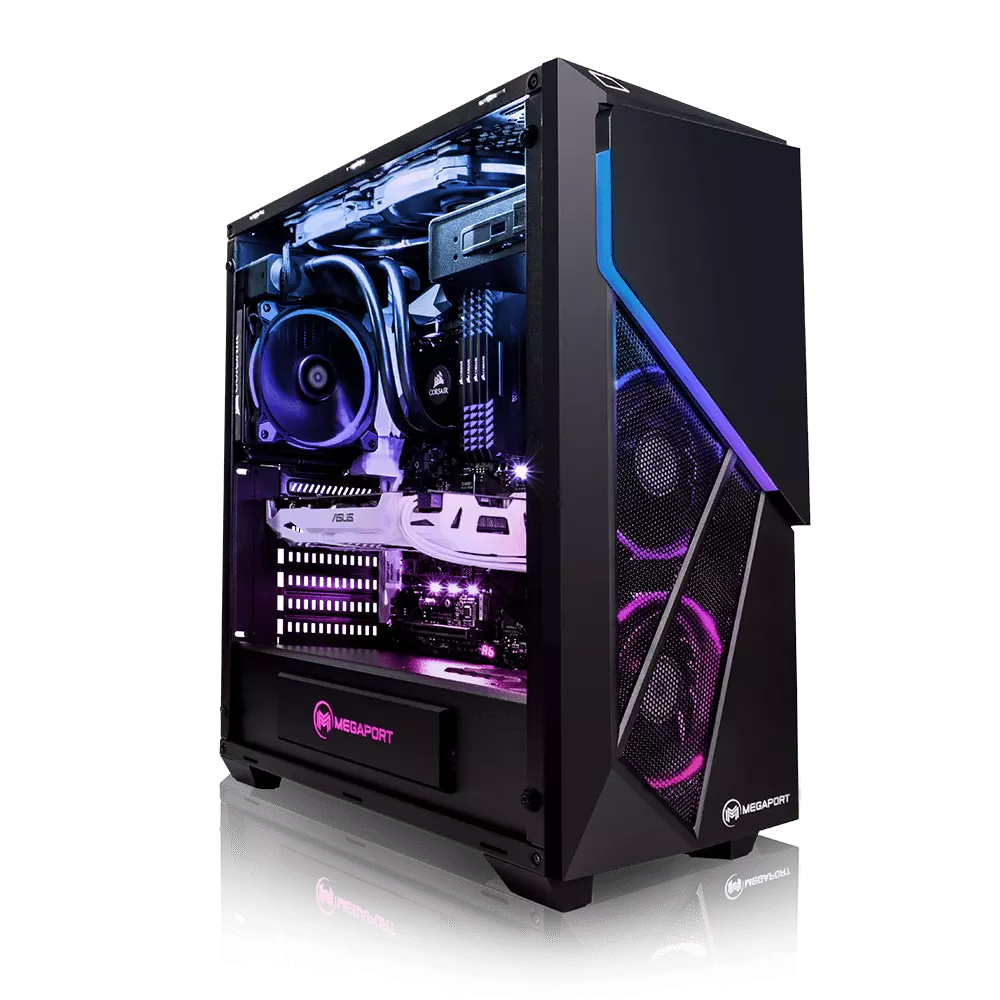
Should you build a custom PC

Building your own custom PC system can be one of the greatest things you can do to your budget. Instead of going for a rebuild, we will go into detail about why building your own PC is a much better option. Also, note that if you do not possess enough technical knowledge about a topic there are plenty of stores that will offer you advice on components and after all, you can always get help from a friend.

Custom PC

So without further diversion from the topic, let us explore all the benefits of building a custom computer.

Building a custom PC is cheaper

At the first look, this statement does not feel right since when you look at the prebuilt systems you get a feeling that it is much cheaper than do it yourself variant and although CPU and GPU seem like a great deal I beg you to look under the hood on other components. Usually to lower price compromise would be made on other crucial components like SD or power supply, a PC case, or motherboard so even if you have a good CPU and GPU that will not matter much since other components would not be able to catch up with them. After all, prebuild computers will need to pay people who are building them and there is no way that will be cheaper if you just plain went and bought the same components yourself and install them.

When you are in control in choosing each component there is not only being cheaper online, it is flexibility with building itself. You choose which components you want to be stronger and which to be normal. Also, you can choose the exact model of the given component leaving you more in control and open to future upgrades.

More flexibility

Also, it may sound irrelevant but when building your own custom PC you can also choose which company you would like to purchase for each model, yes considering the CPU it is AMD or Intel but when you are buying a case, SSD, GPU, and other components choosing the right company for your needs is also the thing that should not be overlooked.

You can customize it the way you want

Not really a quality argument but with a custom PC build, you can choose would you like that RGB component or not, you choose do you like white or black fans, and many more things. You really can place a personal stamp on the computer making it indeed a personal computer.

You choose OS and applications

When you buy an already prebuilt PC, usually it comes with some sort of OS on it, sometimes it is freedos, Linux and sometimes it is Windows Home. When you get your hands dirty you can place whichever system you want on it and install applications that you use and know and some preinstalled typical apps.

Read More
How to Delete your data from the internet
The Internet has come a long way from its infant stages and has become so large and huge that it has gained the status of basic human rights. There are very useful information and a lot of great content on it and among them, there are social media websites and other types of websites where you have, most likely placed some personal pictures or other information. One day you might want to cancel some of the services or you would like to take a break from it all. In this guide we will show you how to do exactly that, to delete and remove your data from the internet.

How to Delete Your Google Account

Google is arguably one of the most visited places on the Web. It stores a huge amount of data for delivering personalized content. It saves personal information, web searches, watched videos, location data, etc. You can view a summary of the data saved by different Google services by visiting your Google Dashboard.
To delete personal data from Google, go to myactivity.google.com. Select the Delete activity by from the left menu to start deleting activities.
Select All time to delete all of your activities from different Google services. You can also delete files saved to Google services, such as Google Photos, Google Drive, and Keep. Just visit the site, select the files, and delete them. Note that Google retains some information even after you delete all data. They do this to meet business needs and legal requirements. These will be deleted when you delete your Google account altogether.

How to Delete Your Facebook Account

Facebook stores a huge amount of data for each user. Some of the personal information stored in Facebook’s databases includes name and email, check-ins, location, images, videos, events, etc. You can view and download all of your personal data using Facebook’s information download tool. However, you will need to delete your account altogether for removing your personal data from Facebook. Follow the below steps to delete your Facebook account.
  1. Log in to your Facebook account and go to Settings & privacy > Setttings.
  2. Select Your Facebook Information.
  3. Select Deactivation and Deletion.
  4. Select Delete Account.
  5. Select Continue to Account Deletion.
  6. Select Delete Account.
  7. Enter your password and click Continue.
It can take up to 90 days for Facebook to delete your personal data from the Internet. You will not be able to access any of the data once the deletion starts. However, you can cancel this within the first 30 days.

How to Delete Your Twitter Account

Twitter has also followed in the footsteps of Facebook when it comes to harvesting your personal data. It utilizes this information for delivering personalized ads and tweets. You can download an archive of all of your personal data from Twitter. It makes it easy to monitor what information is available to the platform. Click the More button from the left menu and head over to Settings and privacy. Follow the below steps to download your personal information.
  1. Select Download an archive of your data from the Your Account section.
  2. Select Request archive from under the Twitter data section. Enter your password when prompted.
  3. It will take some time for Twitter to make the data available to you. You’ll receive an email once the data is ready to be downloaded.
It would be best if you also restrict data sharing and off-site activities. Head over to Privacy and safety and inspect the options under the Data sharing and off-Twitter activity section.
Look in the Interests and Your advertiser list sections from the Ads preferences tab. You can disable Twitter from tracking you in the Off-Twitter activity tab. Uncheck the options from the Data sharing with business partners and Location information tabs.
Finally, you need to deactivate your account for deleting all personal information from Twitter. You’ll have 30 days to reactivate the account. After that, Twitter will begin erasing your information from its systems. Note that they can still retain some information subjected to platform regulations.

How to Delete Your Instagram Account

Instagram has risen to prominence in the last couple of years. The company collects a huge amount of personal information from its users, including media, name, email, and much more. You’ll need to deactivate your account altogether if you want to delete everything Instagram knows about you.
Head over to the Delete your account page and select the reason you want to delete it. Enter your Instagram password to verify your identity, then click on the Delete button. Instagram will hide your account details for the next 30 days and delete all personal data after the given period.

How to Delete Your TikTok Account

TikTok is another emerging platform that has become quite popular among millennials. Users share a lot of personal information through personalized music videos. You need to delete your TikTok account permanently to remove all personal data from TikTok.
To do this, head over to Me, then tap on the icon in the top-right corner of the window. Select Delete account from under the Manage Account section. Follow the instructions provided there to continue deactivating your account. Like Instagram, TikTok also offers a 30-day time period to allow users to change their minds. It will delete your personal data from the Internet after this period.

How to Delete Your Snapchat Account

  1. Go to Snapchat’s Accounts Portal and log in with your name and password.
  2. Select the Delete My Account option.
  3. You’ll be taken to the Delete Account page directly.
  4. Retype your password once more.
  5. Click on the yellow Continue button.
Do keep in mind that Snapchat will hold on to your data for another 30 days, just in case you change your mind and decide to return. If you do decide to come back, all you need to do is visit the Accounts Portal again and log in to your account. This will reactivate your account. While your account is in this deactivated phase, your friends will not be able to contact you or interact with you in any manner on Snapchat. After the 30-day period has elapsed, your account will be permanently deleted.
Read More
How to Download Steam saves
Steam is one of if not the largest online store for the digital distribution of games on the PC platform. The game gets downloaded to your PC when you are planning to play it and its saves are synched in the Steam cloud. They get automatically downloaded when you install the game but you can also get your saves by directly downloading them from Valve's website in your browser. If Steam isn’t automatically downloading your old save games after you install a game, ensure Steam Cloud is enabled for that game within Steam. Locate the game in your Steam library, right-click it, and then select Properties. Click the Updates tab and ensure the Enable Steam Cloud synchronization option is checked for the game. If this option isn’t checked, Steam won’t automatically download your cloud saves. If you don’t see a Steam Cloud option for a game here, that game doesn’t support Steam Cloud. Not all games on Steam do, it’s up to each game developer.

Download the Files in Your Web Browser

Valve lets you download your Steam cloud save files via a web browser, too. You can download just your saved files without re-downloading the entire game. To find your saved files, visit Valve’s View Steam Cloud page in your web browser and sign in with your Steam account. You’ll see a list of games using your Steam Cloud storage. Locate the game in the list and click Show Files to see all the files for a game. Each game has a page showing all the files it’s storing in Steam Cloud, as well as the date they were modified. To download a file, click Download. Download all the save files for your game, and you’ll have a copy of its save games. This feature is especially useful for multi-platform games that don’t automatically synchronize save files between platforms.
Read More
Upcoming Windows features for future
It is no secret that Microsoft is trying to keep Windows relevant and that it is trying to make it as good as possible. A new Windows update will bring some interesting stuff in it which well some like it, some not so much. Among various technical and security updates Microsoft will bring some directly visible to each user.

First

of these features will be File explorer compact mode. This feature is a sort of spacing content in file explorer giving it easier access if you are using a touch screen device. Now, this feature is somewhat strange, and altho I can understand and get behind the logic of this move I am not sure I like it. Lucky for me and others who feel the same this option can be turned off for now.

Second

feature is something I can get behind, improvements for virtual desktops. There is an article on errortools about virtual desktops feature and I really hope you are using it since it is a great feature. Anyway, new update will bring us separate desktop wallpapers for each desktop and we will be able to arrange them in order we like.

Third

thing that I would like to address is animation features. We will have windows slowly fade and resize when opened, minimized, maximized, etc. So far we are unable to tell how this can and will it affect overall system performance. I am sure it will have some impact but hopes are that it will be kept to a minimum. If you would like to read more helpful articles and tips about various software and hardware visit errortools.com daily.
Read More
Outlook: We are unable to connect right now
If you are trying to start the Microsoft Outlook application on your Windows 10 computer but you suddenly receive a message box with an error message that says, “We are unable to connect right now, Please check your network and try again later”, read on as this post will guide you on how you can fix this error. This kind of error in Microsoft Outlook could be due to some issues with your internet connection or it could also be due to the VPN software if you’re using one. Whatever the cause is, there are several potential fixes you can check out to fix the error. You have to check your internet connection or try changing it. You could also try to disable your VPN software or restart your computer or Microsoft Outlook and try starting the app again. In addition, you can also try entering your password again or check some settings in the Windows Registry or open Microsoft Outlook in Safe Mode. Refer to the guidelines provided below to further troubleshoot the problem.

Option 1 – Try to check your internet connection

The first thing you can do to resolve the problem is to check your internet connection. You have to make sure that you are connected to the internet and that it has a stable connection.

Option 2 – Try to restart your computer or Microsoft Outlook and try again

The next thing you can do to fix the error is to restart your computer or Microsoft Outlook. This simple process can actually help you fix the problem as it could only be a glitch that can be fixed with a simple restart.

Option 3 – Try to enter your password again

You could also try entering your password again to resolve the error. Just click on the Cancel button to open a dialog box and then enter your password again and see if it helps. Note that you might have to do it for all your email IDs in Microsoft Outlook.

Option 4 – Try opening Microsoft Outlook in Safe Mode and disabling its add-ins

Putting Microsoft Outlook into Safe Mode can help you identify the problems in it. Safe Mode also helps you fix a certain issue caused by some corrupted add-in. To start your Microsoft Outlook in Safe Mode, refer to these steps:
  • Tap Win + R on your keyboard to open the Run dialog box.
  • Next, type in “Outlook /safe” and press Enter to run the command.
  • After that, it will ask you to select a profile that you want to use. Just simply select a profile from the drop-down menu and click on the OK button.
  • Now you have successfully opened Microsoft Outlook in Safe Mode. As a result, it will start with disabling the add-ins. Meaning to say, there is some corrupted add-in that’s causing the problem, and that you need to look for that add-in and either disable it or have it permanently removed.
  • Once you’ve identified the corrupted add-in, you can disable or remove it by going to File > Options > Add-ins. From there, select the option “COM Add-ins” from the drop-down menu and then click the Go button.
  • Finally, close Microsoft Outlook once you’ve covered the given steps above and then try to open it normally.

Option 5 – Try disabling the VPN

As pointed out earlier, if you are using VPN, this could be the reason why you’re getting the “We are unable to connect right now, Please check your network and try again later” error so the most obvious thing to do is for you to turn off the VPN and try to run the Windows Update once more. And if you use a VPN software that works using their software, you can just completely exit or log-off from its account. On the other hand, if you are using a built-in Windows 10 VPN, you can simply turn it off or delete all the settings you have created there.

Option 6 – Try to check the settings in the Registry

  • Tap the Win + R keys to open the Run utility and type “Regedit” in the field and tap Enter to open the Registry Editor.
  • Next, navigate to this registry path: HKEY_LOCAL_MACHINESYSTEMCurrentControlSetservicesNlaSvcParametersInternet
  • From there, look for the DWORD named “EnableActiveProbing” and make sure that its value is set to “1”. When the value is set to 1, it means that it is Enabled. This is the default setting and is used to identify the status of the network connectivity of your computer.
Read More
Fix an Unformattable and Unusable USB Drive
If you have a USB that has stopped working and does not show any signs of life do not throw it away just jet. Hello and welcome to another great tutorial on errortools.com, today we will explore how to bring back to life dead USB memories.

Detect a Corrupted  Drive:

If your computer is still able to detect your USB drive, you might want to know if it’s been corrupted. Select the Properties of the drive folder and check the device status. If it says This device is working properly this USB drive is worth saving. There’s no need to worry if you can’t see the USB drive folder.

Erase the USB Drive with Diskpart Tool

Press ⊞ WINDOWS + X top open start menu and choose Command prompt (admin) Type diskpart and press ENTER Type in list disk and press ENTER Locate your USB drive by size and type in select disk#, where # is the number of removable disks.

Reallocate the USB Drive Volume

Press ⊞ WINDOWS + R to open the run dialog and type in diskmgmt.msc Select the USB drive and Right-click on it and select create simple volume. It will lead to a new simple volume wizard window. Once you click next, you can specify the volume size for the pen drive. Select the maximum volume, which is shown as a default unit in MB. As soon as you see the next step, select assign drive letter which will help you view your pen drive once again. Format the partition in the next step. This may be just an extra step because you have already wiped the data clean. But it is always better to be sure. Click Finish to complete the new simple volume wizard which will now be allocated to the USB drive. After you reallocate the unallocated USB drive space, you will be able to view the USB drive storage once again.
Read More
MS Store keeps updating the same apps
As you know, the Microsoft store is a built-in tool in Windows 10 where you can find a variety of applications. It helps users in downloading or updating apps in the system. However, there are instances when you could encounter issues while using it. One of the issues that you could face when using the Microsoft Store app is when it keeps on offering apps you have just updated or when you are not able to update any apps at all. This kind of issue in the Microsoft Store app might be caused by other issues like a damaged Windows Store cache. There are several options you can check out to resolve the problem. You can try to check the registry setting or run the Windows Store apps troubleshooter or clear the Windows Store cache manually or reset its settings. You could also try to re-register the Microsoft Store app. For more details, refer to each one of the options provided below but before you troubleshoot the problem, make sure that you create a System Restore point.

Option 1 – Run the Windows Store App troubleshooter

The Windows 10 Store Apps Troubleshooter will help you in fixing the problem in Microsoft Store. This is a great built-in tool from Microsoft that helps users fix any app issues. To use the Windows Store Apps Troubleshooter, follow the steps below.
  • Tap Win + I keys again to open the Windows Settings panel.
  • Go to Update & Security and then go to Troubleshoot.
  • Under the Troubleshoot section, on your left-hand side, scroll down to find Window Store Apps.
  • Then click on the Run the troubleshooter option and follow the on-screen instructions and then see if it fixes the problem.

Option 2 – Try checking the settings in the Windows Registry

The next thing you can do to fix the problem is to check the Registry settings for the Windows Store.
  • Tap the Win + R keys to open the Run utility and type “Regedit” in the field and then hit Enter to open the Registry Editor.
  • Next, navigate to this registry path: HKEY_LOCAL_MACHINESOFTWAREMicrosoftWindows NTCurrentVersionCurrentVersion
  • From there, look for the DWORD named “CurrentVersion” and make sure that its value data is set to 6.3, but if it’s not then change its value data to 6.3
  • Exit the Registry Editor and restart your computer and then see if it fixed the problem with the Microsoft Store app.

Option 3 – Try to reset the Microsoft Store cache

Just like browsers, Microsoft Store also caches as you view apps and games so it is most likely that the cache is no longer valid and must be removed. To do so, follow the steps below.
  • Right-click on the start button and click on Command Prompt (administrator).
  • Next, type in the command, “exe” and tap Enter. Once you do, the command will clear the cache for the Windows Store app.
  • Now restart your PC and afterward, try opening Microsoft Store again and then try to install your app or update your computer again.

Option 4 – Try to re-register the Microsoft Store app via Windows PowerShell

  • Tap the Win + X key combination or right-click on the Start button and click on the Windows PowerShell (Admin) option.
  • If a User Account Control or UAC prompt appears, just click on Yes to proceed and open the Windows PowerShell window.
  • Next, type in or copy-paste the following command to re-register the Microsoft Store app and tap Enter:
powershell -ExecutionPolicy Unrestricted Add-AppxPackage -DisableDevelopmentMode -Register $Env:SystemRootWinStoreAppxManifest.xml
  • Wait for the process to be completed and then restart your computer.
Read More
1 2 3 171
Logo
Copyright © 2023, ErrorTools. All Rights Reserved
Trademark: Microsoft Windows logos are registered trademarks of Microsoft. Disclaimer: ErrorTools.com is not affiliated with Microsoft, nor claims direct affiliation.
The information on this page is provided for information purposes only.
DMCA.com Protection Status