Logo

How to Resolve Error Code 0x80070422 on Windows 10

Error Code 0x80070422

Error code 0x80070422 is a Windows-based error code occurring in various versions of Windows including Windows 7, Windows 8 and Windows 8.1, and Windows 10. It usually occurs when users attempt to update Windows. A message box will appear stating that the error code has occurred.  Users will notice the following common symptoms:

  • Inability to complete Windows updates
  • Error message occurring during use of Windows Update service

The error code, if left unresolved, can cause serious problems for PC users as they will be unable to access the latest updates to the Windows operating system. Such a situation can expose their system to vulnerabilities. Thus, fixing Windows 10 error code is of utmost importance.

Solution

Restoro box imageError Causes

Among the many reasons Error code 0x80070422  is encountered includes:

  • Corrupted or missing registry and DLL files
  • Badly or poorly installed software. The software could also be infected by a virus or Trojan
  • Outdated or poorly installed drivers

Further Information and Manual Repair

Fixing Windows-based error codes can be a simple process. However, in some cases, it requires specialized skills. In the case of Windows 10 error code 0x80070422 consider the two (2) main solutions available through manual repair. You may also need to consider help from a certified Windows repair technician or the use of an automated tool if you are not confident you have the skills to perform the solutions below.

Method 1: Check if Windows Update is Running Properly

One of the main reasons for error code 0x80070422 is a Windows Update service that is not running on the right settings. To verify if an issue with your Windows Update service is the source of the problem applies the following steps:

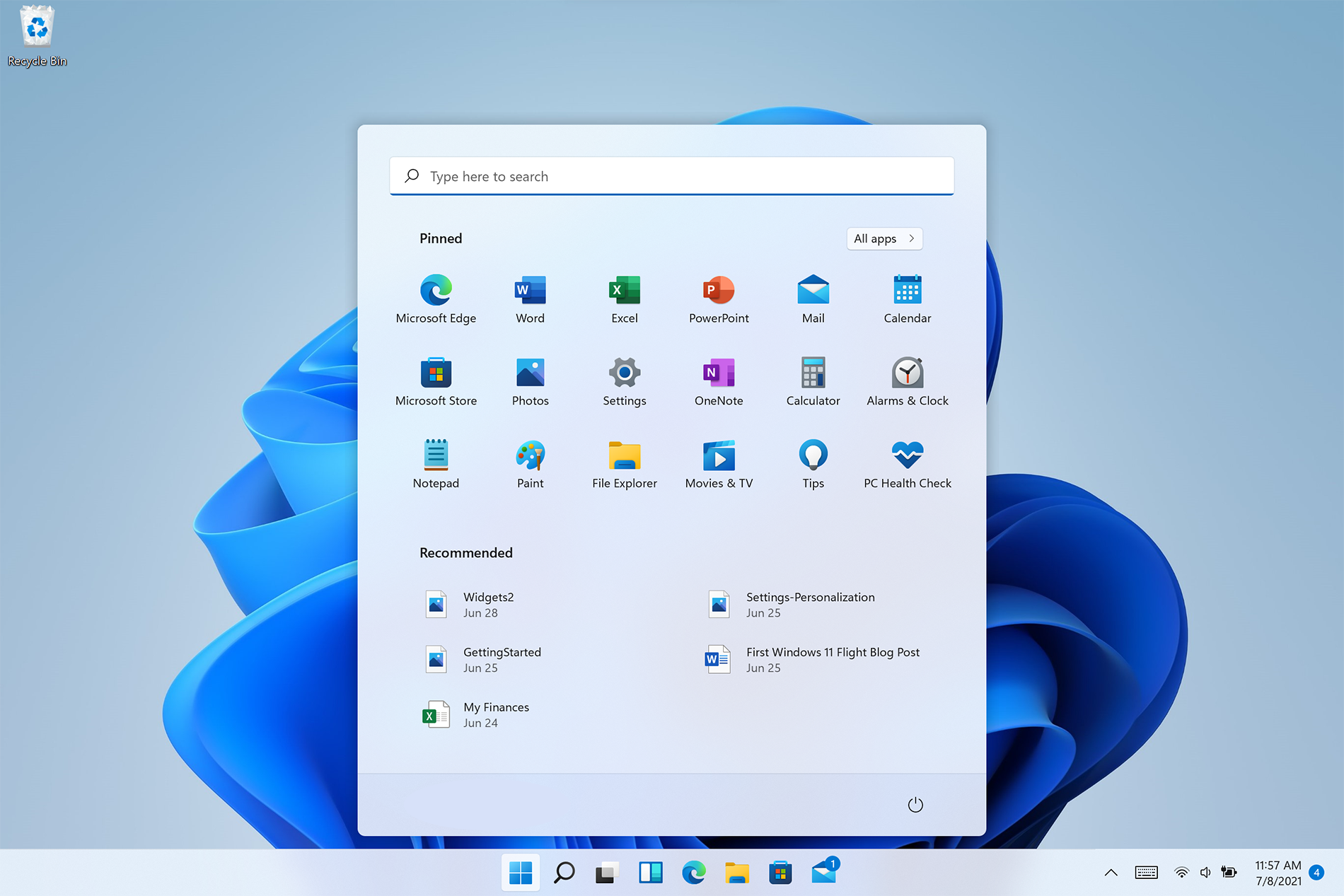
  1. Type “Windows Update” in the search bar near the Windows home button.
  2. Select “Windows Update settings” when this option appears. (You may also click the home button, then “Settings” followed by “Update and Security”.)
  3. Select “Advanced Options”
  4. (You will be given an option to choose how updates are installed.) Select Automatic.
  5. Save settings and restart the computer.

Once these settings are in place Windows will be able to download updates automatically. This enables your machine to run more smoothly. However, if after applying the steps above, Windows 10 error code 0x80070422 is not resolved, you may proceed to solution two (2).

Method 2: Disable Internet Protocol Version 6 (IPv6)

IPv6 is the latest or most current version of Internet Protocol (IP). This provides your machine with an IP address, a crucial aspect of all communications related to the Internet. By disabling this IP some users have been able to successfully resolve Windows 10 error code 0x80070422.

Like many tasks involving Windows, there are more than one ways in which you can attempt to disable IPv6. These require different types of skills and must be approached with care, as mistakes can lead to serious issues with your machine. Methods include using Command Prompt, Registry Editor, or Control Panel.

If your experience with Windows 10 is quite limited and you are not certain of your skills choose the simplest approach as listed below.

  1. Select Control Panel.
  2. Choose “Network and Internet”, then “Network and Sharing Center”.
  3. Right-click your Internet Connection. The name of your connection will be listed underneath the heading – “View your basic network connection and set up connections”.
  4. Select “Properties” then uncheck Internet Protocol version 6 (IPv6)
  5. Save settings by clicking OK.
  6. Restart the computer and check if the 0x80070422 error code has been corrected.

Method 3: Using An Automated Tool

If the issue persists despite following the solutions above, the best step to take is to use an automated tool. This may not be your preferred course of action, especially since it can be difficult to ascertain the safety of certain tools found online. For this reason, choose a reputable source offering automated tools which are designed to specifically fix Windows 10 error code including error code 0x80070422.

Download and install a powerful automated tool to access the best Windows 10 error code solutions. The process is simple and includes clear instructions which enable even average Windows users to completely resolve complicated errors on their machine.

How to Stop Future Error Codes from Occurring

Though it is hard to predict when an error code will occur, each Windows 10 user can take precautionary steps to prevent other errors from occurring. This includes the following:

  • Ensure you download software from reputable sources to avoid viruses and other forms of malware.
  • Clean your registry often. The registry stores settings across all applications. Regular cleaning will your machine function more efficiently as it reduces the likelihood of issues such as crashes or system errors.

Do You Need Help with Your Device?

Our Team of Experts May Help
Troubleshoot.Tech Experts are There for You!
Replace damaged files
Restore performance
Free disk space
Remove Malware
Protects WEB browser
Remove Viruses
Stop PC freezing
GET HELP
Troubleshoot.Tech experts work with all versions of Microsoft Windows including Windows 11, with Android, Mac, and more.

Share this article:

You might also like

Fix SAFE_OS phase error in Windows
As of late, users have been reporting about getting an error saying, SAFE_OS phase error during Replicate_OC operation when they tried to upgrade their Windows 7 or Windows 8.1 computers to Windows 10. Although the error code in this problem could vary, in this situation, it states:
0xC1900101 – 0x20017, The installation failed in the SAFE_OS phase error during Replicate_OC operation
To fix this issue, you need to follow the given options below. But before you do, you need to create a System Restore point first so that if anything goes wrong, you can always undo the changes you’ve made.

Option 1 – Try to change the Windows 10 installation

According to security experts, one of the main causes of this error is the KB3064209Windows Update. This particular update is the one responsible for updating the CPU Microcode for processors made by Intel. Thus, if you don’t use an Intel processor, you can skip this option and proceed to the next one. However, if you use Intel, make sure to follow the instructions in this option carefully. Take note that in this solution, C: partition is referred to as the OS Partition while H: partition is referred to as the USB Pen Drive.
  • First, you need to download the Windows 10 ISO from the Windows 10 Media Creation tool and then copy its contents to the Pen Drive H.
  • Next, tap the Win + X keys and click on the Command Prompt (Admin0 option. If a User Account Control appears, simply click Yes.
  • After opening Command Prompt, type the following command:
dism /Mount-Image /ImageFile:H:sourcesboot.wim /index:1 /MountDir:C:UsersUserDesktopmount
  • Now navigate to the following path in the Windows File Explorer:
C:UsersUserDesktopmountWindowsSystem32mcupdate_GenuineIntel.dll
  • From there, right-click on the file named “mcupdate_GenuineIntel.dll and click on Properties.
  • Next, go to the Security tab and click on Advanced. In the Advanced section, change the Owner to your User Account and click OK.
  • And then back to the Security tab, click on the Edit button and check on Full control to make sure that your User Account has all the privileges.
  • Now click on Apply and then OK.
  • After that, delete the file you saw earlier which is named mcupdate_Genuine.dll.
  • Then close all the Windows File Explorer instances and go back to the Command Prompt window and unmounts the image you mounted before by typing the following command:
dism /Unmount-Image /MountDir:C:UsersUserDesktopmount /commit
  • Afterward, repeat the steps from mounting up until here for these files:
    • wim /index:2
    • wim /index:1
    • wim /index:2
  • Now delete the mount folder and remove the USB Pen Drive and then boot with the installer.

Option 2 – Try to perform a Disk Cleanup

Chances are, some unnecessary files in your computer might be interrupting the installation process which explains why you’re getting SAFE_OS phase error during Replicate_OC operation instead so you need to perform a Disk Cleanup in order to fix the problem.

Option 3 – Try updating all your drivers

Every now and then, drivers get corrupted or outdated so it’s no surprise that they conflict with the operating system and cause errors like the SAFE_OS phase error during the Replicate_OC operation. To fix the problem, you need to update all your drivers. Follow the steps below to update your drivers.
  • Tap the Win + R keys to launch Run.
  • Type in devmgmt.msc into the box and tap Enter or click OK to open the Device Manager.
  • After that, a list of device drivers will be displayed. If you see a red or yellow sign that shows up against the driver, right-click on the driver’s name and select “Update Driver Software” or “Uninstall”. And if you find any “Unknown device”, you need to update it as well.
  • Select the “Search automatically for updated driver software” option and then follow the instructions to complete the process.
  • Restart your PC.
Note: You also have the option to go directly to the website of your graphics card manufacturer and check if there’s a new update – if there is, download it.

Option 4 – Try to update your system’s BIOS

Aside from outdated drivers, outdated BIOS could also be the reason why you’re getting the SAFE_OS phase error during Replicate_OC operation which is why you need to update your system’s BIOS in order to resolve the issue.

Option 5 – Try checking the Windows Services status

  • In the Cortana search box, search for “Services” and then click on the Services icon.
  • After that, the Services utility will be opened in a new window.
  • Next, look for the following services:
    • BITS (Background Intelligent Transfer Service)
    • Windows Update Service
    • Cryptographic Service
  • Then right-click on each one of the services and click on Properties. From there, select Automatic from the drop-down of the Startup Type menu.
  • Now click on OK for each one of them and restart your PC to apply the changes made.

Option 6 – Try to check the RAM modules

There are many times when all the components of the RAM weren’t able to be used by the computer so you need to check the RAM modules.
  • You need to first turn off your PC and then take out your RAM physically.
  • Next, clean it with a soft cloth and blow some air into the RAM slot in the motherboard.
  • After that, put your RAM back in the same slot.
  • Then try updating your computer system again.
Read More
How to Fix Windows 10 Error Code 0xC004E003

What is Error Code 0xC004E003?

Error code 0xC004E003 almost always appears when there are damaged files in the Windows operating system. These files could be corrupt for a number of reasons and are usually a serious danger to the life of the computer system. These file errors may be caused by a number of things. Incomplete installation setup, incorrect deletion of hardware or utilities, or an unfinished file erasure. The trigger might also be in the event that the computer system is contaminated with a virus or adware or spyware, or even by the improper shut down of the computer. Any of these scenarios have the possibility to result in the removal or corruption of data of the Windows system data files.

The data system files that are damaged will give linked data and archives that are missing or wrongly linked. These are needed for the proper functioning of the software. This can also happen when or after installing third-party software that might have changed the system files. If it is suspected that a program installation will need to be stopped, it is best to let it run through the setup and then delete it later. While it installs, it is altering program files, and likely rearranging them. Stopping this in the middle can scramble files associated with the program and files vital to the usage of the computer.

Solution

Restoro box imageError Causes

This error will pop up after installing third-party software that has changed the system files. These system files are necessary to finish the activation process. A restore point will be necessary if it is ultimately determined that a system restore is necessary, to bring the computer back to the state it was in previous to the failed installation.

  • Error code “0xC004E003” appears and does not allow the system to continue the install.
  • The computer will not allow any further access or installation of the program.
  • The computer may crash.
  • The third-party program will not have installed completely or successfully.
  • The system will not start up correctly.
  • Personal files are corrupt or missing.

Further Information and Manual Repair

There are several steps that can be taken when the error code 0xC004E003 appears. It is helpful to know that this can occur from trying to install third party software. Going forward, do not attempt to install third-party software that is not trusted, and does not attempt to abruptly stop the third-party software from installing. This may cause the program to corrupt the files or delete important files. Recovering from this error can be easy if there is a recent restore point already backed up in the recovery portion of the system's files.

  • Method One

Run an error scan. The problem should be resolved after rebooting the computer once these steps have been completed.

  1. Download and save an error code fix utility.
  2. Setup the program and then click the Scan button.
  3. Click the Repair Errors button when the diagnostic has been completed successfully.
  4. Reboot the computer.
  • Method Two

Best when utilized by an expert.

  1. Start the system up and sign in as the admin.
  2. Click on Get Started, then select Programs, Accessories, Tools, and then System Restore.
  3. On the next screen, click on Restore my PC to an Earlier Period, and then click Next.
  4. Select the most recent system restore date within the drop-down menu of “select restore point”.
  5. Click Next.
  6. Click Next on the confirmation window.
  7. Reboot the system after the system has finished restoring.
  • Method Three

Another option for restoring. This method can be used by a novice.

  1. Right-click on the Start button, then select Control Panel.
  2. Look for the Control Panel for Recovery.
  3. Select Recovery, then Open System Restore, then Next.
  4. Choose the restore point right before the problematic installation.
  5. Click Next, click Finish.

NOTE: If there are no restore points available, the system recovery may not be turned on. To check this, go to Control Panel, and select Recovery. Configure System Restore, Configure. Then, select Turn on system protection. Having a current restore point for a computer ensures the ease of recovery if any problems with the computer arise.

If you wish to always have at your disposal a utility tool to fix these Windows 10 and other related issues when they do arise, download and install a powerful automated tool.

Read More
See if your Data is safe in Facebook breach
It is no secret that a few days ago Facebook has been breach and tons of user accounts have been compromised. These kinds of things are very unpleasant experiences for both users and the company itself. User trust lowers significantly in the company and it can greatly increase the chances of users migrating to another platform. This just shows how much a hacker or security breach can produce damage to the business. Sadly we can not offer you guidance or assistance in recovering your stolen data nor can we provide you with removing your data from the hands of the attacker. What we can do is to provide you with information has your data been stolen. Threat actor released the personal information for 533,313,128 Facebook users on a hacking forum, including mobile numbers, name, gender, location, relationship status, occupation, date of birth, and email addresses. This data was originally sold in private sales after being collected in 2019 using a bug in the 'Add Friend' feature on Facebook. Facebook had closed this vulnerability soon after it was discovered, but threat actors continued to circulate the data until it was finally released practically for free. Since then, Troy Hunt has added the leaked data to his Have I Been Pwned data breach notification service to help users determine if a Facebook member's data was exposed in the leak. Go to the site and enter your email address to check and see if your data has been compromised.
Read More
Setting Standard Desktop icons on Windows 11
Strangely enough, Windows 11 does not feature any typical icon on its desktop when installed. No My PC, no Recycle Bin, nothing, just plain and clean wallpaper. Personally, I like this clean look and feel but of course, there are a lot of users that are used to have some system-related icons on their desktop for easy access. windows 11 desktop iconsDo not sweat, we will turn them back on with ease. The best part is that you can choose which one would you like. So let’s dive right into it and get the icons back for the old Windows feel and look.

Showing selected Icons desktop

  1. Right-click on Desktop and select Personalize
  2. Select Themes from the list of personalization items
  3. Inside themes scroll down and click on Desktop Icon Settings
  4. Desktop Icon Settings will open and inside it, place checkmarks beside icons that you would like to appear on the desktop and click OK
  5. Close settings
As always settings and choices will be automatically applied and icons will appear right away on the desktop.
Read More
Patching Error Code 21

Code 21 - What is it?

Code 21 is a Device Manager error code that appears when you try to use a hardware device attached to your computer and the Windows prohibits you from using it.

This is due to the Windows experiences problems loading the device driver. This error message is displayed in the following format:

“Windows is removing this device. (Code 21)”

Solution

driverfix boxError Causes

Error code 21 means that Windows is in the device removal process and the device has not been completely removed. It occurs when you set a device to be removed and then select the same device to run on your system.

Upon your instructions, Windows start to remove that device and when you on the other hand try to use/access the same device that you selected for removal, it kicks up Code 21.

Further Information and Manual Repair

If you are experiencing error code 21 on your PC, it is advisable to resolve it immediately.

Though this error will not damage your system, but will significantly lower the performance of your PC which is definitely something you don’t want especially if you work on your computer daily and use it to perform important time-sensitive errands.

To repair and resolve, try the methods given below:

Method 1 - Wait for a Few Seconds and Then Press F5

This is one of the best and easiest ways to resolve code 15 on your system. Wait for a few seconds, and then press the F5 key. This will update the Device Manager view and the error will most probably go away.

Method 2 - Restart Your PC

Sometimes error codes may pop up due to temporary glitches. To resolve such errors, a simple reboot of your PC is enough. Shut down Windows and then restart your system.

This is most likely to resolve Code 21. However, if the error still persists then this means the underlying problem for code 21 is deeper than you think. Try method 3 to resolve.

Method 3 - Install DriverFIX

As mentioned earlier, the error code 21 may occur if you have selected a device to remove and then you try to reuse it.

To resolve, you may have to install the device again and the driver for that the reinstalled device. To reinstall the driver without any hassle, simply download DriverFIX.

It is a smart, user-friendly, and intuitive software program designed to resolve driver problems. The program is embedded with intelligent device identification technology which:

  • Automatically detects all the appropriate system drivers
  • Matches them with the latest available versions
  • And then updates drivers according to their compatible versions on a regular basis

Furthermore, it enables accurate installation and ensures that your system is running at its optimal speed.

Other features that this program boasts are full backup and restoration, safe USB management, and ejection.

If nothing works, you can try the full backup and restoration feature and restore your PC to its previous state when it was functioning properly before the error occurred.

DriverFIX creates a backup of all your files and data hedging keeps you from disasters like data loss. It restores the system to the time when it was working properly.

Click here to download DriverFIX on your system and resolve error code 21 today.

Read More
A Quick Guide to Fixing Error 2046

Error 2046 - What is it?

Error 2046 is an error code related to Adobe Flash Player. It usually occurs while watching movies or videos on the web browser. This error code may interrupt video display and hamper you from watching your favorite movies and videos.

Solution

Restoro box imageError Causes

Narrowing down the reason for the occurrence of this error code is quite difficult virtually because it may trigger due to several reasons such as:
  • There might be issues with Adobe Flash Player settings
  • Ad-blocking products
  • Windows not updated
  • Registry issues
  • Malware infection
  • Flash Player Add on not properly installed

Further Information and Manual Repair

The good news is that the error 2046 is not fatal. It is easy to fix. In fact, it is so easy to repair that you can do it all by yourself even if you are not a computer whiz. You don’t have to hire a professional and spend hundreds of dollars on repairs. Here are some of the many manual solutions that you can try to fix this issue on your computer screen:

Reinstall Adobe Flash Player

Since this error code is largely related to Adobe Flash Player, it is advisable to start by reinstalling the Flash Player. Here is a step-by-step guide to help you work through it.
  1. First, click start and then select the control panel.
  2. Now click on programs and then uninstall Flash Player from the program list.
  3. After that’s done, reboot your computer.
  4. Now download Adobe Flash Player from a reliable website and run it.
If it works perfectly, then the issue is resolved. If not, then try other methods given below.

Re-Enable Flash Player Add-on

Adobe Flash Player add-on is basically installed in IE (Internet Explorer) which is loaded each time you load IE. Sometimes the problem with this add-on can also generate error 2046.
  1. To resolve this, open Internet Explorer and press Alt-Key.
  2. Select tools and then manage add-ons.
  3. Now select Adobe Flash Player Active X and then click disable tab.
Once that’s done, restart the web browser and repeat the same steps but this time click enable button. This will hopefully resolve the issue.

Unblock Ad Blocking Products

Sometimes error 2046 may pop up on your screen if you use ad-blocking products like AdBlock Plus. If so, then try uninstalling ad-blocking products installed on your PC to fix the issue.

Install Window Update

Microsoft releases new updates every now and then. These updates are made with the objective of solving bugs and run-time errors like error 2046. Therefore if the error code is related to Windows updates then to resolve it is it advisable to launch the Windows update program and update your operating system. For this, click Start, All Programs, and then click Windows Update. Now click the Check for updates button and download and install the new updates. Once that is complete, restart your PC to bring changes into effect.

Scan for Malware and Look For Registry issues

Whether the issue is related to malware or the registry, it is recommended to download Restoro. This is a next-generation and a multi-functional PC Fixer embedded with a powerful antivirus and a registry cleaner. Run it on your PC and scan for viruses and registry issues and click repair to resolve. It is user-friendly and compatible with all Windows versions. Click here to download Restoro to resolve error 2046.
Read More
Fix UNEXPECTED STORE EXCEPTION in Windows 10
Blue Screen of Death or Stop errors are definitely one of the most difficult issues to face in your Windows computer. One of them is the UNEXPECTED STORE EXCEPTION BSOD error. When you encounter this Stop error on your Windows 10 computer, this means that the store component has caught an unexpected exception. There are many potential causes for this error, but we’ve narrowed it down to a few specific causes – for one, this error could be caused by your antivirus program installed on your computer, two, it could also be caused by outdated hardware drivers on your computer, it could also be an error in the file system as well as some issue with the lock screen app, or even output to an unexpected port. Whichever the cause may be, you can use a couple of fixes laid out below. Make sure to carefully follow them.

Option 1 – Try to update your Display driver

  • First, boot your computer into Safe Mode.
  • After that, tap the Win + R keys to launch Run.
  • Type in devmgmt.msc into the box and tap Enter or click OK to open the Device Manager.
  • After that, a list of device drivers will be displayed. From there, look for the Display Adapters and click on them.
  • After that, right-click on each entry under the Display Adapters and select the “Uninstall Device” option from the menu.
  • Now restart your computer.
  • After restarting your computer, go to the Settings app and Check for Updates in the Windows Update section.
Note: You also have the option to go directly to the website of your graphics card manufacturers like NVIDIA, Intel, or AMD and go to the section called Drivers then check if there’s a new available update – if there is, download and install it.

Option 2 – Run both the System File Checker scan and DISM tool

If the problem is caused by corrupted system files, then you can use both the System File Checker and the DISM tool. To use them, follow the instructions below.
  • Tap the Win + X keys or right-click on the Start button and click the “Command Prompt (Admin)” option. Alternatively, you can also search for “cmd” in the Cortana search box and right-click on Command Prompt from the search results, and select the “Run as administrator” option.
  • After that, if a User Account Control prompt pops up, click on Yes to proceed.
  • Once the Command Prompt window is pulled up, type the following command and hit Enter:
DISM.exe /Online /Cleanup-image /Restorehealth
  • Wait for the process to be completed. Once it’s done, type the following command and hit Enter:
sfc /scannow
  • The command will start a system scan which will take a few whiles before it finishes. Once it’s done, you could get the following results:
  1. Windows Resource Protection did not find any integrity violations.
  2. Windows Resource Protection found corrupt files and successfully repaired them.
  3. Windows Resource Protection found corrupt files but was unable to fix some of them.
  • Restart your PC.
Note: You should see the “Windows Resource Protection found corrupt files and successfully repaired them. Details are included in the CBS.Log %WinDir%LogsCBSCBS.log” message on your screen. On the other hand, if you see the “Windows Resource Protection found corrupt files but was unable to fix some of them. Details are included in the CBS.Log %WinDir%LogsCBSCBS.log” message instead, then you should run the following command in Command Prompt:
findstr /c:"[SR]" %windir%LogsCBSCBS.log >"%userprofile%Desktopsfclogs.txt"
The command you entered will open up the logs on your Desktop where you can look for files that are causing the error on your computer manually.

Option 3 – Disable Fast Start-up

If you want your computer to boot faster, then you might have enabled Fast Start-up. This feature is ideal for computers that are using a hard disk drive. However, turning on this feature also means that when the computer boots, it might lag some drivers that are loaded when it initially boots up. Thus, it might be the potential cause of the UNEXPECTED STORE EXCEPTION BSOD error. Thus, you need to disable Fast Start-up. To do that, follow these steps:
  • Boot your PC into Safe Mode.
  • Then tap the Win + R keys to open the Run dialog box.
  • Next, type in “control” to open Control Panel.
  • After that, select Hardware and Sound and click on Power Options.
  • Select “Choose what the power buttons do” from the left side menu pane and click on Change settings that are currently unavailable.
  • Afterward, uncheck the “Turn on fast startup (Recommended)” entry and click on Save Changes.
  • Now restart your PC for the changes to take effect and then check if the problem’s fixed afterward.

Option 4 – Try to run the Chkdsk utility

You can also run the Chkdsk utility to resolve the UNEXPECTED STORE EXCEPTION BSOD error. If your hard drive has issues with integrity, the update will really fail as the system will think that it’s not healthy and that’s where the Chkdsk utility comes in. The Chkdsk utility repairs hard drive errors that might be causing the problem.
  • Open Command Prompt with admin privileges.
  • After opening Command Prompt, execute the following command and hit Enter:
chkdsk /f /r
  • Wait for the process to be completed and then restart your computer.
Read More
Fix A breakpoint has been reached, 0x80000003
If you suddenly encounter Error 0x80000003 while trying to execute a random file then read on as this post will show you how you can fix such an error. Obviously, it mostly happens on executable files or .exe files and is most likely caused by the conflict in the execution of some registry files or it could also be caused by missing drivers or it could also be due to some incompatible hardware which is why you’re unable to run the executable file. When you encounter this error, you will see the following error message on your screen:
“The exception Breakpoint, A breakpoint has been reached, (0x80000003) occurred in the application.”
As you can tell, the Windows Executive STATUS message is a warning and if you are given an option, you must select one of the options from the message box. So if you are running the application in an end-user environment rather than in a development environment, you must contact the supplier of the running application regarding this error message since this shouldn’t be happening when a finished program is running. Before you get started executing the troubleshooting guide given below, make sure that you create a System Restore Point first since you will be dealing with some critical settings in Windows. Having done this, proceed to the options provided below.

Option 1 – Try to run the CHKDSK utility

Running the CHKDSK utility might also help you resolve Error 0x80000003. If your hard drive has issues with integrity, the update will really fail as the system will think that it’s not healthy and that’s where the CHKDSK utility comes in. The CHKDSK utility repairs hard drive errors that might be causing the problem.
  • Open Command Prompt with admin privileges.
  • After opening Command Prompt, execute the following command and hit Enter:
chkdsk /f /r
  • Wait for the process to be completed and then restart your computer.

Option 2 – Try to run a System File Checker scan

You can also try to run a System File Checker or SFC scan in order to scan your computer for corrupted files that might be the cause behind the Error 0x80000003. Once it finds any corrupted system files, it will automatically fix them. To run System File Checker, here’s what you have to do:
  • Tap Win + R to launch Run.
  • Type in cmd in the field and tap Enter.
  • After opening Command Prompt, type in sfc /scannow
The command will start a system scan which will take a few whiles before it finishes. Once it’s done, you could get the following results:
  1. Windows Resource Protection did not find any integrity violations.
  2. Windows Resource Protection found corrupt files and successfully repaired them.
  3. Windows Resource Protection found corrupt files but was unable to fix some of them.
  • Restart your computer after the scan is completed.

Option 3 – Perform a Clean Boot

There are some instances that some conflicting programs installed in your computer might be the one that’s causing the Error 0x80000003 to appear. To identify which program is causing the problem, you need to put your computer in a Clean Boot State. To do so, follow the steps below.
  • Log onto your PC as an administrator.
  • Type in MSConfig in the Start Search to open the System Configuration utility.
  • From there, go to the General tab and click “Selective startup”.
  • Clear the “Load Startup items” check box and make sure that the “Load System Services” and “Use Original boot configuration” options are checked.
  • Next, click the Services tab and select the “Hide All Microsoft Services” check box.
  • Click Disable all.
  • Click on Apply/OK and restart your PC. (This will put your PC into a Clean Boot State. And configure Windows to use the usual startup, just simply undo the changes.)
  • From there, start to isolate the problem by checking which one of the programs you installed recently is the root cause of the problem.

Option 4 – Run the Memory Diagnostic Tool to check for Memory leaks

  • Tap the Win + R keys to open Run and type mdsched.exe and hit Enter to open the Windows Memory Diagnostic Tool.
  • After that, it will give two options such as:
    • Restart now and check for problems (Recommended)
    • Check for problems the next time I start my computer
  • Once your computer has restarted, perform a basic scan or you could also go for the “Advanced” options such as “Test mix” or “Pass count”. Simply tap the F10 key to start the test.

Option 5 – Try contacting the developer

If you find that you’re getting Error 0x80000003 on only one particular application, then you can try to contact the developer of the software that’s throwing up this error. All you have to do is search the web for the official support channel of the software and discuss the error from there.
Read More
WEB sites for cheap game purchases
Gaming can be sometimes a very cheap hobby, sometimes can be really expensive. It really depends on your preferences or gaming habits. So for all of you game spenders, we have compiled a little list of WEB sites where you can find games cheap. Provided sites are checked ones and not scam. You can purchase without concern. Also, note that some of these sites will require you to create an account in order to be able to make a purchase.

List of WEB sites for cheap purchases

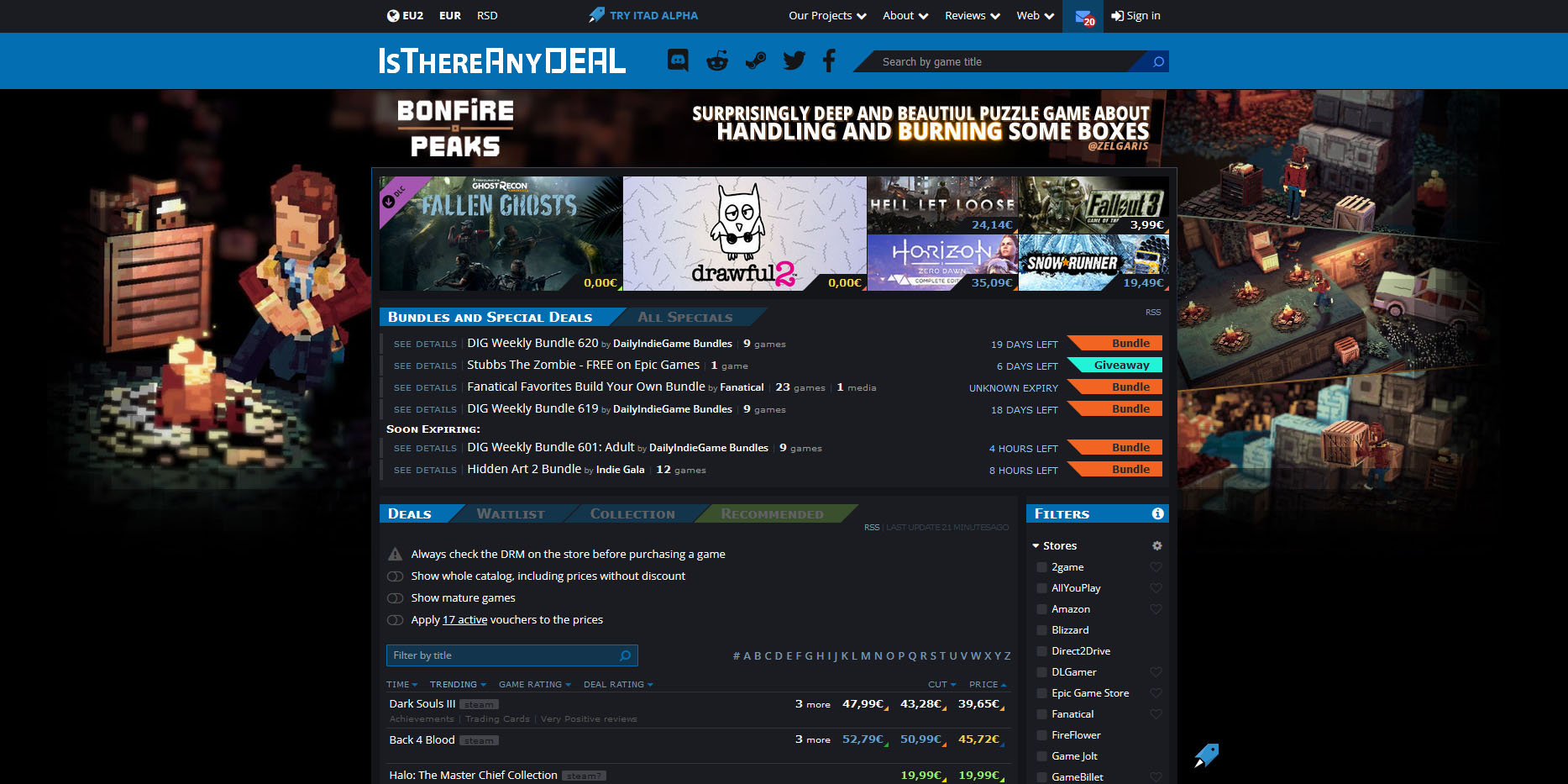
is there any deal cheap gamesIs There Any Deal

https://isthereanydeal.com/ Is there any deal really behaves as it sounds, it is basically a search engine tailored to find existing deals on required games. Type in the desired game and see if anywhere you can find a deal on it. The site also features wait for better price options as well as the price history of the game and the trend of its sales.

cheap shark dealsCheap Shark

https://www.cheapshark.com/ On cheap shark by typing game name, you will get its listing on different online retailers, like Steam, EPIC, etc. so you can compare prices among them and pick the best deal. Site packs are also the cheapest ever feature so you can check the lowest price ever on the wished title and you can get alerts and notifications on prices.

humble bundleHumble Bundle

https://www.humblebundle.com/ Humble bundle got famous for its pay what you want approach due to its origins where it was selling games and donate money to charities. Even today they go by this logic once they decide to place great games on sale for charity purposes and you can donate any amount you wish (there is the minimum amount, but it is very cheap). And regular cheap bundles make this site one of the best out there.

fanatical cheap gamesFanatical

https://www.fanatical.com/ Fanatical is a site that will offer you to get titles in a bundle with a discount, the good stuff is that you can create your own bundle and get a discount on bulk purchases. And the site also offers flash deals and holds sales where you can buy stuff cheaper.

sick dealsSlick Deals

https://slickdeals.net/deals/games/ If you are looking for the best deals on daily basis slick deals is the site for you. We could not found a better website that offers cheaper deals on a daily basis and you can subscribe to get notified in email about daily discounts.

green man gamingGreen Man Gaming

https://www.greenmangaming.com/ Green Man Gaming is one of the best stores and game discount sites out there, it might not be the cheapest but one very important thing about it is that keys for Stream and Xbox come directly from the game publisher so you can rest assured that they are all 100% legal and do not come from some third party benefits and resellers. And that's it for now. We hope to see you again on our site for more articles and error fixing tips.
Read More
Fix LoadLibrary failed with error 1114
If you are using a couple of graphics-intensive applications like video rendering software or some games, then something in the background of the system could get messed up and you might encounter the “LoadLibrary failed with error 1114, A dynamic link library (DLL) initialization routine failed” error message. This kind of error can usually get fixed by twerking some graphic settings, fixing and updating the drivers, and allowing your PC to work by leveraging the maximum use of the resources it’s got. Thus, in this post, you will be guided on some measures you can apply to resolve this kind of error message as soon as possible. Before you go over the options given below, if you have made any changes to any software component in your computer or installed new software recently, then you might want to undo them and then check if it fixes the “LoadLibrary failed with error 1114 “ error. Once you have that covered but you’re still getting the error, use the options given below as a reference to fix the error.

Option 1 – Try to modify the Dynamic Graphics Settings

You might want to modify the Dynamic Graphics Settings in order to fix the error. To do so, follow the steps below.
  • Open Control Panel and then Power Options.
  • From there, click on the Change plan settings option for your chosen power plan.
  • After that, click on Change advanced power settings.
  • Then look for the Switchable Dynamic Graphics option and then click on it to expand it.
  • Afterward, expand the Global Settings option and then select Maximize Performance for both the “On battery” and “Plugged in” options.
  • Now click on the Apply button and then OK to save the changes made.
Note: If the Switchable Dynamic Graphics option is not available on your computer, you can try the next given option below.

Option 2 – Try switching the Graphics card to High-Performance mode

Note that this second option varies from computer to computer since most computers use the Graphics card made by NVIDIA, while some by AMD and others use Intel HD Graphics. Thus, depending on which graphics card your computer uses, pick one of the three fixes below.

NVIDIA Graphics Drivers:

If your computer uses a graphics card made by NVIDIA and has the drivers are properly installed and updated, then follow the steps below.
  • Right-click on any empty space on your desktop and then click on the NVIDIA Control Panel.
  • After that, expand the 3D Settings on the left-hand side tree-structured list and then click on Manage 3D Settings.
  • Next, select your preferred GPU on the right-side panel and then set it to the High-Performance NVIDIA Card from the drop-down menu.
  • As an alternative, you can also go to the Program Settings tab,
  • From there, select the program that you are trying to run from the drop-down menu and click on Add.
  • Now set the graphics processor to a High-performing processor and then restart your computer to apply the changes made.

AMD Graphics card:

If your computer uses a graphics card made by AMD and has the drivers are properly installed and updated, then follow the steps below.
  • Right-click on any empty space on your desktop.
  • Click on AMD Control or Configure Switchable Graphics.
  • Next, click on Browse and select the program where you encounter the error.
  • Finally, click on High Performance for the selected program and then restart your computer to successfully apply the changes made.

Intel HD graphics:

If your computer uses the Intel HD graphics and then its drivers are properly installed and updated, then follow these steps:
  • Right-click on any empty space on your desktop and then click on the Intel Graphics Settings.
  • Next, click on the Power menu.
  • After that, select a Graphics Power Plan for both the “On battery” and “Plugged in” options to High-Performance Power Plan.
  • Then click on the Apply button and restart your computer.
Read More
1 2 3 171
Logo
Copyright © 2023, ErrorTools. All Rights Reserved
Trademark: Microsoft Windows logos are registered trademarks of Microsoft. Disclaimer: ErrorTools.com is not affiliated with Microsoft, nor claims direct affiliation.
The information on this page is provided for information purposes only.
DMCA.com Protection Status