Logo

Cannot start new hardware device, Error 49

In case you don’t know, the Windows Registry contains a System Hive which is a core part of Windows. The Windows operating system store various settings, options, and configurations. And if you encounter a Device Manager Error 49 for a device then it means that the system hive has exceeded its size limit. Worry not for this post will provide you with possible solutions that can help you in fixing error code 49.

You will see the following error message when you encounter error code 49:

“Windows cannot start new hardware devices because the system hive is too large (exceeds the Registry Size Limit), (Code 49)”

There are instances when it may so happen that the device or devices are no longer attached to the computer but they are still listed in the system hive of the registry. For instance, if you were removing hardware and application for years but they weren’t removed from the registry then the size of the system hive keeps on growing until it hits the maximum limit.

As you know, making changes in the registry manually, no matter how knowledgeable you are on such things is not sage since the registry is not only important but also complex. In addition, the System Hive is also a permanent part of the Registry associated with a set of files that contain information related to the configuration of the computer on which the OS is installed. To resolve this error, you must remove or uninstall any hardware devices that are no longer in the system. In fact, the Device Manager hides them by default so you need to enable hidden or non-present devices.

Follow the instructions given below to set the Devices Manager to display devices that are no longer connected to the computer.

Step 1: Tap the Win + R keys to open the Run dialog box.

Step 2: After that type in “cmd” and hit Enter to open the Command Prompt.

Step 3: Type “set devmgr_show_nonpresent_devices=1” in the Command Prompt and hit Enter to enable the hidden devices option.

Step 4: After that, exit Command Prompt and tap Win + X + M to open the Devices Manager.

Step 5: After opening the Devices Manager, click on View and then select the “Show hidden devices” option. This will show you all the devices that are not connected to the computer but are still mentioned.

Step 6: Next, select a non-present device and click Uninstall from the Driver tab.

Step 7: After that, repeat what you’ve done on step 5 for any other device that you no longer use.

Step 8: Restart your computer.

You can check the device Properties dialog box in the Device Manager after you’re done removing all the useless devices, to check if the error is now fixed or not.

Moreover, you can also try running the Hardware and Devices Troubleshooter as it can also help resolve hardware-related problems. To use it, refer to the steps below.

  • The first thing you need to do is click on Start and then on the gear-like icon to pull up the window for Settings.
  • After opening Settings, look for the Update and Security option and select it.
  • From there, go to the Troubleshoot option located on the left-hand side of the list.
  • Next, select Hardware and Devices from the list and open the Troubleshooter and run it. Once it is doing its job, wait for it to complete the process and then restart the system.
  • After the system restarts, check if the problem’s now fixed. If not, refer to the next option given below.

Do You Need Help with Your Device?

Our Team of Experts May Help
Troubleshoot.Tech Experts are There for You!
Replace damaged files
Restore performance
Free disk space
Remove Malware
Protects WEB browser
Remove Viruses
Stop PC freezing
GET HELP
Troubleshoot.Tech experts work with all versions of Microsoft Windows including Windows 11, with Android, Mac, and more.

Share this article:

You might also like

Windows Clock is missing, invisible or black
Although the Windows Updates do bring in new features and improvements, there are times when they also introduce issues as well. The main cause for these arising bugs is the incompatibility between the old and new software components. One of the issues brought in by such bugs is Clock is missing, invisible or black This problem was experienced by users after they recently installed a feature update. This particular bug can make the Windows clock in the taskbar appear to be black or invisible which makes it hard for users to read the time on their computers. According to experts, this bug has something to do with the Windows Themes and Aero styling. To fix this issue, here are some suggestions that could help but before you get started, you have to restart Explorer first and see if it can help in resolving the problem – if it didn’t, follow the options given below carefully.

Option 1 – Try to disable Custom Theme

It could be that the reason behind the black or invisible Windows Clock can be an old or an incompatible theme. You might have a custom theme in place and it became incompatible after an update. Thus, you can try switching to one of the default themes and then recreate your custom theme afterward. To do so, follow the steps below.
  • Right-click on your desktop and select Personalize.
  • Next, select Themes from the left menu and then select Windows 10 as your theme.
  • After that, you can delete all the other custom themes and create them again from scratch. This should fix the black or invisible Windows 10 Clock.

Option 2 – Try to edit your existing themes

If you don’t want to get rid of your existing themes, there is an alternative solution you can try to fix the missing Windows 10 Clock albeit it’s a bit of a complex one. Follow the given steps below to modify the existing themes and fix the missing or black Windows Clock.
  • First, you need to save your existing theme. Just simply right-click on your desktop and select Personalize and select Themes from the left menu.
  • Next, click on the Save Theme button below your custom theme to save it. You can name the theme anything.
  • After that, you can now modify the saved theme by going to C:/Users/UserName/AppData/Local/MicrosoftWindowsThemes.
  • From there, look for the file with the theme name you just saved, and then right-click on the file and open it with notepad or any other text editing app.
  • Now you have to look for the line that says, “Path=%SystemRoot%resourcesthemesAeroAeroLite.msstyles” and change it to “Path=%SystemRoot%resourcesthemesAeroAero.msstyles” and then save the file and rename it with some other name.
  • Afterward, go back to themes and select the new theme you’ve created. This should resolve the Windows Clock issue as well as other Themes and Taskbar issues.

Option 3 – Try disabling the small icons in Taskbar

This option should help you fix any Windows Clock cases. So if your Windows Clock is nowhere to be found, you can try to disable small taskbar icons on your Windows 10 PC.
  • Go to Settings > Personalization > Taskbar.
  • From there turn off the toggle button for the “Use small taskbar buttons” option. Note that this solution is only a temporary one and it may or may not work in some cases.
Read More
Fix 0x80070037: The specified network ...
If you are trying to copy a file but suddenly encountered an error message saying, “An unexpected error is keeping you from copying the file”, then you’ve come to the right place as this post will help you resolve the problem. This error comes along with another message that states, “Error 0x80070037: The specified network resource or device is no longer available”. This kind of error occurs when the power supply to the external device is weak and causes the device to be disconnecting and reconnecting consistently. To fix this problem, you need to check out the potential fixes provided below.

Option 1 – Try to physically check the USB ports

You need to check the USB ports as there could be some ports that are loose or damaged physically which affects the overall performance of the port. You could also try to change the USB port since modern computers have a variety of USB ports. So if your USB drive supports USB 3.0 or 3.1, make sure that you plug it inside a USB 3.0 or 3.1 ports. If you’re not sure which port, just keep in mind that the USB 3 port is usually blue or you can also use your computer’s documentation or manual as a reference to locate it.

Option 2 – Check the connected cables physically

Aside from the USB ports, you also have to check the physical status of the connected cables because if there are damaged ones, just like with USB ports, it would also affect the overall connectivity of the device with the computer. So if you notice some irregularities in the connecting cable physically, you might have to buy another one and replace it and then see if it fixes the problem or not.

Option 3 – Update or reinstall the Universal Serial Bus Controller driver

Since it could be a driver issue, you can try to update or reinstall the Universal Serial Bus Controller drivers using the Device Manager. Refer to the following steps:
  • First, click the Start button and type “device manager”.
  • Then click on the “Device Manager” from the search results to open it.
  • From there, look for the “Universal Serial Bus controllers” option and then right-click on each one of the USB drivers and select the Update Driver from the menu.
Note: If it is a regular USB drive, then it will be listed as a USB Mass Storage Device but if you have a USB 3.0 device, then look for a USB 3.0 Extensible Host Controller.
  • Restart your PC and then click the “Search automatically for updated driver software” option.
Note: If updating the USB Controller drivers didn’t work, you can try to reinstall them instead.

Option 4 – Try connecting to a slower USB port

If connecting your device to USB 3.0 or 3.1 ports didn’t work, you might want to try connecting it to a slower USB port this time. There are times when the device is not capable of supporting the higher power supply from a USB 3.0 or 3.1 port which is why the weak circuits do not work properly. Thus, try connecting your device to a USB 2.0 port and check if your device is now working.

Option 5 – Try to turn off the Power Saving option

You could also try to turn off the Power Saving option to resolve the problem. All you have to do is switch to Power Management after you select the Properties of the USB device and from there, uncheck the “Allow the computer to turn off the device to save power” option. On the other hand, if you are using a laptop and did not use the USB device for a long time, then it could be powered off. This will ensure that the system does not turn off the USB device.

Option 6 – Try to connect your device to another computer

It is also possible that your computer does not support your device. To check that possibility, you can try connecting your device to a different computer and see if it is working without any issues. If it is, then you need to get another device that’s compatible with your computer.

Option 7 – Try to use a different device

You could also try using a different device and connect it to your computer. This will help you figure out if your device is damaged or not. So if the other device you connected is working just fine, then you might have to replace your device with a new one or consult an expert and have it repaired if possible.

Option 8 – Run the Hardware and Devices Troubleshooters

  • The first thing you need to do is click on Start and then on the gear-like icon to pull up the window for Settings.
  • After opening Settings, look for the Update and Security option and select it.
  • From there, go to the Troubleshoot option located on the left-hand side of the list.
  • Next, select Hardware and Devices from the list and open the Troubleshooter and run it. Once it is doing its job, wait for it to complete the process and then restart the system.
  • After the system restarts, check if the problem’s now fixed. If not, refer to the next option given below.
Read More
How to Disable Restart in Firefox
Mozilla Firefox has introduced a new feature known as Restart with Windows which allows the browser to automatically start when your Windows 10 computer boots. This means that if you leave the Firefox browser opened while shutting down your computer, Firefox will re-open automatically along with the tabs that were opened right before you shut down your computer. Although some users may find this feature convenient, there are others who do not approve at all as it could be a nuisance. So if you’re one of the latter, then read on as this post will show you how you can disable the Restart with Windows feature in the Firefox browser on your Windows 10 computer. Refer to the instructions laid out below to get started.
  • Step 1: Open Mozilla Firefox and if it’s opened already, just open a new tab and then type the following text in the address bar:
about:config
  • Step 2: After typing the text given above, hit Enter and if a prompt with a warning message pops up, simply click on the “I accept the risk!” button to proceed.
  • Step 3: Next, type “Restart” in the search filter which should display the following preference in the window:
“toolkit.winRegisterApplicationRestart”
  • Step 4: After that, check for the preference value and then see if it’s set to true or not. If it is set to true, then it means that the Restart with Windows feature is enabled so obviously, to disable it, you need to set its value to false.
  • Step 5: Now restart your computer without closing Firefox. After restarting your computer, you should no longer see Firefox starting automatically.
The Restart with Windows feature by default is disabled for most users. On the other hand, Mozilla will have this feature enabled as the default configuration in the coming weeks so it’s best that you now know what to do when that time comes since the newer versions of Mozilla Firefox are already being shipped with the Restart with Windows feature. However, if this post did not help you, then you might want to check if the feature has been added to the Startup folder, and from there, you can disable this startup program using the Task Manager > Startup tab.
Read More
Some Steam tips and tricks for easy life
steamSteam has cemented itself as the largest digital game shop in the World. First, release all the way back on September 12th, 2003, it was meant to be a standalone software client aimed to deliver updates to Valve’s games. It was soon expanded to include titles from third parties. The greatest Steam expansion and its popularity started in 2004 with the release of Half-life 2. Steam allowed prepurchased editions to be downloaded before the official release of the game making it available for play the moment it was officially out. Very soon after Steam gained its popularity, Valve has opened doors to other developers and offered them to use Steam as means for a digital distribution platform. Today it hosts over 30000 different game titles, not including DLC or applications. And how soon Valve’s steam deck is coming out soon we would like to share some great tips and tricks about Steam itself for easy everyday gaming.

Steam guard account security

Security of any of your accounts should be something that you really take seriously. So as always use a strong password for Steam but if you want an extra layer of security for it, and you should, use the Steam built-in feature: Guard Account Security. In order to activate Security Guard go to Steam>Settings>Account>Manage Steam Guard Account Security. Once enabled you will be able to use the Steam mobile application for special code when opening Steam or your email address.

Use Steam beta feature

Once a Steam account is created by default you will download and install the client. In the client, you will have the latest features available but there are more Steam features than default ones, beta features that can offer some improved and new functionality, and do not worry, they are stable and bug-free. I have been in Steam beta for years and not even once have I had any issues with the client itself but I have always had the latest features that will come to regular users later. To enable beta participation to go to Steam>Settings>Account, open the drop-down Beta participation menu, and choose Steam Beta Update. Confirm on OK and restart the Steam client. You will now get all the latest features first.

Manage your library via Collections

The collection is a neat idea for organizing your large game library into different collections or sections easily expanded and contracted for easier navigation and organization. To add the game to a collection just right-click on it and select Add To>New Collection, make a name for a collection like action, RPG, or whatever rocks your boat, and you are done. Once the collection is created other games can be added to it simply just by dragging it into the desired collection.

Make shelves

Shelves are ways to see your collections in the larger areas of the Steam clients. By clicking Add Shelf>Choose a Shelf, you can now add your collection to a shelf on the larger part of the client as a horizontal scrolling container with your chosen games. There are also some predefined shelves like All Games, Recent friend activity, and more.

Hide Game from Library

By right-clicking on a game and selecting Manage>Hide This Game you will remove the game from the active view of your Steam library. Note that the game will still be owned and a part of your library, you will just not be able to see it. This is a great feature when for example you have some things that came as a part of the game pack you are not really interested in when you have 2 different versions of the same game as for example standard and deluxe edition or just by simply not wanting to have game visible in the library. You can find a hidden game by typing its name in the search box and from there you can unhide it.

Play game soundtracks inside Steam

Some games offer you to purchase their soundtracks if you like music from them and some even include OST with a regular purchase. Steam lets you play these soundtracks and even lets you import your own music library folder into it in order to play all of your music inside the client itself. It has even options to automatically stop music playing once the game is run and you can make playlists as well. Your purchased game soundtracks are automatically included, the rest you will need to add by pointing Steam to the folder where you keep music in.

Configure gamepad

Inside Steam, you can configure your gamepad’s general settings, big picture settings, desktop settings, etc. Steam embraced the idea that many OC users these days own and play with gamepads so it has implemented configuration options inside it. To configure your pad go to Steam>Settings>Controller.

Use big picture Steam mode

Big picture mode is Steam's idea of making Steam an entertainment center. Once it is activated it switches from the application into full-screen mode aimed at large TV screens or monitors. You can easily navigate through it via gamepad, mouse, keyboard, or other devices. You have access to the store, your game library, etc. Same as your typical steam app but a little different. You can easily activate it via View> Big Picture Mode and see for yourself is this something you prefer over a standard application layout.

Enable Steam Cloud

Steam Cloud is a great feature that uses cloud storage to save your game progress meaning that you can easily switch to another PC, install games there and continue where you have left off. Many games support this feature instead of keeping saves locally and it is a great feature worth turning it ON. To turn and use Steam Cloud service go to Steam>Settings>Cloud>Enable Steam Cloud Synchronization. Just remember to check does game you are playing supports this option.

Share your Games via Family sharing

Family sharing is a Steam feature allowing you to share your game library with up to 5 accounts on up to 10 different devices. This is a great way to let other members of your family or even close friends enjoy some games you have or vice versa. They will get as well their own save games so you can sleep safe knowing that your progress can not be changed or hindered. Family sharing can be turned ON by logging into PC Steam client where you would like to share your library and navigate to Steam>Settings>Family and then clicking on Authorize Library Sharing On This Computer.

Refund a game

Sometimes the game is not the same as advertised, sometimes it will not work on your PC, sometimes hardware specifications are too high making the game unplayable, etc. For whatever reason, you might have Steam offers you a full game price refund if you wish to do so, you only need to meet 2 criteria, the game must have been purchased within 2 weeks period, older purchases cannot be refunded, and your game playtime must not be over 2 hours of game time. If you fit into this category all you need to do in order to get the full money back is going to Help>Steam Support, pick a recent game from the eligible list, and ask for a refund.

Gift a game

As you can buy gifts for your friends or loved ones in real life, Valve made sure you can do it in digital as well. Gifting game via Steam is simple and straightforward. Choose a game you wish to gift, go to your shopping cart and instead of clicking Purchase for myself, click on Purchase As a Gift, from there you will be taken to your friend list to choose to whom you would like to gift a game along with the option to write a little note to the receiver like happy birthday, enjoy or whatever.

Stream games in Steam itself

Although Steam is not there yet in streaming as Twitch or Facebook gaming is, there is an option to stream your game sessions on it. Click on Steam>Settings>Broadcast to make all adjustments and start streaming. You can also watch streams from your friend list and Steam is now broadcasting popular streams directly to its client if you want to watch it.

Take a game screenshot

By pressing F12, you can take a screenshot from any game and save it inside your Steam cloud library. You can change of course this default screenshot key via Settings>In-Game and if you would like to see your screenshots you can always do it under View Screenshot Library on a game’s page. That’s it, our Steam tips and tricks for easy and good gaming life, I hope to see you soon on errortools.com for your daily articles, tips, and tricks.

Read More
Fix Msvcr120.dll_clr0400.dll Missing Error
DLL files have certain functions that help the programs in the computer run properly. One of these DLL files is the Msvcr120.dll_clr0400.dll. This particular DLL file is responsible for the extraction of the required resources during the installation of a program and is used when the program is launched or when games are launched in the C++ language. However, a number of users recently reported that they’ve encountered an error that says, “Msvcr120.dll_clr0400.dll is missing” when they tried to install an application or when they tried opening an application. This kind of error could be due to several factors. It is possible that the DLL file is corrupted or there are some programs that interfere with the DLL file. On the other hand, it is also possible that it has been infected by a virus. To resolve this error, here are some potential fixes you need to check out:

Option 1 – Run System File Checker scan

The first thing you can do to fix the error is to try running the System File Checker or SFC scan. System File Checker is a command utility built into your computer that helps restore corrupted files and missing files. Refer to the following steps to run it:
  • Hit the Win + R keys to launch Run.
  • Type in cmd in the field and tap Enter.
  • After opening Command Prompt, type in sfc /scannow
The command will start a system scan which will take a few whiles before it finishes. Once it’s done, you could get the following results:
  1. Windows Resource Protection did not find any integrity violations.
  2. Windows Resource Protection found corrupt files and successfully repaired them.
  3. Windows Resource Protection found corrupt files but was unable to fix some of them.
  • Reboot your computer.

Option 2 – Troubleshoot the missing Msvcr120.dll_clr0400.dll error in a Clean Boot State

You can also troubleshoot the isDone.dll error in a Clean Boot state. It could be that there are some third-party applications in your computer that are preventing the application from getting installed and to isolate this possibility, you need to boot your computer in a Clean Boot State and then try installing the program again. Putting your computer in this state can help you identify which program is the culprit and thus isolates the problem. In a Clean Boot state, your computer will start using only the pre-selected minimal set of drivers and startup programs. Note that you have to disable and enable one process at a time.
  • Log onto your PC as an administrator.
  • Type in MSConfig in the Start Search to open the System Configuration utility.
  • From there, go to the General tab and click “Selective startup”.
  • Clear the “Load Startup items” check box and make sure that the “Load System Services” and “Use Original boot configuration” options are checked.
  • Next, click the Services tab and select the “Hide All Microsoft Services” check box.
  • Click Disable all.
  • Click on Apply/OK and restart your PC. (This will put your PC into a Clean Boot State. And configure Windows to use the usual startup, just simply undo the changes.)
  • After you’ve set your computer into a Clean Boot State, make sure that you’re signed in as administrator and then try to install the application again.

Option 3 – Try to re-register the problematic DLL file

You can also try to re-register the DLL to resolve the problem. The Regsvr32 tool is a command-line utility that can be used to register and unregister OLE controls like DLL and ActiveX (OCX) controls in the Windows operating system. Follow the steps below to use it.
  • Open Command Prompt as admin from the WinX menu.
  • Next, type the following commands in the elevated Command Prompt and hit Enter to execute the command. This will re-register the affected DLL file using the Windows operating system tool, regsvr32.exe.
    • exe /[DLL file]
    • exe [DLL file]
Note: Replace “[DLL file]” with the name of the DLL file that was pointed out in the error.
  • After you execute the given commands, you should see a message saying, “DllRegisterServer in vbscript.dll succeeded” if the Regsvr32 tool was able to run successfully. After that, try to install the program again and see if it now works.

Option 4 – Try to replace the DLL file with a trusted source

  • First, you need to get the new DLL file from another computer with preferably the same file version number.
  • After that, you need to boot your PC into Safe Mode and navigate to the paths listed below and then replace the file using a USB drive or other external storage devices.
    • x86: This PC > C:WindowsSystem32
    • x64: This PC > C:WindowsSysWOW64
  • Next, type “cmd” in the Cortana search box and right-click on Command Prompt, and select “Run as administrator” to open it with administrator privileges.
  • Now type the “regsvr32 ntdll.dll” command and hit Enter.
  • Restart your PC and check if the error is now fixed.

Option 5 – Scan your computer using Windows Defender

The DLL file might also be infected with malware or virus and to eliminate it which could explain why you’re getting the “Msvcr120.dll_clr0400.dll is missing” error. Thus, you have to scan your computer using security programs like Windows Defender.
  • Tap the Win + I keys to open Update & Security.
  • Then click on the Windows Security option and open Windows Defender Security Center.
  • Next, click on Virus & threat protection > Run a new advanced scan.
  • Now make sure that Full Scan is selected from the menu and then click the Scan Now button to get started.
Read More
How to Fix 0x8007043c Error Code

What is 0x8007043c Error Code?

Have you ever come across 0x8007043c error message pop up on your PC? If yes, then you should know that this error message is generated when any corresponding process or operation cannot be completed successfully by the application. This is a critical Windows OS Error message that should be fixed immediately.

Solution

Restoro box imageError Causes

The 0x8007043c error code is usually triggered by the following reasons:
  • Missing or corrupt registry files
  • Failure to update Windows Installer
  • Viruses and Spyware
Common signs of this error code are pop-up messages, program lock-ups, problems with opening documents, and screen freeze.

Further Information and Manual Repair

As soon as you experience this error on your PC, it is advisable to repair it immediately because this error poses high-security risks. Malwares and viruses are notorious for data theft. To fix the 0x8007043c error on your PC, you don’t need to take on the services of an IT professional. This error code is rated as easy to repair. By following the instruction and repair solutions given below, you can easily fix this Window error 0x8007043c in a couple of minutes by yourself. Here’s what you need to do:

Step 1: Scan for Viruses and Spyware

To stop hackers from sneaking into your PC and stealing your confidential data, you must first scan your computer for viruses and spyware on your PC. It is advisable to use a powerful antivirus to ensure your computer is totally virus and spyware clean.

Step 2: Download and Install a Registry Cleaner

After you scan for viruses, you should now download and install a registry cleaner. This is needed because an antivirus does not detect corrupt registry entries. To detect such entries, the registry cleaner tool is the best. After you download a registry cleaner on your system, click the scan button. You will have to wait for a few seconds for the scanning to finish. Once the scanning is complete, click on the ‘Repair’ button to fix the errors. After fixing all the errors, restart your computer. This is important because the registry changes will only come into effect after the system restarts. By following these 2 simple steps, you can easily resolve the 0x8007043c error on your system. However, to prevent this error from occurring again, it is recommended to run the antivirus every time you use your PC.
Read More
How to Fix Windows 10 Error Code 0x80072F8F

Error Code 0x80072F8F - What is it?

Error Code 0x80072F8F manifests in one main way. It is known to appear as early as Windows 7, and mainly deals with an error that occurs in the update process, or when the computer is trying to connect to the online activation service. It can appear when the activation fails to verify the product key. The error code will present itself when the system realizes that the PC's date and time are incorrect. Error Code 0x80072F8F will also appear if the computer has determined that the time zone settings on the computer are not accurate.

When Windows is going through the installation process and is verifying all of the information associated with the computer, Error Code 0x80072F8F will arise, indicating that the information in the computer's settings is not valid. Correct times and dates are necessary when using serial validation keys to install Windows. When these settings are outside of the tolerated window, the problem will arise.

Error Causes

There is only one main symptom to look out for, and it will manifest during a Windows installation. In the midst of the installation, the computer will not be able to proceed with the installation if Error Code 0x80072F8F has popped up. Because the information cannot be verified, Windows will not be able to continue the installation process when the time settings are not accurate. This interrupts the process, causing the need to edit the settings, restart the computer, and try again. It is imperative to be sure that the date and time on the computer are inside of the tolerated window for the serial key.

  • This error code will not give any information on how to correct it.
  • Windows Error 0x80072F8F is displayed on the screen.
  • The error code appears when typing the Windows serial key and proceeding.

Further Information and Manual Repair

When experiencing Error Code 0x80072F8F, the date and time need to be corrected in the computer settings menu, and then verify the correct time zone settings.  There are a few different ways to edit the time and date settings, and one may need to even edit the time zone settings. After this, restarting the computer may be needed. When booting into Windows, the validation code should be activated within 30 days of obtaining the serial number.

  • Method One

Check the time and date settings.

  1. Open the Start menu.
  2. Select Settings, then Time and Language, then Date and Time.
  3. Check and make sure that the PC is operating at the correct time and date.
  • Method Two

Ensure that the computer is connected to the internet.

  1. Enter “network troubleshooter” into the search box located on the taskbar.
  2. Select “Identify and Repair Network Problems”.
  3. Follow the instructions that are given on-screen. This will fix any problems that the network is experiencing.
  • Method Three

Review the timezone.

  1. Open the Start menu.
  2. Select Settings, then Time and Language, then Date and Time.
  3. Check to make sure that the correct timezone is selected from the drop-down menu.
  • Method Four

Reboot the PC and check if that fixes the problem. This may help in the event that the network troubleshooter does not detect a problem.

After completing these steps to edit the time, date, and time zone settings, it may be necessary to restart the computer. This is to ensure that the computer will save and recognize the new settings. After restarting, continue the process as intended and enter the product key. The computer will now be able to verify the product key since the time and date will be recognizable. The Windows installation should proceed as normal and complete successfully when the time, date, and time zone are inside of the parameters for the Windows product key.

In short, if it is not, the computer will not be able to recognize the product key, thus will not be able to install the Windows product. Generally, the fix is quite simple and does not take much time at all, but it is very important.

Read More
Fix the System Restore Not Working Malfunction.

What's program restore no longer working error?

The element of system restore is vital in the Windows operating system, and on occasions, it might be a genuine lifesaver. If for some reason you discover that the System Restore is not correctly functioning in Win7 or Windows 8 operating system:
  1. The points of system restore are not be being produced by hand or mechanically,
  2. You are unable to create by hand the restore points
  3. The system restore fails, and you're incapable of restoring your personal computer,
The subsequent are a few tricks that could allow you to solve this issue.

Solution

Restoro box imageError Causes

There are lots of variables that will trigger this malfunction in your Personal Computer. The remedy to the issue will depend on its cause. You ought to attempt the next actions in no sequence.

Further Information and Manual Repair

  1. Physically, strive to make Program Restore points. Subsequently, pay attention to the Error Messages(s) you receive. If none, check to see whether a restore point has been created.
  2. Eliminate the protection applications or anti-virus and then try creating a restore point.
  3. Startup the Computer in Safe-Mode. Oftentimes, non-Ms drivers or providers may restrict the smooth working for System Restore. The other viable choice, try a clean boot and see whether system restore is back to normal.
  4. Run file checker.  Quite simply, operate the sfc /scannow from the superuser command line. When the program record test is complete, restart your computer and assess whether system restore is operational.
  5. Run disk check as the administrator. Type chkdsk /f /r and subsequently push Enter. Allow this procedure to finish before attempting a system restore.
  6. Ensure the System Restore function is allowed in the drivers where you need this function allowed. For System Restore point to be saved, you must have free space of around 300 MB on each one of the devices which have the Program Safety perform turned-on.
  7. Ensure that there's adequate space on the drivers where System Restore performs is allowed.
  8. In the search box inside the Start Button, type "Services.msc" (with no quotes) and then push Enter. Ensure that at this time around Process Scheduler Service and the " Volume Shadow Copy " are correctly working, and are set on Automated mode. Make certain you start the System Restore service if it's not set place to automatic mode. Remember that you'll have to restart the computer in this process. Do this and subsequently try again, in case the system needs a reboot.
  9. In the search box, type eventvwr.msc /s subsequently push enter to open the Event Viewer. Double-click on the applications and Services Logs, then assess if you can determine the cause of the error.
  10. Could your network administrator have turned off the System Restore? Contact them. Ask them to re-activate system restore for your computer if they have switched it off.
Read More
A Quick Guide to Resolving IRQL_NOT_LESS_OR_EQUAL Error

IRQL_NOT_LESS_OR_EQUAL - What is it?

IRQL_NOT_LESS_OR_EQUAL error is a type of blue screen of death (BSoD) error. It is a typical Windows PC error that occurs even in the latest Windows versions. The IRQL_NOT_LESS_OR_EQUAL error occurs on the computer screen when a memory address triggers unauthorized access. This leads to the suspension of your login session. The computer screen turns blue.

Solution

Restoro box imageError Causes

IRQL_NOT_LESS_OR_EQUAL error occurs due to several reasons. However, the most common causes for this error code include:
  • Incompatible device drivers
  • The poor device driver installation
  • Faulty hardware
  • Disk fragmentation
  • Registry issues
  • Viruses and malware attack
Blue screen of death error codes like IRQL_NOT_LESS_OR_EQUAL is critical. If not resolved timely, this error code can pose serious threats to your PC. It can lead to system crash and failure, due to which you can also lose your valuable data stored in your system. How to Fix IRQL_NOT_LESS_OR_EQUAL Error Code?

Further Information and Manual Repair

Here are some of the best and easy DIY methods to resolve this error code on your PC:

1. Roll Back Drivers

If the underlying cause of IRQL_NOT_LESS_OR_EQUAL error is poor driver installation, then try this method to resolve the issue. This can be done by simply clicking the start menu. Once you click on it, go to the control panel, then double click the system icon and locate the System Properties window. After that, click the hardware tab and then the device manager button. Now locate the device you recently installed. Double click on the recently installed device driver, click the driver tab, and then the rollback driver button. This will take a while, so wait for the process to finish.  After that, reboot the system.

2. Run Hardware Diagnostic

The IRQL error may also be triggered by faulty hardware. To identify which hardware is causing the error to pop up, you will have to run a hardware diagnostic.
  • For this, go to the start menu, type Memory Diagnostic in the search bar.
  • Now access this tool and click on Diagnose your memory problems. As you click it, it will ask you to perform the check by either restarting the PC immediately or on the next restart.
  • Select the immediate one to get going. The system will carry a scan on the memory and show you the list of problematic errors detected during the scan. To resolve this error then all you have to do is replace the piece of faulty hardware.
Nonetheless, if no faulty hardware is detected, this means the error is related to memory. If so, try method 3 to resolve.

3. Disable Memory Caching

To fix the IRQL_NOT_LESS_OR_EQUAL error, try disabling the memory caching option. This is called BIOS memory caching. This can be done by restarting your PC and pressing the BIOS setup keys to enter the settings screen. Mostly it is an F2 key, however, it may be different in some computers as the motherboards of different makes have their own respective keys. Once you enter the BIOS settings look for options stating memory settings. Access these options and disable the memory caching feature.

4. Scan your PC for Malware

As mentioned above this error message can also result due to the intrusion of malicious software like malware, viruses, and spyware. To detect and remove them from your PC, download an antivirus and perform a system scan. Remove the detected viruses and malware to resolve. Please note, antivirus installation may lower the speed of your PC.

5.  Repair Registry and Fragmented Disk

Due to poor PC maintenance, you may experience registry issues. The registry stores all the activities performed on the PC including the unnecessary pieces of information like junk files, internet history, temporary files, cookies, and other flies. Such files take up a lot of disk space. When there is not much space on the storage device, the new data is saved in fragments. This is called disk fragmentation. When this file becomes fragmented it takes time to rearrange the data and reunite it to run the fragmented file on your PC. If not resolved, this leads to registry issues and thereby generating various PC error codes including IRQL_NOT_LESS_OR_EQUAL errors. The best way to clean the registry and repair the fragmented disk is to download Restoro. This is an advanced and multi-functional PC Fixer. It is embedded with multiple system repair utilities including a powerful registry cleaner that detects all registry issues in seconds, removes and wipes out unnecessary files cluttering the registry, cleans and repairs the registry and the damaged files. Other utilities include an antivirus that detects privacy errors and all types of malicious software infecting your system. It also functions as a system optimizer which means by running this software on your PC you won’t be compromising on your system’s performance. The system optimizer utility boosts the speed of your PC. This tool is safe and efficient. It has a user-friendly interface and is compatible with all Windows versions. Click here to download Restoro and resolve the IRQL_NOT_LESS_OR_EQUAL error code right away.
Read More
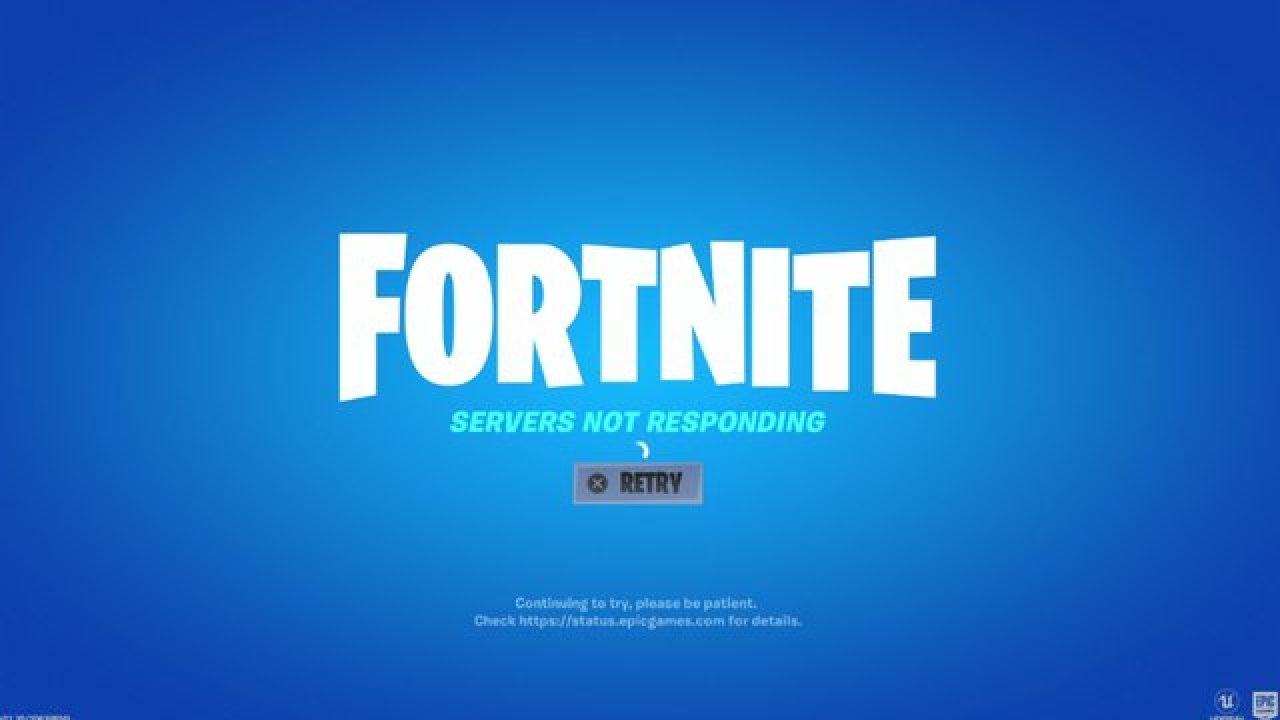
Troubleshooting Fortnite Connection Issues
It is no secret that Fortnite is one of the most played games in the world. Epic has done a great job offering it to plenty of other platforms with cross-play feature meaning that you can play with your friends no matter on what platform they are on. But how Fortnite is a piece of software which is constantly updated and maintained it is pretty normal to have some bugs or issues from time to time. One of the before-mentioned issues is a connection issue or unable to connect to game servers. In our article, we will go through common fixes and solutions in order to get you back in-game as fast as possible. Keep on reading.

fortnite cannot connectCheck the Epic Games Status page

Check the Epic Games Server Status page to make sure all systems are operational. If the issue you’re experiencing is related to an outage or system-wide issue, you won’t be able to connect to the Epic Games Launcher or Fortnite until it's resolved.

Use a wired connection

Wireless connections are not as stable as wired connections. This means that the signal can be unreliable and result in packet loss, connection problems, or higher latency or ping. Connect directly to your modem or router with an Ethernet cable to eliminate this possibility and have the fastest connection possible.

Disable your firewalls

Often the quickest way to fix connection problems due to firewalls is to temporarily uninstall and/or disable it.

Windows Firewall disable guide:

  1. Click on Start.
  2. Click on Control Panel.
  3. Click on System and Security.
  4. Click on Windows Firewall.
  5. Click on Turn Windows Firewall on or off (You might need to provide the Administrator password at this step)
  6. Under each Network location, select the Turn off Windows Firewall option

Uninstall any other firewalls

Using a third-party firewall may prevent you from being able to connect to the Epic Games Launcher, Fortnite, or another Epic Games product. We recommend removing any third party firewalls temporarily to see if this resolves your issue. If it does resolve the problem, make sure to add the following executables as exceptions to your firewall:

Epic Games Launcher

  • C:\Program Files (x86)\Epic Games\Launcher\Engine\Binaries\Win64\EpicGamesLauncher.exe
  • C:\Program Files (x86)\Epic Games\Launcher\Engine\Binaries\Win32\EpicGamesLauncher.exe

Fortnite

  • C:\Program Files\Epic Games\Fortnite\FortniteGame\Binaries\Win64\FortniteClient-Win64-Shipping.exe
  • C:\Program Files\Epic Games\Fortnite\FortniteGame\Binaries\Win64\FortniteClient-Win64-Shipping_BE.exe
  • C:\Program Files\Epic Games\Fortnite\FortniteGame\Binaries\Win64\FortniteClient-Win64-Shipping_EAC.exe
  • C:\Program Files\Epic Games\Fortnite\FortniteGame\Binaries\Win64\FortniteLauncher.exe
Contact your firewall manufacturer for instructions on how to add these as exceptions to it as this varies between them.

Unblock your network ports

Network ports allow certain types of data to be successfully sent over a network that is used by our services. If you have any of these blocked, it may result in you being unable to connect to our games or use our services properly. To unblock your ports on your router do the following:

Windows

First, you will need to get your default gateway and internal IP address:

  1. Click on Start.
  2. Type cmd and press Enter.
  3. Type ipconfig and press Enter.
  4. Take note of your Default Gateway and IPv4.

Configuring your router to unblock the ports

  1. Open your web browser.
  2. Type your Default Gateway into the address bar and press Enter. (A common Default Gateway is 192.168.1.1)
  3. You may be asked for a username and password. This varies for each router. Before entering anything, try just hitting OK. If that doesn't work, try the common default username and password below: Username: admin Password: password If these don't work, you can check this website for a list of usernames and passwords based on your router model.
  4. Locate the Port Forwarding page in the administration tool and click on it.
  5. Make sure you have Port Forwarding selected and not Port Triggering as this is completely different.
  6. On this screen, you will need to enter the ports and port ranges below with the correct protocol and local IP of which you took note of above: 80 (TCP/UDP), 433 (TCP), 443 (TCP), 3478 (TCP/UDP), 3479 (TCP/UDP), 5060 (TCP/UDP), 5062 (TCP/UDP), 5222 (TCP), 6250 (TCP/UDP), and12000-65000 (TCP/UDP).
If you have any trouble doing the above on your router, make sure to check out the router manufacturer's support site for additional instructions as these will vary from router to router.

VPN and Proxy Servers

Do NOT use VPN or Proxy Servers. These cause issues that can't be resolved by us without having you disable them. Check out this article for information on how to disable your proxy server.

Switch Domain Name Systems (DNS)

Switching your DNS can result in better connectivity and performance for your internet connection. There are two different DNS services we recommend to have you try if you are having issues with your connection. Below are the followings links with instructions on how to change your DNS:

Epic Games Launcher: Edit your Engine.ini file (Windows only)

Editing these settings can result in better download speeds using the Epic Games Launcher:
  1. Click on Start.
  2. Type %localappdata% and press Enter.
  3. Open the EpicGamesLauncher
  4. Open the Saved
  5. Open the Config
  6. Open the Windows
  7. Open ini and add the following lines to it: [HTTP] HttpTimeout=10 HttpConnectionTimeout=10 HttpReceiveTimeout=10 HttpSendTimeout=10[Portal.BuildPatch] ChunkDownloads=3 ChunkRetries=20 RetryTime=0.5
  8. Save the file and open the Epic Games Launcher.
fortnite gameplay
Read More
1 2 3 171
Logo
Copyright © 2023, ErrorTools. All Rights Reserved
Trademark: Microsoft Windows logos are registered trademarks of Microsoft. Disclaimer: ErrorTools.com is not affiliated with Microsoft, nor claims direct affiliation.
The information on this page is provided for information purposes only.
DMCA.com Protection Status