




Logo

Fix Partner did not connect to router Error

One of the great remote assistance software that helps you remotely access and control computers is TeamViewer. However, despite how efficient it is, there are still times when it throws up some errors and one of them is when TeamViewer is not able to connect and throws an error that says, “No connection to partner, Partner did not connect to router, Error Code WaitforConnectFailed”.

This kind of error in TeamViewer mostly occurs when the Partner computer is not connected to a network. On the other hand, it could also occur when they are connected to a network so there are various causes for this issue. It could also be that the installation of the program itself was at fault or there is an incompatibility between the TeamViewer versions installed on both the computers and so on.

Although there are several causes for this error, the potential fixes are still the same. You can try to restart the network or allow Full Access Control to TeamViewer or flush the DNS cache. For more information, refer to the following options but before you proceed, make sure that both your Windows 10 computer and TeamViewer program are updated to their latest stable versions.

Option 1 – Reboot your router

The first thing you can try to do to fix the error is to simply restart your router. All you need to do is reboot the router from its Admin panel or you can also turn it off manually and turn it back on after a couple of seconds so that it can completely reboot. Once you’re done, try accessing your server again and see if the error is now fixed.

Option 2 – Allow Full Access Control to TeamViewer

  • First, open TeamViewer, and then from the Menu bar, click on Extras.
  • After that, click on Options and select Advanced from the left side navigation panel.
  • Next, click on the “Show advanced options” button located on the right-hand side.
  • Then select Full Access from the drop-down menu of the Access Control option under the “Advanced settings for connection to this computer section”.
  • Now click OK and check if the error is now fixed or not.

Option 3 – Try to flush the DNS configuration

You could also try to flush the DNS configuration in your computer to fix the error. How? Refer to these steps:

  • Tap the Win + X key combination and click on the Command Prompt (Admin) option or you could also search “cmd” in the Cortana search box and right-click on Command Prompt from the search results and select the “Run as administrator” option.
  • After opening Command Prompt with admin privileges, enter each one of the commands given below sequentially in order to flush the DNS cache.
    • ipconfig/release
    • ipconfig/renew
    • ipconfig/flushdns
  • Now type the exit command to close Command Prompt and then restart your computer and see if the problem is fixed.

On the other hand, you could also try to reset Winsock as well as the TCP/IP.

Option 4 – Run the Network Adapter troubleshooter

To run the Network Troubleshooter, refer to these steps:

  • Open the Search bar on your computer and type in “troubleshoot” to open the Troubleshoot settings.
  • Next, scroll down and select the “Network Adapter” option from the right pane.
  • Then click on the Run Troubleshooter” button.
  • After that, your computer will check for any possible errors and will pinpoint the root cause of the problem if possible.
  • Restart your computer.

Option 5 – Try to perform Network Reset

You might perform a Network Reset to resolve the problem if none of the four given options worked. This will reset the entire network configuration including your IP address. To perform Network Reset, follow these steps:

  • Tap the Win + I keys to open Settings.
  • From there, go to the Network and Internet section.
  • Next, scroll down and look for “Network Reset” under the status pane.
  • After that, click on Network Reset and then on Reset now to start resetting the network configuration. Once done, check if it is able to fix the error or not.

Do You Need Help with Your Device?

Our Team of Experts May Help
Troubleshoot.Tech Experts are There for You!
Replace damaged files
Restore performance
Free disk space
Remove Malware
Protects WEB browser
Remove Viruses
Stop PC freezing
GET HELP
Troubleshoot.Tech experts work with all versions of Microsoft Windows including Windows 11, with Android, Mac, and more.

Share this article:

You might also like

Windows 11 vs Windows 10: Main Differences

Still sitting on the fence about upgrading to Windows 11 because you don’t know what to expect? Interestingly, the new edition somehow manages to be both a total revamp and still very similar to its predecessor in many ways. It’s really something to experience for yourself.

We do want to give you a sneak peek, though. So here’s an overview of the biggest changes Windows 11 brings to the table.

What’s different in Windows 11?

1. Visual changes

The first thing anyone will notice after switching to Windows 11 is the striking visual difference. The entire interface is smoother, cleaner and more minimalistic than on Windows 10, even resembling the macOS in some instances.
Perhaps the most obvious change in appearance is the Start menu and Taskbar location, which is now at the bottom center. It’s actually very neat, but if you’re someone who loves familiarity, don’t worry, you can move it back to the left.
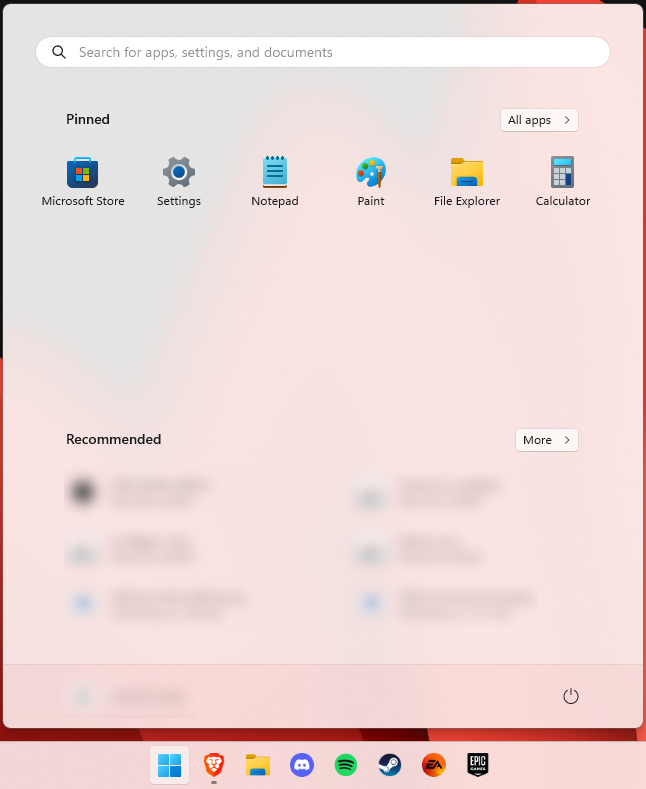
Centralized Taskbar and Start menu

Moreover, you’ll notice that the Taskbar includes a Microsoft Teams icon by default (which you can, of course, remove) and that Live Tiles are gone. The News and Interests section has also been removed - or, shall we say, replaced. As opposed to Windows 10, news, weather forecasts and other information are now displayed as widgets.

To add to the cleanliness of the UI, Microsoft also enhanced the ‘Snap Layouts’ feature to help you better organize your windows and maximize screen real estate. It’s similar to app grouping on your smartphone. In Windows 10 this feature is slightly restricted, as it requires some manual resizing and dragging. In Windows 11, you can just hover over the minimize/maximize option on a window, select a layout and throw the windows in there. 

Snap Layouts
Snap Layouts

2. New accessibility features

Microsoft has certainly paid attention to accessibility with Windows 10, but Windows 11 takes this to a whole new level.

One of the ways Windows 11 has taken things up a notch is by adding the long-awaited ‘Live Captions’ feature and advanced Narrator options.

Live Captions apply both to media played on your PC as well as your own speech when you’re using the microphone. Keep in mind that, as with almost all kinds of subtitles, you have to be prepared for a potential delay. However, it’s barely noticeable and doesn’t take away from the usefulness of this awesome new feature whatsoever.

As for the Narrator, there are three new voice packs to choose from. Microsoft has tried to put emphasis on a more natural voice than we are used to. So, now you can choose between Aria, Jenny and Guy, who will read pretty much anything off your screen out loud. Aside from this, Microsoft has also expanded the list of braille displays supported by the Narrator feature. 
For users with anxiety or trouble concentrating, a welcomed addition is the Focus app, which is no longer part of the Clock app. It’s now separate and called ‘Focus Sessions’, automatically triggering the Do Not Disturb mode when activated. It blocks all pop-ups and flashes and lets you work in peace until you’re ready to switch it off.

3. Android apps

Android users may rejoice! Windows 11 supports the use of your favorite applications now. 

Microsoft has done this by integrating the Amazon Appstore to the Windows 11 Microsoft Store. From there, you can download your favorite Android apps and use them on your PC in a smartphone-like window.
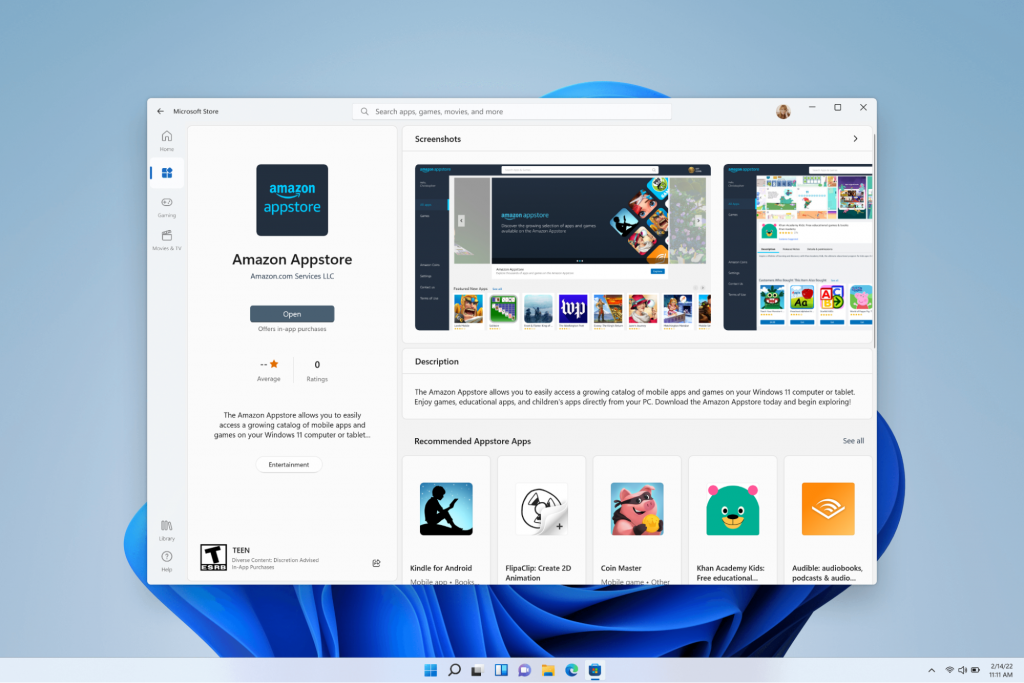
Windows Subsystem for Android™️

Unfortunately not too many apps are supported at this time, but Microsoft is working on making the emulation possible for many more. Also, the option is only available in specific regions at this moment - check out if you’re one of the lucky ones.

4. Improved gaming performance

Avid gamers will be happy to hear that Microsoft has put some effort into streamlining Windows 11 for their gaming needs.

To give gamers a supreme visual experience, Windows 11 offers the ‘Auto HDR’ feature. As long as your monitor is HDR-compatible, this feature will automatically adjust the colors, brightness and contrast of games without any input from you. 

Another update is DirectStorage, which we were introduced to in Windows 10 already. In Windows 11, it’s been improved to tweak loading times and overall gaming performance efficiency even better. The predisposition for it to work optimally is that your device has an NVMe SSD. 

The Xbox Game Bar also helps gamers towards a smoother experience. It allows in-game screenshots, viewing processes that are running (similar to the Task Manager), monitoring the CPU and GPU performance and frame rate, integrating the Xbox App and more. There’s also a number of widgets you can now use with the Game Bar, for example the Spotify widget.
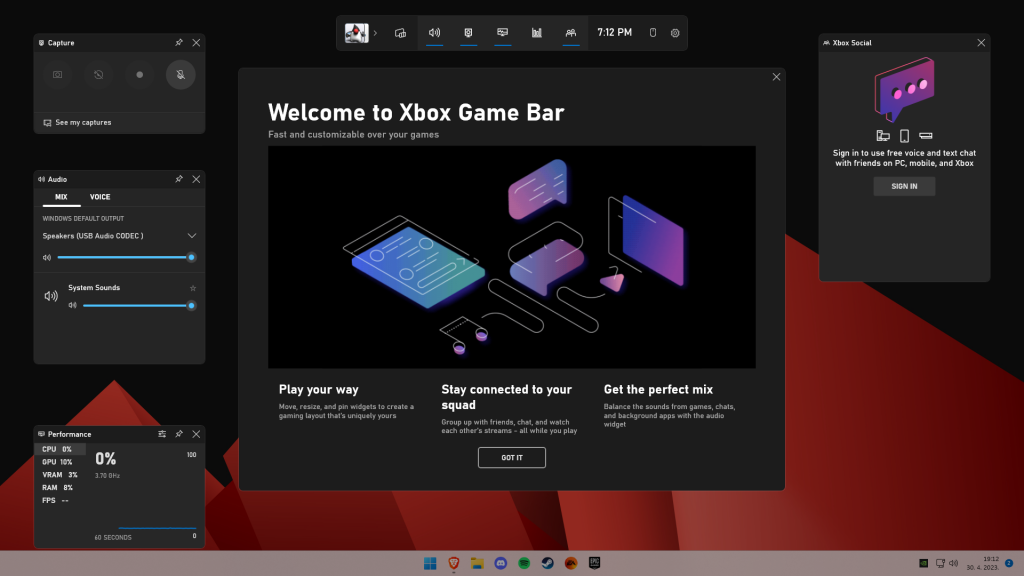
Xbox Game Bar
Xbox Game Bar

Another cool addition is the Xbox Game Pass, which unlocks hundreds of games to play on your Xbox App, with new additions coming in every month.

5. Smart App Control

Aside from a sleek new look and better accessibility for all users, Windows 11 also comes with a security power-up. Bear in mind that this feature is only available on clean Windows 11 installs. 

Smart App Control (SAC) is an AI-powered new feature designed to protect your PC from potential threats. It blocks untrustworthy apps and adware and helps detect potentially unwanted apps, maintaining your PC’s performance and keeping your system safe.

It comes with an ‘Evaluation’ mode, which you should definitely select when running SAC for the first time. That way, the app monitors your usage and assesses whether you’re a candidate for SAC. Some users need it to be on all the time, for others it might be too distracting. Evaluation mode will turn SAC on or off based on your usage.

Don’t disable SAC again unless you’re absolutely sure you don’t need it, since reenabling it will require a fresh install. We recommend you don’t turn it off, as it is a neat feature protecting your data and files from malware at all times.

Summary

Have we piqued your interest in trying Microsoft’s latest OS? It’s a pretty exciting new iteration, but we’ll let you find out for yourself. We hope you like it!

Read More
CD/DVD icon is not showing in File Explorer
In the past, CDs, DVDs, and floppy drivers used to be the primary sources of external storage for many users – that is until the USB storage devices took over. These days, a lot of devices no longer have a built-in CD or DVD writer or reader as it contributes to the thickness of the device. On the other hand, there are still various devices that still come with a built-in CD or DVD writer or reader. However, recently, users who still use CD or DVD on their devices reported a problem where the CD or DVD icon is not visible in the File Explorer as well as in “This PC” or the My Computer page. The cause of this issue is still unknown at the time of writing, but there are still some potential fixes you can try to fix it. You can try to update or roll back the device drivers or apply some tweaks in the Registry Editor. For more details, refer to the given options below.

Option 1 – Try to update or rollback device drivers

The first thing you can try to fix the missing CD or DVD icon is to either update or roll back the device drivers. It is most likely that after you updated your Windows computer that your driver also needs a refresh. On the other hand, if you have just updated your device drivers then you need to roll back the drivers to their previous versions. Whichever applies to you, refer to the steps below.
  • Open the Devices Manager from the Win X Menu.
  • Then locate the device drivers and right-click on them to open the Properties. Note that the concerned drivers will be listed under the DVD/CD-ROM drives section as well as the IDE/ATAPI Controllers section.
  • From there, look for the following drivers:
    • ATA Channel 0.
    • ATA Channel 1.
    • Standard Dual Channel PCI IDE Controller.
  • Now, right-click on each one of the listed drivers and update them all. You could also try to roll them back to their previous versions.
Note: You can also directly download the relevant drivers of your computer from the manufacturers’ website. So if you have an SSD, the issue might be due to an old storage driver.

Option 2 – Try to use the Registry Editor

  • Tap the Win + R keys to open the Run dialog box and type “Regedit” in the field and then tap Enter to open the Registry Editor.
  • Next, navigate to this registry key: HKEY_LOCAL_MACHINESYSTEMCurrentControlSetControlClass{4D36E965-E325-11CE-BFC1-08002BE10318}
  • After that, look for the DWORD values named “UpperFilters” and “LowerFilters”.
  • Right-click on each one of these DWORD values and select Delete.
  • Now restart your computer and see if it fixes the problem.

Option 3 – Try creating a new Registry entry

There is another option you can try in the Windows Registry to fix the missing icon of the CD/DVD. You can try adding a new entry. How? Refer to these steps:
  • Tap the Win ­+ R keys to open the Run dialog box and type “Regedit” in the field and hit Enter to open the Registry Editor.
  • After that, navigate to this registry path: HKEY_LOCAL_MACHINESYSTEMCurrentControlSetServicesatapi
  • From there, right-click on “ATAPI” and select New > Key.
  • After that, name it is “Controller0” and right-click on the sub-key and then select New > DWORD (32-bit) Value.
  • Now name it as “EnumDevice1” and double click on it and then set its value data to “1”.
  • Click OK and restart your computer to apply the changes made successfully.
Read More
Blu-ray player does not recognize the disc
So, you just made some popcorns, dimmed light, relaxed in from of the TV, pressed play on your application and Blu-ray drive can not read your movie. Your movie night failed sadly, but there is hope and in this article, we are going to explore and offer you solutions on what to do when something like this happens so you do not miss another movie night and some hard-earned relaxation. Please note that in this article we are assuming that you are using a Blu-ray player on your PC, so some of the solutions presented are meant only for this case. So the first thing that you are supposed to do is to check the disc itself. You can turn the disc around and visually check the disc for fingerprints and scratches which can be fatal for disc playing, alternatively, you can try to play the same disc on another device and if it fails there also it is not the disc, it is your drive. So if it is no issue with the disc let's see that seems to be a problem with the drive. The common thing that could stop disc reading are cables, check all connections and cables in the back of your device to be sure that everything is plugged in correctly and nicely. After checking cables if the issue persists lens cleaning is the next step. Over time lens from the Blu-ray, the device becomes dirty and dust accumulates on it, there are special cleaning discs on market made especially for this purpose, to clean the dirty lens of optical devices. If you have one put it in and clean your lens. After lens cleaning with a specialty disc, a good idea would be to use compressed air in a can to reduce the dust inside so no excess dust will accumulate quickly again on the lens itself.

So the device is cleaned and checked and still no disc playing?

Update firmware first. In order to accomplish this visit your device manufacturer's website and follow instructions there on how to upgrade firmware. If this did not helped also update or reinstall device drivers. Go to device manager and update drivers for your device by right-clicking on it and choosing update driver. If none of the things helped, go to command prompt as administrator and type in SFC /scannow, leave the process to finish, and reboot.
Read More
System Restore gets stuck or hangs up
As you know, System Restore is a useful tool in Windows operating system that helps users in fixing system issues by undoing any recent changes to the computer that may have caused the problem. However, there are times when you might encounter some issues when running this tool and one of these issues is when System Restore suddenly gets stuck or hangs up on initializing the restoration of the Registry in Windows 10. If you encounter a similar problem, read on as this post will guide you on what you can do in such cases. There are several things you can do when you face this kind of problem in System Restore. First, you can try to wait it out, give it more time to load, which should not take longer than 5 minutes. And if it’s still stuck after that time, give it another hour. However, if nothing changed after an hour, then you need to troubleshoot the problem further. Keep in mind that you must not interrupt System Restore by shutting it down abruptly, it could result in an unbootable system. To get started in troubleshooting the problem, you need to follow each one of the suggestions offered below.

Option 1 – Try to use the Windows Recovery Environment

The first troubleshooting option you need to try is to simply tap the power button for about 10 seconds. This is what you have to do when you have to interrupt System Restore or reset your Windows 10 computer. Tapping the power button for 10 seconds will perform a hard shutdown and once your computer shuts down, restart your computer again and follow the steps below but before you do that, make sure that you have a Windows bootable USB or DVD.
  • First, insert the bootable USB or DVD and boot into it, and select the “Repair your computer” option.
  • Next, once you see the manufacturer logo on your computer, tap the key to enter into Windows Recovery Environment.
  • After that, change the Boot sequence to DVD drive under the UEFI Firmware settings and restart your computer.
  • Once your computer has restarted, select the boot order and make changes accordingly as displayed in the BIOS.

Option 2 – Try to run the Automatic Repair Utility

You might also want to use Automatic Repair in fixing the error. To do so, follow the steps below.
  • You can start by creating and booting from a bootable Windows 10 USB Stick.
  • After that, click on Repair your computer located on the bottom left corner when you are on the initial Windows Startup screen.
  • Next, click on Troubleshoot, and then on the other screen, click the Startup Repair option.
  • Now select the operating system you want to repair. Once you do that, it will start to repair your operating system. Wait until the process is completed and then check if the problem’s now fixed.

Option 3 – Try to run System Restore in Safe Mode

If you can’t boot into your Windows 10 computer, you can try to run System Restore again in the Advanced Startup Options.
  • Boot your computer into Safe Mode.
  • After that, select an option > Troubleshoot > Advanced Options > Startup Settings > Restart.
  • Once your computer has restarted, tap the F6 key to enable Safe Mode with Command Prompt and to run System Restore from there.
  • Now in Command Prompt, type the “rstrui.exe” command to run System Restore in Safe Mode. This will help in fixing the problem since it would be safer to perform System Restore of the computer.
Read More
Fix BUGCODE_USB_DRIVER Error in Windows
This post will guide you in fixing yet another annoying Blue Screen of Death error, “BUGCODE_USB_DRIVER”. This particular BSOD error occurs due to some issue with usbhub.sys, winusb.sys, or usbport.sys system driver file. When you encounter this kind of Stop error on your Windows 10 PC, it indicates that an error has occurred in the Universal Serial Bus or USB driver. The USB driver is issued by Microsoft themselves and it comes along with the Windows 10 system which is why it is difficult to download its latest version using a web browser. Thus, you need to take some basic steps to resolve the problem. Carefully follow the given fixes below to fix the BUGCODE_USB_DRIVER Blue Screen error and before you proceed, you need to create a System Restore Point, this way you have some backup in case something goes out of hand.

Option 1 – Update the USB Controller Drivers

  • First, click the Start button and type “device manager”.
  • Then click on the “Device Manager” from the search results to open it.
  • From there, look for the “Universal Serial Bus controllers” option and then right-click on each one of the USB drivers and select the Update Driver from the menu.
  • Restart your PC and then click the “Search automatically for updated driver software” option.
You also have the option to update the motherboard and the USB driver from the manufacturer’s official website.

Option 2 – Check for any available Windows Updates

Another you can try is to check if there are any Windows Updates available to make sure that your Windows 10 PC has all the latest updates installed. All you have to do is go to Settings > Update &security. From there, just click on the Check for updates button.

Option 3 – Uninstall conflicting programs and services

There are certain programs like VMWare, Virtual Box, Hyper-V Virtualization services that might be in conflict with the USB port drivers on the parent operating system. Thus, you can try uninstalling the aforementioned programs and other similar ones to see if it fixes the BSOD error.
  • In the search box, type in “control” and then click on Control Panel (desktop app) among the search results.
  • After that, select Programs and Features from the list which will give you a list of all the programs installed on your computer.
  • From there, look for the concerned program and select it and then uninstall it.
Note: If you have downloaded the app from the Windows Store, you can simply right-click on it from the application list and then uninstall it. If uninstalling the programs mentioned above didn’t help, you might want to try putting your PC in a Clean Boot State to help you find the faulty program.
  • Log onto your PC as an administrator.
  • Type in MSConfig in the Start Search to open the System Configuration utility.
  • From there, go to the General tab and click “Selective startup”.
  • Clear the “Load Startup items” check box and make sure that the “Load System Services” and “Use Original boot configuration” options are checked.
  • Next, click the Services tab and select the “Hide All Microsoft Services” check box.
  • Click Disable all.
  • Click on Apply/OK and restart your PC. (This will put your PC into a Clean Boot State. And configure Windows to use the usual startup, just simply undo the changes.)

Option 4 – Modify the Power Settings

  • In the Cortana Search box, type “power options” and then select Power Options from the search results.
  • After opening Power Options, click on Change plan settings for your selected power plan.
  • Next, click on Change advanced power settings.
  • Then look for USB Settings and click on it to expand it.
  • Now expand the USB selective suspend setting and then disable it.
  • After that, click on the Apply and then OK buttons to save the changes made.

Option 5 – Check for any hard disk errors

  • On your desktop, right-click on the “This PC” or computer icon and then select Manage to open the Disk Management. Here you get to check your drive’s health.
  • Next, click on Disk Management on the left side panel.
  • From there, check the state of your drives. If it shows that all your partitions are healthy then it means all is good and that the problem may have something to do with some physical issues with your hard drive.
You might also want to run the CHKDSK utility to help you fix any issues with your hard disk. If your hard drive has issues with integrity, the update will really fail as the system will think that it’s not healthy and that’s where the CHKDSK utility comes in. The CHKDSK utility repairs hard drive errors that might be causing the problem.
  • Open Command Prompt with admin privileges.
  • After opening Command Prompt, execute the following command and hit Enter:
chkdsk /f /r
  • Wait for the process to be completed and then restart your computer.
Read More
How to remove ListenToTheRadioNow from your PC

ListenToTheRadioNow is a Browser Extension that allegedly lets you listen to radio from your browser. However, all this extension does is add links to the popular radio stations on your home page. This extension hijacks your home page and changes your default search provides to MyWay. While running it monitors browsing data from your browser, mining information such as website visits, clicked links, and sometimes even personal information. This information is later used to display targeted ads through your browser. Several anti-virus scanners have marked this extension as a possible Browser Hijackers, and due to its data mining nature, it is not recommended to keep it on your computer.

About Browser Hijackers

Browser hijacking is a type of unwanted software, commonly a browser add-on or extension, which then causes modifications in the web browser’s settings. Browser hijackers could do more than just modifying homepages. In most cases, browser hijacking is used for earning ad revenue that comes from forced advert clicks and website visits. Even though it may seem naive, all browser hijackers are dangerous and therefore always regarded as security threats. They don’t just ruin your internet browsers, but browser hijackers could also modify the system registry to make your PC susceptible to other malicious programs.

How you can know whether the browser is hijacked?

There are several symptoms of browser hijacking: 1. home-page is changed 2. new bookmarks pointing to porn websites have been added to your bookmarks 3. the default internet search engine and/or the default web browser settings are altered 4. find new toolbars that you did not add 5. unstoppable flurries of popup ads show up on your PC screen 6. webpages load very slowly and often incomplete 7. you have prohibited entry to certain web pages, for example, the site of an anti-malware software firm like SafeBytes.

So how does a browser hijacker infect a PC

A browser hijacker could be installed on your computer or laptop if you visit an infected website, click on an e-mail attachment, or download something from a file-sharing website. They also come from add-on programs, also referred to as browser helper objects (BHO), browser plug-ins or toolbars. Also, some shareware and freeware can put the hijacker inside your computer through “bundling”. A good example of some popular browser hijackers includes Babylon, Anyprotect, Conduit, SweetPage, DefaultTab, Delta Search, and RocketTab, but the names are regularly changing.

Tips on how to get rid of a browser hijacker

Some hijackers can be removed by uninstalling the freeware they were included with or by eliminating any extension you’ve recently added to your computer. However, most hijacking codes are not very easy to eliminate manually, since they go deeper into your operating system. Furthermore, manual removal expects you to perform several time-consuming and tricky actions that are hard to do for new computer users. Professionals always recommend users to get rid of any malicious software including browser hijacker with an automatic malware removal tool, which is simpler, safer, and faster than the manual removal technique. One of the top tools for correcting browser hijacker malware is SafeBytes Anti-Malware. It can help you eliminate any pre-existing malicious software in your computer and provides you real-time monitoring and protection from the latest internet threats. Employ a PC optimizer along with your anti-malware software to correct various registry problems, remove computer vulnerabilities, and improve your computer overall performance.

Help! Malware Preventing Antivirus Installation And Access To The Internet

All malware is bad, but certain kinds of malware do a lot more damage to your computer than others. Some malware sits in between the computer and the net connection and blocks some or all internet sites that you want to check out. It will also prevent you from installing anything on your system, especially anti-virus applications. If you’re reading this, chances are you’re stuck with a malware infection that is preventing you to download and install the Safebytes Anti-Malware program on your computer. Do as instructed below to get rid of the malware by alternate methods.

Install the anti-malware in Safe Mode

Safe Mode is actually a special, basic version of Windows in which just minimal services are loaded to counteract viruses and other troublesome programs from loading. In the event, the malicious software is set to load automatically when the computer boots, switching to this mode may well prevent it from doing so. To start the computer into Safe Mode, hit the “F8” key on your keyboard just before the Windows logo screen comes up; Or right after normal Windows boot up, run MSConfig, check Safe Boot under Boot tab, and click Apply. Once you’re in Safe Mode, you can attempt to download and install your antivirus software application without the hindrance of the virus. After installation, run the malware scanner to get rid of most standard infections.

Download the security program using an alternate web browser

Some malware mainly targets particular browsers. If this sounds like your case, use another web browser as it could circumvent the virus. If you appear to have a virus attached to Internet Explorer, then switch over to an alternate browser with built-in security features, such as Firefox or Chrome, to download your preferred anti-malware program – Safebytes.

Install and run anti-virus from the Thumb drive

Another solution is to store and operate an anti-malware program entirely from a Pen drive. Do these simple steps to clear up your affected PC using a portable antivirus. 1) Download the anti-malware on a virus-free PC. 2) Insert the USB drive onto the same system. 3) Run the setup program by double-clicking the executable file of the downloaded software, with a .exe file format. 4) Choose the drive letter of the pen drive as the place when the wizard asks you where you would like to install the antivirus. Follow the instructions on the computer screen to complete the installation process. 5) Unplug the pen drive. You may now utilize this portable anti-virus on the affected computer. 6) Double-click the EXE file to open the Safebytes software right from the pen drive. 7) Click the “Scan” button to run a full system scan and remove viruses automatically.

Protect Your PC and Privacy With SafeBytes Anti-Malware

To help protect your laptop or computer from many different internet-based threats, it’s important to install an anti-malware program on your laptop. However, with so many antimalware companies in the marketplace, nowadays it is hard to decide which one you should buy for your laptop. Some of them are great and some are scamware applications that pretend as genuine anti-malware software waiting to wreak havoc on your computer. While looking for an anti-malware tool, choose one that offers dependable, efficient, and complete protection against all known computer viruses and malware. On the list of recommended software by industry analysts is SafeBytes Anti-Malware, a popular security application for Windows computers. SafeBytes anti-malware is really a powerful, highly effective protection software made to assist users of all levels of computer literacy in finding and removing harmful threats from their computer. Through its cutting-edge technology, this software protects your computer against infections caused by different kinds of malware and similar threats, including spyware, adware, viruses, worms, trojans, keyloggers, ransomware, and potentially unwanted program (PUPs). SafeBytes anti-malware provides a myriad of advanced features that sets it apart from all others. Below are some of the great features included in the tool. Robust Anti-malware Protection: Built on a highly acclaimed anti-virus engine, this malware removal application can find and get rid of many obstinate malware threats like browser hijackers, PUPs, and ransomware that other common antivirus applications will miss. Live Protection: SafeBytes provides complete and real-time security for your computer. This software will continuously keep track of your computer for suspicious activity and updates itself continuously to keep current with the latest threats. Web Filtering: Through its unique safety rating, SafeBytes informs you whether a site is safe or not to visit it. This will make sure that you’re always certain of your safety when browsing the web. Faster Scanning: SafeBytes Anti-Malware possesses a multi-thread scan algorithm that works up to five times faster than any other antivirus software. Lightweight Application: SafeBytes gives you complete protection from online threats at a fraction of the CPU load due to its enhanced detection engine and algorithms. 24/7 Live Expert Support: You will get 24/7 technical support to promptly resolve any issue with your security application. SafeBytes can keep your PC safe from most advanced malware threats automatically, thus keeping your online experience secure and safe. Malware issues can become a thing of the past when you put this application to use. If you want sophisticated forms of protection features & threat detections, buying SafeBytes Anti-Malware will be worth the dollars!

Technical Details and Manual Removal (Advanced Users)

If you do not wish to use malware removal software and like to get rid of ListenToTheRadioNow manually, you might accomplish this by going to the Windows Add/Remove Programs menu in the control panel and deleting the offending software; in cases of web browser plug-ins, you could remove it by visiting the browser’s Add-on/Extension manager. You will likely also want to reset your web browser. Finally, check your hard drive for all of the following and clean your Windows registry manually to get rid of leftover application entries after uninstalls. Please keep in mind that only experienced users should attempt to manually edit the system files because removing any single critical registry entry results in a serious problem or even a system crash. In addition, certain malware is capable of replicating or preventing removal. It is highly recommended that you carry out the removal process in Safe Mode.
Files: %LOCALAPPDATA%\Google\Chrome\User Data\Default\Sync Extension Settings\mlpfmcjpkbijcpegdbkplcddgacjlgpf %UserProfile%\Local Settings\Application Data\Google\Chrome\User Data\Default\Sync Extension Settings\mlpfmcjpkbijcpegdbkplcddgacjlgpf %LOCALAPPDATA%\Google\Chrome\User Data\Default\Extensions\mlpfmcjpkbijcpegdbkplcddgacjlgpf %UserProfile%\Local Settings\Application Data\Google\Chrome\User Data\Default\Extensions\nhpggpakfcgbidnmlheodkbccemlenag %LOCALAPPDATA%\Google\Chrome\User Data\Default\Extensions\nhpggpakfcgbidnmlheodkbccemlenag %USERPROFILE%\AppData\Local\Google Registry: HKEY_LOCAL_MACHINE\Software\ListenToTheRadioNow\Microsoft\Windows\CurrentVersion\Uninstall..Uninstaller ListenToTheRadioNow
Read More
SoftwareUpdater Malware Removal Guide

Software Updater is an ad-supported browser extension hijacker that claims to update your PC programs and drivers. In addition to managing the installation of your selected software, this install manager will make recommendations for additional free software that you may be interested in. Additional software may include toolbars, browser add-ons, game applications, anti-virus applications, and other types of applications. The hijacked homepage, softwareupdater.com, did not have valid legal privacy and disclaimer policies on its website as of publication date.

This software adds a Windows Task Scheduler in order to launch the program at various times, including system startup. The software has access to all installed applications on your PC and can install bundled products with unwanted malware. It is also commonly distributed in bundles with unwanted software. Several anti-virus programs have classified this software as malware and are therefore not recommended.

About Browser Hijackers

Browser hijacking means that a malicious code has control over and modified the settings of your internet browser, without your consent. They’re made to interfere with browser programs for several purposes. The idea is to force users to visit specific sites that are trying to increase their visitor traffic and produce higher ad revenue. It may appear harmless, but most of these sites are not legitimate and could present a severe threat to your online safety. Browser hijackers can even allow other malicious programs without your knowledge to further damage your computer.

How to determine if your web browser is hijacked

The common symptoms that indicate having this malicious software on your computer are: 1. home page is changed 2. you find new unwanted bookmarks or favorites added, typically directed to advertisement-filled or pornography websites 3. the default search engine has been changed and your browser security settings have been lowered without your knowledge 4. you find unwanted new toolbars added 5. you may find many pop-up ads on your computer screen 6. your internet browser has become unstable or starts running sluggishly 7. you can’t go to specific websites such as home pages of anti-malware software.

Exactly how browser hijacker infects computers

Browser hijackers infect PCs in numerous ways, including via a drive-by download, a file-share, or an infected email. Many web browser hijackings come from add-on software, i.e., browser helper objects (BHO), toolbars, or extensions added to web browsers to provide them additional functionality. Also, certain freeware and shareware can put the hijacker in your PC through the “bundling” technique. Some of the well-known hijackers are SoftwareUpdater, Conduit Search, Babylon Toolbar, OneWebSearch, Sweet Page, and CoolWebSearch. Browser hijackers may record user keystrokes to collect potentially valuable information leading to privacy issues, cause instability on systems, drastically disrupt user’s browsing experience, and eventually slow down the computer to a point where it will become unusable.

Browser Hijacker Malware – Removal

Certain hijackers could be removed by just uninstalling the related free software or add-ons through the Add or Remove Programs in the Windows Control Panel. In some cases, it can be a tough task to identify and get rid of the malicious piece because the associated file could be running as part of the operating system process. Besides, browser hijackers might modify the Computer registry so it can be extremely tough to fix manually, especially when you are not a very tech-savvy person.

How To Get Rid Of Malware That Is Preventing Anti-Malware Installation?

Malware can cause many different types of damage to PCs, networks, and data. Some malware is meant to restrict or prevent things that you want to do on your computer system. It may not permit you to download anything from the net or stop you from accessing some or all of the internet sites, especially the anti-virus websites. If you’re reading this now, you’ve perhaps recognized that a malware infection is a reason for your blocked internet traffic. So how to proceed if you need to install an anti-virus software like Safebytes? Even though this type of problem can be difficult to circumvent, there are a few actions you can take.

Install the anti-virus in Safe Mode

In Safe Mode, you can change Windows settings, un-install or install some software, and eliminate hard-to-delete viruses and malware. In the event, the virus is set to load immediately when PC boots, shifting into this particular mode can prevent it from doing so. To start the computer into Safe Mode, hit the “F8” key on your keyboard right before the Windows boot screen comes up; Or after normal Windows boot up, run MSCONFIG, check “Safe Boot” under Boot tab, and click Apply. As soon as you restart into Safe Mode with Networking, you could download, install, as well as update the anti-malware program from there. At this point, you could run the antivirus scan to remove viruses and malware without hindrance from another malicious application.

Switch to an alternate browser

Some malware only targets certain internet browsers. If this sounds like your situation, utilize another browser as it might circumvent the virus. The best solution to avoid this problem is to select a web browser that is well known for its security measures. Firefox contains built-in Malware and Phishing Protection to help keep you secure online.

Install and run anti-malware from your flash drive

To effectively remove the malware, you might want to approach the issue of running anti-virus software on the affected computer system from a different perspective. Adopt these measures to run the antivirus on the affected PC. 1) Download the anti-malware program on a virus-free PC. 2) Mount the USB drive onto the same computer. 3) Run the setup program by double-clicking the executable file of the downloaded application, which has a .exe file extension. 4) Pick a thumb drive as the place when the wizard asks you exactly where you want to install the program. Follow the on-screen instructions to complete the installation. 5) Disconnect the pen drive. You can now use this portable anti-malware on the infected computer. 6) Double-click the anti-malware program EXE file on the flash drive. 7) Run Full System Scan to detect and get rid of all types of malware.

Features of SafeBytes Anti-Malware

Want to install the best anti-malware software for your computer system? You can find many applications available that come in paid and free versions for Windows systems. Some of them do a great job in getting rid of threats while some will affect your PC themselves. You must be careful not to choose the wrong application, especially if you purchase a paid software. Among few good programs, SafeBytes Anti-Malware is the strongly recommended software for the security-conscious individual. SafeBytes anti-malware is really a powerful, highly effective protection application made to assist users of all levels of IT literacy in identifying and eliminating harmful threats from their computers. Through its cutting-edge technology, this software protects your PC against infections brought on by different types of malware and similar threats, including spyware, adware, computer viruses, worms, trojan horses, keyloggers, ransomware, and potentially unwanted program (PUPs). SafeBytes possesses a plethora of great features that can help you protect your laptop or computer from malware attack and damage. The following are some of the best ones: Real-time Active Protection: SafeBytes delivers complete and real-time security for your laptop or computer. They are very efficient in screening and getting rid of different threats because they are constantly revised with new updates and safety measures. Best AntiMalware Protection: This deep-cleaning anti-malware application goes much deeper than most antivirus tools to clean your personal computer. Its critically acclaimed virus engine finds and disables hard to remove malware that conceals deep inside your computer. Safe Browsing: SafeBytes gives an instant safety rating about the web pages you’re about to check out, automatically blocking unsafe sites and make sure that you’re certain of your online safety while browsing the net. Lightweight Tool: SafeBytes is a lightweight and easy-to-use antivirus and antimalware solution. As it uses minimal computer resources, this application leaves the computer’s power exactly where it belongs: with you actually. Premium Support: You may get absolutely free 24/7 technical support from their computer experts on any product queries or computer security issues.

Technical Details and Manual Removal (Advanced Users)

If you wish to manually remove SoftwareUpdater without the use of an automated tool, it may be possible to do so by removing the program from the Windows Add/Remove Programs menu, or in cases of browser extensions, going to the browsers AddOn/Extension manager and removing it. You will likely also want to reset your browser. To ensure the complete removal, manually check your hard drive and registry for all of the following and remove or reset the values accordingly. Please note that this is for advanced users only and may be difficult, with incorrect file removal causing additional PC errors. In addition, some malware is capable of replicating or preventing deletion. Doing this in Safe Mode is advised.

The following files, folders, and registry entries are created or modified by SoftwareUpdater

Files: C:Program FilesSoftware UpdaterSoftwareUpdater.exe C:Program FilesSoftware Updatersuscan.exe C:Program FilesSoftware Updater C:Program FilesSoftware Updater cpprest120_xp_1_4.dll C:Program FilesSoftware Updater cpuidsdk.dll C:Program FilesSoftware Updater DriversHQ.SDK.REST.Win32.dll C:Program FilesSoftware Updater msvcp120.dll
Read More
How to Fix Media disconnected error message on Windows 10
A computer with no internet connection is like a mobile phone that can’t call nor text though you can still use it for other things. So if you are having problems with your computer’s internet connection, worry not as there are some basic things you can try before you go over the actual troubleshooting. Just make sure that you really have working internet. To verify it, try connecting your other devices. Aside from that, you must also make sure that your computer is connected properly over cable or connected to the router over the Wi-Fi. Once you have all these things covered, now’s the time to start troubleshooting the problem with the help of the instructions prepared below. To be more specific, this guide will walk you through what you can do when you encounter a particular internet connection problem where you get the Media State Media disconnected error message on your Windows 10 computer.

Before you troubleshoot the problem, you need to first check the internet connection status on your computer. To do that, follow these steps:

  • Type in “cmd” in the Cortana search box.
  • From the search results, right-click on Command Prompt and select “Run as administrator” from the context menu.
  • After opening Command Prompt with administrator privileges, type in the ipconfig /all command and hit Enter.
  • After you enter the command, you will see a list of all the connected media like the Ethernet, Wi-Fi along with its status, and more. From there, you need to check everything closely. I notice a message that says, “Media State . . . . . Media disconnected”, then your internet connection is indeed having issues.
Refer to the options below to fix the Media State Media disconnected error message on your Windows 10 PC.

Option 1 – Try resetting WINSOCK and IP Stack

  • Type in “cmd” in the Cortana search box.
  • From the search results, right-click on Command Prompt and select “Run as administrator” from the context menu.
  • After opening Command Prompt, type in each one of the commands listed below
    • netsh winsock reset catalog – This command will reset the WINSOCK entries.
    • netsh int ipv4 reset reset.log – This command will reset the IPv4 TCP/IP stack.
    • netsh int ipv6 reset reset.log – This command will reset the IPv6 TCP/IP stack
  • Once you’ve executed the commands listed above, restart your PC to successfully apply the changes made.

Option 2 – Check if your Network Adapter is disabled

If you’ve disabled the network adapters on your computer, then it’s most likely the reason why you’re getting the Media State Media disconnected error message. Thus, you need to enable it back.
  • Open Settings and go to Network and Internet > Select Ethernet > Change adapter options.
  • From there, right-click on the adapter and enable it.

Option 3 – Check the Wi-Fi Properties

Though this case is not common, Wi-Fi sharing has actually caused issues for some users. That’s why you need to check the Wi-Fi properties. Go to Network Connections and right-click on Wi-Fi and select Properties. From Properties, go to the Sharing tab and select the first option and click OK.

Option 4 – Try updating the Network driver

  • Tap the Win + R keys to open the Run dialog box and then type in devmgmt.msc and tap Enter or click OK to open the Device Manager.
  • Expand the section for the outdated device drivers.
  • And then select the Network driver or any other outdated driver(s) and right-click on it/them.
  • From the drop-down menu, select the Update Driver option and follow the on-screen instructions to install the latest version of the driver.
  • Then also click on the option, “Search automatically for updated driver software.
  • Restart your PC after the installation.
Note: If updating the Network driver didn’t work, you can go to the website of your PC manufacturer and look for the support section where you can download the drivers for your computer. You just need to take note of your PC’s correct model and model number so you can find the appropriate driver.
Read More
How to remove PC Fix Speed from your Windows PC

PC Fix Speed is a Potentially Unwanted Program designed to improve the speed of your computer. This program usually comes bundled with other software, and when installs automatically scan your PC and displays exaggerated messages on the status of the PC’s performance, to get users to pay for the PRO version of the software. It also adds registry entities that allow it to run each time the computer is started, and the application itself will constantly keep reminding users that they have errors by putting the application windows on top.

From the Author: The Service is provided by PCRx through Crawler, LLC. Clean and repair your PC’s registry, optimize PC performance and free up disk and memory space. With everything you do on your PC, including adding on devices, a new entry is created in your Windows® registry, and seldom are any removed after they’re no longer needed. As a result, your PC gets bogged down with unnecessary entries, slowing your PC speed, the start-up, and your Internet browser. PC Fix Speed cleans up registry entries and puts your PC back on track for optimal performance. PC Fix Speed is an essential application that should be a part of every computer. PC Fix Speed especially helps computers that are unusually slow, freeze up often or show error messages, by cleaning the system registry and improving overall performance.

About Potentially Unwanted Applications

If you have ever downloaded software from the internet (shareware, freeware, etc,), it’s quite possible you’ve unconsciously installed unwanted programs on your computer system. A Potentially Unwanted Program, often known as PUP, in short, is software that contains adware, installs toolbars, or has other hidden goals. These kinds of programs are usually bundled up with free applications that you download from the internet or will also be bundled inside the custom installers on many download sites. It’s clear by its name – unwanted programs – but did not actually constitute “malware” in the traditional sense. An important difference between malware and PUP is distribution. Malware is normally dropped through vulnerability exploitation while PUP gets installed with the consent of the user, who intentionally or unwittingly approves the PUP installation on their computer. PUP developers can argue their programs aren’t malicious software however, it can nevertheless be unsafe software and put your PC at risk much the same way malware does.

Exactly how do PUPs look like?

Unwanted programs come in various forms. More often, they can be found in adware bundlers which are known to utilize aggressive and misleading advertising. Most bundlers install many adware programs from a number of vendors, each of which possesses its own EULA policy. Safebytes Anti-malware entirely eliminates this threat and safeguards your computer against unwanted programs or adware infection. Several PUPs also show up as toolbars or add-ons, mounted on your preferred web browser. These toolbars change your homepage and your search engine in the installed browser, track your web activities, control your search results with redirects and sponsored links, and eventually slow down your browser and diminish your web browsing experience. Potentially Unwanted Programs occasionally act very much like viruses or spyware. Some PUPs carry keyloggers, dialers, and other software to collect your personal details that can cause identity theft. Because of this unwanted program, your application may freeze, your security protections can get disabled which could leave your computer susceptible, your system may get ruined, and the list goes on and on.

Some tips on protecting yourself from PUPs

• Read meticulously before you install anything. Don’t click accept until you have read the fine print. There could be a clause about PUPs. • Use ONLY custom or manual install method – and don’t blindly click Next, Next, Next. • Use good anti-malware software. Try Safebytes Anti-malware which can spot PUPs and handle them as malware by flagging them for removal. • Be alert if you install freeware, open-source programs, or shareware. Disable or eliminate toolbars and browser extensions you don’t really need. • Only download applications from the original providers’ websites. Avoid download portals since they use their very own download manager to pack additional programs together with the initial download. Remember the fact that although PUPs could cause damage and hinder the proper function of the computer, they can’t get into your system without your consent, so be watchful not to provide them with it.

What To Do If You Cannot Install Any Antivirus?

Malware could cause a great deal of damage to your PC. Some malware sits in between your PC and your net connection and blocks some or all internet sites that you would like to check out. It could also prevent you from adding anything to your PC, especially the antivirus program. So what should you do when malware prevents you from downloading or installing Anti-Malware? Although this kind of issue will be tougher to get around, there are some steps you can take.

Start your computer in Safe Mode

If the malware is set to load at Windows start-up, then booting in Safe Mode should prevent it. Only the bare minimum required applications and services are loaded whenever you start your laptop or computer into Safe Mode. Listed below are the steps you should follow to boot into the Safe Mode of your Windows XP, Vista, or 7 computers (check out the Microsoft website for instructions on Windows 8 and 10 PCs). 1) At power-on/startup, tap the F8 key in 1-second intervals. This will bring up the Advanced Boot Options menu. 2) Make use of the arrow keys to select Safe Mode with Networking and press ENTER. 3) When you are into this mode, you will have an internet connection again. Now, use your web browser to download and install an anti-malware program. 4) After the application is installed, allow the diagnostic scan run to eliminate trojans and other threats automatically.

Switch to an alternate web browser

Web-based viruses could be environment-specific, aiming for a particular internet browser or attacking specific versions of the web browser. The ideal way to avoid this problem is to select an internet browser that is well known for its security features. Firefox contains built-in Malware and Phishing Protection to keep you safe online.

Make a bootable USB anti-virus drive

Here’s yet another solution which is using a portable USB anti-malware software package that can check your computer for malware without needing installation. To run anti-virus from a USB drive, follow these simple steps: 1) Make use of another virus-free PC to download Safebytes Anti-Malware. 2) Plug in the pen drive to a USB port on the uninfected computer. 3) Double-click the executable file to run the installation wizard. 4) Choose a USB drive as the location when the wizard asks you where you want to install the application. Follow the instructions on the computer screen to finish off the installation process. 5) Now, insert the USB drive into the corrupted PC. 6) Double-click the EXE file to run the Safebytes tool right from the thumb drive. 7) Click the “Scan” button to run a full system scan and remove viruses automatically.

SafeBytes AntiMalware Overview

Want to download the best anti-malware software program for your system? There are various applications available that come in free and paid versions for Microsoft Windows systems. A few are good ones, some are decent, while some are merely bogus anti-malware programs that can damage your personal computer themselves! When searching for an anti-malware tool, select one which gives dependable, efficient, and complete protection against all known viruses and malware. On the list of highly recommended software is SafeBytes Anti-Malware. SafeBytes carries a superb track record of excellent service, and customers appear to be happy with it. SafeBytes can be described as a powerful, real-time antivirus application that is created to assist the typical computer end user in protecting their PC from malicious threats. This tool can easily detect, remove, and protect your computer from the most advanced malware intrusions including adware, spyware, trojan horses, ransomware, worms, PUPs, parasites, and other potentially harmful software programs.

There are plenty of amazing features you will get with this particular security product. Here are some of the features you will like in SafeBytes.

Active Protection: SafeBytes provides a totally hands-free active protection that is set to observe, block, and remove all computer threats at its first encounter. This utility will always keep track of your PC for suspicious activity and updates itself continuously to keep abreast of the constantly changing threat landscape. Anti-Malware Protection: This deep-cleaning anti-malware software goes much deeper than most antivirus tools to clean your computer system. Its critically acclaimed virus engine finds and disables hard-to-remove malware that hides deep inside your PC. Web protection: Through its unique safety rating, SafeBytes informs you whether a site is safe or not to access it. This will make sure that you’re always certain of your online safety when browsing the web. Low Memory/CPU Usage: SafeBytes is a lightweight and easy-of-use anti-virus and antimalware solution. As it uses very little computer resources, this application leaves the computer’s power exactly where it belongs: with you. 24/7 Premium Support: SafeBytes provides 24/7 technical support, automatic maintenance, and updates for the best user experience. SafeBytes has developed a wonderful anti-malware solution that can help you conquer the latest malware threats and virus attacks. You can rest assured that your computer system will be protected in real-time as soon as you put this software to use. So if you need sophisticated forms of protection features and threat detections, purchasing SafeBytes Anti-Malware will be well worth the dollars!

Technical Details and Manual Removal (Advanced Users)

If you do not want to use malware removal software and prefer to get rid of PC Fix Speed manually, you might do so by going to the Add/Remove Programs menu in the control panel and removing the offending software; in cases of web browser plug-ins, you could un-install it by going to the browser’s Add-on/Extension manager. You will definitely also want to reset your browser. Finally, examine your hard drive for all of the following and clean your computer registry manually to remove leftover application entries after uninstalls. However, this is a tough task and only computer professionals can perform it safely. Moreover, some malware keeps replicating which makes it tough to get rid of. It is advised that you carry out the removal procedure in Windows Safe Mode.
Folders: C:\Program files\PC Fix Speed\ C:\Documents and Settings\All Users\Start menu\Programs\PC Fix Speed\ C:\Program filesx7Help\ Registry: HKLM\SOFTWARE\PCFixSpeed HKCU\Software\PCFixSpeed HKLM\SOFTWARE\Microsoft\Windows\CurrentVersion\Run\PCFixSpeed
Read More
APC_INDEX_MISMATCH  - What is it and how to fix it?
The error 0x0000001 also known as APC_INDEX_MISMATCH is one of the fatal errors that users encounter upon starting their computers. This error appears when there is a sequence mismatch in the driver or system file when it is disabling or re-enabling Asynchronous procedure calls. The mismatch happens maybe because of a virus or malware attack, not shutting down your computer properly and incomplete installation of the system files. There are many ways to fix this error. The easiest way is to download a repair utility program. The use of these programs perfectly fits those that are not so technical. All you have to do is download the program and install it on your computer. As soon as it is installed, the program will now scan and diagnose your computer for any errors. After it identifies the errors, it will then repair your PC through either manual or automatic tools. To those who are techie and enjoy the manual resolution, you may take advantage of Microsoft’s analyze debug extension which tells you the cause of the error. After determining the cause then you can now start fixing the error. Check if Hardware is functioning properly. If the cause is due to a hardware malfunction, you will have to make sure that all the pieces you are using are working. All the wires should be attached to their respective ports. Not only that, but you also must make sure that before installing the hardware, it is compatible with the Windows version that is installed into your computer. Use Compatible software. If the problem was caused by software or a driver, you can uninstall and reinstall it. Always make it a rule that whenever you install a program or new software to your computer, make sure it is compatible with your operating system and never skip a step during the installation process. You also have to see to it that the program you are installing does not contain any viruses, malware, or spyware that can be harmful to your computer. Update your Drivers Regularly. In most cases though, the cause of the APC_INDEX_MISMATCH error are outdated device drivers. To resolve this, you will have to go to your Control Panel then look for Device Manager. As soon as you are in the Device Manager window, you can now see the different devices running on your computer. You right-click on each device and check the Properties.  In the Properties window, click on the Driver Tab and look for the date when it was last updated. You can then go to the manufacturer’s website and compare the dates. For a new Windows operating system, you no longer have to go to the manufacturer's website though. All you have to do is click on Update Driver and it will automatically search for updates online. Use a Genuine Operating System. There are also cases where the 0x0000001 error won’t allow you to access your computer. In this case, we have to suspect that the problem could be in your Operating system. To resolve this, you can reinstall your Operating System or update your current operating system. Only use a genuine licensed Windows Operating System because this will not only protect you from Malware and Viruses but it allows you to get all the recent update available from Microsoft. Update your Windows 10 regularly by going to Settings > Windows Update > Check for Updates. You may also turn on the Automatic Update by going to the Advanced options is found on the Windows Update Page. You can always get help online but it really helps to know the basics and determining the root cause of the error.
Read More
1 2 3 171
Logo
Copyright © 2023, ErrorTools. All Rights Reserved
Trademark: Microsoft Windows logos are registered trademarks of Microsoft. Disclaimer: ErrorTools.com is not affiliated with Microsoft, nor claims direct affiliation.
The information on this page is provided for information purposes only.
DMCA.com Protection Status