Logo

Fix Error codes 12002-4, 12007-4, 12152-4

If you are trying to install Office but got an error saying, “Something went wrong, Sorry we ran into a problem” with error codes 12002-4, 12007-4, or 12152-4 instead, this indicates that you have a problem with your internet connection. Aside from internet connection issues, the problem could also be due to some programs that block the installation files to be downloaded so when they time out, you get these error codes.

There are several options you can try to fix the 12002-4, 12007-4, or 12152-4 error codes. You can try to install Office offline or turn off the proxy server or VPN (if you’re using one). You can also try to temporarily disable your antivirus program or Firewall. Refer to the given potential fixes below to troubleshoot and fix the problem.

Option 1 – Try to install Office offline

The first thing you can do if you encounter the error codes 12002-4, 12007-4, or 12152-4 when installing Office is to download an offline copy of Office especially when you’re certain that your internet connection is slow. Once you’ve downloaded it, install it again. The offline installer will download both the 32 and 64-bit versions of Office. Keep in mind that you must download the correct version.

Option 2 – Disable the Proxy server

The first thing you can do is to try disabling the Proxy server as it might be the reason why you’re getting error 0x80244022 for Windows Updates. To disable the proxy server, refer to the steps below.

  • Tap the Win + R keys to open the Run dialog box.
  • Then type “inetcpl.cpl” in the field and hit Enter to pull up the Internet Properties.
  • After that, go to the Connections tab and select the LAN settings.
  • From there. Uncheck the “Use a Proxy Server” option for your LAN and then make sure that the “Automatically detect settings” option is checked.
  • Now click the OK and the Apply buttons.
  • Restart your PC.

Note: If you are using a third-party proxy service, you have to disable it. In addition, if you are also using a VPN, you can try to disable it as well.

Option 3 – Temporarily disable the Antivirus and Firewall

As mentioned earlier, the downloading of the installation files could be blocked by either the antivirus program or Firewall or it could be both especially when the link seems suspicious. To fix this problem, you have to disable both the antivirus like Windows Defender and the Firewall or any third-party software you might be used temporarily and then download the installation files again. Once the download is completed, make sure to turn on the antivirus program and the Firewall again. On the other hand, you can also try downloading in a different location which also means that you have to try a different network. It could be that the load on the current system is too high which is why it’s not able to offer enough bandwidth to download the installation files of Microsoft Office.

Do You Need Help with Your Device?

Our Team of Experts May Help
Troubleshoot.Tech Experts are There for You!
Replace damaged files
Restore performance
Free disk space
Remove Malware
Protects WEB browser
Remove Viruses
Stop PC freezing
GET HELP
Troubleshoot.Tech experts work with all versions of Microsoft Windows including Windows 11, with Android, Mac, and more.

Share this article:

You might also like

Fix 0x800704C8 Error in Windows 10
When you receive Error 0x800704C8 when trying to move a file inside Windows 10 operation is stopped and it can not continue leaving you with the file in its original location without a copy. Several issues can be the cause of this type of behavior and error and after some digging and analyzing we are bringing you various solutions for this error and how to fix it.

Ownership issues

It turns out that not having ownership of fie can cause this error and prevent you from copying it. For some reason, Windows can assume that file is owned or used by another application or process and thus prevents you from making a copy since you do not have ownership of it. Resolving this particular issue will require you to install a third-party application that is tailored for this kind of task. After some talk and research, we found out that there is a freeware application that can solve this issue quite fastly. Unlocker is the name and the download link is here. Once downloaded, install it and run it. Once inside the application browse to the location where you need to change the ownership, click on it to select it, and click OK. Use the No Action drop drown menu to select Move, then click OK

Antivirus Issue

As with other file and application issues, this error could also be a product of antivirus marking it inaccessible to Windows and thus preventing copy or move operation on it. note: Do not turn off Windows defender since it was proven that it is not the cause of this kind of error, so if you are using only Windows defender you can skip this solution. How temporary turning off each security suite is different and it depends on the application itself we can not cover in detail the procedure here. Go to your security suite manufacturer's website and get information there or if you want, go directly to applications and features inside Windows and uninstall the software.

Visual Studio issue

  • If the file you are trying to move is part of a Visual Studio project then the issue can be linked directly to Visual Studio itself, luckily the solution is quite easy. All you have to do it to exit Visual Studio and then run it with administrator privileges.
  • In order to run Visual Studio with elevated privileges locate its executable file and right-click on it.
  • Choose properties and go to the compatibility tab
  • Inside compatibility tab check box that says run this program as an administrator

Corrupted system files

If the previous solutions have not provided you with results then you have system file corruption that needs to be fixed. Move from one solution to another as presented below:
  1. Run SFC scan

    SFC scan is a built-in Windows tool for solving corrupted system file issues, it is fully automated and does not require from the user any kind of knowledge or information. To run it and scan the system do the following: Press ⊞ WINDOWS + X to open the secret menu Left-click on the command prompt (admin) In command prompt type SFC /SCANNOW and press ENTER Wait for the process to finish, do not interrupt it and once it is done, restart your computer
  2. Run DISM scan

    DISM scan is similar to SFC scan but it tackles different types of system file corruption and it is recommended to run it also after SFC has been completed. Please note that for DISM scan to be successful you will need a stable internet connection since DISM will replace corrupted files with new ones downloaded from Microsoft. To run it do the following: Press ⊞ WINDOWS + X to open the secret menu Left-click on the command prompt (admin) inside command prompt type: exe /online /cleanup-image /scanhealth followed by ENTER, then type: Dism.exe /online /cleanup-image /restorehealth also followed with ENTER. Leave scan to finish and reboot your PC
Read More
Razer unveils their first internal PC hardware
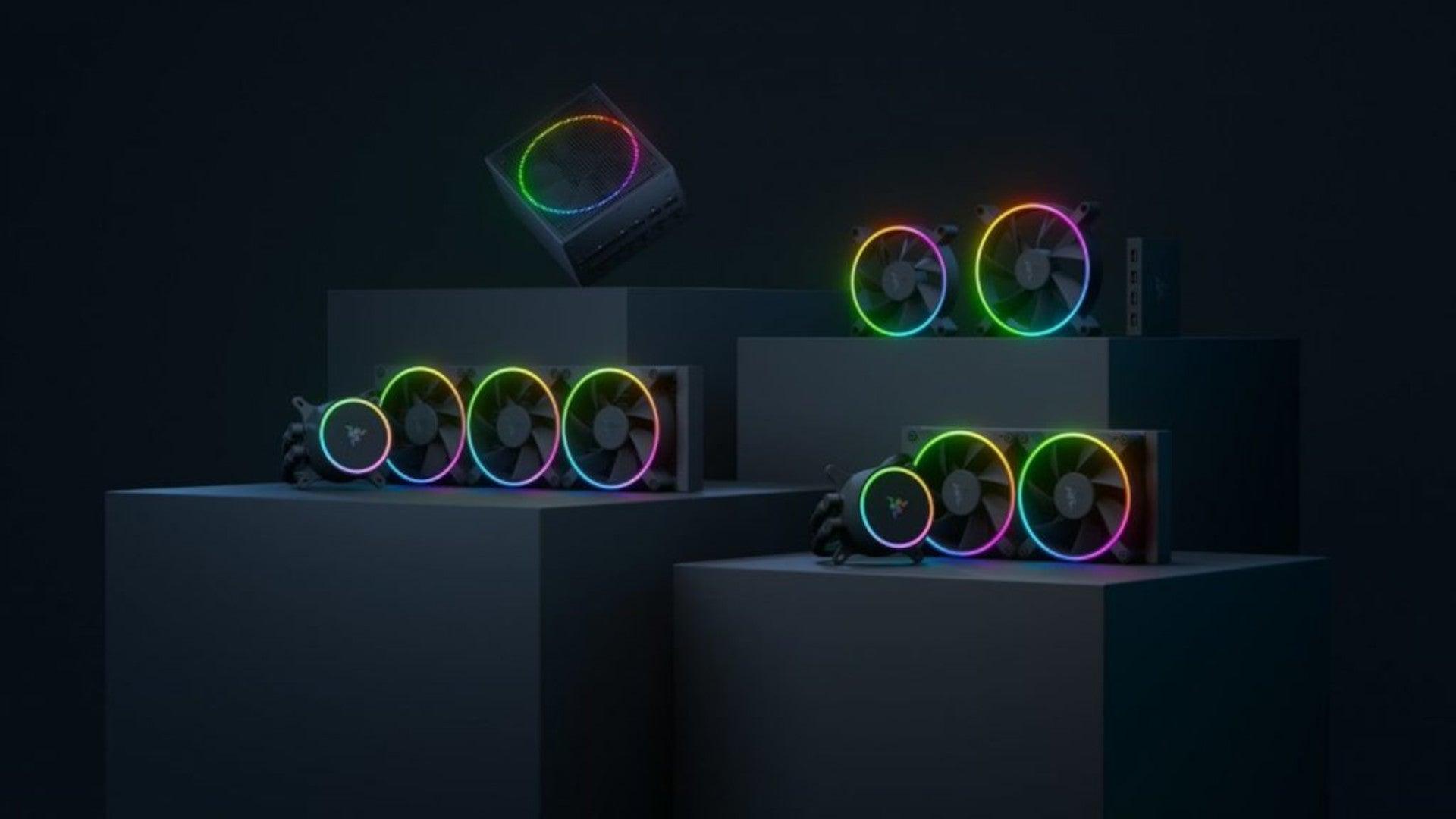
razer pc hardware componentsRazer is a well-known brand among PC gamers and users, it started as a peripheral manufacturer focused on keyboards and mouse but after years passed Razer expanded its inventory offerings. It soon started offering headphones and lately has branched into wider product lines like gaming chairs and protection masks. It is not a big surprise that Razer is expanding into other branches of the PC industry. This time, however, it has revealed not one but three new hardware for your PC. Case fans, all in one liquid cooler and power supply. There are not many details about the products themselves but one thing is one hundred percent confirmed, they come with Razer Chroma, all of them, even the fans.

Katana Chroma ATX PSU

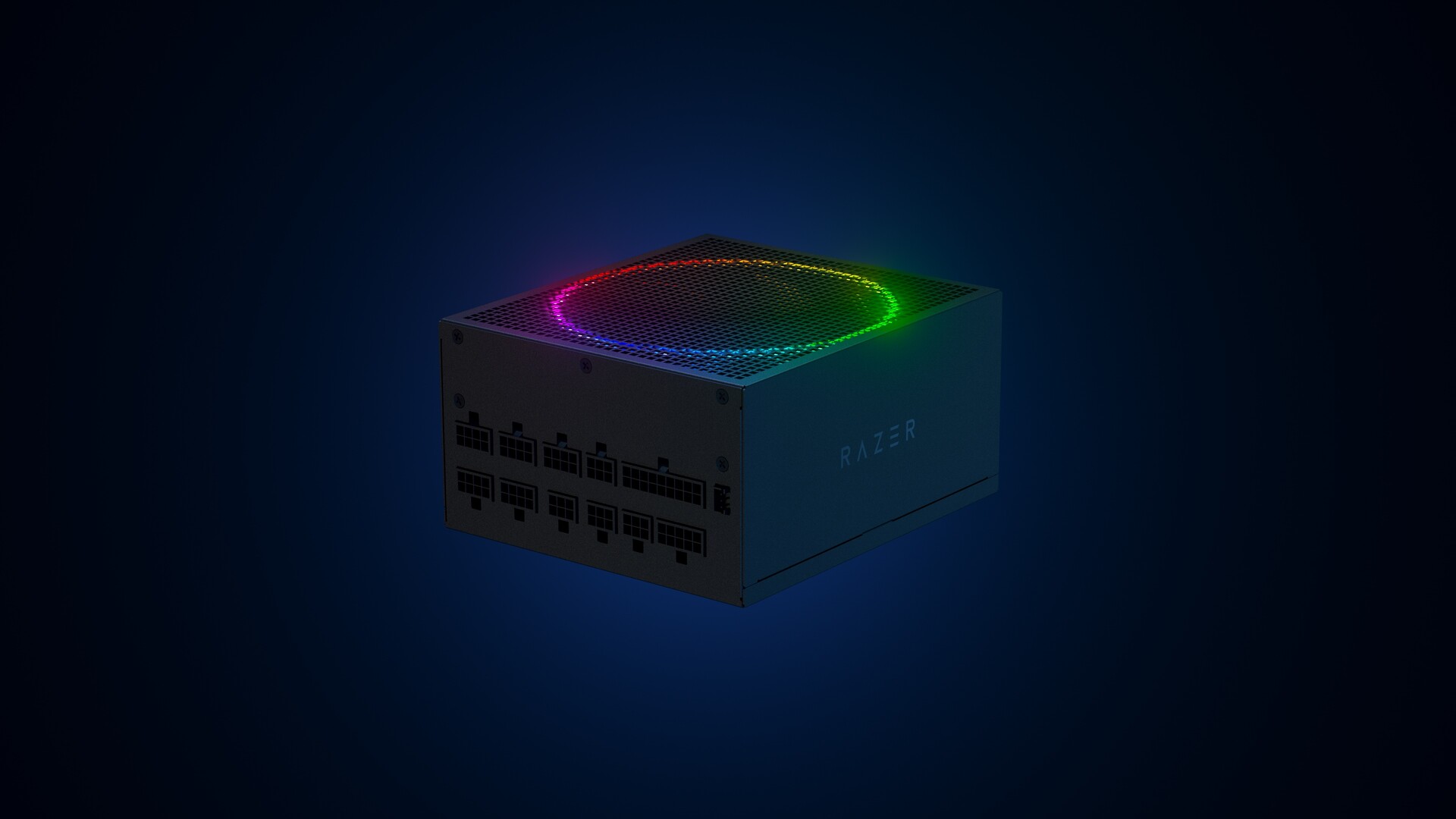
razer power supplyMost interesting for me personally is Razers Katana, the power supply unit. It is a modular power supply ranging from 750W to 1200W with the additional option of Titanium rated one with an impressive 1600W of power. Power supply will start shipping in early 2022 and at the time of writing this article no price range has been released.

Razer Hanbo AIO

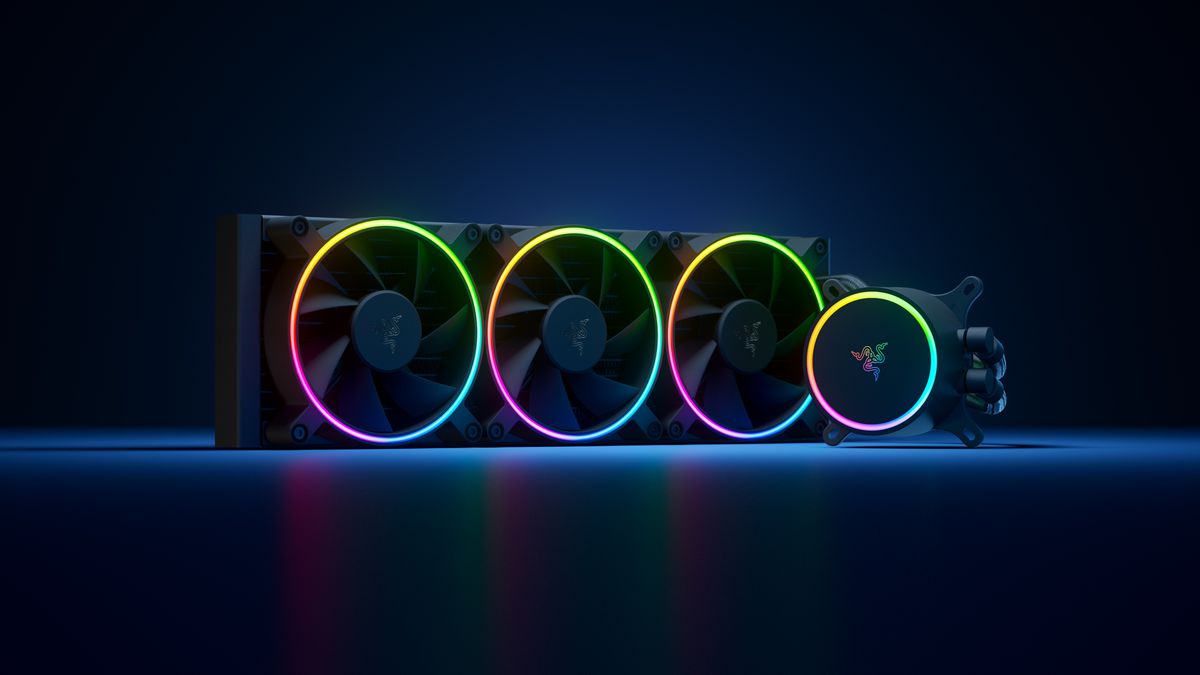
razer water coolingHanbo liquid cooler will feature an optimized intake design so it can ensure greater heat transfer and fluid dynamic for improved reliability and silent operation. Radiator comes in 240mm size with two fans and a larger one of 360mm with three fans. The pump will be able to rotate in any direction of full 360 degrees so it can fit in any case. Hanbo will be released in November this year but no pricing has been released so far.

Razer Kunai Chroma case fans

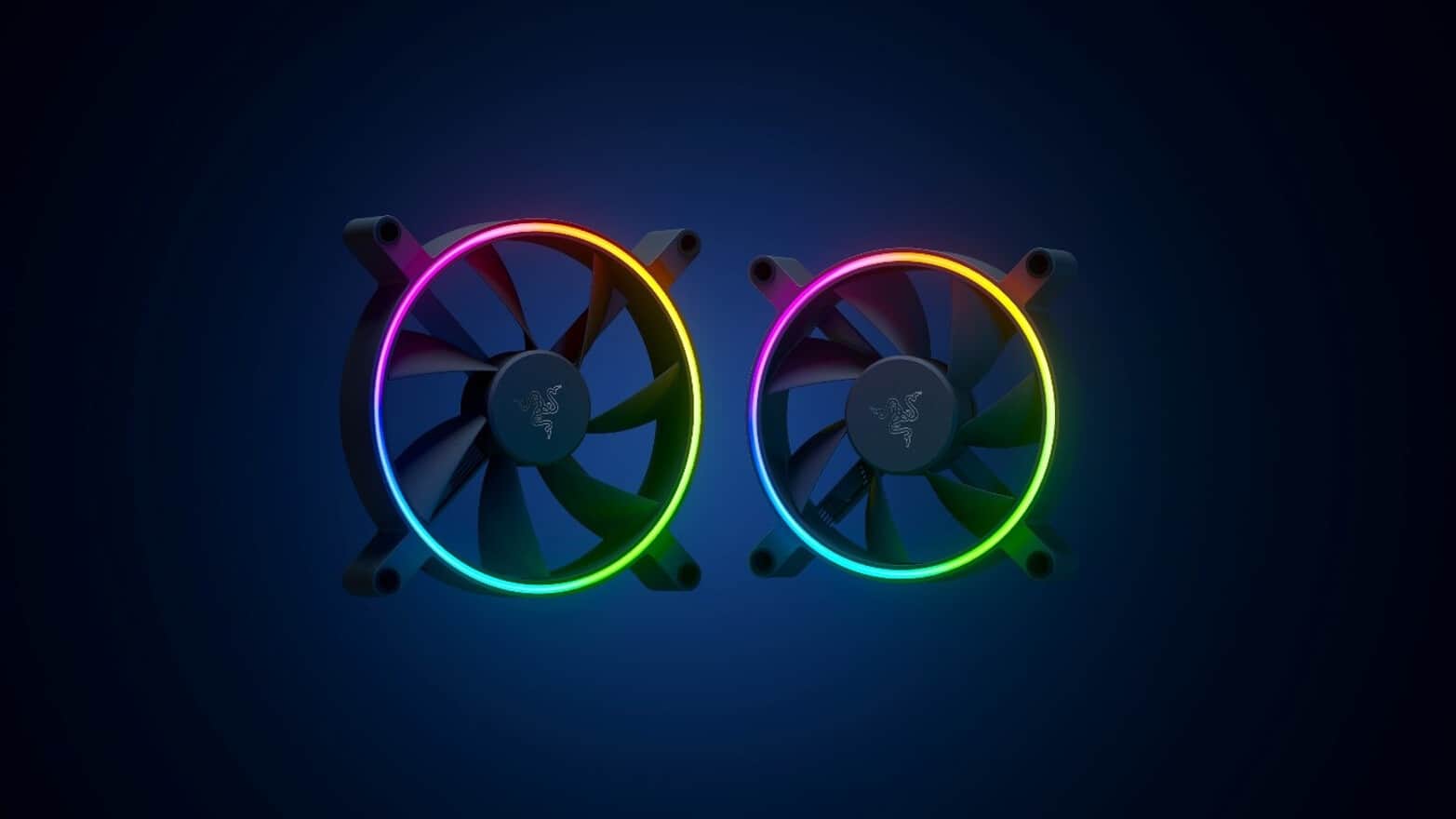
razer case fansKunai fans will boast high static pressure performance with lowered noise. They will go as far as 2200rpm for the 120mm version where the 140mm version will go up to 1600rpm. They will come with addressable LEDs and up to eight fans will be able to be connected to Razer’s PWM fan controller that will come with a magnet at the back for easy attachment to any steel part of PC casing. PWM will use Razer’s Synapse software to customize pulse width modulation in order to improve airflow and noise. PWM will be priced at $49.99 in the Razer Store and it is available for preorder. Fans are priced at $44.99 for one 120mm or $129.99 for a three-pack of 120mm. One 140mm will go for $49.99 and a three-pack will be $129.99.
Read More
How to Remove MovieGoat - Malware Removal Guide

MovieGoat is a browser extension that allegedly lets you search for your favorite videos using its simple search engine. From the author:

Search for your favorite movies online, stay updated with the latest news and trends, and keep an eye on what’s up and coming in the world of cinema.

Simply type goat+ SpaceTab + query at the chrome search bar.
MovieGoat hijacks your browser, replacing your default search engine, displaying sponsored videos when you use its search and will display pop-up ads during your browsing experience. This extension has been detected as a Browser Hijacker by several anti-virus scanners and is not recommended to keep on your computer, especially because it serves no other purpose than to display pop-up ads and negatively impact your browsing experience.

About Browser Hijackers

Browser hijack is a common type of internet fraud where your internet browser configuration settings are modified to make it carry out things you never intend. There are numerous reasons why you may have an internet browser hijack; however commercial, advertising, and marketing are definitely the primary reasons for their creation. Usually, hijackers are made for the benefit of cyber hackers usually through income generation from forced ad clicks and site visits. Most people assume that these types of websites are legitimate and harmless but that is incorrect. Almost every browser hijacker poses an actual threat to your online safety and it’s important to categorize them under privacy risks. Some browser hijackers are designed to make particular modifications beyond the web browsers, like altering entries on the system registry and permitting other types of malware to further damage your PC.

How you can recognize a browser hijack

When your browser is hijacked, the following could happen: your homepage has been reset to some unfamiliar webpage; you find yourself regularly directed to some other site than the one you meant; The default search page of web browser is altered; you are finding new toolbars you have never witnessed before; you’ll notice random pop-ups start showing regularly; websites load very slowly and sometimes incomplete; Inability to navigate to particular websites, particularly anti-malware as well as other computer security software websites.

How it infects your computer

Browser hijackers can get into a computer in some way or other, for example via downloads, file sharing, and email too. They may also be deployed through the installation of a web browser toolbar, add-on, or extension. A browser hijacker can also come bundled up with some freeware which you unwittingly download and install the browser hijack, compromising your computer security. A good example of some infamous browser hijackers includes Anyprotect, Conduit, Babylon, SweetPage, DefaultTab, Delta Search, and RocketTab, however, the names are constantly changing. Browser hijacking can bring about severe privacy problems and even identity theft, affect your browsing experience by taking control over outbound traffic, substantially slows down your computer by consuming lots of resources, and cause system instability also.

Removal

One thing you could try to eliminate a browser hijacker is to locate the malicious software within the “Add or Remove Programs” list of the Windows Control Panel. It might or might not be there. If it is, uninstall it. But, most browser hijackers are hard to eliminate manually. Irrespective of how much you attempt to get rid of it, it could come back again and again. On top of that, manual removal demands you to carry out several time-consuming and complicated procedures which are very hard to complete for new computer users.

What you can do if Virus Prevents You From Downloading Or Installing Antivirus?

Malware can cause all sorts of damage if they invade your PC, ranging from stealing your personal information to erasing files on your computer. Some malware is created to restrict or block things that you want to do on your PC. It may not allow you to download anything from the net or it will prevent you from accessing a few or all of the internet sites, particularly the antivirus sites. If you’re reading this article, odds are you’re stuck with a virus infection that is preventing you to download or install Safebytes Anti-Malware software on your computer system. There are a few solutions you can attempt to get around with this particular obstacle.

Boot your computer in Safe Mode

If the malware is set to load automatically when Microsoft Windows starts, entering safe mode could block this attempt. Just the minimum required applications and services are loaded whenever you boot your computer or laptop in Safe Mode. Here are the steps you need to follow to boot into the Safe Mode of your Windows XP, Vista, or 7 computers (visit Microsoft site for directions on Windows 8 and 10 PCs). 1) At power on, hit the F8 key before the Windows splash screen begins to load. This would conjure up the Advanced Boot Options menu. 2) Select Safe Mode with Networking using arrow keys and hit Enter. 3) Once you get into this mode, you will have internet access once again. Now, obtain the malware removal program you want by using the internet browser. To install the software, follow the directions in the installation wizard. 4) Following installation, do a complete scan and allow the program to remove the threats it detects.

Use an alternate web browser to download security software

Malicious code could exploit vulnerabilities in a particular browser and block access to all antivirus software websites. If you are not able to download the anti-virus software program using Internet Explorer, it means malware may be targeting IE’s vulnerabilities. Here, you need to switch over to another web browser such as Chrome or Firefox to download Safebytes Anti-malware software.

Install and run anti-malware from a USB drive

Here’s yet another solution which is utilizing a portable USB antivirus software package that can check your computer for viruses without the need for installation. Follow these steps to use a USB flash drive to clean your corrupted computer system. 1) Download Safebytes Anti-Malware or Windows Defender Offline onto a clean PC. 2) Insert the USB drive into the clean computer. 3) Double-click the exe file to run the installation wizard. 4) When asked, choose the location of the USB drive as the place in which you would like to store the software files. Follow the on-screen instructions to complete the installation. 5) Disconnect the flash drive. You can now utilize this portable anti-malware on the affected computer system. 6) Double-click the antivirus program EXE file on the USB flash drive. 7) Hit the “Scan” button to run a full computer scan and remove viruses automatically.

Protect your PC from Malware With SafeBytes Security Suite

If you are looking to install anti-malware software for your computer, there are plenty of tools on the market to consider nonetheless, you should not trust blindly anyone, no matter whether it is a paid or free software. A few are good ones, some are ok types, and some are simply just bogus anti-malware applications that can damage your personal computer themselves! You need to pick one that is efficient, practical, and has a strong reputation for its malware protection. On the list of strongly recommended software by industry analysts is SafeBytes Anti-Malware, the safest program for Microsoft Windows. SafeBytes anti-malware is a trusted software that not only secures your computer permanently but is also very user-friendly for people of all ability levels. With its outstanding protection system, this tool will automatically detect and remove most of the security threats, including browser hijackers, viruses, adware, ransomware, PUPs, and trojans. SafeBytes possesses a plethora of amazing features that can help you protect your PC from malware attack and damage. Here are a few of the best ones: Most effective AntiMalware Protection: Using its enhanced and sophisticated algorithm, this malware removal tool can identify and eliminate the malware threats hiding within your computer system effectively. Active Protection: Malware programs trying to get into the system are identified and stopped as and when detected by the SafeBytes active protection shields. It will constantly monitor your laptop or computer for hacker activity and also gives users advanced firewall protection. Web Protection: SafeBytes checks and provides a unique safety rating to every single website you visit and block access to web pages considered to be phishing sites, thus safeguarding you against identity theft, or known to contain malware. High-Speed Malware Scanning Engine: This tool has got one of the fastest and most efficient virus scanning engines in the industry. The scans are very accurate and take a little time to complete. Lowest CPU and Memory Usage: SafeBytes is a lightweight tool. It consumes a very small amount of processing power as it operates in the background so you are free to use your Windows-based PC the way you really want. 24/7 Online Support: For any technical queries or product support, you can get 24/7 expert assistance through chat and e-mail.

Technical Details and Manual Removal (Advanced Users)

If you wish to manually remove MovieGoat without the use of an automated tool, it may be possible to do so by removing the program from the Windows Add/Remove Programs menu, or in cases of browser extensions, going to the browsers AddOn/Extension manager and removing it. You will likely also want to reset your browser. To ensure the complete removal, manually check your hard drive and registry for all of the following and remove or reset the values accordingly. Please note that this is for advanced users only and may be difficult, with incorrect file removal causing additional PC errors. In addition, some malware is capable of replicating or preventing deletion. Doing this in Safe Mode is advised.

The following files, folders, and registry entries are created or modified by MovieGoat

Files: %Documents and Settings%All UsersApplication DataMovie Goat virus %program files %internet explorer Movie Goat[random].mof %program files (x86)%common filesspeechengines %programData%suspicious folders %windows%system32drivermessy code.dll %AppData%[malware program name]toolbar uninstallStatIE.dat %app data% Movie Goat virus Registry: [HKEY_LOCAL_MACHINESOFTWAREMicrosoftMATSWindowsInstallerEAF386F0-7205-40F2-8DA6-1BABEEFCBE8914.07.30.07.52.18]”ProductName”=”Movie Goat” [HKEY_LOCAL_MACHINESOFTWAREWow6432NodeMicrosoftTracingMuvic_RASAPI32] [HKEY_LOCAL_MACHINESOFTWAREWow6432NodeMicrosoftTracingMuvic_RASMANCS] [HKEY_LOCAL_MACHINESOFTWAREWow6432NodeMicrosoftWindowsCurrentVersionUninstallEAF386F0-7205-40F2-8DA6-1BABEEFCBE89] “DisplayName”=”Movie Goat” [HKEY_USERSS-1-5-21-3825580999-3780825030-779906692-1001SoftwareMicrosoftWindowsCurrentVersionUninstall50f25211-852e-4d10-b6f5-50b1338a9271] “DisplayName”=”Movie Goat”

Read More
Easy Remove PCPerformer From Windows

PC Performer is a registry cleaner made by PerformerSoft. The purpose of this program is to remove redundant items from the Windows registry. Registry cleaners remove broken links, missing references within the Windows registry. PC performer is designed to automatically optimize your registry and clean it up.

PC Performer adds registry entries for the current user that allow it to run automatically each time the system is rebooted. It adds a scheduled task to Windows Task Scheduler in order to run at various times. The software connects to the internet, therefore it creates a Windows Firewall exception that allows it to connect without interference. Multiple anti-virus programs detected this software as Malware, it typically comes bundled with other software or is distributed through a pay-per-install bundle.

About Potentially Unwanted Applications

People have encountered it – you download and install a piece of free software application, you then see some unwanted applications on your computer or discover a strange toolbar has been added to your browser. You didn’t install them, so how did they turn up? These unwanted programs, technically known as Potentially Unwanted Programs (PUPs), often come bundled along with other software and install themselves on user’s PC without their knowledge. They perhaps might not look like viruses to some individuals, but they can produce major annoyances and bring about serious trouble for users. The idea of PUP was coined to define this downloadable crapware as something other than malicious software. Much like malware, PUPs create problems when downloaded and placed on your computer, but what makes a PUP different is that you provide consent to download it – the fact is vastly different – the software installation bundle actually tricks you into agreeing to the installation. Still, there isn’t any doubt that PUPs are still bad news for computer users as they can be incredibly damaging to your computer in lots of ways.

What do PUPs look like?

The unwanted software programs after installation display loads of annoying pop-up adverts, create fake alerts, and quite often it even pushes the user to buy the software. Likewise, the majority of free software applications these days come with quite a few unwanted add-ons; in most cases a web browser toolbar or browser modification such as a homepage hijacker. Not only they needlessly use up space on your screen, but toolbars can also manipulate search engine results, watch your browsing activities, decrease your web browser’s performance, and decelerate your net connection to a crawl. PUPs employ aggressive distribution techniques to get in your computer. Some might include information gathering program code that could collect and send your private information back to third parties. Due to this unwanted program, your application may freeze, your security protections may get disabled that might leave the computer susceptible, your system may get ruined, and the list goes on and on.

Tips on how to prevent ‘crapware’

• Read cautiously before agreeing to the license agreement as it may have a clause about PUPs. • Usually, when setting up a program you will get two options, ‘Standard Installation (recommended)’ and ‘Custom Installation’. Don’t select ‘Standard’ as PUPs could be installed that way! • Use good anti-malware software. Try Safebytes Anti-Malware which will find PUPs and handle them as malware by flagging them for removal. • Be alert when you install freeware, open-source software, or shareware. Avoid downloading browser extensions and programs you are not familiar with. • Only download applications from the original providers’ sites. Avoid download portals as they use their own download manager to pack additional programs with the initial download.

What you can do if Virus Stops You From Downloading Or Installing Anything?

Malware could potentially cause several kinds of damage to computer systems, networks, and data. Certain malware goes to great lengths to stop you from installing anything on your PC, especially antivirus applications. If you’re reading this right now, you have perhaps recognized that a malware infection is a reason for your blocked web traffic. So what to do if you need to install an antivirus program like Safebytes? There are a few actions you can take to get around this problem.

Eliminate malware in Safe Mode

If the virus is set to load automatically when Microsoft Windows starts, getting into Safe Mode could very well block the attempt. Since just the bare minimum programs and services start-up in safe mode, there are hardly any reasons for issues to happen. The following are the steps you should follow to remove malware in Safemode. 1) At power on/start-up, hit the F8 key in 1-second intervals. This will bring up the Advanced Boot Options menu. 2) Select Safe Mode with Networking using arrow keys and hit ENTER. 3) Once you get into this mode, you should have an internet connection again. Now, obtain the malware removal application you need by using the browser. To install the software, follow the directions in the installation wizard. 4) After installation, do a complete scan and let the software delete the threats it detects.

Switch to an alternate browser

Web-based viruses can be environment-specific, targeting a particular web browser or attacking particular versions of the browser. The best solution to overcome this issue is to opt for a browser that is well known for its security features. Firefox contains built-in Phishing and Malware Protection to keep you safe online.

Install and run anti-virus from a USB drive

To successfully eliminate the malware, you will need to approach the issue of installing an anti-virus program on the infected PC from a different angle. Adopt these measures to employ a USB flash drive to fix your corrupted computer. 1) Use another virus-free computer to download Safebytes Anti-Malware. 2) Insert the pen drive into the clean computer. 3) Double-click the Setup icon of the antivirus program to run the Installation Wizard. 4) When asked, choose the location of the pen drive as the place where you would like to put the software files. Follow the on-screen instructions to complete the installation process. 5) Now, insert the pen drive into the infected computer. 6) Double-click the EXE file to open the Safebytes program right from the flash drive. 7) Click “Scan Now” to run a scan on the infected computer for malware.

Highlights of SafeBytes Anti-Malware

Do you want to install the best anti-malware software program for your computer system? There are various applications in the market that comes in paid and free versions for Microsoft Windows systems. A few of them are great and some are scamware applications that pretend as legit anti-malware software waiting around to wreak havoc on your computer. While looking for anti-malware software, select one which gives dependable, efficient, and full protection against all known computer viruses and malware. On the list of recommended software is SafeBytes Anti-Malware. SafeBytes carries a really good track record of top-quality service, and clients are happy with it. SafeBytes anti-malware is a highly effective and easy-to-use protection tool that is suitable for users of all levels of computer literacy. With its cutting-edge technology, this application will let you remove multiples types of malware which include viruses, worms, PUPs, trojans, ransomware, adware, and browser hijackers. SafeBytes anti-malware provides an array of advanced features which sets it apart from all others. Listed here are a few of the great ones: Anti-Malware Protection: Built on a highly acclaimed anti-virus engine, this malware removal tool is able to detect and remove many obstinate malware threats such as browser hijackers, potentially unwanted programs, and ransomware that other typical anti-virus programs will miss. Real-time Active Protection: SafeBytes offers an entirely hands-free real-time protection that is set to check, prevent and remove all threats at its first encounter. It’ll check your PC for suspicious activity continuously and shields your PC from unauthorized access. Faster Scan: SafeBytes’s virus scan engine is one of the quickest and most efficient in the industry. Its targeted scanning seriously increases the catch rate for malware that is embedded in various computer files. Safe Browsing: Safebytes assigns all sites a unique safety ranking that helps you to have an idea of whether the webpage you’re going to visit is safe to view or known to be a phishing site. Low CPU Usage: SafeBytes is renowned for its minimal influence on processing power and great detection rate of countless threats. It runs silently and efficiently in the background so you’re free to use your computer at full power all the time. 24/7 Customer Support: SafeBytes provides 24/7 technical support, automatic maintenance, and software upgrades for the best user experience.

Technical Details and Manual Removal (Advanced Users)

If you wish to manually remove PCPerformer without the use of an automated tool, it may be possible to do so by removing the program from the Windows Add/Remove Programs menu, or in cases of browser extensions, going to the browsers AddOn/Extension manager and removing it. You will likely also want to reset your browser. To ensure the complete removal, manually check your hard drive and registry for all of the following and remove or reset the values accordingly. Please note that this is for advanced users only and may be difficult, with incorrect file removal causing additional PC errors. In addition, some malware is capable of replicating or preventing deletion. Doing this in Safe Mode is advised.

The following files, folders, and registry entries are created or modified by PCPerformer

Files: File at LOCALAPPDATAPCPerformerSetupPCPerformerSetup.exe. File at PROGRAMFILESPC PerformerPCPerformer.exe. File at PROGRAMFILESPC PerformerPSCheckUp.exe. File at PROGRAMFILESPC PerformerRegistryDefrag.exe. File at WINDIRTasksPC Performer Daily Check.job. File at WINDIRTasksPC Performer Scheduled Scan.job. Registry: Key PC Performer at HKEY_CURRENT_USERSoftwarePerformerSoft. Key PC Performer at HKEY_LOCAL_MACHINESOFTWAREPerformerSoft. Key PCPerformer_is1 at HKEY_LOCAL_MACHINESoftwareMicrosoftWindowsCurrentVersionUninstall.
Read More
Fix Element Not Found for Bootrec /Fixboot
One of the most useful utilities for advanced users in Windows is the Windows command line or Command Prompt. It is efficient in fixing system files, checking the disk for errors as well as other intensive tasks that are made convenient using this. One of the tasks you can carry out using Command Prompt is repairing the Windows bootup process if it encounters any issues. However, if you tried running the “bootrec/fixboot” command and you receive an error message saying, “Element not found”, read on as this post will guide you in fixing this error. This kind of error in the command line could be due to a damaged BCD or MBE, inactive system partition, or it could also be that there is no drive letter being assigned to the EFI partition. Whichever the case is, here are some possible fixes that should help you resolve the problem.

Option 1 – Try to repair BCD

As mentioned the error could be caused by a damaged BCD and so to fix the problem, you need to repair BCD by following these steps:
  • First, make sure that you have a bootable Windows 10 USB drive with you and use it to boot your computer.
  • Once you’re on the Welcome Screen, click on Next.
  • After that, click on Repair your computer located at the bottom-left portion of the window.
  • Then select Troubleshoot > Advanced Options > Command Prompt.
  • After you open the Command Prompt window, execute the following command:
bootrec /fixboot
  • Afterward, enter the next command below to rename the BCD file:
ren BCD BCD.bak
  • Next, type the following command and make sure to replace “b:” with the letter of your bootable drive attached to your computer.
bcdboot c:Windows /l en-us /s b: /f ALL
  • Now, wait until the process is completed and restart your computer to successfully apply the changes made.

Option 2 – Try assigning the drive letter to the EFI partition

  • Tap the Win + X keys or right-click on the Start button and click on Command Prompt (Admin) to open Command Prompt with admin privileges.
  • Then type the following command to start the Diskpart utility:
diskpart
  • After that, if you receive a UAC prompt, just click on Yes to proceed.
  • Next, type the following command to list all the volumes created on your PC including both types of partitions that are visible to a normal user in the File Explorer as well as the ones created by Windows 10 by default which helps it in storing the boot files and other important system files:
list volume
  • Now type the following command to select the desired volume:
select volume number
  • Then type the following command to assign a letter to the selected volume:
assign letter=<LETTER>
Note: Make sure to replace “<LETTER>” with the letter you want to allocate to that partition. Afterward, it will assign a letter to the selected volume.
  • Reboot your PC to apply the changes made.

Option 3 – Try setting the System Partition to Active

Like the first given option, you also have to make sure that you have a bootable Windows 10 USB drive before you proceed to set the System Partition to Active. Once you have it covered, refer to these steps:
  • Boot your computer using the bootable Windows 10 USB drive.
  • Next, click Next when you get to the Welcome Screen.
  • Then click on Repair your computer located at the bottom left part of the window and select Troubleshoot > Advanced Options > Command Prompt.
  • After opening Command Prompt, type the following command and hit Enter to start the Diskpart utility. It is a command line-based utility just like Command Prompt but has a UAC prompt once you provoke it. So if you encounter a UAC prompt, just click on Yes to proceed.
diskpart
  • Now type the following command:
list disk
  • From there, select your primary disk by typing the following command:
select disk number
  • After that, list all the partitions on the selected disk by entering the following command:
list partition
  • The command you just entered will list all the partitions created on your PC including both types of partitions that are visible to a normal user in the File Explorer as well as the ones created by Windows 10 by default which helps it in storing the boot files and other important system files.
  • Now type the following command to select the partition that is usually around 100 MB in size:
select partition number
  • Finally, type the following command to mark the partition active:
active
  • Then type the “exit” command to exit the disk part utility.
Read More
GitHub introduction and explanation
If you are starting to get into the “wonderful” world of coding there is a high chance that you have heard of GitHub or Git for short and there is a slight chance that you might be confused about what exactly GitHub is. If this is the case, we are welcoming you to go through our article and find everything about it and why it is so popular and used all around the world.

githubWhat exactly is GitHub?

If we want to go all technical and just point the obvious we could say that GitHub is basically a WEB site and cloud service used for storing and managing code in all languages. But to truly understand why you should use GitHub and not Dropbox or any storage service instead you need to understand concepts like Version Control and Git.

Version Control

Version control is meant to help developers to work separately on different parts of codes and update is separately not breaking the original one. Take note that this option is meant when there is a big project and has more than one coder working on it. If you are a solo coder on your personal project this might not be anything groundbreaking for you personally. But let’s now assume that you are part of a team and that your task is to edit only one function of a project and other people working will also have their tasks. With version control, you could take only part of the code and work on it and once you are finished merge it back into the main repository. All changes in the main code are automatically tracked and can be easily reverted back if needed. The good stuff is that rolling back can be used only let’s say on a code you submitted and other changes made to the source can be kept. As you can see this makes a very good and efficient working space and a good coding environment.

Git

Git itself is a specific version control system, an open-source version control system to be more precise created by Linus Torvalds in 2005. It is a distributed version control system, which means that the entire codebase and history is available on every developer’s computer, which allows for easy branching and merging. Currently, over 87% of worldwide developers are using Git on a daily basis.

So GitHub is?

GitHub is a profit company that offers a cloud-based Git repository hosting service, in other words, it automates and makes it easy for everyone to use Git for version control and collaboration. It focuses on user interface and ease of use so even beginner coders can use it right away without any large confusion and using command lines and setting it themselves manually. GitHub also has a free personal plan in which you can host a public code repository completely free. This option placed GitHub very popular with open source projects. If you are a company you can purchase a plan to have a private code repository shared only to members of your team or company.

Conclusion

As stated almost every developer on a planet uses some version of Git, many of them are on GitHub and there is a lot of open source projects on it. Some employers even ask to see your GitHub repository when deciding if they want to employ you, think of it as a portfolio for coders. There is not a single disadvantage and not a single argument against using it, especially it has a personal free option. So if you want to look better and more professional in the coding world go, make an account and place some code on it, share it with the world, and see how it goes. You might even get some help on projects from other coders if you need it.
Read More
Where can you get computer viruses & malware
From their infant stages to modern days, computer viruses were always kind of here. From simple ones that were annoying with playing speaker sounds and throwing messages on screen to more malicious ones capable of deleting and encrypting files. In today's modern world it is very important to protect yourself, modern viruses are not a joke anymore and they are aimed to create serious damage to computer systems. Where can you get computer viruses & malwareThey can encrypt files in order to make you pay for a decrypter, they can straight up delete files or even cause some hardware damage. Like mentioned before protecting yourself is important, but protecting does not mean only having antivirus software installed, information, where are common places in which they lurk and could be picked up, is also very important. That is why we are exploring in this article the most common place where you can pick viruses or other malware.

Downloading Programs

Programs that contain the downloadable files are the commonest source of malware such as freeware, worms, and other executable files. Whether you download an image editing software, a music file, or an e-book, it is important to ensure the reliability of the source of the media. Unknown, new, or less popular sources should be avoided.

Pirated or Cracked Software

Are you aware of software cracking? Well, every time you open cracked software, your antivirus software might flag it as malware as the cracks consist of malicious scripts. Always say “No” to cracks as they can inject malicious script into your PC.

Email Attachments

Anyone can send you an email attachment whether you know them or not. Clicking on unknown links or attachments can harm your device. Think twice before clicking anything and make sure that file type is not ‘.exe’.

Internet

One of the easiest ways to get a virus on your device is through the Internet. Make sure to check the URL before accessing any website. For a secured URL always look for ‘HTTPS in it. For example, when you click videos published on social media websites, they may require you to install a particular type of plug-in to watch that video. But in reality, these plug-ins might be malicious software that can steal your sensitive information.

Booting Data from Unknown CDs

Malicious software can get into your device through an unknown CD. A good practice to be safe from malicious infection is to remove CD when your device is not working at all. Your system could reboot the CD if it is not removed before switching off the computer.

Bluetooth

Bluetooth transfers can also infect your system, so it is crucial to know what type of media file is being sent to your computer whenever a transfer takes place. An effective armor would be to allow Bluetooth connectivity with only known devices and activate it only when required.

Unpatched Software

Often overlooked, unpatched software is also a leading source of virus infection. Security holes in software are exploited by attackers and are unknown to software makers until the attackers release them in the form of zero-day attacks. It is therefore recommended to install software updates as soon as they are available on your PC.
Read More
Activision Blizzard Sued by California
blizzard hqFollowing a two-year investigation by the California Department of Fair Employment and Housing, the state has filed a lawsuit against Activision Blizzard for fostering a "frat boy" culture in which female employees are allegedly subjected to unequal pay and sexual harassment. As reported by Bloomberg, Activision Blizzard is being accused by the state of California of discriminating against female employees at nearly all levels of employment, including in regards to compensation, promotion, assignments, and termination. The state alleges Activision Blizzard’s leadership has failed to address any of these outstanding issues or prevent them from occurring within the workplace. You can read the full details of the lawsuit here. The suit, filed Tuesday in the Los Angeles Superior Court, says Activision Blizzard, which is made up of about 20 percent women, assigns women, and women of color, to "lower paid and lower opportunity levels" with lower starting pay for similar work as their male counterparts. The documents also accuse Activision Blizzard of fostering a "pervasive 'frat boy' workplace culture in the office. Male employees are said to drink "copious amounts of alcohol" as they make their way through cubicles and "often engage in inappropriate behavior toward female employees." Male employees are said to come to work hungover, play video games during work "while delegating their responsibilities to female employees, engage in banter about their sexual encounters, talk openly about female bodies, and joke about rape." The lawsuit also cites one particular incident where a female employee, who was already subjected to intense sexual harassment at the company, committed suicide during a work trip with a male supervisor who allegedly brought inappropriate, sexual items with him on the trip. The lawsuit is asking for an injunction that will force Activision Blizzard to comply with workplace protections, as well as deliver unpaid wages, pay adjustments, back pay, and lost wages and benefits for female employees.

An Activision Blizzard spokesperson sent the following statement in response to the allegations:

We value diversity and strive to foster a workplace that offers inclusivity for everyone. There is no place in our company or industry, or any industry, for sexual misconduct or harassment of any kind. We take every allegation seriously and investigate all claims. In cases related to misconduct, the action was taken to address the issue. The DFEH includes distorted, and in many cases false, descriptions of Blizzard’s past. We have been extremely cooperative with the DFEH throughout their investigation, including providing them with extensive data and ample documentation, but they refused to inform us what issues they perceived. They were required by law to adequately investigate and to have good faith discussions with us to better understand and to resolve any claims or concerns before going to litigation, but they failed to do so. Instead, they rushed to file an inaccurate complaint, as we will demonstrate in court. We are sickened by the reprehensible conduct of the DFEH to drag into the complaint the tragic suicide of an employee whose passing has no bearing whatsoever on this case and with no regard for her grieving family. While we find this behavior to be disgraceful and unprofessional, it is, unfortunately, an example of how they have conducted themselves throughout the course of their investigation. It is this type of irresponsible behavior from unaccountable State bureaucrats that are driving many of the State’s best businesses out of California. The picture the DFEH paints is not the Blizzard workplace of today. Over the past several years and continuing since the initial investigation started, we’ve made significant changes to address company culture and reflect more diversity within our leadership teams. We’ve updated our Code of Conduct to emphasize a strict non-retaliation focus, amplified internal programs and channels for employees to report violations, including the “ASK List” with a confidential integrity hotline, and introduced an Employee Relations team dedicated to investigating employee concerns. We have strengthened our commitment to diversity, equity, and inclusion and combined our Employee Networks at a global level, to provide additional support. Employees must also undergo regular anti-harassment training and have done so for many years. We put tremendous effort into creating fair and rewarding compensation packages and policies that reflect our culture and business, and we strive to pay all employees fairly for equal or substantially similar work. We take a variety of proactive steps to ensure that pay is driven by non-discriminatory factors. For example, we reward and compensate employees based on their performance, and we conduct extensive anti-discrimination training including for those who are part of the compensation process. We are confident in our ability to demonstrate our practices as an equal opportunity employer that fosters a supportive, diverse, and inclusive workplace for our people, and we are committed to continuing this effort in the years to come. It is a shame that the DFEH did not want to engage with us on what they thought they were seeing in their investigation.

Conclusion

We will see how things work out, but I am not too optimistic for Activision Blizzard, truth to be told these reports are really bringing up some disturbing news on the sunlight. I just hope that all responsible will be brought to justice.
Read More
Fix DLL is not designed to run on Windows
As you know, DLL files in the Windows environment contain all the code needed by programs in order to properly function. And like with most other software, the functions in the DLL file have to be compatible with Windows especially if they are using any built-in service. So if you encounter an error that says, “DLL is either not designed to run on Windows or it contains an error”, when you try to launch a program, then this could be due to a compatibility issue. To fix this error, read on as this post will walk you through doing that. Based on the reports of users who encountered this error, the error pointed to a DLL file that was either designed to run on a different version of Windows. It is also possible that the DLL file itself is the problem. Here’s the complete error message:
“Bad Image – DLL file is either not designed to run on Windows or it contains an error. Try installing the program again using the original installation media or contact your system administrator or the software vendor for support.”
According to security experts, the DLL files that are known to trigger this kind of error message are msvcr100.dll, msvcr110.dll, msvcp140.dll, lmirfsclientnp.dll, and so on. To fix this problem, you can try to update or reinstall the program that’s throwing the error to its latest version. You could also ask the vendor for the latest version of the DLL as well as run a System File Checker scan.

Option 1 – Try to update or reinstall the program to its latest version

The first thing you can do to fix the problem is to update or reinstall the program that’s throwing the error. It is possible that the version of DLL might be using a system call that is deprecated. So if you had updated your Windows 10 computer recently, you might want to check for an update of the software or you could also try to reinstall its latest version.

Option 2 – Try asking the vendor for the latest version of the DLL

The next thing you can do to fix the error is to ask for the latest version of DLL from the vendor. There are times when the software uses an open-source version of DLL so it is better if you ask the vendor if there is a DLL file that has to be updated. If there is, then you need to make sure to register the DLL once you have it.

Option 3 – Try to re-register the problematic DLL file

You can also try to re-register the DLL to resolve the problem. The Regsvr32 tool is a command-line utility that can be used to register and unregister OLE controls like DLL and ActiveX (OCX) controls in the Windows operating system. Follow the steps below to use it.
  • Open Command Prompt as admin from the WinX menu.
  • Next, type the following commands in the elevated Command Prompt and hit Enter to execute the command. This will re-register the affected DLL file using the Windows operating system tool, regsvr32.exe.
    • exe /[DLL file]
    • exe [DLL file]
Note: Replace “[DLL file]” with the name of the DLL file that was pointed out in the error.
  • After you execute the given commands, you should see a message saying, “DllRegisterServer in vbscript.dll succeeded” if the Regsvr32 tool was able to run successfully. After that, try to install the program again and see if it now works.

Option 4 – Try to replace the DLL file from a trusted source

  • First, you need to get the new DLL file from another computer with preferably the same file version number.
  • After that, you need to boot your PC into Safe Mode and navigate to the paths listed below and then replace the file using a USB drive or other external storage devices.
    • x86: This PC > C:/Windows/System32
    • x64: This PC > C:/Windows/SysWOW64
  • Next, type “cmd” in the Cortana search box and right-click on Command Prompt, and select “Run as administrator” to open it with administrator privileges.
  • Now type the “regsvr32 ntdll.dll” command and hit Enter.
  • Restart your PC and check if the error is now fixed.

Option 5 – Run System File Checker scan

If reinstalling the program didn’t work, you can also try running the System File Checker or SFC scan to fix the error. System File Checker is a command utility built into your computer that helps restore corrupted files and missing files. Refer to the following steps to run it:
  • Hit the Win + R keys to launch Run.
  • Type in cmd in the field and tap Enter.
  • After opening Command Prompt, type in sfc /scannow
The command will start a system scan which will take a few whiles before it finishes. Once it’s done, you could get the following results:
  1. Windows Resource Protection did not find any integrity violations.
  2. Windows Resource Protection found corrupt files and successfully repaired them.
  3. Windows Resource Protection found corrupt files but was unable to fix some of them.
 Reboot your computer.

Option 6 – Troubleshoot the isDone.dll error in a Clean Boot State

You can also troubleshoot the “DLL is either not designed to run on Windows or it contains an error” in a Clean Boot state. It could be that there are some third-party applications in your computer that are preventing the application from getting installed and to isolate this possibility, you need to boot your computer in a Clean Boot State and then try installing the program again. Putting your computer in this state can help you identify which program is the culprit and thus isolates the problem. In a Clean Boot state, your computer will start using only the pre-selected minimal set of drivers and startup programs. Note that you have to disable and enable one process at a time.
  • Log onto your PC as an administrator.
  • Type in MSConfig in the Start Search to open the System Configuration utility.
  • From there, go to the General tab and click “Selective startup”.
  • Clear the “Load Startup items” check box and make sure that the “Load System Services” and “Use Original boot configuration” options are checked.
  • Next, click the Services tab and select the “Hide All Microsoft Services” check box.
  • Click Disable all.
  • Click on Apply/OK and restart your PC. (This will put your PC into a Clean Boot State. And configure Windows to use the usual startup, just simply undo the changes.)
  • After you’ve set your computer into a Clean Boot State, make sure that you’re signed in as administrator and then try to install the application again.

Option 7 – Try scanning your computer using Windows Defender

The DLL file might also be infected with malware or virus and to eliminate it which could explain why you’re getting the “DLL is either not designed to run on Windows or it contains an error”. Thus, you have to scan your computer using security programs like Windows Defender.
  • Tap the Win + I keys to open Update & Security.
  • Then click on the Windows Security option and open Windows Defender Security Center.
  • Next, click on Virus & threat protection > Run a new advanced scan.
  • Now make sure that Full Scan is selected from the menu and then click the Scan Now button to get started.
Read More
Installation failed, ended prematurely
If you are trying to install or reinstall a program on your Windows 10 computer but encountered an error instead that says, “Fatal error, Installation fails, Installation ended prematurely because of an error”, then you’ve come to the right place as this post will guide you how you can fix it. This kind of error is most likely caused by some files that may have been left behind by the previous installation of the program. Each time a program is uninstalled, it leaves behind its files and if the uninstallation process wasn’t completed properly, then it would result in errors like the
“Fatal error, Installation fails, Installation ended prematurely because of an error”.
Moreover, this kind of error is a generic one that can also occur with any software reinstallation or installation. And to fix this error, there are several suggestions you must check out. You can try to install or reinstall the program in a Clean Boot State or restart the Windows Installer Service. You could also try to re-register the Windows Installer Service or re-register the VBScript.dll file.

Option 1 – Install or reinstall the program in a Clean Boot State

It is possible that there are some third-party applications in your computer that are preventing the program from getting installed and to isolate this possibility, you need to boot your computer in a Clean Boot State and then try installing the program again. Putting your computer in this state can help you identify which program is the culprit and thus isolates the problem. In a Clean Boot state, your computer will start using only the pre-selected minimal set of drivers and startup programs. Note that you have to disable and enable one process at a time.
  • Log onto your PC as an administrator.
  • Type in MSConfig in the Start Search to open the System Configuration utility.
  • From there, go to the General tab and click “Selective startup”.
  • Clear the “Load Startup items” checkbox and make sure that the “Load System Services” and “Use Original boot configuration” options are checked.
  • Next, click the Services tab and select the “Hide All Microsoft Services” checkbox.
  • Click Disable all.
  • Click on Apply/OK and restart your PC. (This will put your PC into a Clean Boot State. And configure Windows to use the usual startup, just simply undo the changes.)
  • After you’ve set your computer into a Clean Boot State, make sure that you’re signed in as administrator and then try to install the program again.

Option 2 – Try to restart the Windows Installer Service

The next thing you can do to fix the problem is to restart the Windows Installer Service. To do this, follow these steps:
  • Tap the Win + R keys to launch the Run utility and type “services.msc” in the field and then hit Enter to open the Windows Services Manager.
  • Next, look for the Windows Installer service among the list of services shown.
  • Once you found it, right-click on it and open its Properties.
  • From there, click on the Stop button and then click on the Start button.
  • But if it isn’t running, then just click on the Start button.

Option 3 – Try to unregister and re-register the Windows Installer Module

  • Tap the Win + R keys to open the Run dialog box.
  • Then type the “msiexec /unregister” command and hit Enter to unregister the Windows Installer Module.
  • Next, type the “msiexec /regserver” command and hit Enter to re-register the Windows Installer Module.
  • Now restart your computer and see if unregistering and re-registering the Windows Installer Module fixed the problem or not.

Option 4 – Try to re-register the vbscript.dll file

You may have to re-register the vbscript.dll file using the regsvr32.exe before you can successfully install the program and fix the error. The Regsvr32 tool is a command-line utility that can be used to register and un-register the OLE controls like DLL and ActiveX (OCX) control in the Windows operating system. Follow the steps below to use it.
  • Open Command Prompt as admin from the WinX menu.
  • Next, type regsvr32.exe vbscript.dll in the elevated Command Prompt and hit Enter to execute the command. This will re-register the affected DLL file using the Windows operating system tool, regsvr32.exe.
  • You should see a message saying, “DllRegisterServer in vbscript.dll succeeded” if the Regsvr32 tool was able to run successfully. After that, try to install the program again and see if it now works.
Read More
1 2 3 171
Logo
Copyright © 2023, ErrorTools. All Rights Reserved
Trademark: Microsoft Windows logos are registered trademarks of Microsoft. Disclaimer: ErrorTools.com is not affiliated with Microsoft, nor claims direct affiliation.
The information on this page is provided for information purposes only.
DMCA.com Protection Status