Logo

Fix No Internet, Secured in Windows 10

Strange and anxious message no internet, secured can happen even during when everything is ok and you do indeed have internet. So in order to fix this issue please keep on reading.

Reset Router

Most a simple and most straightforward solution and 80% of the time it works like a charm. Before trying other solutions, try this simple one.


Run the Networking Troubleshooter

  1. Run the build-in Windows 10 troubleshooter for networking.
  2. To do this, right-click Start then select Settings
  3. In the Settings window, click Update & Security > Troubleshoot > Additional troubleshooters > Internet Connections > Run the troubleshooter then follow the instructions

Device Manager solution

The Windows device manager is the place where you can update, disable and re-enable, and reinstall your devices, including the network adapter which is most likely the cause of this issue.

In Device Manager, click Network adapters then locate your network adapter and right-click on it

Do the following things in order presented:

  1. Update driver.
  2. Disable device, enable Flight mode in the taskbar, reboot PC, then Enable device and turn off Flight mode.
  3. Uninstall device, reboot PC, reinstall the device if it was not installed automatically

Refresh IP Configuration

Refreshing your IP configuration reassigns your IP address, which will fix the problem if it was down to your IP allocation issues

Open the Command Prompt, then enter the following commands:


Reset Winsock

There are a couple of other things you can try in the command prompt. The Winsock protocol controls a big chunk of your computer’s communication with network services and resetting it will reset many of those under-the-hood elements to their default settings.

Enter the following into the command prompt:


Fix Connection’s Properties

Click the Wi-Fi (or Ethernet) connection icon in the taskbar, then Network & Internet Settings.

In the new window, click Change adapter options then right-click the affected connection and click Properties.

In the Properties window, make sure all the following boxes are ticked:

  • Client for Microsoft Networks
  • File and Printer Sharing
  • Internet Protocol Version 4
  • Internet Protocol Version 6
  • Link-layer Topology Discovery Responder

Click OK and restart PC.


Disable iPv6

IPv6 is the relatively new Internet protocol that more and more PCs are using due to the fact that the number of available IPv4 addresses is simply running out. Not all networking equipment and ISPs play nice with iPv6, however, so if you have this switched on, then it could be interfering with your connection. If you suspect this might be the issue, uncheck the IPv6 box under your connection’s Properties.

Do You Need Help with Your Device?

Our Team of Experts May Help
Troubleshoot.Tech Experts are There for You!
Replace damaged files
Restore performance
Free disk space
Remove Malware
Protects WEB browser
Remove Viruses
Stop PC freezing
GET HELP
Troubleshoot.Tech experts work with all versions of Microsoft Windows including Windows 11, with Android, Mac, and more.

Share this article:

You might also like

Calculator is not working in Windows
As you know, one of the basic apps in the Windows 10 operating system is the calculator and it can even be extended to a scientific calculator which makes it really useful for users. However, there are instances when you might encounter some issues while using this app. One of the issues about the Calculator app that’s been reported recently is that the Calculator app is not working. If you encounter the same problem, then you’ve come to the right place as this post will guide you on what you can do to fix the problem. Based on the reports, users claimed that the issue with the Calculator app occurred right after they’ve installed a feature update, while other users claimed that the Calculator app never really worked on their computers and there are also cases where the app opens but it either freezes or crashes. According to researchers, the main causes of the problem include a feature update that could’ve altered the settings. It could also be due to problems with the login account or corrupted and missing files, or the problem could also with the calculate app itself. To resolve this problem, here are some suggestions you can follow.

Option 1 – Run the System File Checker Scan

System File Checker or SFC is a built-in command utility that helps in restoring corrupted files as well as missing files. It replaces bad and corrupted system files to good system files that might be the reason why the calculator app is not working properly. To run the SFC command, follow the steps given below.
  • Tap Win + R to launch Run.
  • Type in cmd in the field and tap Enter.
  • After opening Command Prompt, type in sfc /scannow
The command will start a system scan which will take a few whiles before it finishes. Once it’s done, you could get the following results:
  1. Windows Resource Protection did not find any integrity violations.
  2. Windows Resource Protection found corrupt files and successfully repaired them.
  3. Windows Resource Protection found corrupt files but was unable to fix some of them.
  • Reboot your computer.

Option 2 – Run the DISM tool

You can also run the DISM Tool as it helps in repairing the Windows System Image as well as the Windows Component Store in Windows 10. Using this built-in tool, you have various options such as the “/ScanHealth”, “/CheckHealth”, and “/RestoreHealth” that could help in fixing the Calculator app.
  • Open the Command Prompt with admin privileges.
  • Then type in the following commands and make sure to hit Enter right after you type each one of them:
    • Dism /Online /Cleanup-Image /CheckHealth
    • Dism /Online /Cleanup-Image /ScanHealth
    • Dism (.)exe /Online /Cleanup-image /Restorehealth
  • Do not close the window if the process takes a while as it will probably take a few minutes to finish.

Option 3 – Try logging into your computer using a different User Account

You might want to try logging into a different User Account since it is possible that the issue could have something to do with your log-in account. Thus, you can isolate this possibility by logging into a different user account. If you don’t have any other user account, simply create a new one by clicking on the Start icon and then go to Settings > Account > Family & other users. From there, go to the Other user's section and click on the Add someone else to this PC option, and then inputs all the needed information and restarts your computer. Once your computer has restarted, log into your computer using the newly created user account.

Option 4 – Try to reset or reinstall the Calculator app

If the first three given options didn’t work, you might want to reset or reinstall the Calculator app. To do that, follow these steps:
  • Click on the Start button and go to Settings > Apps > Apps and features.
  • Next, look for the Calculator app from the app list and click on it to see its other options.
  • After that, select the Advanced options and go to the Reset section and then click on the Reset button to reset the Calculator app.
Note: You also have the option to reinstall the Calculator app. All you have the option to visit Microsoft Store and from there, uninstall the Calculator app.
Read More
Installing Wi-Fi drivers in Windows
If you don’t have the required drivers installed in your computer, the hardware that you try to connect to your computer will most likely fail. In order to keep the operating system running on your computer, manufacturers develop drivers that can work harmoniously with your devices and applications. However, internet Wi-Fi connections can fail if suitable drivers are not installed. Worry not though for this post will guide you in installing Wi-Fi drivers on your Windows 10 computer. As you know, a driver is an essential piece of software designed for a specific operating system like Windows 10, Linux, and many more. The operating system uses it to communicate with other hardware devices such as printers and mice. Most hardware manufacturers feature a support page of their own product where you can look for the necessary drivers available for download. You will see that the Windows operating system has a set of drivers that are already installed and you do not have to do anything except plug in the device. So if the driver is not locally available, it will pull it down from its web server and automatically install it for you after you connect the device. However, there are instances when you might encounter some issues while using your Wi-Fi and during these times, you might have to reinstall your Wi-Fi drivers so read on as this post will provide you guidelines in installing Wi-Fi drivers in Windows 10. Refer to the steps below to do so. Step 1: First, go to your manufacturer’s website and look for the right driver you want to install to download your Wi-Fi driver. Step 2: After that, you have to download the correct Wi-Fi driver if it’s available. You have to know the exact name and version of the driver so that you can download it and this information can be found from the Device Manager. Just make sure that you have the right wireless adapter driver downloaded. Step 3: Once done, open the setup of the new driver that you’ve downloaded earlier and run the file and then follow the next on-screen instructions that appear right after. Step 4: You’re not done yet as you need to verify if you have downloaded and installed the correct Wi-Fi driver. Refer to the sub-steps below to do so:
  • First, right-click on the Start button and select the Device Manager to open it.
  • From there, look for the Network Adapters and expand its category to make all the network adapters visible including the wireless adapter.
  • You can easily spot the wireless adapter as it has the “wireless” term in its entry.
  • Next, right-click on the wireless driver entry in the Device Manager and select Network adapters, and then click on Properties to check the version number of the driver.
  • Now select the Driver tab and view the details. If it looks well then it means that you have the right version of the driver installed.
Step 5: Restart your computer.
Read More
Microsoft acquires Activision Blizzard
In the latest news, Microsoft has reached a deal to purchase Activision Blizzard for 67.8 billion. Now franchises like Warcraft, Starcraft, Overwatch, Call of duty, Diablo are now the property of Microsoft and I am sure that some of these games we can expect to be included in the Xbox game pass. microsoft activision blizzardThis is the second large game company acquisition by Microsoft, Acquiring Bethesda first and a big hit to Sony since Xbox will now have more games in its catalog and as exclusives. Of course, the sale has to go through the standard closing conditions and completion of regulatory review and Activision Blizzard’s shareholder approval before it’s finalized. Assuming that all goes well, the deal is slated to be completed during the fiscal year 2023, which is July 1, 2022, through June 30, 2023.
Read More
Disable Facebook face recognition
Facebook has an algorithm inside it that can recognize your face in pictures and videos which is meant to help people tag friends when they upload media into Facebook. It is a neat feature meant to help all Facebook users but what if we do not want to be detected in pictures and videos? What if we do not want to be tagged? If you are one of the Facebook users that do not wish to be detected and recognized by Facebook in media keep on reading to find out how you can disable this option.
  1. Open the Facebook website and log into your account.
  2. Click on the arrow visible in the top menu bar.
  3. Select the Settings & privacy option.
  4. Click on the Settings option.
  5. Switch to the Face recognition tab on the left-hand side.
  6. Click the Edit button.
  7. Select No from the drop-down list.
And you are done, you do not need to log out or restart facebook in order for changes to have an effect. Now you are free from face recognition and detection.
Read More
MMC.exe has been blocked for your protection
When trying to run Computer Management, or when running mmc.exe or compmgmt.msc from a command prompt you get the error that the application has been blocked for your protection then keep reading in order to solve the issue. This is a permission issue where if a regular user tries to run such system tools will result in saying that it has been blocked. Along with this, you may have a Group Policy issue. This can be fixed, but you will need admin permission to achieve it. It’s because when they are run from the command prompt with elevated privileges, it works.
  1. Change Group Policy Settings

    If your account is an admin account, and you are still facing the issue, then change the group policy settings: Open Group Policy Settings by typing gpedit.msc in the run prompt followed by pressing ENTER Navigate to User Configuration > Administrative Templates > Windows Components > Microsoft Management Console > Restricted/Permitted snap-ins Locate Computer Management policy, and double click to open it Enable it, exit Group Policy. When Enabled: The snap-in is permitted and can be added into the Microsoft Management Console or run from the command line as a standalone console. When Disabled: The snap-in is prohibited and cannot be added into the Microsoft Management Console or run from the command line as a standalone console. An error message is displayed stating that the policy is prohibiting the use of this snap-in.
  2. Temporarily disable UAC

    UAC is the user access control panel, and if you need to run the command right away, you can choose to disable it for some time. Click on the Start button, and then type UAC to find the User Account Control Settings. Click to open, and then slide down the notification setting at the bottom. It will temporarily allow launching the application as there is no check. However, make sure to switch to default once you are done.
Read More
Switch audio devices in Windows 11 taskbar
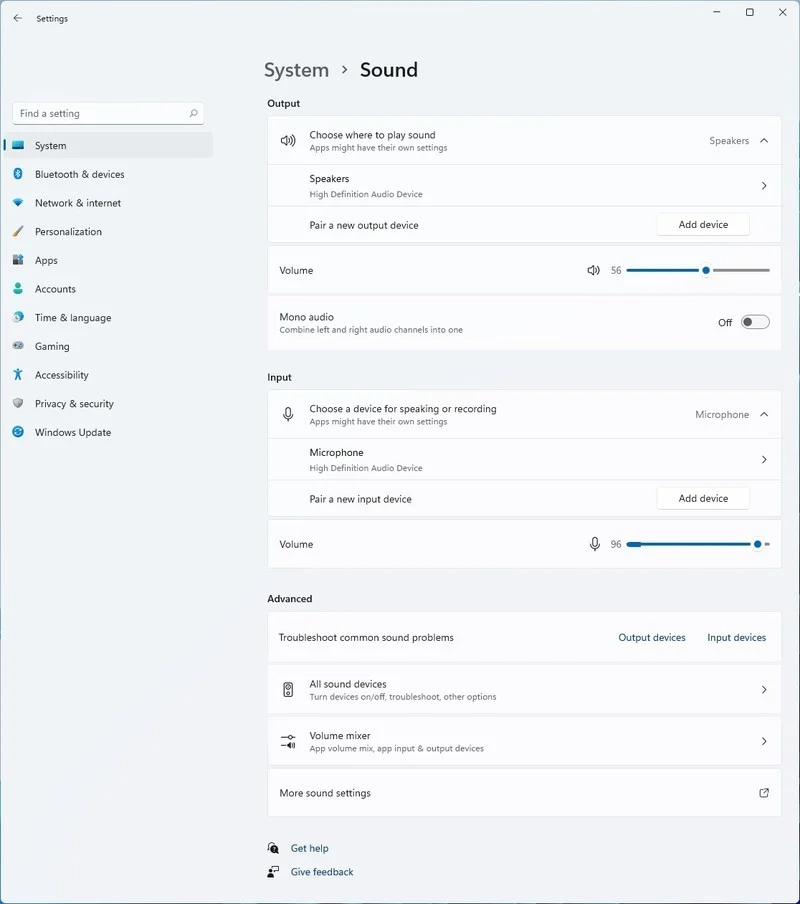
windows 11 audio settingsWindows 11 has brought some new features and changed some of the existing ones. One of these changes includes quick switching of audio devices which will play audio. Audio switching can still be done under the taskbar, it is just a little different and one could say even hidden. Follow this quick guide and you will be switching from your headphones to speakers as an example in a matter of seconds.
  1. Click on the speaker icon located in the far-right part of the taskbar.
  2. After the quick settings menu appears click on the right arrow located right of the volume slider. If the arrow is not present, instead of click on the pencil icon, then on add, and finally select Volume from the list.
  3. After clicking on the arrow icon, a list of all enabled audio devices on the system will replace the volume slider. Click on the desired audio device in order to make it active.
  4. Click anywhere outside the quick setting menu to save changes and close it.
Note: in the Quick settings menu if you choose More Volume Settings it will bring you to System > Sound where you can access more sound input and output options.
Read More
Disable Windows 11 animations for fast work
windows 11 animationsWindows 11 has some cool animations including fading effects which make working in it feels nice and futuristic but the cost of this is that there is a slight delay to certain actions performed. If you want the snap fast feature in Windows 11 and do not care about this eye candy there is an easy way to turn animations off inside it.
  • First, open Windows Settings by pressing ⊞ Windows + I on your keyboard
  • Alternatively, click on Start, search for Settings, and then click its icon.
  • When Settings appears, look in the sidebar and select Accessibility.
  • In Accessibility settings, click on Visual Effects.
  • In Visual Effects, switch Animation Effects to Off.
That’s it, changes will be applied automatically, you can close settings and continue working inside Windows 11 without animations and fades. You can always switch animations back On via settings if you change your mind.
Read More
DiskPart has encountered an error
As you know, Diskpart is a useful utility that helps in managing the disks in a computer. It is a very useful tool that even when the GUI-based disk management tools in Windows 10 operating system fails, the Diskpart utility still tends to work. However, it also does not mean that this utility does not experience issues as it still does, from time to time. One of the issues you may encounter when using the Diskpart utility is when you encounter an error message that says, “DiskPart has encountered an error, Access is denied”. This kind of error in the Diskpart utility could be caused by a number of factors. For one, it could be that the Write-Protection is enabled on the drive where the operating is being performed or it could also be that the Command Prompt terminal does not have administrator-level permissions to carry out the command. Thus, you can try to run the Diskpart utility again but this time with admin privileges or you could also remote the Write-Protection from the concerned drive. For more details, refer to the instructions given below.

Option 1 – Try running Command Prompt with Administrator-level permissions

  • In the Start Search, type “command prompt” and from the search results that appear, look for Command Prompt.
  • Once you found it, right-click on it and select the “Run as administrator” option.
  • After that, try to execute the Diskpart operation once again and see if you still encounter the same error.

Option 2 – Try to remove the Write Protection from the drive

As mentioned, removing the Write-Protection on the concerned drive could also help you fix the problem and there are two ways to get rid of the write protection – you can either use the Diskpart utility or the Registry Editor. How? Refer to the following steps.

Via Diskpart utility:

  • Open Command Prompt with admin privileges and then type the “diskpart” command and tap Enter to execute it.
  • Next, type “list disk” and tap Enter to get the list of all the Disk connects or all the partitions that are formed on those disks.
  • After that, you need to choose one command depending on the list of commands you entered. Type “select disk #” and tap Enter to select the disk or partition you want to select.
  • Then type “attribute disk clear readonly” and tap Enter to Disable the Write Protection on the selected disk or partition.

Via Registry Editor:

  • Tap the Win + R keys to open the Run utility and type “Regedit” in the field and then tap Enter to open the Registry Editor.
  • Next, navigate to the following registry key:
ComputerHKEY_LOCAL_MACHINESYSTEMCurrentControlSetControlStorageDevicePolicies
  • After that, look for the DWORD named “WriteProtect” and double click on it, and then set its Value Data to “0”.
  • Now restart your computer and see if the problem is now fixed or not.
Read More
BringMeSports Removal Malware Removal Tutorial

BringMeSports is a browser extension developed by Mindspark Inc. that lets you watch live sports streams, follow sports scores, and catch up on the latest news from the sports world. BringMeSports installs an extension into your browser that replaces your default home page with the MyWebSearch starting page, it also replaces your default search engine, shows additional ads, and while running, collects personal and web browsing data that is later sent back to be Sold / Forwarded to serve ads. While browsing the internet with this extension installed, you will see additional ads and sponsored links appear in your search results. It may even show pop-up ads. Several anti-virus scanners have marked this extension as a Browser Hijacker and are therefore not recommended to keep on your computer.

About Browser Hijackers

Browser hijacking is a type of unwanted software, commonly a web browser add-on or extension, which causes modifications in web browser’s settings. Browser hijacker malware is created for many different reasons. The idea would be to force users to visit particular websites that are trying to increase their website visitor traffic and produce higher ad income. Although it might appear naive, all browser hijackers are damaging and therefore always regarded as security risks. Browser hijackers can even allow other harmful programs without your knowledge to further damage your personal computer.

Signs of browser hijack

There are various symptoms of browser hijacking. Here are a few of them: 1. you notice unauthorized changes to your Internet browser’s homepage 2. you find re-directed to websites you never meant to visit 3. the default search engine is changed and the web browser security settings have been lowered without your knowledge 4. you’re finding new toolbars you have never seen before 5. you observe numerous ads pop up on the browsers or computer screen 6. your web browser gets slow, buggy crashes frequently 7. you are blocked to access those sites of computer security solution providers.

Precisely how browser hijacker infects computers

Browser hijackers attack computer systems through malicious email attachments, downloaded infected computer files, or by going to infected internet sites. They could also come from add-on programs, also called browser helper objects (BHO), web browser extensions, or toolbars. A browser hijacker could also be installed as a part of freeware, shareware, demoware, and pirated programs. Common examples of browser hijackers include CoolWebSearch, Conduit, Coupon Server, OneWebSearch, RocketTab, Snap.do, Delta Search, and Searchult.com. The existence of any browser hijacker malware on your computer might drastically diminish the web browsing experience, track your online activities that result in troublesome privacy concerns, create system stability problems and eventually cause your computer to slow down or to a practically unusable state.

How you can remove browser hijackers

Some hijackers could be removed by deleting the free software they were included with or by removing any extension you have recently added to your system. Having said that, many hijackers are quite tenacious and need specialized tools to eliminate them. And there’s no denying the very fact that the manual fixes and removal methods can certainly be a complicated job for a novice PC user. Also, there are plenty of risks associated with fiddling around with the system registry files.

What To Do If You Cannot Install Any Anti-Malware?

Every malware is bad and the consequences of the damage could vary based on the specific kind of malware. Certain malware variants alter internet browser settings by including a proxy server or modify the computer’s DNS configurations. In these instances, you will be unable to visit certain or all of the websites, and therefore unable to download or install the required security software to remove the infection. If you are reading this, odds are you’re stuck with a malware infection that is preventing you to download or install Safebytes Anti-Malware software on your system. Although this type of issue will be difficult to circumvent, there are a few actions you can take.

Install in Safe Mode

In Safe Mode, you could change Windows settings, uninstall or install some programs, and remove hard-to-delete malware. If the malicious software is set to load automatically when the computer starts, switching to this particular mode may prevent it from doing so. To enter into Safe Mode or Safe Mode with Networking, press F8 while the PC is starting up or run MSCONFIG and look for the “Safe Boot” options in the “Boot” tab. Once you are in Safe Mode, you can try to install your antivirus software application without the hindrance of the malware. After installation, run the malware scanner to get rid of most standard infections.

Utilize an alternate internet browser to download the anti-malware application

Web-based viruses could be environment-specific, aiming for a particular browser or attacking particular versions of the browser. The most effective way to overcome this issue is to select a web browser that is renowned for its security features. Firefox comprises built-in Malware and Phishing Protection to keep you safe online. Create a portable anti-malware for removing viruses Another option is to create a portable anti-malware program onto your USB stick. To run anti-virus using a USB flash drive, follow these simple steps: 1) Download the anti-malware on a virus-free PC. 2) Insert the USB drive on the same system. 3) Run the setup program by double-clicking the executable file of the downloaded software, which has a .exe file format. 4) Select the drive letter of the pen drive as the place when the wizard asks you exactly where you want to install the anti-malware. Do as instructed on the screen to complete the installation process. 5) Transfer the flash drive from the uninfected PC to the infected PC. 6) Run the Safebytes Anti-malware directly from the flash drive by double-clicking the icon. 7) Click the “Scan” button to run a full system scan and remove malware automatically.

Protect Your PC & Privacy With SafeBytes Anti-Malware

If you are looking to buy anti-malware for your PC, there are lots of brands and packages for you to consider. A few of them do a great job in getting rid of malware threats while some will affect your PC themselves. You need to be careful not to pick the wrong product, especially if you buy a premium program. One of the recommended software is SafeBytes AntiMalware. SafeBytes carries a very good reputation for top-quality service, and clients appear to be very happy with it. Safebytes is among the well-established computer solutions firms, which provide this complete anti-malware application. Using its cutting-edge technology, this application will assist you to eliminate multiples types of malware such as viruses, PUPs, trojans, worms, ransomware, adware, and browser hijackers. SafeBytes has got a variety of features that can help you protect your computer from malware attacks and damage. Let’s check out a few of them below: Robust Anti-malware Protection: With a critically acclaimed malware engine, SafeBytes offers multilayered protection which is intended to catch and get rid of viruses and malware which are hidden deep in your computer system. Active Protection: SafeBytes provides real-time active checking and protection against all known viruses and malware. It’ll continuously monitor your laptop or computer for hacker activity and also provides users with superior firewall protection. “Fast Scan” Abilities: SafeBytes Anti-Malware has a multi-thread scan algorithm that works up to 5 times faster than any other anti-malware software. Internet Security: Safebytes assigns all sites a unique safety score that helps you to have an idea of whether the webpage you are going to visit is safe to view or known to be a phishing site. Lightweight Utility: SafeBytes is a lightweight and user-friendly anti-virus and anti-malware solution. Since it utilizes negligible computer resources, this application leaves the computer’s power exactly where it belongs: with you actually. Premium Support: Support service is available for 24 x 7 x 365 days via email and chats to answer your queries.

Technical Details and Manual Removal (Advanced Users)

If you wish to manually remove BringMeSports without the use of an automated tool, it may be possible to do so by removing the program from the Windows Add/Remove Programs menu, or in cases of browser extensions, going to the browsers AddOn/Extension manager and removing it. You will likely also want to reset your browser. To ensure the complete removal, manually check your hard drive and registry for all of the following and remove or reset the values accordingly. Please note that this is for advanced users only and may be difficult, with incorrect file removal causing additional PC errors. In addition, some malware is capable of replicating or preventing deletion. Doing this in Safe Mode is advised. The following files, folders, and registry entries are created or modified by BringMeSports
Files: C:Program Filesbringmesports_1c chrome extensionbarBringMeSportsCrxSetup.exe C:Program Filesbringmesports_1c chrome extensiont8sql.dll C:Program Filesbringmesports_1c chrome extensionBringMeSportsCrxSetup.exe C:Program Filesbringmesports_1c chrome extensionBringMeSportsCrxSetup.05F72CDF-5595-450B-9BAB-B1F6C606AAEC.exe C:Program Filesbringmesports_1c chrome extensionBringMeSportsCrxSetup.1E4C7E0D-19E7-4C18-ADB3-3D45FC4BE84C.exe C:Program Filesbringmesports_1c chrome extensionBringMeSportsCrxSetup.85D40F0D-233C-463F-8BAB-F6D446902D65.exe C:Program Filesbringmesports_1c chrome extensionBringMeSportsCrxSetup.A94A3339-330B-4B96-B05A-B909E6BB85A1.exe C:Program Filesbringmesports_1c chrome extensionBringMeSportsCrxSetup.EEE1FB37-85E3-49E8-BC44-36CC97CE3B73.exe C:Program Filesbringmesports_1c chrome extensionsqlite3.dll C:Program Files (x86)BringMeSports_1cEI C:Program Files (x86)BringMeSports_1c C:Users%USERNAME%AppDataLocalBringMeSports_1c C:Users%USERNAME%AppDataLocalIAC C:Users%USERNAME%AppDataLocalLowBringMeSports_1cEI C:Users%USERNAME%AppDataLocalLowBringMeSports_1c C:Users%USERNAME%AppDataRoamingMozillaFirefoxProfilesXXX.defaultextensionscffxtbr@BringMeSports_1c.com C:Users%USERNAME%AppDataLocalGoogleChromeUserDataDefaultExtensionsllkjooekcinmdmojmfdjhidbakfpepod Registry: HKEY_CURRENT_USERMicrosoftInternet ExplorerApproved Extensions, value: F653D037-97FA-4755-98C1-7F382EEB59A7 HKEY_CURRENT_USERMicrosoftInternet ExplorerApproved Extensions, value: CC53BD19-7B23-43B0-AB7C-0E06C708CCED HKEY_CURRENT_USERMicrosoftInternet ExplorerApproved Extensions, value: 002D1BA6-4766-4D7D-82B8-F49439C66F97 HKEY_CURRENT_USERMicrosoftInternet ExplorerToolbar, value: cc53bd19-7b23-43b0-ab7c-0e06c708cced HKEY_CURRENT_USERWow6432NodeMicrosoftInternet ExplorerToolbar, value: cc53bd19-7b23-43b0-ab7c-0e06c708cced HKEY_CURRENT_USERMicrosoftWindowsCurrentVersionExtPreApprovedbc61ca7a-6b81-47ec-b62d-ae1a236cadb9 HKEY_CURRENT_USERMicrosoftWindowsCurrentVersionExtPreApproved82c7004a-078e-468c-9c0f-2243618ff7cb HKEY_CURRENT_USERMicrosoftWindowsCurrentVersionExtPreApproved6285c254-4465-4f8b-a009-5f42ab02c291 HKEY_CURRENT_USERMicrosoftWindowsCurrentVersionExtPreApprovedA8CC25D-66FF-41DF-B3B4-416079EF8F87 HKEY_CURRENT_USERMicrosoftWindowsCurrentVersionexplorerBrowser Helper Objectsf653d037-97fa-4755-98c1-7f382eeb59a7 HKEY_CURRENT_USERMicrosoftWindowsCurrentVersionexplorerBrowser Helper Objects02d1ba6-4766-4d7d-82b8-f49439c66f97 HKEY_CURRENT_USERWow6432NodeMicrosoftWindowsCurrentVersionExtPreApprovedf0c8ccc2-baaa-4236-ad0a-22b5a401b9ef HKEY_CURRENT_USERWow6432NodeMicrosoftWindowsCurrentVersionExtPreApprovedA8CC25D-66FF-41DF-B3B4-416079EF8F87 HKEY_CURRENT_USERWow6432NodeMicrosoftWindowsCurrentVersionexplorerBrowser Helper Objectsf653d037-97fa-4755-98c1-7f382eeb59a7 HKEY_CURRENT_USERWow6432NodeMicrosoftWindowsCurrentVersionexplorerBrowser Helper Objects02d1ba6-4766-4d7d-82b8-f49439c66f97 HKEY_CURRENT_USERMicrosoftInternet ExplorerLow RightsElevationPolicyfa460720-7b38-421d-981c-66f0ae288fb9 HKEY_CURRENT_USERMicrosoftInternet ExplorerLow RightsElevationPolicya2b4da91-a53c-4a84-b486-40080de13a9b HKEY_CURRENT_USERMicrosoftInternet ExplorerLow RightsElevationPolicy89b7ae32-9c52-41d6-a64d-14d7bdec9c58 HKEY_CURRENT_USERMicrosoftInternet ExplorerLow RightsElevationPolicy32a63172-5bcc-4d7e-9fe8-072eee6c287e HKEY_CURRENT_USERWow6432NodeMicrosoftInternet ExplorerLow RightsElevationPolicya2b4da91-a53c-4a84-b486-40080de13a9b HKEY_CURRENT_USERWow6432NodeMicrosoftInternet ExplorerLow RightsElevationPolicy89b7ae32-9c52-41d6-a64d-14d7bdec9c58 HKEY_CURRENT_USERWow6432NodeMicrosoftInternet ExplorerLow RightsElevationPolicy32a63172-5bcc-4d7e-9fe8-072eee6c287e HKEY_CURRENT_USERWow6432NodeMicrosoftInternet ExplorerLow RightsElevationPolicy1856a7bd-de8c-488b-aa7a-5682d13166fc HKEY_CURRENT_USERWow6432NodeMicrosoftInternet ExplorerLow RightsElevationPolicy164ea1fc-b0a0-4202-8c65-e4ba4d54a3ae HKEY_CURRENT_USERMicrosoftWindowsCurrentVersionExtStatsF653D037-97FA-4755-98C1-7F382EEB59A7 HKEY_CURRENT_USERMicrosoftWindowsCurrentVersionExtStatsCC53BD19-7B23-43B0-AB7C-0E06C708CCED HKEY_CURRENT_USERMicrosoftWindowsCurrentVersionExtSettingsCC53BD19-7B23-43B0-AB7C-0E06C708CCED HKEY_CURRENT_USERMicrosoftWindowsCurrentVersionExtSettings02D1BA6-4766-4D7D-82B8-F49439C66F97 HKEY_CURRENT_USERWow6432NodeMicrosoftInternet ExplorerSearchScopes8c9ef753-beb6-4582-b653-93ac59274437 HKEY_CURRENT_USERMicrosoftInternet ExplorerSearchScopes8c9ef753-beb6-4582-b653-93ac59274437 HKEY_CURRENT_USERMicrosoftInternet ExplorerDOMStoragebringmesports.com HKEY_CURRENT_USERMicrosoftInternet ExplorerDOMStoragebringmesports.dl.tb.ask.com HKEY_CURRENT_USERBringMeSports HKEY_CURRENT_USERMicrosoftInternet ExplorerDOMStoragebringmesports.dl.myway.com HKEY_LOCAL_MACHINEHKEY_CURRENT_USER[APPLICATION]MicrosoftWindowsCurrentVersionUninstall..Uninstaller BringMeSports_1cbar Uninstall Internet Explorer BringMeSports_1cbar Uninstall Firefox BringMeSportsTooltab Uninstall Internet Explorer

Read More
Fix cannot load the Device Driver Code 38
Each you connect time external devices like scanners, printers, and the likes to a Windows 10 computer, the device either pushes the drivers through the USB or any other port, or you are expected to install the drivers through external media. In both cases, the driver will be loaded into the system, allowing you to use the device. However, it doesn’t always go smoothly as you could encounter some errors like the “Windows cannot load the Device Driver for this hardware because a previous instance of the Device Driver is still in memory ( Code 38 )”. If you encounter such an error in the Device Manager, then this means that a previous version of the device driver is still in memory and that each time the device is used, that previous version is loaded into memory and then unloaded which triggers the “Windows cannot load the Device Driver for this hardware because a previous instance of the Device Driver is still in memory (Code 38)” error. This kind of error occurs if the operating system loads the unwanted driver or if it fails to unload the driver. It could be that there is an obsolete version of the driver that’s still installed in the system or it could also be that you need to update your USB drivers as they could be outdated or the problem could also be due to some third party program that is interfering with the installation. Whatever the cause is, here are some suggestions you can check out to resolve the problem.

Option 1 – Uninstall previously installed drivers and reinstall their latest working version from the manufacturer’s website

The first thing you can do is to uninstall the drivers that are currently installed on your computer and then reinstall their latest working versions from their official sites. This kind of error is commonly encountered while loading drivers for scanners and printers. This is due to the fact that their drivers and software come along with a package which is usually in external media like CD or DVD. So when you install the software package, there’s a possibility that a newer version has been launched by its manufacturer. When that happens, you have to uninstall the previously installed driver package and then download the drivers from the manufacturer’s website and install them.

Option 2 – Run the Hardware and Devices Troubleshooter

  • The first thing you need to do is click on Start and then on the gear-like icon to pull up the window for Settings.
  • After opening Settings, look for the Update and Security option and select it.
  • From there, go to the Troubleshoot option located on the left-hand side of the list.
  • Next, select Hardware and Devices from the list and open the Troubleshooter and run it. Once it is doing its job, wait for it to complete the process and then restart the system.
  • After the system restarts, check if the problem’s now fixed. If not, refer to the next option given below.

Option 3 – Update or reinstall the Universal Serial Bus Controller driver

Since it could be a driver issue, you can try to update or reinstall the Universal Serial Bus Controller drivers using the Device Manager. Refer to the following steps:
  • First, click the Start button and type “device manager”.
  • Then click on the “Device Manager” from the search results to open it.
  • From there, look for the “Universal Serial Bus controllers” option and then right-click on each one of the USB drivers and select the Update Driver from the menu.
Note: If it is a regular USB drive, then it will be listed as a USB Mass Storage Device but if you have a USB 3.0 device, then look for a USB 3.0 Extensible Host Controller.
  • Restart your PC and then click the “Search automatically for updated driver software” option.
Note: If updating the USB Controller drivers didn’t work, you can try to reinstall them instead.

Option 4 – Restart your computer in a Clean Boot State

If the first three given options didn’t work and you still see the error when you connect external devices, you can try putting your computer in a Clean Boot State and then try connecting them again.
  • Log onto your PC as an administrator.
  • Type in MSConfig in the Start Search to open the System Configuration utility.
  • From there, go to the General tab and click “Selective startup”.
  • Clear the “Load Startup items” check box and make sure that the “Load System Services” and “Use Original boot configuration” options are checked.
  • Next, click the Services tab and select the “Hide All Microsoft Services” check box.
  • Click Disable all.
  • Click on Apply/OK and restart your PC. (This will put your PC into a Clean Boot State. And configure Windows to use the usual startup, just simply undo the changes.)
  • Now try to connect the external devices and check if the error is now gone.
Read More
1 2 3 171
Logo
Copyright © 2023, ErrorTools. All Rights Reserved
Trademark: Microsoft Windows logos are registered trademarks of Microsoft. Disclaimer: ErrorTools.com is not affiliated with Microsoft, nor claims direct affiliation.
The information on this page is provided for information purposes only.
DMCA.com Protection Status