Logo

DDR5 what we know so far about it

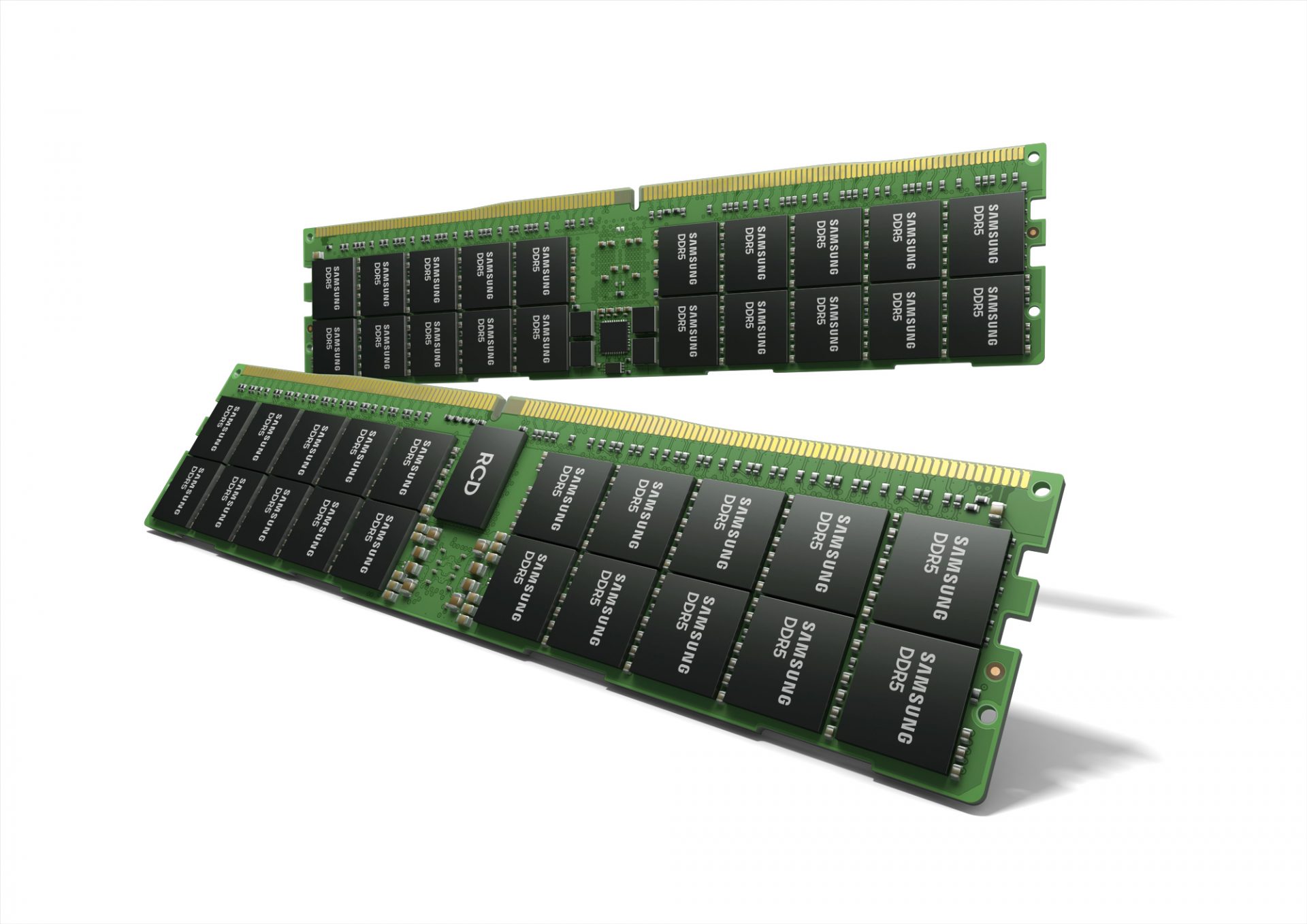
DDR5 memory moduleNext-generation of RAM, DDR5 supposed to hit shelves around late summer or fall in 2021if everything goes as planned.

Its goal is to increase speed and efficiency, wants to pack more memory in a single stick, and have better power management.

Hardware requirements for DDR5

Using the latest memory technology will require other hardware to follow certain standards and the first ones that will need to follow are CPUs and Motherboards.

Intel is already prepared with its Alder Lake CPUs that suppose to come out also later this year. AMD on other hand has not stated anything at the time of this writing but it is a bet that their next generation that will come in 2022 will have full support.

It is speculated that bot companies and their respective CPUs will have both support for DDR4 and DDR5.

A story about motherboards is a little different. Motherboards will support DDR4 or DDR5 memory banks, not both, so make sure that your motherboard will support the memory you plan on getting.

Capacity of memory

The goal and aim for the DDR5 memory stick are to reach a whopping 126GB per stack. This will be done by using a dual in-line module or DIMM enabling larger capacity.

That being said, the first modules that we will see are more likely to be 16GB as standard and 8GB as low entry ones.

Power consumption of DDR5 memory

The standard voltage that DDR4 operates under is 1.2V. DDR5 wants to lower this to 1.1V without sacrificing speed.

Voltage regulation on modules themselves will be now integrated on memory banks instead of leaving that to motherboards which will help to detect memory errors directly on the memory bank.

Speed of memory

The most common speed of DD4 memory banks is 2,666MHz, more expansive ones go from 3,600 to 4,000MHz.

DD5 aims to raise this bar to 4,800MHz and offers greater speed.

Should you get it right away?

Hardware is ever-evolving, we have PCIe 3.0 to PCIe 4.0, and taking into account that sometimes the newest tech can cause some unexpected behavior it is always the best strategy to wait for a little.

Price for the newest tech has also been in its heist just when it is released and seeing how DDR5 will benefit mostly servers mostly since even today memory, processors, and other available equipment can tackle all daily tasks.

Do You Need Help with Your Device?

Our Team of Experts May Help
Troubleshoot.Tech Experts are There for You!
Replace damaged files
Restore performance
Free disk space
Remove Malware
Protects WEB browser
Remove Viruses
Stop PC freezing
GET HELP
Troubleshoot.Tech experts work with all versions of Microsoft Windows including Windows 11, with Android, Mac, and more.

Share this article:

You might also like

Win Update enables itself after turning it off
Windows Updates are important and though it is not recommended for any user to turn it off completely, there are just some remote cases where you might have to keep it off. Such are the cases when you want to use your Windows 10 computer just for gaming and you don’t want Windows Update to interrupt it because of some messy driver update. A lot of users have in fact want to disable Windows 10 updates completely. Although you can always use the built-in option to delay Windows Updates or make Windows 10 inform you before downloading the updates, however, there are instances when Windows 10 Update may enable itself even after you turn it off or delay it. To resolve this issue, read on. You may have to disable the Windows Update Medic Service if Windows Update just keeps on starting and turning itself back on even after turning it off in Windows 10 on top of turning off the Automatic Windows Update Service or wuauserv and setting a Guest Log on. To get started, refer to the instructions prepared below.

Option 1 – Change the Log on account of the Windows Update Service

It appears that one of the major upgrades in Windows 10 has made sure that Windows 10 enables back the Windows Update Service all on its own even if the service has been set to disable by the administrator. And that’s the important thing here, Windows 10 uses admin credentials in order to ensure that it can re-enable the Windows Update Service each time it is in a disabled state. So in this fix, you can prevent the Windows Update Service from changing the account credentials used to run it.
  • Tap the Win + R keys to open the Run prompt with admin privileges.
  • Then type “services.msc” and click OK or hit Enter to open Services.
  • After that, locate the Windows Update Service from the list. Once you see it, double-click on it to open its Properties.
  • From there, click the Stop button to stop the service.
  • Next, go to the Log On tab and select the “Log on as ‘Guest” option which is the Guest account.
  • Just leave the password blank and then click Apply to save the changes made.
Note: After you made the changes, every time the Windows 10 Update Service attempts to run, you might get an error message that states, “Windows could not start the Service” or “The account specified for this service is different from the account specified for other services running in the same process”. This is what makes this fix a lot better compared to other software or batch file to keep turning off the Windows Update Service. You did not exactly disable the service but you just changed the account used to run the Windows Update service and since there is a password, the service never really works. On the other hand, Windows Defender can’t be stopped using this trick as it will keep getting an update.

Option 2 – Try to disable the Windows Update Medic Service using the Windows Update Blocker

Aside from changing the Log on account of the Windows Update Service, there is also another way you can prevent the service from enabling itself after you disable it. This alternative you can use is the Windows Update Blocker. This is a new Windows Service that was introduced in the recent Windows 10 versions. You can use this service to disable the service.
Read More
Computer gets stuck on Preparing to configure
If you suddenly find your Windows 10 computer stuck on the “Preparing to configure” screen for quite a long time now after you run Windows Update, read on as you will be guided on how you can fix that issue in this post. During an update process, there’s a lot of things that go on in the background which is why Windows Updates take quite a while before it finishes. It can be at 25%, 50%, or even 100% but the only message you’re going to see on your screen is the “Preparing to configure Windows, Don’t turn off your computer”. However, if you notice that the Windows Update is taking a longer time than it’s supposed to, the first option is to wait some more but if it’s still the same, then there’s definitely something wrong. This kind of issue occurs when Windows Update fails to configure in short correctly download and install the update. When this happens, it will revert all the changes which are why you were advised to wait for a couple of hours. There are two possibilities why your computer is stuck on the “Preparing to configure Windows, Don’t turn off your computer” screen. The first one is that the Windows 10 operating system is installing any updates. The second one is when the user profile takes time to load or encounters an error. There are several options you can try to fix the problem. You can try running System Restore or boot your computer in Safe Mode or repair the corrupted profile via Registry Editor. You might also want to try using installation media to boot and repair your computer if the other options didn’t work.

Option 1 – Perform System Restore

  • Tap the Win + R keys to open the Run dialog box.
  • After that, type in “sysdm.cpl” in the field and tap Enter.
  • Next, go to the System Protection tab then click the System Restore button. This will open a new window where you have to select your preferred System Restore point.
  • After that, follow the on-screen instructions to finish the process and then restart your computer and check if the problem is fixed or not.
Note: If you can’t boot into the desktop of your computer, you can run System Restore in the Advanced Startup Options by following these steps:
  • Boot your computer into the Advanced Startup Options screen.
  • From there, you will see some options to troubleshoot when you can’t log in to Windows in the usual way.
  • Now select Troubleshoot > Advanced Options > Command Prompt.
  • After that, type “rstrui” and hit Enter to execute the command which will start the System Restore process.
  • Once it’s done, restart your computer.

Option 2 – Boot your computer in Safe Mode

You can try to tap the F8 key if you have it enabled in your Windows 10 computer, as you start your system to boot into Safe Mode. Once your computer is in Safe Mode, you can access the Start Menu and the Mouse and Keyboard. Aside from that, you can also access your files and other built-in tools in Windows such as Command Prompt, PowerShell, Computer Manager, Device Manager, Event Log Viewer, and many more. On the other hand, if you haven’t enabled the F8 key, you can just go to the Advanced Startup options to boot your computer into Safe Mode. Once you’re there, select Troubleshoot > Advanced Options > Startup Settings > Restart > Tap the number 4 key. After that, your computer will restart in Safe Mode. If you want to reboot into Safe Mode with Networking instead, you can tap the number 5 key and for Safe Mode with Command Prompt, tap the number 6 key. Once your computer is in Safe Mode, you can use any of the built-in tools to restore your computer or troubleshoot the problem that’s causing your computer to get stuck at the “Preparing to configure” screen.

Option 3 – Try to repair your corrupted profile via Registry

In this third option, you can try to repair the corrupted profile using the Registry but before you proceed, take note that you can only try this if you can boot into your desktop and if you can, make sure to create a System Restore Point and then follow the steps below.
  • Tap the Win + R keys to open the Run dialog box.
  • Then type “Regedit” in the field and hit Enter or click OK to open the Registry Editor.
  • Next, go to this registry key: ComputerHKEY_LOCAL_MACHINESOFTWAREMicrosoftWindows NTCurrentVersionProfileList
  • Once you’ve opened the registry key, you should see a list of all the user profiles on your computer. Now click on each S-1-5 folder and look for the “ProfileImagePath” entry and double click on it to check which user account it is related to. You will see a path like “CUsersACK” where “ACK” is the username.
  • You should know which of the user account is corrupted. Just look for a key named “RefCount” and change its Value data to “0” and click OK. And if it isn’t available, simply right-click on the right pane and create it.
  • After that, double click on the key named “State” and make sure that the Value data is “0” and click OK.
  • Exit the Registry Editor and restart your computer to apply the changes made.

Option 4 – Try to use installation media to boot and repair your computer

Another thing you can try to resolve the issue is to use the Windows installation bootable media so you can boot and repair the operating system. To use it, follow these steps:
  • You need to first create an installation media which has the dame version of the operating system installed in your computer.
  • After that, once you reach the Install Windows screen, click on the “Repair your computer” link.
  • Wait until the repair is completed and then shut down your computer
  • Now once your computer has restarted, check if it can now boot properly.
Read More
Fix Windows was unable to repair the drive
If you connected your Hard Disk, USB, or SD card to your Windows 10 computer and you suddenly encounter an error that says, “Windows was unable to repair the drive”, read on as this post will help you fix the problem. This kind of error indicates that the file system on the drive has become corrupted and that ChkDsk was not able to repair the problem. You can also encounter this error when you try to run the ChkDsk utility to repair the system. This kind of error is most likely due to the general corruption of the contents in the drive. It is also possible that you removed the external drive without using the “Safely remove hardware” option or it could be that the drive is still in use. To fix the problem, the obvious thing to do is to safely remove the external drive by using the “Safely remove hardware” option. If it didn’t work, you can try to run the CHKDSK utility from the command line or you could also restart your computer in a Clean Boot State and then run the scan. Before you proceed with the potential fixes provided below, make sure that you create a system restore point first or you could also create a backup copy of the data to an external drive.

Option 1 – Run the CHKDSK utility from the command line

Although some users reported getting the “Windows was unable to repair the drive” when they run a CHKDSK scan, other users reported that running it also fixed the error. Thus, you can try to run it and see if it works or not.
  • In the Windows Search box, type “command prompt” and from the search results, right-click on Command Prompt and select “Run as administrator”.
  • After opening Command Prompt, type this command and tap Enter: chkdsk <Partition Letter>: /f
  • The command you entered will start to check for errors and fix them automatically. Else, it will throw an error message saying, “Chkdsk cannot run because the volume is in use by another process. Would you like the schedule this volume to be checked the next time the system restarts? (Y/N)”.
  • Tap the Y key to schedule Disk Check the next time your computer restarts.

Option 2 – Restart your computer in a Clean Boot State

There are some instances that some conflicting programs installed in your computer might be the one that triggers the “Windows was unable to repair the drive” error to appear when you connect your external drive or run the CHKDSK utility. To identify which program is causing the problem, you need to put your computer in a Clean Boot State. To do so, follow the steps below.
  • Log onto your PC as an administrator.
  • Type in MSConfig in the Start Search to open the System Configuration utility.
  • From there, go to the General tab and click “Selective startup”.
  • Clear the “Load Startup items” check box and make sure that the “Load System Services” and “Use Original boot configuration” options are checked.
  • Next, click the Services tab and select the “Hide All Microsoft Services” check box.
  • Click Disable all.
  • Click on Apply/OK and restart your PC. (This will put your PC into a Clean Boot State. And configure Windows to use the usual startup, just simply undo the changes.)
  • Once your computer has restarted in a Clean Boot State, perform your scan again and see if it now works, and then start to isolate the problem by checking which one of the programs you installed recently is the root cause of the problem.
Read More
How to Stop online tracking in Browsers
It is no longer a secret that websites, social media, and other various places on WEB are tracking you and your messages and emails for keywords that they will later use to promote and serve your specific ads linked to those keywords. Altho the process is fully automated it does feel a little forced and uneasy. That is why we are bringing you this article in which we will show you how to stop website tracking in the most popular and used browsers.

SAFARI

Apple’s Safari browser gives you the option to block cross-site tracking. It also has a Privacy Report that displays all the sites and agencies that are gathering information about you. Before blocking these trackers, you may want to review exactly which sites are tracking you online and gathering information about you. Armed with this information, you may decide that cross-site tracking isn’t a huge issue for your particular browsing habits, or you may decide to avoid certain websites entirely. To access Safari’s Privacy Report:
  1. Launch the Safari web browser.
  2. In the toolbar, select Safari > Privacy Report.
  3. Select the Websites tab. This will display information about all the websites that are profiling you.
  4. Select the Trackers tab. This displays a list of all the trackers that are gathering information about you. This includes the companies that created these trackers and the number of times Safari detected these trackers during your browsing sessions.
You can also check how intrusive a particular website is by navigating to the website in question and then selecting the shield icon that appears alongside Safari’s address bar. You can then select Trackers on This Web Page, and Safari will display a list of all the trackers that are active on this particular webpage. Once you’ve seen all the websites and agencies who are tracking you, if you want to block these trackers:
  1. In the Safari toolbar, select Safari > Preferences …
  2. Select the Privacy tab.
  3. Select the following checkbox: Prevent Cross-Site Tracking.
Safari will now prevent these trackers from following you across the World Wide Web.

CHROME

As you’re browsing the web, Chrome can send a request for websites not to collect or track your browsing data. It’s important to note that this is a request, so there’s no guarantee that every website will honor the request. Frustratingly, Chrome doesn’t provide information about the websites that are tracking you online. However, we still recommend enabling this feature, as it can help minimize the number of websites that are tracking your online movements:
  1. In Chrome’s upper-right corner, select the three-dot menu icon, then Settings.
  2. In the menu on the left, select Privacy and security.
  3. Click Cookies and other site data.
  4. Find the Do not track slider and push it into the On position.
Now Chrome will send a Do Not Track request to every website you visit. Since this is only a request, you may want to take additional steps to protect your online privacy. Ghostery is a Chrome extension that enables you to view and block online trackers. After installing Ghostery, you can view all the trackers that are active on a particular website:
  1. Head to the site in question.
  2. Click the Extensions icon in the Chrome toolbar.
  3. Select Ghostery to see a list of all the trackers this extension has detected.
  4. You can block all of these trackers by selecting the Detailed tab and then clicking Restrict site.
Repeat this process for every site you visit.

MOZILLA FIREFOX

Firefox has an Enhanced Tracking Protection feature that can block all the cross-site trackers identified by Disconnect. This feature can also preserve your online privacy by blocking social media trackers, fingerprints, and crypto miners, making this a great all-arounder for the security-conscious Internet user. Enhanced Tracking Protection should be enabled by default. However, you can verify whether it’s active for your particular Firefox installation by navigating to any website. Next, click the little shield icon that appears alongside Firefox’s address bar and you should see a message confirming that Enhanced Tracking Protection is enabled.
If Enhanced Tracking Protection isn’t enabled, we recommend activating it:
  1. In Firefox’s upper-right corner, select the three-line icon, then Preferences.
  2. In the menu on the left, select Privacy & Security.
  3. You can now select either Standard or Strict. Note that Strict may affect the functionality of certain websites, so it’s recommended you opt for Standard unless you specifically require a greater level of protection.
Similar to Chrome, Firefox can send a Do Not Track request. While you’re in the Privacy & Security menu, you may want to consider activating Mozilla’s Do Not Track feature.

OPERA

When you first installed Opera, it gave you the option to block trackers. If you didn’t take Opera up on the offer then, you can start blocking trackers now:
  1. Along the left side of the Opera browser, click the cog icon. This opens Opera’s settings.
  2. In the menu on the left, select Basic.
  3. Find the Block Trackers slider and push it into the On position.
  4. Blocking trackers can impact the functionality of certain websites. If you start noticing strange behavior on a particular website, you may want to add that site to your Exceptions list. By allowing this site to use trackers, you should be able to resolve any issues you’re experiencing.
To make an exception for one or more websites:
  1. Launch Opera’s settings by clicking the little cog icon.
  2. Navigate to Basic > Manage Exceptions.
  3. Click Add and then type the address of the site where you want to permit trackers.
Repeat for all the sites that you want to add to your exceptions list.

Read More
A Quick Guide to Fixing Error 451

Error 451 - What is it?

This is a typical SMTP error code. SMTP is the abbreviation for Simple Mail Transfer Protocol. It is an internet standard for email transmission. In other words, SMTP is a text-based protocol in which the sender communicates with the mail receiver by issuing commands and receiving a response code. The SMTP error 451 is displayed in the following format:
‘451 Requested action aborted: local error in processing’
This error message indicates that the program cannot send more messages and the server has hit the limit. This is because some mail servers have limits. The sever stops the task of sending and receiving emails when this limit is achieved.

Solution

Restoro box imageError Causes

The causes of error 451 include:
  • Server limit reached
  • Email rejection due to a remote anti-spam filter
  • Request denied by the server
  • Viral infection
If you heavily rely on email communication with your business partners and colleagues, then it is advisable to immediately resolve this issue without any delays. Though this error is not fatal, you should repair it right away to avoid inconvenience. SMTP error code 451 can hamper your ability to communicate via email.

Further Information and Manual Repair

Here are some of the best, easy, and effective DIY methods that you can try to repair error code 451 on your PC.

Method 1

To fix this error, simply follow these steps:
  • login to Linux SSH
  • Open the file /etc/localdomains
  • Nano/etc/localdomains and then add the domain name that is triggering email sending error
  • Now reboot your PC
This will hopefully resolve the issue. Nonetheless, if the error code still persists, then try other methods given below.

Method 2 - Configure List Settings to change the server limit.

This can be done by accessing the List Settings then Outgoing Mail Server (SMTP) and then the Limit Feature. By accessing the limit feature, you can easily adjust the program to any limit of your choice. Configure the limit and save changes. Reboot PC to activate the changes made.

Method 3 - Scan and Remove Viruses.

This error code can also be triggered due to viral infection. If this is the cause, then simply download an anti-virus on your PC. Scan the entire system and remove all detected malicious programs like Trojans, malware, adware, viruses, and spyware. This will repair the error 451 on your system.

Method 4

If the error still persists, then contact your SMTP provider to check the situation and resolve it. There is a possibility the error is generated from the SMTP provider’s end.
Read More
How to Fix Windows 10 Error Code 0x80072F8F

Error Code 0x80072F8F - What is it?

Error Code 0x80072F8F manifests in one main way. It is known to appear as early as Windows 7, and mainly deals with an error that occurs in the update process, or when the computer is trying to connect to the online activation service. It can appear when the activation fails to verify the product key. The error code will present itself when the system realizes that the PC's date and time are incorrect. Error Code 0x80072F8F will also appear if the computer has determined that the time zone settings on the computer are not accurate.

When Windows is going through the installation process and is verifying all of the information associated with the computer, Error Code 0x80072F8F will arise, indicating that the information in the computer's settings is not valid. Correct times and dates are necessary when using serial validation keys to install Windows. When these settings are outside of the tolerated window, the problem will arise.

Error Causes

There is only one main symptom to look out for, and it will manifest during a Windows installation. In the midst of the installation, the computer will not be able to proceed with the installation if Error Code 0x80072F8F has popped up. Because the information cannot be verified, Windows will not be able to continue the installation process when the time settings are not accurate. This interrupts the process, causing the need to edit the settings, restart the computer, and try again. It is imperative to be sure that the date and time on the computer are inside of the tolerated window for the serial key.

  • This error code will not give any information on how to correct it.
  • Windows Error 0x80072F8F is displayed on the screen.
  • The error code appears when typing the Windows serial key and proceeding.

Further Information and Manual Repair

When experiencing Error Code 0x80072F8F, the date and time need to be corrected in the computer settings menu, and then verify the correct time zone settings.  There are a few different ways to edit the time and date settings, and one may need to even edit the time zone settings. After this, restarting the computer may be needed. When booting into Windows, the validation code should be activated within 30 days of obtaining the serial number.

  • Method One

Check the time and date settings.

  1. Open the Start menu.
  2. Select Settings, then Time and Language, then Date and Time.
  3. Check and make sure that the PC is operating at the correct time and date.
  • Method Two

Ensure that the computer is connected to the internet.

  1. Enter “network troubleshooter” into the search box located on the taskbar.
  2. Select “Identify and Repair Network Problems”.
  3. Follow the instructions that are given on-screen. This will fix any problems that the network is experiencing.
  • Method Three

Review the timezone.

  1. Open the Start menu.
  2. Select Settings, then Time and Language, then Date and Time.
  3. Check to make sure that the correct timezone is selected from the drop-down menu.
  • Method Four

Reboot the PC and check if that fixes the problem. This may help in the event that the network troubleshooter does not detect a problem.

After completing these steps to edit the time, date, and time zone settings, it may be necessary to restart the computer. This is to ensure that the computer will save and recognize the new settings. After restarting, continue the process as intended and enter the product key. The computer will now be able to verify the product key since the time and date will be recognizable. The Windows installation should proceed as normal and complete successfully when the time, date, and time zone are inside of the parameters for the Windows product key.

In short, if it is not, the computer will not be able to recognize the product key, thus will not be able to install the Windows product. Generally, the fix is quite simple and does not take much time at all, but it is very important.

Read More
Samsung had Data Breach

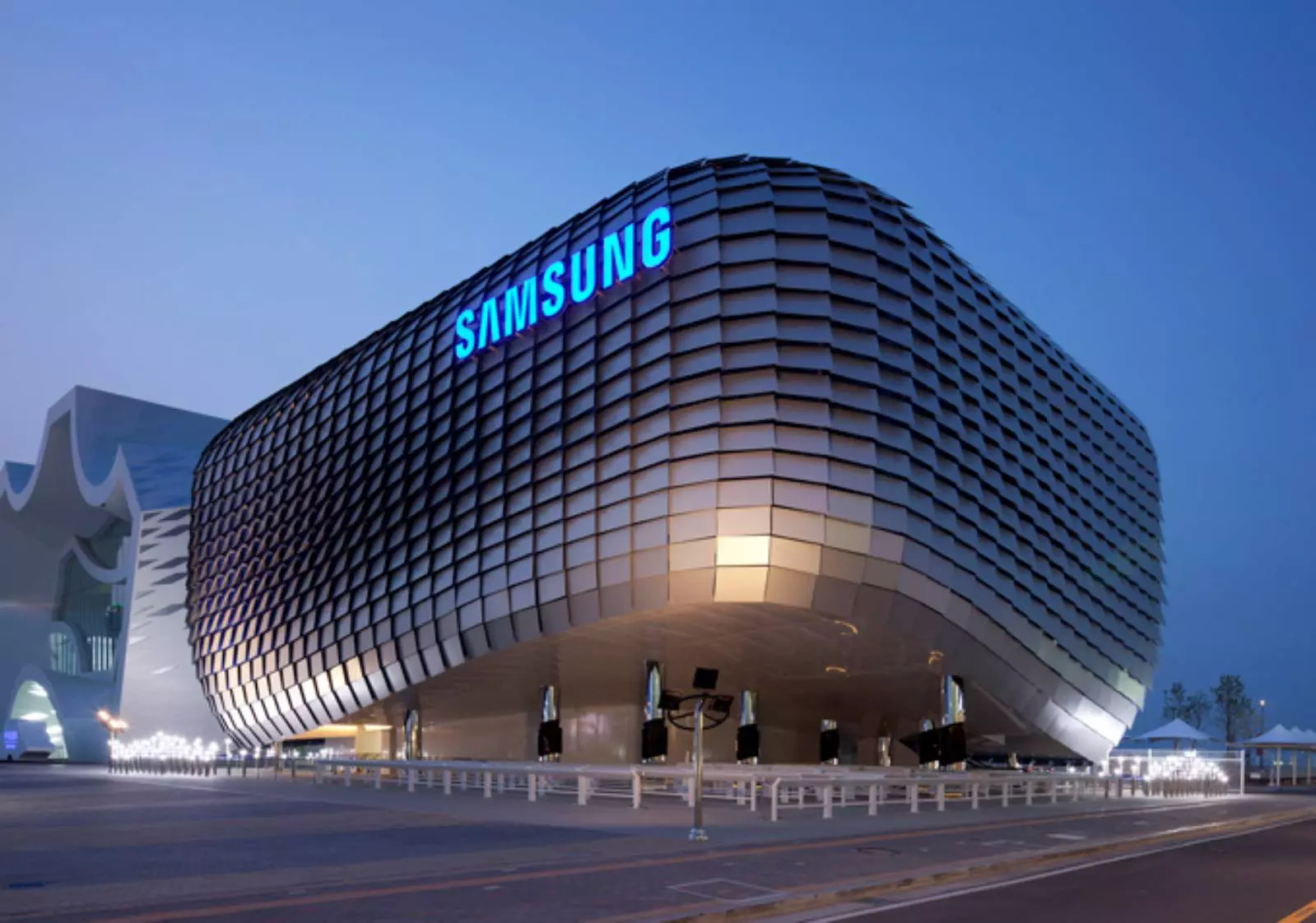
After Plex, DoorDash, and LastPass, Samsung has also confirmed that they also have experienced a data breach and that some customer data has been stolen.

samsung HQ

On Friday, September 2nd Samsung announced that an unauthorized third party gained access to some of the company's U.S. systems in late July and that Samsung learned in August that some personal information was affected. It was also stated that affected information is: names, contact information, demographics, dates of birth, and product registration information. Also so far it was said that no Social Security numbers nor credit card number information have been compromised.

For now, Samsung is sending an email directly to anyone that has been affected by this data breach, however, they did not state what service or product has experienced this breach, we just know that it has happened at Samsung Electronics America which sells everything, from smartphones to debit cards. Also keep an eye on your inbox if you are a Samsung user since it took them a whole month in order to go public with this information and there is no justification for this, if it was reported on time people could change their information and take other steps.

Read More
0x8019019a when setting up Yahoo Mail
The error code 0X8019019A is shown when a user fails to add his Yahoo account to the Mail app due to the outdated or corrupt installation of the Mail app. Not using an App-specific but a normal Yahoo account password may also result in the error at hand. In this guide, we will show you how to effectively fix this error so you can set up Yahoo mail.
  1. Reboot PC

    Perform a restart of your system to rule out a temporary glitch in the system. Also, check if you can successfully access your email through a web browser using the same credentials as you are using with the Mail app. Additionally, make sure that no VPN or proxy server is being used to access the internet (VPN/proxy may work fine with the web version of Yahoo mail but may hinder the access through a mail client).
  2. Update Windows and the Mail App to the Latest Build

    If your system is not updated to the latest build it can create incompatibility between the OS modules. Updating the Windows and Mail app of your system to the latest build may solve the problem.
  3. Re-add the Yahoo Account to the Mail App

    The Yahoo account issue could be a result of a temporary glitch in the communication modules of the system. The glitch may get cleared if you remove and then re-add the Yahoo account to the Mail app.
  4. Reset the Mail App to the Defaults

    You may fail to add the Yahoo account to the Mail app if the installation of Mail itself is corrupt. In this scenario, resetting the Mail app to the defaults may solve the problem.
  5. Generate an App Password and Use it to Add the Yahoo Account to the Mail App

    Yahoo has implemented tons of security features to its accounts. One such feature is the use of app-specific passwords for less secure apps like the Mail app. If your Yahoo username or password is not working with the Mail app, then using the App-specific password may solve the problem.
Read More
How to Fix Error 2200

What is Error 2200?

Error 2200 is an error code that you are likely to experience if you have Dell Photo All in One Printer 926. Dell Photo Printer 926 is an inkjet multifunction device. It offers features like print, copy, scan, and fax.

Error 2200 may stop you from scanning and printing documents on your Dell Photo All in One Printer 926.

Solution

Restoro box imageError Causes

Error 2200 may occur due to several reasons. However, the most common causes include:

  • Registry issues
  • Broken or missing system files
  • Corrupted driver
  • Malware

Further Information and Manual Repair

To resolve error 2200 on your system try the methods listed below. These DIY methods are easy and effective and can repair this error in no time. These solutions require zero technical expertise and knowledge.

This means if you are not technically sound or you are not a computer programmer, you can try these solutions and repair error 2200 on your system easily.

Method 1

When the underlying cause of error 2200 is related to a corrupted driver then follow these steps to resolve the issue. Go to the Start menu, click Control Panel, Performance and Maintenance tab, System and Device Manager.

Navigate the device, click properties, driver, and then uninstall. Now reboot your PC to activate changes.  Now download the latest version of the Dell Photo All in One Printer 926 drivers from a reliable website and save install it on your PC.

Method 2

Malware can also damage and corrupt drivers and system files. If the reason for error 2200 on your PC is malware then download a powerful antivirus and scan your entire PC. Remove all malware and viruses infecting your system to resolve the error.

Method 3

The Windows registry is that part of the computer that stores much of the information and settings for software programs, operating system configurations, and hardware devices.

It also saves unnecessary and obsolete files like junk files, cookies, internet history, bad registry entries, and invalid files. If these files are not removed from the registry frequently, they accumulate in the registry and corrupt it thereby triggering different error codes.

These files damage the registry and other important system files.

To repair the registry and error codes triggered due to registry issues, it is suggested you download Restoro. This is a cutting-edge and user-friendly PC Fixer deployed with a powerful and intuitive registry cleaner.

The registry cleaner scans your entire PC, removes all the bad entries and obsolete files. It cleans the registry, repairs the damaged and corrupt system files thereby resolving registry issues instantly.

Click here to download Restoro and repair error 2200.

Method 4: Locate and Install the Driver As was pointed out, you might need to reinstall the printer driver again. Using DriverFIX, you’ll be able to automatically update your computer system and install the drivers your computer needs to operate smoothly.
Read More
How to Fix INTERNAL_POWER_ERROR in Windows
This post will guide you through fixing the INTERNAL_POWER_ERROR Blue Screen Error on your Windows 10 computer. If you encounter this kind of Blue Screen of Death error, this means that the policy manager experienced a fatal error which in turn means that it can happen because of Drivers or Software or even due to external hardware. And so to resolve the issue, here are some suggestions that might be of help.

Option 1 – Update the Device drivers

As mentioned, the INTERNAL_POWER_ERROR BSOD error might have something to do with the drivers. It could be that the drivers are outdated so you need to update them in order to resolve the issue.
  • Tap the Win + R keys to launch Run.
  • Type in devmgmt.msc into the box and tap Enter or click OK to open the Device Manager.
  • After that, a list of device drivers will be displayed. If you see a red or yellow sign that shows up against the driver, right-click on the driver’s name and select “Update Driver Software” or “Uninstall”. And if you find any drivers with a label saying, “Unknown device”, you need to update them as well.
  • Select the “Search automatically for updated driver software” option and then follow the instructions to complete the process.
  • Restart your PC.

Option 2 – Check the Device performance and health

You can also try checking the device's performance and health in the Windows Defender Security Center.
  • Open the Windows Defender Security Center.
  • From there, check if there is a yellow exclamation icon in the Device performance and health section.
  • After that, click on the View report option and you might see Health Report that points towards Storage Capacity, Device Drivers, or Apps and Software which should give you an idea of what the root cause of the problem really is.

Option 3 – Try to run the Chkdsk utility

Running the CHKDSK utility might also help you resolve the INTERNAL_POWER_ERROR Blue Screen error. If your hard drive has issues with integrity, the update will really fail as the system will think that it’s not healthy and that’s where the CHKDSK utility comes in. The CHKDSK utility repairs hard drive errors that might be causing the problem.
  • Open Command Prompt with admin privileges.
  • After opening Command Prompt, execute the following command and hit Enter:
chkdsk /f /r
  • Wait for the process to be completed and then restart your computer.

Option 4 – Try increasing the size of the Hibernation file

  • In the Cortana search box, type “command prompt” in the field, and from the search results that appear, right-click on Command Prompt and select “Run as administrator”.
  • Next, type in the following command and hit Enter to execute it:
powercfg /hibernate /size 100
  • Note that the default size of the Hibernation file is 75% and after executing the command, it should increase to 100%. Now exit Command Prompt and check if the problem’s now fixed or not.

Option 5 – Try to run the troubleshooters

Blue Screen Troubleshooter:

  • Tap the Win + I keys to open the Settings panel.
  • Then go to Update & Security > Troubleshoot.
  • From there, look for the option called “Blue Screen” on your right-hand side and then click the “Run the troubleshooter” button to run the Blue Screen Troubleshooter and then follow the next on-screen options. Note that you might have to boot your PC into Safe Mode.

Performance Troubleshooter:

  • Tap the Win + R keys to open the Run dialog box.
  • Type “msdt.exe /id PerformanceDiagnostic” in the field and hit Enter to open the Performance troubleshooter.
  • Then click on Next to get started. Wait until the process is completed.

System Maintenance Troubleshooter:

  • Tap the Win + R keys to open the Run dialog box.
  • Type “msdt.exe /id MaintenanceDiagnostic” in the field and hit Enter to open the System Maintenance Troubleshooter.
  • After that, click on Next to start troubleshooting the problem and wait until it’s done then check if it fixes the problem or not.

Option 6 – Uninstall the programs you installed recently

Chances are, some programs that you just installed might be the one that’s causing the BSOD error. Thus, you need to uninstall the program to resolve the problem.
  • In the search box, type in “control” and then click on Control Panel (desktop app) among the search results.
  • After that, select Programs and Features from the list which will give you a list of all the programs installed on your computer.
  • From there, look for the concerned program and select it and then uninstall it.
Note: If you have downloaded the app from the Windows Store, you can simply right-click on it from the application list and then uninstall it.

Option 7 – Run Windows Defender offline

You also have the option to run Windows Defender offline and scan your computer to see if any malware has infected the computer and the one that’s causing the INTERNAL_POWER_ERROR Blue Screen Error.
Read More
1 2 3 171
Logo
Copyright © 2023, ErrorTools. All Rights Reserved
Trademark: Microsoft Windows logos are registered trademarks of Microsoft. Disclaimer: ErrorTools.com is not affiliated with Microsoft, nor claims direct affiliation.
The information on this page is provided for information purposes only.
DMCA.com Protection Status